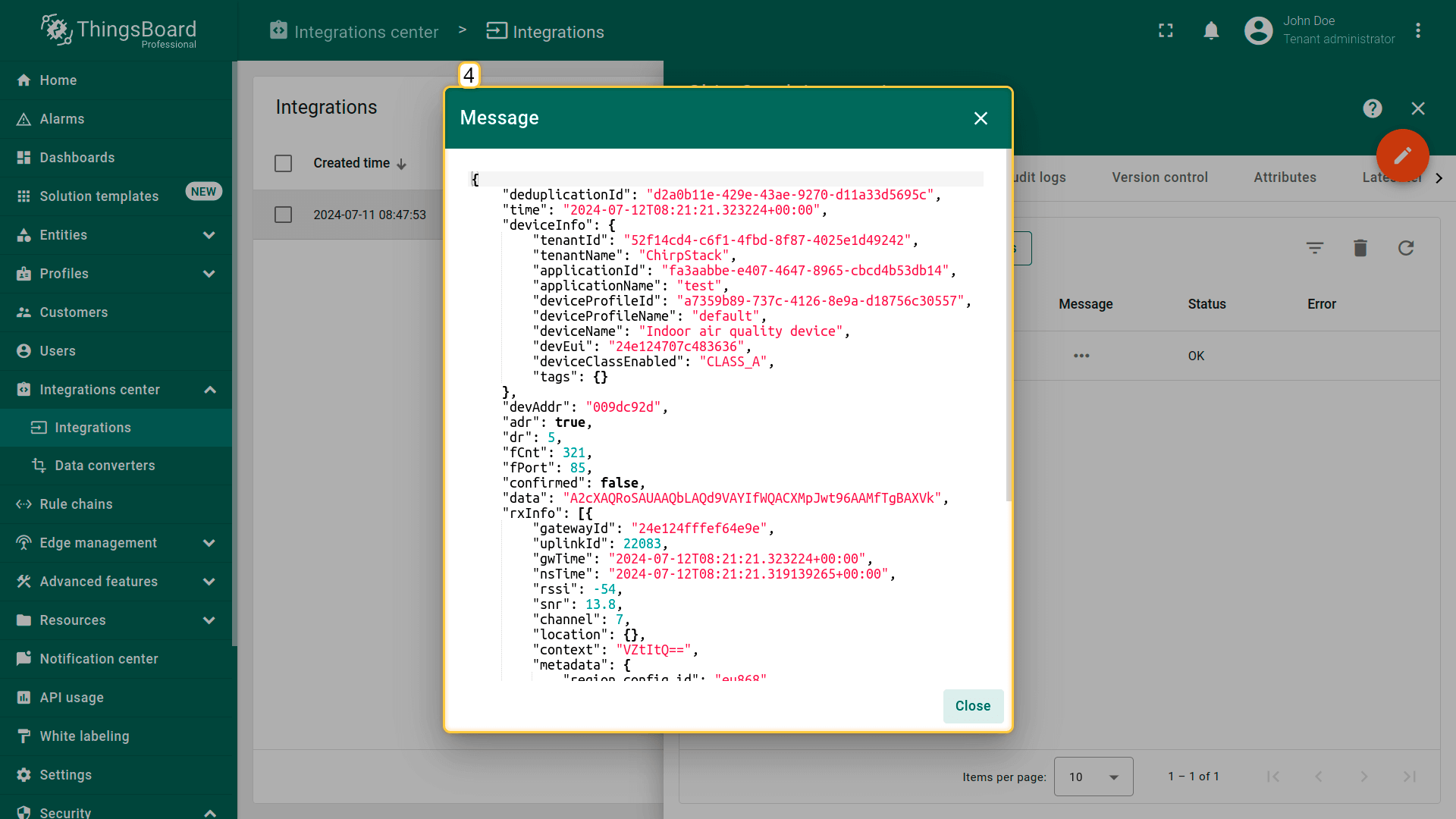
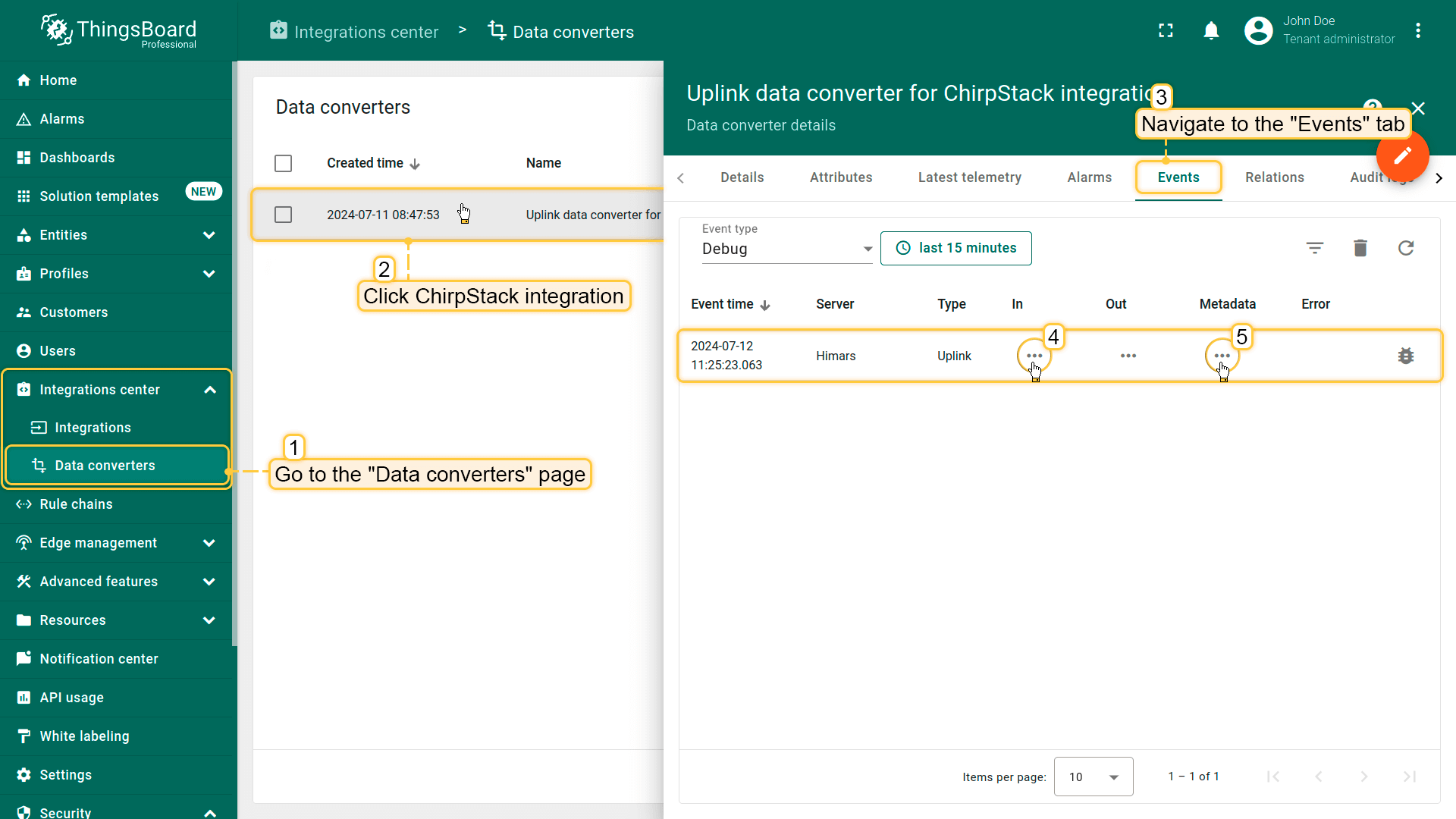
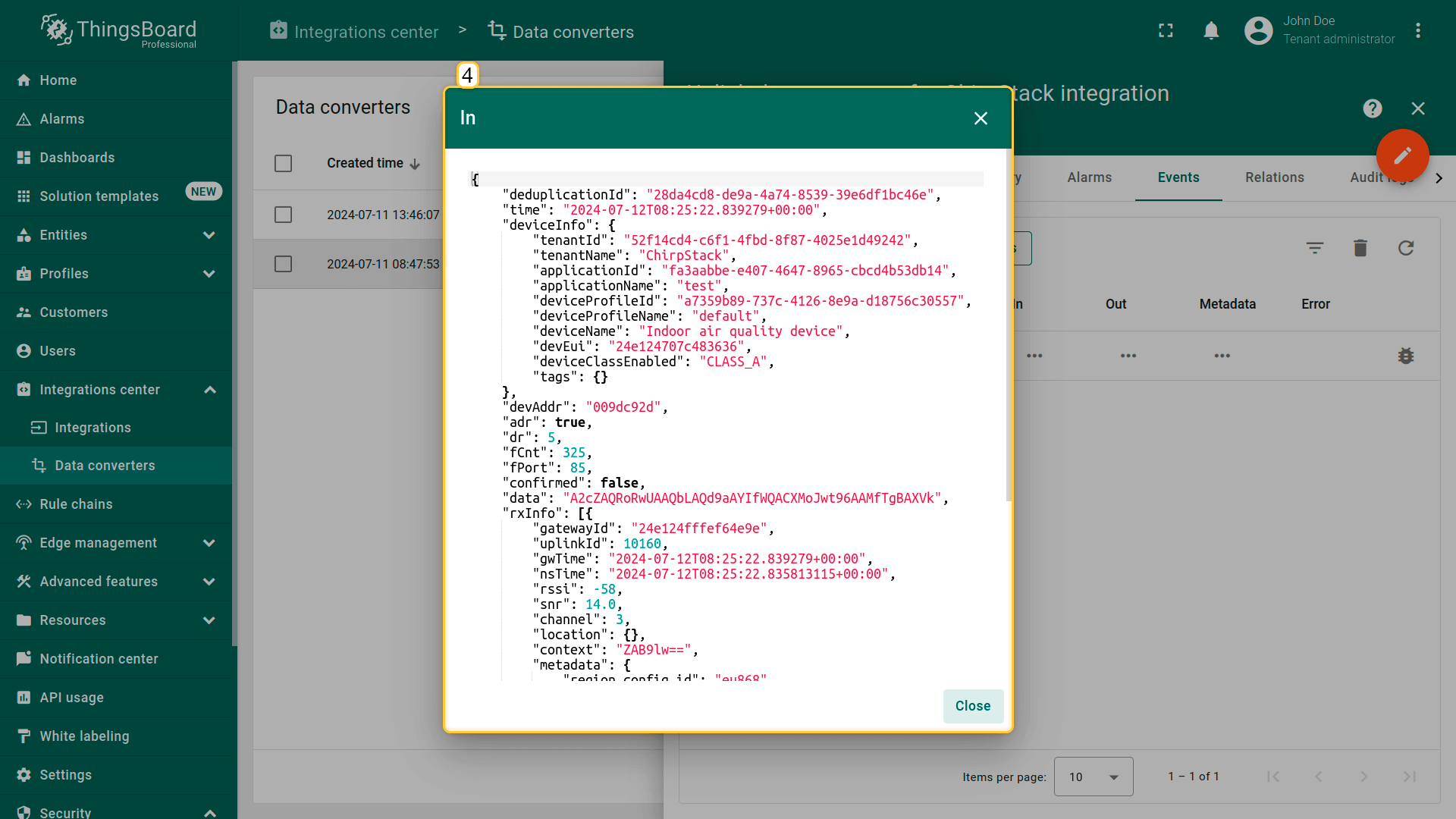
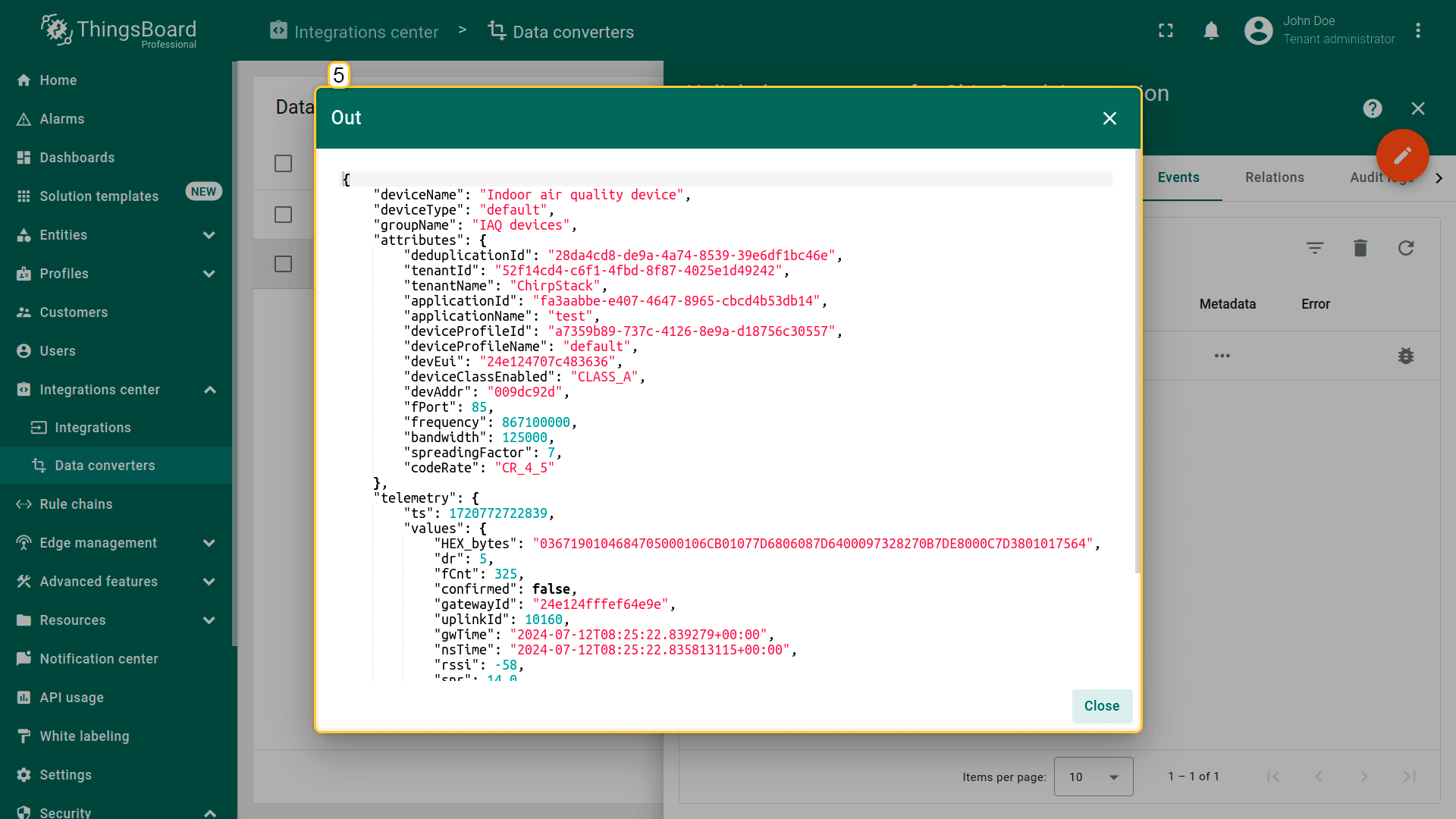
vardata=decodeToJson(payload);vardeviceName=data.deviceInfo.deviceName;vardeviceType=data.deviceInfo.deviceProfileName;vargroupName='IAQ devices';// var customerName = 'Customer A';// use assetName and assetType instead of deviceName and deviceType// to automatically create assets instead of devices.// var assetName = 'Asset A';// var assetType = 'building';// If you want to parse incoming data somehow, you can add your code to this function.// input: bytes// expected output:// {// "attributes": {"attributeKey": "attributeValue"},// "telemetry": {"telemetryKey": "telemetryValue"}// }//// In the example - bytes will be saved as HEX string and also parsed as light level, battery level and PIR sensor value.//functiondecodePayload(input){varoutput={attributes:{},telemetry:{}};// --- Decoding code --- //output.telemetry.HEX_bytes=bytesToHex(input);// If the length of the input byte array is odd - we cannot parse it using the example belowif(input.length>0){for(vari=0;i<input.length;){varchannel_id=input[i++];if(i<input.length){varchannel_type=input[i++];// BATTERYif(channel_id===0x01&&channel_type===0x75){output.telemetry.battery=input[i];i+=1;}// PIRelseif(channel_id===0x03&&channel_type===0x00){output.telemetry.pir=input[i]===0?"normal":"trigger";i+=1;}// DAYLIGHTelseif(channel_id===0x04&&channel_type===0x00){output.telemetry.daylight=input[i]===0?"dark":"light";i+=1;}}}}// --- Decoding code --- //returnoutput;}// --- attributes and telemetry objects ---vartelemetry={};varattributes={};// --- attributes and telemetry objects ---// --- Timestamp parsingvardateString=data.time;vartimestamp=-1;if(dateString!=null){timestamp=newDate(dateString).getTime();if(timestamp==-1){varsecondsSeparatorIndex=dateString.lastIndexOf('.')+1;varmillisecondsEndIndex=dateString.lastIndexOf('+');if(millisecondsEndIndex==-1){millisecondsEndIndex=dateString.lastIndexOf('Z');}if(millisecondsEndIndex==-1){millisecondsEndIndex=dateString.lastIndexOf('-');}if(millisecondsEndIndex==-1){if(dateString.length>=secondsSeparatorIndex+3){dateString=dateString.substring(0,secondsSeparatorIndex+3);}}else{dateString=dateString.substring(0,secondsSeparatorIndex+3)+dateString.substring(millisecondsEndIndex,dateString.length);}timestamp=newDate(dateString).getTime();}}// If we cannot parse timestamp - we will use the current timestampif(timestamp==-1){timestamp=Date.now();}// --- Timestamp parsing// You can add some keys manually to attributes or telemetryattributes.deduplicationId=data.deduplicationId;// You can exclude some keys from the resultvarexcludeFromAttributesList=["deviceName","rxInfo","confirmed","data","deduplicationId","time","adr","dr","fCnt"];varexcludeFromTelemetryList=["data","deviceInfo","txInfo","devAddr","adr","time","fPort","region_common_name","region_config_id","deduplicationId"];// Message parsing// To avoid paths in the decoded objects we passing false value to function as "pathInKey" argument.// Warning: pathInKey can cause already found fields to be overwritten with the last value found.vartelemetryData=toFlatMap(data,excludeFromTelemetryList,false);varattributesData=toFlatMap(data,excludeFromAttributesList,false);varuplinkDataList=[];// Passing incoming bytes to decodePayload function, to get custom decodingvarcustomDecoding=decodePayload(base64ToBytes(data.data));// Collecting data to resultif(customDecoding.?telemetry.size()>0){telemetry.putAll(customDecoding.telemetry);}if(customDecoding.?attributes.size()>0){attributes.putAll(customDecoding.attributes);}telemetry.putAll(telemetryData);attributes.putAll(attributesData);varresult={deviceName:deviceName,deviceType:deviceType,// assetName: assetName,// assetType: assetType,// customerName: customerName,groupName:groupName,attributes:attributes,telemetry:{ts:timestamp,values:telemetry}};returnresult;
// Decode an uplink message from a buffer// payload - array of bytes// metadata - key/value object/** Decoder **/// decode payload to stringvarpayloadStr=decodeToString(payload);// decode payload to JSON// var data = decodeToJson(payload);vardeviceName='Device A';vardeviceType='thermostat';varcustomerName='Customer C';vargroupName='thermostat devices';varmanufacturer='Example corporation';// use assetName and assetType instead of deviceName and deviceType// to automatically create assets instead of devices.// var assetName = 'Asset A';// var assetType = 'building';// Result object with device/asset attributes/telemetry datavarresult={// Use deviceName and deviceType or assetName and assetType, but not both.deviceName:deviceName,deviceType:deviceType,// assetName: assetName,// assetType: assetType,// customerName: customerName,groupName:groupName,attributes:{model:'Model A',serialNumber:'SN111',integrationName:metadata['integrationName'],manufacturer:manufacturer},telemetry:{temperature:42,humidity:80,rawData:payloadStr}};/** Helper functions **/functiondecodeToString(payload){returnString.fromCharCode.apply(String,payload);}functiondecodeToJson(payload){// covert payload to string.varstr=decodeToString(payload);// parse string to JSONvardata=JSON.parse(str);returndata;}returnresult;
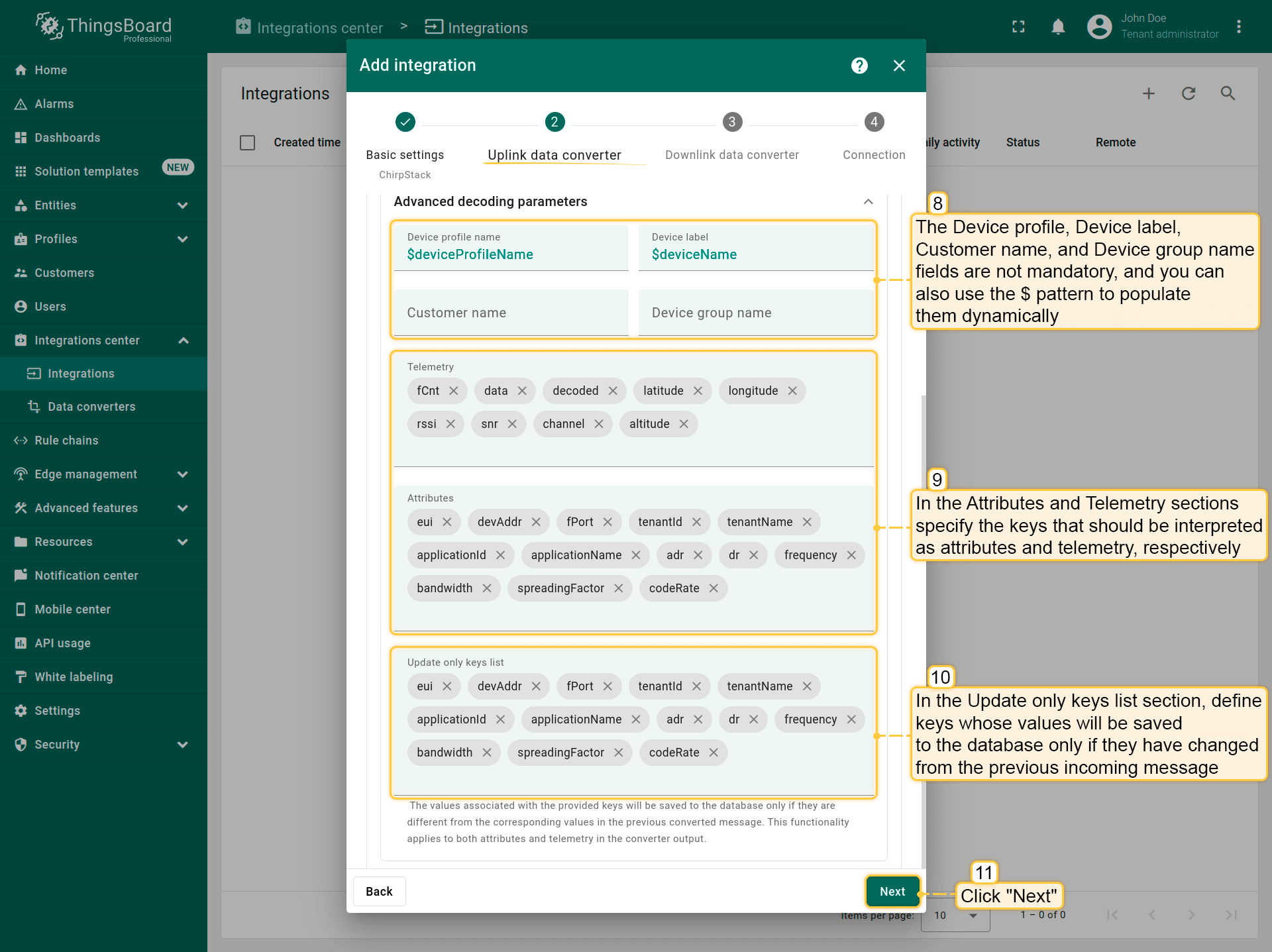
“Advanced decoding parameters“部分:
Device profile、Device label、Customer name和Device group name字段不是必填项,您也可以使用$模式动态填充它们。
在Attributes和Telemetry部分,分别指定应解释为属性和遥测的键。
在Update only keys list部分,定义仅在值与上一条传入消息相比发生变化时才保存到数据库的键。这适用于属性和遥测,有助于优化数据存储。
上行转换器设置完成后,点击”Next“。
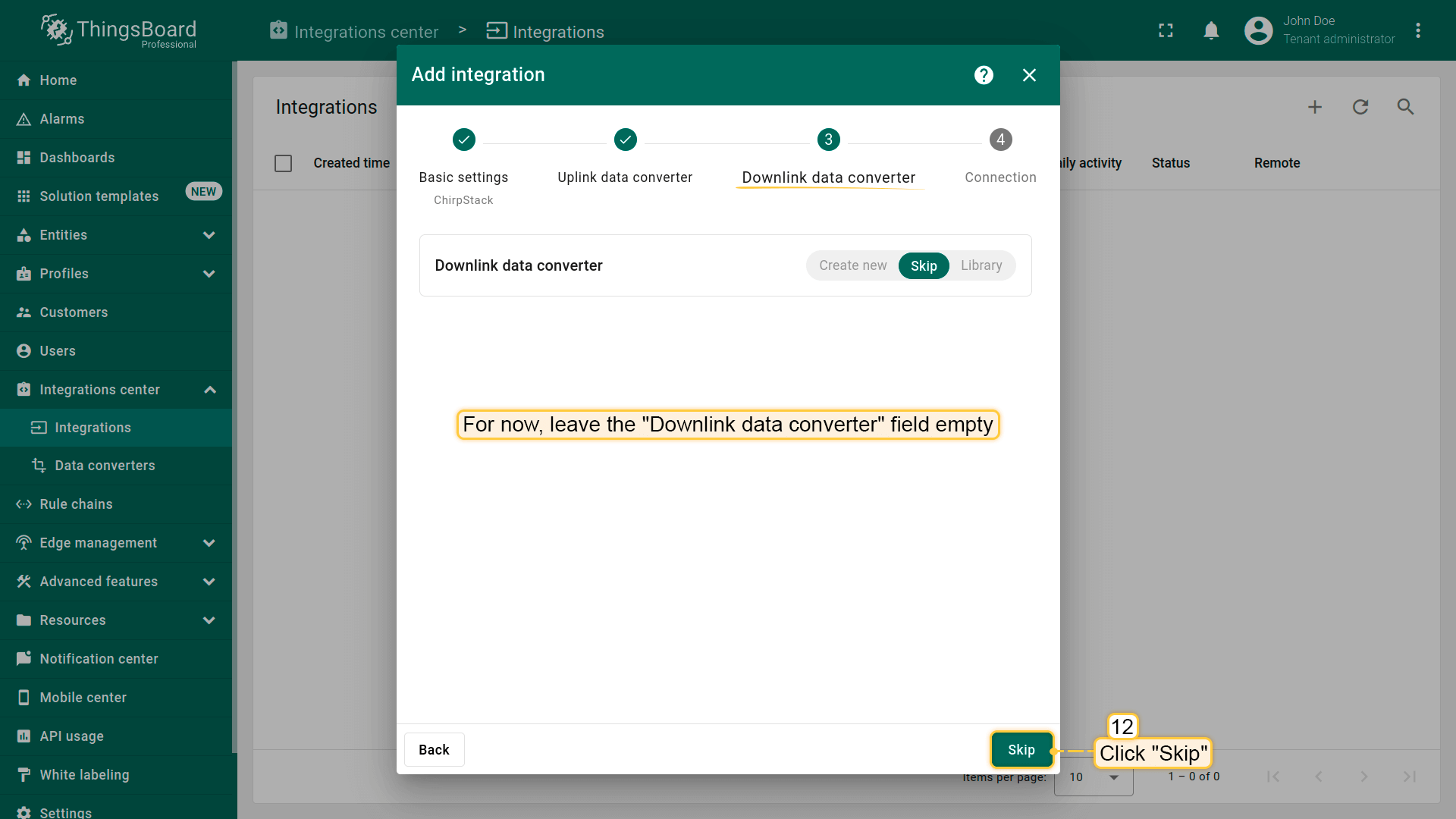
3. 下行数据转换器。
在添加下行转换器的步骤中,您也可以选择之前创建的转换器或创建新的下行转换器。但目前先将”Downlink data converter”字段留空,点击”Skip“;
4. 连接。
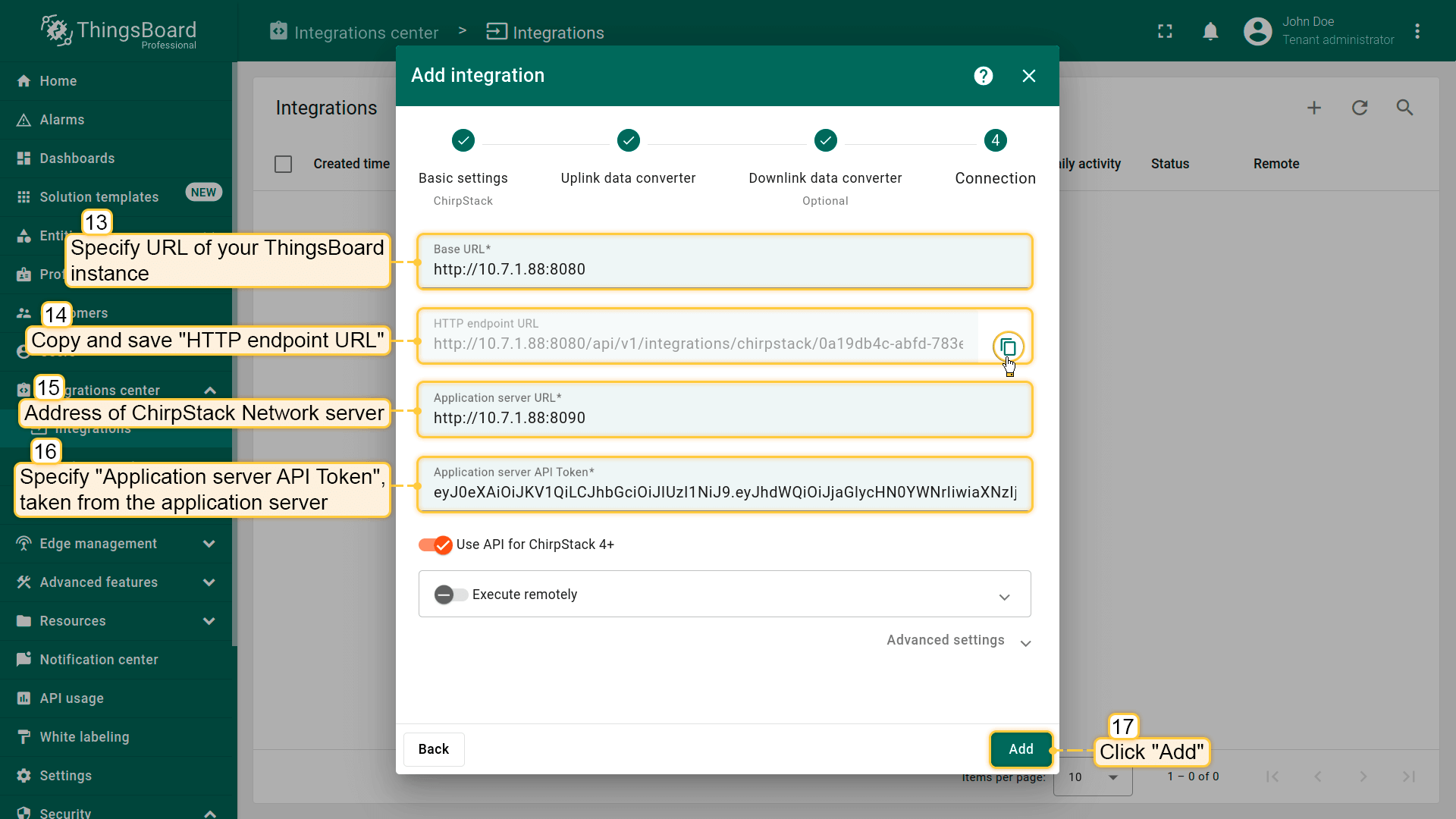
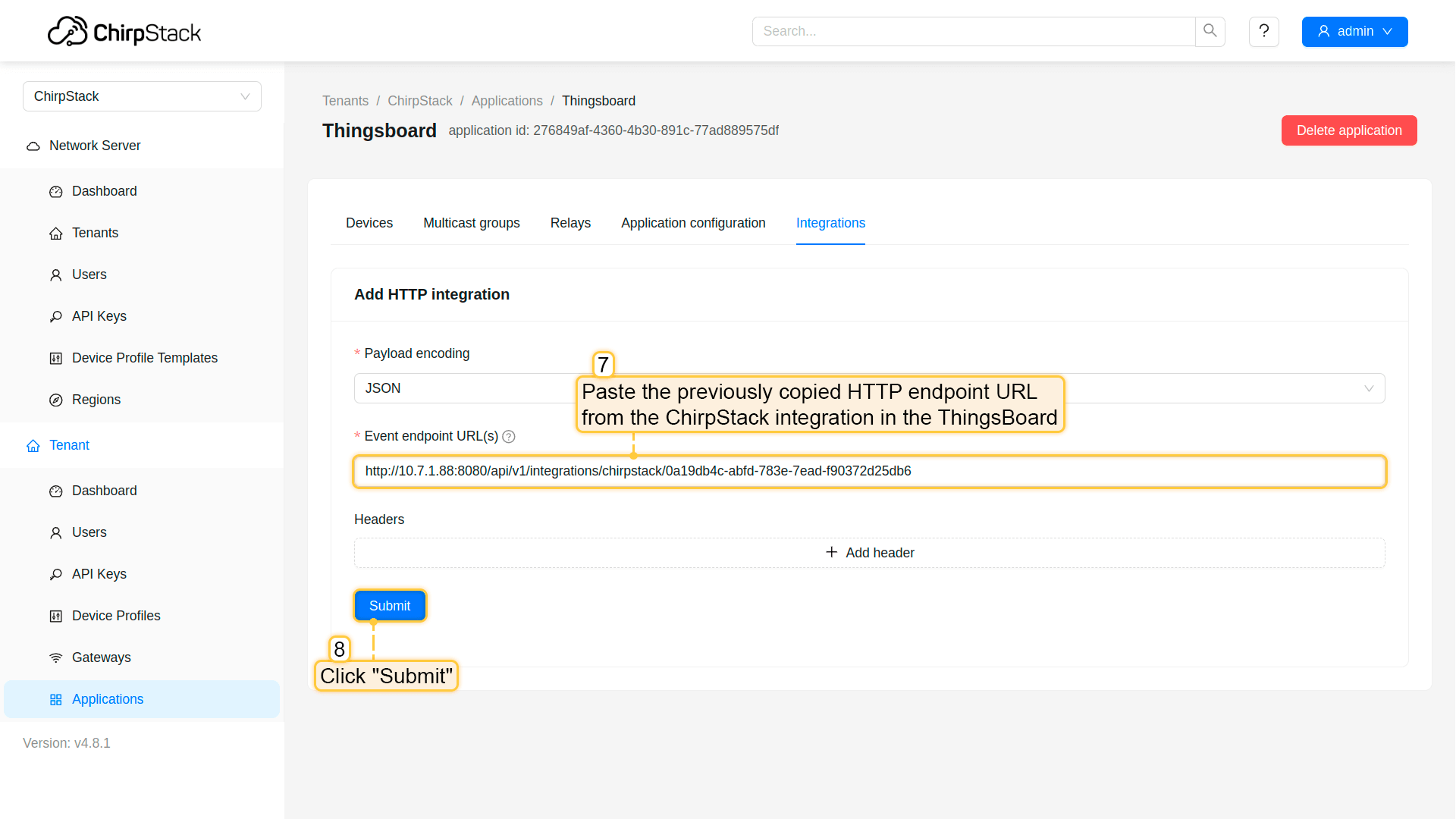
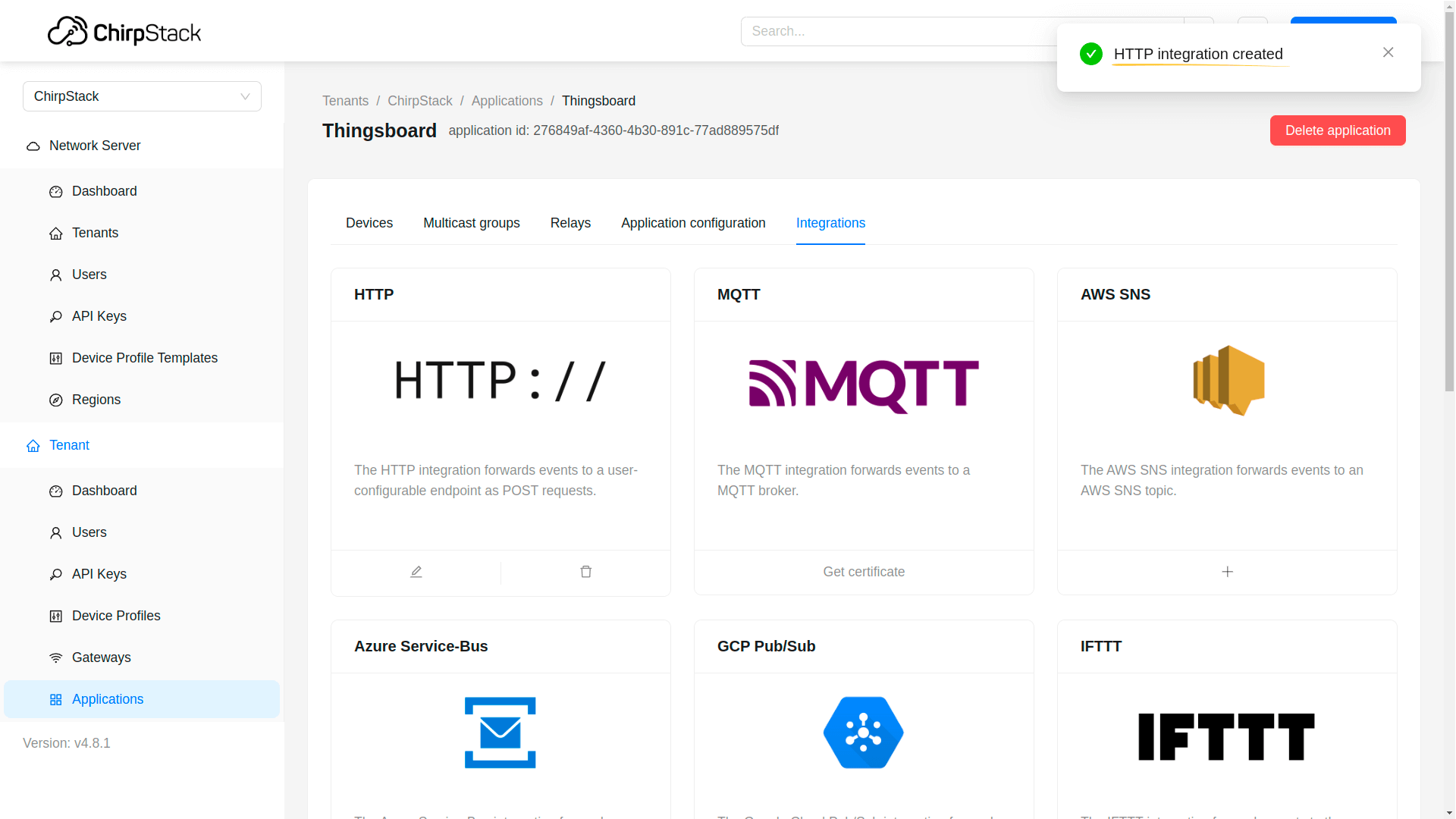
要完成集成的添加,您需要:
指定您的”Base URL”;
记下”HTTP endpoint URL”,我们稍后会用到此值;
指定”Application server URL”——应用服务器或REST API服务的地址。通常在标准安装中,只需将端口更改为8090;
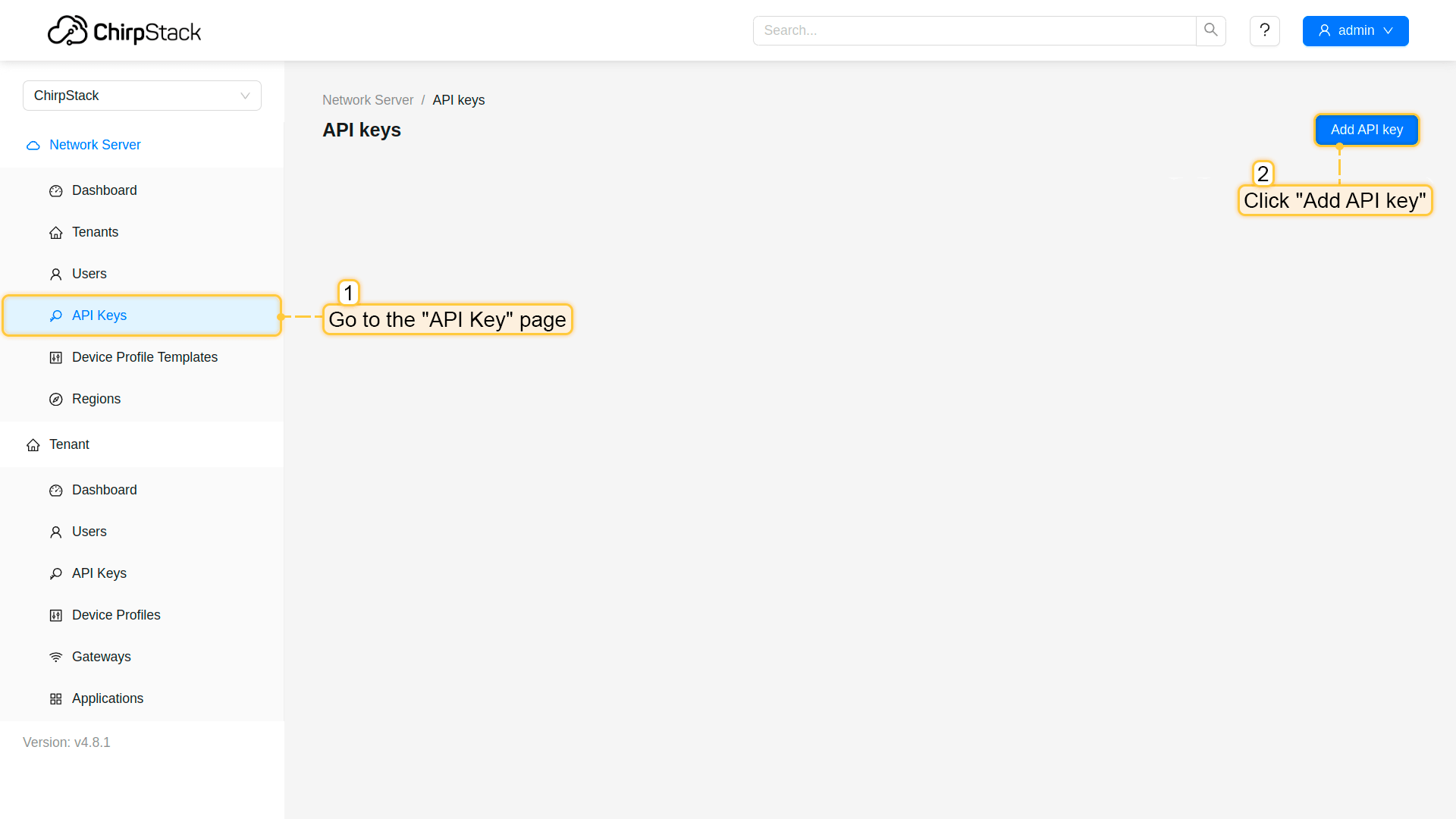
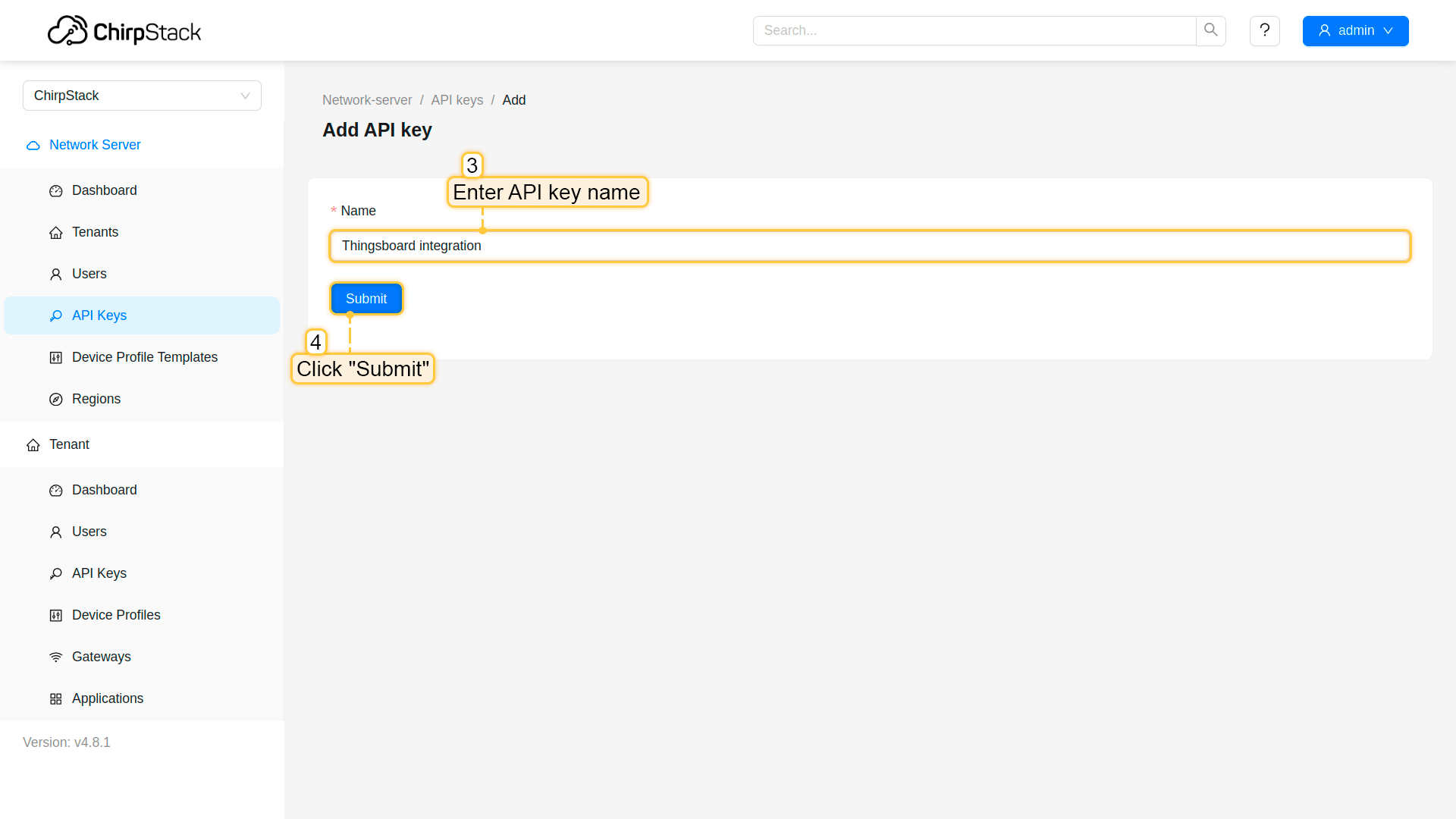
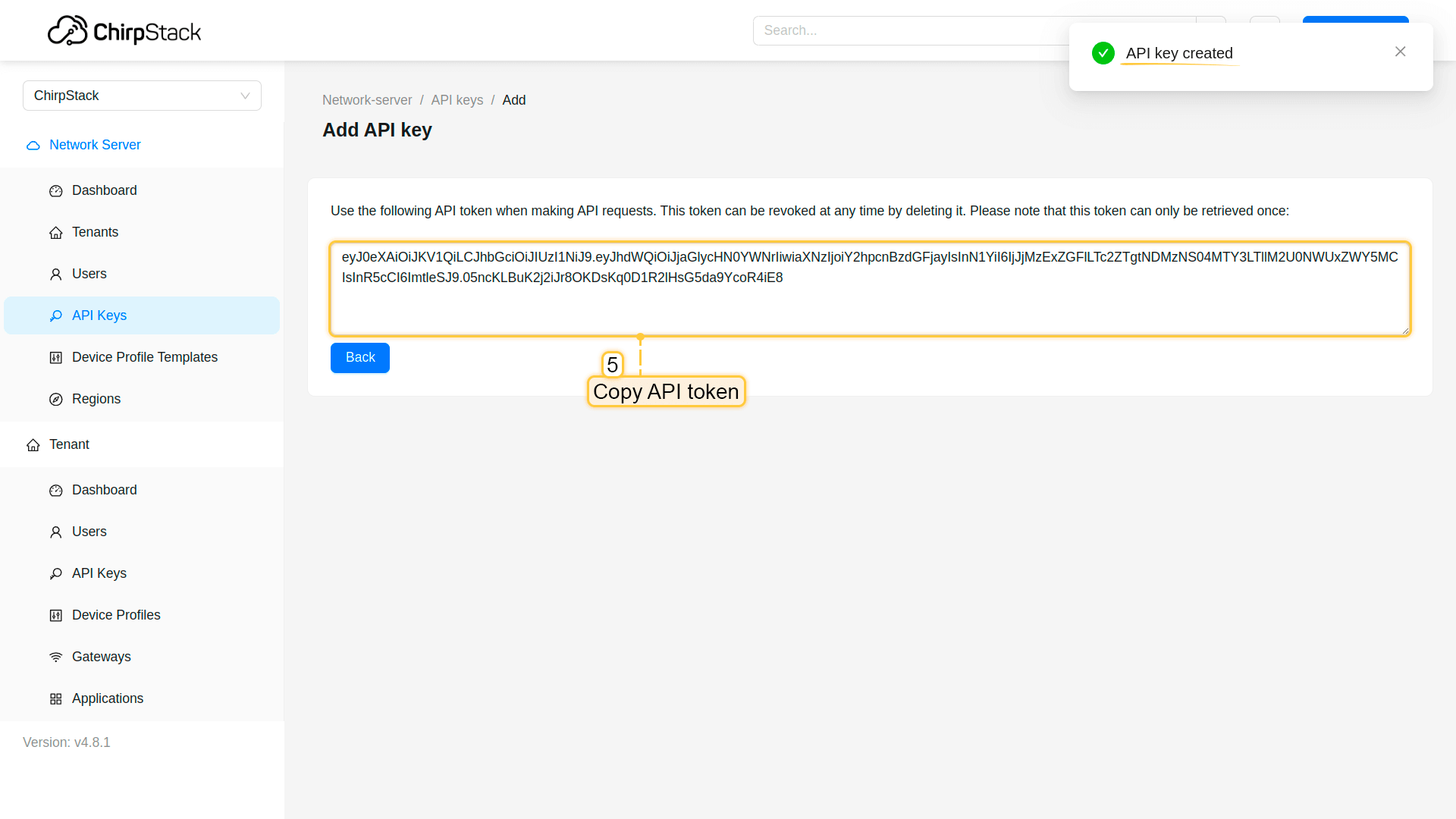
指定”Application server API Token”——从应用服务器获取。获取方法:打开ChirpStack应用服务器界面,从左上角菜单导航到”API keys”页面,创建新的API密钥。
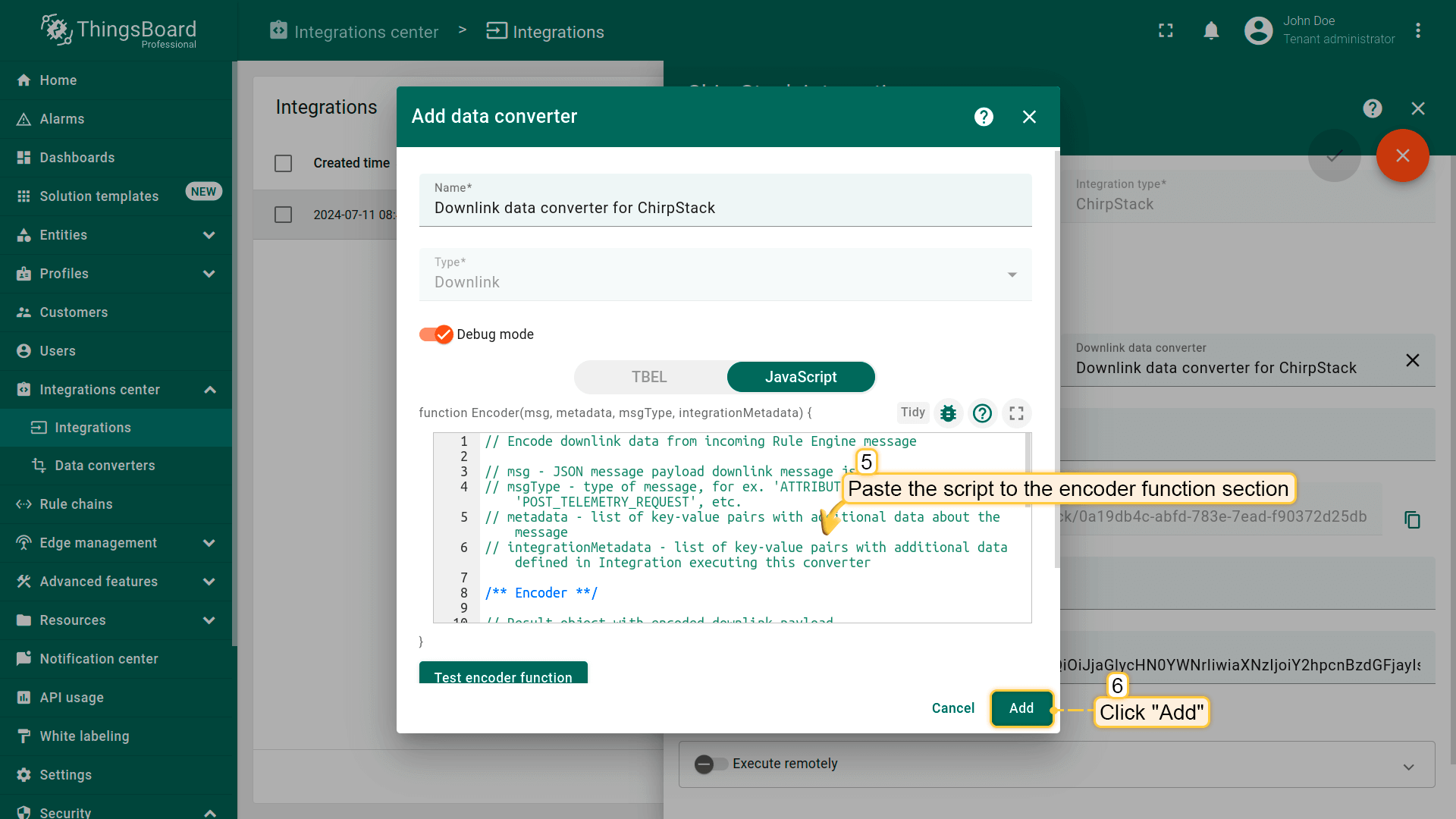
// Encode downlink data from incoming Rule Engine message// msg - JSON message payload downlink message json// msgType - type of message, for ex. 'ATTRIBUTES_UPDATED', 'POST_TELEMETRY_REQUEST', etc.// metadata - list of key-value pairs with additional data about the message// integrationMetadata - list of key-value pairs with additional data defined in Integration executing this converter/** Encoder **/// Result object with encoded downlink payloadvarresult={// downlink data content type: JSON, TEXT or BINARY (base64 format)contentType:"TEXT",// downlink datadata:btoa(msg.downlink),// Optional metadata object presented in key/value formatmetadata:{DevEUI:metadata.cs_devEui,fPort:metadata.cs_fPort}};returnresult;
按以下步骤向 integration 添加 downlink converter:
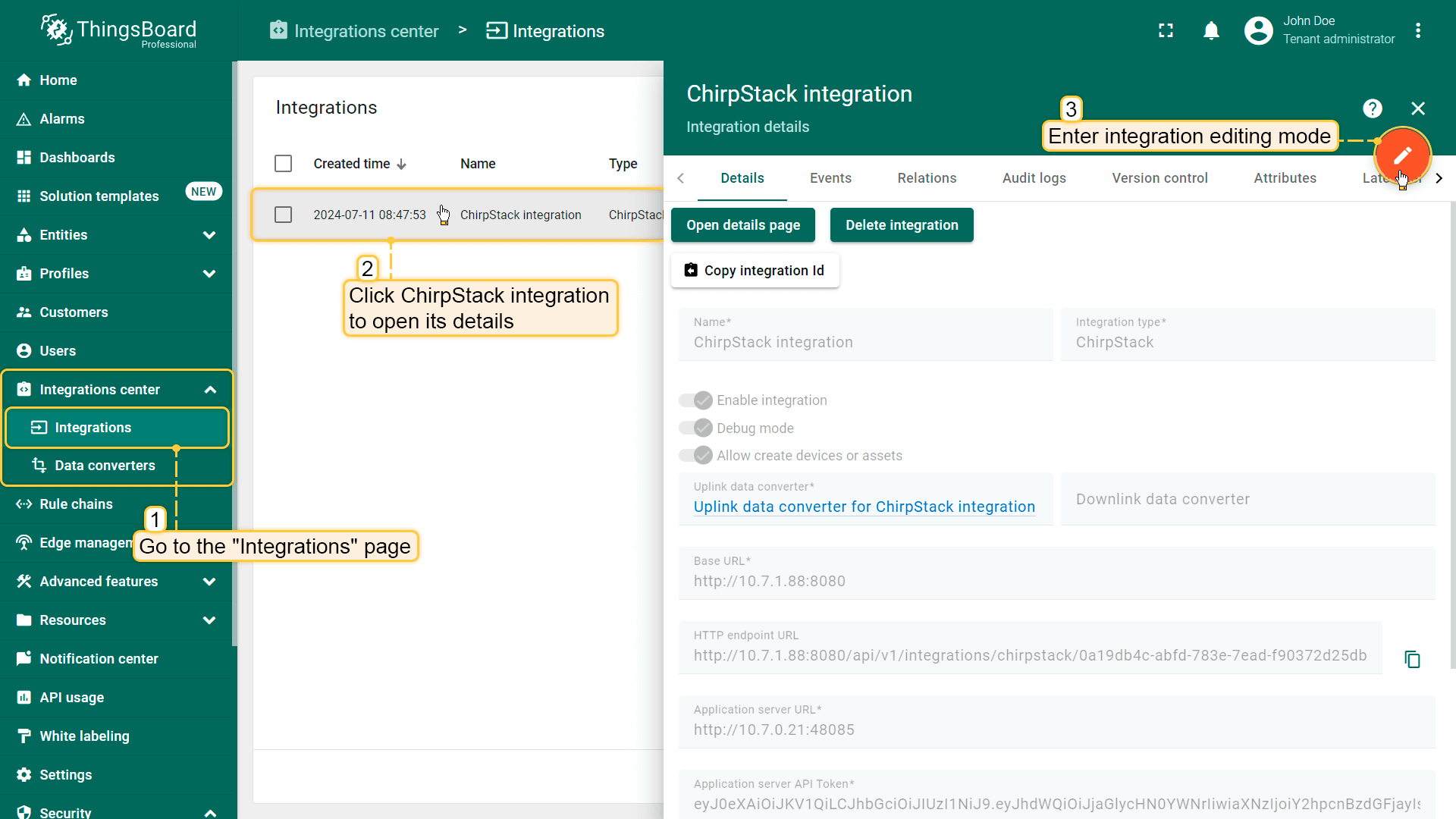
Go to the “Integrations” page, click ChirpStack integration to open its details, and enter integration editing mode by clicking the “pencil” icon;
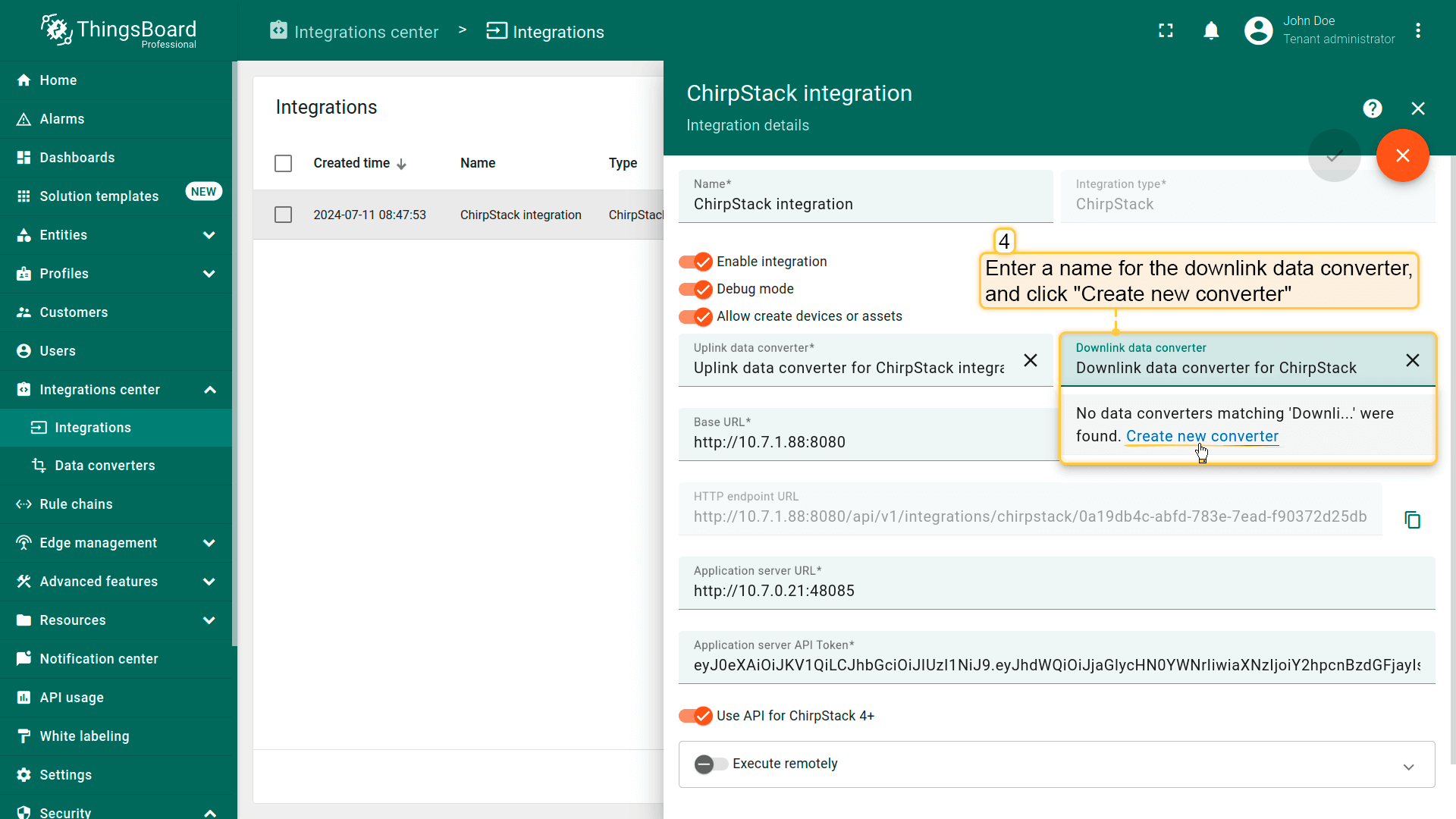
Enter a name for the downlink data converter and click “Create new converter”;
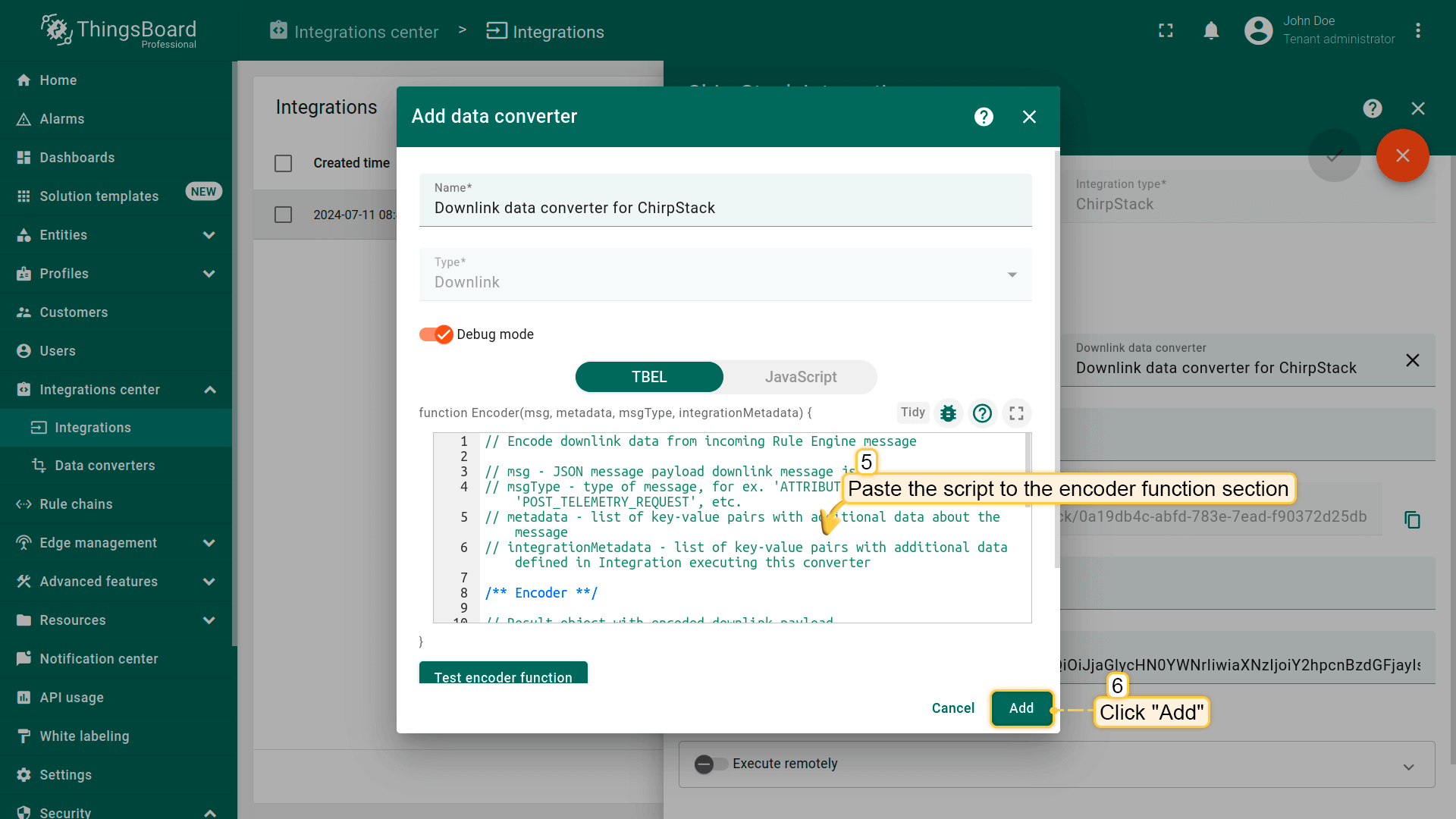
Paste the script to the encoder function section, and click “Add”;
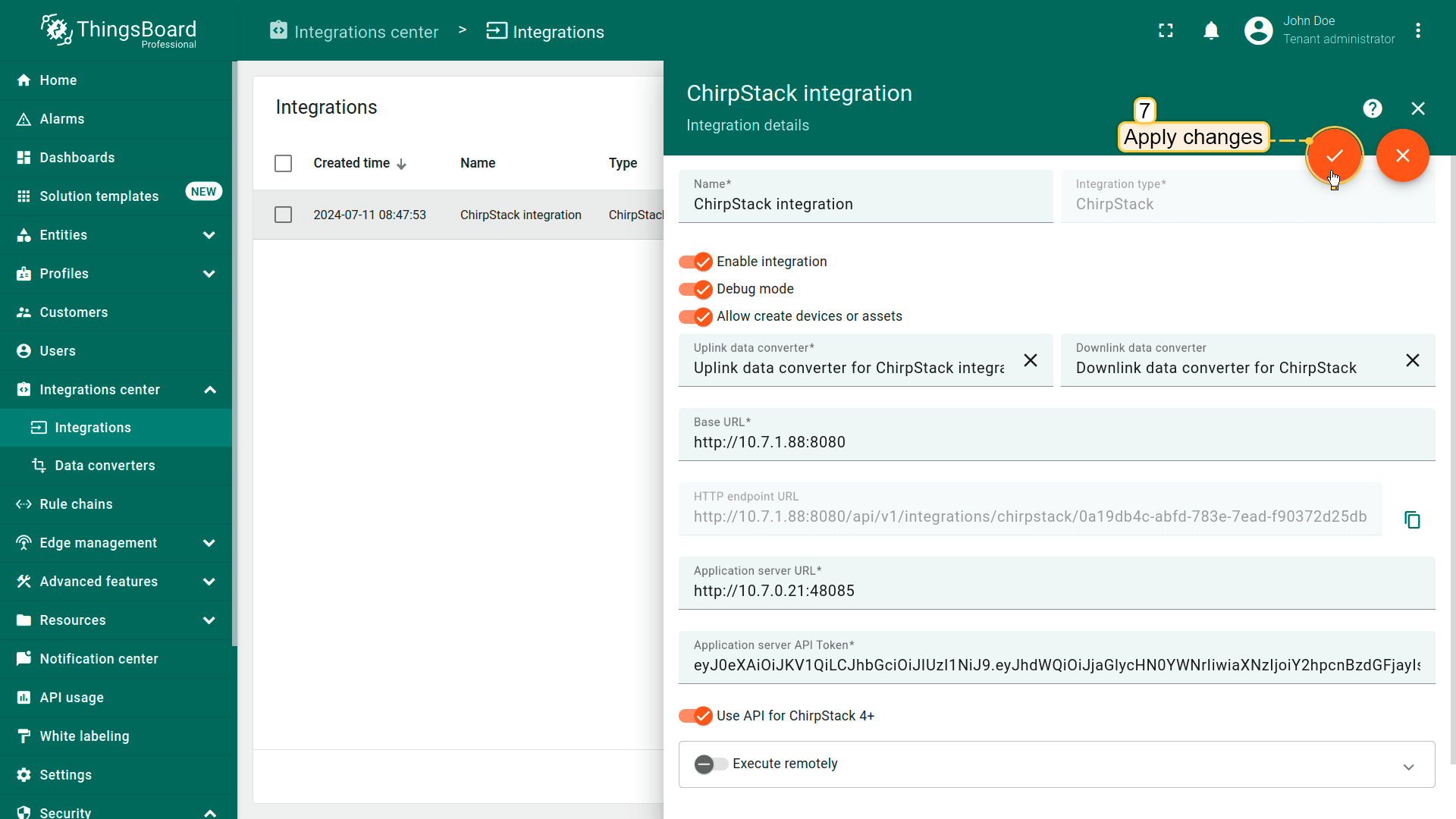
Apply changes.
Go to the “Integrations” page, click ChirpStack integration to open its details, and enter integration editing mode by clicking the “pencil” icon;
Enter a name for the downlink data converter and click “Create new converter”;
Paste the script to the encoder function section, and click “Add”;
// Encode downlink data from incoming Rule Engine message// msg - JSON message payload downlink message json// msgType - type of message, for ex. 'ATTRIBUTES_UPDATED', 'POST_TELEMETRY_REQUEST', etc.// metadata - list of key-value pairs with additional data about the message// integrationMetadata - list of key-value pairs with additional data defined in Integration executing this converter/** Encoder **/// Result object with encoded downlink payloadvarresult={// downlink data content type: JSON, TEXT or BINARY (base64 format)contentType:"TEXT",// downlink datadata:btoa(msg.downlink),// Optional metadata object presented in key/value formatmetadata:{DevEUI:metadata.cs_devEui,fPort:metadata.cs_fPort}};returnresult;
按以下步骤向 integration 添加 downlink converter:
Go to the “Integrations” page, click ChirpStack integration to open its details, and enter integration editing mode by clicking the “pencil” icon;
Enter a name for the downlink data converter and click “Create new converter”;
Paste the script to the encoder function section, and click “Add”;
Apply changes.
Go to the “Integrations” page, click ChirpStack integration to open its details, and enter integration editing mode by clicking the “pencil” icon;
Enter a name for the downlink data converter and click “Create new converter”;
Paste the script to the encoder function section, and click “Add”;
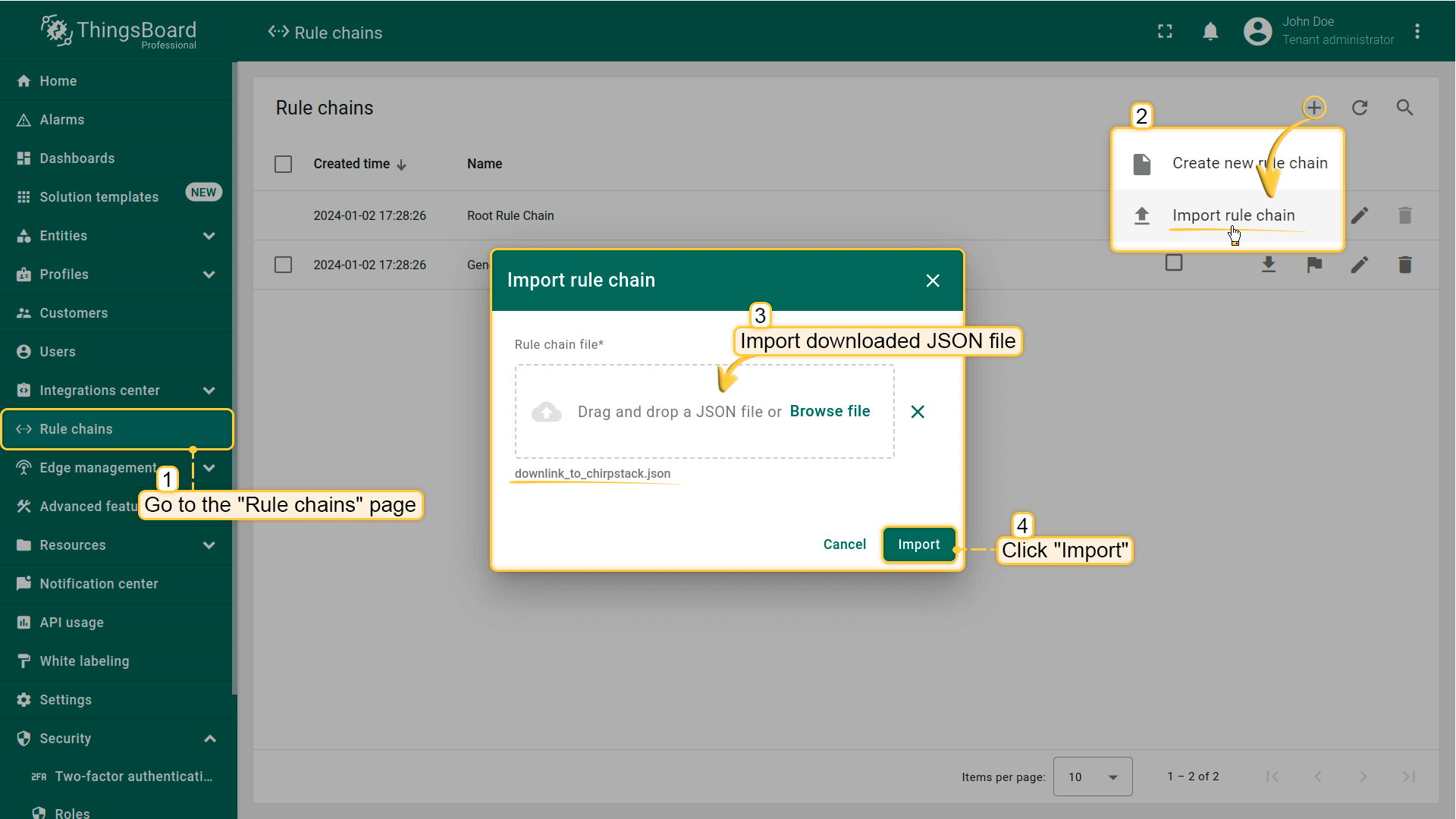
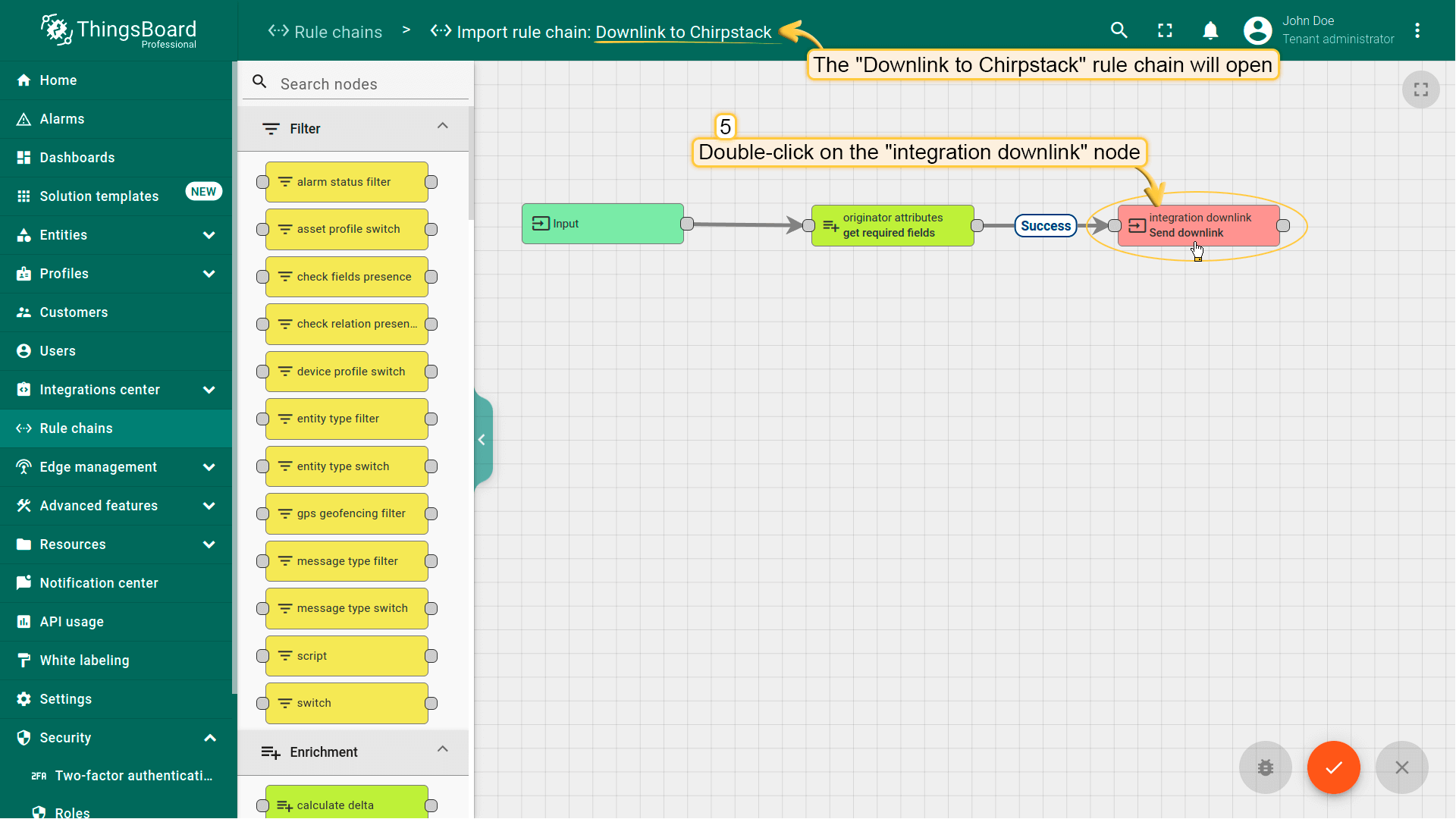
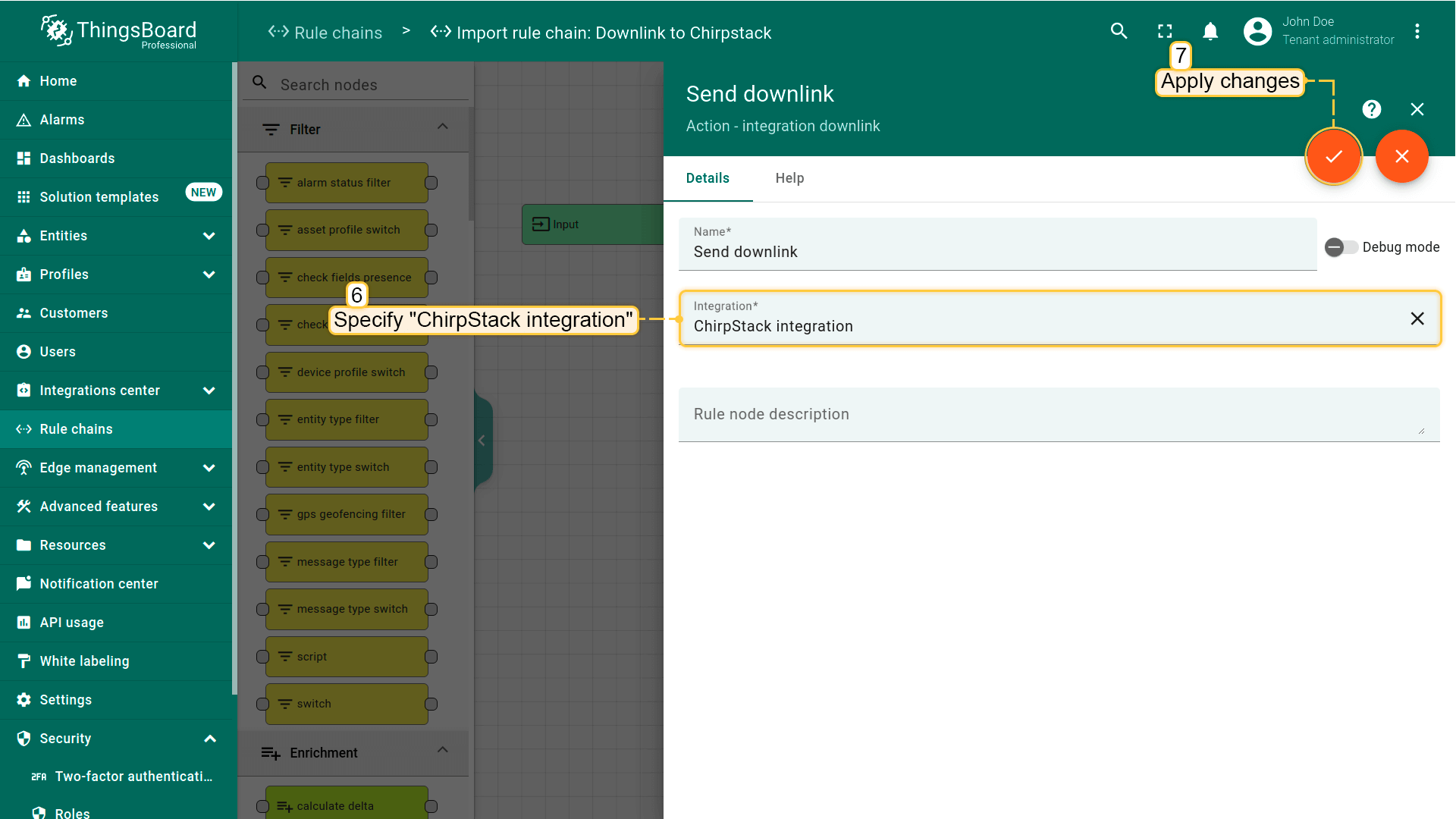
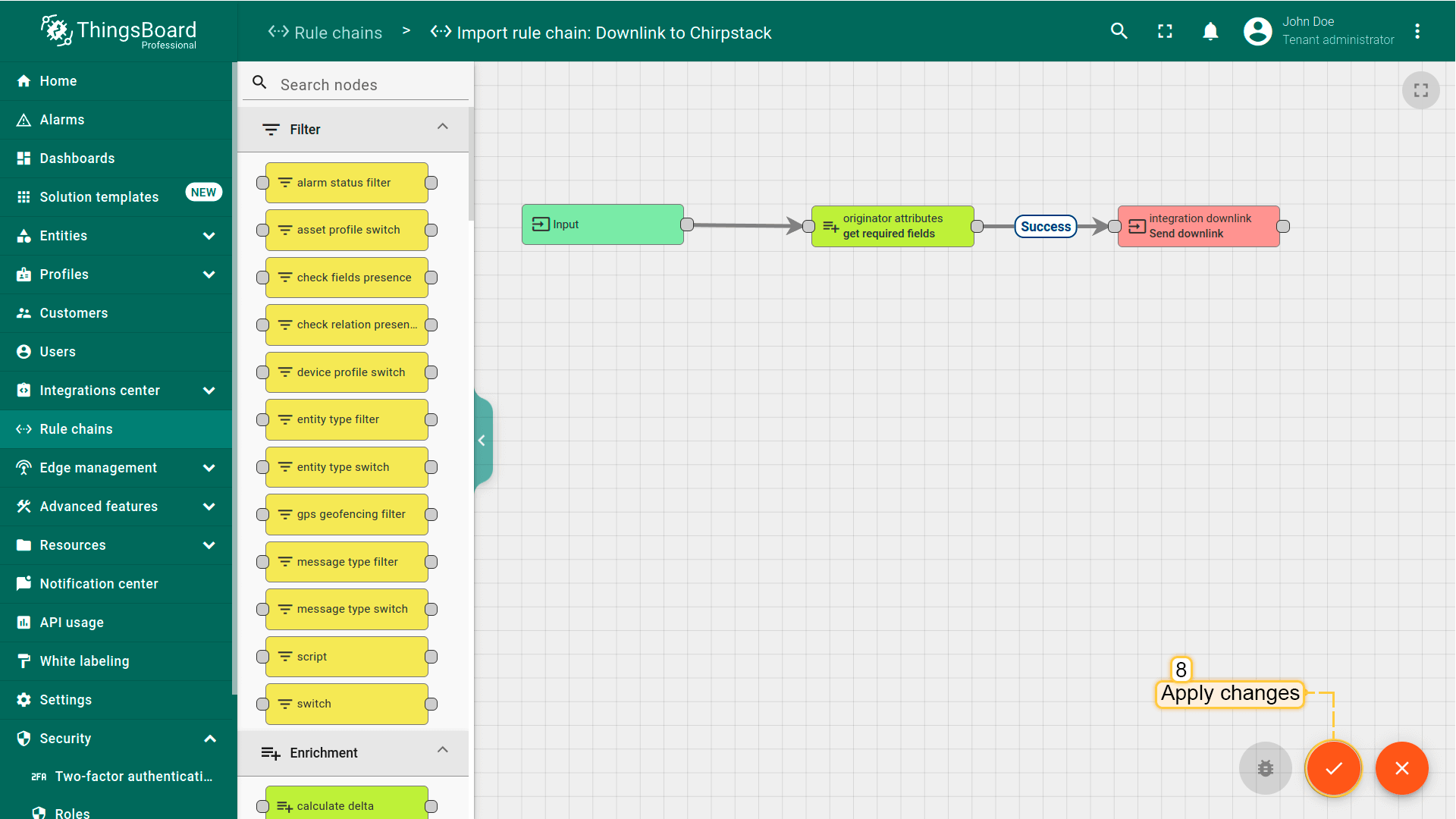
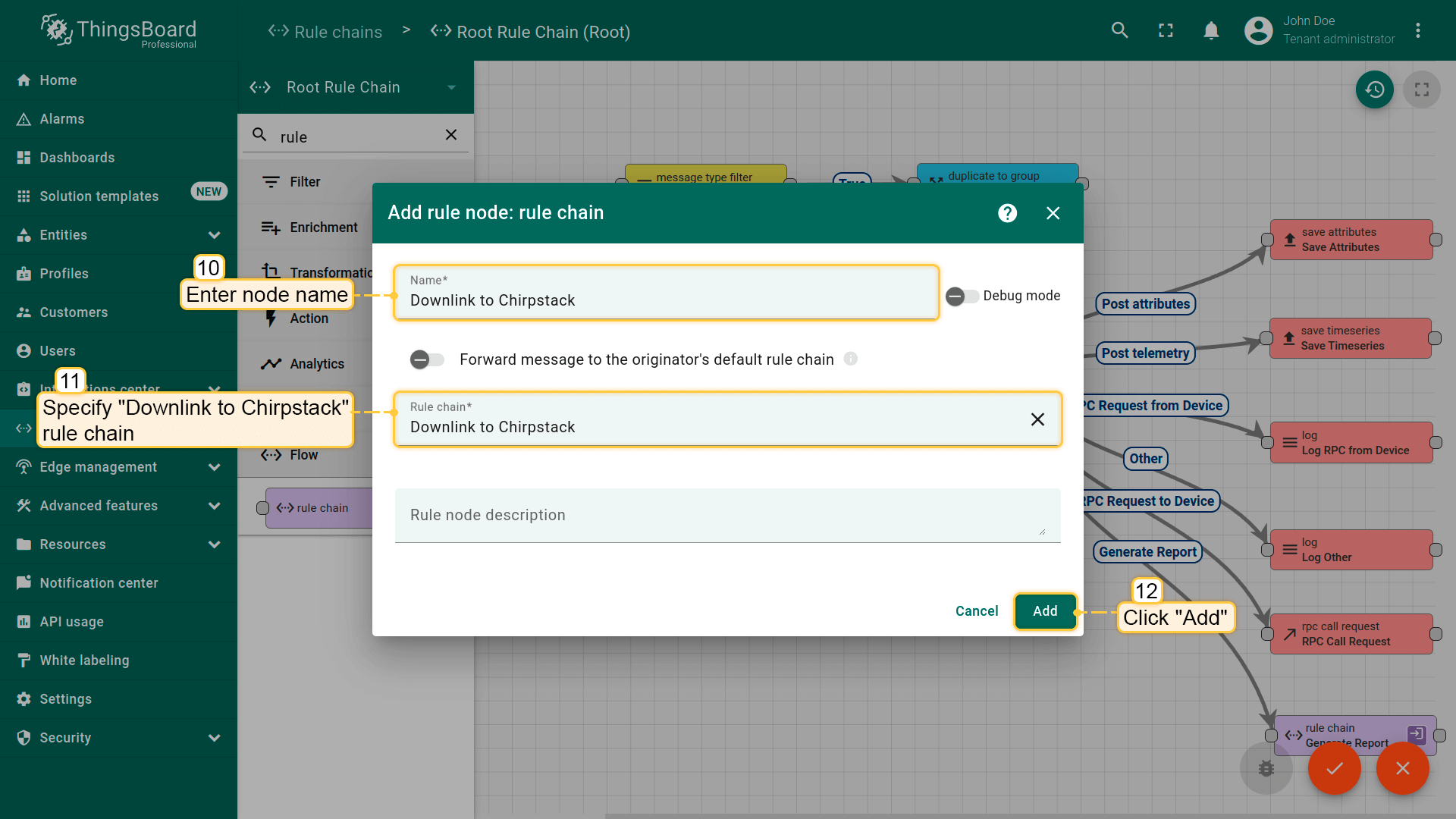
将其拖入rule chain。命名为 "Downlink to Chirpstack",指定 "Downlink to Chirpstack" rule chain,点击 "添加"。
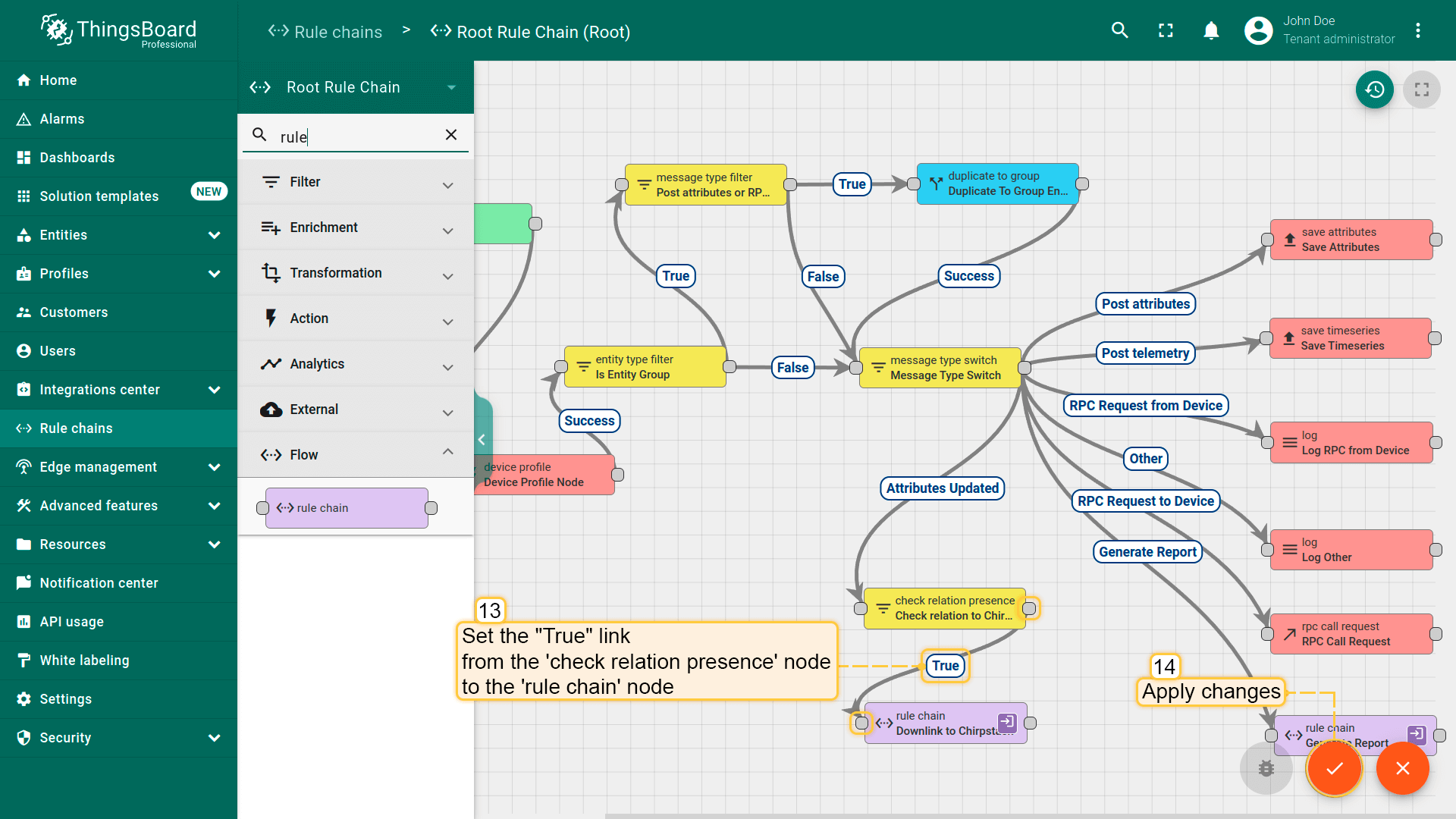
Tap on the right grey圆形of the "check relation presence" node and drag this圆形to left side of "rule chain" node。 Here, 选择the "True" link, and点击 "添加"。 Finally, 保存Root Rule Chain。
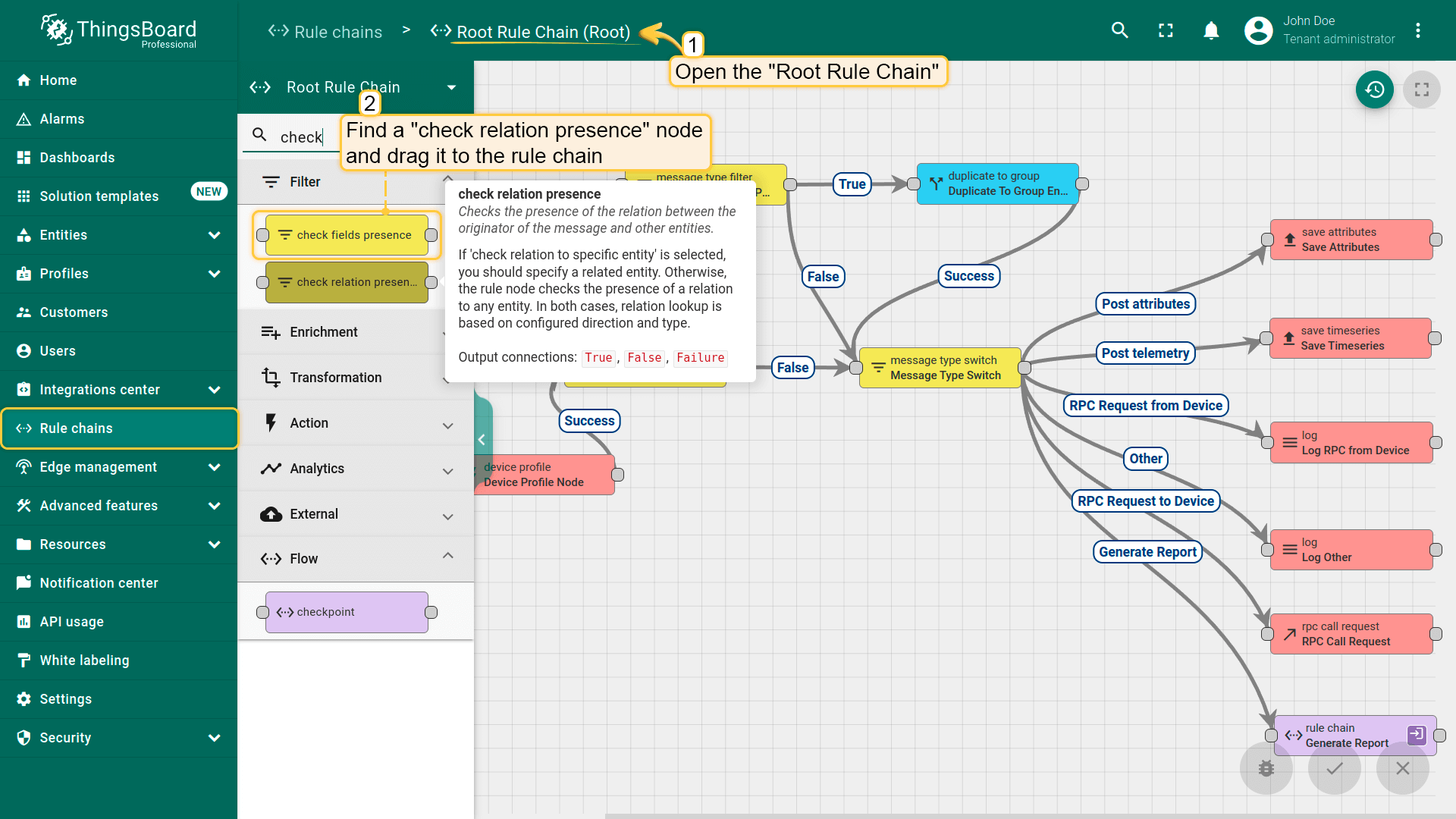
打开 "Root Rule Chain",找到 "check relation presence" 节点。
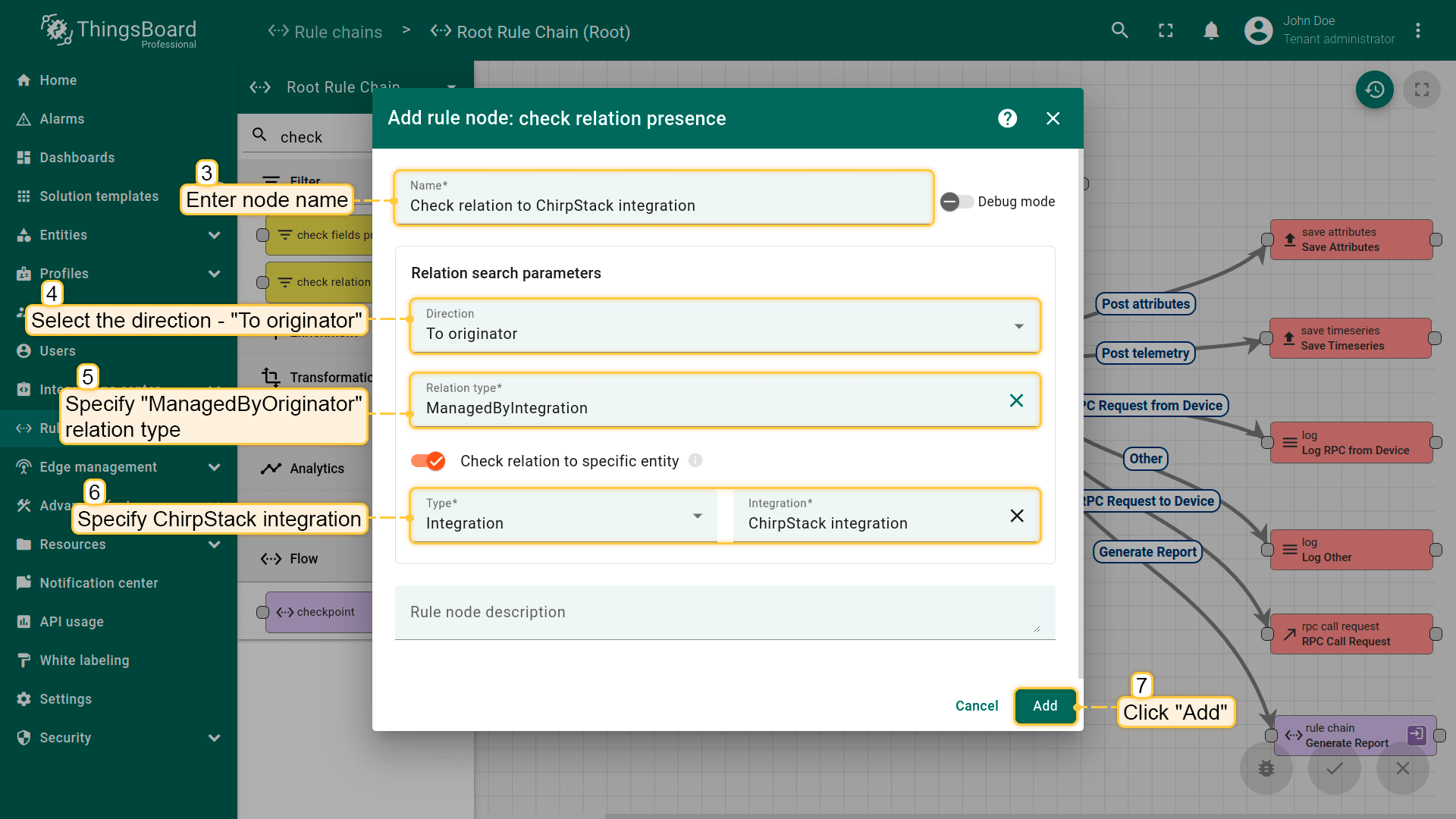
将其拖入rule chain。命名为 "Check relation to ChirpStack integration",选择方向 "To originator",指定relation type "ManagedByOriginator"。指定ChirpStack integration并点击 "添加"。
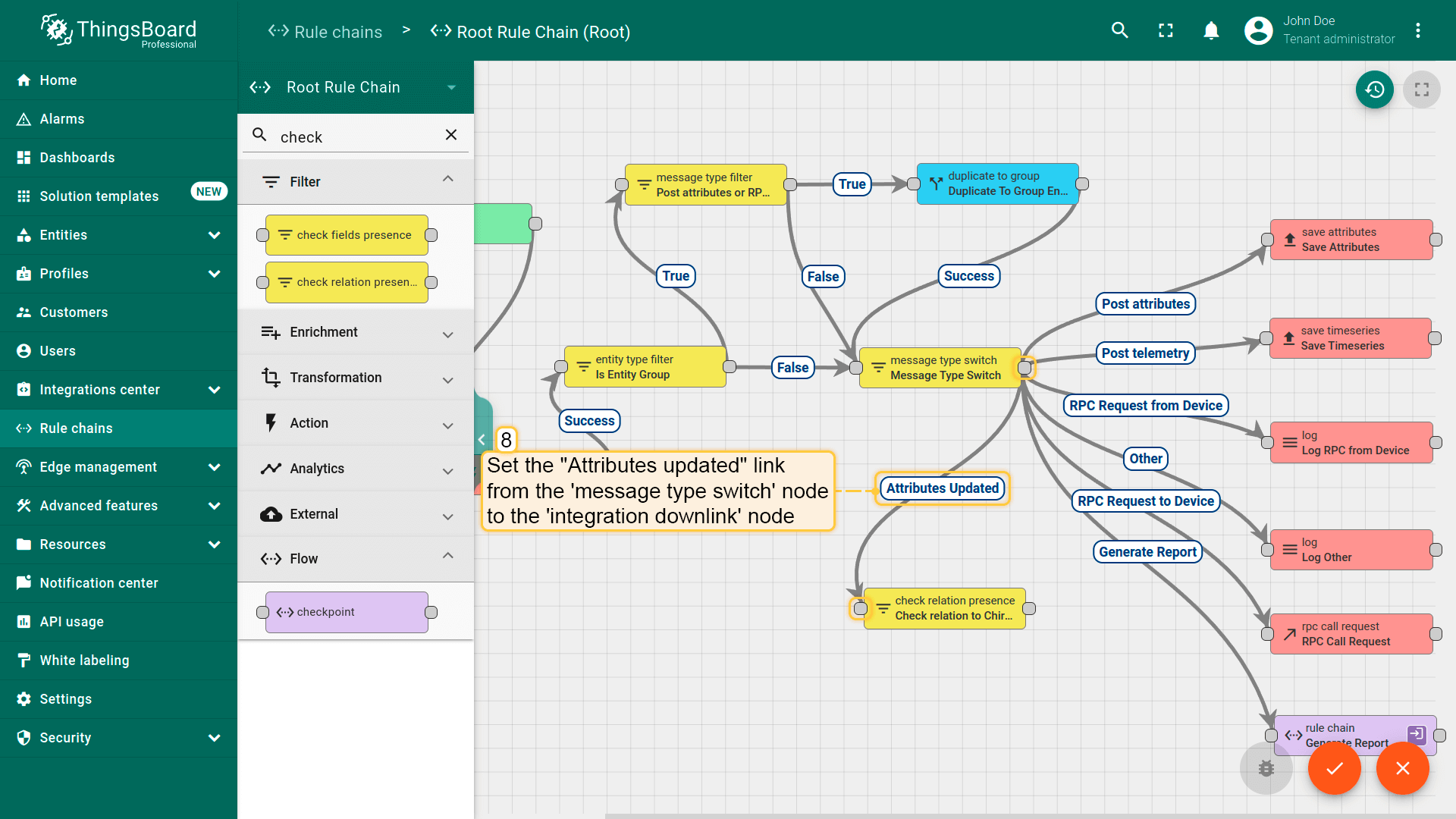
点击 "message type switch" 节点右侧灰色圆圈,拖至 "check relation presence" 节点左侧。在此添加 "Attributes Updated" 链接,点击 "添加"。
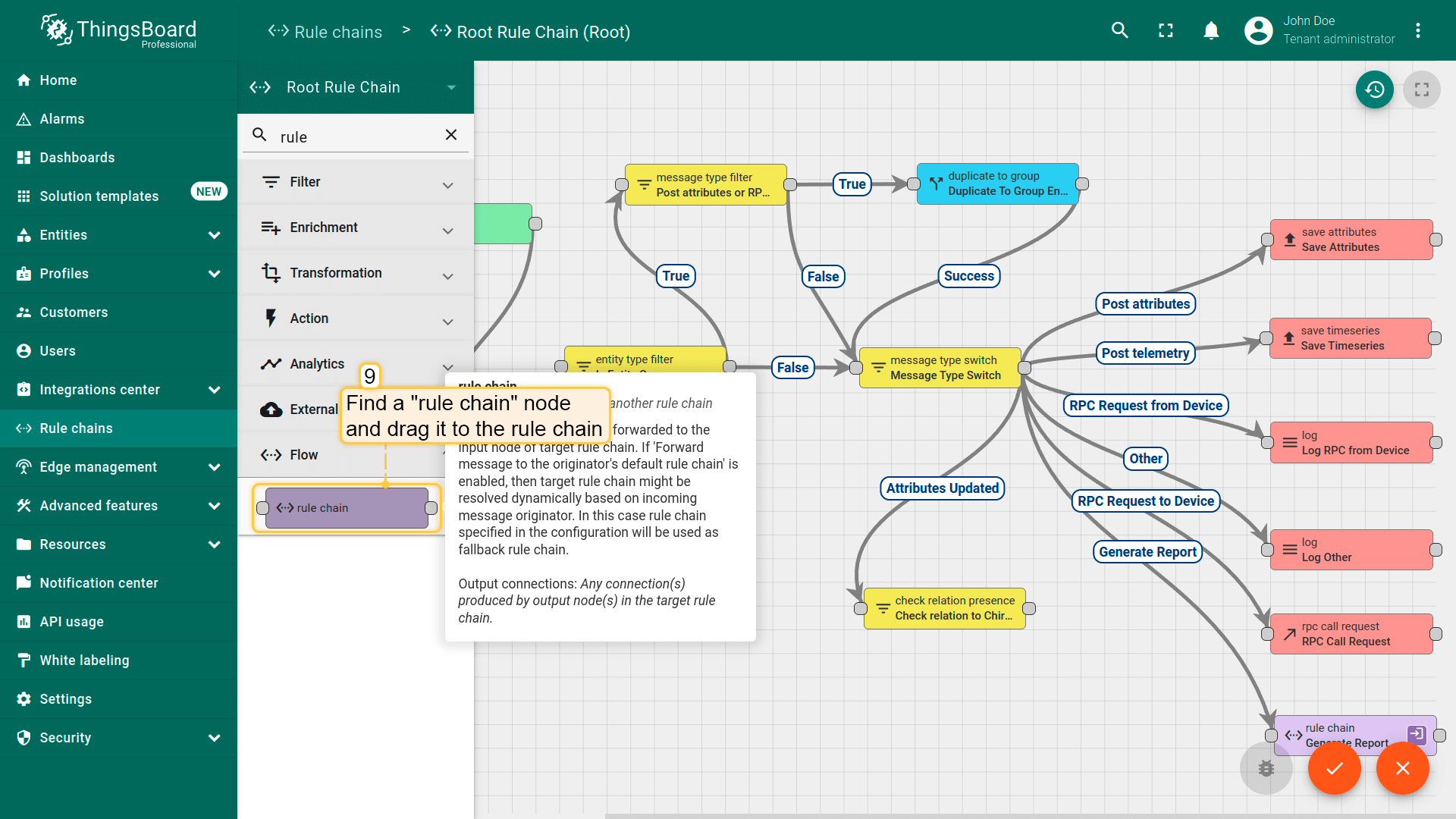
找到 "rule chain" 节点。
将其拖入rule chain。命名为 "Downlink to Chirpstack",指定 "Downlink to Chirpstack" rule chain,点击 "添加"。
Tap on the right grey圆形of the "check relation presence" node and drag this圆形to left side of "rule chain" node。 Here, 选择the "True" link, and点击 "添加"。 Finally, 保存Root Rule Chain。