目录
Markdown/HTML 卡片
适用于ThingsBoard仪表盘静态或动态内容的多用途部件。它支持渲染Markdown 或自由格式HTML ,且可带或不带数据源 使用。
可用于注释、上下文提示、KPI、横幅,或与图表、表格、地图并列的紧凑信息卡片。
Markdown vs HTML
Markdown 是一种简单的文本格式语法,其优点是快速易用 ——无需了解HTML即可实现清晰排版。HTML —— 当需要精确控制布局、样式或交互元素(表格、图标、嵌入媒体、复杂网格)时选用。
主要能力
动态或静态内容。 使用Markdown或HTML编写,可混合文本、列表、表格、链接、图片、图标。可选数据。 通过 entity alias 和 data keys 拉取telemetry/attributes,注入模板或通过value function处理。操作与导航。 处理HTML元素(按 id )点击,可跳转到dashboard状态、打开对话框/弹出框或触发其他操作。样式。 在 Markdown/HTML CSS 专区添加样式(推荐),或在标记中内联样式。快速集成。 与其它部件(时序、表格、地图)协同良好,适合注释、上下文说明和紧凑信息卡片。
添加部件
打开仪表盘并切换到编辑模式
点击屏幕顶部的”添加部件
从 Cards 部件包中选择 Markdown/HTML Card 部件并放置到仪表盘上。
数据源(可选)
Markdown/HTML Card可在无数据源 (纯静态内容)或一个或多个data sources 下工作。
在 Data 选项卡中:
选择数据源类型:Entity 、Device 、Entities count 、Alarms count 或 Function 。
配置 filters 和 data keys (attributes / latest telemetry )。
配置
进入部件的Appearance 选项卡管理其内容和样式。
静态Markdown/HTML模板
使用${key}等变量创建静态布局,其中key为data key的label 。
通过 ${key:n} 支持data key值的基本数值格式,n 为小数位数 。例如:
${key} —— 原样显示键值(无格式)。${key:0} —— 以无小数位 显示键值。${key:2} —— 以两位小数 显示键值。
示例:
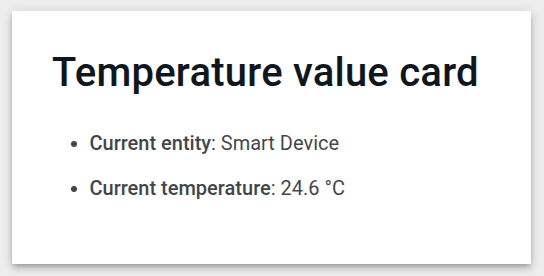
Smart Device向ThingsBoard发送温度值。在卡片中显示该温度值。
Datasource:
Type :DeviceDevice :Smart DeviceData key :temperature
使用以下 Markdown/HTML pattern :
1
2
3
### Temperature value card
- **Current entity** : ${entityName}
- **Current temperature** : ${temperature:1} °C
说明
${entityName} —— 数据源中实体的系统名称 。${temperature:1} —— 温度telemetry的值,小数点后一位 。
效果:
下载此部件 并 导入 到您的dashboard。
动态Markdown/HTML内容
适用于条件、计算、合并多键或切换布局。
使用方法:
开启 Markdown/HTML value function ,通过JavaScript生成卡片内容。
实现一个接收data和部件上下文 ctx 的JavaScript函数,返回Markdown或HTML 字符串 。
示例:
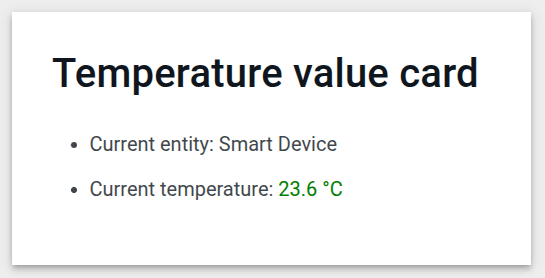
Smart Device向ThingsBoard发送温度值。在卡片中按颜色规则显示温度:
温度低于20 °C时,值显示为 蓝色 。
介于20 °C与25 °C之间时,值为 绿色 。
高于25 °C时,值为 红色 。
Datasource:
Type :DeviceDevice :Smart DeviceData key :temperature
使用以下value function :
1
2
3
4
5
const entity = data [ 0 ];
const color = entity . temperature > 25 ? " red " : entity . temperature > 20 ? ' green ' : ' blue '
const entityName = `### Temperature value card\n - Current entity: <span > ${ entity . entityName } </span>\n `
const temp = `- Current temperature: <span style="color: ${ color } ;"> ${ entity . temperature . toFixed ( 1 )} °C</span>\n `
return entityName + temp ;
说明
使用第一个 datasource :entity为 data[0]。
按温度选择 color :
> 25 → “red” > 20(且 ≤ 25)→ “green” ≤ 20 → “blue”
用Markdown + HTML构建字符串:
entityName —— 实体名称 。temp —— 温度值字符串,按所选规则着色 。toFixed(1) —— 将温度四舍五入至一位小数 。
效果:
下载此部件 并 导入 到您的dashboard。
内容样式(CSS)
应用默认Markdown样式
应用ThingsBoard的内置Markdown排版 (标题、段落、列表、表格、代码),与当前dashboard主题一致。
ON(多数情况推荐): 获得与dashboard风格匹配的默认样式。OFF: 最小化浏览器默认 —— 需要完全通过自有CSS控制视觉效果时选此。
您仍可在 Markdown/HTML CSS 中覆盖 默认样式。
Markdown/HTML CSS
使用 Markdown/HTML CSS 区域为卡片定义样式——调整标题、间距、字体、颜色和图标,使卡片符合设计系统。
这些规则仅作用于本部件容器内,不会影响其它部件。
示例:
1. 将内容包裹在容器类中,并通过该类作用于所有元素。
1
2
3
4
5
6
7
8
9
10
11
<div class= "office-card" >
<h3> ${entityName}</h3>
<p class= "blue-box" >
<strong> Current temperature:</strong>
<span class= "temp-value" > ${temperature:1}</span> °C
</p>
<p class= "green-box" >
<strong> Current humidity:</strong>
<span class= "hum-value" > ${humidity:0}</span> %
</p>
</div>
2. 在 Markdown/HTML CSS 区域使用选择器编写CSS。
1
2
3
4
5
6
7
8
9
10
11
12
13
14
15
16
17
18
19
20
21
22
23
24
25
26
27
28
29
30
31
32
33
34
35
36
37
.office-card {
box-sizing : border-box ;
padding : 16px ;
margin : 6px 0 ;
text-align : center ;
font-family : system-ui , -apple-system , Segoe UI , Roboto , Arial , "Noto Sans" ;
}
.office-card h3 {
margin : 0 0 12px ;
font-size : 24px ;
}
.blue-box {
background : #2196F31 A ;
border : 2px solid #2196F3 ;
border-radius : 10px ;
padding : 10px ;
margin : 8px 0 ;
font-weight : 700 ;
}
.green-box {
background : #4CAF501 A ;
border : 2px solid #4CAF50 ;
border-radius : 10px ;
padding : 10px ;
margin : 6px 0 ;
font-weight : 700 ;
}
.temp-value ,
.hum-value {
font-weight : 700 ;
font-variant-numeric : tabular-nums ;
}
说明
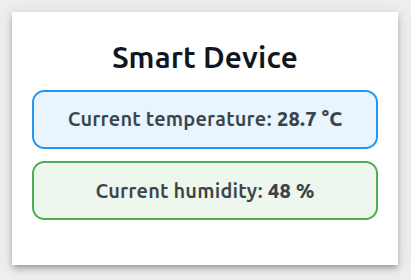
.office-card { … } —— 根作用域 。以 .office-card为前缀的选择器仅作用于本卡片内部 。h3 规则 —— 增大标题尺寸 并在下方留出间距(margin: 0 0 12px)。p 规则 —— 添加灰色背景 、边框 和圆角 。.temp-value —— 仅作用于数值:
color: #2e7d32 将telemetry值高亮为 绿色 。font-weight: 600 使数值更突出。
效果:
下载此部件 并 导入 到您的dashboard。
卡片样式
在Widget card 选项卡中:
Title & Icon —— 设置与dashboard一致的描述性标题/图标。Card styles —— 配置文字颜色、背景、padding、margin、圆角和阴影。Card buttons —— 纯信息卡片可关闭 Enable fullscreen 和 Enable data export 。
操作与导航
Markdown/HTML Card部件支持以下操作:
示例:办公信息卡片
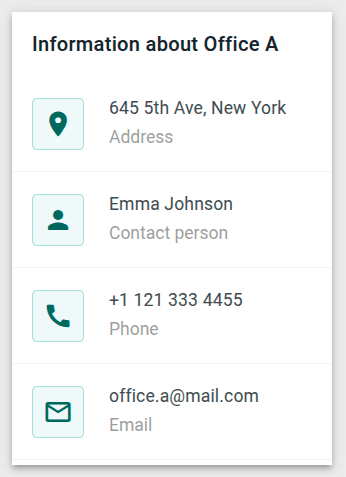
创建紧凑的办公信息卡片。
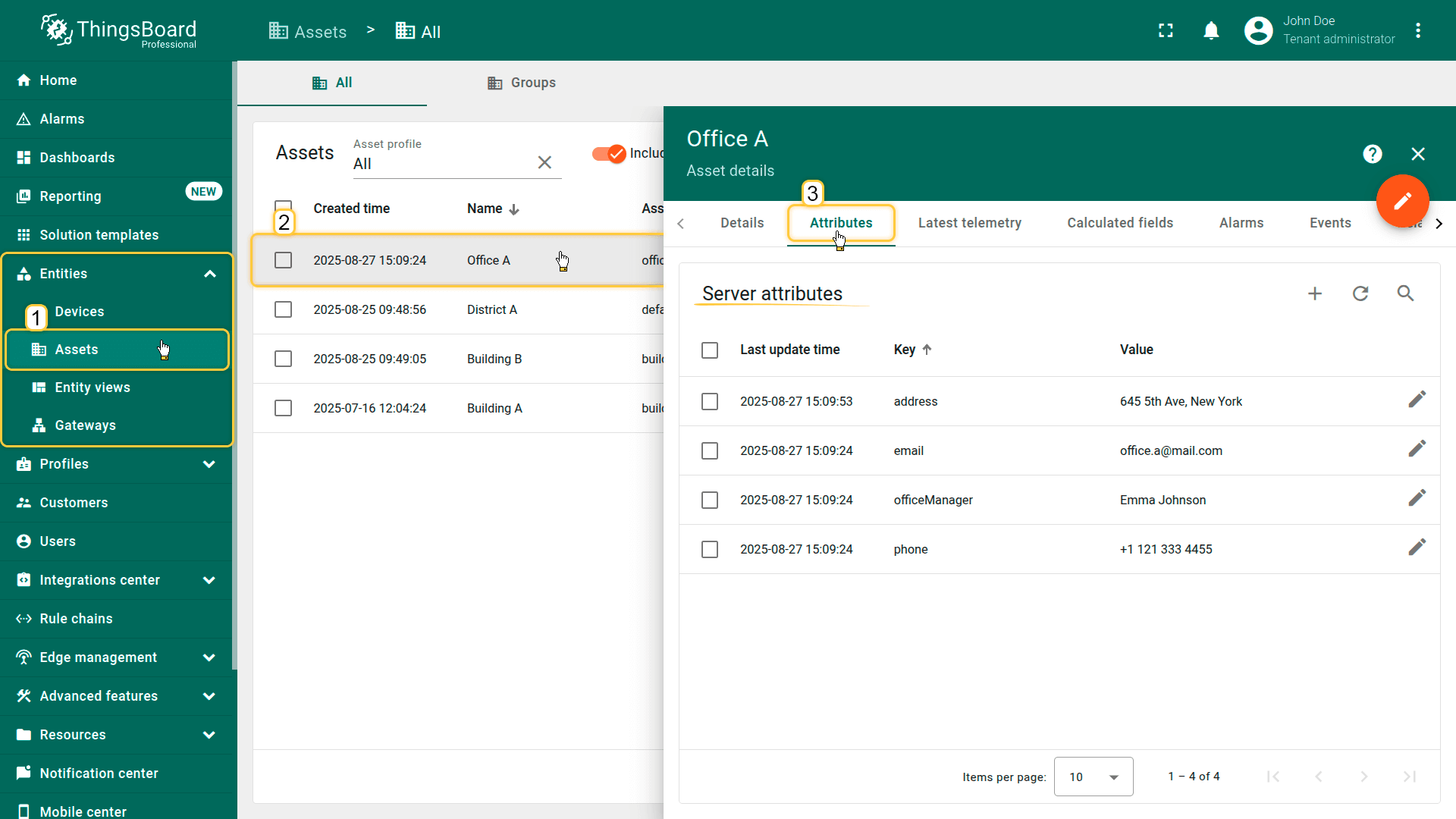
步骤1准备实体
创建名为”Office A “的Asset ,并设置以下attributes:
address : 645 5th Ave, New YorkofficeManager : Emma Johnsonphone : +1 121 333 4455email : office.a@mail.com
(也可从 CSV 导入 预填Asset)。
Create an Asset named "Office A " with the required attributes.
步骤2.1添加部件
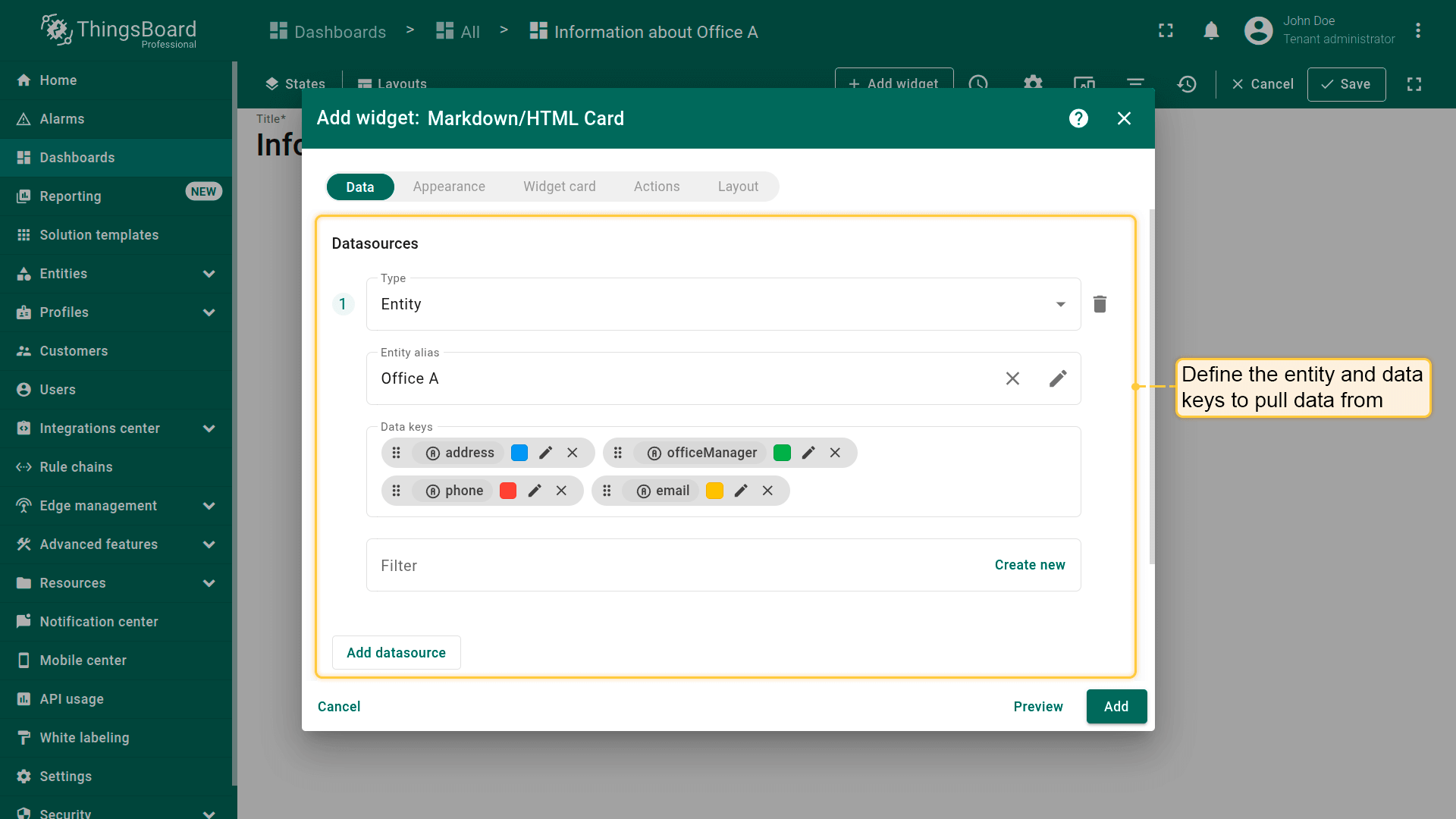
步骤2.2配置数据(「数据」选项卡)
Define the entity and data keys to pull data from.
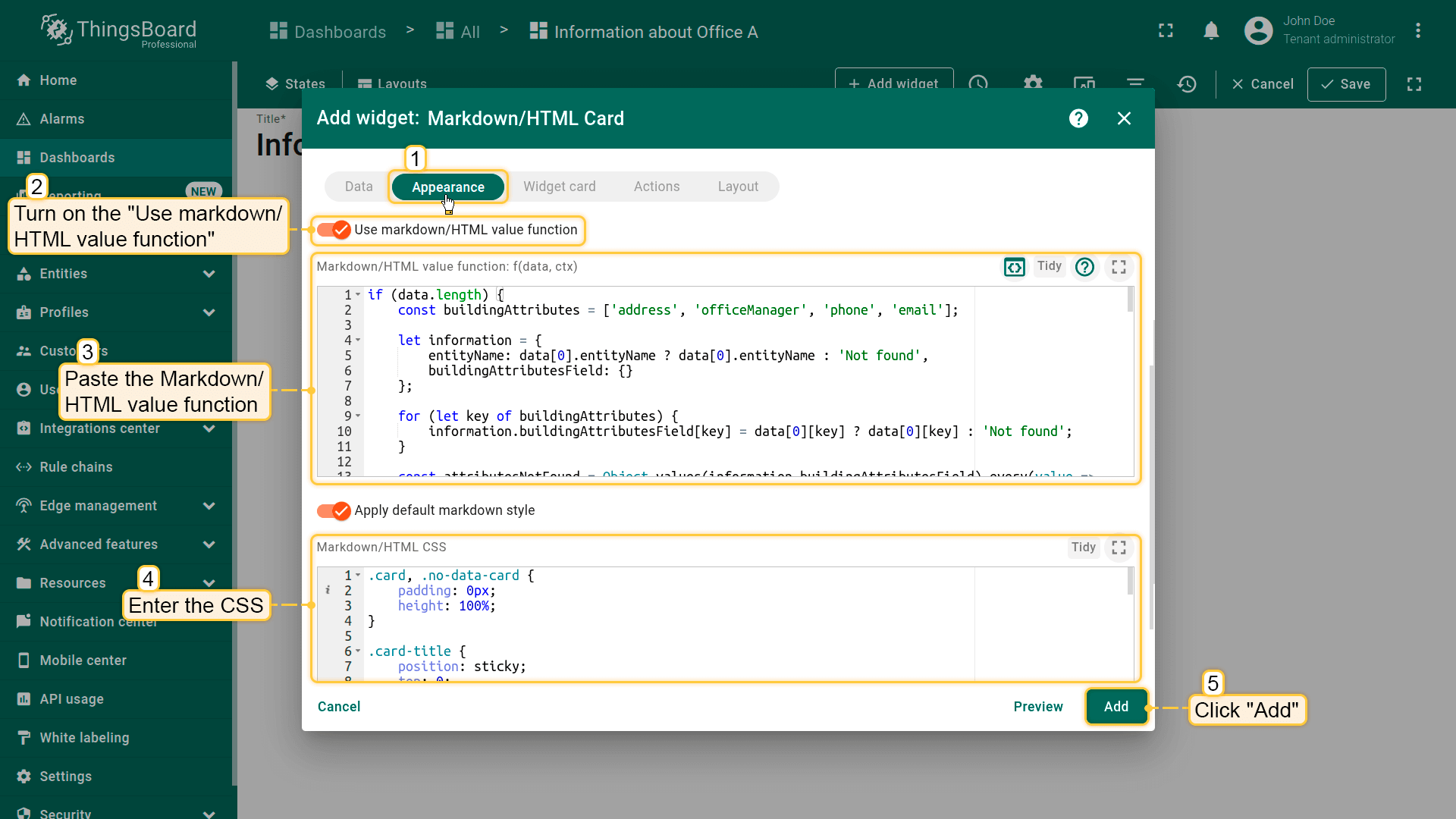
步骤2.3启用动态内容(「外观」选项卡)
开启 “Use markdown/HTML value function ” 选项。
粘贴下方提供的 Markdown/HTML value function :
1
2
3
4
5
6
7
8
9
10
11
12
13
14
15
16
17
18
19
20
21
22
23
24
25
26
27
28
29
30
31
32
33
34
35
36
37
38
39
40
41
42
43
44
45
46
47
48
49
50
51
52
53
54
55
56
57
58
59
60
61
62
63
64
65
66
67
68
if ( data . length ) {
const buildingAttributes = [ ' address ' , ' officeManager ' , ' phone ' , ' email ' ];
let information = {
entityName : data [ 0 ]. entityName ? data [ 0 ]. entityName : ' Not found ' ,
buildingAttributesField : {}
};
for ( let key of buildingAttributes ) {
information . buildingAttributesField [ key ] = data [ 0 ][ key ] ? data [ 0 ][ key ] : ' Not found ' ;
}
const attributesNotFound = Object . values ( information . buildingAttributesField ). every ( value => value === ' Not found ' );
if ( attributesNotFound ) {
return ' <div class="no-data-card"> ' +
`<h1 class="card-title">Information on ${ information . entityName } </h1>` +
' <div class="no-data-block"> ' +
' <div class="no-data-content"> ' +
' <div><svg xmlns="http://www.w3.org/2000/svg" width="81" height="80" viewBox="0 0 81 80" fill="none"><path d="M14.8203 46.1166C16.6985 46.0291 18.2877 45.3003 19.588 43.9301C20.8883 42.56 21.5529 40.9274 21.5529 39.0325C21.5529 40.9274 22.1886 42.56 23.4889 43.9301C24.7892 45.3003 26.3784 46.0291 28.2566 46.1166C26.3784 46.204 24.7892 46.9328 23.4889 48.303C22.8602 48.9489 22.3653 49.7146 22.0329 50.5555C21.7005 51.3963 21.5374 52.2955 21.5529 53.2006C21.5529 51.3057 20.9172 49.6732 19.588 48.303C18.2877 46.9328 16.6985 46.204 14.8203 46.1166ZM21.5529 25.1267C25.1937 24.9518 28.2855 23.5234 30.8283 20.8413C33.371 18.1593 34.6424 14.9817 34.6424 11.2793C34.6424 14.9817 35.9138 18.1593 38.4566 20.8413C40.9994 23.5234 44.0912 24.9227 47.7609 25.1267C45.3626 25.2434 43.1665 25.9139 41.1439 27.1966C39.1501 28.4501 37.5608 30.141 36.3761 32.24C35.2203 34.3389 34.6424 36.5837 34.6424 39.0325C34.6424 35.3301 33.371 32.1234 30.8283 29.4413C28.2855 26.7301 25.1937 25.3017 21.5529 25.1267ZM31.1461 56.524C33.8912 56.4074 36.2317 55.3288 38.1387 53.3172C40.0458 51.3057 40.9994 48.9152 40.9994 46.1166C40.9994 48.9152 41.9529 51.3057 43.86 53.3172C45.7671 55.3288 48.0787 56.4074 50.8237 56.524C48.0787 56.6406 45.7671 57.7193 43.86 59.7308C41.9529 61.7423 40.9994 64.1328 40.9994 66.9315C40.9994 64.1328 40.0458 61.7423 38.1387 59.7308C36.316 57.7765 33.8041 56.6245 31.1461 56.524ZM50.8237 42.7057C53.5688 42.5891 55.8804 41.5105 57.7875 39.4989C59.6946 37.4874 60.6192 35.0969 60.6192 32.2691C60.6192 35.0678 61.5728 37.4583 63.4799 39.4698C65.3869 41.4813 67.7274 42.56 70.4725 42.6766C67.7274 42.7932 65.3869 43.8718 63.4799 45.8834C61.5728 47.8949 60.6192 50.2854 60.6192 53.084C60.6192 50.2854 59.6657 47.8949 57.7875 45.8834C55.8804 43.901 53.5688 42.8223 50.8237 42.7057Z" fill="#00695C" fill-opacity="0.4"/></svg></div> ' +
' <p class="no-data-title">There is no information about the building</p> ' +
' </div> ' +
' </div> ' +
' </div> ' ;
} else {
return ' <div class="card"> ' +
`<h1 class="card-title">Information on ${ information . entityName } </h1>` +
' <div class="attributes"> ' +
' <div class="attribute_container"> ' +
' <div class="icon_wrapper"> ' +
' <tb-icon class="icon" color="primary" matButtonIcon>place</tb-icon> ' +
' </div> ' +
' <div class="attribute_content"> ' +
`<p class="attribute"> ${ information . buildingAttributesField . address } </p>` +
' <span class="attribute_label">Address</span> ' +
' </div> ' +
' </div> ' +
' <div class="attribute_container"> ' +
' <div class="icon_wrapper"> ' +
' <tb-icon class="icon" color="primary" matButtonIcon>person</tb-icon> ' +
' </div> ' +
' <div class="attribute_content"> ' +
`<p class="attribute"> ${ information . buildingAttributesField . officeManager } </p>` +
' <span class="attribute_label">Contact person</span> ' +
' </div> ' +
' </div> ' +
' <div class="attribute_container"> ' +
' <div class="icon_wrapper"> ' +
' <tb-icon class="icon" color="primary" matButtonIcon>call</tb-icon> ' +
' </div> ' +
' <div class="attribute_content"> ' +
`<p class="attribute"> ${ information . buildingAttributesField . phone } </p>` +
' <span class="attribute_label">Phone</span> ' +
' </div> ' +
' </div> ' +
' <div class="attribute_container"> ' +
' <div class="icon_wrapper"> ' +
' <tb-icon class="icon" color="primary" matButtonIcon>mail_outline</tb-icon> ' +
' </div> ' +
' <div class="attribute_content"> ' +
`<p class="attribute"> ${ information . buildingAttributesField . email } </p>` +
' <span class="attribute_label">Email</span> ' +
' </div> ' +
' </div> ' +
' </div> ' +
' </div> ' ;
}
}
滚动到 Markdown/HTML CSS 并粘贴下方提供的CSS:
1
2
3
4
5
6
7
8
9
10
11
12
13
14
15
16
17
18
19
20
21
22
23
24
25
26
27
28
29
30
31
32
33
34
35
36
37
38
39
40
41
42
43
44
45
46
47
48
49
50
51
52
53
54
55
56
57
58
59
60
61
62
63
64
65
66
67
68
69
70
71
72
73
74
75
76
77
78
79
80
81
82
83
84
85
86
87
.card , .no-data-card {
padding : 0px ;
height : 100% ;
}
.card-title {
position : sticky ;
top : 0 ;
z-index : 2 ;
font-size : 16px ;
letter-spacing : 0.25px ;
padding : 16px ;
}
.attribute_container {
display : flex ;
align-items : center ;
gap : 20px ;
padding : 16px ;
border-bottom : 1px solid #0000000 d ;
}
.icon {
z-index : 1 ;
}
.icon_wrapper {
display : flex ;
position : relative ;
align-items : center ;
padding : 8px ;
border : 1px solid var ( --tb-primary-100 , #305680 );
border-radius : 4px ;
}
.icon_wrapper :before {
content : '' ;
z-index : 0 ;
position : absolute ;
opacity : 0.1 ;
background-color : var ( --tb-primary-200 , #305680 );
width : 100% ;
height : 100% ;
left : 0 ;
top : 0 ;
}
.attribute , .attribute_label {
font-size : 14px ;
line-height : 20px ;
}
.attribute_label {
color : #00000061 ;
}
.no-data-card {
display : flex ;
flex-direction : column ;
}
.no-data-block {
display : flex ;
flex-direction : column ;
justify-content : center ;
height : 100% ;
max-width : 345px ;
padding : 0 15px ;
margin : 0 auto ;
text-align : center ;
}
.no-data-content {
transform : translateY ( -30% );
}
.no-data-block p {
font-weight : 500 ;
}
.no-data-title {
color : rgba ( 0 , 0 , 0 , 0.54 );
}
.no-data-subtitle {
font-size : 13px ;
color : rgba ( 0 , 0 , 0 , 0.38 );
}
On the Appearance tab, turn on the Use markdown/HTML value function . Paste the Markdown/HTML value function and enter CSS. Click Add .
步骤2.4卡片设置(「Widget card」选项卡)
若卡片仅作信息展示,可关闭”Enable fullscreen “和”Enable data export “。
点击”Add “。
步骤2.5保存
在dashboard布局中自由调整 卡片大小,然后保存dashboard 。
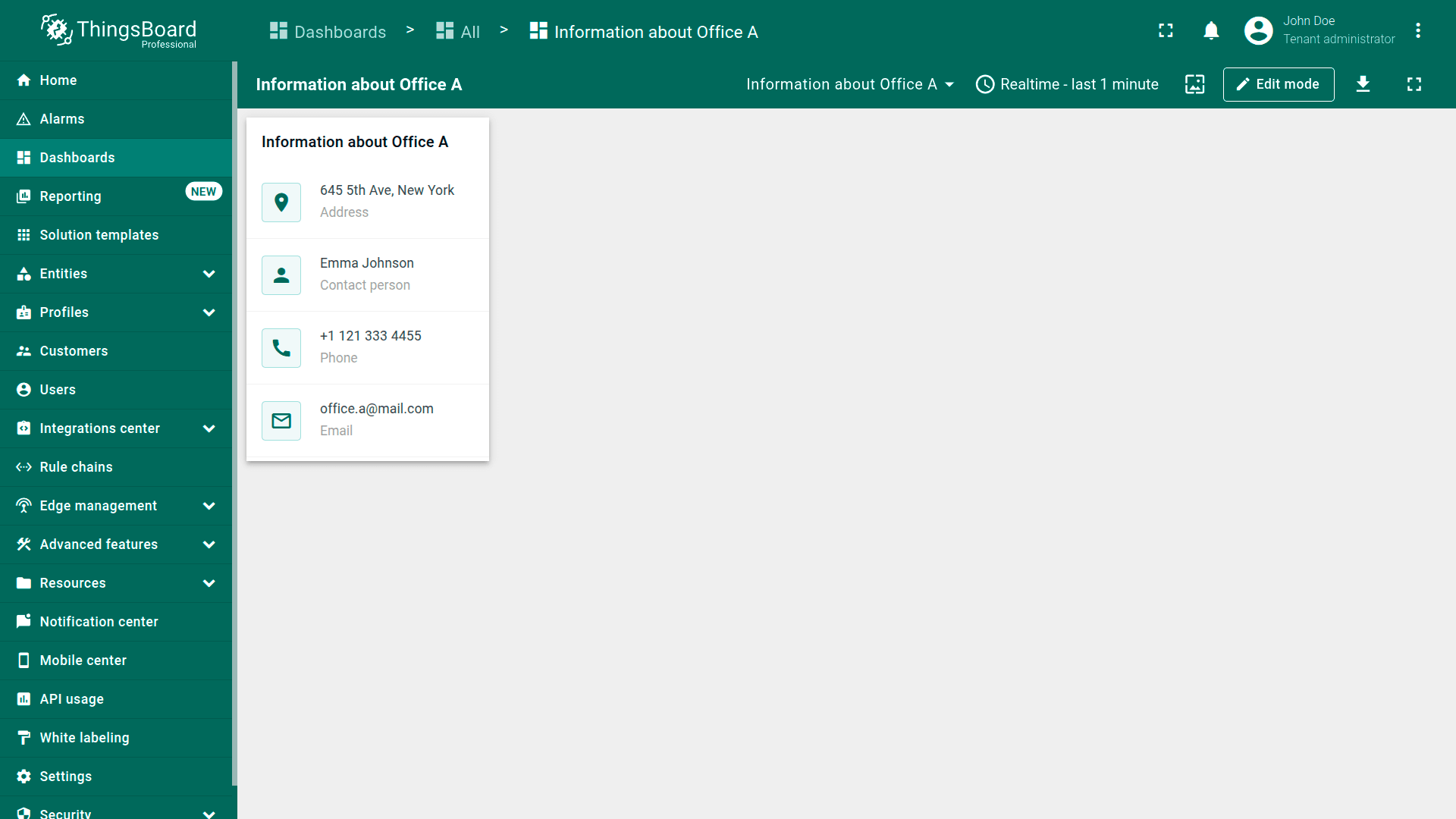
预期效果
dashboard上将显示紧凑、清晰的办公联系卡片。缺失的attributes显示为 “Not found”。可在dashboard布局中自由调整卡片大小。
You'll see a compact, clean office contact card on the dashboard.
下载已配置的部件
可下载已配置的Office information card 并在dashboards上复用。
重要: 导入后,请在 entity alias 中更新 target entity 和 data keys 。