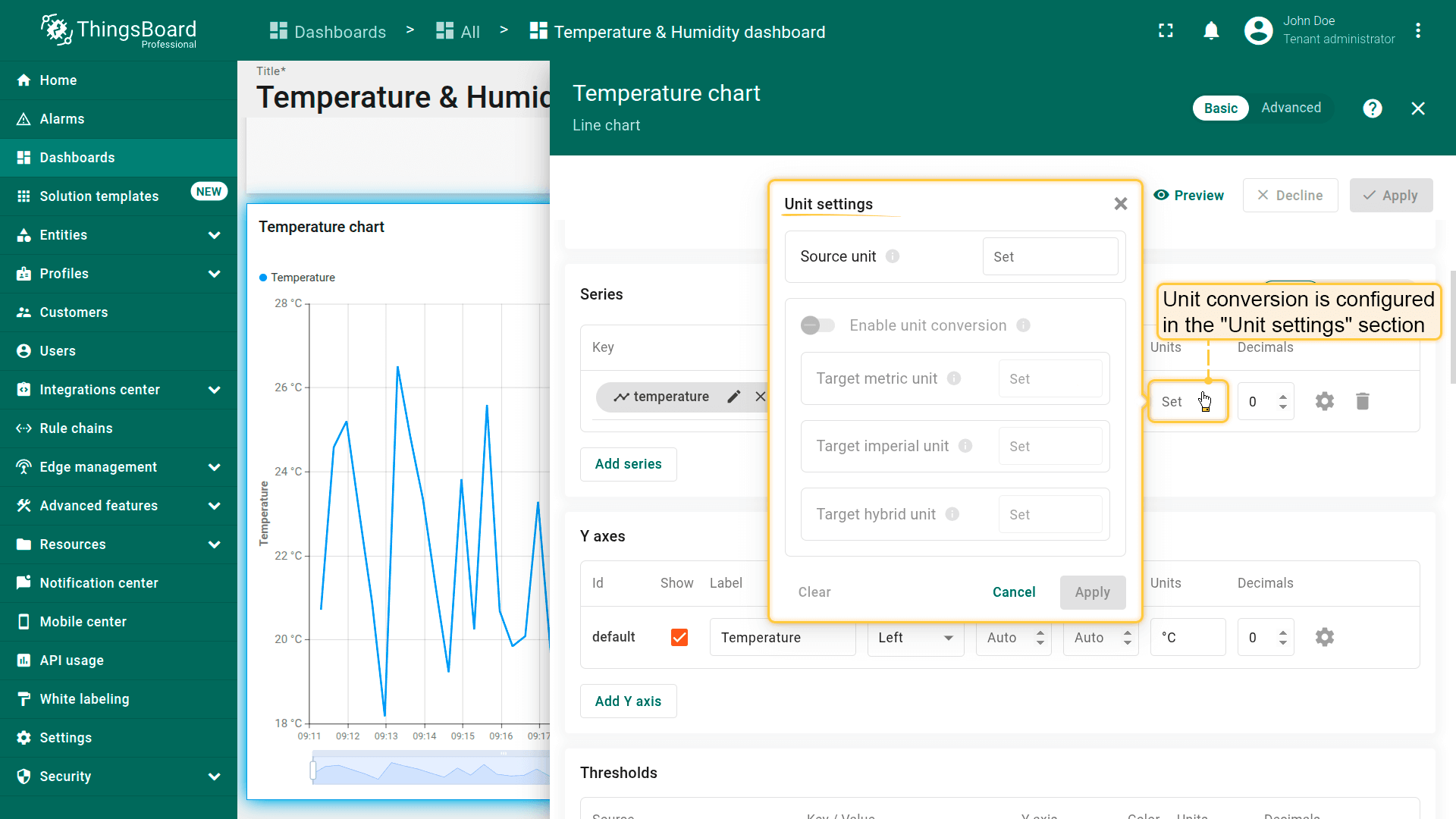
Unit conversion is configured in the unit settings available in the telemetry keys, Y-axis, and thresholds configurations within the widget settings.
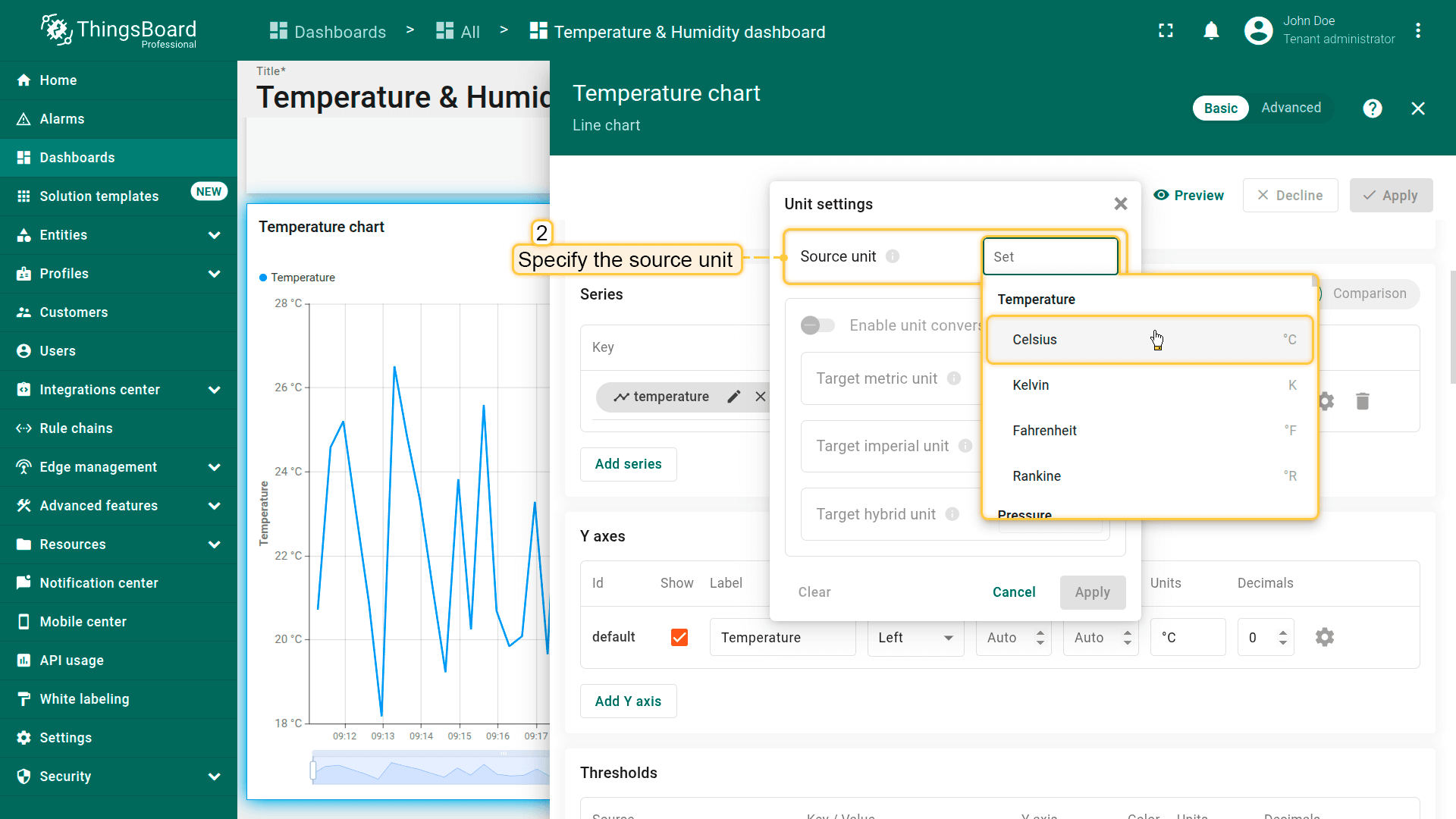
Specify the source unit — the unit of the incoming telemetry value received from the server to ensure correct conversion to the target unit.
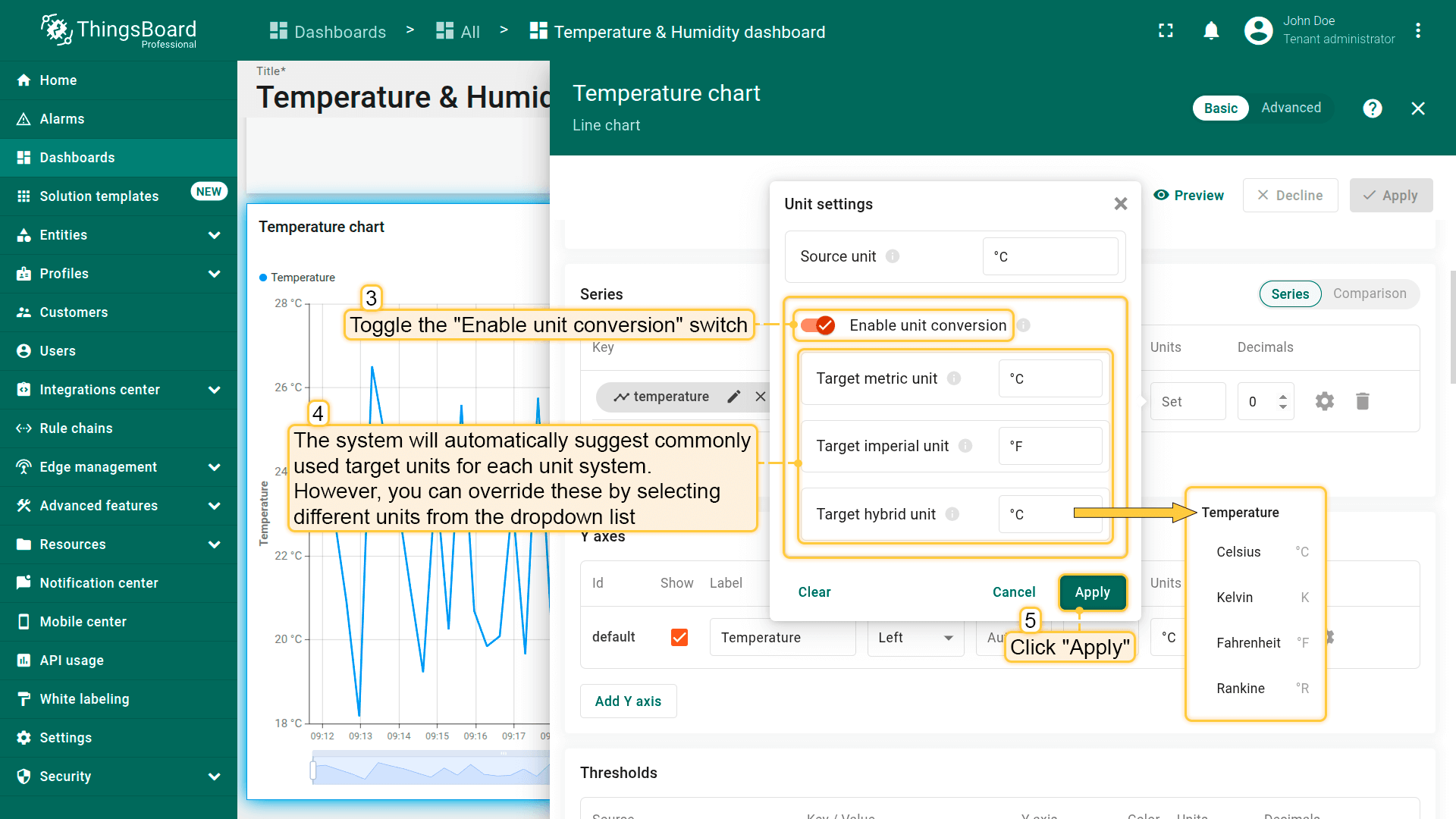
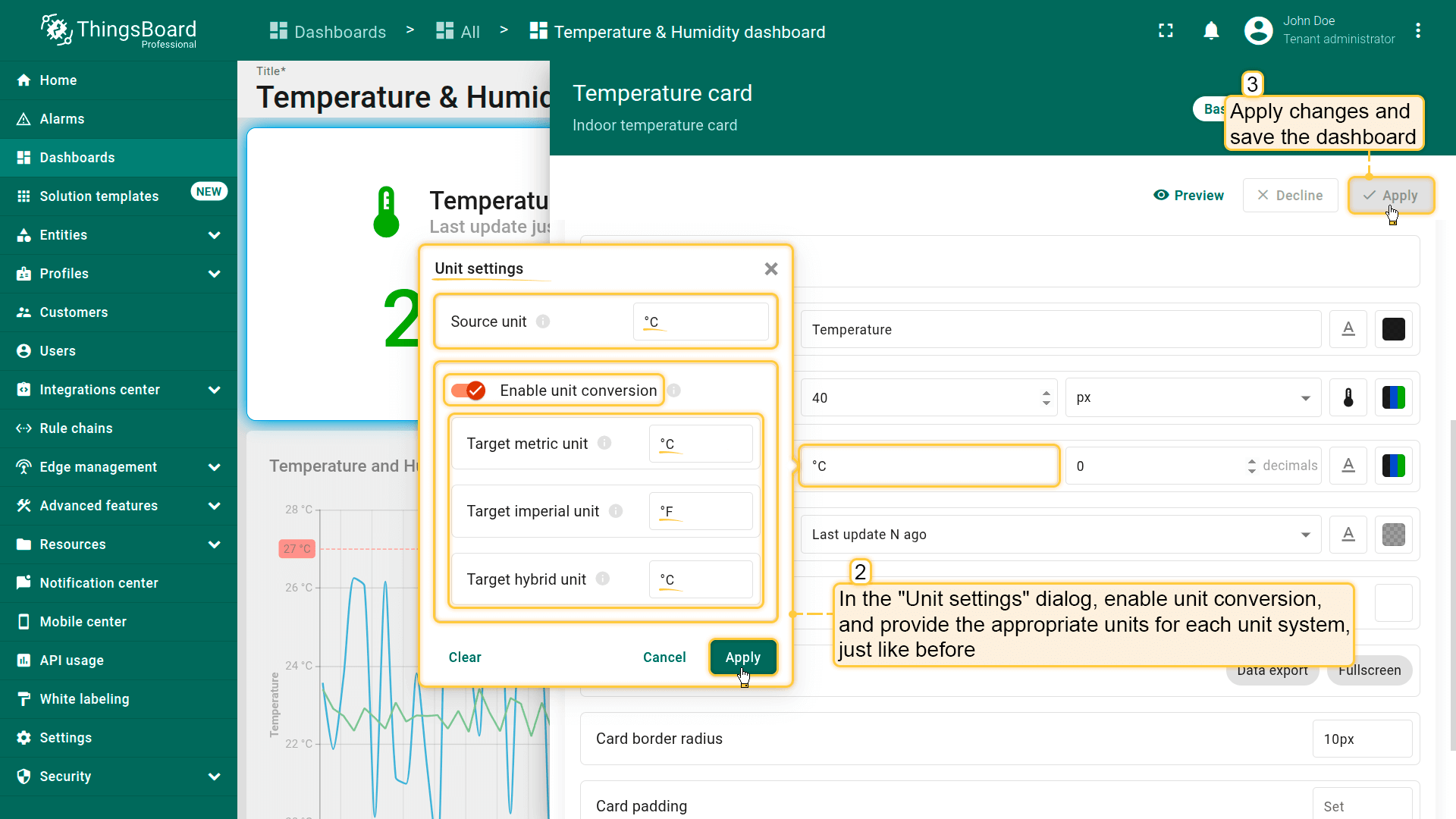
Enable unit conversion by toggling the "Enable unit conversion" switch. The system will automatically suggest commonly used target units for each unit system (e.g., °C for Metric, °F for Imperial, and °C for Hybrid). However, you can override these by selecting different units from the dropdown list. After, click "Apply" to save the changes.
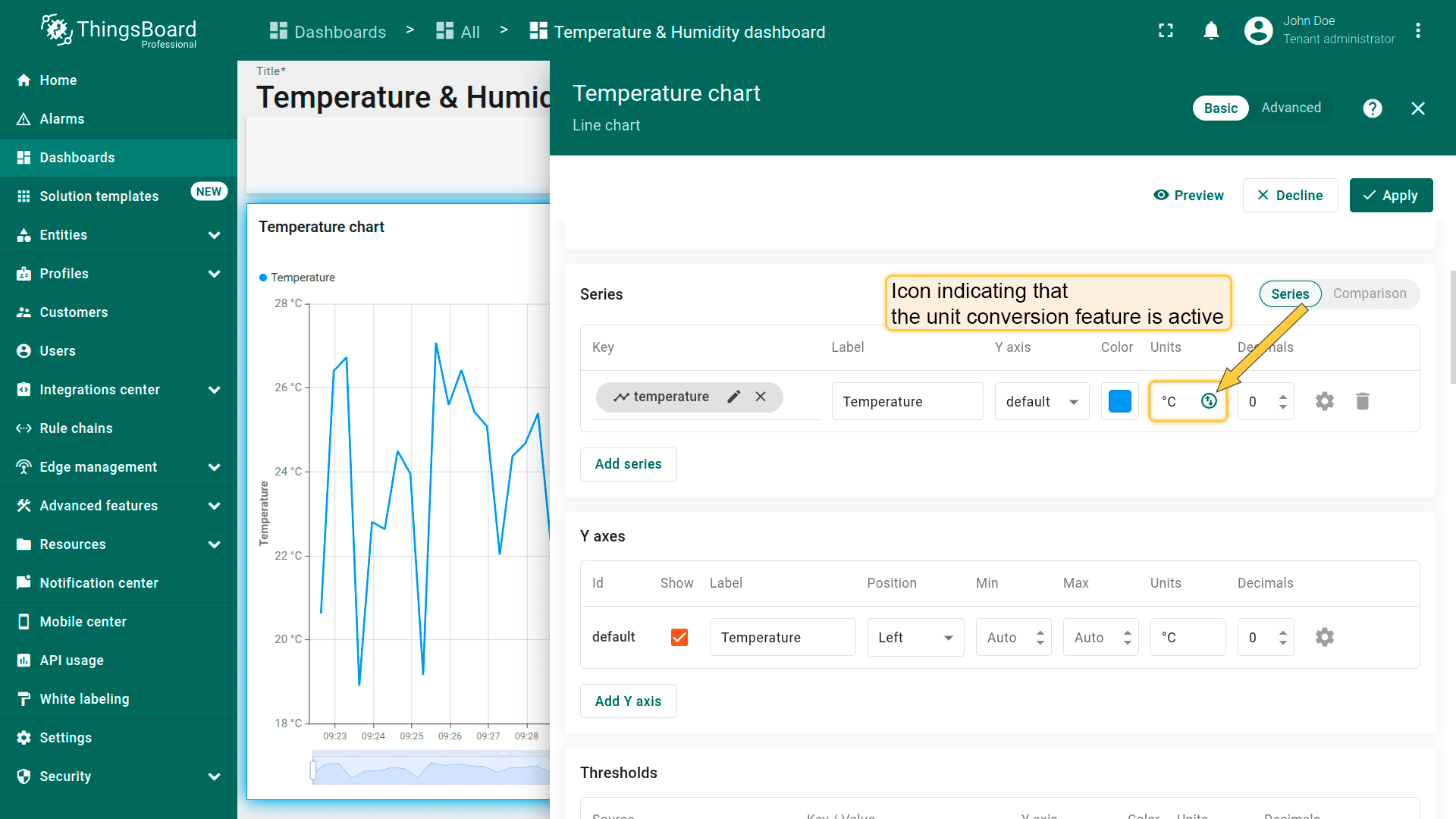
Once unit conversion is enabled, an icon will appear in the Unit field indicating that the feature is active.
Range color settings
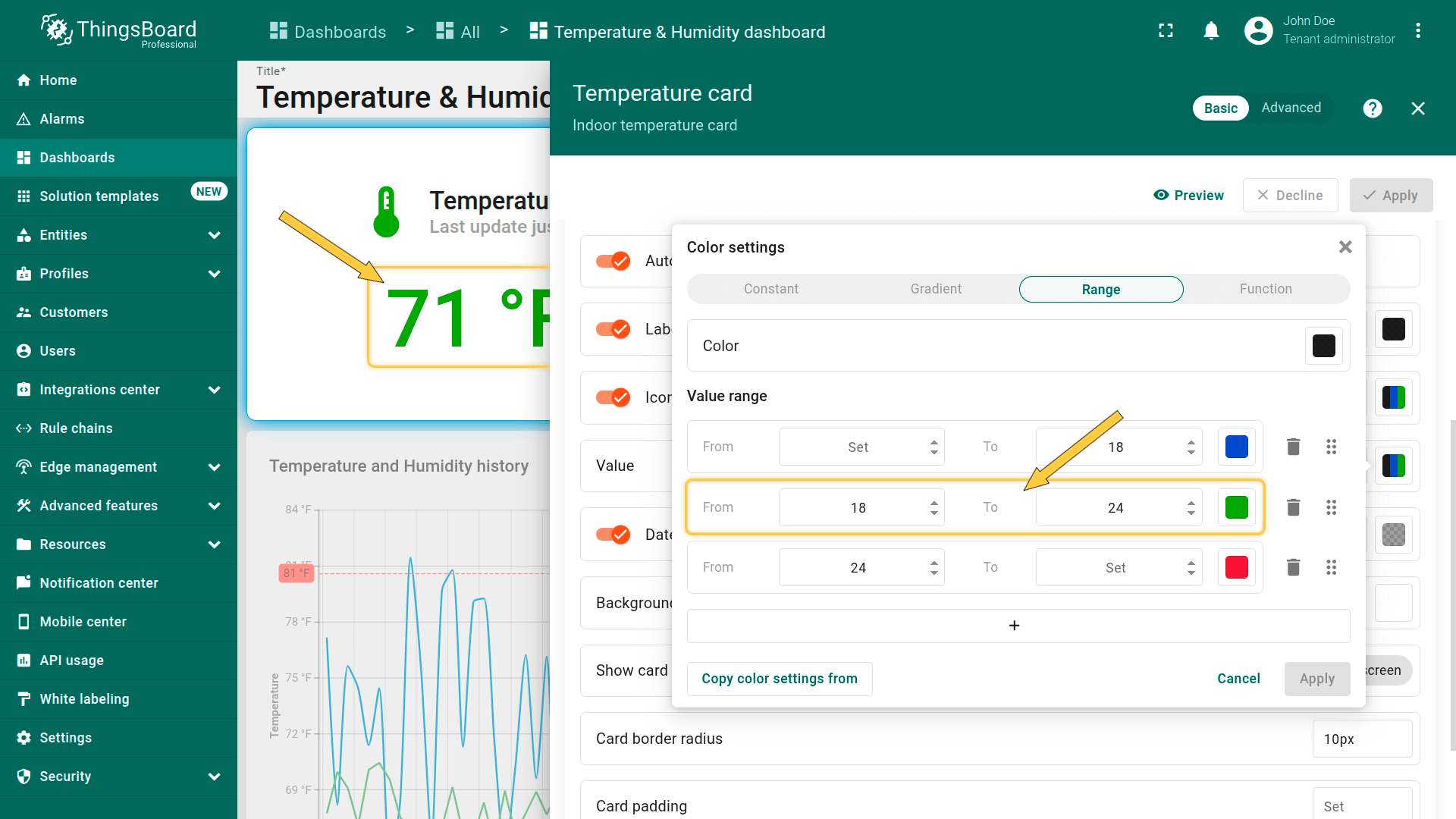
Range color settings 使用从服务器接收的 原始telemetry值(在应用任何单位转换之前的 units)。
例如,若设备发送温度值 22 °C 且已启用单位转换,部件可能显示为 71 °F。
但 范围逻辑仍使用原始22 °C 判定颜色。
因此,若定义 18至24 °C 的绿色范围,则该范围内的所有温度读数都将显示为绿色 —— 无论是22 °C还是71 °F。
这样可确保 范围着色保持一致,切换单位制时亦然。
Range color settings use the original telemetry value received from the server in its source units — before any unit conversion is applied.
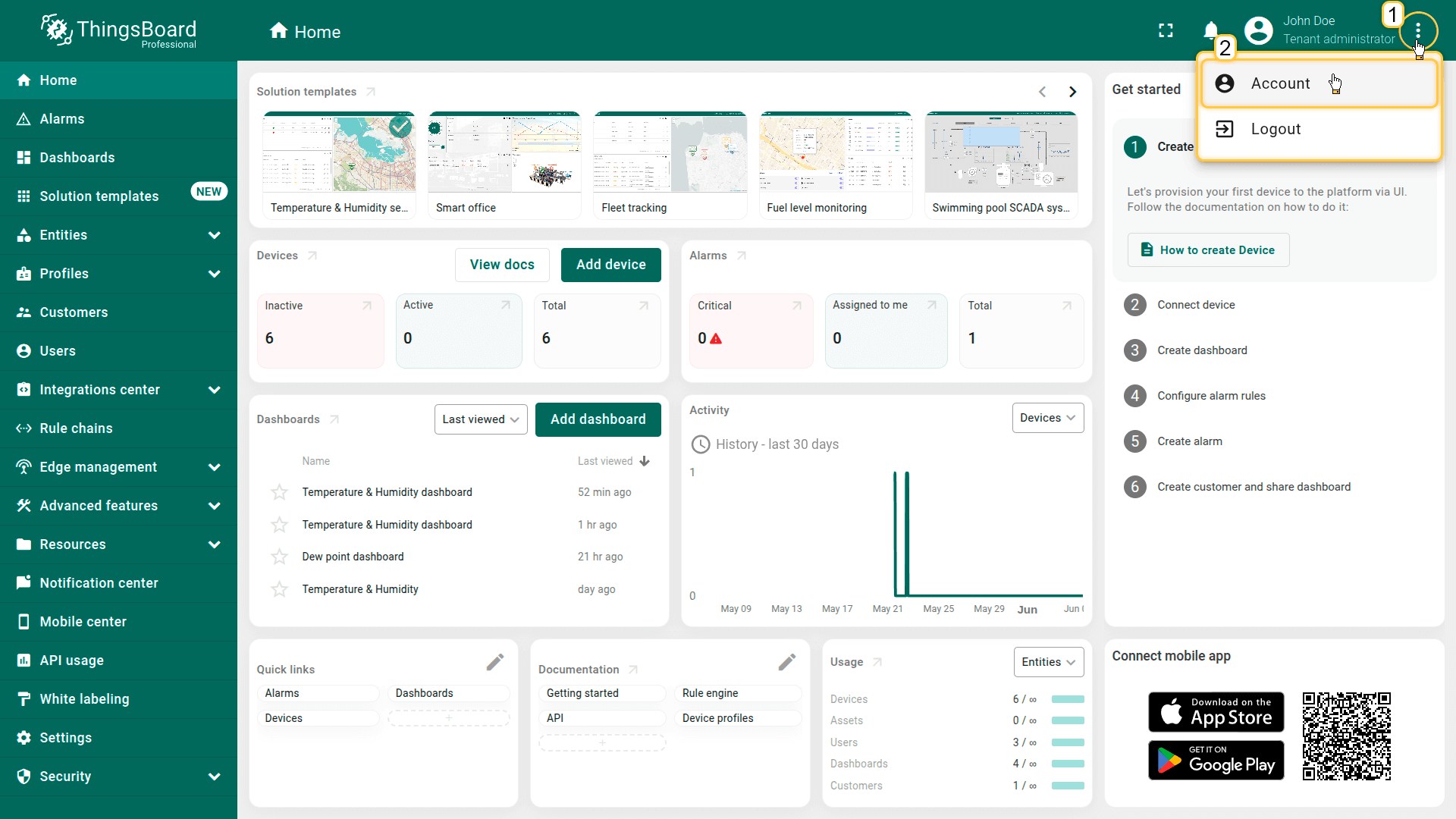
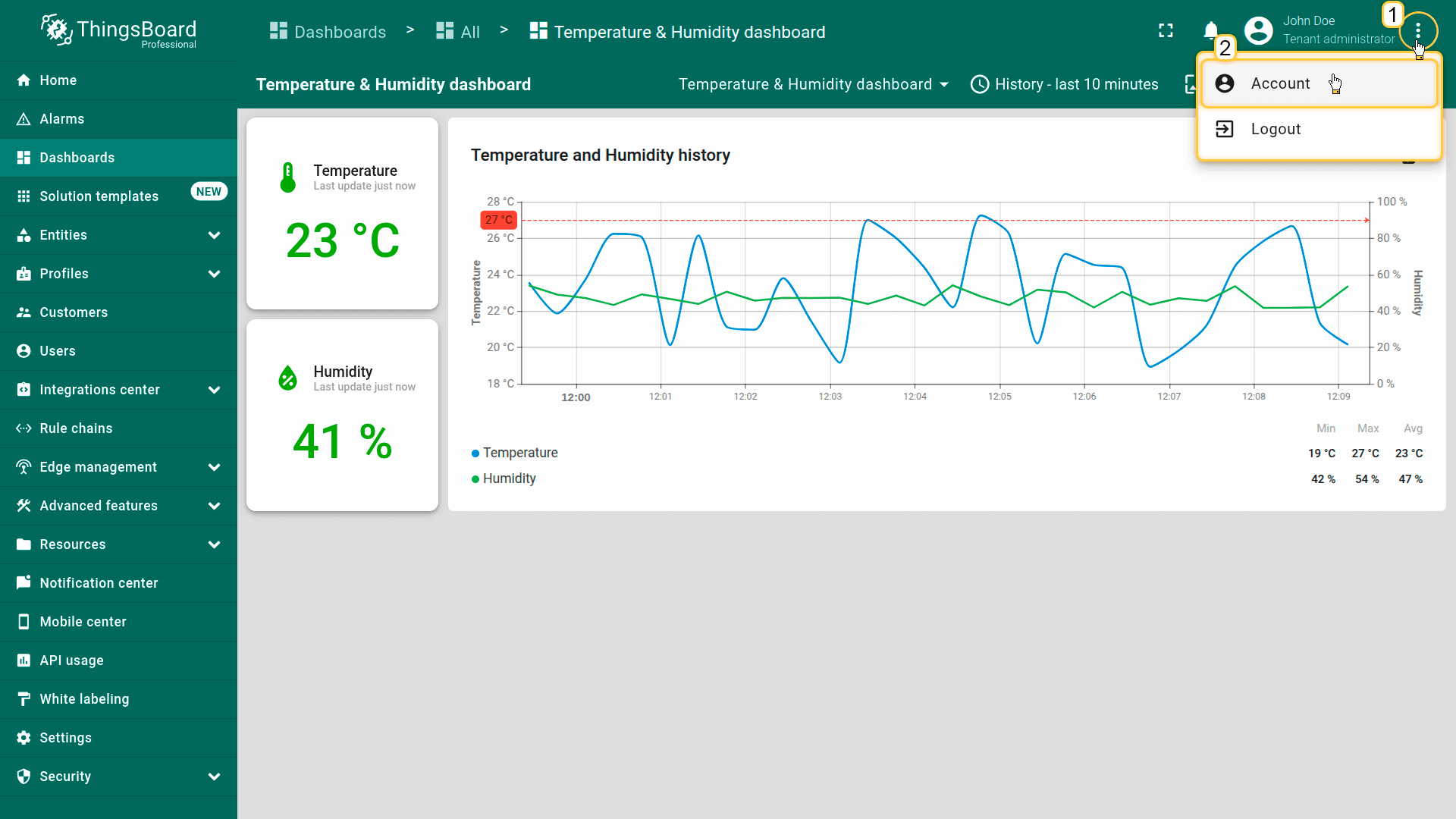
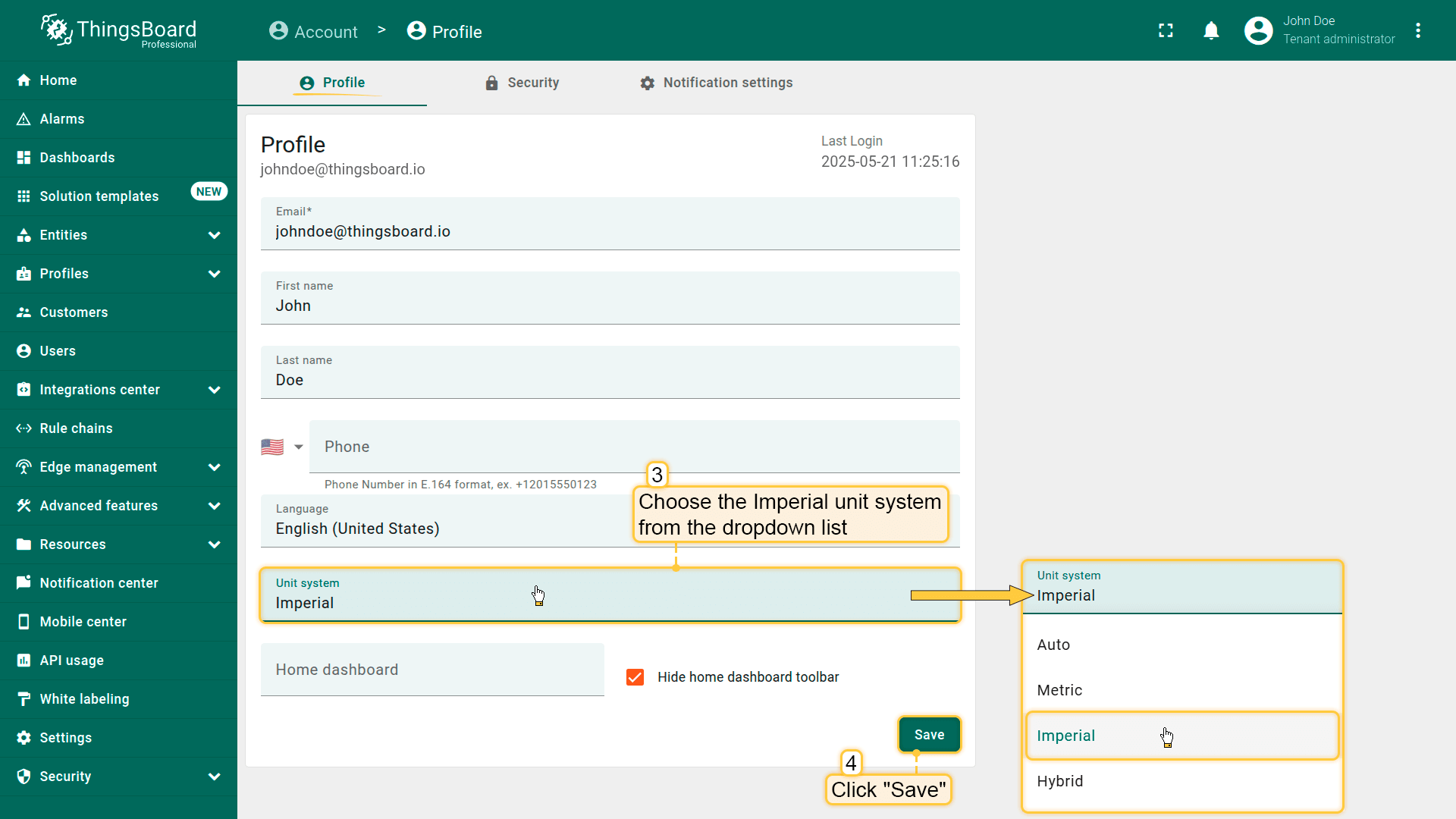
Click the three-dot icon in the top-right corner of the screen and select "Account".
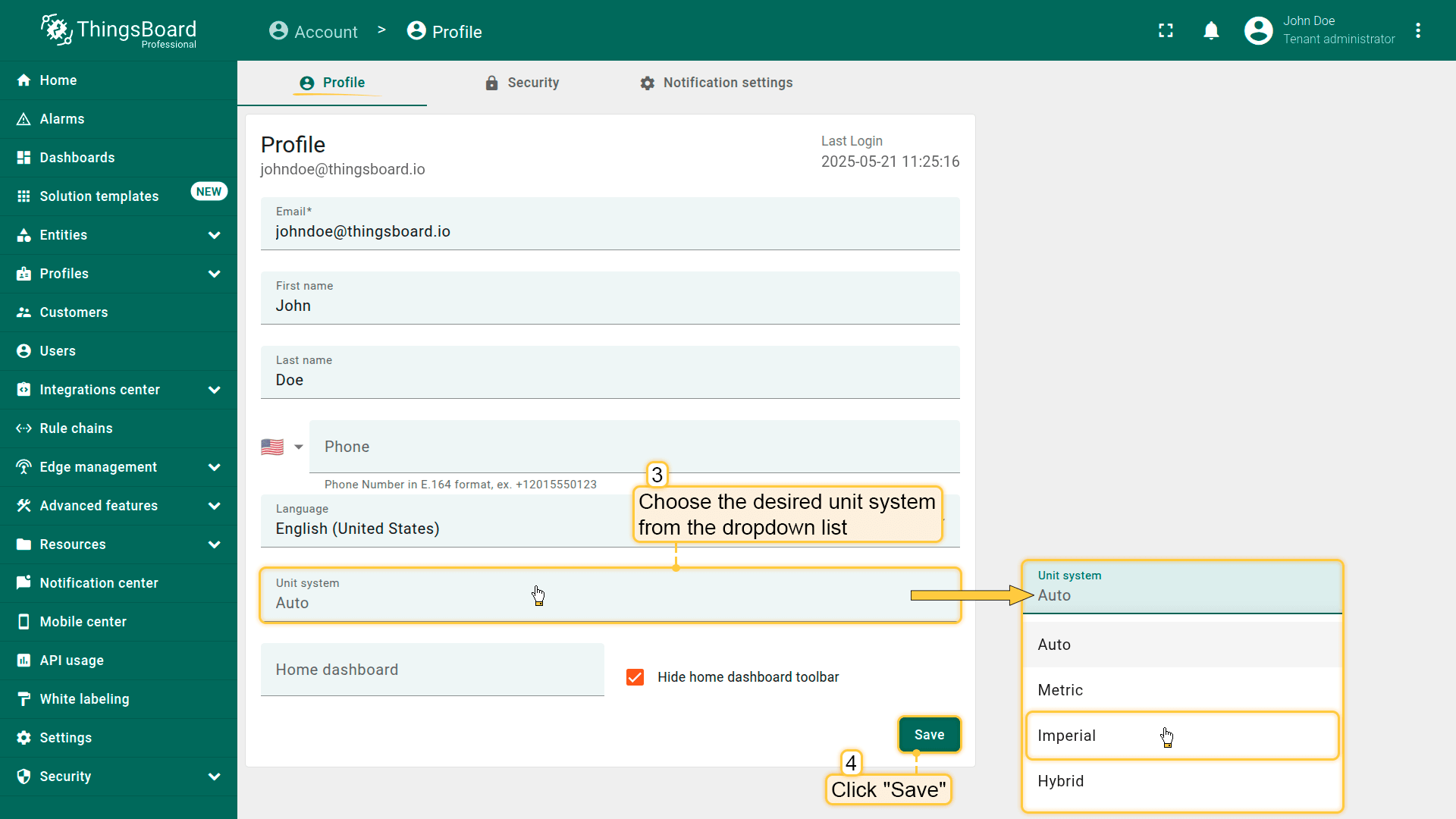
In the Profile settings, choose the desired unit system from the dropdown list. Then, apply changes.
Example
下面以 Temperature & Humidity dashboard为例配置单位转换。
该dashboard包含显示 摄氏度 (°C) 的 temperature 和 百分比 (%) 的 humidity 的部件。
Let's walk through configuring the unit conversion feature using the Temperature & Humidity dashboard as an example. This dashboard contains widgets that display the temperature in degrees Celsius (°C) and humidity in percentage (%).
将为单位转换应用到 temperature telemetry值、temperature图表的Y轴和 temperature阈值。
humidity 值保持不变,因为湿度测量单位为 percentage (%),与所选 unit system 无关。
Step 1: Edit the Chart widget
切换到“Temperature and Humidity history”图表部件的编辑模式。
首先,为“temperature” telemetry key配置单位转换:
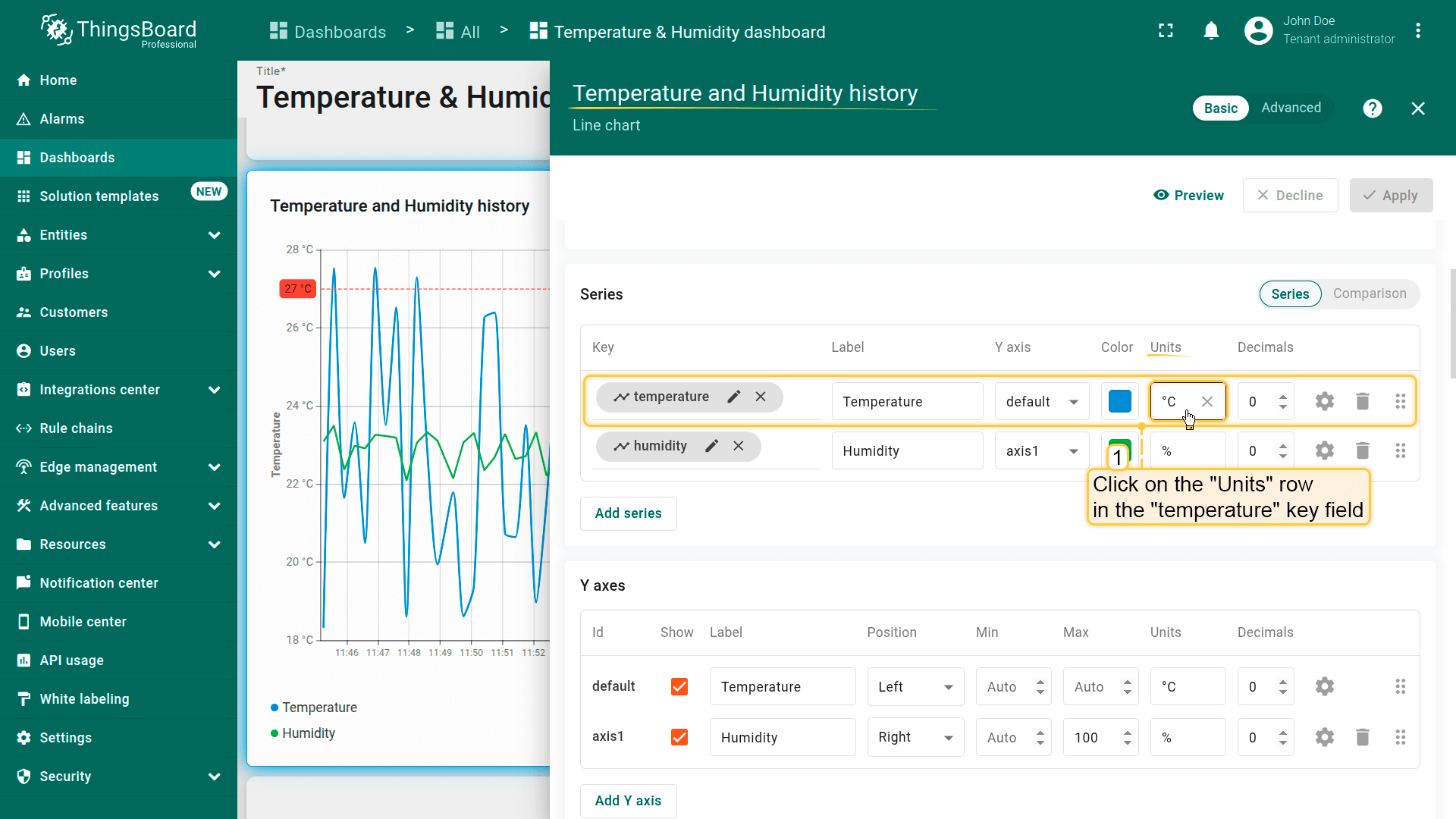
在“temperature” key字段中点击“Units”行。可见 source unit 已设为 Celsius (°C),符合需求。
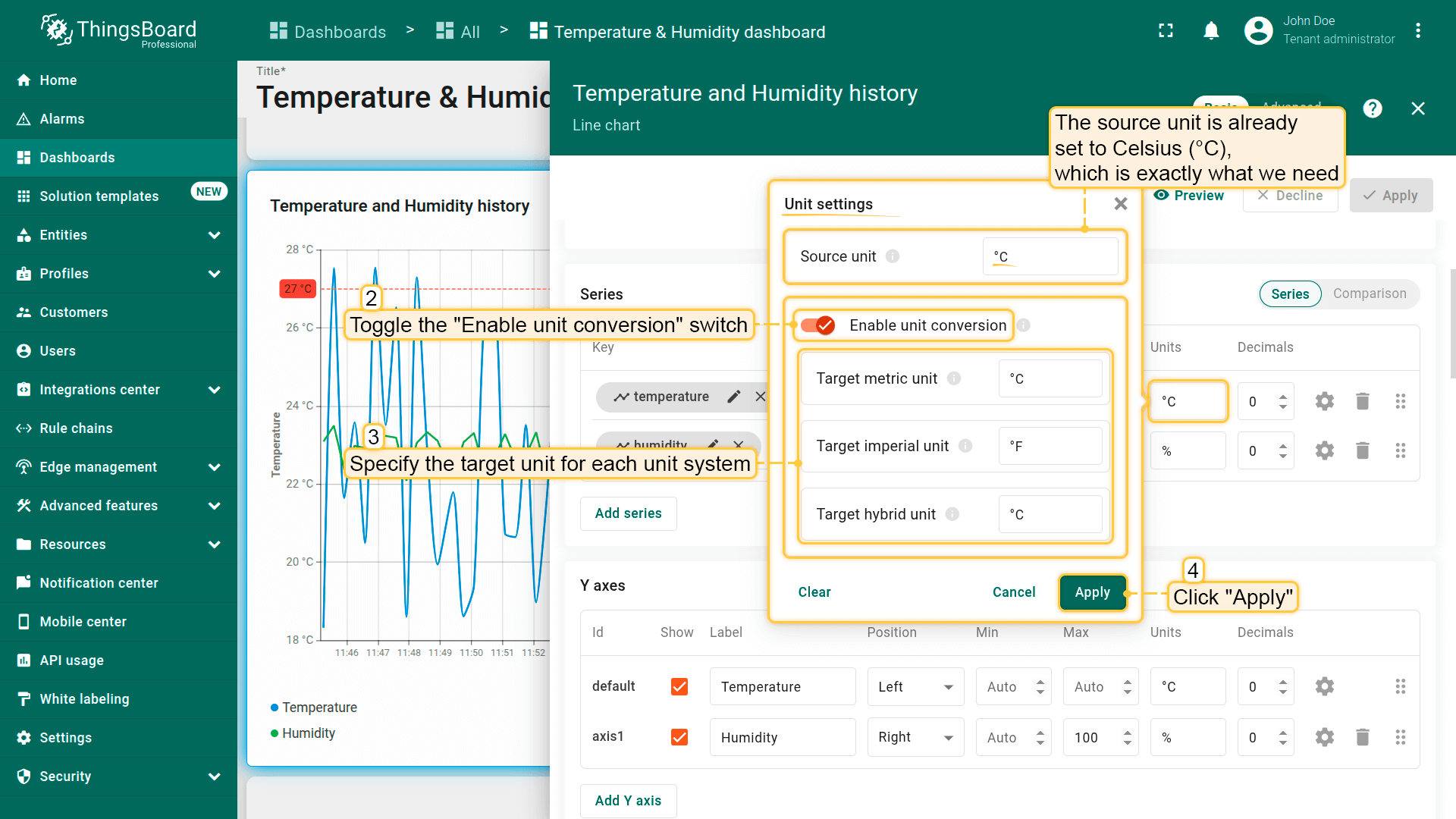
启用转换:打开“Enable unit conversion”选项,并为各单位制指定目标单位(如Imperial为 °F,Metric和Hybrid为 °C)。
点击“Apply”。
Switch to edit mode for the “Temperature and Humidity history” chart widget. First, configure the unit conversion for the "temperature" telemetry key: Click on the "Units" row in the "temperature" key field.
The source unit is already set to Celsius (°C), which is exactly what we need. To enable conversion, simply toggle on the “Enable unit conversion” option and specify the target unit for each unit system (e.g., °F for Imperial, °C for Metric and Hybrid). Then, click "Apply".
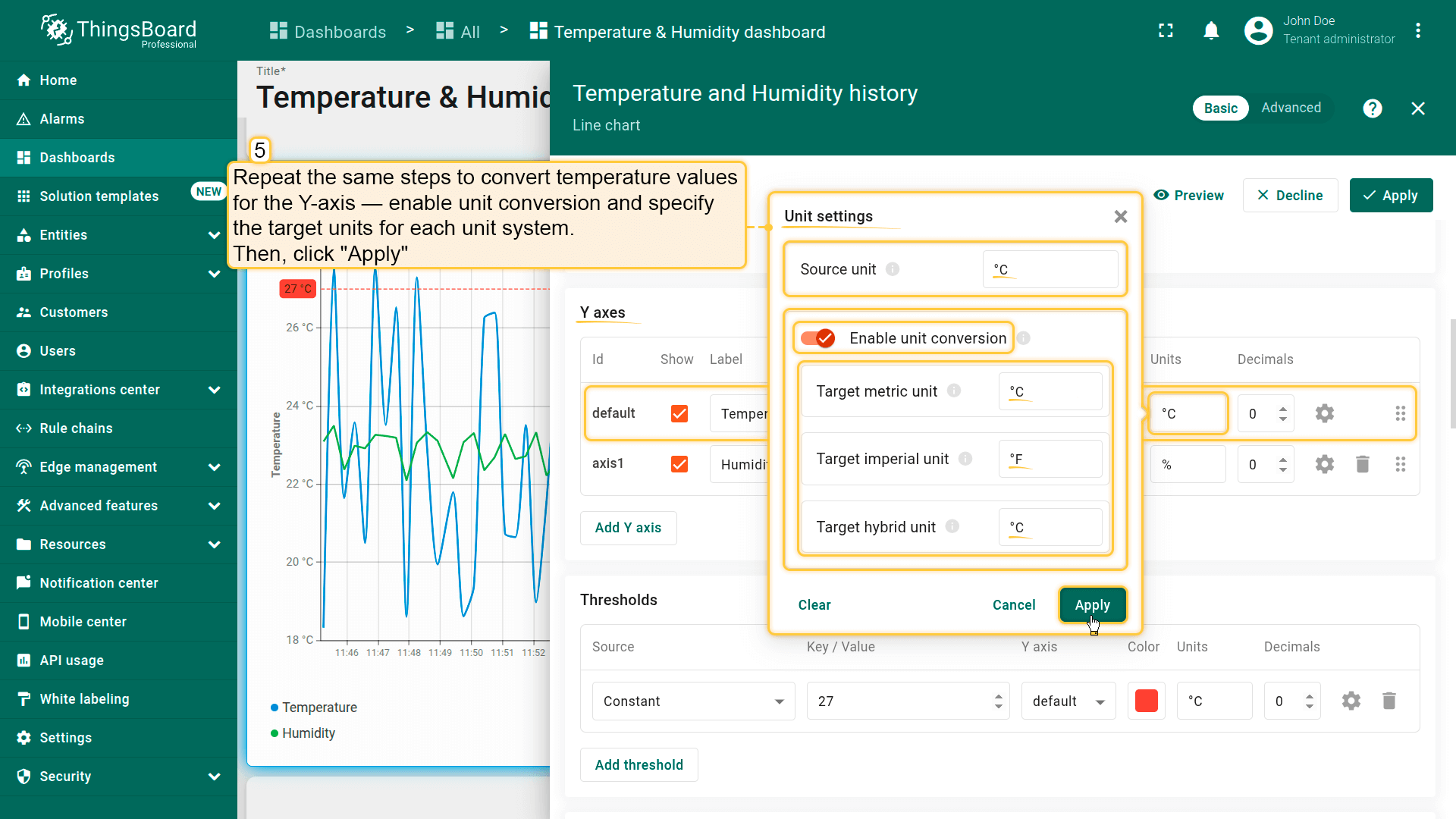
Repeat the same steps to convert temperature values for the Y-axis — enable unit conversion and specify the target units for each measurement system. Click "Apply".
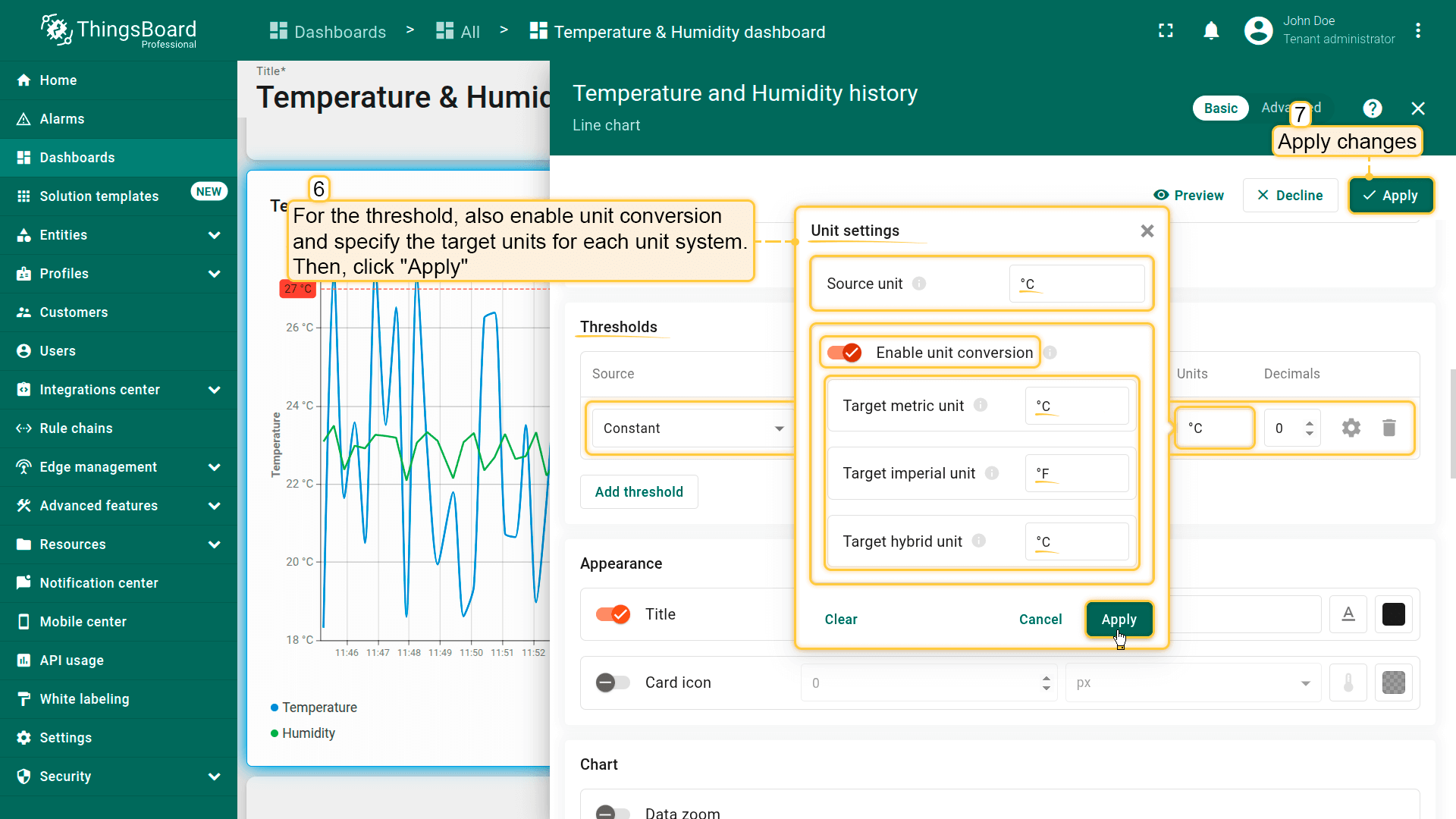
For the threshold, also enable unit conversion and specify the target units for each unit system. Then, apply all changes.
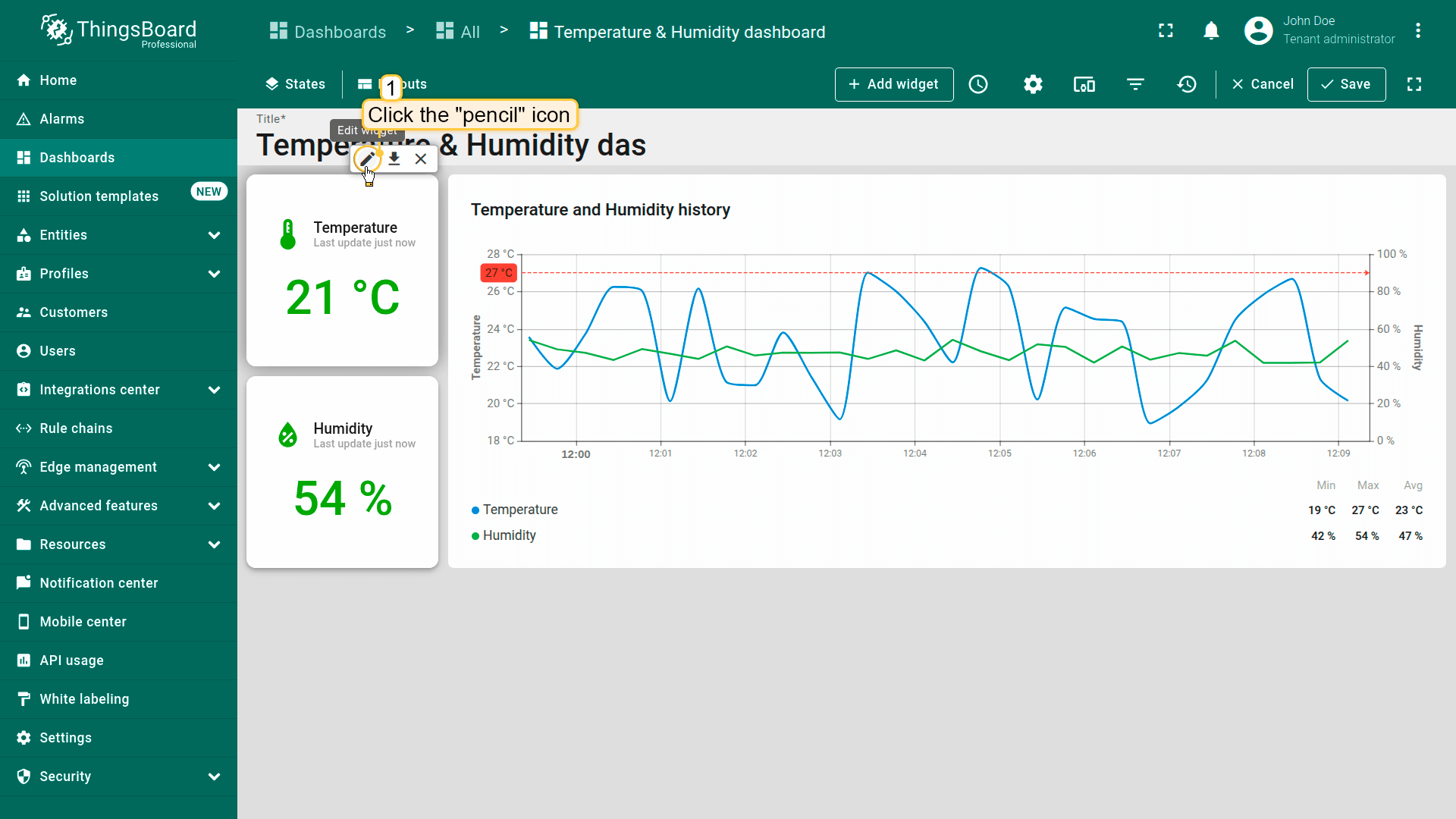
Switch to edit mode for the "Temperature" card widget.
In the "Unit settings" dialog, enable unit conversion and provide the appropriate units for each unit system, just like before. Apply your changes and save the dashboard.
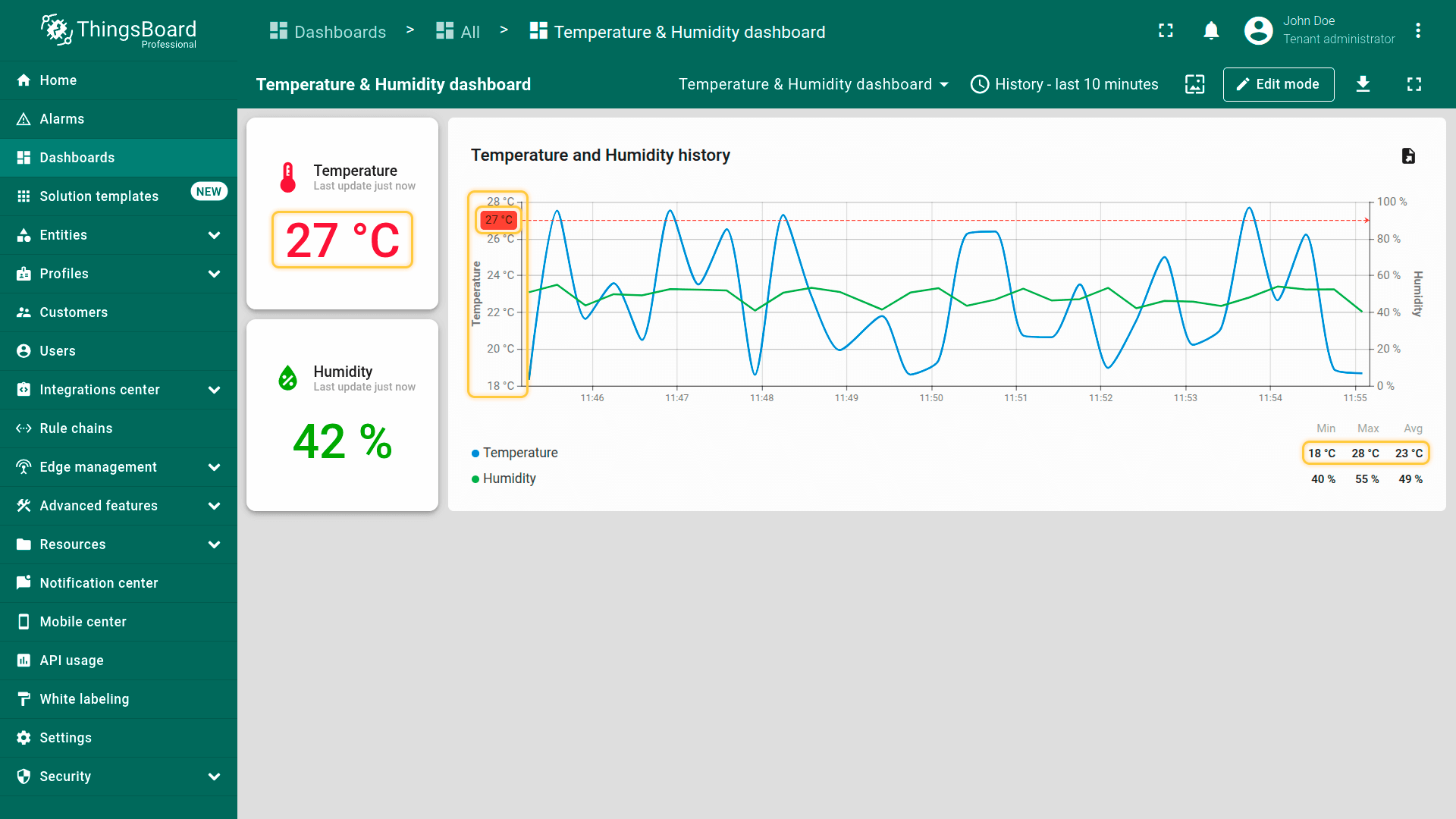
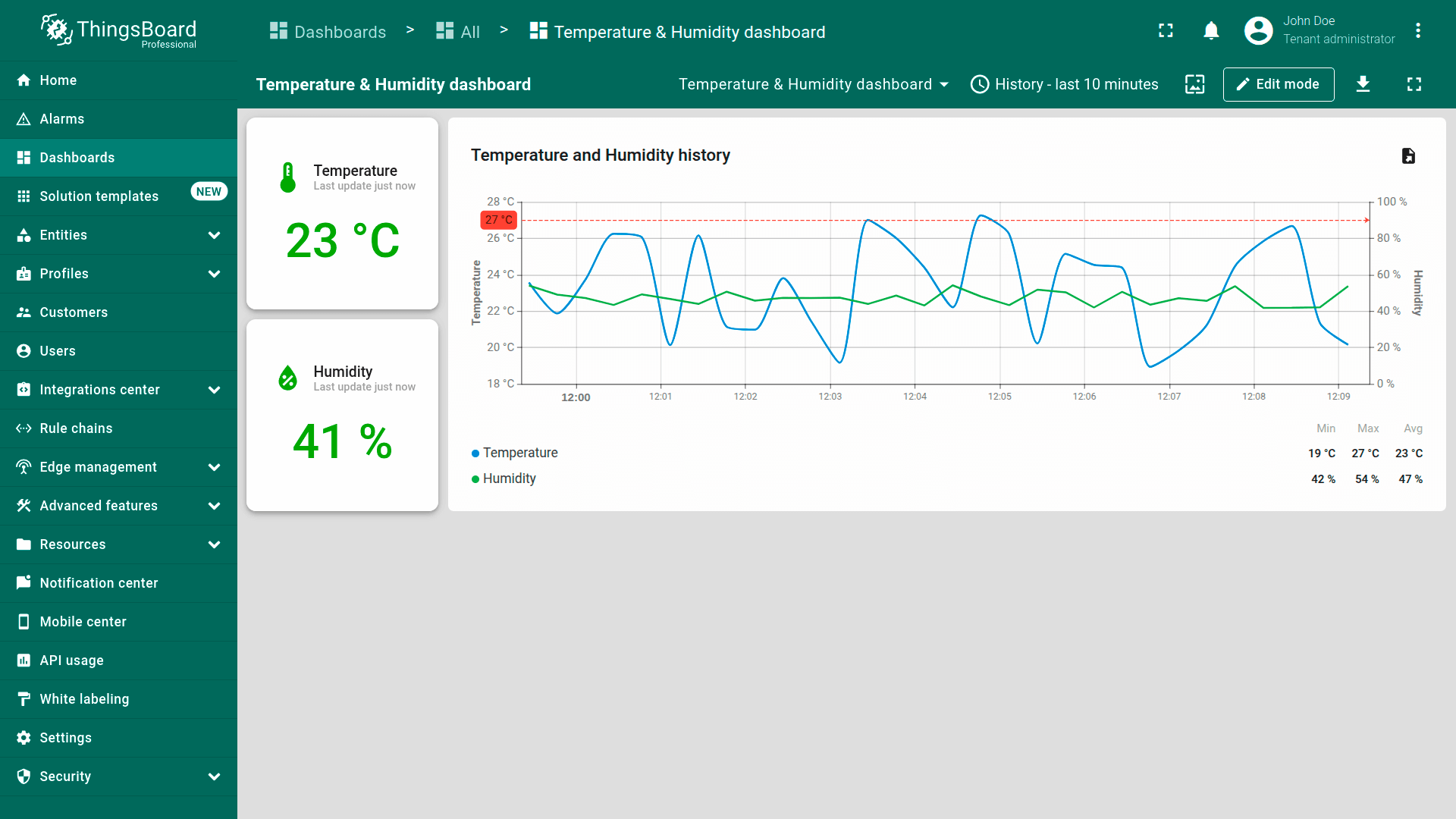
由于当前单位制为 Metric,温度以摄氏度 (°C) 显示。
Since our current unit system is set to Metric, temperature values are shown in Celsius (°C).
Click the three-dot icon in the top-right corner of the screen and select "Account".
In the Profile settings, choose the Imperial unit system from the dropdown list. Then, apply changes.
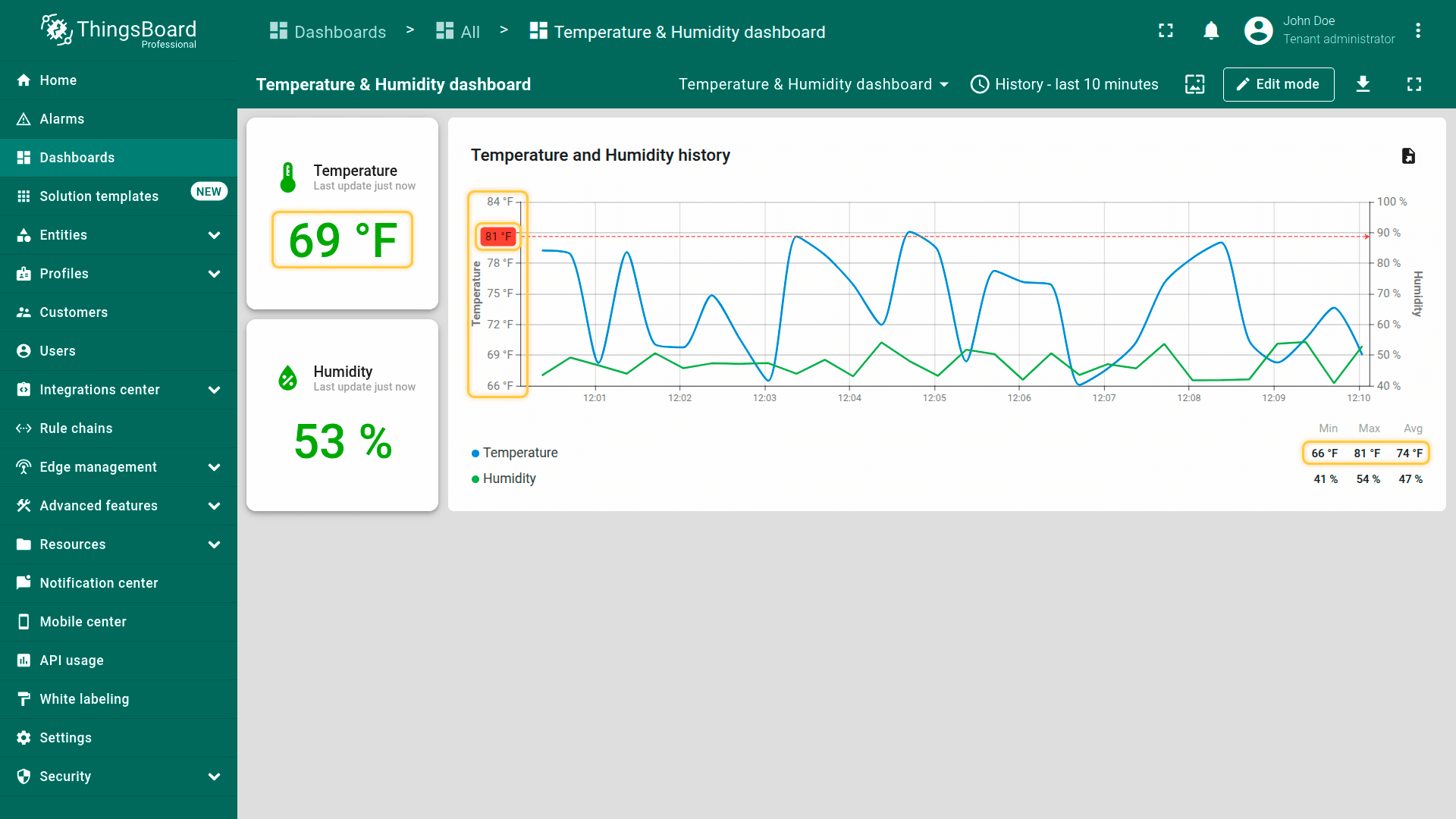
返回dashboard,可看到温度值、Y轴标签和阈值已根据所选单位制从摄氏度转换为华氏度。
Return to the dashboard — you will now see that the temperature value, Y-axis labels, and threshold have been converted from Celsius to Fahrenheit according to the selected unit system.