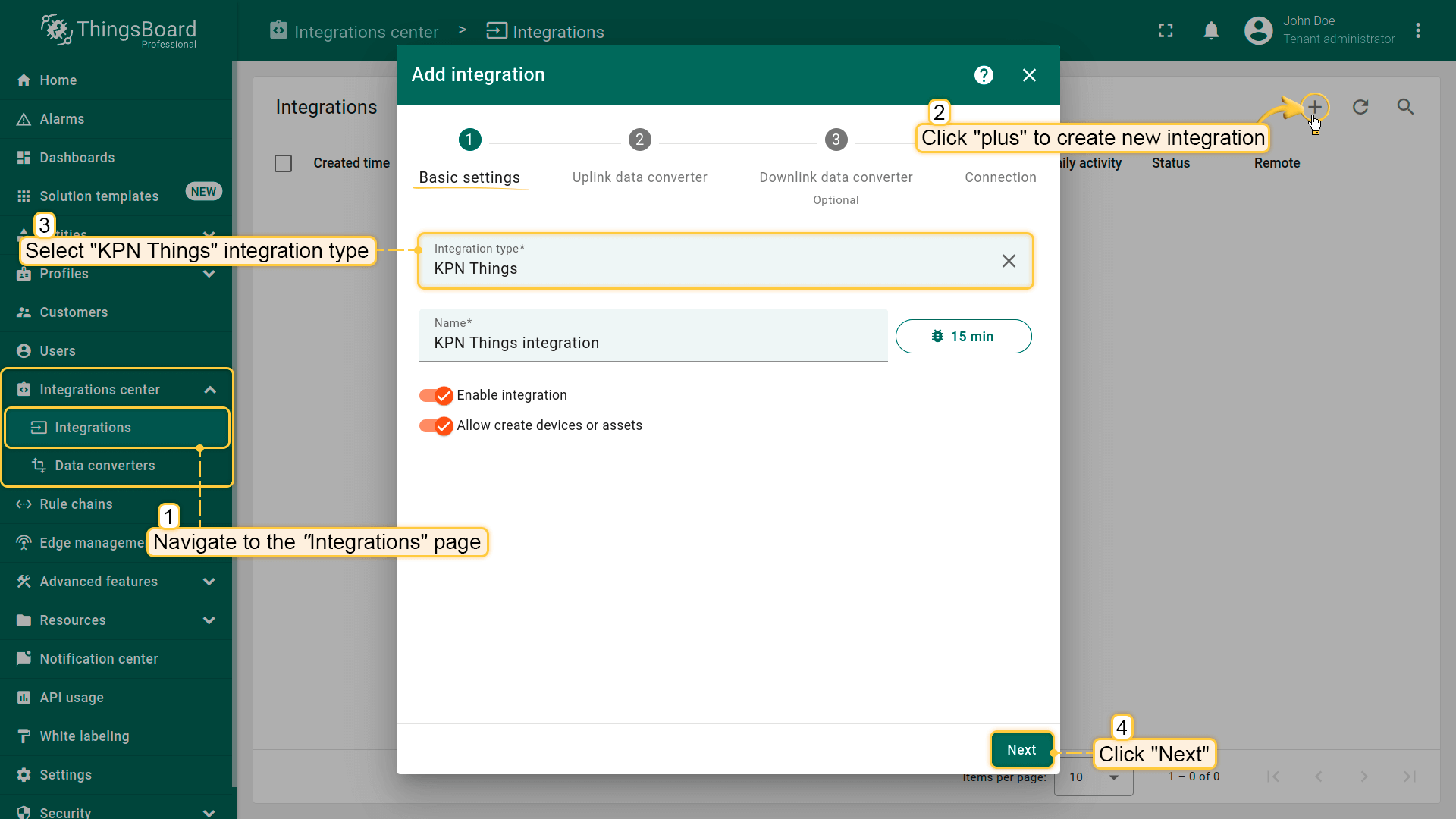
Go to "Integrations center" section -> "Integrations" page and click "plus" button to create new integration. Select type "KPN Things". Click "Next";
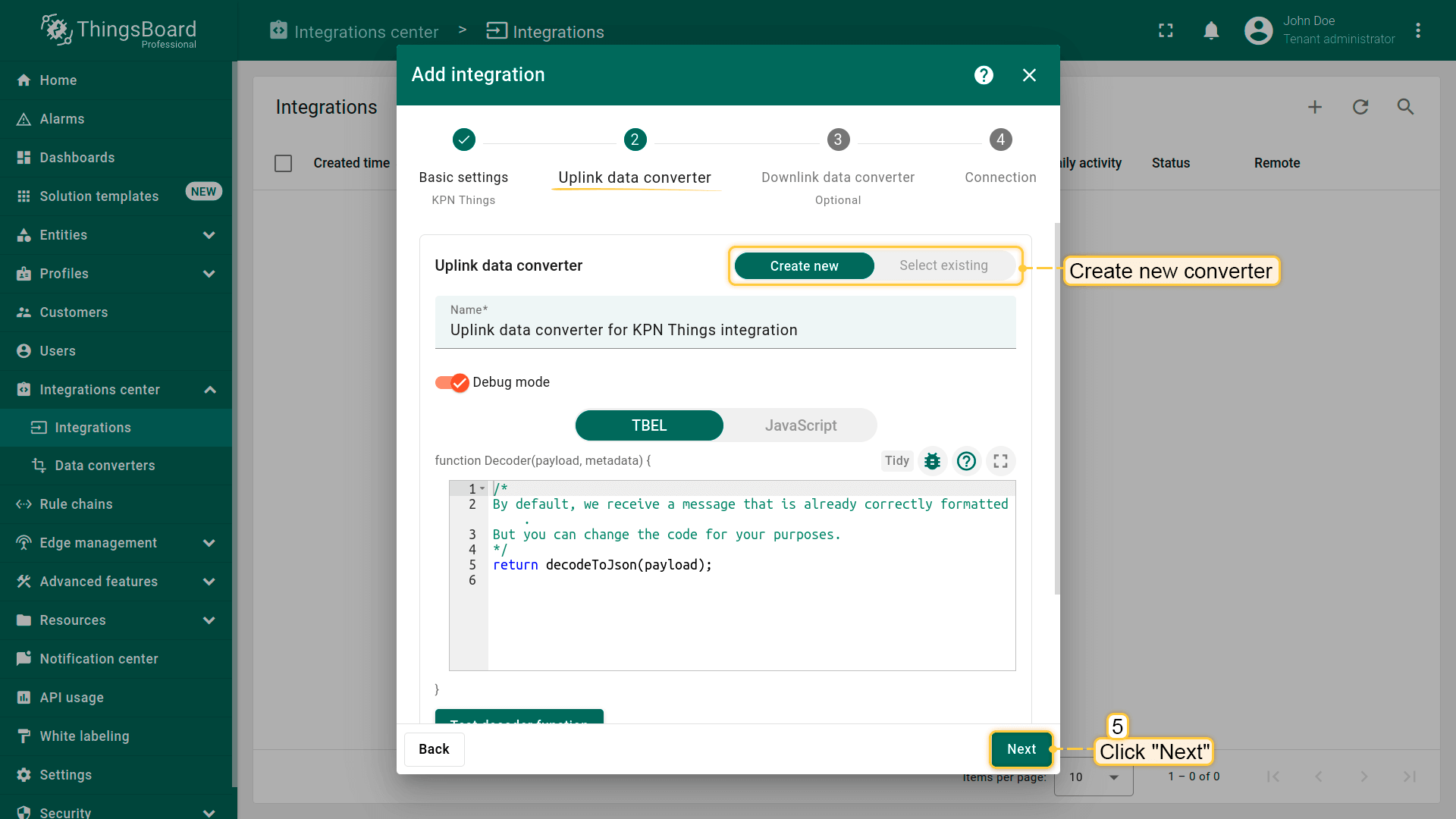
At this step, choose "Create new" uplink converter. The new converter will contain necessary code to convert incoming data and click "Next";
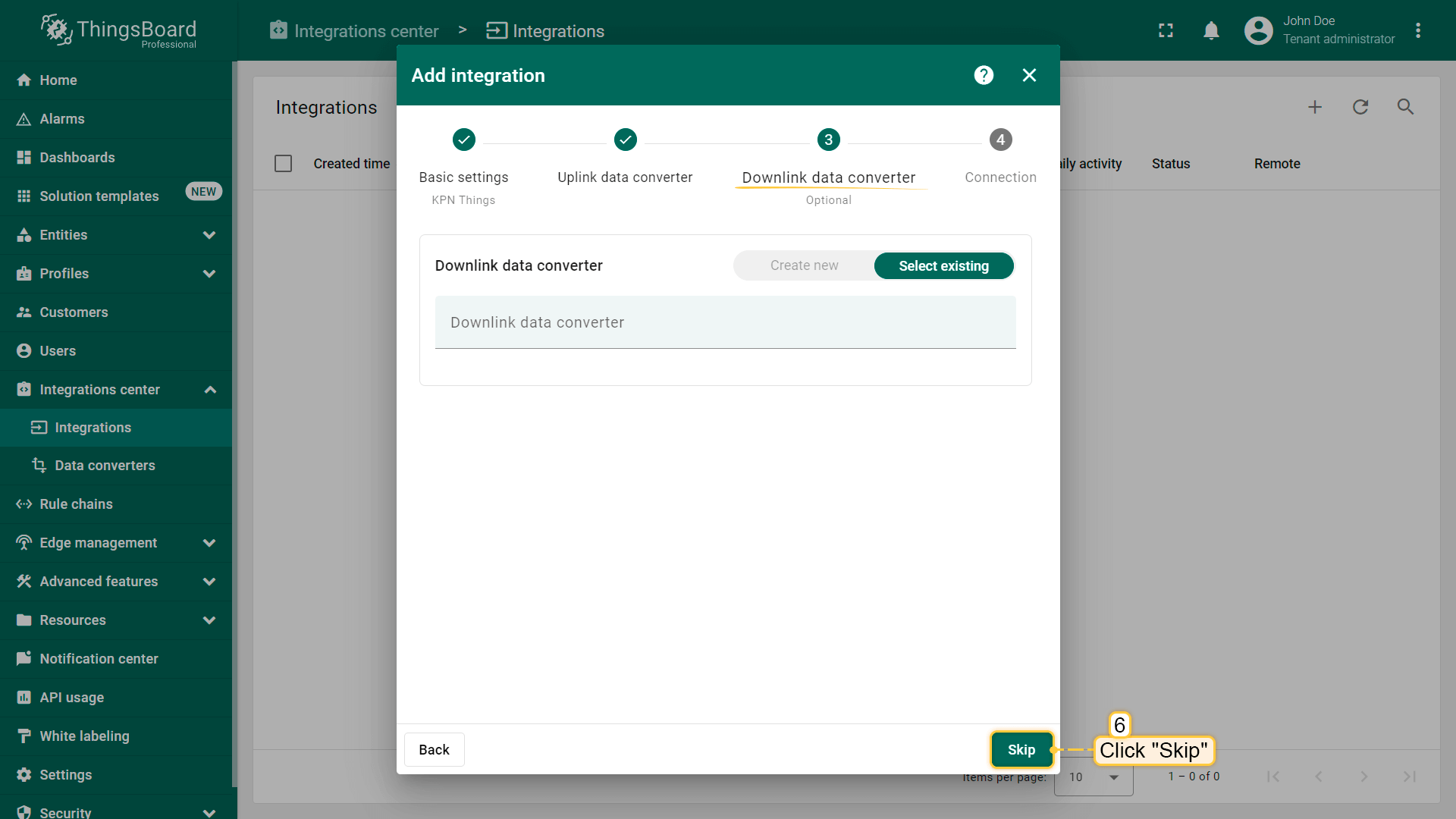
At the step of adding a downlink converter, you can also select a previously created or create a new downlink converter. But for now, leave the "Downlink data converter" field empty. Click "Skip";
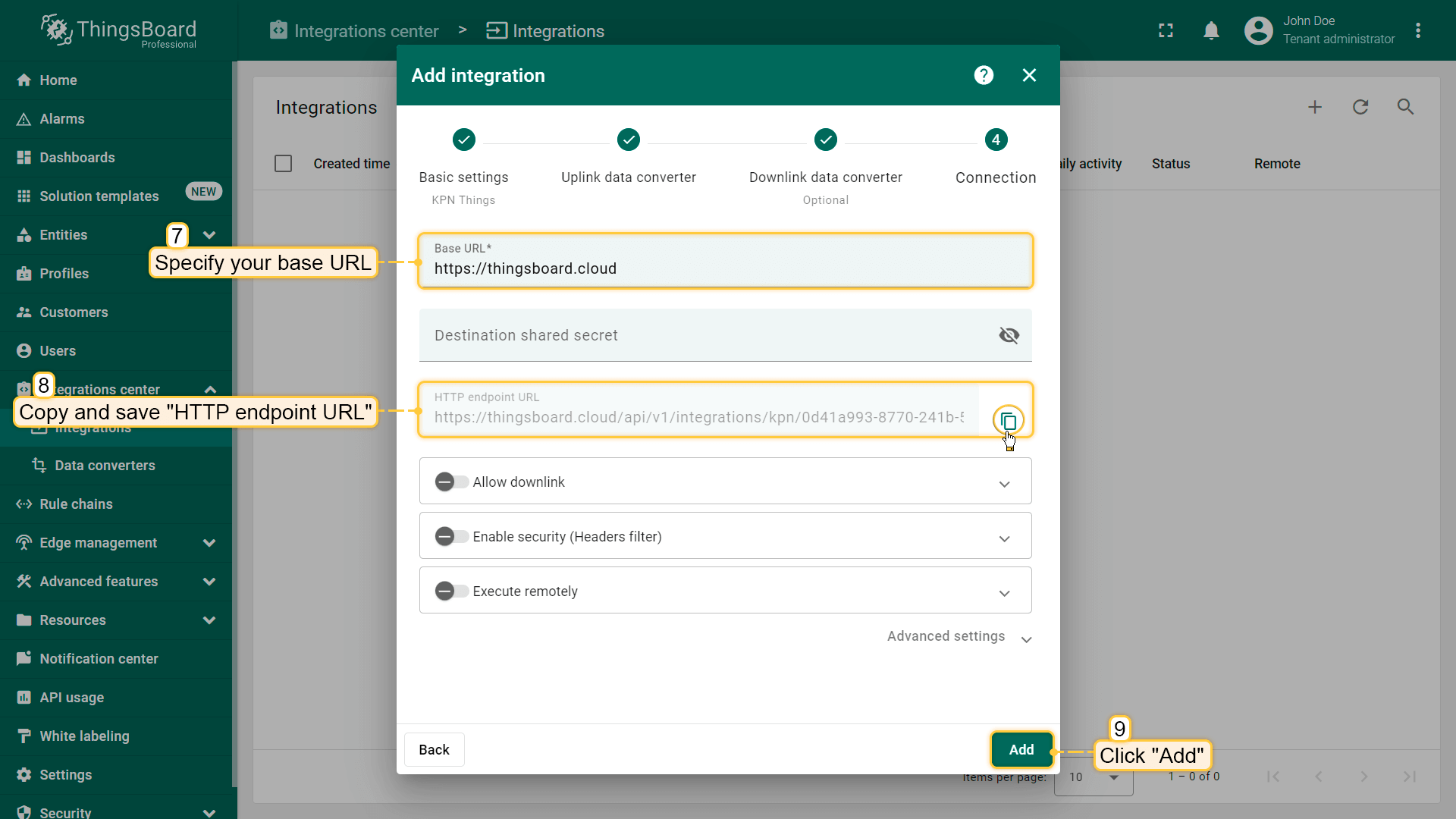
Specify your base URL. Please note down "HTTP endpoint URL" we will use this value later. Then, click the "Add" button. KPN Things integration is created.
Go to "Integrations center" section -> "Integrations" page and click "plus" button to create new integration. Select type "KPN Things". Click "Next";
At this step, choose "Create new" uplink converter. The new converter will contain necessary code to convert incoming data and click "Next";
At the step of adding a downlink converter, you can also select a previously created or create a new downlink converter. But for now, leave the "Downlink data converter" field empty. Click "Skip";
Specify your base URL. Please note down "HTTP endpoint URL" we will use this value later. Then, click the "Add" button. KPN Things integration is created.
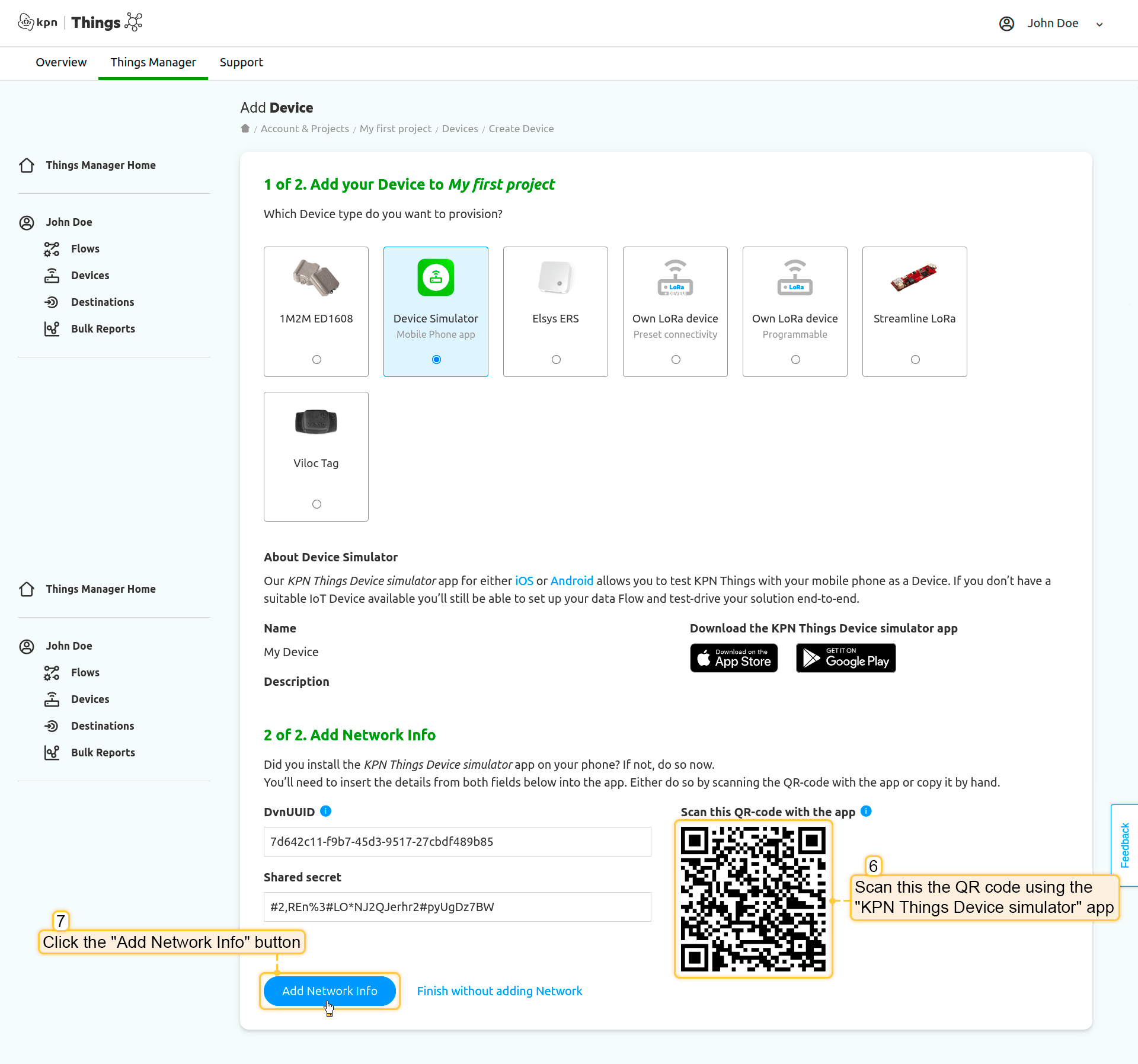
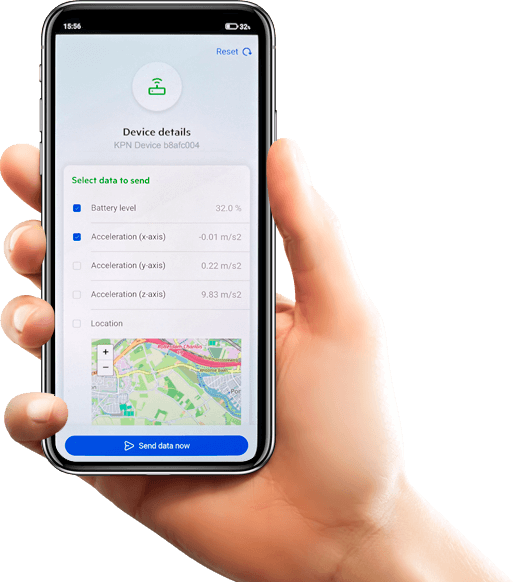
在手机上安装并打开”KPN Things Device simulator”应用。按照手机上的说明扫描此二维码,然后点击”Add Network Info”按钮;
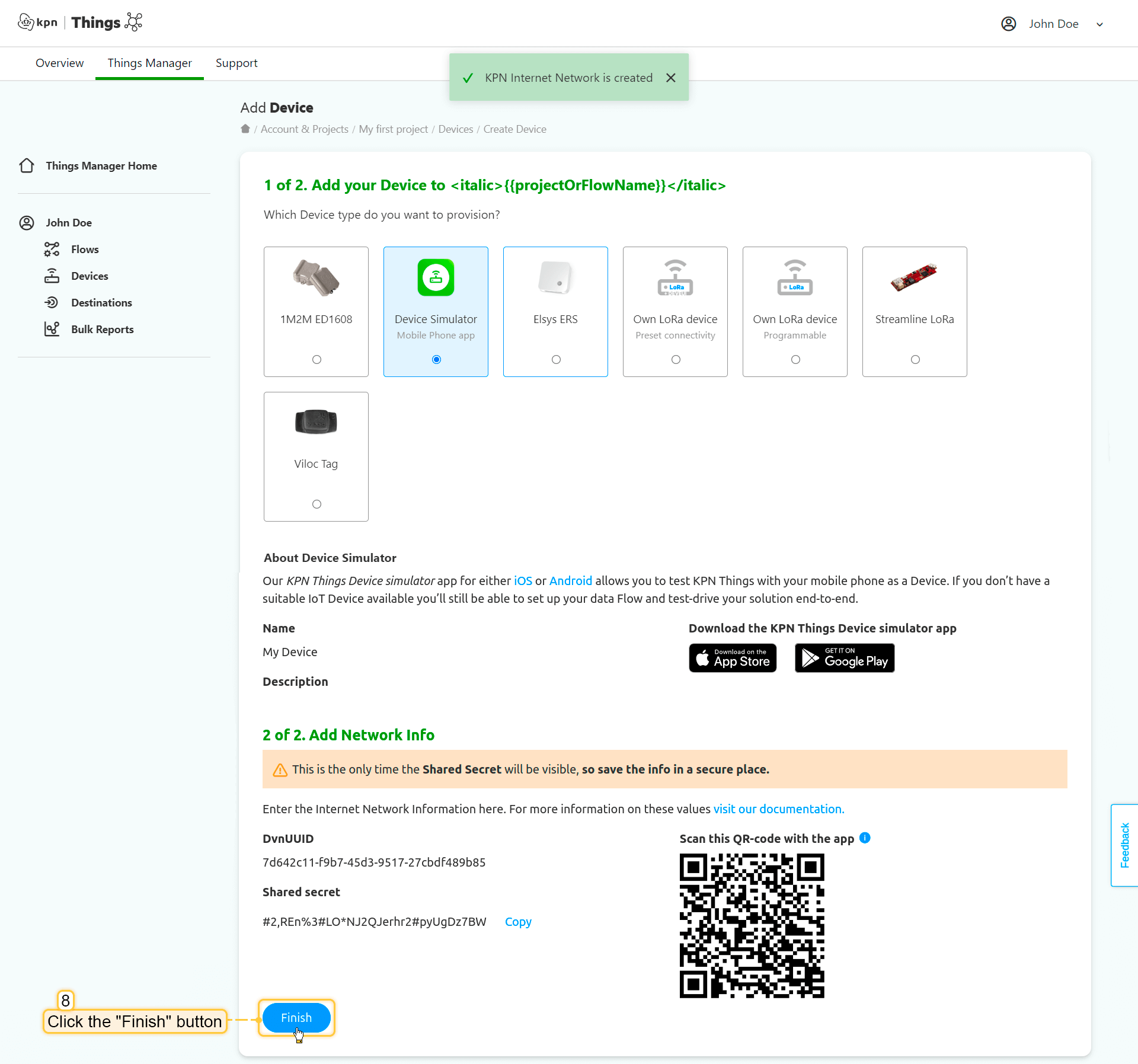
KPN Internet Network已创建。现在,点击”Finish”按钮;
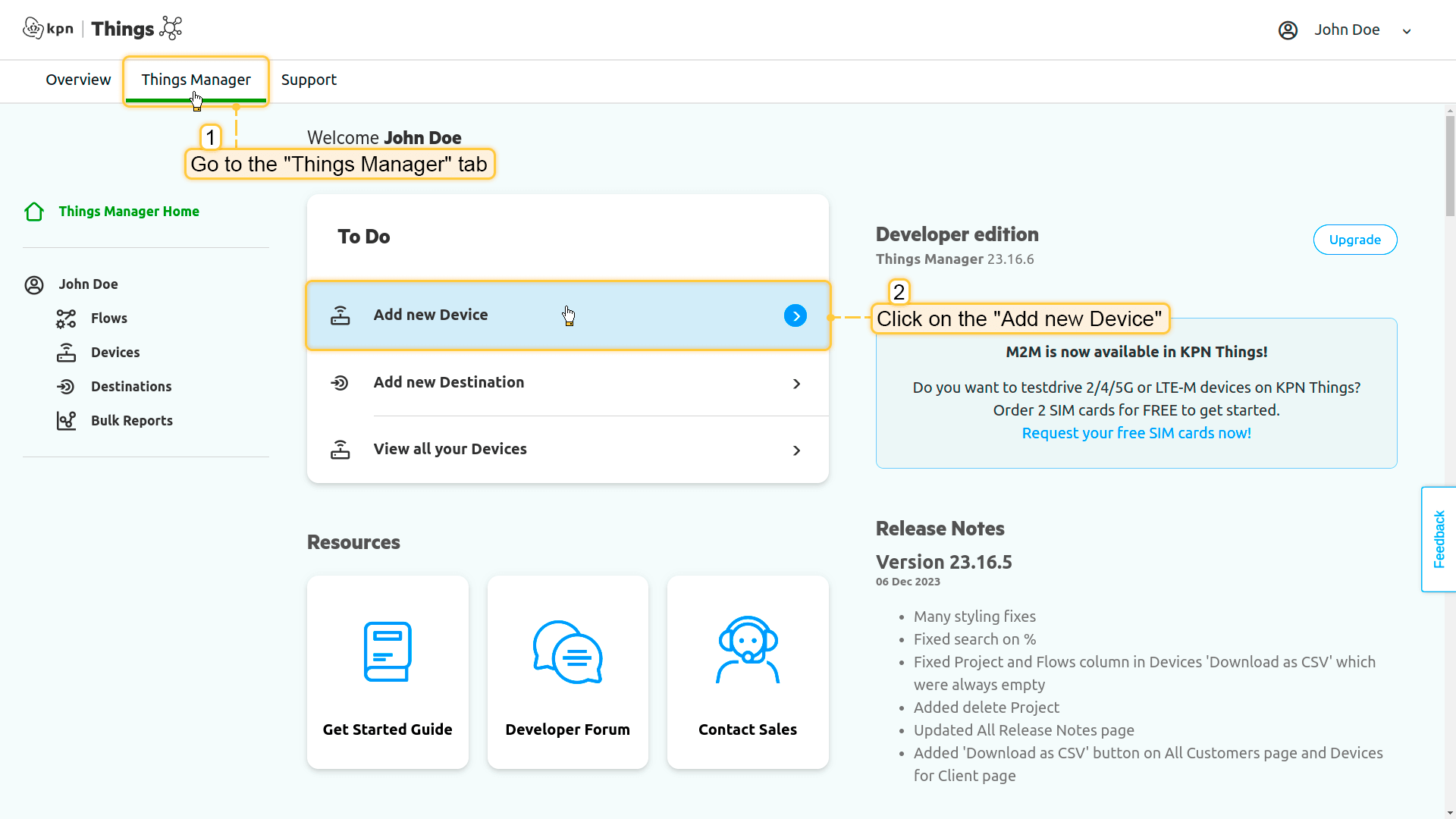
Go to the "Things manager" tab, and click on the "Add new device";
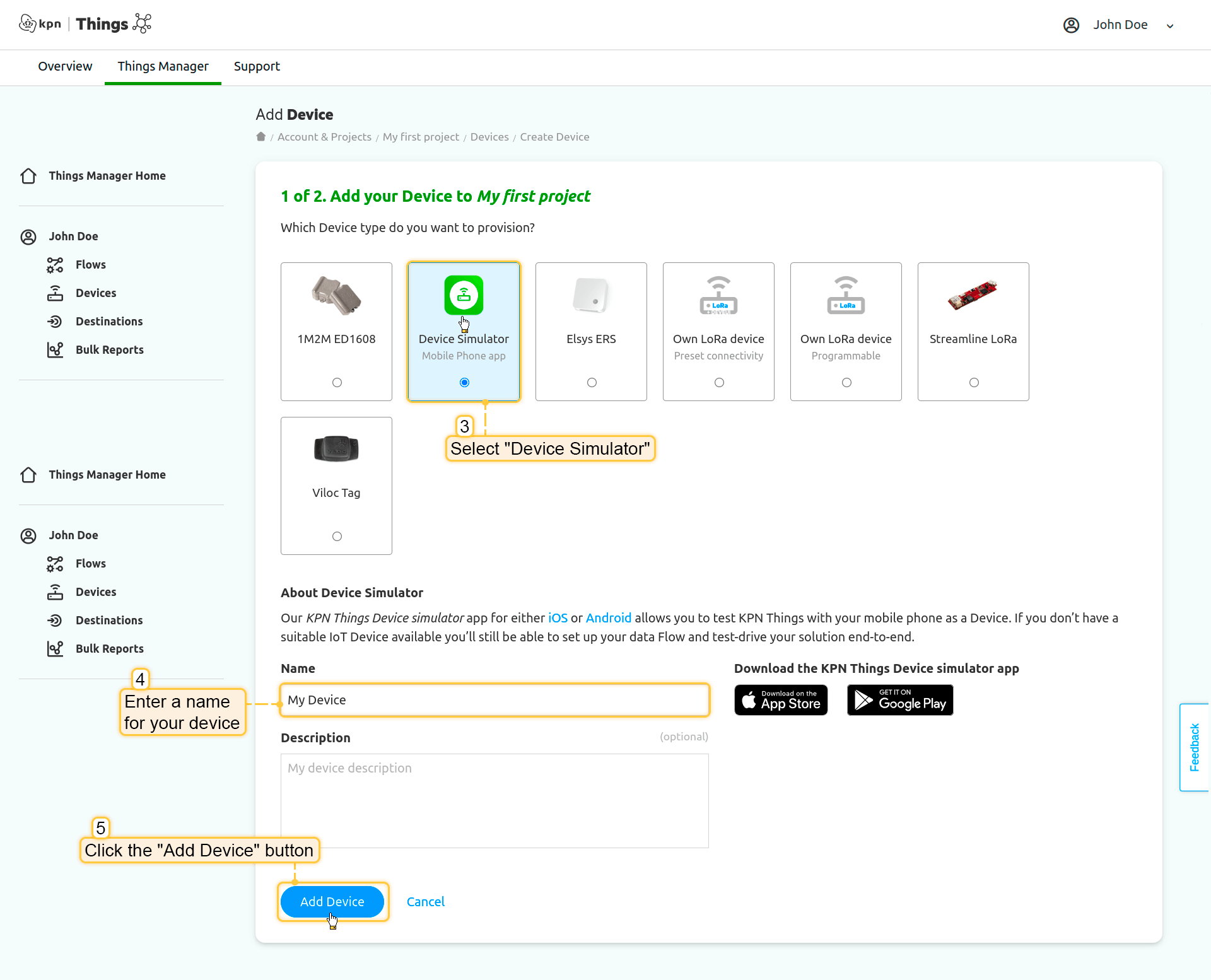
Choose the "Device Simulator", set a name for your device, and click on the "Add device" button;
Install and open the "KPN Things Device simulator" app on your phone. Follow the instructions on your phone to scan this QR code. Then, click on the "Add Network Info" button;
KPN Internet Network is created. Now, click on the "Finish" button.
将设备关联到”Flow”:
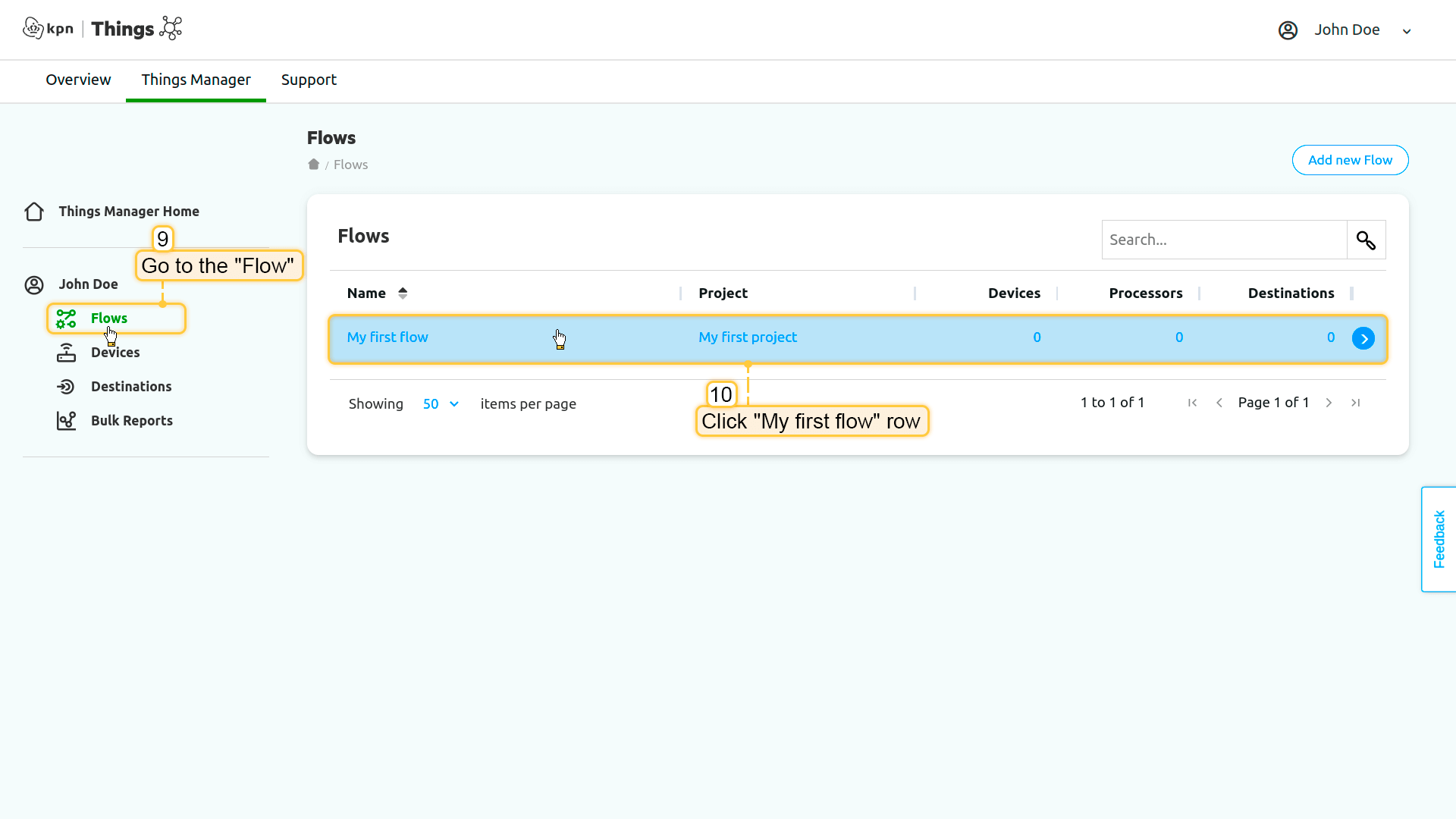
进入左侧菜单中的”Flows”,点击”My first flow”行;
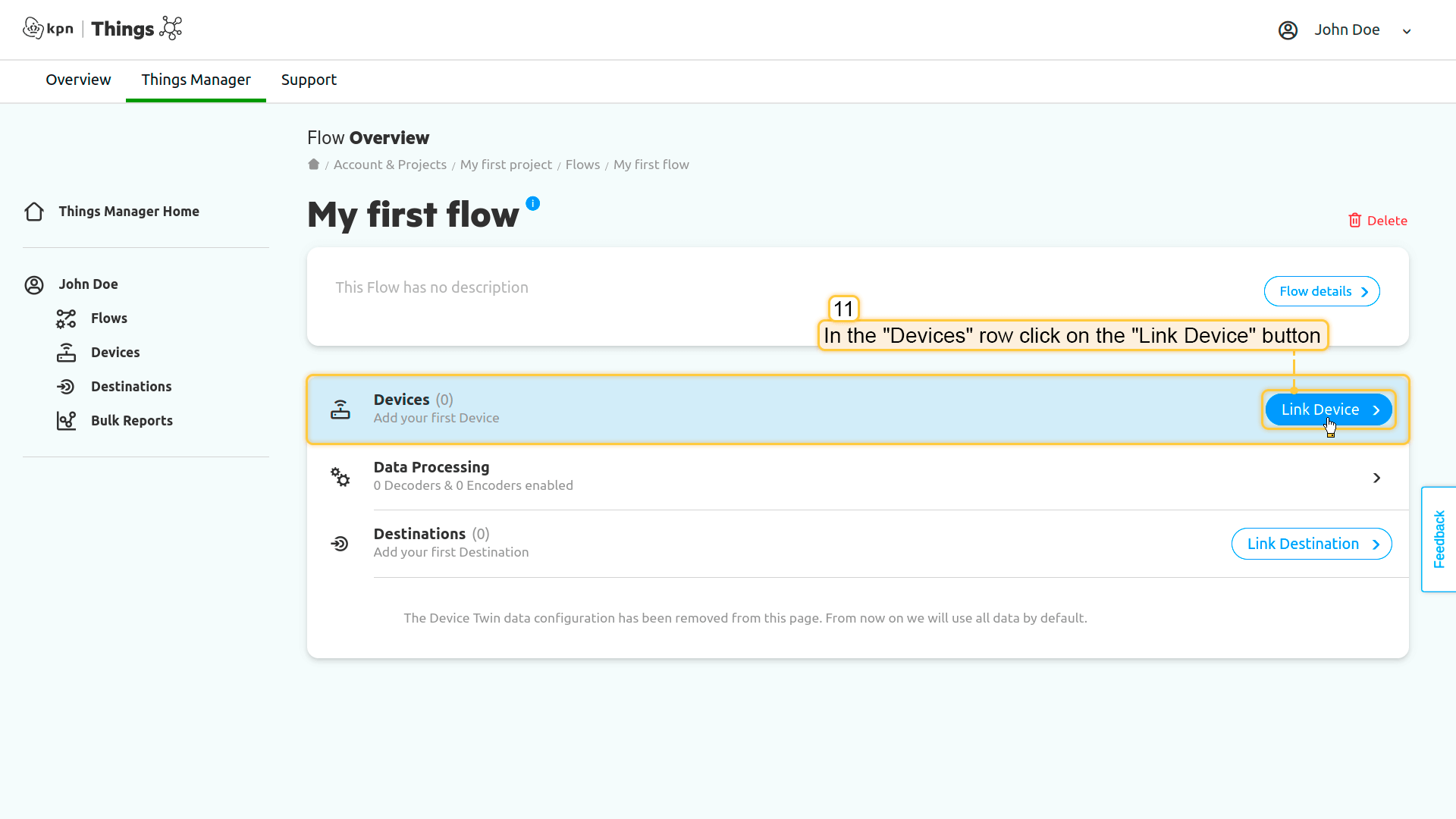
在”Devices”行中点击”Link Device”按钮;
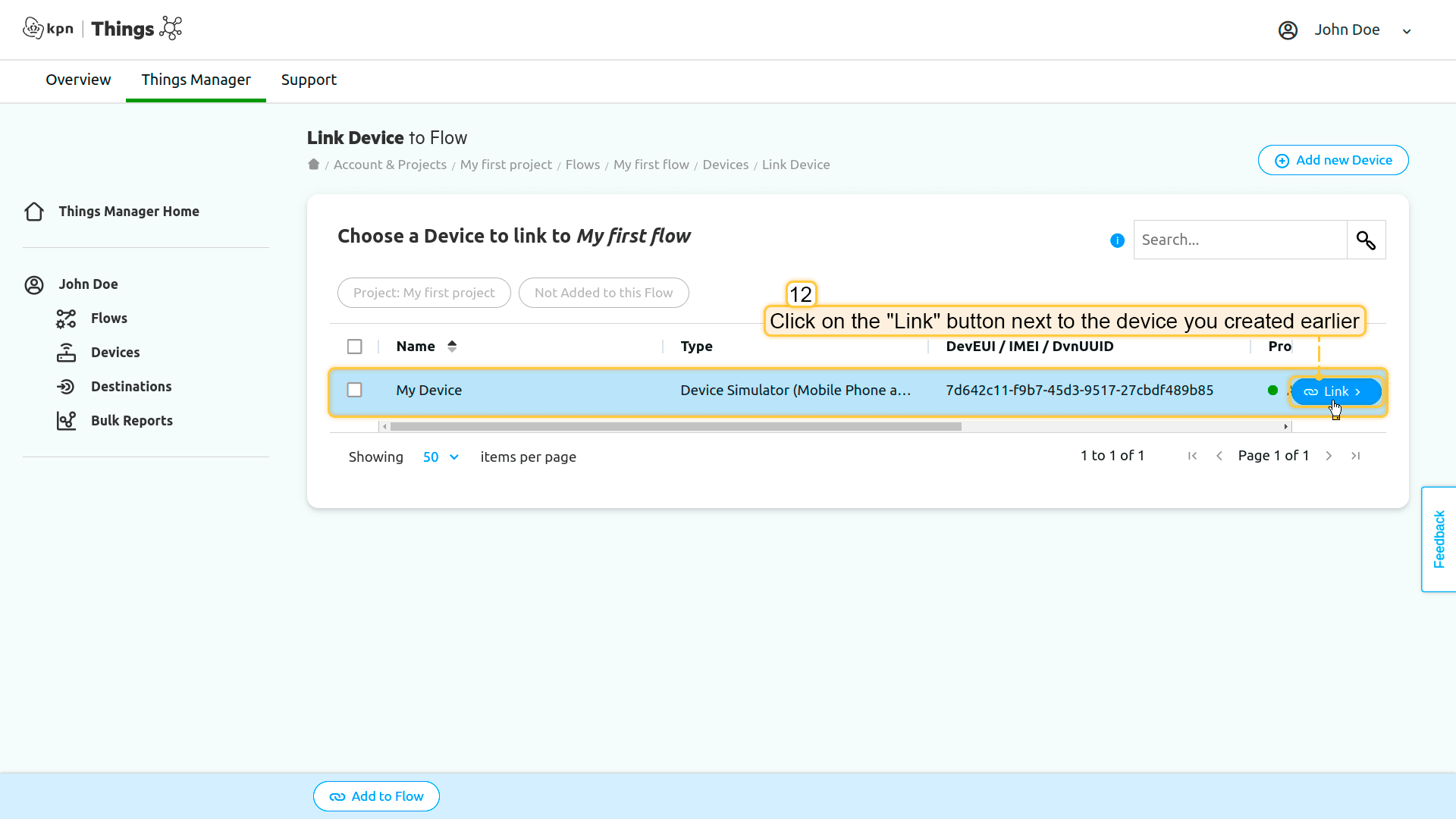
点击之前创建的设备旁边的”Link”按钮;
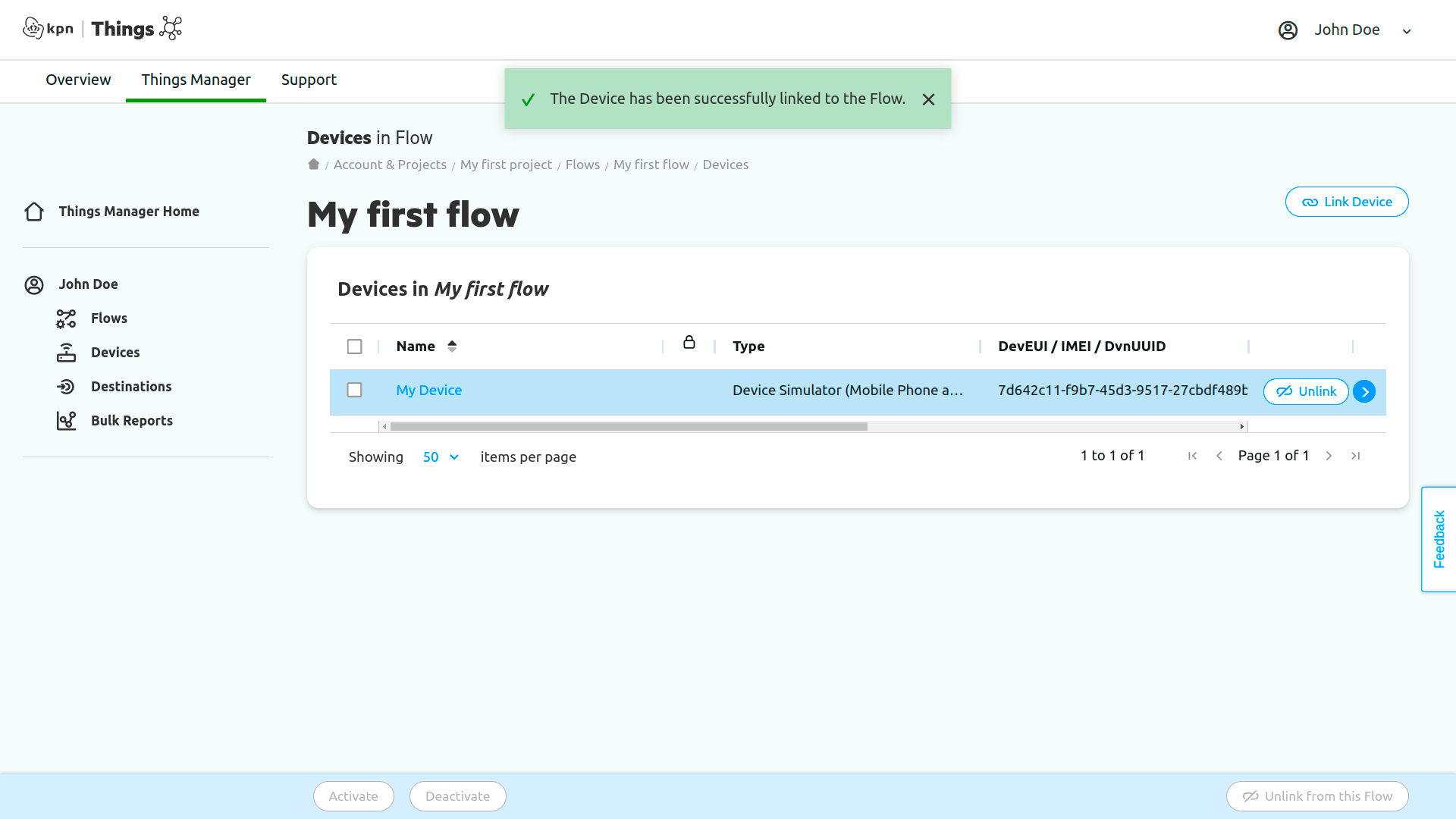
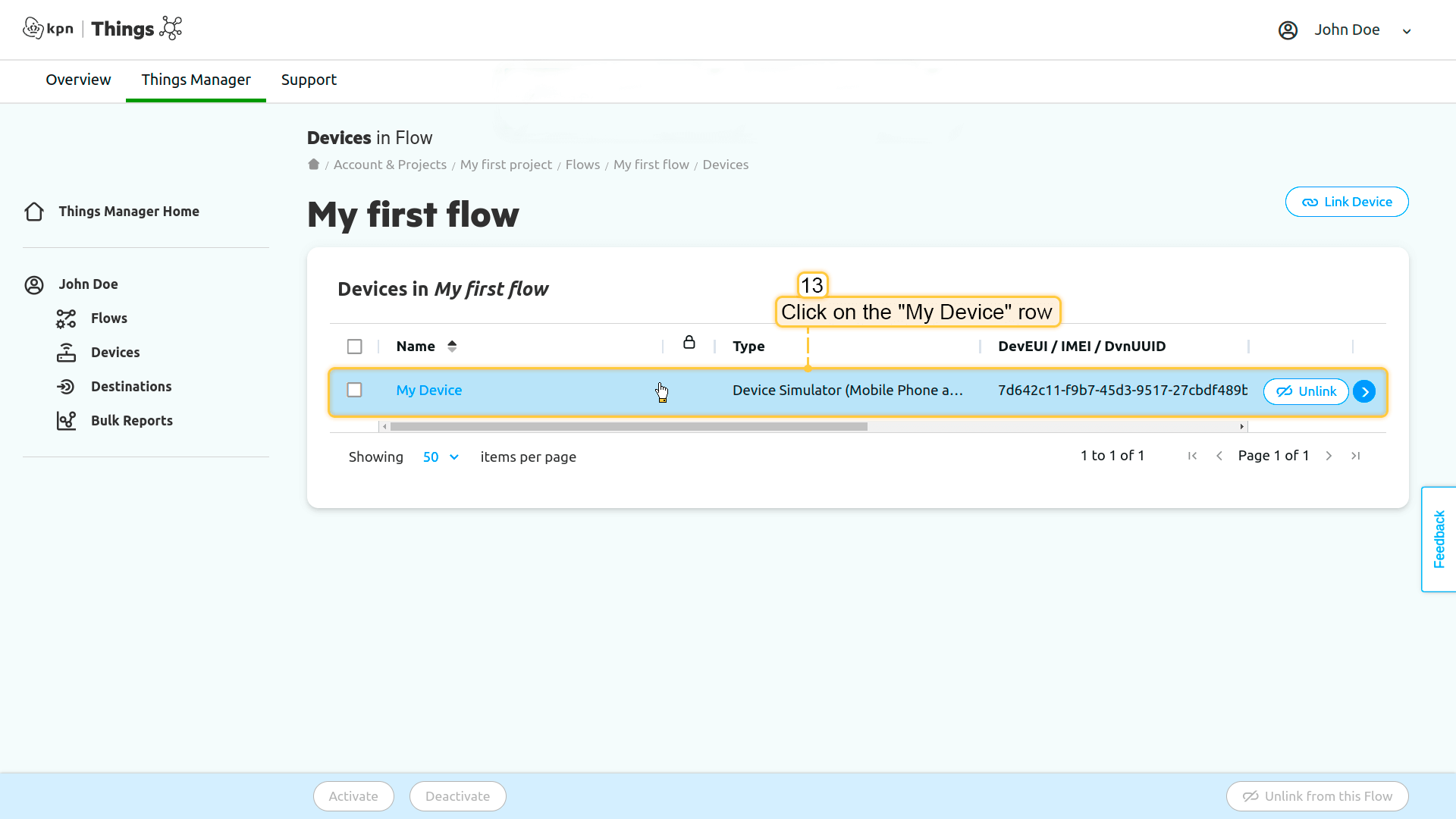
设备已成功关联到”Flow”。现在,点击”My Device”行;
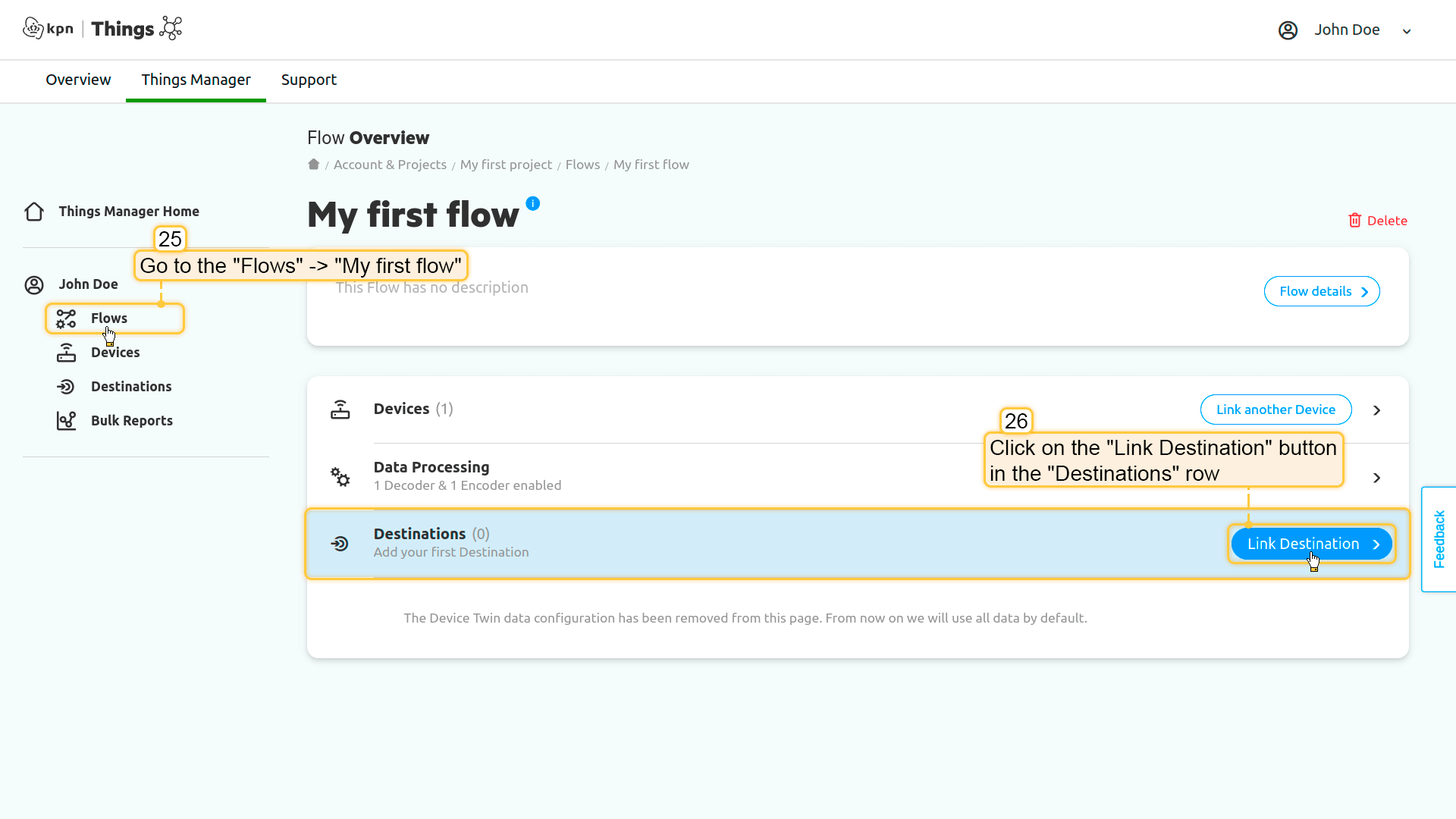
Go to the "Flows" in left menu and click on the "My first flow" row;
Click on the "Link Device" button in the "Devices" row;
Click on the "Link" button next to the device you created earlier;
The device has been successfully linked to the Flow.
为我的Flow设置数据处理:
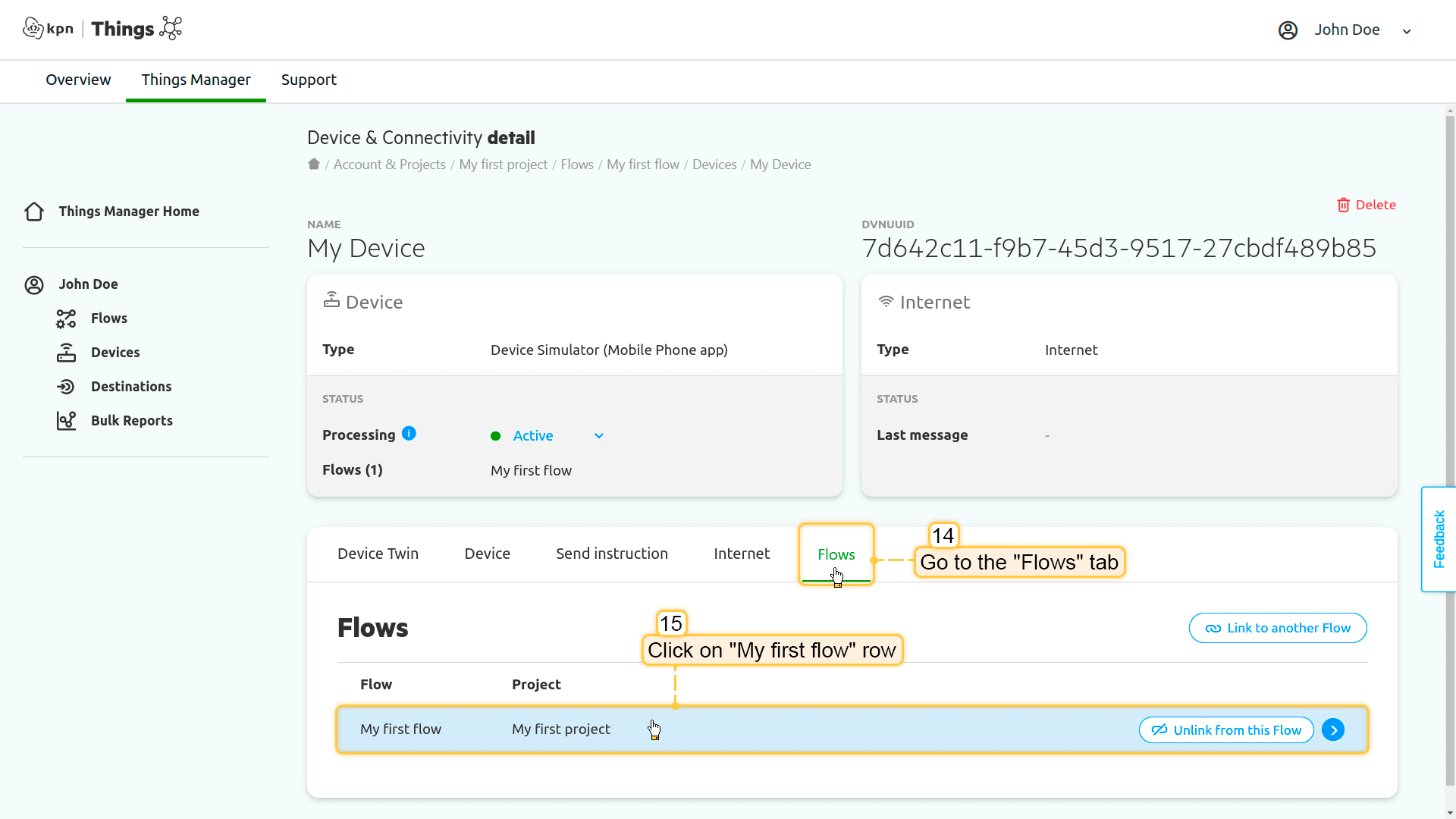
将打开”Device & Connectivity detail”页面。现在,进入”Flows”选项卡,点击”My first flow”行;
Click on the "My Device" row;
The "Device & Connectivity detail" page will open. Now, go to the "Flows" tab, and click on "My first flow" row;
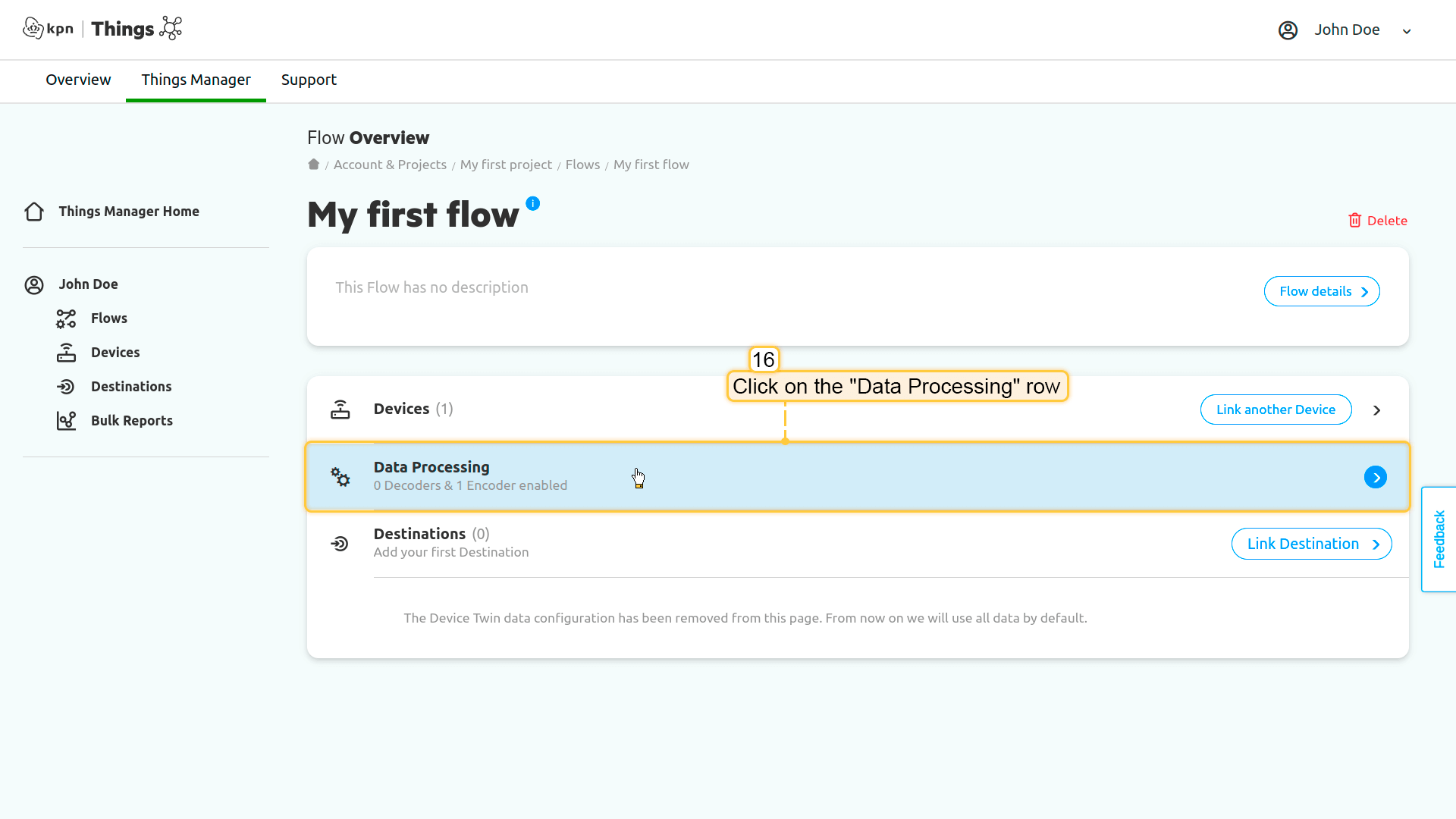
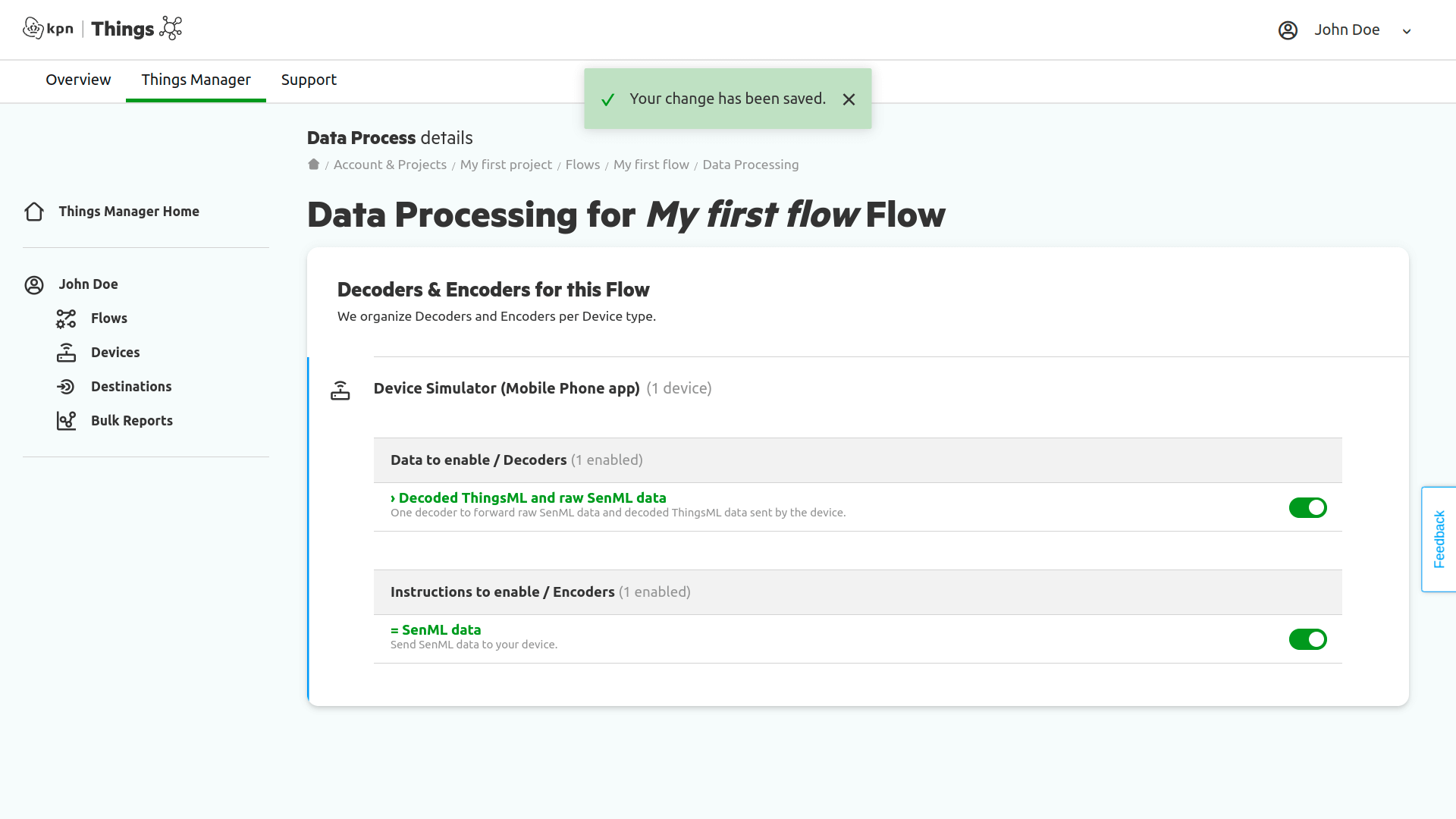
Click on the "Data Processing" row to open "Data Processing details" page;
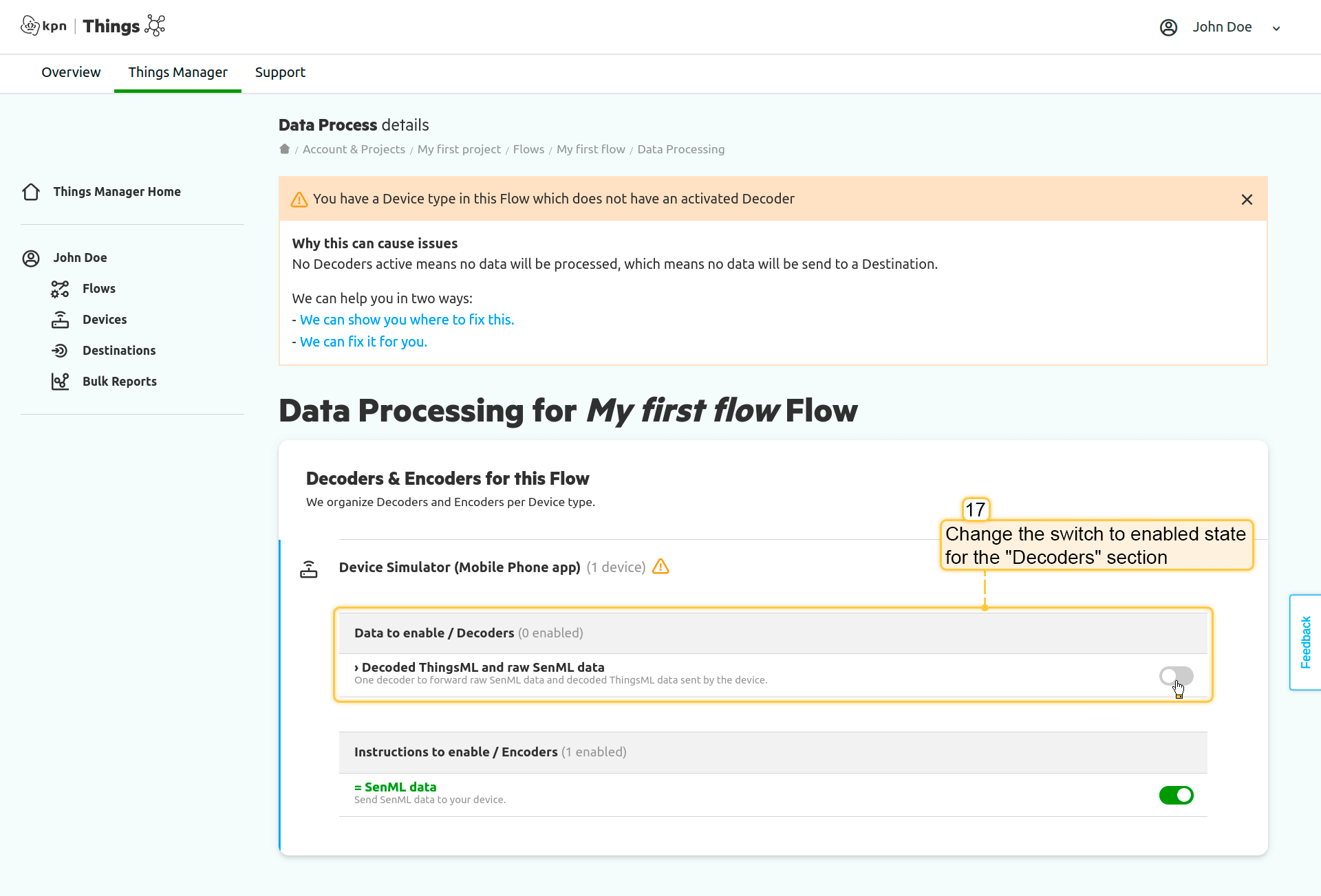
Change the switch to enabled state for "Decoders" section;
Your change has been saved.
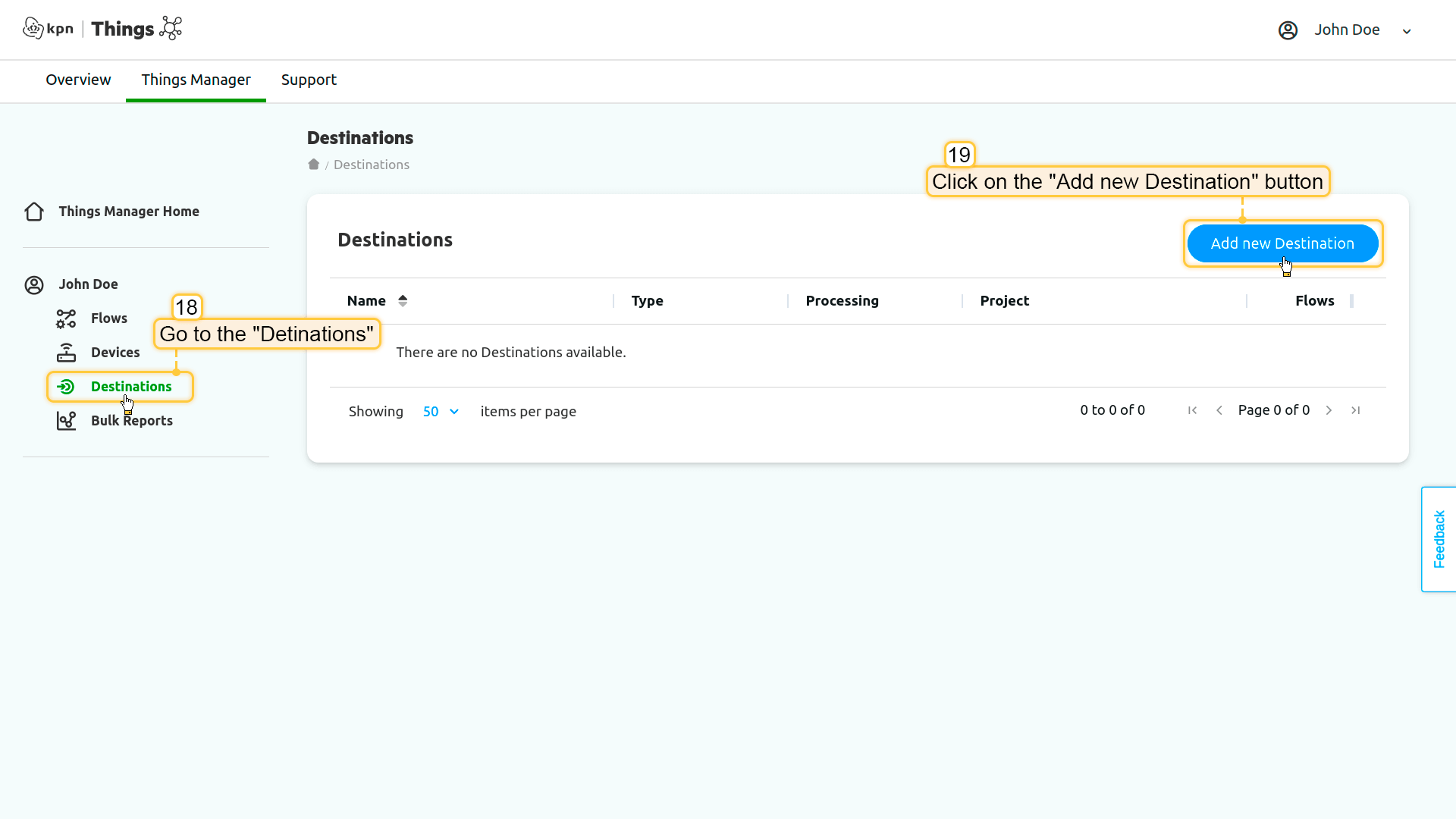
Go to "Destinations" in left menu and click on the "Add new Destination" button;
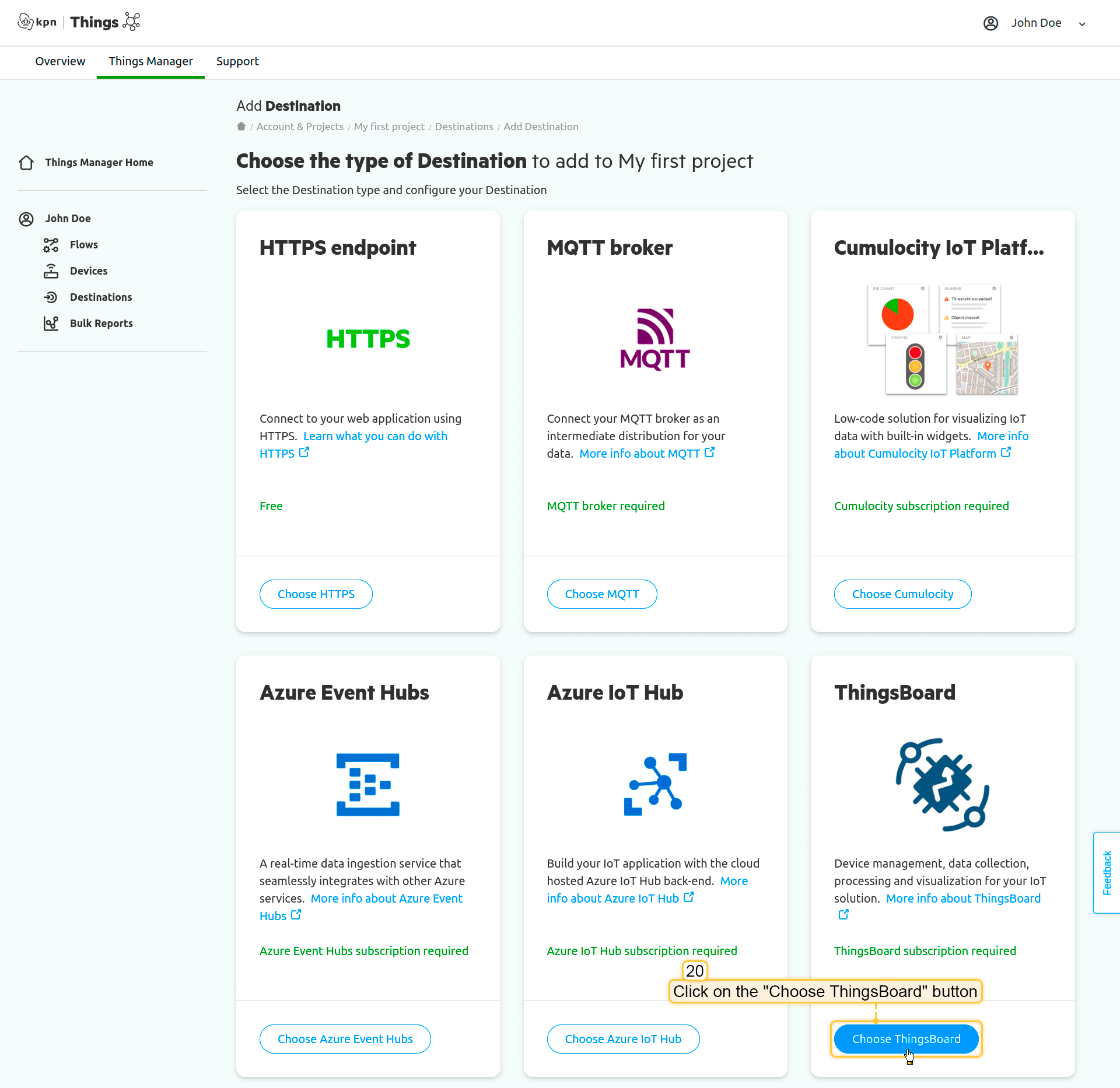
Find the "ThingsBoard" destination type, and click on "Choose ThingsBoard" button;
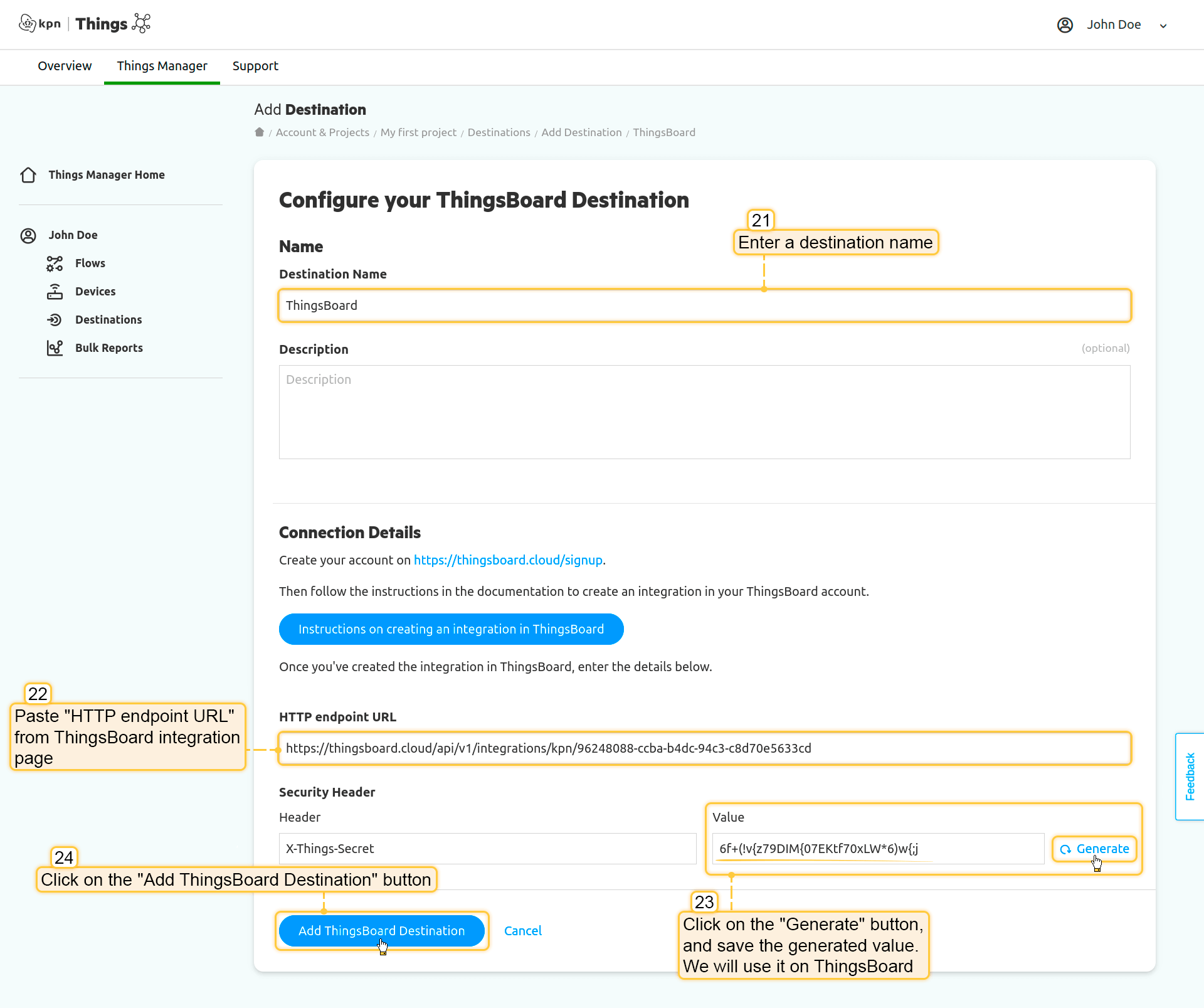
Set a name for your destination. Paste "HTTP endpoint URL" from ThingsBoard integration page to "HTTP endpoint URL" field. Now, click on the "Generate" button, and save generated value. We will use it on ThingsBoard. Finally, click on the "Add ThingsBoard Destination" button.
将”Destination”关联到”Flow”:
进入”Flows” -> “My first flow”,在”Destinations”行中点击”Link Destination”按钮;
点击之前创建的Destination旁边的”Link”按钮;
“Destination”已成功关联到Flow。
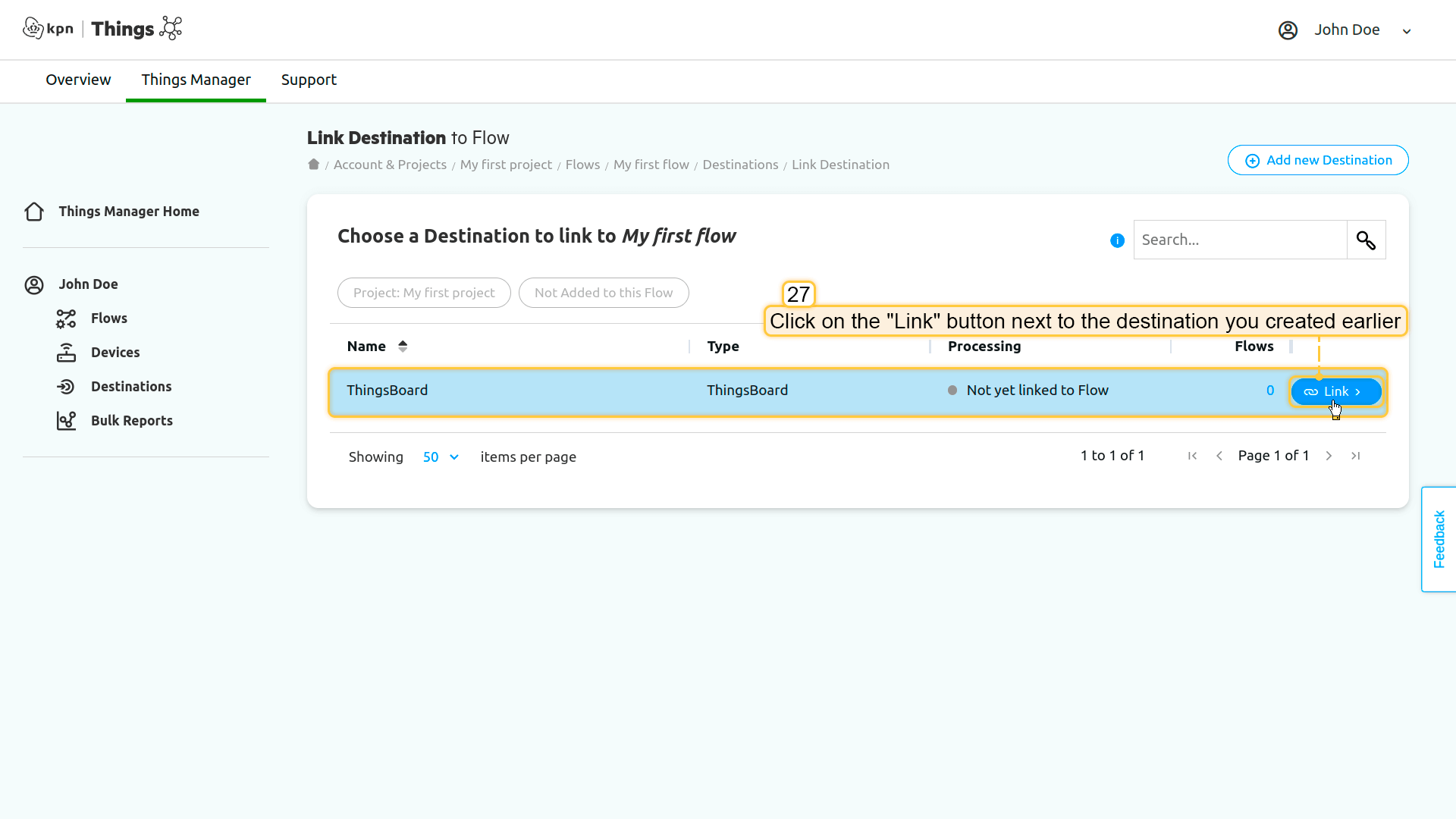
Go to the "Flows" -> "My first flow" and click on the "Link Destination" button in the "Destinations" row;
Click on the "Link" button next to the destination you created earlier;
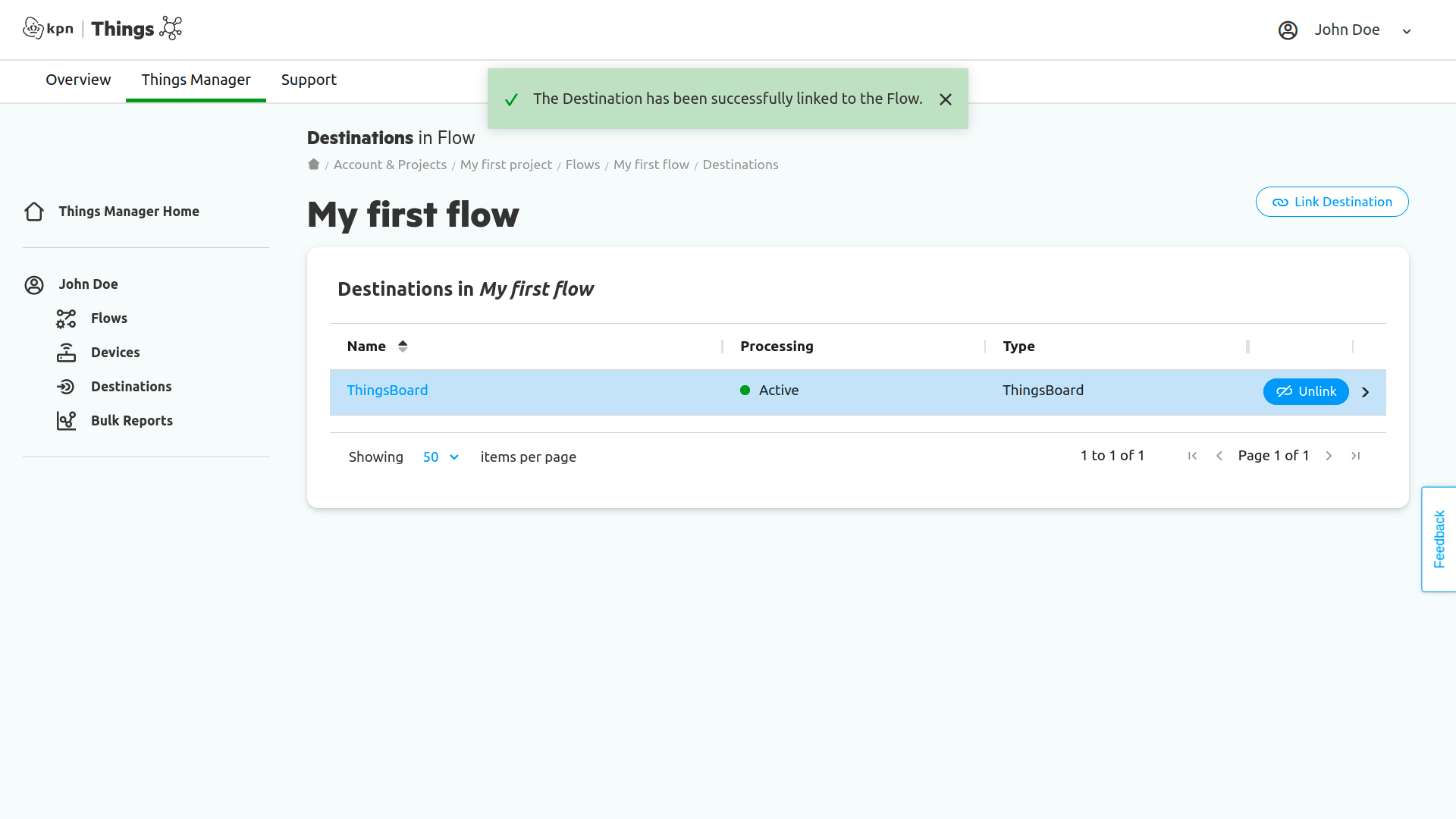
The "Destination" has been successfully linked to the Flow.
更新集成
为了验证发送方,我们可以在ThingsBoard的集成中添加一个token。请按照以下步骤操作:
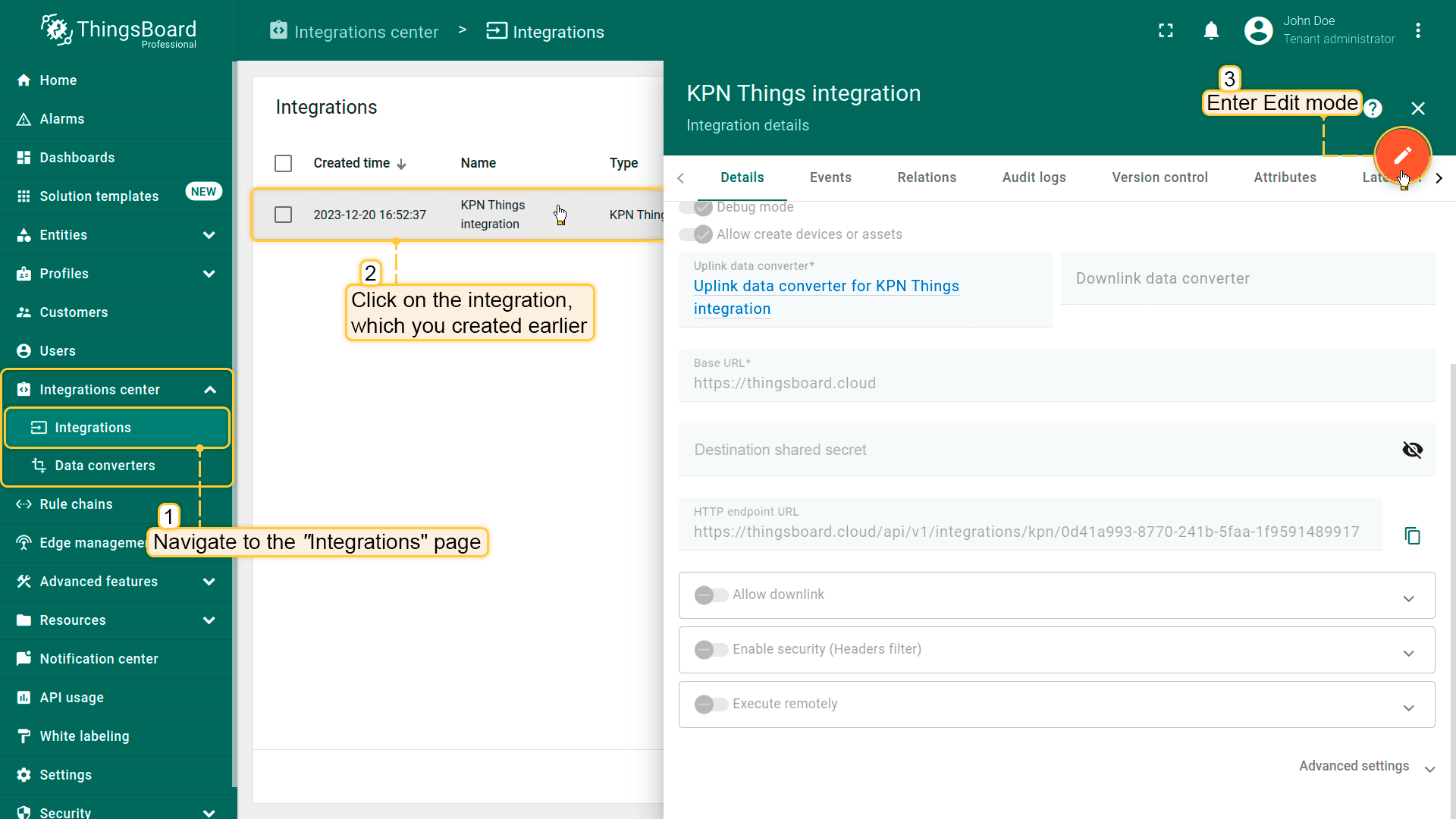
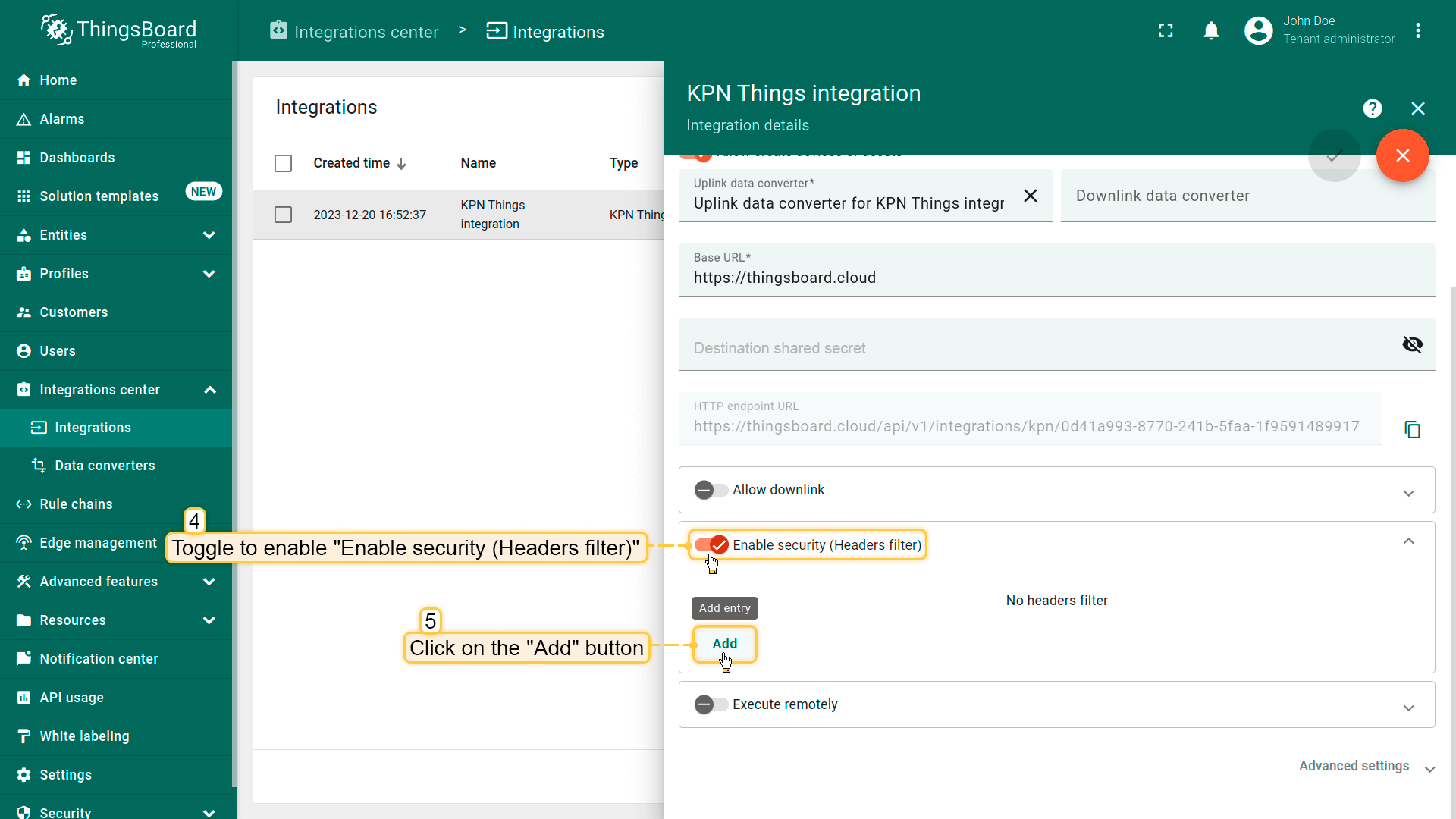
Go to "Integrations center" section -> "Integrations" page and click on the integration you created earlier. Click on "Edit" button to enter edit mode.
Switch "Enable security (Headers filter)" toggle to enabled state and click "Add" button in "Headers filter" section.
Put "X-Things-Secret" to "Header" field and generated token to "Value" field. Finally, apply changes.
Go to "Integrations center" section -> "Integrations" page and click on the integration you created earlier. Click on "Edit" button to enter edit mode.
Switch "Enable security (Headers filter)" toggle to enabled state and click "Add" button in "Headers filter" section.
Put "X-Things-Secret" to "Header" field and generated token to "Value" field. Finally, apply changes.
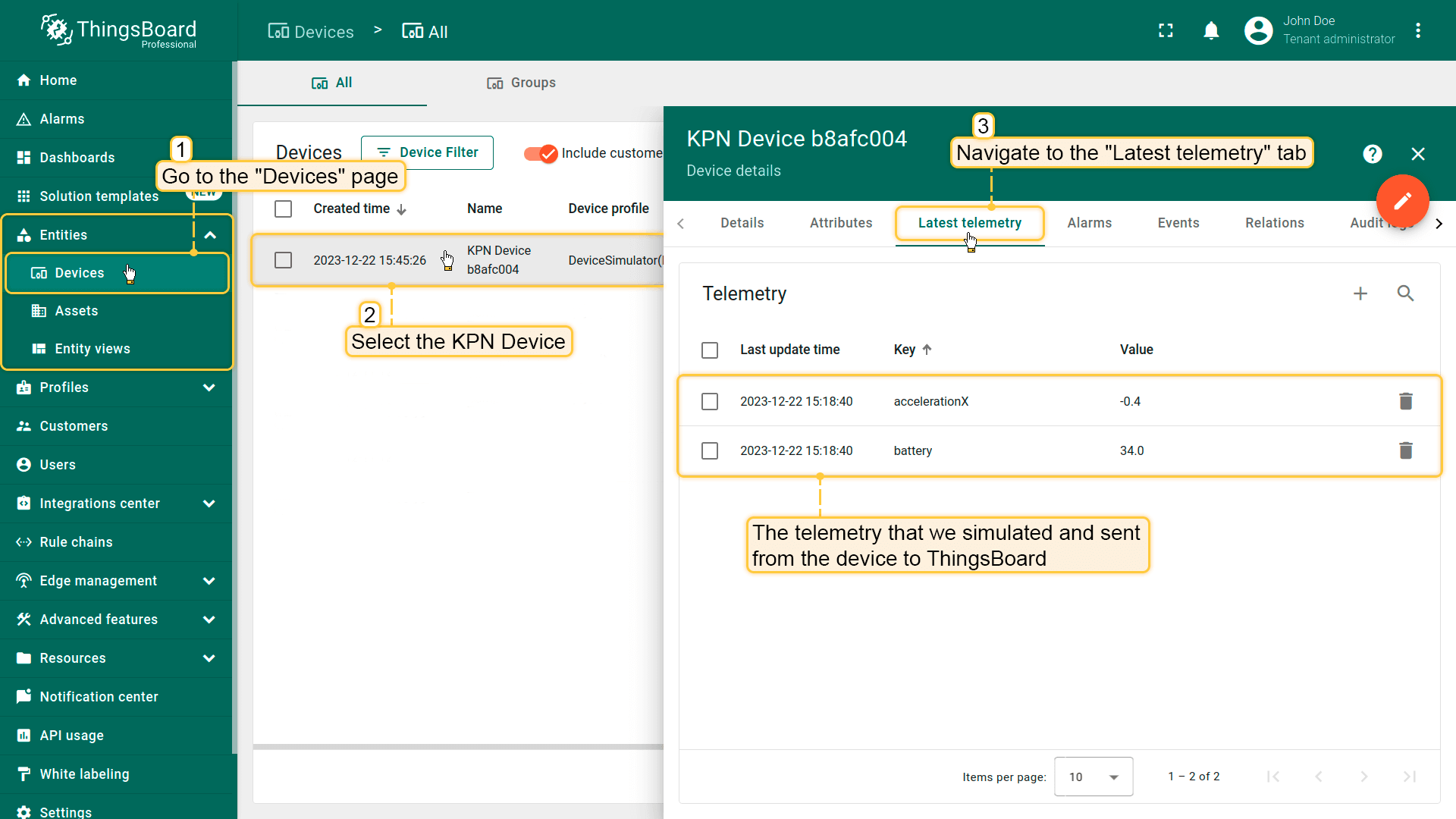
Go to the "Devices" page. Here you will find a new KPN Device and information about it as well as the telemetry that we sent to the device.
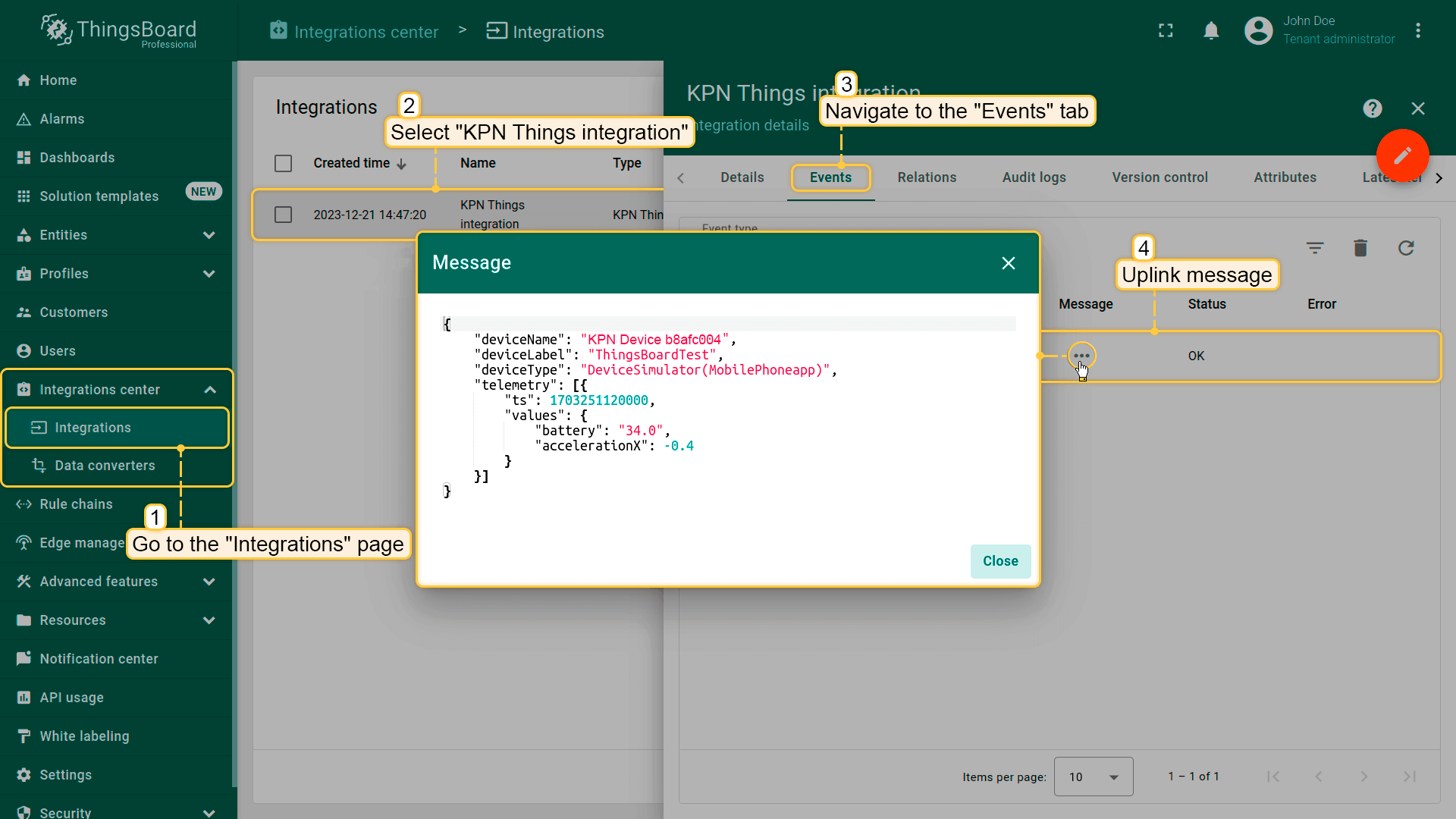
进入”Integrations”页面,选择”KPN Things integration”,然后导航到”Events”选项卡。在那里您将看到KPN Things集成所接收的消息。
Go to the "Integrations" page, select "KPN Things integration" and navigate to the "Events" tab. There you'll see the message consumed by the KPN Things integration.