| 3.6.2及以上版本 |
Imagegallery作为集中存储和管理图片的仓库。 是提升移动应用中部件、仪表板、设备和资产配置视觉效果与功能的重要资源。 用户可方便地上传、整理和选择图片以定制界面与体验,确保平台整体风格统一、品牌一致。
添加图片
可按图片文件格式(PNG、JPEG、GIF等)或JSON文件格式将图片添加到Imagegallery。
上传图片
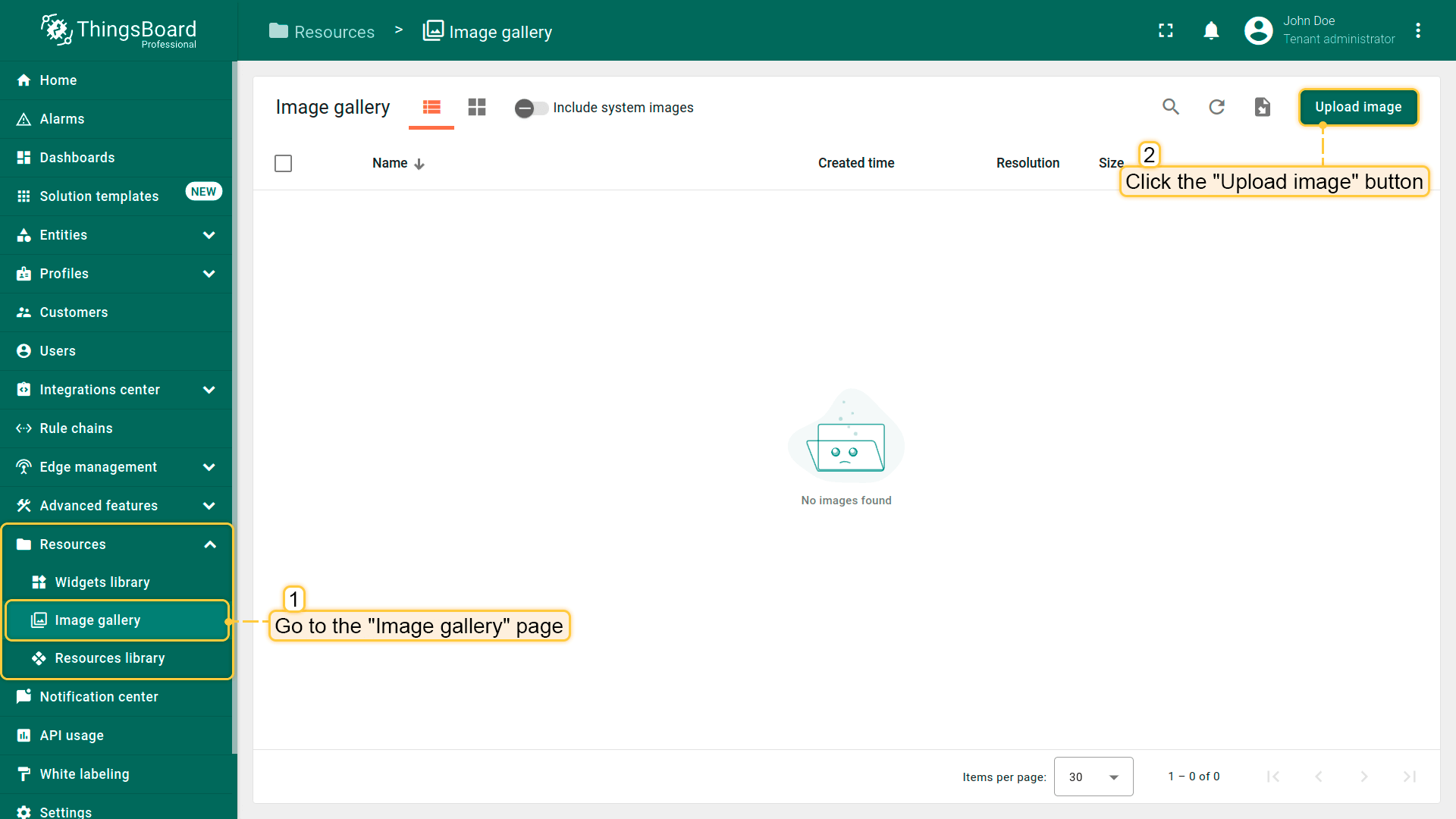
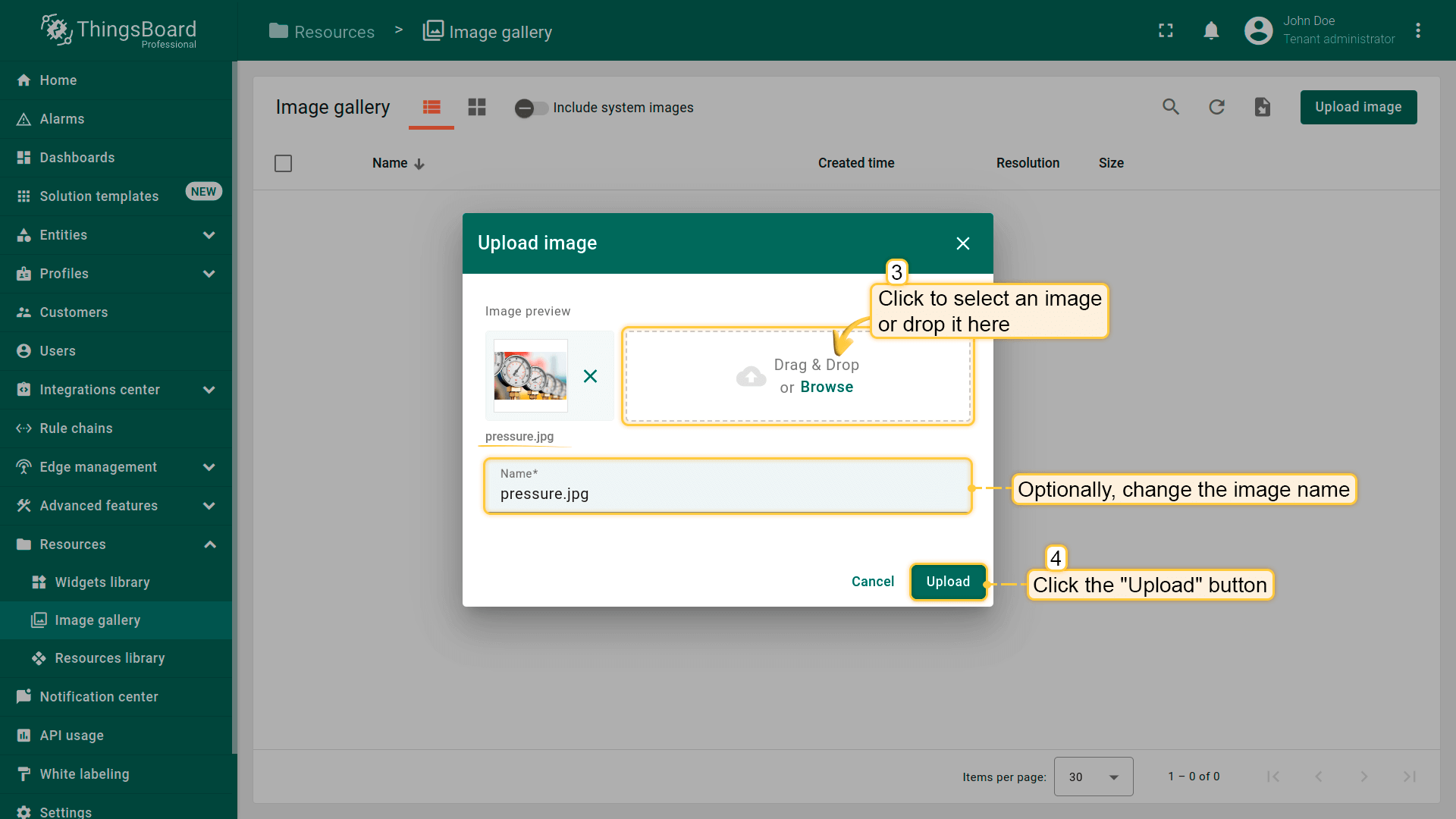
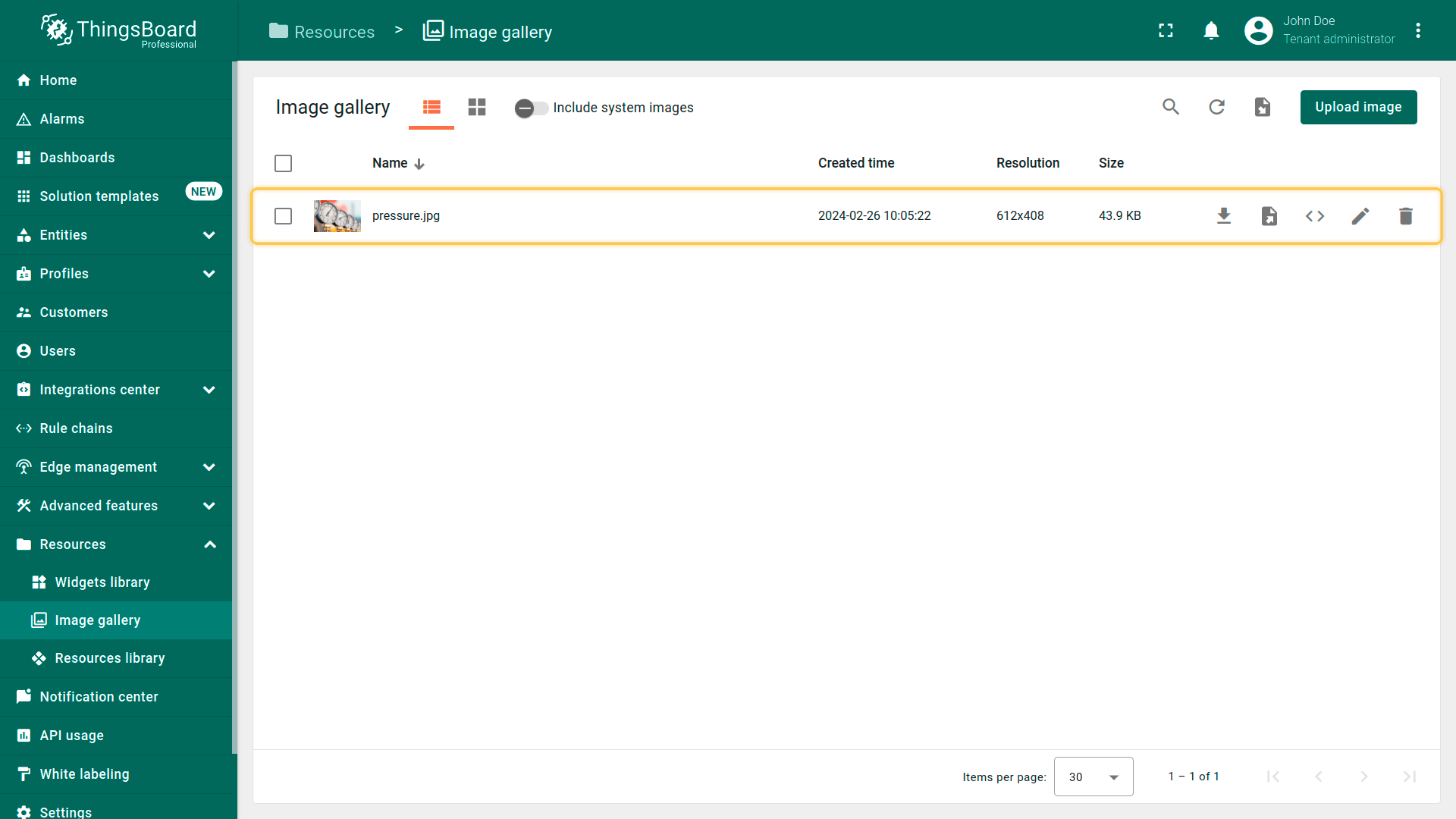
以图片文件格式上传新图片,请按以下步骤操作:
- Go to the "Image gallery" page in the "Resources" section. Then, click the “Upload image” button in the top right corner of the screen;
- Select or drop image in the "Upload image" window and then click "Upload";
- The image has been uploaded.
从JSON导入图片
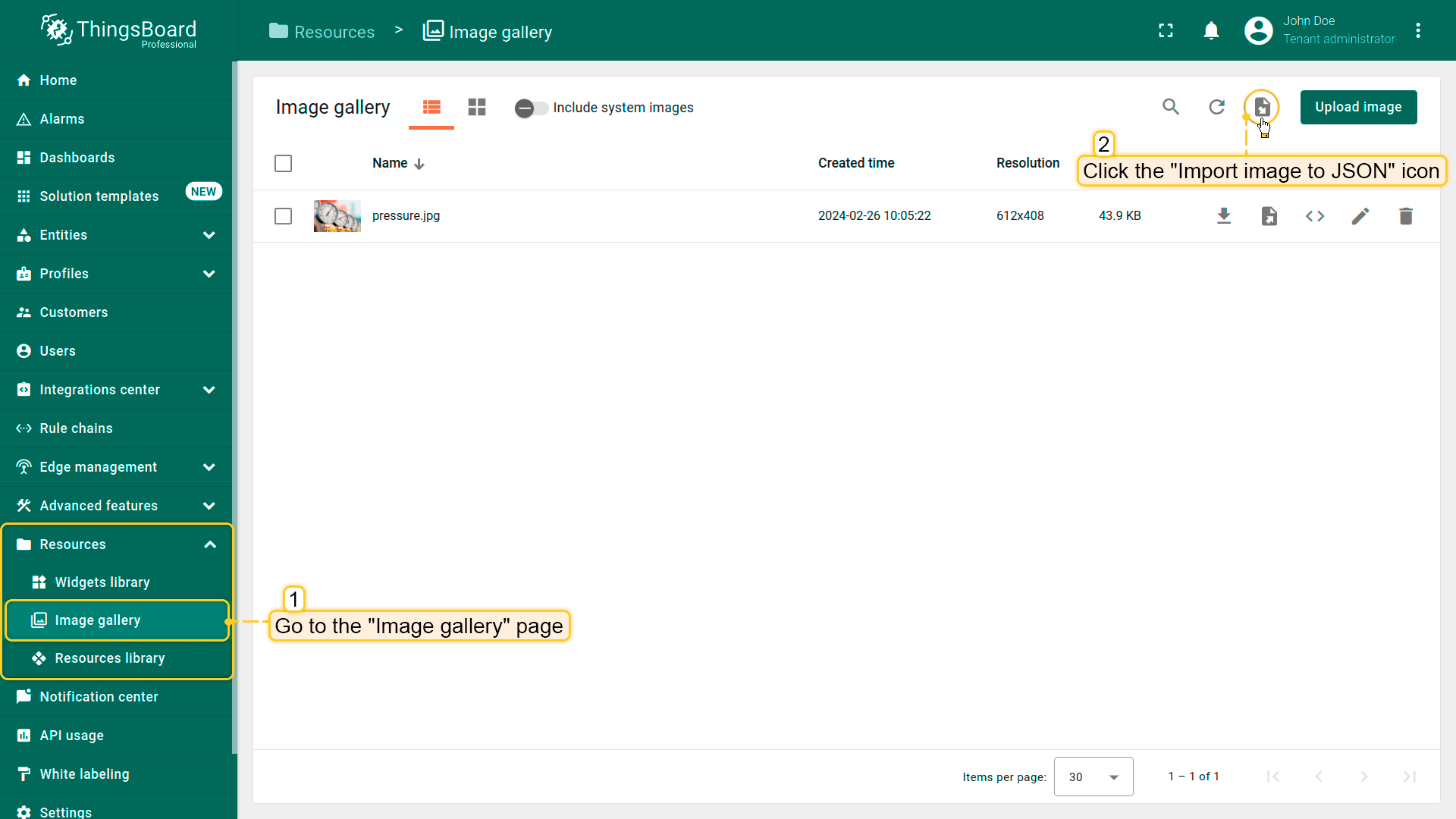
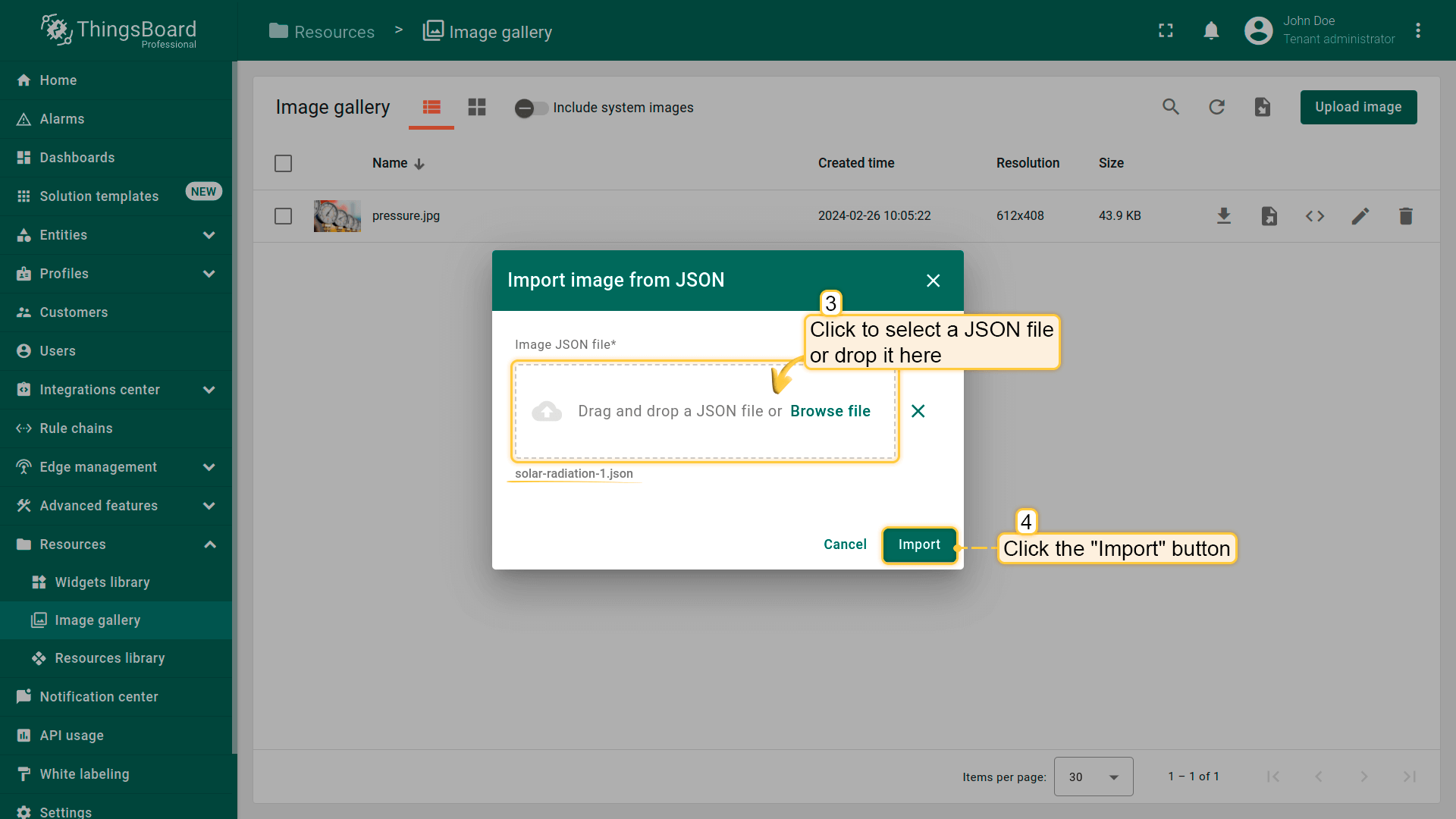
以 JSON文件格式导入图片,请按以下步骤操作:
- Go to the "Image gallery" page in the "Resources" section. Then, click the "Import image" icon in the top right corner of the screen;
- In the "Import image" window, upload a JSON image file and click "Import";
- The image has been imported.
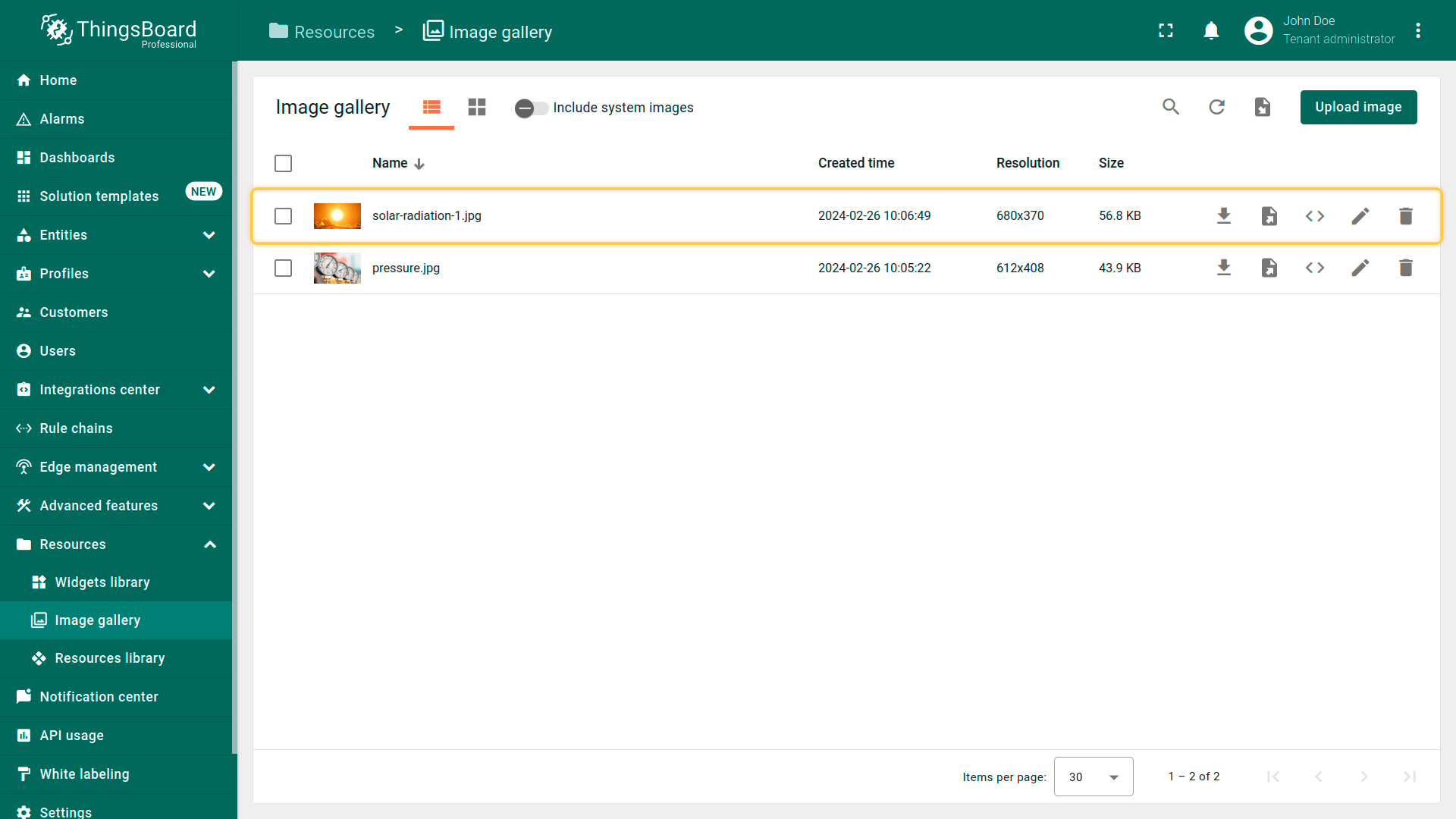
系统图片
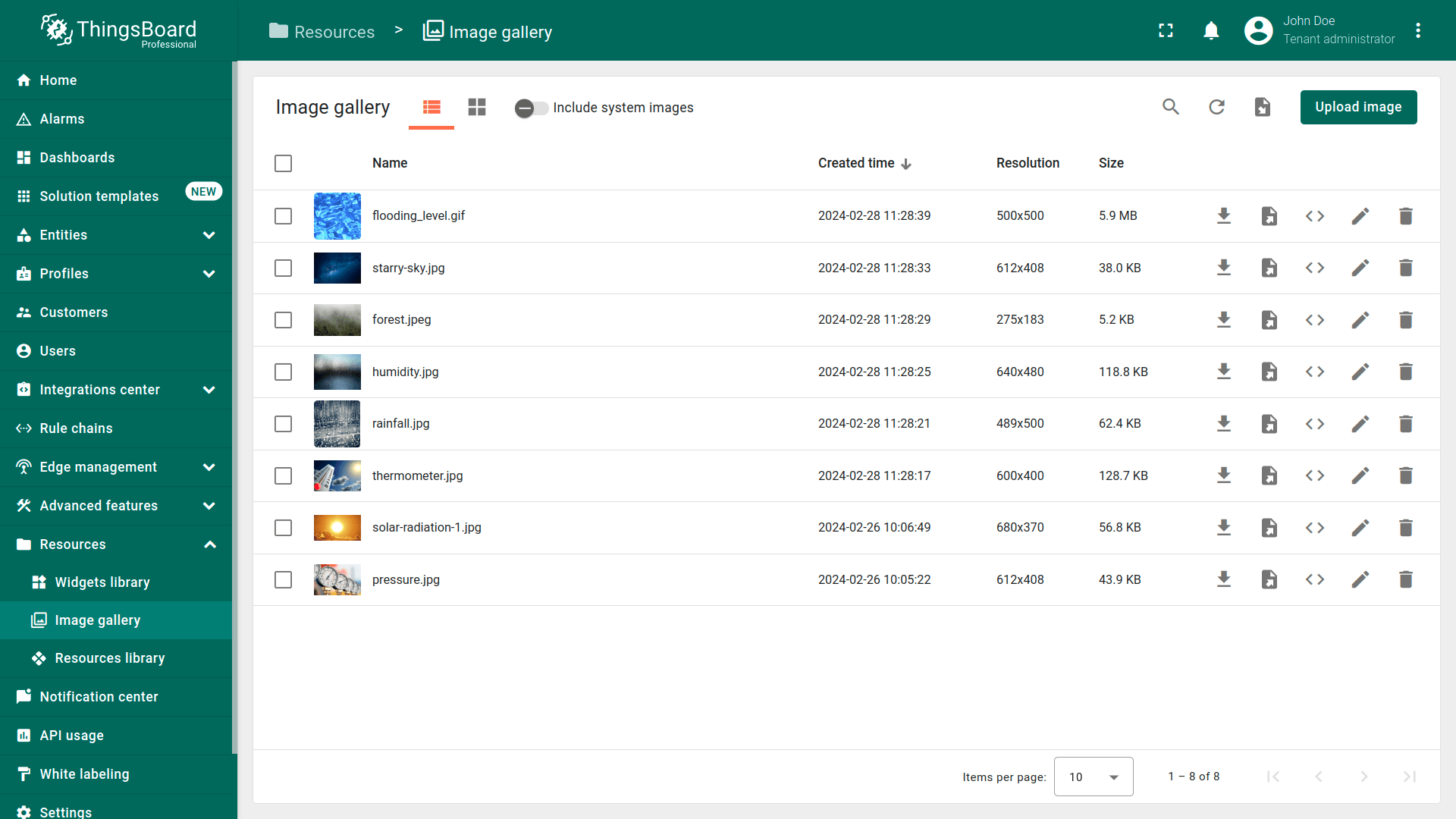
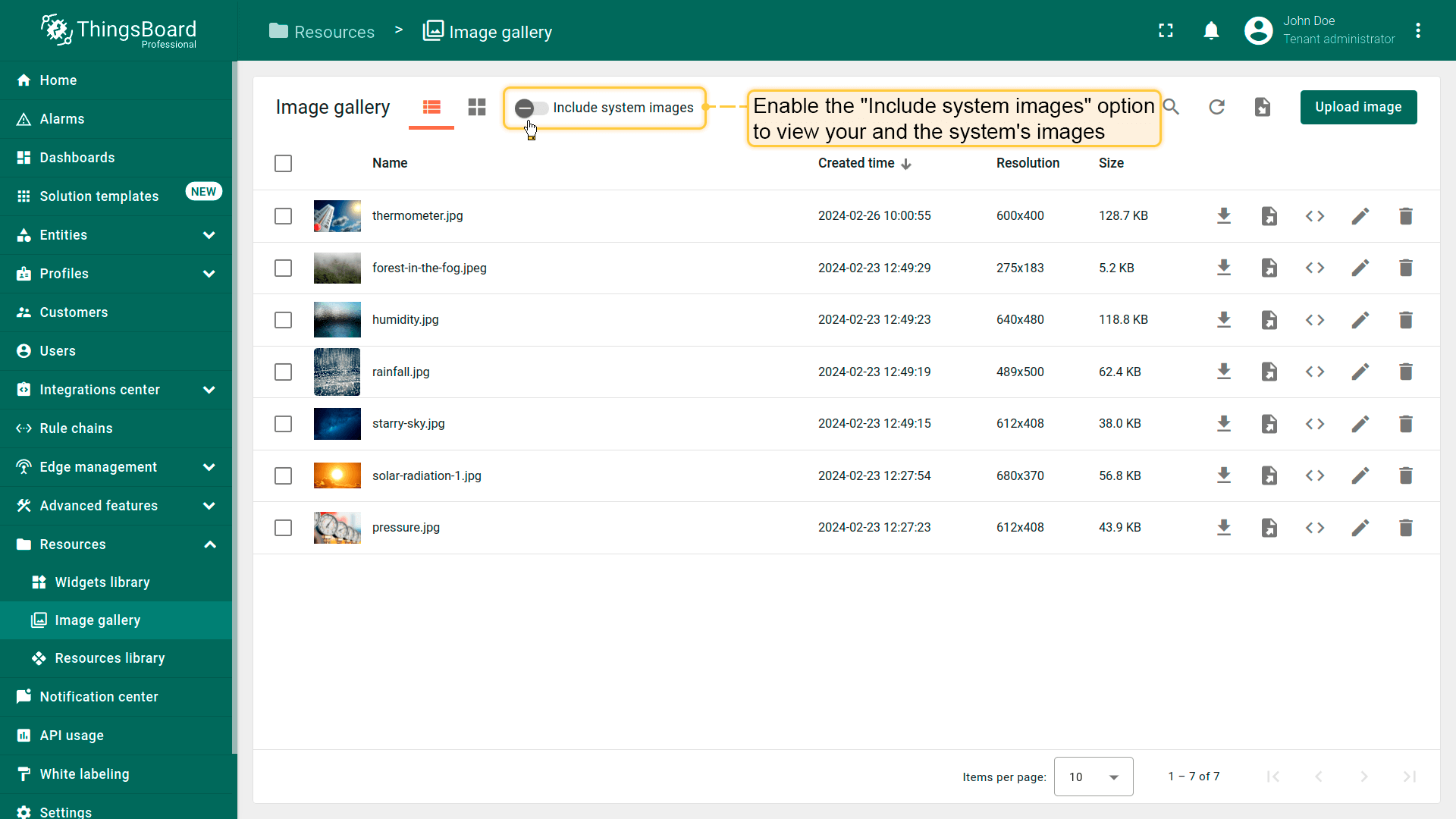
Imagegallery包含系统图片,也可用于设计仪表板、部件等。默认情况下,图片列表中仅显示您的图片。 要同时显示您和系统图片,请启用EnableSystemImages选项。
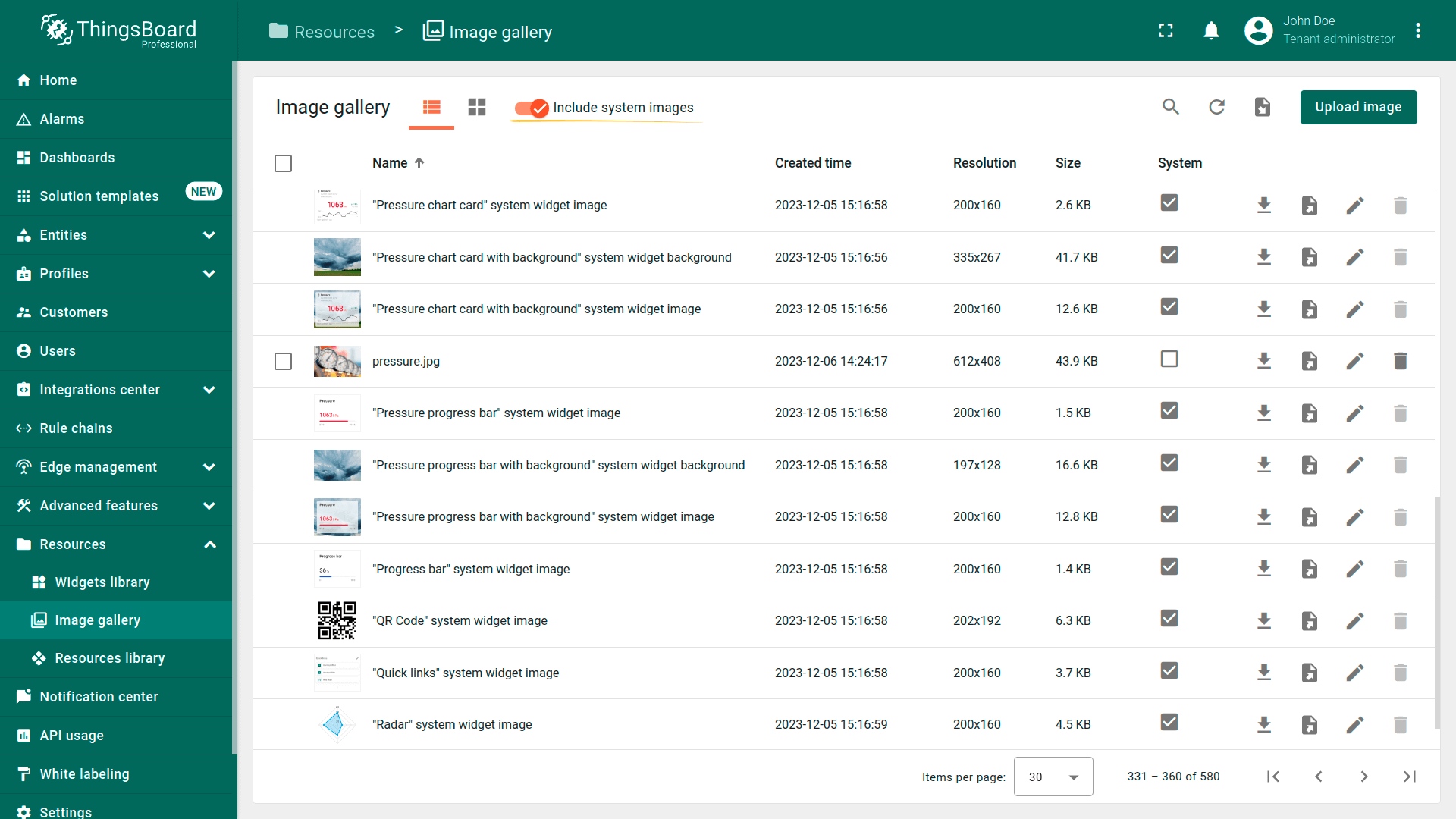

请注意: 仅系统管理员可删除、重命名或更新系统图片。
切换图片视图模式
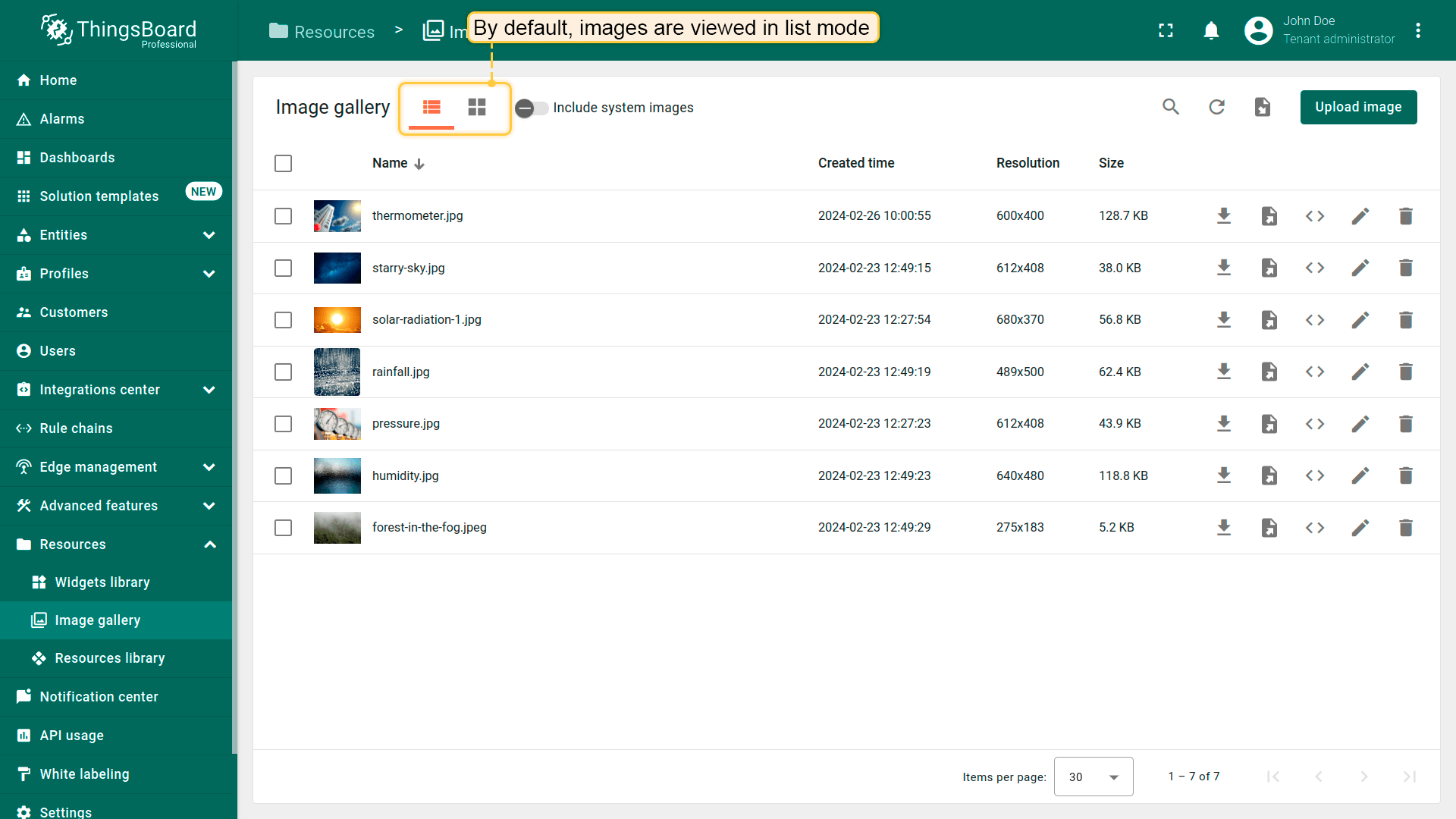
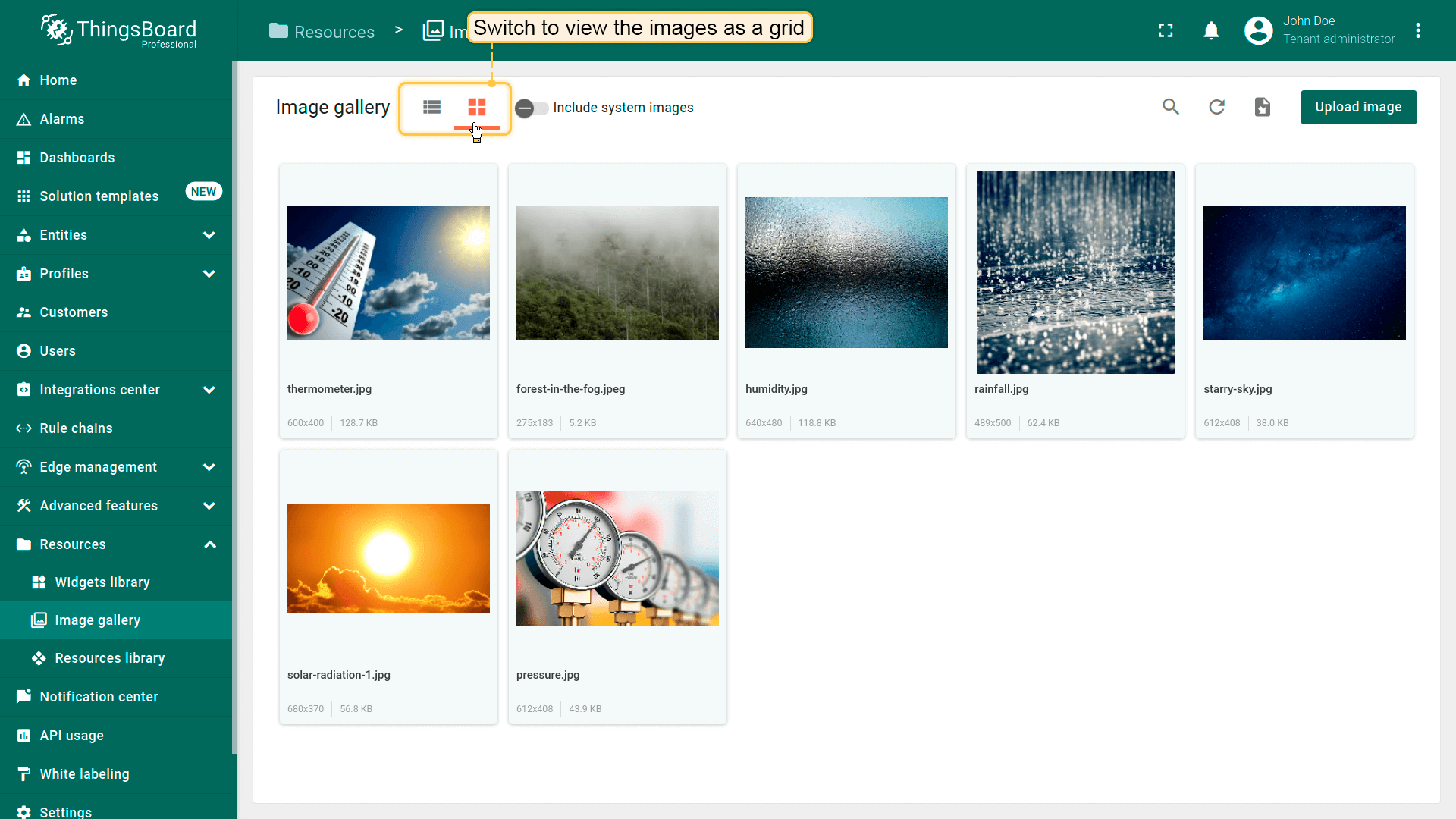
可在列表或网格两种模式下查看图片。 要切换视图模式,在Imagegallery窗口左上角选择所需模式即可。
图片操作
可通过图片名称旁对应图标进行下载、导出为JSON、编辑、嵌入和删除操作。 以下逐项说明。
下载图片
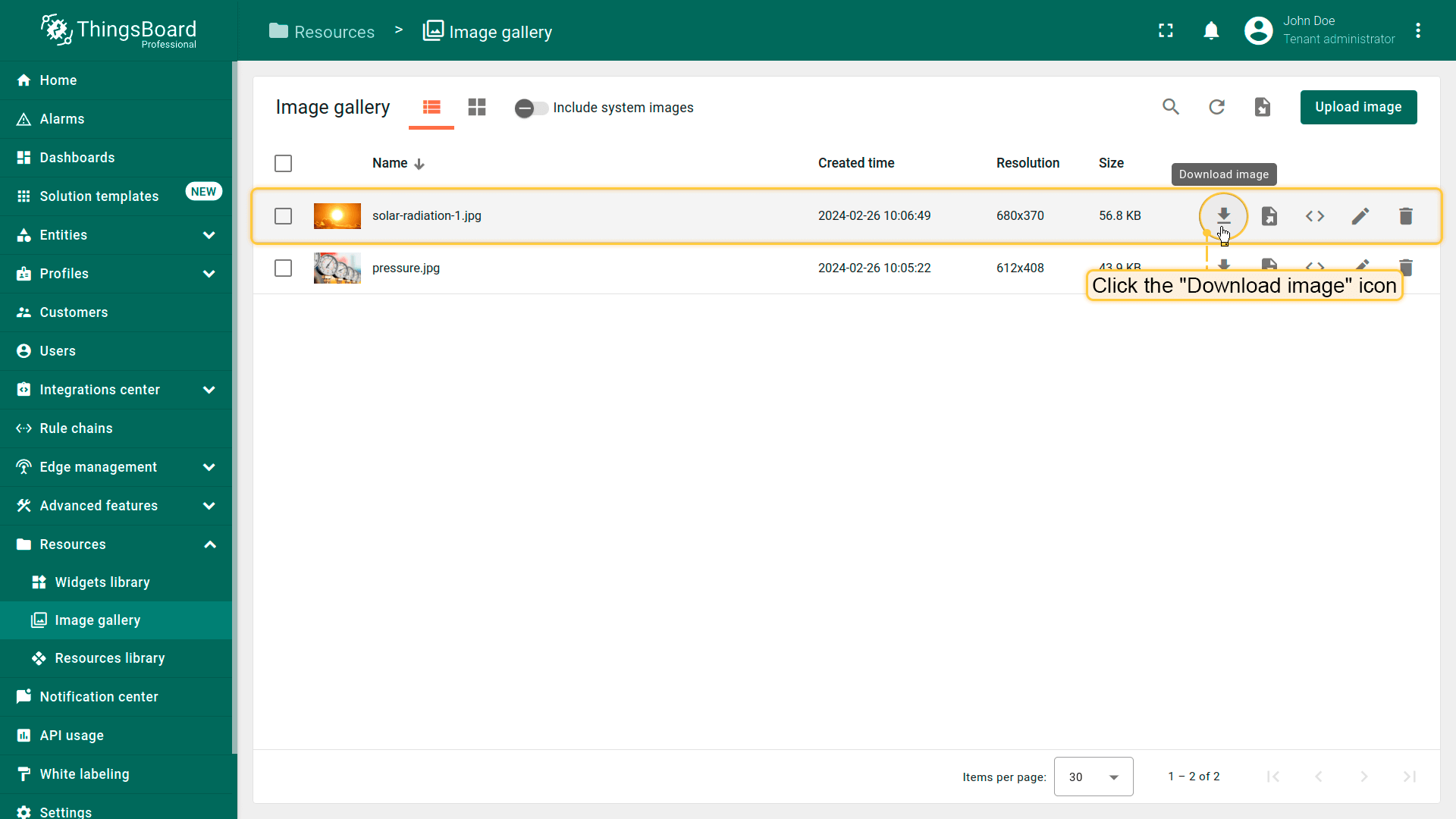
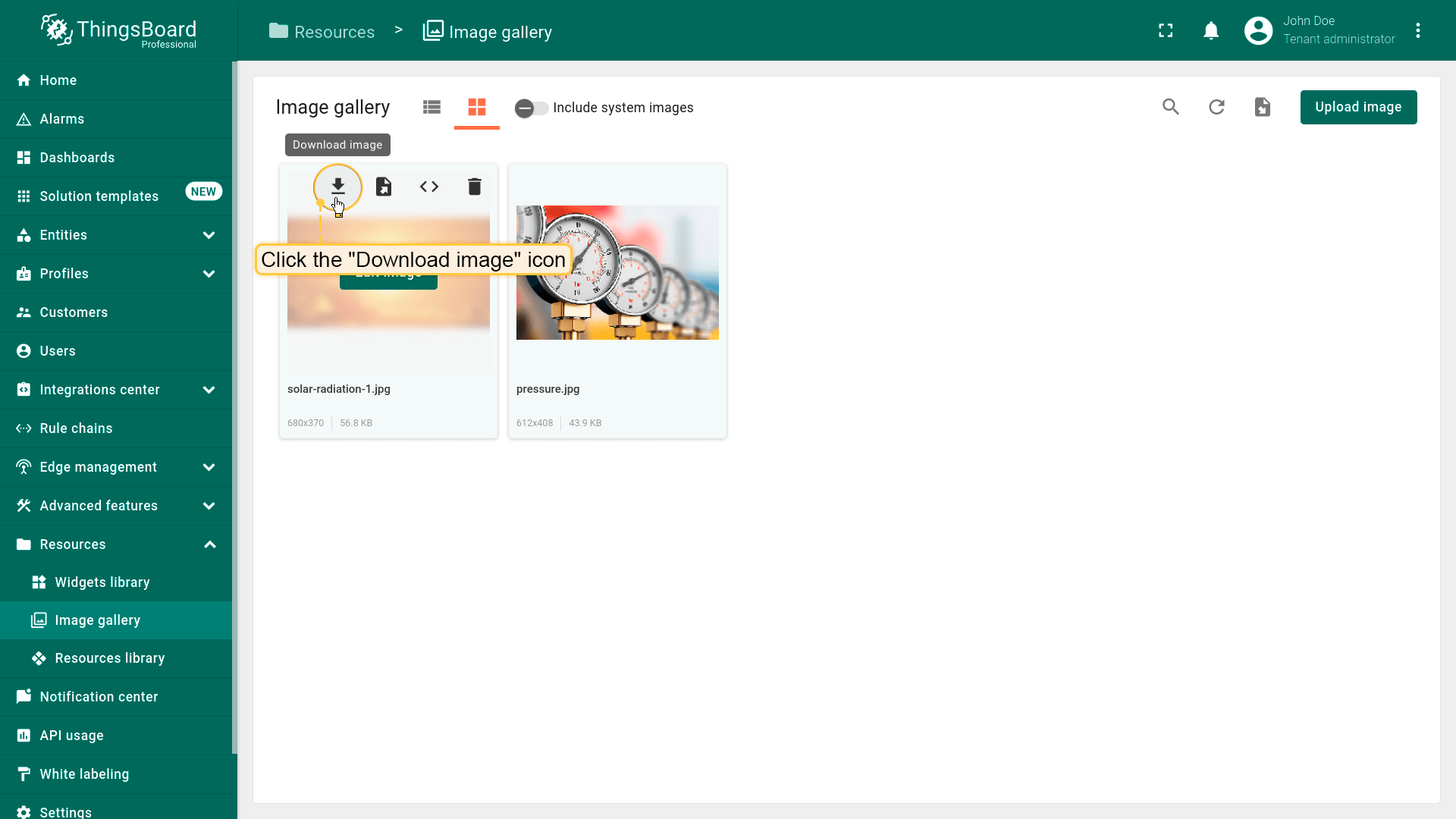
根据当前图片查看格式,可通过两种方式下载图片文件:
- 使用列表视图时,点击要导出的图片名称旁的 “Download image” 图标。
- 使用网格视图时,将鼠标悬停在要导出的图片上,点击 “Download image” 图标。
图片将以图片文件格式保存到您的电脑。
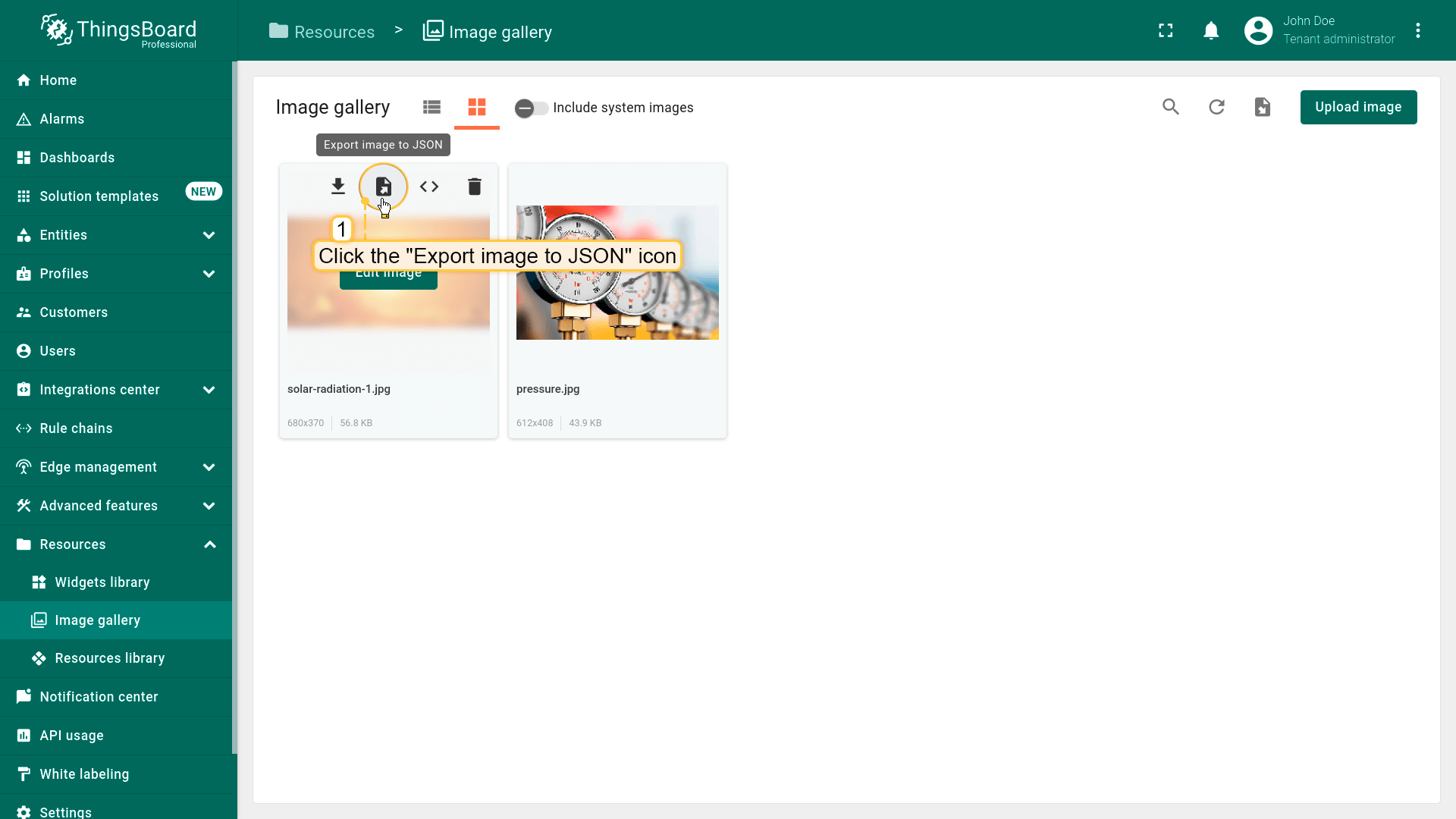
导出图片为JSON
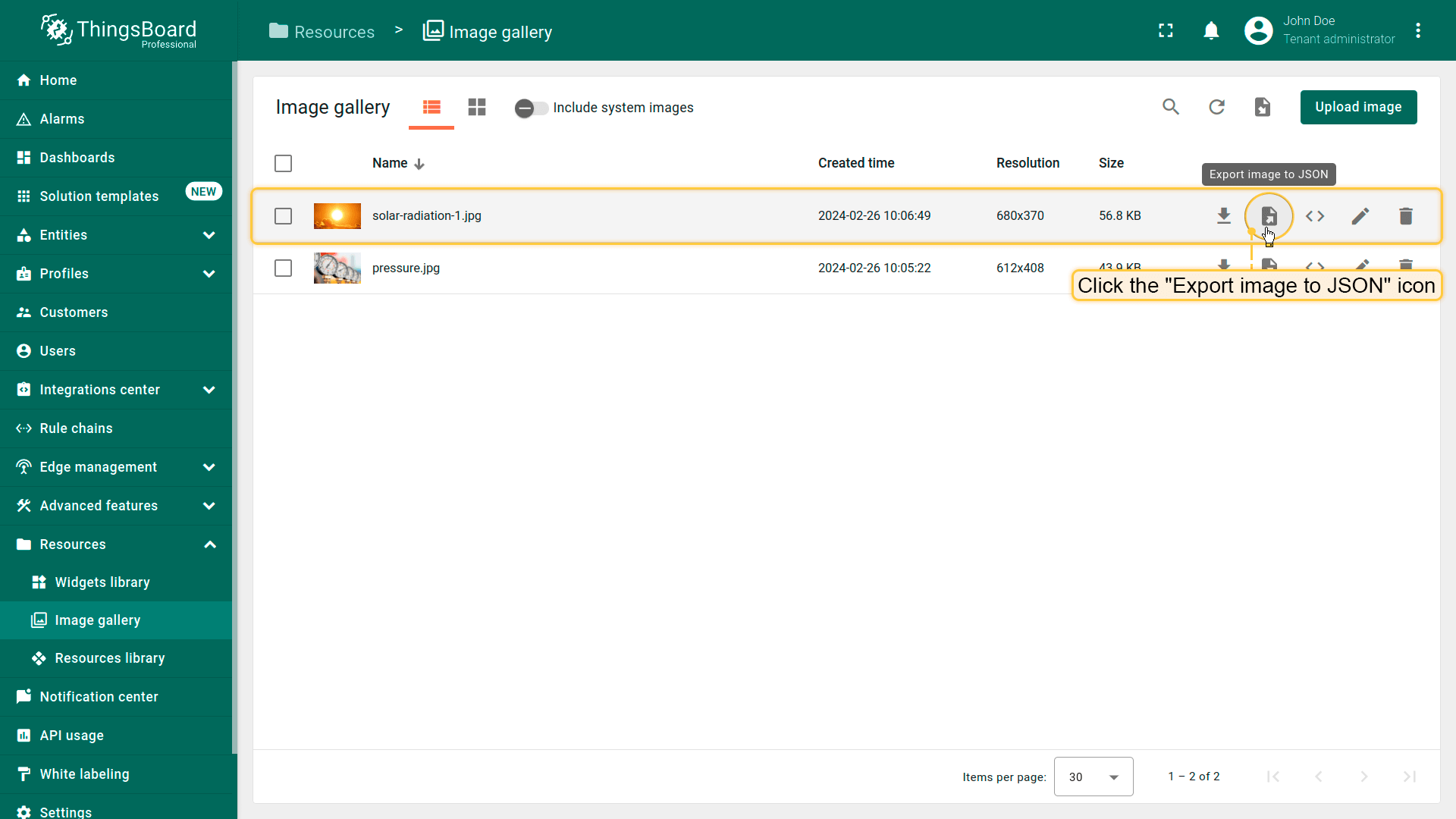
根据当前图片查看格式,可通过两种方式导出为JSON:
- 使用列表视图时,点击要导出的图片名称旁的 “Export image to JSON” 图标。
- 使用网格视图时,将鼠标悬停在要导出的图片上,点击 “Export image to JSON” 图标。
图片将以JSON格式保存到您的电脑。
嵌入图片
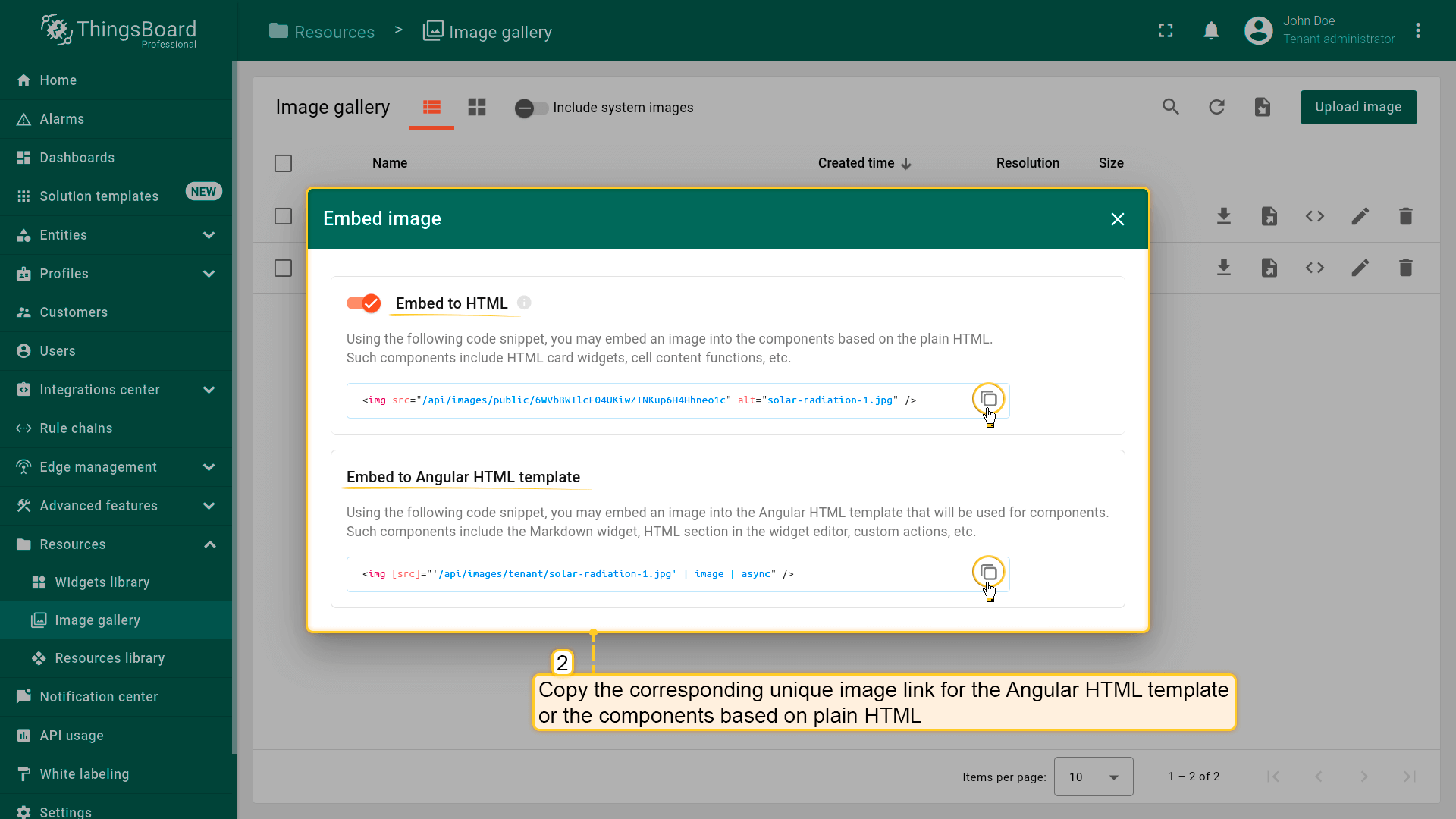
将图片添加到Imagegallery后,可嵌入到HTML卡片部件、部件编辑器的HTML区域、单元格内容函数、自定义操作等。
系统级图片对所有平台用户可见,租户级图片可能仅对特定租户可见。 ThingsBoard平台上每张图片都有唯一URL,支持带认证和不带认证下载。
使用下列代码片段可将图片嵌入基于纯HTML的组件,无需认证。例如在HTML Card部件、单元格内容函数等中:
1
<img src="relative link to the image" alt="text description of the image" />
若要将图片嵌入Angular HTML模板,例如在Markdown/HTML Card部件或部件编辑器的HTML区域中,请使用:
1
<img [src]="'image URL' | image | async" />
此方式会在图片请求中自动添加认证头,使同一图片URL可为不同用户返回不同图片。
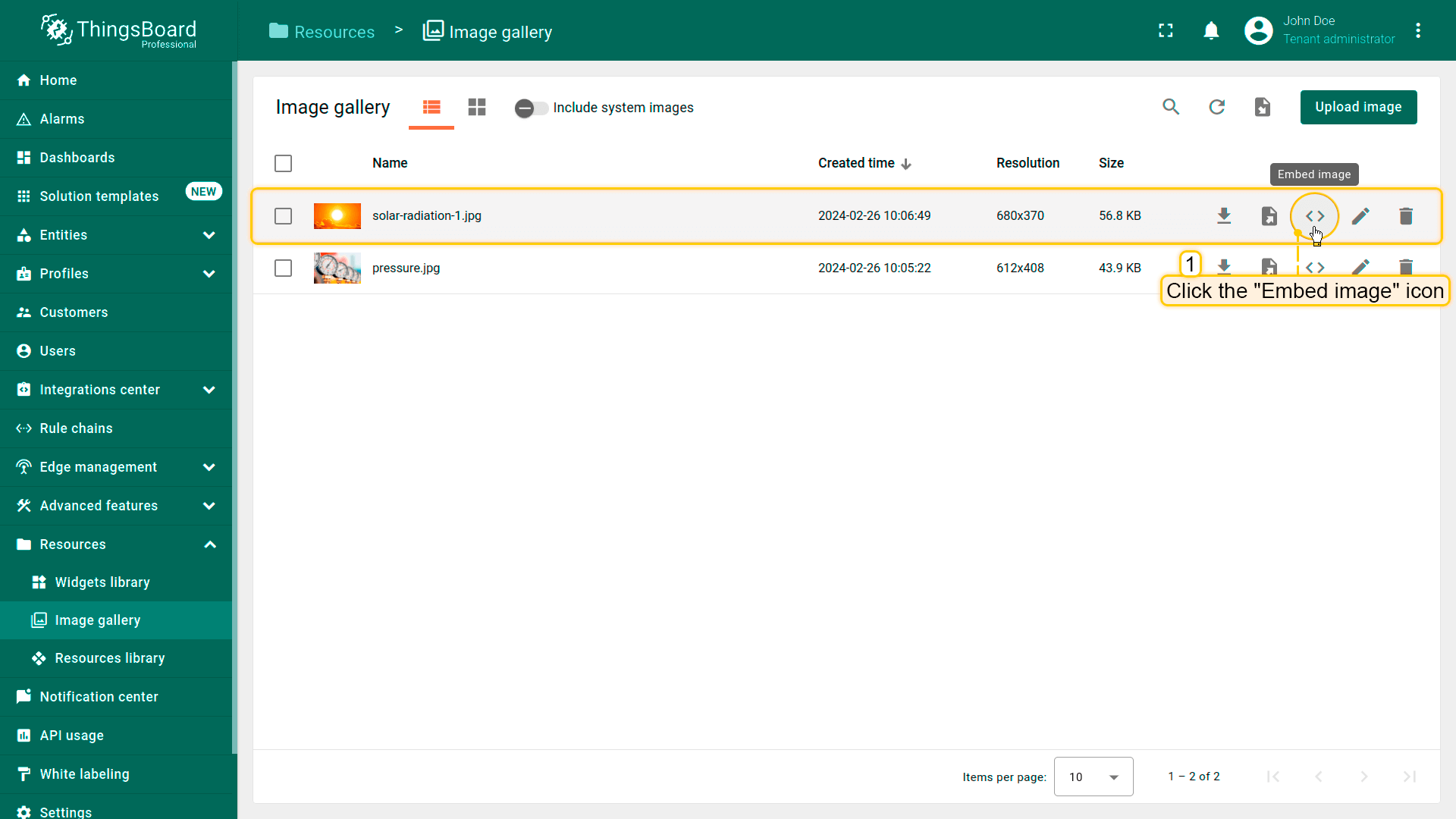
获取用于嵌入的图片链接,请按以下步骤操作。
- 进入”Resources”下的”Image gallery”页面;
- 点击要嵌入图片的”Embed image”图标(使用网格视图时,将鼠标悬停在图片上后点击”Embed image”图标);
- 选择Angular HTML模板或纯HTML组件的代码片段,并复制该图片的对应唯一链接。
编辑图片
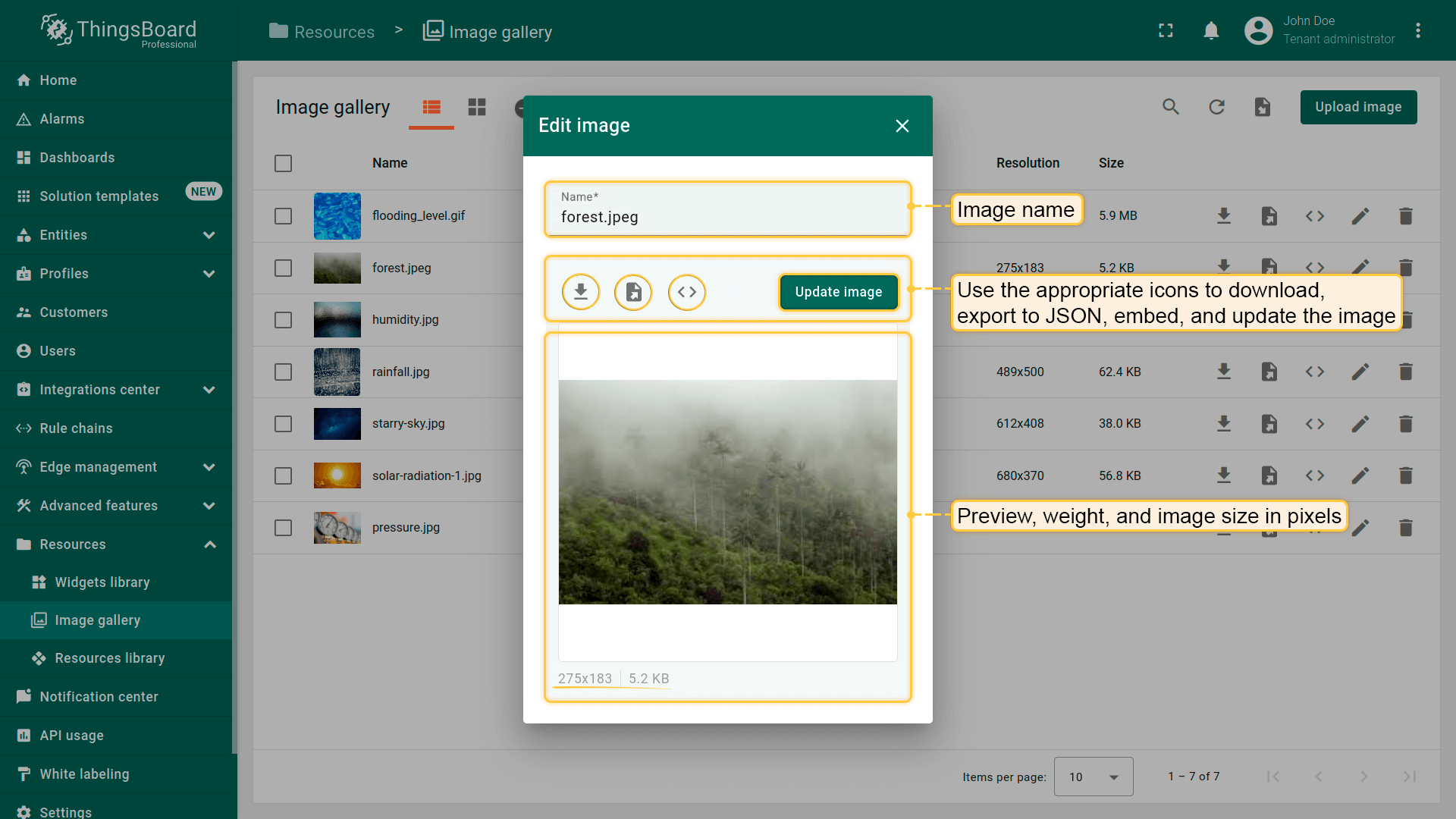
点击要编辑的图片名称旁的”Edit image”图标(使用网格视图时,将鼠标悬停在图片上后点击”Edit image”图标)可打开编辑窗口。 在窗口中可修改名称、下载、导出为JSON、嵌入,也可更新图片。
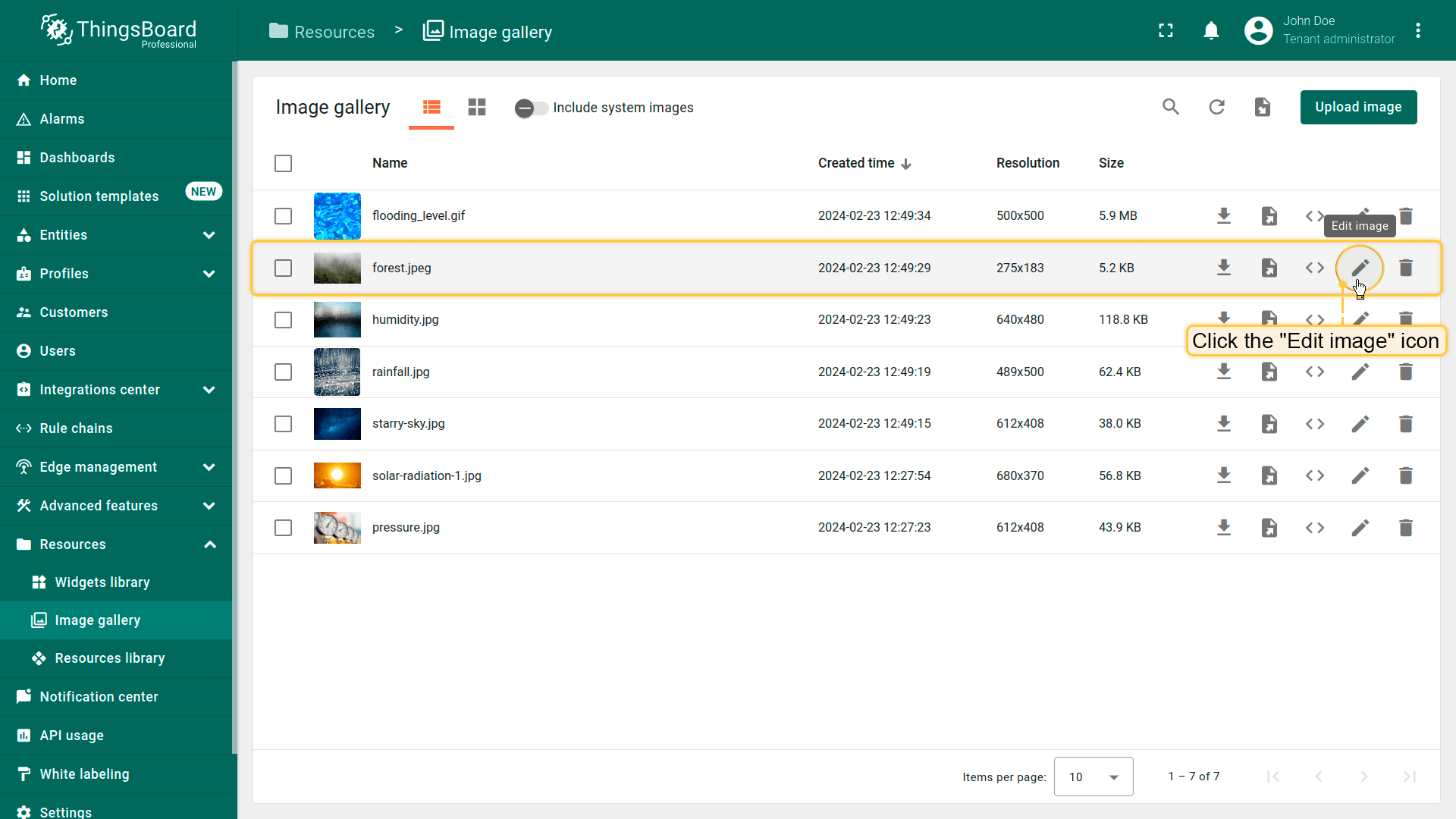
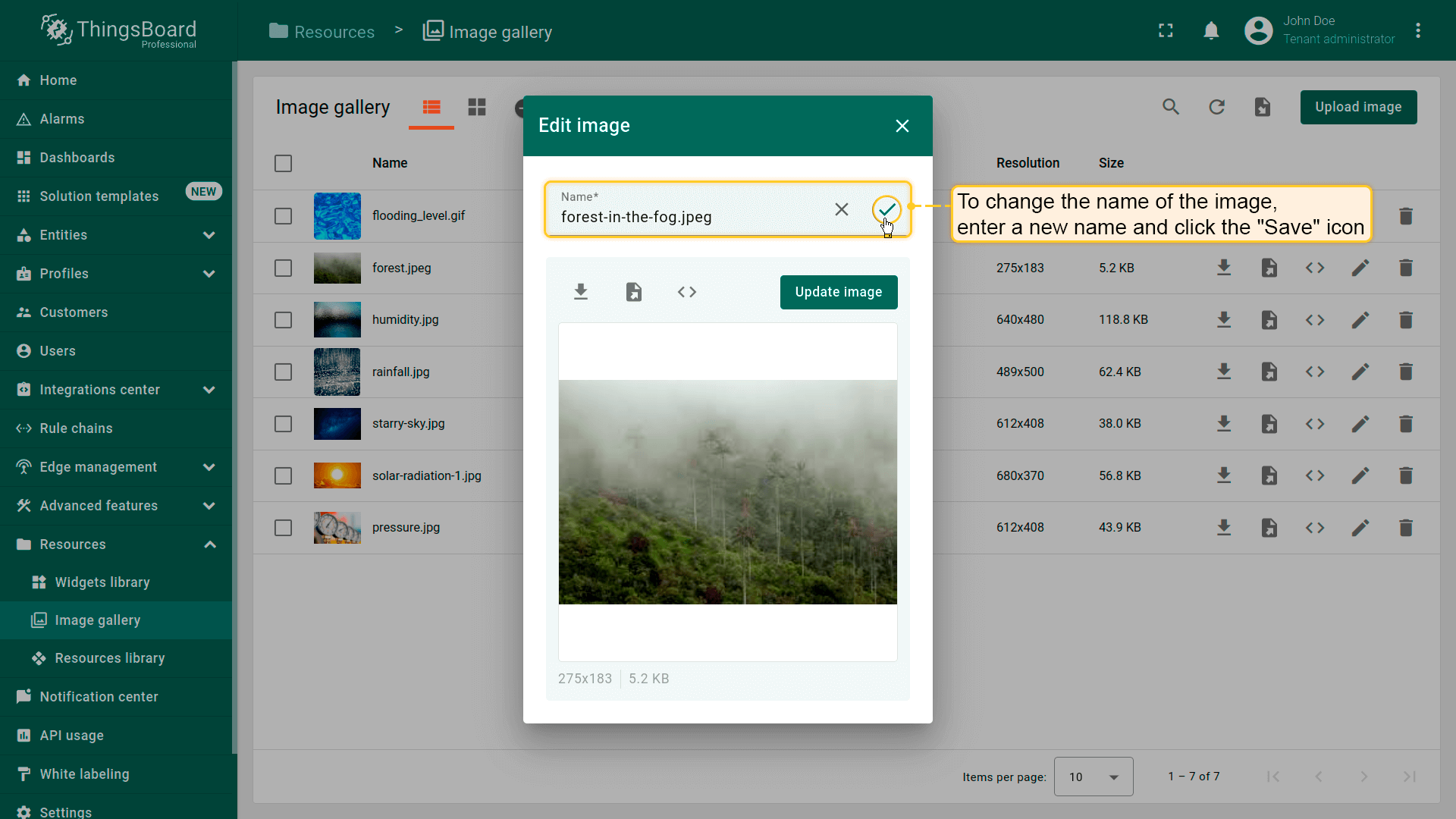
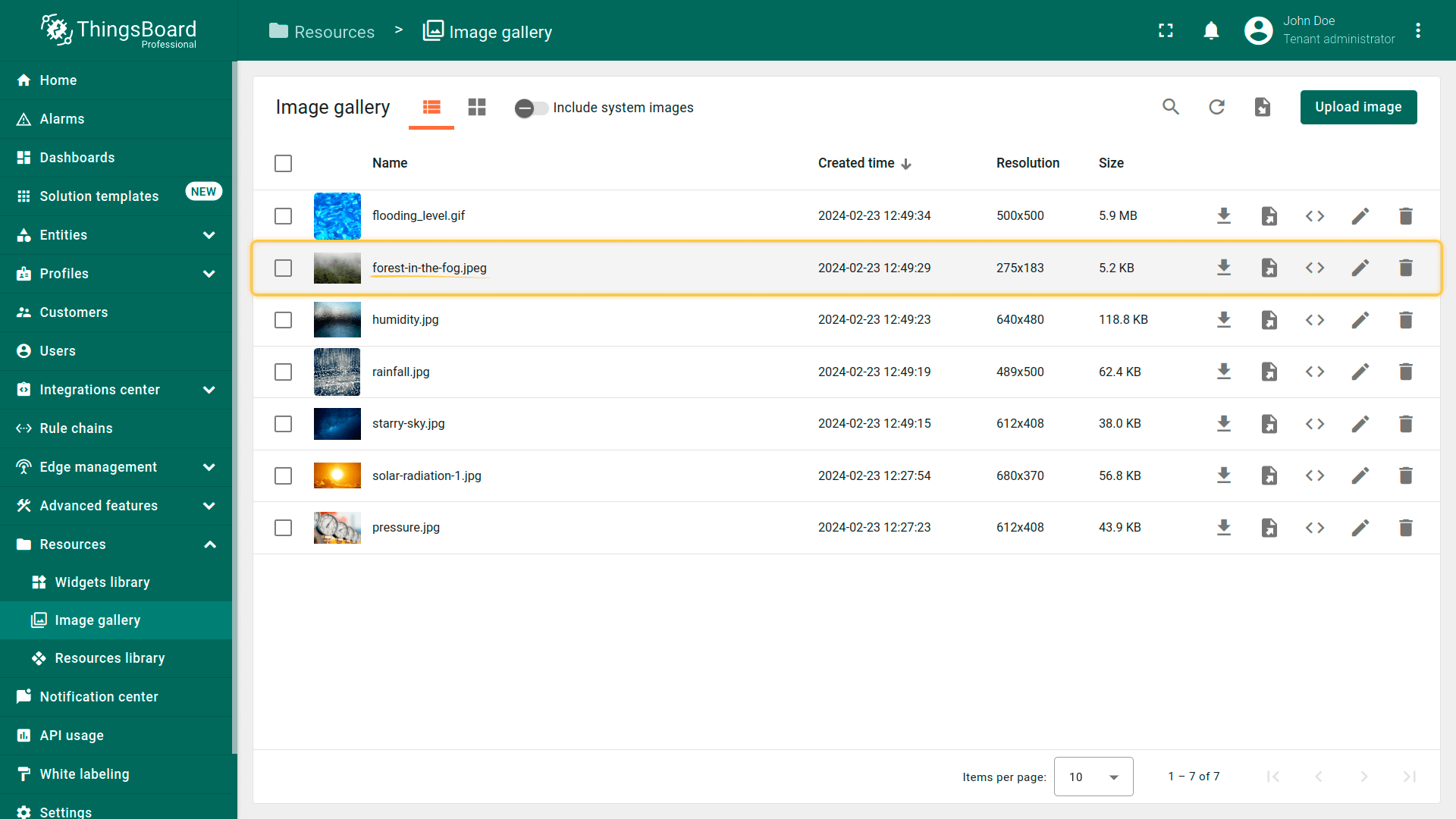
若要修改图片名称,在”Edit image”窗口中输入新名称并点击”Save”图标。
更新图片
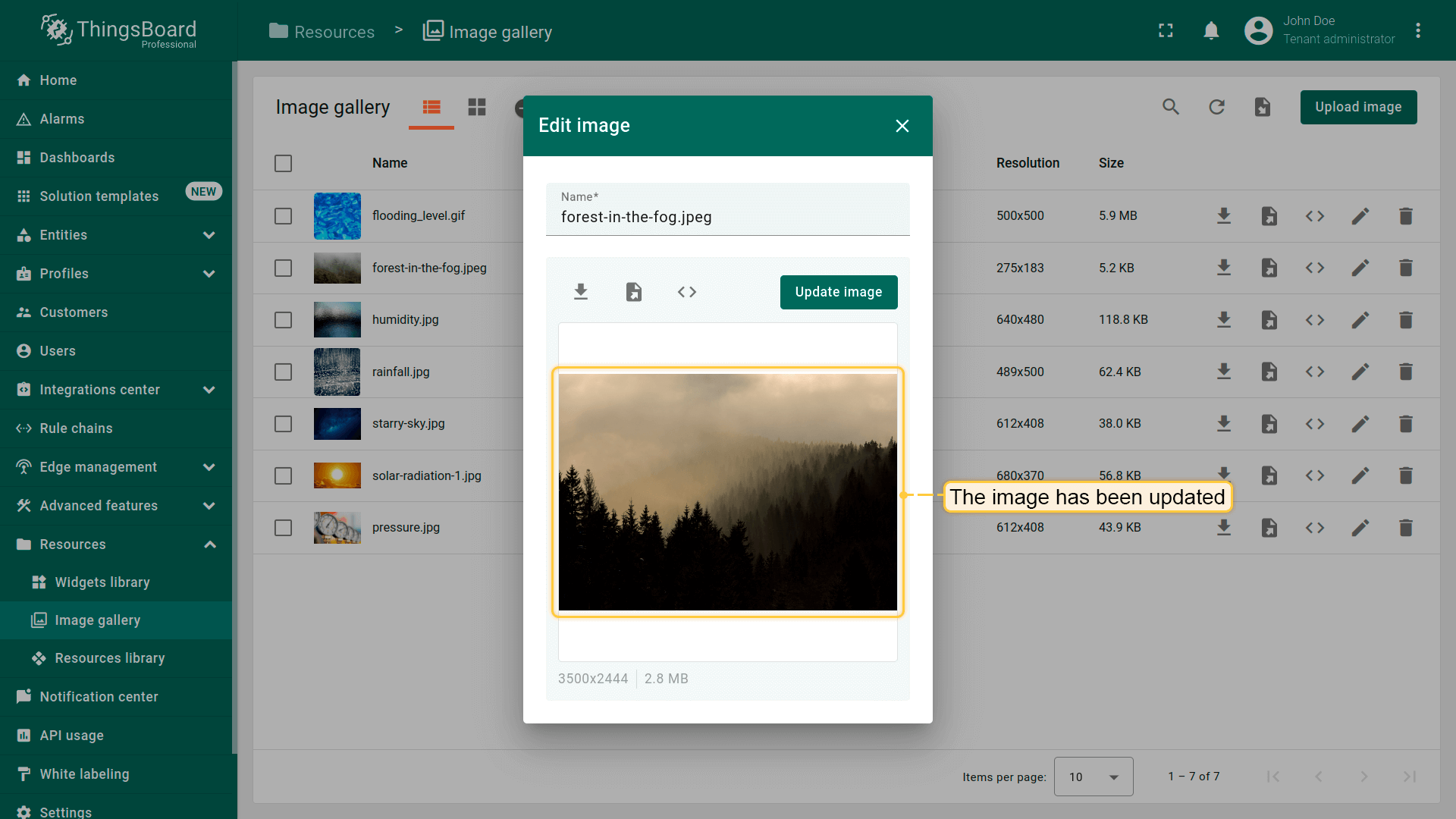
更新图片适用于一张图片被用作多个仪表板背景的场景。 只需修改一次,所有使用该图片的仪表板会自动获得更新,无需逐个编辑。
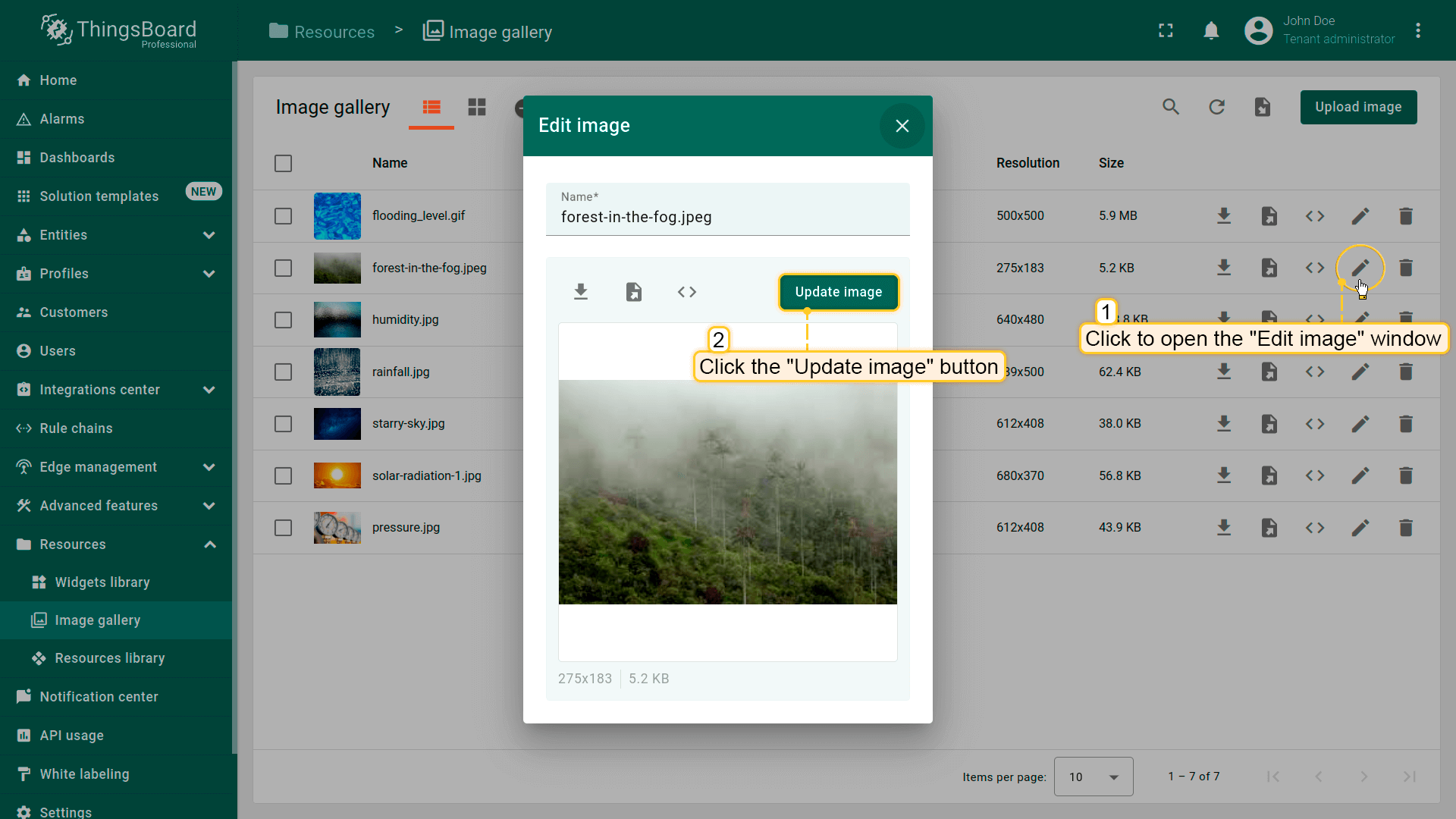
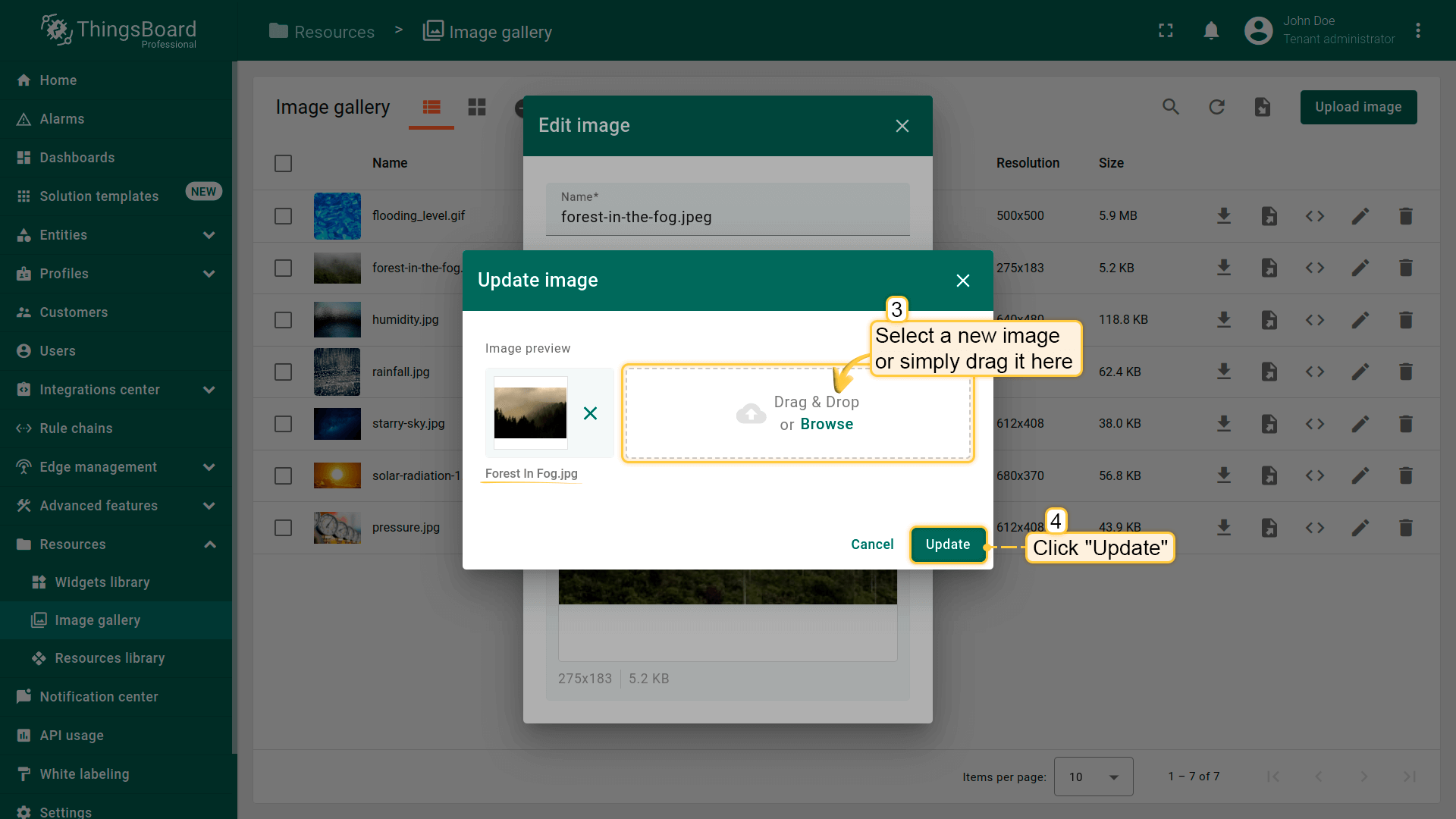
要更新图片,在编辑窗口中点击”Update image”按钮。选择新图片或将其拖拽到”Update image”窗口,然后点击”Update”。
删除图片
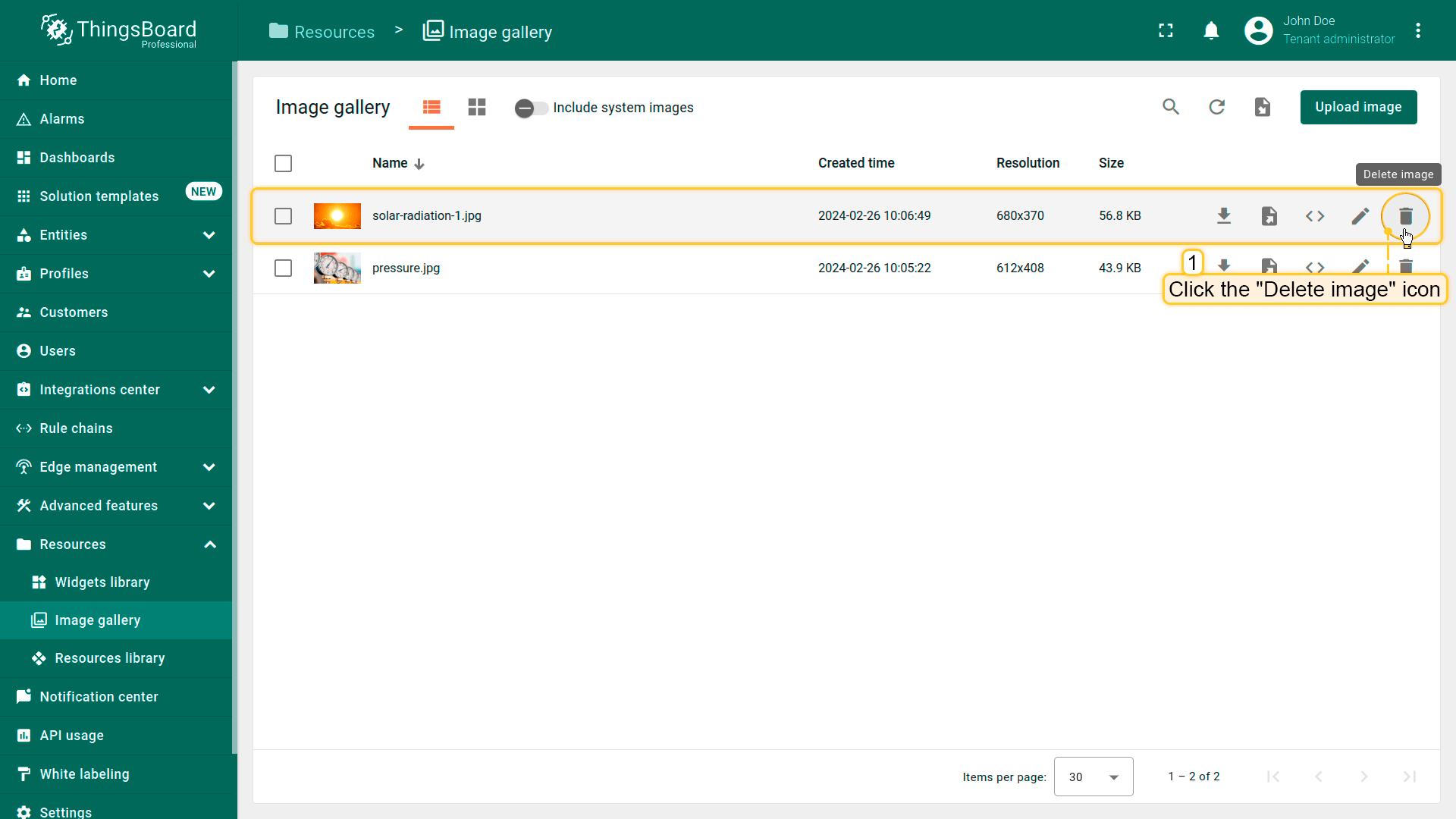
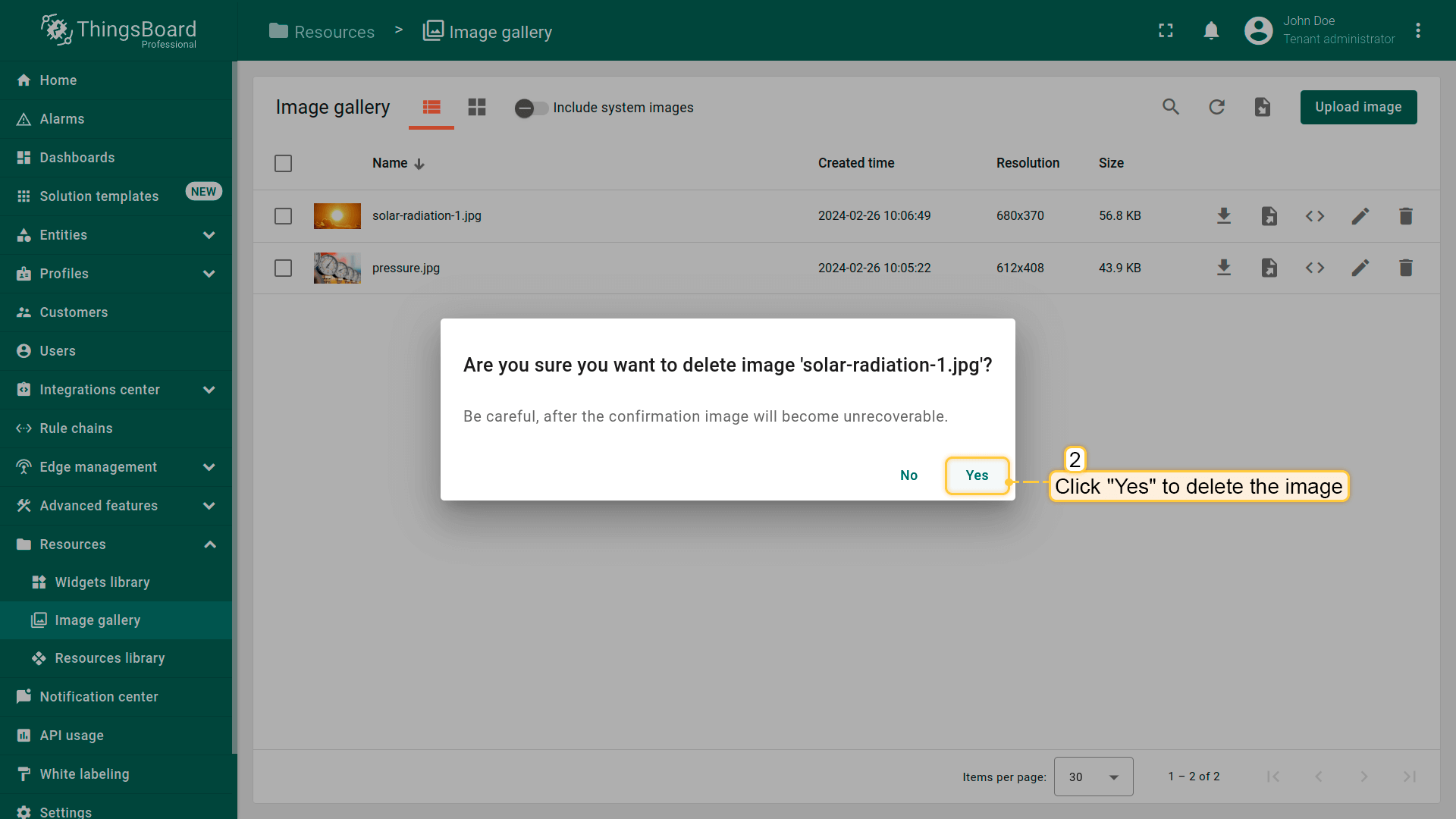
从图片列表中删除图片,请按以下步骤操作:
- Click the "Delete image" icon opposite the image's name you want to delete;
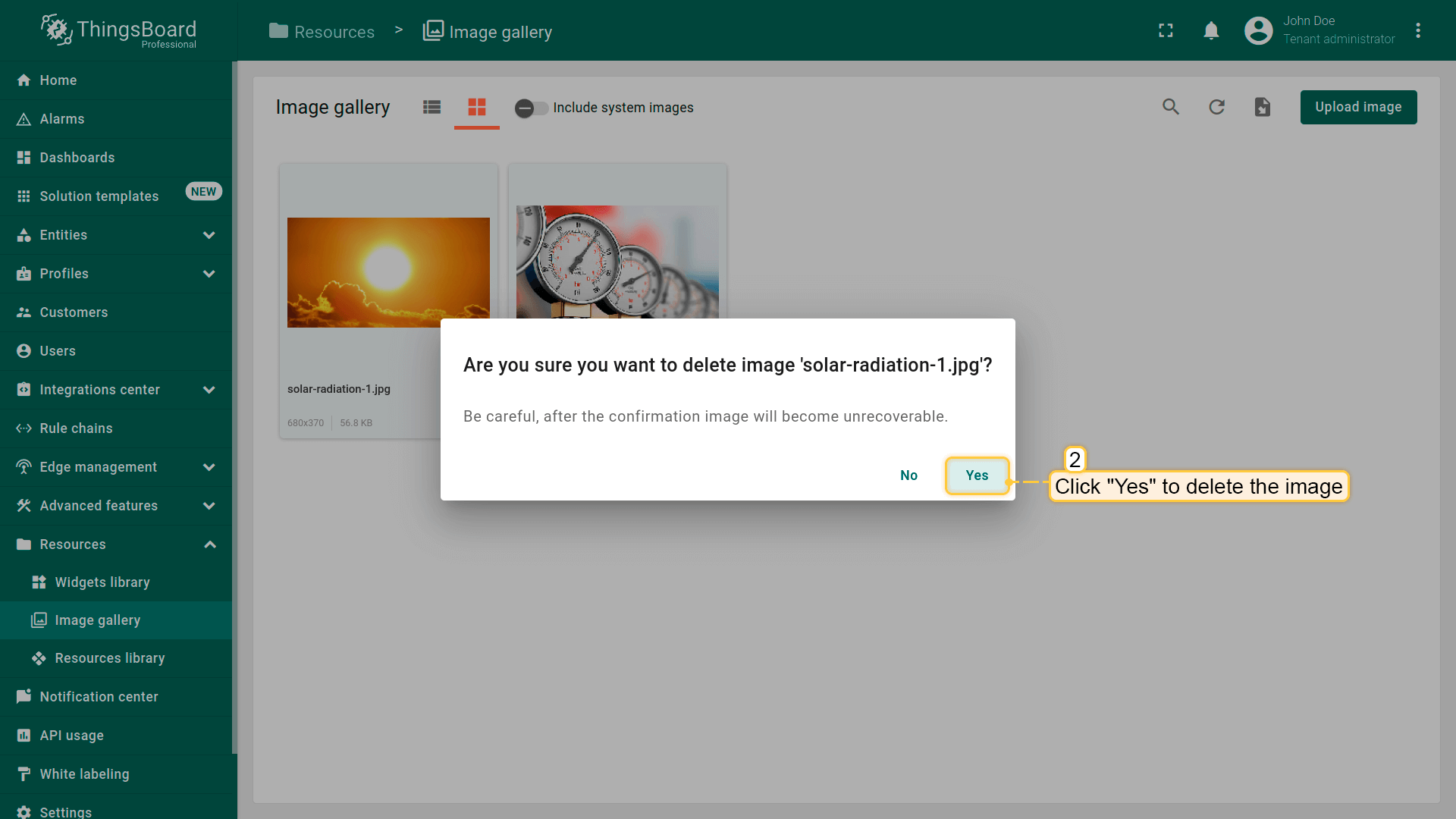
- Confirm deleting the image in the dialog box
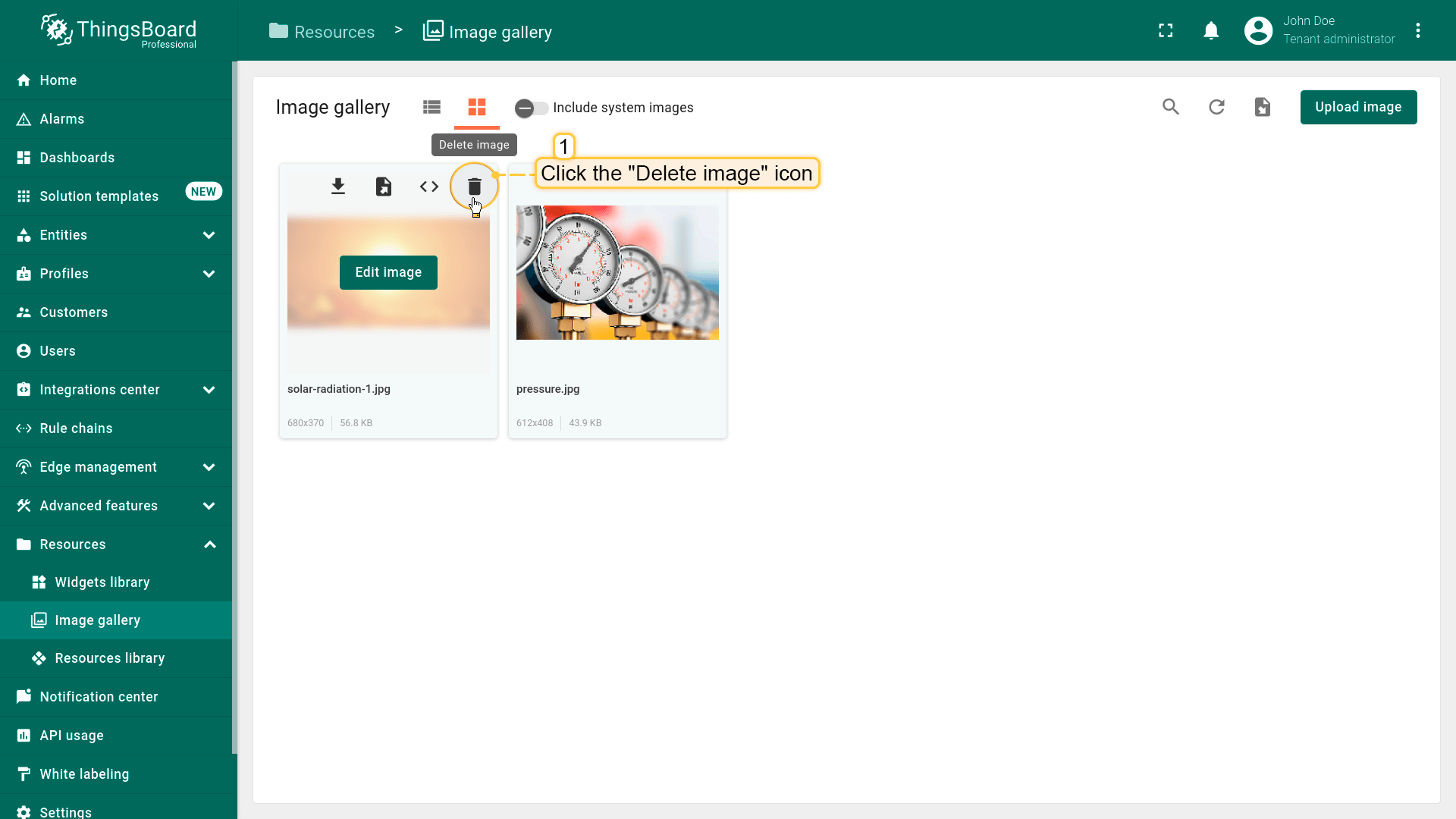
删除以网格显示的图片,请按以下步骤操作:
- Hover your mouse over the image you want to delete and click the "Delete image" icon;
- Confirm deleting the image in the dialog box
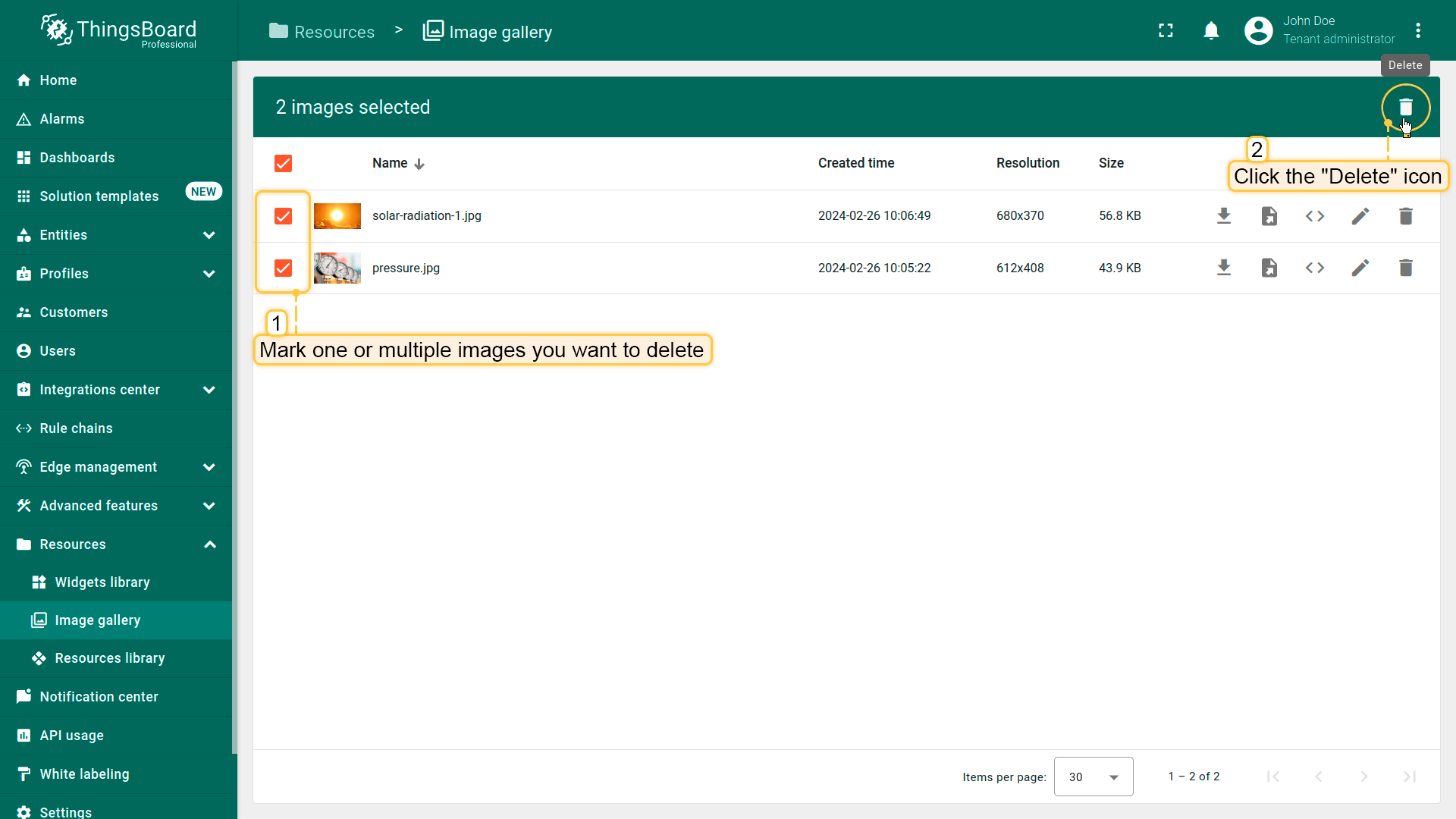
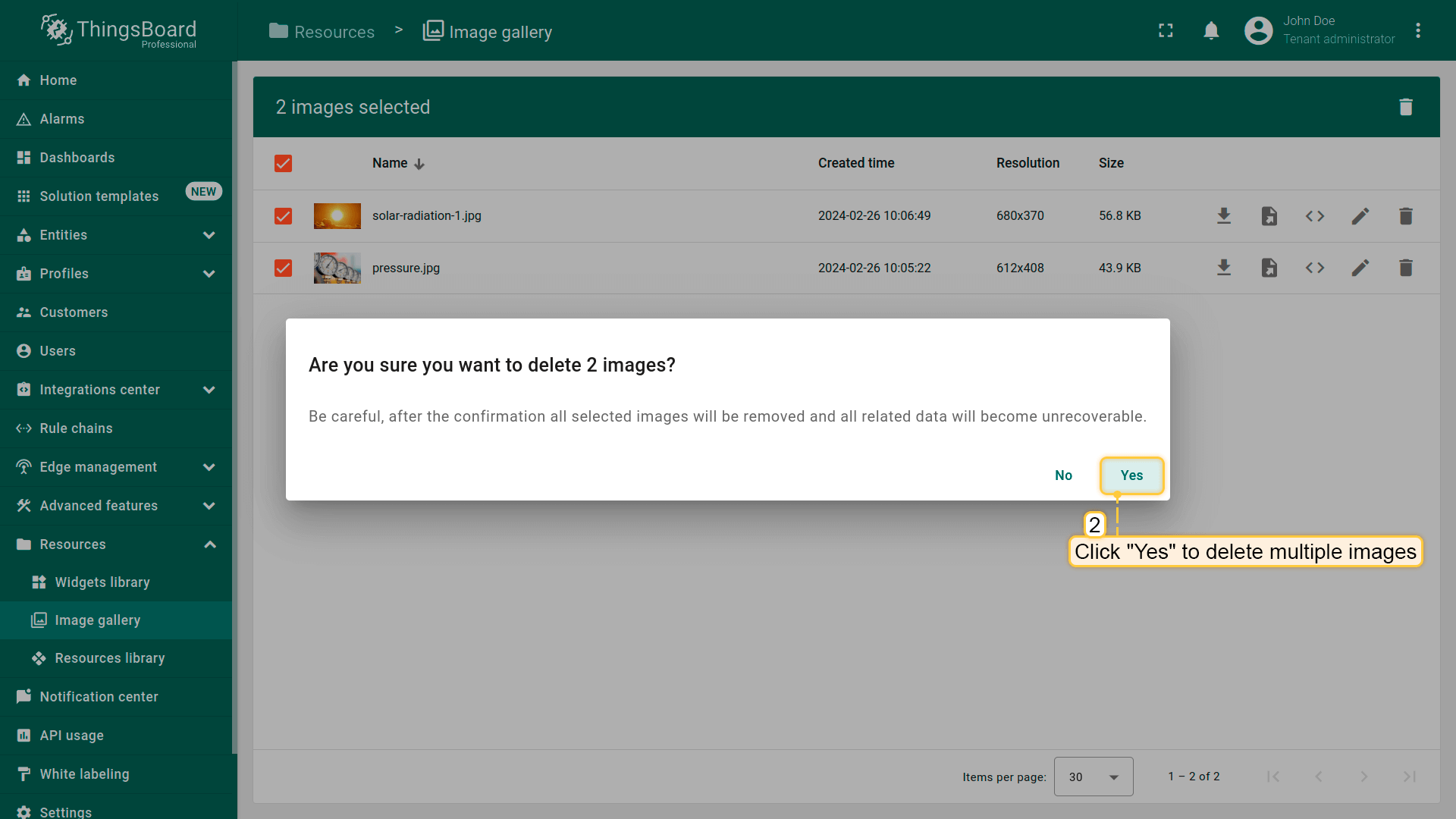
也可一次删除多张图片(仅可通过列表视图):
- Mark one or multiple images you want to delete. Click on the "Delete" bin icon in the top right corner;
- Confirm deleting images in the dialog box