- Prerequisites
- Running
- Running (with ENV variables)
- Detaching, stop and start commands
- Gateway configuration
- Upgrading
- Build local docker image
This guide will help you to install and start ThingsBoard Gateway using Docker on Windows.
Prerequisites
Running
Click the Docker QuickStart icon to launch a pre-configured Docker Toolbox terminal.
Make sure your have logged in to docker hub using command line.
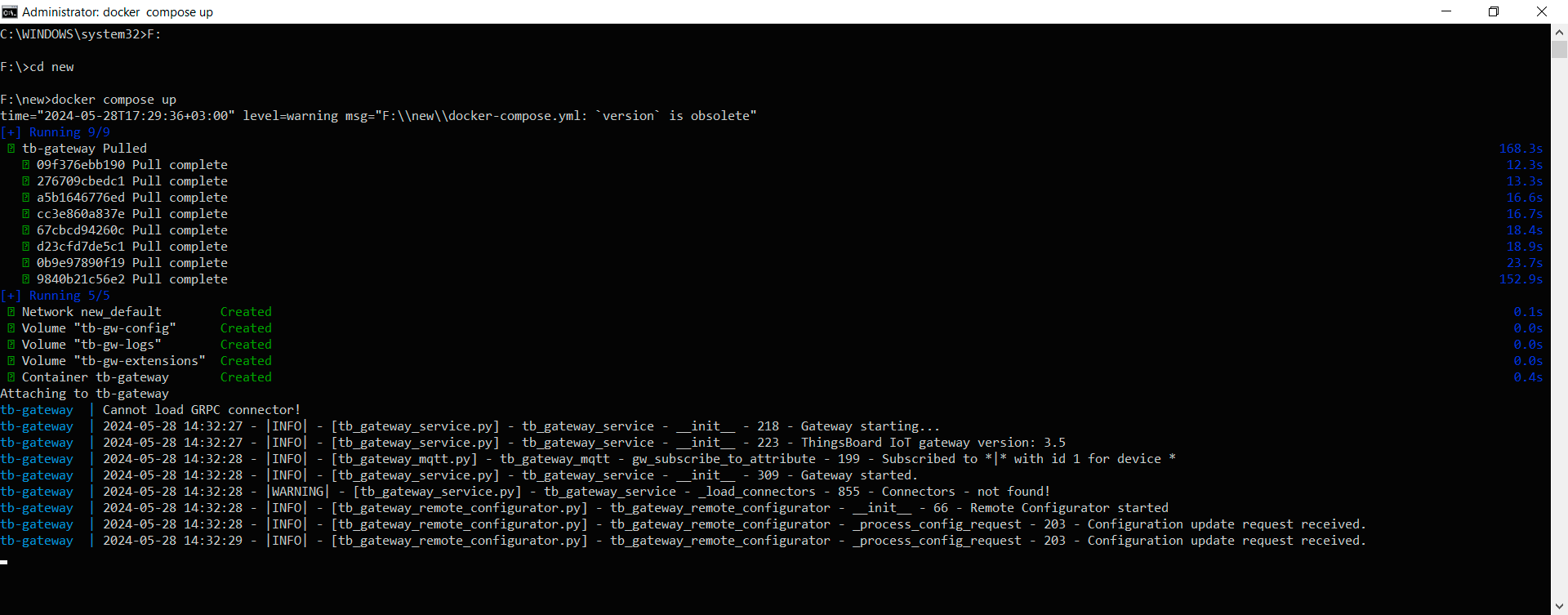
Execute the following command to run this docker directly:
1
docker run -it -v %HOMEPATH%\tb-gateway\config:/thingsboard_gateway/config -v %HOMEPATH%\tb-gateway\extensions:/thingsboard_gateway/extensions -v %HOMEPATH%\tb-gateway\logs:/thingsboard_gateway/logs --name tb-gateway --restart always thingsboard/tb-gateway
Where:
docker run- run this container-it- attach a terminal session with current Gateway process output-v %HOMEPATH%\tb-gateway\config:/thingsboard_gateway/config- mounts the host’s dir%HOMEPATH%\tb-gateway\configto Gateway config directory-v %HOMEPATH%\tb-gateway\extensions:/thingsboard_gateway/extensions- mounts the host’s dir%HOMEPATH%\tb-gateway\extensionsto Gateway extensions directory-v %HOMEPATH%\tb-gateway\logs:/thingsboard_gateway/logs- mounts the host’s dir%HOMEPATH%\tb-gateway\logsto Gateway logs directory--name tb-gateway- friendly local name of this machine--restart always- automatically start ThingsBoard in case of system reboot and restart in case of failure.thingsboard/tb-gateway- docker image$HOME- current user’s home dir(%HomePath%)
Running (with ENV variables)
Execute the following command to run docker container with ENV variables:
1
docker run -it -e host=thingsboard.cloud -e port=1883 -e accessToken=ACCESS_TOKEN -v %HOMEPATH%\tb-gateway\config:/thingsboard_gateway/config -v %HOMEPATH%\tb-gateway\extensions:/thingsboard_gateway/extensions -v %HOMEPATH%\tb-gateway\logs:/thingsboard_gateway/logs --name tb-gateway --restart always thingsboard/tb-gateway
Available ENV variables:
| ENV | 描述 |
|---|---|
| host | ThingsBoard instance host. |
| port | ThingsBoard instance port. |
| accessToken | Gateway access token. |
| caCert | Path to CA file. |
| privateKey | Path to private key file. |
| cert | Path to certificate file. |
Detaching, stop and start commands
You can detach from session terminal with Ctrl-p Ctrl-q - the container will keep running in the background.
To reattach to the terminal (to look at Gateway logs) run:
1
docker attach tb-gateway
To stop the container:
1
docker stop tb-gateway
To start the container:
1
docker start tb-gateway
Gateway configuration
Stop the container:
1
docker stop tb-gateway
Open the directory with configuration files:
%HOMEPATH%\tb-gateway\config
Configure gateway to work with your instance of ThingsBoard, using this guide:
Start the container after made changes:
1
docker start tb-gateway
Upgrading
In order to update to the latest image, execute the following commands:
1
2
3
4
$ docker pull thingsboard/tb-gateway
$ docker stop tb-gateway
$ docker rm tb-gateway
$ docker run -it -v %HOMEPATH%\tb-gateway\config:/thingsboard-gateway/config -v %HOMEPATH%\tb-gateway\extensions:/var/lib/thingsboard_gateway/extensions -v %HOMEPATH%\tb-gateway\logs:/var/log/thingsboard-gateway --name tb-gateway --restart always thingsboard/tb-gateway
Build local docker image
In order to build local docker image, follow the next steps:
- Copy thingsboard_gateway/ folder to docker/ folder, so the final view of the directory structure will look like:
1 2 3 4 5 6 7
/thingsboard-gateway/docker thingsboard_gateway/ docker-compose.yml Dockerfile LICENSE setup.py requirements.txt - From project root folder execute the following command:
1
docker build -t local-gateway docker