- Overview
- Prerequisites
- Create Converter templates
- Create Integration template
- Modify the Edge Root Rule chain for Downlinks
- Assign Integration to Edge
- Installing and running external UDP Integration
- Send an uplink message
- Send the downlink message
- 下一步

Edge UDP Integration 与 UDP Integration 实现方式类似。 区别仅在于 integration 的创建与部署方式。 操作前请参阅 UDP Integration 文档。
Overview
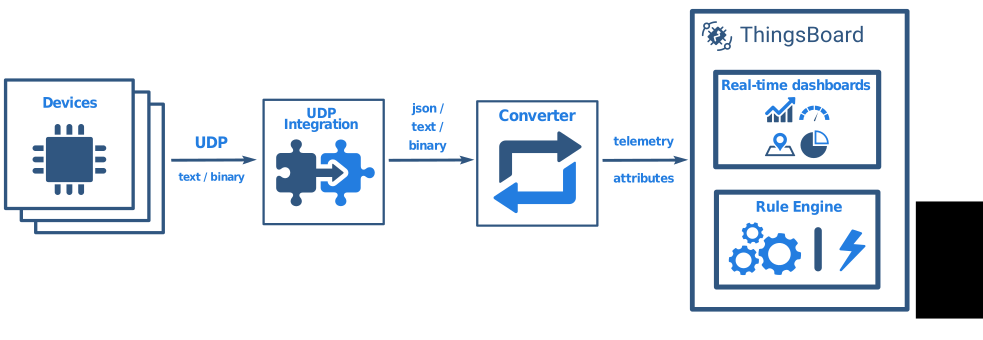
UDP Integration 允许使用 UDP 传输协议的设备将数据流式传输至 ThingsBoard Edge, 并将这些设备的 payload 转换为 ThingsBoard Edge 格式。
UDP Integration 只能作为 Remote Integration 启动。 可在 TB Edge 实例所在的同一台机器上启动, 也可在能通过网络访问 TB Edge 实例的另一台机器上启动。
To learn more, review the integration diagram:
Prerequisites
In this tutorial, we will use:
- ThingsBoard Edge Professional Edition;
- UDP Integration: The integration that runs externally and is connected to the ThingsBoard Edge instance.
- echo command: To display a line of text, and redirect its output to the netcat (nc) utility.
- netcat (nc) utility: To establish TCP connections, receive data from there, and transmit it.
Let’s assume that we have a sensor which is sending current temperature and humidity readings. Our sensor device SN-001 publishes the temperature and humidity readings to UDP Integration on port 11560 to the machine where UDP Integration is running.
For demonstration purposes, we assume that our device is smart enough to send data in 3 different payload types:
- Text: The payload is
1
SN-001,default,temperature,25.7,humidity,69
- JSON: The payload is
1
2
3
4
5
6
7
8
[
  {
    "deviceName": "SN-001",
    "deviceType": "default",
    "temperature": 25.7,
    "humidity": 69
  }
]
- Binary: The binary payload is (in HEX string):
1
\x53\x4e\x2d\x30\x30\x31\x64\x65\x66\x61\x75\x6c\x74\x32\x35\x2e\x37\x36\x39
Here is the description of the bytes in this payload:
- 0-5 bytes: \x53\x4e\x2d\x30\x30\x3 - The device name. If we convert it to the text, it is SN-001.
- 6-12 bytes: \x64\x65\x66\x61\x75\x6c\x74 - The device type. If we convert it to the text, it is default.
- 13-16 bytes: \x32\x35\x2e\x37 - The temperature telemetry. If we convert it to the text, it is 25.7.
- 17-18 bytes: \x36\x39 - The humidity telemetry. If we convert it to text, it is 69.
- Hex: The payload is a hexadecimal string:
1
534e2d30303164656661756c7432352e373639
Here is the description of the bytes in this payload:
- 0-5 bytes: 534e2d303031 - The device name. If we convert it to the text, it is SN-001;
- 6-12 byte: 64656661756c74 - The device type. If we convert it to the text, it is default;
- 13-16 byte: 32352e37 - The temperature telemetry. If we convert it to the text, it is 25.7;
- 17-18 byte: 3639 - The humidity telemetry. If we convert it to the text, it is 69;
Based on your device capabilities and business cases, you can choose the payload type:
在运行远程 UDP Integration 的机器上,必须为入站连接开放端口 11560——nc 工具必须能连接到 UDP socket。 若在本地运行,通常无需额外更改。
Create Converter templates
To create Converter and Integration templates, log in to the Cloud instance as Tenant administrator.
Uplink Converter template
Before creating the Integration template, create an Uplink and Downlink converter templates in Converters templates section.
The uplink data converter is needed to convert the incoming data from the device into the format required for display on ThingsBoard Edge.
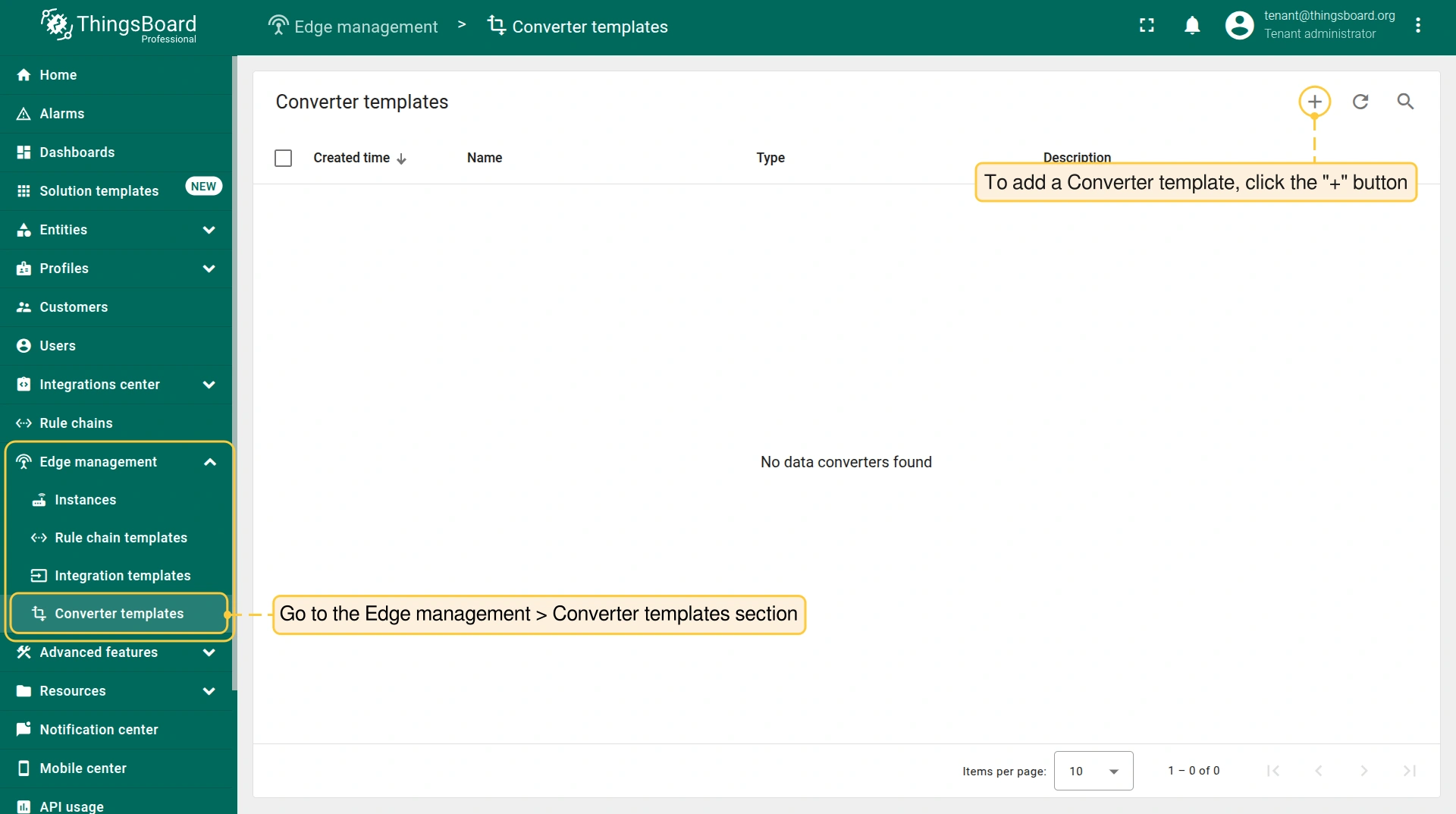
- Log in to the Cloud and go to the Edge management > Converter templates section. To create a Converter template, click the “Add data converter” button (the + icon) and select the “Create new converter” option.
- In the “Add data converter” pop-up window:
- Name: Enter the name of the data converter.
- Type: Select the “Uplink” converter type from the drop-down menu.
- To view the events, enable Debug mode.
- function Decoder: Enter a script to parse and transform data.
- Click the “Add” button.

Debug 模式在开发与故障排查中非常有用,但在生产环境中保持启用会显著增加数据库存储需求,因为所有调试数据均会存入数据库。
强烈建议在调试完成后 禁用 Debug 模式。
Select the device payload type to use for a decoder configuration:
请将以下脚本复制并粘贴到 Decoder function 区域: Decoder function 用于将入站数据和 metadata 解析为 ThingsBoard 可消费的格式。 deviceName and deviceType are required, while attributes and telemetry are optional. attributes and telemetry are flat key-value objects. Nested objects are not supported. |
请将以下脚本复制并粘贴到 Decoder function 区域: Decoder function 用于将入站数据和 metadata 解析为 ThingsBoard 可消费的格式。 deviceName and deviceType are required, while attributes and telemetry are optional. attributes and telemetry are flat key-value objects. Nested objects are not supported. |
请将以下脚本复制并粘贴到 Decoder function 区域: Decoder function 用于将入站数据和 metadata 解析为 ThingsBoard 可消费的格式。 deviceName and deviceType are required, while attributes and telemetry are optional. attributes and telemetry are flat key-value objects. Nested objects are not supported. |
请将以下脚本复制并粘贴到 Decoder function 区域: Decoder function 用于将入站数据和 metadata 解析为 ThingsBoard 可消费的格式。 deviceName and deviceType are required, while attributes and telemetry are optional. attributes and telemetry are flat key-value objects. Nested objects are not supported. |
You can change the function Decoder while creating the converter or after creating it:
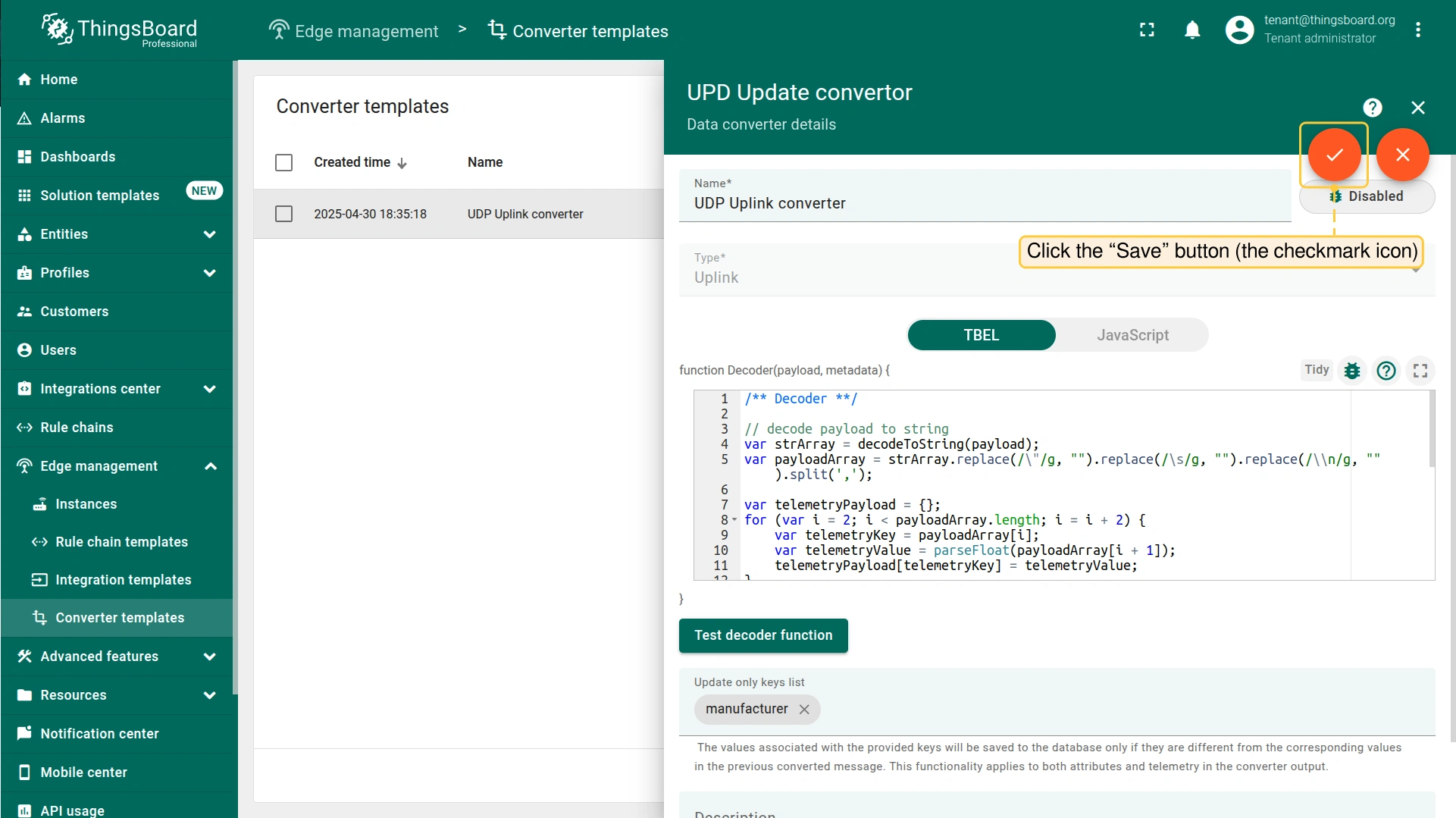
- If the converter has already been created, click it to open the “Data converter details” window.
- Click the “Edit” buton (the ‘pencil’ icon) to edit the data converter.
- Copy the configuration example or create your own converter configuration and paste it into the “function Decoder” field.
- To save the changes, click the “Save” button (the ‘checkmark’ icon).

Downlink Converter template
Also create the Downlink Converter Template in the Converter Templates section:
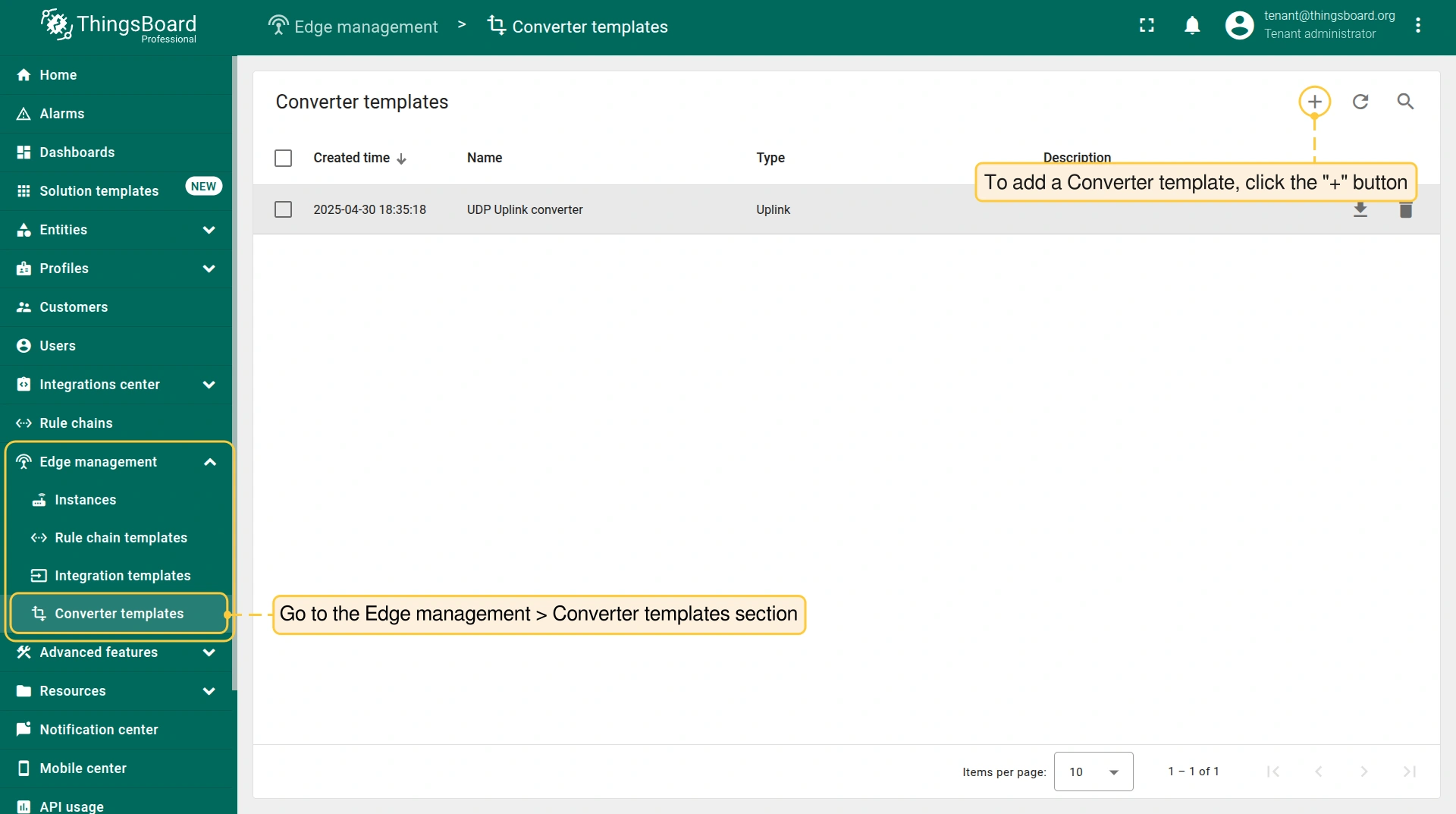
- On the Edge management > Converter templates section page, click the “Add data converter” button (the + icon) to create another Converter template, and select the “Create new converter” option.
- In the “Add data converter” pop-up window:
- Name: Enter the name of the data converter.
- Type: Select the “Downlink” converter type from the drop-down menu.
- To view the events, enable Debug mode.
- function Decoder: Enter a script to parse and transform data.
- Click the “Add” button.

You can customize a downlink according to your configuration. Let’s consider an example where we send an attribute update message. An example of a downlink converter:
1
2
3
4
5
6
7
8
9
10
11
12
13
14
15
16
17
18
19
20
21
// Encode downlink data from incoming Rule Engine message

// msg - JSON message payload downlink message json
// msgType - type of message, for ex. 'ATTRIBUTES_UPDATED', 'POST_TELEMETRY_REQUEST', etc.
// metadata - list of key-value pairs with additional data about the message
// integrationMetadata - list of key-value pairs with additional data defined in Integration executing this converter

var result = {

    // downlink data content type: JSON, TEXT or BINARY (base64 format)
    contentType: "JSON",

    // downlink data
    data: JSON.stringify(msg),

    // Optional metadata object presented in key/value format
    metadata: {
    }
};

return result;
Create Integration template
Now that the Uplink and Downlink converter templates have been created, it is possible to create the Integration:
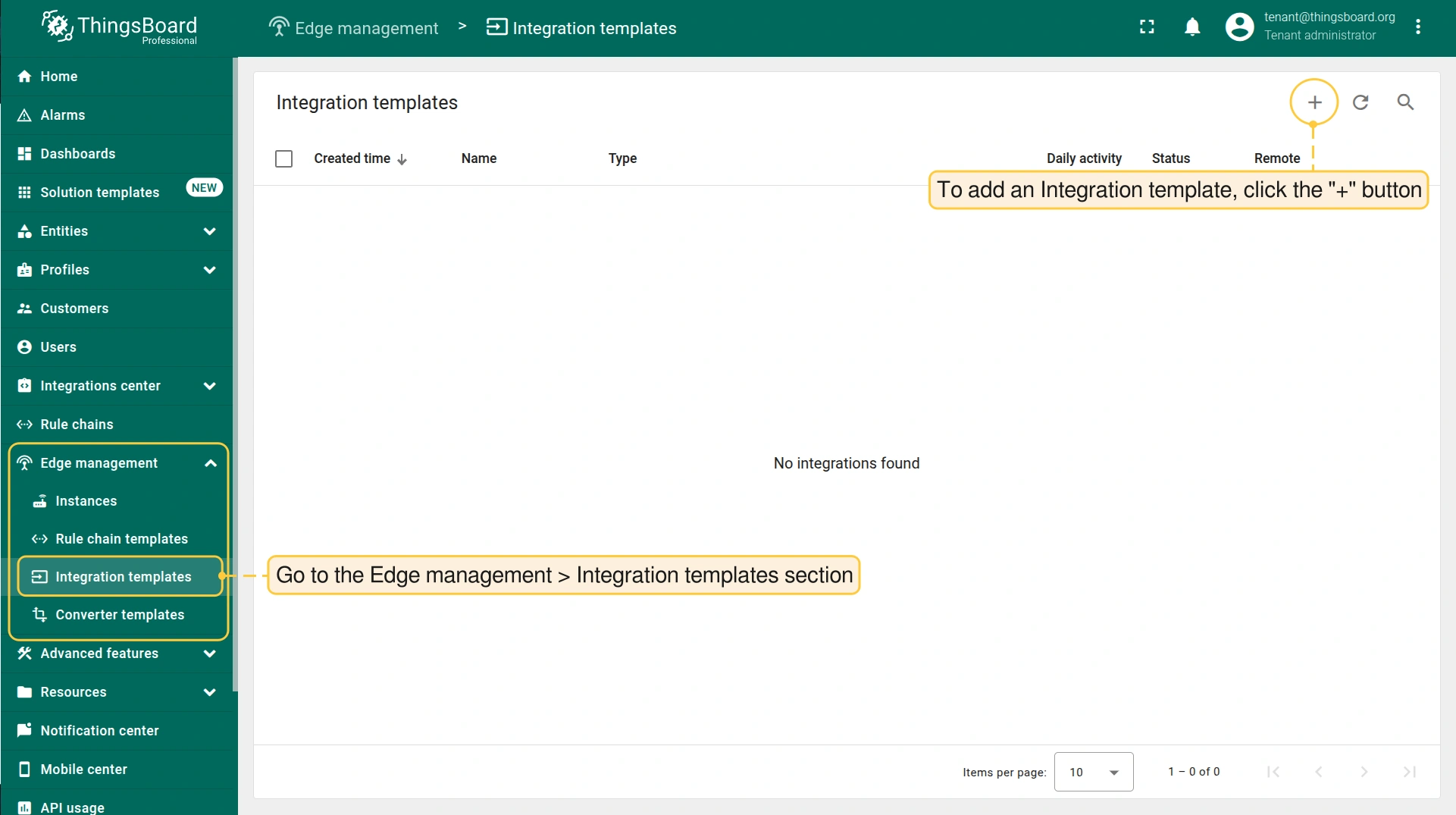
- Go to the Edge management > Integration templates section, click the “Add new integration” button (the + icon) and select the “Create new integration” option.
- In the “Add integration” pop-up window and fill out the “Basic settings” block:
- Integration type: Select the “UDP” integration type from the drop-down menu.
- Name: Enter the name of the integration.
- In the “Uplink data converter” block:
- Select the “Select existing” tab.
- Uplink data converter: Select the uplink data converter from the drop-down menu.
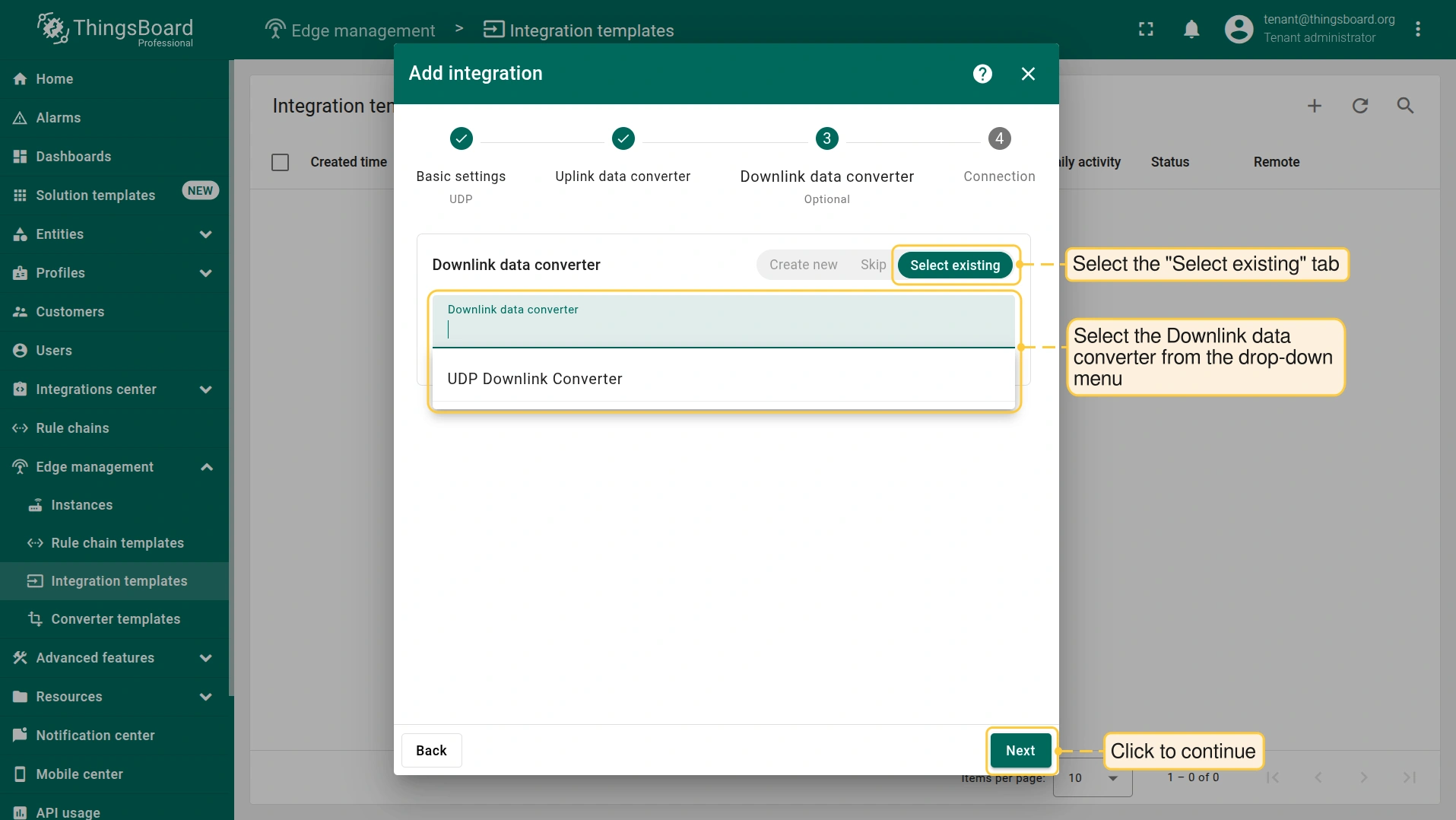
- In the “Downlink data converter” block:
- Select the “Select existing” tab.
- Downlink data converter: Select the uplink data converter from the drop-down menu.
- In the “Connection” block:
- Enter the Port and Size of the buffer for inbound socket (in KB) in the corresponding fields. By default, the UDP Integration will use the port 11560, but can be changed to any available port.
- Enter the Cache Size and Cache time to live in minutes in the corresponding fields.
- Enable broadcast - integration will accept broadcast address packets: Flag to indicate that integration accepts UDP packets sent to broadcast address.
- Integration key and Integration secret: Copy the values to use later in the configuration.
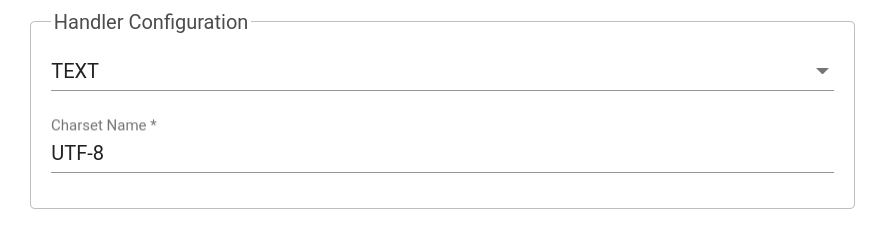
- Handler Configuration: Select the device payload type from the drop-down menu.



The Execute remotely option is selected by default and cannot be changed, the UDP Integration can only be the remote type.
Select the device payload type for Handler Configuration:
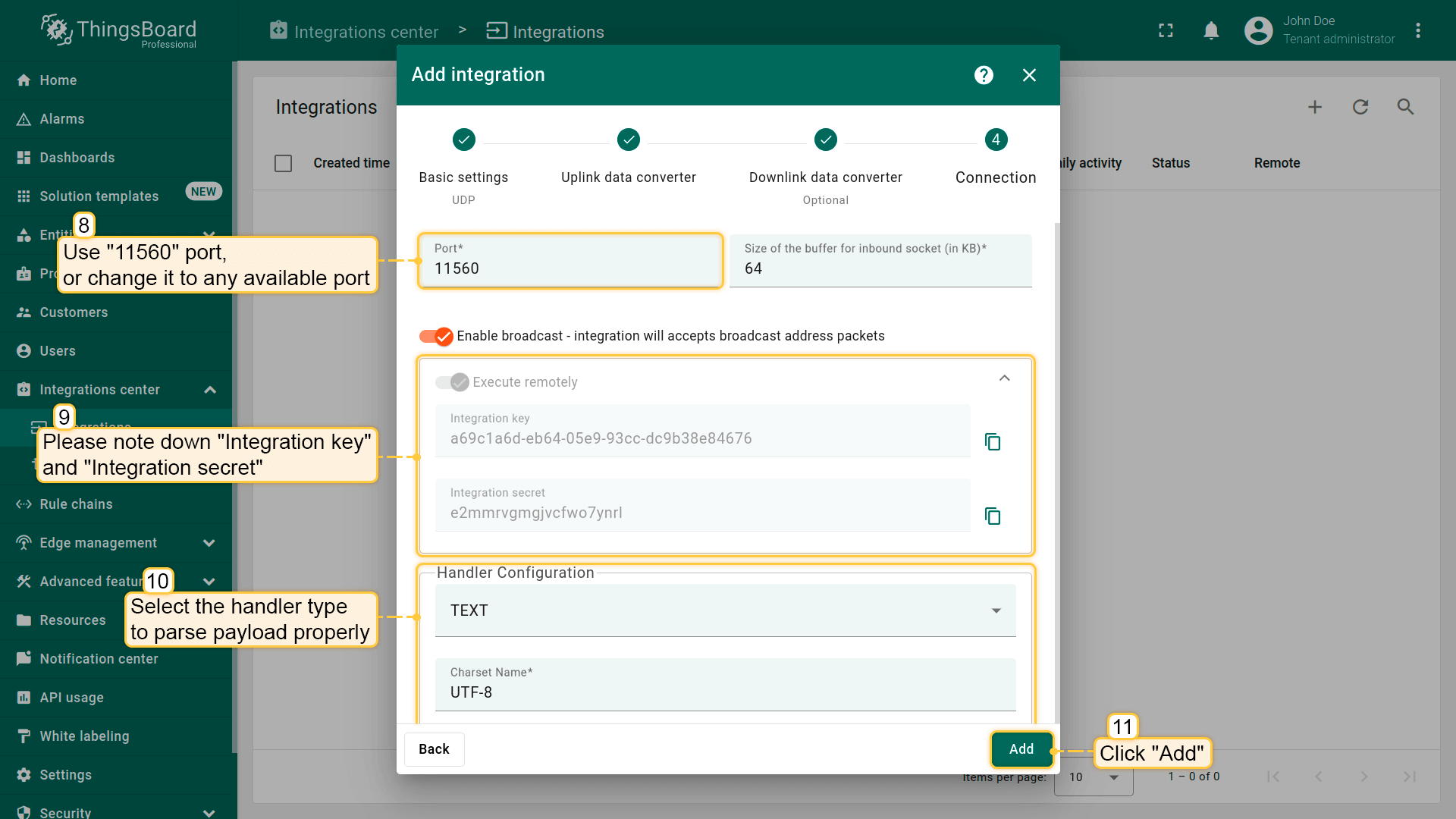

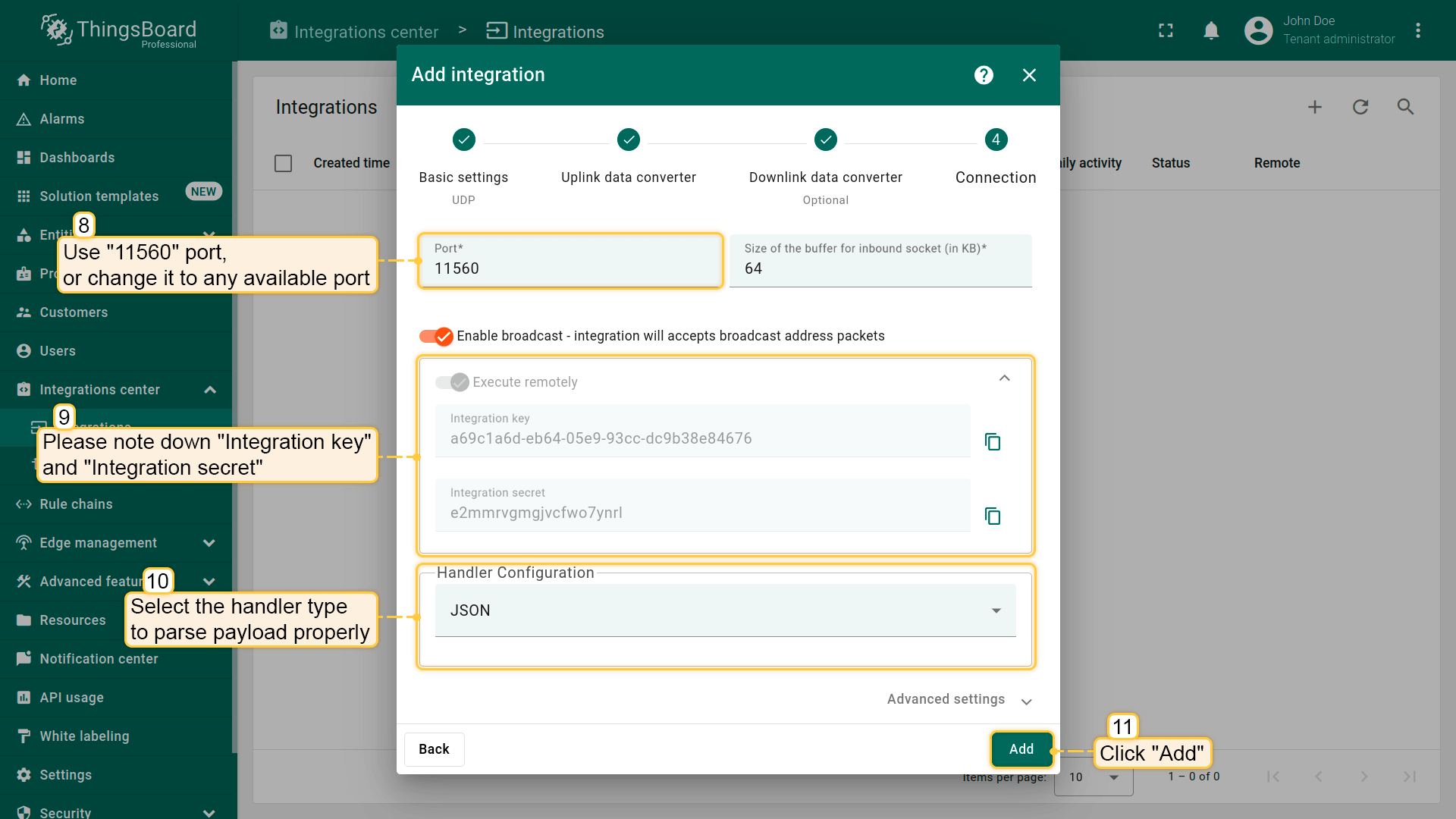

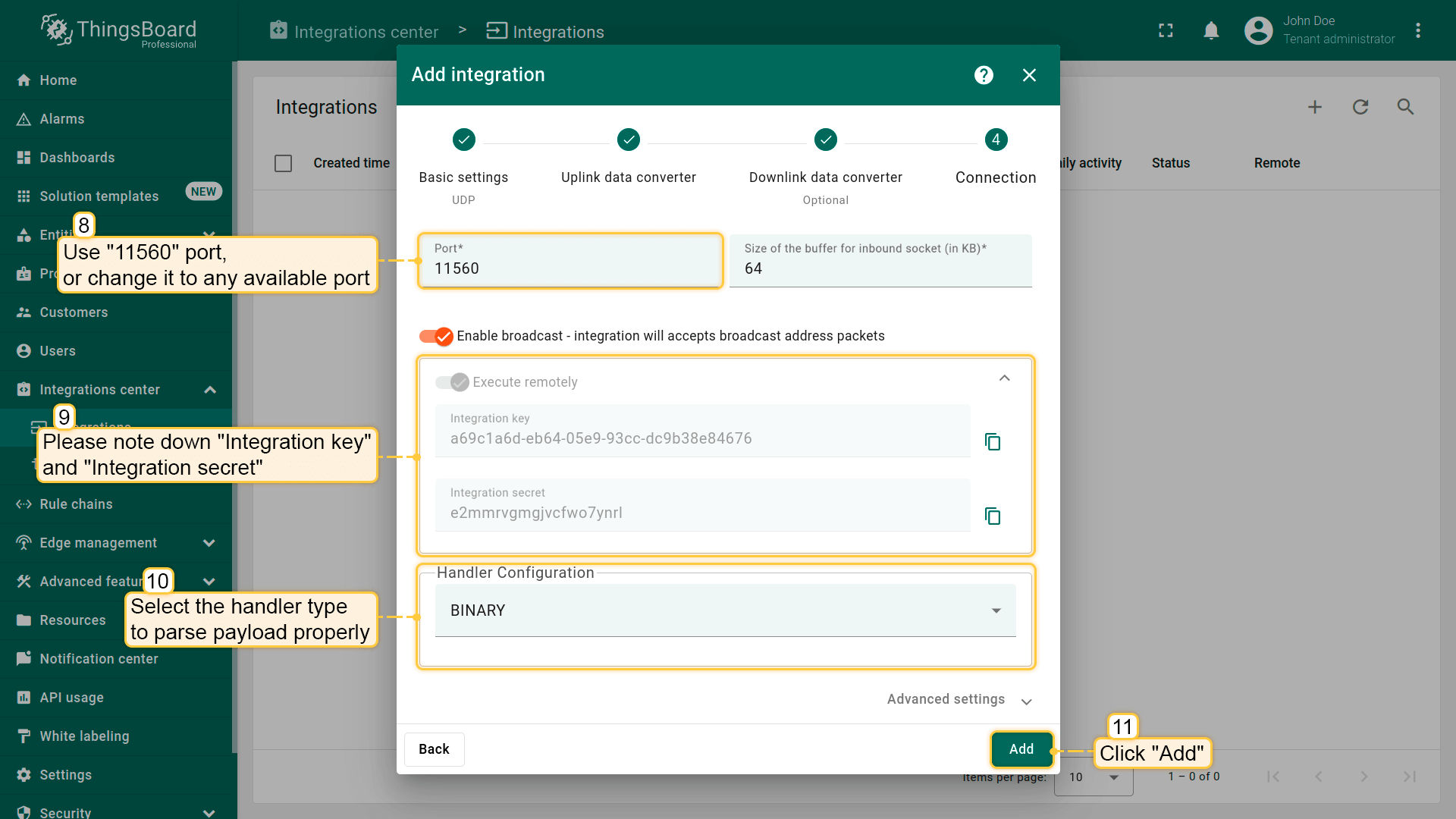
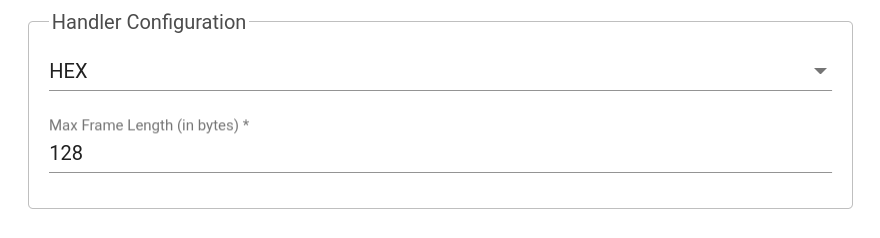
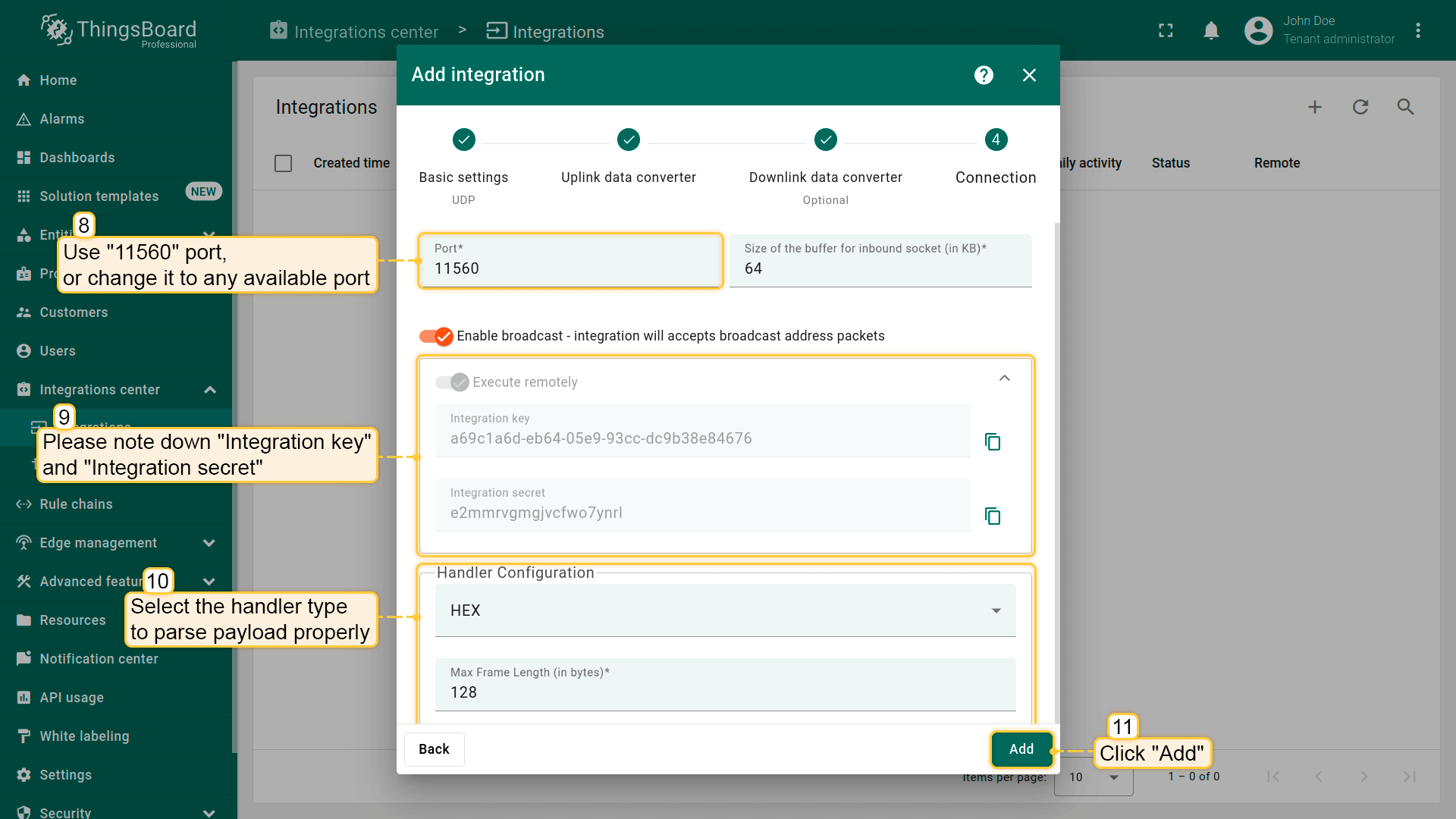
To save the Integration, click the Add button.
Modify the Edge Root Rule chain for Downlinks
We can send a downlink message to the device from the Rule chain using the rule node. To send downlink via integration, modify the Edge Root Rule chain.
Please note!
If you use earlier versions of Edge, you cannot create or edit a Rule Chain on the Edge itself. It must be configured as a template in the Cloud (Server), and then assigned to the Edge instance.
Starting with Edge version 4.0, you can create and edit a Rule Chain on the Edge.
For example, you can add an integration downlink node and set the ‘Attributes Updated’ link to it. When the device attribute changes, the downlink message is sent to the integration.


Assign Integration to Edge
Once the converter and integration templates are created, we can assign the integration template to Edge.
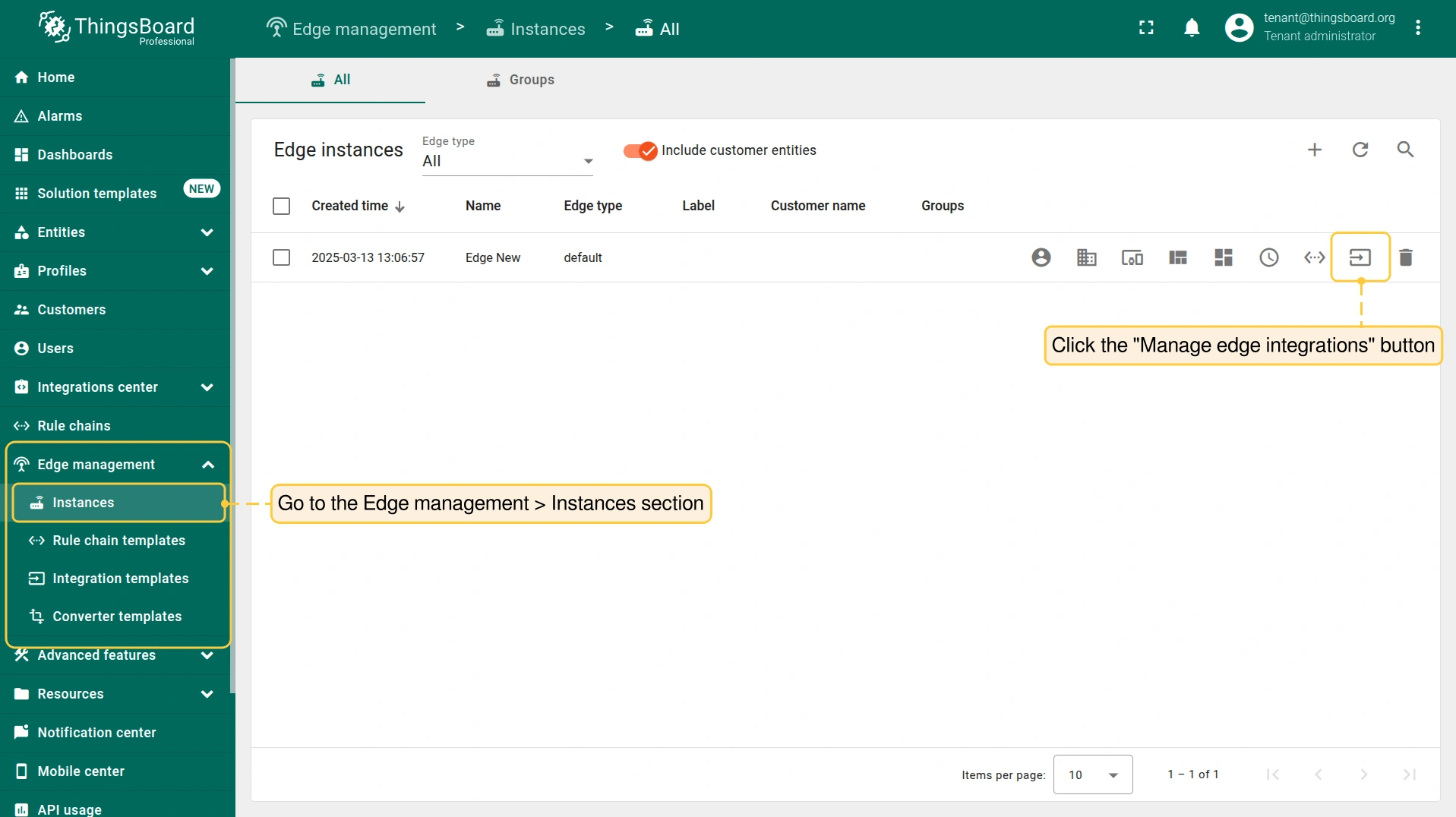
- Go to the Edge management > Instances section and click the Manage edge integrations button.
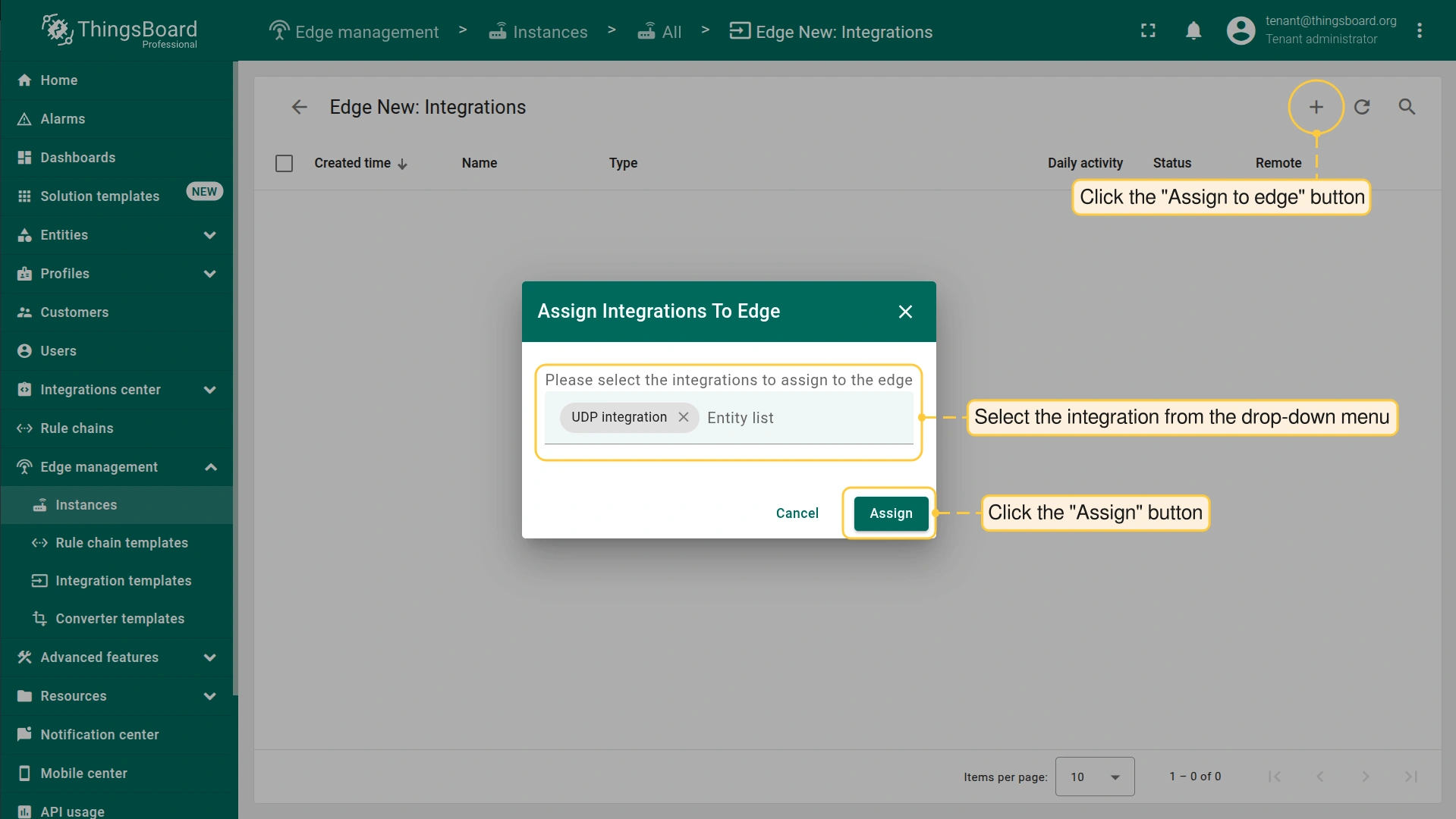
- On the Integration page, click the "Assign to edge" button. In the "Assign the Integration to the Edge" pop-up window, select the integration from the drop-down menu and click the "Assign" button.
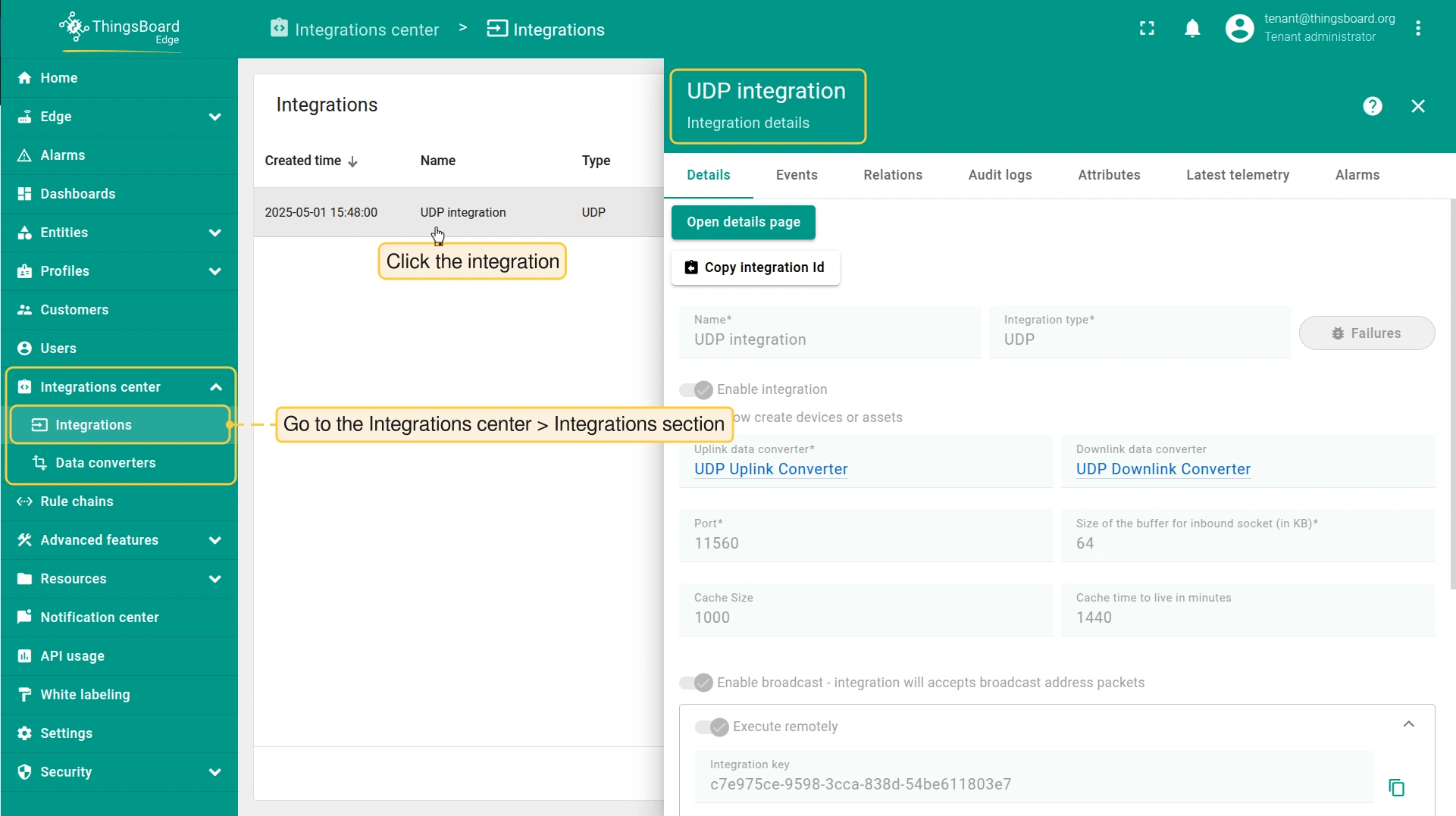
- Login to your ThingsBoard Edge instance and go to the Integrations center > Integrations section. Confirm the UDP integration on the Edge.
Installing and running external UDP Integration
To install the remote UDP Integration service on a local or separate machine, select the corresponding platform.
Use the Integration key and Integration secret to complete the UDP Integration configuration.
要通过 Docker 运行集成,请确保已 安装 Docker CE 执行以下命令拉取镜像: 为集成日志创建卷(799 为非 root ThingsBoard Docker 用户的用户 ID): 执行以下命令运行集成: 参数说明:
执行此命令后,可打开位于 ~/.tb-pe-tcp-udp-integration-logs 的日志。 您应能看到包含从服务器接收的最新集成配置的 INFO 日志消息。 要保持容器在后台运行并脱离当前终端会话,请按 Ctrl+p 后按 Ctrl+q。 重新附加、停止和启动命令要重新连接到终端(查看 ThingsBoard 远程集成日志)请运行: 停止容器: 启动容器: 故障排查注意 若出现与 DNS 相关的错误,例如: |
要通过 Docker 运行集成,请确保已 安装 Docker Toolbox for Windows Windows 用户应使用 Docker 托管卷存储远程集成日志。 在执行 docker 命令前创建 Docker 卷(如 tb-tcp-udp-integration-logs)。 打开 Docker Quickstart Terminal 并执行以下命令: 执行以下命令运行集成: 参数说明:
执行此命令后,可打开卷对应位置的日志。 您应能看到包含从服务器接收的最新集成配置的 INFO 日志消息。 要保持容器在后台运行并脱离当前终端会话,请按 Ctrl+p 后按 Ctrl+q。 重新附加、停止和启动命令要重新连接到终端(查看 ThingsBoard 远程集成日志)请运行: 停止容器: 启动容器: 故障排查注意 若出现与 DNS 相关的错误,例如: 可将系统配置为使用 Google 公共 DNS 服务器。 |
安装 Java 17 (OpenJDK)ThingsBoard 服务运行在 Java 17 上。请按以下说明安装 OpenJDK 17: 将您的操作系统配置为默认使用 OpenJDK 17。您可以通过运行以下命令来配置默认版本: 要检查系统上已安装的 Java 版本,请使用以下命令: 预期输出为: 下载安装包: 以服务方式安装集成: 打开配置文件进行编辑: 找到如下配置块: 填入配置参数:
请取消注释 export 语句。示例: 启动 ThingsBoard 集成: 高级配置可在 tb-tcp-udp-integration.conf 中查看并修改更多配置参数。 使用以下命令编辑文件: 修改配置后,可在 /var/log/tb-tcp-udp-integration/ 下查看日志以验证集成是否正常运行。 可查找 INFO 级别日志,确认已收到服务器下发的集成配置。 |
安装 Java 17 (OpenJDK)ThingsBoard 服务运行在 Java 17 上。请按以下说明安装 OpenJDK 17: 请勿忘记将您的操作系统配置为默认使用 OpenJDK 17。您可以使用以下命令配置默认版本: 您可以使用以下命令检查安装: 预期命令输出为: 下载安装包: 以服务方式安装集成: 打开配置文件进行编辑: 找到如下配置块: 填入配置参数:
请取消注释 export 语句。示例: 启动 ThingsBoard 集成: 高级配置可在 tb-tcp-udp-integration.conf 中查看并修改更多配置参数。 使用以下命令编辑文件: 修改配置后,可在 /var/log/tb-tcp-udp-integration/ 下查看日志以验证集成是否正常运行。 可查找 INFO 级别日志,确认已收到服务器下发的集成配置。 |
Send an uplink message
Once the ThingsBoard UDP Integration has been created, the UDP server starts, and then it waits for data from the devices.
Before you proceed, ensure that the Debug mode is enabled.
Select the device payload type to send the uplink message:
向运行在 localhost(127.0.0.1)上的 UDP 服务器发送消息的命令如下:
|
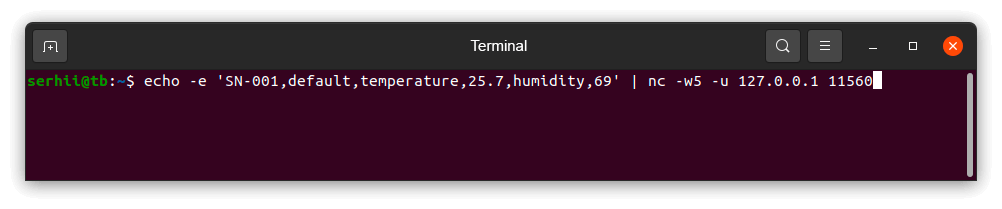
向运行在 localhost(127.0.0.1)上的 UDP 服务器发送消息的命令如下:
|
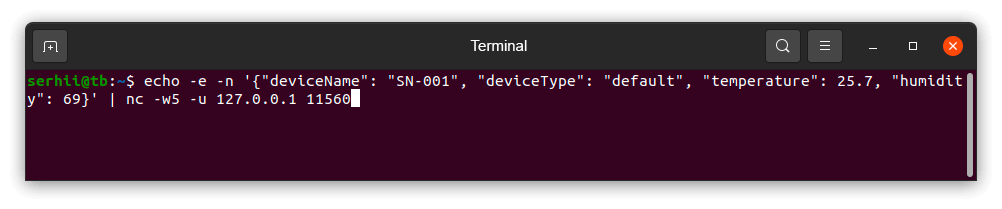
向运行在 localhost(127.0.0.1)上的 UDP 服务器发送消息的命令如下:
|
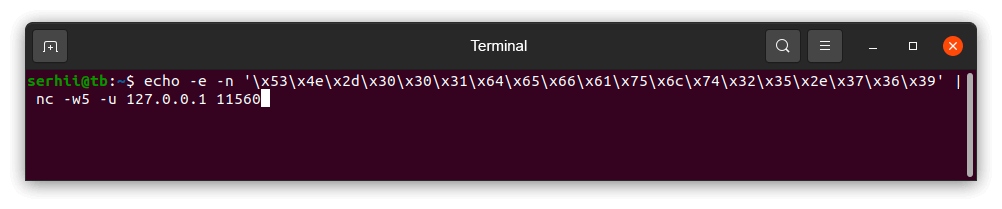
向运行在 localhost(127.0.0.1)上的 UDP 服务器发送消息的命令如下:
|
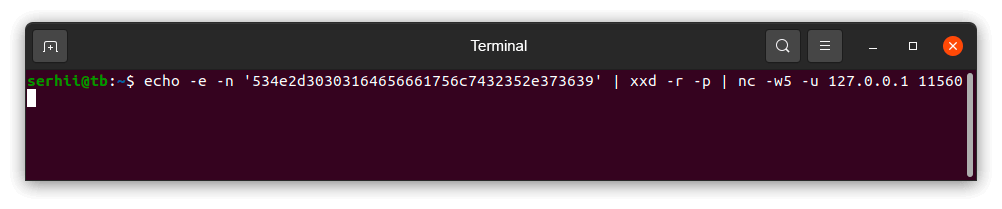
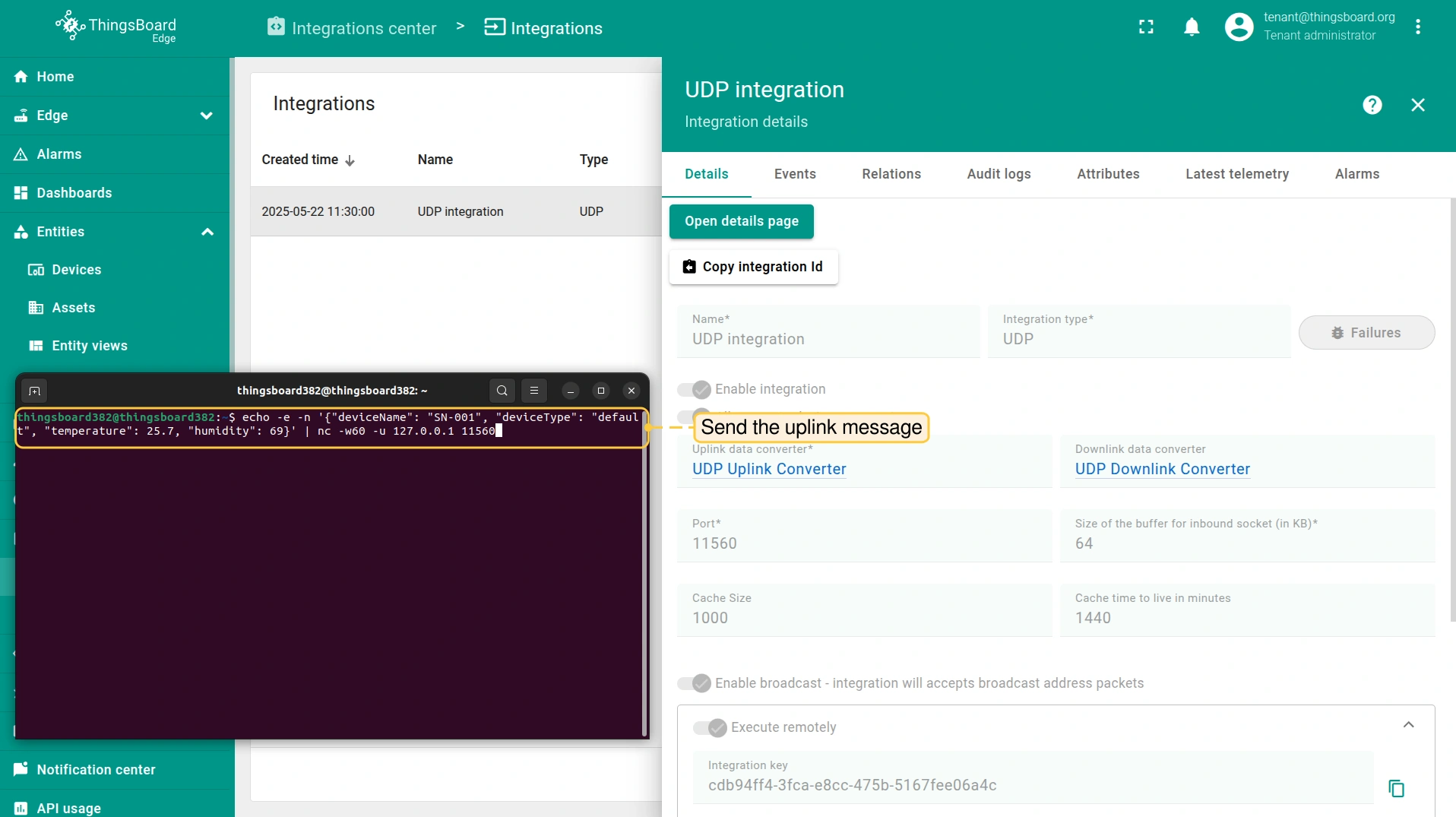

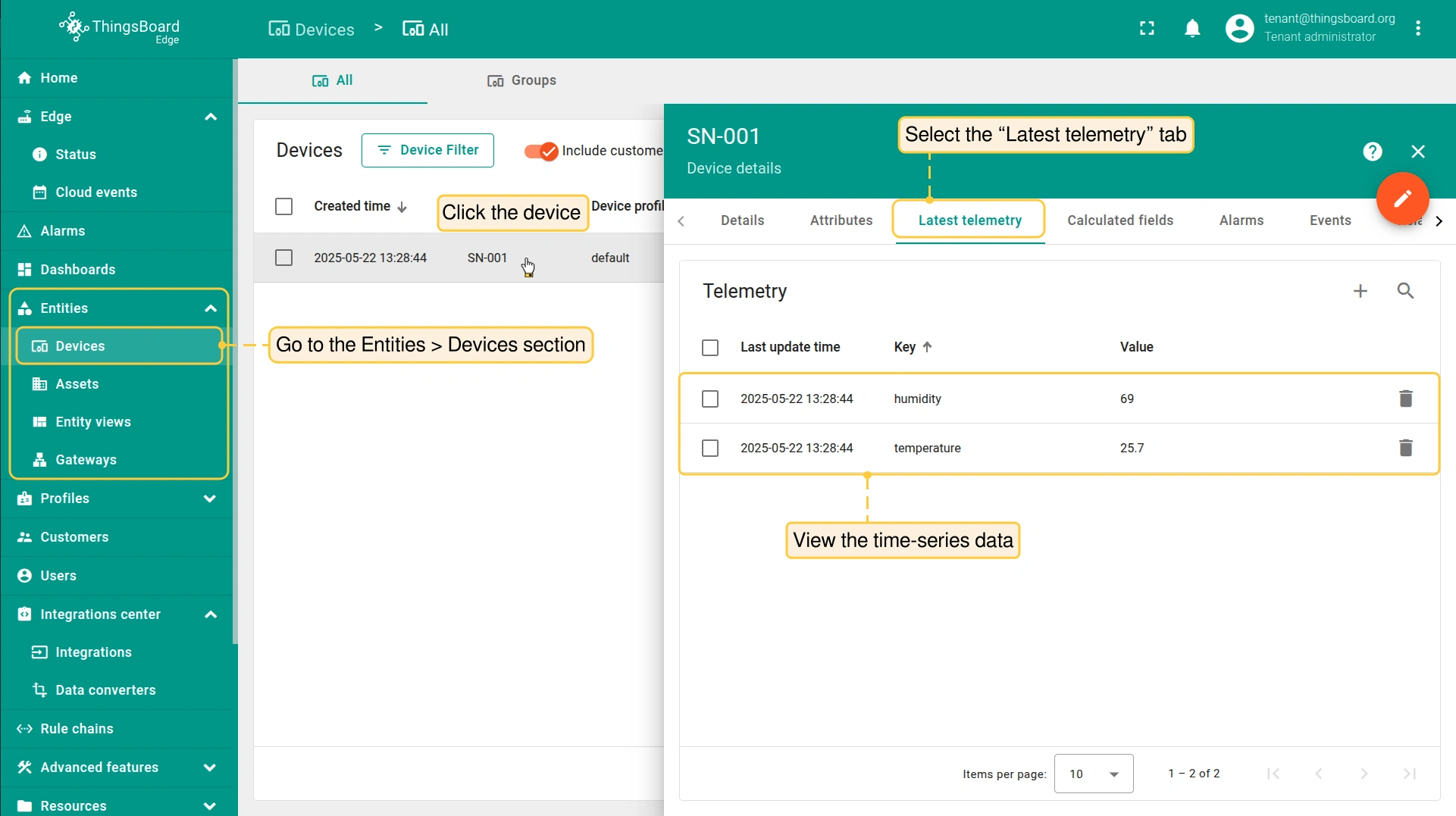
To view the received time-series data, go to the Entities > Devices section, click the device and select the “Latest telemetry” tab:
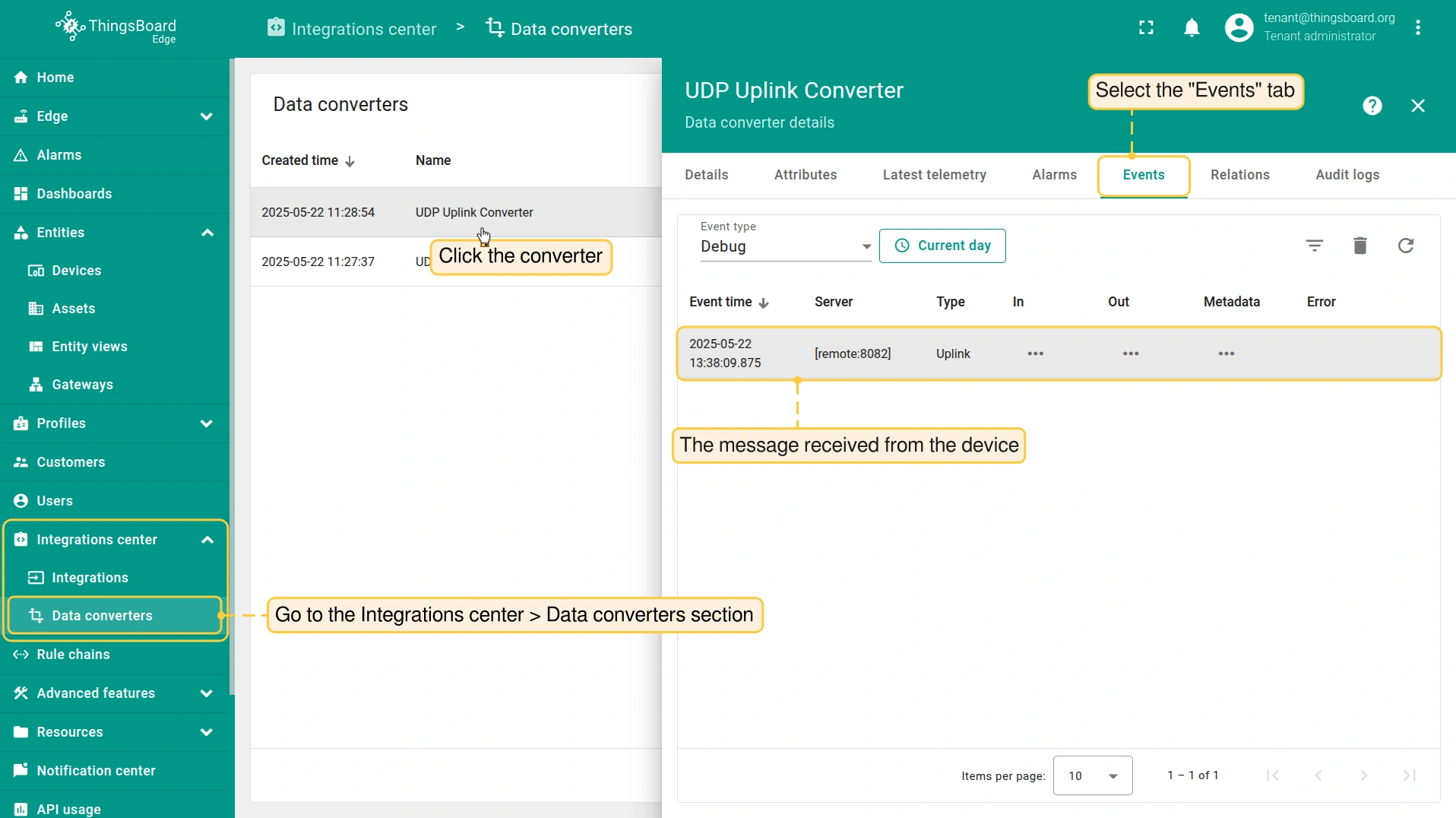
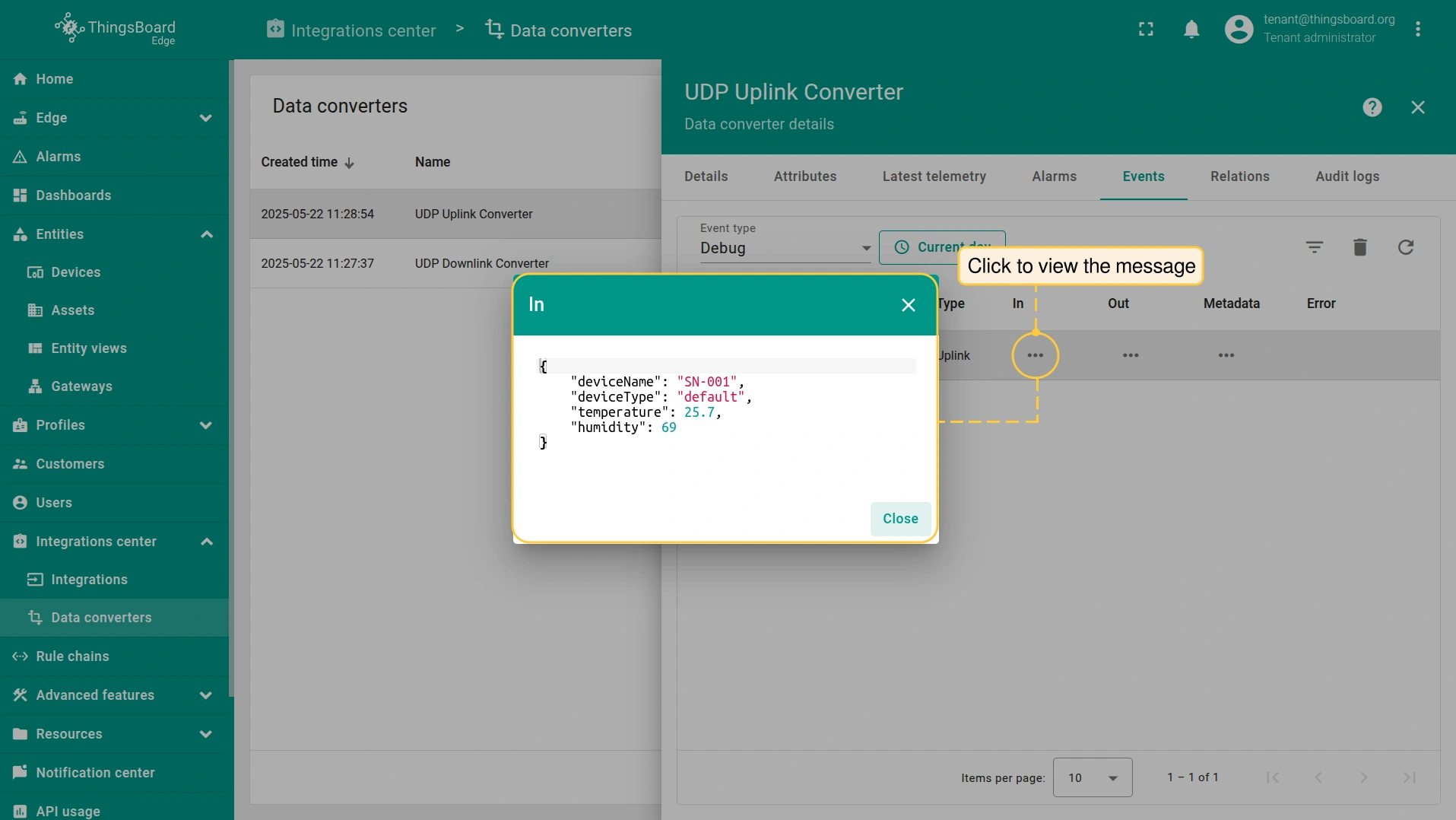
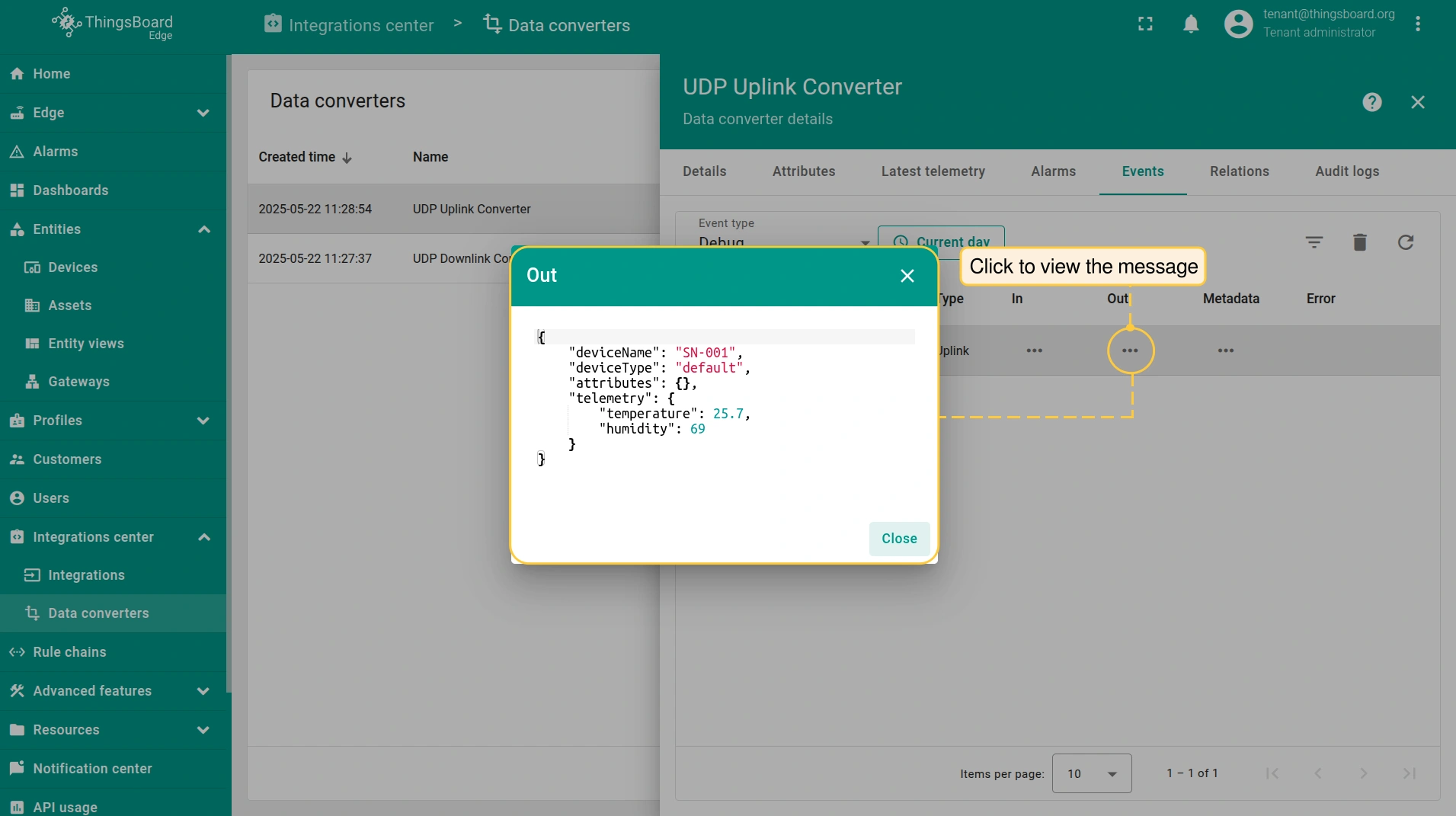
The received data can be viewed in the Uplink converter:
- Go to the Integrations center > Data converters section and click the Uplink converter.
- On the “Data converter details” page, select the “Events” tab.
- View the message details in the “In” and “Out” columns.
Send the downlink message
To view the downlink response, send another message to the UDP integration. Use the uplink command, but replace the -w1 parameter with -q120. These changes will cause the nc utility to wait 120 seconds for the downlink message.
|
|
|
|
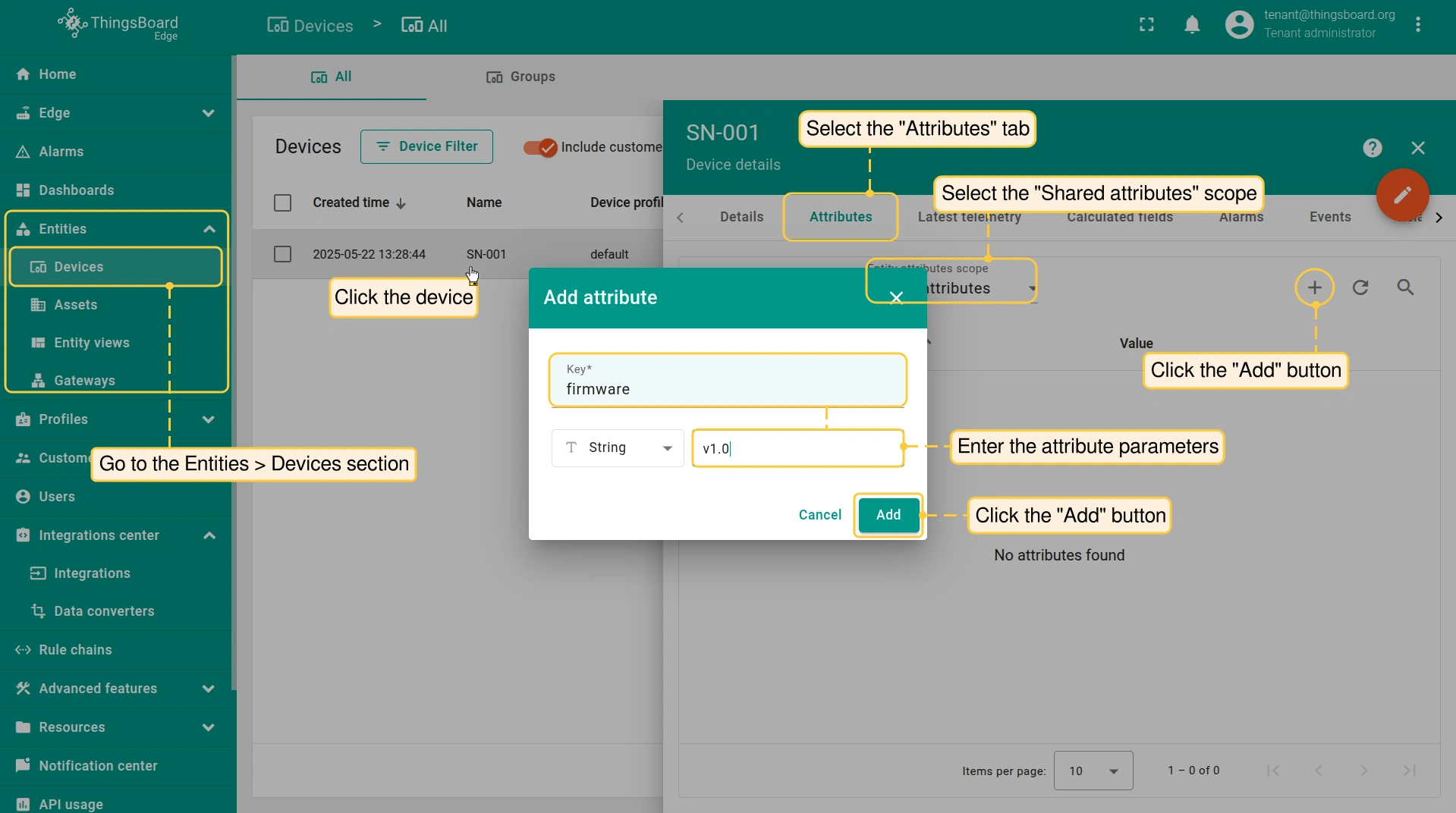
After sending the uplink command, you have 120 seconds to add a shared firmware attribute:
- Go to the Entities > Devices section, click the device to open the “Device details” page.
- Select the “Attributes” tab and the “Shared attributes” scope.
- To add the firmware attribute, click the “Add” button and enter the configuration parameters.
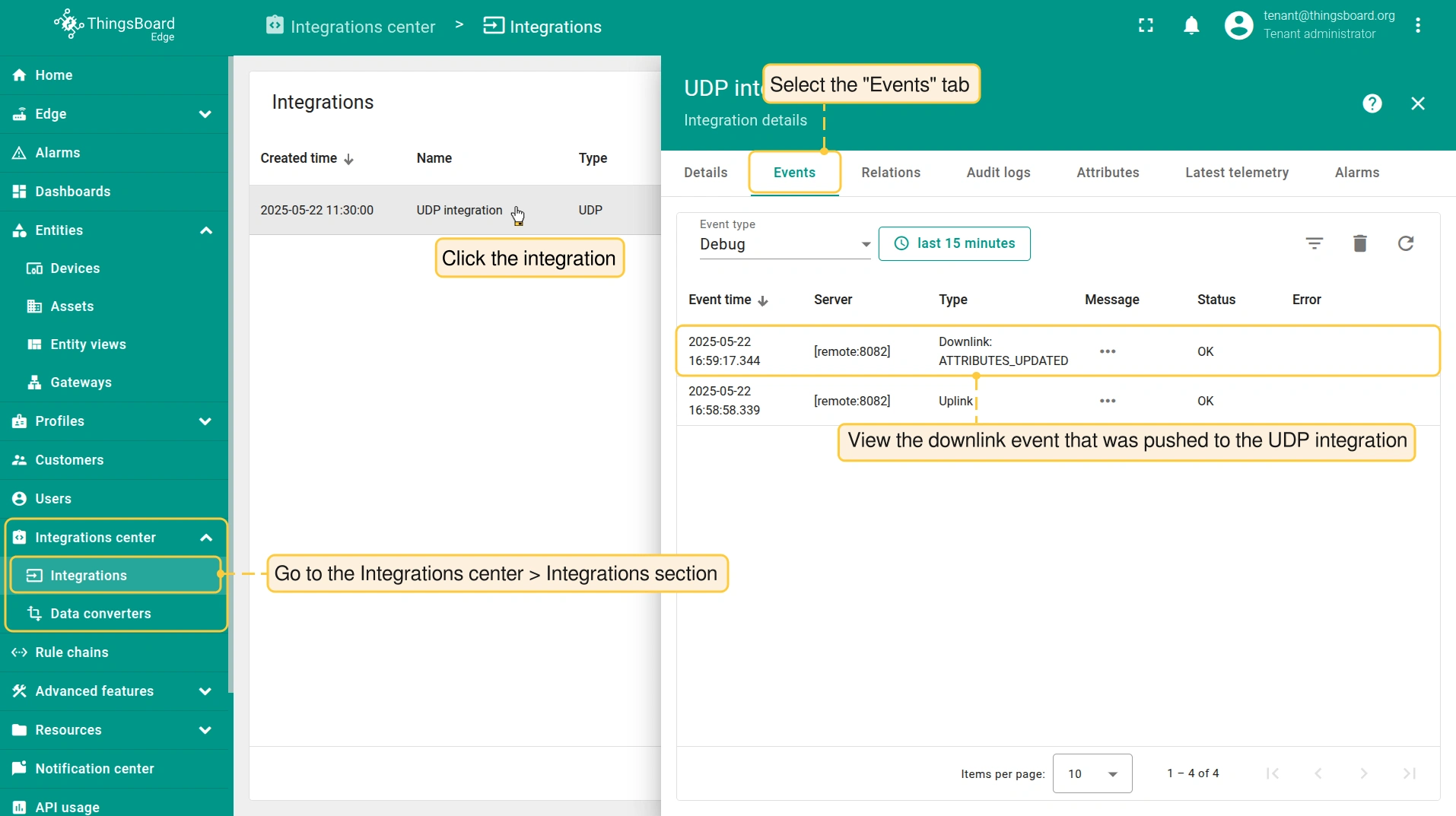
To confirm the downlink message sent to the device, go to the Integrations center > Integrations section, click the UDP integration and select the “Events” tab:
The example of the message sent to the device and the response from ThingsBoard Edge in the terminal:

下一步
-
Getting started guide(入门指南)- 快速概览 ThingsBoard Edge 主要功能。预计 15–30 分钟完成:
-
Installation guides(安装指南)- 了解如何在各种操作系统上安装 ThingsBoard Edge 并连接到 ThingsBoard Server。
-
Edge 规则引擎:
-
Rule Chain Templates(规则链模板)- 了解如何使用 ThingsBoard Edge 规则链模板。
-
Provision Rule Chains from cloud to edge(从云端向 Edge 下发规则链)- 了解如何从云端向 Edge 下发边缘规则链。
-
- 安全:
- gRPC over SSL/TLS - 了解如何为 Edge 与云端之间的通信配置 gRPC over SSL/TLS。
-
功能:
-
Edge Status(Edge 状态)- 了解 ThingsBoard Edge 上的 Edge Status 页面。
-
Cloud Events(云端事件)- 了解 ThingsBoard Edge 上的 Cloud Events 页面。
-
-
使用场景:
-
Manage alarms and RPC requests on edge devices(在边缘设备上管理告警和 RPC 请求)- 本指南展示如何在 Edge 上生成本地告警并向连接到 Edge 的设备发送 RPC 请求:
-
Data filtering and traffic reduce(数据过滤与流量削减)- 本指南展示如何从 Edge 向云端仅发送过滤后的设备数据:
-
- Roadmap(路线图)- ThingsBoard Edge 路线图。