- 概述
- 将OTA包上传到ThingsBoard仓库
- Firmware与Software
- 将OTA包分配到设备配置
- 将OTA包分配到设备
- 更新流程
- 仪表板
- Assign OTA package to device group
- Scheduler
概述
自ThingsBoard 3.3起,支持向设备上传和分发OTA(空中升级)更新。
租户管理员可将固件或软件包上传到OTA仓库,上传后可分配到设备配置或设备。
ThingsBoard会通知设备有可用更新,并经由协议专用API提供固件下载。
平台会记录更新状态和更新历史,用户可通过仪表盘监控更新进度。
将OTA包上传到ThingsBoard仓库
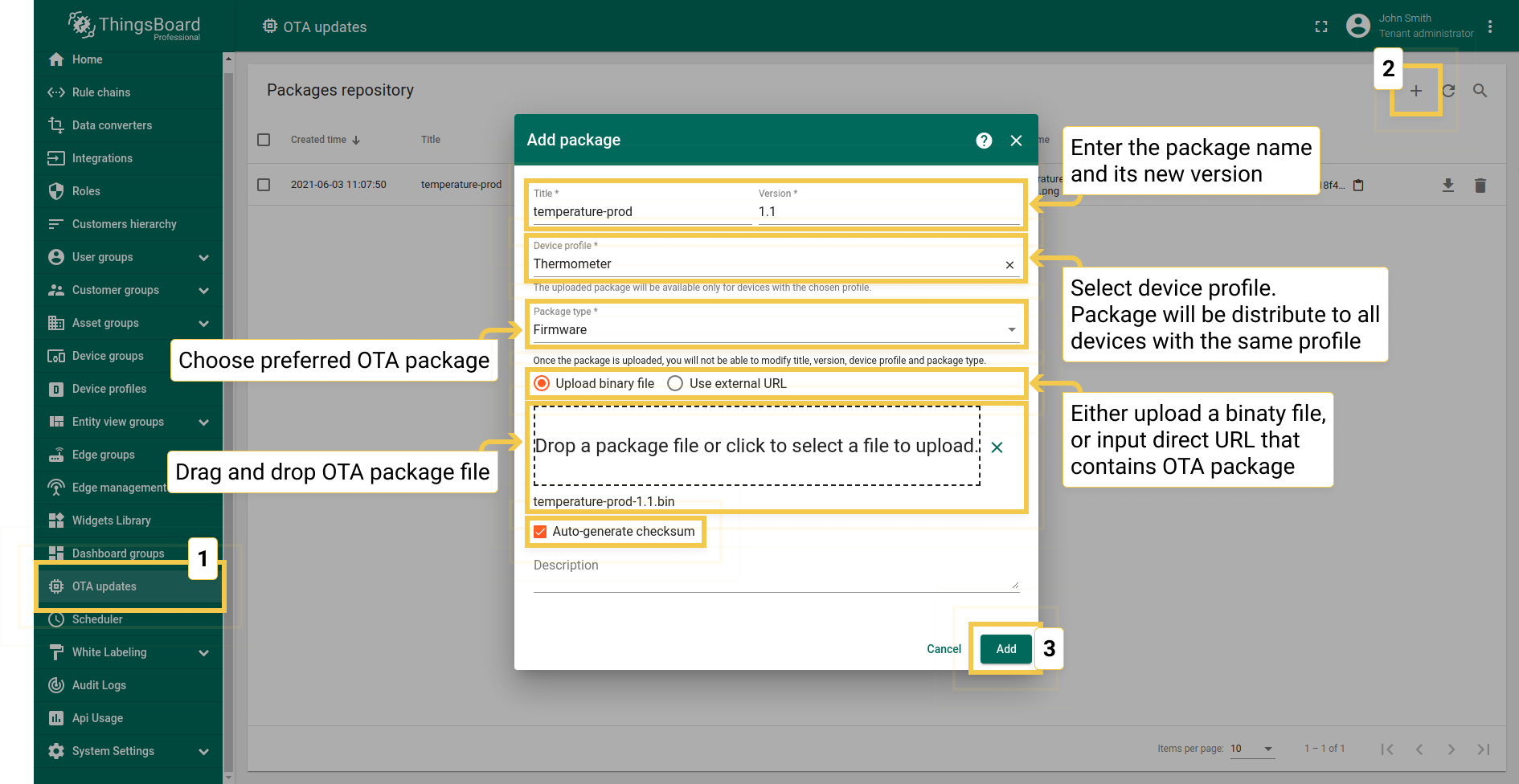
进入\u201cOTA Updates\u201d菜单项以列表显示并上传OTA更新包。每个包包含:
- 标题 —— 包名称。可为生产版与调试版固件/软件使用不同名称。
- 版本 —— 包版本。标题与版本的组合在租户内须唯一。
- 设备配置 —— 每个包与一个设备配置兼容。平台会校验兼容性,避免为设备安装不兼容的固件/软件。关联设备配置表示使用该配置的设备可以更新到此包,但需用户或脚本将包分配到设备配置或设备后才触发更新。
- 类型 —— 可选 Firmware 或 Software。
- 校验和算法 —— 可选,所用校验和算法的简称。
- 校验和 —— 可选,文件校验和值。若未提供,服务器会自动使用SHA-256。
- 描述 —— 可选,固件文本说明。
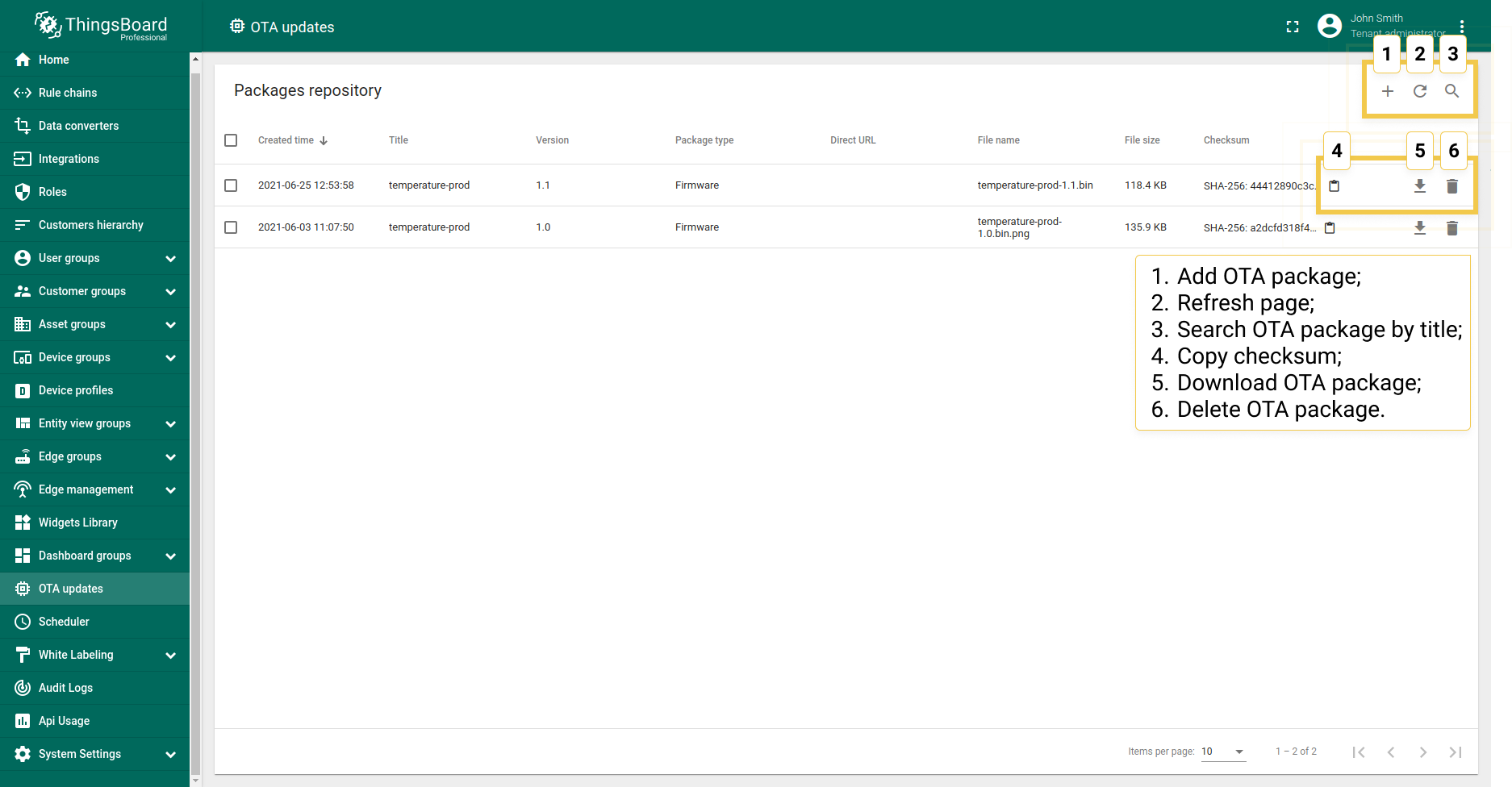
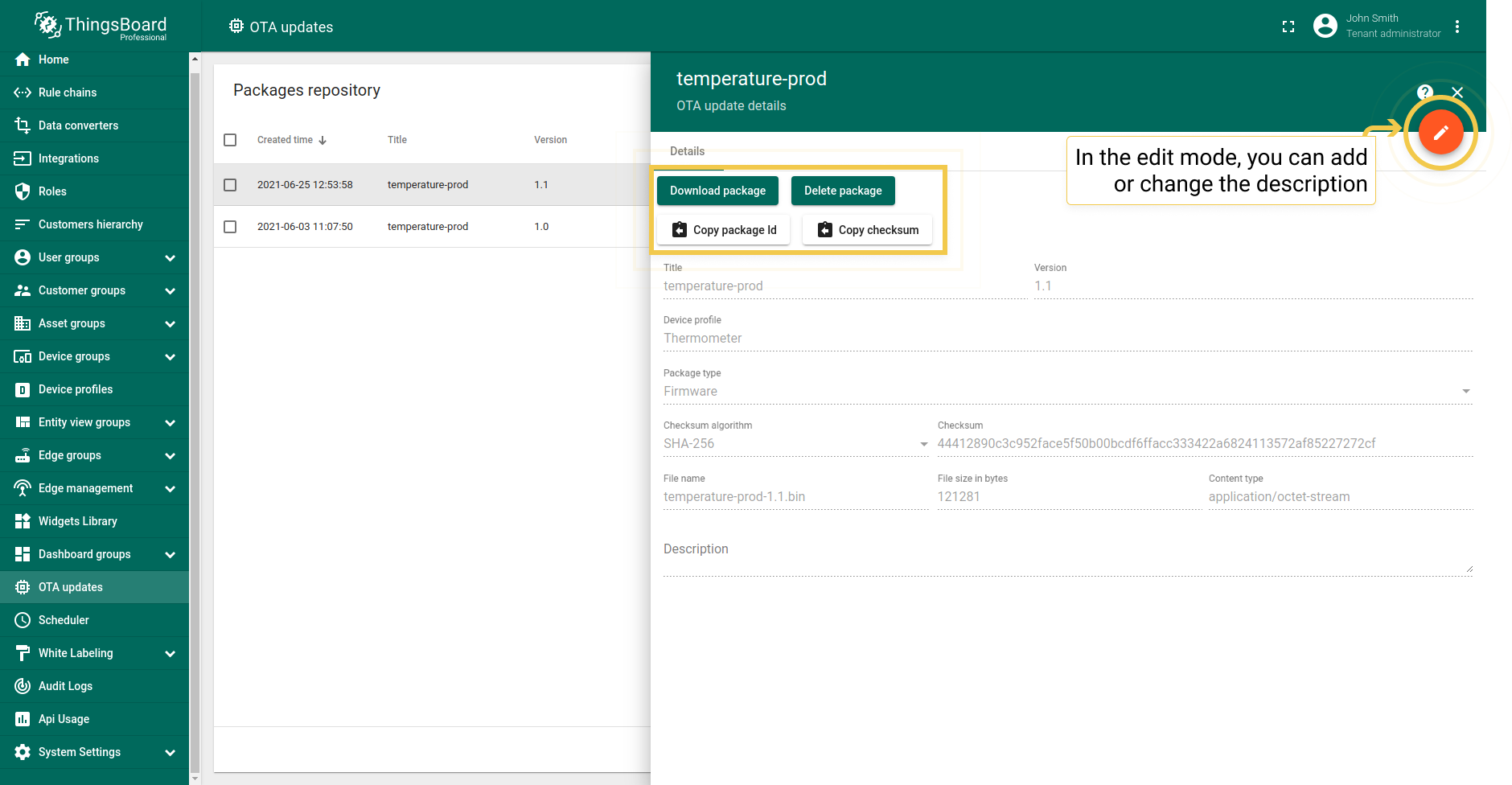
可浏览已上传的包并按标题搜索,也可下载或删除包。 点击表格行可打开包详情,详情中可复制包ID和校验和。 审计日志会记录上传固件的用户信息。
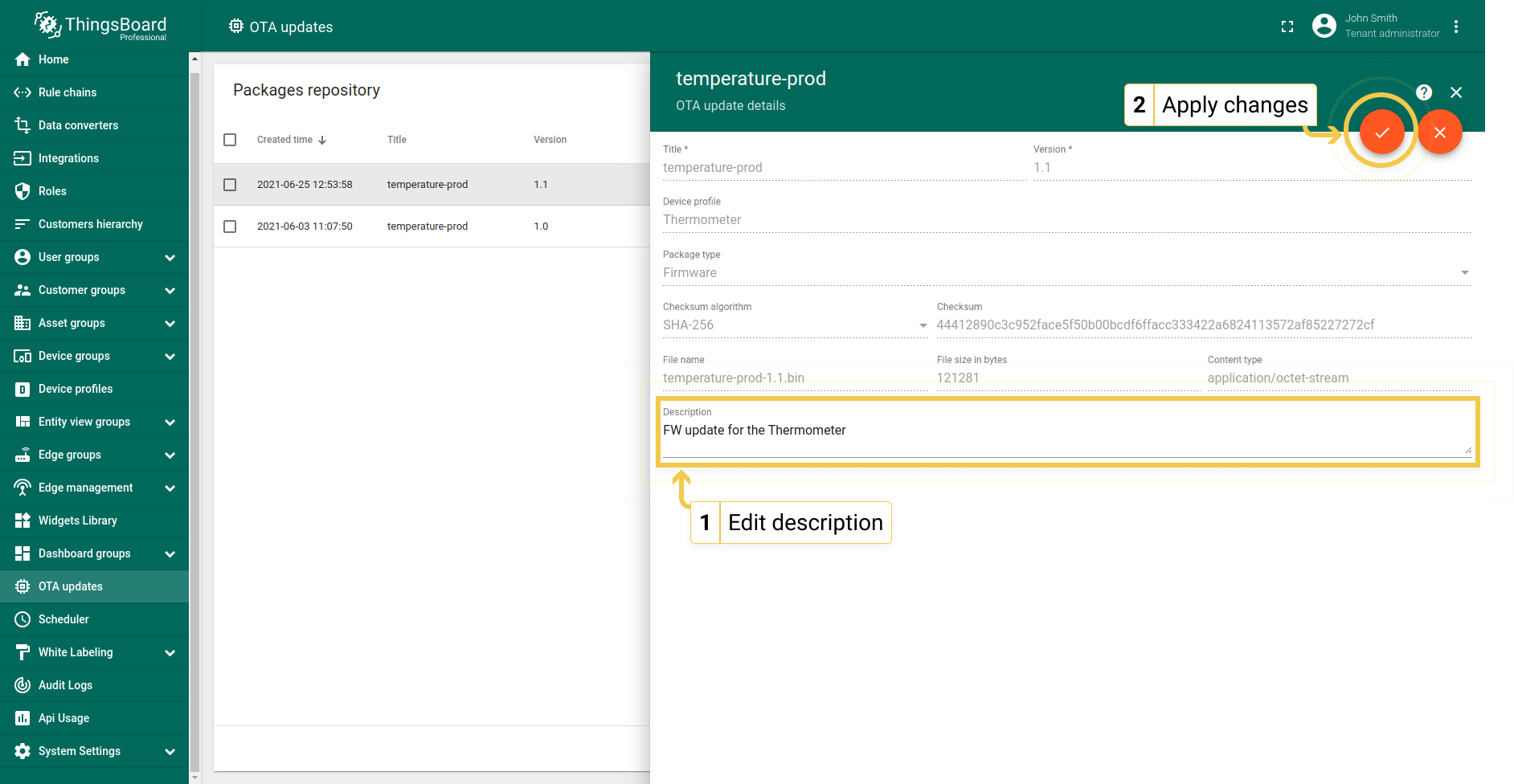
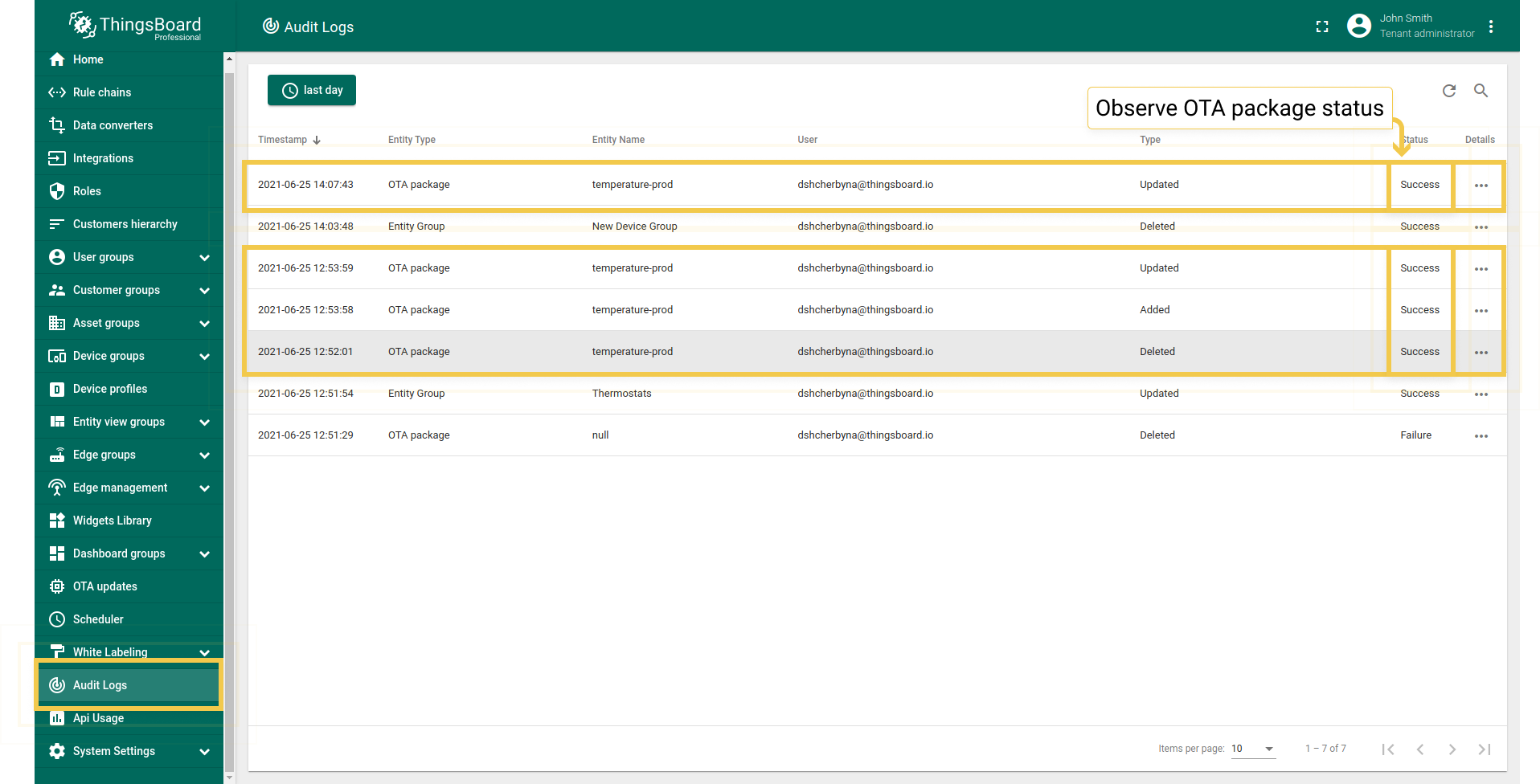
上述操作均可通过REST API完成。
Firmware与Software
ThingsBoard核心中FOTA与SOTA的实现差异很小,多数用例仅需FOTA。 但LwM2M设备对FOTA和SOTA更新的处理方式不同。
将OTA包分配到设备配置
可将固件/软件分配到设备配置,以自动分发给使用该配置的所有设备。见下方截图。
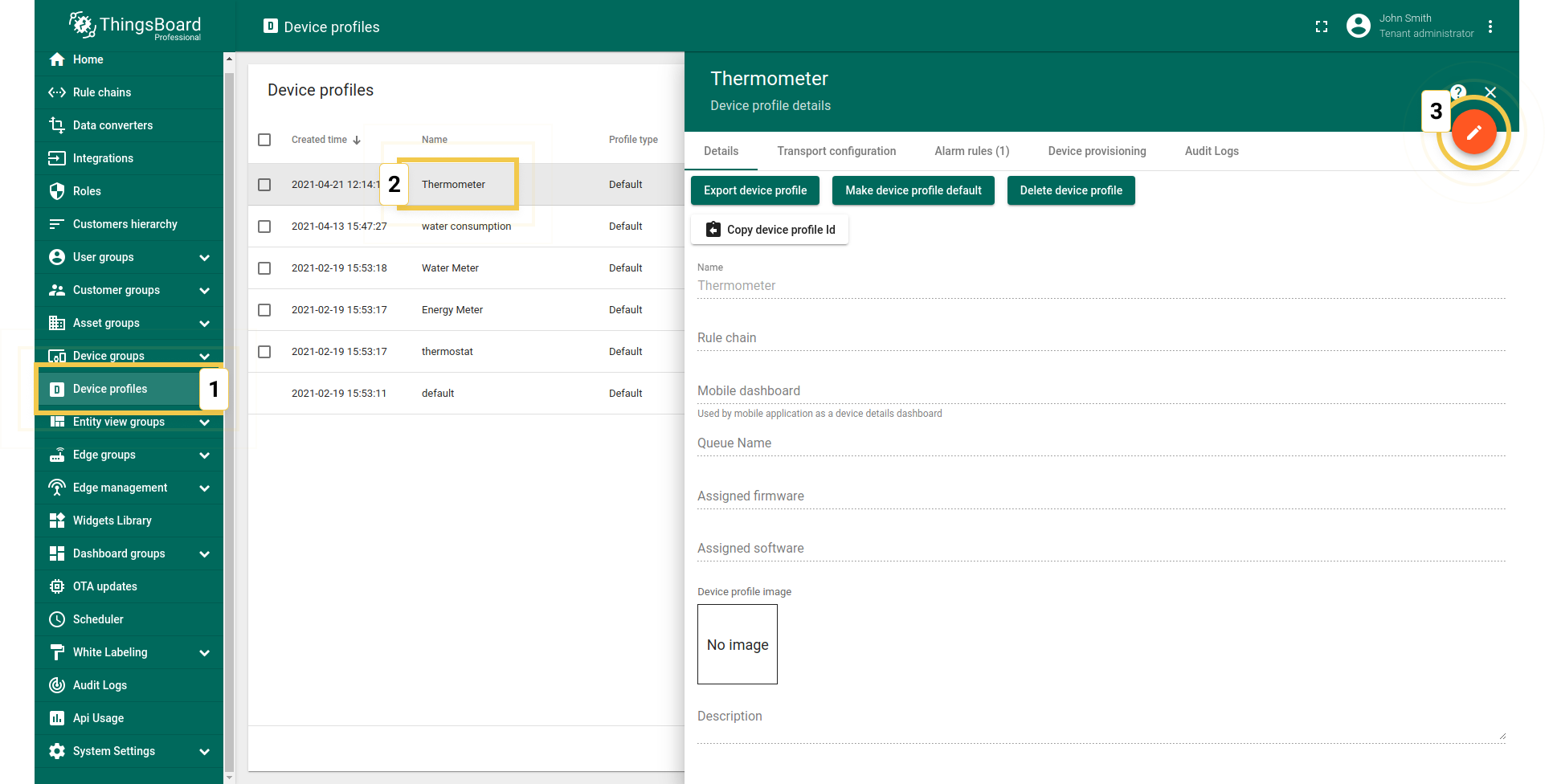
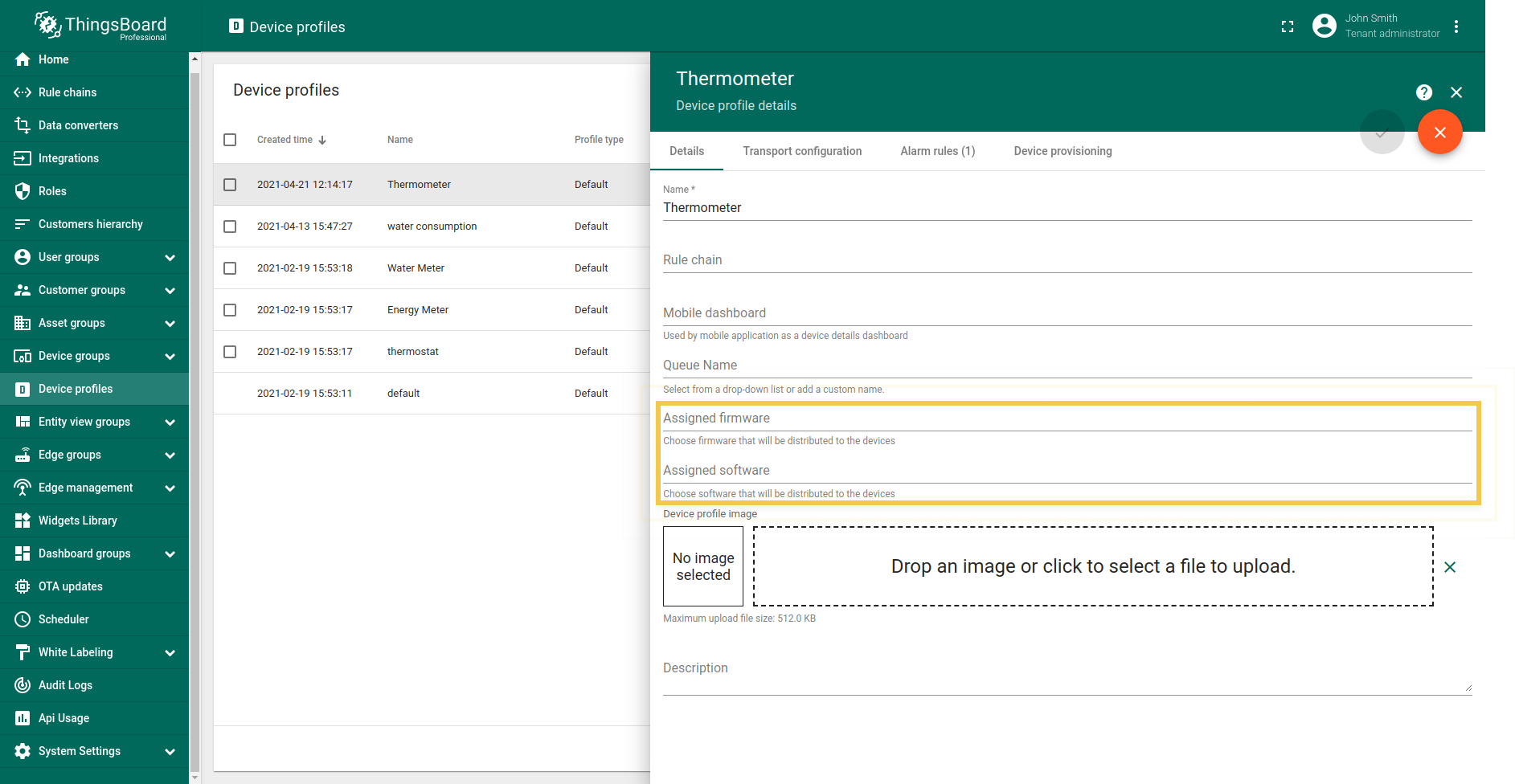
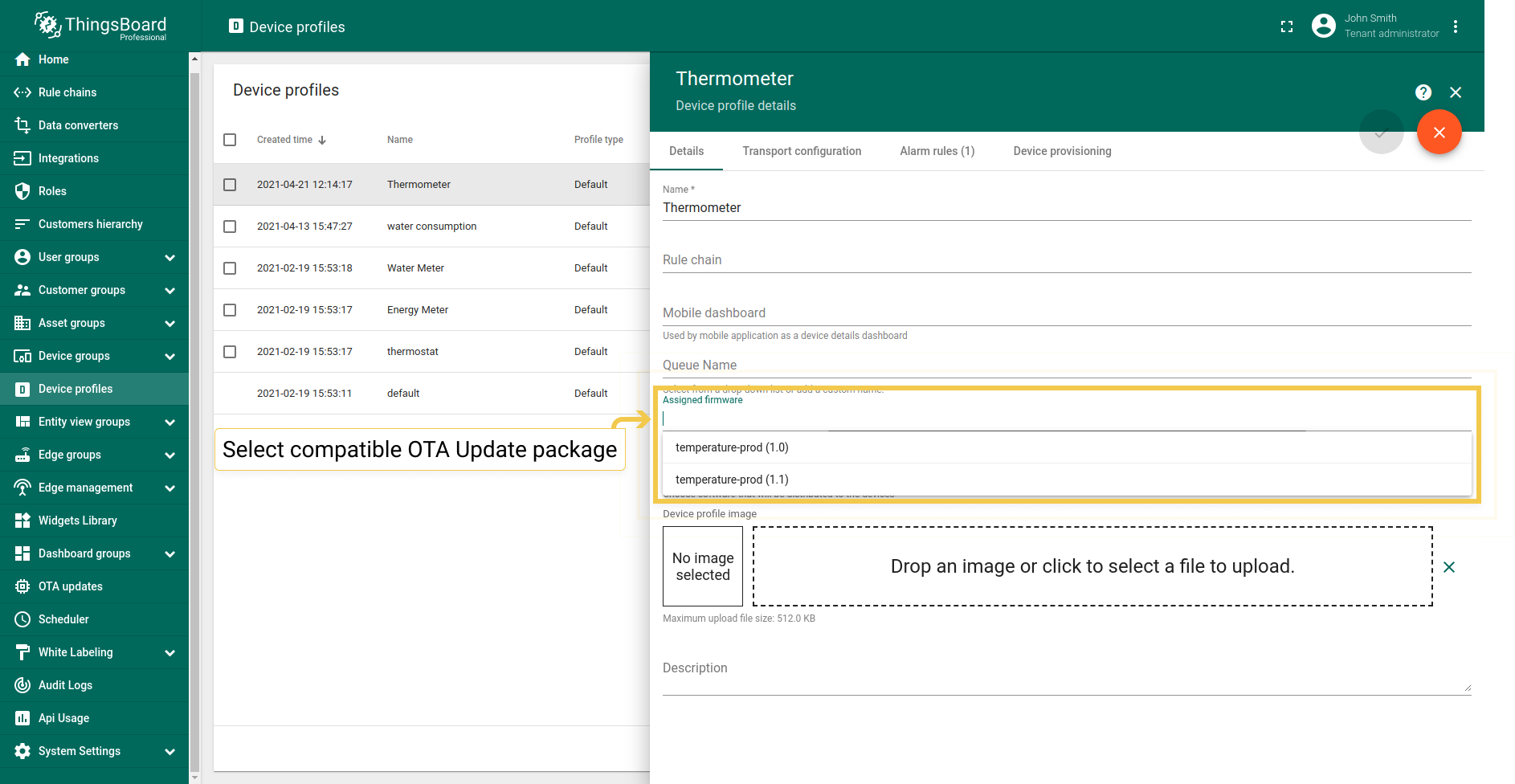
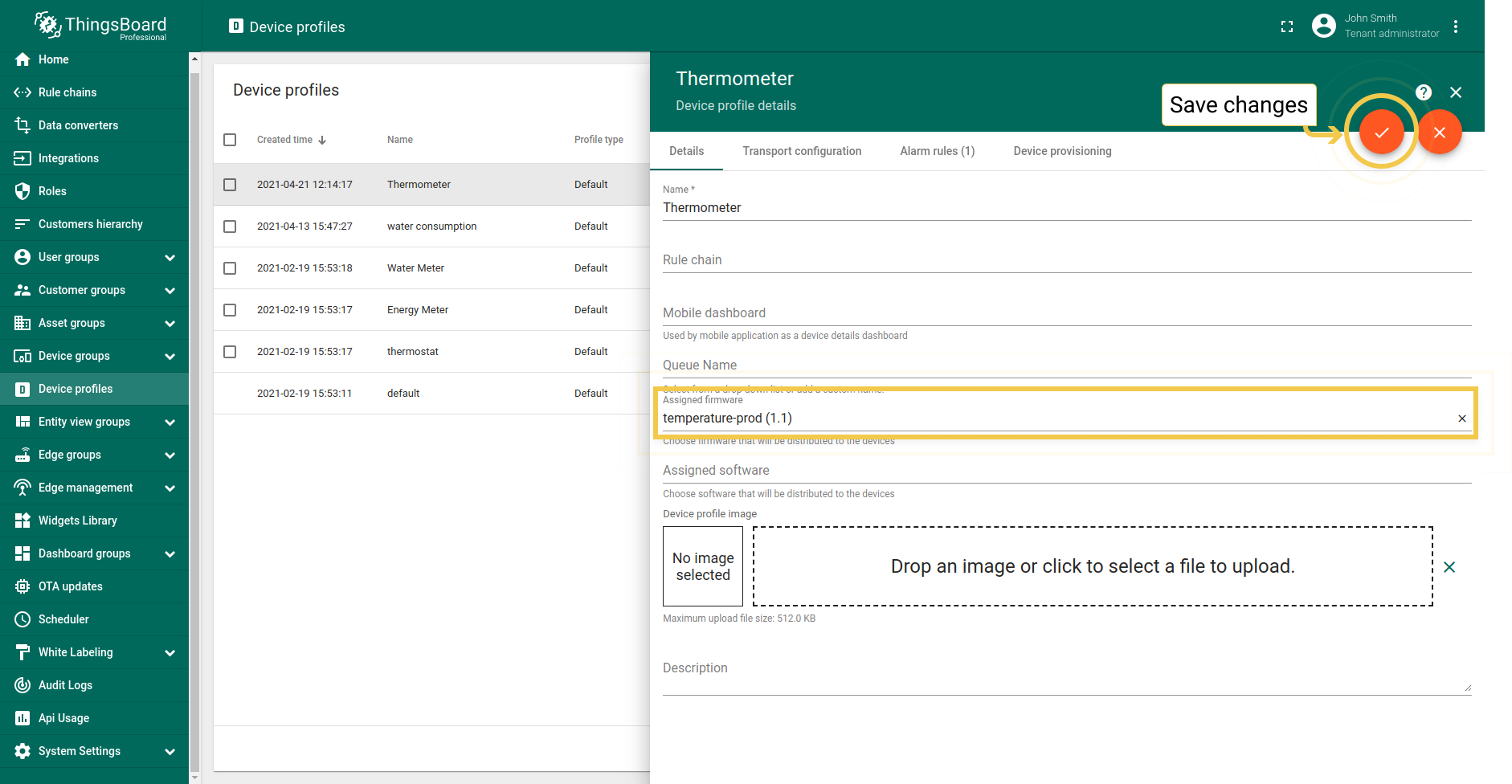
设备配置详情中仅可选择兼容的OTA更新包(详见上传)。 一个设备配置可能被数千台设备使用。分配固件/软件会触发更新流程。
将OTA包分配到设备
也可将固件/软件分配到特定设备。见下方截图。
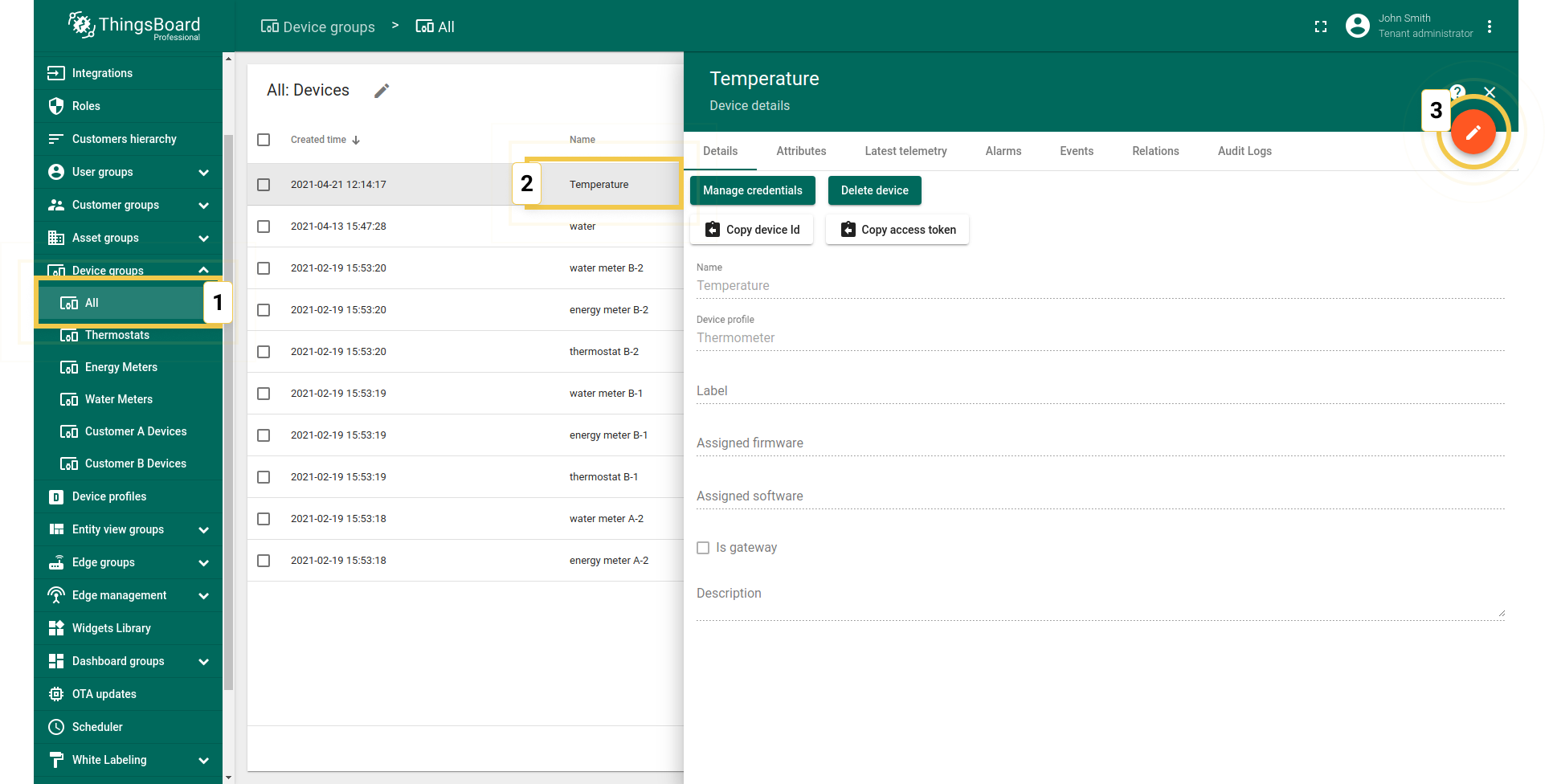
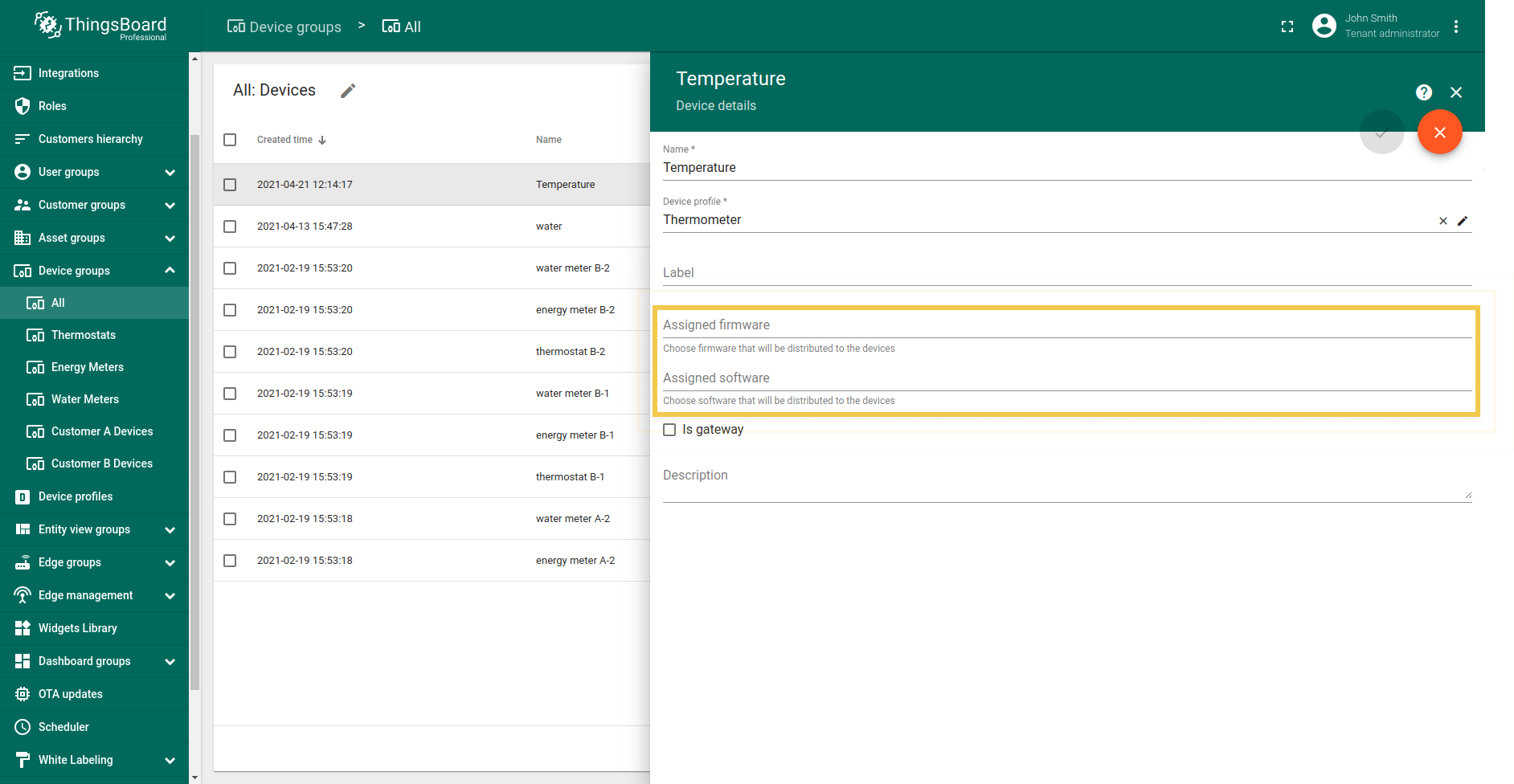
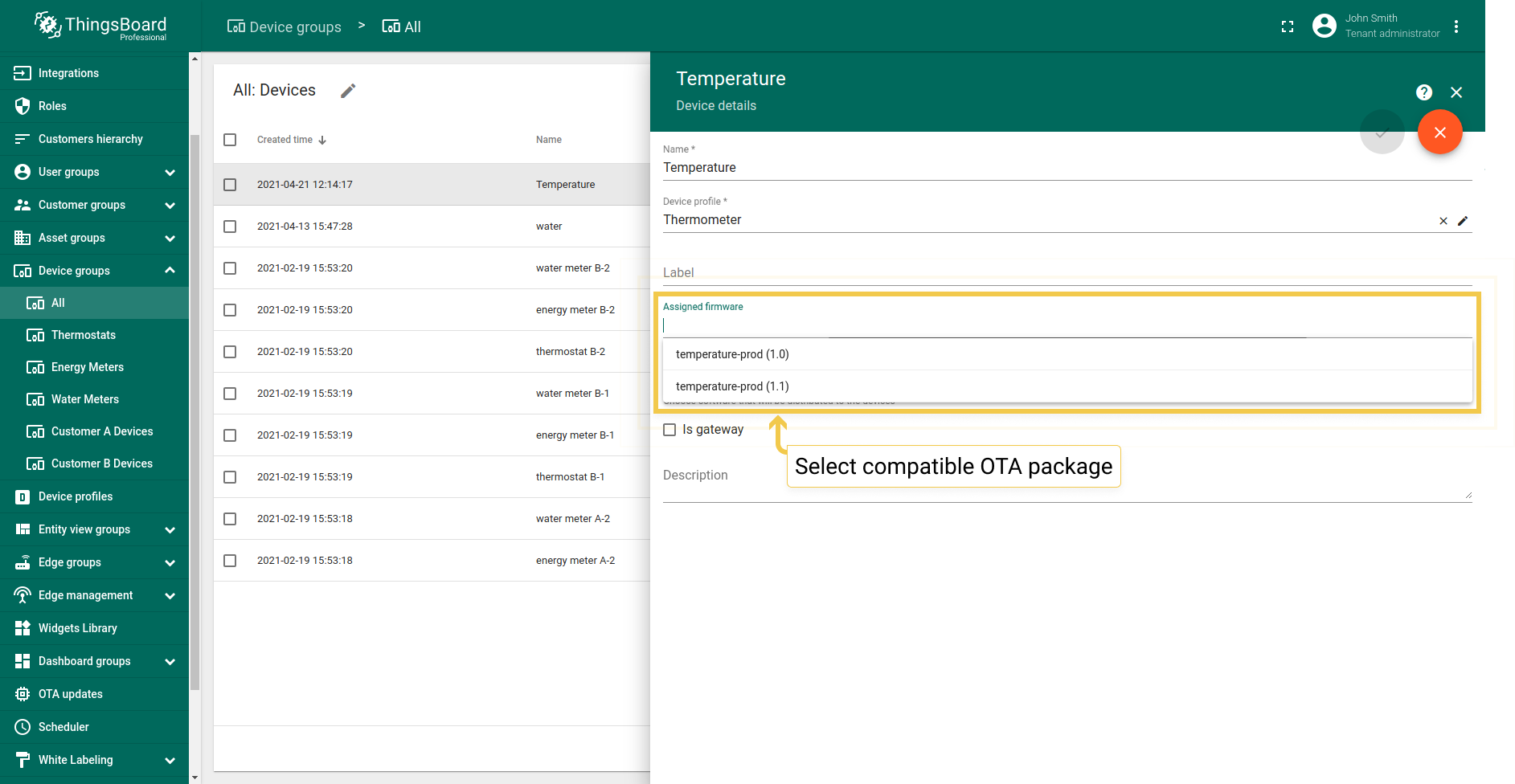
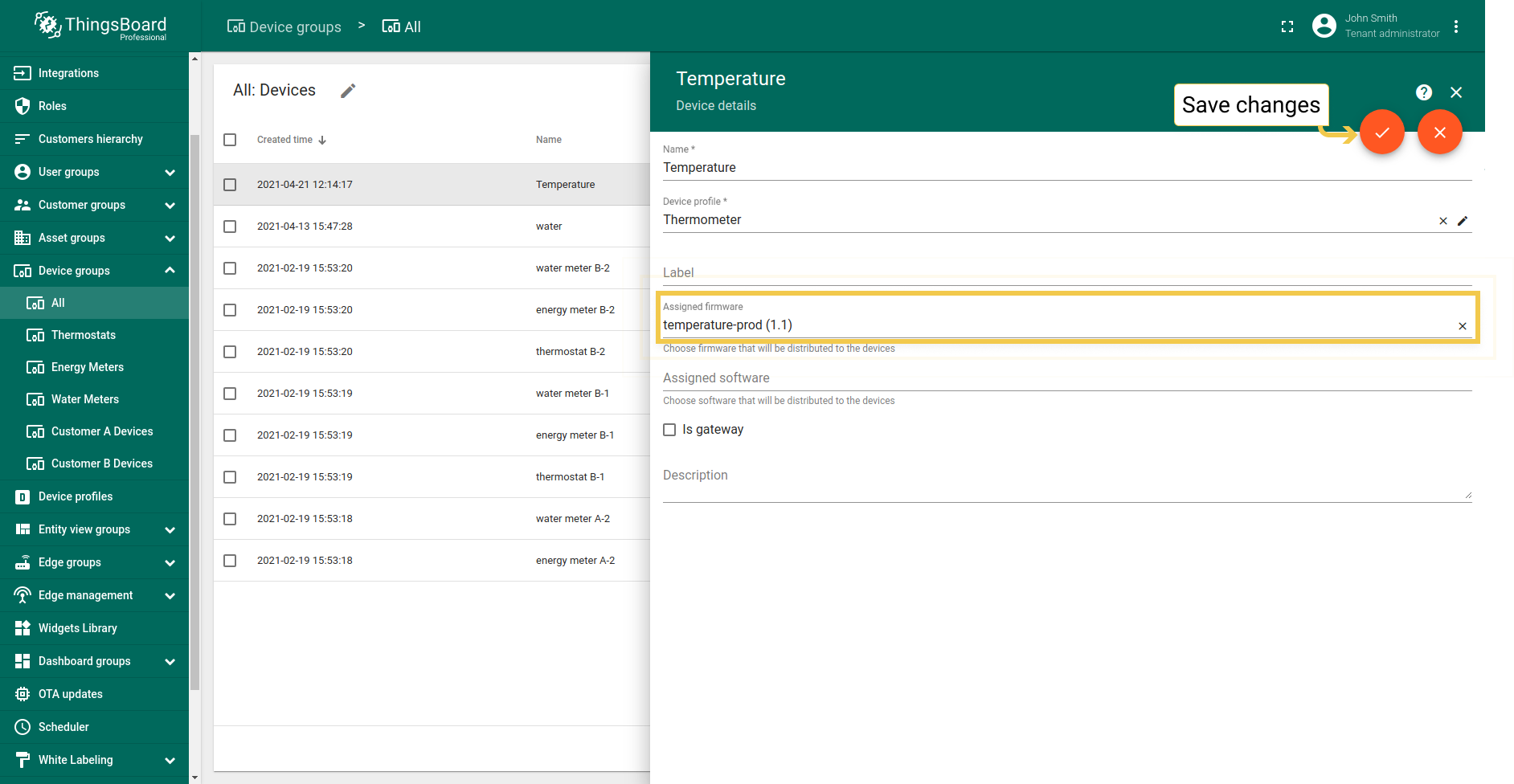
分配到设备的固件版本会自动覆盖设备配置上的固件版本。
例如,假设您有两个具有配置P1的设备D1和D2:
- 如果将固件包F1分配给配置P1(通过配置详情UI或REST API),设备D1和D2都将更新为F1。
- 如果将固件包F2分配给设备D1(通过设备详情UI或REST API),设备D1将更新为F2。
- 随后将固件包F3分配给配置P1只会影响D2,因为D1在设备级别已有特定的固件版本分配。 因此,D2将更新为F3,而D1将继续使用F2。
客户可为所属设备选择并分配可用固件,但不能上传或管理固件包。

禁止删除已分配给至少一个设备或设备配置的固件包。
更新流程
将固件/软件分配到设备或设备配置会触发更新流程。 ThingsBoard跟踪更新的进度并将其保存到设备属性中。
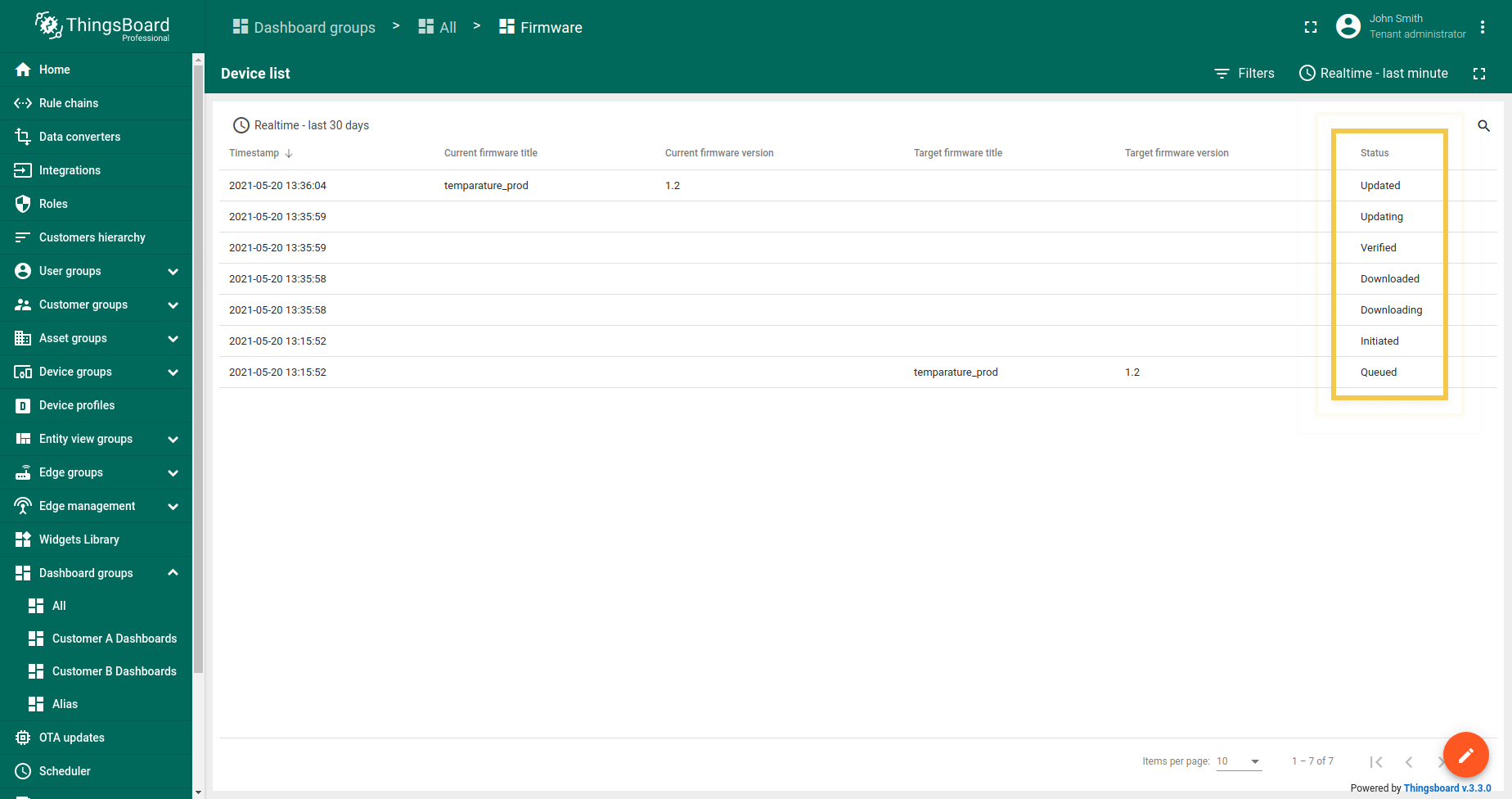
更新进度可能处于以下状态之一。更新的状态存储为设备的属性,用于在仪表板上可视化更新过程。
QUEUED状态
固件/软件更新的初始状态。 表示关于新固件/软件的通知已排队但尚未推送到设备。 ThingsBoard对更新通知进行排队以避免峰值负载。队列以恒定的速度处理。 默认情况下,配置为每分钟通知最多100个设备。有关更多详细信息,请参阅配置属性。
INITIATED状态
表示关于固件/软件的通知已从队列中取出并推送到设备。 在内部,ThingsBoard将通知转换为以下共享属性的更新:
- fw(sf)_title - 固件(软件)的名称。
- fw(sf)_version - 固件(软件)的版本。
- fw(sf)_size - 固件(软件)文件的大小(字节)。
- fw(sf)_checksum - 用于验证接收文件完整性的属性。
- fw(sf)_checksum_algorithm - 用于计算文件校验和的算法。
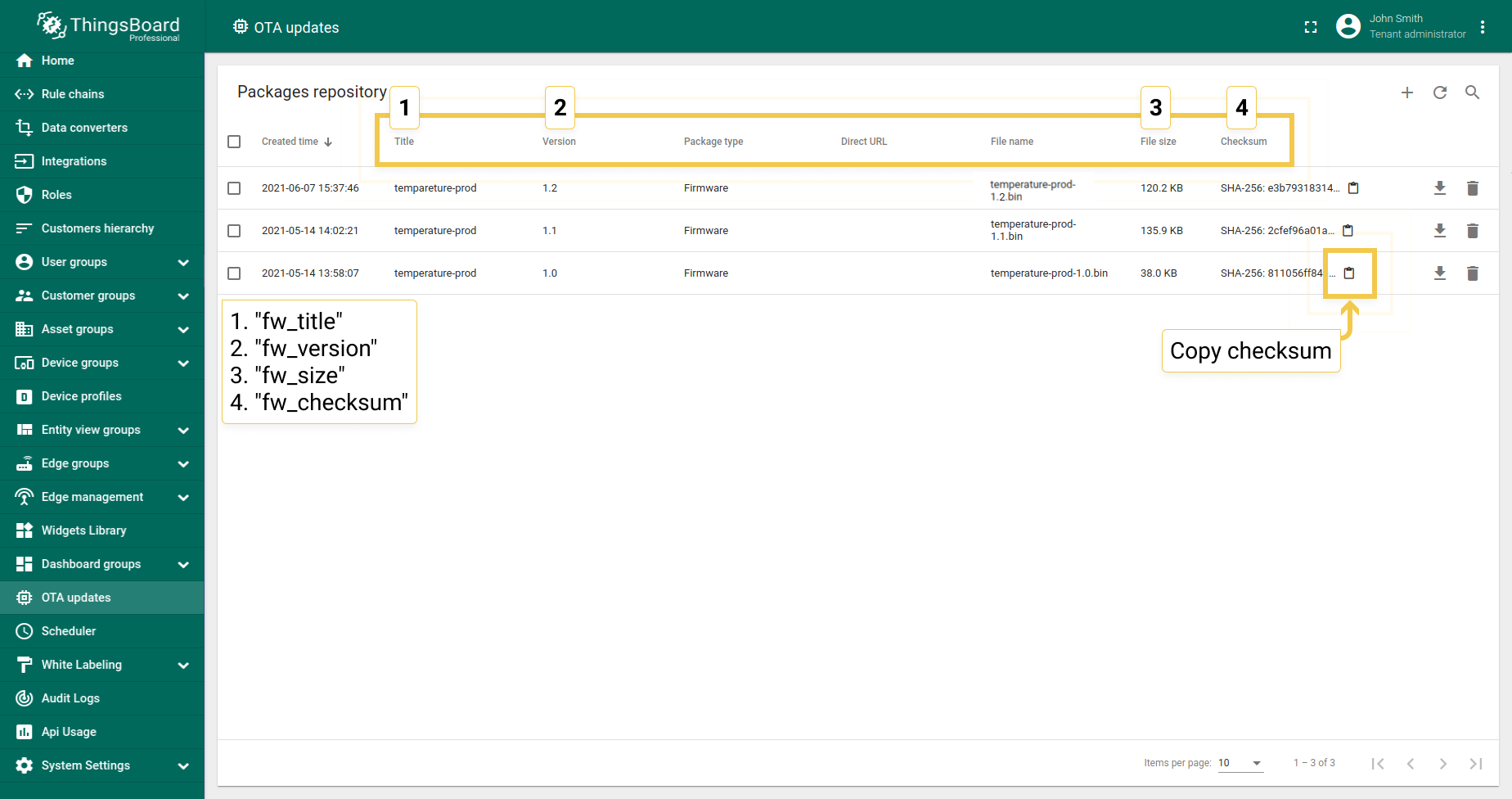
设备可以使用MQTT、 HTTP、CoAP或LwM2M API订阅共享属性更新。
设备报告的更新状态
其余状态由正在处理更新的设备固件/软件报告。 我们为最常见的协议准备了这些状态的描述以及用Python编写的应用示例。 示例应用程序模拟设备固件/软件的行为,可用作实现的参考。
- DOWNLOADING - 收到新固件/软件更新的通知,设备开始下载更新包。
- DOWNLOADED - 设备已完成下载更新包。
- VERIFIED - 设备已验证下载包的校验和。
- UPDATING - 设备开始固件/软件更新。通常在设备重新启动或服务重新启动前发送。
- UPDATED - 固件已成功更新到下一个版本。
- FAILED - 校验和验证失败,或设备更新失败。有关更多详细信息,请参阅固件仪表板上的”设备失败”标签。
固件/软件更新完成后,ThingsBoard期望设备发送以下遥测数据:
固件:
1
{"current_fw_title": "myFirmware", "current_fw_version": "1.2.3", "fw_state": "UPDATED"}
软件:
1
{"current_sw_title": "mySoftware", "current_sw_version": "1.2.3", "sw_state": "UPDATED"}
如果固件/软件更新失败,ThingsBoard期望设备发送以下遥测数据:
固件:
1
{"fw_state": "FAILED", "fw_error":  "the human readable message about the cause of the error"}
软件:
1
{"sw_state": "FAILED", "sw_error":  "the human readable message about the cause of the error"}
在终端中执行以下命令安装 HTTP 和 checksum 库: 进入客户端文件夹路径,执行以下命令以通过 ThingsBoard 获取固件示例脚本: 下载 HTTP 客户端示例:http_firmware_client.py 出现以下提示时:
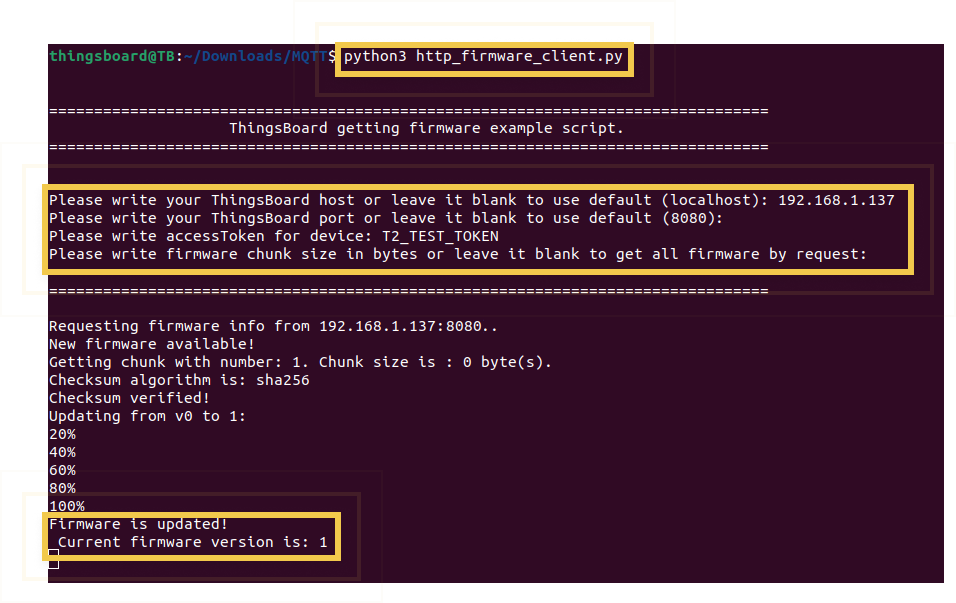 设备固件已更新。要查看状态,请前往固件仪表板,如下文所述。 要了解固件更新相关操作,请发起请求并订阅属性。 |
随后执行以下命令安装 MQTT 和 checksum 库: 进入客户端文件夹路径并执行以下命令,以通过 ThingsBoard 获取固件示例脚本: 下载 MQTT 客户端示例:mqtt_firmware_client.py 出现以下提示时:
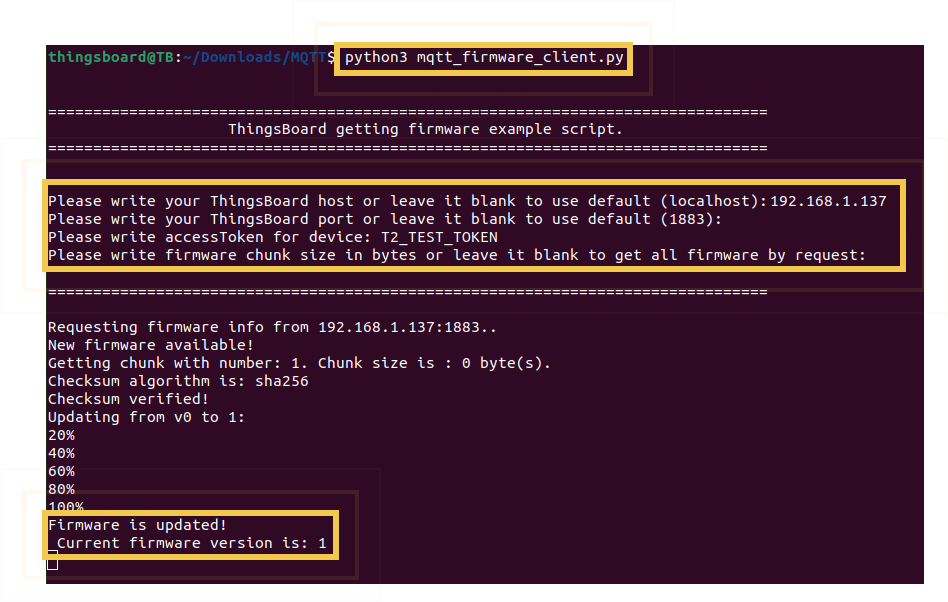 设备固件已更新。要查看状态,请前往固件仪表板,如下文所述。 要了解固件更新相关操作,请发起请求并订阅属性。 |
在终端中执行以下命令安装 CoAP 和 checksum 库: 进入客户端文件夹路径,执行以下命令以通过 ThingsBoard 获取固件示例脚本: 下载 CoAP 客户端示例:coap_firmware_client.py 出现以下提示时:
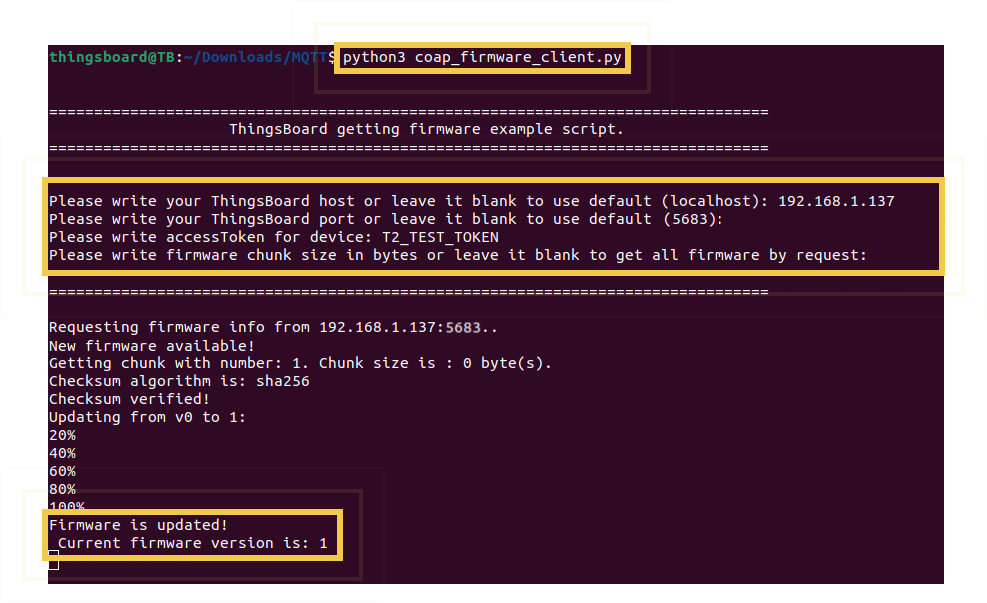 设备固件已更新。要查看状态,请前往固件仪表板,如下文所述。 要了解固件更新相关操作,请发起请求并订阅属性。 |
仪表板
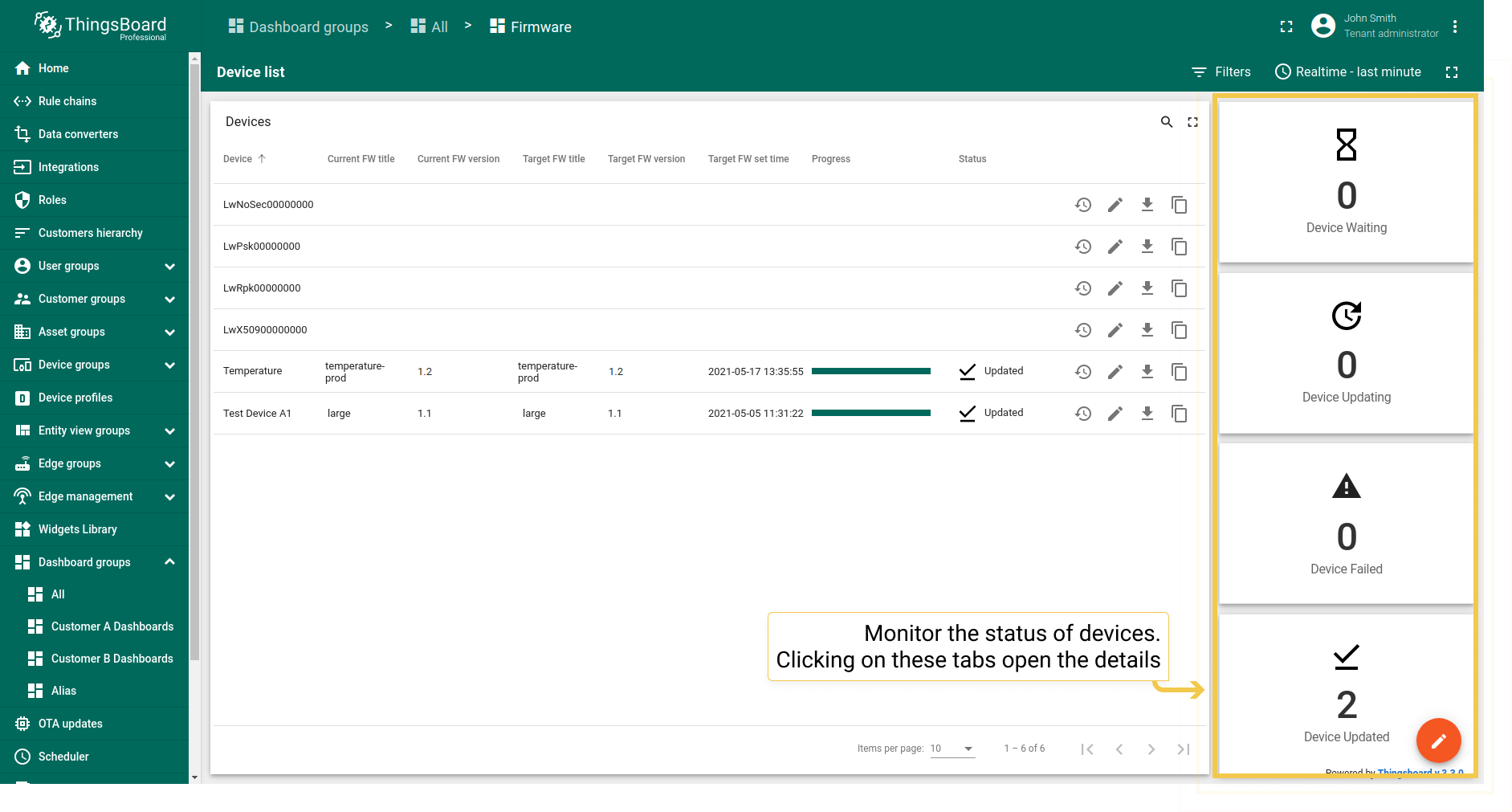
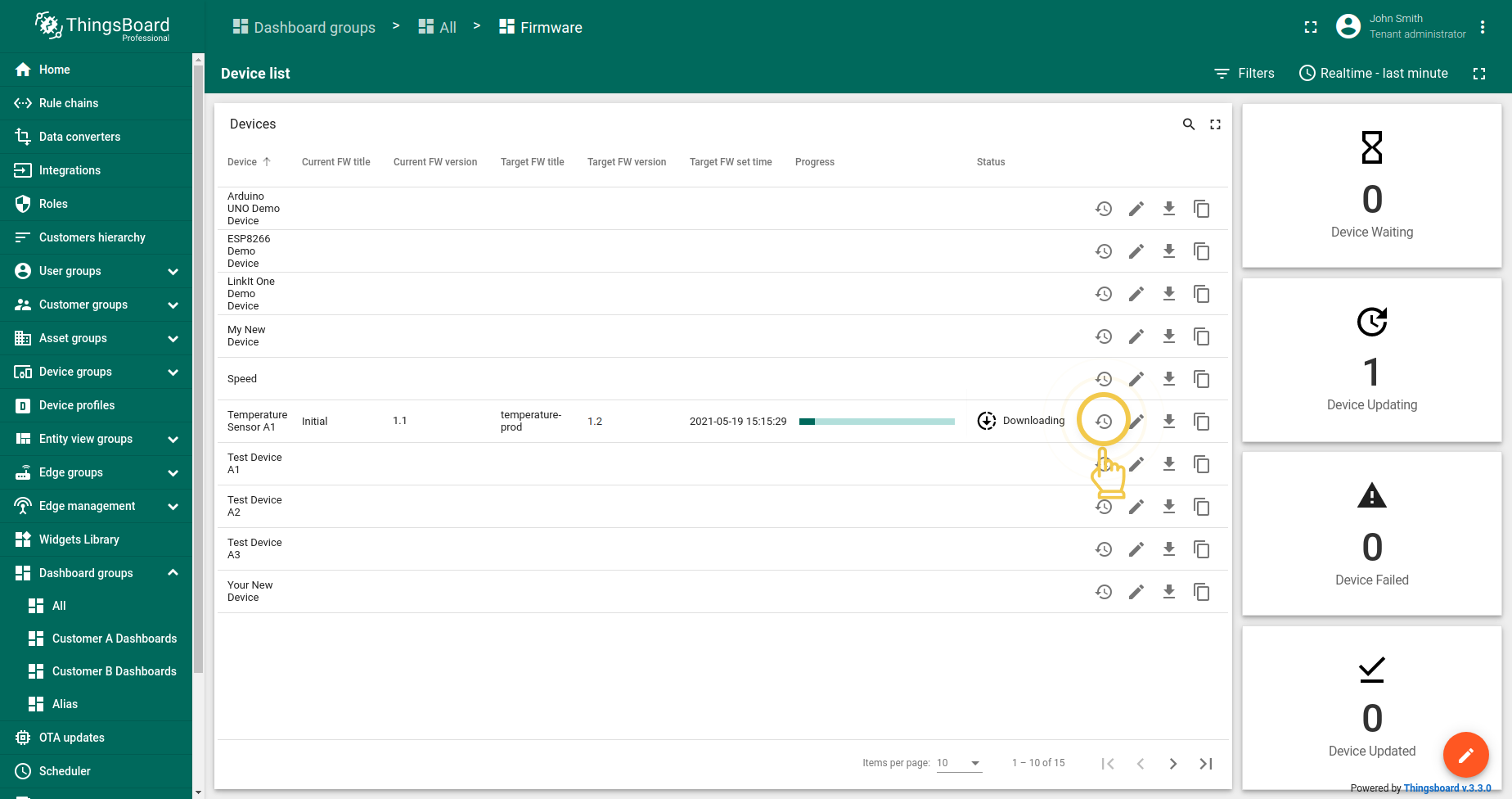
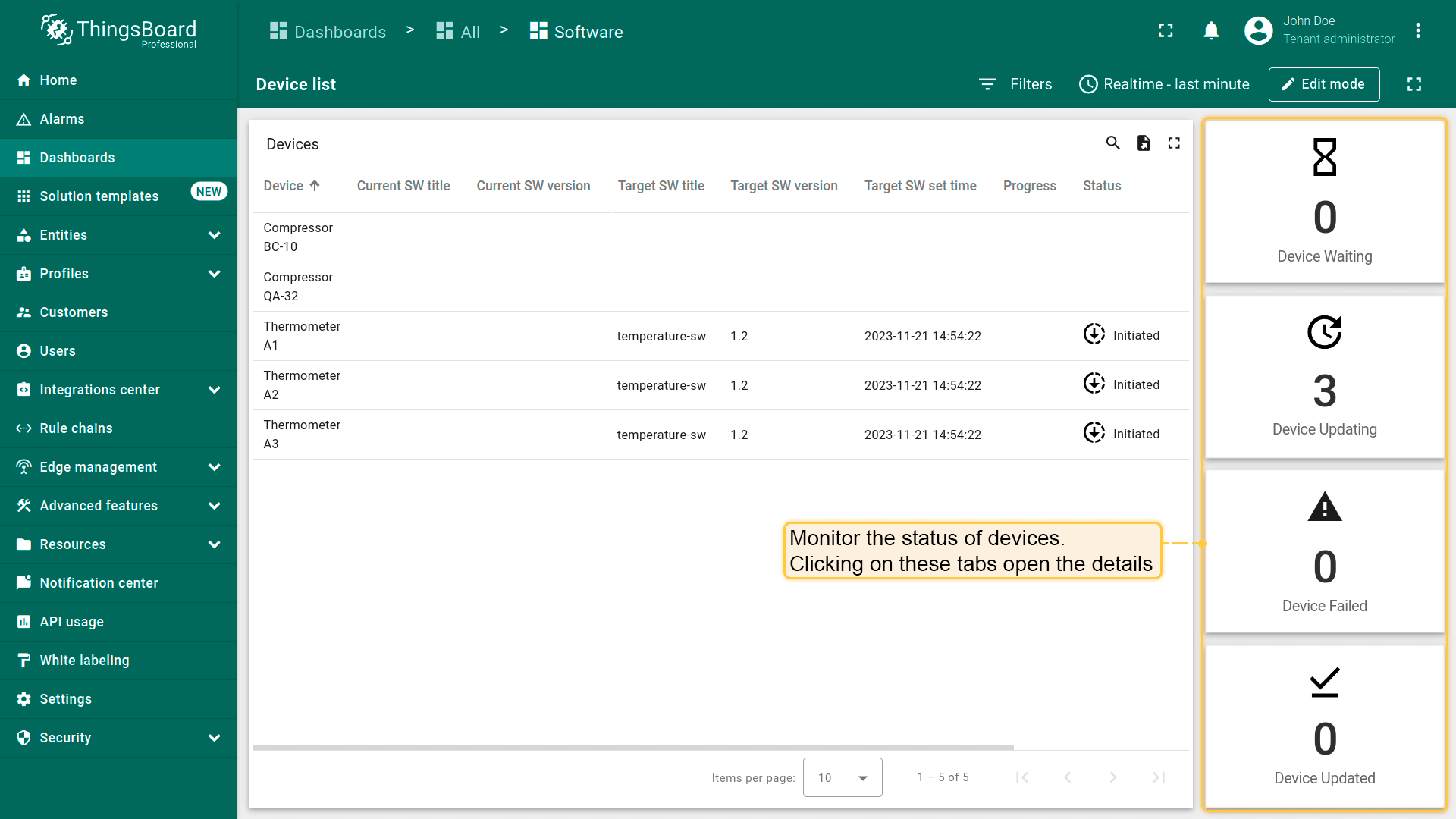
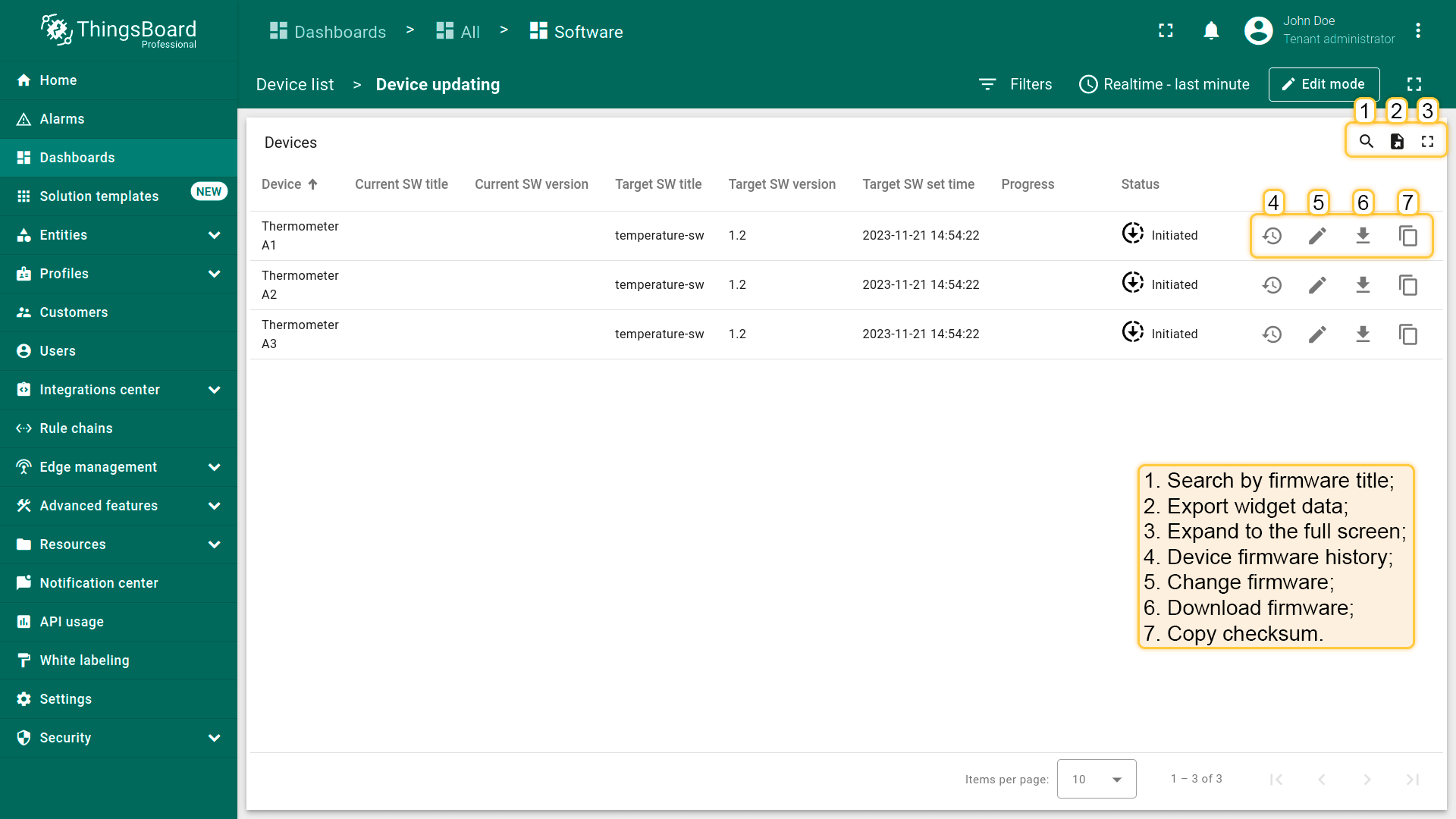
ThingsBoard提供固件/软件更新的汇总,用于监控和跟踪您的设备的固件/软件更新状态,例如哪些设备正在更新、任何启动问题以及哪些设备已经更新。
固件更新监控仪表板
为您添加到ThingsBoard的每个新租户自动创建仪表盘。 您还可以从GitHub中下载此仪表板JSON并将其导入现有租户。
您可以在此查看所有设备的列表及其固件的完整信息。
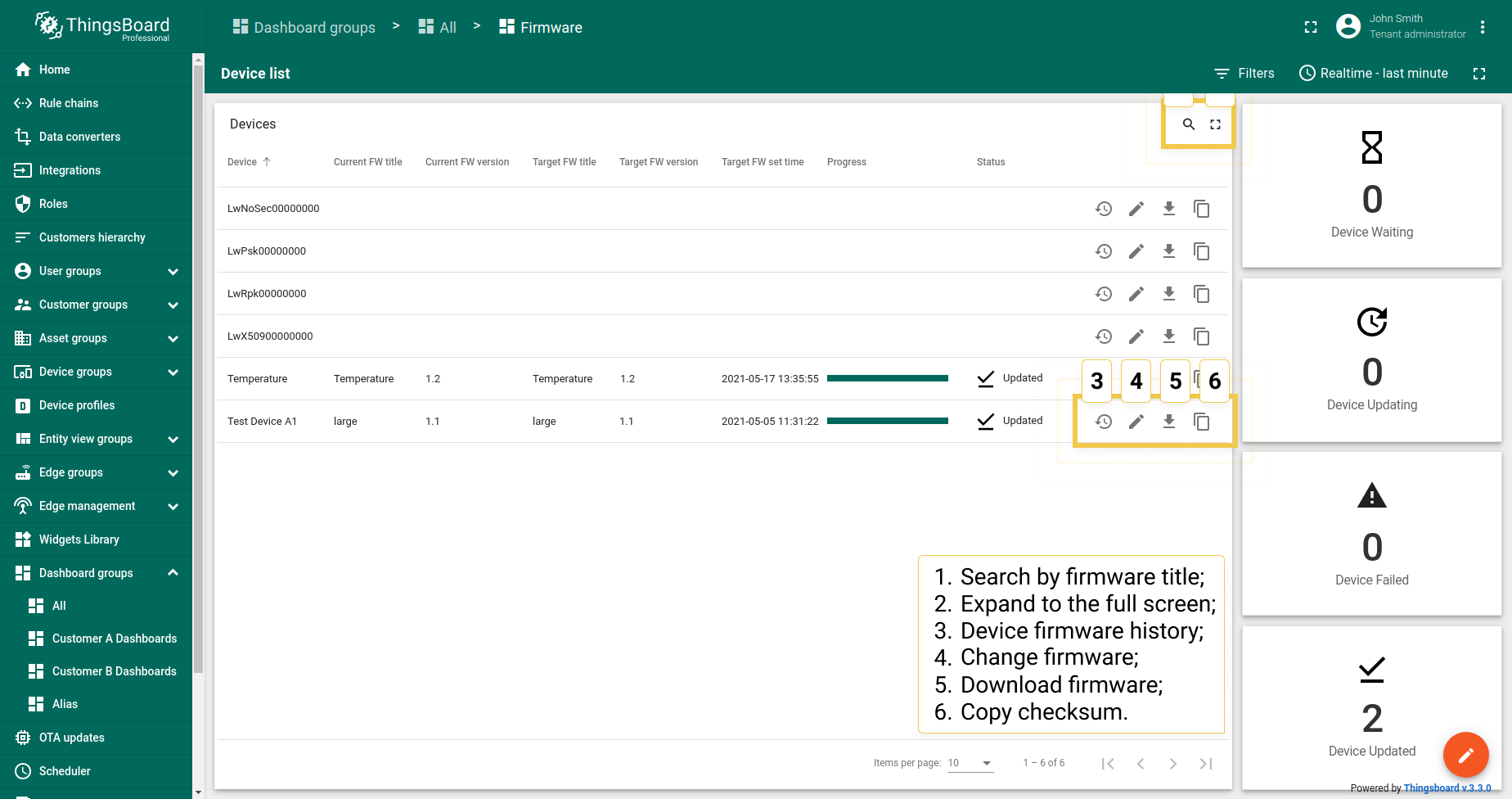
单击设备名称旁的”固件更新历史”按钮可了解特定设备的固件更新状态。
软件更新监控仪表板
为您添加到ThingsBoard的每个新租户自动创建仪表板。 您还可以下载此GitHub存储库中的仪表板JSON并将其导入现有租户。
您可以在此查看所有设备的列表及其软件的完整信息。
Assign OTA package to device group
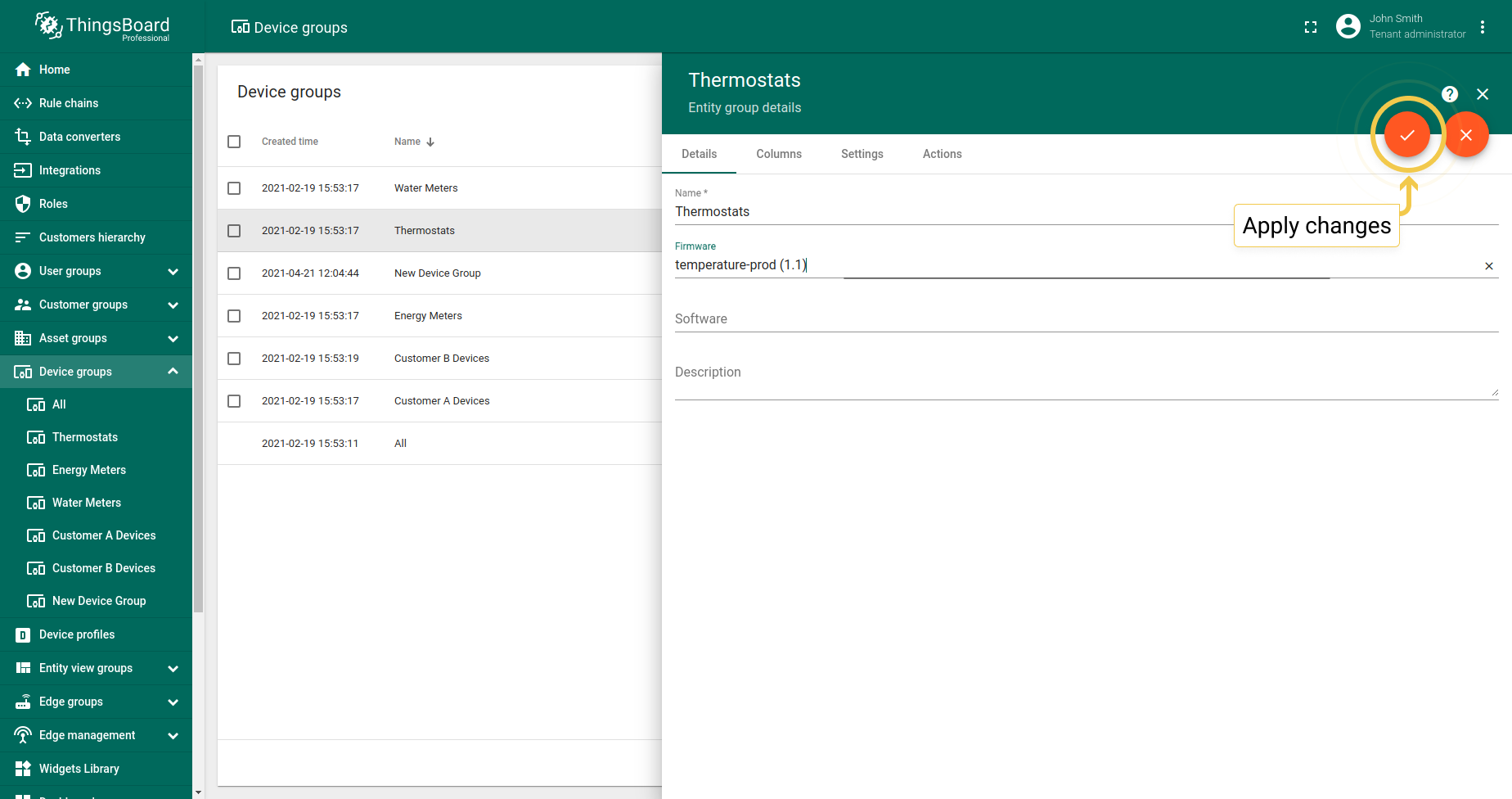
Profession Editions gives you an opportunity to assign firmware/software to a specific device group for automatic distribution of the package to all devices that share the same group. See screenshots below.
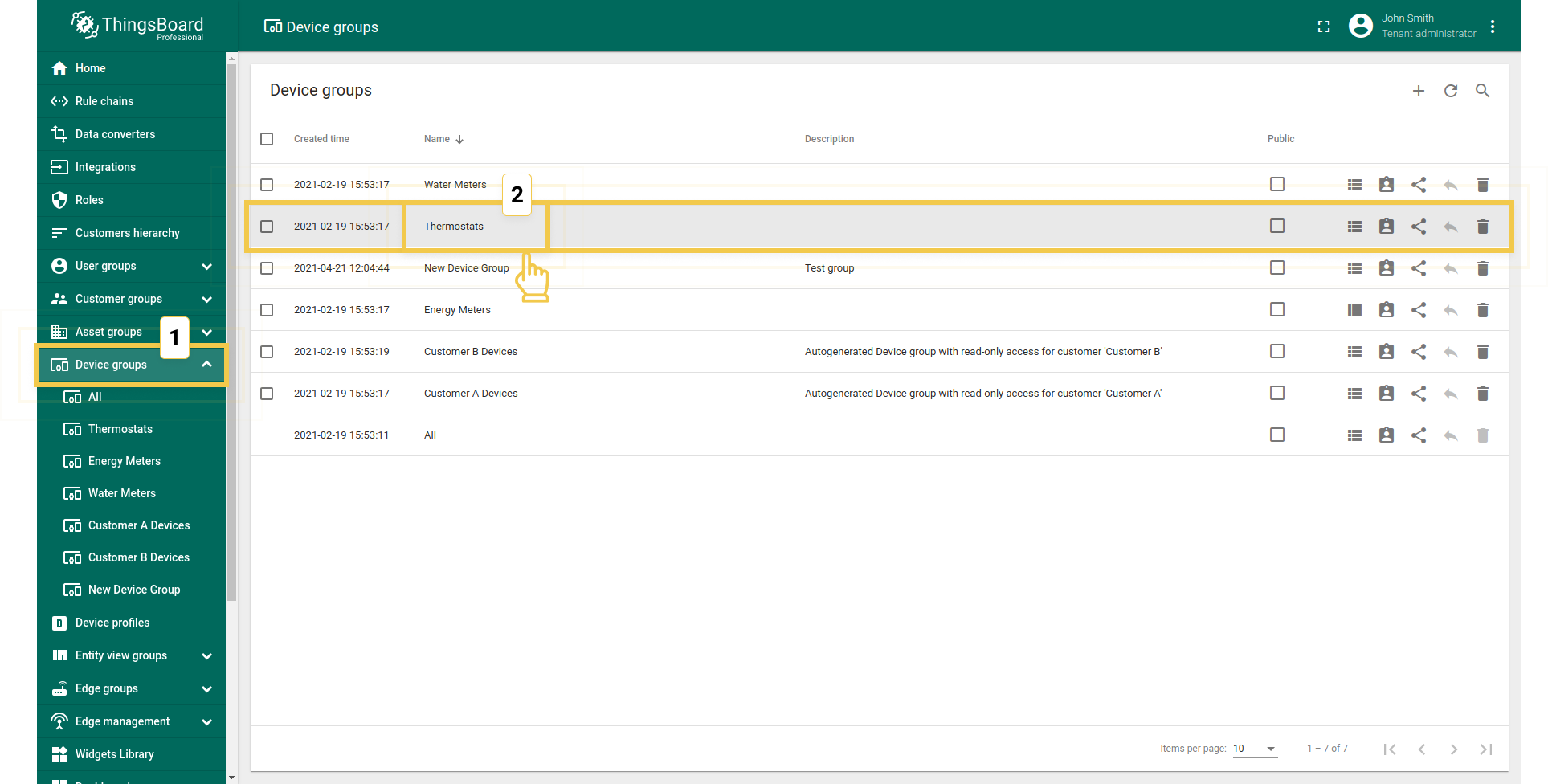
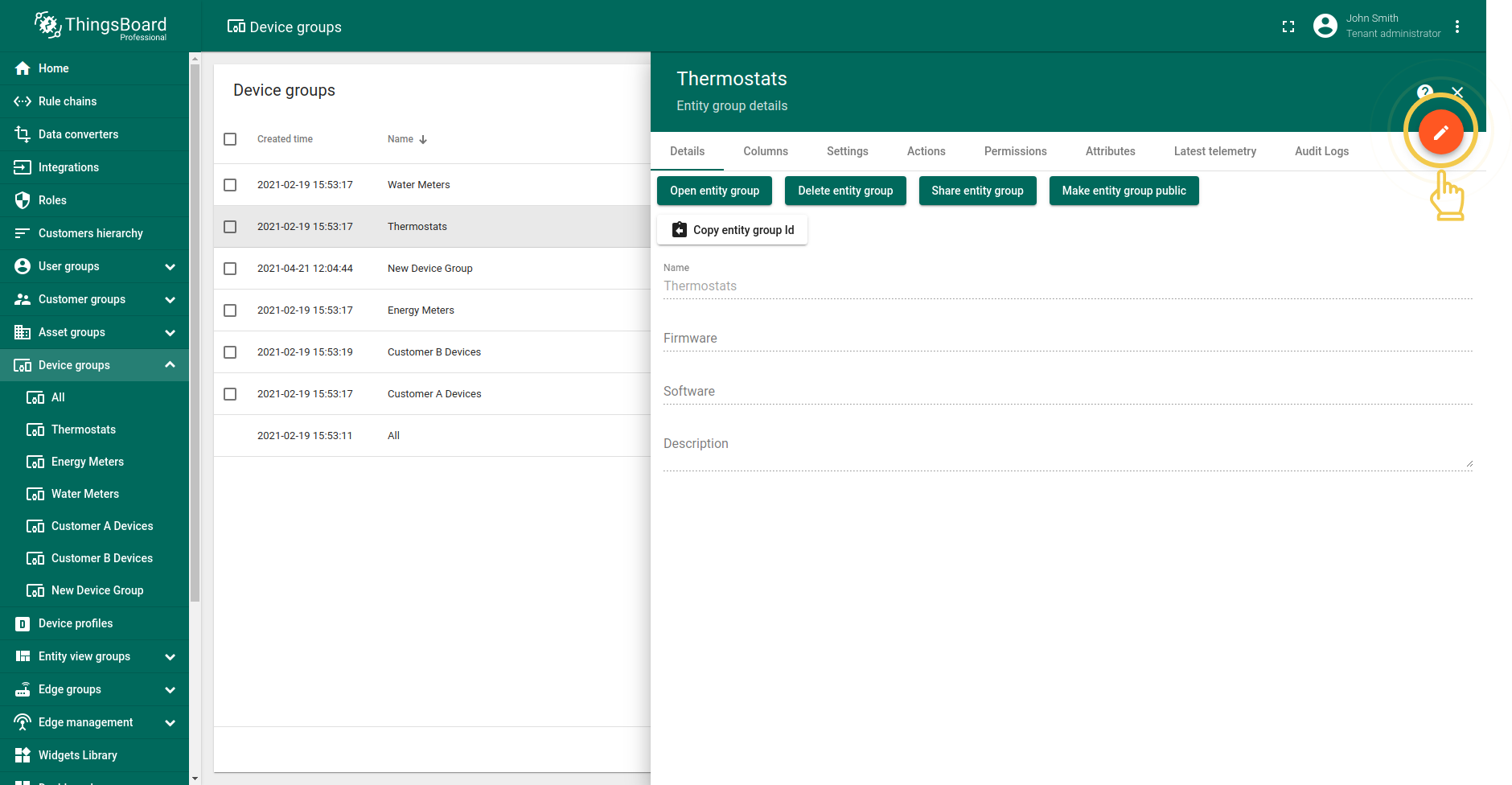
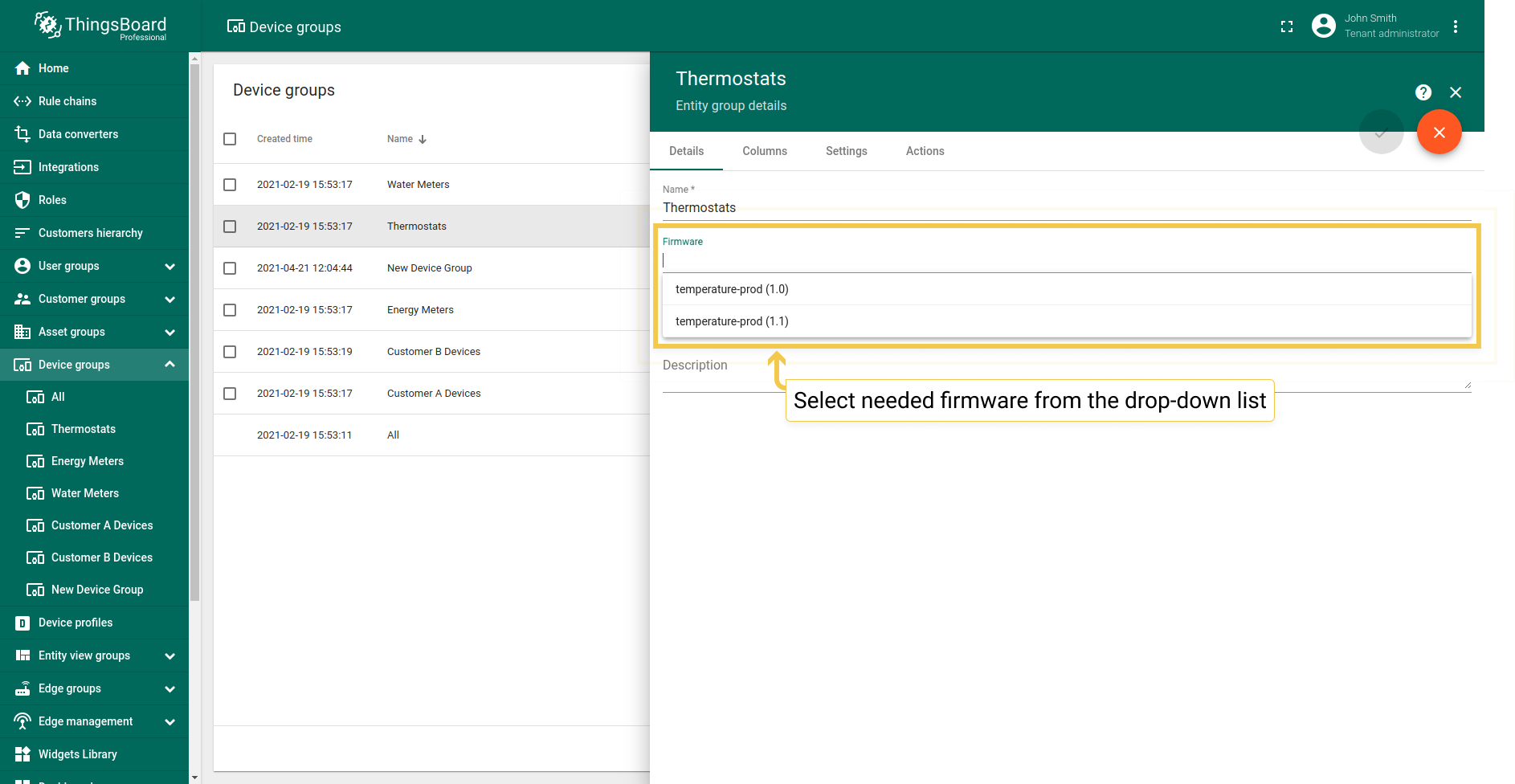
The device group details allow choosing only compatible OTA update packages
(see provisioning) for more info.
Assignment of the firmware/software triggers the update process.
The firmware version assigned specifically to the device will automatically overwrite firmware version that is assigned to the device group.
For example, let’s assume you have Devices A1, A2 and A3 that are in the same Device Group, but have different device profiles.
- Devices A1 and A2 have compatible device profiles, while Device A3 has incompatible one. When you assign the package to this device group, firmware/software will be updated only on Devices A1 and A2.
- If you update the package specifically on Device A2, Device A1 will stay not updated.
Scheduler
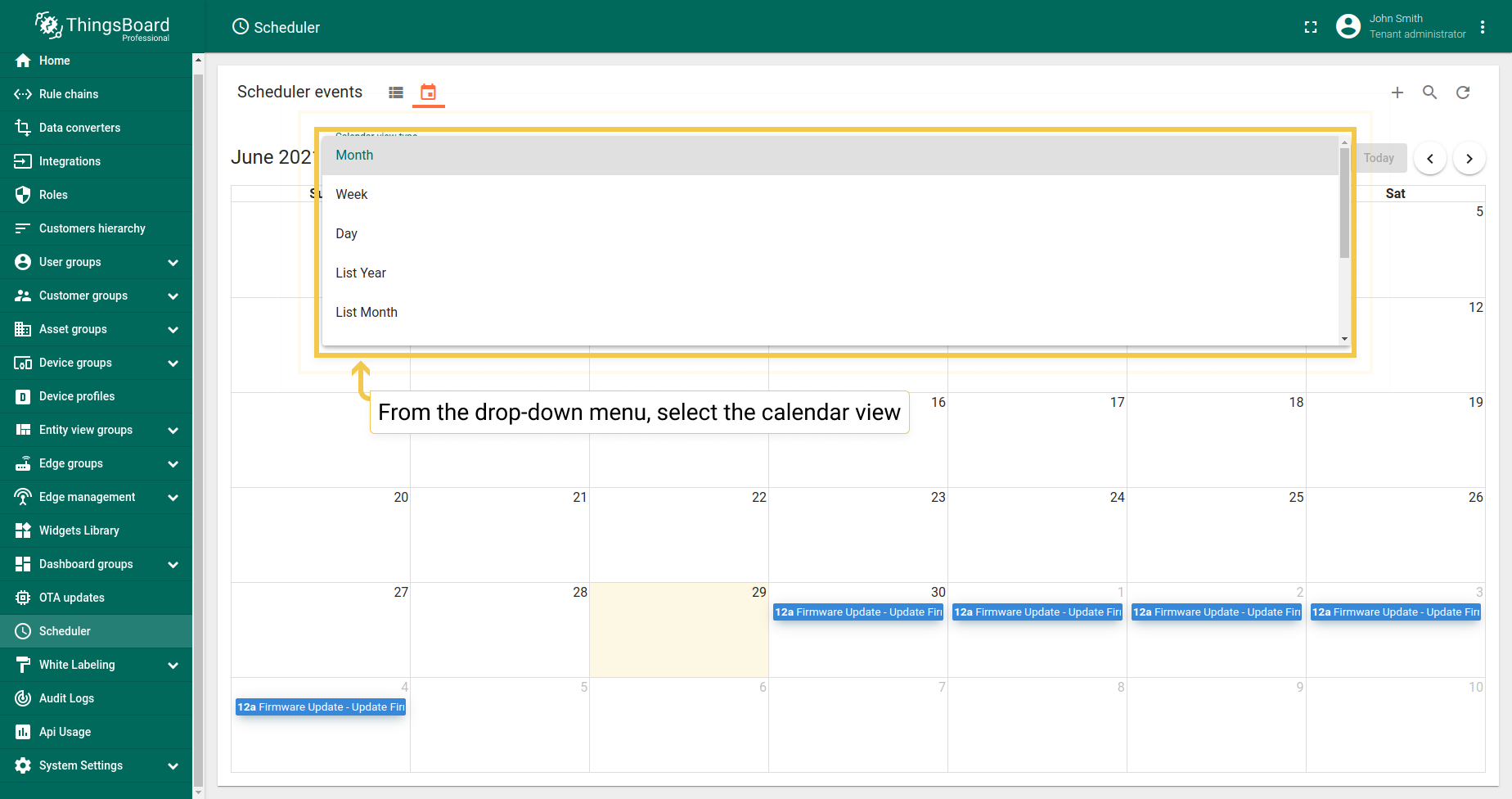
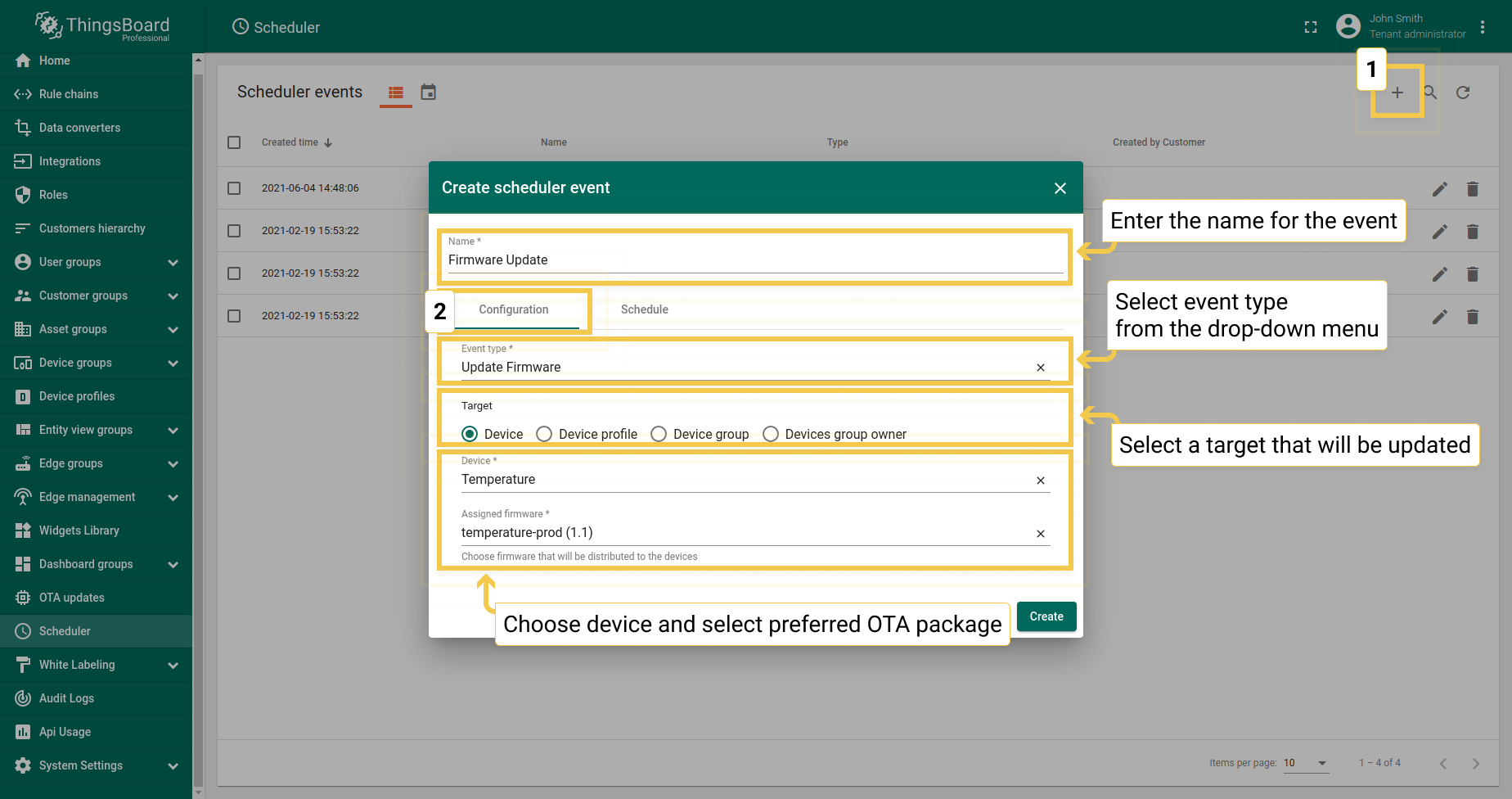
Scheduler allows you to set the exact date and time for an OTA package update. You can either observe scheduler events as a list, or see upcoming events in a calendar view.
-
To schedule an update, click the plus sign in the upper right corner of the screen to open a dialog window.
- In the Configuration tab of the opened dialog, enter the event name, from the drop-down menu select an event type (Software/Firmware update) and
choose an update target:
- If you need to schedule an update for Device, Device profile or Device group, from the drop-down menus, select an entity and needed OTA package.
- If you need to schedule an update for Devices group owner, from the drop-down menus, select the owner of the group, specific entity group that belongs to this owner, and the package that will be updated.
-
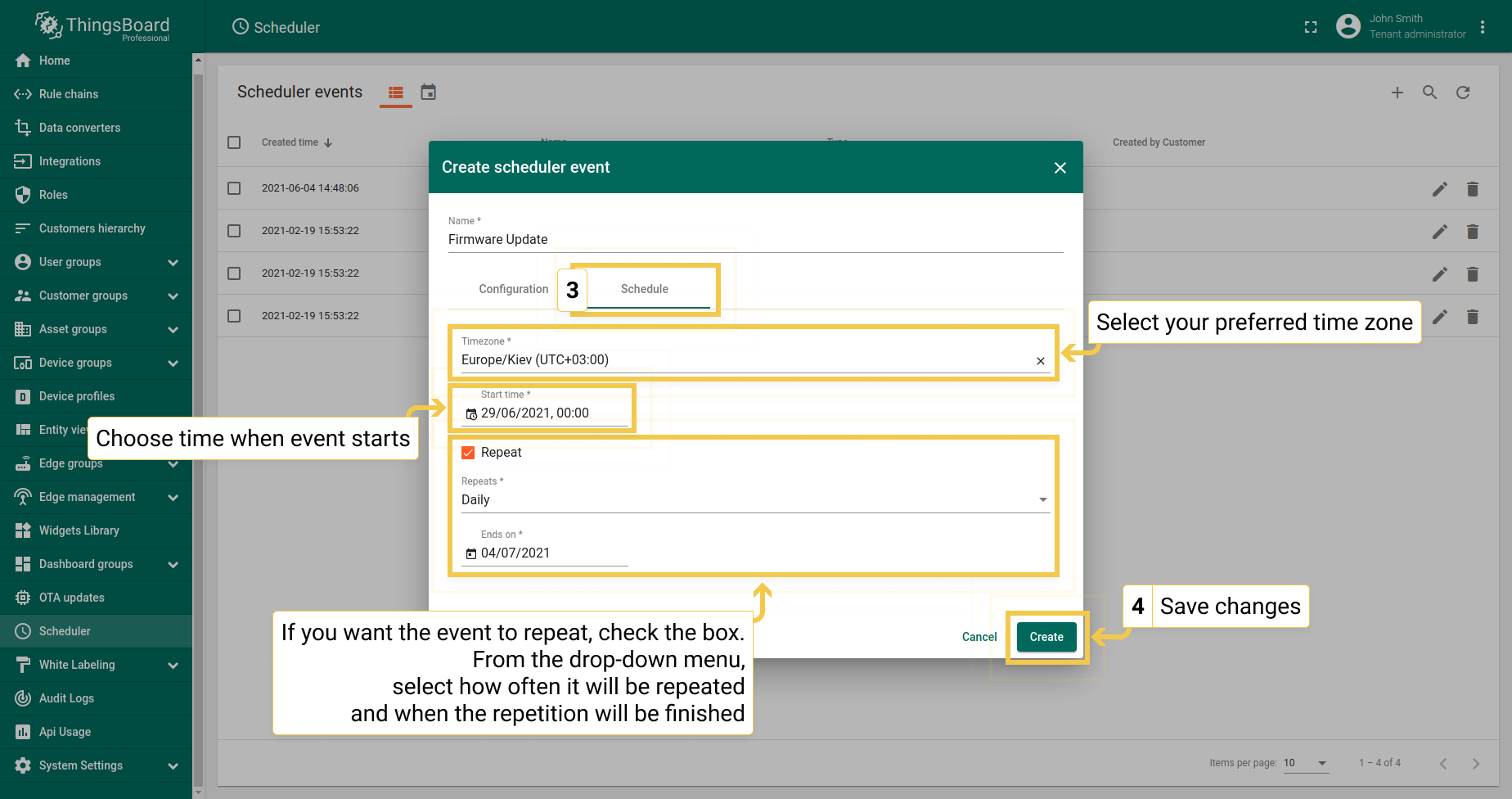
In the Schedule tab, choose your timezone, set the date and time when you’d like your entity to be updated. If you want to make it repeatable action, check the Repeat box. From the appeared drop-down menu, choose how often the update will be happening. When choosing Weekly updates, you should check the boxes on which days you want the update happen. Timer-based update allows you to set the frequency: hours, minutes or seconds, and numeric value. Also, you need to set the time when repetition will be finished.
- After setting up Configuration parameters and Schedule time, click the “Create” button. You are able to edit created scheduler events or delete them by clicking the corresponding buttons next to their names. In the Edit scheduler event dialog, you may configure Method and Params.
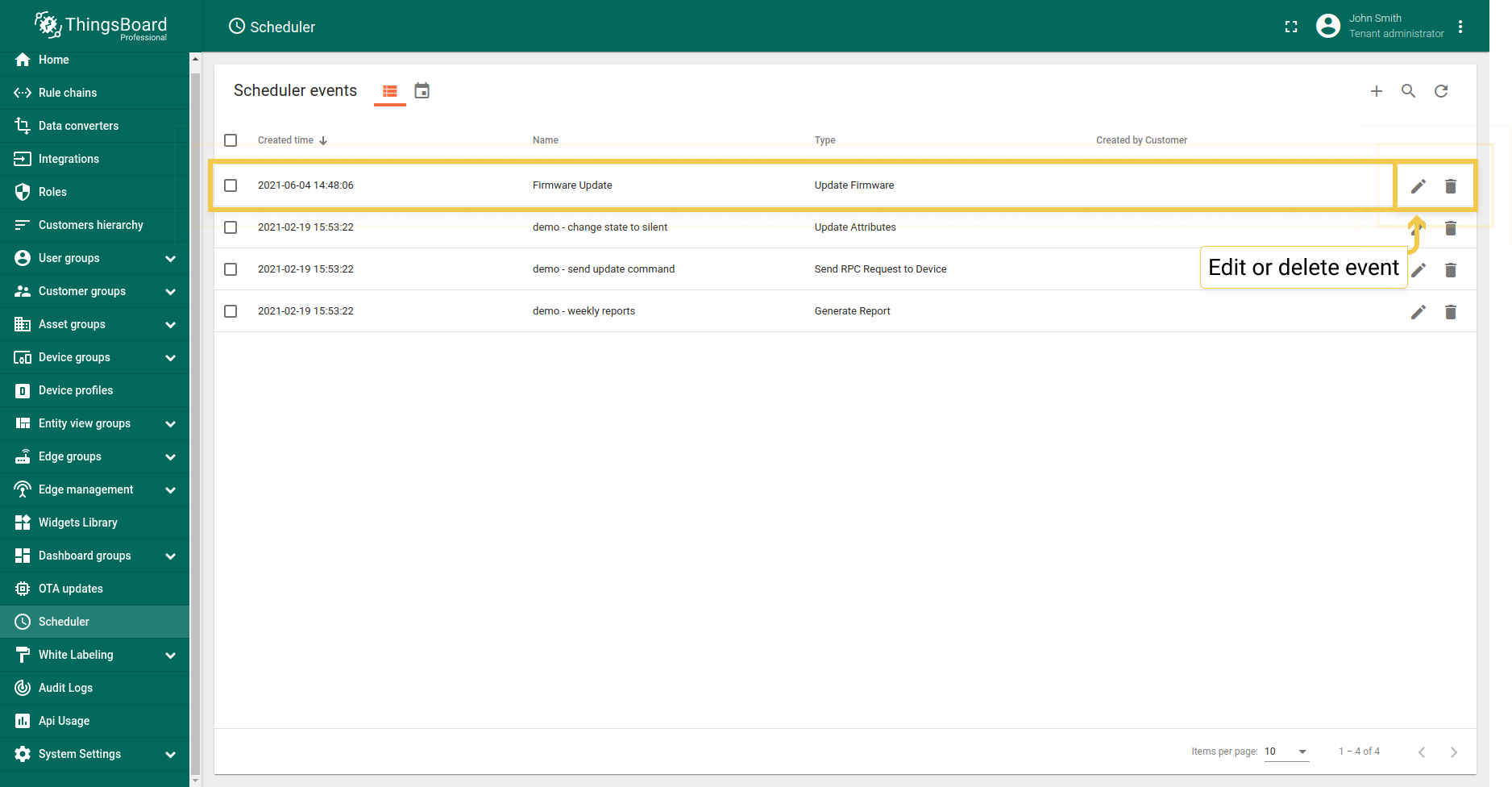
In the calendar, you are able to change its view type by choosing the preferred one in the drop-down menu. To edit or delete a scheduler event, click on it.