概述
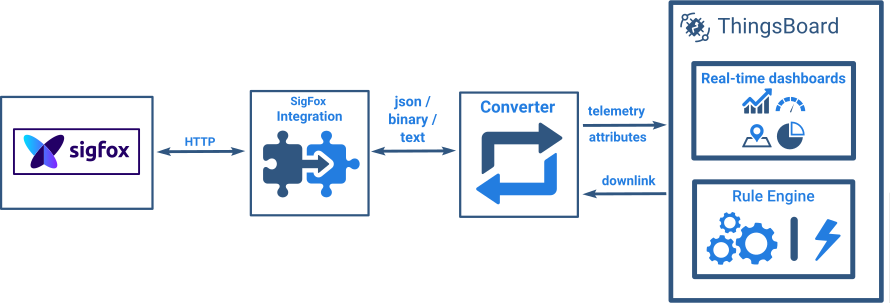
Sigfox集成可从Sigfox后端向ThingsBoard流式传输数据,并将二进制设备负载转换为ThingsBoard格式。
请参阅集成示意图了解更多。
前提条件
在本教程中,我们将使用:
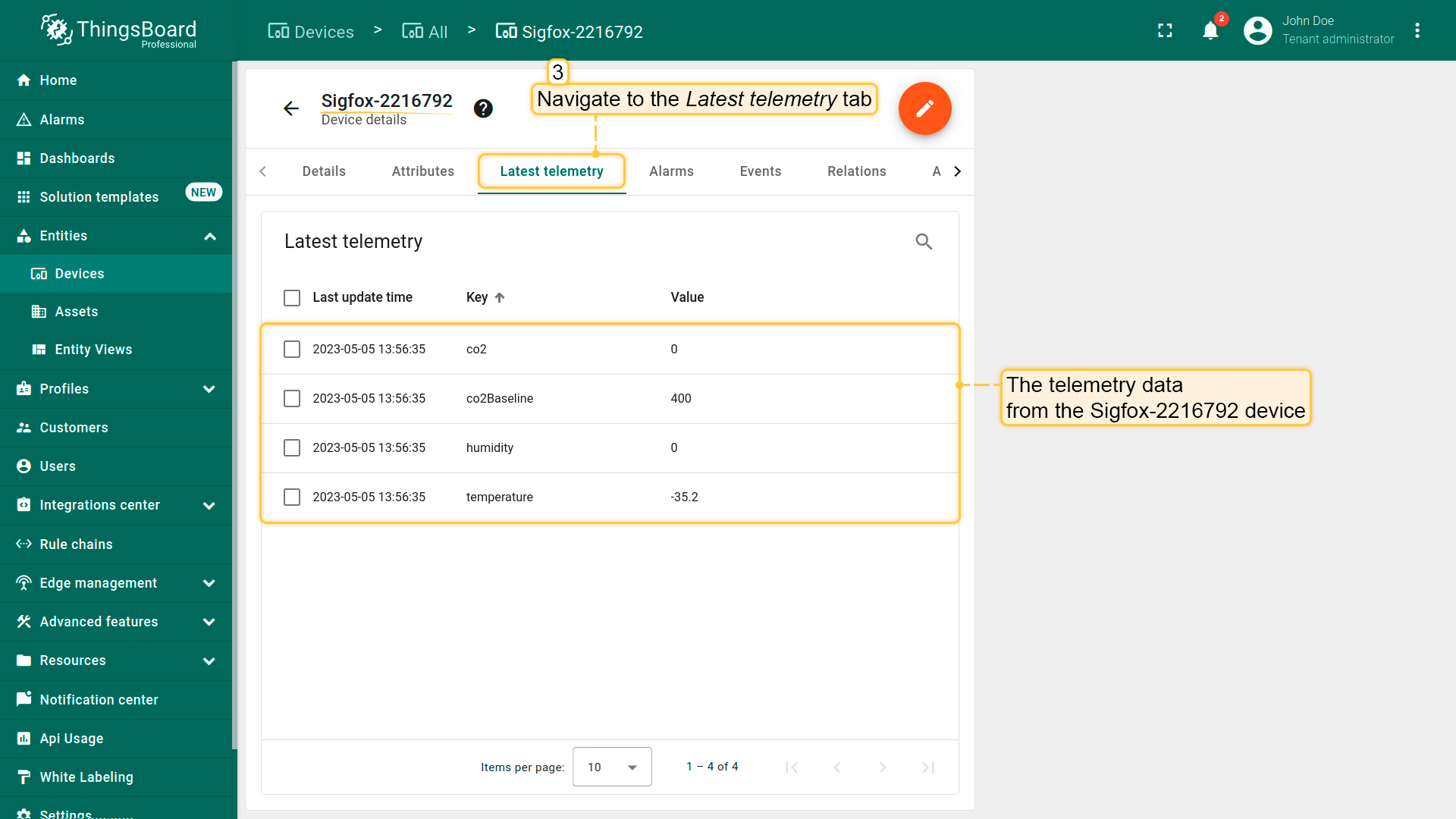
假设我们有一台设备Sigfox-2216792。我们的传感器设备会发布”temperature”、”humidity”、”co2”和”co2Baseline”读数。
SigFox集成配置
创建上行数据转换器
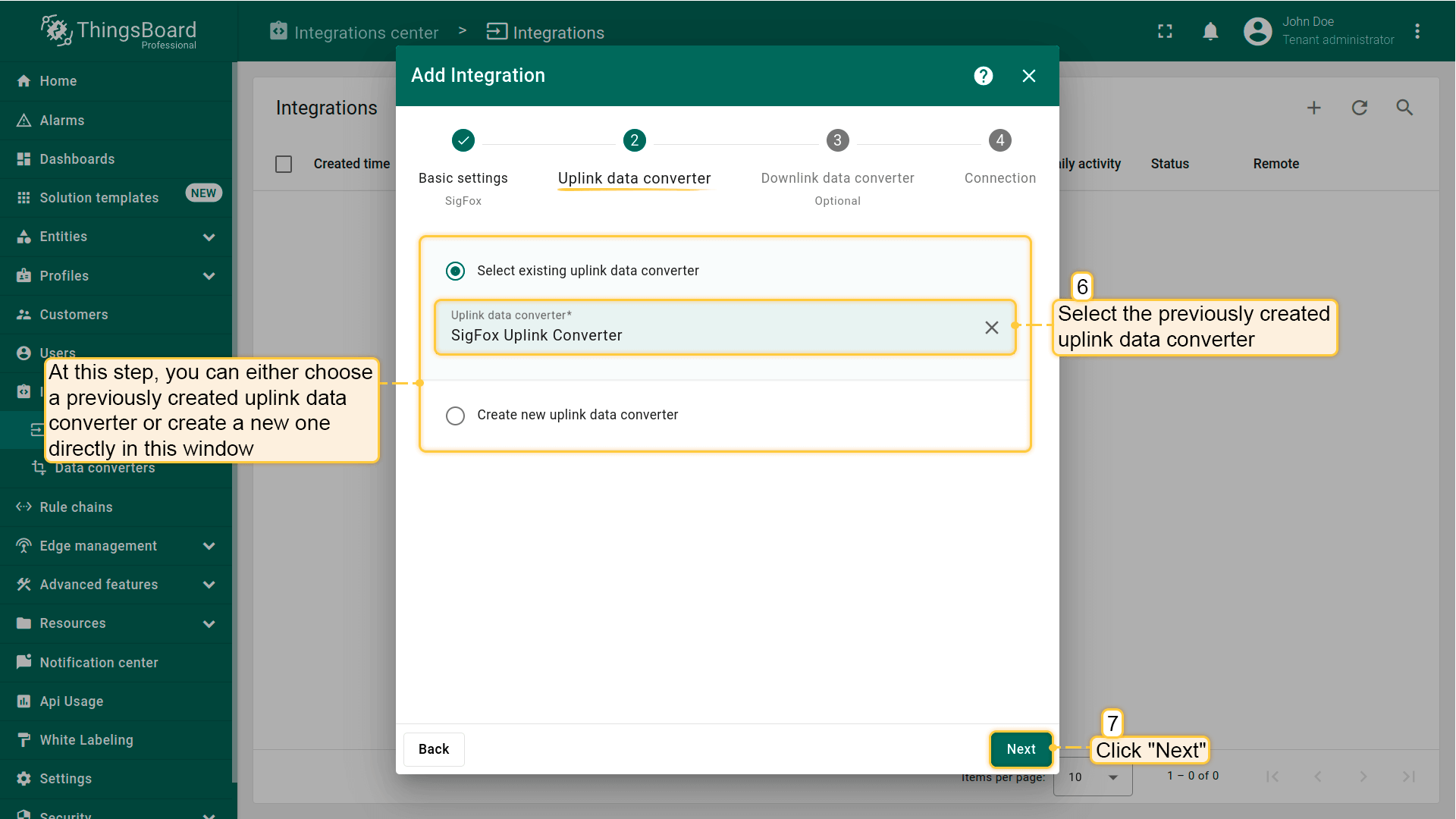
您可以在”数据转换器”页面或直接在集成中创建上行数据转换器。上行数据转换器用于将设备传入的数据转换为在ThingsBoard中显示所需的格式。
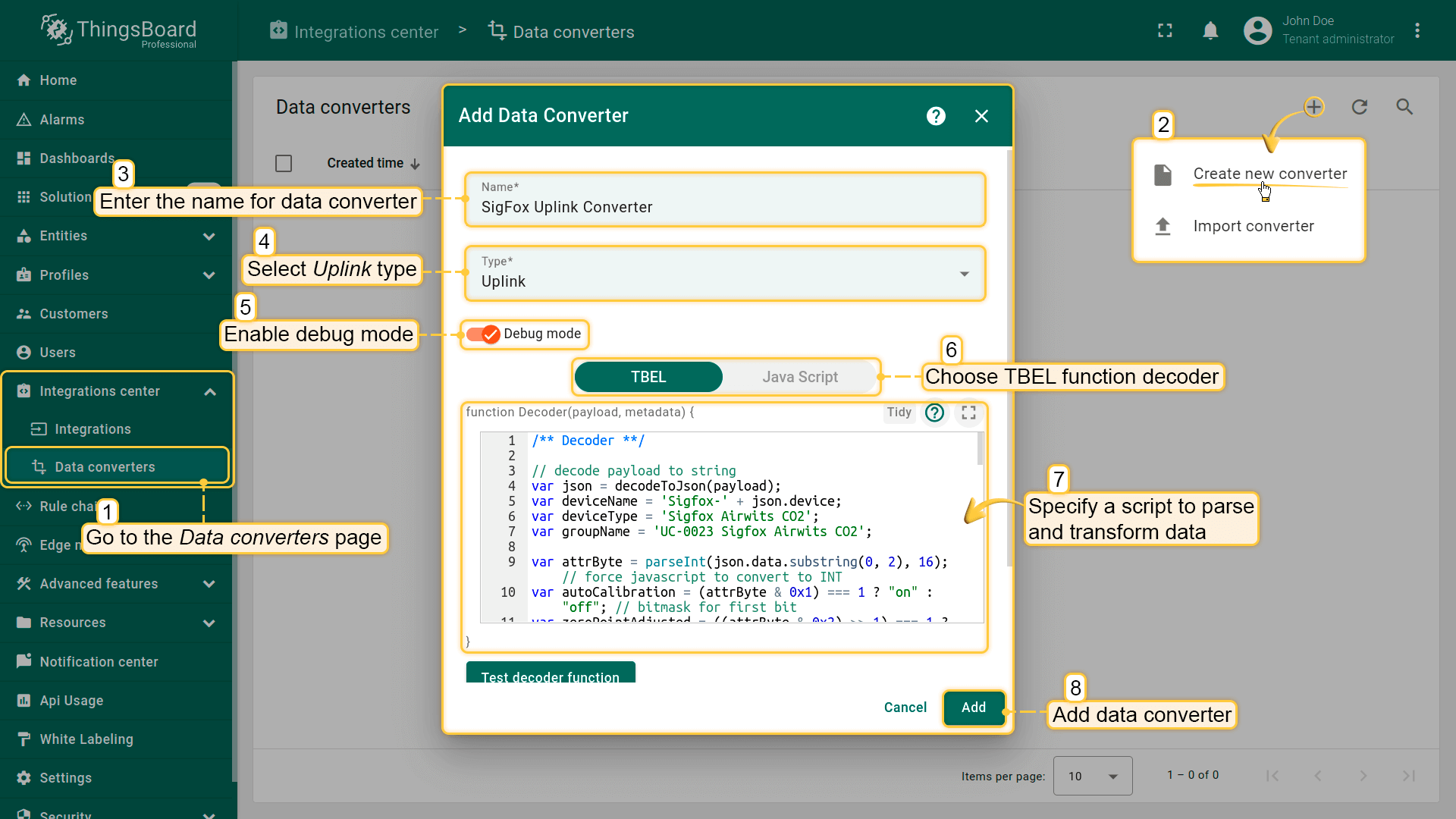
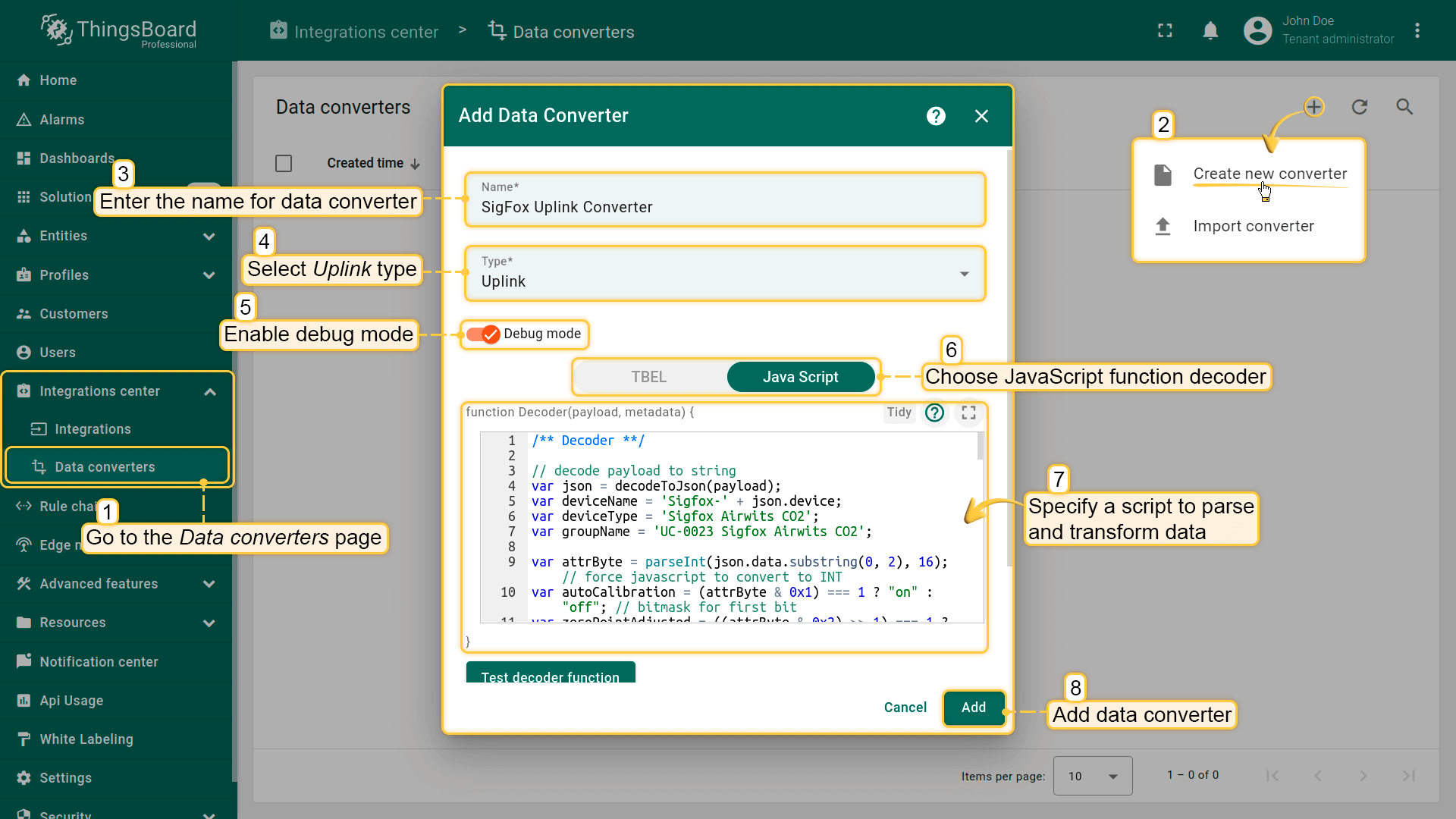
进入集成中心 -> 数据转换器页面,点击”加号”按钮创建新的转换器。将其命名为”SigFox Uplink Converter“,并选择类型为Uplink。要查看事件,请启用调试模式。在函数解码器字段中,指定用于解析和转换数据的脚本。
调试模式
启用调试模式可追踪与integrations执行相关的事件、状态及潜在错误,便于开发和排障。

注意:调试模式可能迅速增加磁盘占用,因为所有调试事件都会存入数据库。 自ThingsBoard 3.9起,平台仅在integrations创建后的前15分钟内存储完整调试事件,之后仅保留错误事件。
调试模式设置可组合使用或完全关闭。
让我们查看来自SigFox设备的上行消息示例:
1
2
3
4
5
6
| {
"device": "BF1327",
"time": "1661868952",
"data": "2502af2102462a",
"seqNumber": "3737"
}
|
- “device“表示设备的名称;
- “data“是每两个字符拼接的遥测数据,其中”02af”代表温度,”21”代表湿度,”0246”代表co2,”2a”代表co2Baseline。
可使用 TBEL(TBEL)或 JavaScript 开发用户自定义函数。
建议使用 TBEL,其在ThingsBoard 中的执行效率远高于 JS。
可使用以下代码,将其复制到 decoder function 区域:
1
2
3
4
5
6
7
8
9
10
11
12
13
14
15
16
17
18
19
20
21
22
23
24
25
26
27
28
29
30
31
32
33
34
35
36
37
38
39
40
41
42
43
44
45
46
47
48
49
50
51
52
53
54
55
56
57
| /** Decoder **/
// decode payload to string
var json = decodeToJson(payload);
var deviceName = 'Sigfox-' + json.device;
var deviceType = 'Sigfox Airwits CO2';
var groupName = 'UC-0023 Sigfox Airwits CO2';
var attrByte = parseInt(json.data.substring(0, 2), 16); // force javascript to convert to INT
var autoCalibration = (attrByte & 0x1) === 1 ? "on" : "off"; // bitmask for first bit
var zeroPointAdjusted = ((attrByte & 0x2) >> 1) === 1 ? true : false; // bitmask for second bit; right shift one bit to get second bit to the LSB position
var transmitPower = ((attrByte & 0x4) >> 2) === 1 ? "full" : "low"; // bitmask for third bit; right shift two bits to get third bit to the LSB position
var powerControl = ((attrByte & 0x8) >> 3) === 1 ? "on" : "off"; // bitmask for third bit; right shift three bits to get fourth bit to the LSB position
var firmwareVersion = attrByte >> 4; // shift right to bring the nibble down to the first four bits; result is INT
var temperature = parseInt(json.data.substring(2, 6), 16) / 10.0 - 40;
var humidity = parseInt(json.data.substring(6, 8), 16);
var co2 = parseInt(json.data.substring(8, 12), 16);
var co2Baseline = 0;
var co2BaselineN = parseInt(json.data.substring(12, 14), 16);
if(co2BaselineN === 0){ // see documentation for more information on baseline
co2Baseline = 400;
}else{
co2Baseline = co2BaselineN * 10;
}
var result = {
// Use deviceName and deviceType or assetName and assetType, but not both.
deviceName: deviceName,
deviceType: deviceType,
groupName: groupName,
telemetry: {
ts: json.time + "000",
values:{
//rssi: parseFloat(json.rssi),
//snr: parseFloat(json.snr),
temperature: toFixed(temperature, 1),
humidity: humidity,
co2: co2,
co2Baseline: co2Baseline
}
},
attributes:{
//station: json.station,
sigfox_id: json.device,
autoCalibration: autoCalibration,
zeroPointAdjusted: zeroPointAdjusted,
transmitPower: transmitPower,
powerControl: powerControl,
fwVersion: firmwareVersion
}
};
/** Helper functions 'decodeToString' and 'decodeToJson' are already built-in **/
return result;
|
|
可使用以下代码,将其复制到 decoder function 区域:
1
2
3
4
5
6
7
8
9
10
11
12
13
14
15
16
17
18
19
20
21
22
23
24
25
26
27
28
29
30
31
32
33
34
35
36
37
38
39
40
41
42
43
44
45
46
47
48
49
50
51
52
53
54
55
56
57
58
59
60
61
62
63
64
65
66
67
68
69
70
71
| /** Decoder **/
// decode payload to string
var json = decodeToJson(payload);
var deviceName = 'Sigfox-' + json.device;
var deviceType = 'Sigfox Airwits CO2';
var groupName = 'UC-0023 Sigfox Airwits CO2';
var attrByte = parseInt(json.data.substring(0, 2), 16); // force javascript to convert to INT
var autoCalibration = (attrByte & 0x1) === 1 ? "on" : "off"; // bitmask for first bit
var zeroPointAdjusted = ((attrByte & 0x2) >> 1) === 1 ? true : false; // bitmask for second bit; right shift one bit to get second bit to the LSB position
var transmitPower = ((attrByte & 0x4) >> 2) === 1 ? "full" : "low"; // bitmask for third bit; right shift two bits to get third bit to the LSB position
var powerControl = ((attrByte & 0x8) >> 3) === 1 ? "on" : "off"; // bitmask for third bit; right shift three bits to get fourth bit to the LSB position
var firmwareVersion = attrByte >> 4; // shift right to bring the nibble down to the first four bits; result is INT
var temperature = parseInt(json.data.substring(2, 6), 16) / 10 -40;
var humidity = parseInt(json.data.substring(6, 8), 16);
var co2 = parseInt(json.data.substring(8, 12), 16);
var co2Baseline = 0;
var co2BaselineN = parseInt(json.data.substring(12, 14), 16);
if(co2BaselineN === 0){ // see documentation for more information on baseline
co2Baseline = 400;
}else{
co2Baseline = co2BaselineN * 10;
}
var result = {
// Use deviceName and deviceType or assetName and assetType, but not both.
deviceName: deviceName,
deviceType: deviceType,
groupName: groupName,
telemetry: {
ts: json.time + "000",
values:{
//rssi: parseFloat(json.rssi),
//snr: parseFloat(json.snr),
temperature: parseFloat(temperature.toFixed(1)),
humidity: parseFloat(humidity),
co2: co2,
co2Baseline: co2Baseline
}
},
attributes:{
//station: json.station,
sigfox_id: json.device,
autoCalibration: autoCalibration,
zeroPointAdjusted: zeroPointAdjusted,
transmitPower: transmitPower,
powerControl: powerControl,
fwVersion: firmwareVersion
}
};
/** Helper functions **/
function decodeToString(payload) {
return String.fromCharCode.apply(String, payload);
}
function decodeToJson(payload) {
// covert payload to string.
var str = decodeToString(payload);
// parse string to JSON
var data = JSON.parse(str);
return data;
}
return result;
|
|
SigFox集成设置
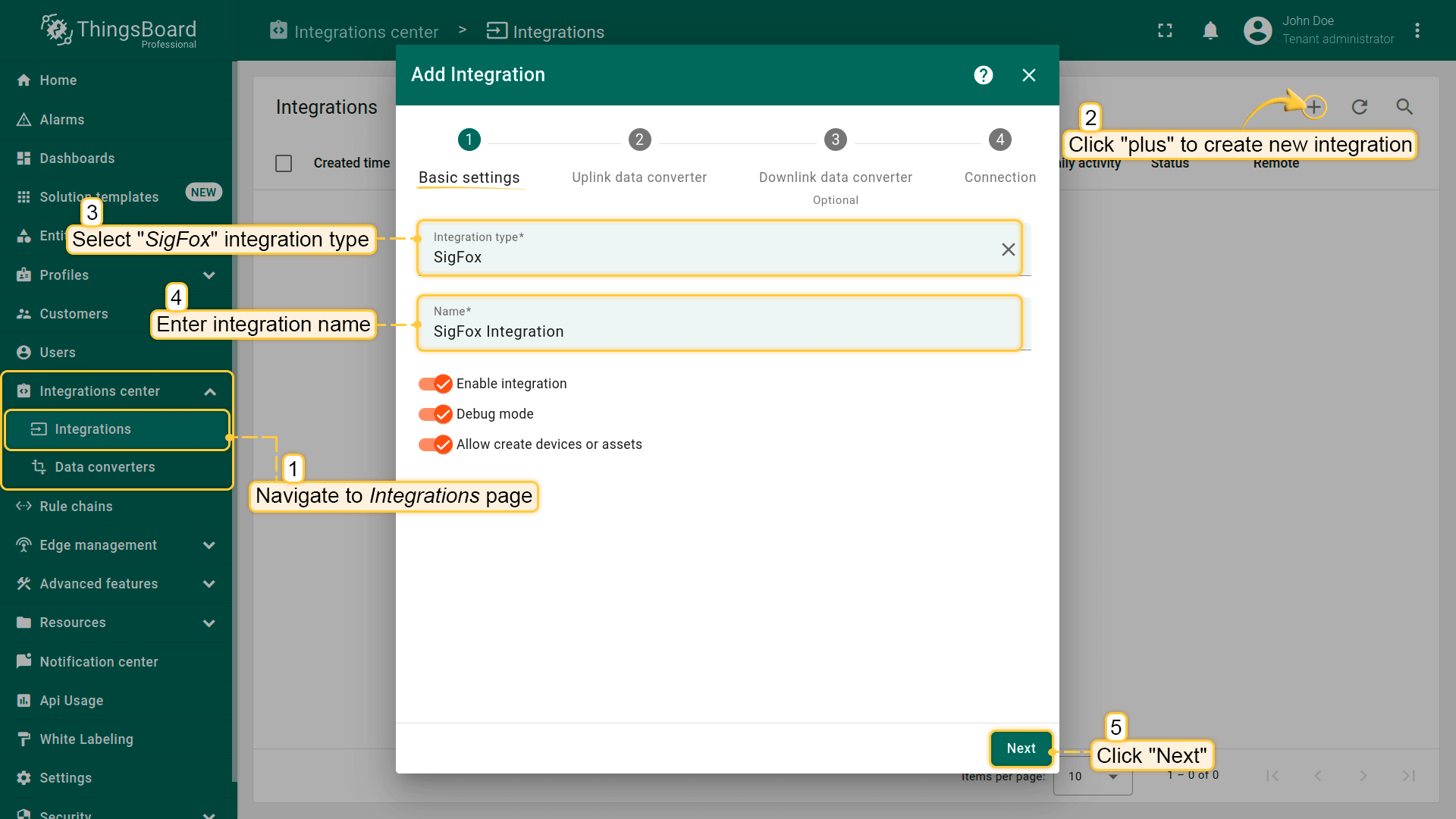
- 进入集成中心 -> 集成页面,点击”加号”图标添加新的集成。将其命名为”SigFox Integration“,选择类型为SigFox;
注意
如果未勾选”Allow create devices or assets”复选框,当向ThingsBoard发送包含设备(或资产)参数的消息时,如果该设备(资产)不存在,则不会自动创建该设备(资产)。
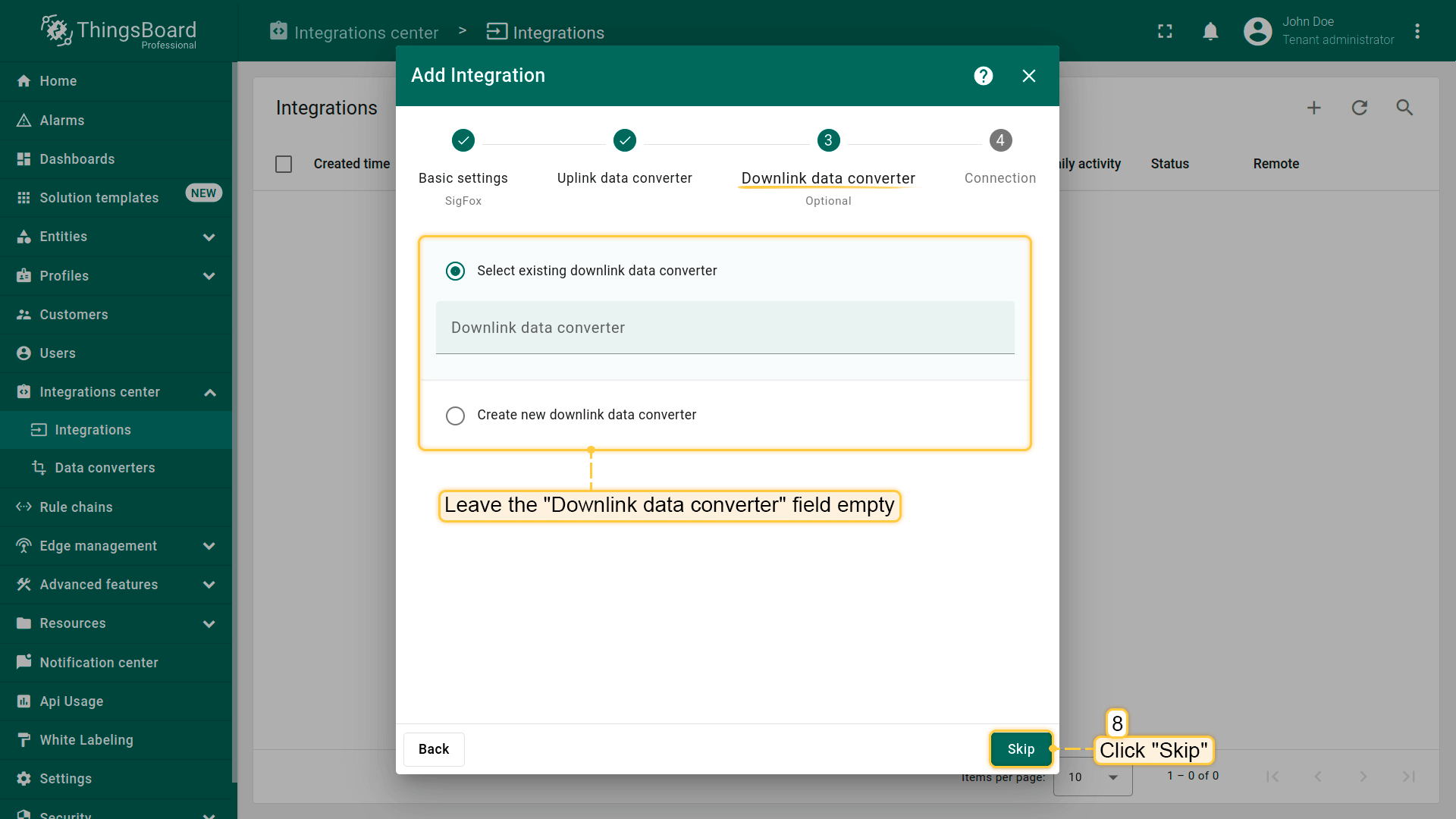
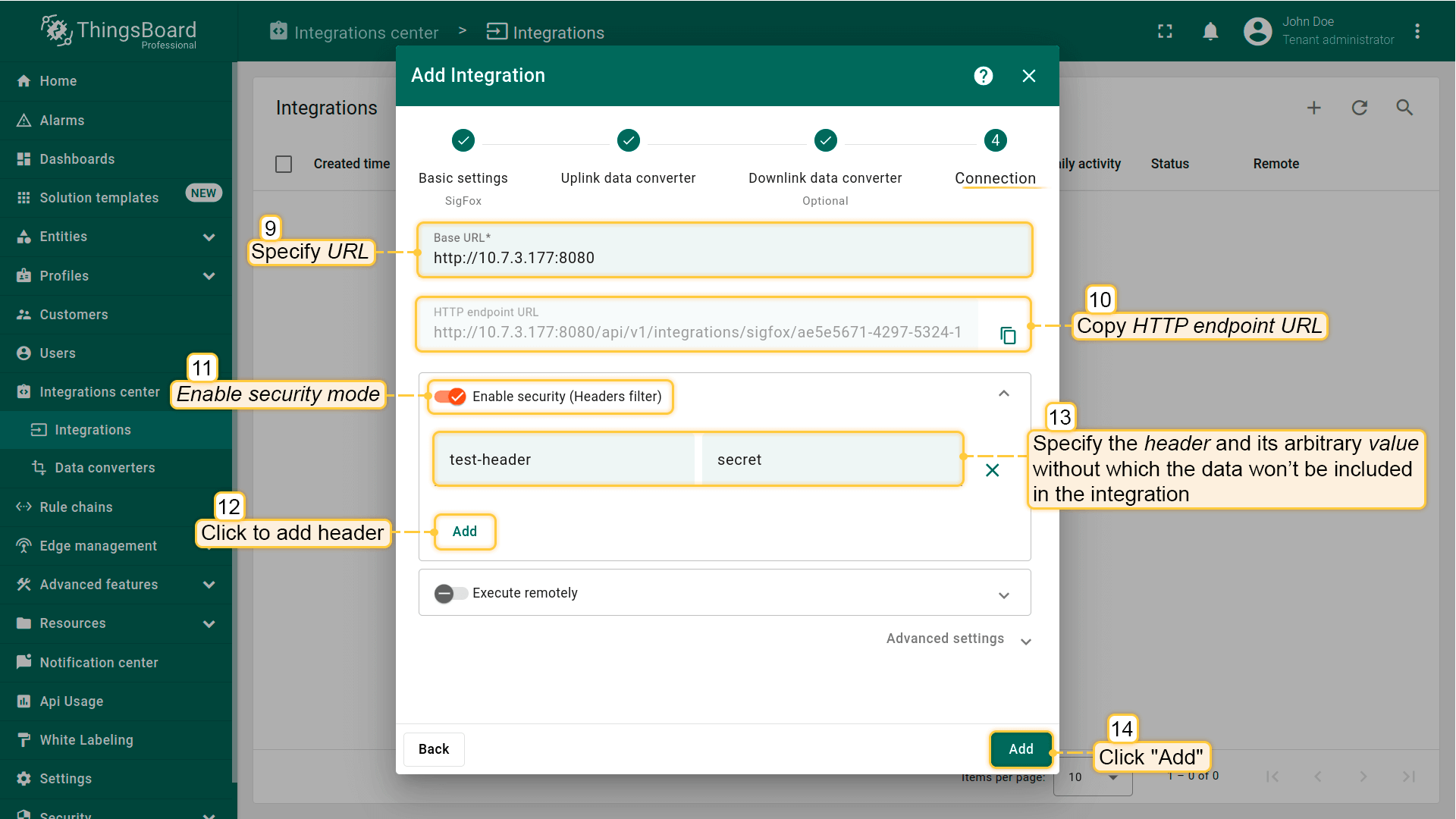
- 指定您的URL;
- 复制HTTP endpoint URL — 稍后将会用到;
- 如有需要,您可以指定附加参数,缺少这些参数数据将不会被纳入集成。为此,请勾选Enable security复选框并点击”Add”实体按钮。指定任意的header和value;
- 点击Add创建集成。
SigFox配置
现在我们需要设置Sigfox账户,以便将设备数据发送到ThingsBoard平台。
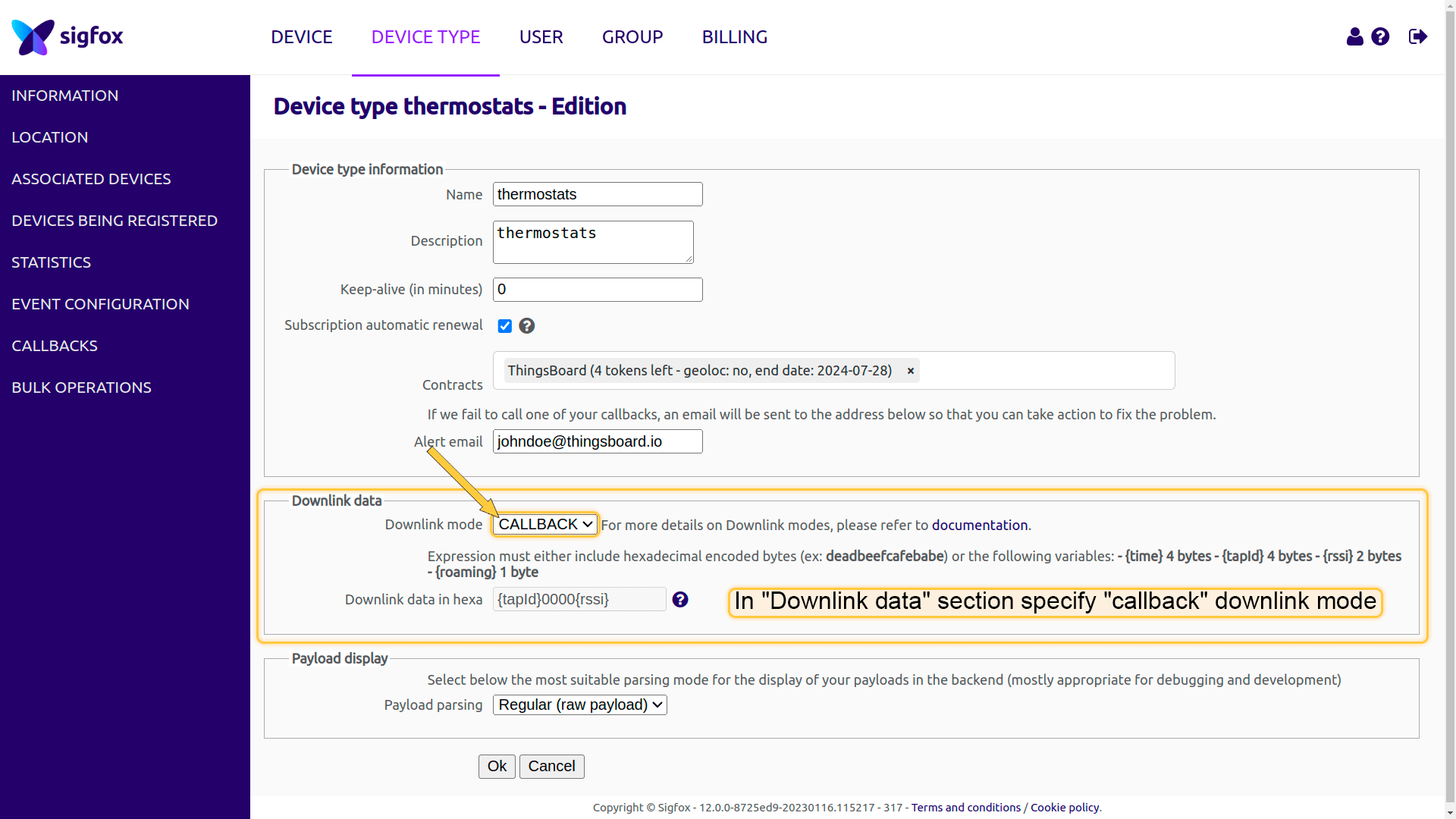
进入您的Sigfox账户 -> Device type -> 进入您的设备类型编辑模式。在本例中为”thermostats“。
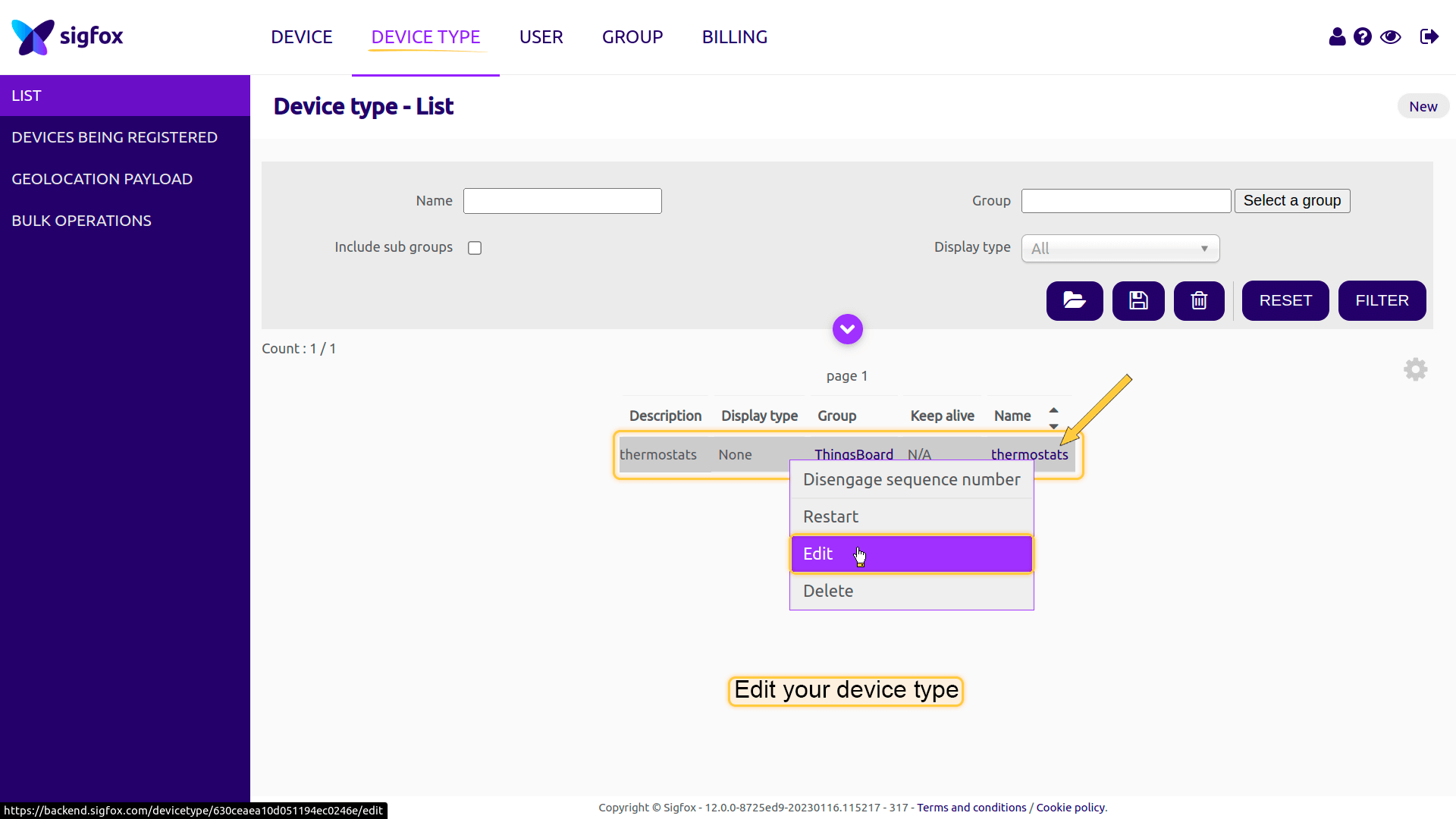
在”Downlink data“部分指定callback下行模式。
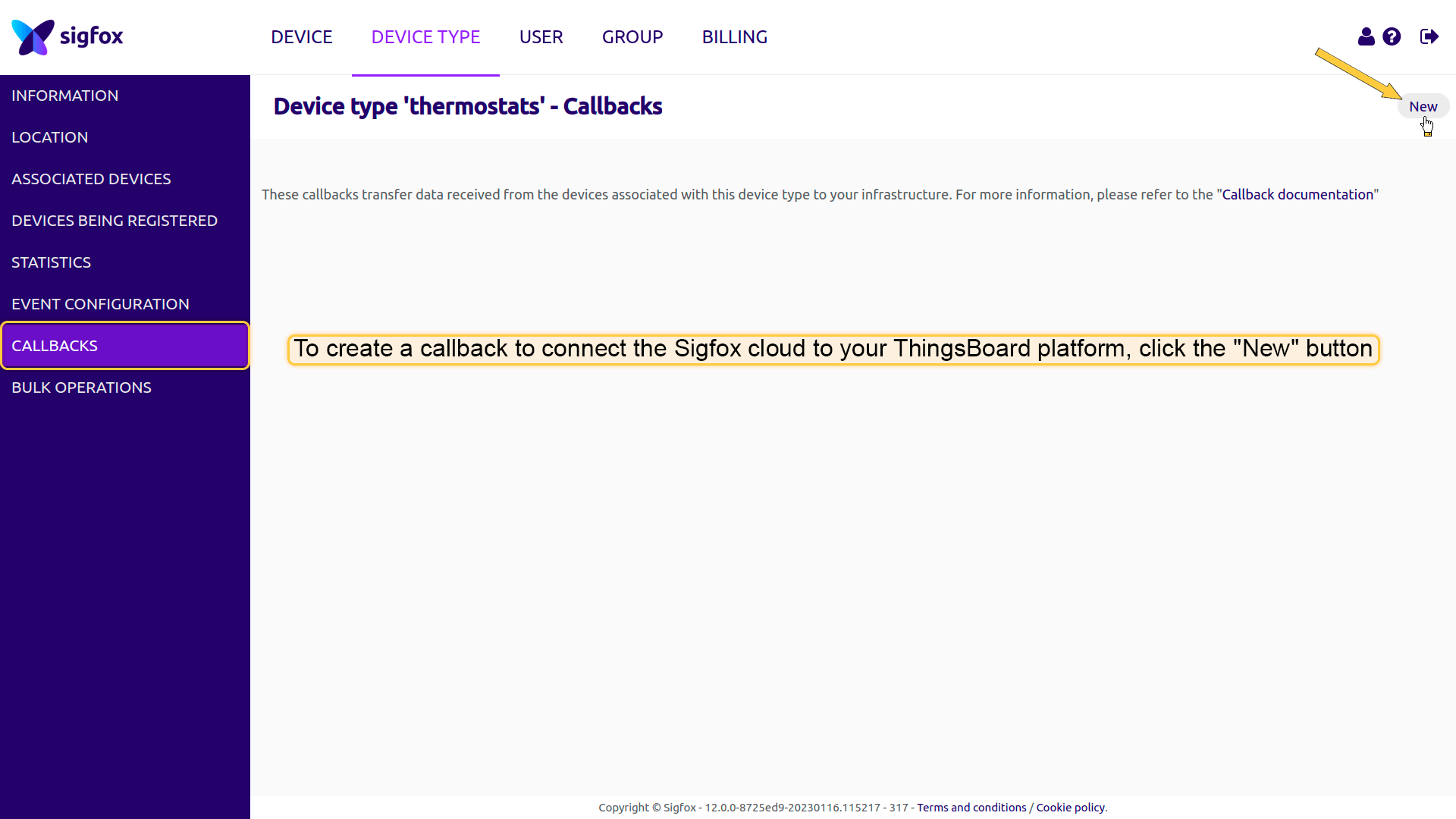
然后进入Callbacks选项卡。
callback是一种自定义HTTP请求,包含您的设备数据及其他变量,当Sigfox云端接收到设备消息时,该请求会被发送到指定的平台。
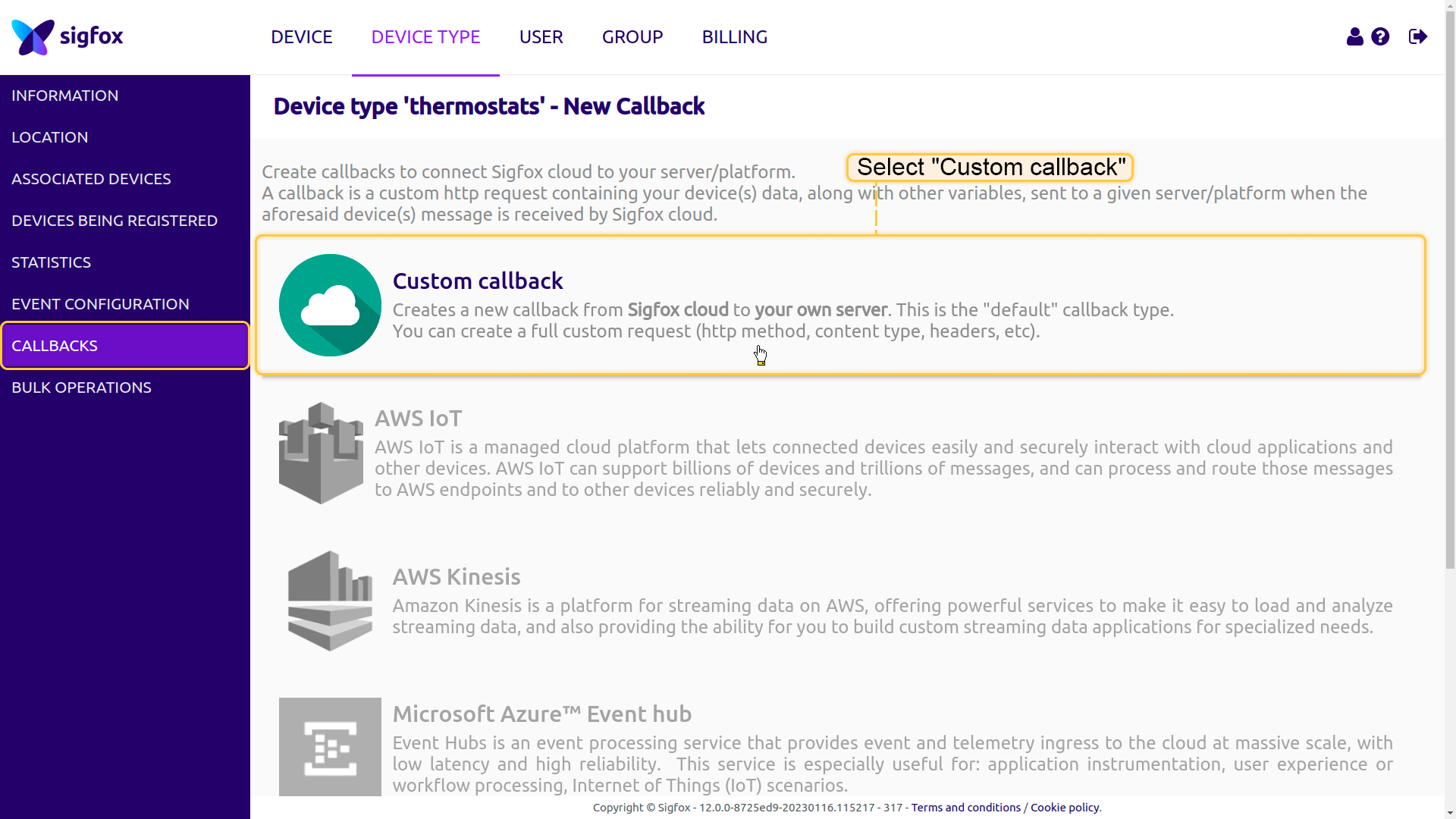
创建一个callback以将Sigfox云端连接到您的ThingsBoard平台。在右上角点击”New“按钮,然后选择”Custom callback“。
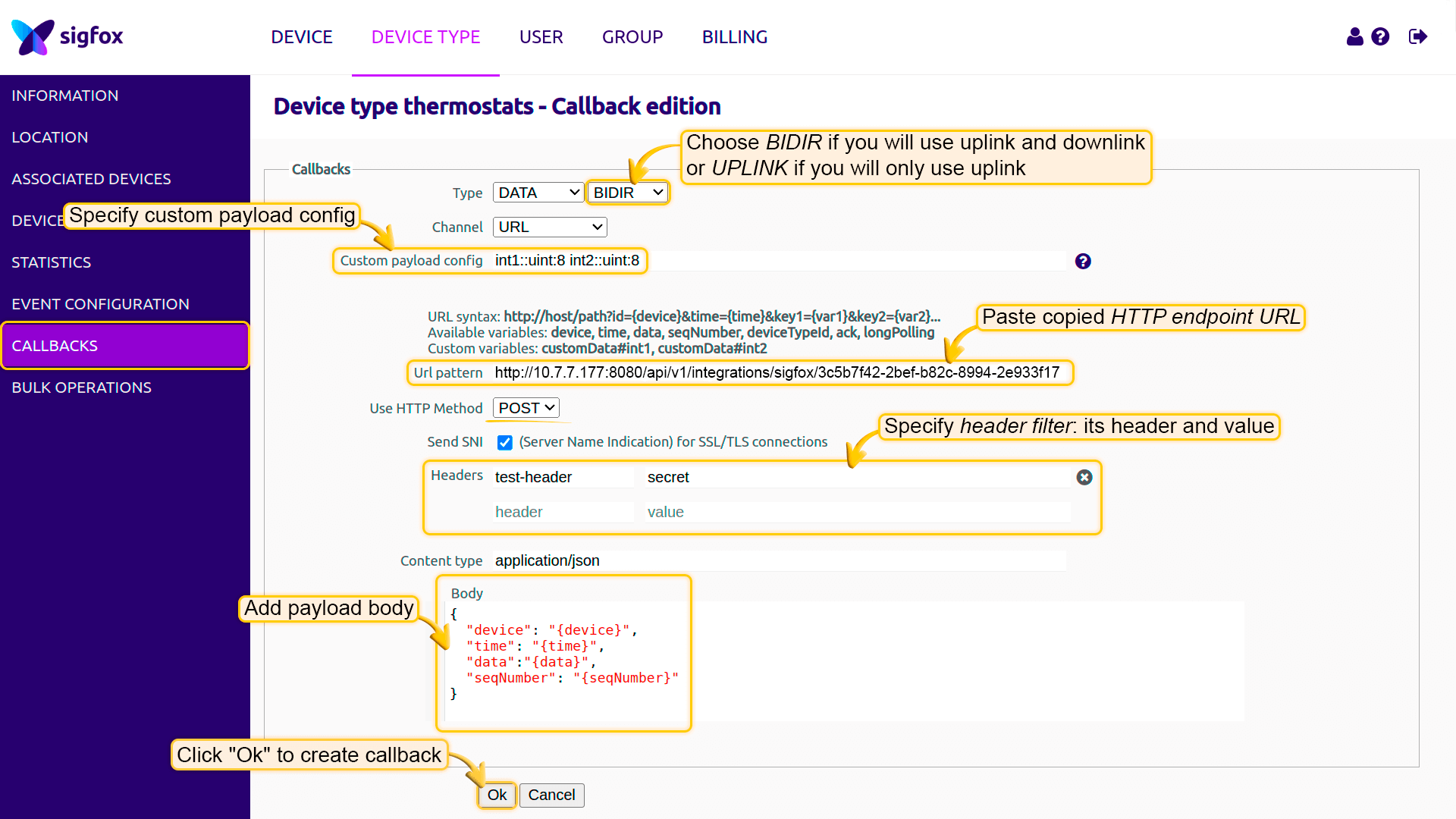
指定custom payload config、header filter,并将之前复制的HTTP endpoint URL粘贴到URL pattern行中。
添加与您设备消息结构匹配的消息体。点击”Ok“创建callback。
Payload body:
1
2
3
4
5
6
| {
"device": "{device}",
"time": "{time}",
"data":"{data}",
"seqNumber": "{seqNumber}"
}
|
激活下行callback。点击”Downlink“图标。
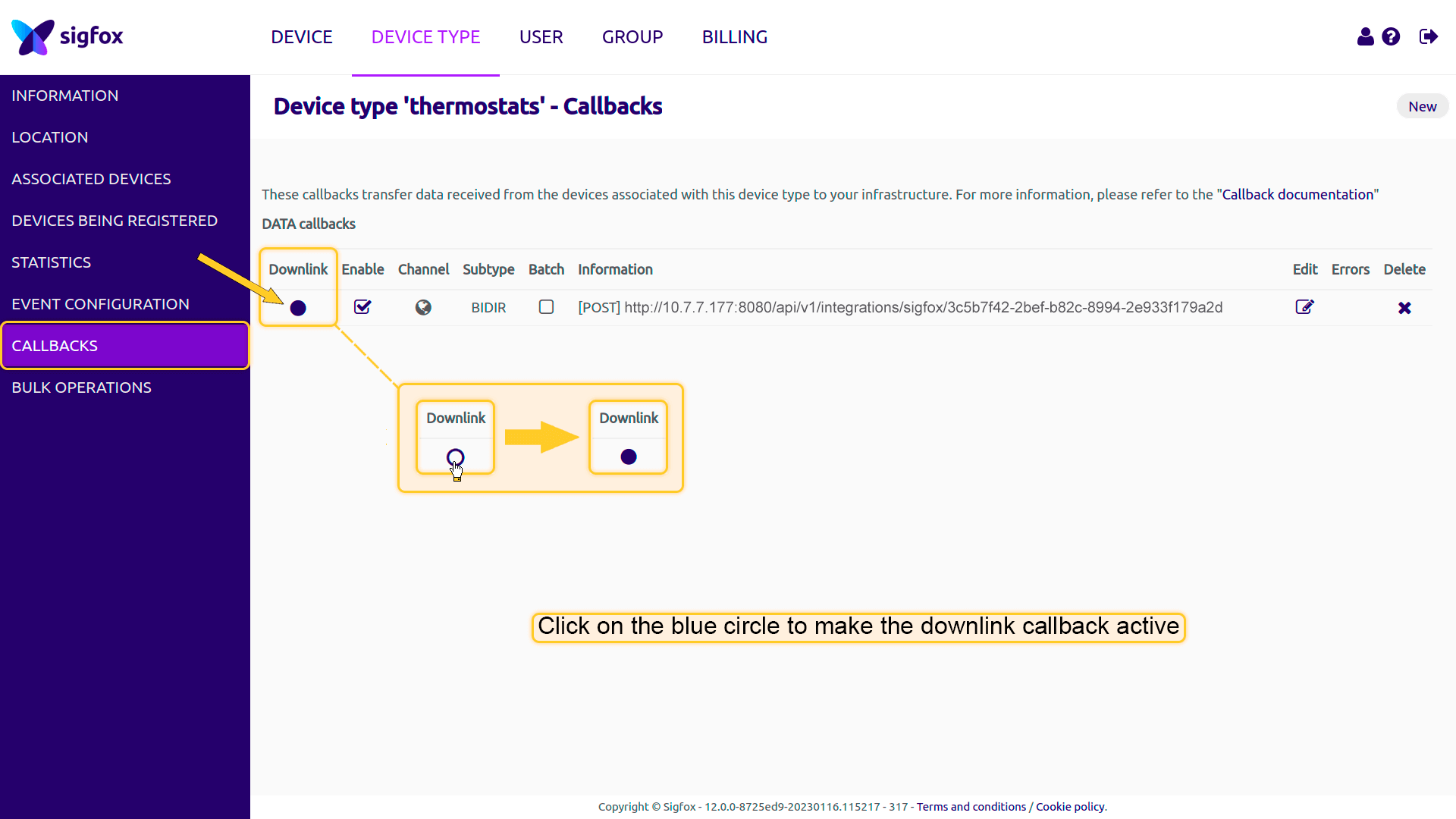
完成以上操作后,设备即可向ThingsBoard发送数据。从设备发送一条上行消息。
发送上行消息后,ThingsBoard中将自动创建一个新设备。您会收到一条通知。要查看通知,请点击屏幕右上角的”铃铛”图标。
通知中将包含指向由集成创建的Sigfox-2216792设备的链接(您的设备名称可能与本示例中显示的不同)。了解更多关于通知及其配置的信息,请参阅此处。
导航到该设备。
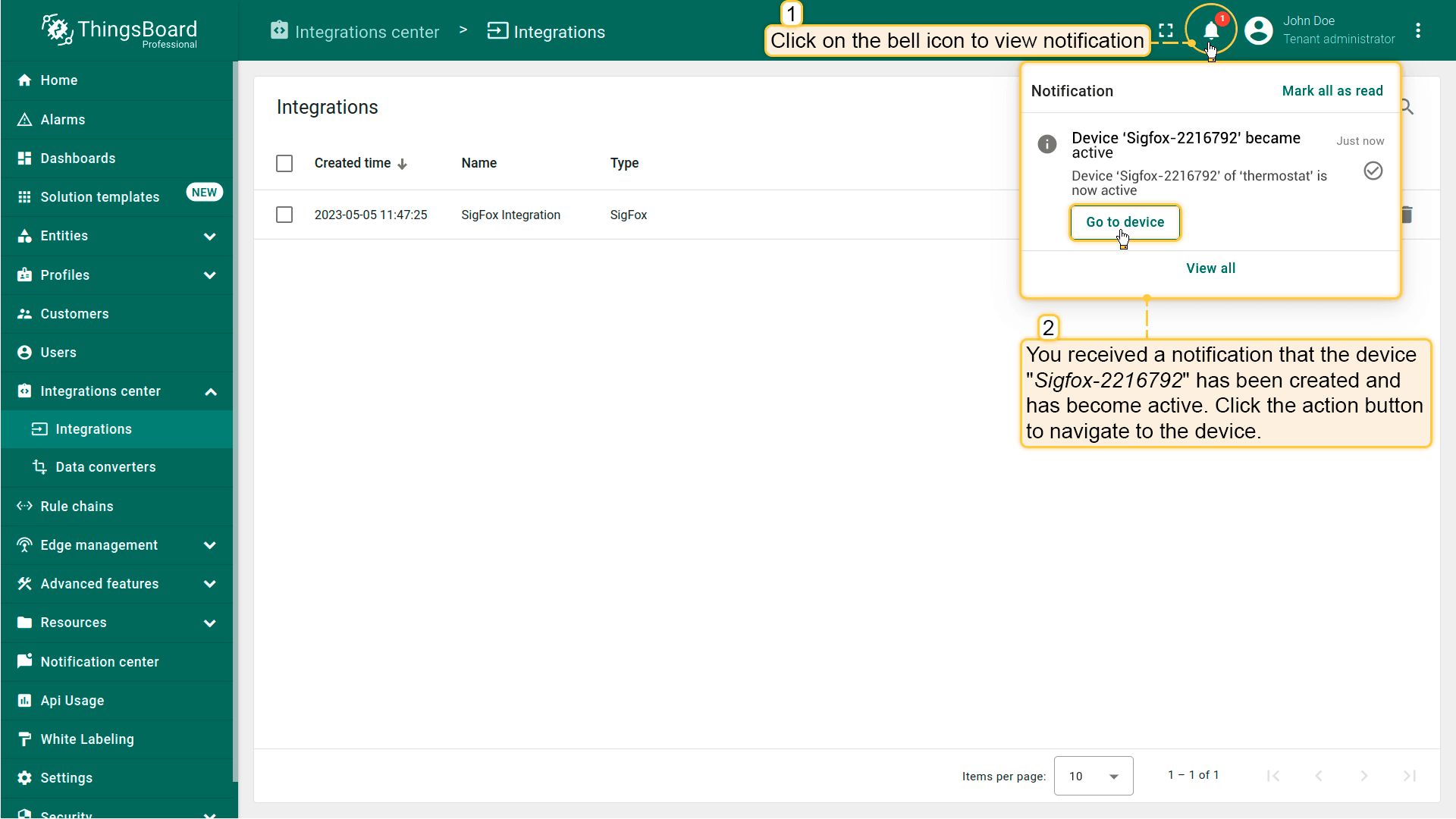
在此您将看到新设备的信息。导航到Latest telemetry选项卡查看键及其对应的值。
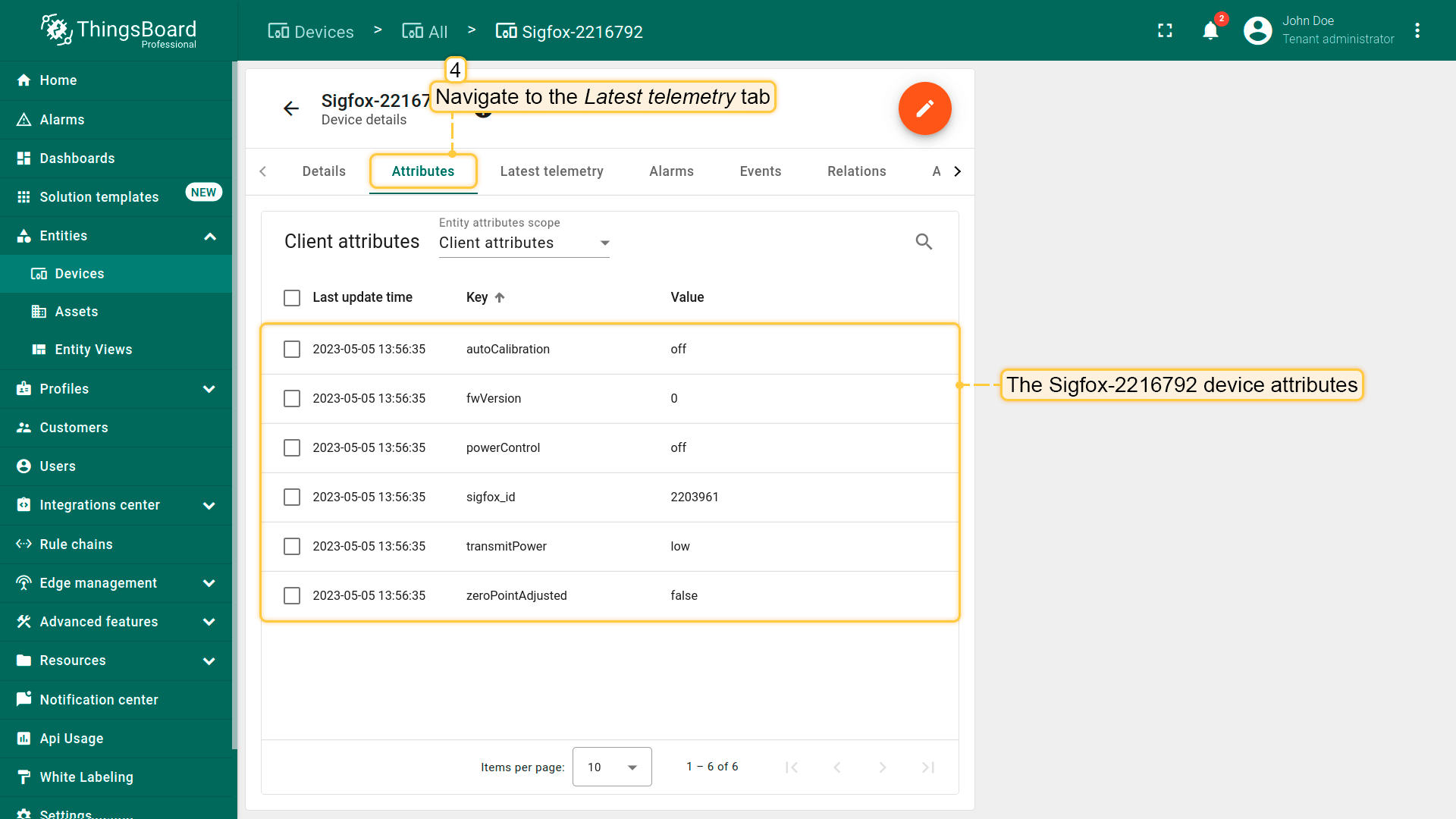
进入”Attributes“选项卡。在这里您可以查看设备的属性及其值。
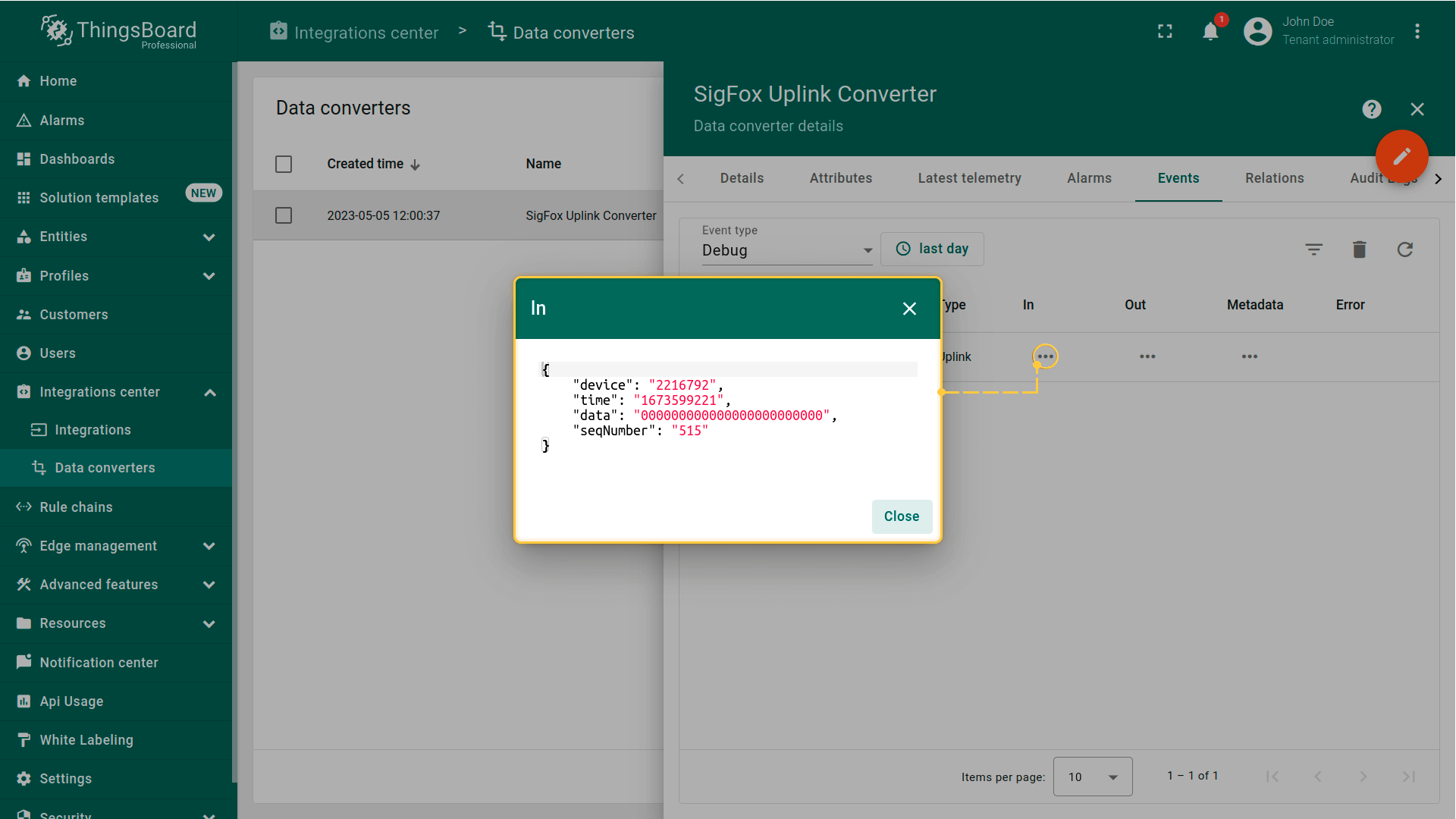
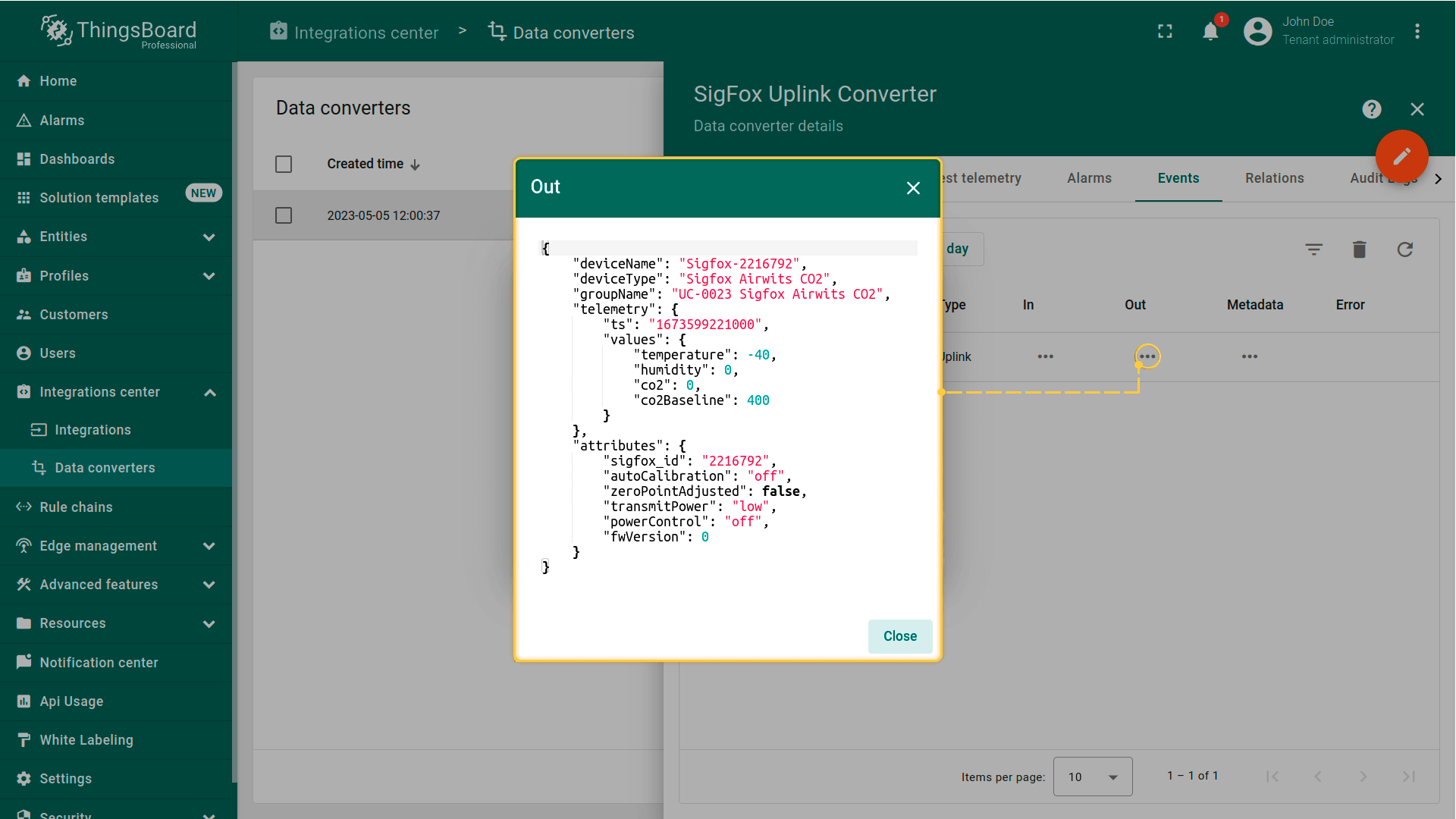
接收到的数据也可以在上行数据转换器中查看。在Events选项卡的”In“和”Out“区域中:
高级用法:下行
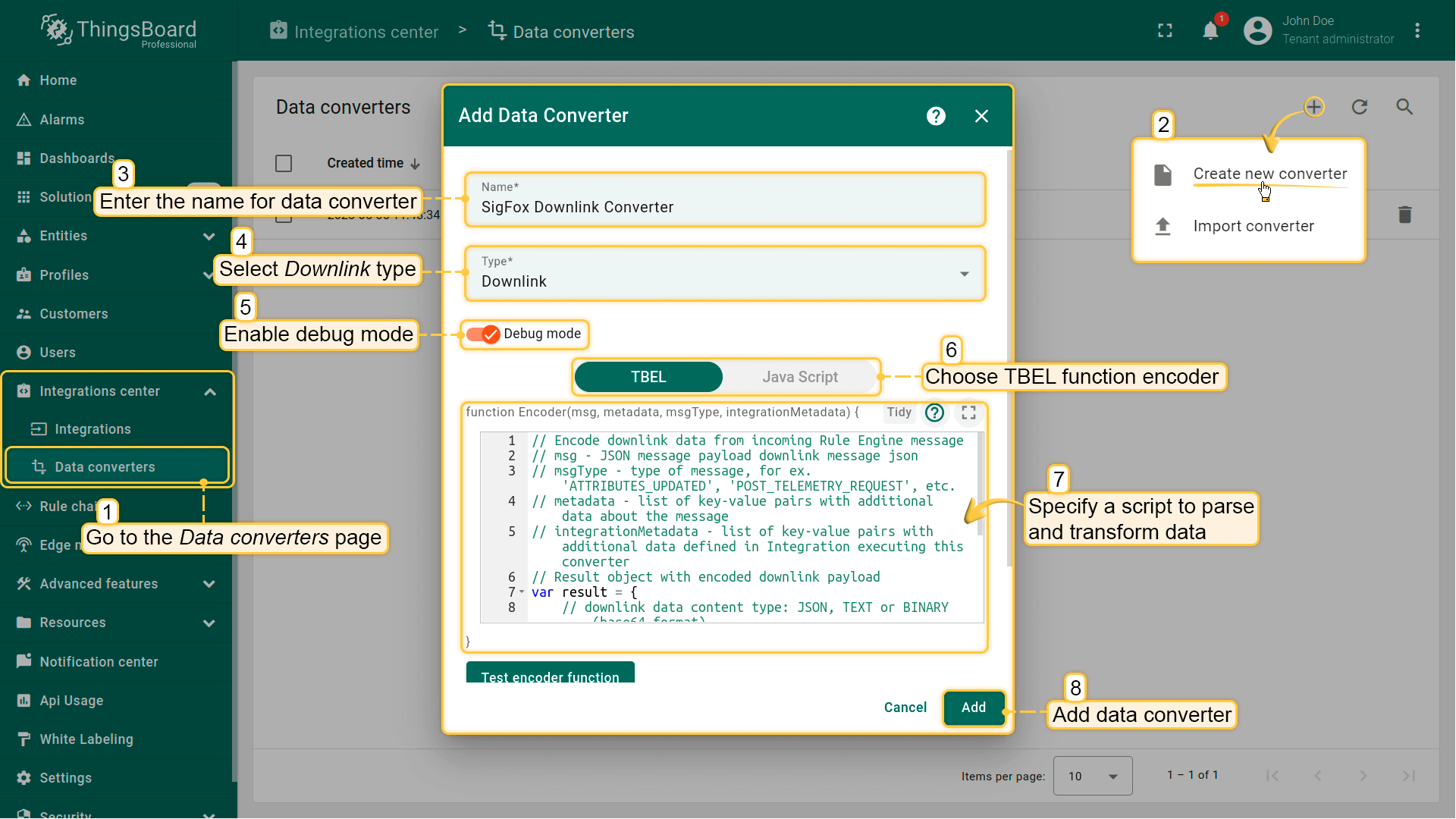
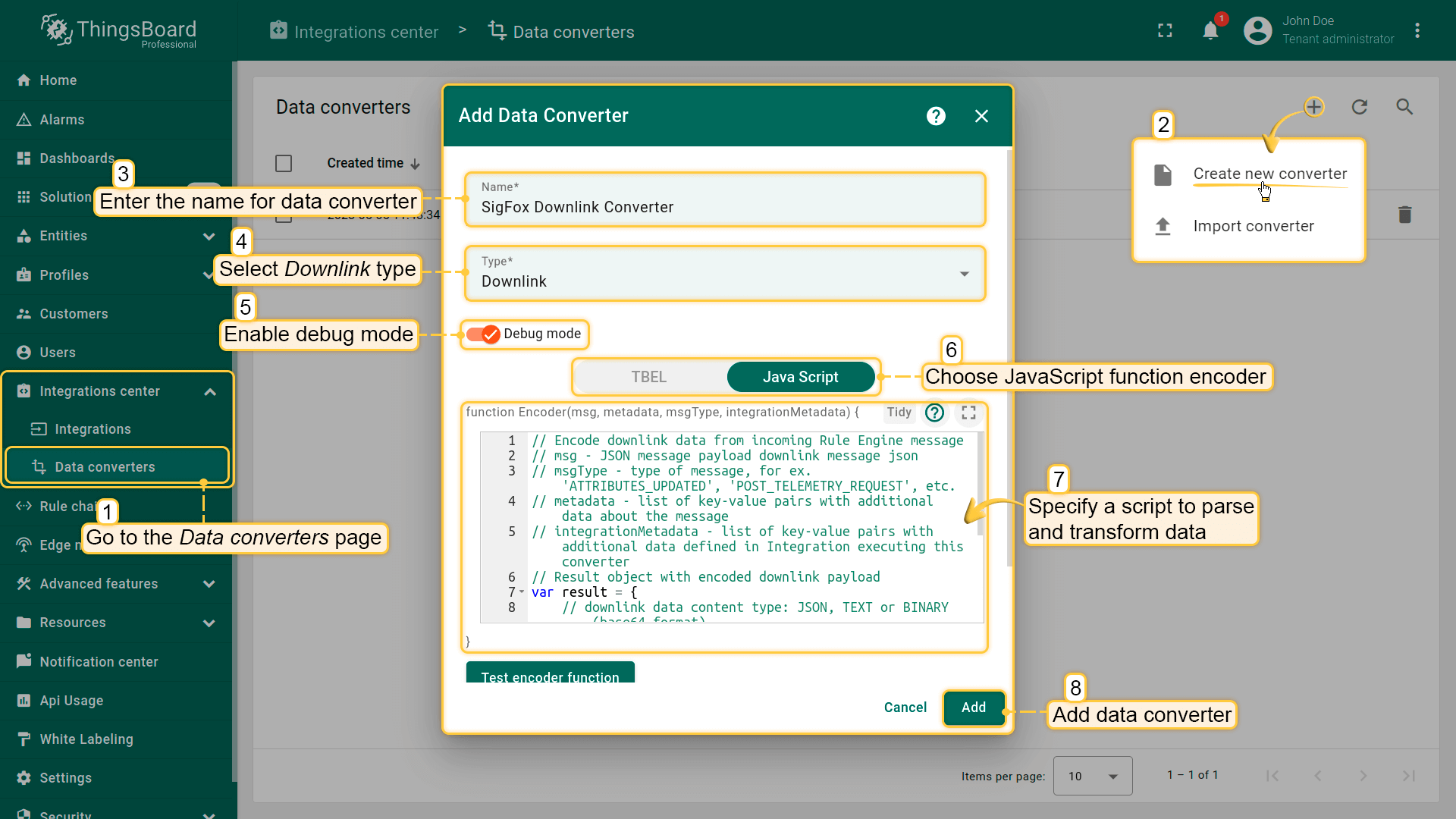
创建另一个转换器,命名为”SigFox Downlink Converter“,并选择类型为Downlink。要查看事件,请启用调试模式。
可使用我们的 downlink converter 示例,或根据您的配置自行编写:
1
2
3
4
5
6
7
8
9
10
11
12
13
14
15
16
17
| // Encode downlink data from incoming Rule Engine message
// msg - JSON message payload downlink message json
// msgType - type of message, for ex. 'ATTRIBUTES_UPDATED', 'POST_TELEMETRY_REQUEST', etc.
// metadata - list of key-value pairs with additional data about the message
// integrationMetadata - list of key-value pairs with additional data defined in Integration executing this converter
// Result object with encoded downlink payload
var result = {
// downlink data content type: JSON, TEXT or BINARY (base64 format)
contentType: "TEXT",
// downlink data
data: msg.test,
// Optional metadata object presented in key/value format
metadata: {
"device": "2203961"
}
};
return result;
|
|
可使用我们的 downlink converter 示例,或根据您的配置自行编写:
1
2
3
4
5
6
7
8
9
10
11
12
13
14
15
16
17
| // Encode downlink data from incoming Rule Engine message
// msg - JSON message payload downlink message json
// msgType - type of message, for ex. 'ATTRIBUTES_UPDATED', 'POST_TELEMETRY_REQUEST', etc.
// metadata - list of key-value pairs with additional data about the message
// integrationMetadata - list of key-value pairs with additional data defined in Integration executing this converter
// Result object with encoded downlink payload
var result = {
// downlink data content type: JSON, TEXT or BINARY (base64 format)
contentType: "TEXT",
// downlink data
data: msg.test,
// Optional metadata object presented in key/value format
metadata: {
"device": "2203961"
}
};
return result;
|
|
现在需要将下行数据转换器添加到集成中。
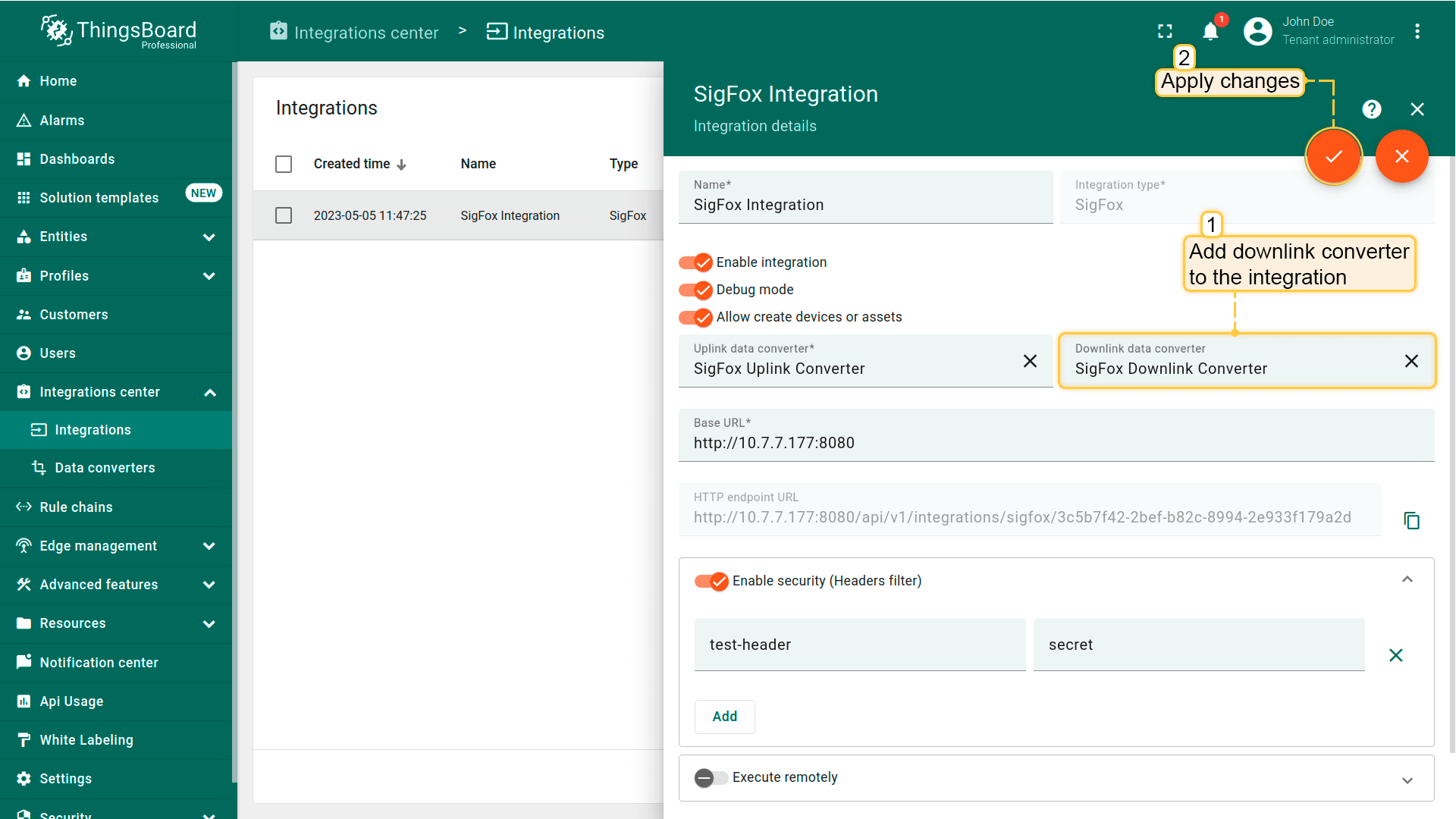
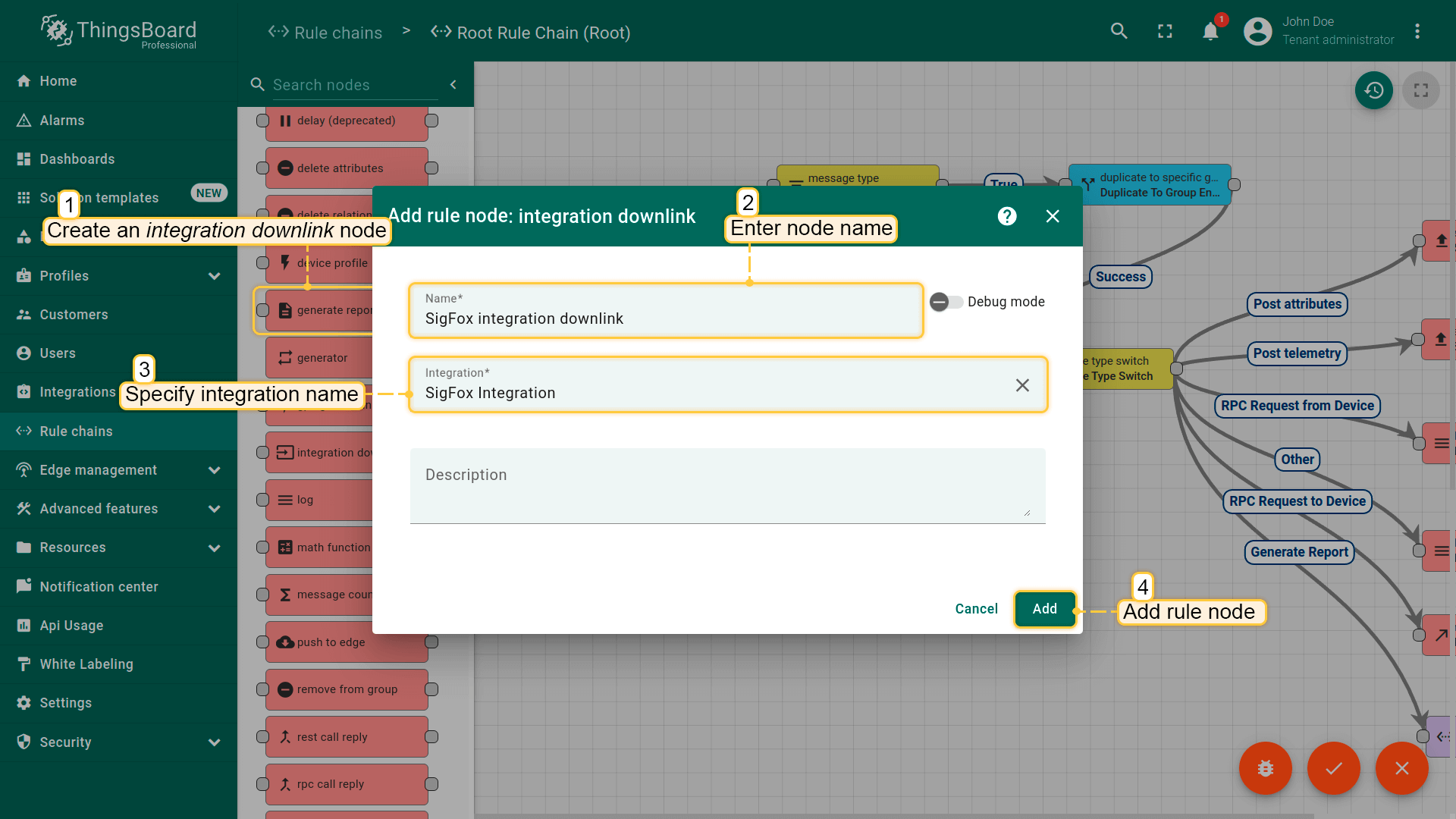
集成配置完成后,我们需要进入规则链页面,选择Root Rule Chain,并在此创建integration downlink节点。输入名称,选择之前创建的SigFox Integration,然后点击Add。
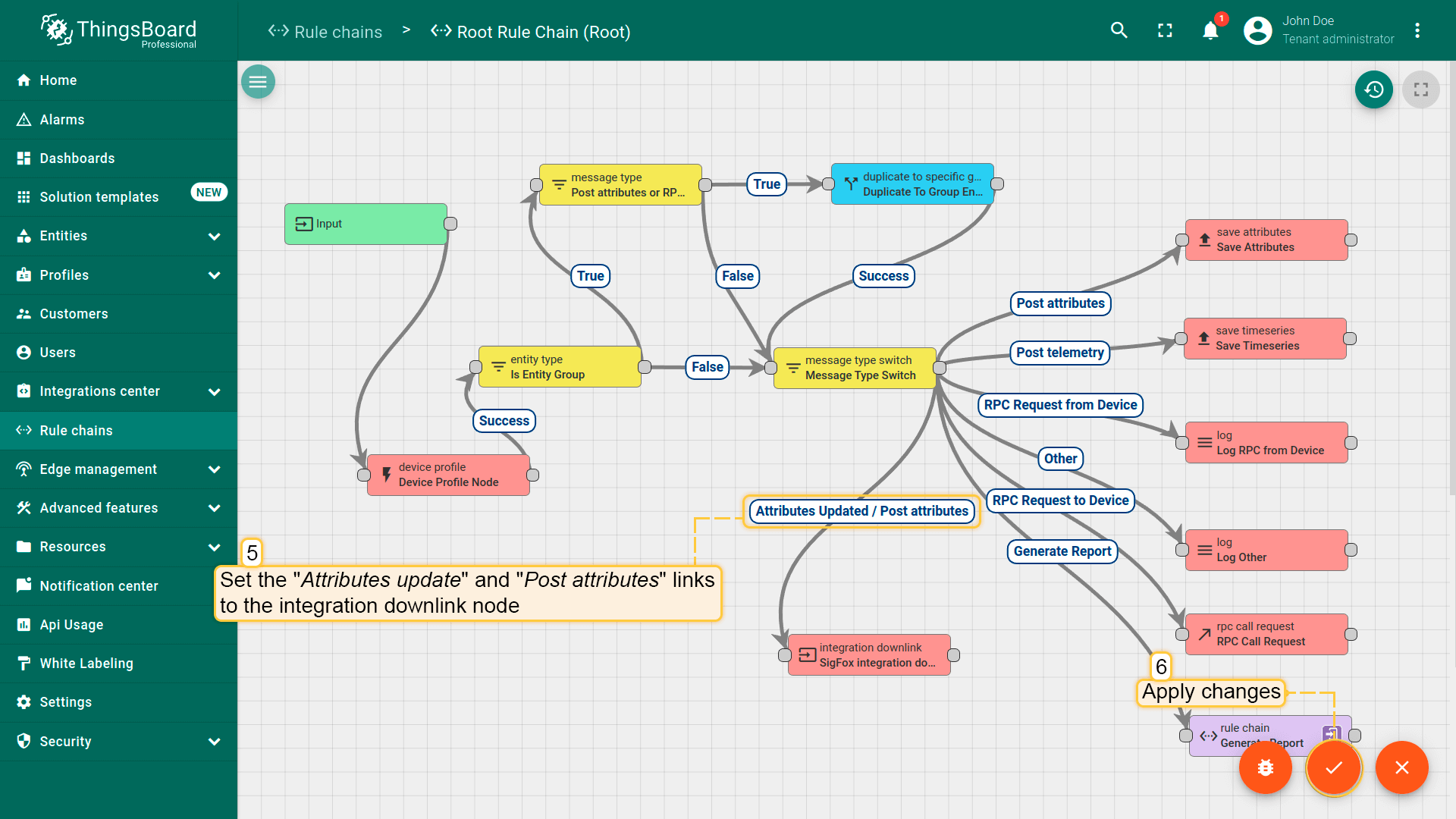
完成以上步骤后,我们需要点击message type switch节点右侧的灰色圆圈,并将其拖拽到integration downlink节点的左侧。在此选择”Attribute Update“和”Post attributes“,点击”Add”并保存Root Rule Chain。
测试下行
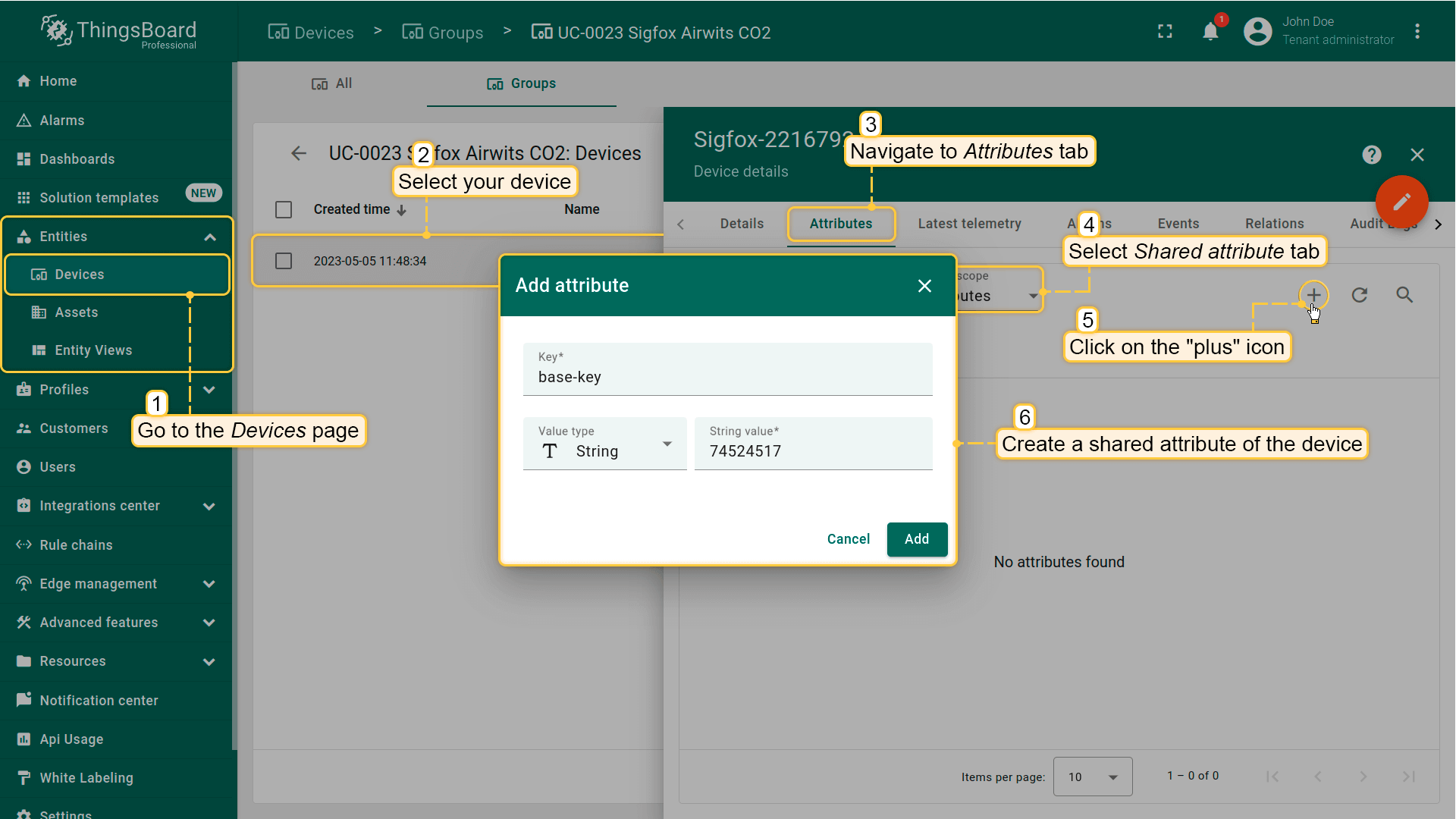
要测试下行功能,请在您的设备上创建一个共享属性,并对该设备发送一条上行消息。
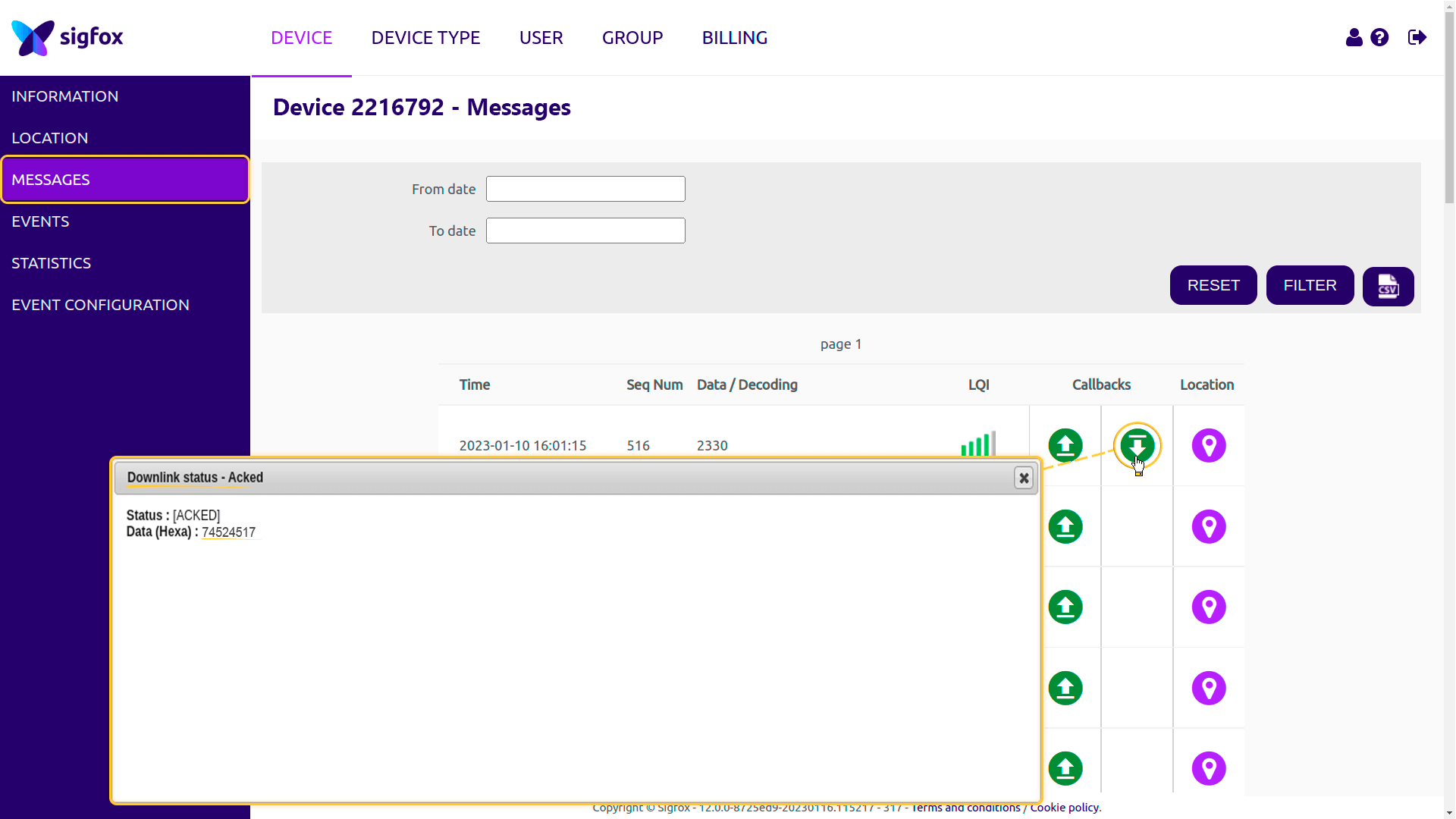
进入您的Sigfox账户 -> 选择您的设备 -> Messages选项卡。您将看到下行消息
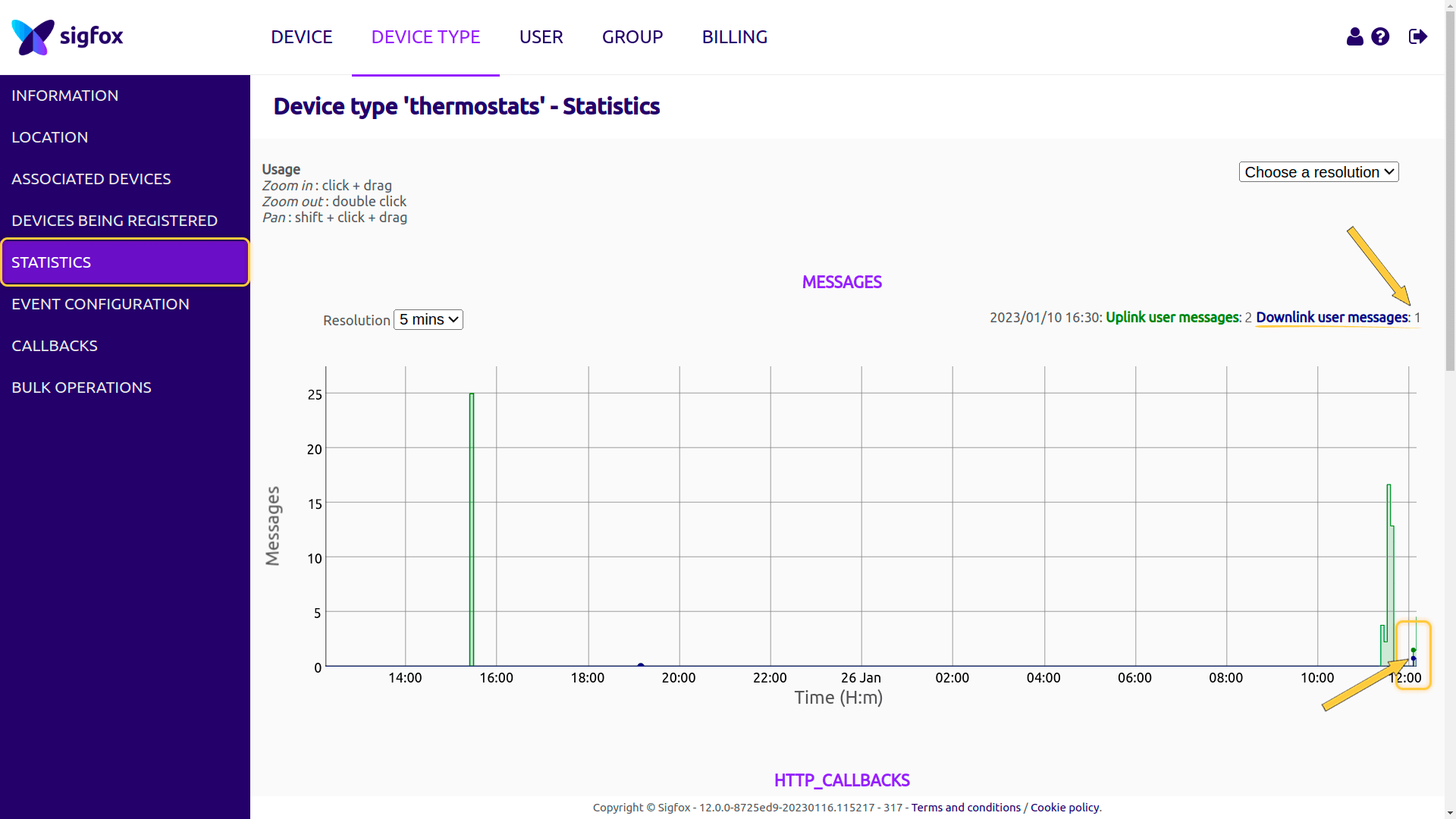
进入Statistics选项卡。您将在图表中看到下行消息。
视频教程
请观看以下视频教程,了解如何逐步设置SigFox集成。
下一步
-
快速入门指南 - 快速了解ThingsBoard主要功能,约15-30分钟完成。
-
数据可视化 - 配置ThingsBoard复杂仪表盘的说明。
-
数据处理与操作 - 学习使用ThingsBoard规则引擎。
-
IoT数据分析 - 学习使用规则引擎执行基本分析任务。
-
高级功能 - 了解ThingsBoard高级功能。