使用MQTT连接的设备可采用MQTT认证。需将设备凭证类型从\u201cAccessToken\u201d改为\u201cMQTTBasic\u201d。 BasicMQTT凭证包含可选的clientid、username和password。详见MQTTAPI。
下面说明如何修改设备凭证以及客户端如何用这些凭证连接设备。 可选方案包括:
仅基于clientid的认证
启用此方式时,只需在设备凭证中填写clientid。MQTT客户端在指定正确clientid后即可连接。
以下示例命令仅使用MQTT clientid向ThingsBoard Cloud发布telemetry读数。 命令使用plainMQTT,不启用TLS:
1
mosquitto_pub -d -q 1 -h "mqtt.eu.thingsboard.cloud" -p "1883" -t "v1/devices/me/telemetry" -i "YOUR_CLIENT_ID" -m {"temperature":25}
其中:
- YOUR_CLIENT_ID替换为您的clientid。
ThingsBoard提供\u201cCheckConnectivity\u201d功能,会根据host和您提供的设备凭证自动生成命令,您只需复制并执行即可。
以下示例仅使用MQTT clientid发布telemetry。首先,将设备凭证类型从\u201cAccessToken\u201d改为\u201cMQTTBasic\u201d:
- Go to the "Devices" page, click on your device to open the device details window, and click the "Manage credentials" button;
- In the "Device Credentials" window, select "MQTT Basic" credential type, and specify client ID. Click "Save".
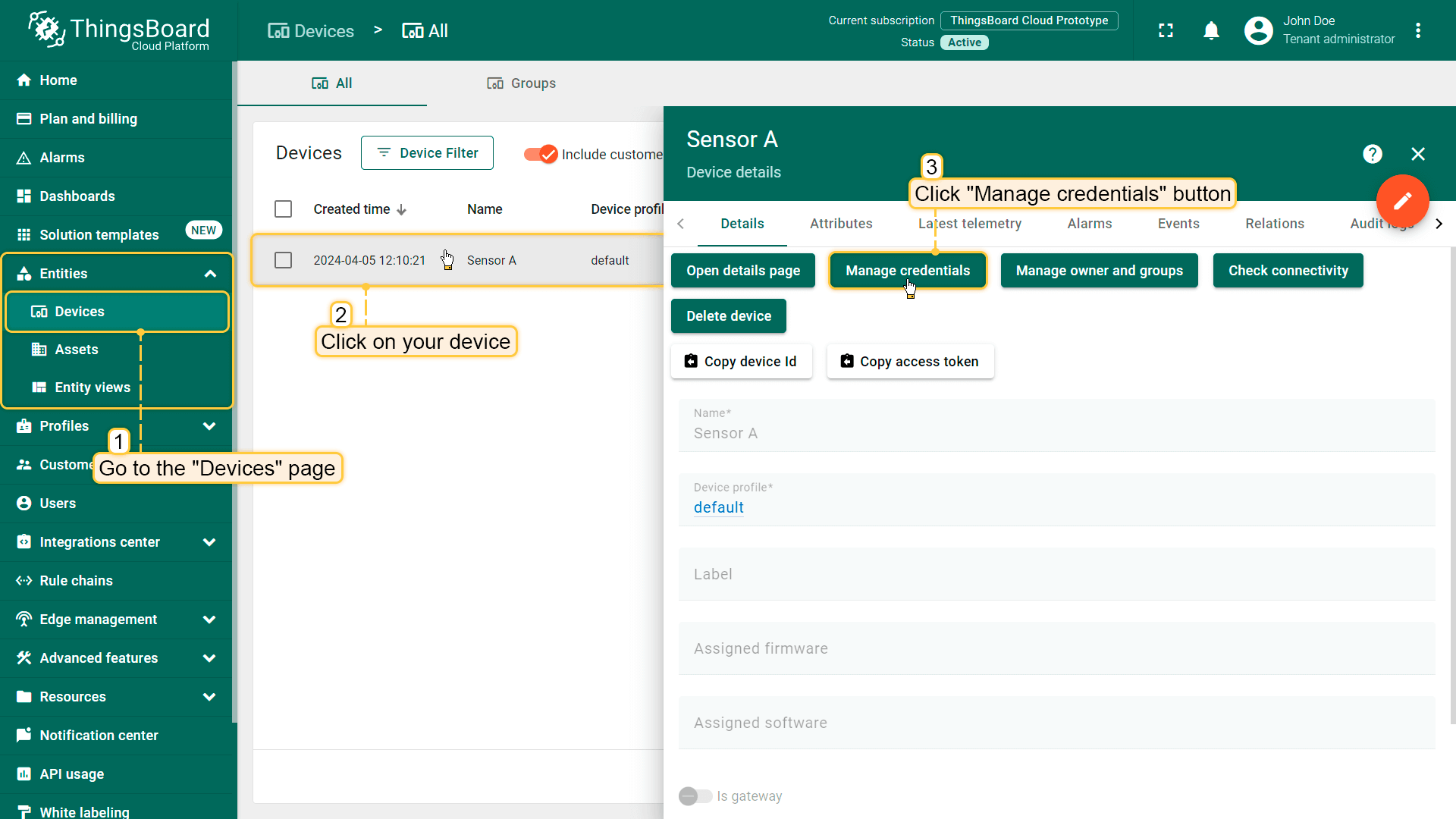
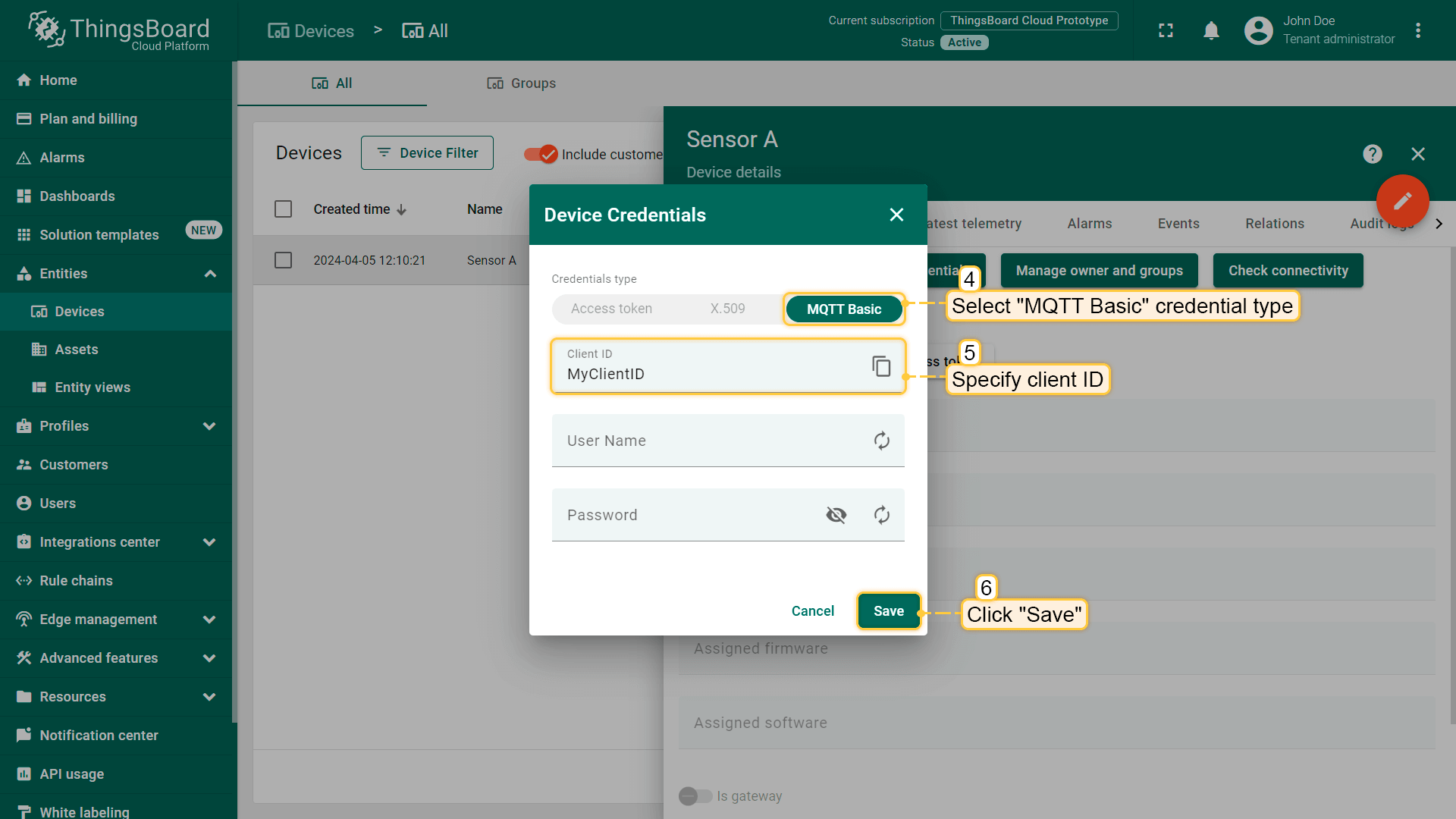
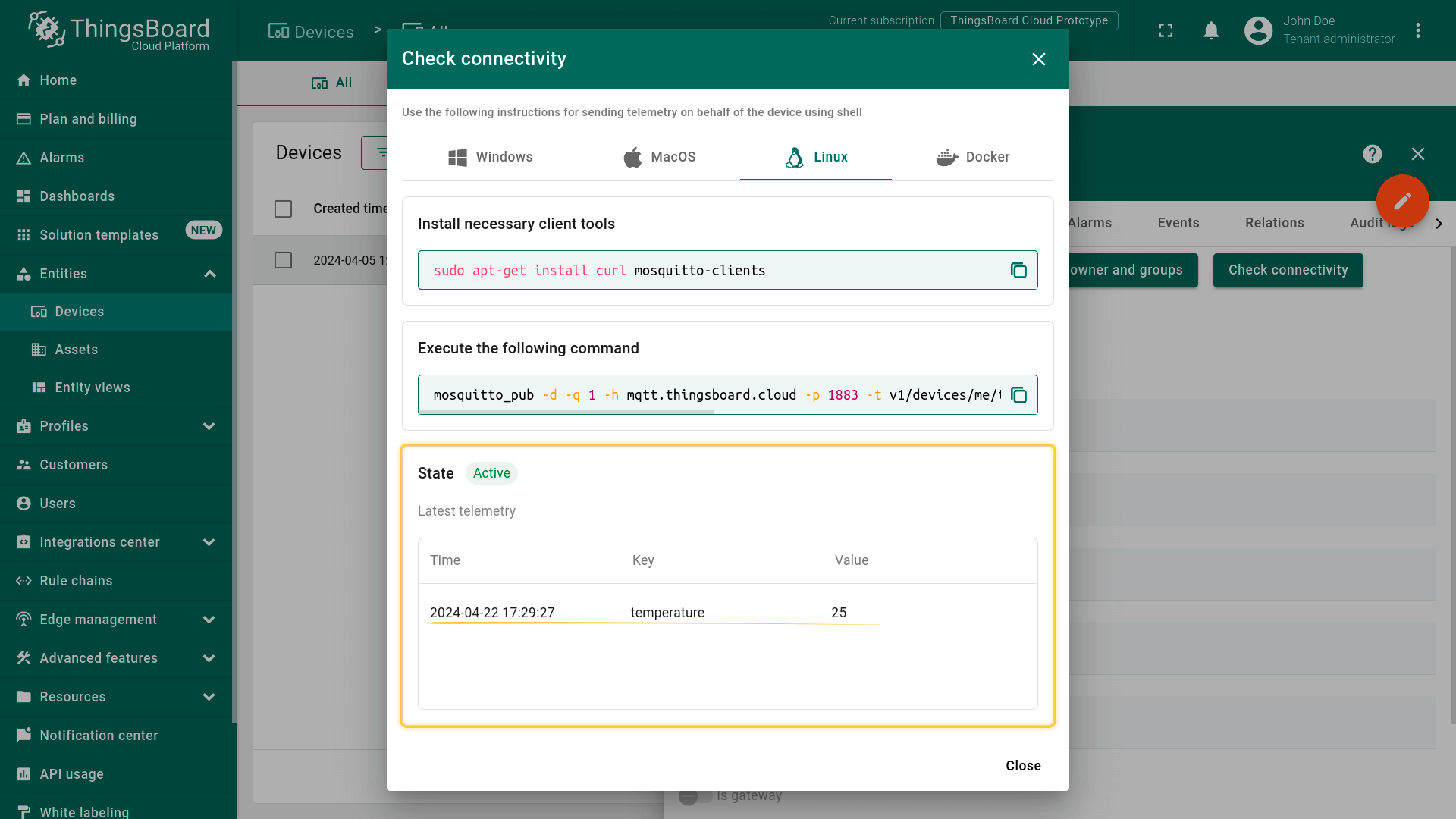
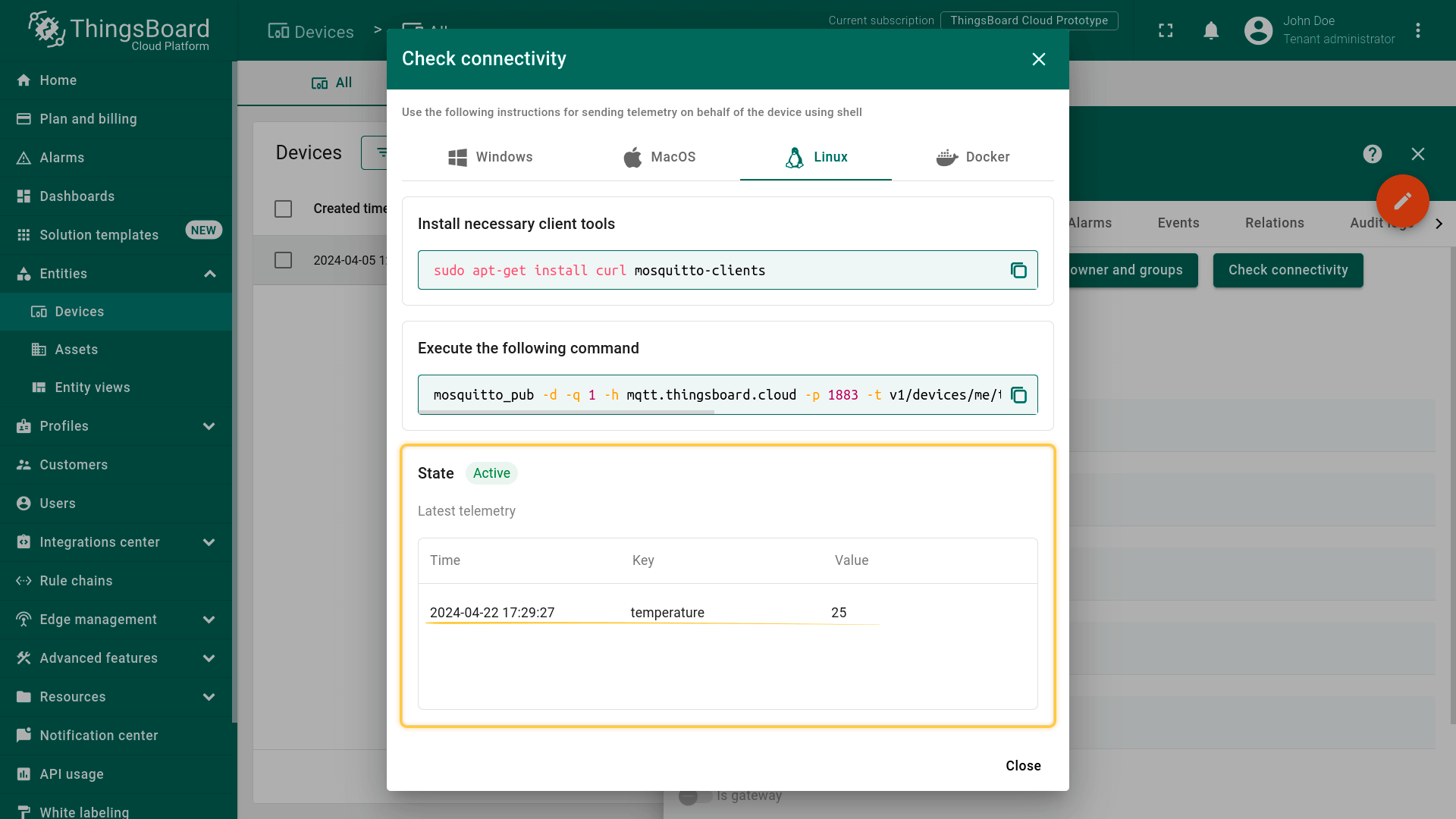
修改设备凭证后,使用\u201cCheck connectivity\u201d功能发布telemetry:
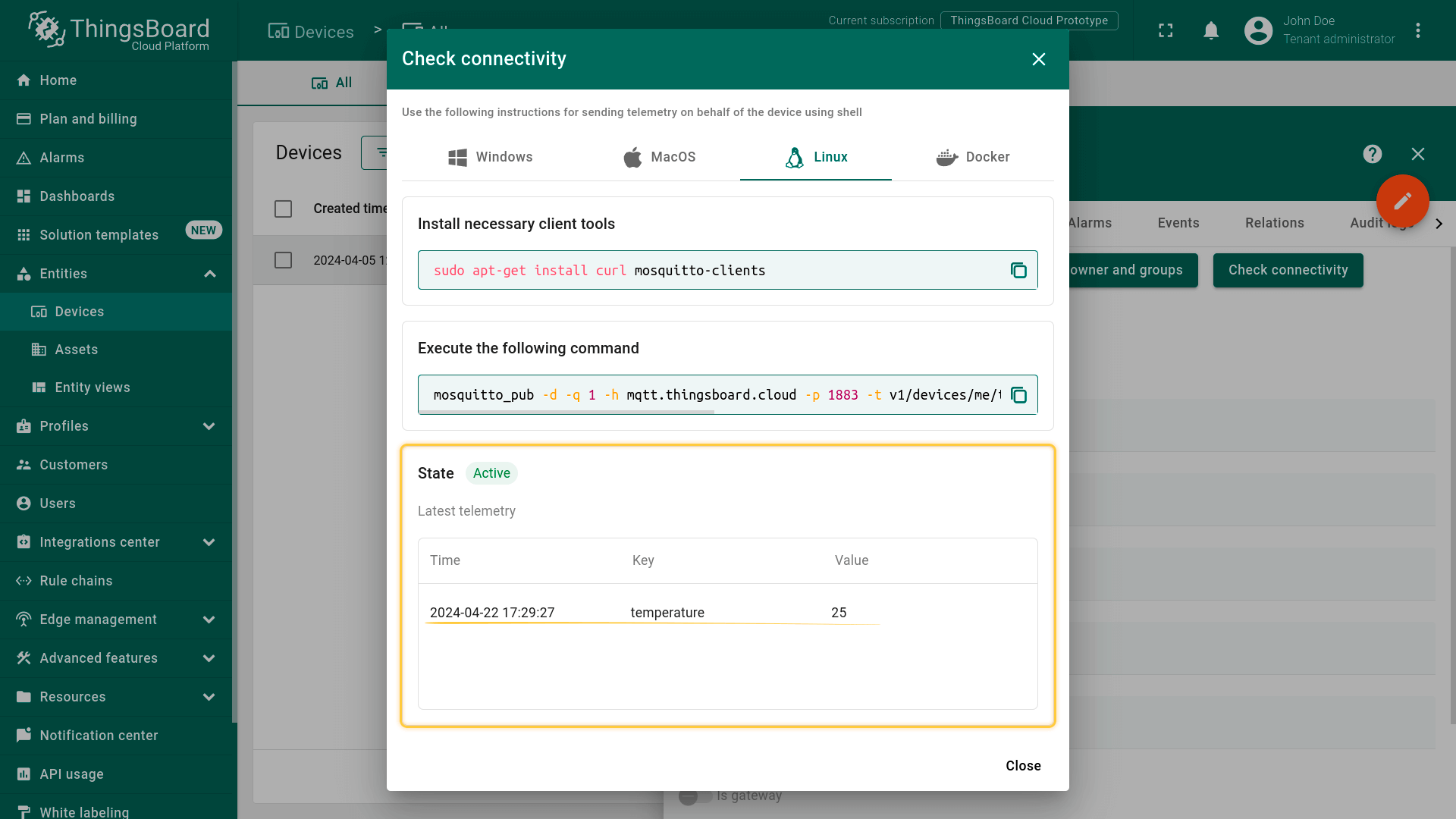
- 点击\u201cCheck connectivity\u201d按钮打开对应窗口;
- 在弹出窗口中选择操作系统;
- 按指南命令安装客户端工具;
- 复制并执行发布telemetry的命令;
命令执行成功后,应能看到已发布的temperature读数。
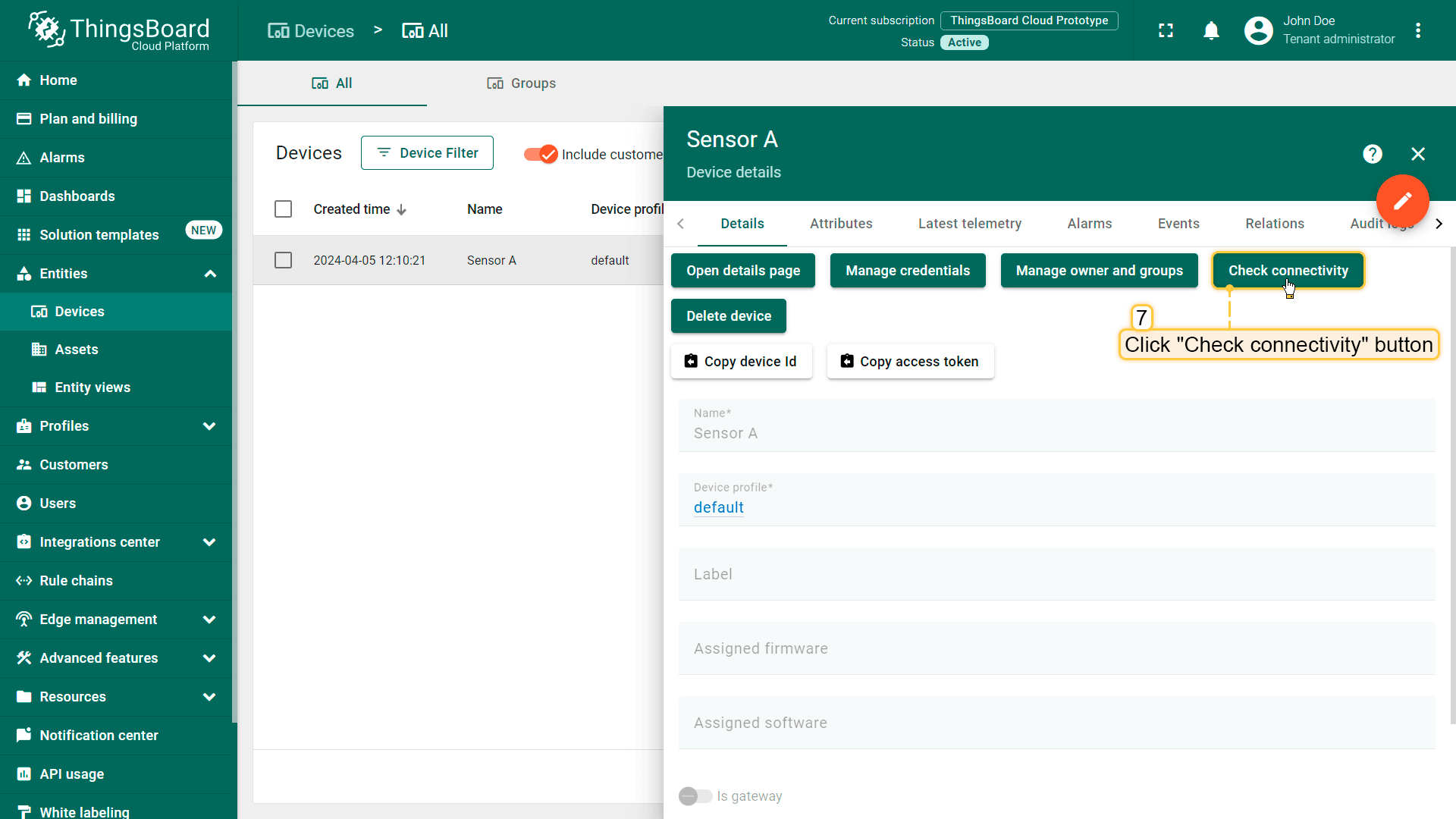
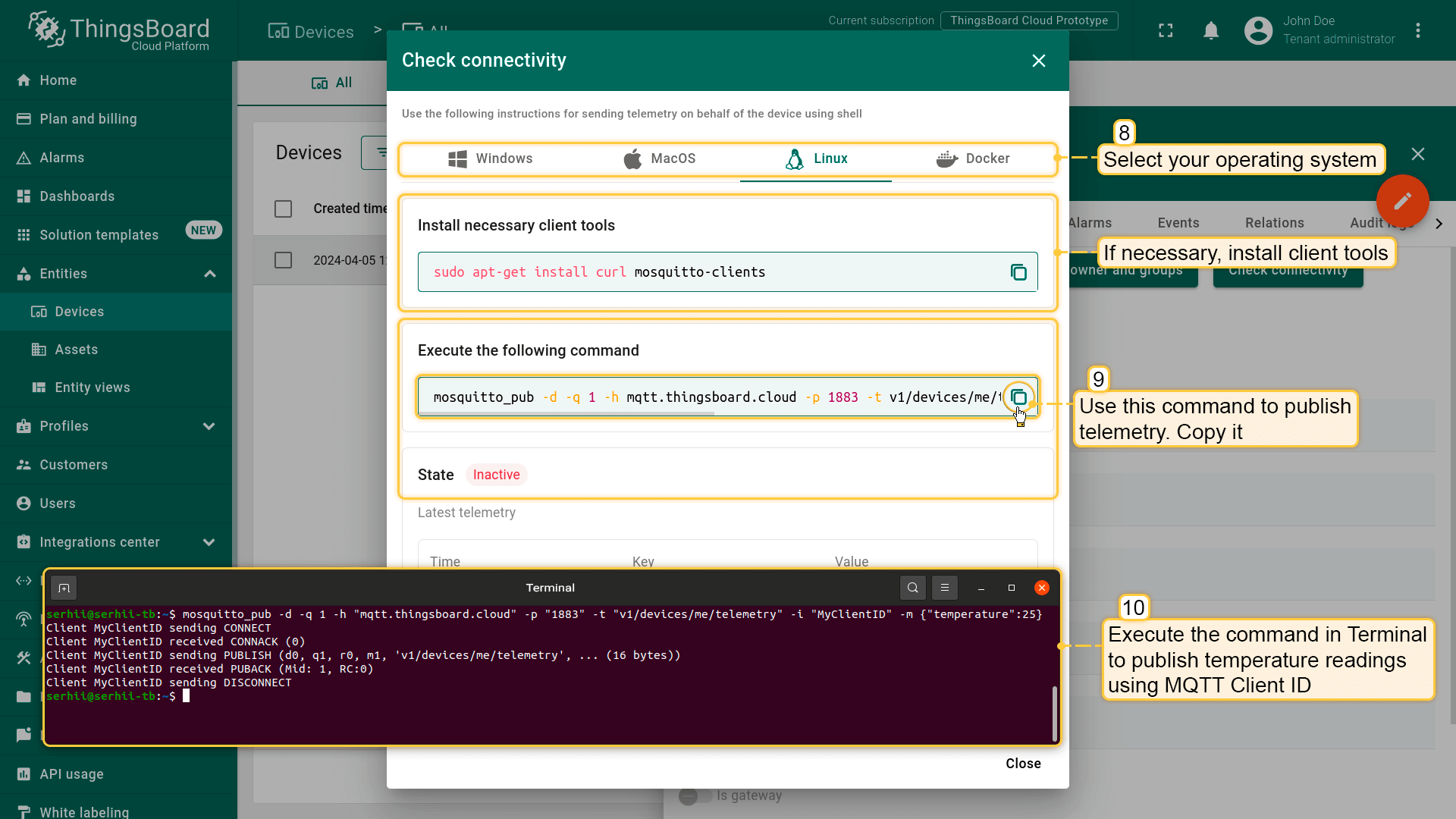
基于username和password的认证
只需在凭证表单中填写username和password。 MQTT客户端在指定正确的username和password后即可连接。
以下示例命令使用MQTT clientusername和password向ThingsBoard Cloud发布telemetry读数。命令使用plainMQTT,不启用TLS:
1
mosquitto_pub -d -q 1 -h "mqtt.eu.thingsboard.cloud" -p "1883" -t "v1/devices/me/telemetry" -u "YOUR_CLIENT_USERNAME" -P "YOUR_CLIENT_PASSWORD" -m {"temperature":25}
其中:
- YOUR_CLIENT_USERNAME、YOUR_CLIENT_PASSWORD替换为您的clientusername和password。
\u201cCheckConnectivity\u201d会根据您提供的host和设备凭证自动生成命令,您只需复制并执行即可。
以下示例使用MQTT clientusername和password发布telemetry。首先,将设备凭证类型从\u201cAccessToken\u201d改为\u201cMQTTBasic\u201d:
- Go to the "Devices" page, click on your device to open the device details window, and click the "Manage credentials" button;
- In the "Device Credentials" window, select "MQTT Basic" credential type, and specify username and password. Click "Save".
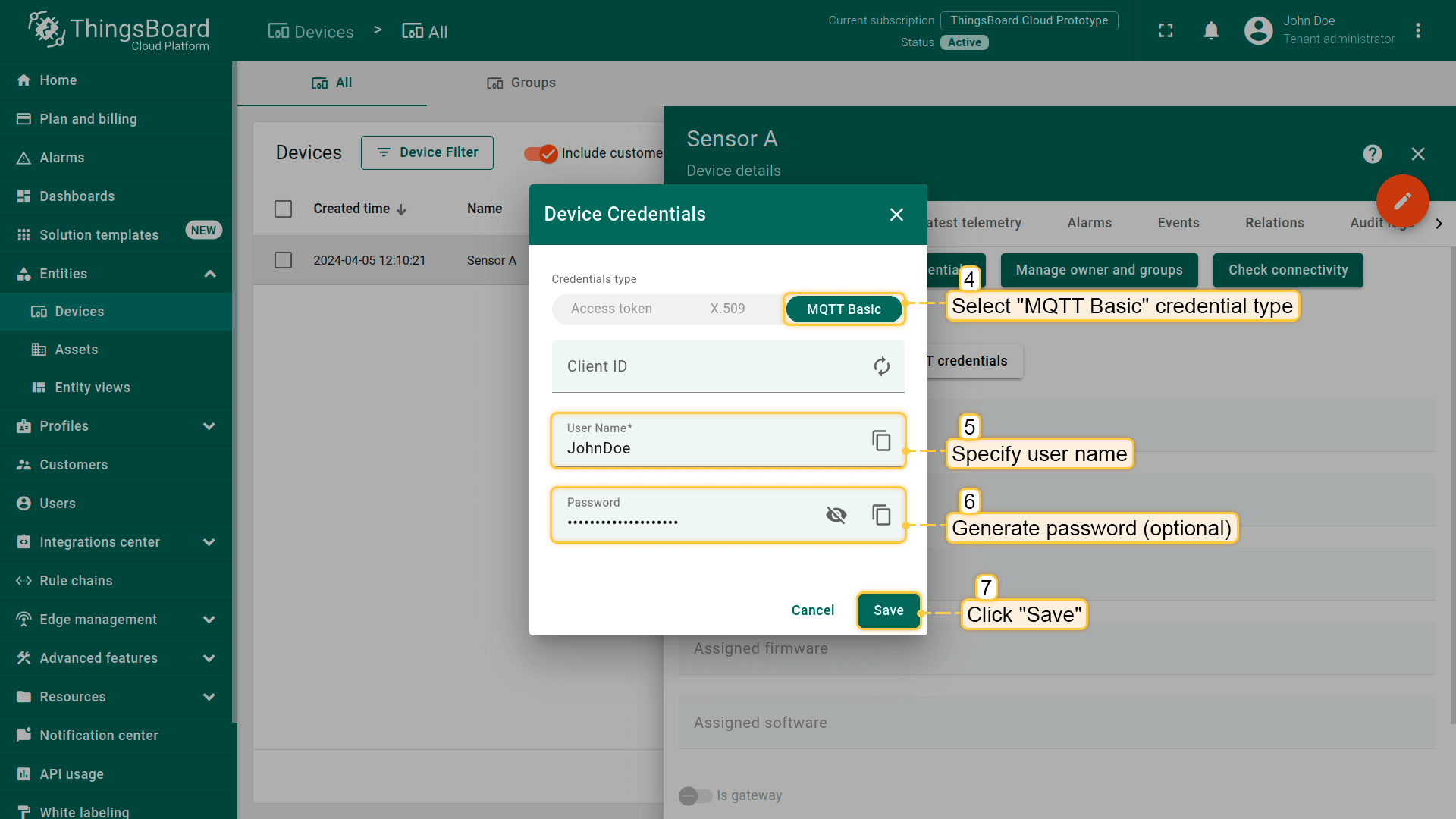
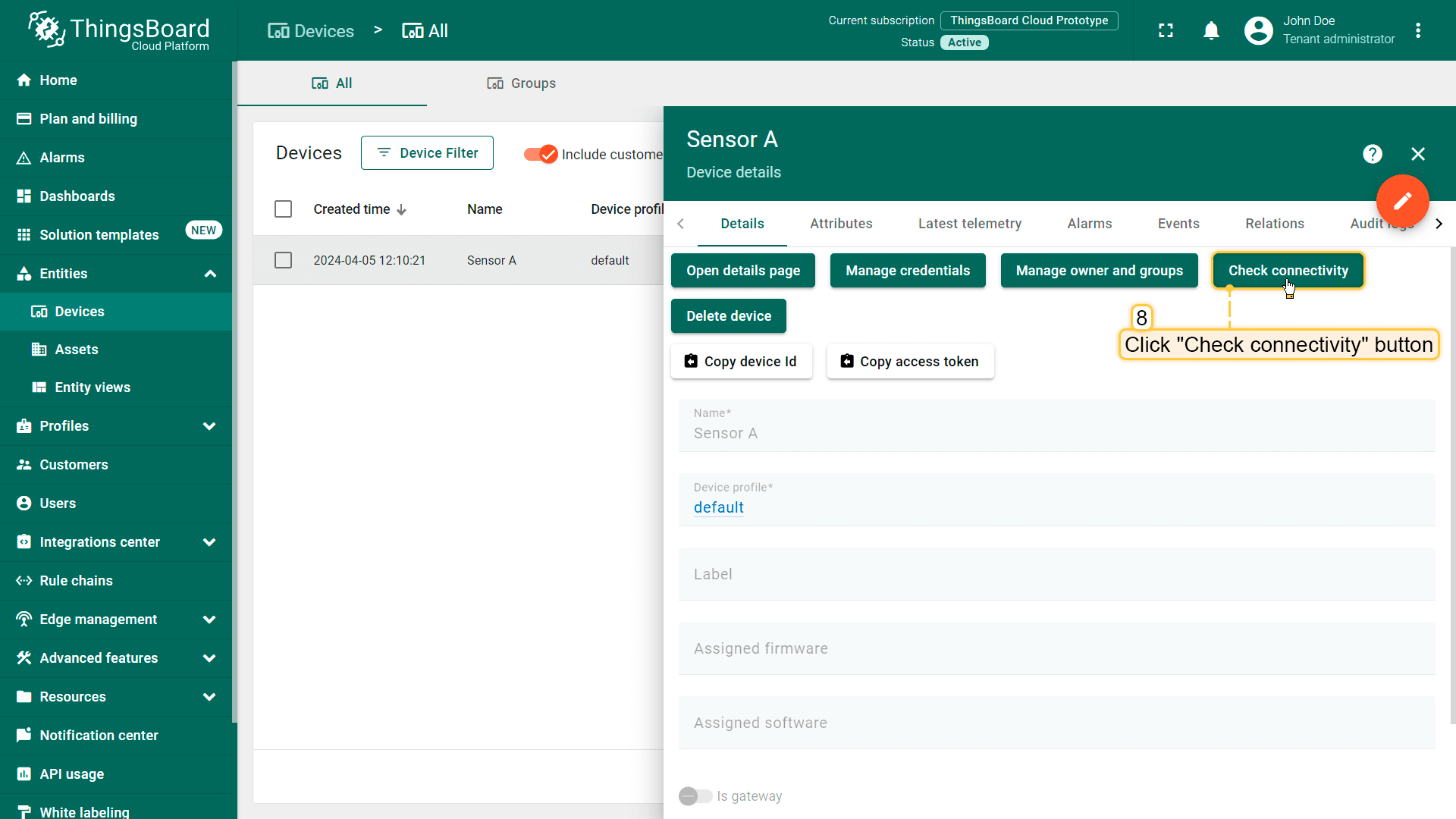
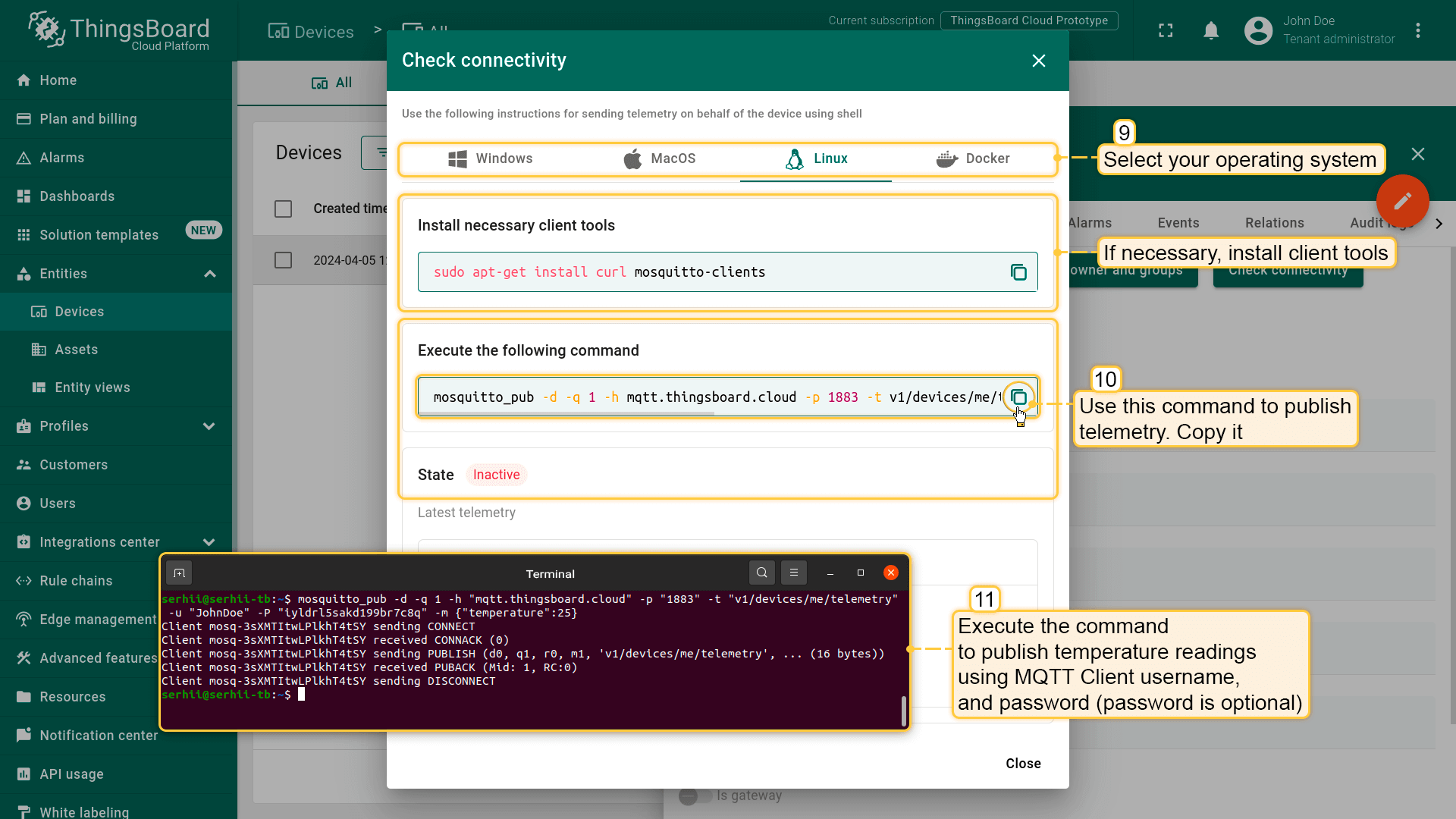
修改设备凭证后,使用\u201cCheck connectivity\u201d功能发布telemetry:
- 点击\u201cCheck connectivity\u201d按钮打开对应窗口;
- 在弹出窗口中选择操作系统;
- 按指南命令安装客户端工具;
- 复制并执行发布telemetry的命令;
命令执行成功后,应能看到已发布的temperature读数。
基于clientid、username和password的认证
在此选项中,需填写ClientID、Username和Password。MQTT客户端在指定正确的clientid、username和password组合后可连接。
以下示例命令使用MQTT clientid、username和password向ThingsBoard Cloud发布telemetry读数。命令使用plainMQTT,不启用TLS:
1
mosquitto_pub -d -q 1 -h "mqtt.eu.thingsboard.cloud" -p "1883" -t "v1/devices/me/telemetry" -i "YOUR_CLIENT_ID" -u "YOUR_CLIENT_USERNAME" -P "YOUR_CLIENT_PASSWORD" -m {"temperature":25}
其中:
- YOUR_CLIENT_ID替换为您的clientid;
- YOUR_CLIENT_USERNAME、YOUR_CLIENT_PASSWORD替换为您的clientusername和password。
\u201cCheckConnectivity\u201d会根据您提供的host和设备凭证自动生成命令,您只需复制并执行即可。
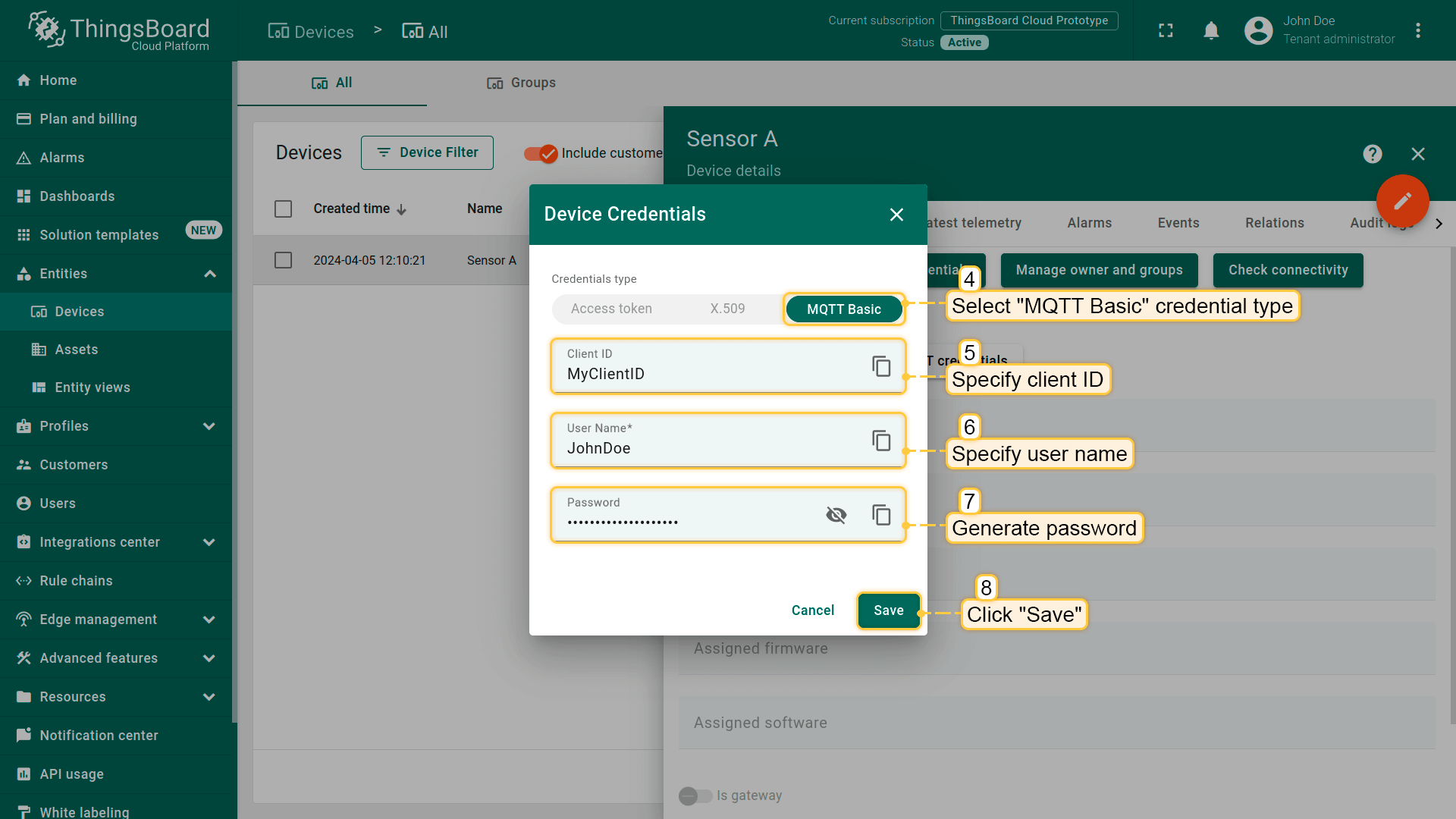
以下示例使用MQTT clientid、username和password发布telemetry。首先,将设备凭证类型从\u201cAccessToken\u201d改为\u201cMQTTBasic\u201d:
- Go to the "Devices" page, click on your device to open the device details window, and click the "Manage credentials" button;
- In the "Device Credentials" window, select "MQTT Basic" credential type, and specify client ID, username and password. Click "Save".
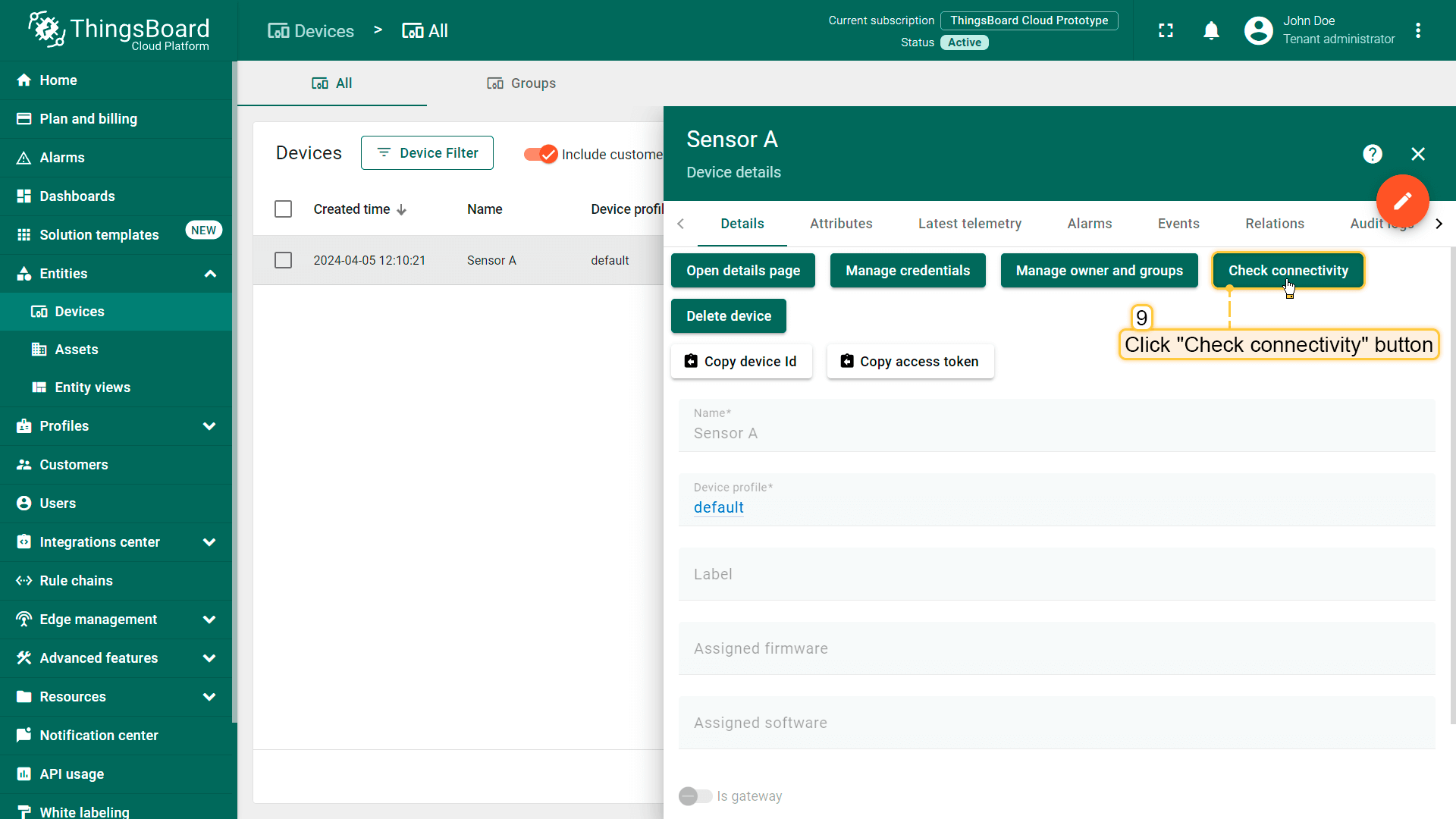
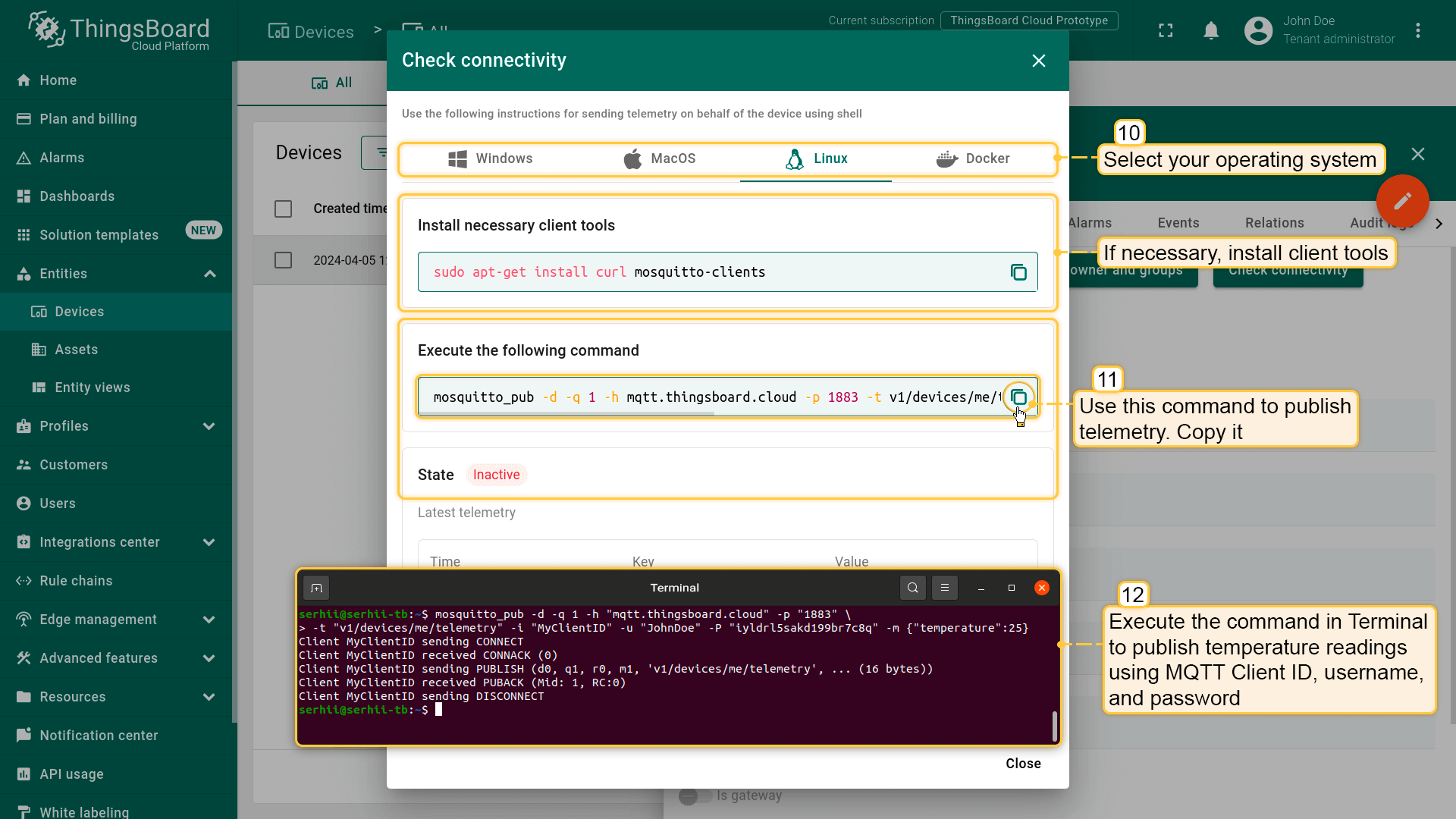
修改设备凭证后,使用\u201cCheck connectivity\u201d功能发布telemetry:
- 点击\u201cCheck connectivity\u201d按钮打开对应窗口;
- 在弹出窗口中选择操作系统;
- 按指南命令安装客户端工具;
- 复制并执行发布telemetry的命令;
命令执行成功后,应能看到已发布的temperature读数。
MQTTS(MQTT over TLS)
单向SSL认证是标准模式,客户端通过服务器证书验证服务器身份。\u8be5\u8bc1\u4e66\u7528\u4e8eMQTT\u5ba2\u6237\u7aef\u9a8c\u8bc1\u670d\u52a1\u5668\u8bc1\u4e66\u3002
使用\u201cCheckConnectivity\u201d下载CA根证书并发布telemetry。首先,将设备凭证类型从\u201cAccessToken\u201d改为\u201cMQTTBasic\u201d:
- Go to the "Devices" page, click on your device to open the device details window, and click the "Manage credentials" button;
- In the "Device Credentials" window, select "MQTT Basic" credential type, and specify device credentials. Click "Save".
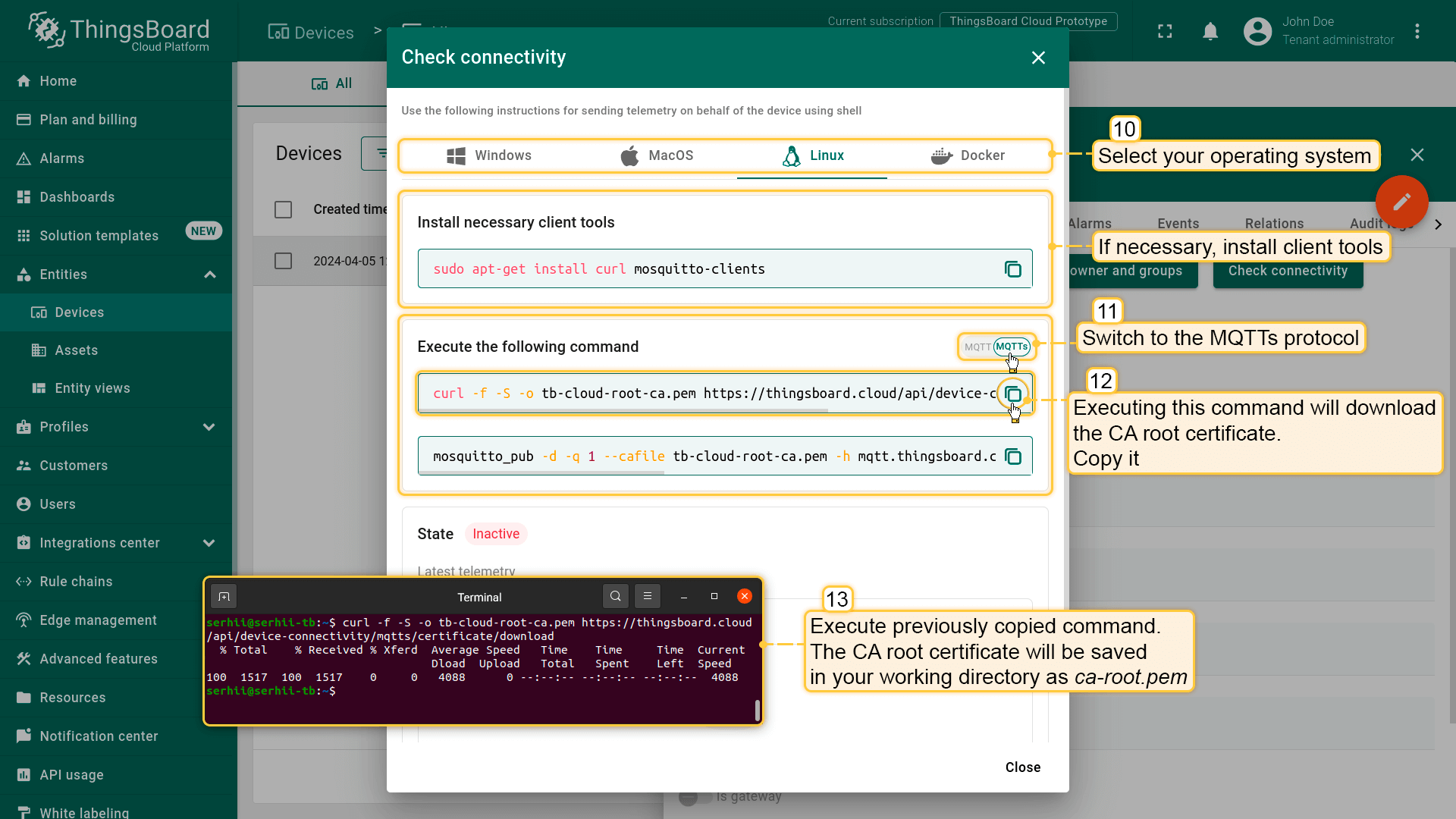
- 点击\u201cCheckConnectivity\u201d按钮。在弹出窗口中选择操作系统,并按指南命令安装客户端工具;
- 切换到\u201cMQTTs\u201d协议。复制并执行第一条命令下载有效CA证书;
- 从工作目录(证书保存位置)复制并执行第二条命令发布telemetry。该命令使用tb-cloud-root-ca.pem证书与ThingsBoard Cloud建立安全连接,并使用您为设备配置的凭证进行认证。
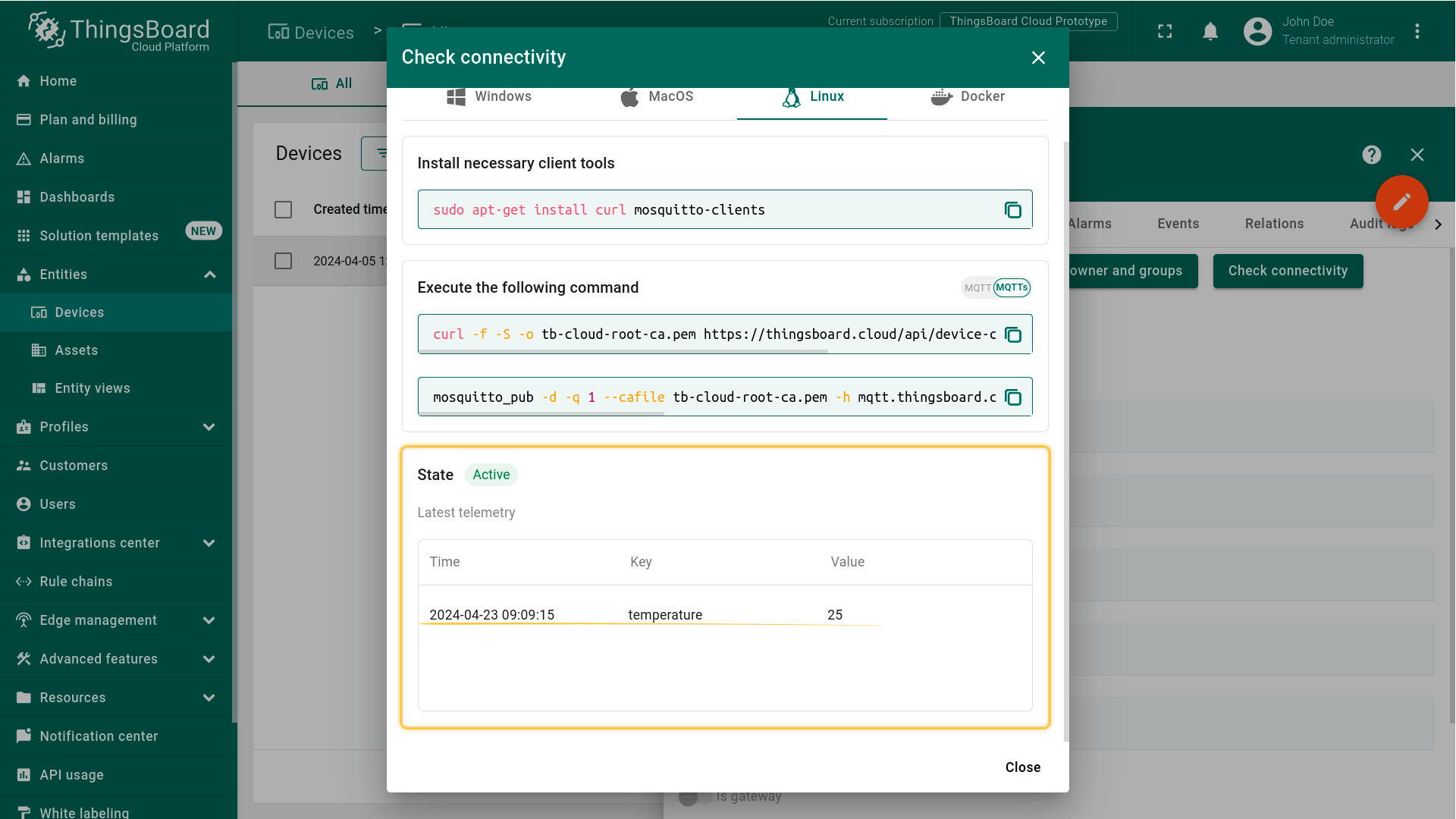
命令执行成功后,应能看到已发布的temperature读数。
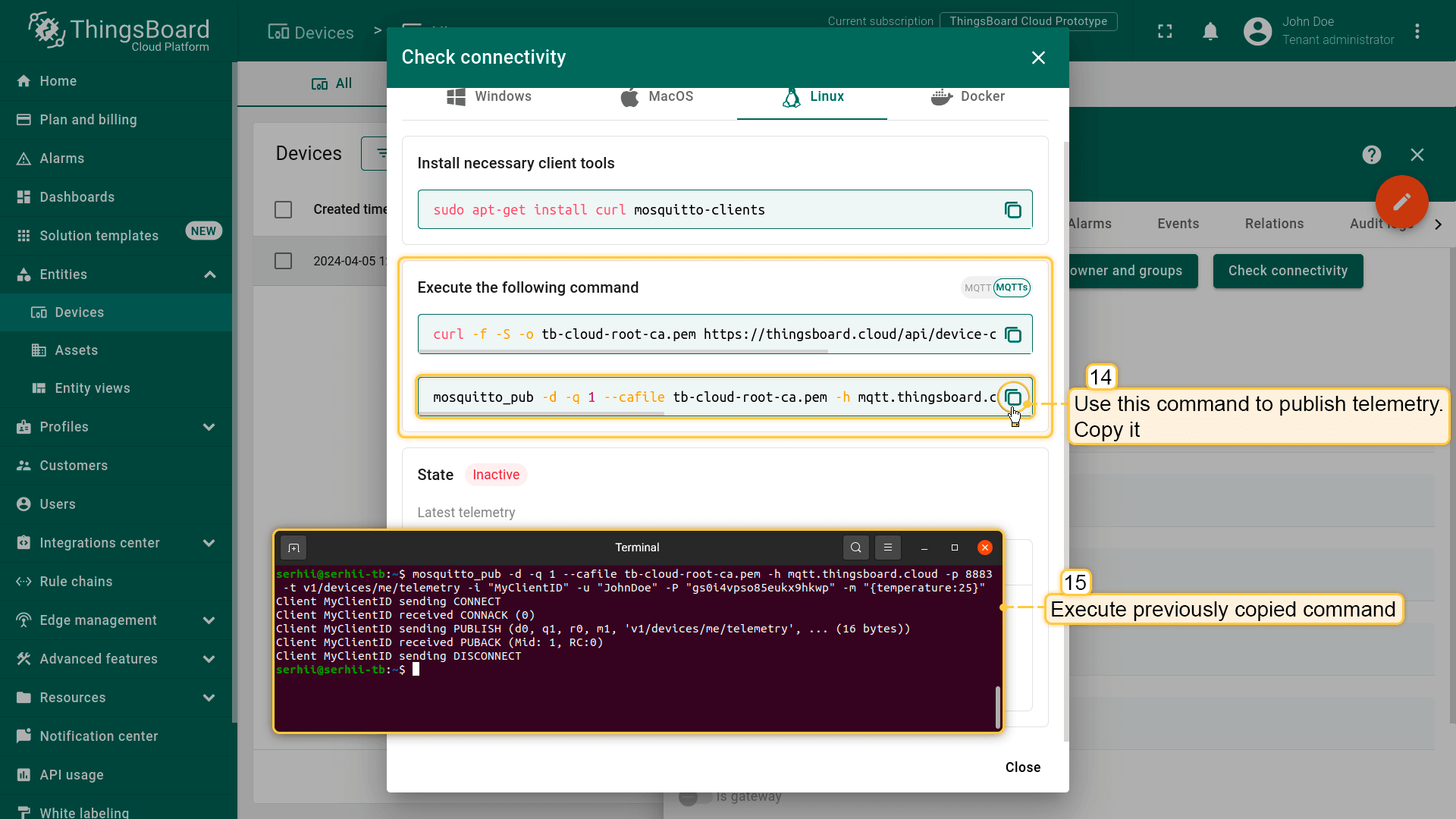
以下为使用tb-cloud-root-ca.pem证书、clientid(YOUR_CLIENT_ID)以及所选设备的clientusername和password(YOUR_CLIENT_USERNAME/YOUR_CLIENT_PASSWORD)发布telemetry的示例命令:
1
mosquitto_pub -d -q 1 --cafile tb-cloud-root-ca.pem -h mqtt.eu.thingsboard.cloud -p 8883 -t v1/devices/me/telemetry -i "YOUR_CLIENT_ID" -u "YOUR_CLIENT_USERNAME" -P "YOUR_CLIENT_PASSWORD" -m {"temperature":25}