- Prerequisites
- Create converter and integration templates
- Modify Edge Root Rule Chain for downlinks
- Assign Integration to Edge
- Send uplink message
- Send downlink message to device
- 下一步

Edge MQTT Integration 与 MQTT Integration 实现方式类似。 区别仅在于 integration 的创建与部署方式。 操作前请参阅 MQTT Integration 文档。
MQTT Integration allows connecting to external MQTT brokers, subscribe to data streams from those brokers, and convert any type of payload from your devices to the ThingsBoard Edge message format. It is typically used when your devices are already connected to an external MQTT broker or any other IoT platform or connectivity provider with MQTT based backend.
To learn more, please see the integration diagram.
ThingsBoard Edge MQTT Integration acts as an MQTT client. It subscribes to topics and converts the data into telemetry and attribute updates. In the case of a downlink message, MQTT Integration converts it to the device-appropriate format and pushes it to an external MQTT broker.
Note:
The MQTT broker should either be co-located with the ThingsBoard Edge instance or deployed in the cloud and have a valid DNS name or static IP address.
Prerequisites
In this tutorial, we will use:
- ThingsBoard专业版 account;
- Locally installed ThingsBoard PE Edge instance;
- MQTT broker that can be accessed through the ThingsBoard Edge instance: broker.hivemq.com (port 1883);
- mosquitto_pub and mosquitto_sub MQTT clients for sending and receiving messages.
- a sensor device that sends temperature readings. In this guide we’ll use SN-001 to ‘tb-edge/mqtt-integration-tutorial/sensors/SN-001/temperature’ and is subscribed to ‘tb-edge/mqtt-integration-tutorial/sensors/SN-001/rx’ to receive RPC calls. We will send a message with temperature readings in a simple format:
{"value":25.1}
Create converter and integration templates
Only the ThingsBoard Professional Edition creates converters and integration templates. So please use ThingsBoard Cloud or install your own platform instance to log in as a Tenant administrator.
Follow the steps below to add the MQTT integration:
- Go to theEdge management > Integration templates section and click the “plus” button to add a new integration. Select the “MQTT” type. Name it “Edge HTTP Integration”. Then click Next;
Debug 模式在开发与故障排查中非常有用,但在生产环境中保持启用会显著增加数据库存储需求,因为所有调试数据均会存入数据库。
强烈建议在调试完成后 禁用 Debug 模式。
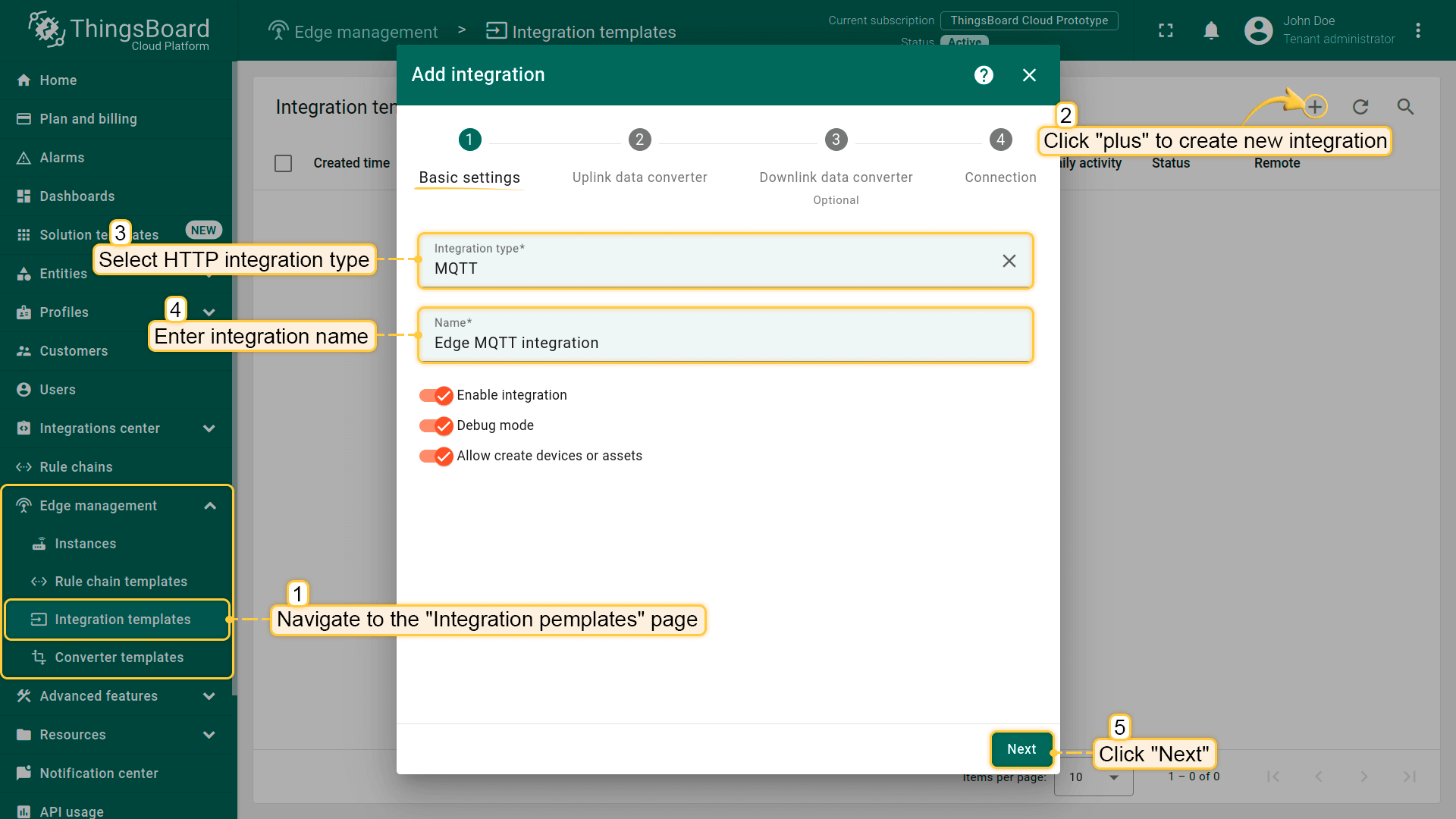
- The next step is to create an Uplink data converter.
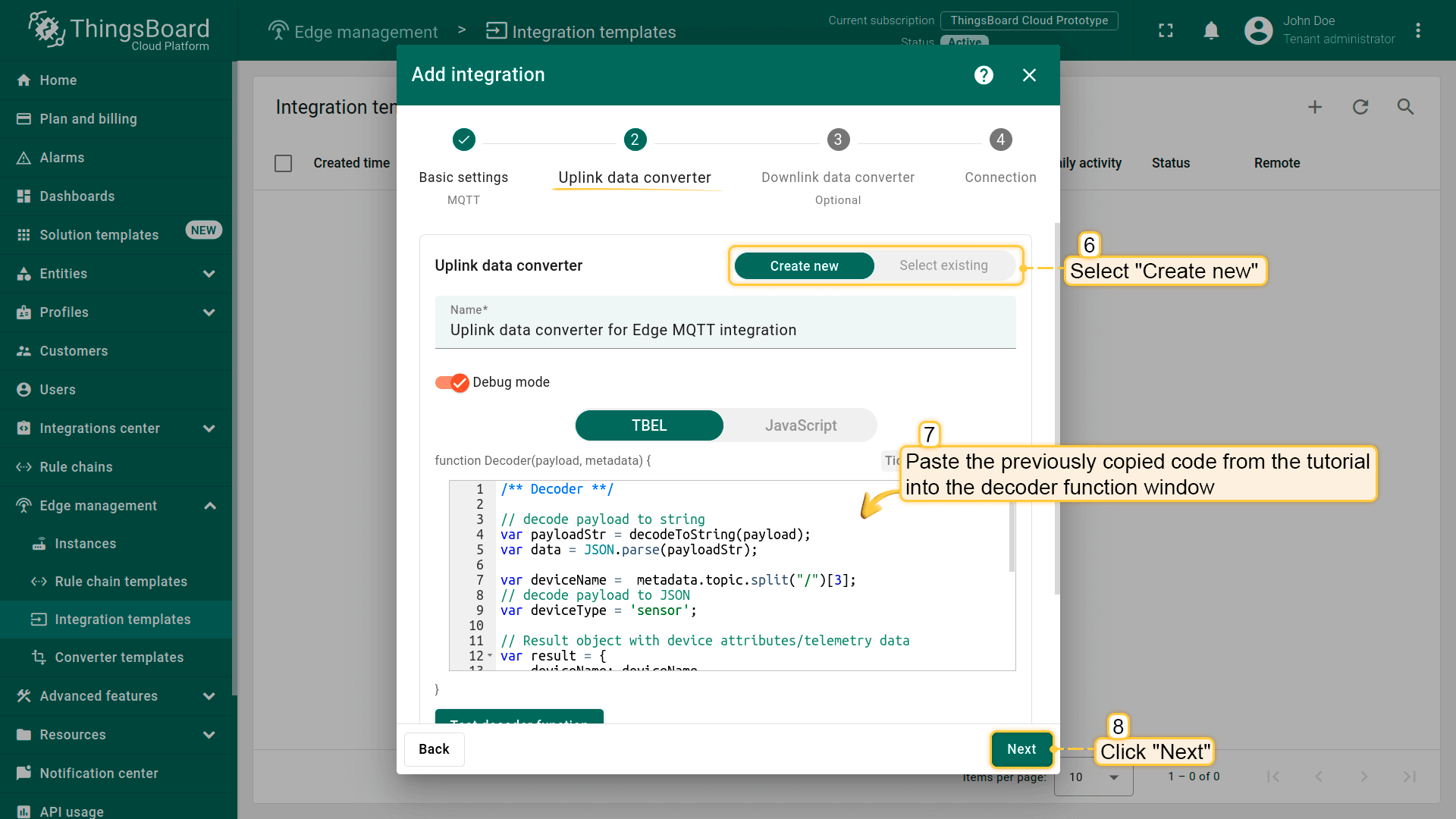
The purpose of the decoder function is to parse the incoming data and metadata into a format that ThingsBoard can consume. deviceName and deviceType are required, while attributes and telemetry are optional. Attributes and telemetry are flat key-value objects. Nested objects are not supported.
For this example, use the code below.
可使用 TBEL(TBEL)或 JavaScript 开发用户自定义函数。 建议使用 TBEL,其在ThingsBoard 中的执行效率远高于 JS。
|
请将以下脚本复制并粘贴到 Decoder 函数部分:
|
|
请将以下脚本复制并粘贴到 Decoder 函数部分:
|
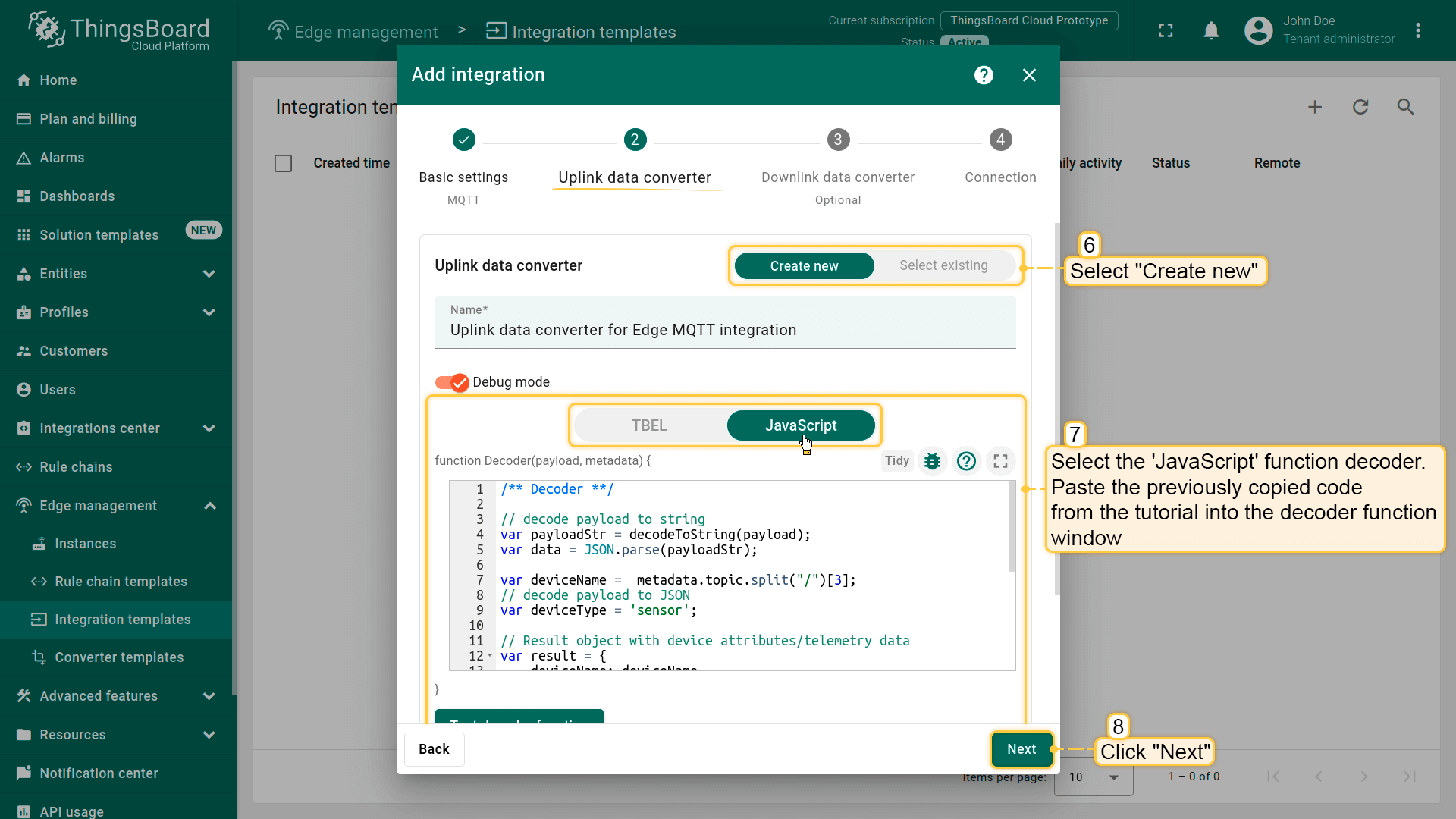
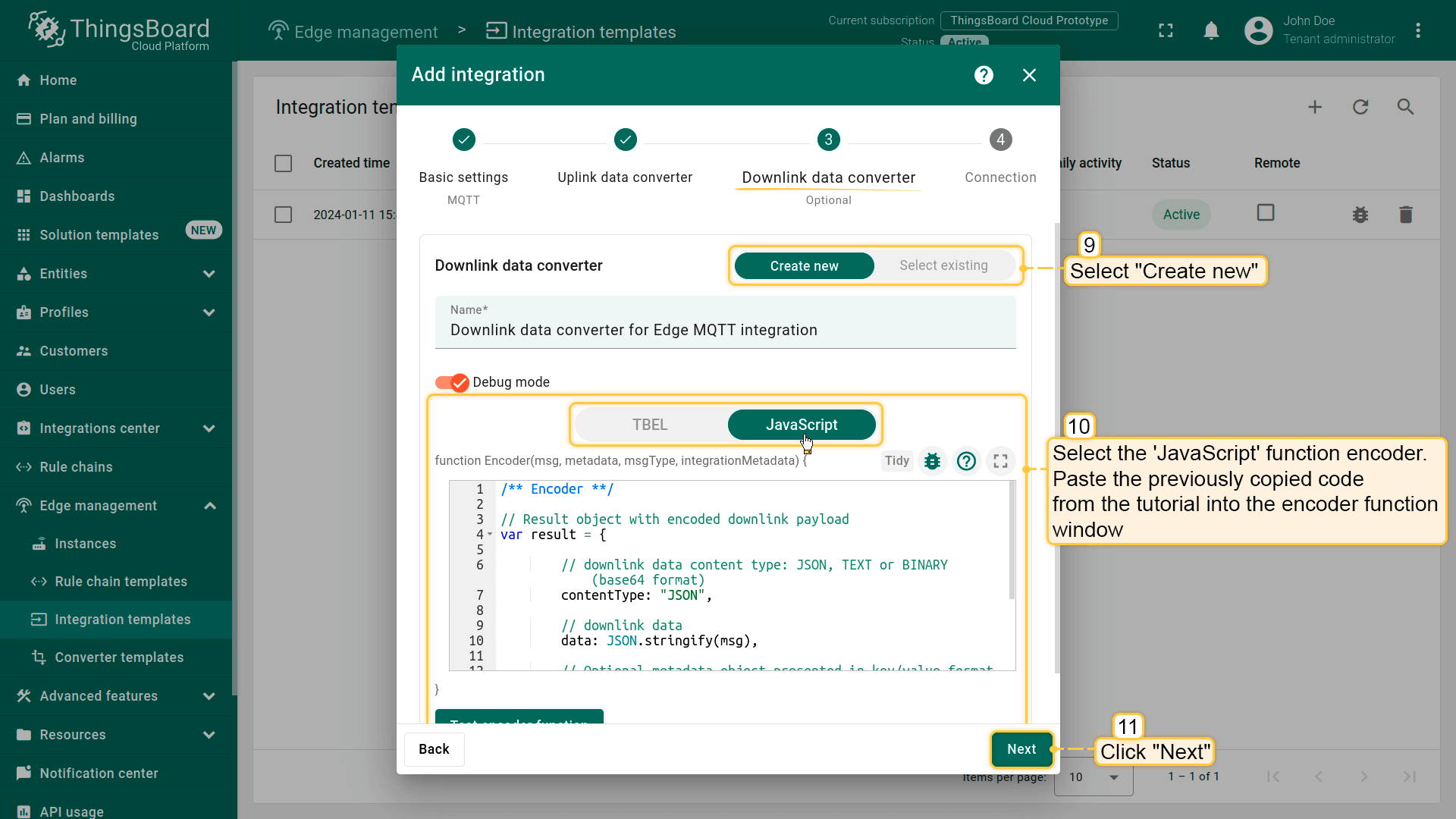
- The next step is to create a Downlink converter.
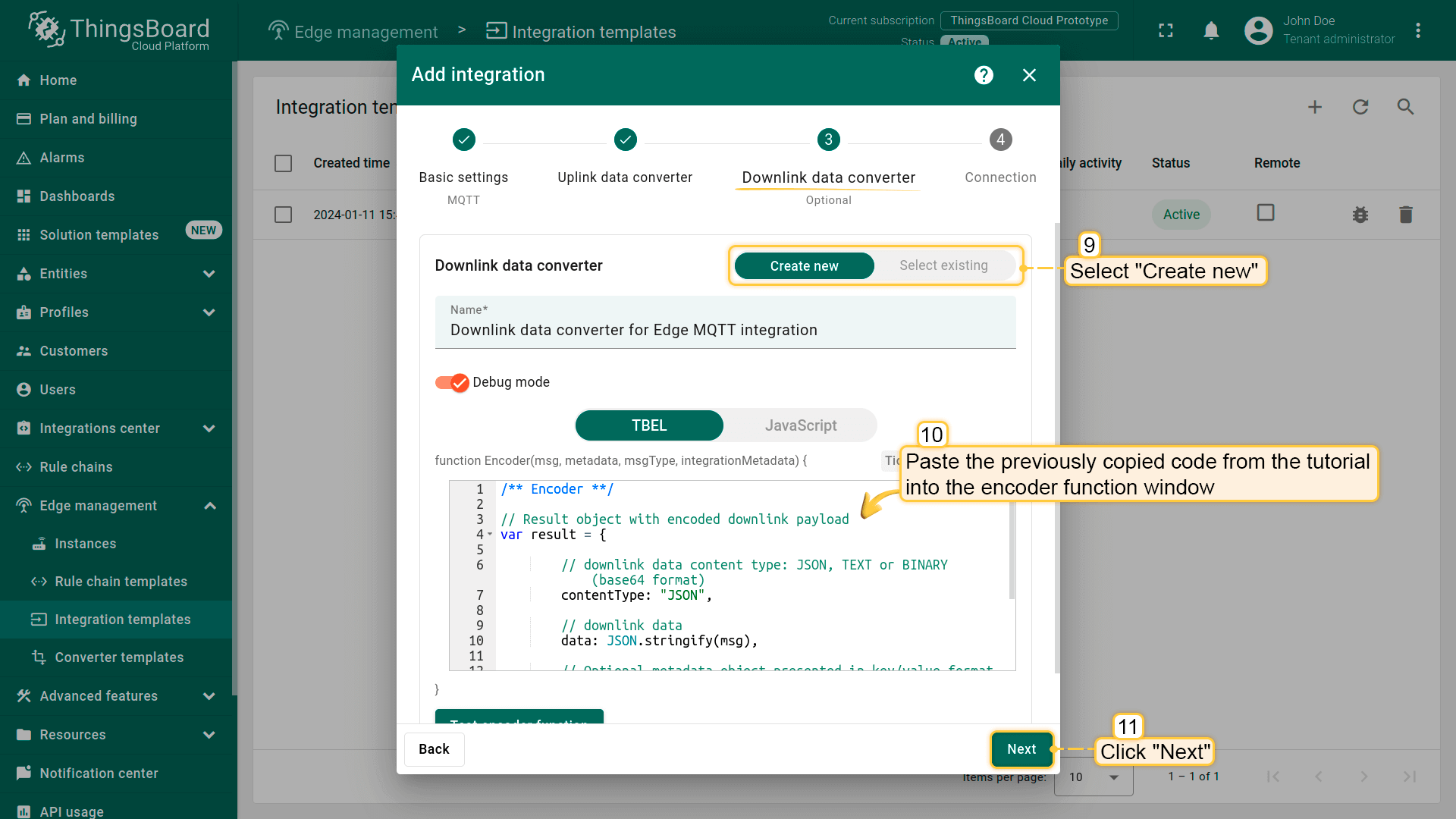
The downlink converter transforms an outgoing RPC message and then the Integration sends it to external MQTT broker. You can customize a downlink according to your configuration. Let’s consider an example where we send an attribute update message.
For this example, use the code below.
可使用 TBEL(TBEL)或 JavaScript 开发用户自定义函数。 建议使用 TBEL,其在ThingsBoard 中的执行效率远高于 JS。
|
请将以下脚本复制并粘贴到 Encoder 函数部分:
|
|
现将以下脚本复制并粘贴到 Encoder 函数部分:
|
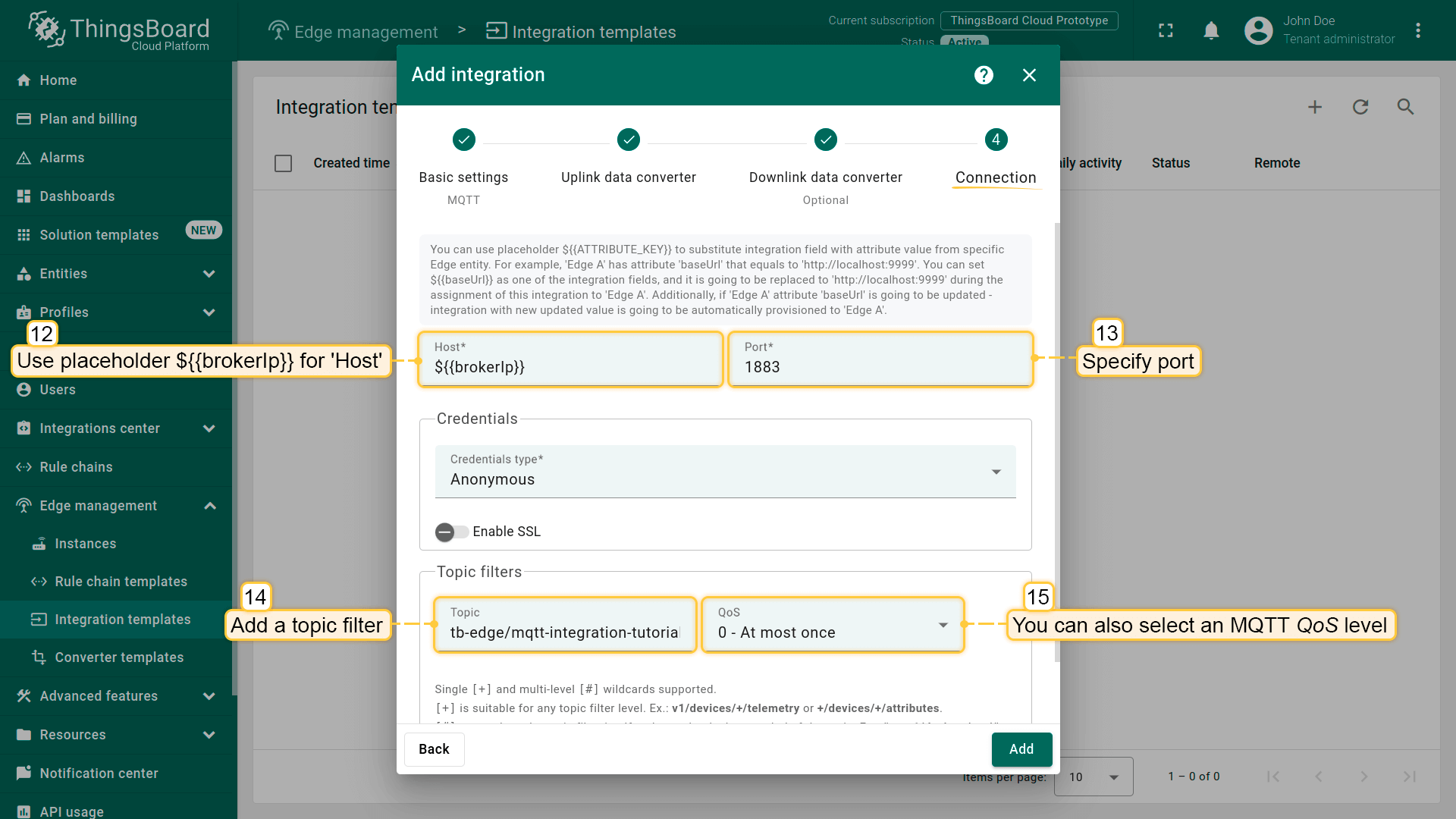
Finally, we go to the “Connection” page.
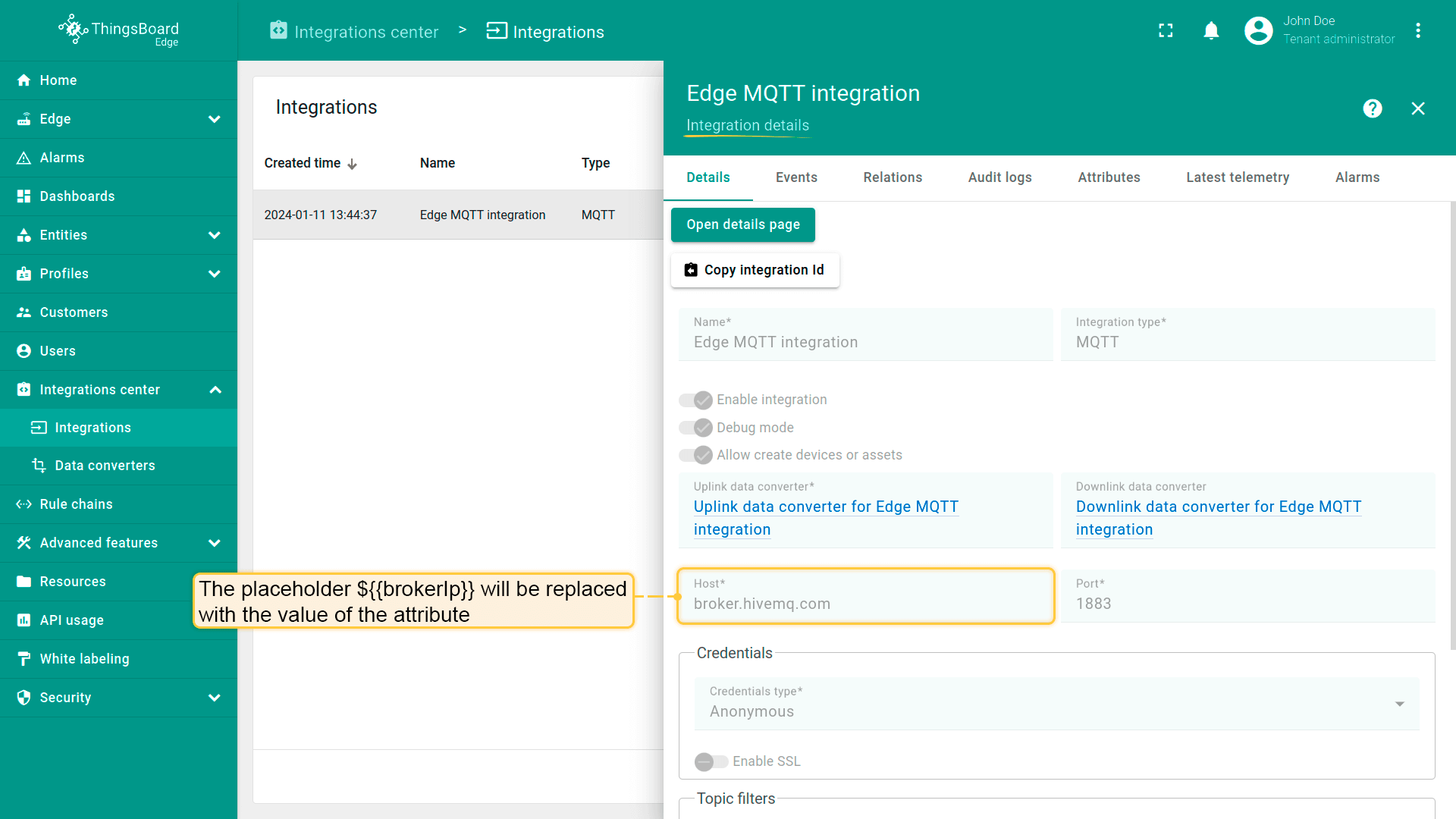
- You can use the placeholder ${{ATTRIBUTE_KEY}} to replace an integration field with an attribute value from a specific Edge entity. In this example, we will use the placeholder ${{brokerIp}} for ‘Host’ and 1883 for ‘Port’.
- Add a topic filter:
1
tb-edge/mqtt-integration-tutorial/sensors/+/temperature
- You can also select an MQTT QoS level. level. By default, we use MQTT QoS level 0 (at most once);
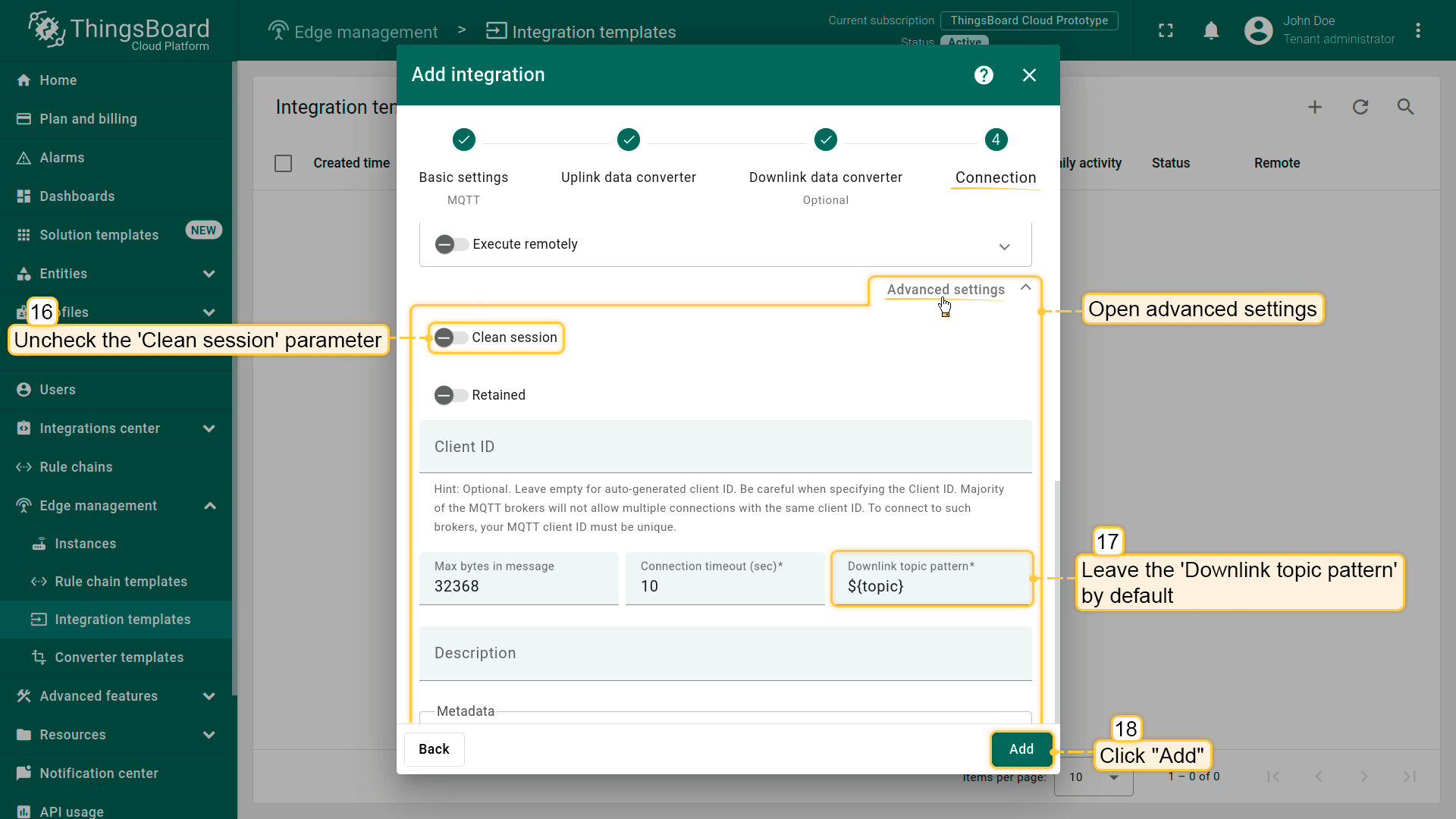
- Go to the ‘Advanced settings’. It is better to uncheck the ‘Clean session’ parameter. Many brokers do not support sticky sessions, so they will silently close the connection if you try to connect with this option enabled;
- Let’s leave the ‘Downlink topic pattern’ by default, which means that the integration will take the metadata.topic and use it as the downlink topic;
- Click the “Add” button to create the integration.
Modify Edge Root Rule Chain for downlinks
We can send a downlink message to the device from the Rule chain using the rule node. To send downlink via integration, modify the Edge Root Rule chain.
Please note!
If you use earlier versions of Edge, you cannot create or edit a Rule Chain on the Edge itself. It must be configured as a template in the Cloud (Server), and then assigned to the Edge instance.
Starting with Edge version 4.0, you can create and edit a Rule Chain on the Edge.
We’ll need to add two rule nodes: ‘originator fields’ and ‘integration downlink’ nodes.
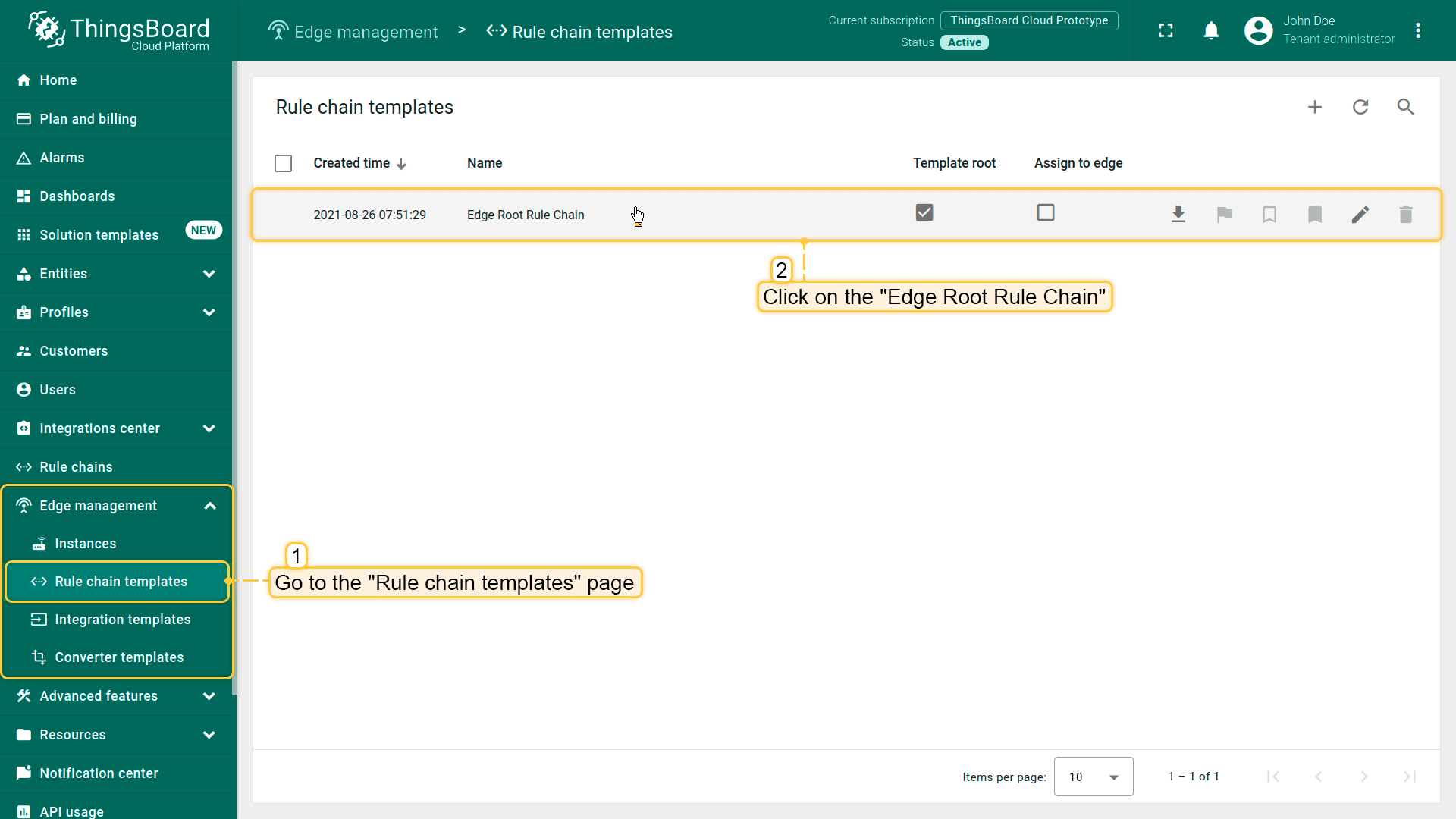
- Go to the Edge management > Rule chain templates section and click the Edge Root Rule Chain to open it.
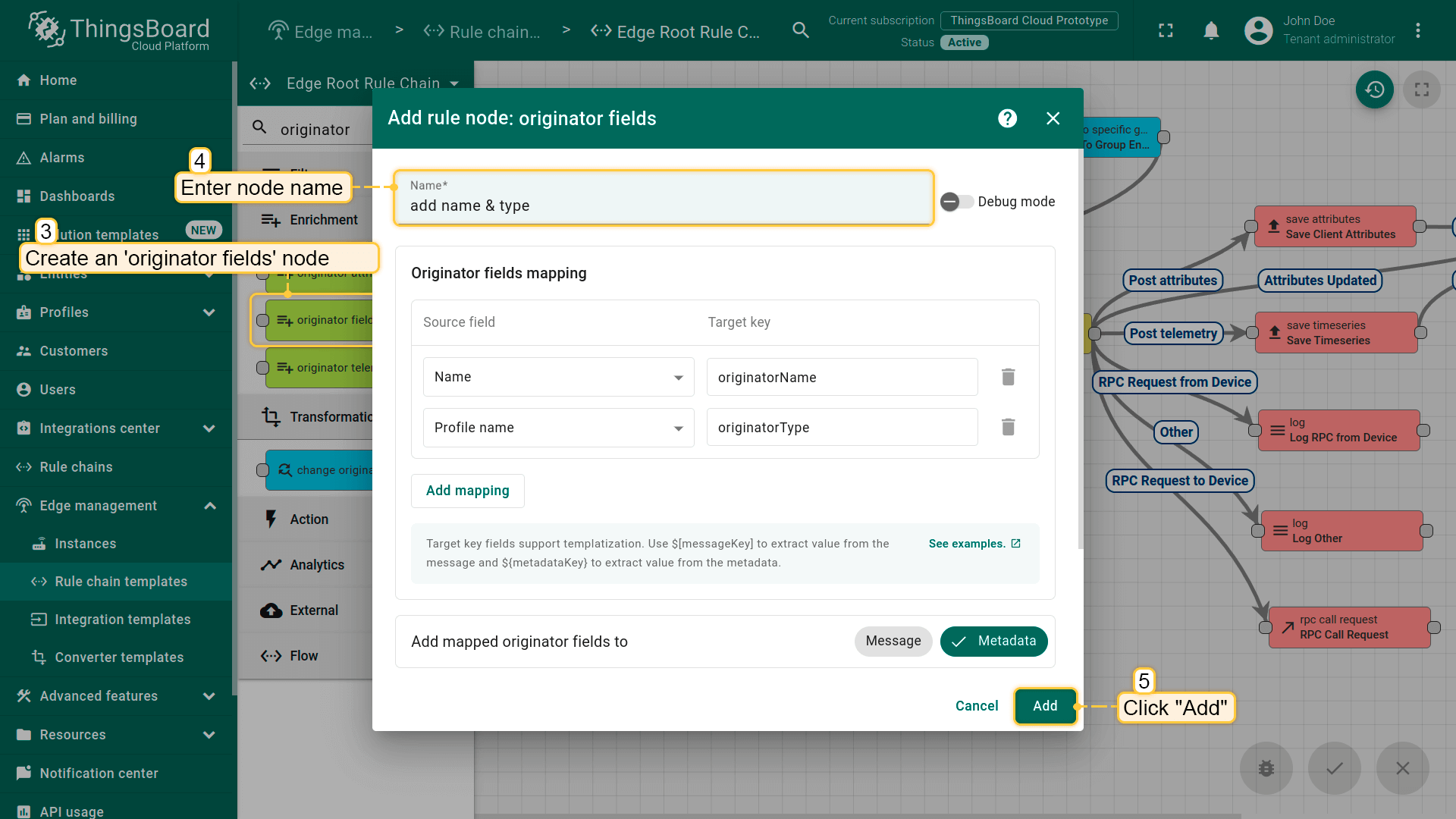
- Create an originator fields node. Configure to add originator name and originator type to the message metadata - in the downlink converter, the device name is used to set the correct downlink MQTT topic.
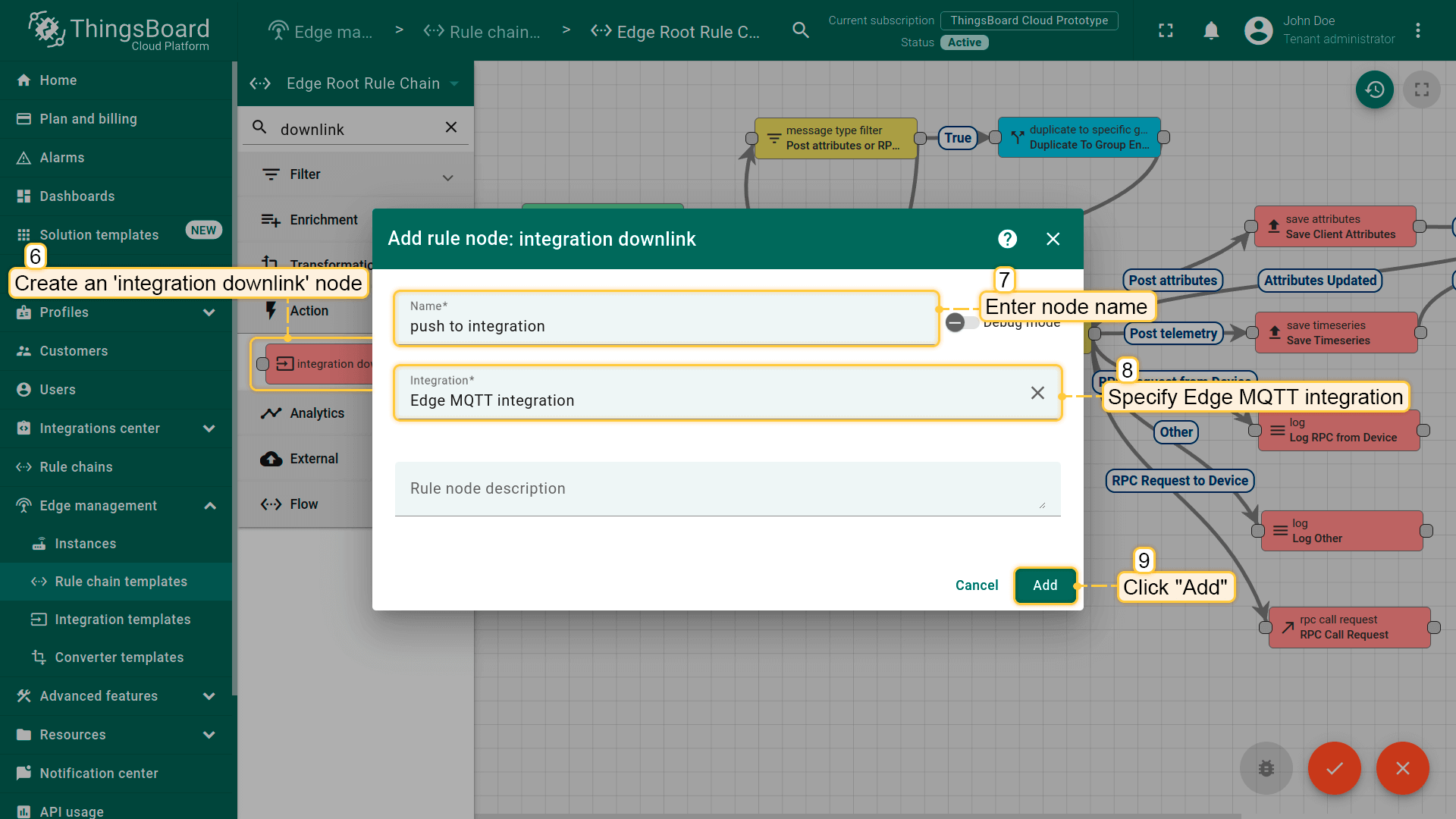
- Create an integration downlink node. Specify your integration in its settings;
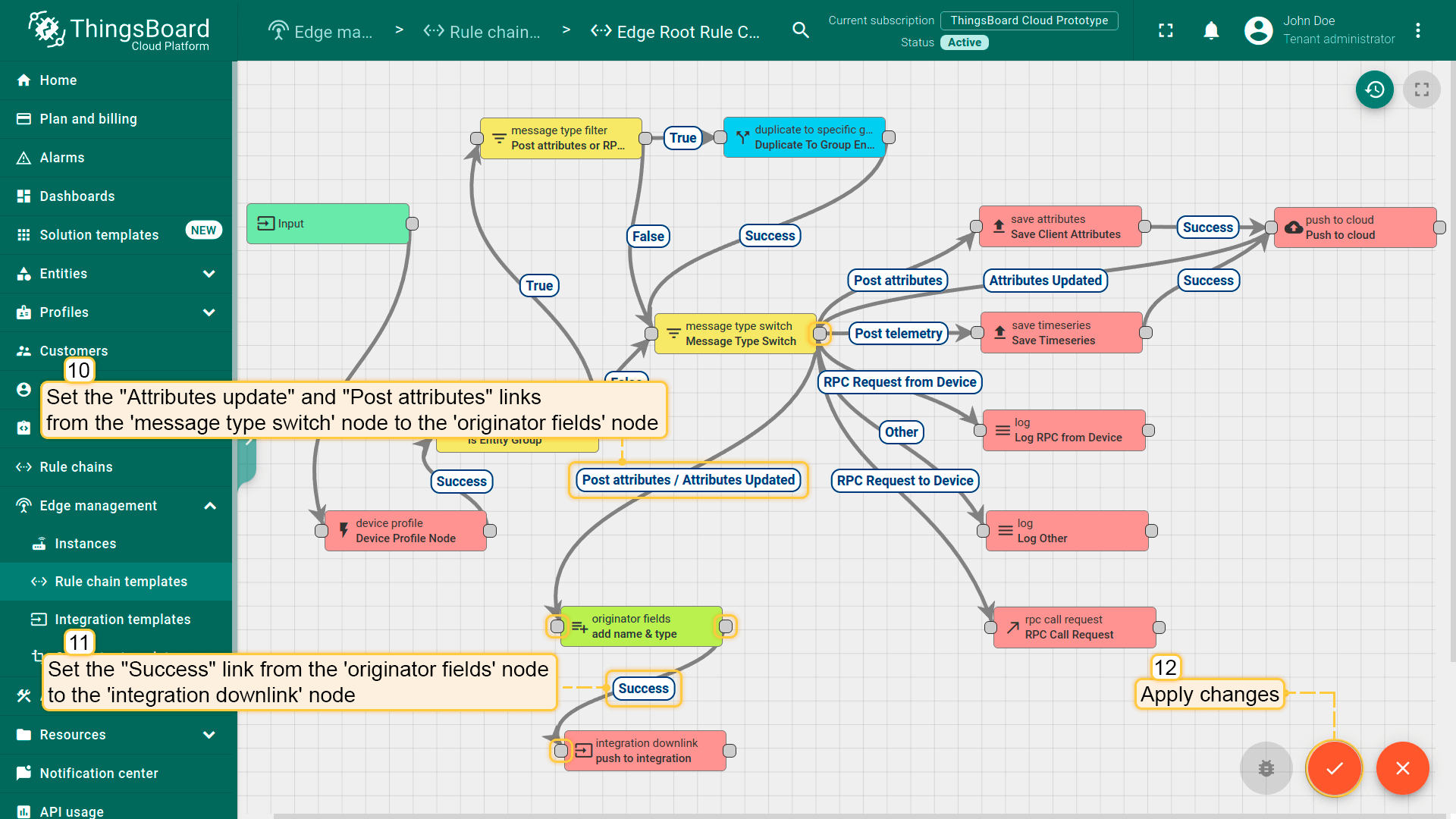
- Set the Attributes Updated and Post attributes links from the message type switch node to the originator fields node. And set the Success link from the originator fields node to the integration downlink node. When the attribute is created or changes are made to the attribute on the Edge, the downlink message will be sent to the integration. Apply the changes.
Assign Integration to Edge
Once the converter and integration templates are created, we can assign the Integration template to the Edge. Since we are using the placeholder ${{brokerIp}} in the integration configuration, we must first add the attribute brokerIp to the Edge. You need to provide the IP address of the MQTT broker. We use the public URL ‘broker.hivemq.com’ in this tutorial, but it could be any internal IP address as well. Once the attribute is added, we are ready to assign and verify the integration.
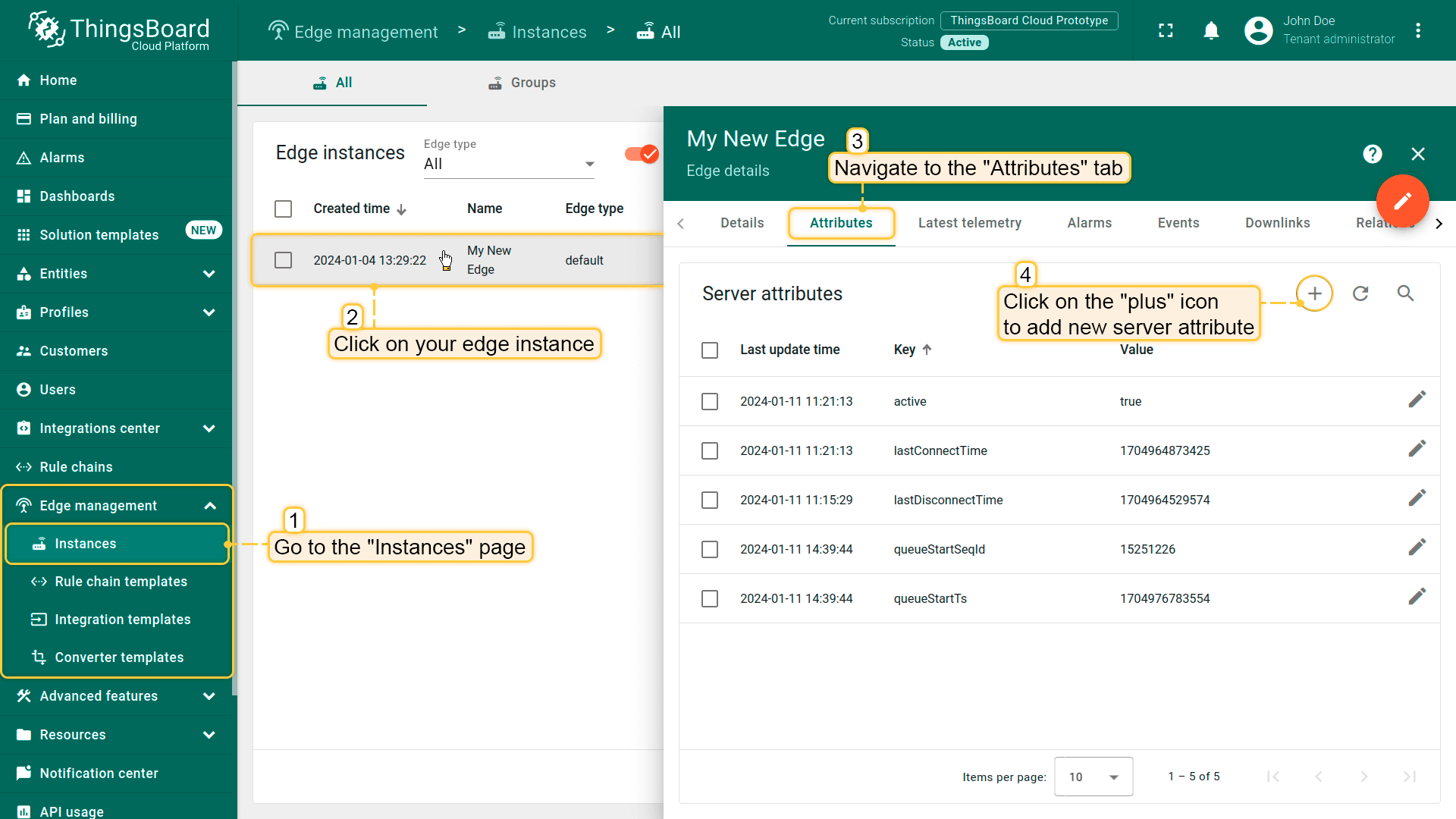
- Go to the Edge management > Instances section, click on your edge instance to open "Edge details" window, and navigate to the "Attributes" tab. To add a new server attribute to **Edge**, click the "plus" button.
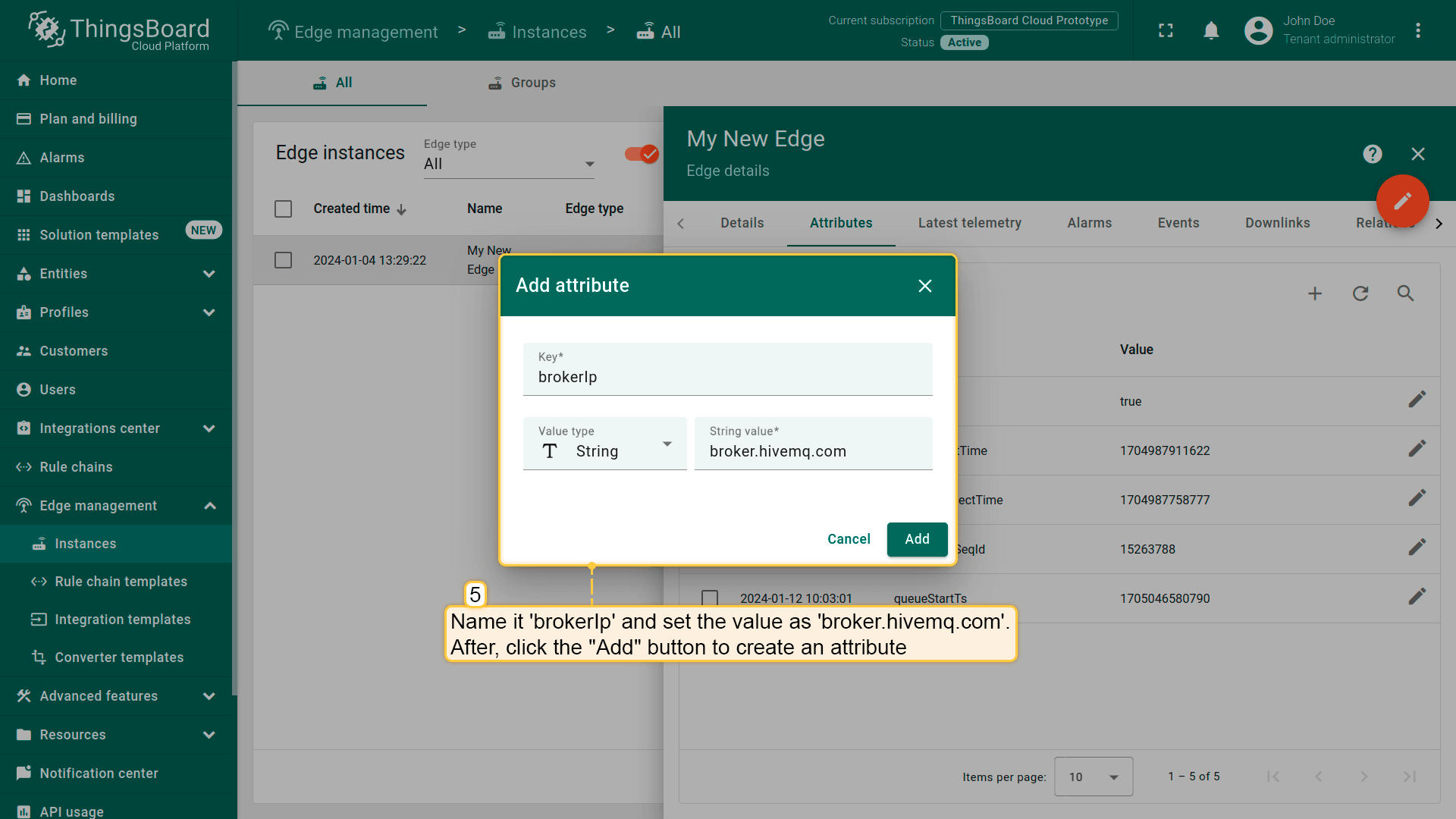
- Name it brokerIp and set the value as "broker.hivemq.com". Then click the "Add" button.
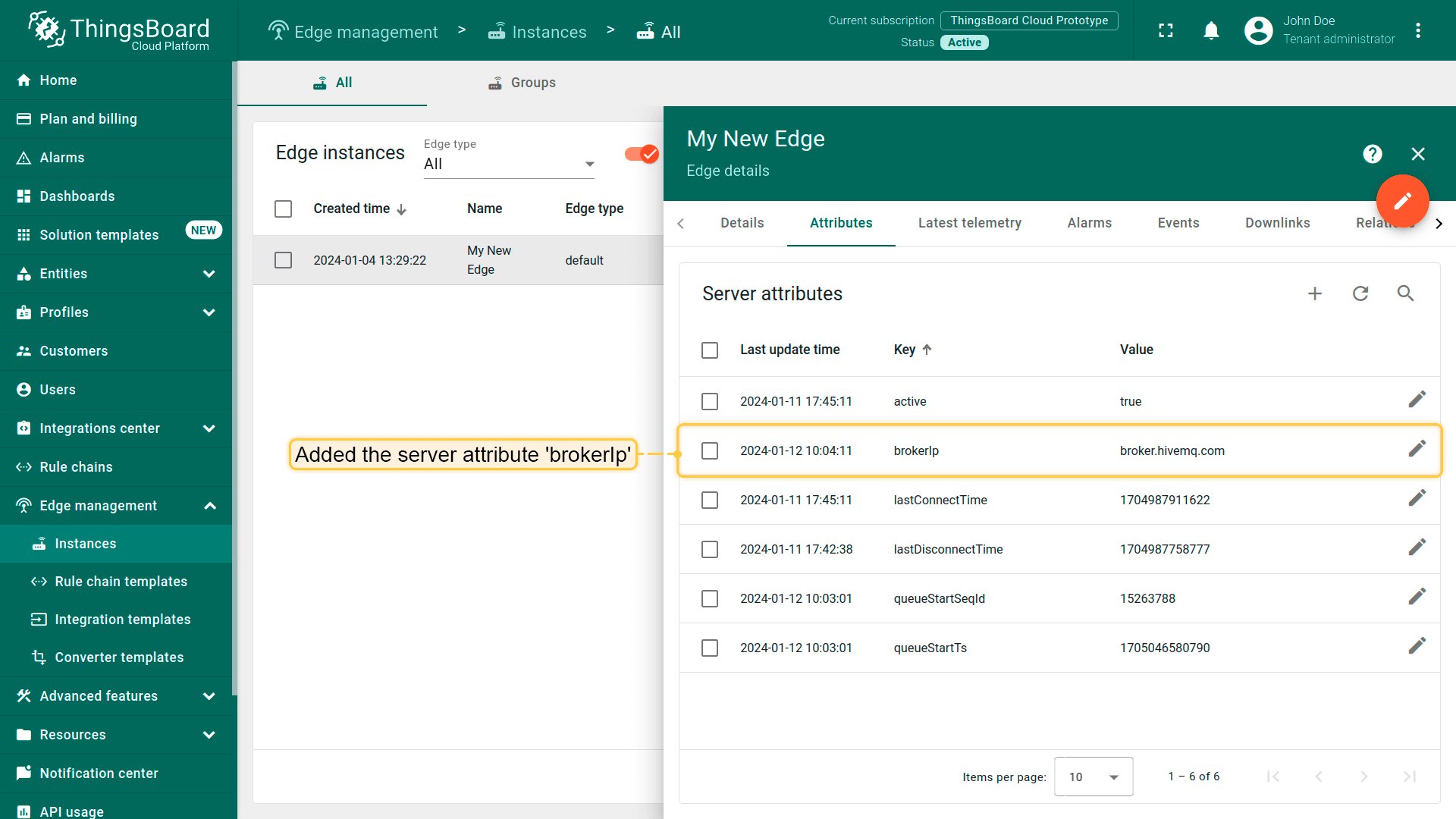
- The "brokerIp" server attribute is now added to the edge.
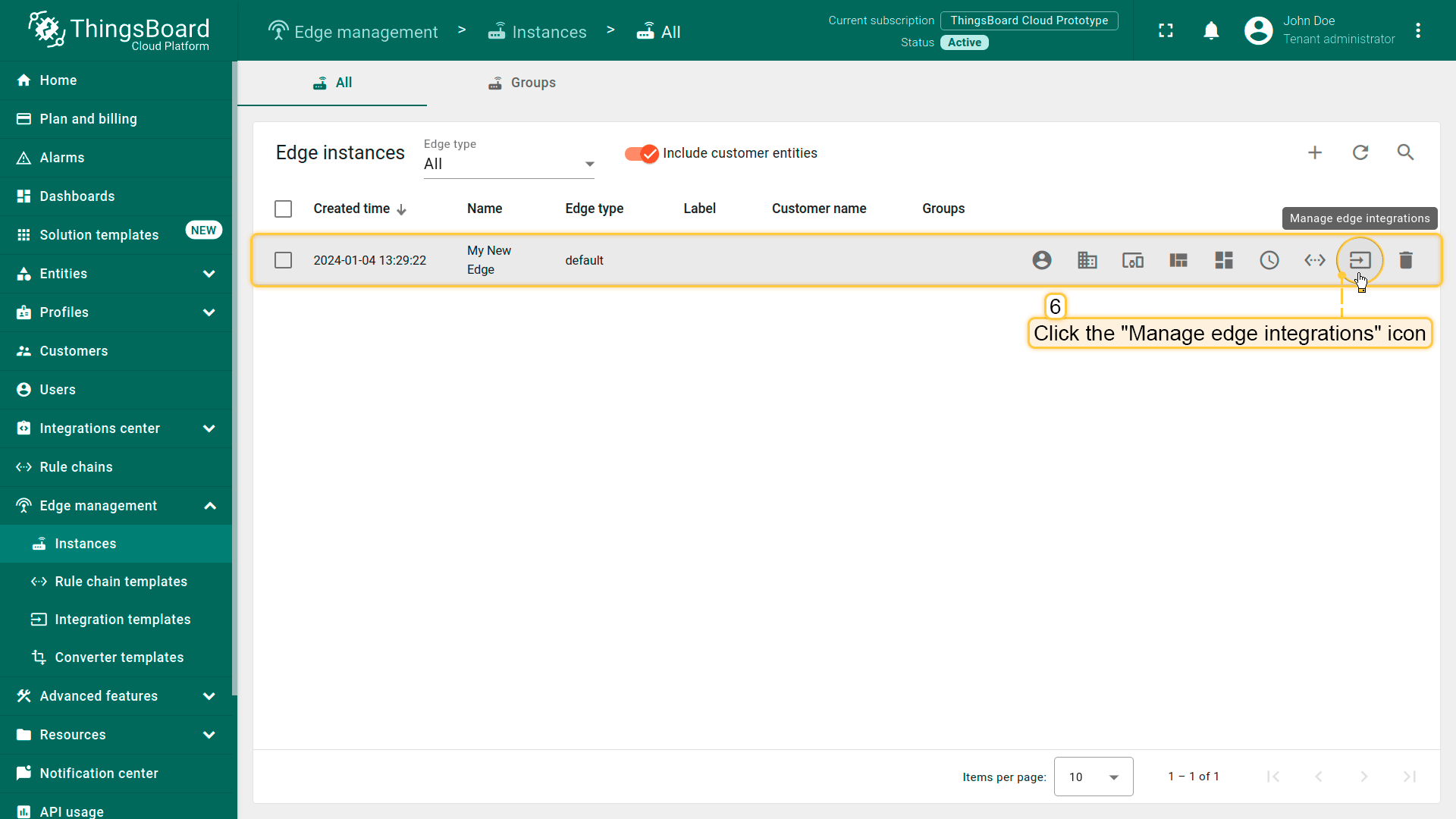
- Now, click "Manage edge integrations" icon of Edge entity;
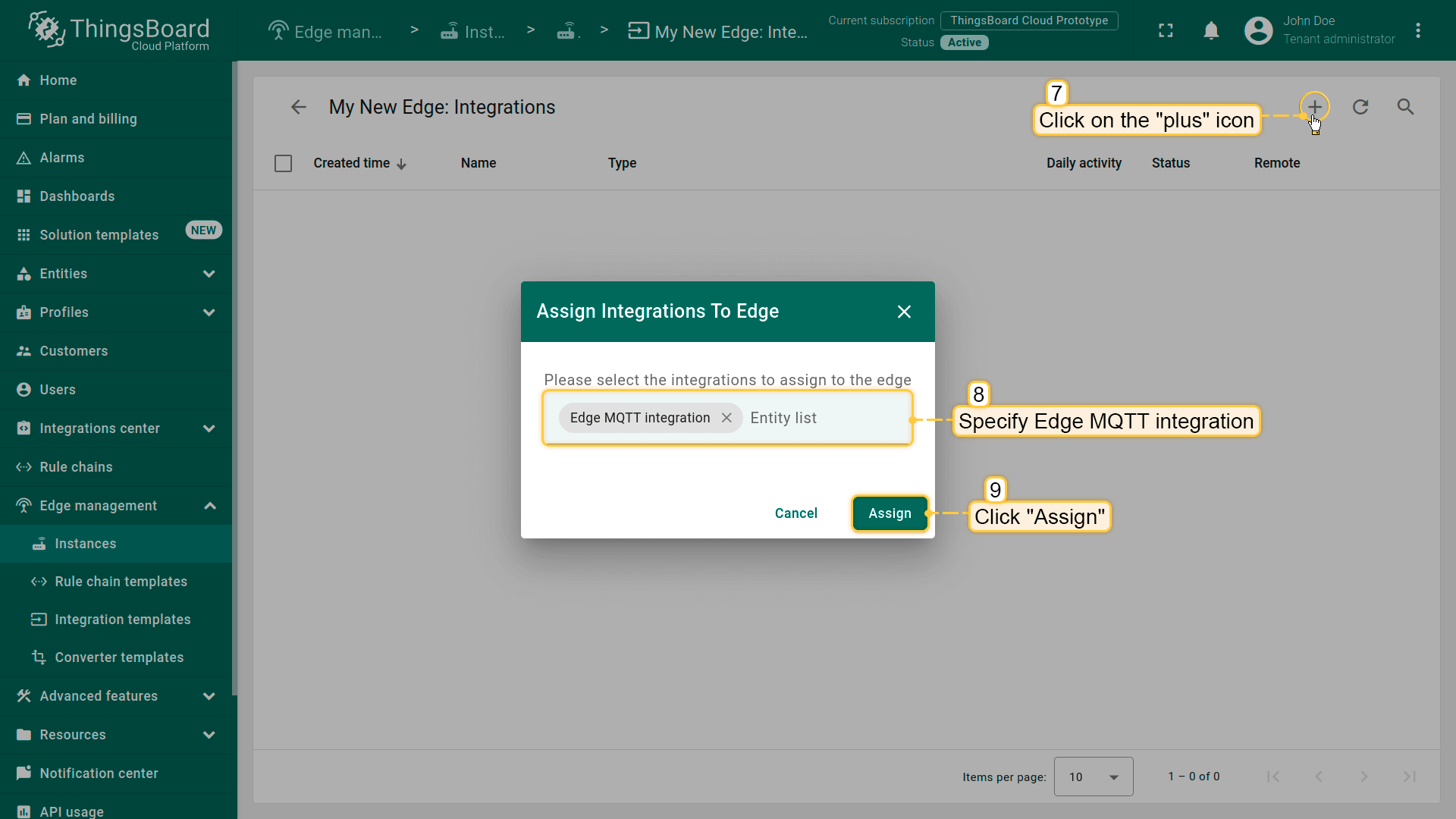
- Click the "+" button at the top right of the corner. Select your integration from the drop-down menu and click the "Assign" button.
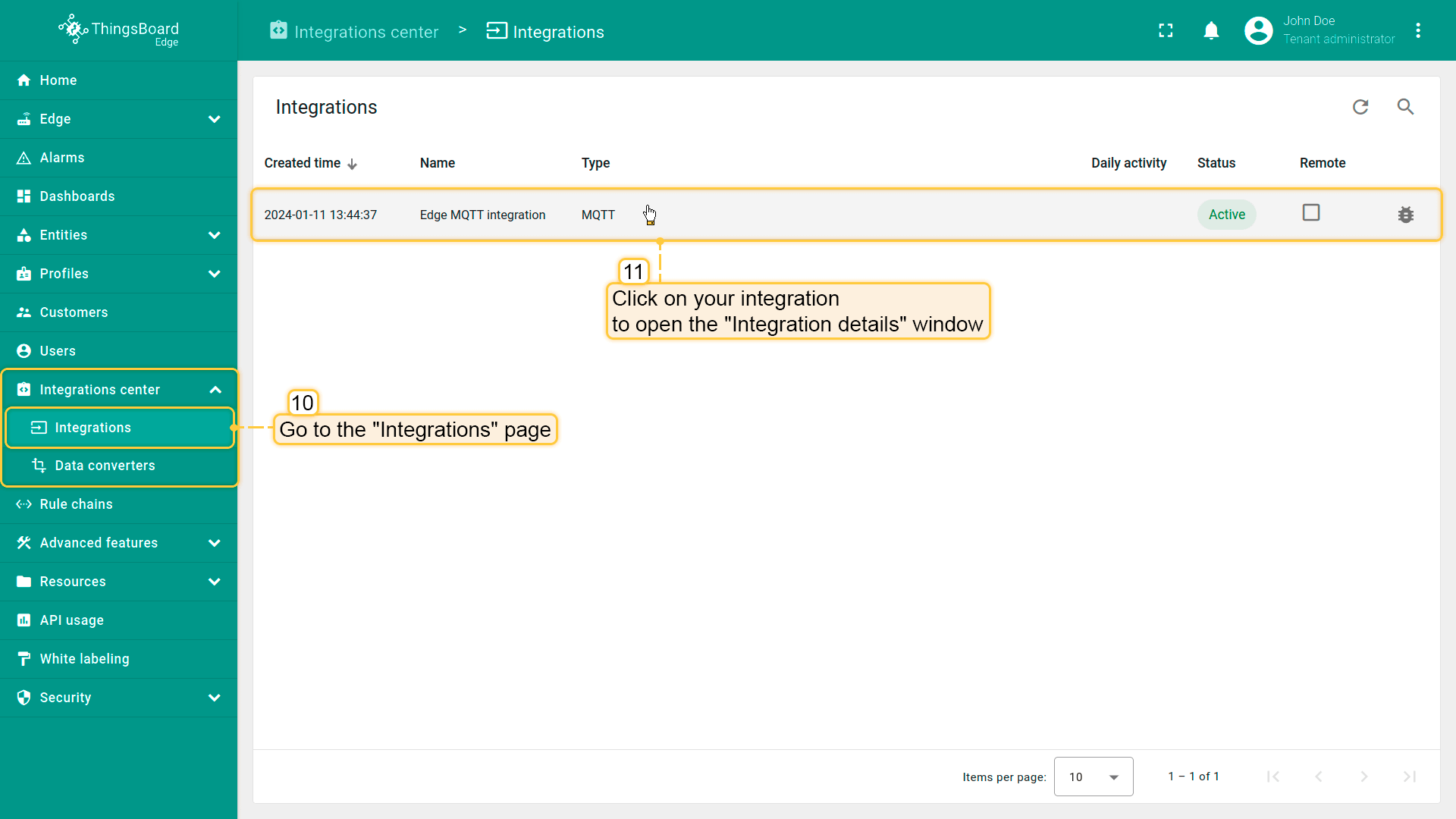
- Login to your ThingsBoard Edge instance and go to the Integrations center > Integrations section. You should see your integration. Click on it.
- In the "Integration details" window, the ${{brokerIp}} placeholder will be replaced with the value of the attribute.
Send uplink message
To send an uplink message, use the following command. It simulates a device sending temperature readings to the integration:
1
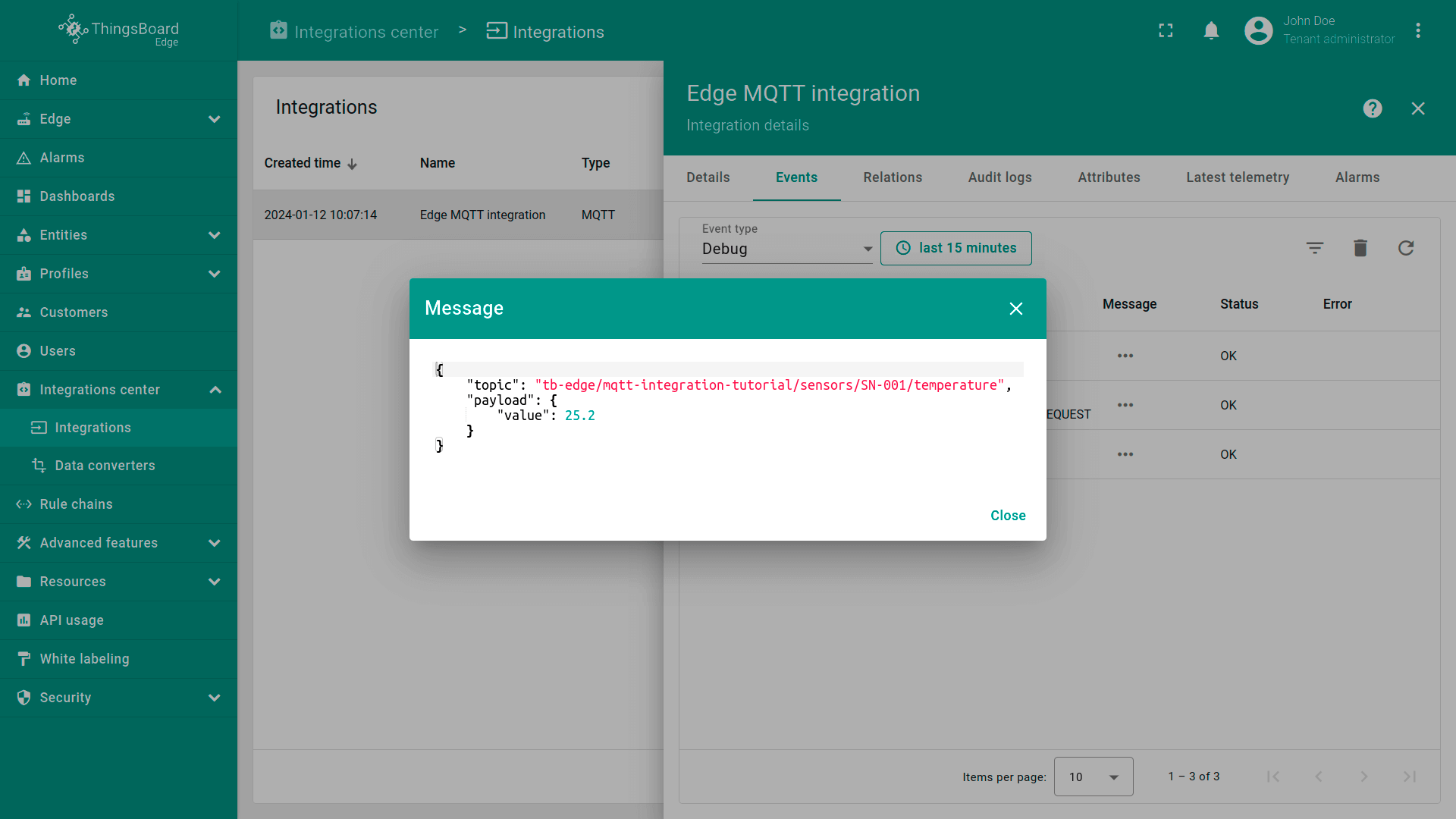
mosquitto_pub -h broker.hivemq.com -p 1883 -t "tb-edge/mqtt-integration-tutorial/sensors/SN-001/temperature" -m '{"value":25.2}'
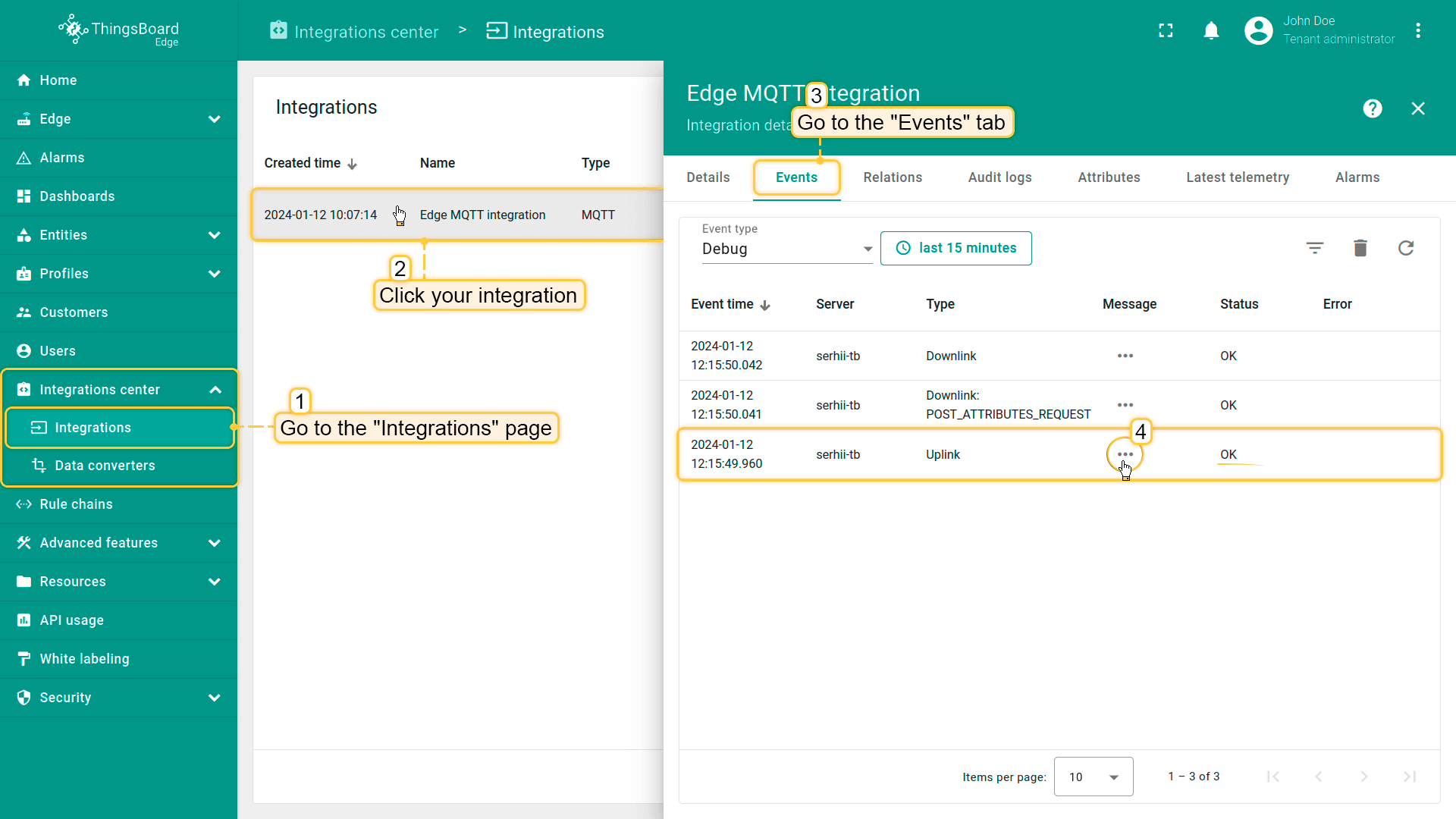
Now, go to the Integrations center > Integrations section and select the “Events” tab in your MQTT integration on the ThingsBoard Edge. If you have done everything correctly, you will find an uplink message with the OK status. To see the message, click the three dots in the “Message” column.
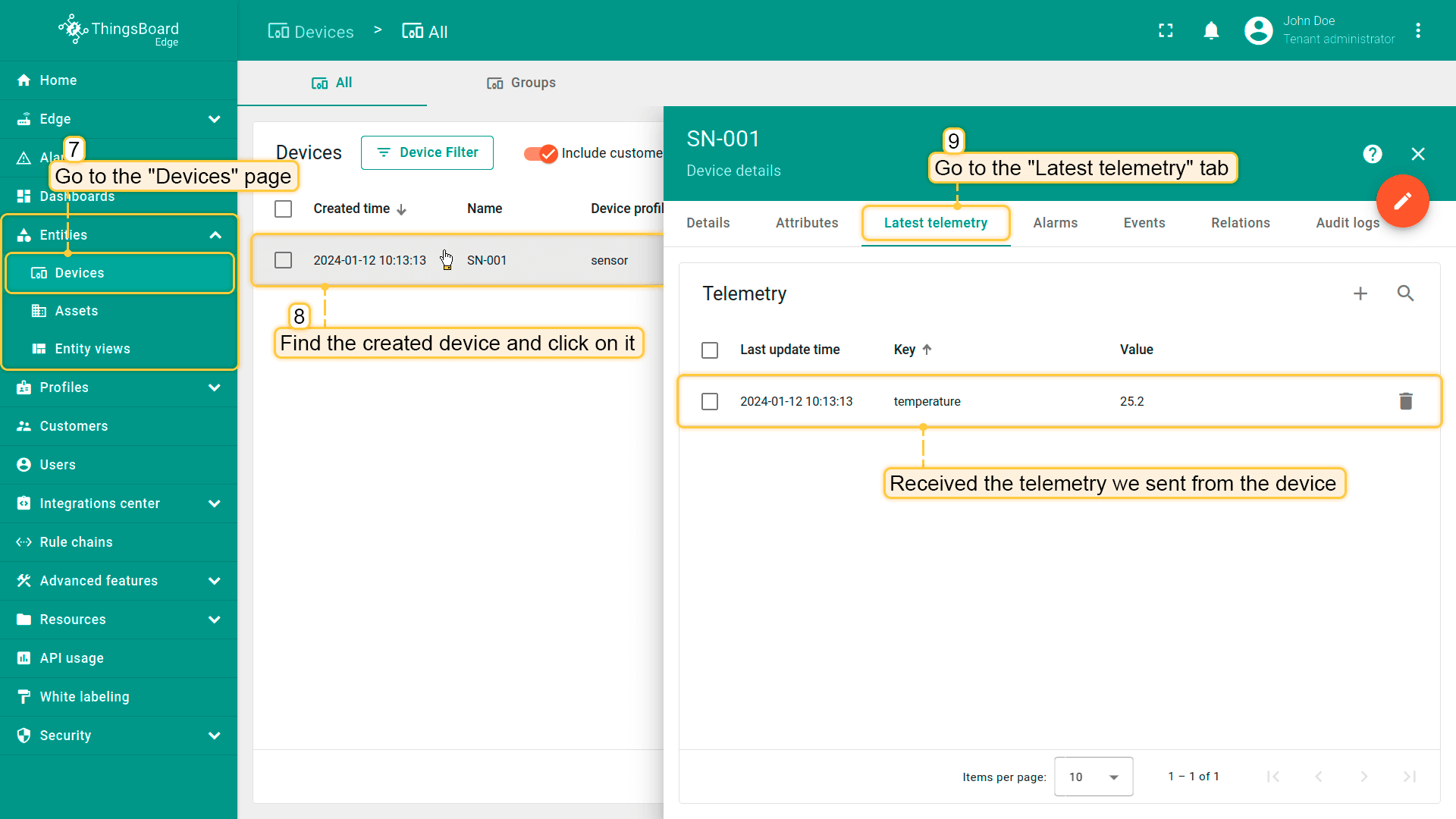
When you send the message, a new device is created. The created device with data can be seen in the Entities > Devices section:
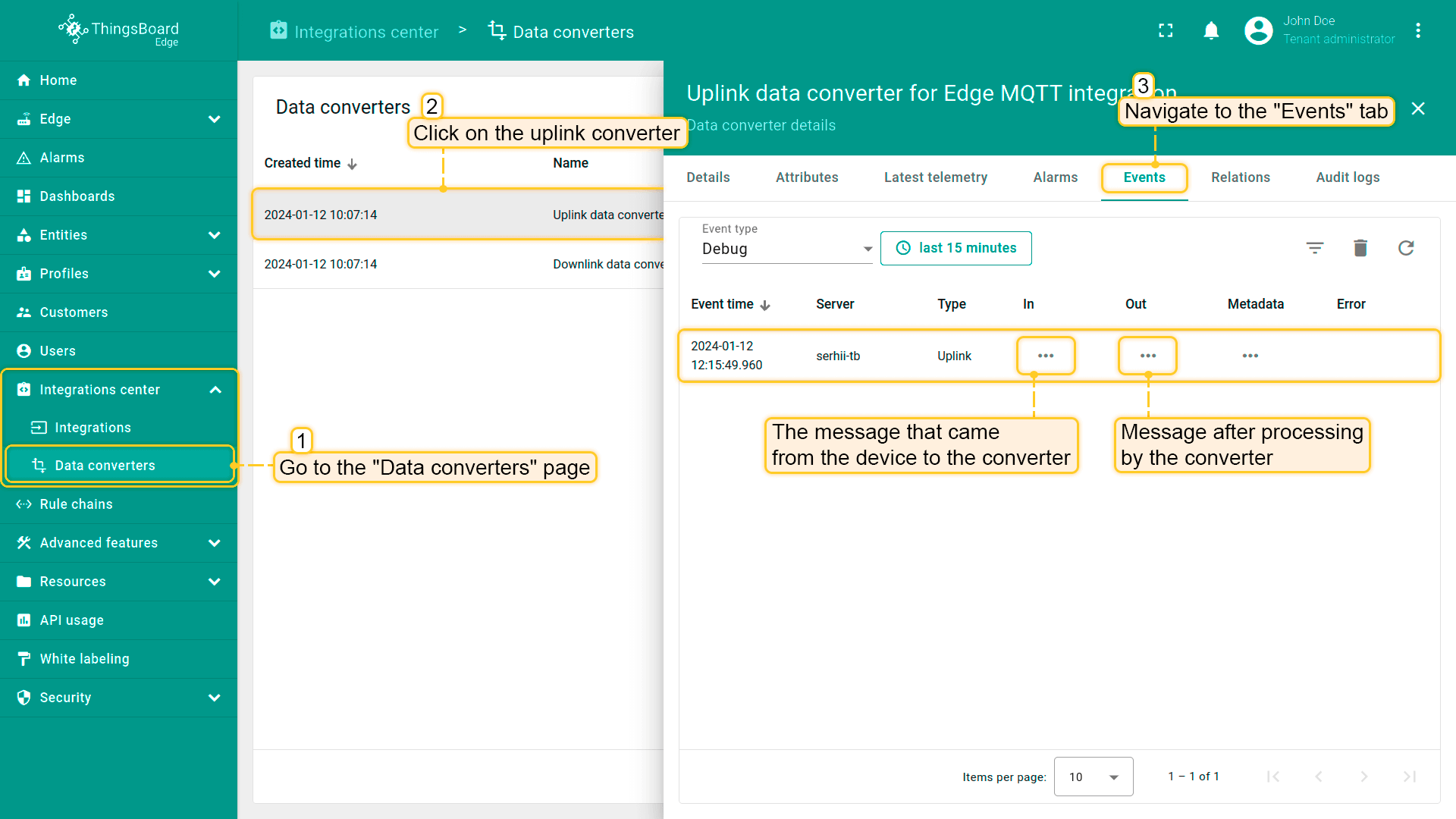
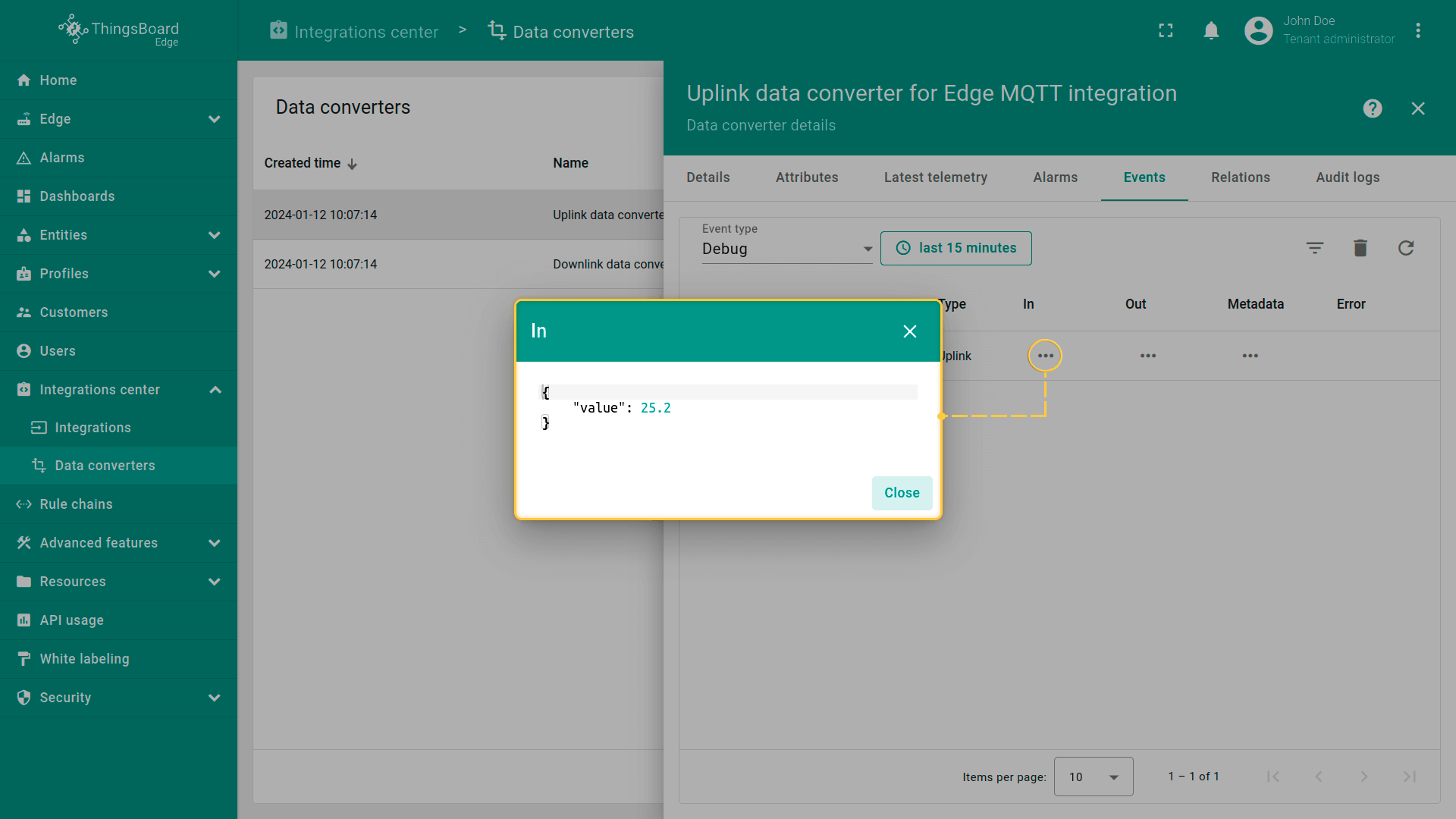
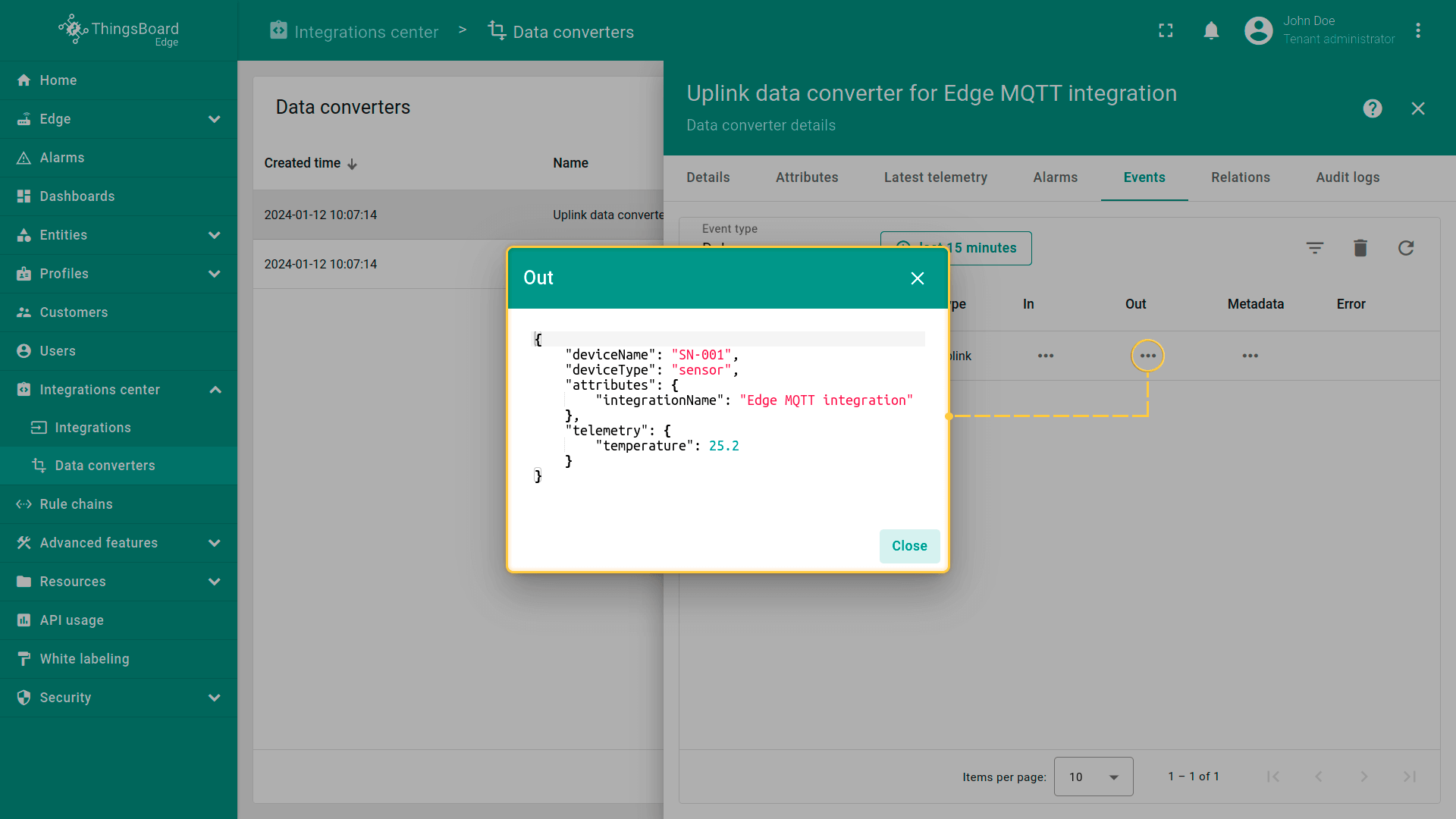
You can also view the received data in the uplink converter. In the In and Out blocks of the “Events” tab:
Send downlink message to device
Now let’s check the downlink functionality. Open a terminal window and run the following command:
1
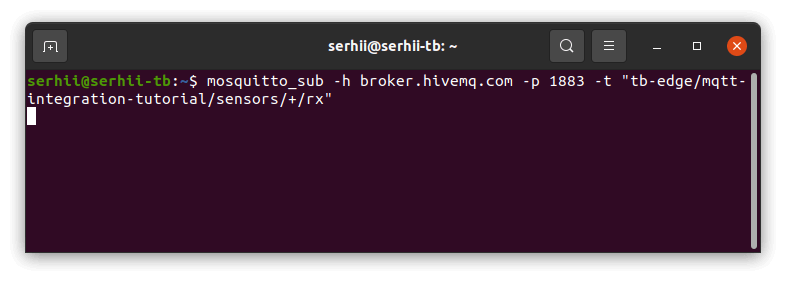
mosquitto_sub -h broker.hivemq.com -p 1883 -t "tb-edge/mqtt-integration-tutorial/sensors/+/rx"
Keep this terminal running in the background. In this terminal window, you should receive incoming messages sent later by the integration.
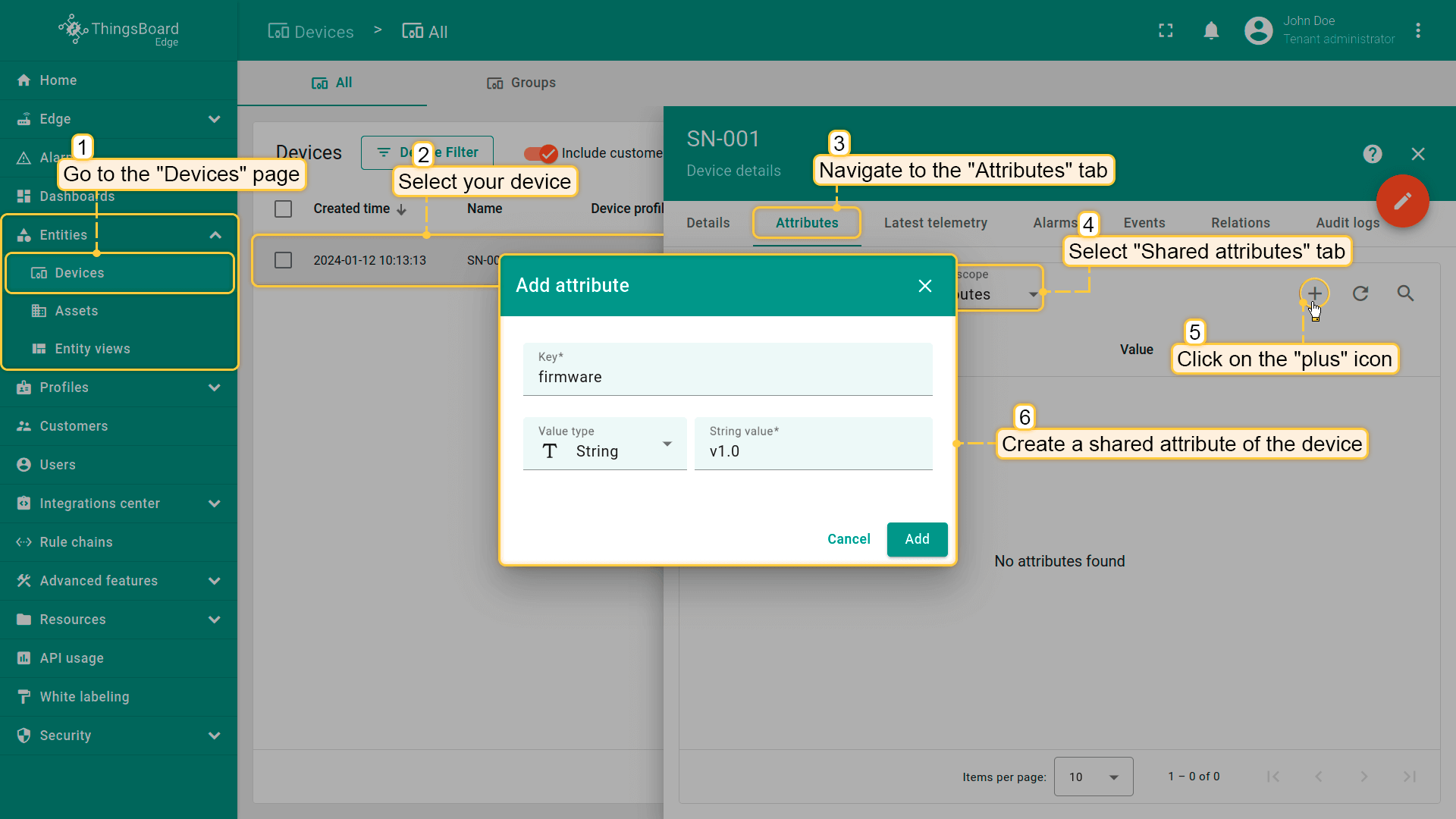
Now let’s add a shared attribute ‘firmware’. Go to the Devices page, select your device, and navigate to the “Attributes” tab on the ThingsBoard Edge. To create a new attribute, select the “Shared attributes” scope and click the “plus” button. Then set the attribute name, its value (for example, the key name is ‘firmware’, value: ‘v1.0’) and save the data.
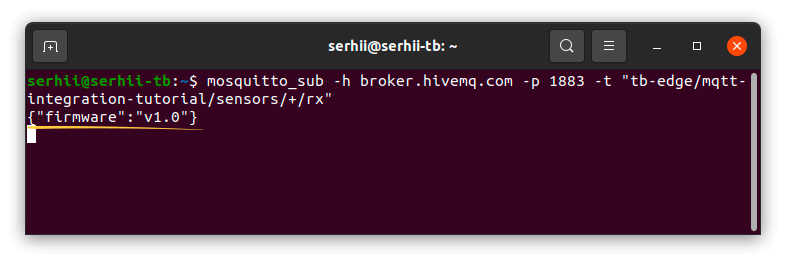
An example of incoming messages from ThingsBoard Edge in the terminal:
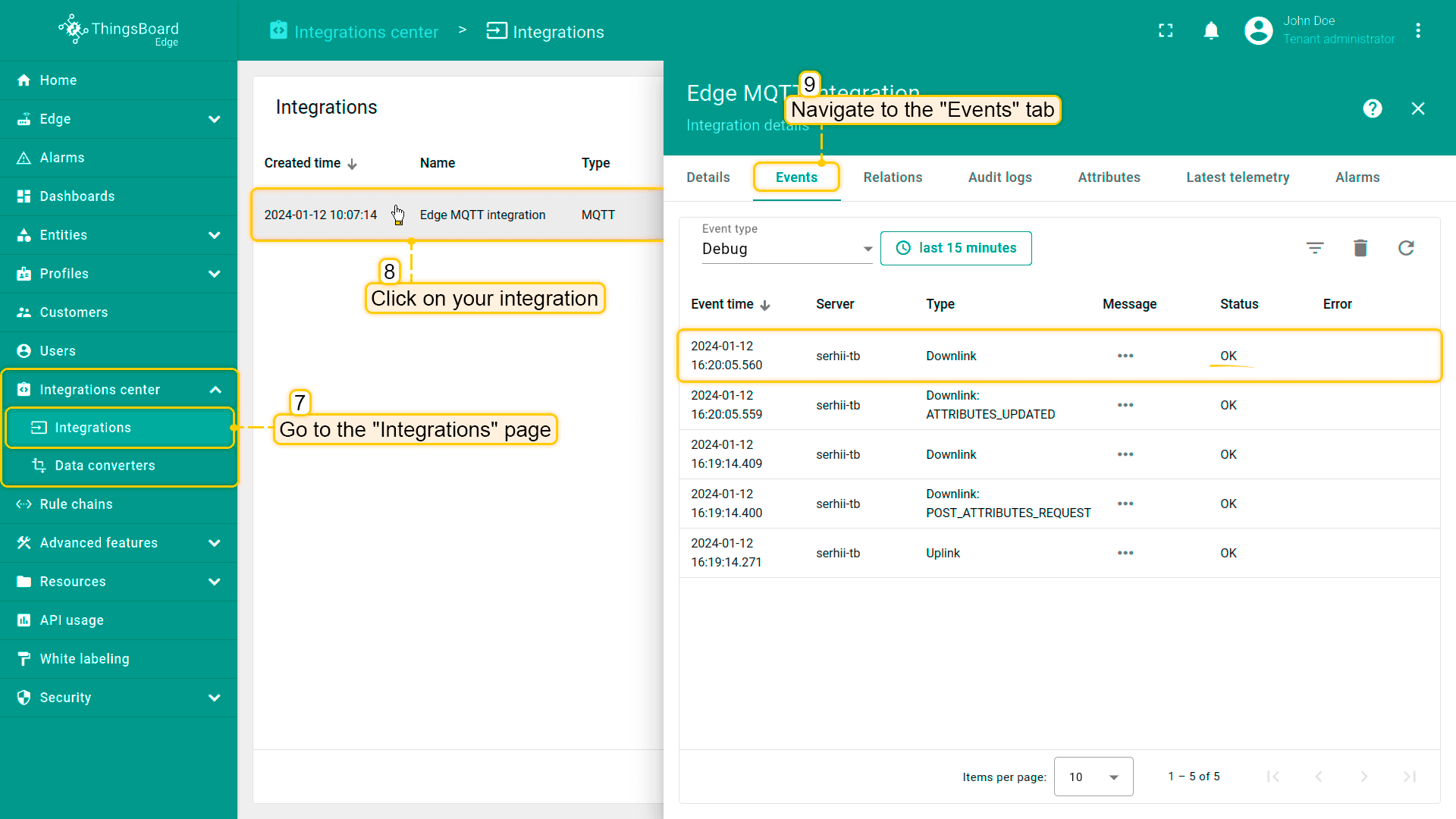
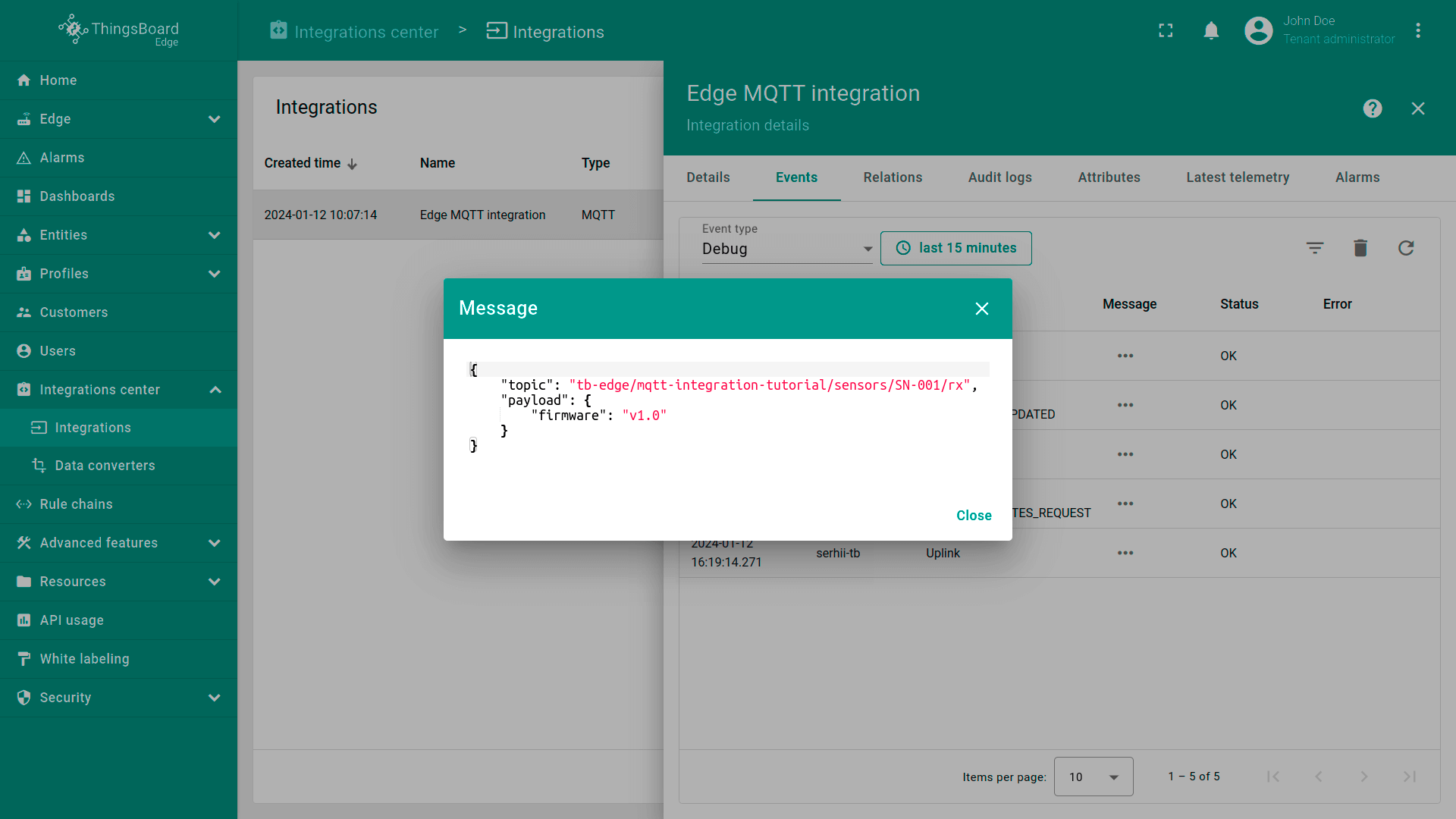
To ensure that the downlink message is sent to the integration, you can check the “Events” tab of the integration:
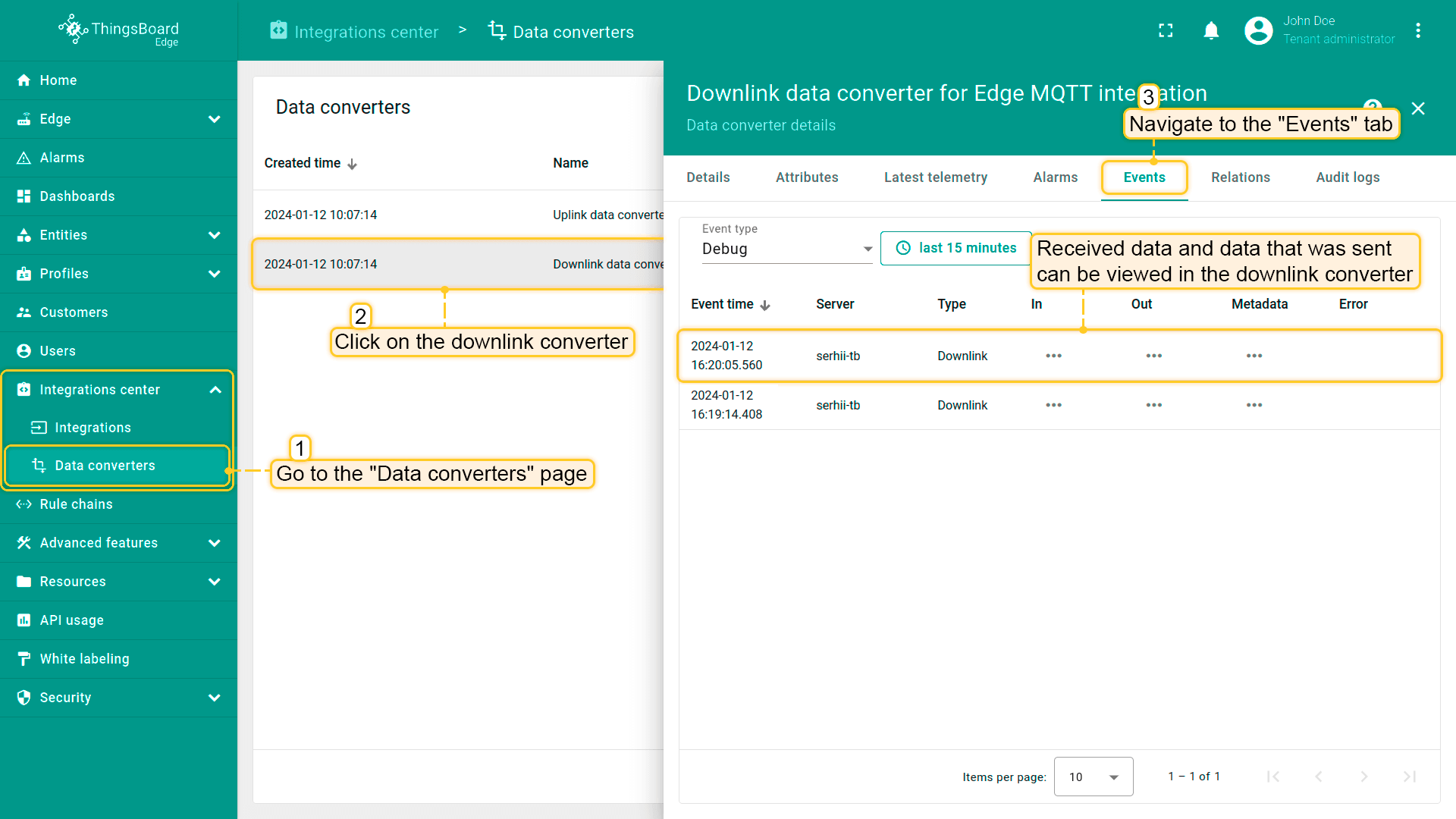
Received and sent data can be viewed in the downlink converter. The “In” block of the Events tab shows what data has been entered, and the “Out” field shows the message sent to the device:
Here 1
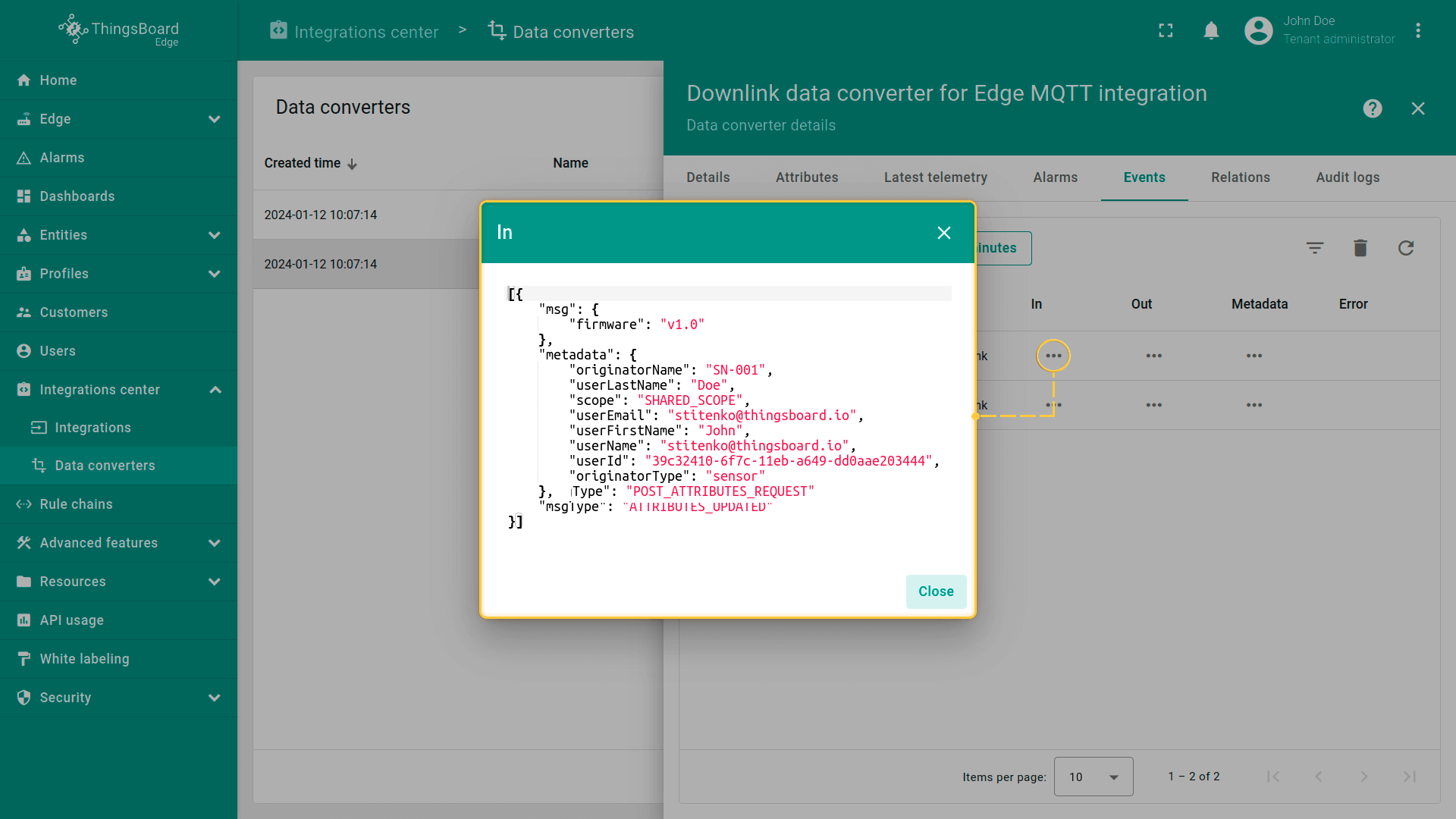
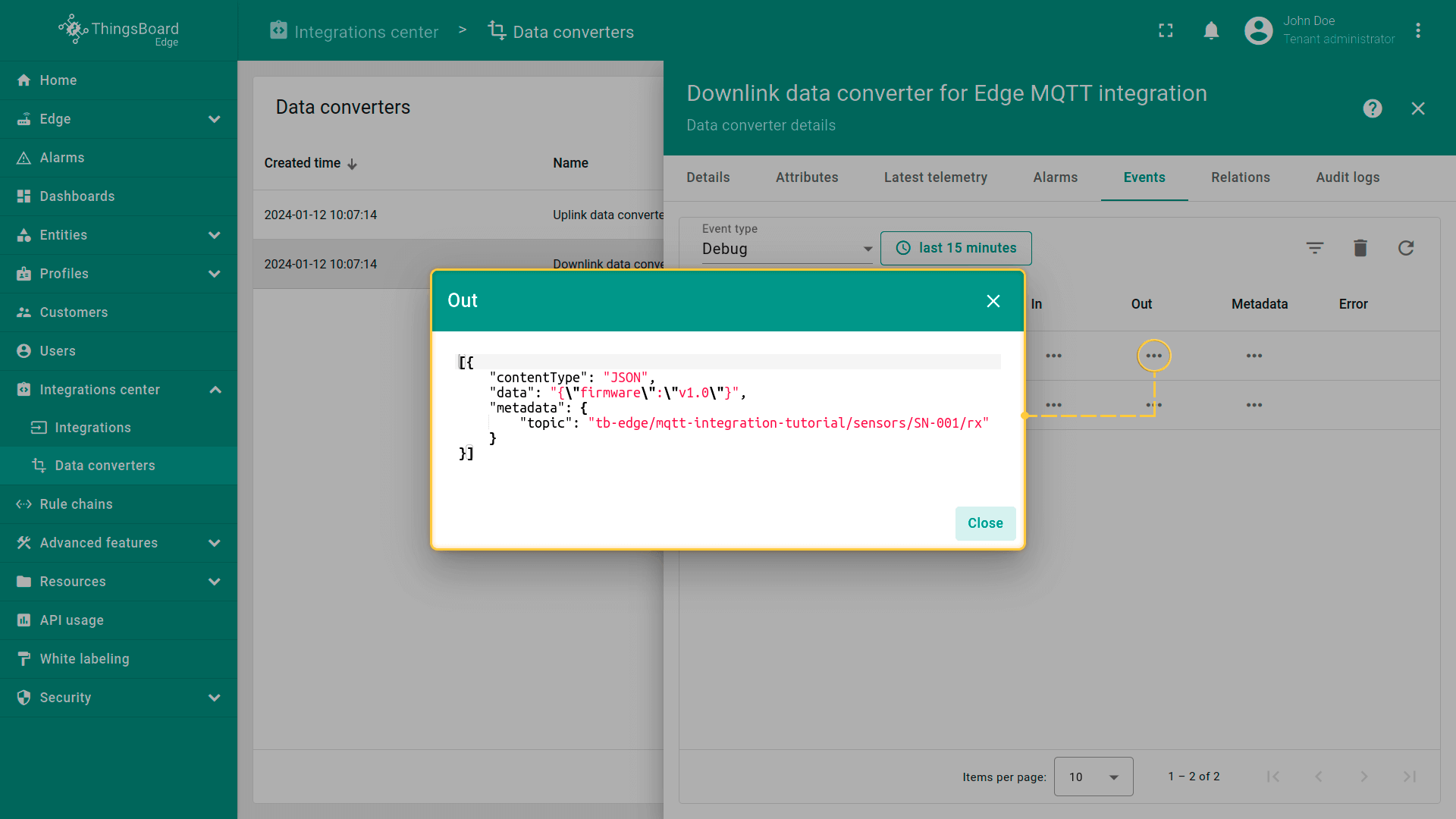
Here 2
下一步
-
Getting started guide(入门指南)- 快速概览 ThingsBoard Edge 主要功能。预计 15–30 分钟完成:
-
Installation guides(安装指南)- 了解如何在各种操作系统上安装 ThingsBoard Edge 并连接到 ThingsBoard Server。
-
Edge 规则引擎:
-
Rule Chain Templates(规则链模板)- 了解如何使用 ThingsBoard Edge 规则链模板。
-
Provision Rule Chains from cloud to edge(从云端向 Edge 下发规则链)- 了解如何从云端向 Edge 下发边缘规则链。
-
- 安全:
- gRPC over SSL/TLS - 了解如何为 Edge 与云端之间的通信配置 gRPC over SSL/TLS。
-
功能:
-
Edge Status(Edge 状态)- 了解 ThingsBoard Edge 上的 Edge Status 页面。
-
Cloud Events(云端事件)- 了解 ThingsBoard Edge 上的 Cloud Events 页面。
-
-
使用场景:
-
Manage alarms and RPC requests on edge devices(在边缘设备上管理告警和 RPC 请求)- 本指南展示如何在 Edge 上生成本地告警并向连接到 Edge 的设备发送 RPC 请求:
-
Data filtering and traffic reduce(数据过滤与流量削减)- 本指南展示如何从 Edge 向云端仅发送过滤后的设备数据:
-
- Roadmap(路线图)- ThingsBoard Edge 路线图。