概述
ThingsBoard告警是用于监控和响应实体事件及条件的重要功能。 若要全面了解 ThingsBoard告警 功能,请参阅告警使用指南。
尽管 Edge 的 告警 功能设计与 Cloud 类似,但包含若干显著差异:
- 告警在 Edge 上本地处理,侧重于触发告警的即时条件,不依赖连接性。
- 告警数据可从 Edge 推送到 Cloud,也可从 Cloud 发回至 Edge。此设置支持跨不同位置的实时监控和告警管理。
- Edge告警可与本地其他系统或软件集成,用于进一步处理、通知或执行操作。
简而言之,ThingsBoard Edge告警提供可独立于 Cloud 连接运行的实时、本地化告警管理。
在Edge实例上创建告警
Edge告警的创建和配置方式与 Cloud告警相同。因此,需要根据告警触发条件定义 参数和规则。
创建告警最简单的方式是使用设备配置中的告警规则。大多数场景都可通过 Alarm Rules 以最少配置完成。
如需更复杂的逻辑,建议在规则引擎中使用“Create Alarm”和“Clear Alarm”节点。这是高级方案,需要一定的开发能力。请参考对应示例。
从Cloud推送告警到Edge
ThingsBoard系统支持将 告警 从 Cloud 推送到 Edge,以提高运营效率并减少对 Cloud 资源的依赖。

请提前确定要使用的 Rule Chain,这将显著影响配置过程。
操作指南
将告警从 Cloud 推送到 Edge,请按以下步骤操作:
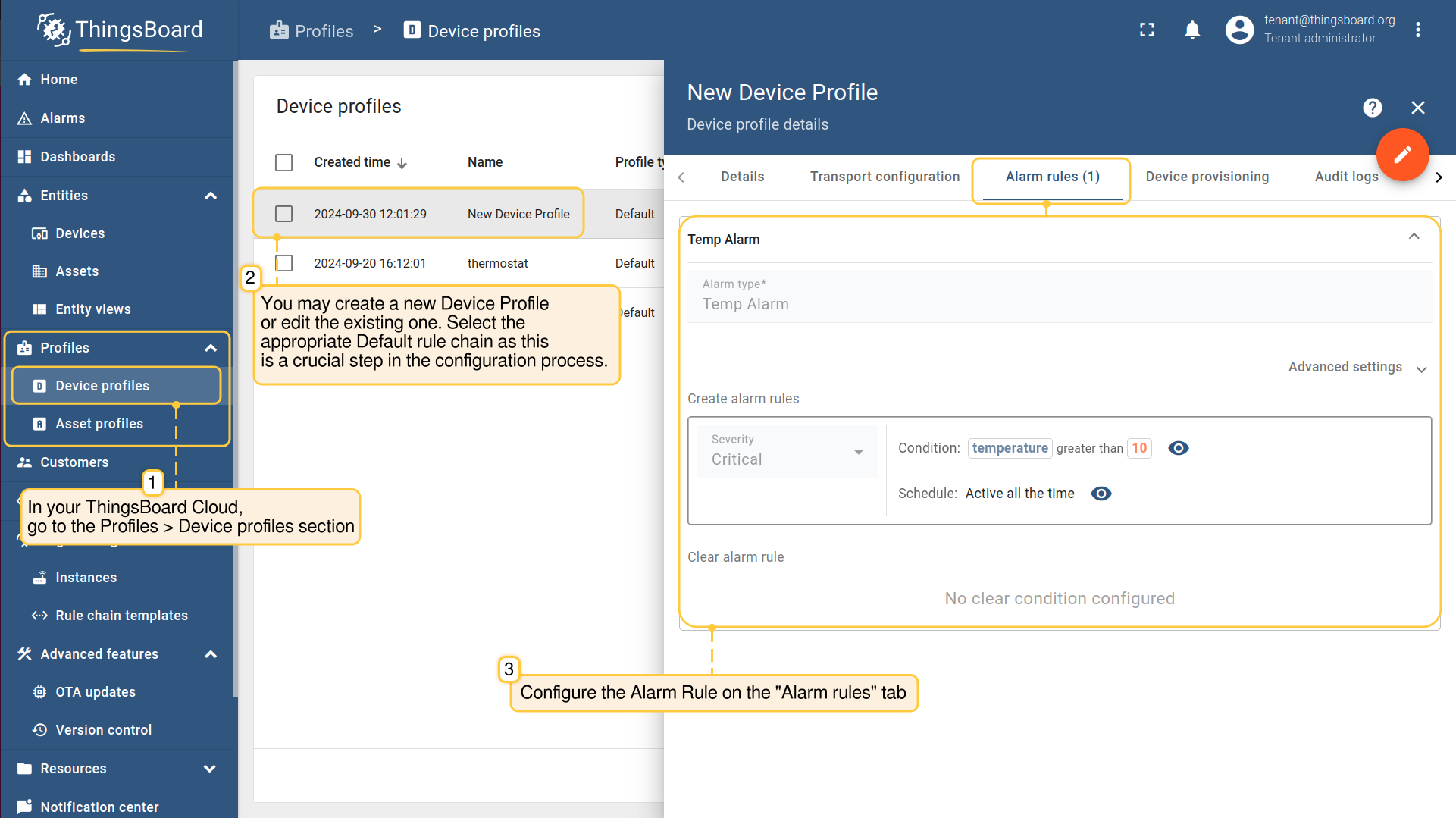
- Log in to the ThingsBoard Cloud and go to the Profiles > Device profiles section to create or modify the Device profile. Select the appropriate Default rule chain. Then, configure the Alarm Rule.
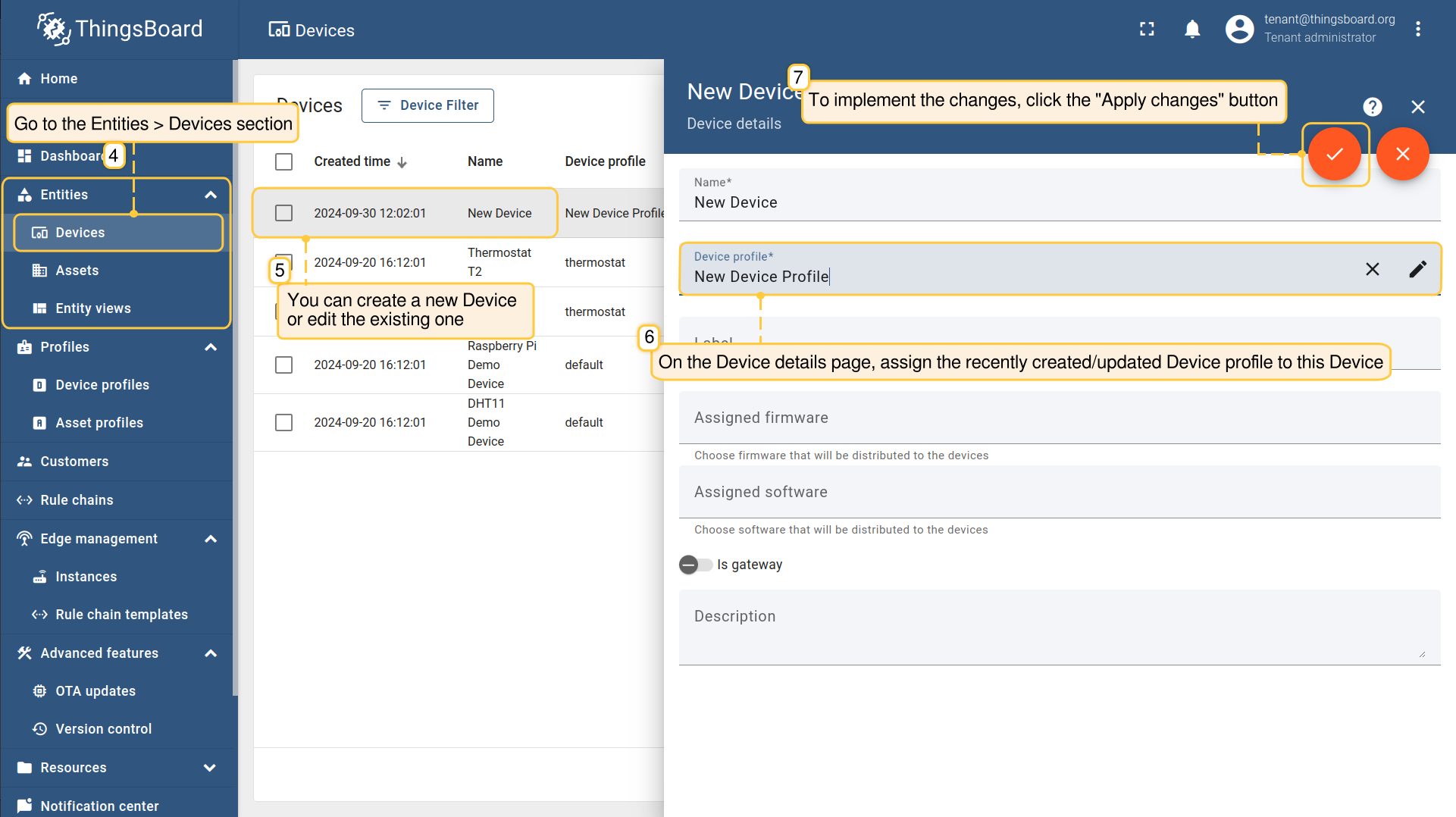
- Go to the Entities > Devices section. You can create a new Device or edit the existing one. On the "Device details" page, assign newly created (or updated) Device profile to this Device. Click the “Apply changes” button.
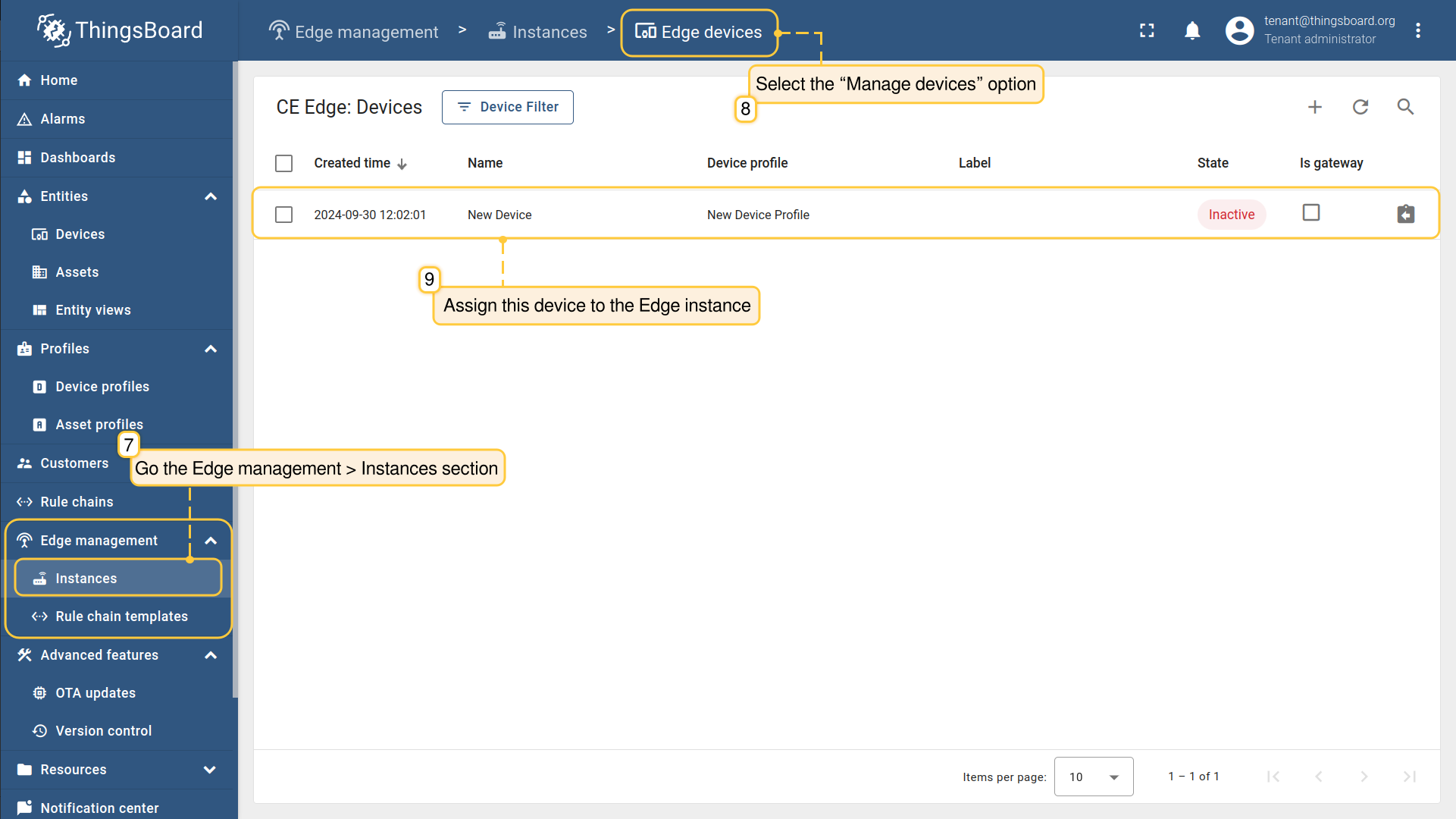
- Go the Edge management > Instances section, select the “Manage devices” option and assign this device to the Edge instance.
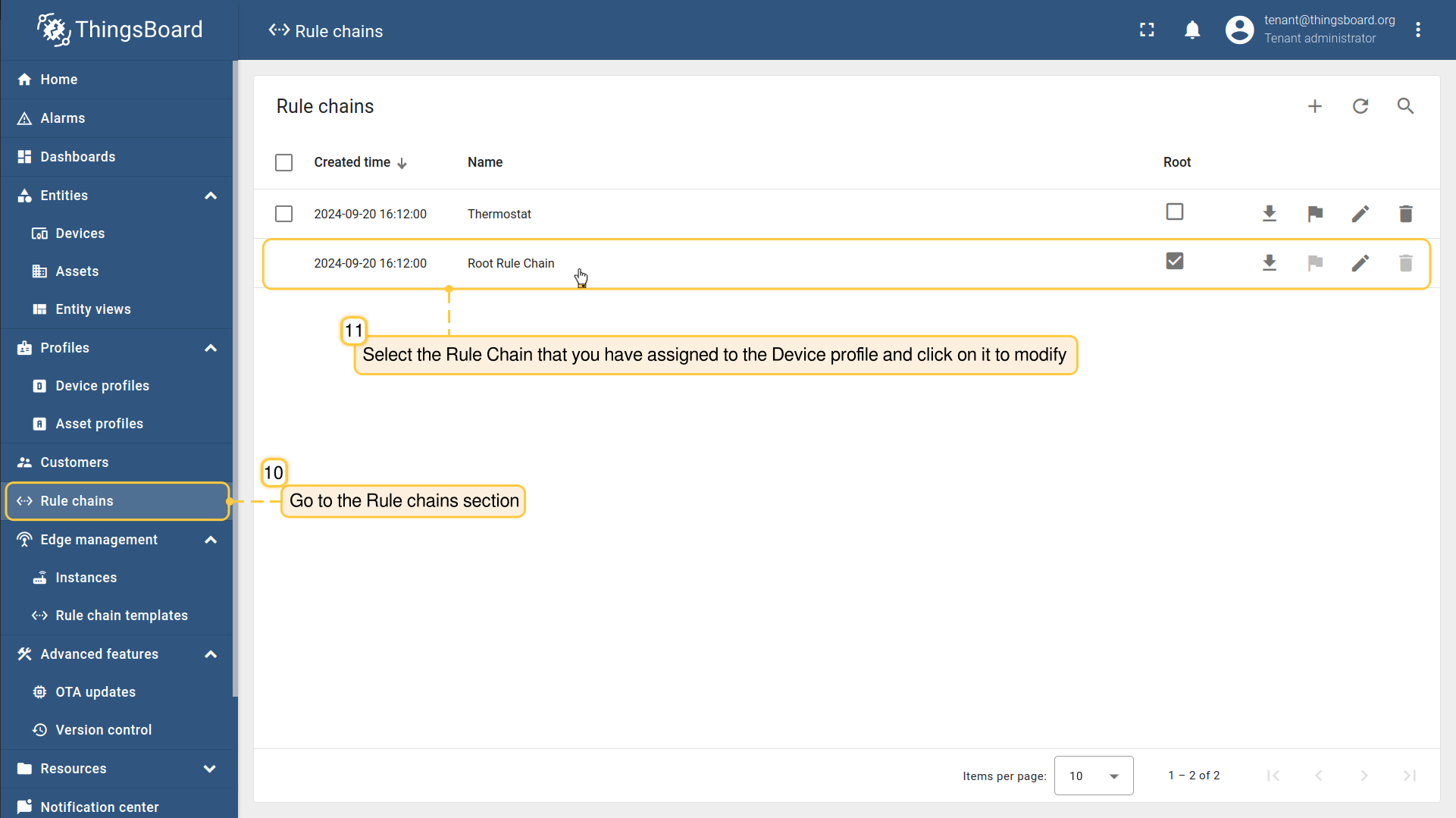
- Go to the Rule Chains section, to modify the Rule Chain you have assigned to the Device profile.
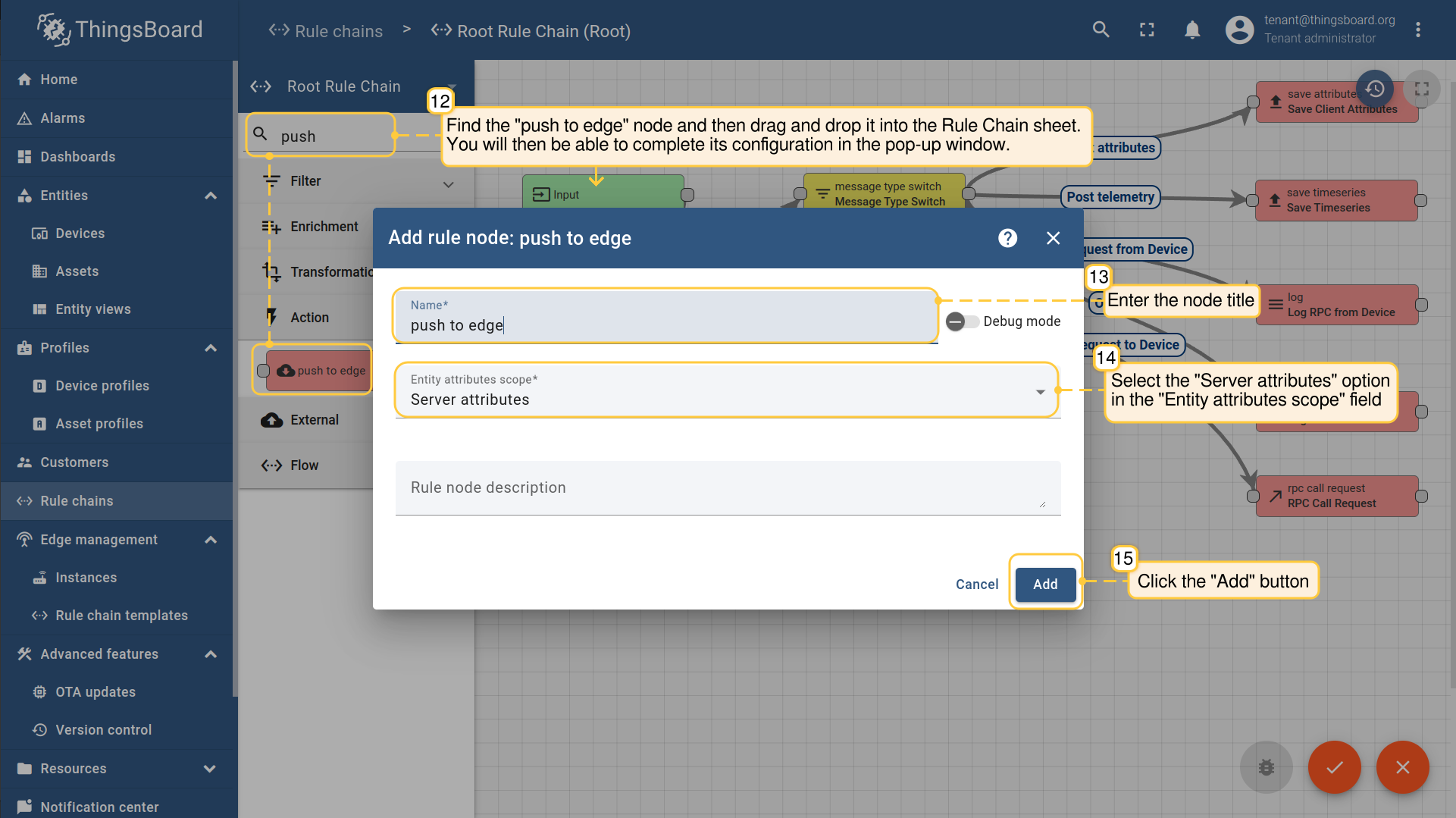
- On the Rule Chain edit page, in the Node search bar find the "push to edge" node. It pushes messages from Cloud to Edge. Once message arrives to this node it will be converted into Edge event and saved to the local database. Drag and drop the node onto the Rule Chain sheet. Then, in the "Add rule node" pop-up window enter the node title and select the "Server attributes" option in the "Entity attributes scope" field. Click the "Add" button to proceed.
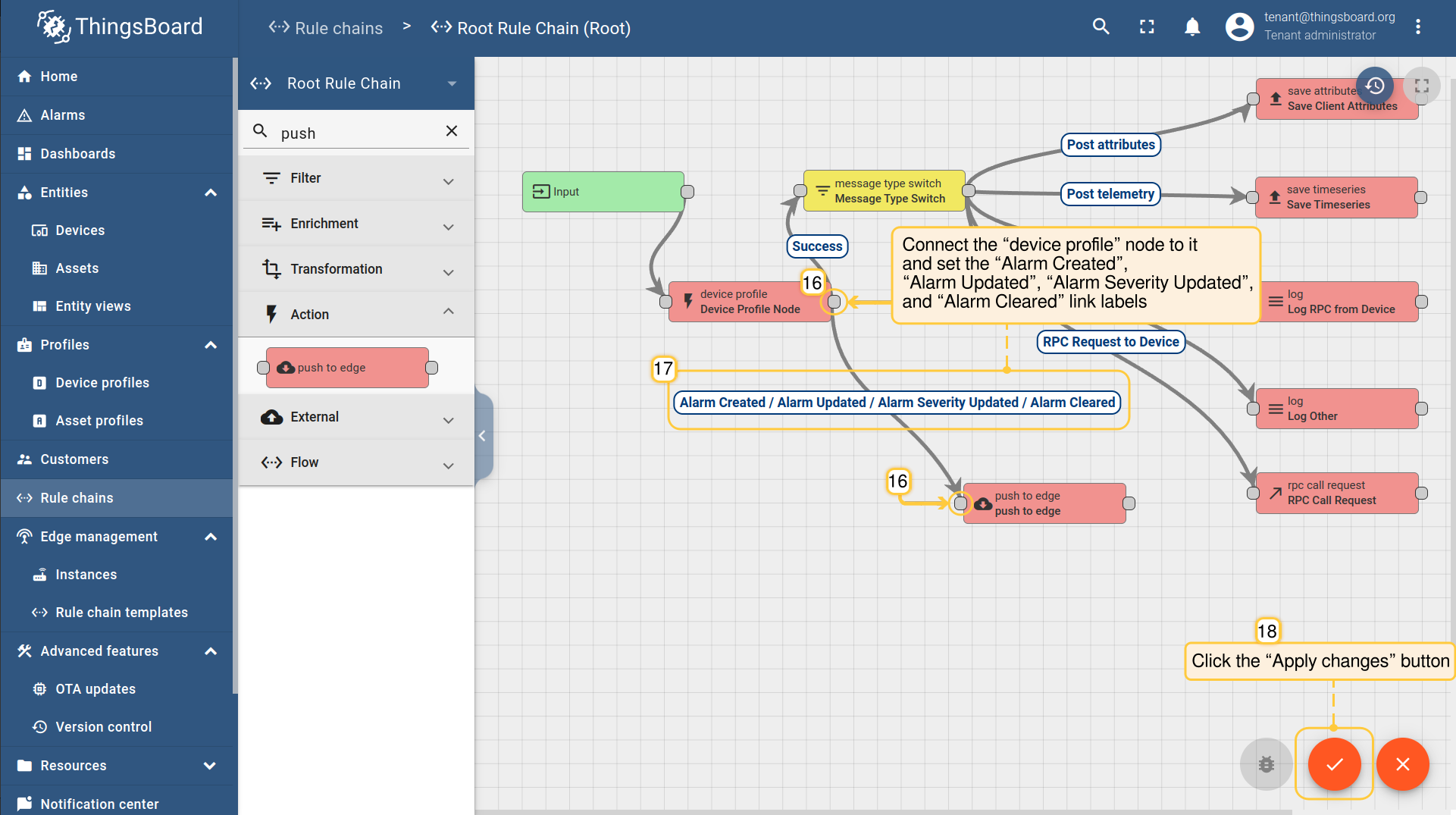
- Connect the “device profile” node to the "push to edge" node and set the “Alarm Created”, “Alarm Updated”, “Alarm Severity Updated”, and “Alarm Cleared” link labels. Click the “Apply changes” button in the Rule Chain sheet.
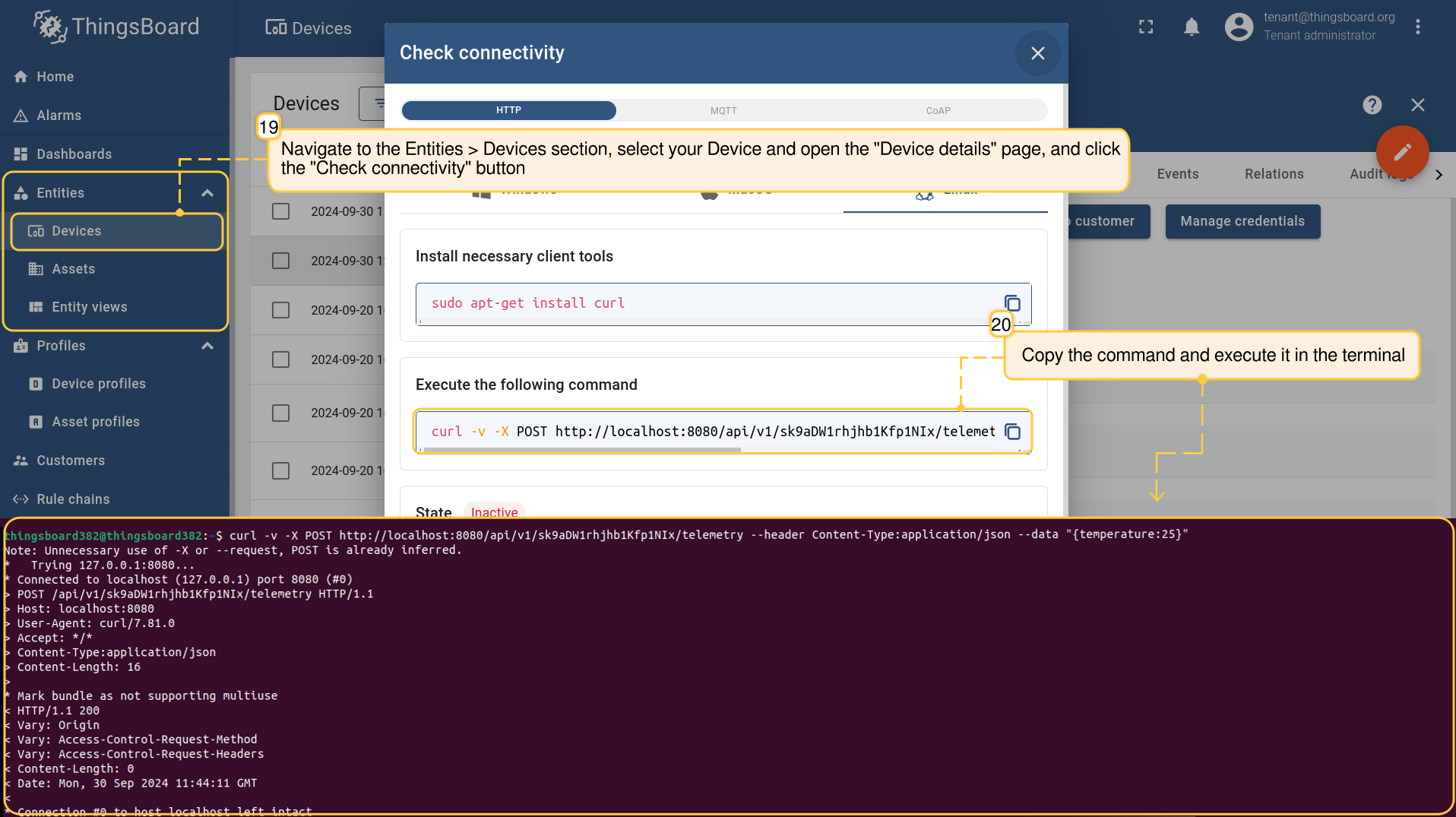
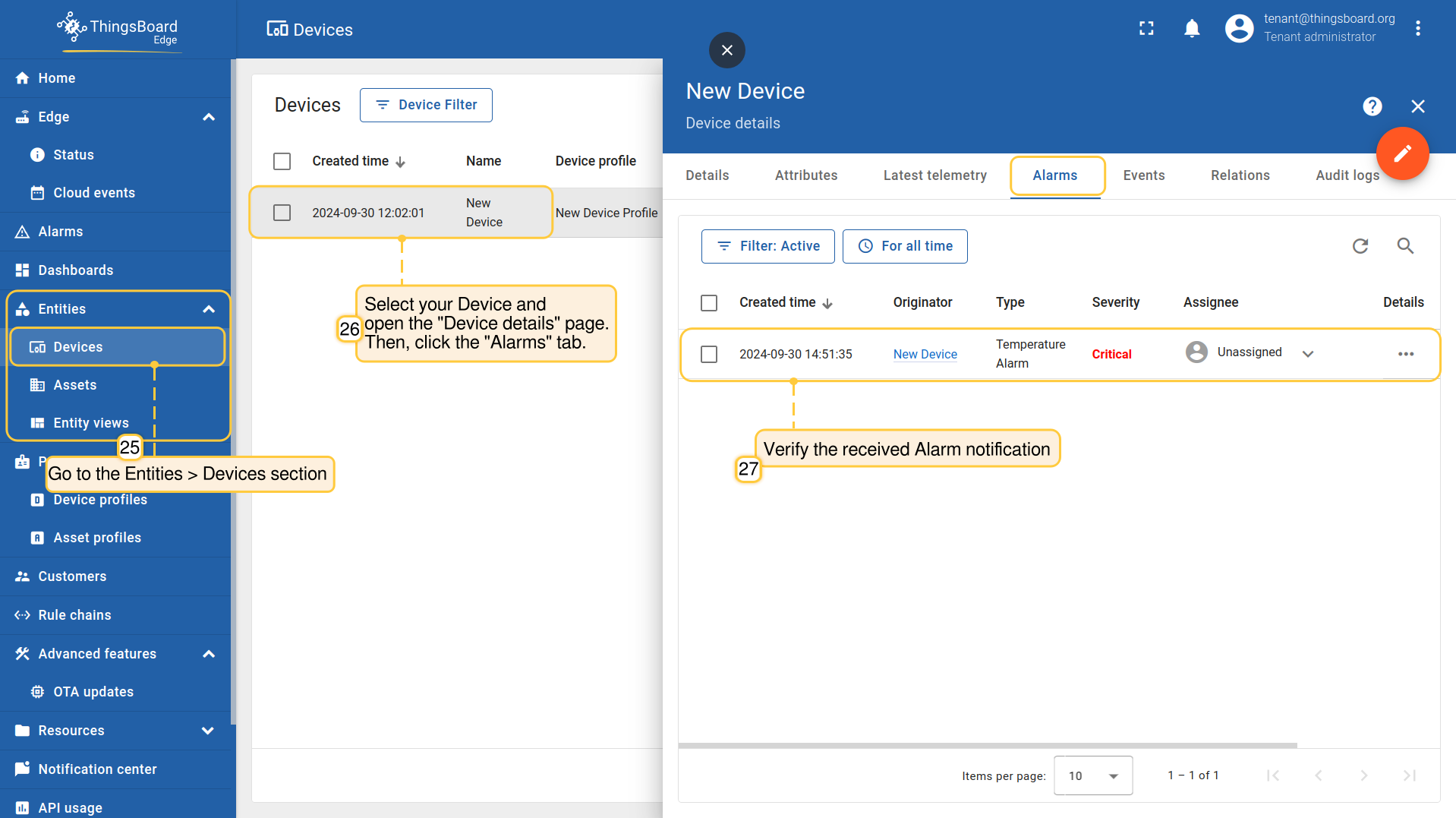
- To test if the rule and node are working, navigate to the Entities > Devices section, find your Device and open the "Device details" page. Click the "Check connectivity" button. Trigger the Alarm Rule by executing the corresponding command in the terminal.
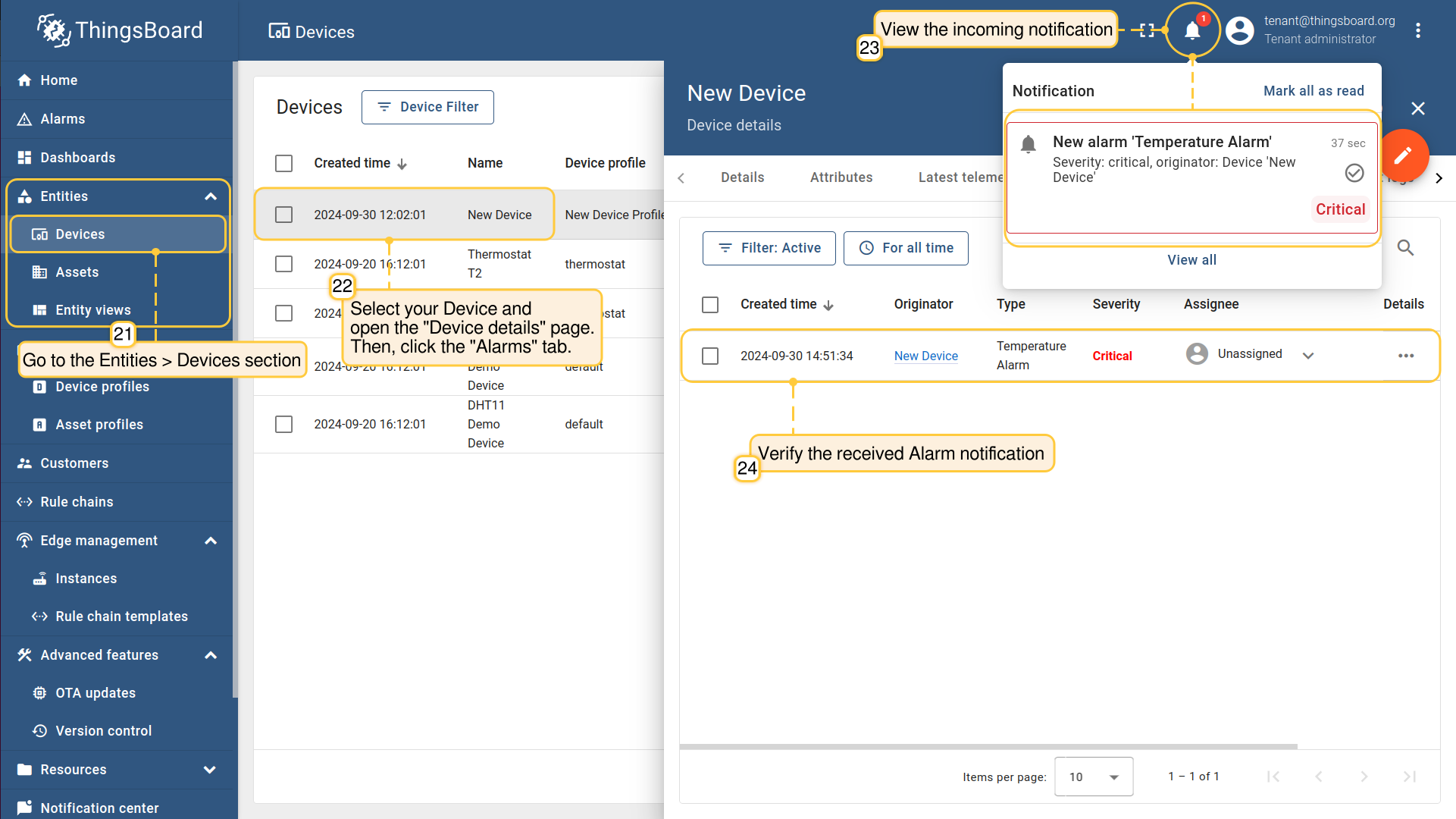
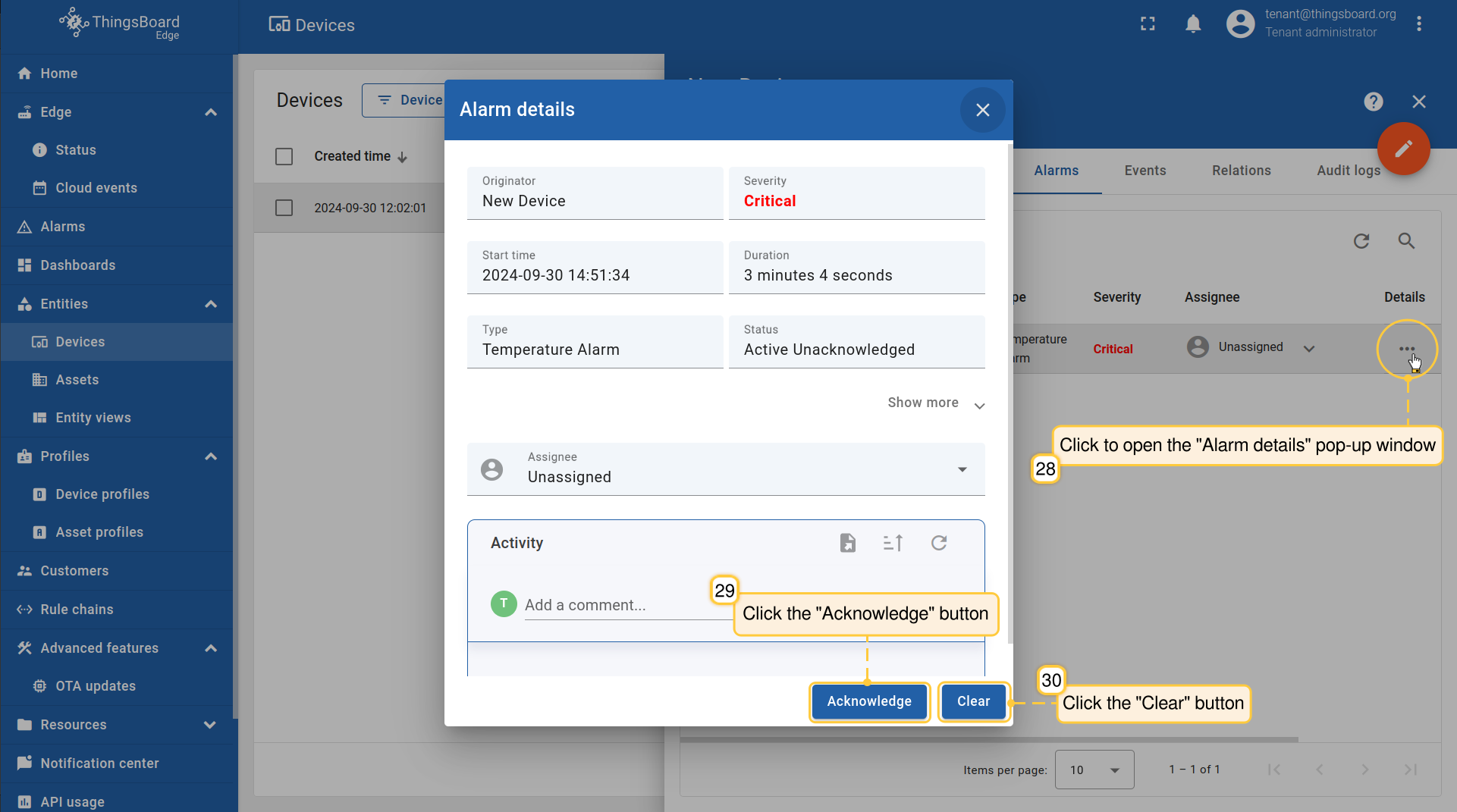
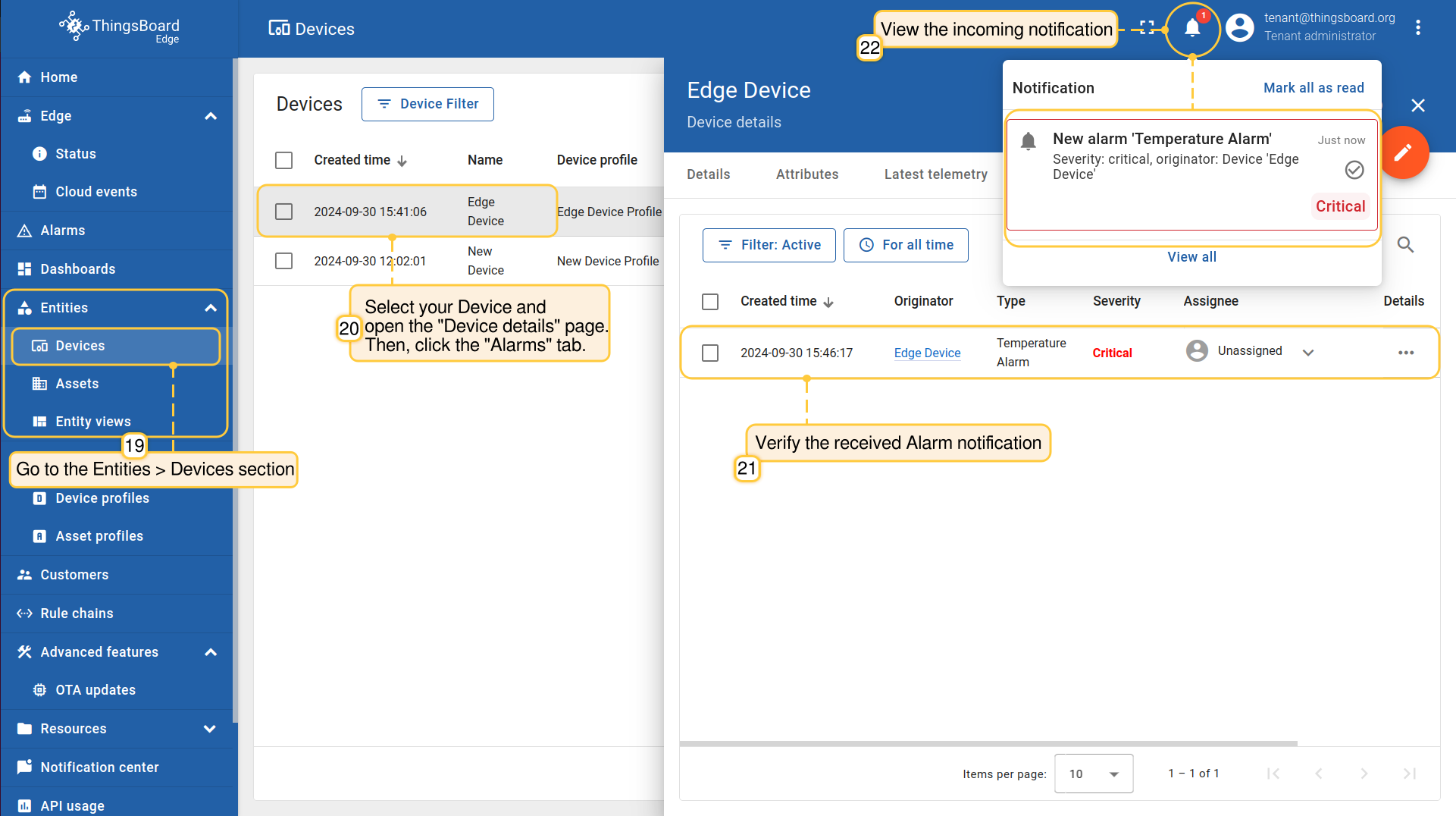
- To verify the received Alarm notification, go to the Entities > Devices section, open the "Device details" page and select the “Alarm” tab. You also can view the incoming Alarm notification in the Notification center.
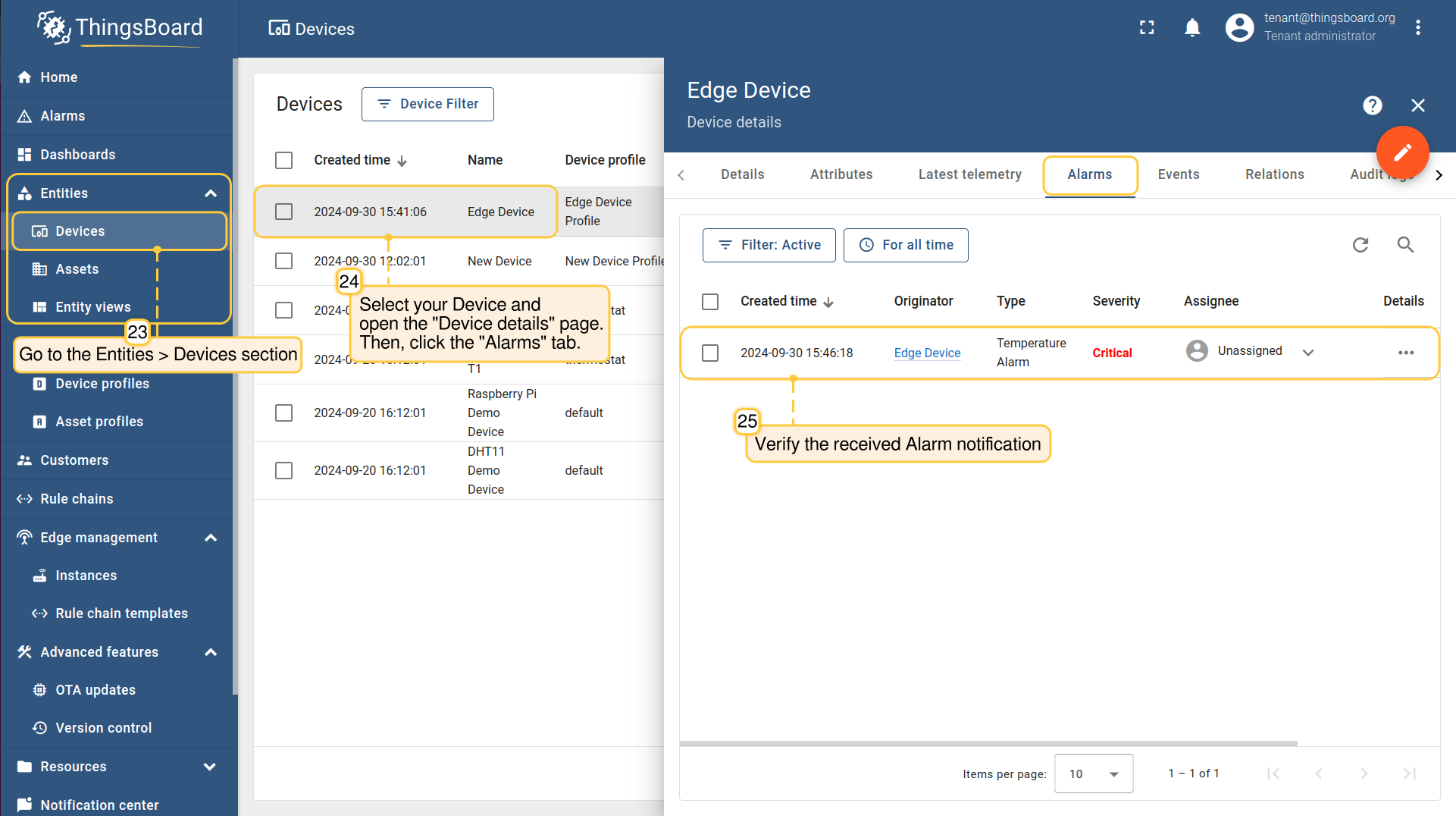
- To verify that the notification is propagated to the Edge, log in to the Edge instance and go to the Entities > Devices section, open the "Device details" page and select the “Alarm” tab.
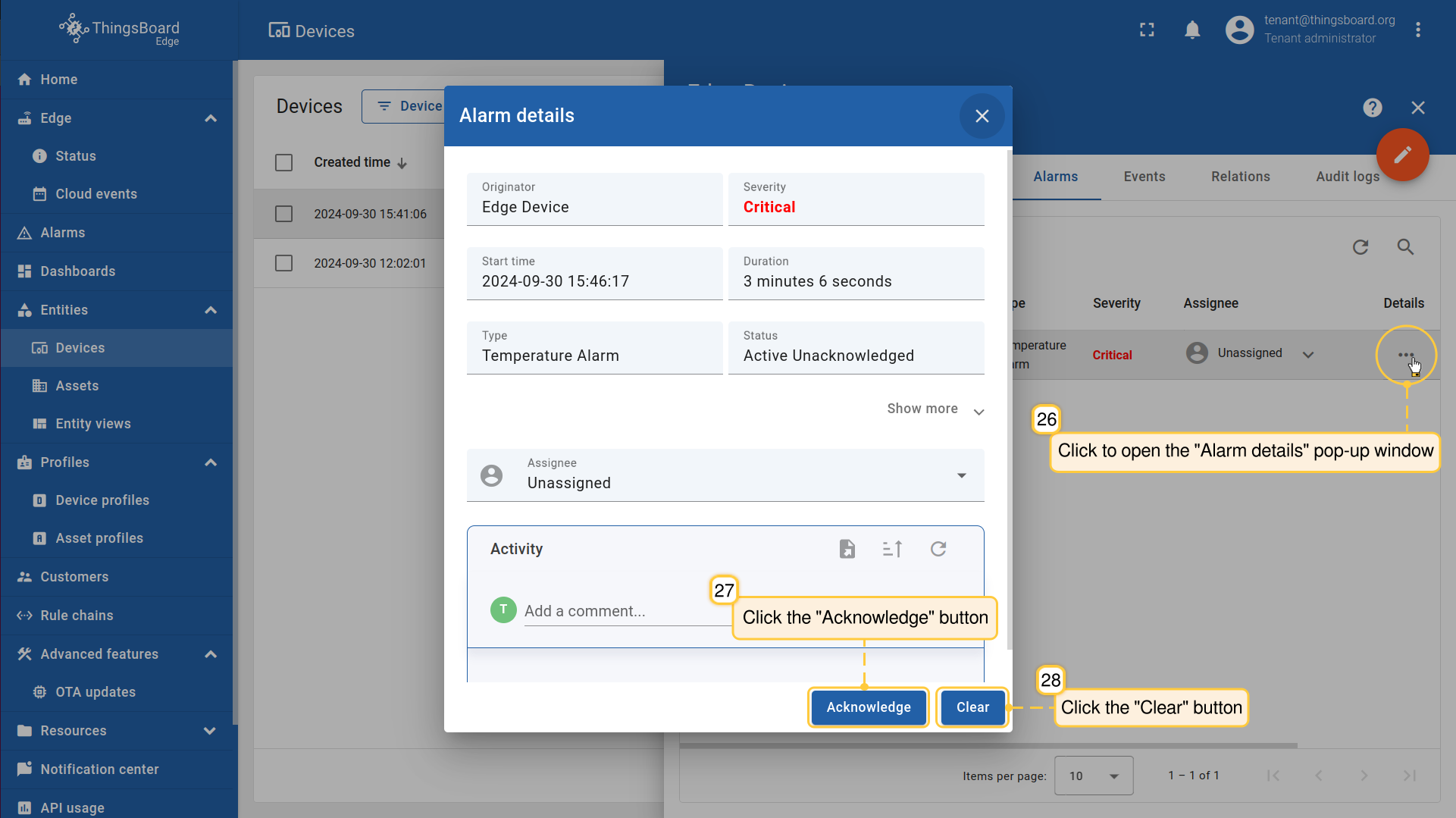
- Make sure to Acknowledge and Clear the notification after you received it. You can do it on either the Cloud or the Edge. If the Uncleared Alarm exists, it will be updated, instead of being created.
从Edge推送告警到Cloud
ThingsBoard 同样支持将告警从 Edge 推送到 Cloud。
请注意!
若使用 较早版本 的Edge,您 无法 在 Edge 本身创建或编辑 Rule Chain。必须在 Cloud (Server) 中配置为模板,然后分配给 Edge 实例。
从 Edge 4.0 起,您可以在 Edge 上创建和编辑 Rule Chain。
操作指南
将告警从 Edge 推送到 Cloud,请按以下步骤操作:
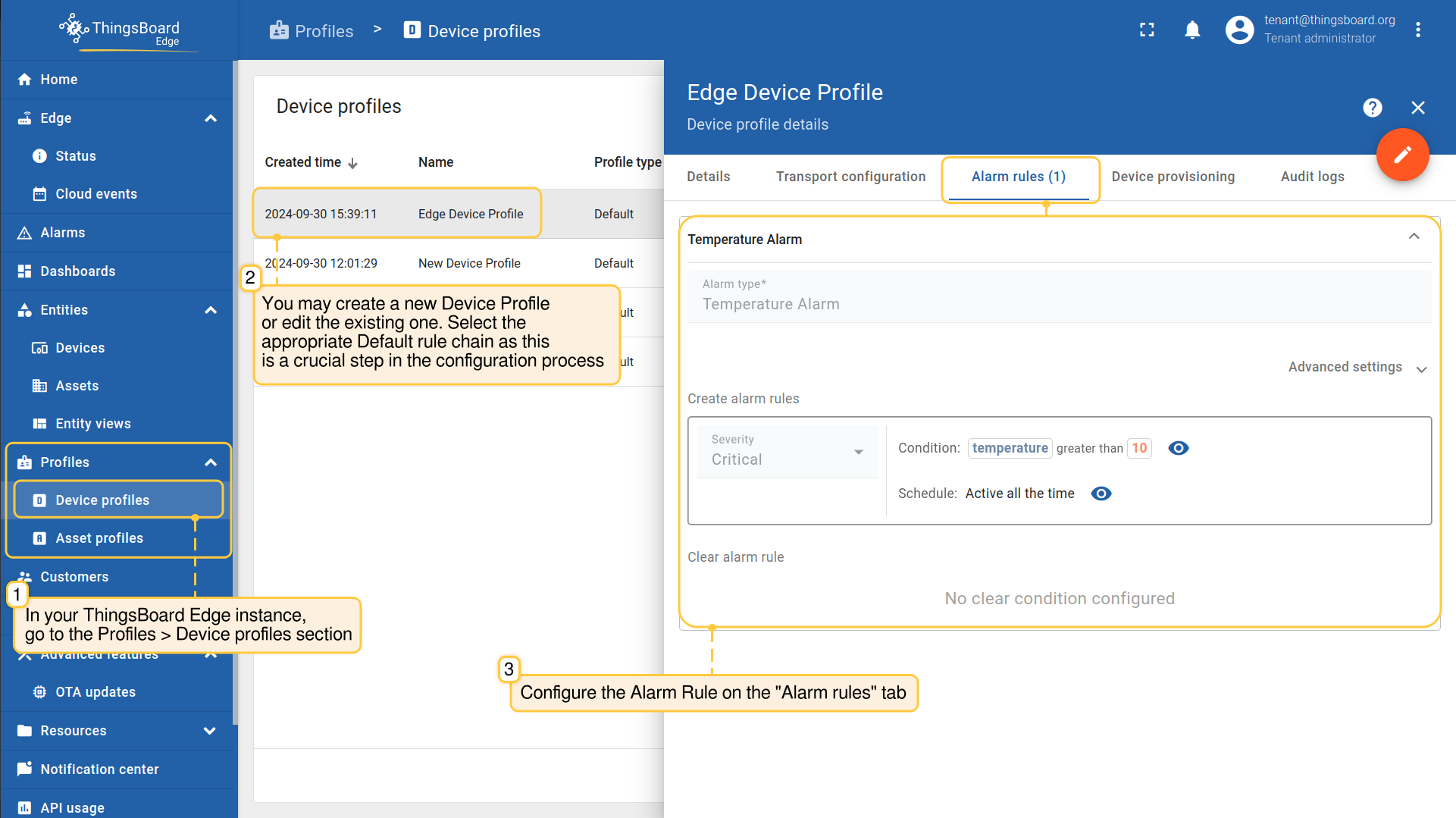
- Log in to the ThingsBoard Edge and go to the Profiles > Device profiles section to create or edit the Device profile. Select the appropriate Default rule chain. Set the Alarm Rule.
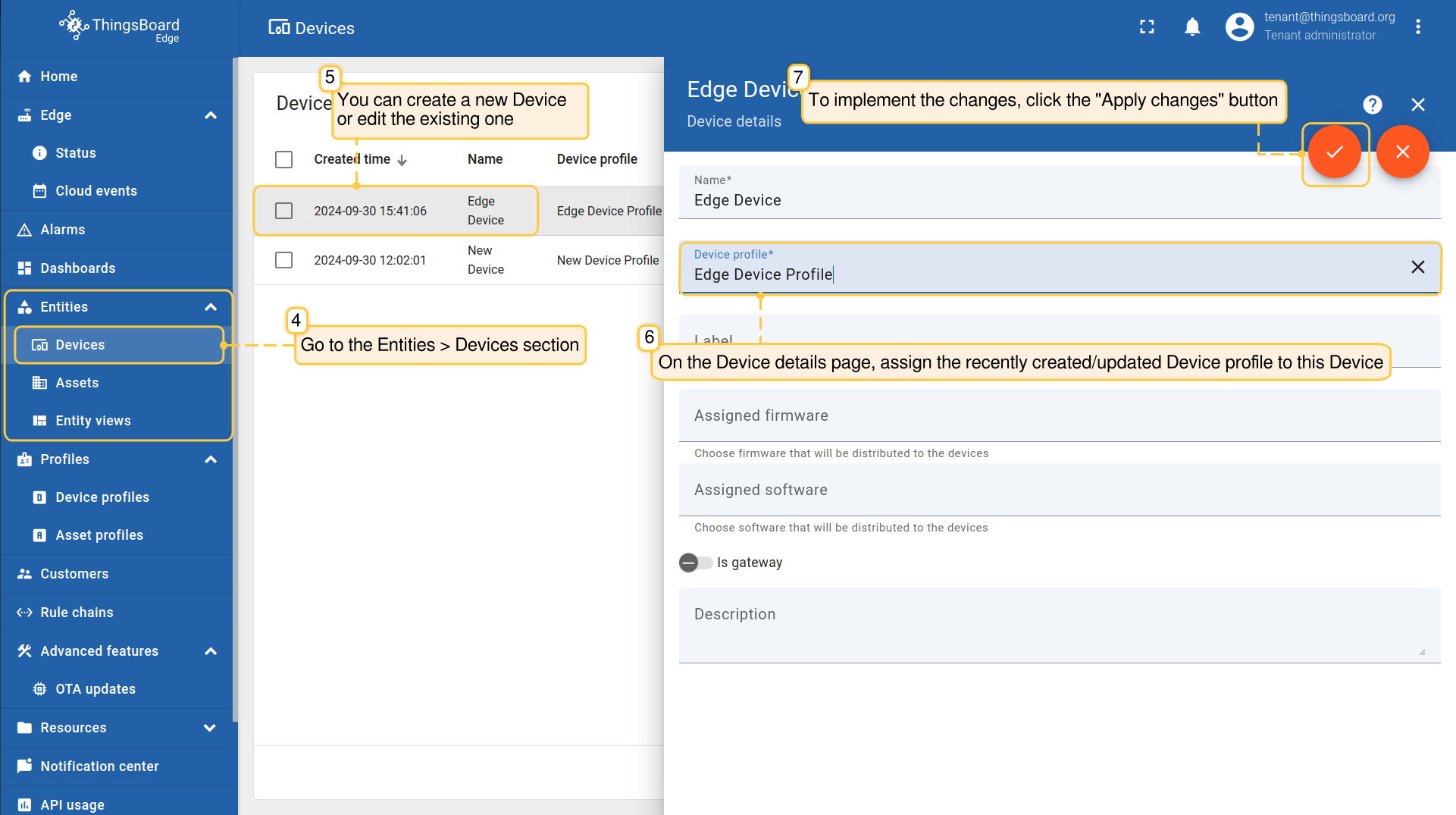
- Go to the Entities > Devices section. You can create a new device or edit the existing one. On the "Device details" page, assign newly created (or updated) Device profile to this device. Click the “Apply changes” button.
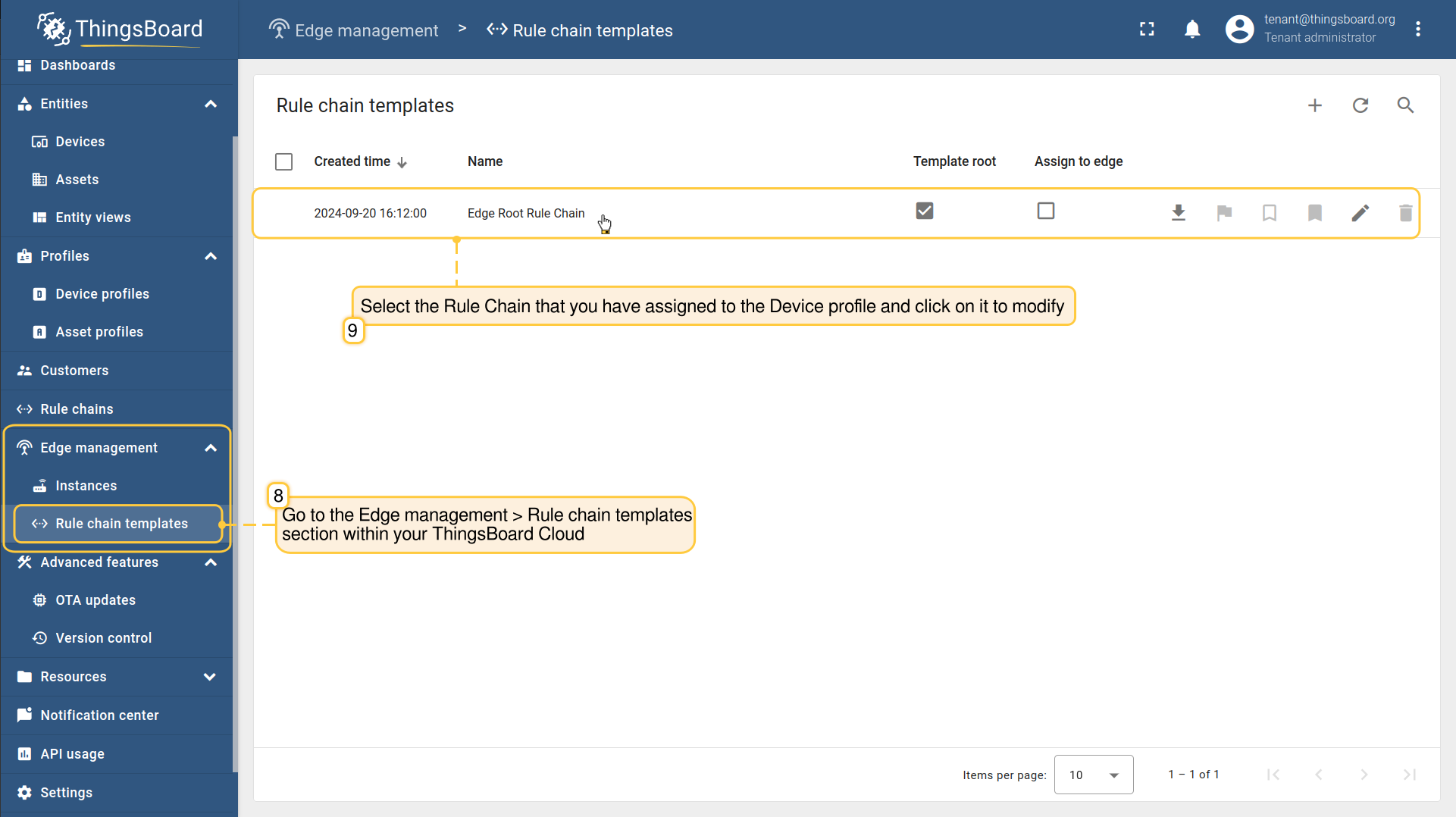
- Log in to the ThingsBoard Cloud and go to the Edge management > Rule chain templates section to modify the Rule Chain you have assigned to the Device profile. Note: If you use Edge version 4.0, you can proceed with Rule Chain configurations on the Edge instance.
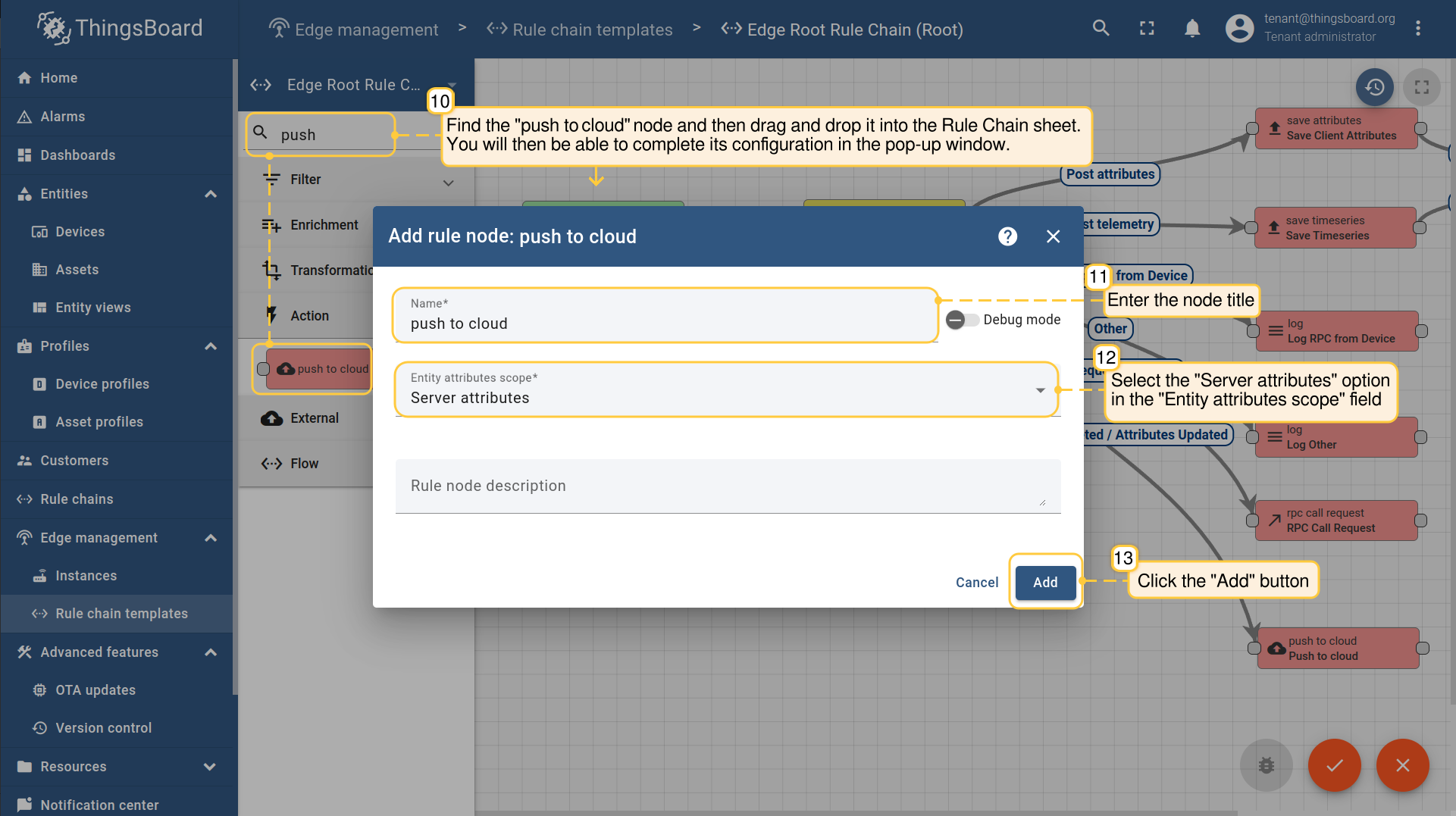
- On the Rule Chain edit page, in the Node search bar find the "push to cloud" node. It pushes messages from Edge to Cloud. Once message arrives to this node it will be converted into Cloud event and saved to the local database. Drag and drop the node onto the Rule Chain sheet. Then, in the "Add rule node" pop-up window enter the node title and select the "Server attributes" option in the "Entity attributes scope" field. Click the "Add" button to proceed.
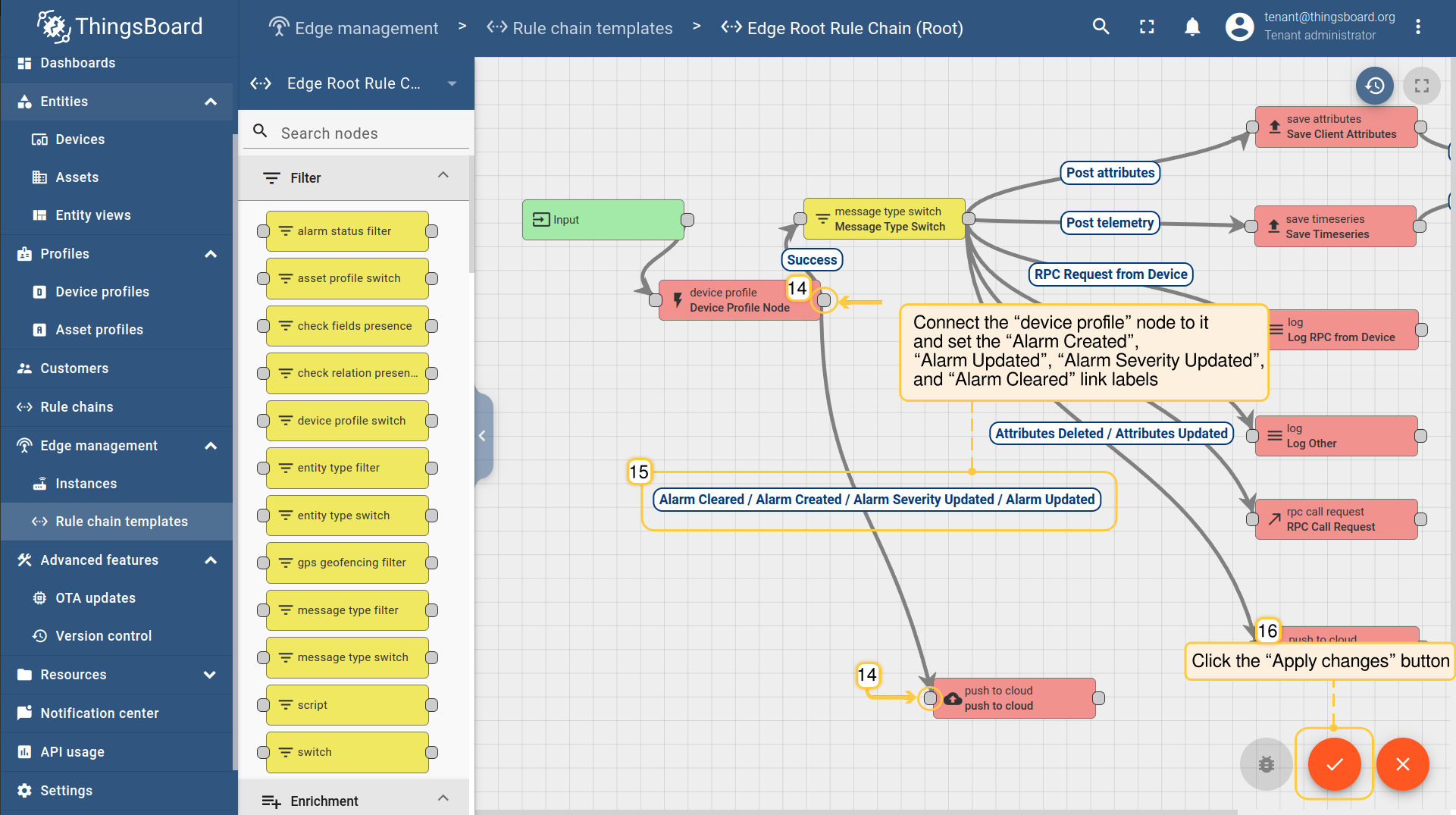
- Connect the “device profile” node to the "push to edge" node and set the “Alarm Created”, “Alarm Updated”, “Alarm Severity Updated”, and “Alarm Cleared” link labels. Click the “Apply changes” button in the Rule Chain sheet.
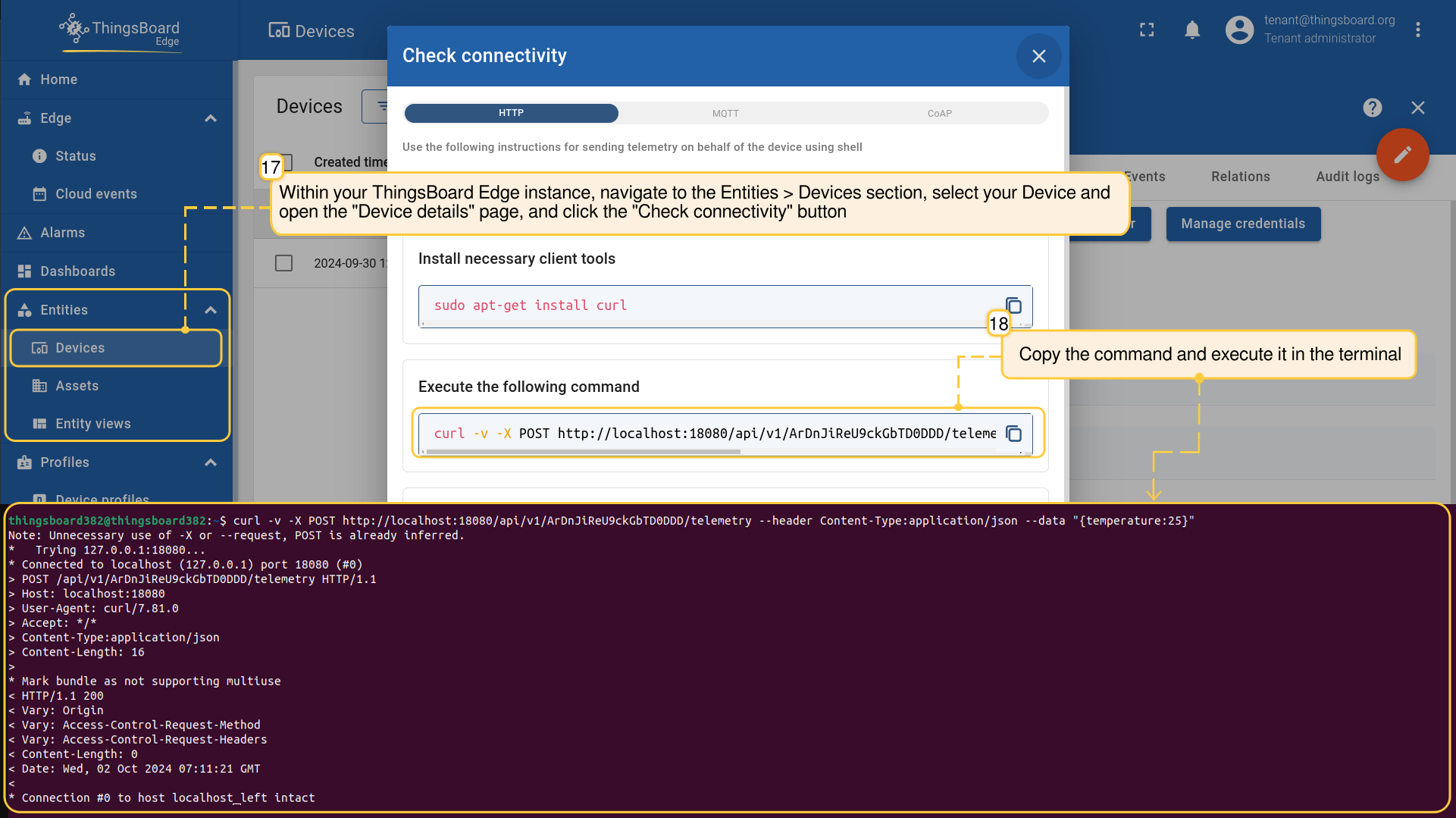
- To test if the rule and node are working, log in to your Edge instance and navigate to the Entities > Devices section. Find your device and open the "Device details" page. Click the "Check connectivity" button. Trigger the Alarm Rule by executing the corresponding command in the terminal.
- To verify the received alarm notification, go to the Entities > Devices section, open the "Device details" page and select the “Alarm” tab. You also can view the incoming alarm notification in the Notification center.
- To verify that the notification is propagated to the Cloud, log in to the ThingsBoard Cloud (Server) and go to the Entities > Devices section, open the "device details" page and select the “Alarm” tab.
- Make sure to Acknowledge and Clear the notification after you received it. You can do it on either the Cloud or the Edge. If the Uncleared Alarm exists, it will be updated, instead of being created.
下一步
-
Getting started guide(入门指南)- 快速概览 ThingsBoard Edge 主要功能。预计 15–30 分钟完成:
-
Installation guides(安装指南)- 了解如何在各种操作系统上安装 ThingsBoard Edge 并连接到 ThingsBoard Server。
-
Edge 规则引擎:
-
Rule Chain Templates(规则链模板)- 了解如何使用 ThingsBoard Edge 规则链模板。
-
Provision Rule Chains from cloud to edge(从云端向 Edge 下发规则链)- 了解如何从云端向 Edge 下发边缘规则链。
-
- 安全:
- gRPC over SSL/TLS - 了解如何为 Edge 与云端之间的通信配置 gRPC over SSL/TLS。
-
功能:
-
Edge Status(Edge 状态)- 了解 ThingsBoard Edge 上的 Edge Status 页面。
-
Cloud Events(云端事件)- 了解 ThingsBoard Edge 上的 Cloud Events 页面。
-
-
使用场景:
-
Manage alarms and RPC requests on edge devices(在边缘设备上管理告警和 RPC 请求)- 本指南展示如何在 Edge 上生成本地告警并向连接到 Edge 的设备发送 RPC 请求:
-
Data filtering and traffic reduce(数据过滤与流量削减)- 本指南展示如何从 Edge 向云端仅发送过滤后的设备数据:
-
- Roadmap(路线图)- ThingsBoard Edge 路线图。