概述
Asset entity(资产实体) 是用于分组和管理物联网生态的抽象实体。Assets 可表示工厂、车辆、仓库等真实世界对象,并用于建立这些对象与其他实体之间的层级关系。 Edge Assets 支持Edge实体的分组及对其发送数据的可视化。当设备或传输数据特定于某个Edge时,可采用此方式。
Edge Assets 与 Cloud Assets 的设计一致。更多功能说明请参阅资产文档。
Edge资产管理
Asset entity 可在 Edge实例 上按与 Cloud 相同的方式本地创建和配置。若 Asset entity 已在 Cloud 创建,则使用前必须先分配到 Edge实例。
创建新资产
要在 Edge 上创建 Asset entity,请登录实例并进入 Entities > Assets 区域。
- Click the "+" button and select the “Add new asset” option.
- The "Import assets" option allows bulk deployment using the CSV file.
- In the “Add asset” pop-up window:
- Enter the asset name in the “Name” field.
- Select the asset profile in the “Asset profile” field (default: "default").
- Assign the asset owner in the "Owner" field (default: "Tenant").
- Other fields are optional.
- Click the “Add” button.
- Once created, the Asset will be automatically provisioned to the Cloud. The "[Edge] Edge_name All" group is assigned by default.
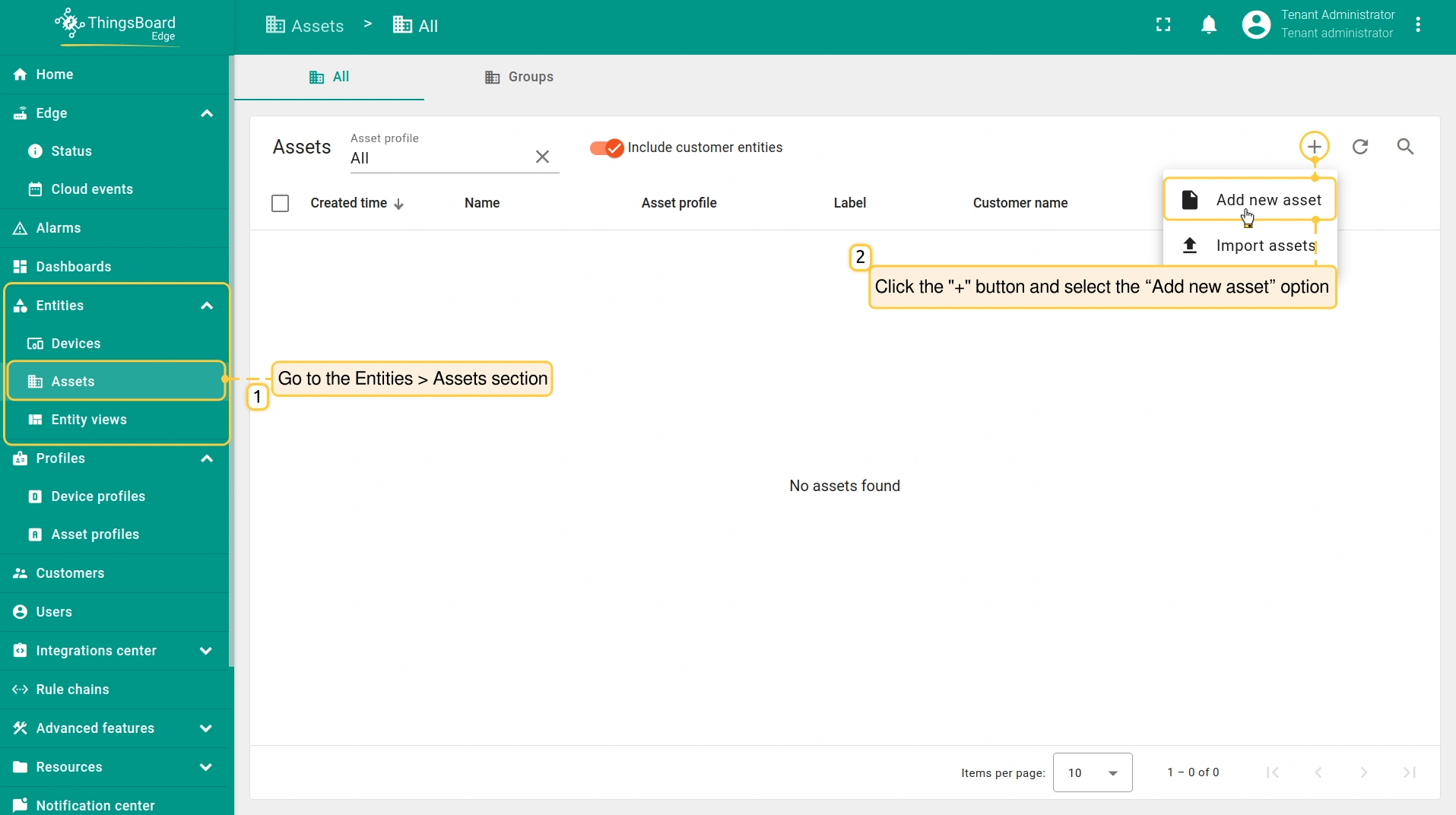
- The "Import assets" option allows bulk deployment using the CSV file.
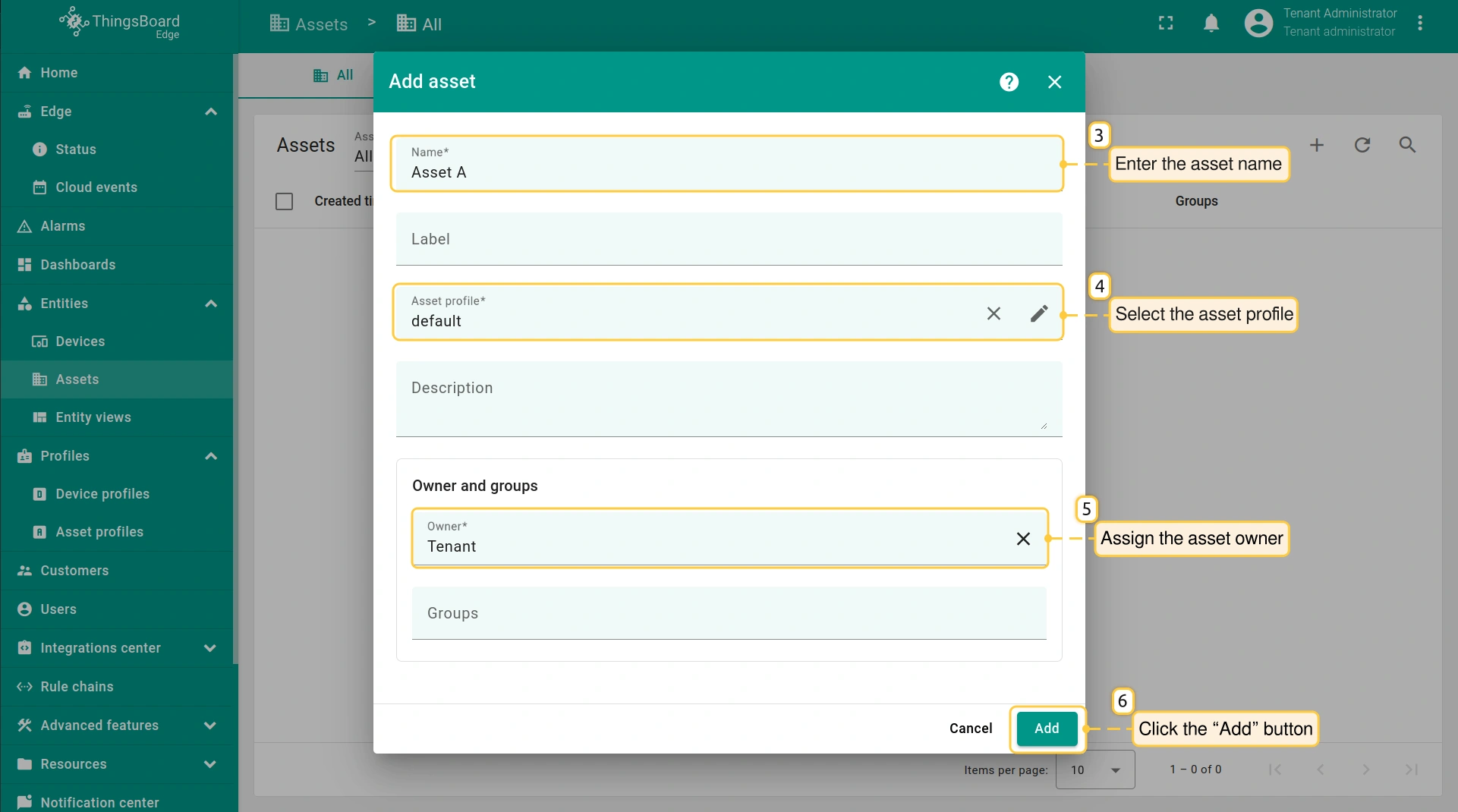
- Enter the asset name in the “Name” field.
- Select the asset profile in the “Asset profile” field (default: "default").
- Assign the asset owner in the "Owner" field (default: "Tenant").
- Other fields are optional.
- Click the “Add” button.
![Once created, the <b>Asset</b> will be <b>automatically provisioned</b> to the Cloud. The <b>"[Edge] Edge_name All"</b> group is assigned by default.](/images/pe/edge/config/edge-asset-pe/3-asset-provisioned-to-cloud-pe.webp)
创建关系
以下参数用于定义实体间的关系层级:
- Direction: 描述实体之间的关联方式。
- “Outbound relation - From”: 表示 关系源自该实体(该实体为源)。
- “Inbound relation - To”: 表示 关系指向该实体(该实体为接收方)。
- Relation type: 描述实体间连接的性质。
- “Contains”: 表示实体 是另一个实体的一部分(例如 Device A是Asset A的一部分)。
- “Manages”: 表示实体 负责管理另一个实体(例如 Asset A管理Device A)。
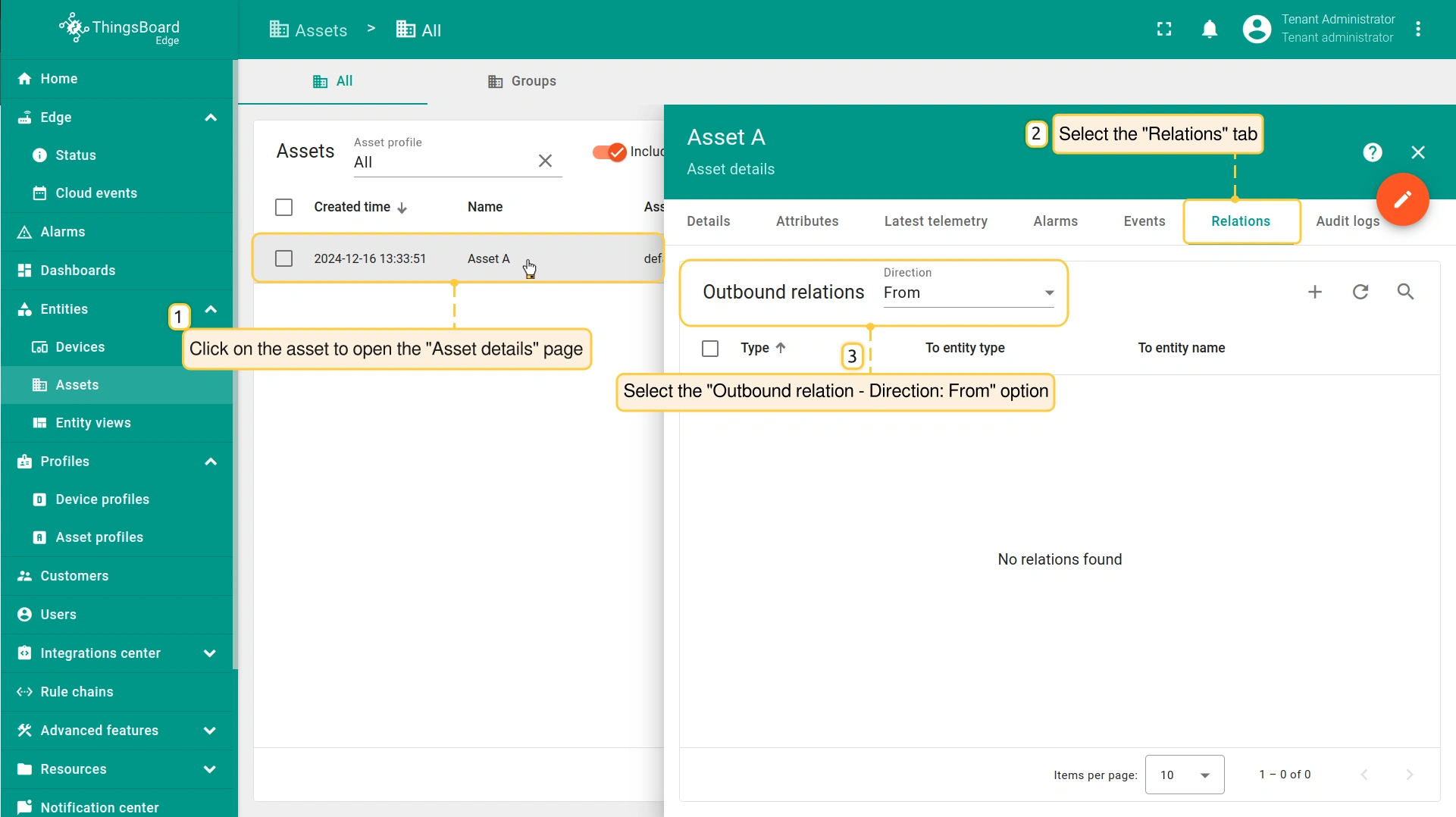
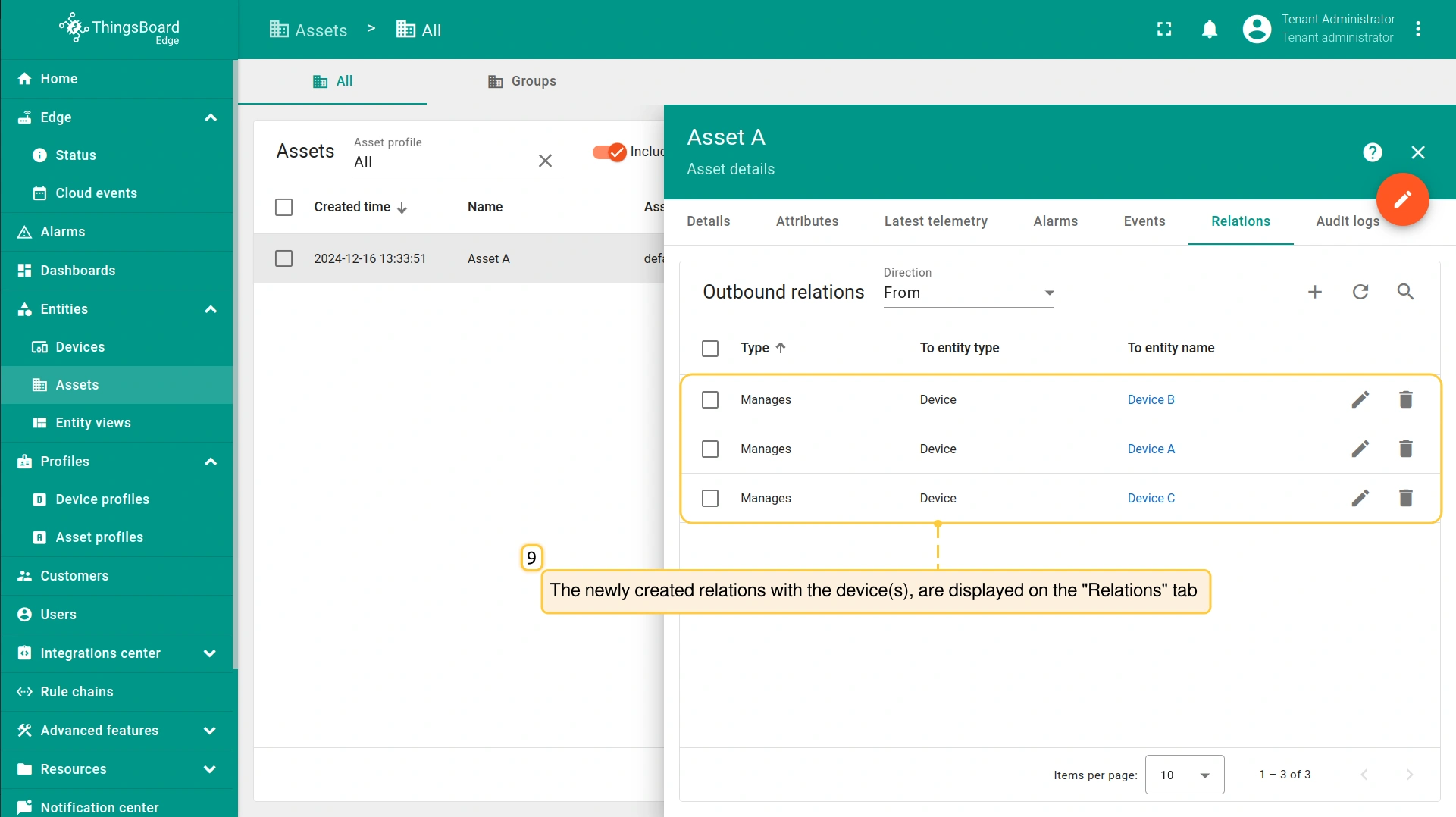
要在Asset与另一实体(如 device)之间 构建关系,请进入 Entities > Assets 区域并按以下操作:
- Click on the asset to open the "Asset details" page and select the "Relations" tab. Then, select the "Outbound relation - Direction: From" option.
- To add the relation, click the "+"(Add) button.
- On the "Add relation" pop-up window, fill out the following fields:
- Relation type: Select the "Manages" option.
- To entity: select "Device" as the type and add the corresponding device(s) from the drop-down menu.
- Click the "Add" button.
- The newly created relations will appear in the "Relations" tab.
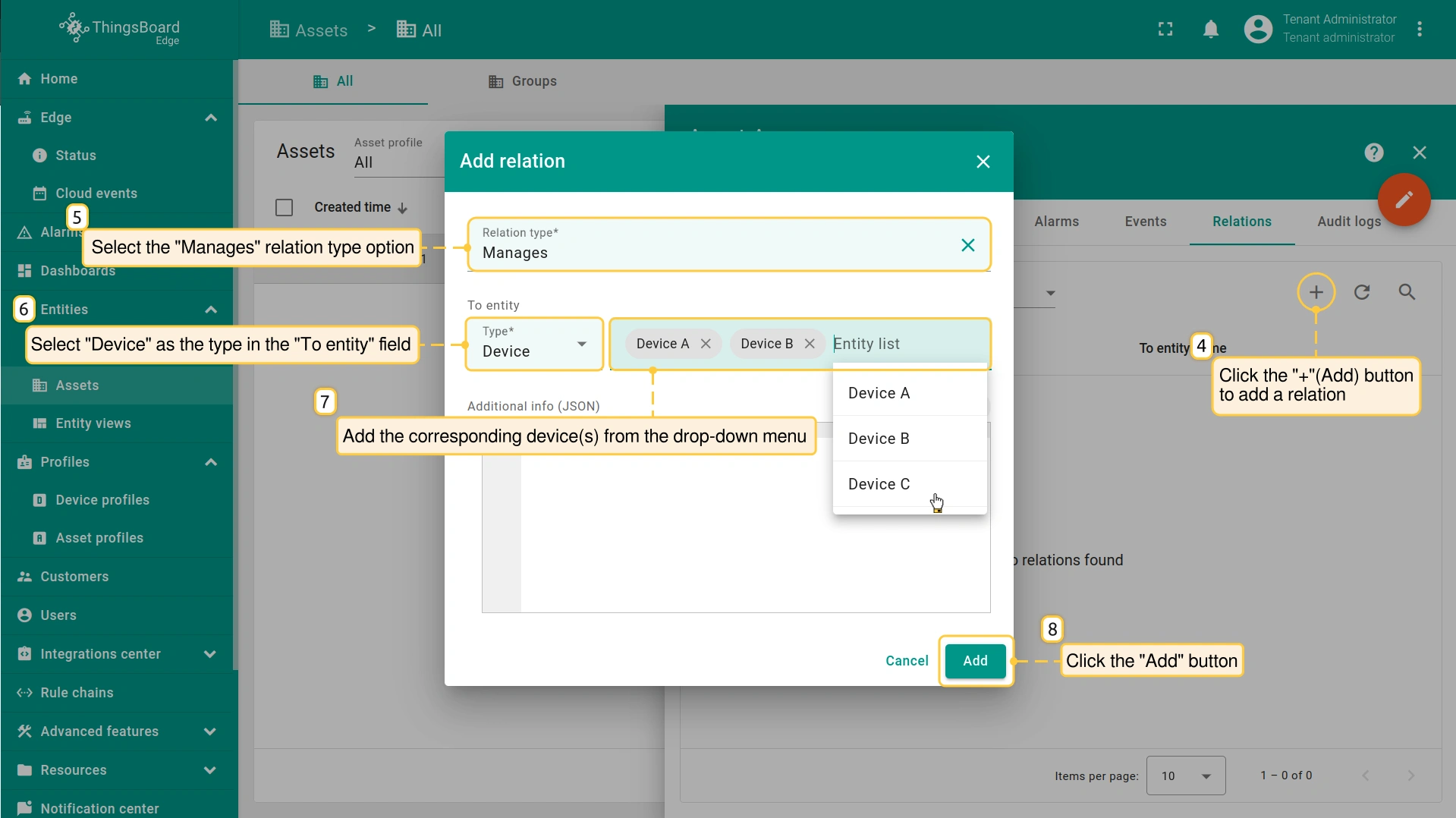
- On the "Add relation" pop-up window, fill out the following fields:
- Relation type: Select the "Manages" option.
- To entity: select "Device" as the type and add the corresponding device(s) from the drop-down menu.
- Click the "Add" button.
在仪表板中使用关系
实体关系建立后,可直接在仪表板中体现。与资产相关设备上传的数据,可通过aliases按关系类型动态筛选。
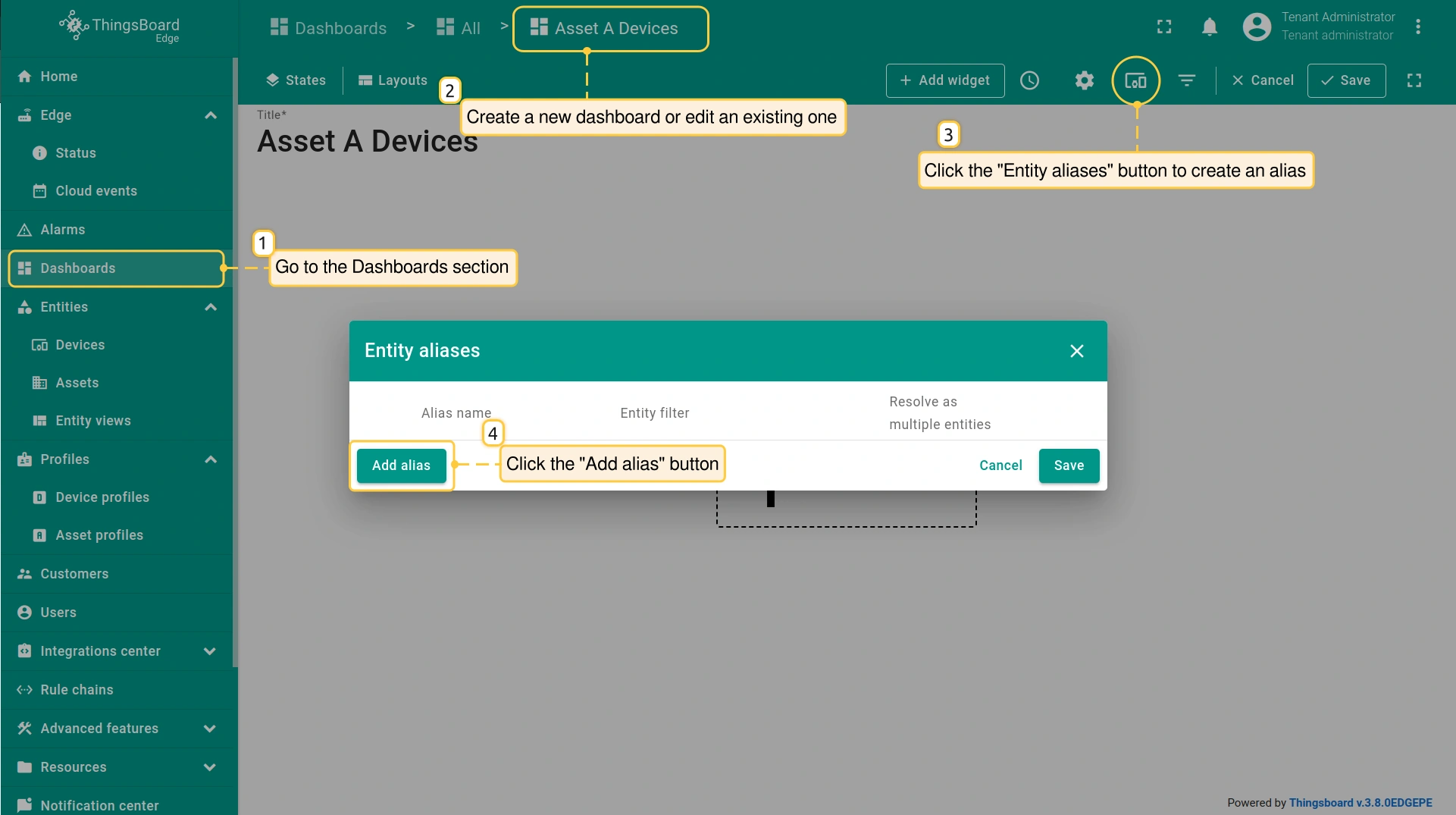
要配置 alias,请进入 Dashboards 区域,对新仪表板或现有仪表板进入 Edit mode。请在此了解如何创建仪表板。
- Within the dashboard "Edit mode", click the "Entity aliases" button to create the alias. In the "Entity aliases" pop-up window, click the "Add alias" button.
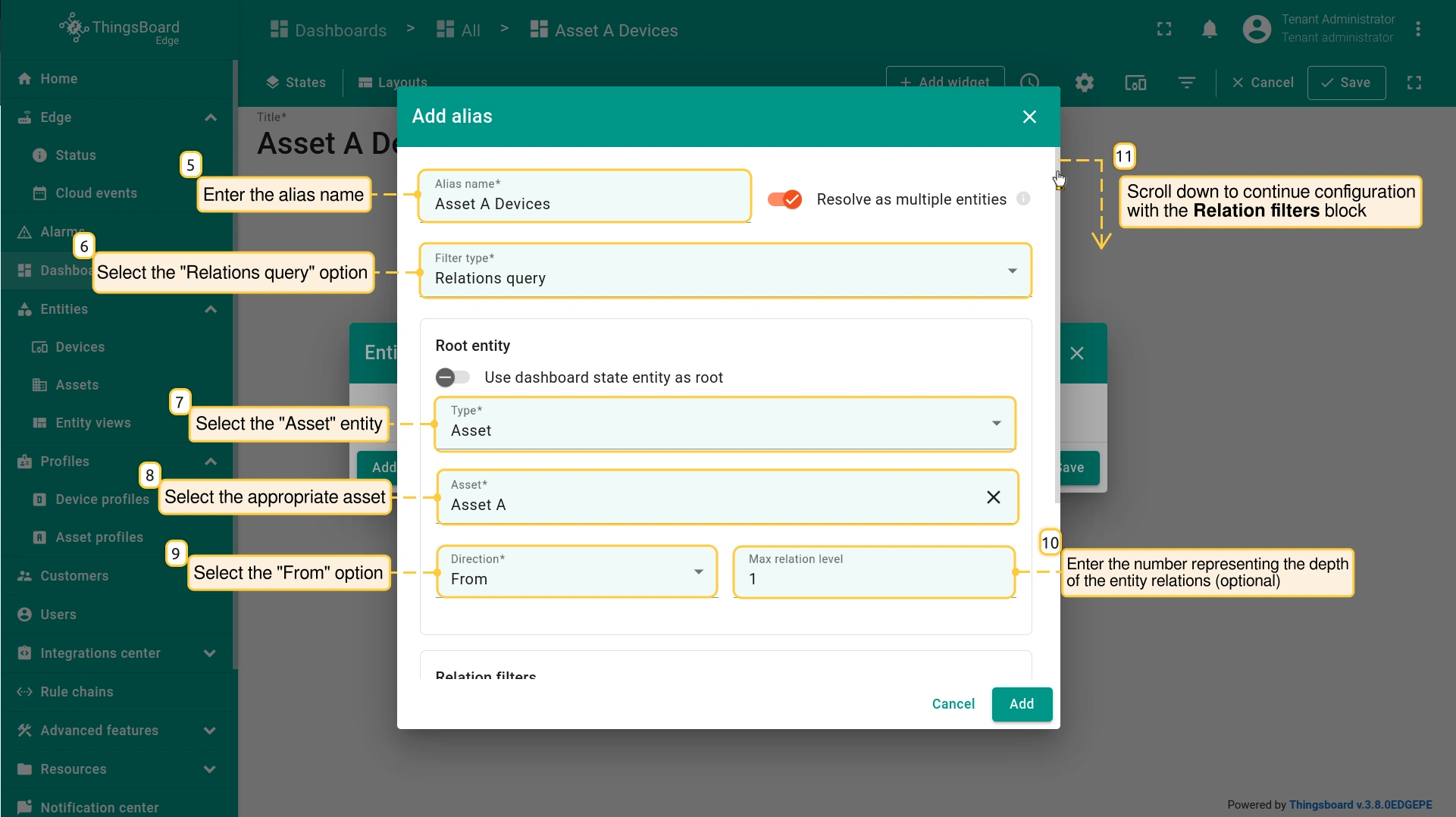
- On the "Add alias" pop-up window, fill out the following fields:
- Alias name: Enter the alias name.
- Filter Type: Select the "Relations query" option.
- Type: Select the "Asset" entity.
- Asset: Select the asset from the drop-down menu (e.g., "Asset A").
- Direction: Select the "From" option.
- Max relation level: Enter the number representing the depth of the entity relations.
Root entity block:
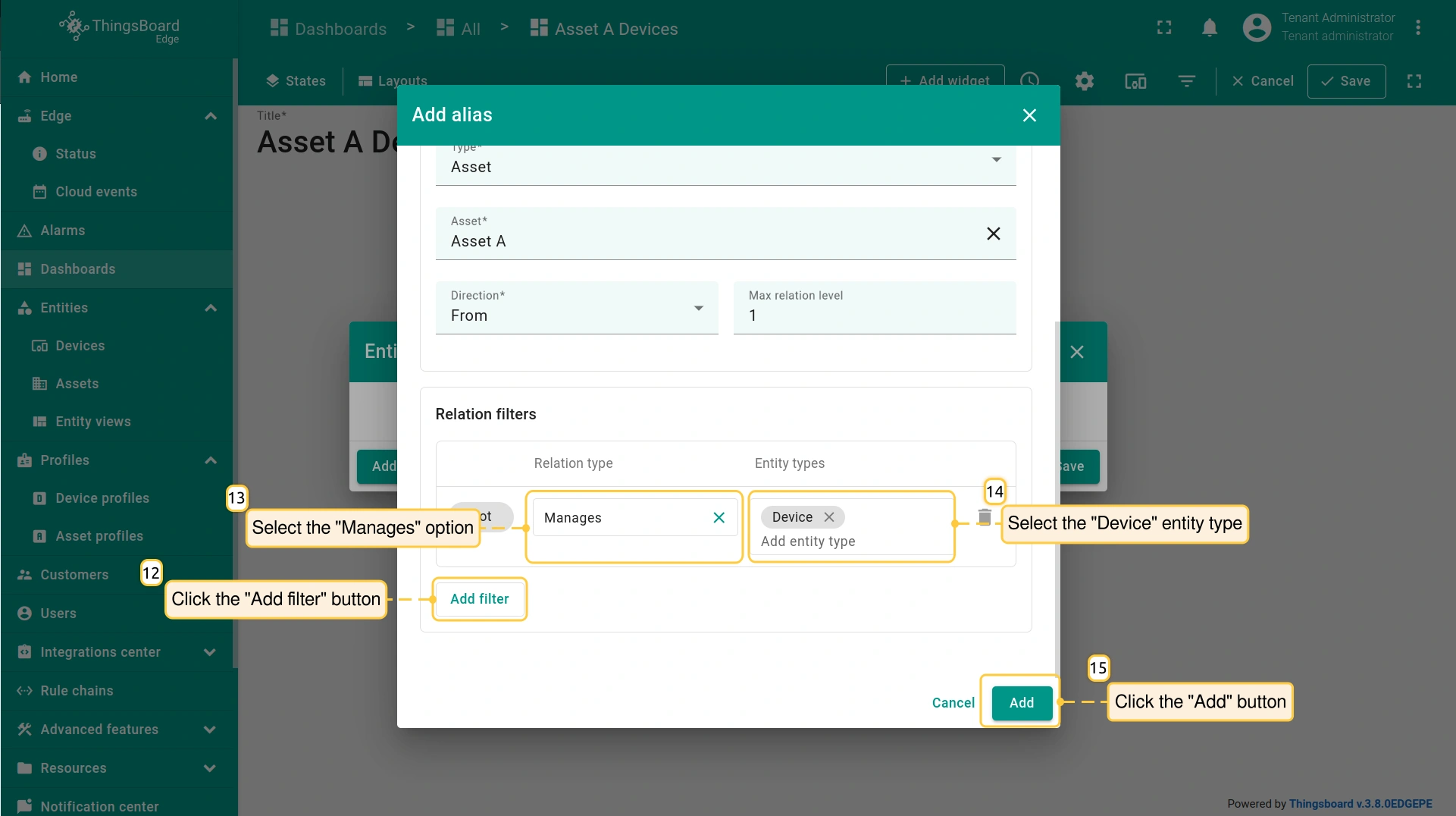
- Scroll down to create the filter in the Relation filters block:
- Click the "Add filter" button to add conditions to filter data.
- Relation type: Select the "Manages" option.
- Entity types: Select the "Device" entity type.
In this way, the data from the devices that are managed by the asset will be displayed on the dashboard.
Click the "Add" button to add the alias.
- To save the alias, click the "Save" button.
- Alias name: Enter the alias name.
- Filter Type: Select the "Relations query" option.
- Type: Select the "Asset" entity.
- Asset: Select the asset from the drop-down menu (e.g., "Asset A").
- Direction: Select the "From" option.
- Max relation level: Enter the number representing the depth of the entity relations.
Root entity block:
- Click the "Add filter" button to add conditions to filter data.
- Relation type: Select the "Manages" option.
- Entity types: Select the "Device" entity type.
In this way, the data from the devices that are managed by the asset will be displayed on the dashboard.
Click the "Add" button to add the alias.
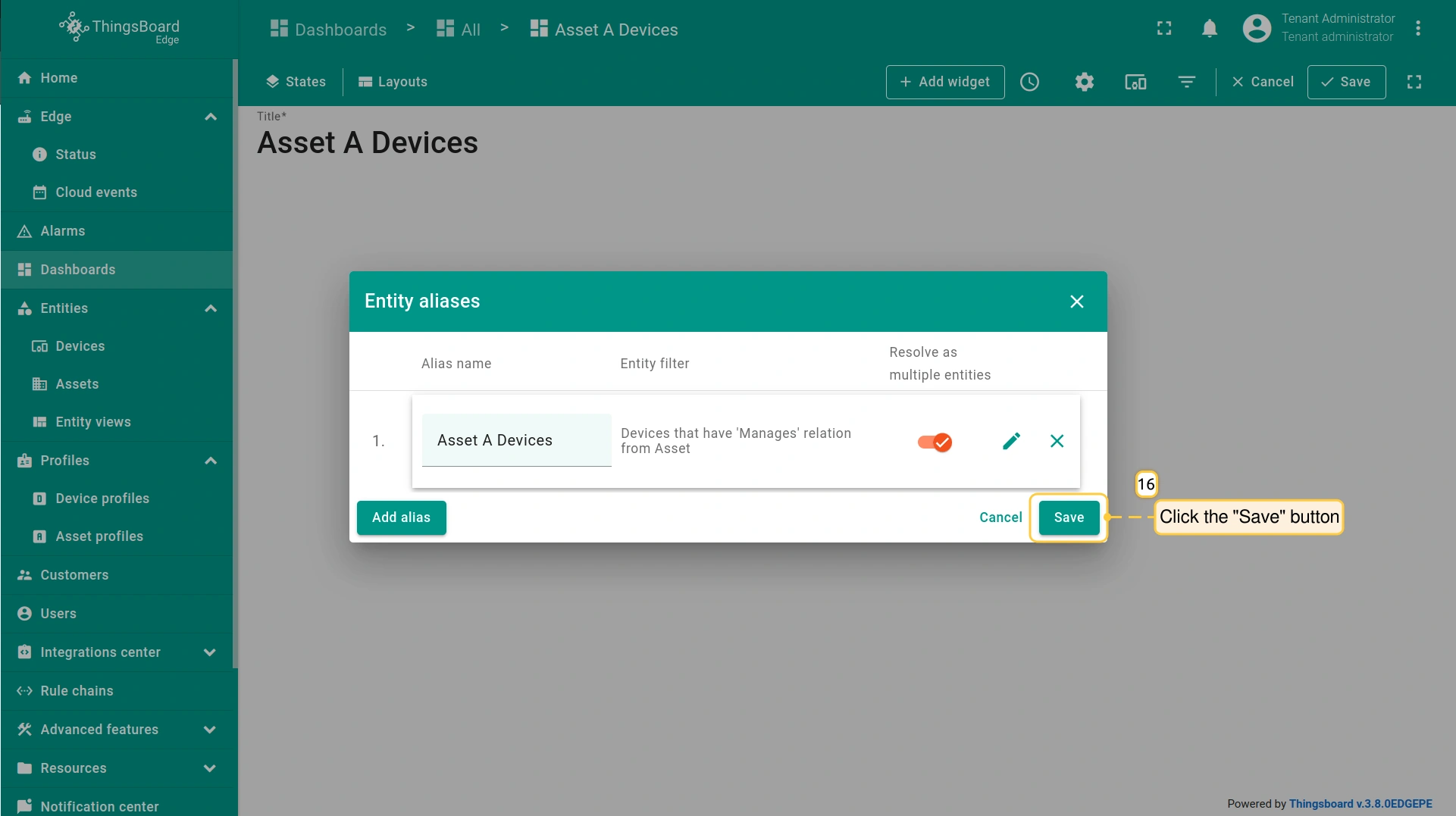
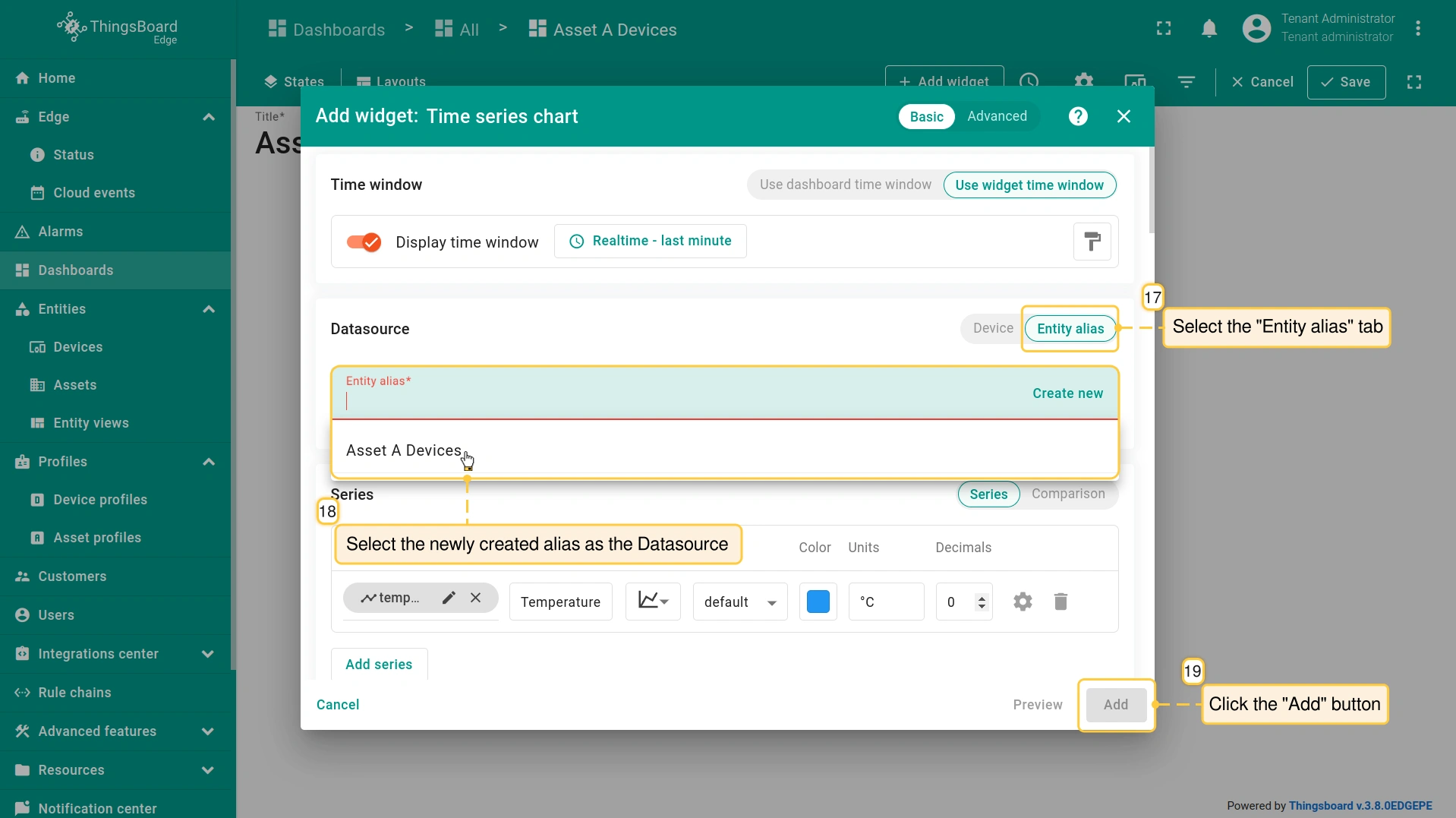
继续配置部件。在 “Edit mode” 中,点击 “Add widget” 按钮添加部件。选择 Charts > Time series chart 部件。请在此了解更多关于如何添加和配置新部件。
- Select the "Entity alias" tab. Select the newly created alias from the drop-down menu as the Datasource. Click the "Add" button.
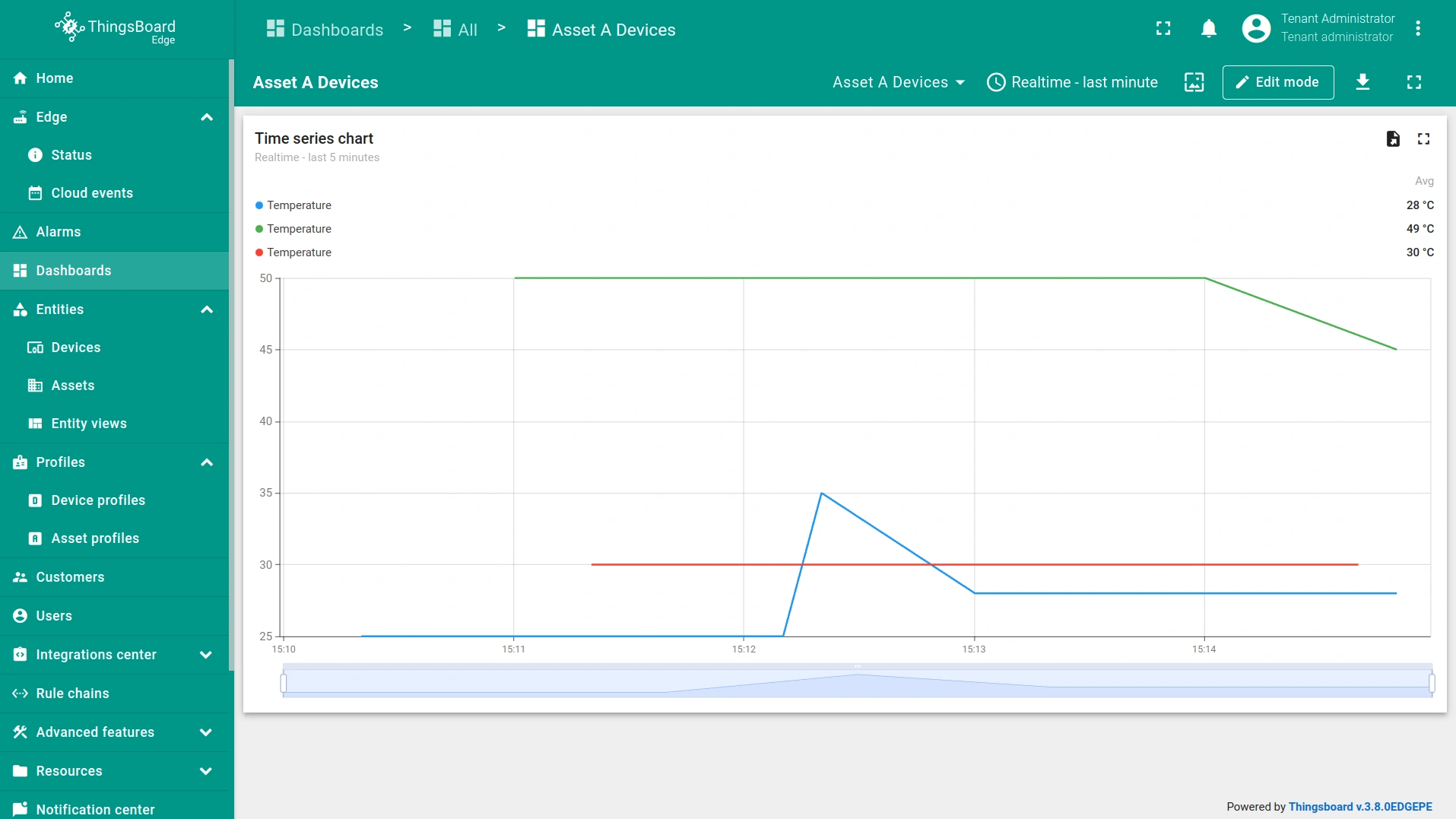
- The widget will display real-time data from the associated devices.
从Cloud配置
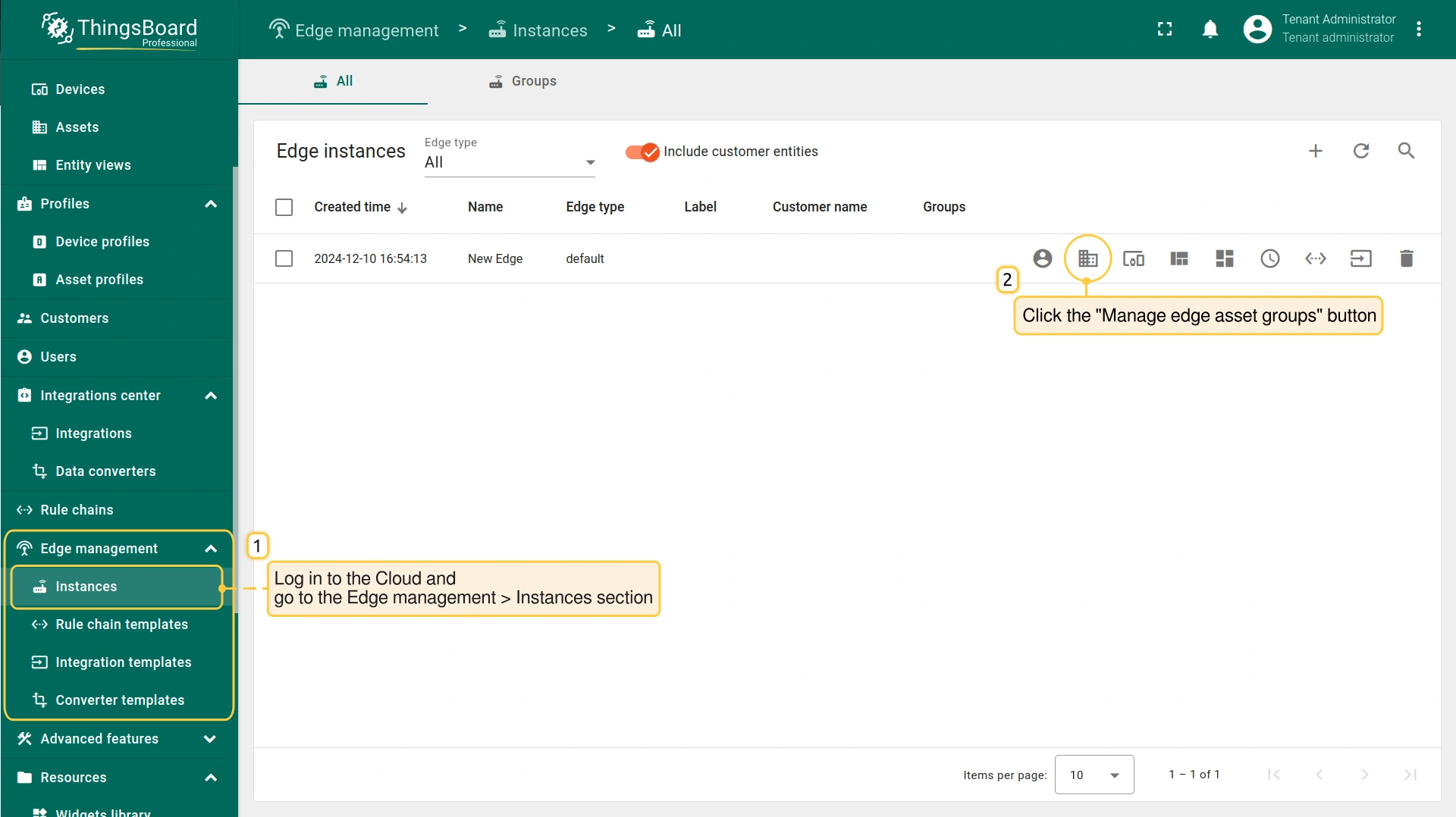
要从 ThingsBoard Cloud 将 Asset entity 配置到 Edge 实例,请登录 Cloud 并进入 Edge management > Instances 区域:
- Click the "Manage edge asset groups" button.
- On the Edge_name: Asset groups page:
- To assign entity group(s) to the Edge instance, click the "+" button.
- Click on the group to add an asset and assign it to the Edge instance.
- On the Edge_group_name: Assets page:
- Click the "+" button to add an asset. Follow the guide on how to add the asset.
- Click the "Add" button to complete.
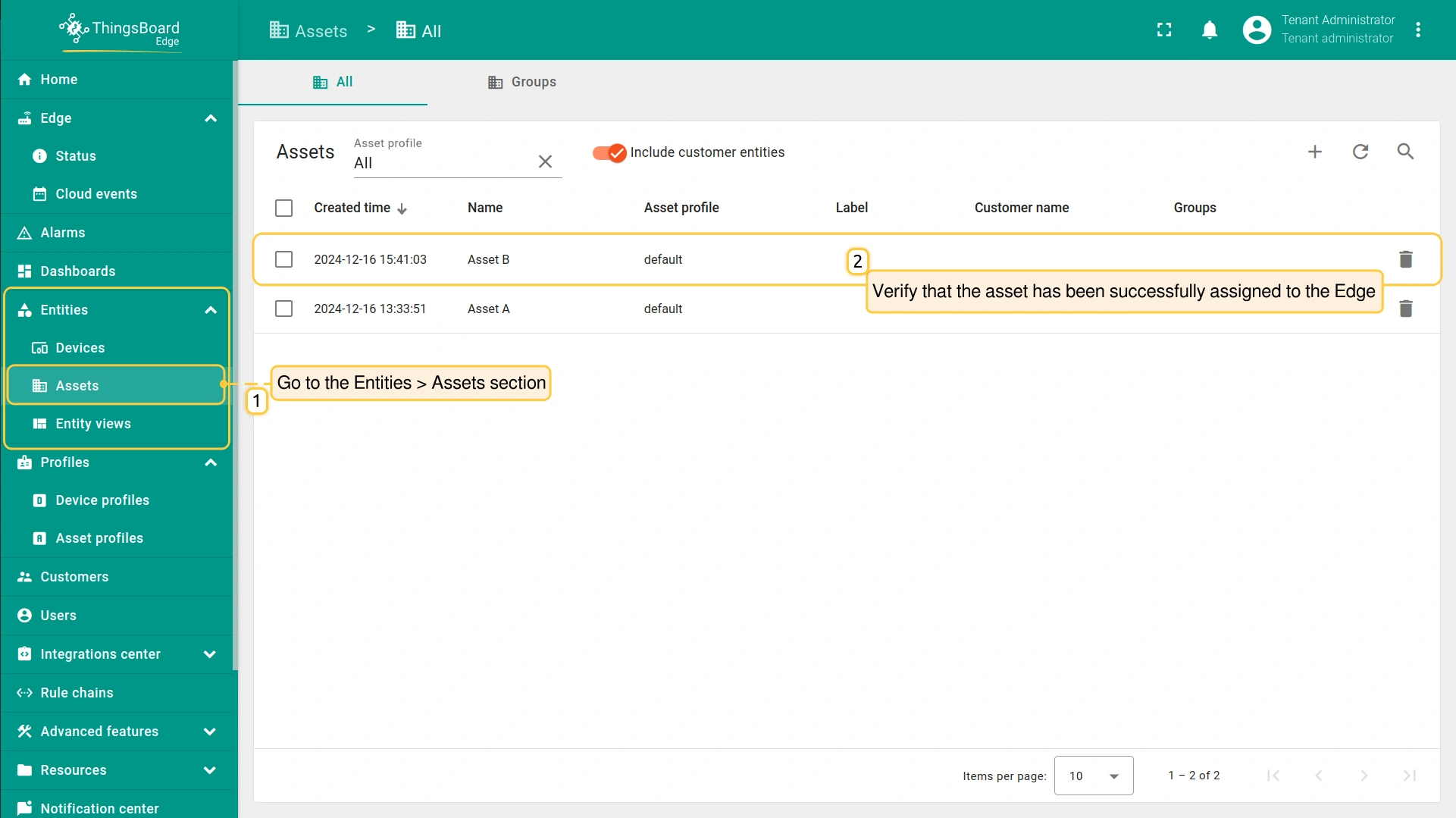
- To verify that the assigned asset is on the Edge, go to the Entities > Assets section.
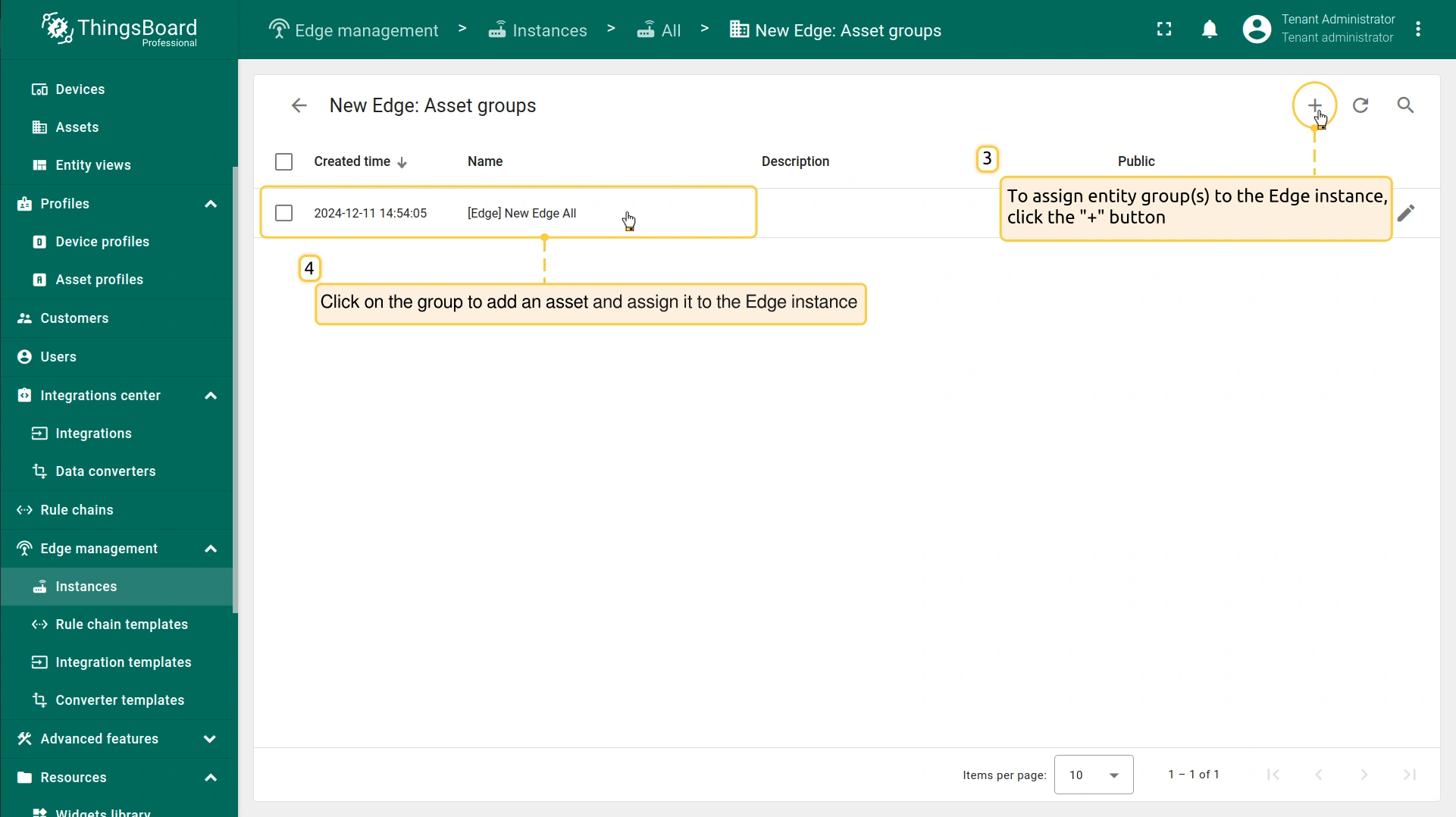
- To assign entity group(s) to the Edge instance, click the "+" button.
- Click on the group to add an asset and assign it to the Edge instance.
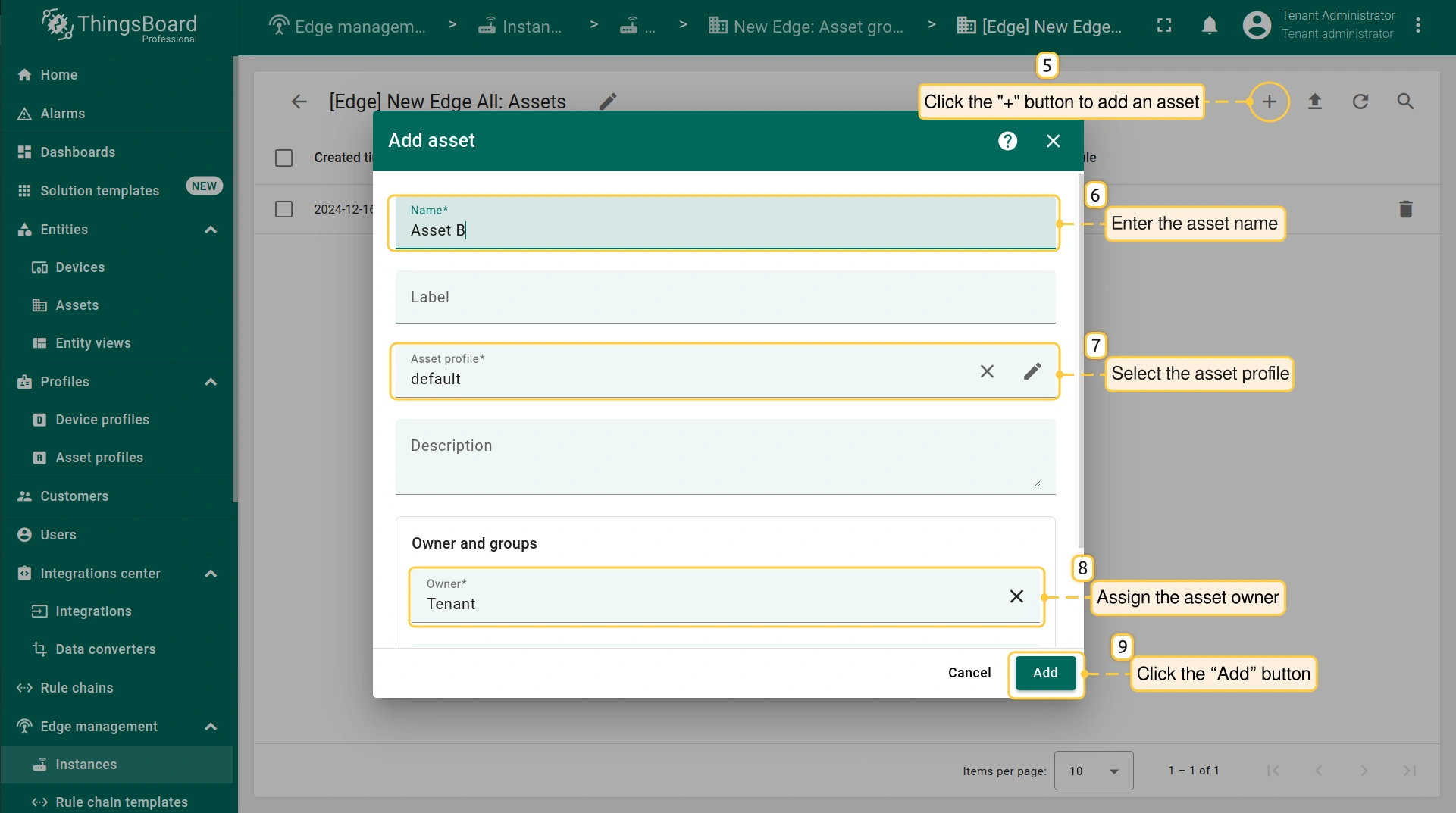
- Click the "+" button to add an asset. Follow the guide on how to add the asset.
- Click the "Add" button to complete.
下一步
-
Getting started guide(入门指南)- 快速概览 ThingsBoard Edge 主要功能。预计 15–30 分钟完成:
-
Installation guides(安装指南)- 了解如何在各种操作系统上安装 ThingsBoard Edge 并连接到 ThingsBoard Server。
-
Edge 规则引擎:
-
Rule Chain Templates(规则链模板)- 了解如何使用 ThingsBoard Edge 规则链模板。
-
Provision Rule Chains from cloud to edge(从云端向 Edge 下发规则链)- 了解如何从云端向 Edge 下发边缘规则链。
-
- 安全:
- gRPC over SSL/TLS - 了解如何为 Edge 与云端之间的通信配置 gRPC over SSL/TLS。
-
功能:
-
Edge Status(Edge 状态)- 了解 ThingsBoard Edge 上的 Edge Status 页面。
-
Cloud Events(云端事件)- 了解 ThingsBoard Edge 上的 Cloud Events 页面。
-
-
使用场景:
-
Manage alarms and RPC requests on edge devices(在边缘设备上管理告警和 RPC 请求)- 本指南展示如何在 Edge 上生成本地告警并向连接到 Edge 的设备发送 RPC 请求:
-
Data filtering and traffic reduce(数据过滤与流量削减)- 本指南展示如何从 Edge 向云端仅发送过滤后的设备数据:
-
- Roadmap(路线图)- ThingsBoard Edge 路线图。