概述
Public dashboard configuration(公共仪表板配置) 允许在无需认证的情况下访问仪表板,即任何拿到URL链接的人都可查看。
在 ThingsBoard Edge 中,公共仪表板 与 ThingsBoard Server 上的工作方式相同。
Edge特定注意事项:
-
即使互联网不可用或受限,Edge公共仪表板 仍可在本地网络访问。
- Edge公共仪表板 通过Edge本地URL访问,常见格式如下:
1
http://Edge-IP:8080/dashboards/dashboard-id
-
即使与 ThingsBoard Server 断开连接,公共仪表板 仍可基于 Edge 的实时设备数据继续运行。
- 连接恢复后,Edge 会将更新与变更同步回中央 ThingsBoard Server。
请在此了解更多关于 Edge仪表板创建与管理。
请在此了解更多关于 仪表板部件。
将仪表板组设为公开

要通过公共链接访问设备、资产和实体视图的数据,请同时将这些实体设为公开。
Dashboard groups 在 ThingsBoard Server 上统一管理。需先在 ThingsBoard Server 创建仪表板组,再分配到 ThingsBoard Edge 实例。
- Log in to the ThingsBord Server, go to the Dashboards section, and select the "Groups" tab.
- To create a new dashboard group, click the "Add entity group" button.
- In the pop-up window, enter the group name and click the "Add" button.
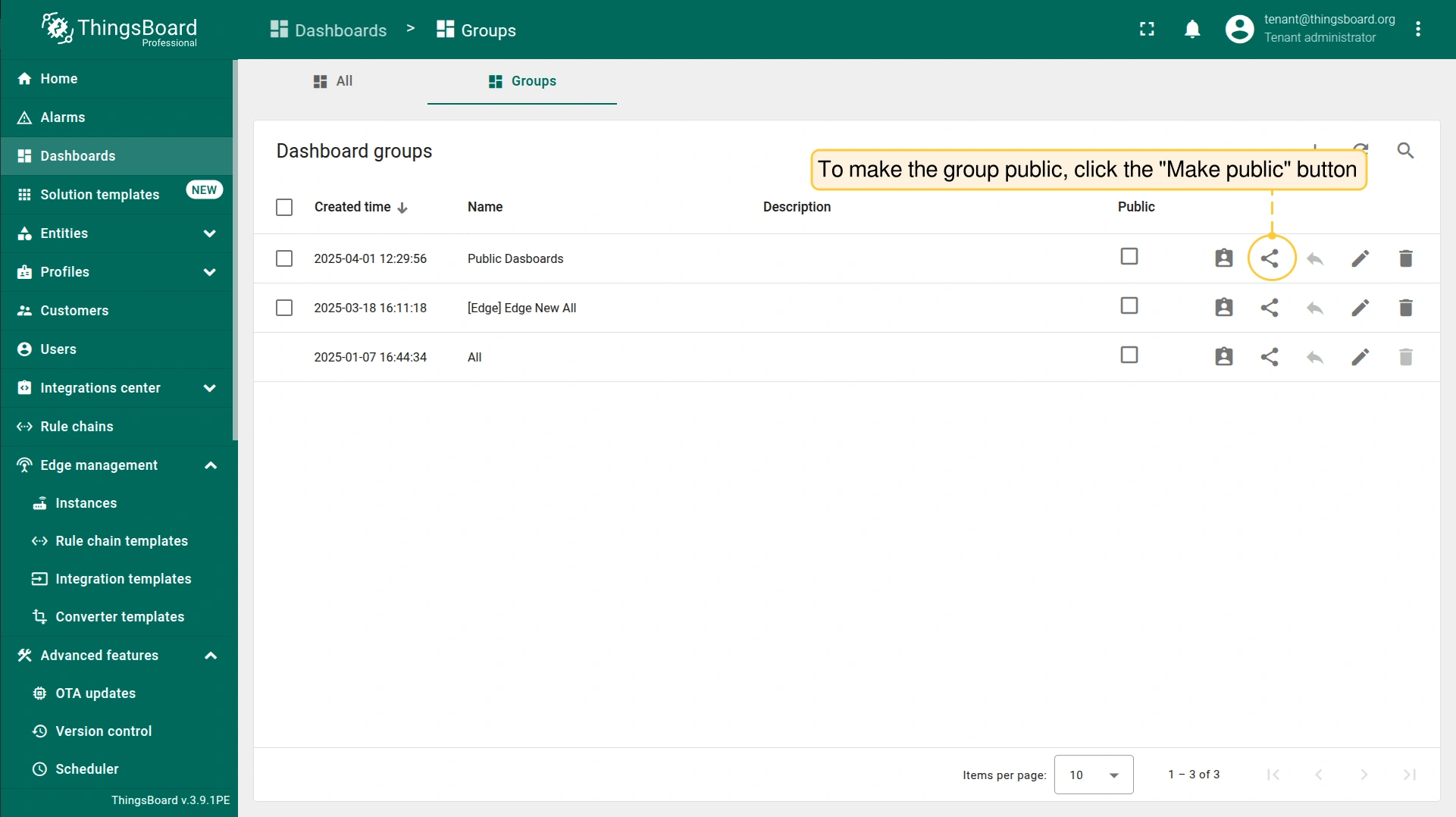
- To make the group public, click the "Make public" button.
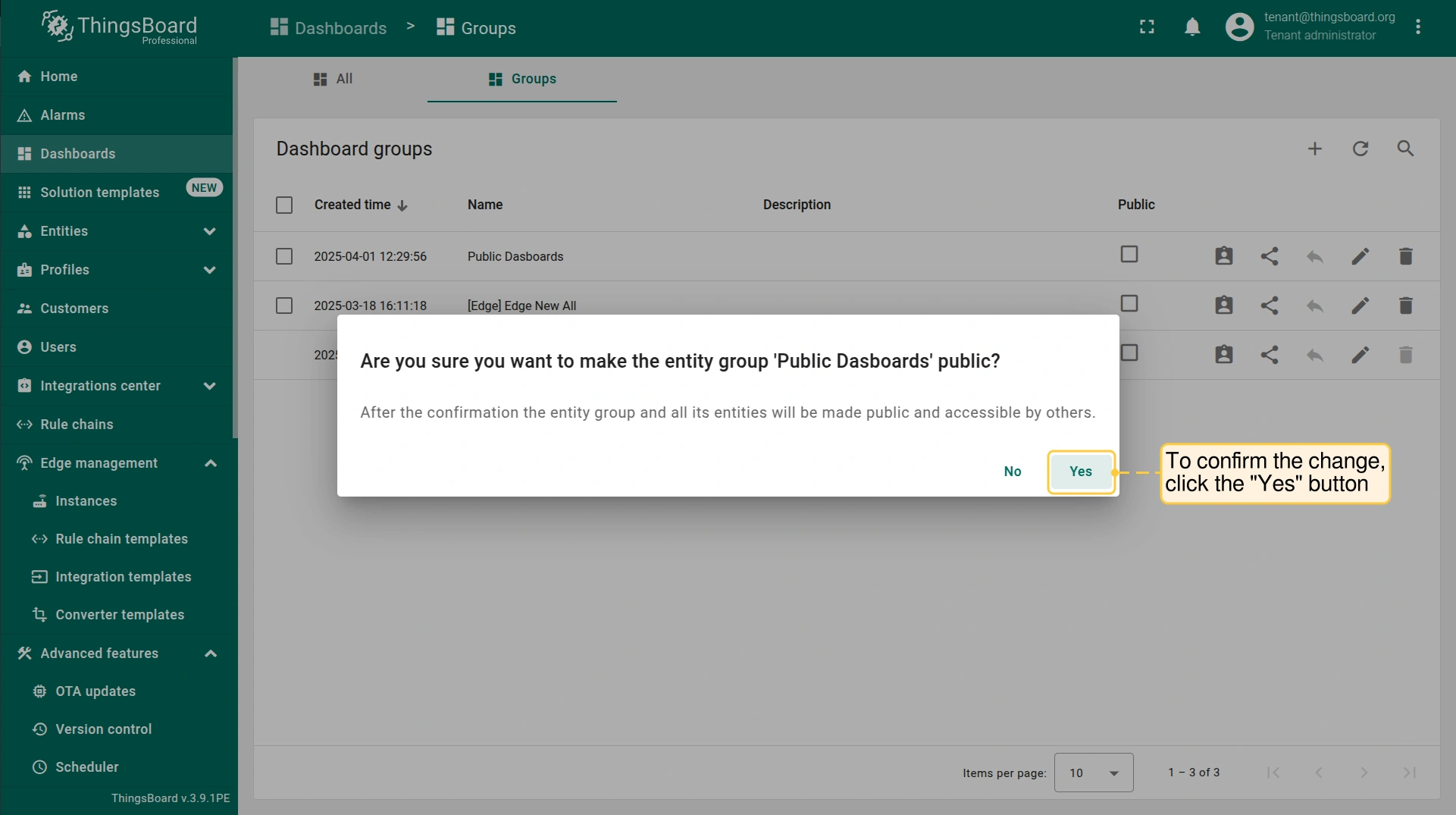
- To confirm the change, click the "Yes" button in the pop-up window. After confirmation, the dashboard group and all dashboards within it will be made public and accessible to others.
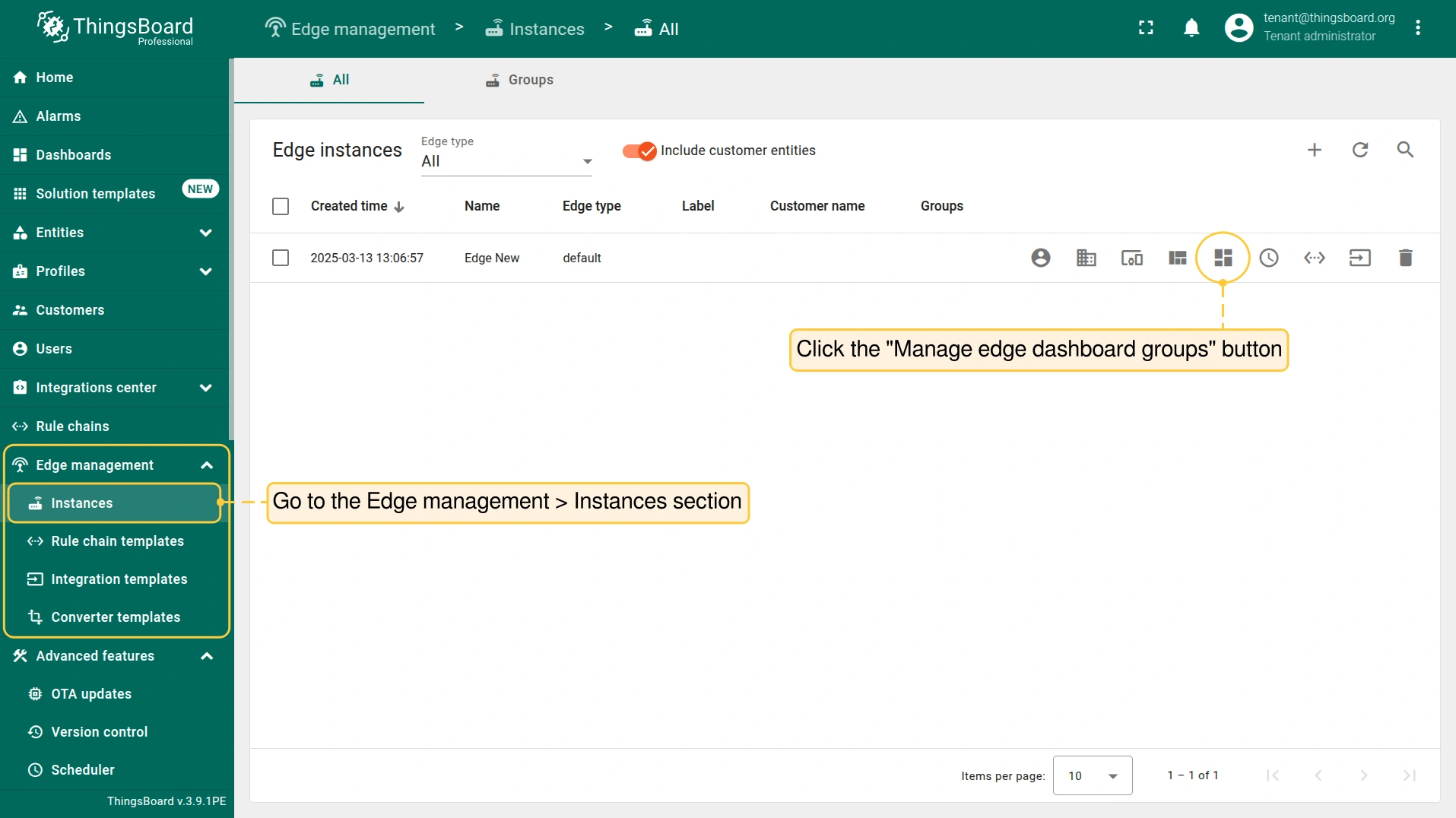
- Go to the Edge management > Instances section, and click the "Manage edge dashboard groups" button.
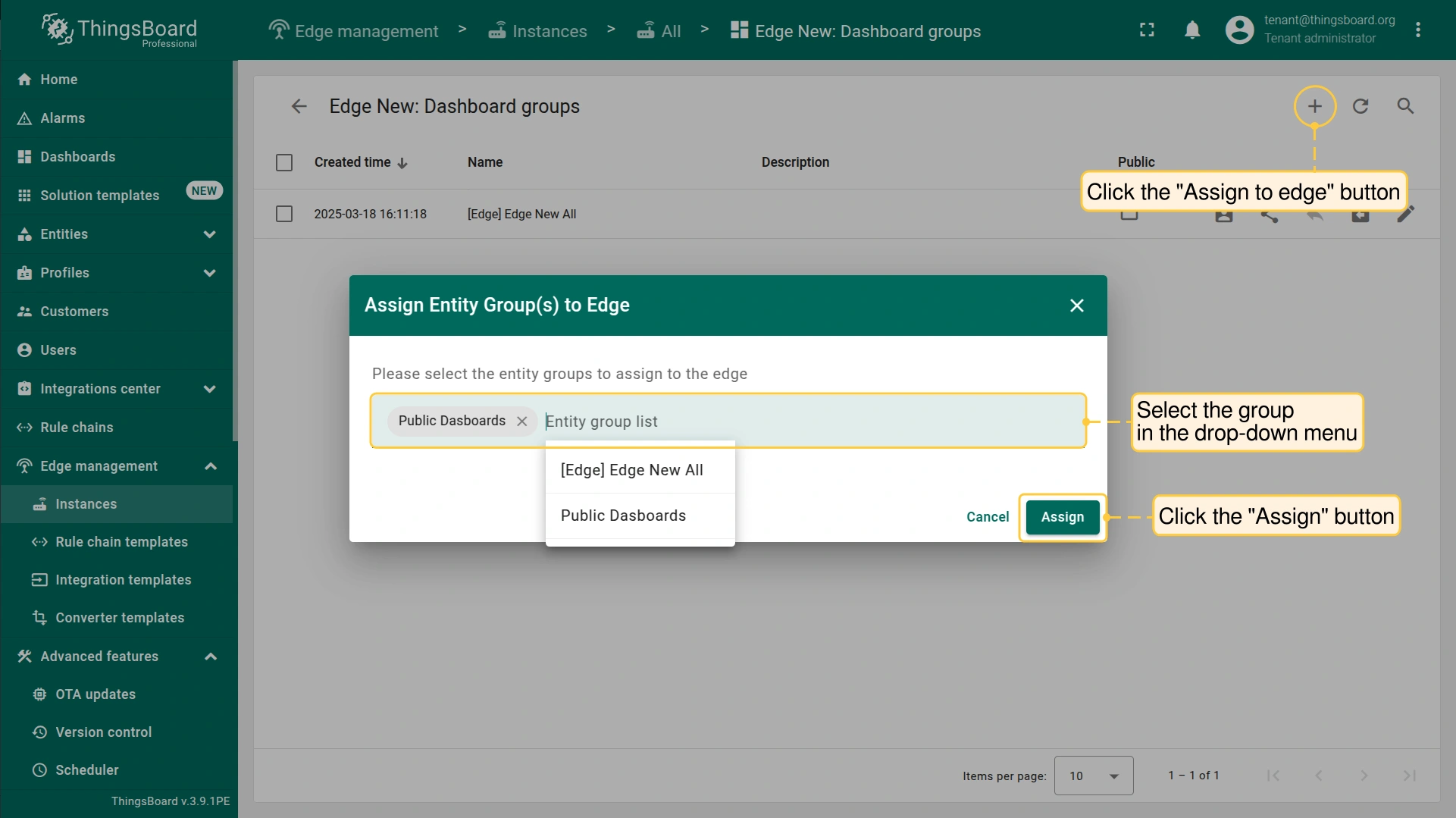
- On the Edge dashboard groups page, click the "Assign to edge" button. In the pop-up window, select the group and click the "Assign" button.
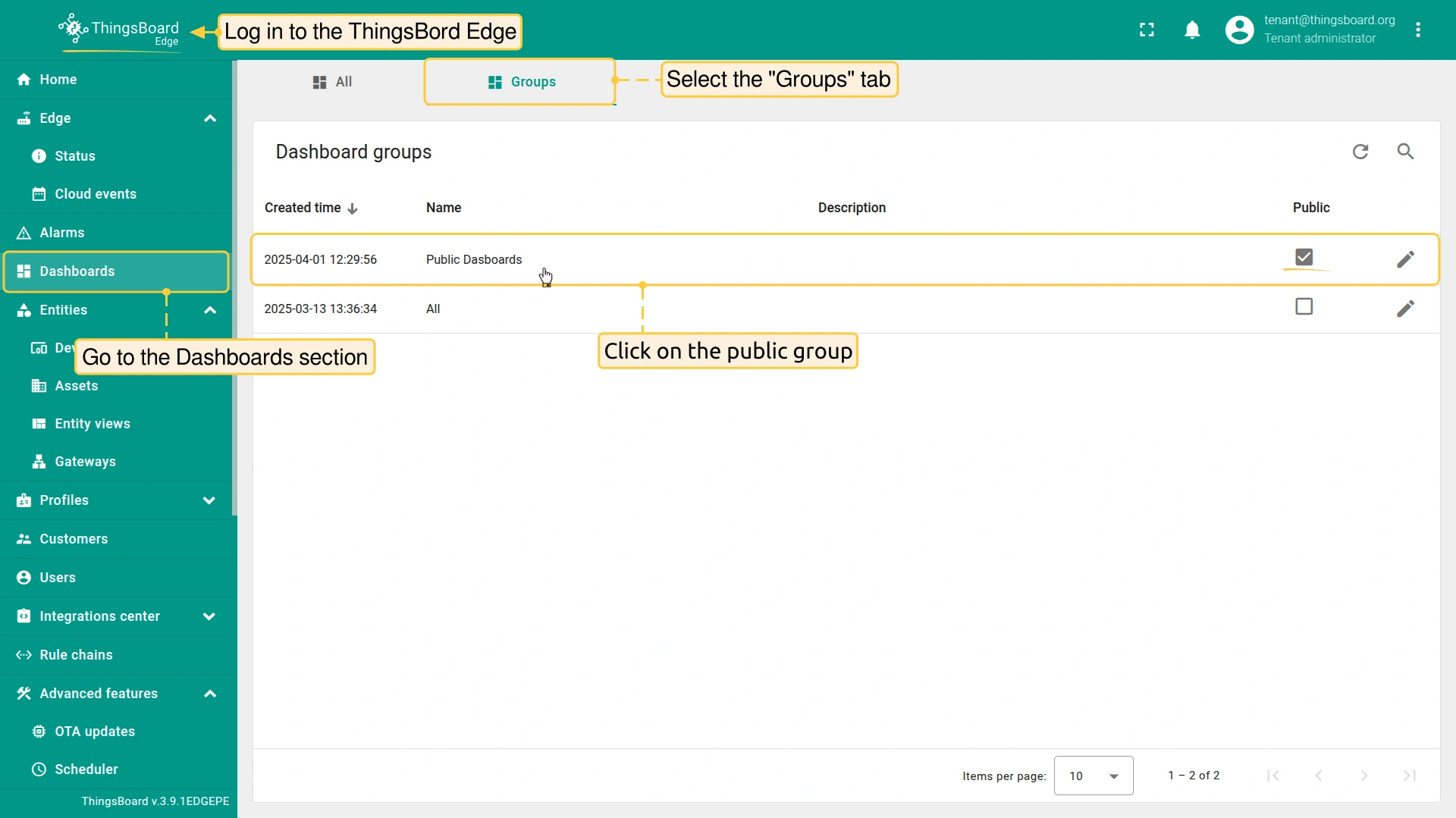
- Log in to the ThingsBord Edge, go to the Dashboards section, and select the "Groups" tab. Click on the public group.
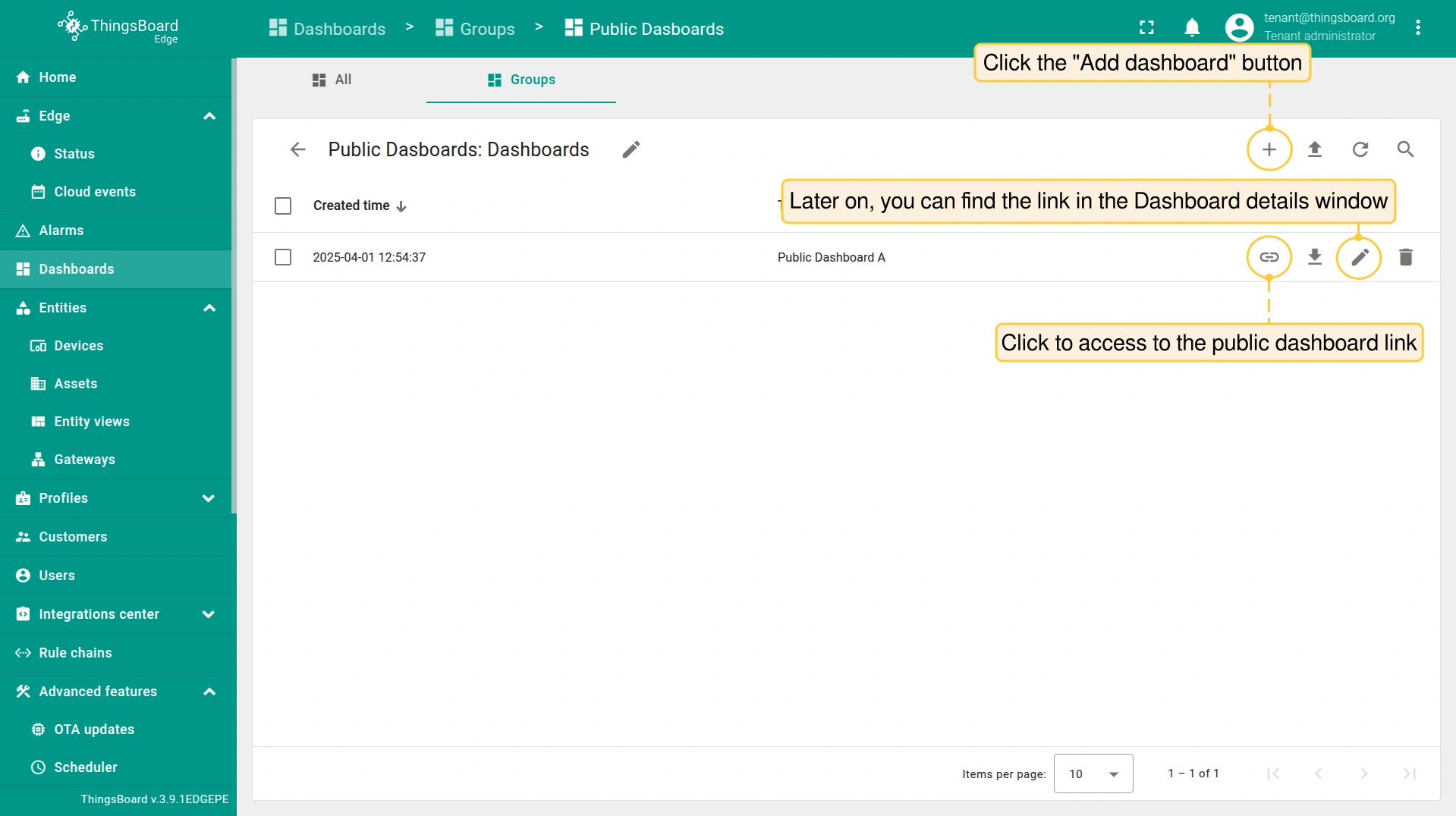
- To create and configure the dashboards within this group, click the "Add dashboard" button. All dashboards will be automatically set as public. To access to the public dashboard link, click the corresponding button.
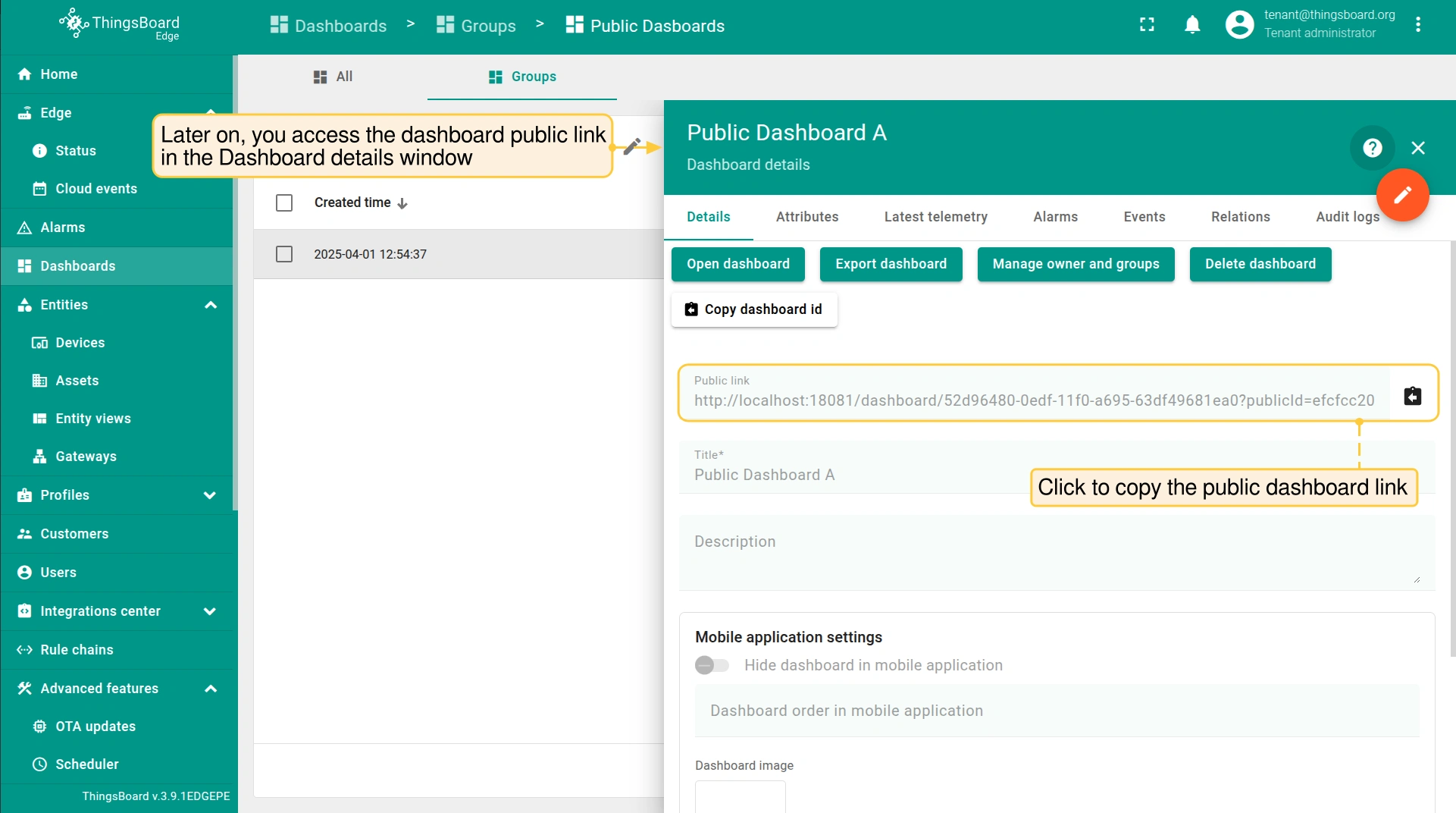
- You can also access the dashboard public link in the Dashboard details window. Note: the link is available only within the group.
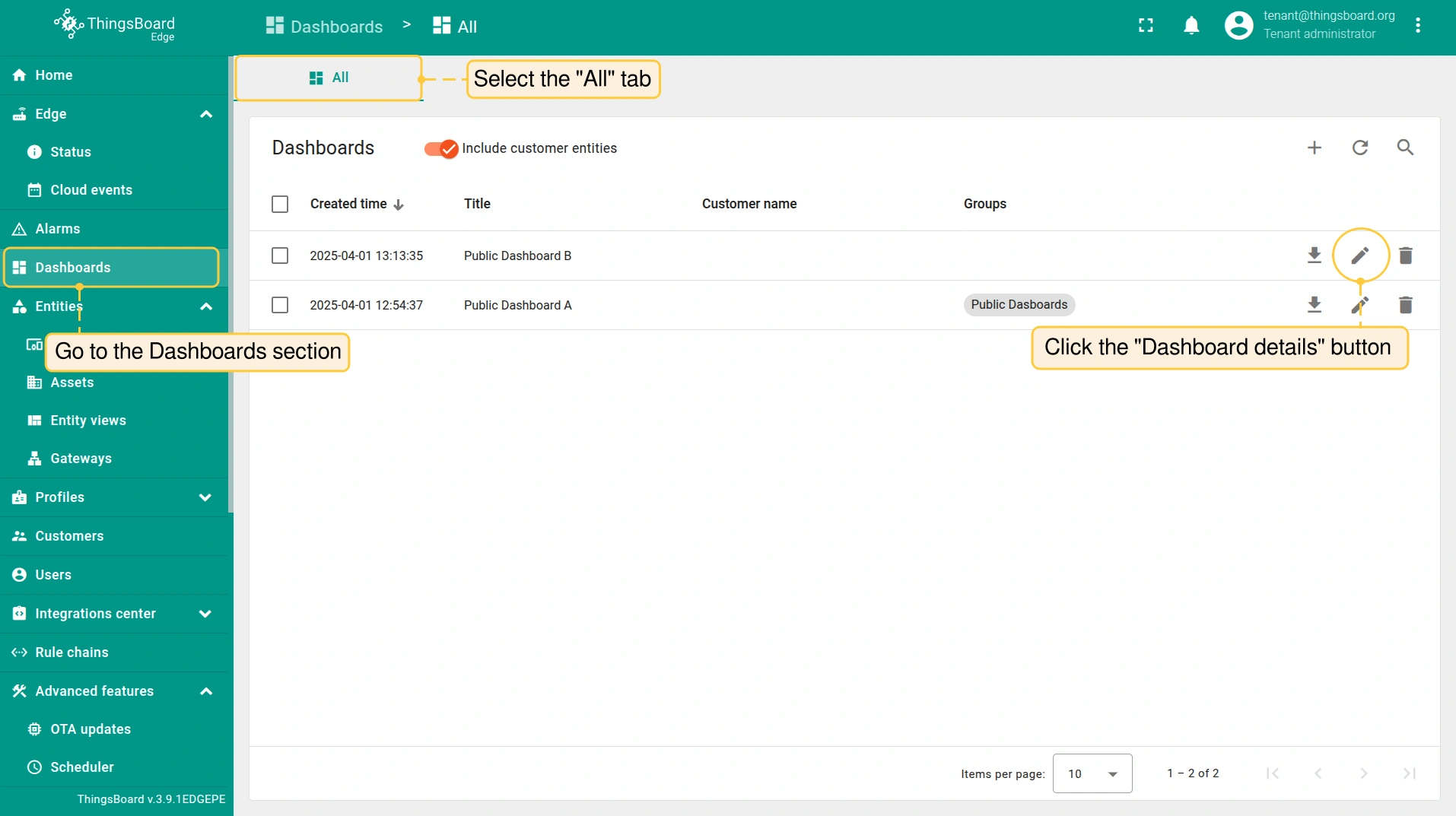
- To assign another dashboard to the Public group, select the "All" tab and click the "Dashboard details" button.
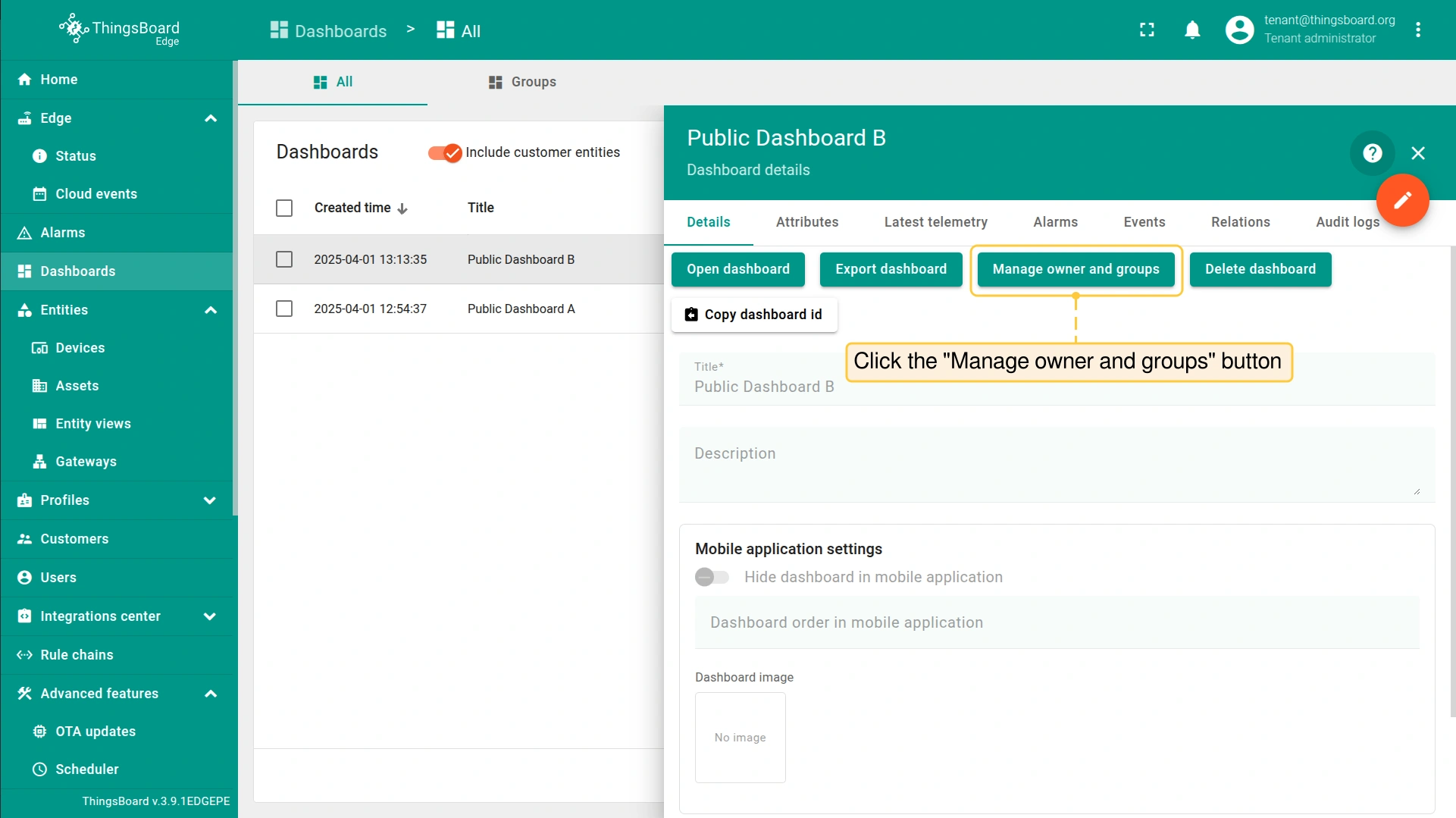
- On the Dashboard details page, click the "Manage owner and groups" button.
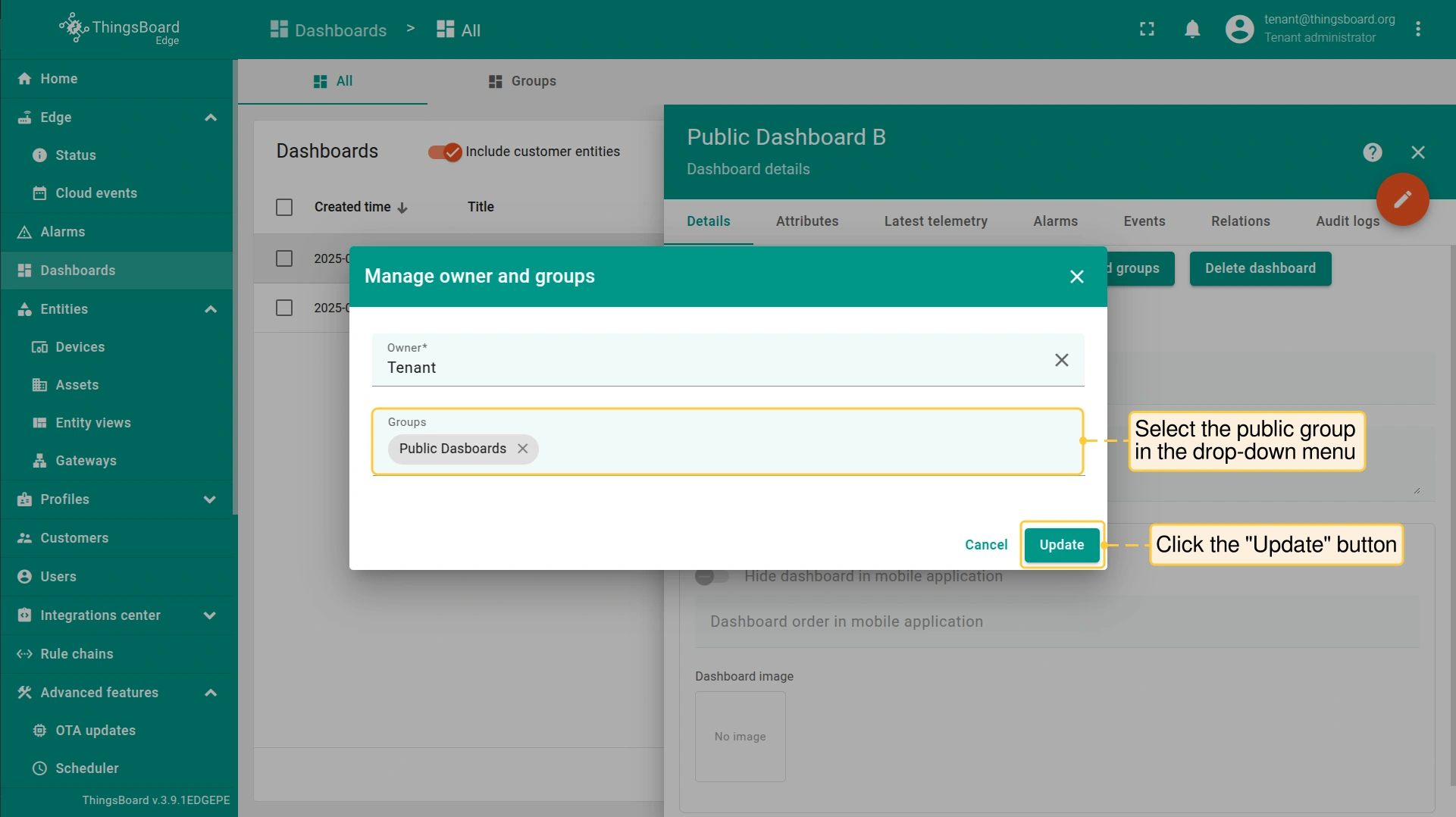
- In the pop-up window, select the group and click the "Update" button.
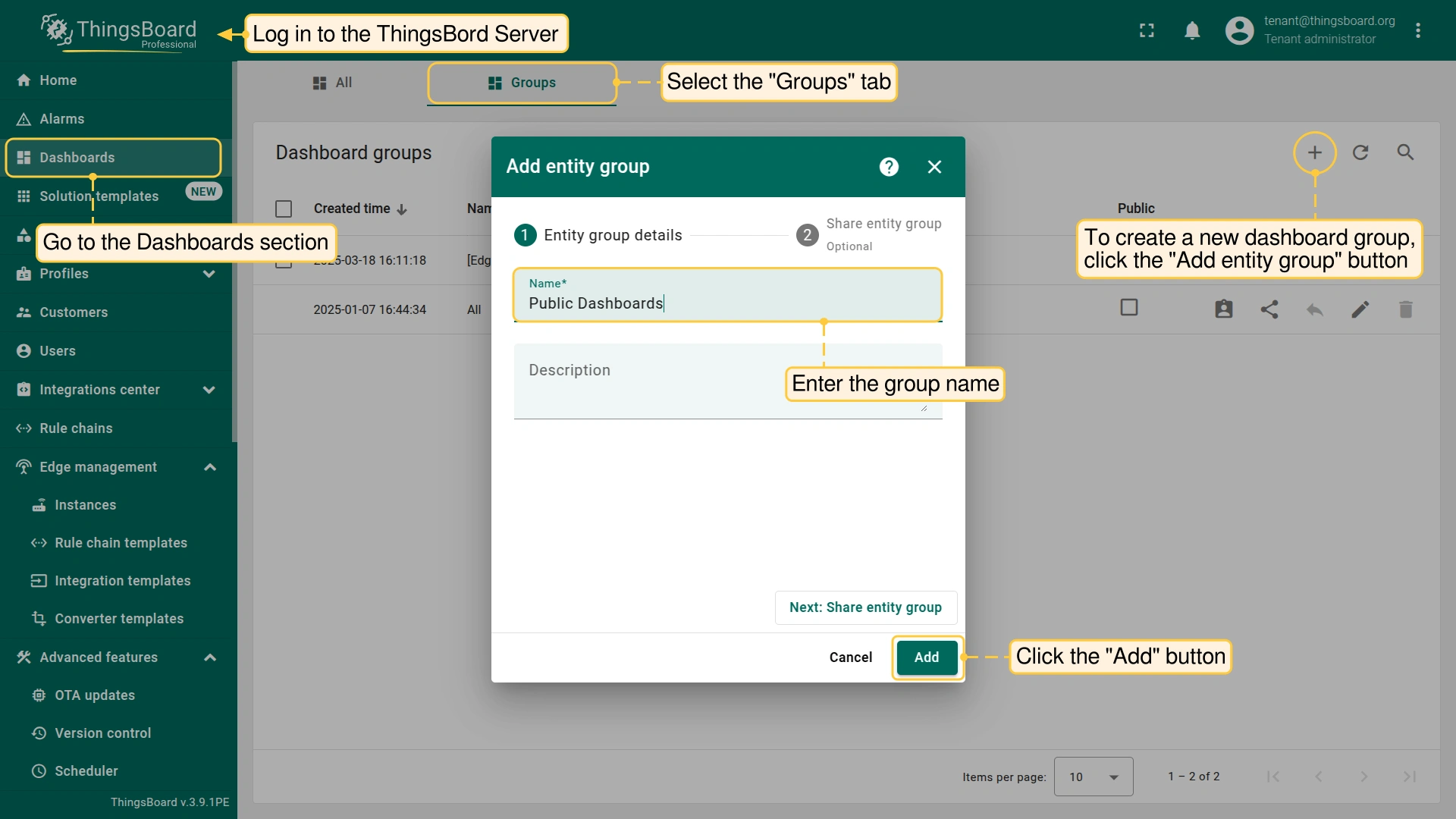
- To create a new dashboard group, click the "Add entity group" button.
- In the pop-up window, enter the group name and click the "Add" button.
将仪表板组设为私有
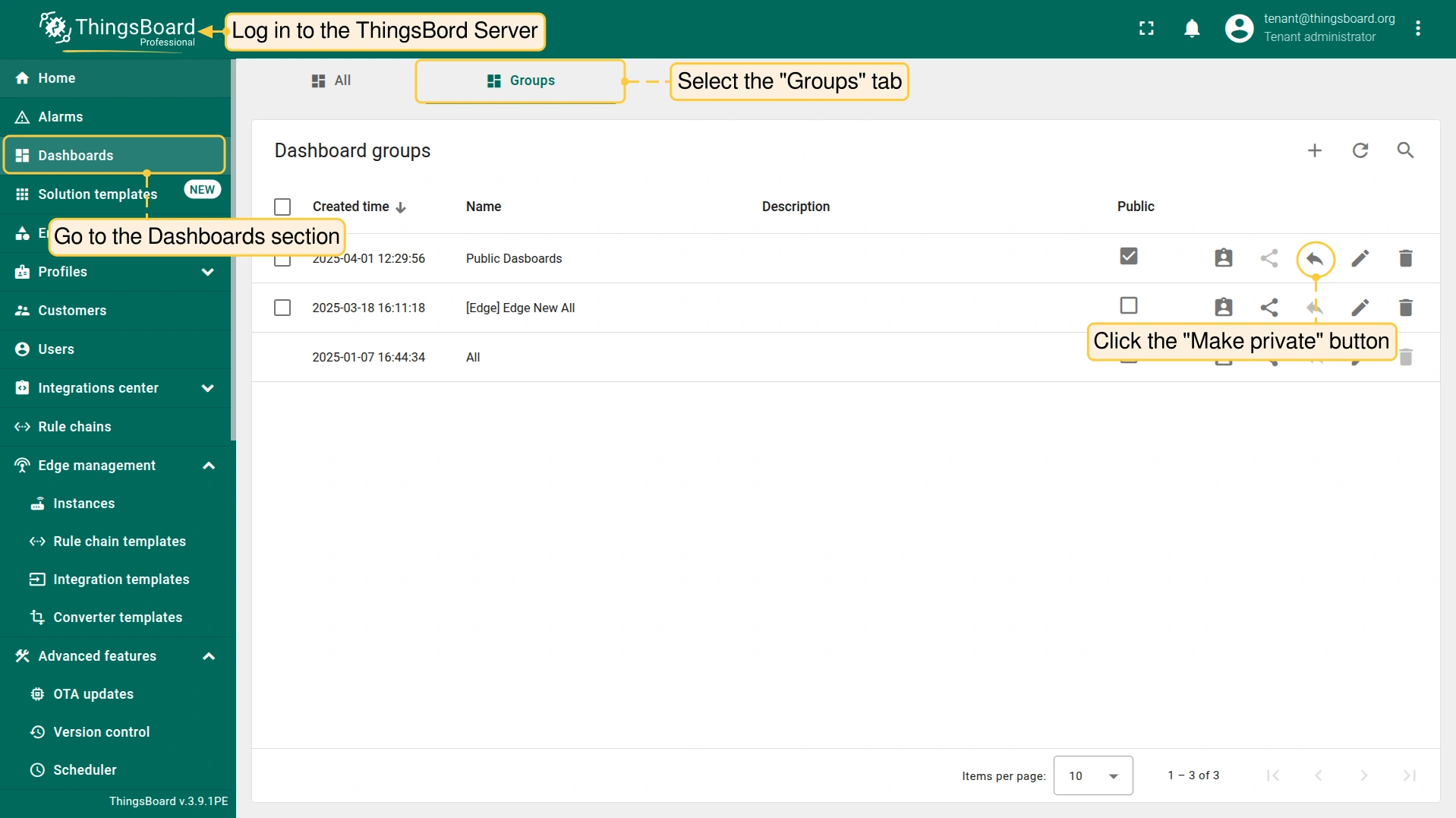
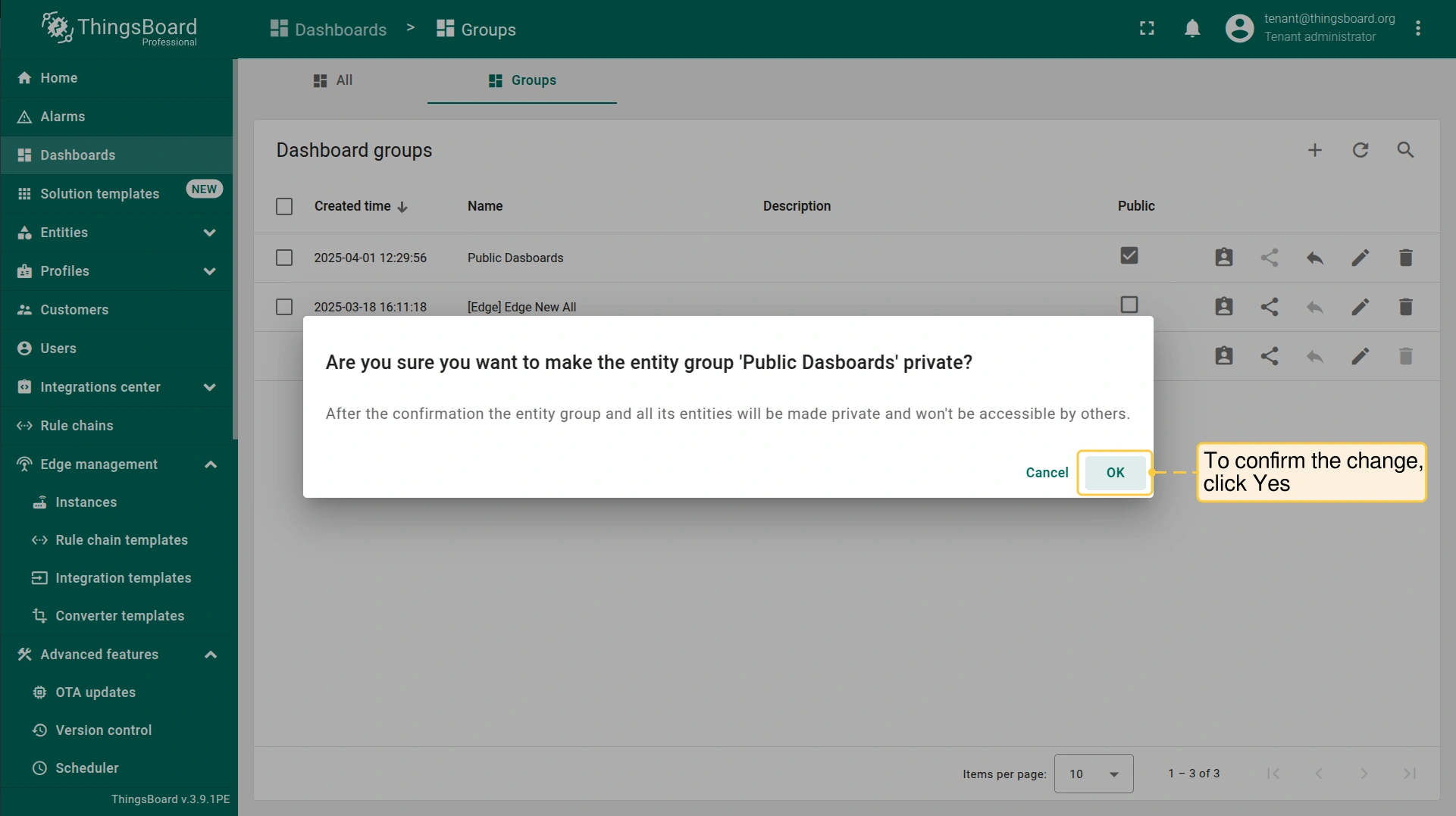
- To make the dashboard group private, log in to the ThingsBord Server, go to the Dashboards section, and select the "Groups" tab. Click the "Make private" button.
- To confirm the change, click the "OK" button in the pop-up window.
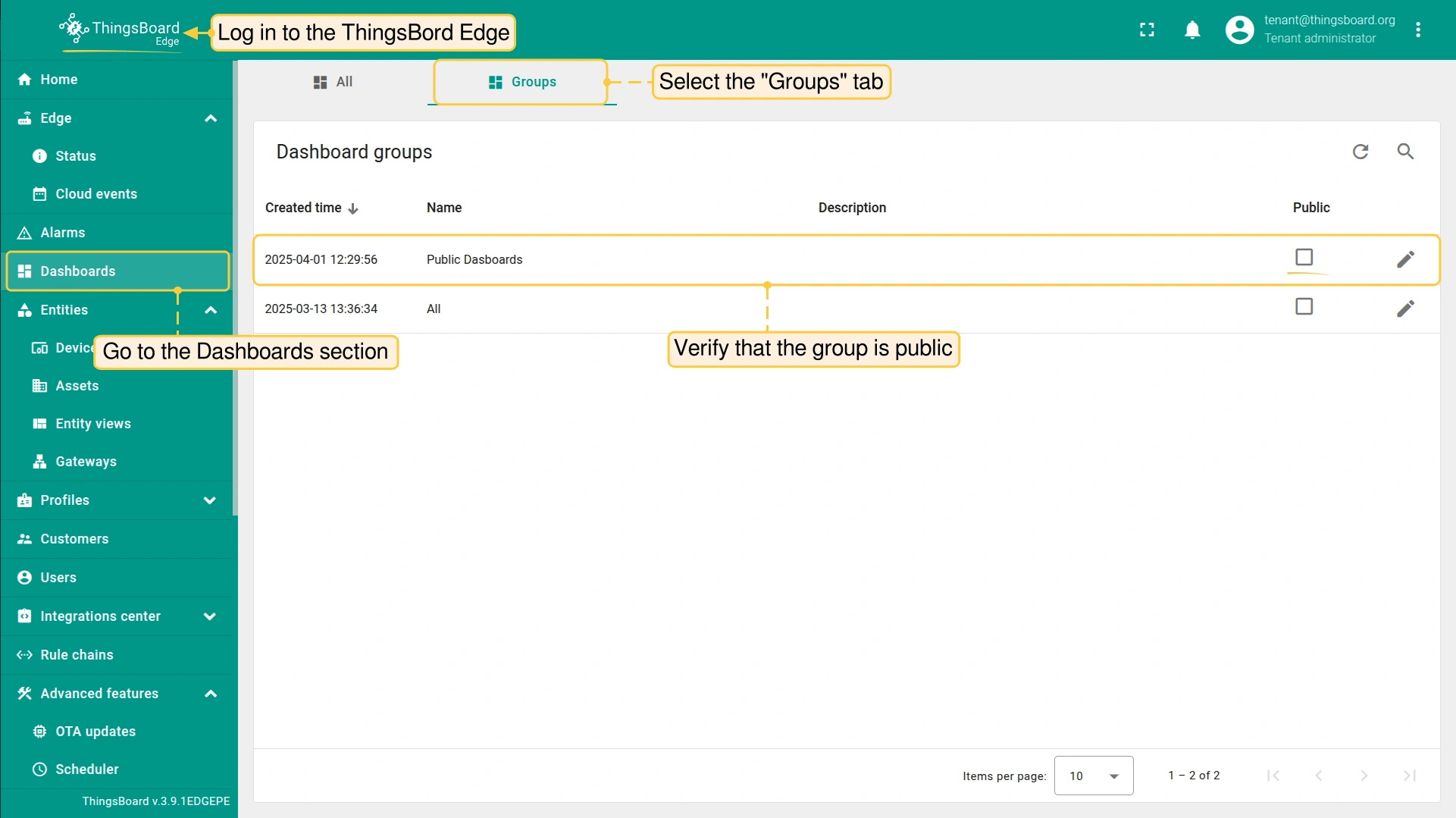
- To verify the change, go to the Dashboards section of the Edge instance, the "Groups" tab and update the page.
下一步
-
Getting started guide(入门指南)- 快速概览 ThingsBoard Edge 主要功能。预计 15–30 分钟完成:
-
Installation guides(安装指南)- 了解如何在各种操作系统上安装 ThingsBoard Edge 并连接到 ThingsBoard Server。
-
Edge 规则引擎:
-
Rule Chain Templates(规则链模板)- 了解如何使用 ThingsBoard Edge 规则链模板。
-
Provision Rule Chains from cloud to edge(从云端向 Edge 下发规则链)- 了解如何从云端向 Edge 下发边缘规则链。
-
- 安全:
- gRPC over SSL/TLS - 了解如何为 Edge 与云端之间的通信配置 gRPC over SSL/TLS。
-
功能:
-
Edge Status(Edge 状态)- 了解 ThingsBoard Edge 上的 Edge Status 页面。
-
Cloud Events(云端事件)- 了解 ThingsBoard Edge 上的 Cloud Events 页面。
-
-
使用场景:
-
Manage alarms and RPC requests on edge devices(在边缘设备上管理告警和 RPC 请求)- 本指南展示如何在 Edge 上生成本地告警并向连接到 Edge 的设备发送 RPC 请求:
-
Data filtering and traffic reduce(数据过滤与流量削减)- 本指南展示如何从 Edge 向云端仅发送过滤后的设备数据:
-
- Roadmap(路线图)- ThingsBoard Edge 路线图。