ThingsBoard的重要能力之一是为终端用户创建dashboards。 客户应仅能访问您授予的场所、设备和数据,并享受其个性化dashboard的全部功能。 同时不得访问其他客户的场所、设备或其它数据。 作为管理员,您始终可编辑和修改dashboard。
Tenant Administrator可通过两种方式向Customer授予对特定实体(如Device、Dashboard、Asset等)的访问:
- 分配所有权:使客户成为唯一可访问该实体及其数据的用户;
- 共享实体:允许多个客户访问同一实体。
We’re continuing to enhance our dashboard. In the last lesson, we set up alarm rules for the Indoor Air Quality sensor and added a widget to manage alarms. If you haven’t completed that lesson yet, I suggest going through it first.
本课将添加两名客户,并为其配置对之前课程所建dashboard的共享访问。 本示例中,Customer指租用您建筑内办公室并使用其中设备的个人或组织。 每位客户仅能访问其租赁的办公室及其中设备。
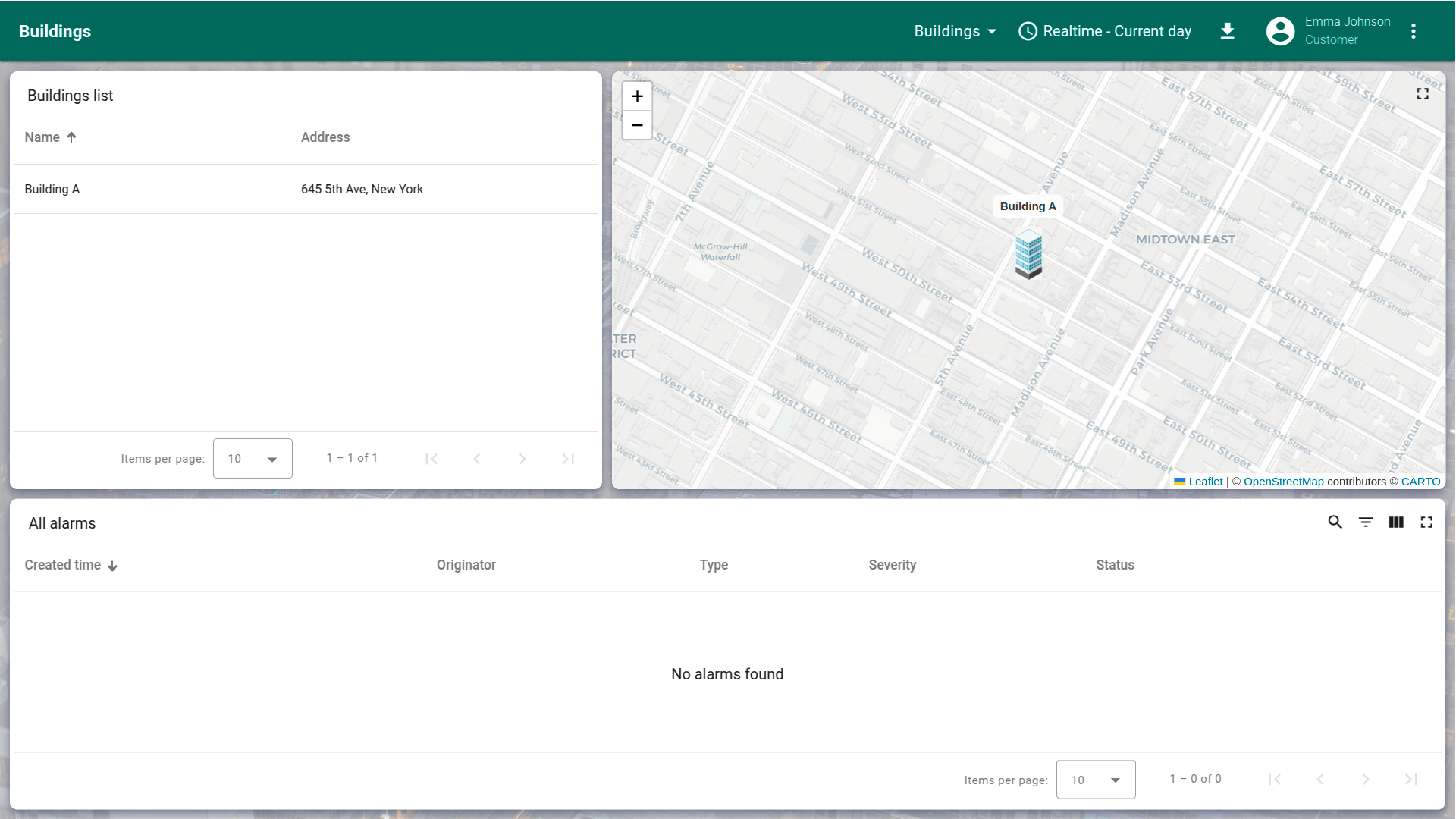
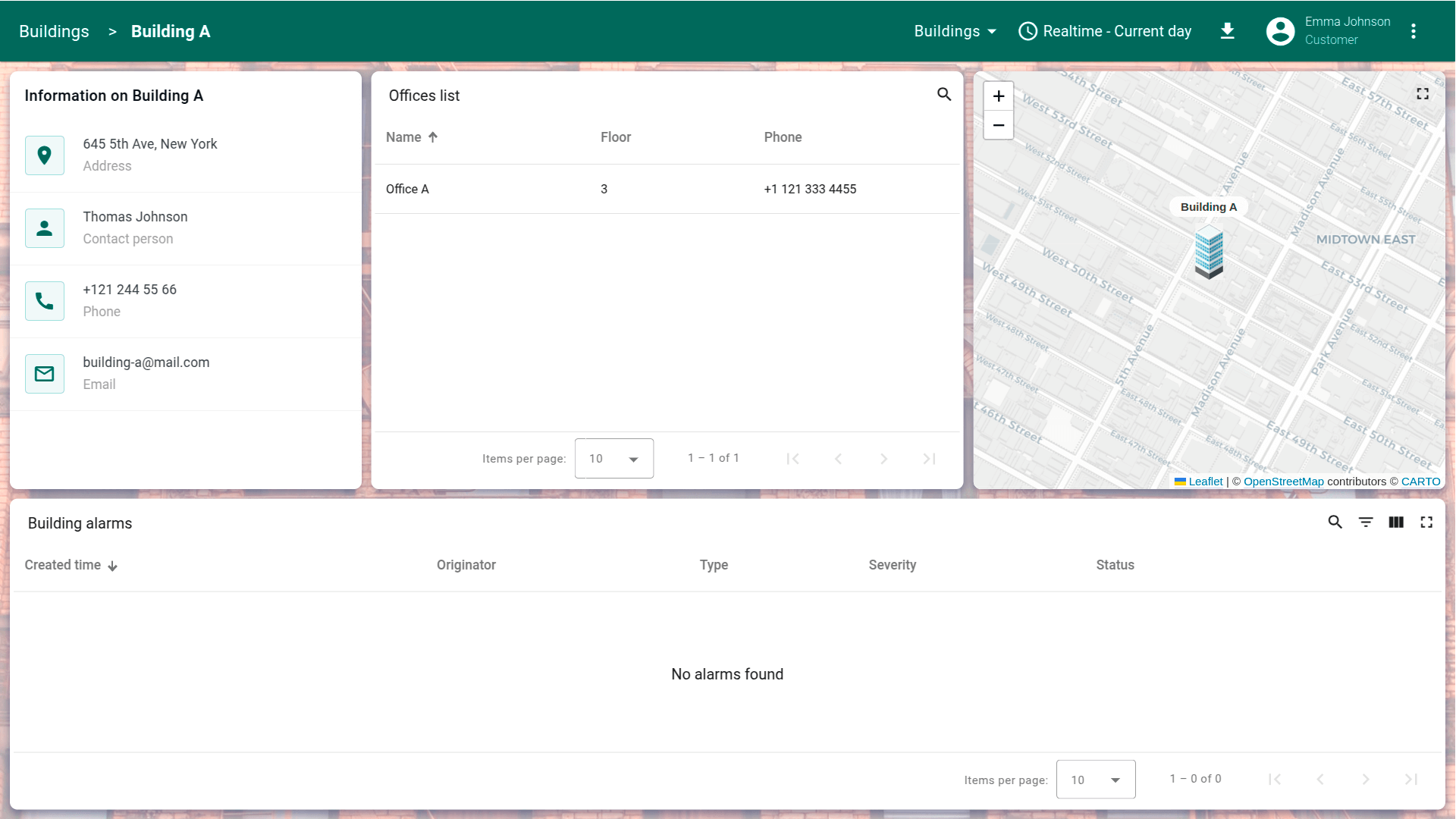
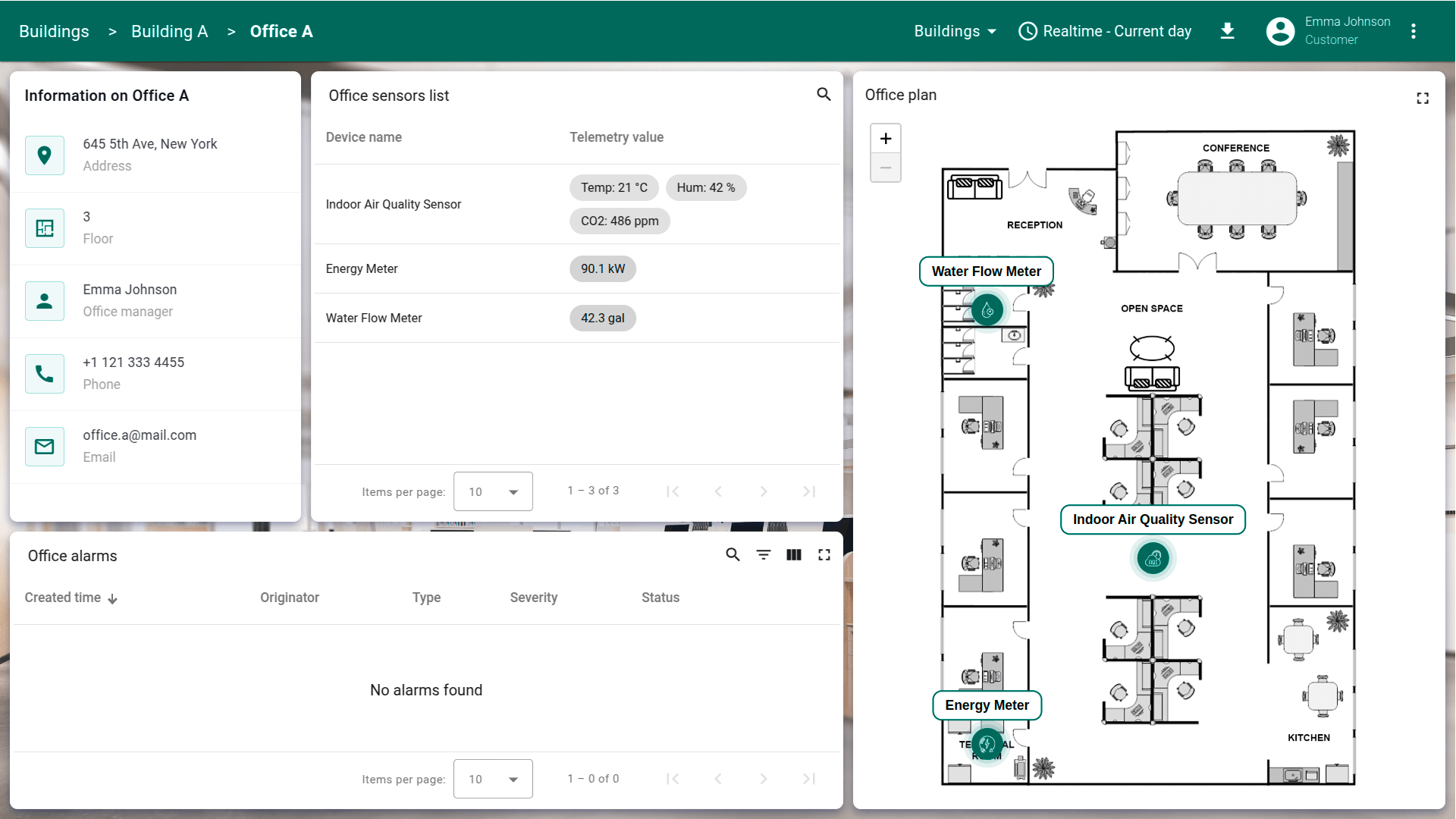
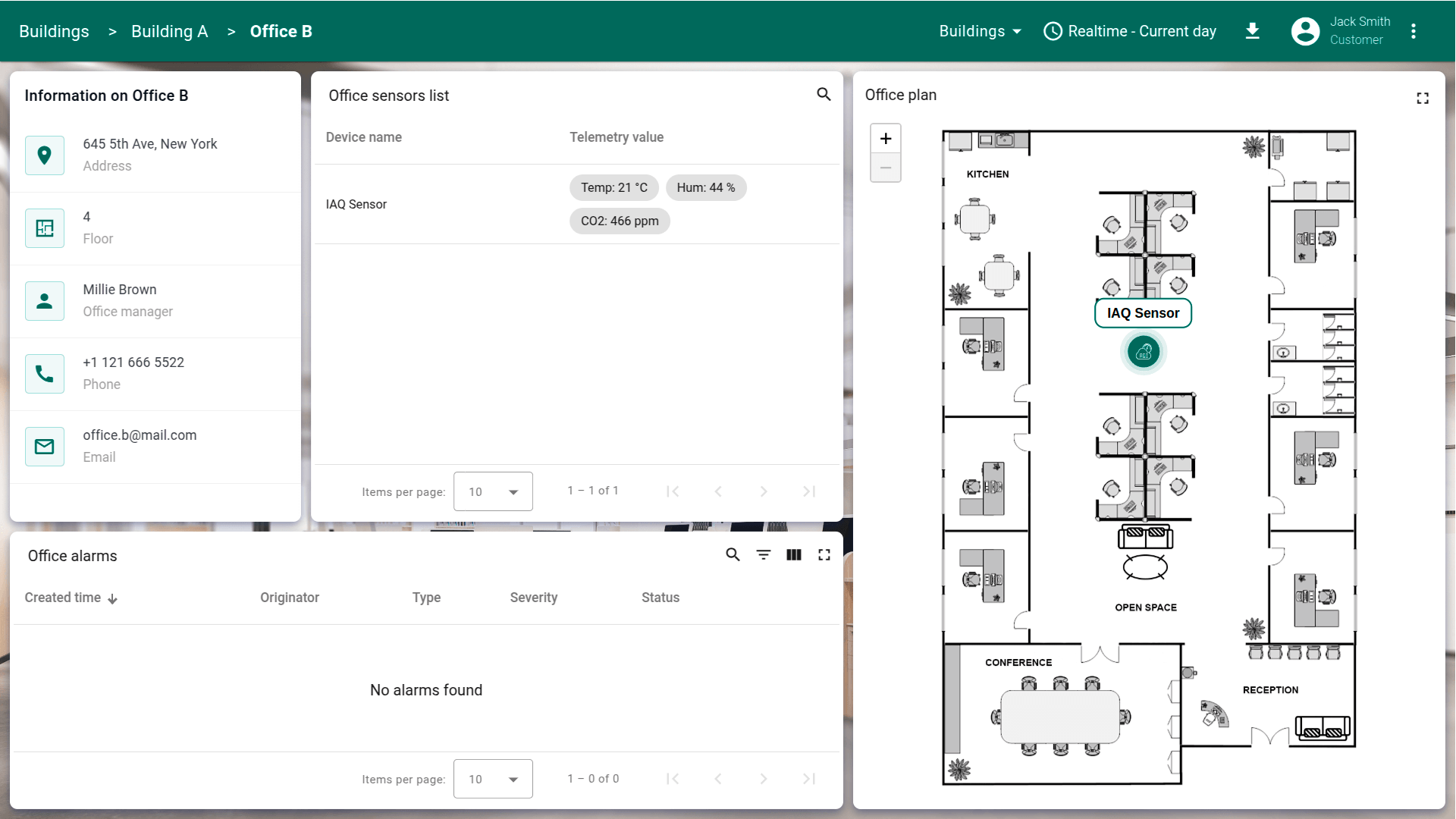
本课示例中,假设有两名客户:Customer A租用Building A的Office A,Customer B租用同栋楼的Office B。
创建这两名客户并授予必要访问权限。
添加客户
先添加两名客户。
- Navigate to the "Customers" page. By default, you navigate to the customer group "All". Click the "plus" sign to open the new customer form;
- Enter the customer's name and additional personal details if necessary. Click "Add" to finalize adding the new customer;
- Customer A is added.
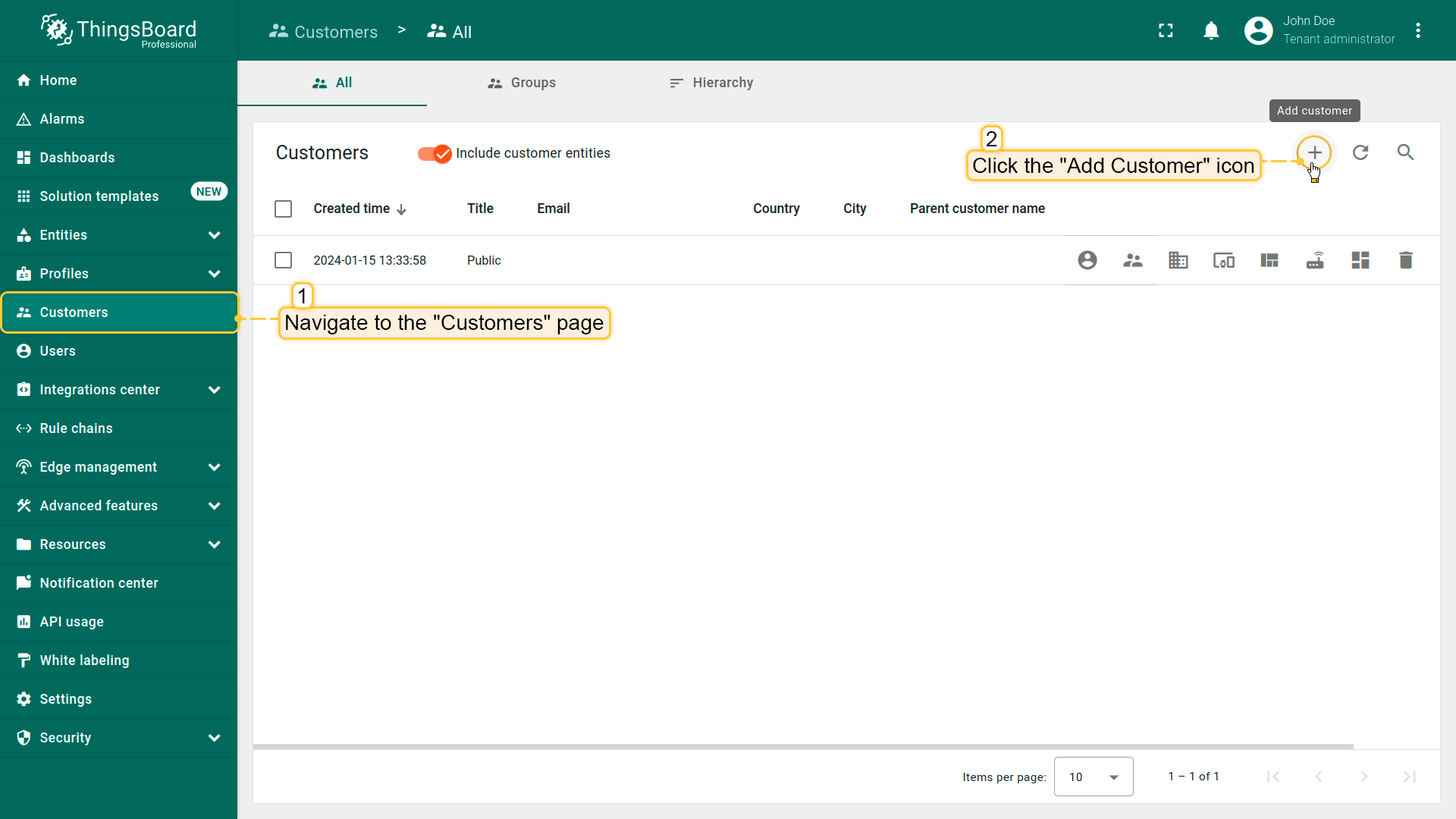
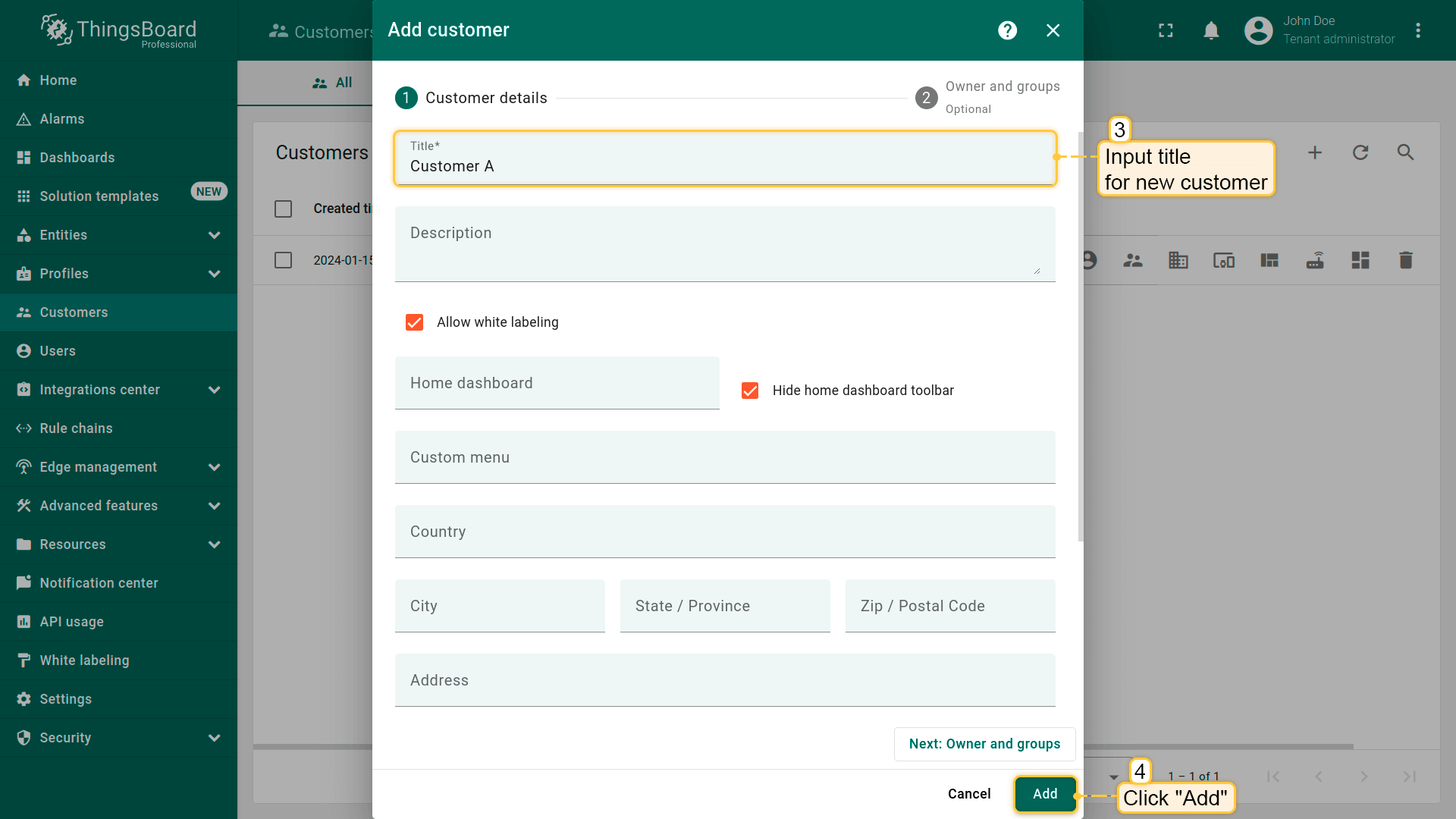
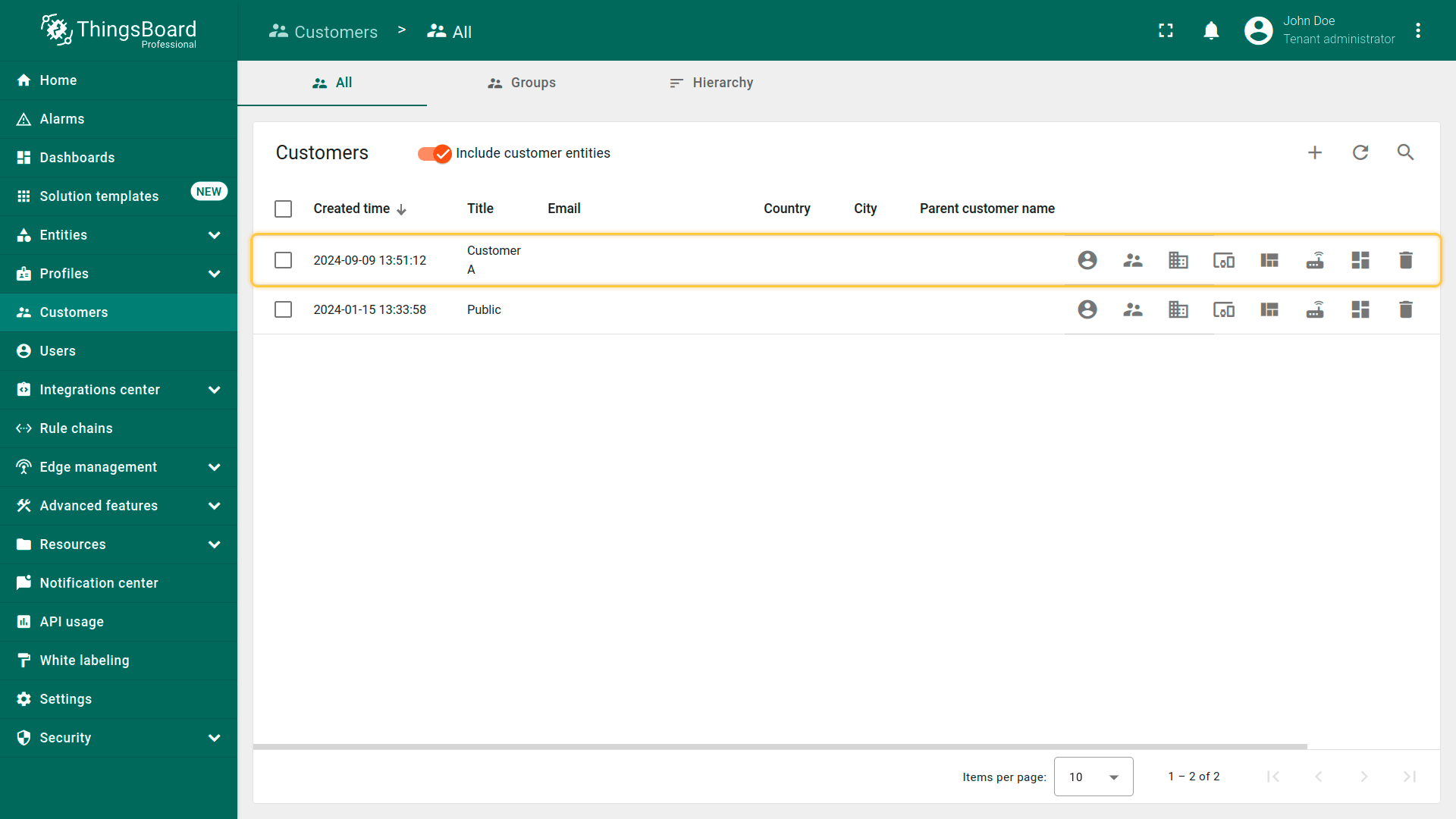
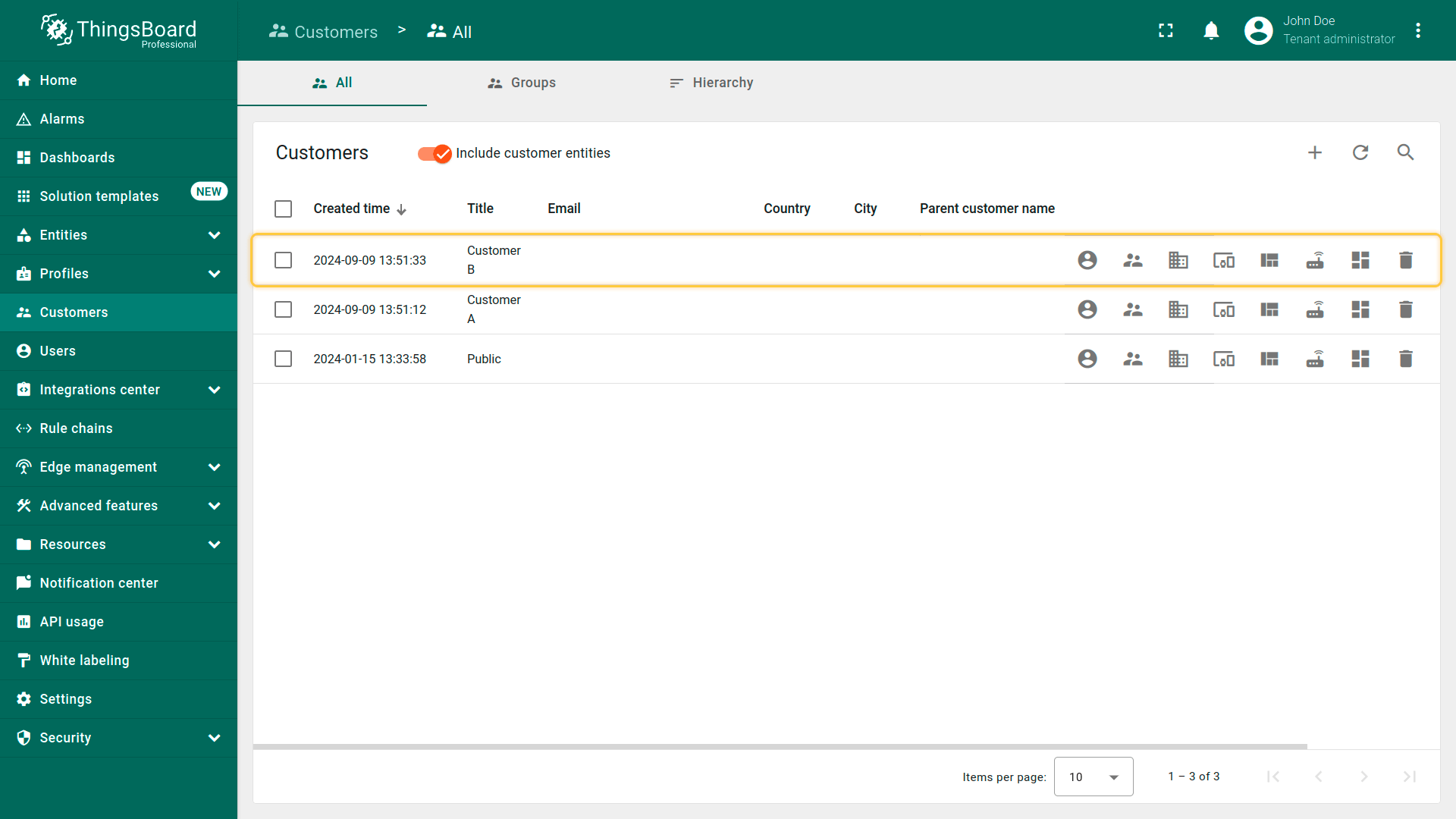
类似地创建名为 “Customer B” 的客户,并将其加入 “Office renters” 组。
共享dashboard
由于两位客户都会使用该dashboard,无法将两者都设为owner,但可为其提供dashboard的共享访问。无法共享单个dashboard,仅能共享包含该dashboard的group。
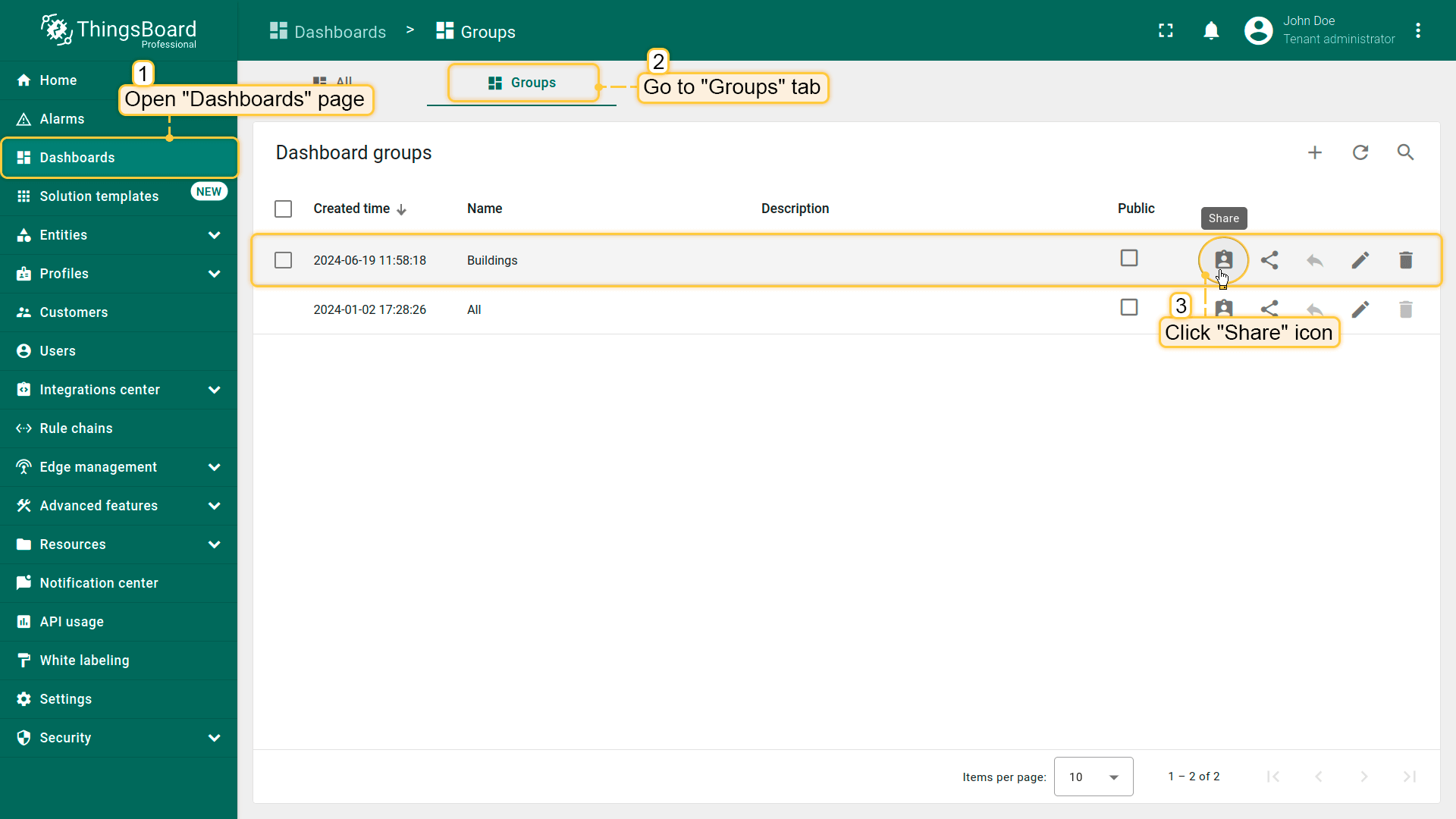
- Go to the "Dashboard" page and navigate to the "Groups" tab. Our dashboard is located in the "Buildings" group. Click the "Share" icon next to this group;
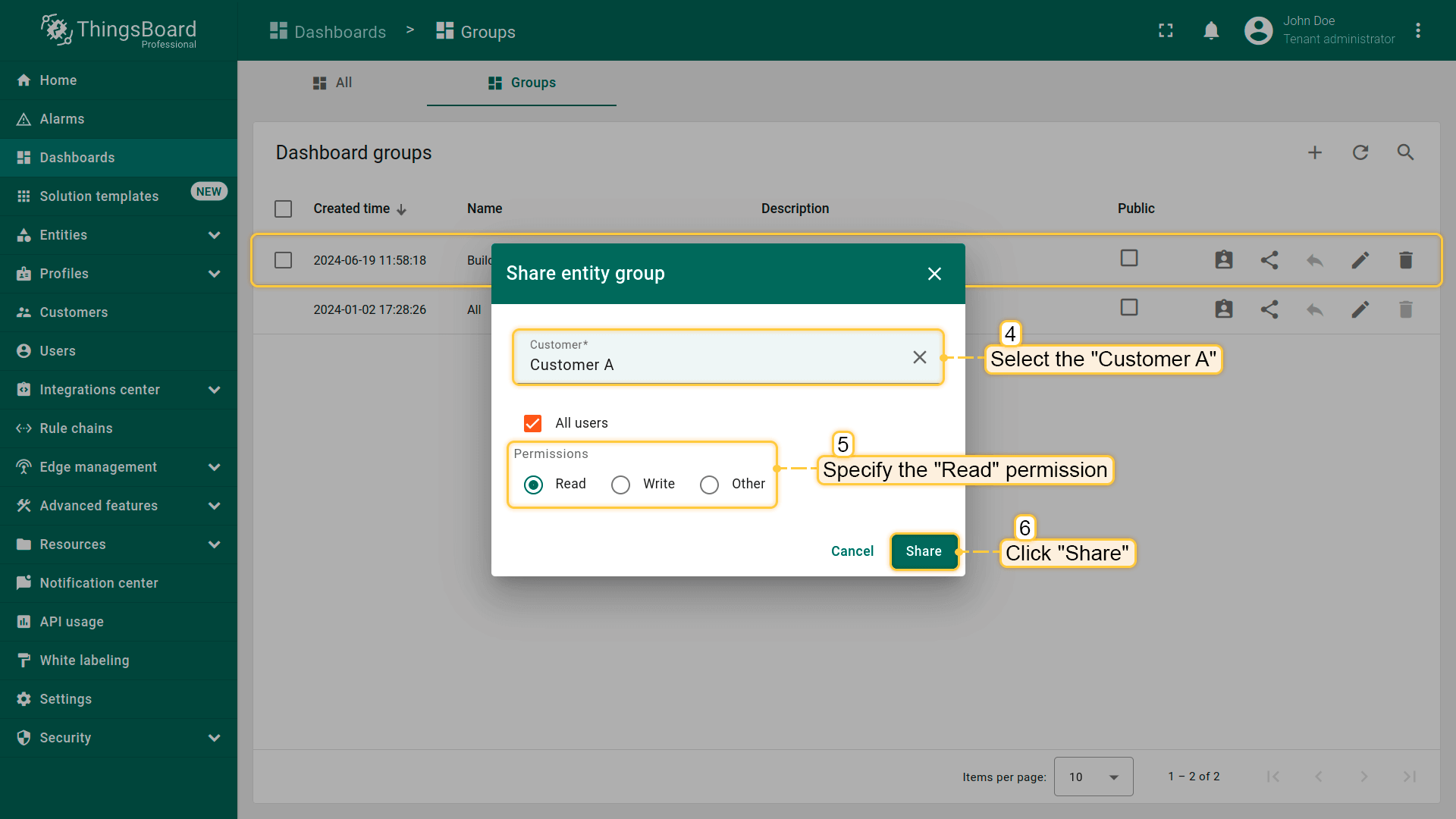
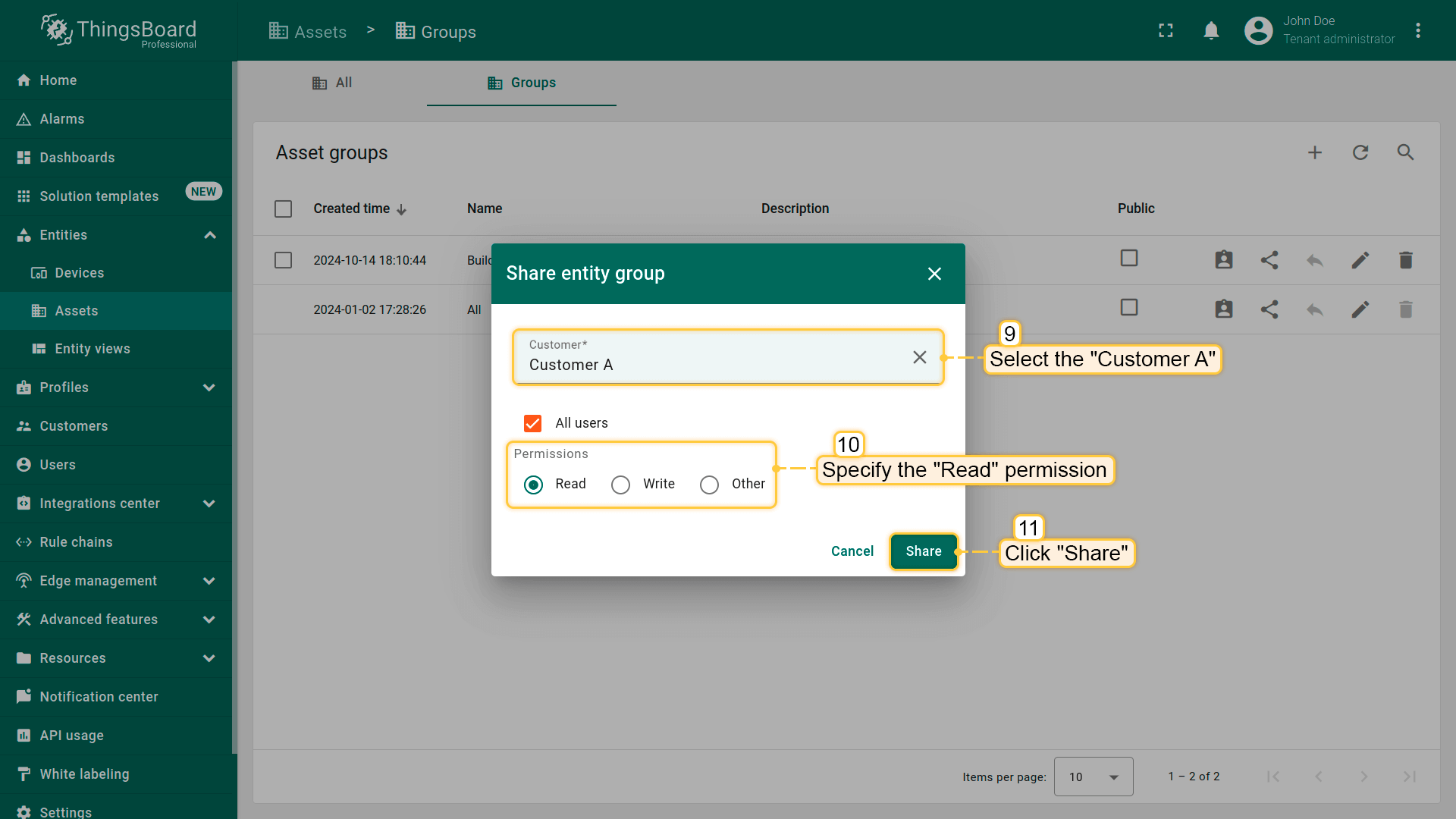
- Select Customer A, set the permission to "Read," and click "Share";
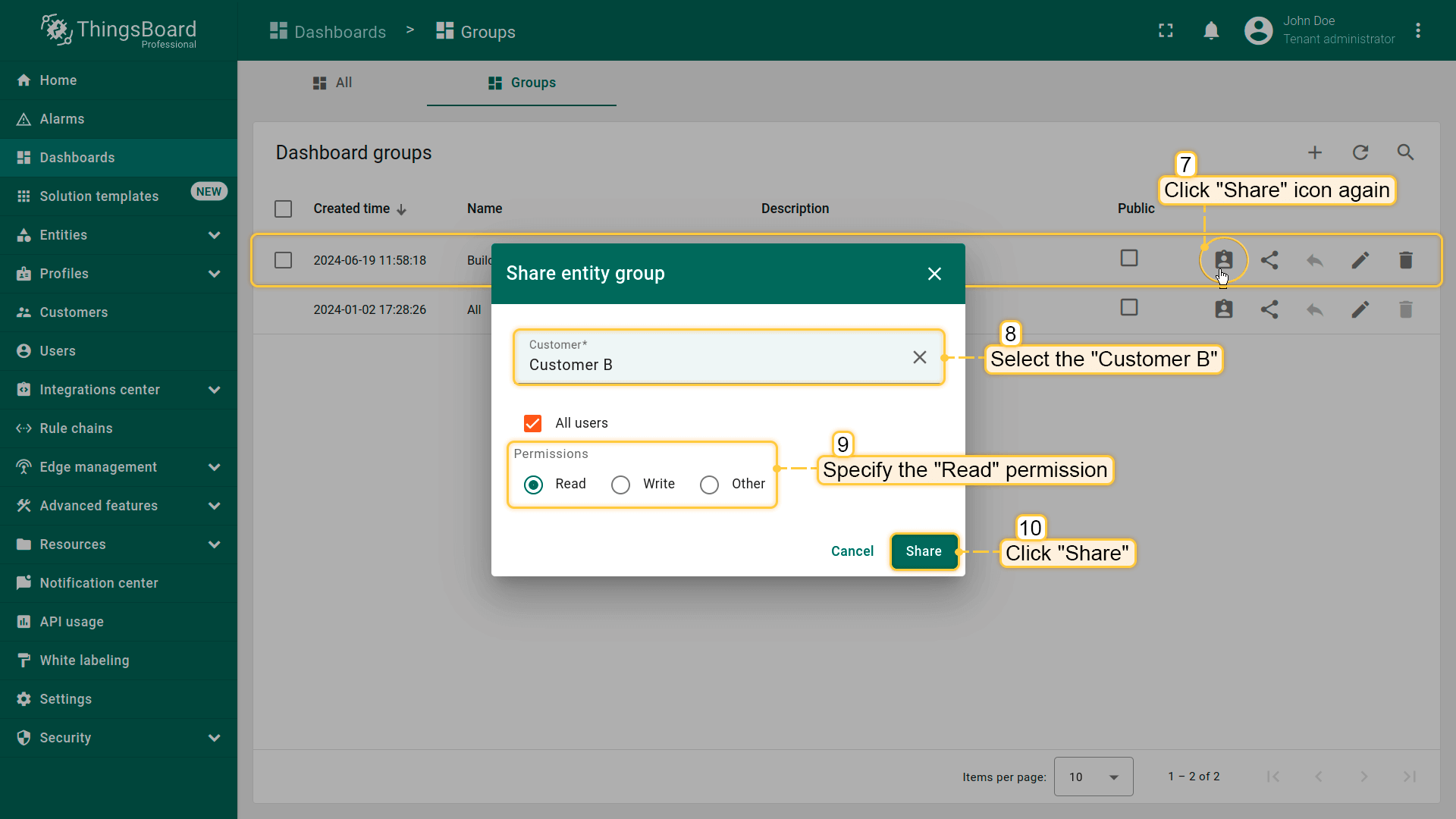
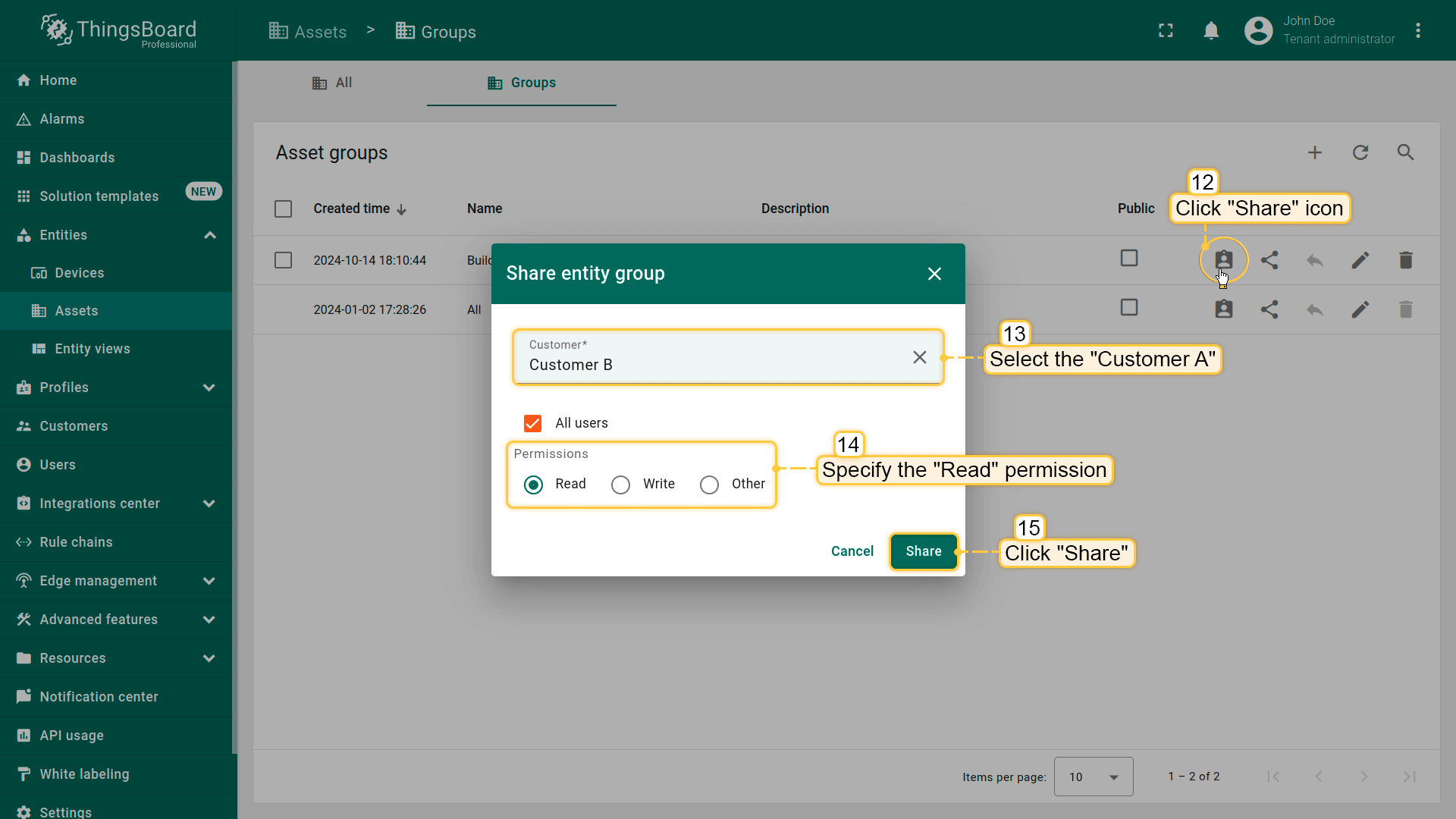
- Repeat the process for Customer B.
变更设备owner
接下来变更设备owner。将Customer A设为Office A中所有设备的owner,即 “Indoor Air Quality Sensor”、”Energy Meter” 和 “Water Flow Meter”。将Customer B设为Office B中 “IAQ Sensor” 的owner。
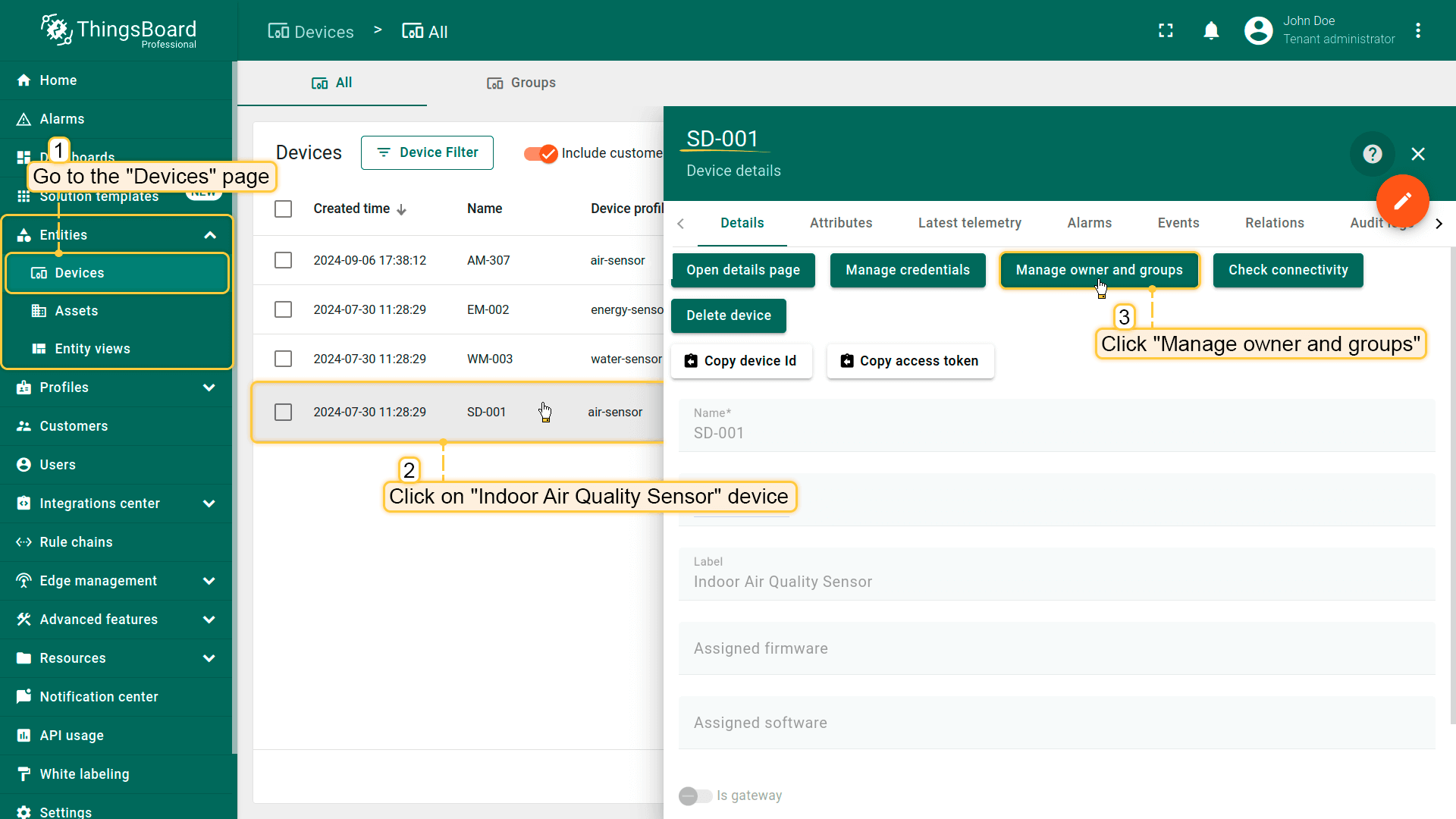
- Open "Devices" page. Click on "SD-001" (Indoor Air Quality Sensor) device to open its details. Now, click "Manage owner and groups" button;
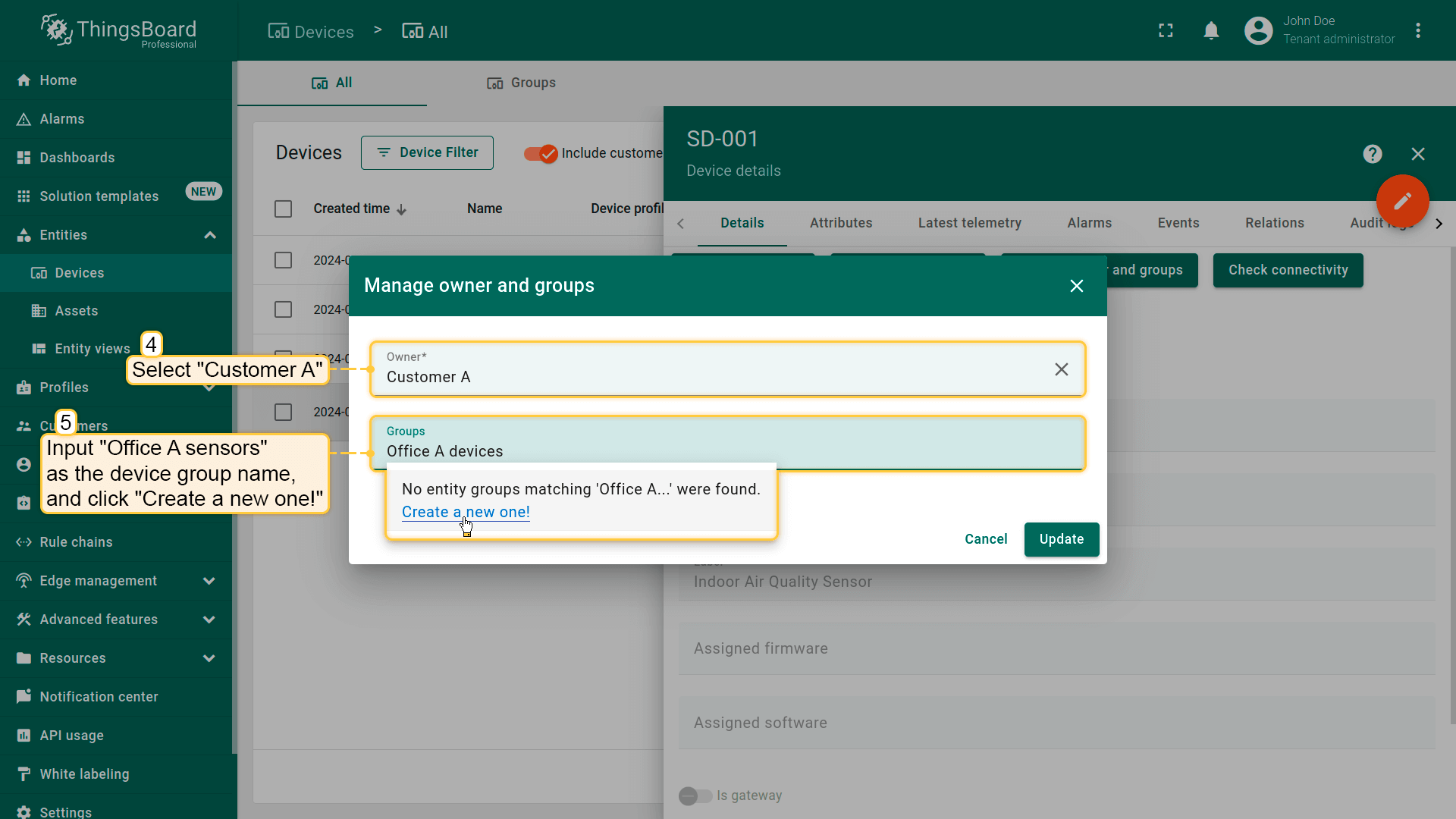
- In the "Owner" row, select "Customer A" from the drop-down list. Now, create a new device group. In the "Groups" row, input the desired group name, for example "Office A sensors". Then, click "Create a new one!";
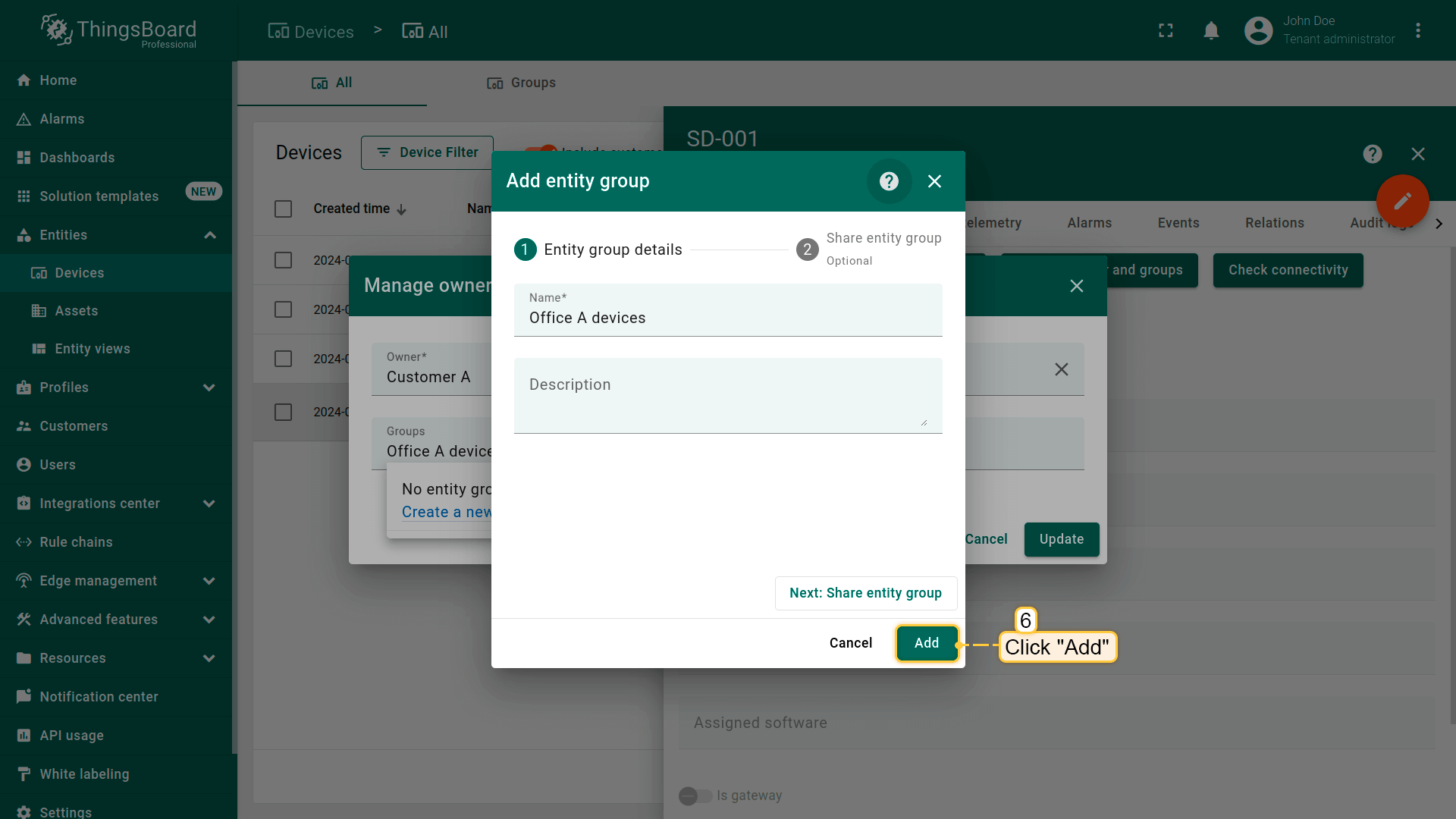
- Click "Add" button to confirm creation the device group creation;
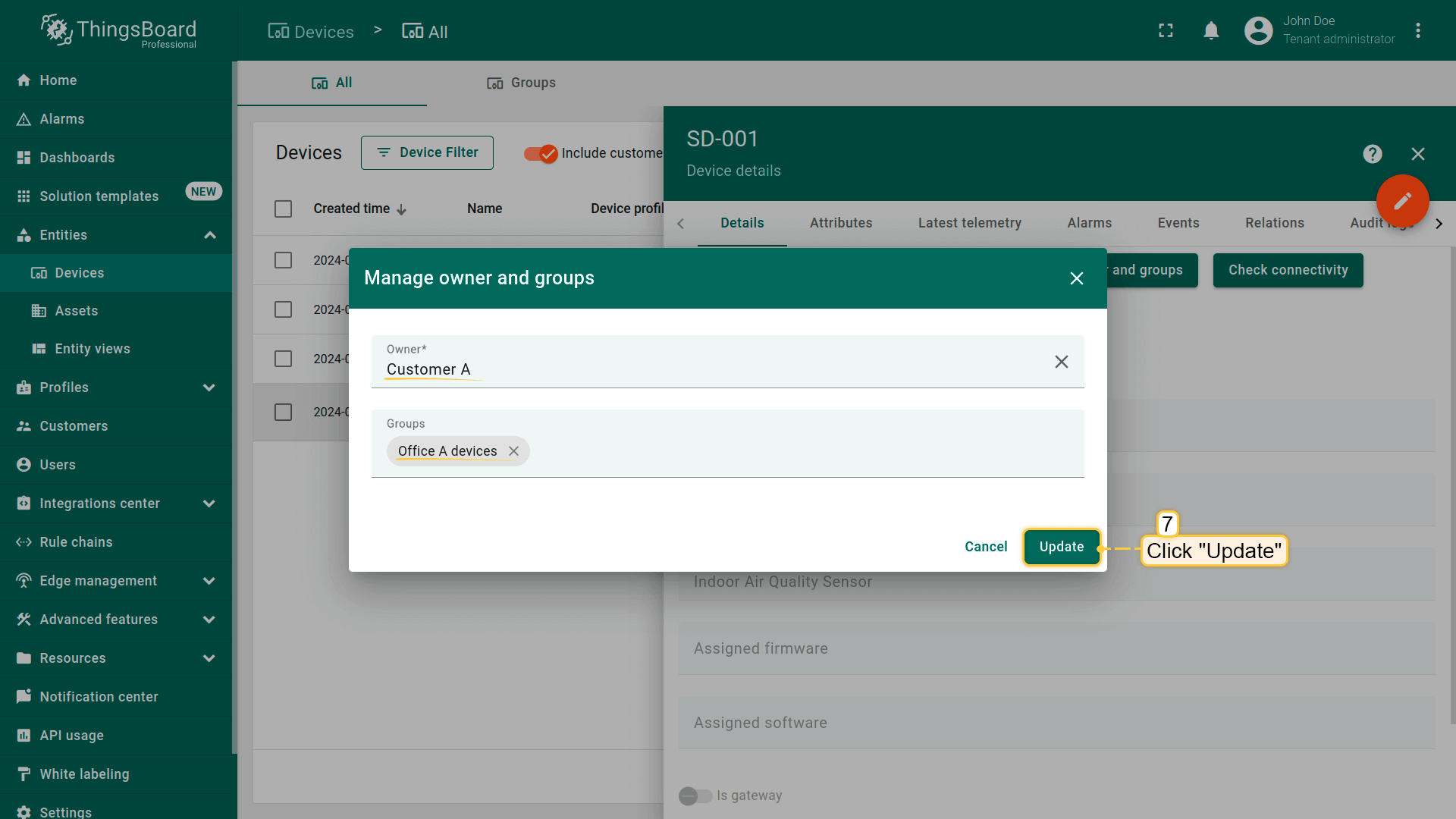
- Click "Update" to confirm the change of the device owner. You can always change the owner back to the tenant;
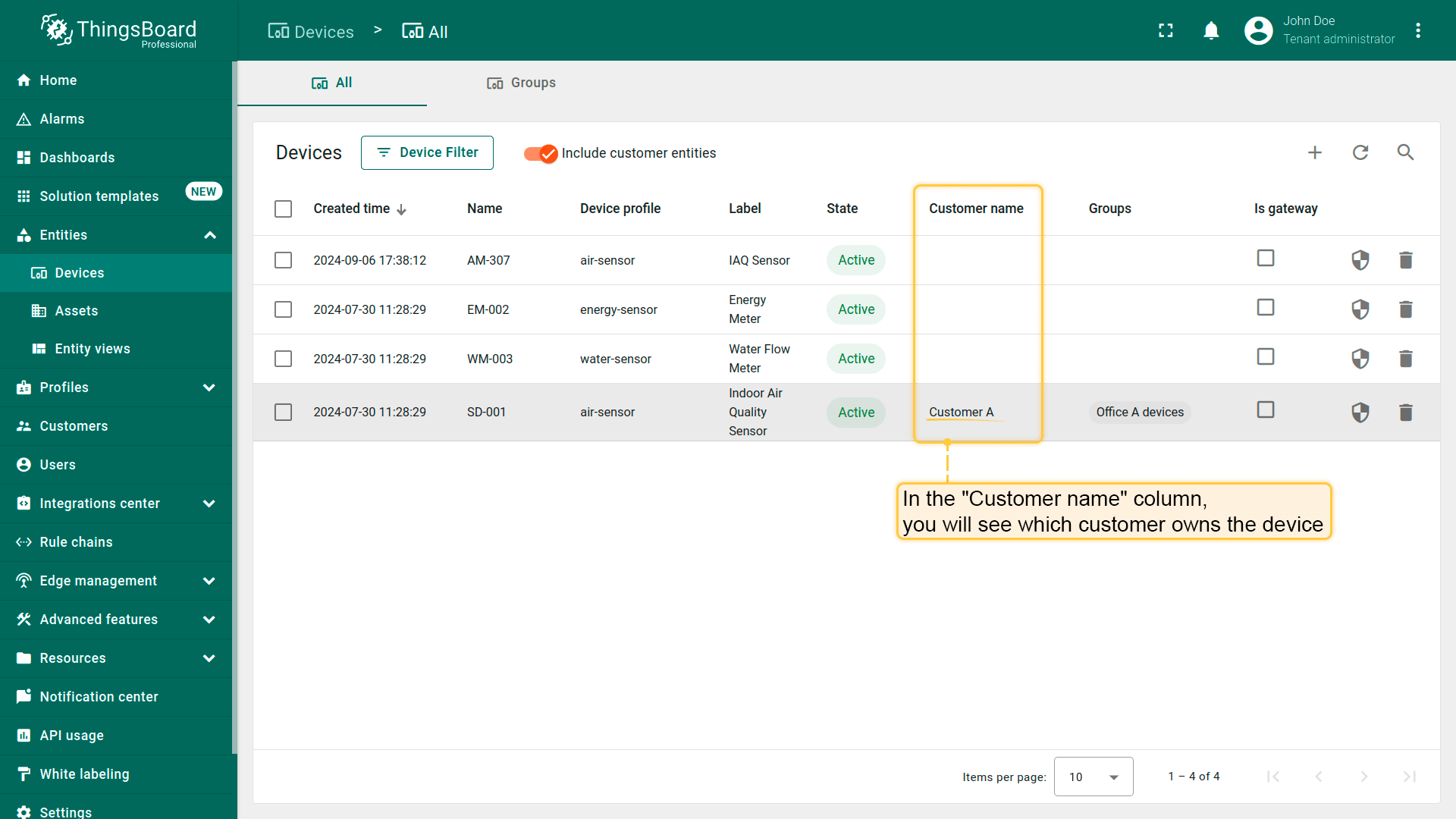
- On the device page, in the "Customer name" column, you can see which customer device belongs to;
类似地,将Customer A设为 “EM-002”(Energy Meter)和 “WM-003”(Water Flow Meter)的owner,将Customer B设为 “AM-307”(Indoor Air Quality Sensor)的owner。
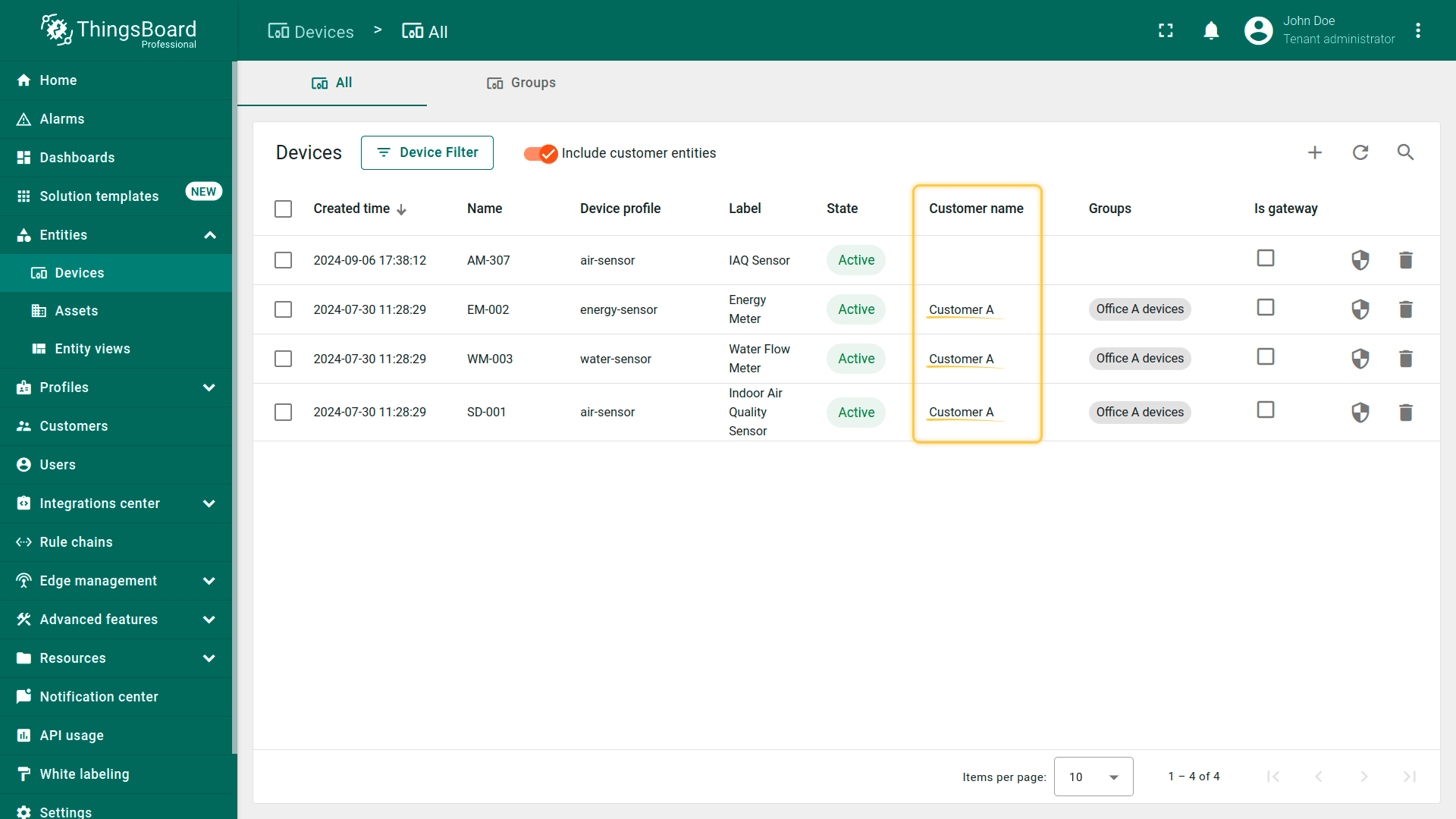
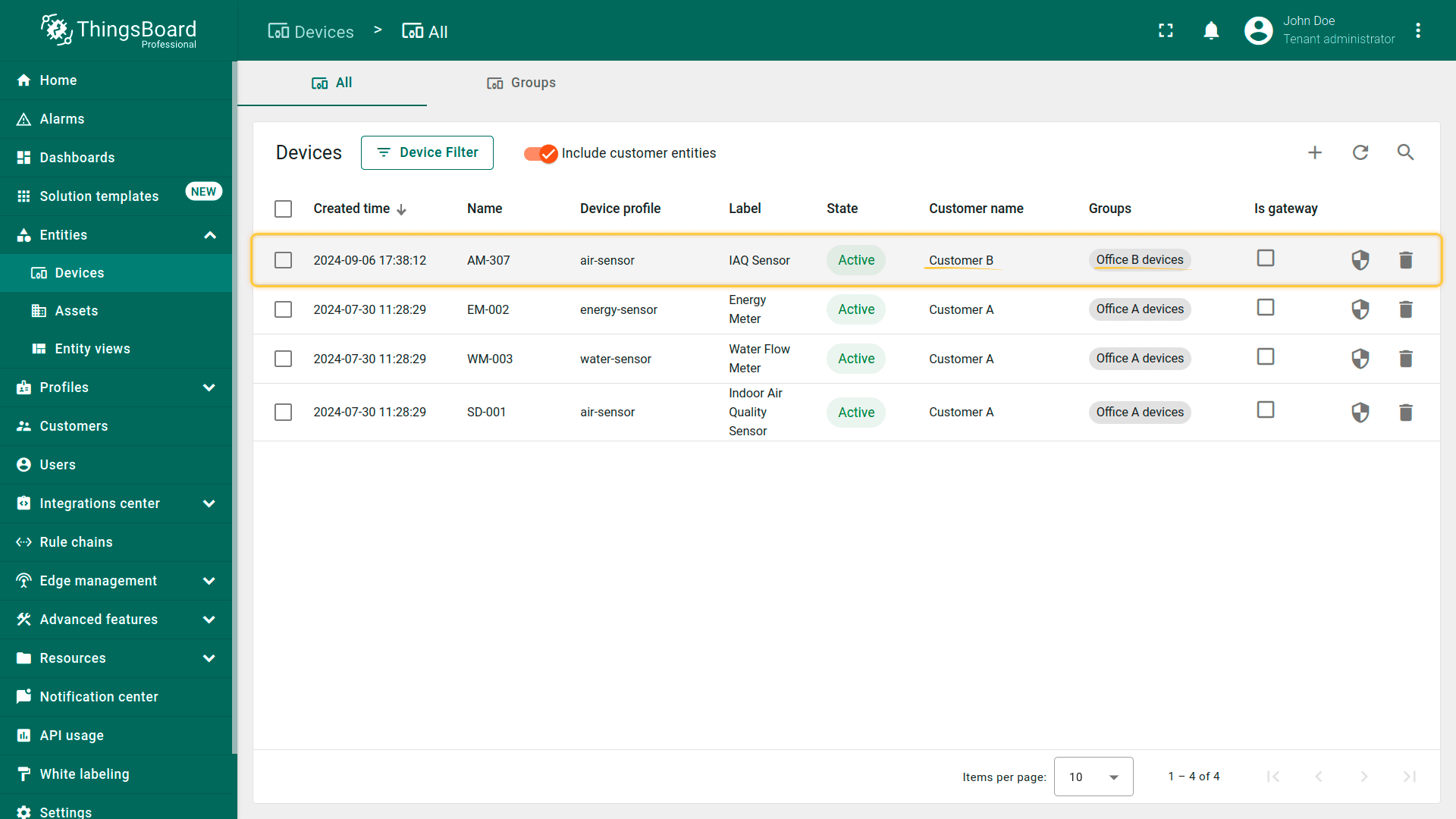
Make sure that the devices are assigned to Customer A.
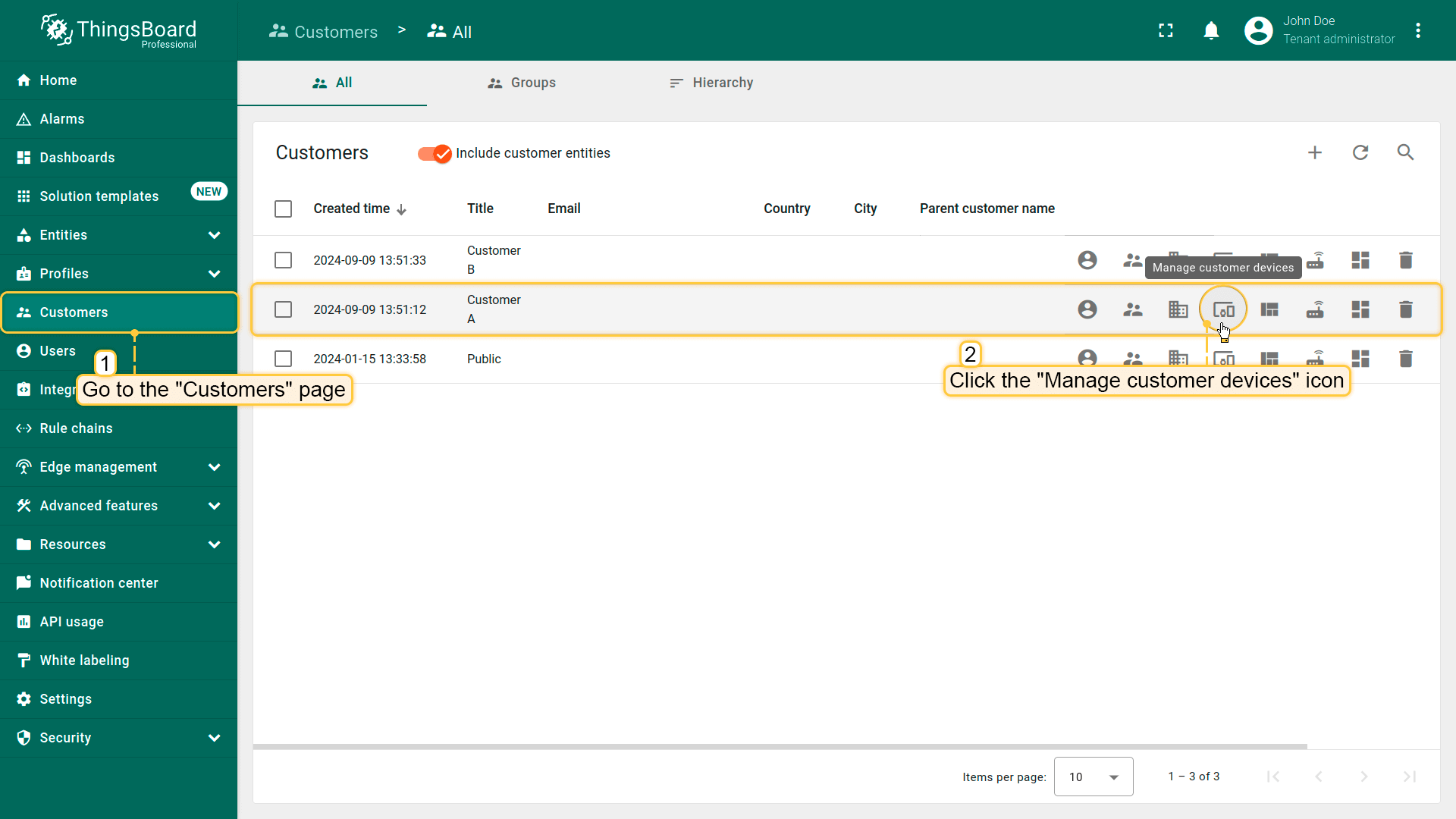
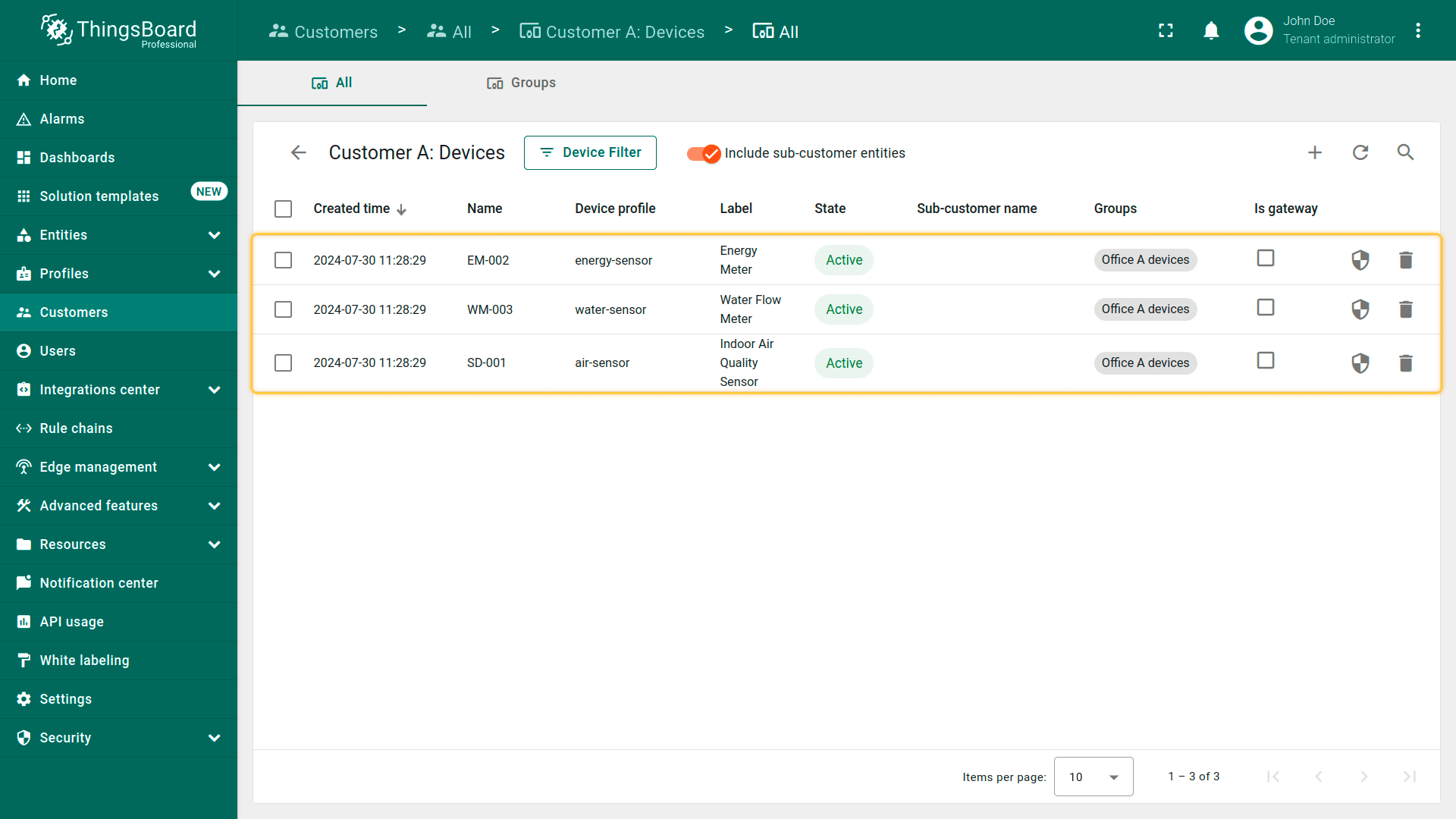
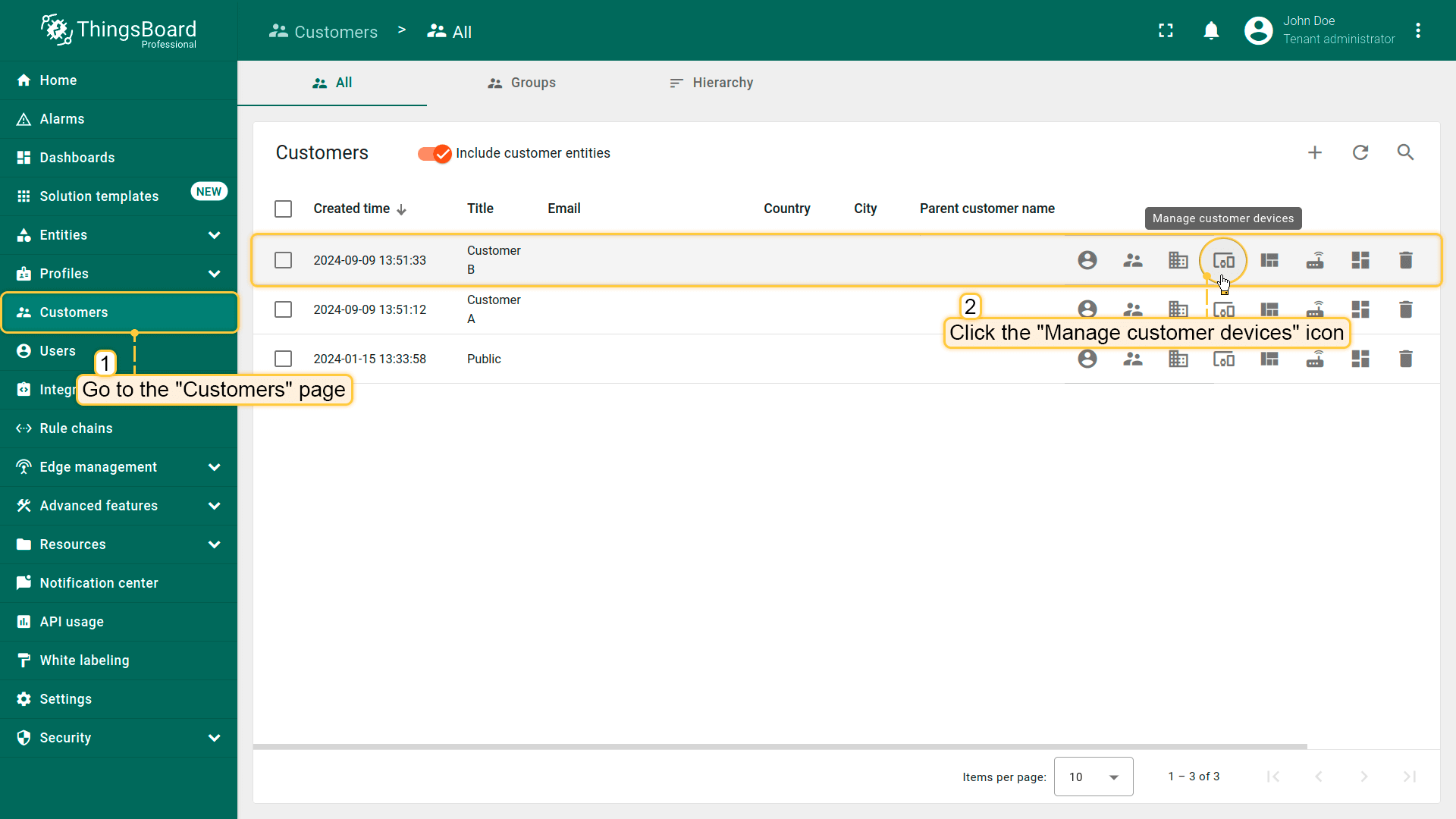
- Navigate to the "Customers" page and find Customer A in the list of customers. Click on the "Manage customer devices" icon next to Customer A;
- Your devices are owned by the customer and are located in the customer's device group "Office A devices".
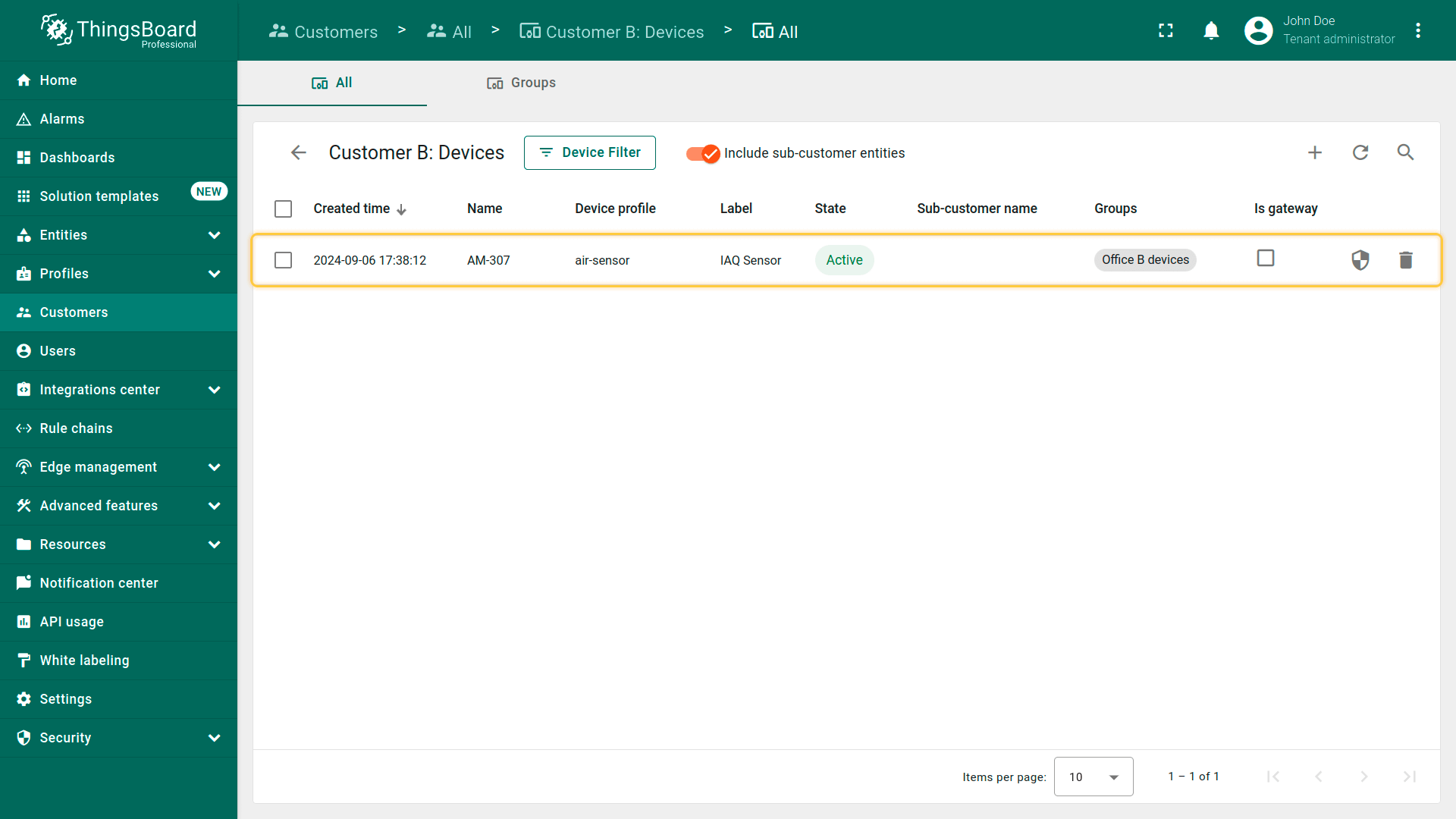
确认设备已分配给Customer B。
- Click on the "Manage customer devices" icon next to Customer B;
- Your device is owned by the customer and is located in the customer's device group "Office B devices".
访问assets
由于Office A和Office B均位于Building A,客户应对建筑有共享访问,但对办公室的访问应受限,使其仅能查看各自的办公室。操作如下:
变更Office A和Office B的owner:
- 将Customer A设为Office A的owner;
- 将Customer B设为Office B的owner。
共享Building A的访问:
- 将Building A与Customer A和Customer B共享;
- 将两者权限级别设为 “Read”,使其可访问建筑共享数据但无法查看彼此办公室。
变更assets的owner
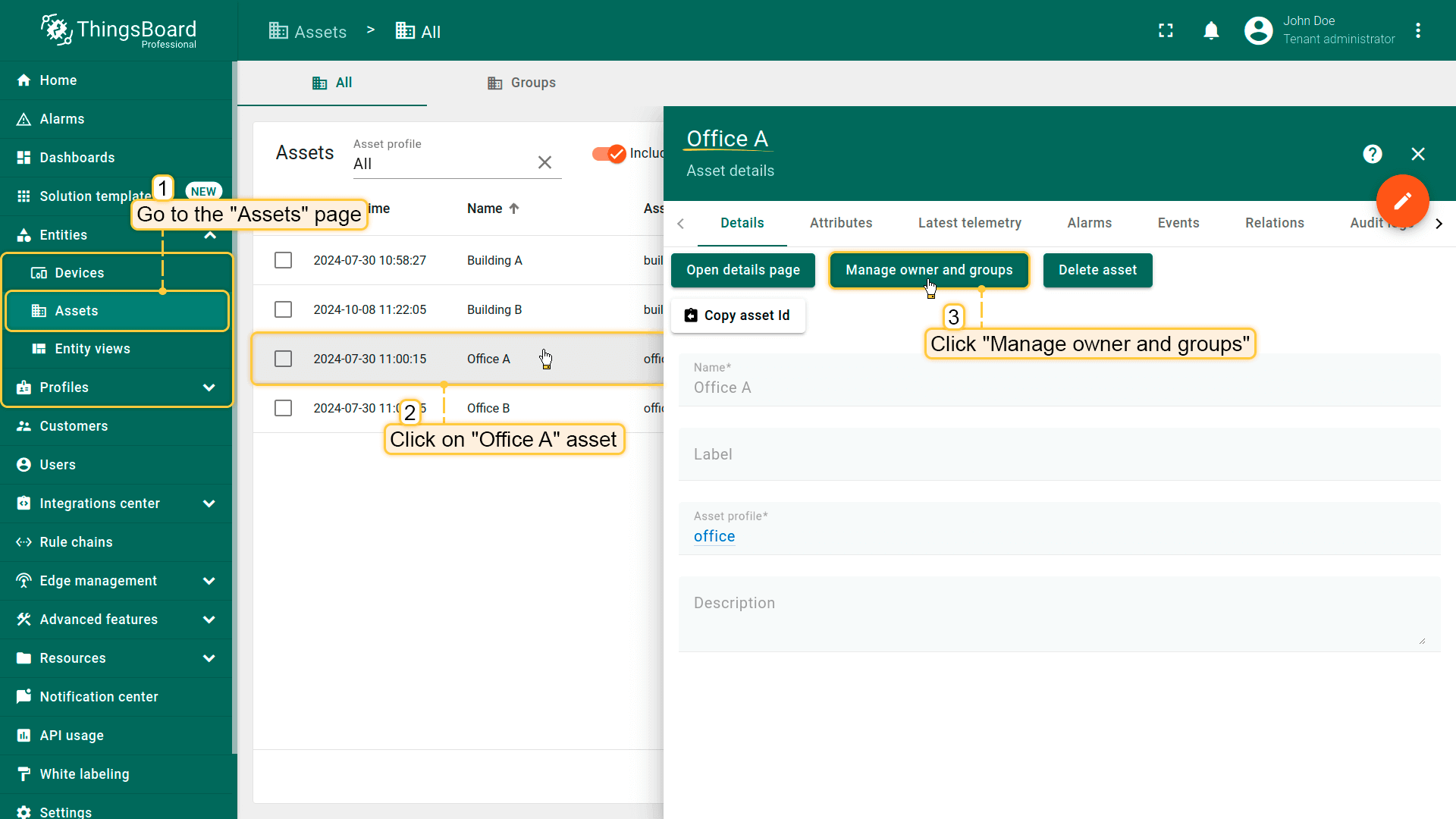
- Navigate to the "Assets" page. Open assets details by clicking on the "Office A" asset. Then click "Manage owner and groups" button;
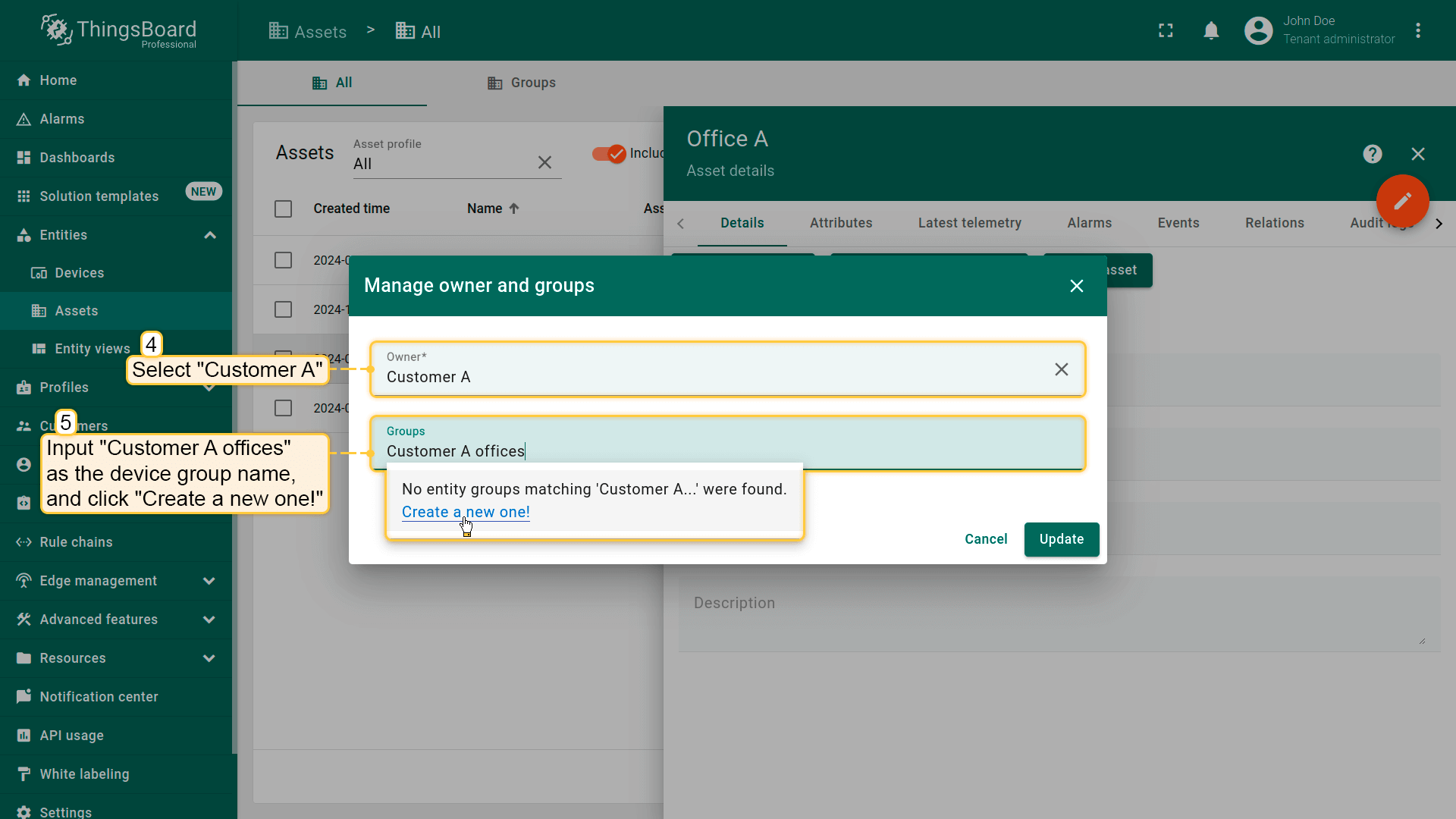
- Specify Customer A as the asset owner. Then, add "Office A" asset to the group. Input the desired device group name, for example "Customer A offices", and click "Create a new one!";
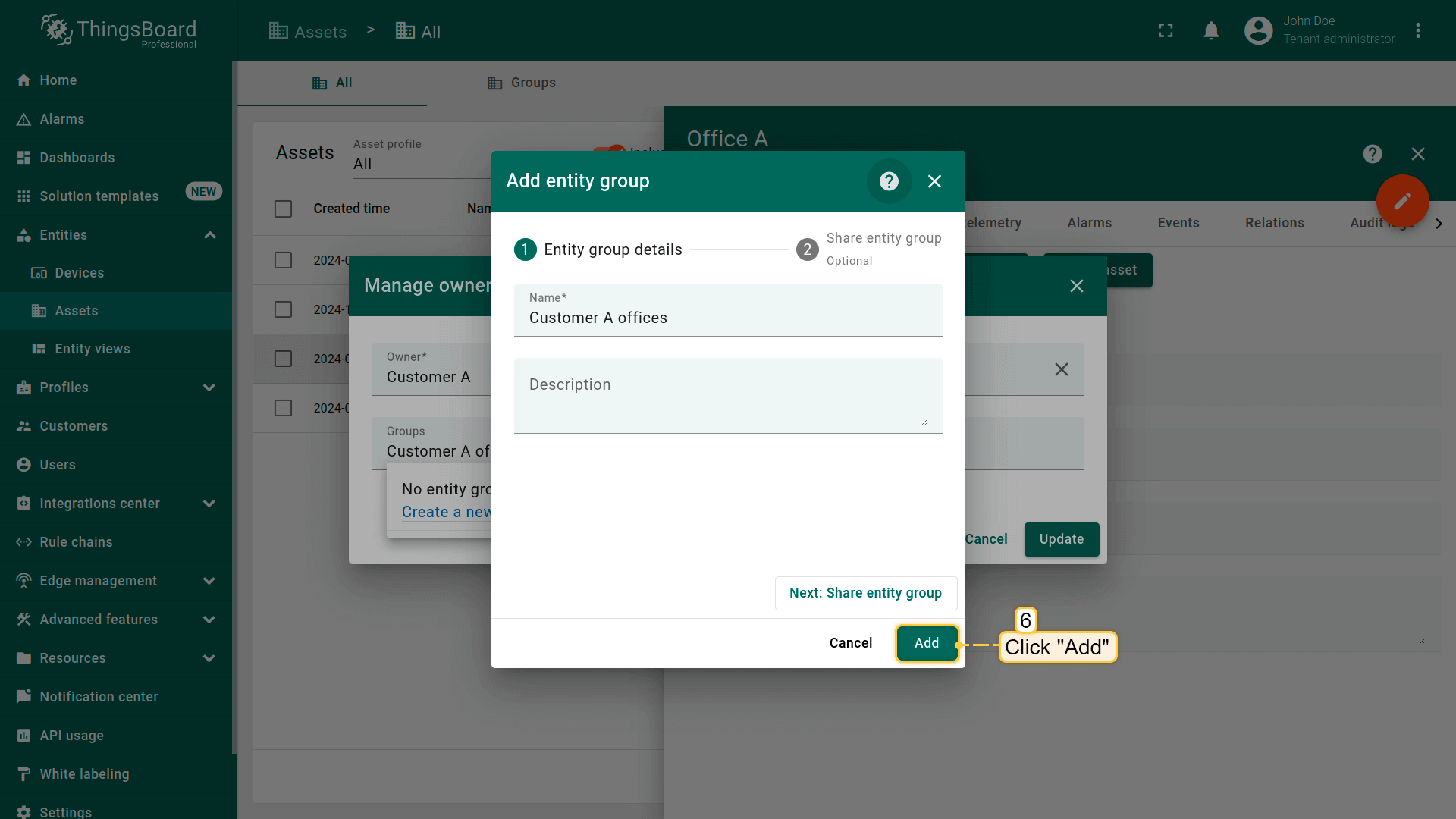
- Confirm the creation of a new device group by clicking the "Add" button;
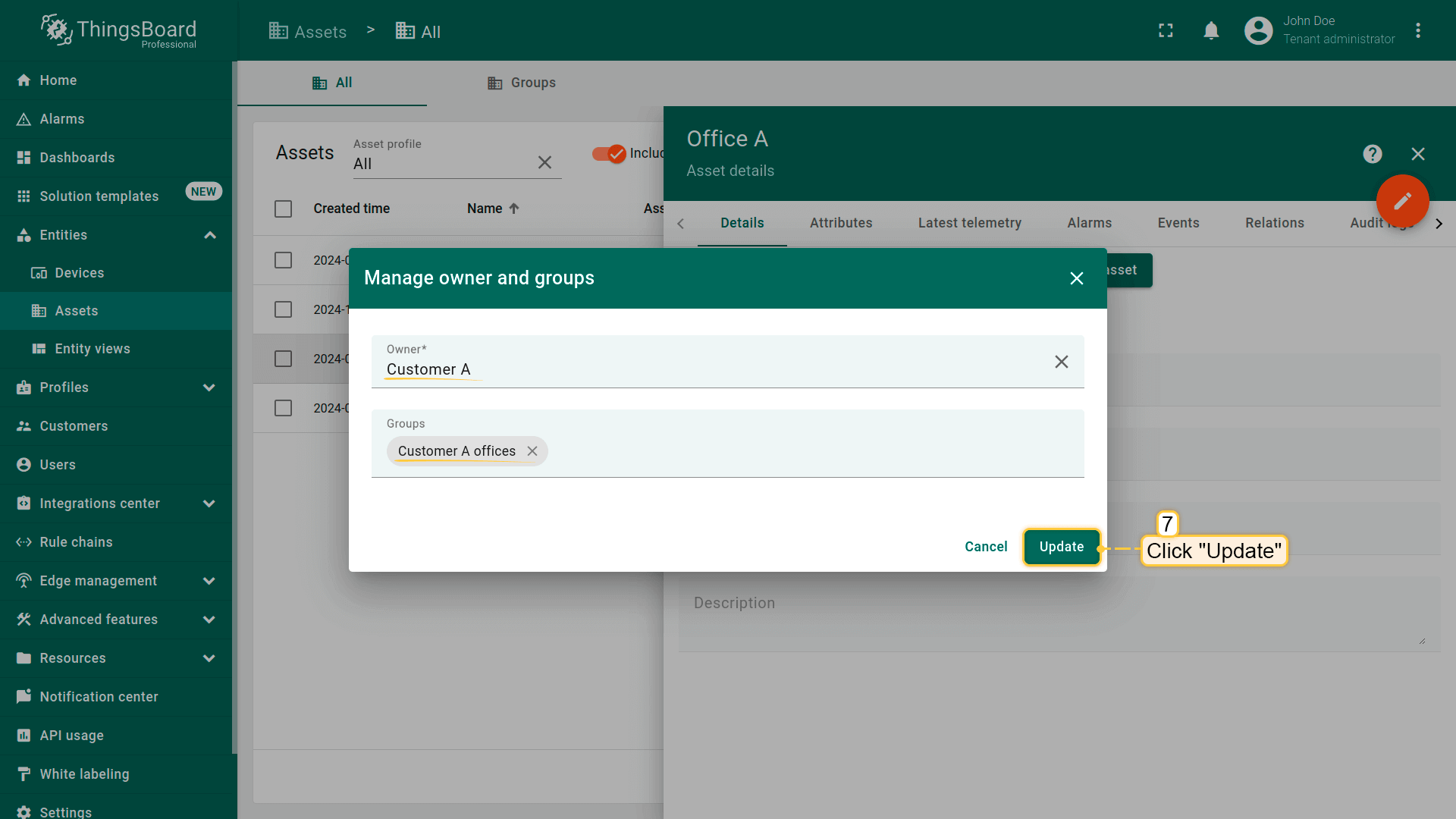
- Click "Update" to confirm the ownership change of your device;
- Similarly, set Customer B as the owner of Office B.
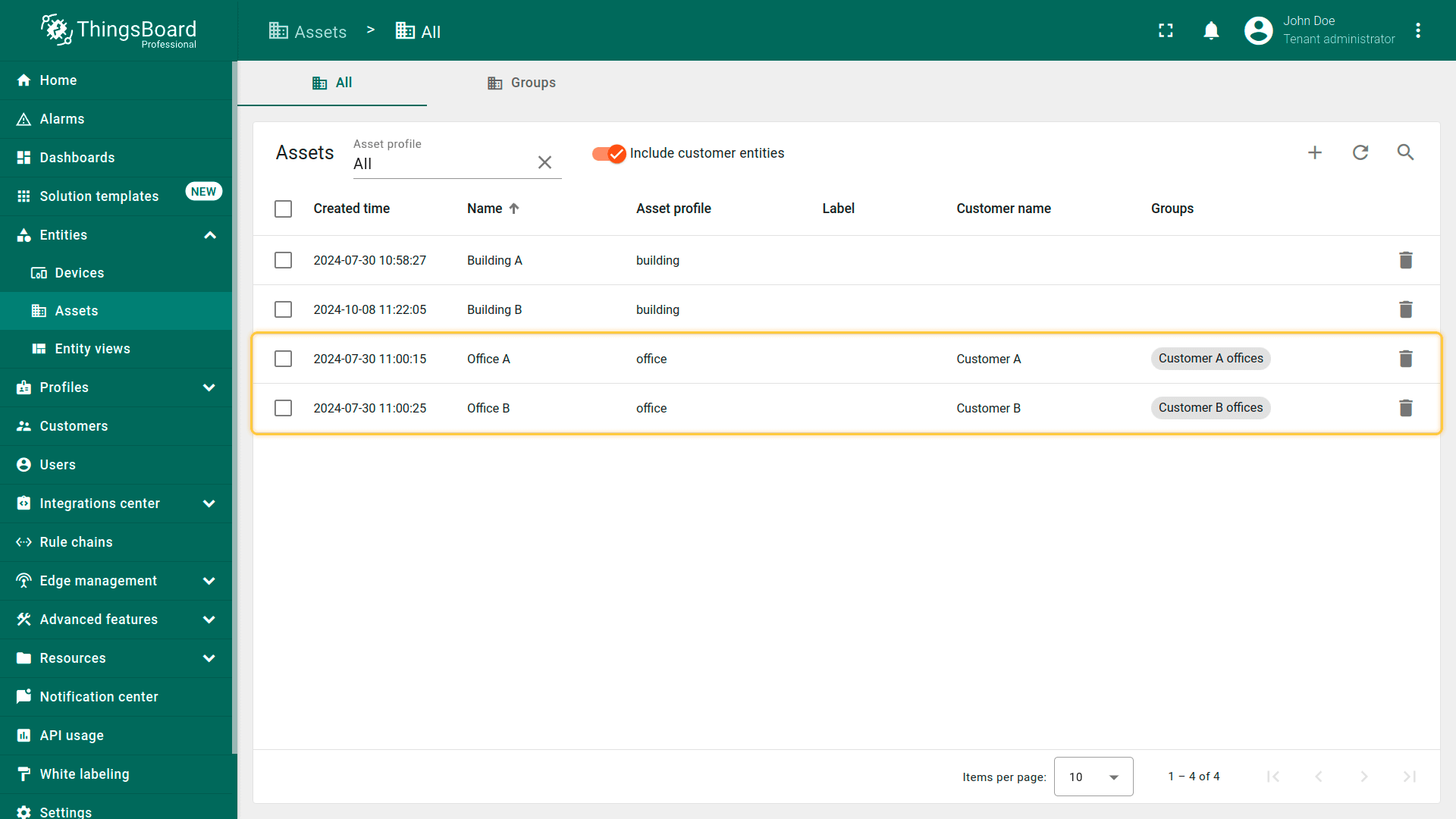
确认办公室assets已分配给正确客户。
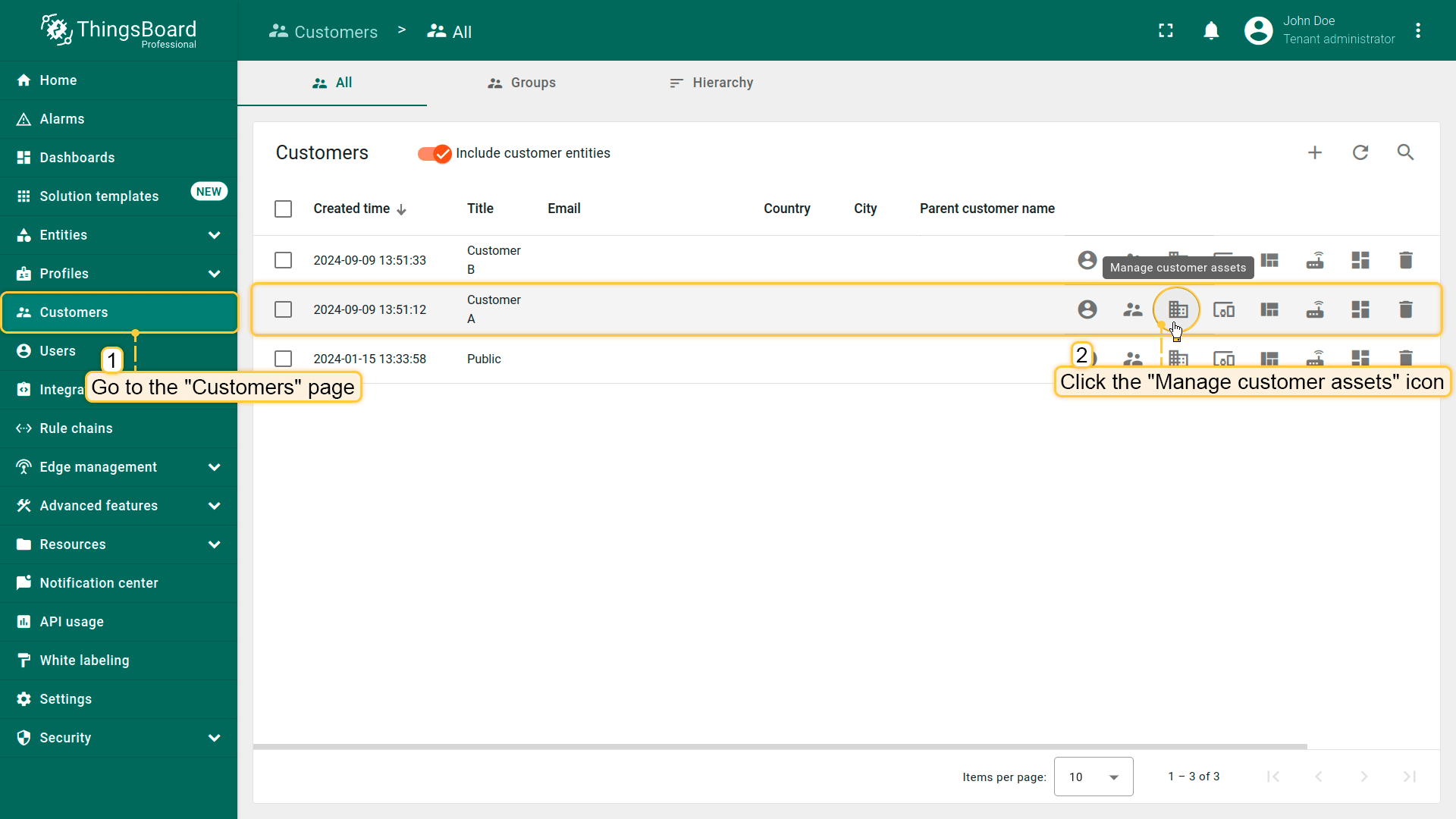
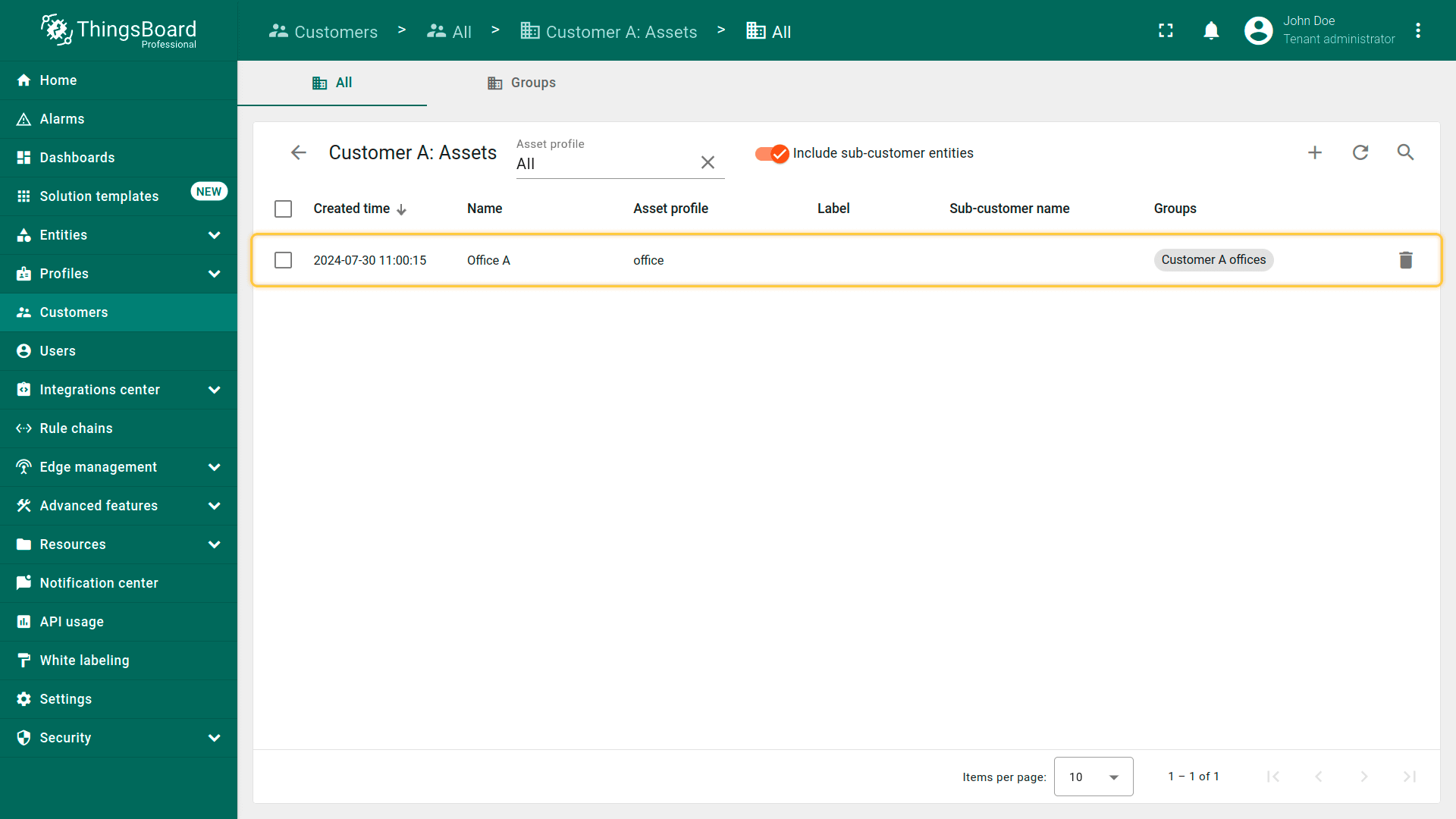
- Navigate to the "Customers" page and click on the "Manage customer assets" icon next to Customer A;
- Your Office A is now owned by the customer and is located in the customer's asset group "Customer A offices".
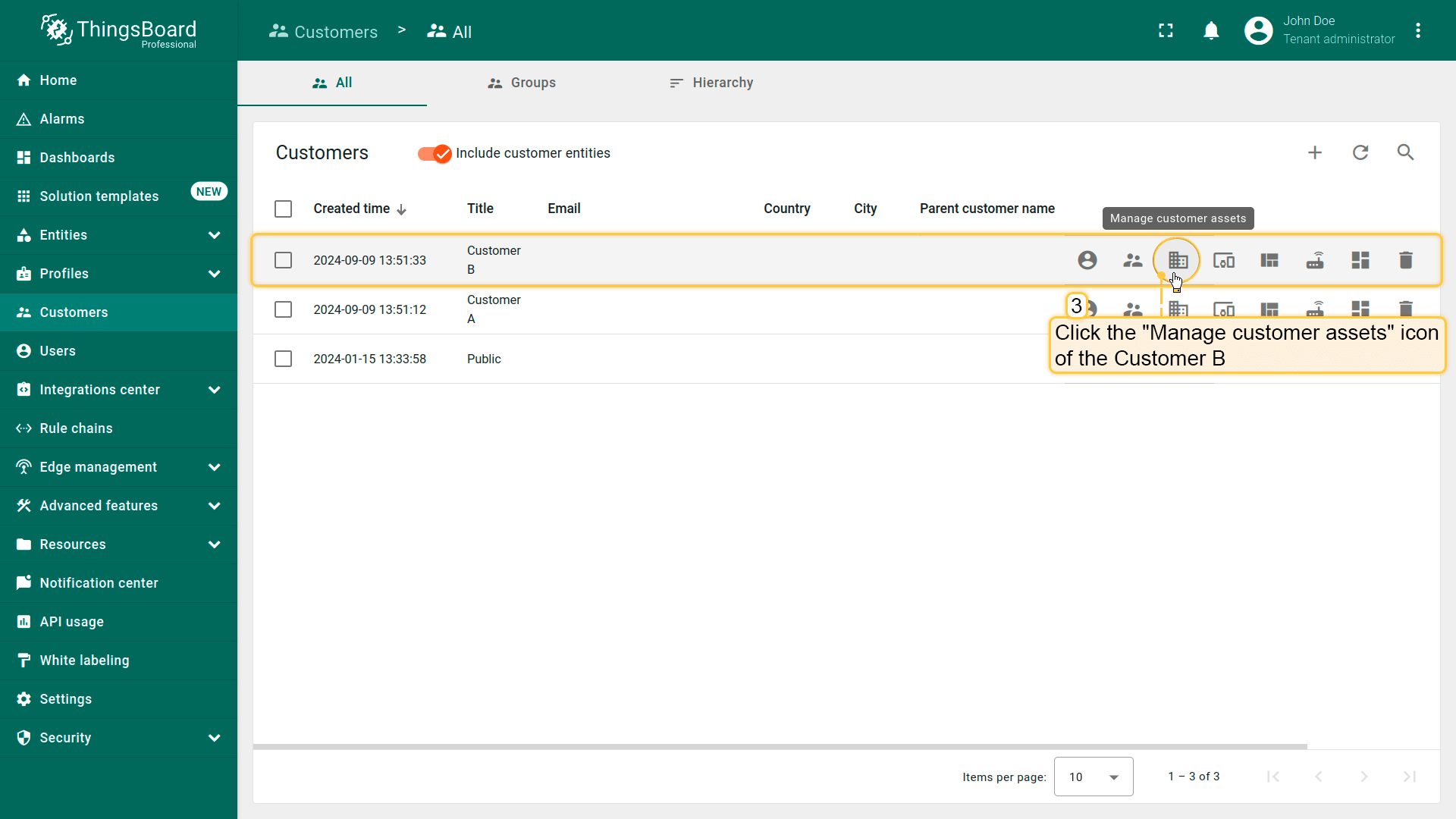
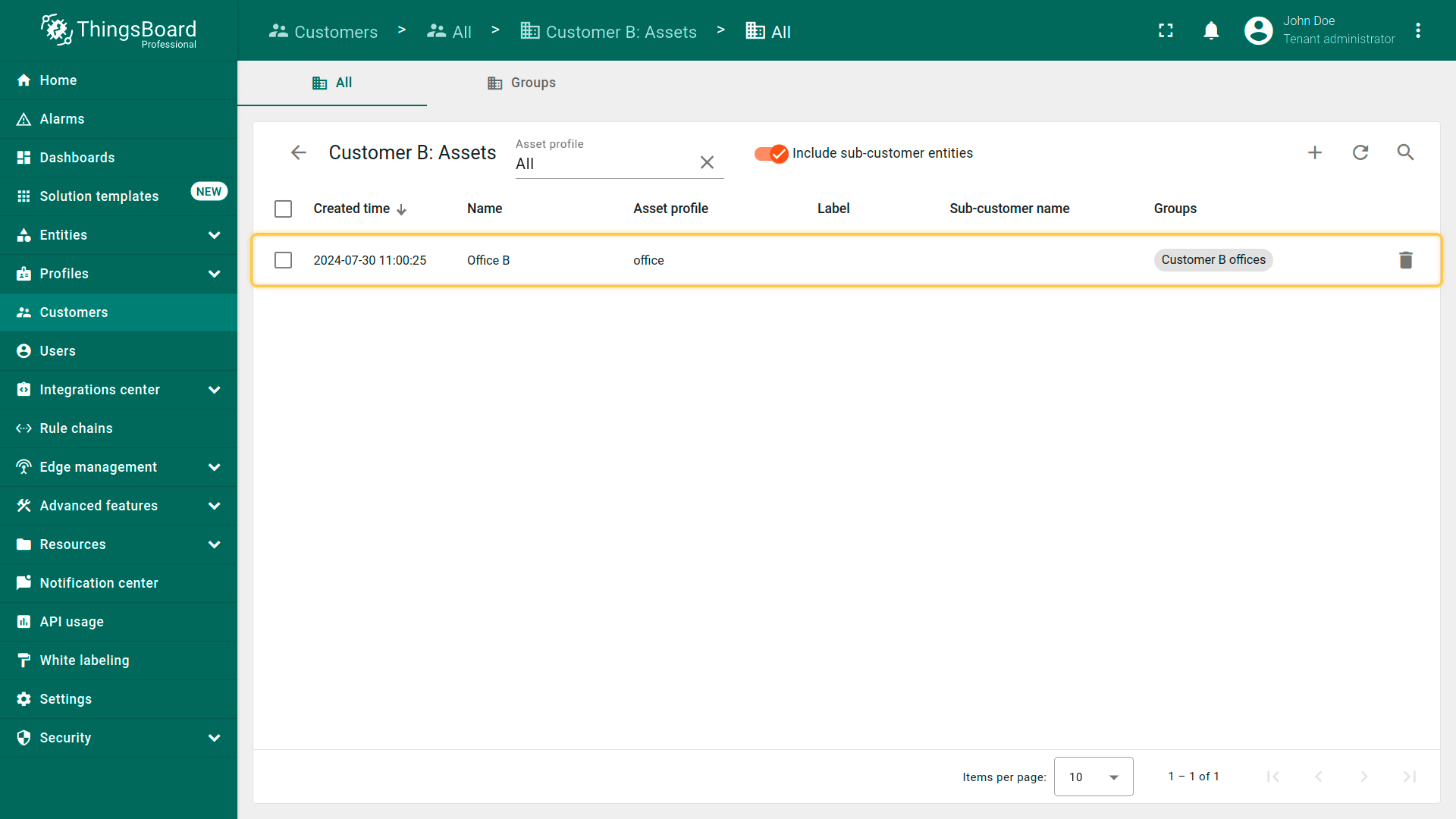
- Find Customer B and click on the "Manage customer assets" icon next to Customer B;
- Your Office B is now owned by the customer and is located in the customer's asset group "Customer B offices".
共享assets
接下来将Building A加入group并为两位客户共享访问。
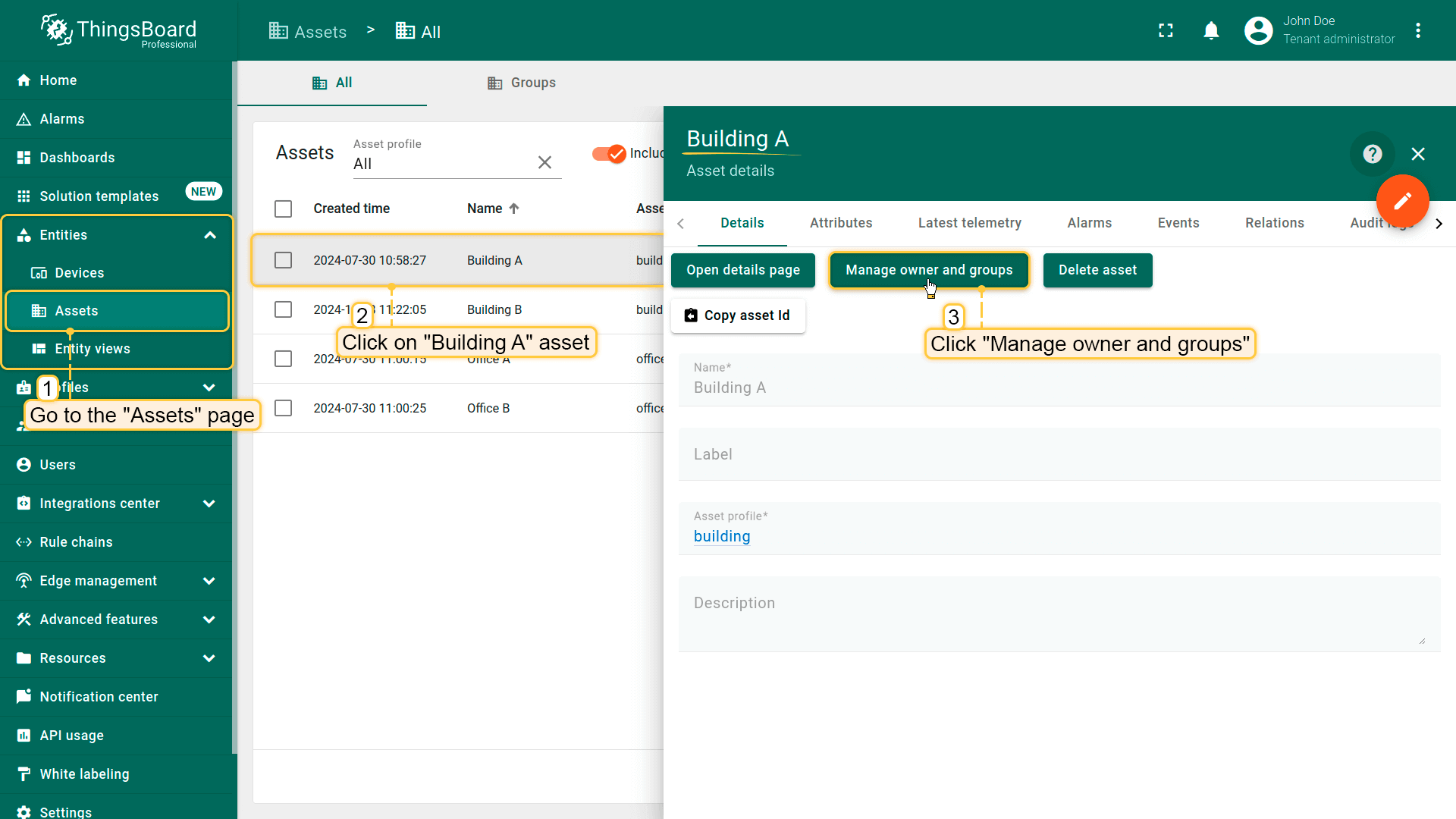
- Go to the "Assets" page and click the "Manage owner and groups" button in the details of the "Building A" asset;
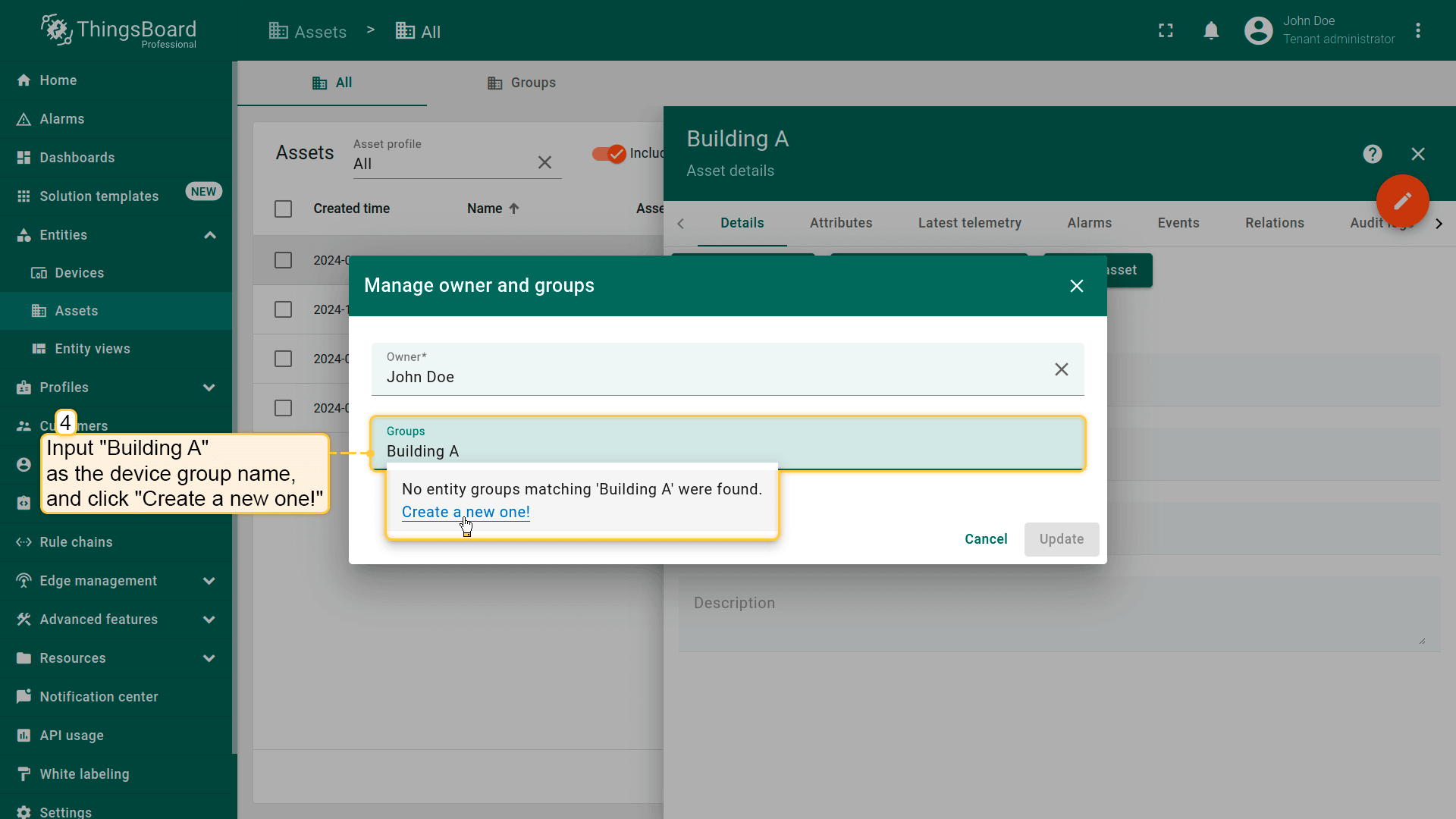
- Create a new group for "Building A" asset. Input "Building A" as group name, and click "Create a new one!";
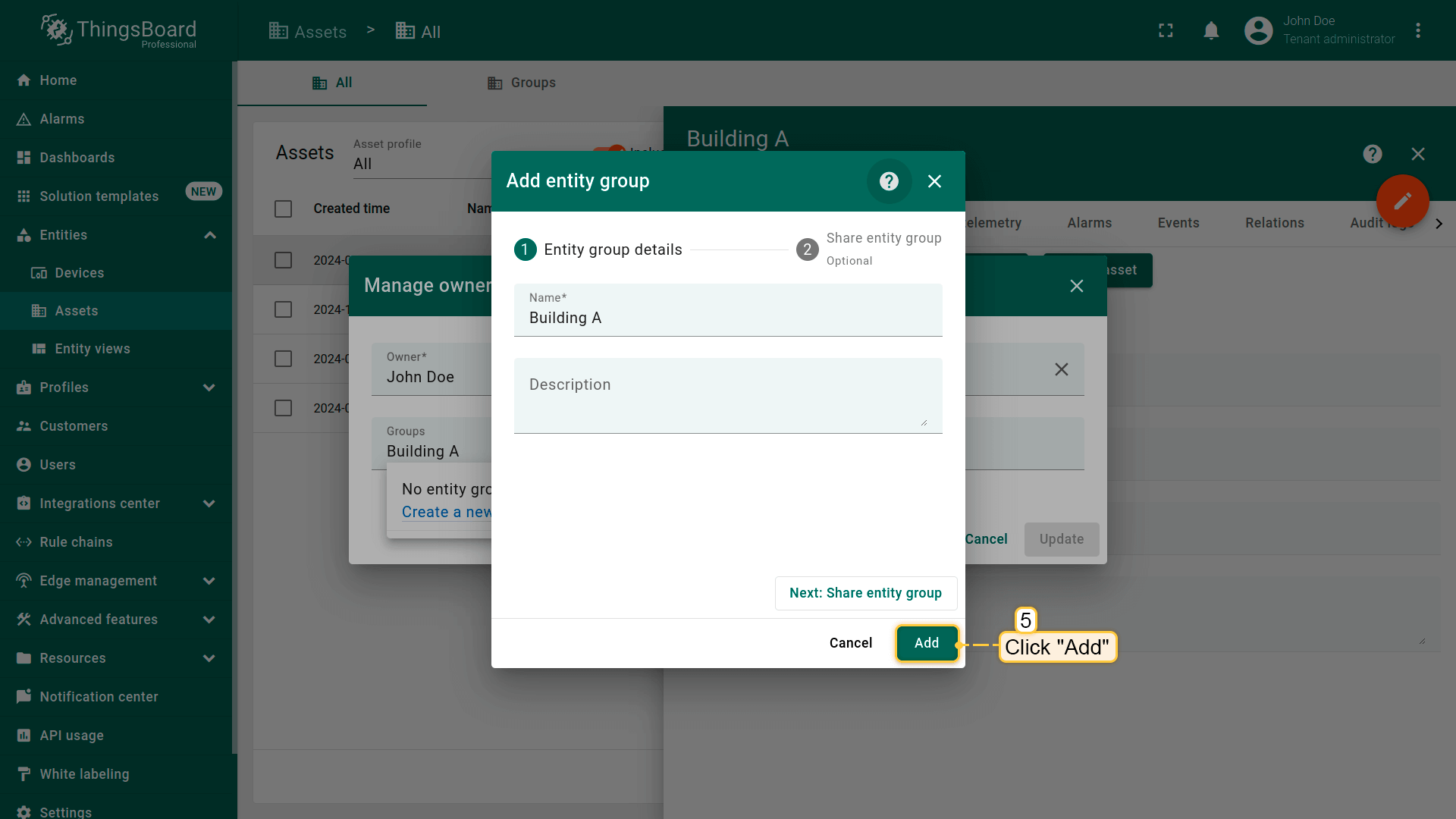
- Confirm creation of the new device group by clicking the "Add" button;
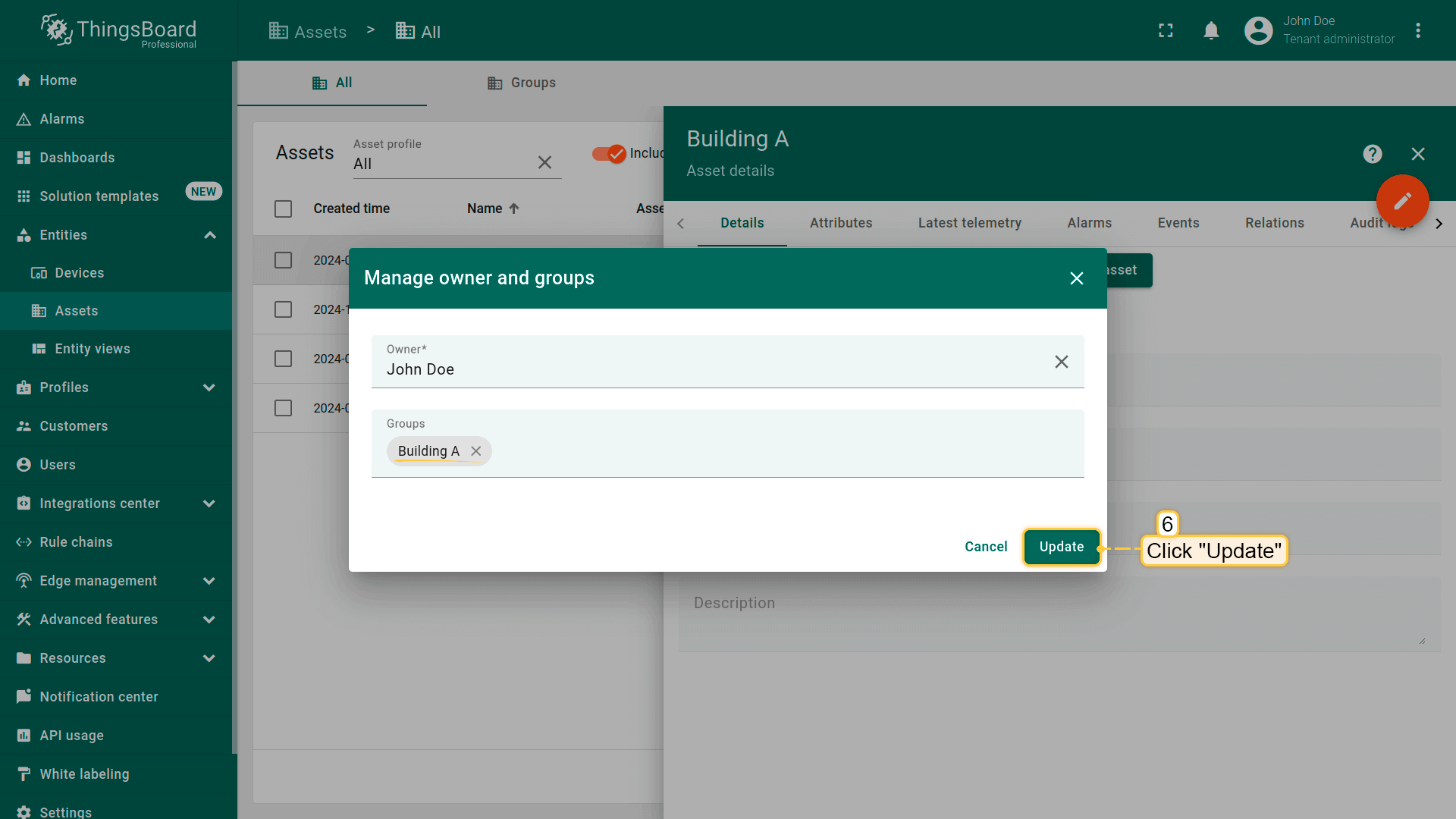
- Click the "Update" button;
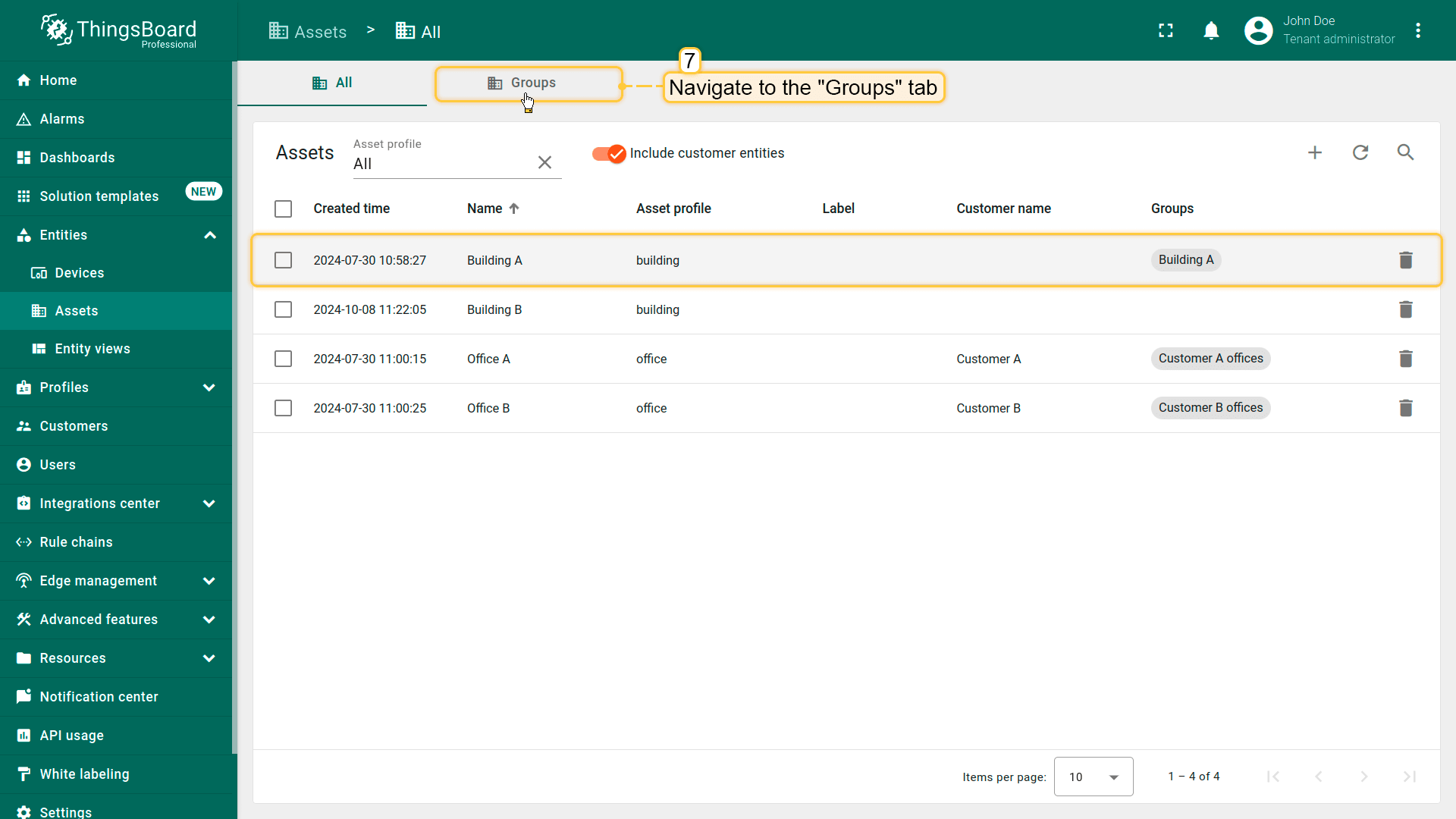
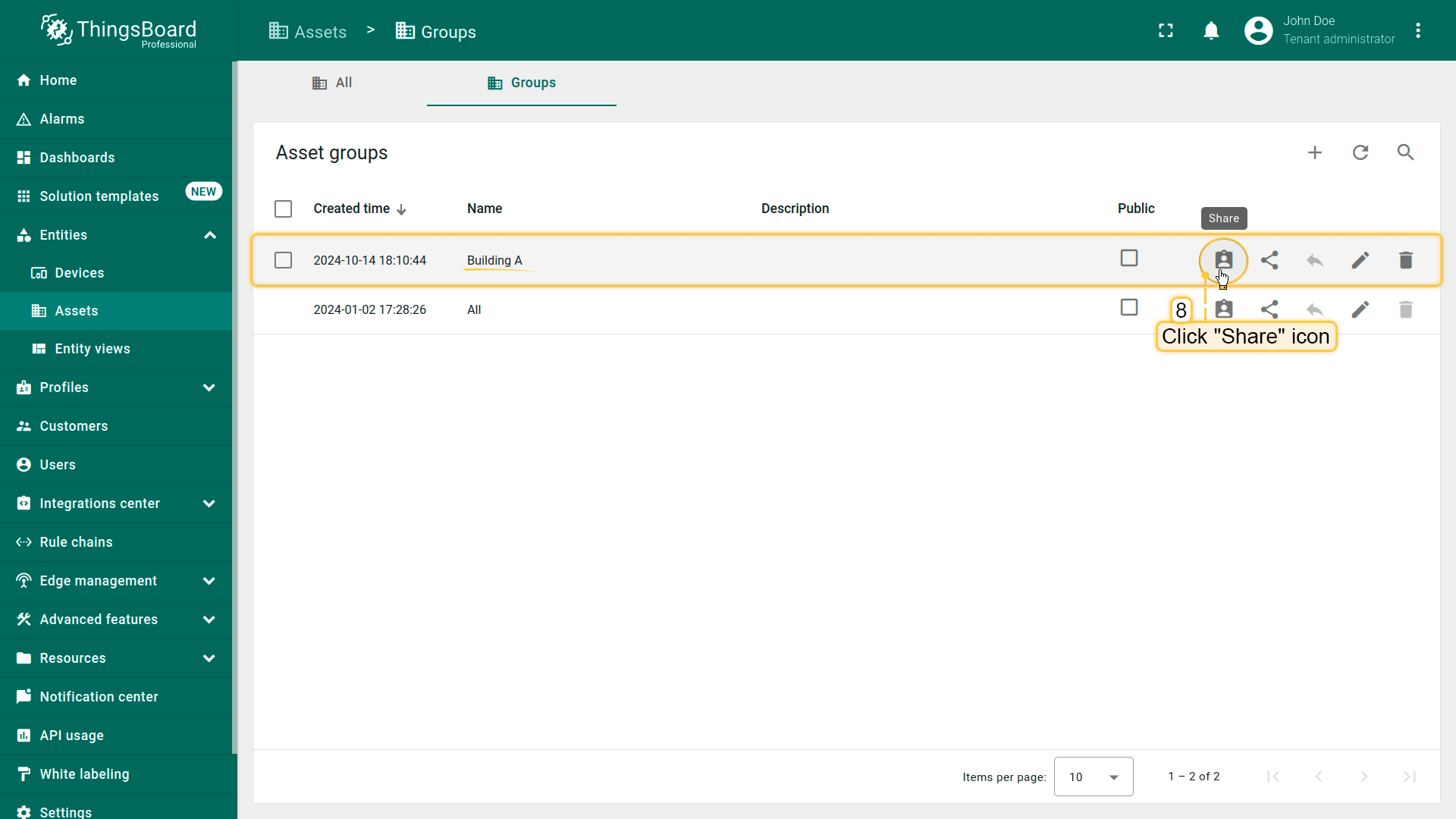
- We have added Building A to the group. Now we can share it with our customers. Navigate to the "Groups" tab;
- Click "Share" icon next to the "Building A" group;
- Select Customer A, set the permission to "Read," and click "Share";
- Similarly, grant Customer B access to our dashboard with the "Read" permission level.
我们已为所有必要客户授予访问权限。接下来添加客户用户。
添加客户用户
最后为每位客户创建一个 user。他们将能访问我们的dashboards及我们授予的数据。
首先为Customer A添加用户Emma Johnson:
- 进入 “Customers” 页面。在客户列表中找到客户并点击 “Manage customer users” 图标;
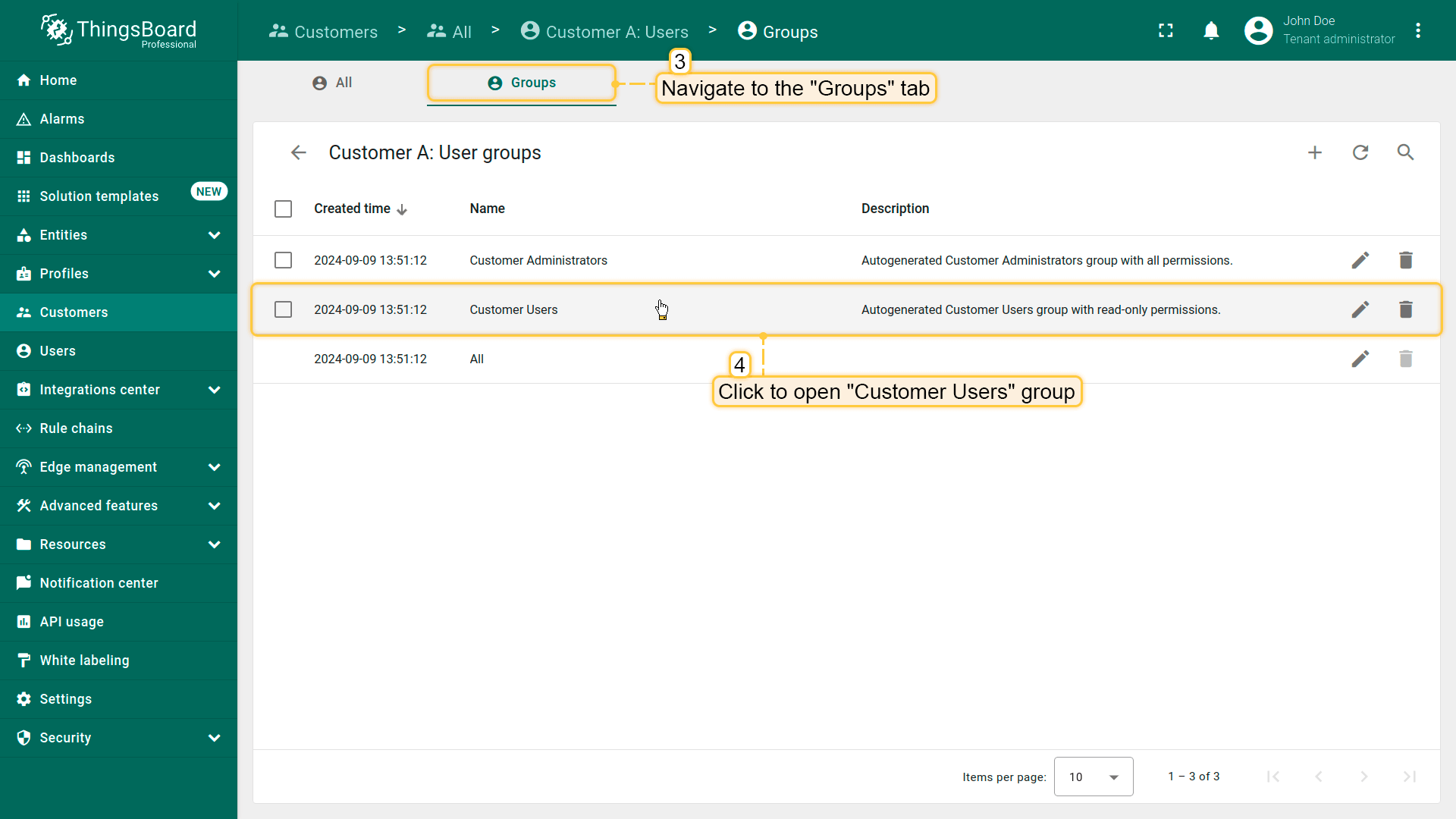
- 进入 “Groups” 选项卡,选择 “Customer Users” 组。这是自动创建的客户用户组,已授予只读权限。更多关于权限和 Role-Based Access Control (RBAC) 的信息请参阅相关文档;
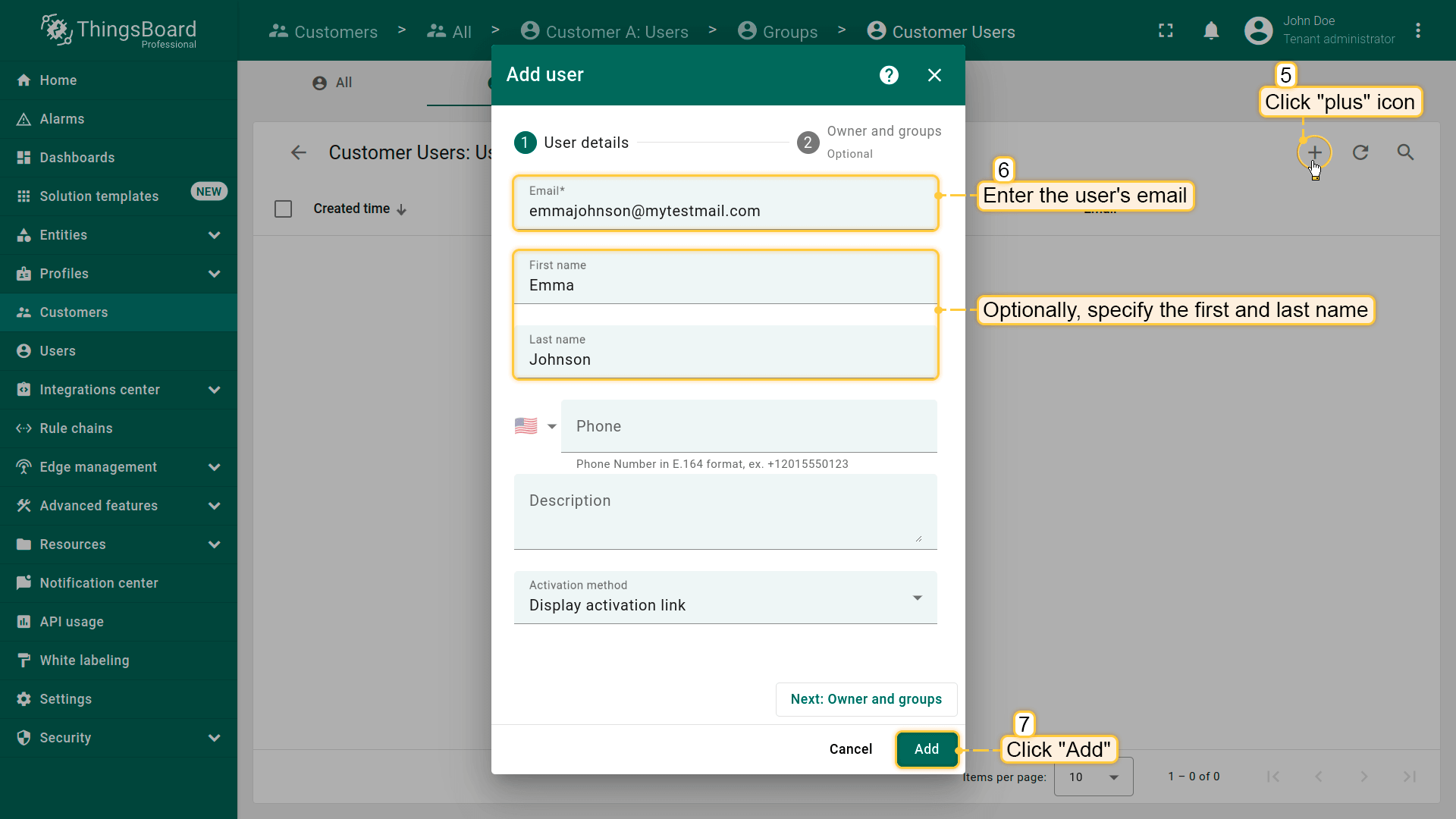
- 点击右上角 “plus” 图标。输入用户邮箱,并填写名和姓。然后点击 “Add”;
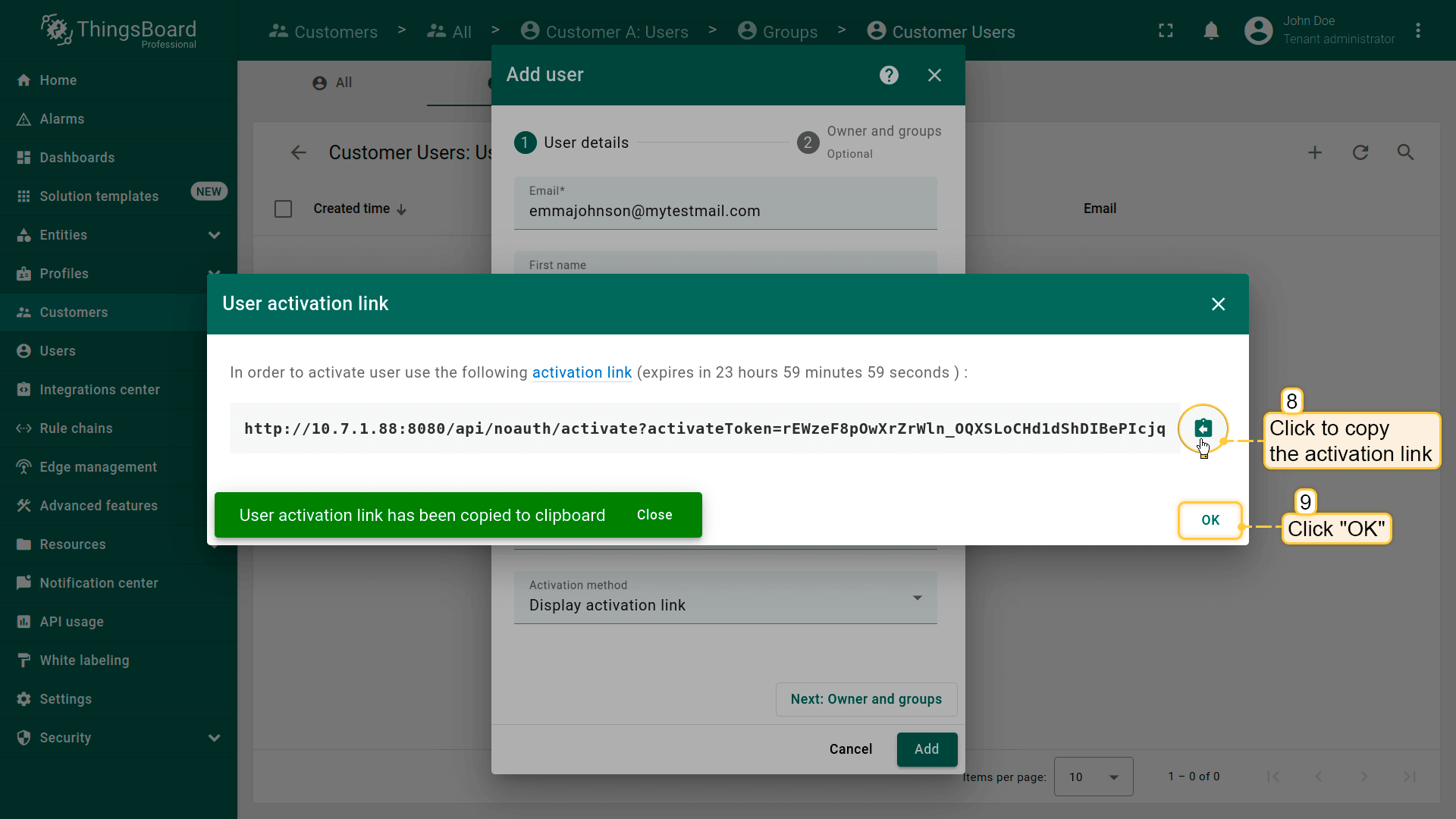
- 复制用户激活链接并妥善保存。然后点击 “OK”;
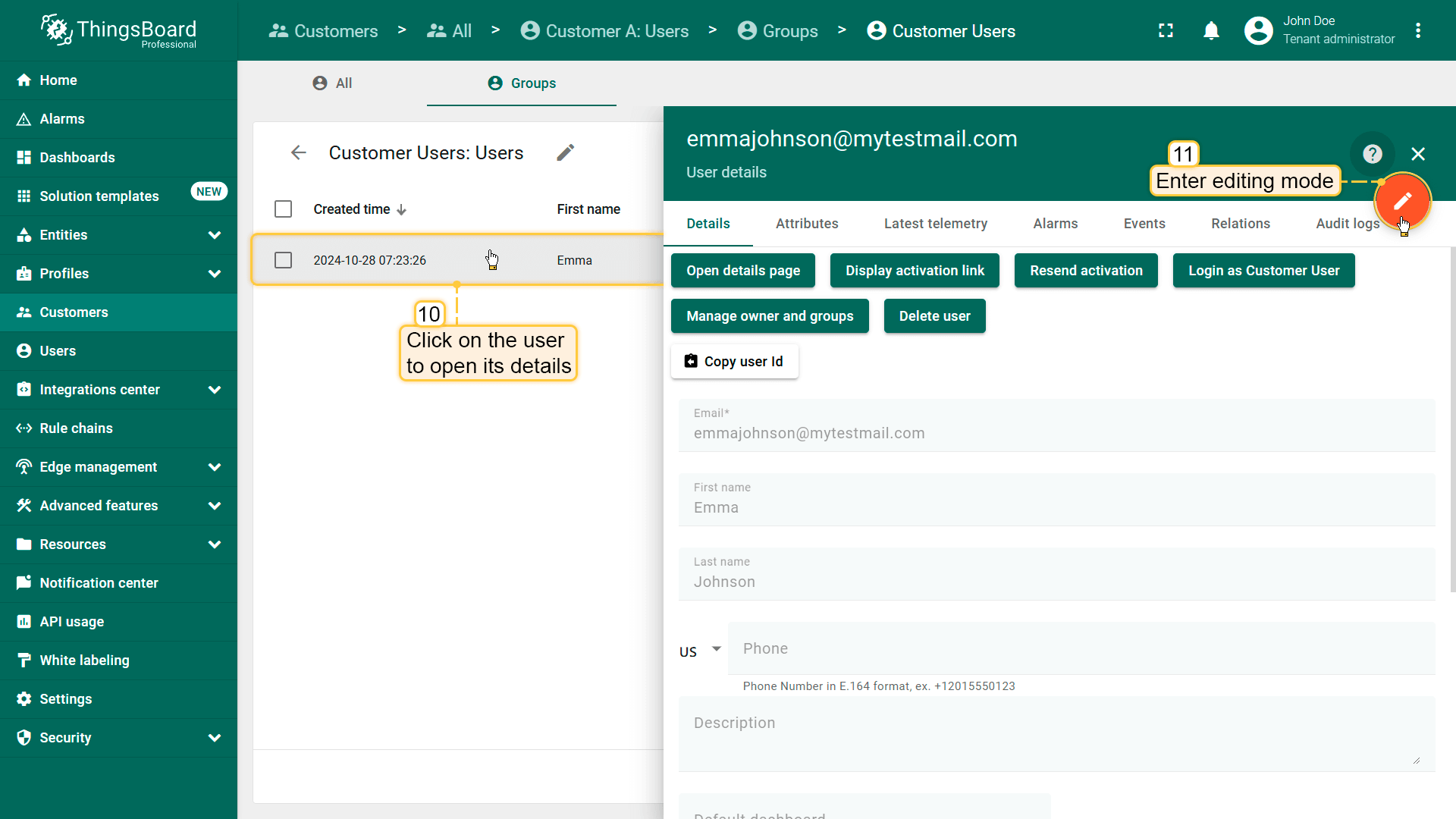
- 新客户用户已添加。点击该用户打开详情,再点击橙色大号 “pencil” 图标进入编辑模式;
- 将我们的 “Building” dashboard设为默认,并勾选 “Always fullscreen”。最后应用更改。
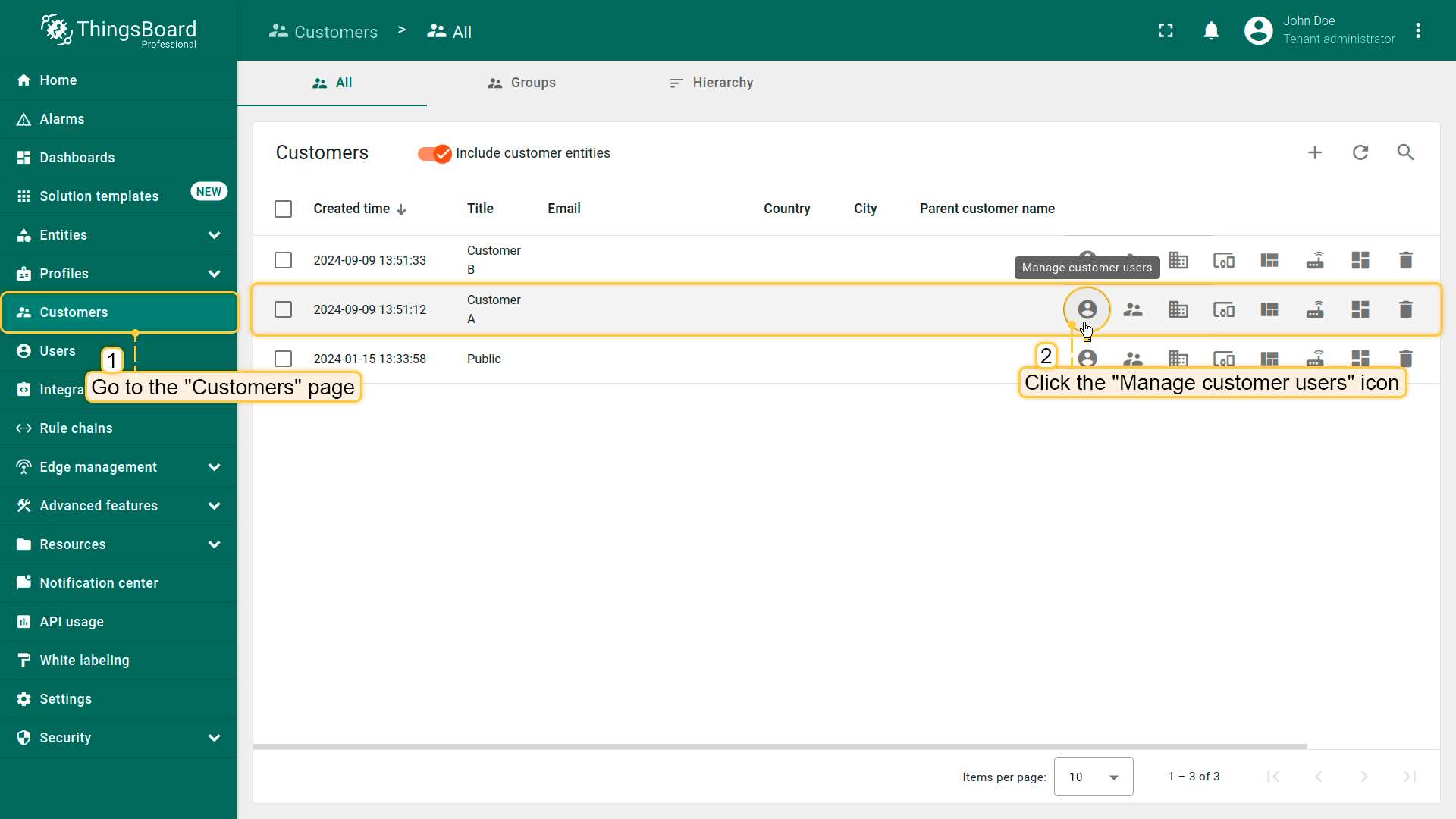
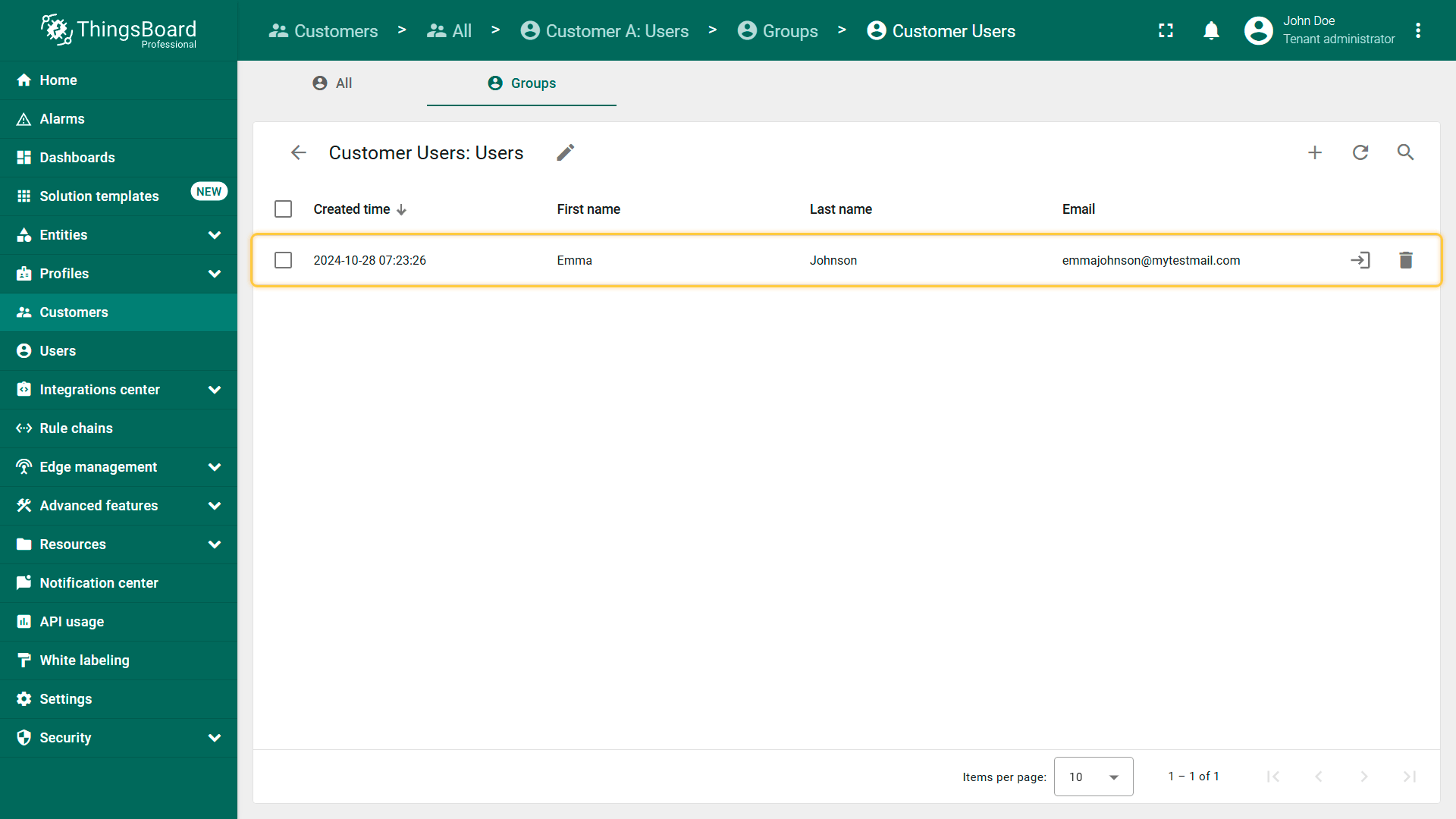
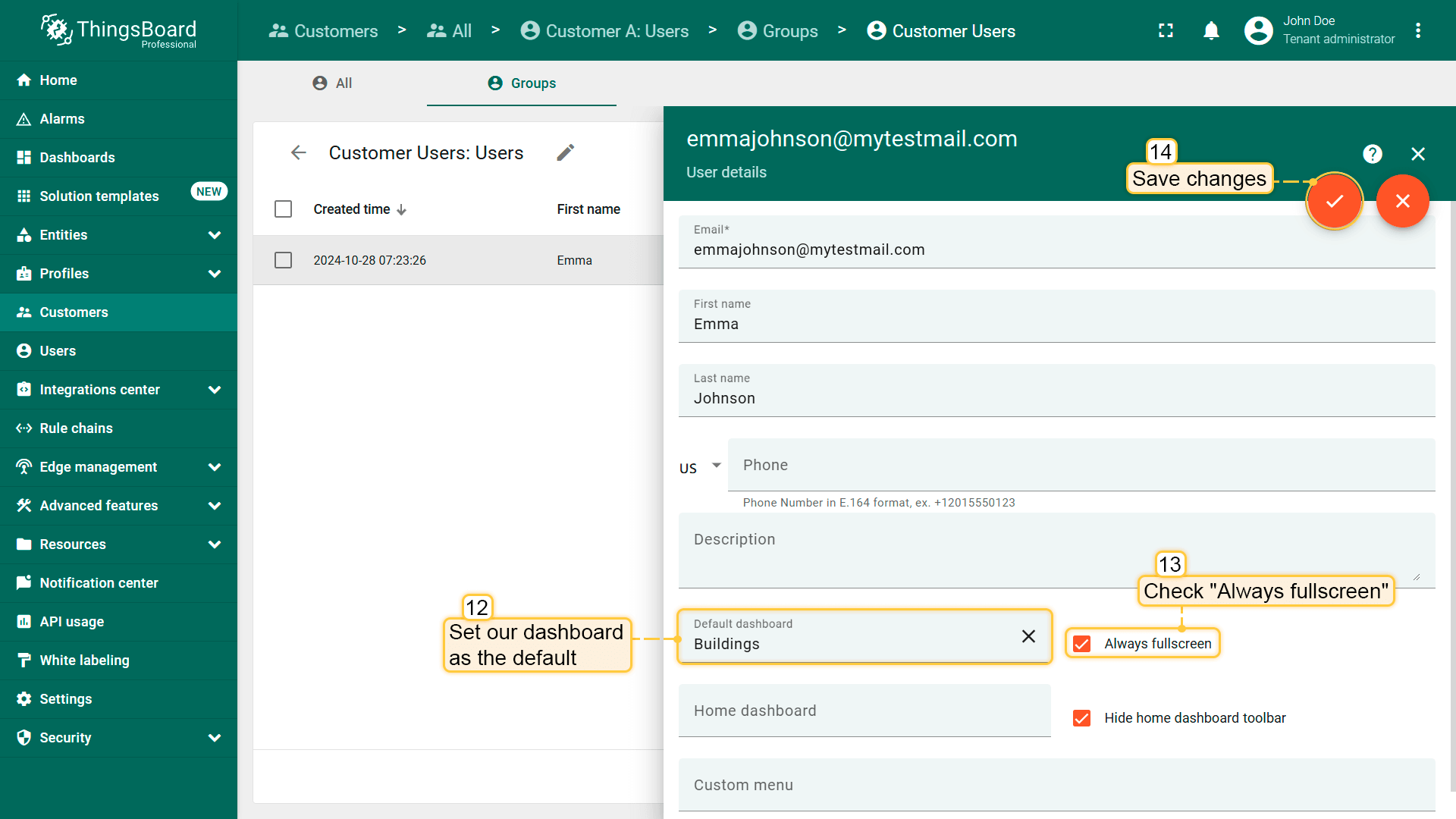
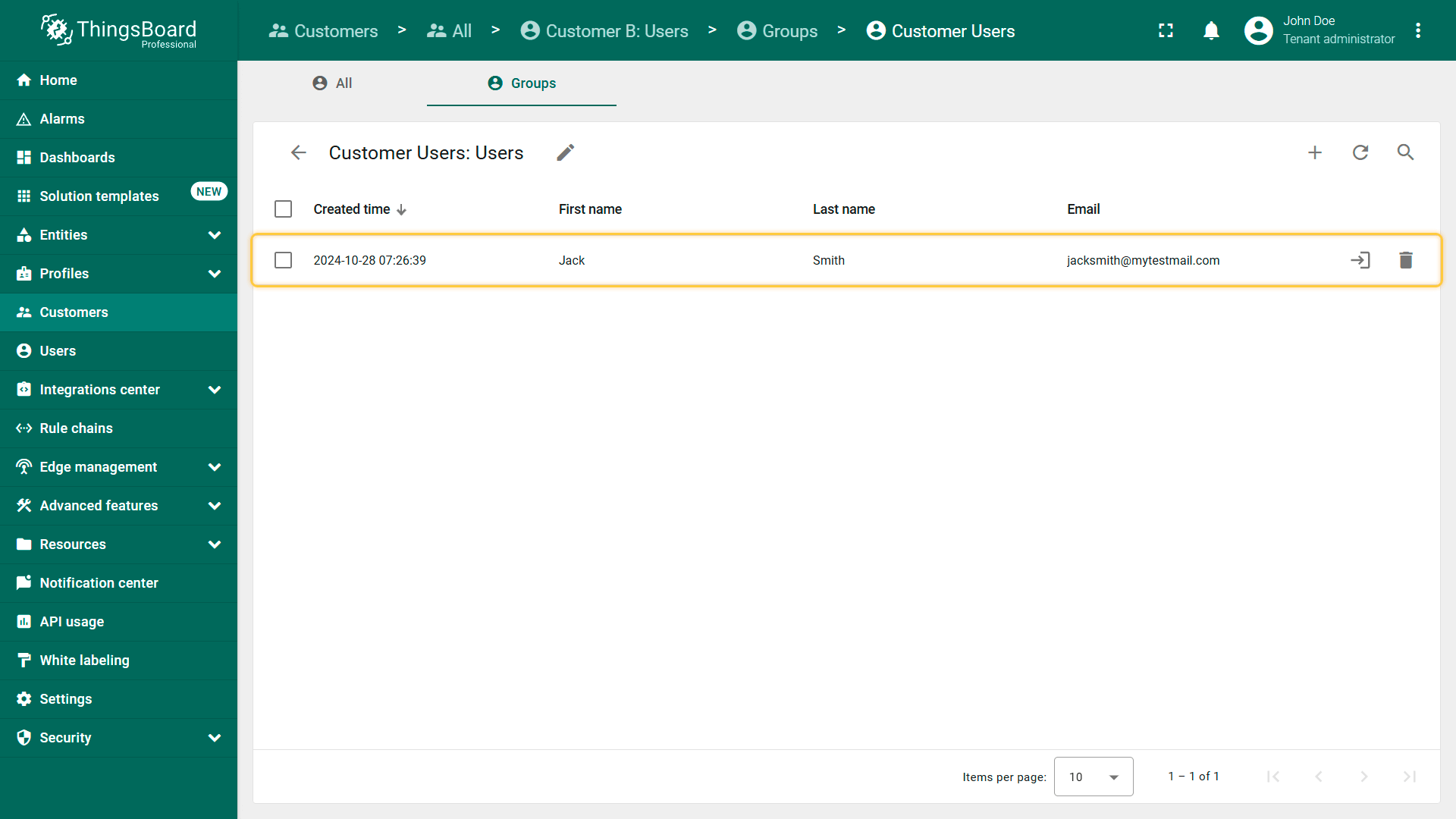
Customer A的用户已添加完成。类似地为Customer B添加客户用户Jack Smith。
从客户用户视角查看dashboard
接下来激活客户用户并分别查看dashboard在各用户视角下的效果。
先从Customer A的用户Emma Johnson开始。
- Paste the previously copied user activation link into your browser's address bar and press Enter. Come up with and enter a password for the account, then click "Create Password";
- After this, your account will be activated and you will be logged in as a customer user.
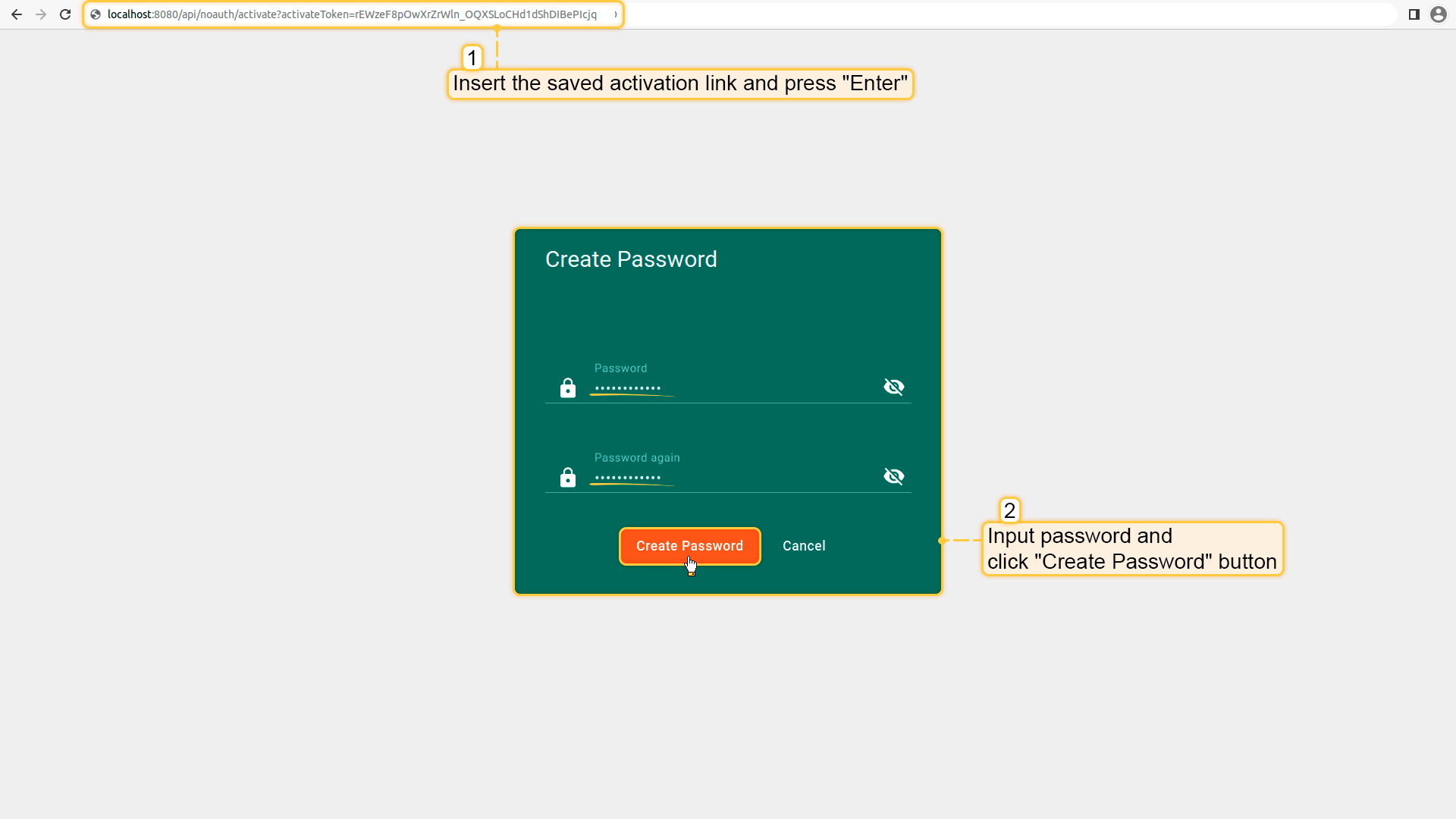
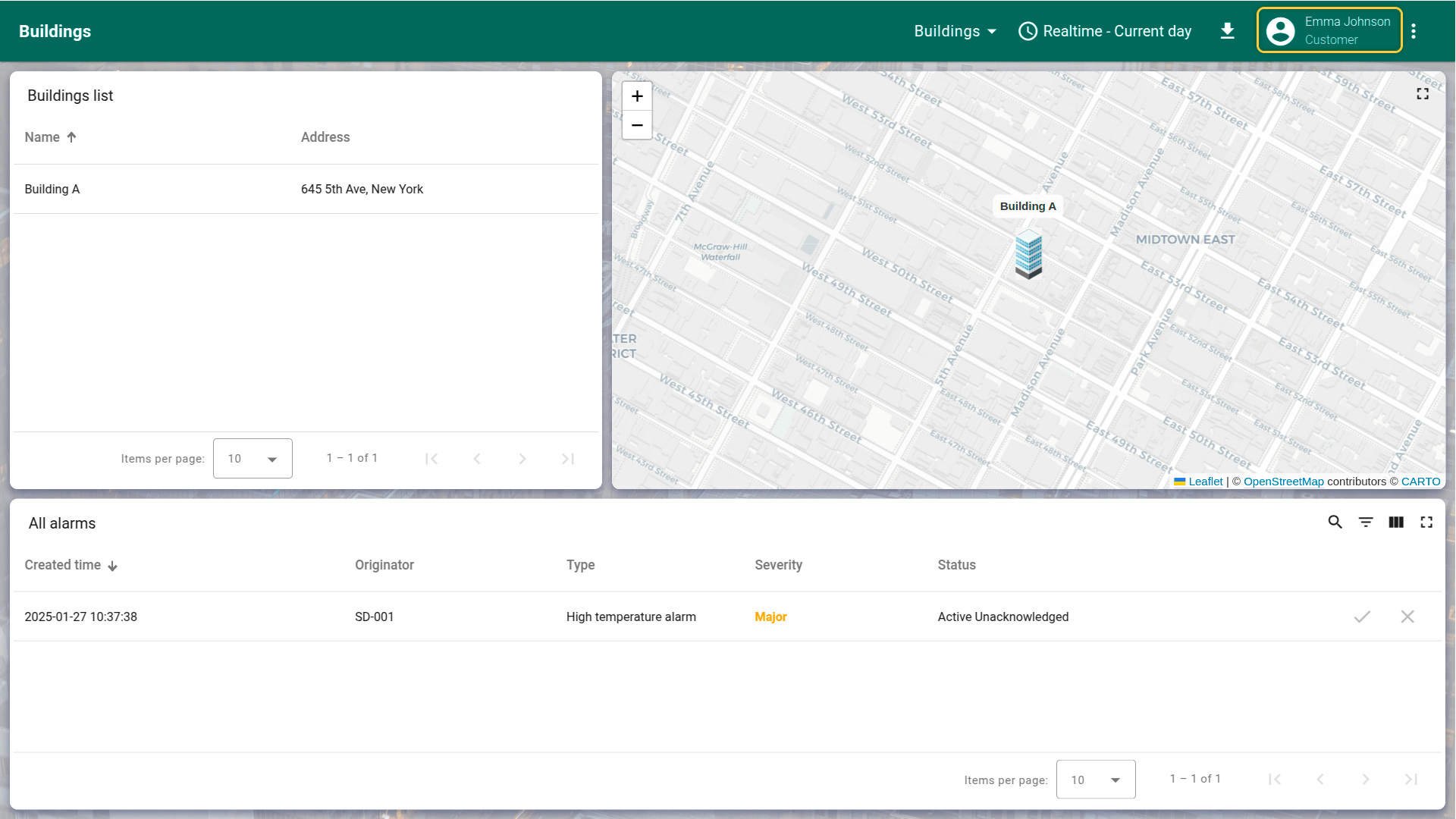
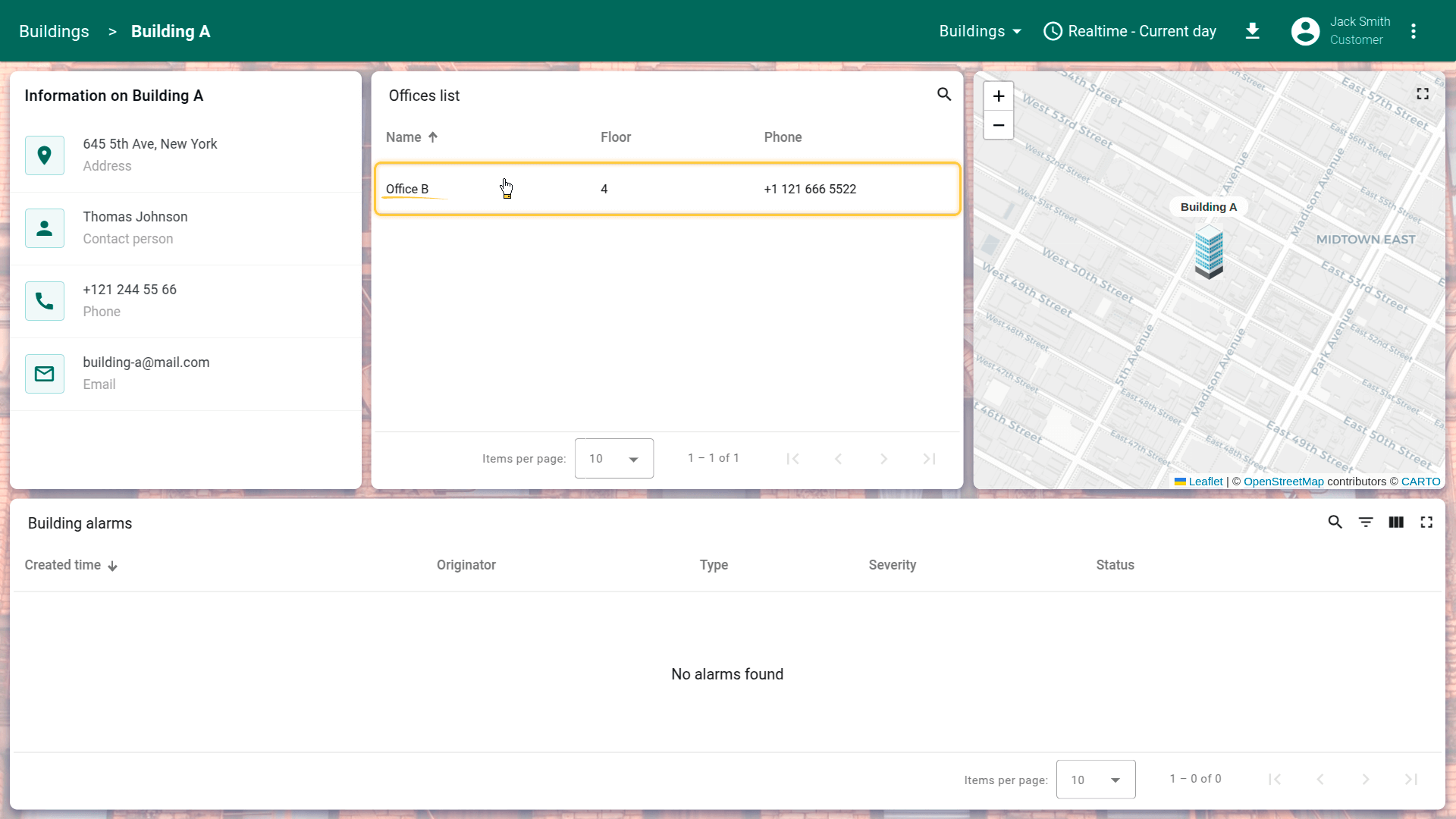
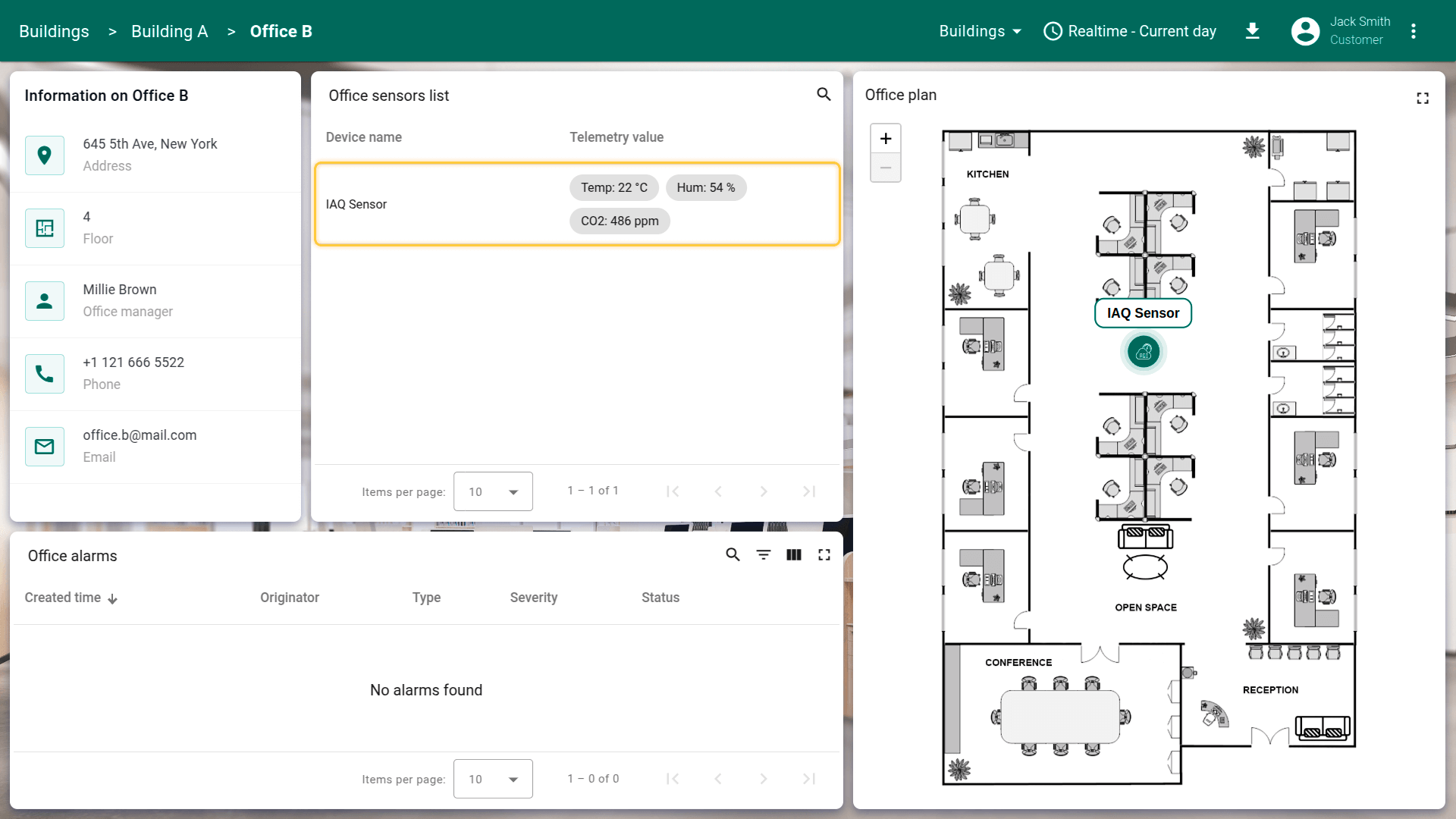
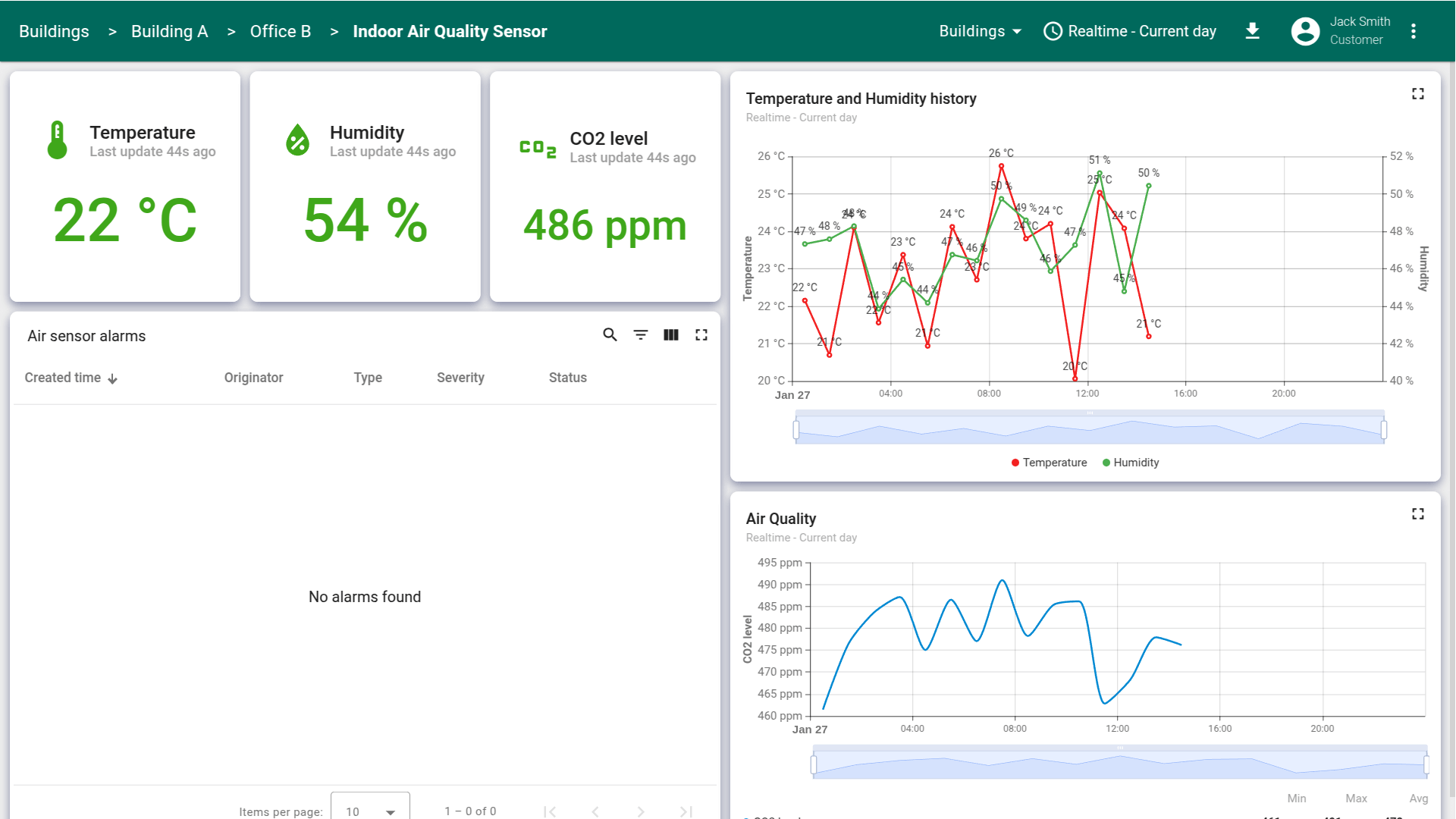
dashboard将打开,仅显示您办公室所在的建筑 —— Building A。浏览dashboard以确认用户仅能访问您已授予的数据。
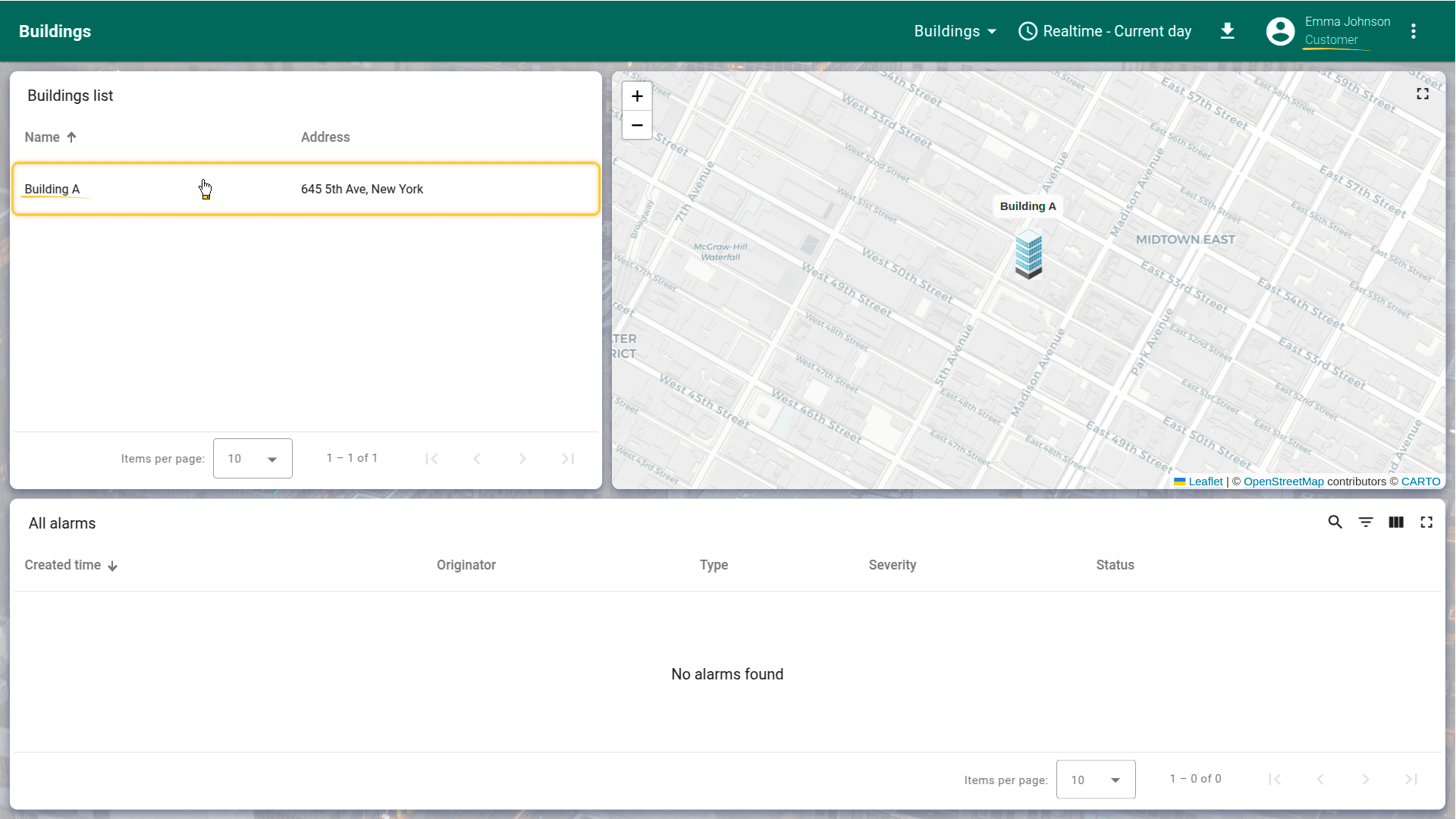
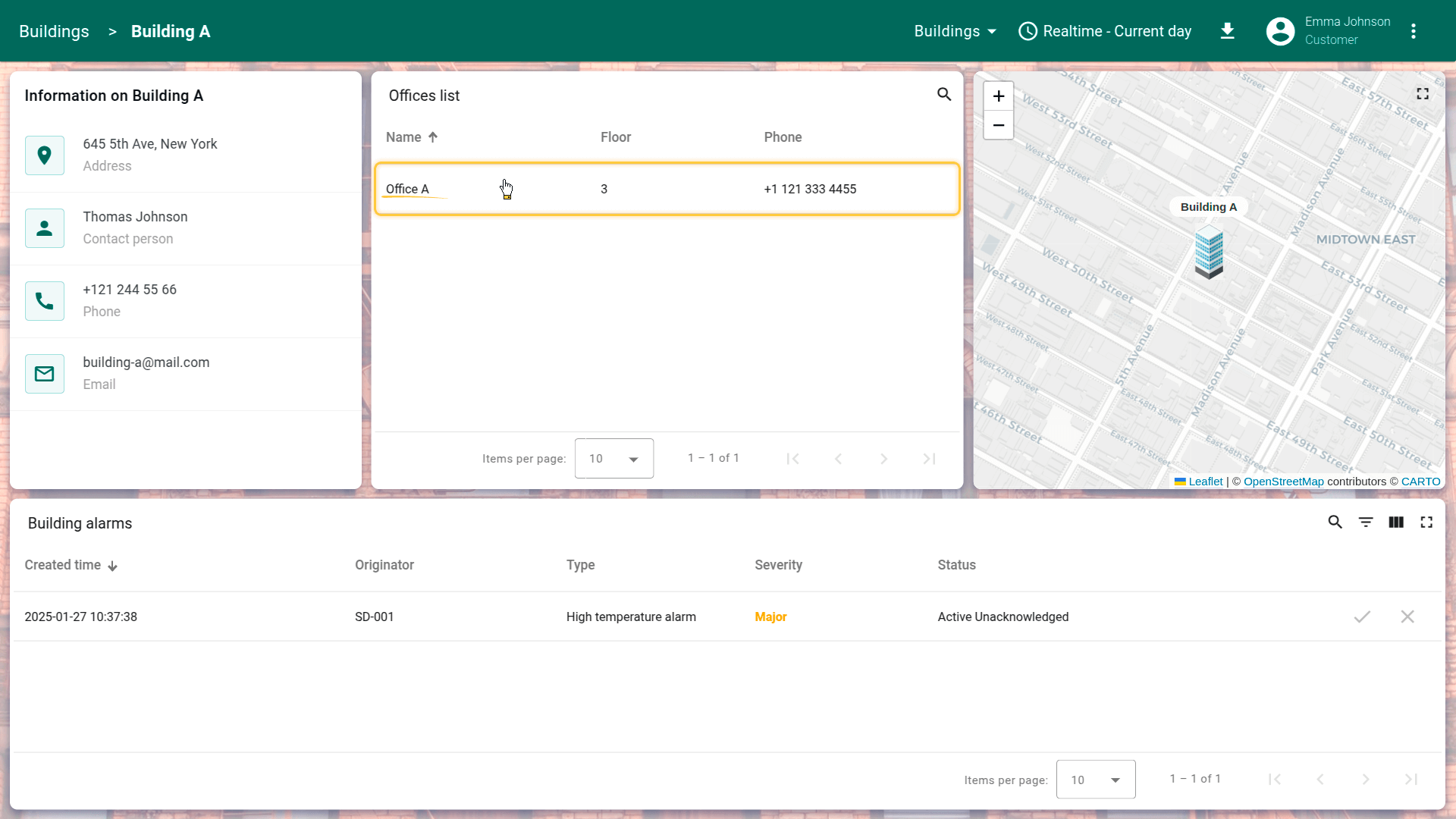
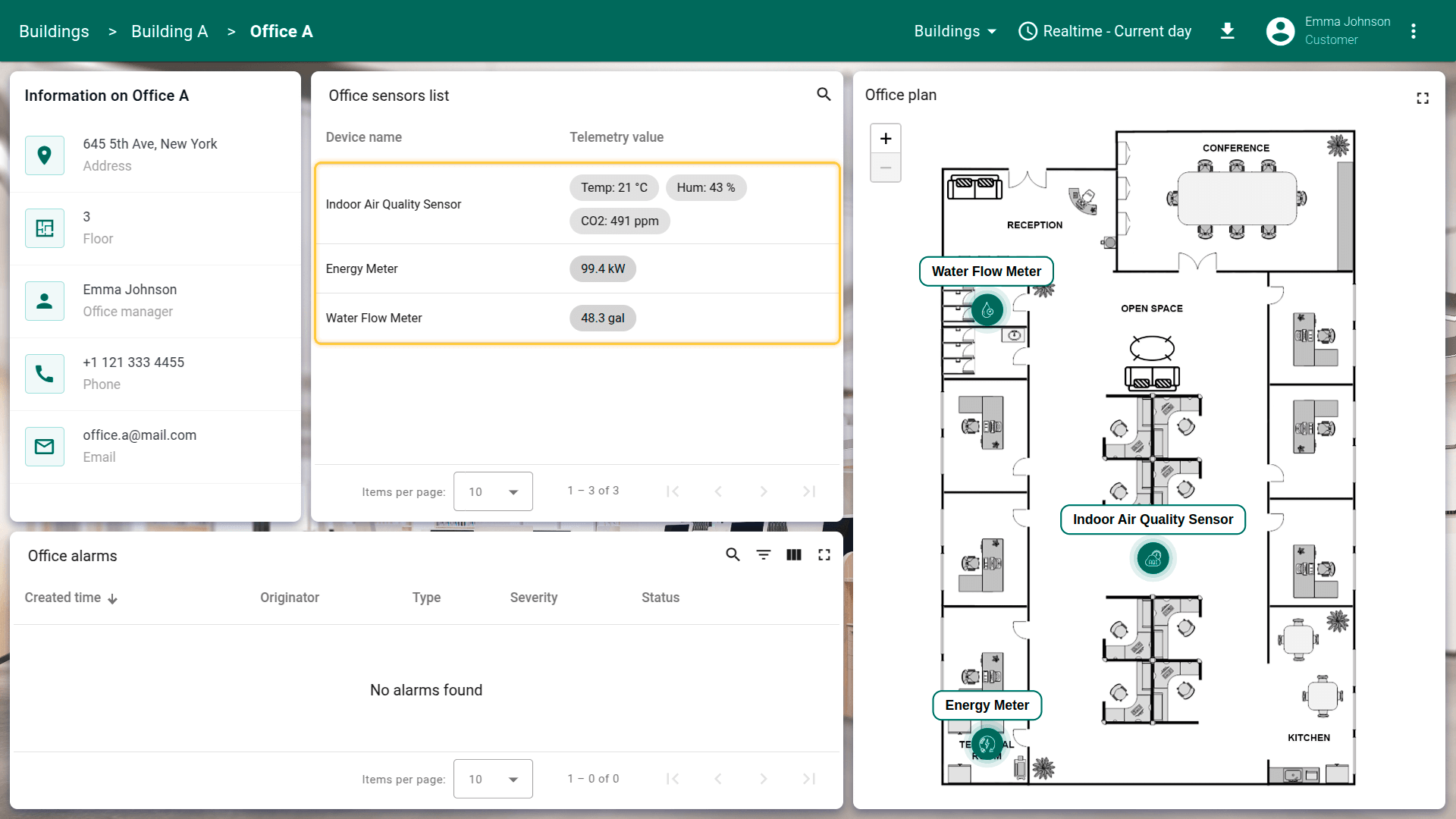
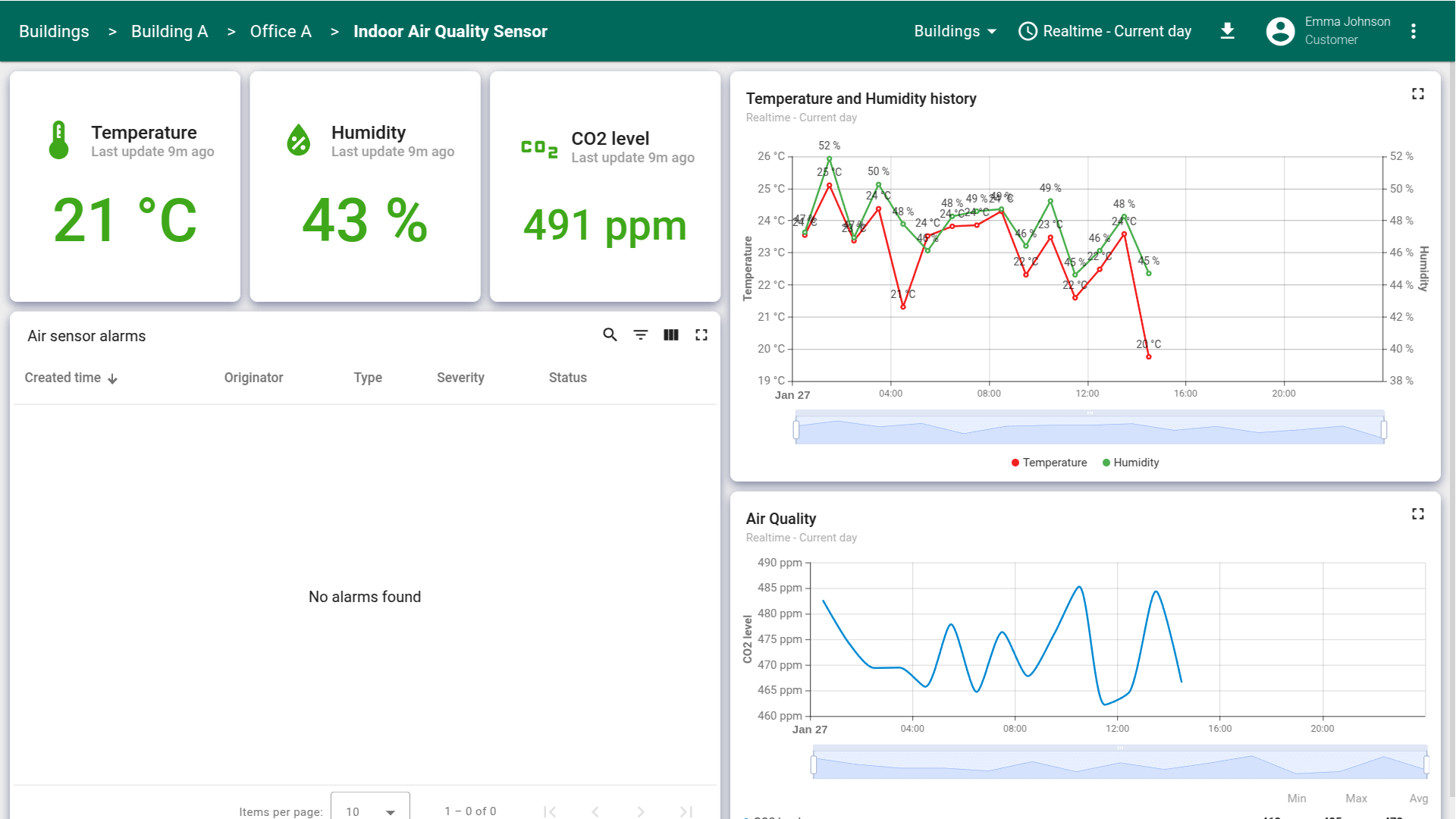
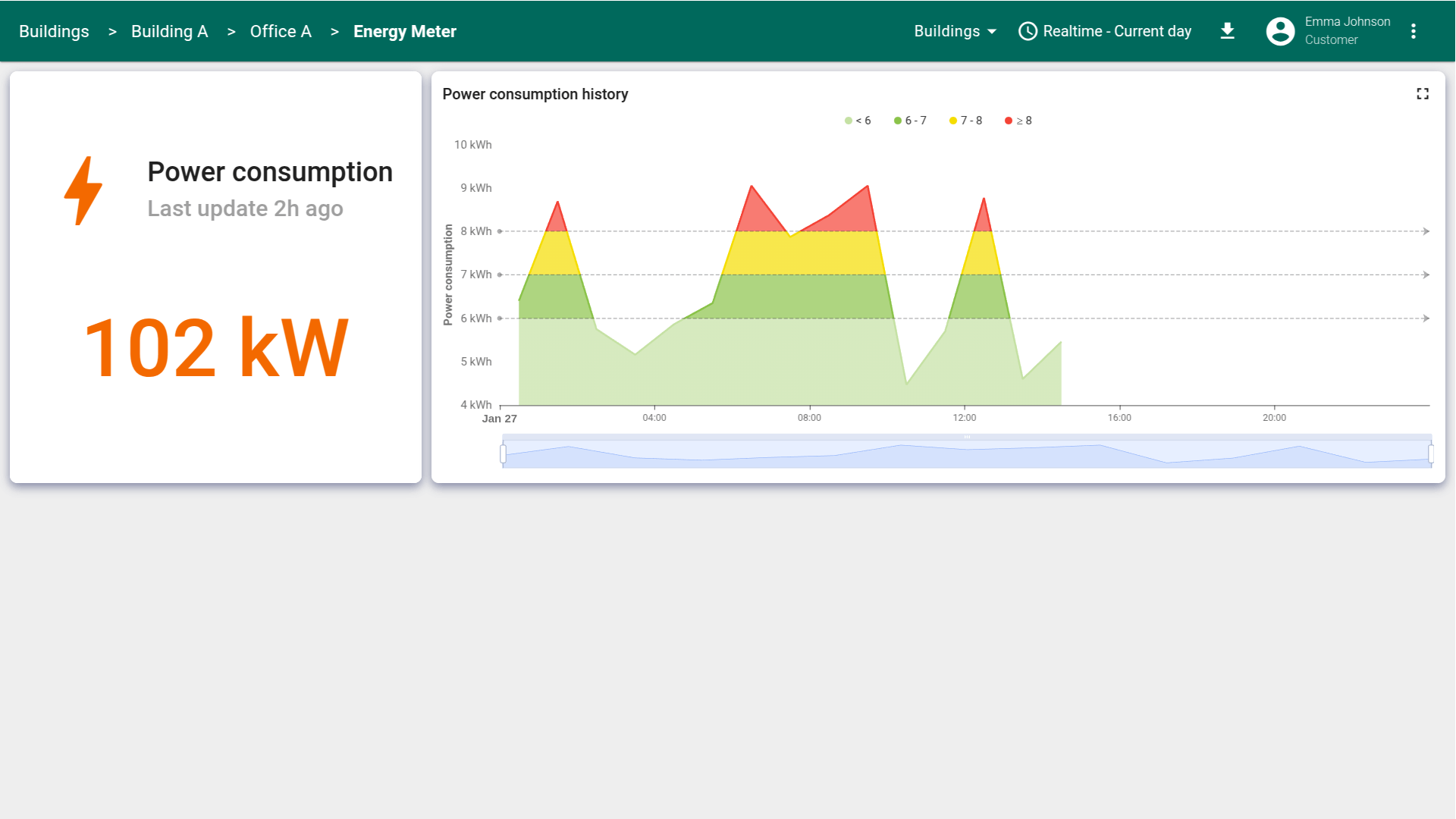
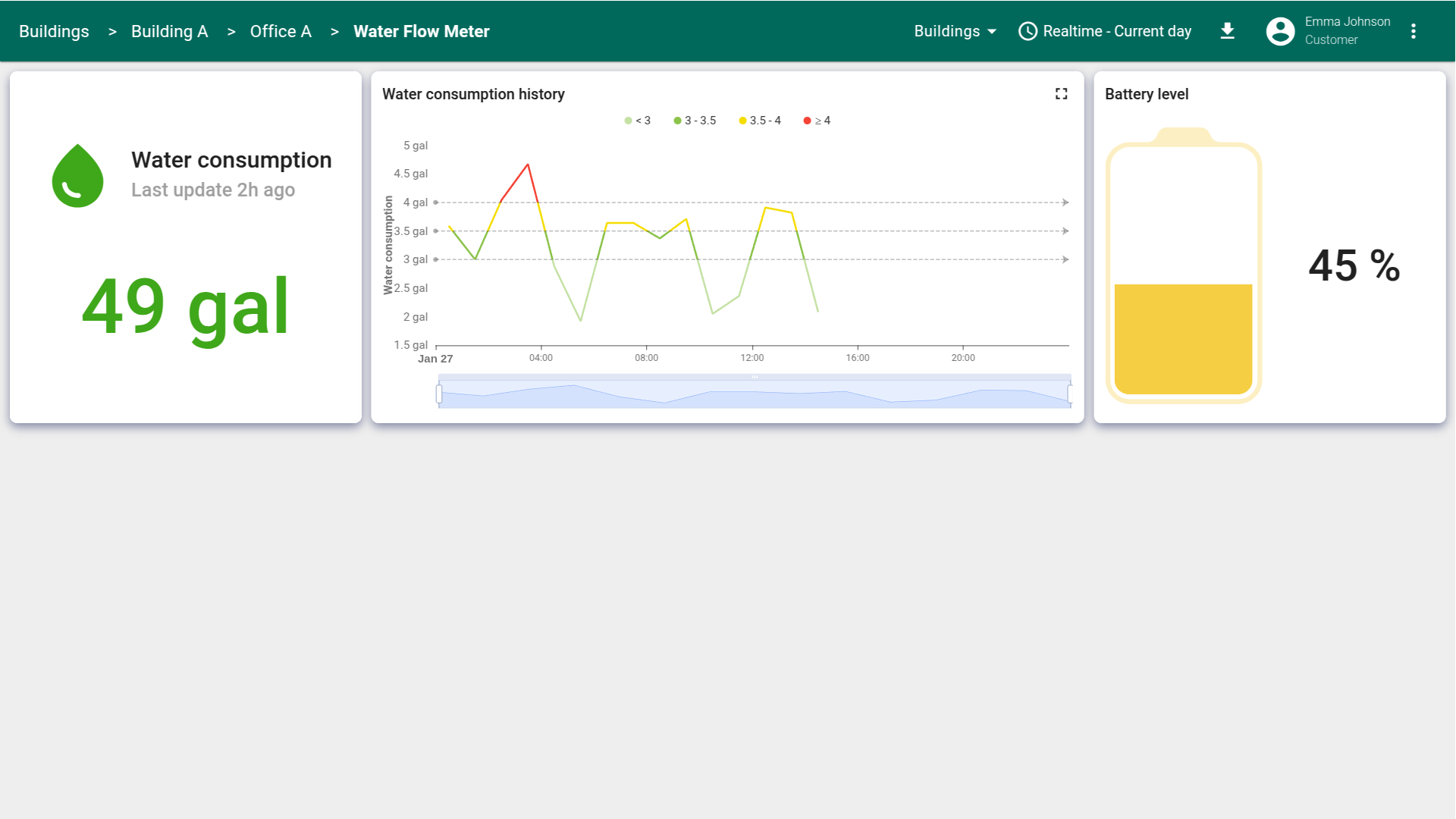
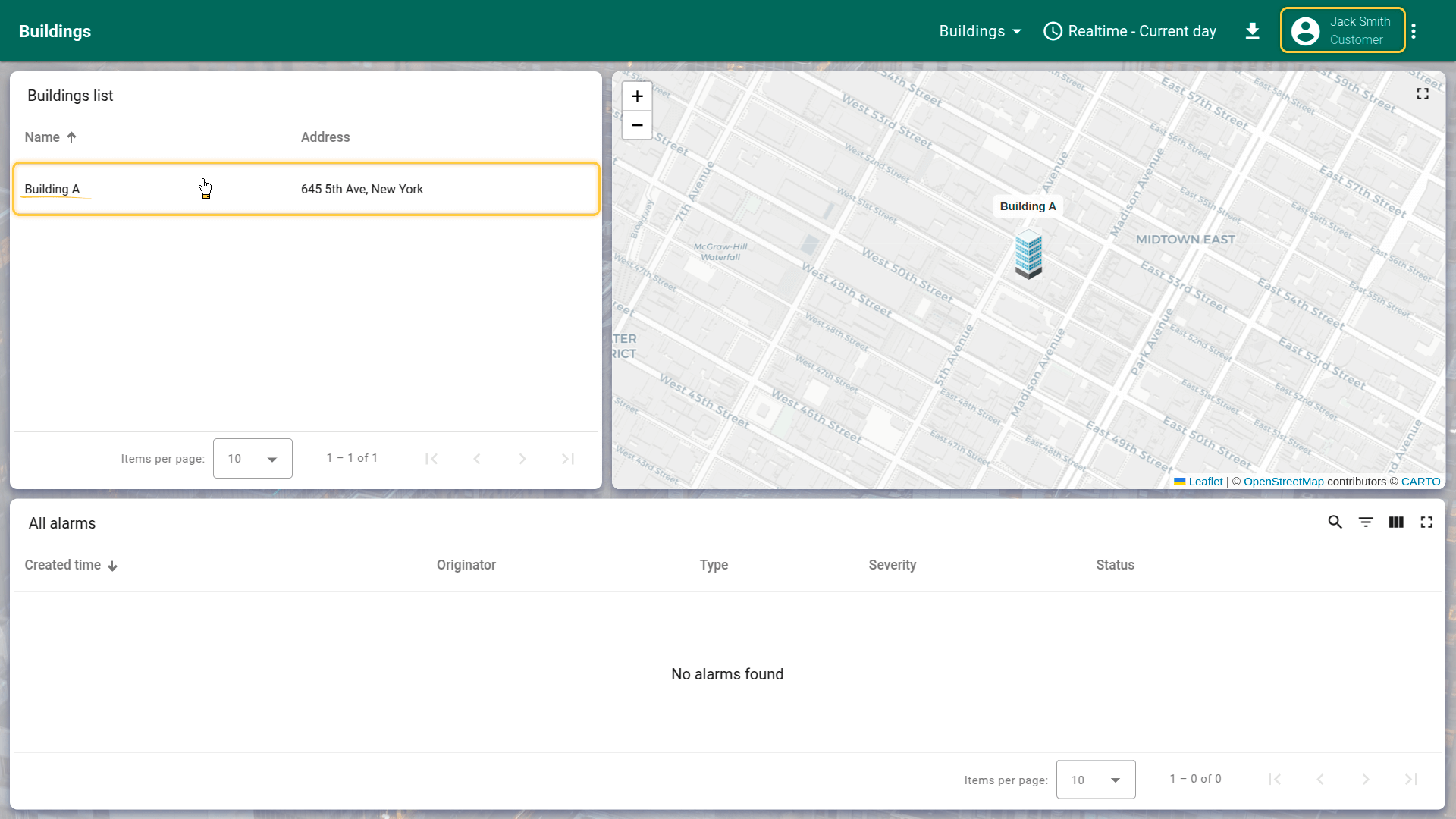
类似地激活Customer B的用户。他们应能访问Building A中的Office B以及Office B内IAQ Sensor的数据。
Conclusion
本系列中,我们已开发一个用于可视化和监控设施内连接设备数据的完整dashboard。 我们还为客户共享了该dashboard的访问,每位客户仅能查看您授予权限的数据。 希望本系列对您有帮助,并激发您进一步扩展dashboard的能力。下次见!