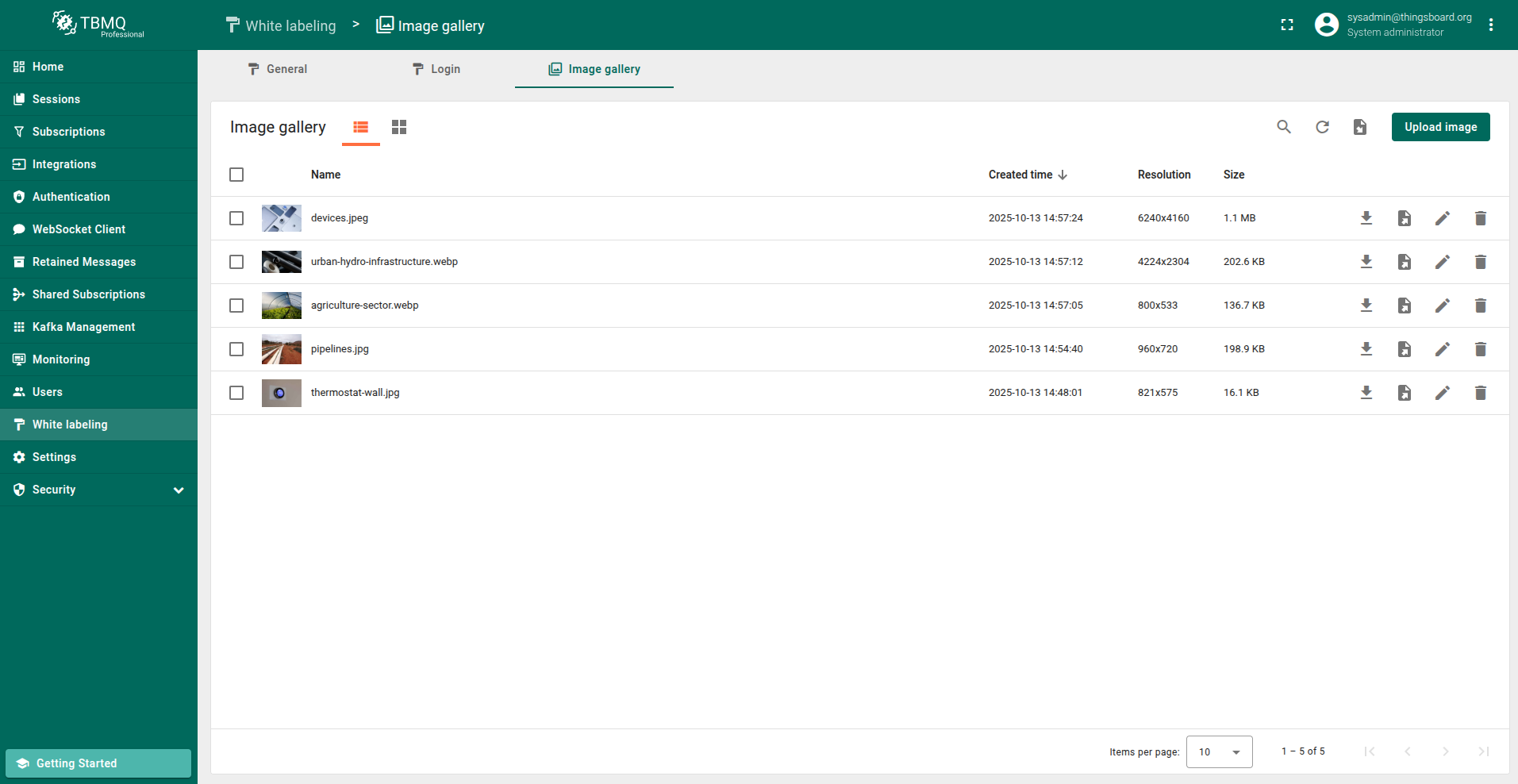
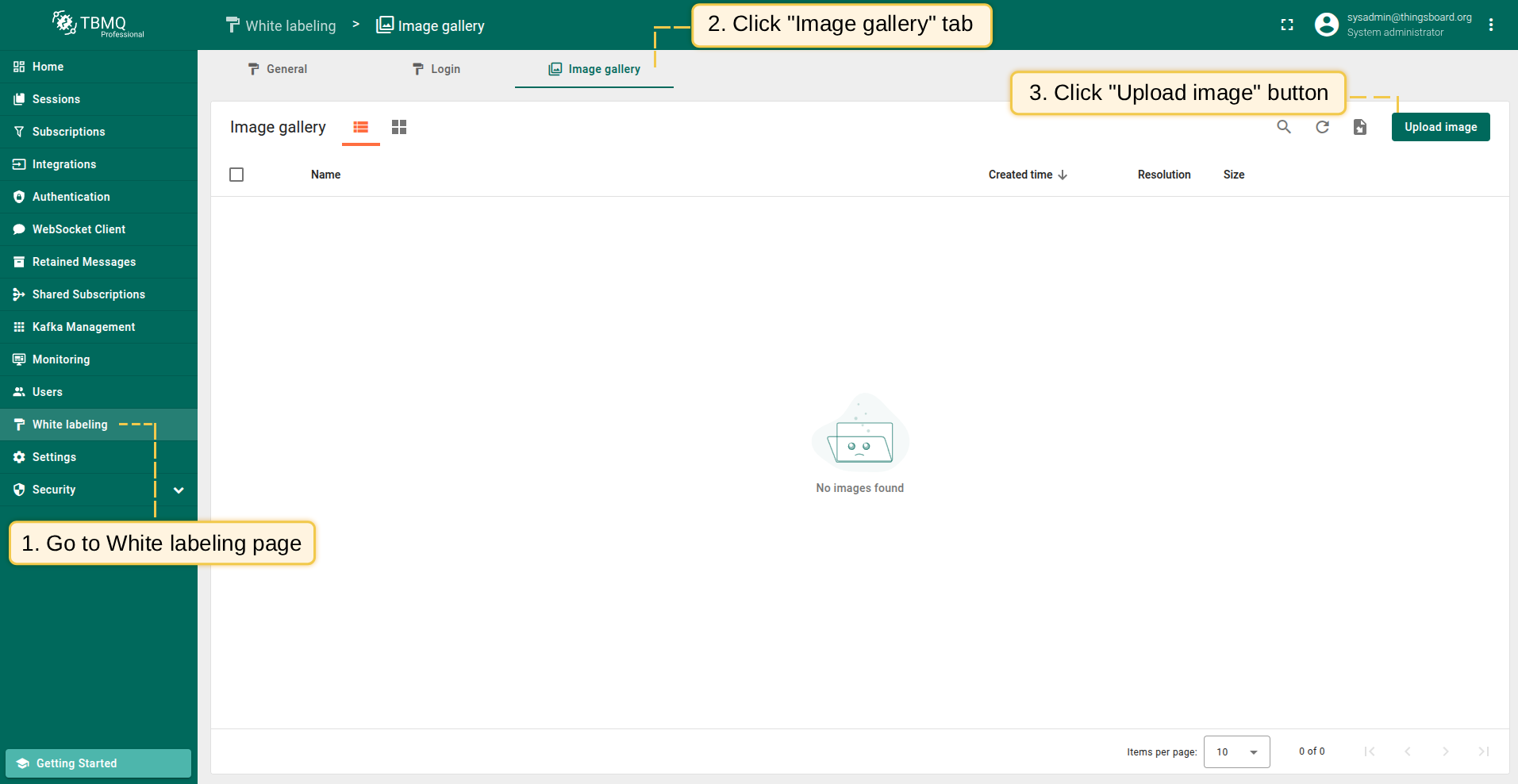
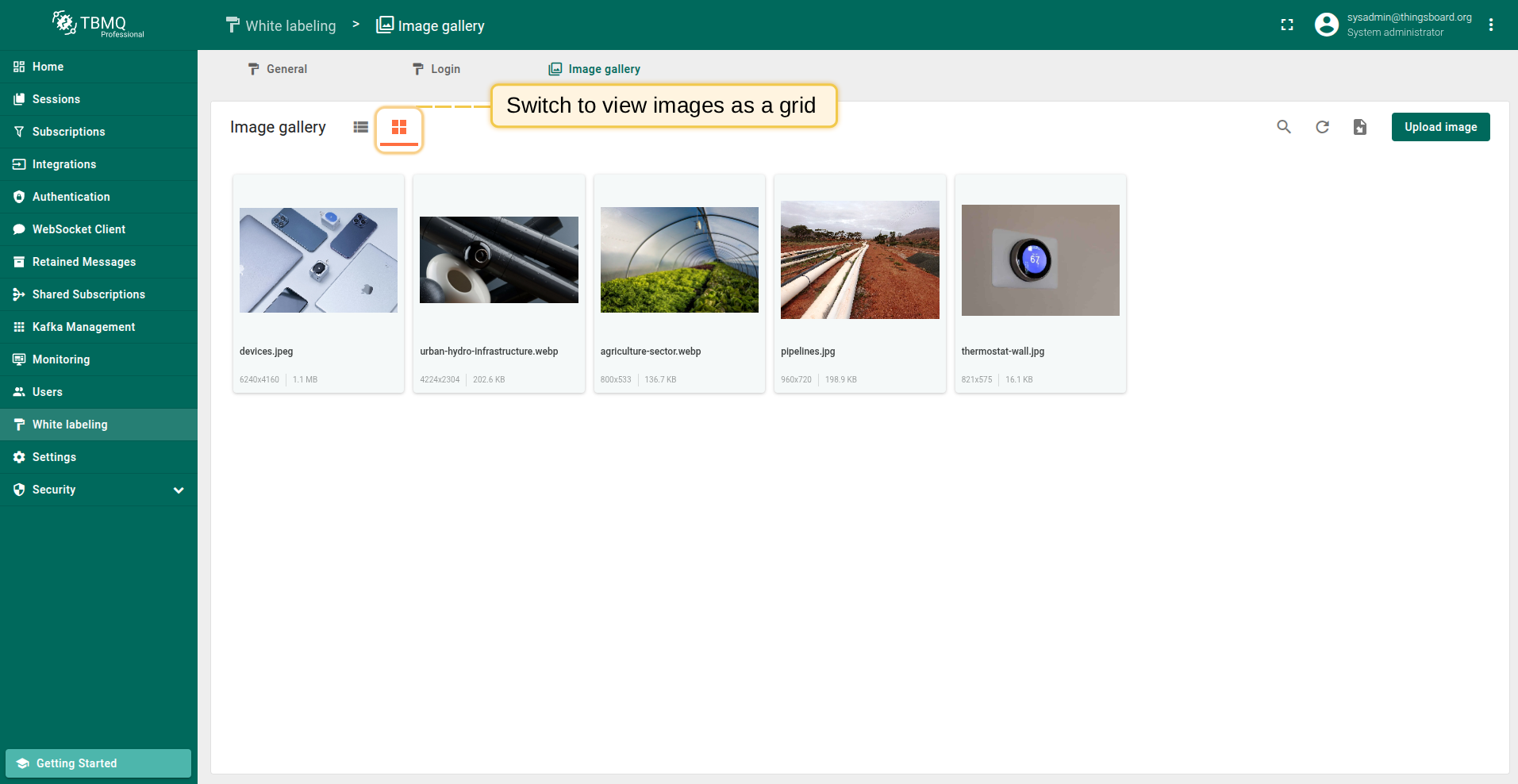
Go to the "White labeling" page and click on the "Image gallery" tab. Then, click the “Upload image” button in the top right corner of the screen;
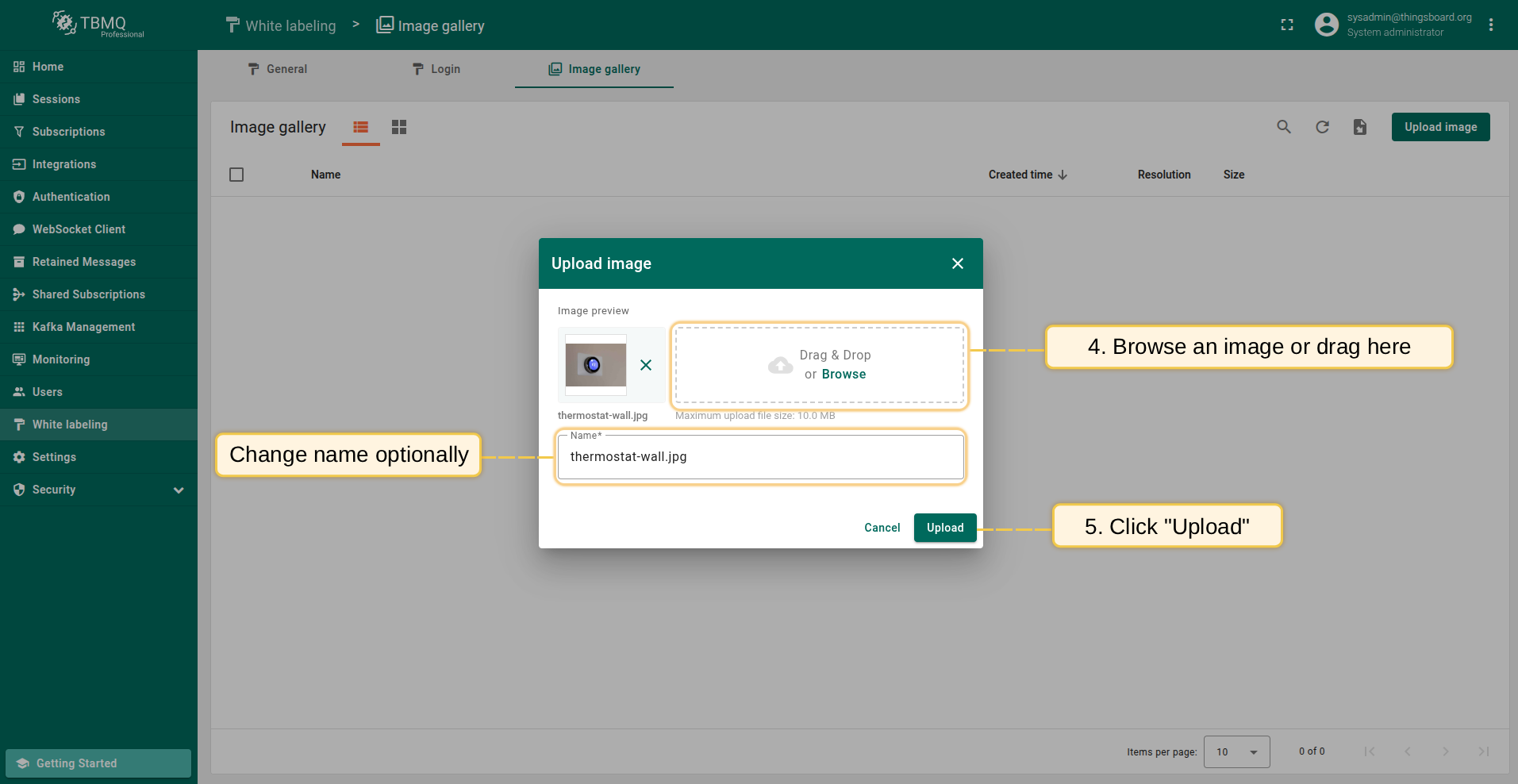
Select an image or simply drag it to the "Upload image" window and click "Upload";
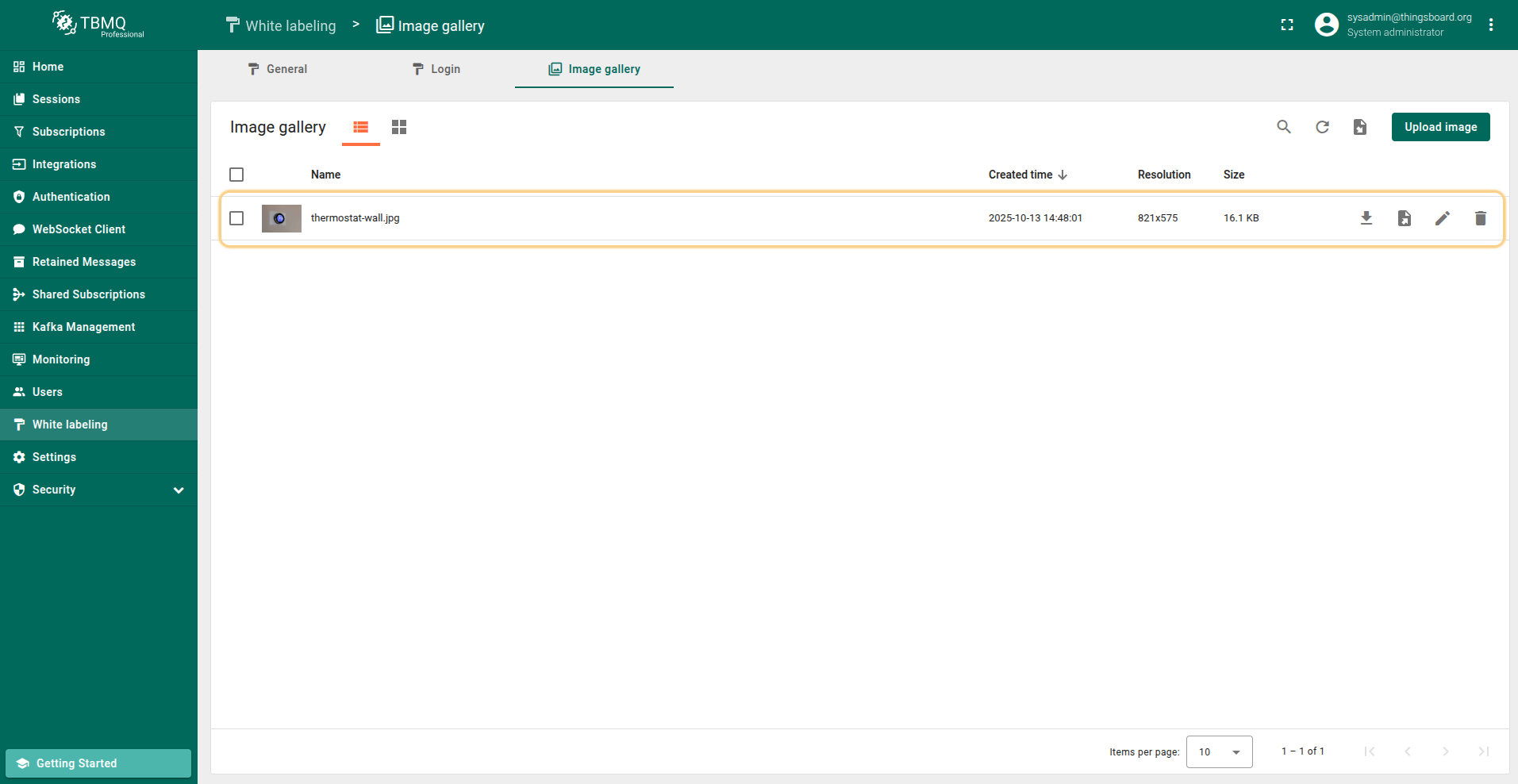
The image has been uploaded.
Go to the "White labeling" page and click on the "Image gallery" tab. Then, click the “Upload image” button in the top right corner of the screen;
Select an image or simply drag it to the "Upload image" window and click "Upload";
The image has been uploaded.
从JSON导入图片
以JSON格式导入图片,请按以下步骤操作:
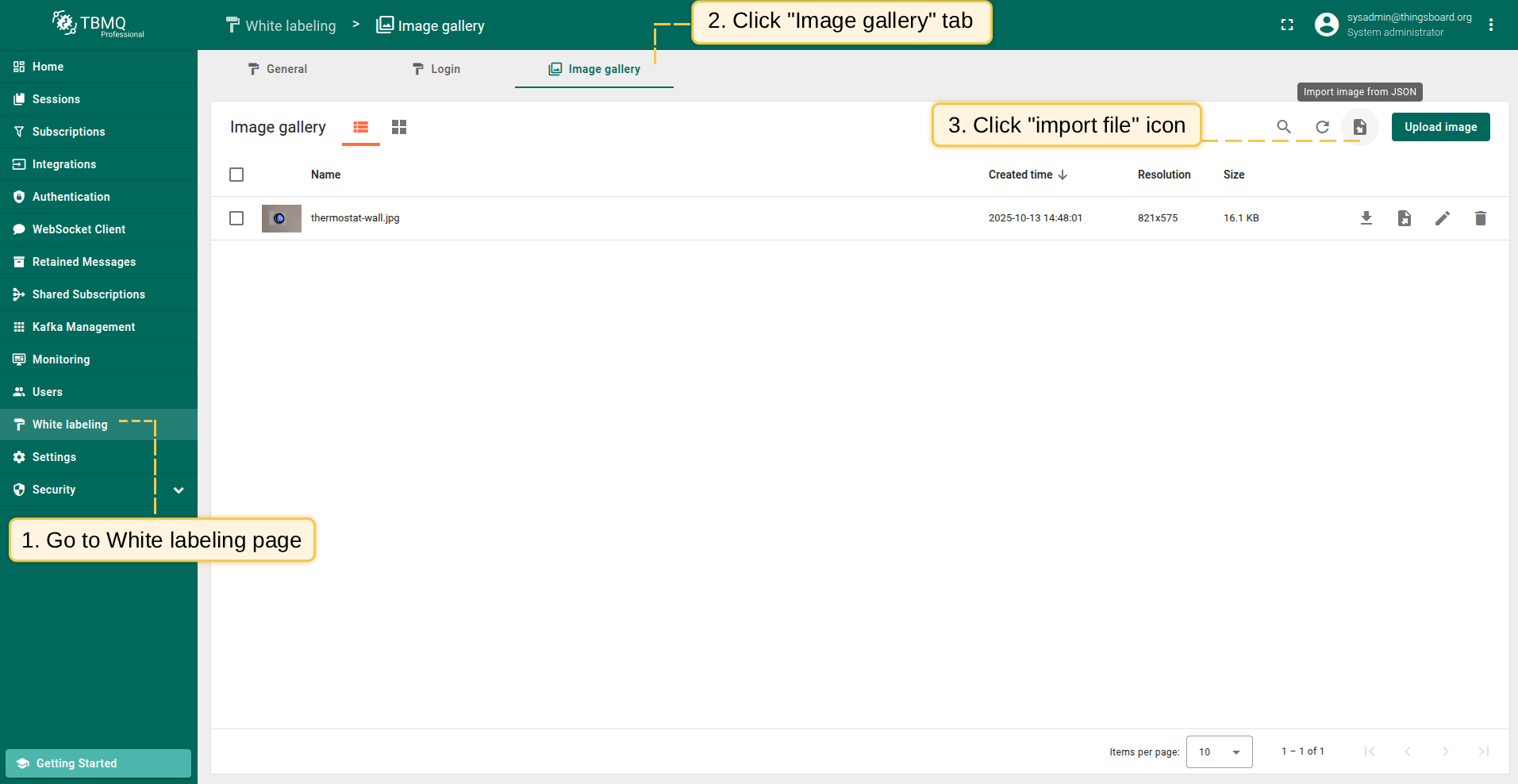
Go to the "White labeling" page and click on the "Image gallery" tab. Then, click the "Import image" icon in the top right corner of the screen;
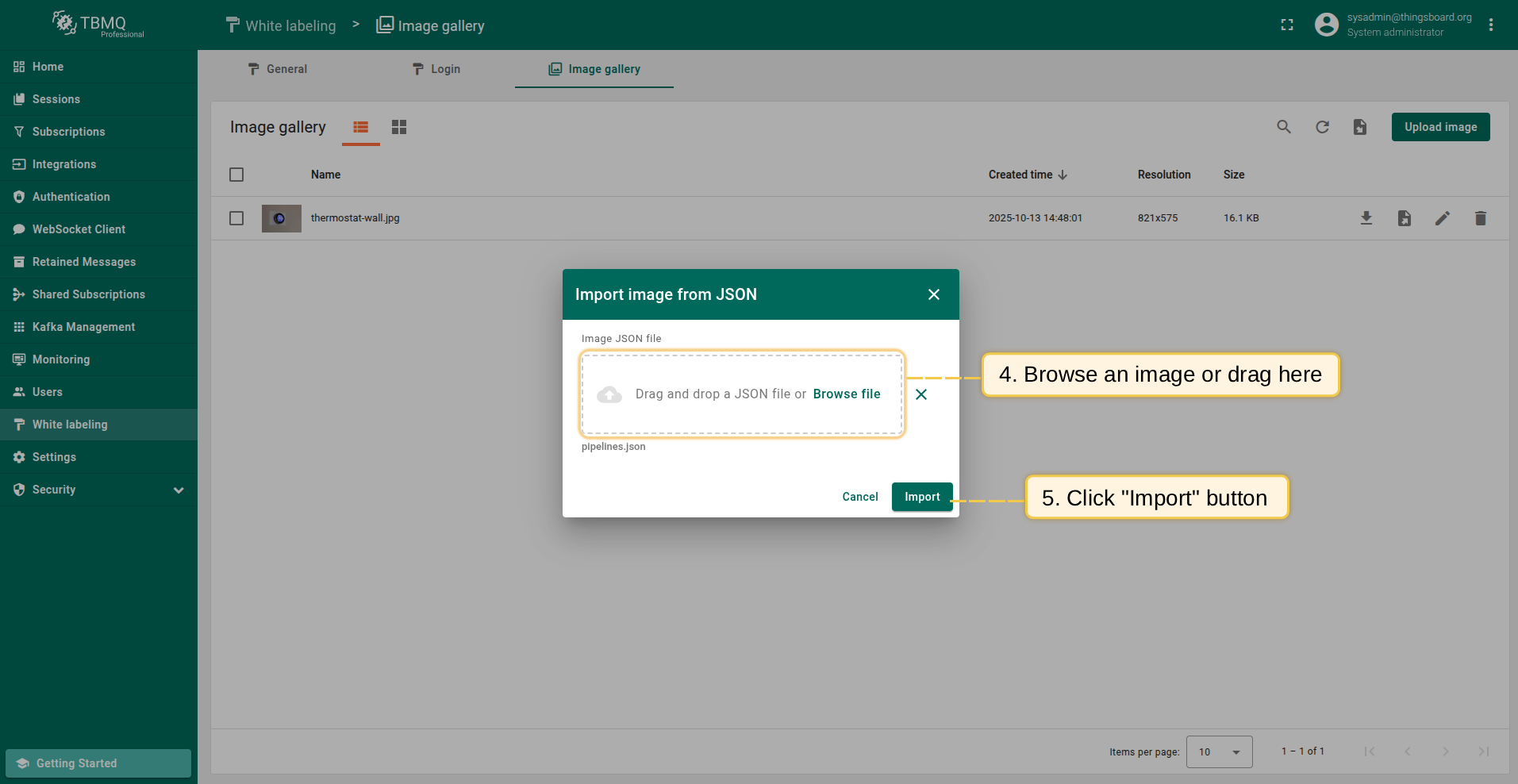
In the "Import image" window, upload a JSON image file and click "Import";
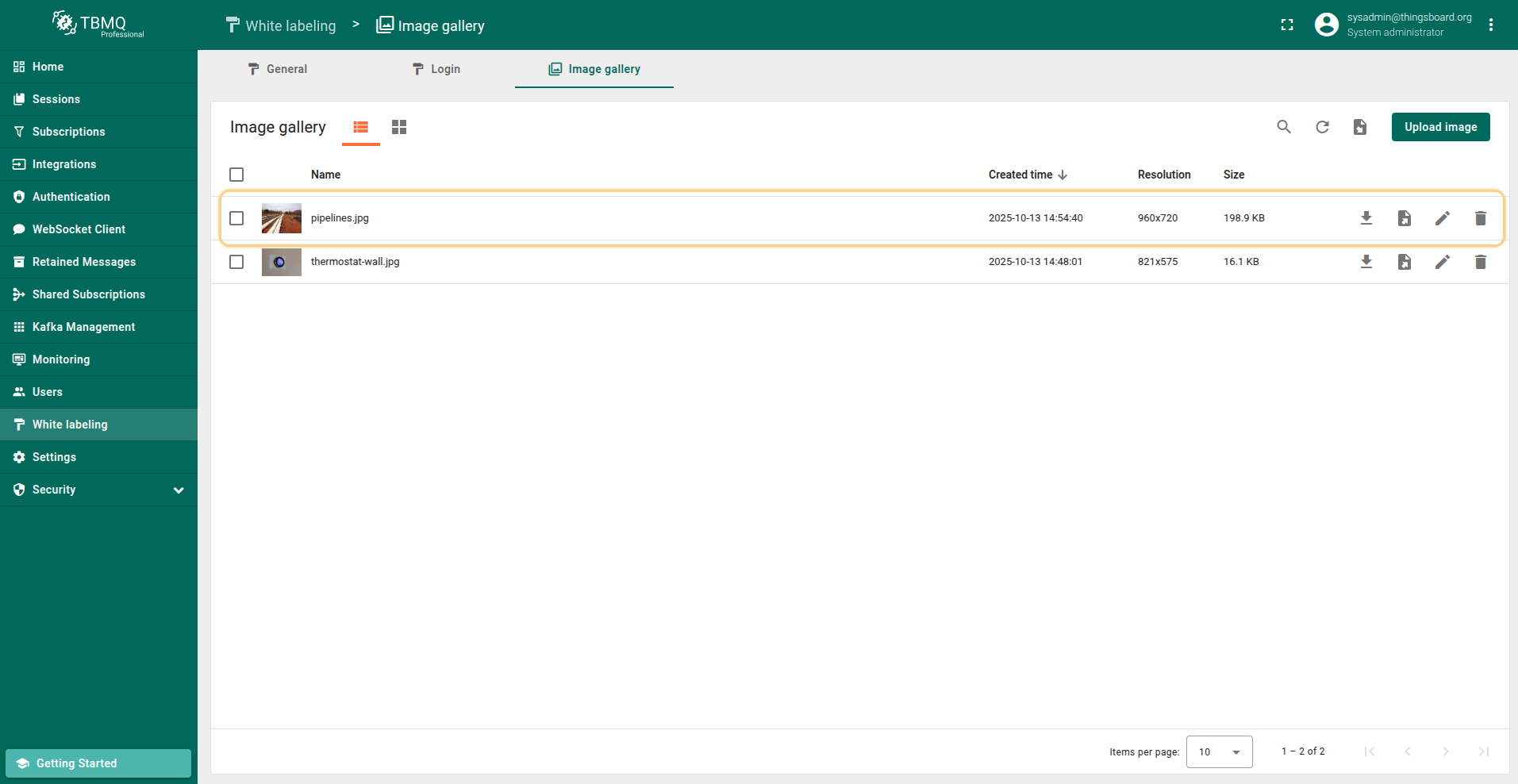
The image has been imported.
Go to the "White labeling" page and click on the "Image gallery" tab. Then, click the "Import image" icon in the top right corner of the screen;
In the "Import image" window, upload a JSON image file and click "Import";
The image has been imported.
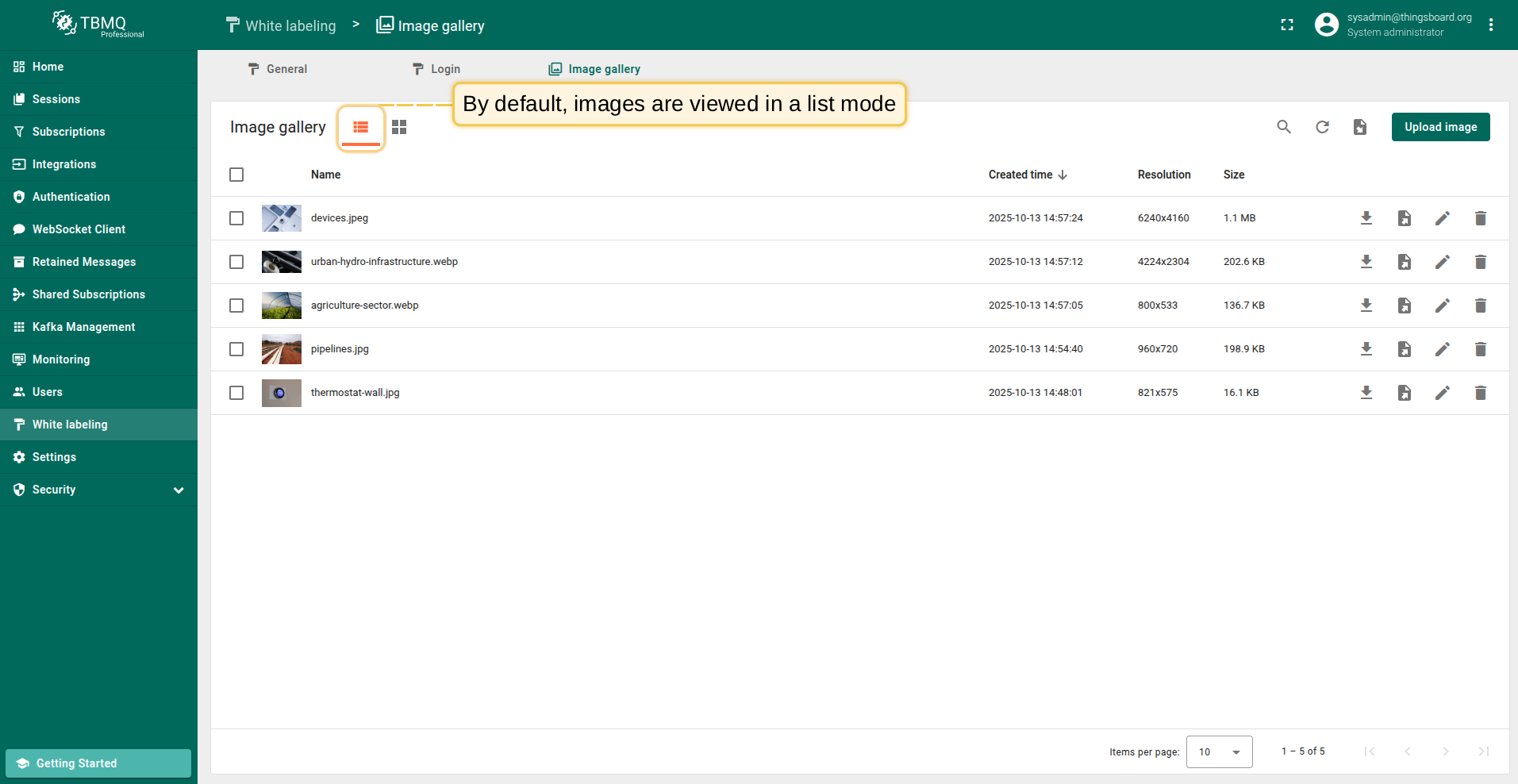
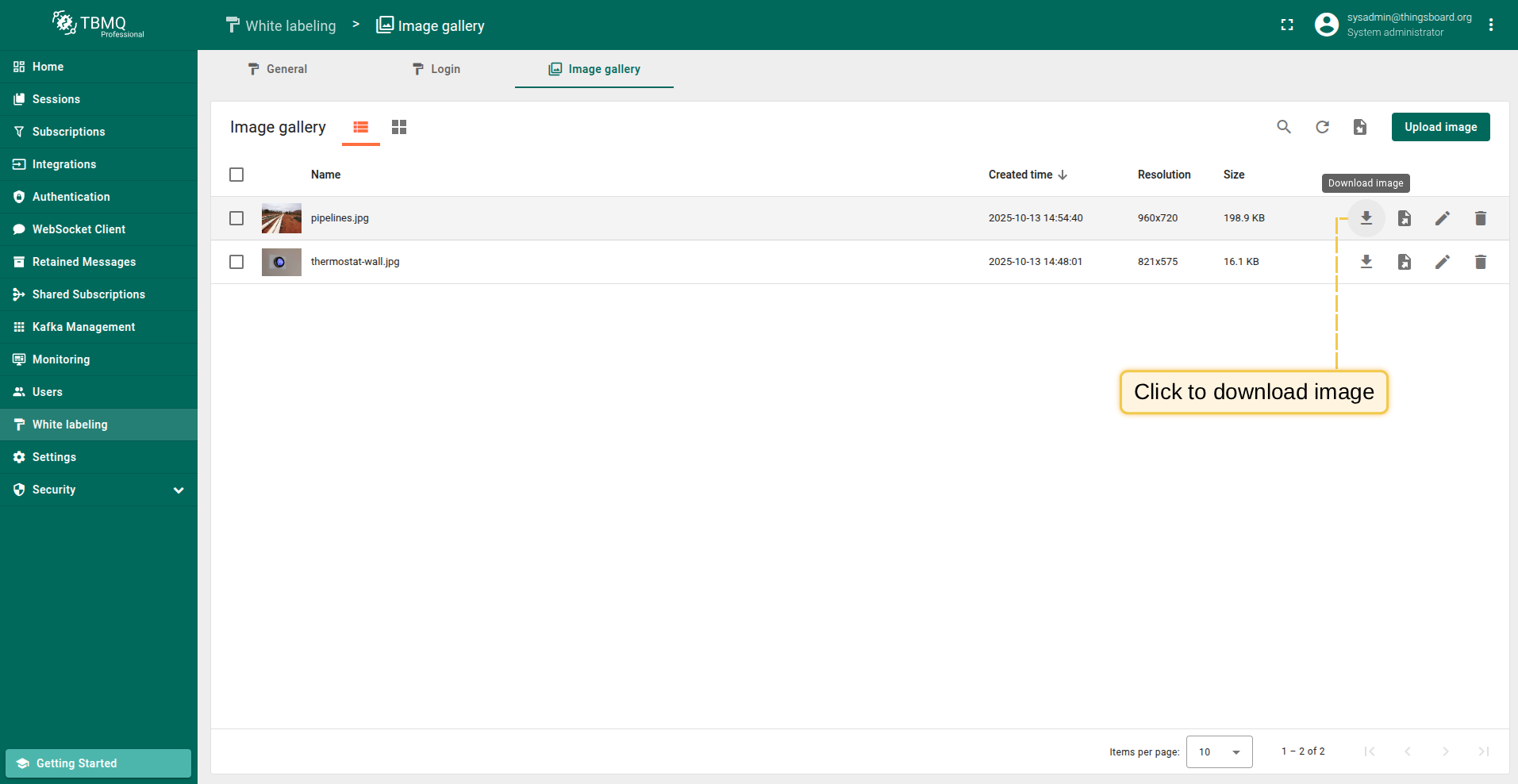
If you're using the list view of images, click the "Download image" icon next to the image name that you want to export. The image in image file format will be saved to your PC.
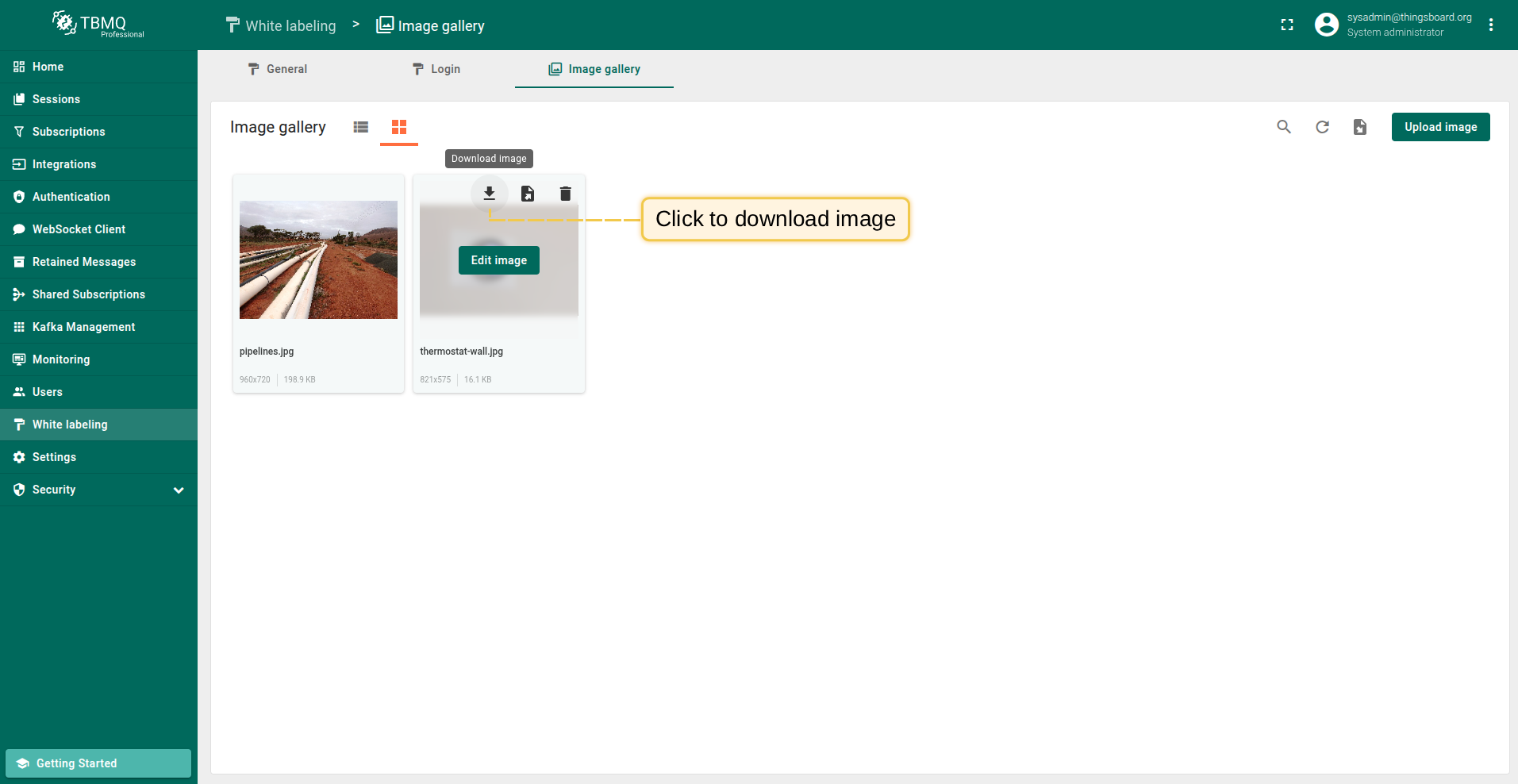
If you're using the grid view, hover your mouse pointer over the image you want to export and click the "Download image" icon. The image in image file format will be saved to your PC.
导出为JSON
导出为JSON可通过以下两种方式(取决于当前查看模式):
列表视图:点击要导出图片名称旁的”导出为JSON”图标。
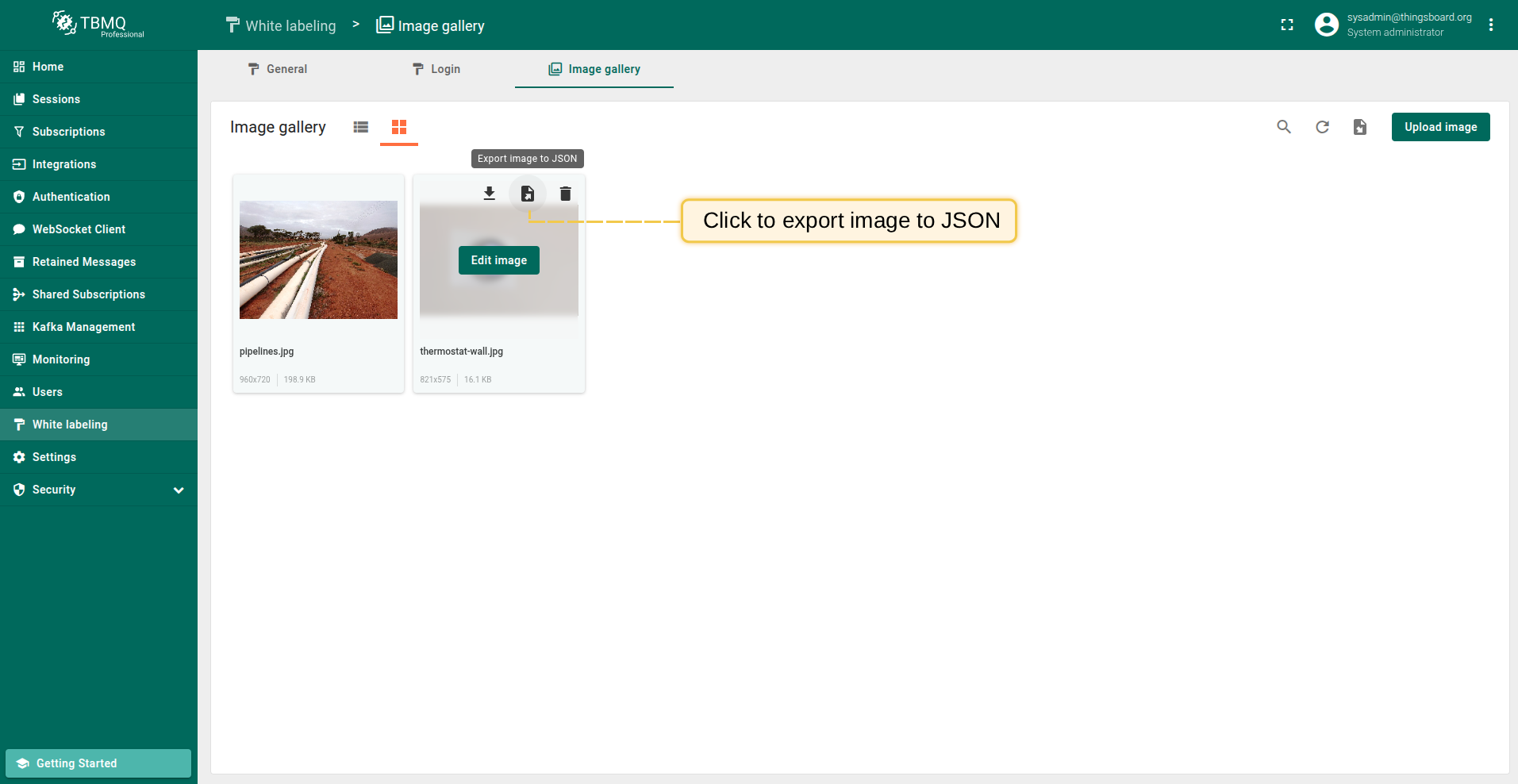
网格视图:将鼠标悬停在要导出的图片上,点击”导出为JSON”图标。
图片将以JSON格式保存到本地。
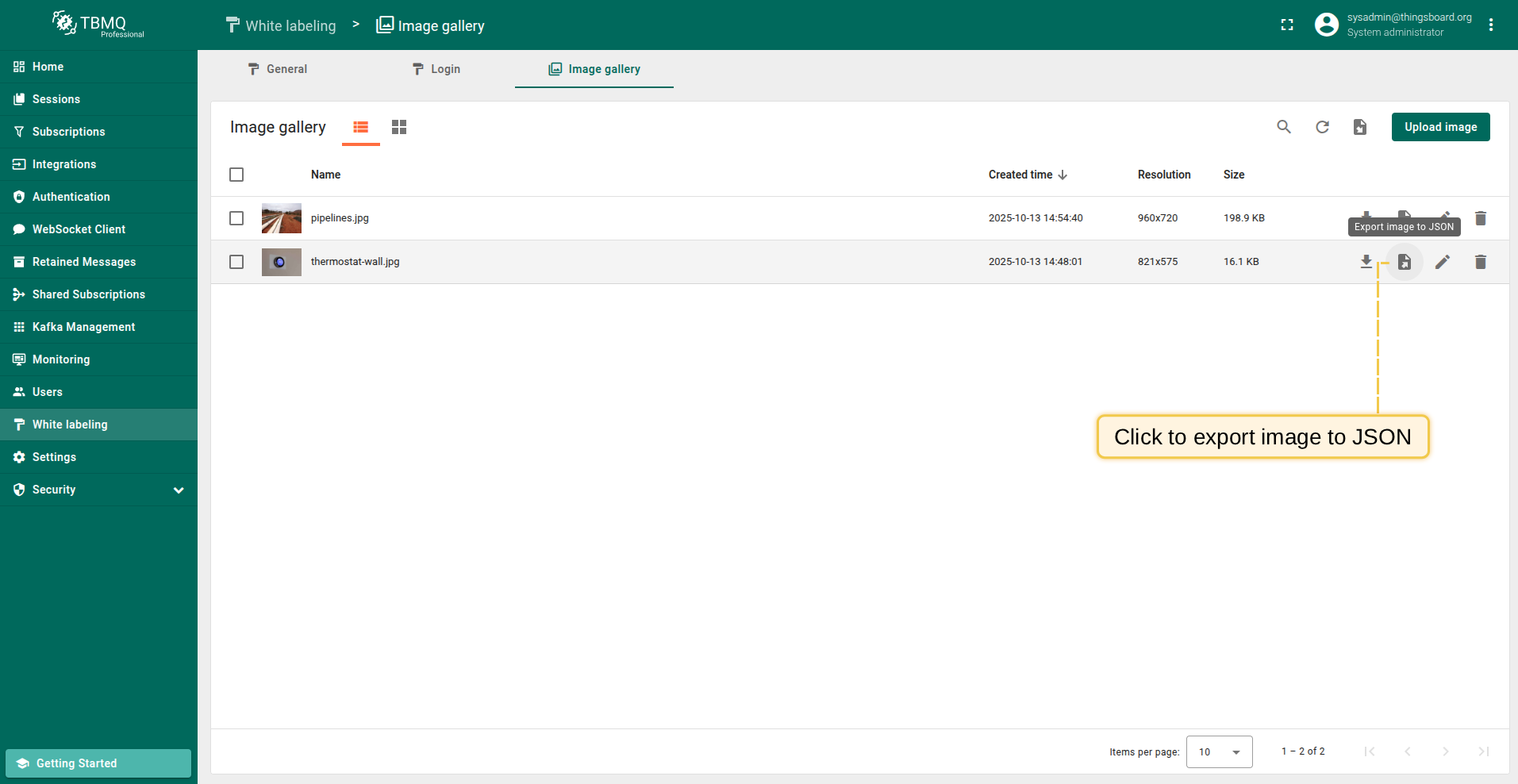
If you're using the list view of images, click the "Export image to JSON" icon next to the image name that you want to download. The image in JSON format will be saved to your PC.
If you're using the grid view, hover your mouse pointer over the image you want to download and click the "Export image to JSON" icon. The image in JSON format will be saved to your PC.
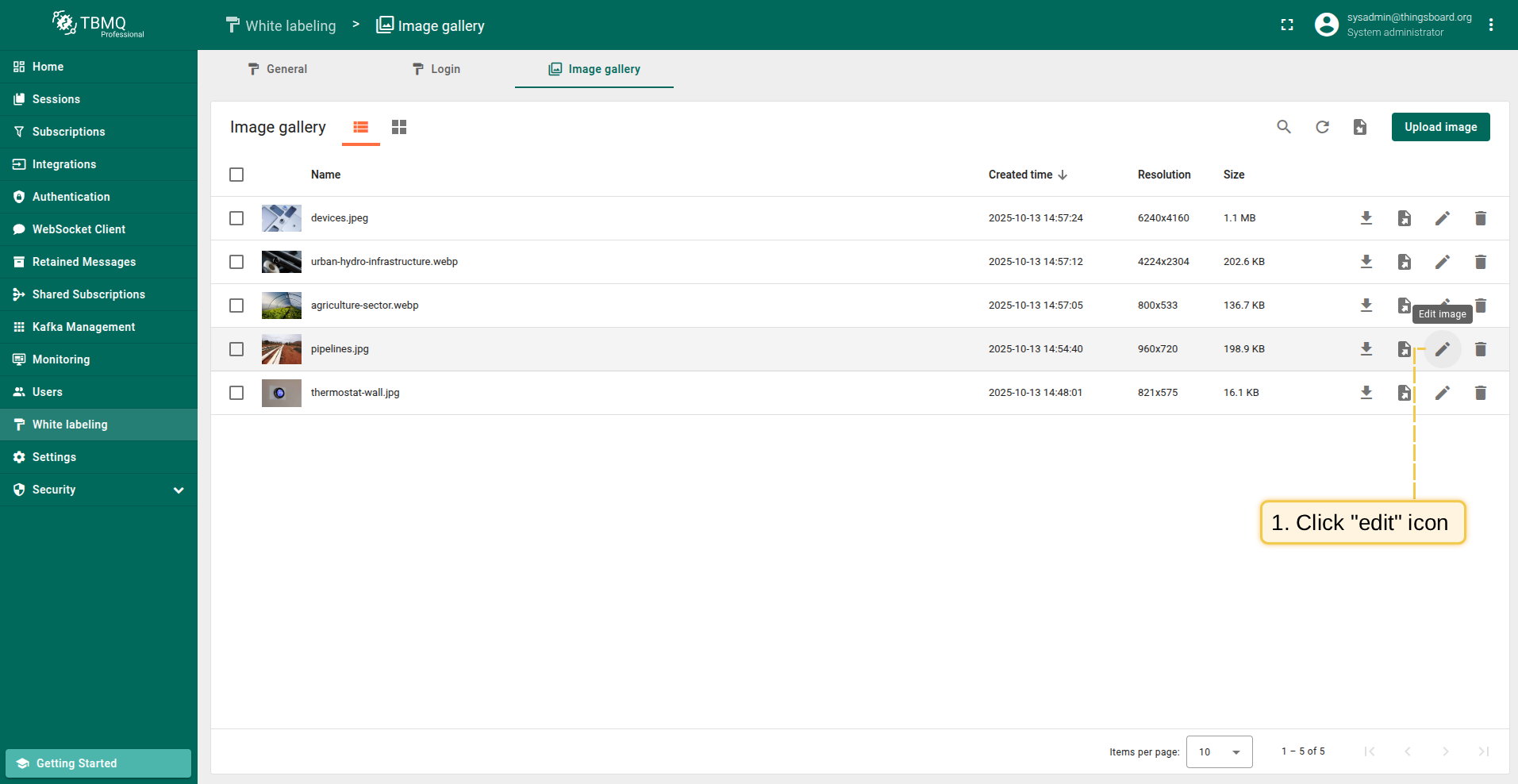
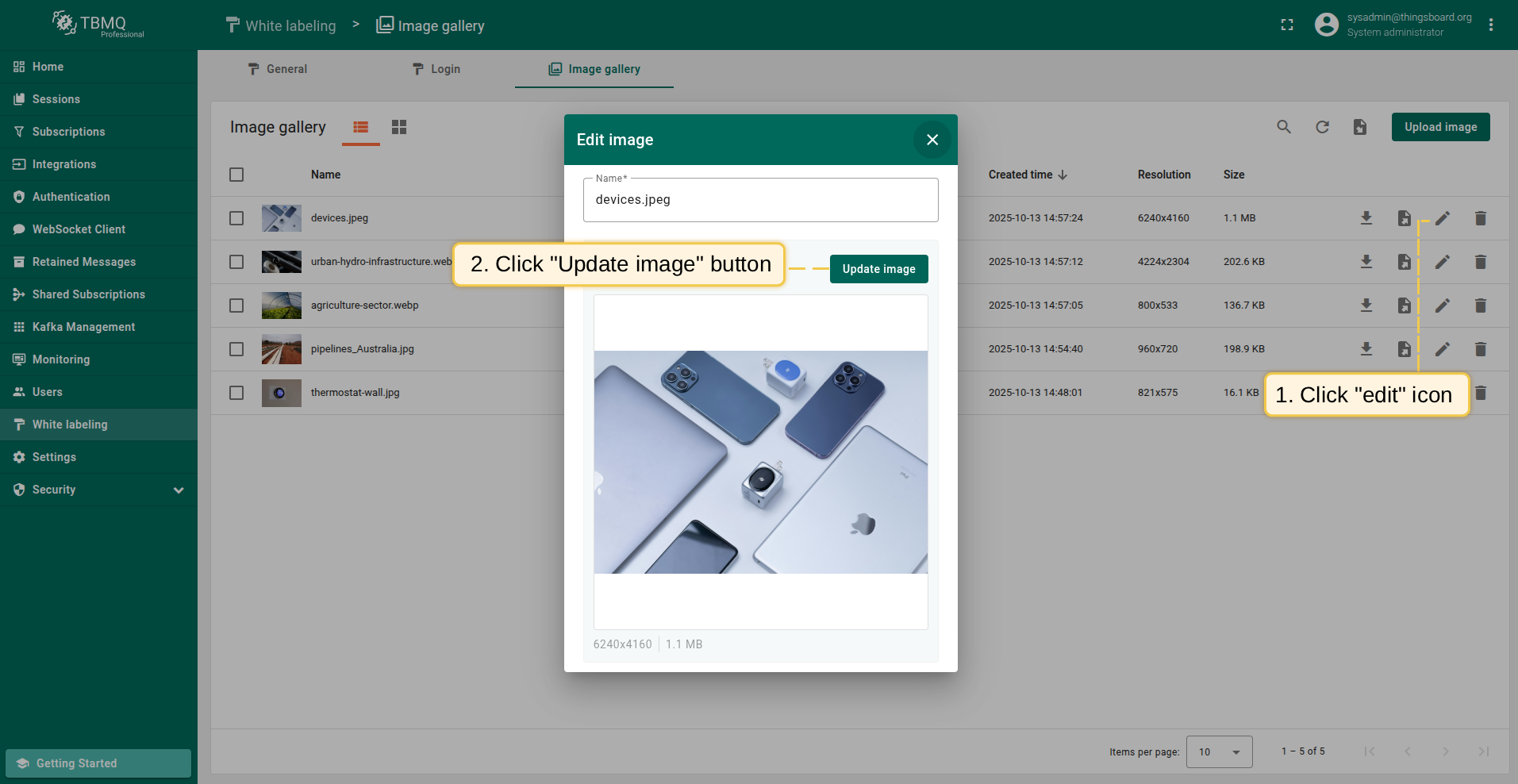
To open editing an image window, click the "Edit image" icon next to the image name that you want to edit;
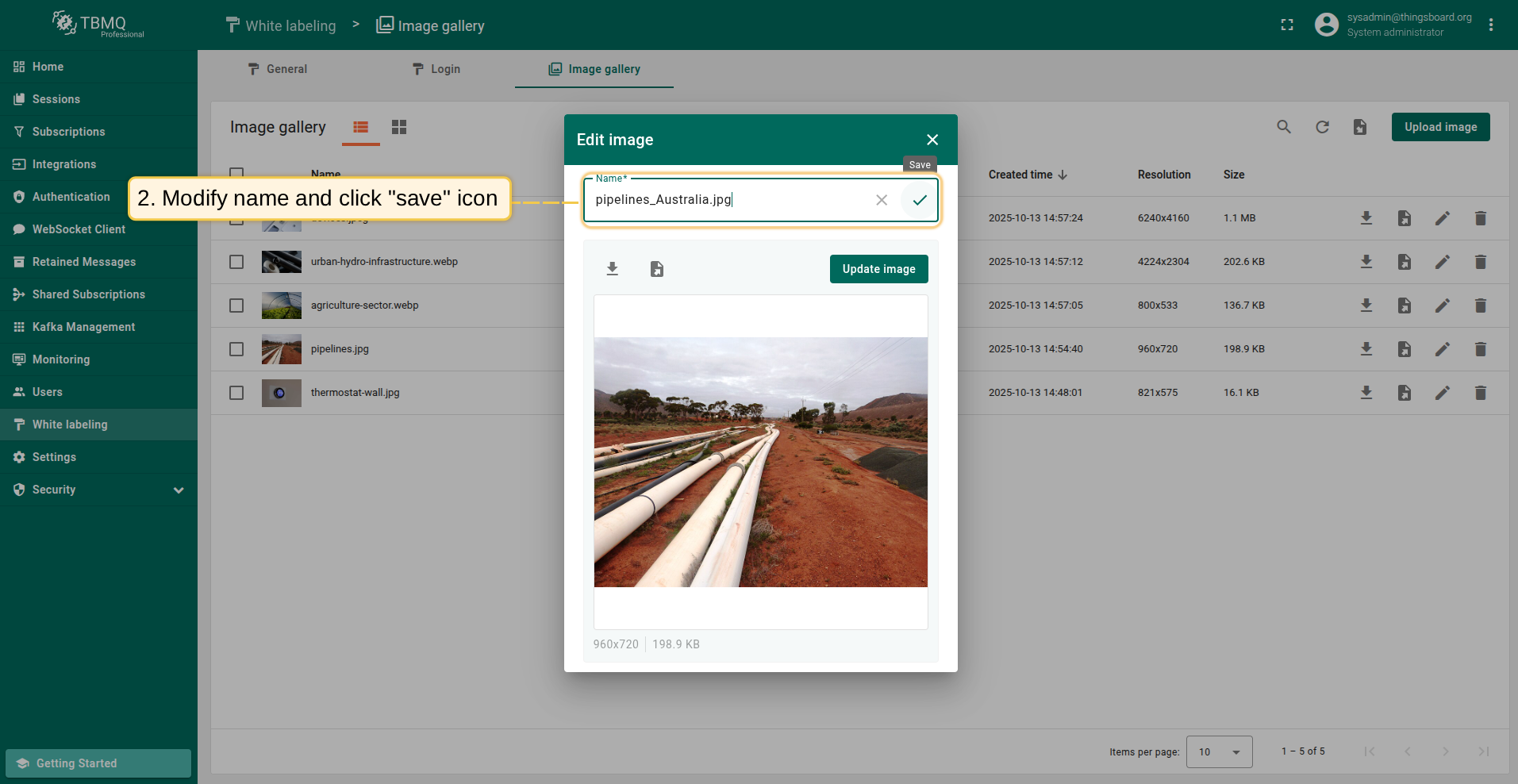
In this window, you can rename, download, export to JSON, and update image. Enter a new name and click the "Save" icon to change the image name.
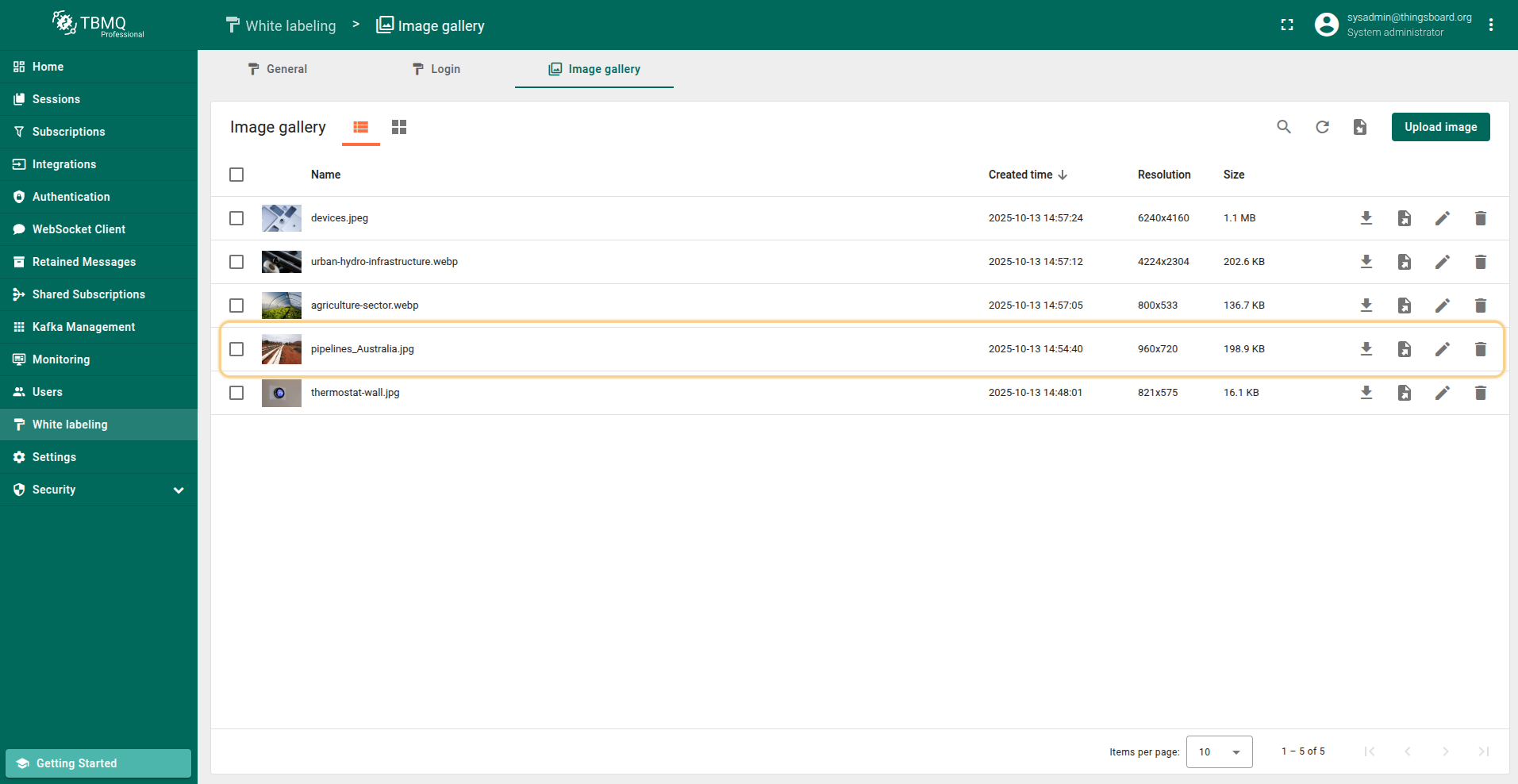
The image name has been changed.
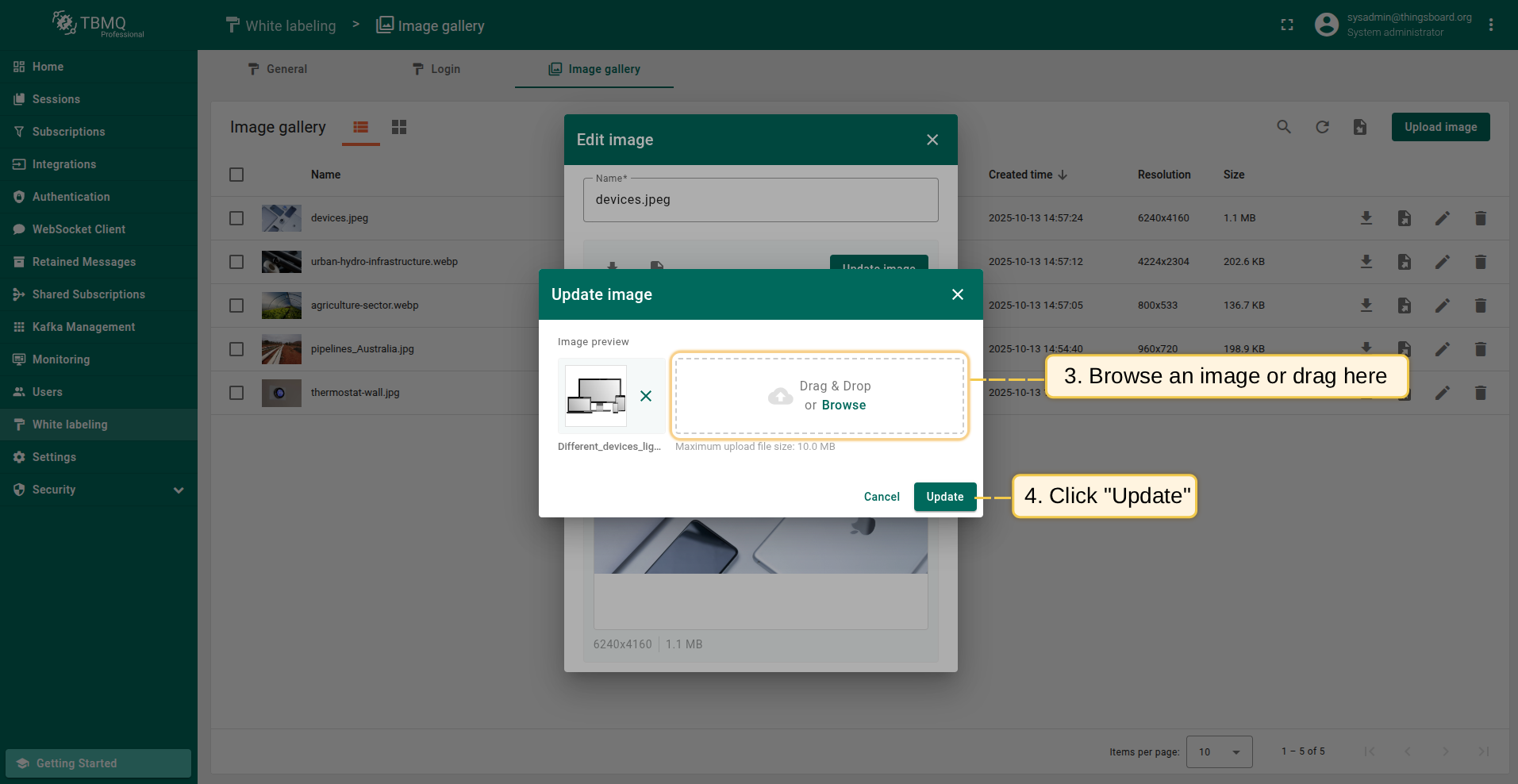
To update the image, click the "Update image" button in the image editing window;
Select a new image or simply drag it here and click the "Update" button;
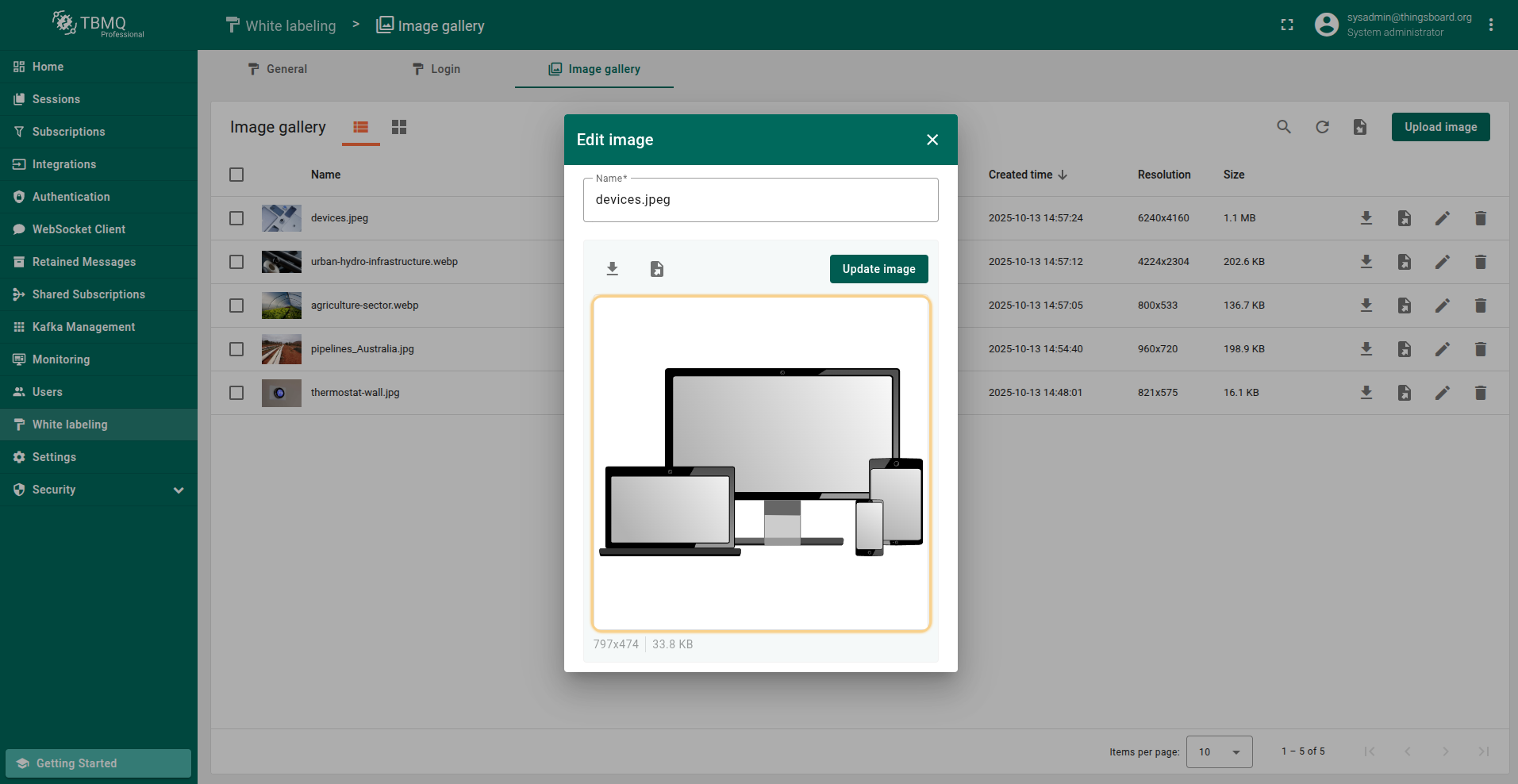
The image has been updated.
删除图片
从图片列表中删除图片,请按以下步骤操作:
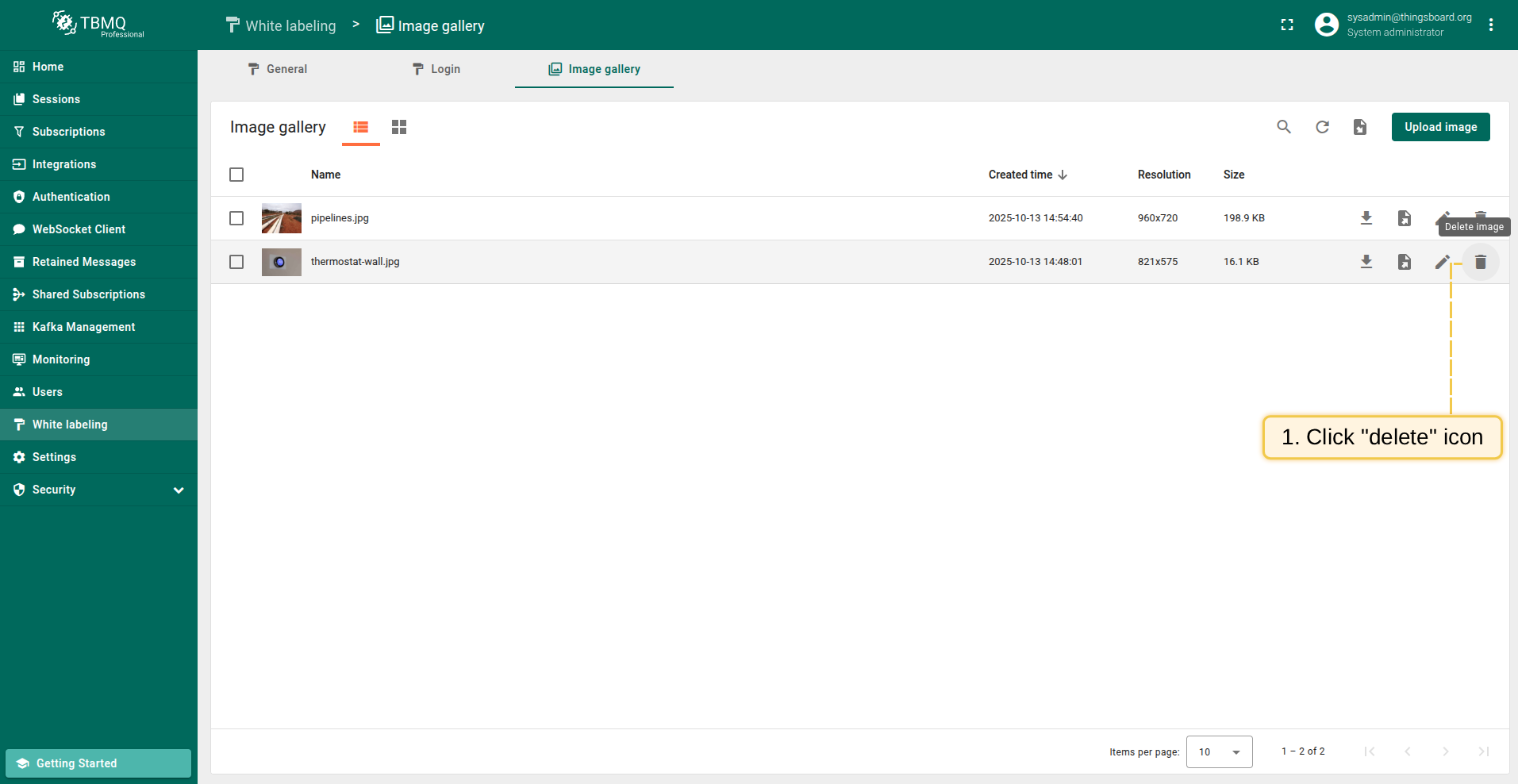
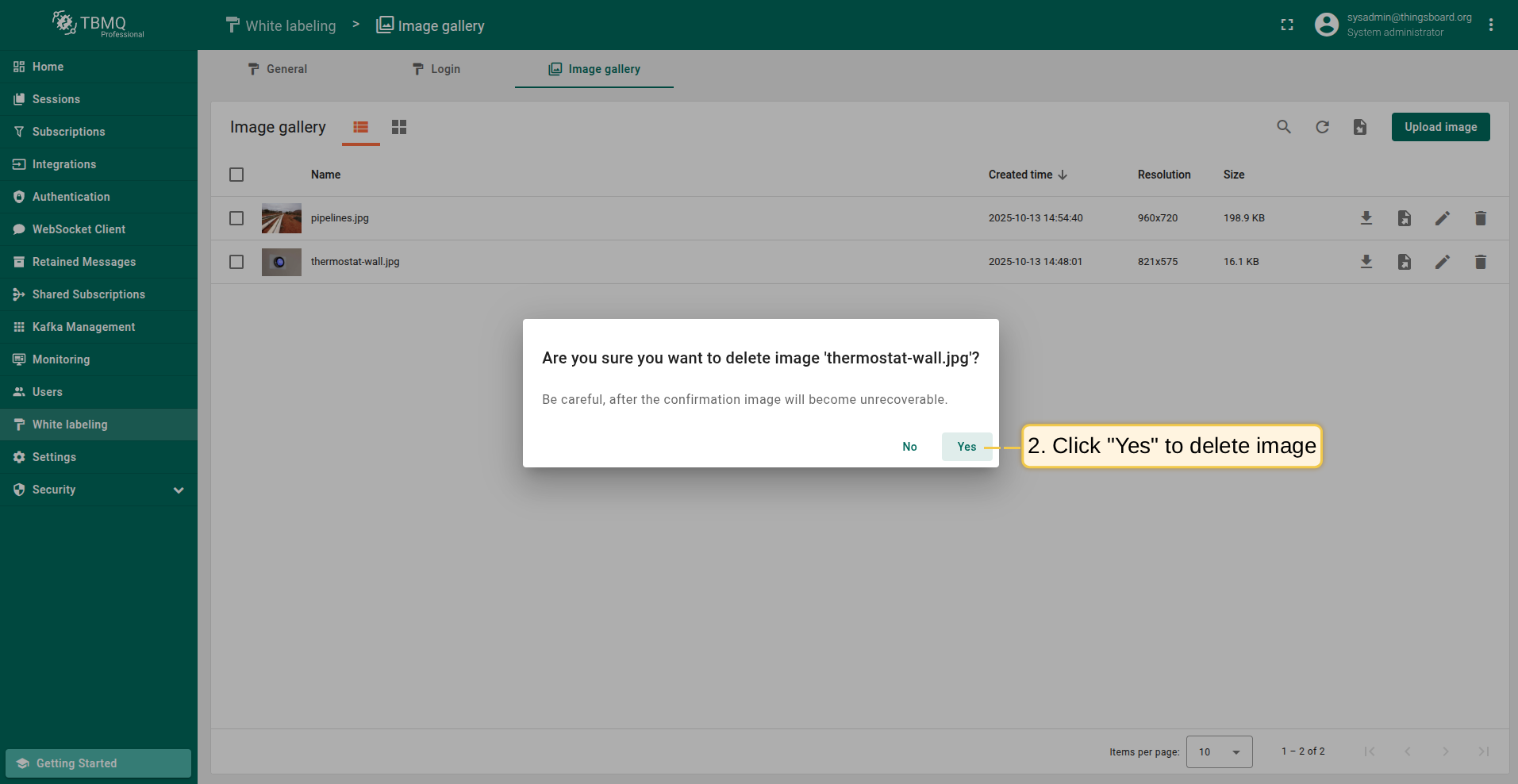
Click the "Delete image" icon opposite the image's name you want to delete;
Confirm deleting the image in the dialog box
Click the "Delete image" icon opposite the image's name you want to delete;
Confirm deleting the image in the dialog box
删除以网格显示的图片,请按以下步骤操作:
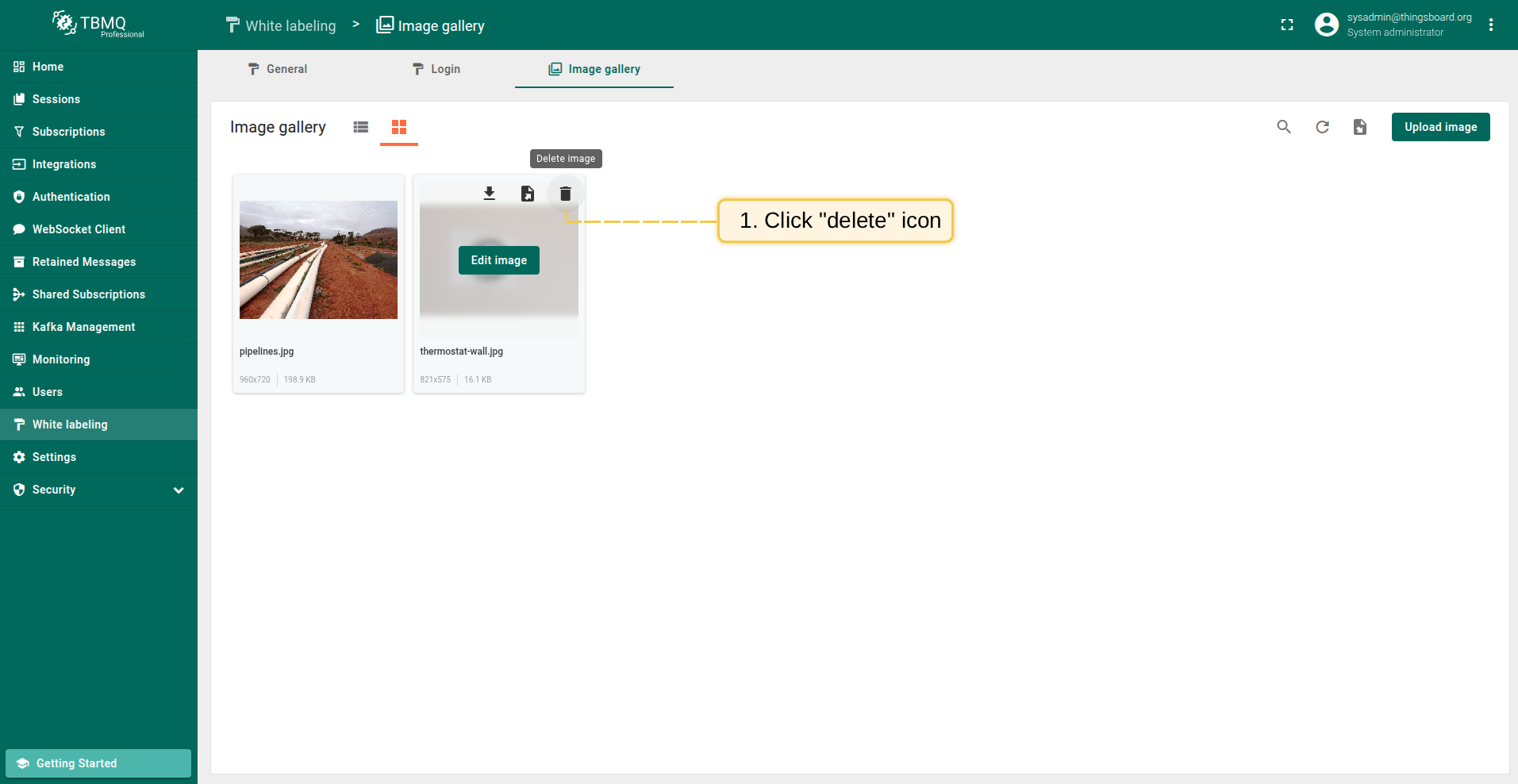
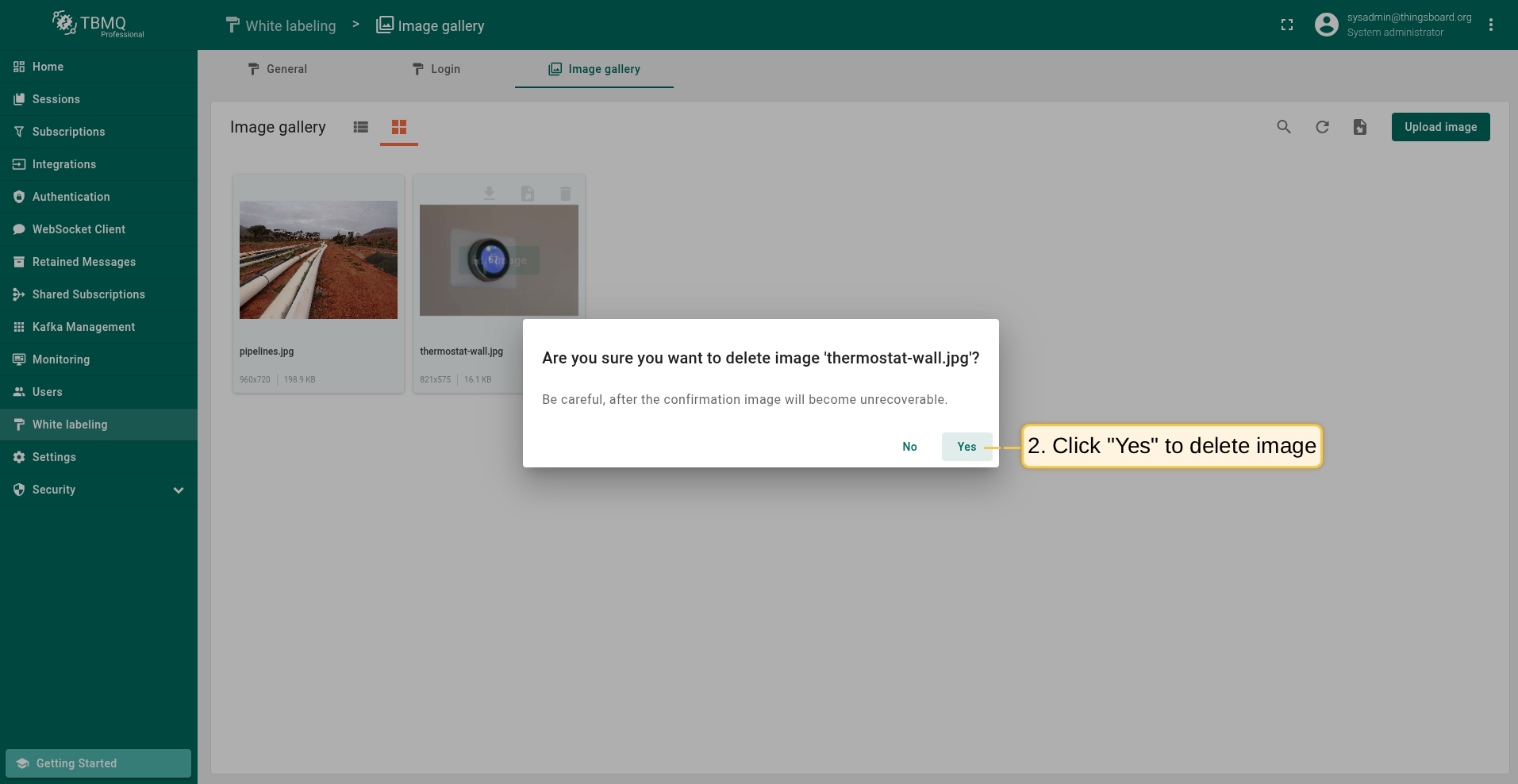
Hover your mouse over the image you want to delete and click the "Delete image" icon;
Confirm deleting the image in the dialog box
Hover your mouse over the image you want to delete and click the "Delete image" icon;
Confirm deleting the image in the dialog box
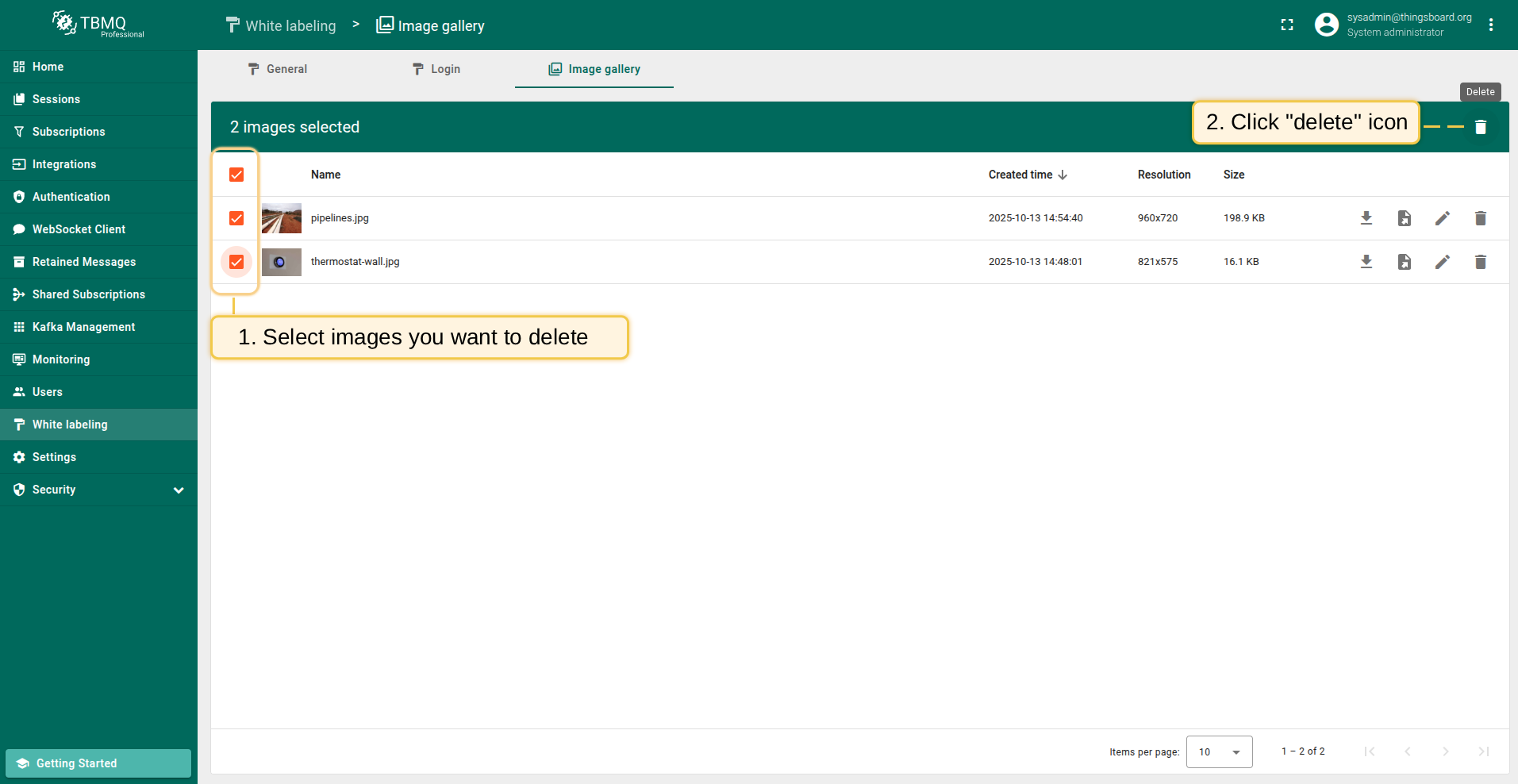
也可批量删除多张图片(仅支持列表视图):
Mark one or multiple images you want to delete. Click on the "Delete" bin icon in the top right corner;
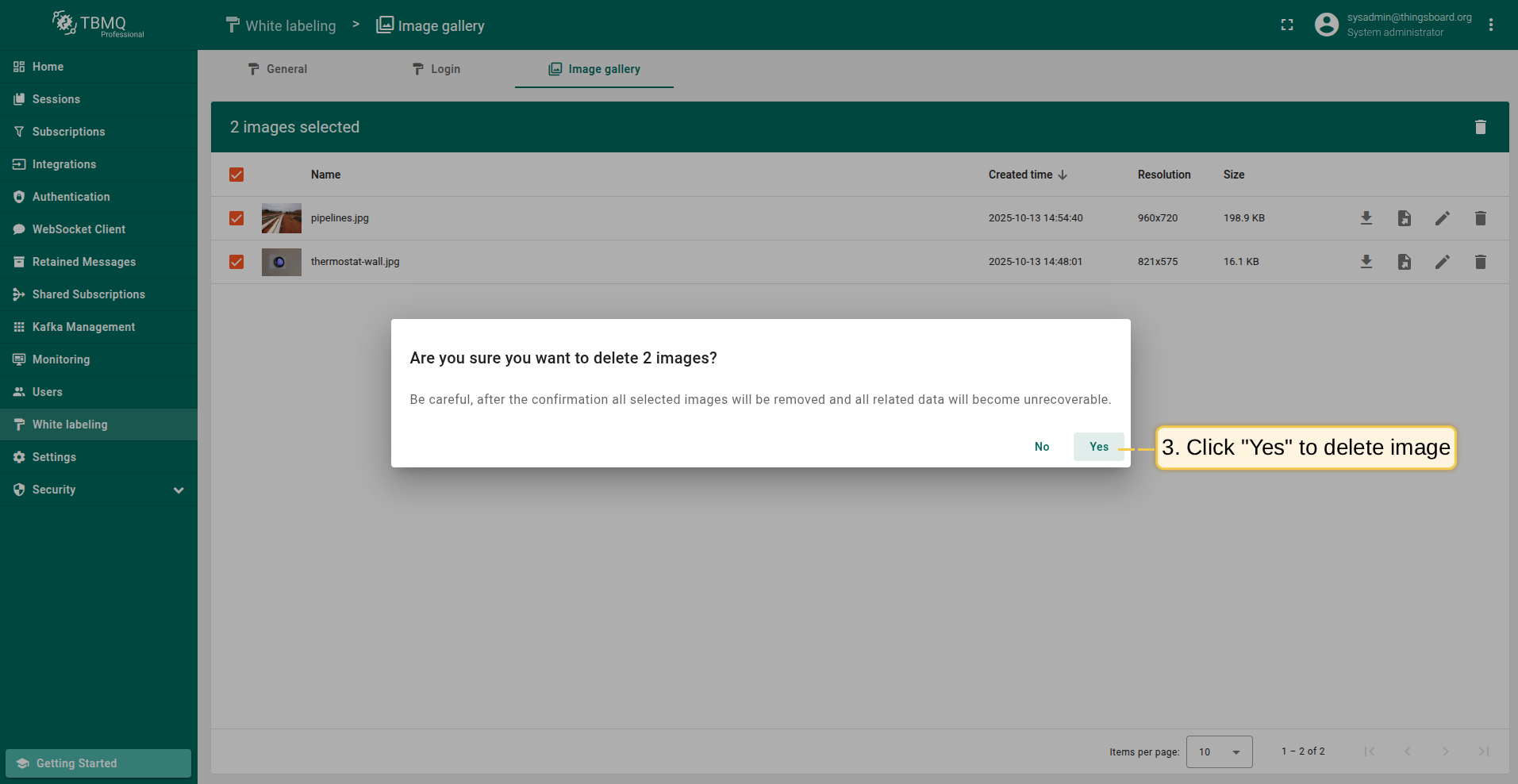
Confirm deleting images in the dialog box
Mark one or multiple images you want to delete. Click on the "Delete" bin icon in the top right corner;
Confirm deleting images in the dialog box