产品定价 立即试用
目录
如何将 UG65 LoRaWAN® Semi-Industrial Gateway 连接至 ThingsBoard?

概述

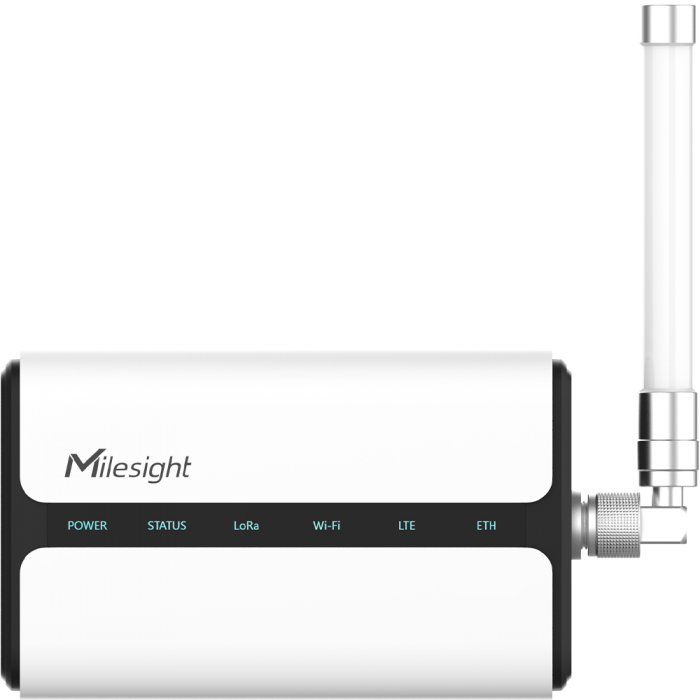
UG65 LoRaWAN® Gateway是一款坚固的8通道室内LoRaWAN® 网关。采用SX1302 LoRa芯片与高性能四核CPU,支持超过2000个节点连接。

主要特性:

  • 大内存四核工业处理器
  • 搭载SX1302芯片,更高吞吐、更低功耗
  • 8个半双工/全双工通道
  • IP65外壳,工业设计,可应对屋檐等半户外场景
  • 桌面、壁挂或抱杆安装
  • 以太网、蜂窝(4G/3G)、Wi-Fi多回传备份
  • DeviceHub与Milesight IoT Cloud便于远程设备集中管理
  • 支持IPsec/OpenVPN/L2TP/PPTP/DMVPN等多种VPN安全通信
  • 兼容The Things Industries、ChirpStack等主流网络服务器
  • 噪声检测与分析,提供直观部署图
  • 内置网络服务器及MQTT/HTTP/HTTPS API,便于集成
  • 嵌入式Python SDK支持二次开发
  • 基于Node-RED的快速可视化开发
文档信息图标
ThingsBoard PE 功能

专业版支持Platform Integrations功能。
请使用ThingsBoard Cloud自行安装平台实例。

完成本指南中的步骤后,您将在网络服务器上获得已连接并配置好的网关,并在ThingsBoard中完成集成,从而添加设备、接收并处理数据。

前置条件

继续本指南前,需准备以下内容:

网关连接

根据官方用户手册本指南,您可以通过以下两种方式将网关接入网络并访问Web界面:

  • 无线连接:
    1. 在电脑上启用无线网络连接,搜索并连接接入点”Gateway_**“。
    2. 在电脑上打开浏览器,输入IP地址 192.168.1.1 访问Web管理界面。
    3. 输入用户名(默认:admin)和密码(默认:password),点击 登录
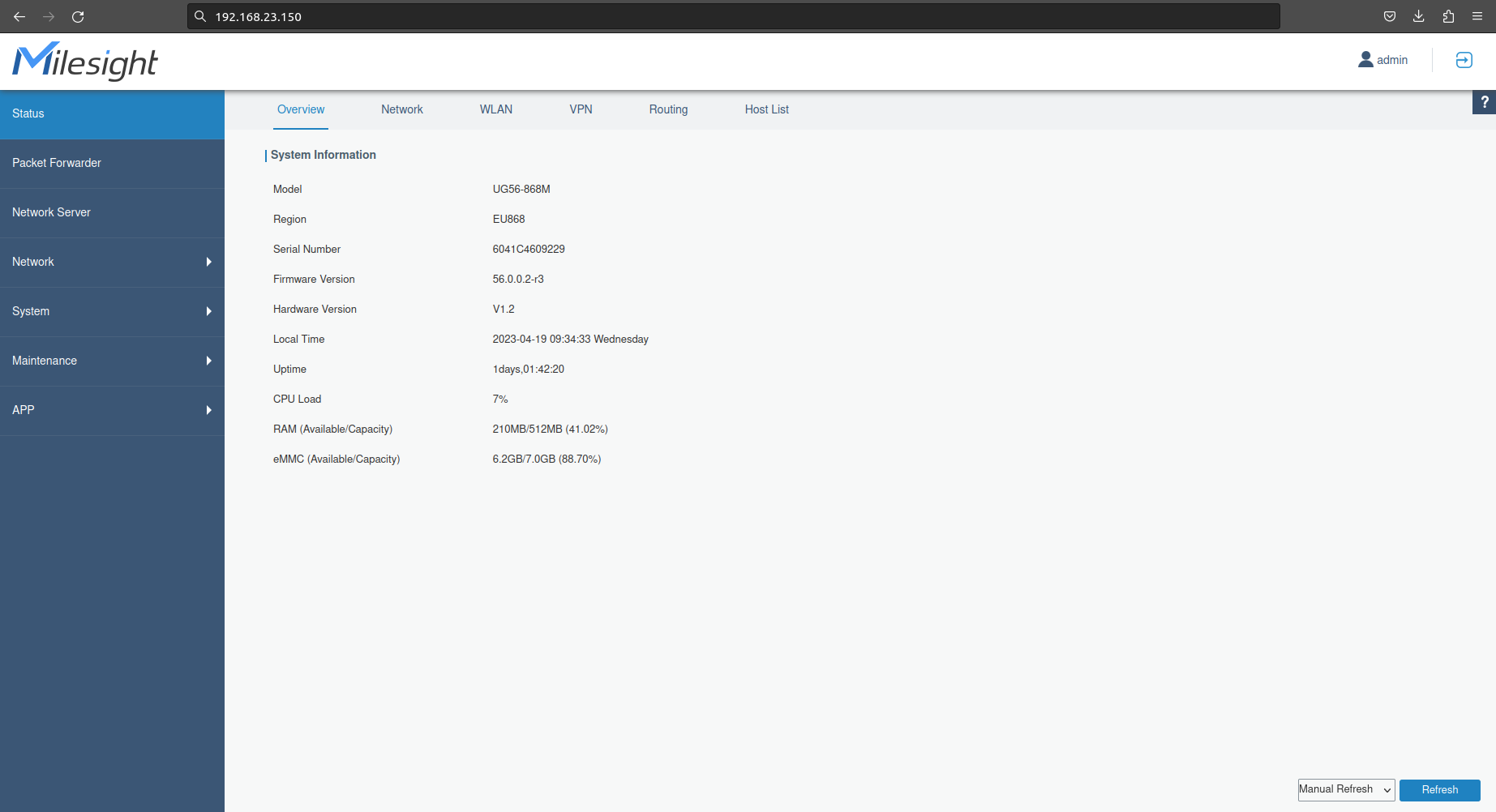
  • 有线连接: 将电脑通过网线直连UG65的Ethernet口,或通过PoE注入器连接,以访问网关Web界面。以下步骤以Windows 10为例。

    1. 打开“控制面板”→“网络和Internet”→“网络和共享中心”,点击“Ethernet”(名称可能不同)。
    2. 进入“属性”→“Internet协议版本4(TCP/IPv4)”,选择“使用下面的IP地址”,手动设置与网关同网段的静态IP。
    3. 在电脑上打开浏览器,输入IP地址 192.168.23.150 访问Web管理界面。
    4. 输入用户名和密码,点击“登录”。
  • 此时您已可以配置网关。

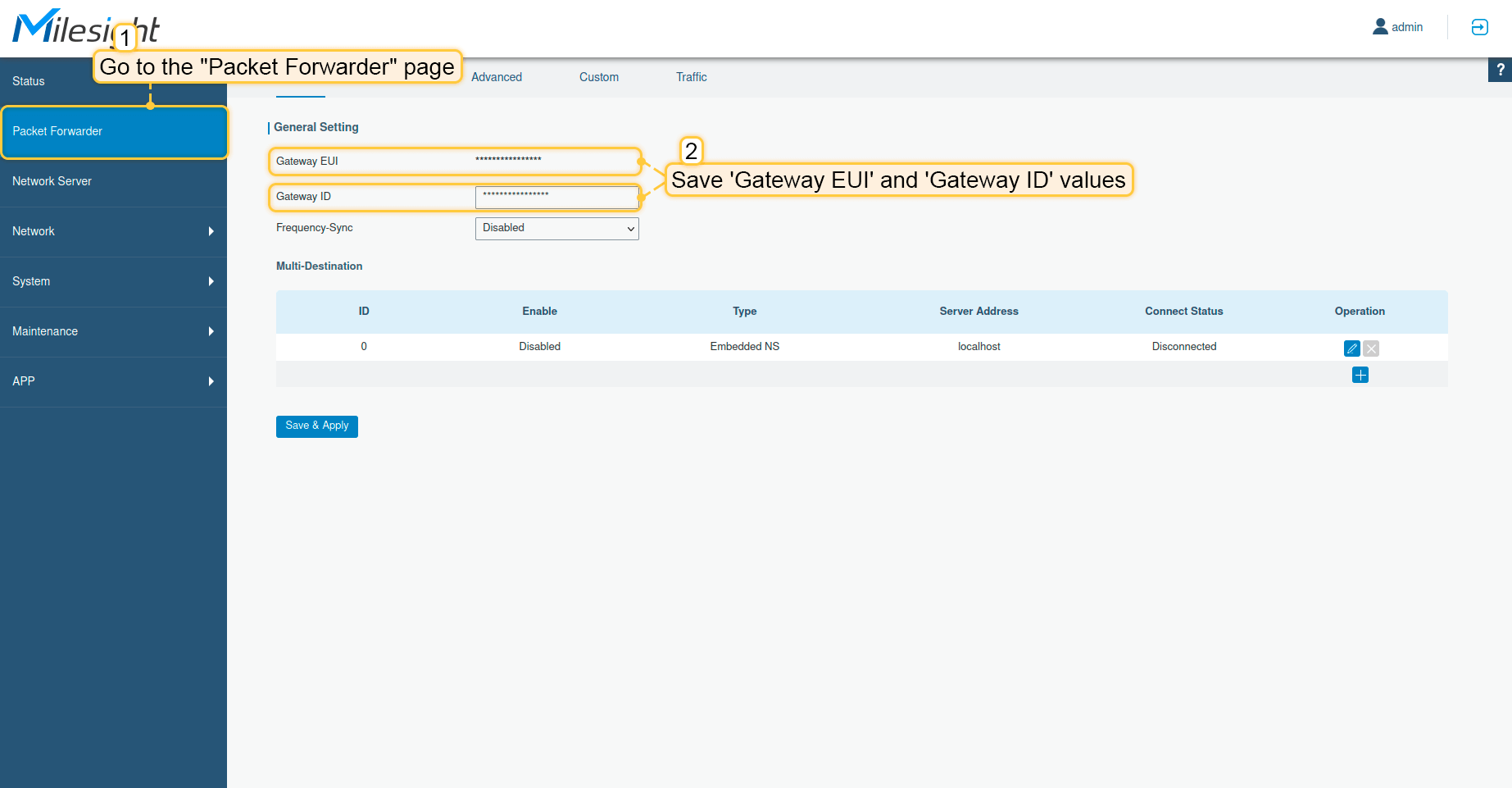
  • 在左侧菜单中打开 Packet Forwarder,记录 Gateway EUIGateway ID,用于在网络服务器上创建网关。

默认情况下,Gateway EUI与Gateway ID相同。

下一步将说明如何将网关连接到网络服务器。

配置

要与网络服务器建立集成,请先选择以下受支持的网络服务器之一:

在ChirpStack上添加网关

我们需要在 ChirpStack 上添加网关。

要添加网关,请按以下步骤操作:
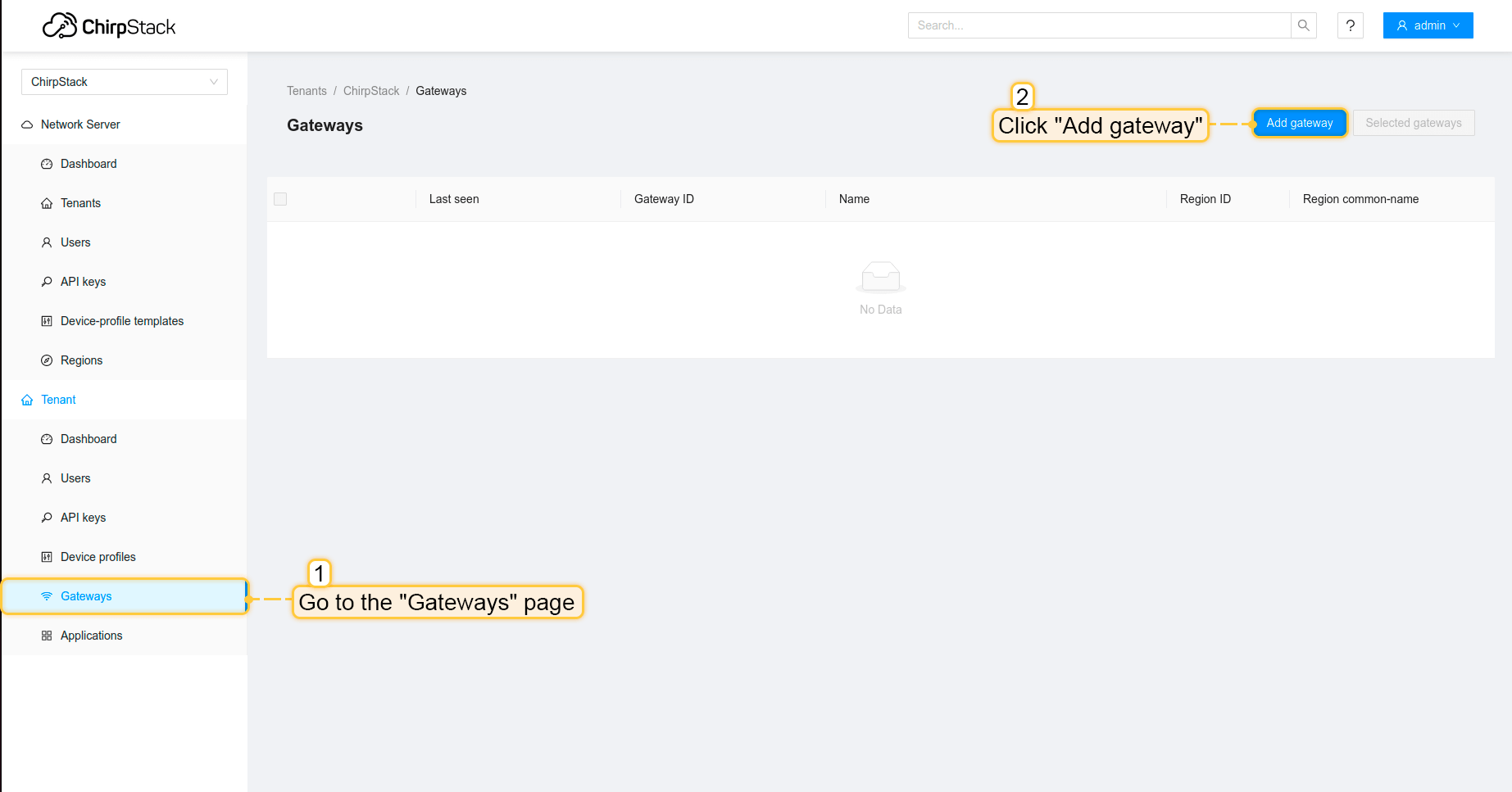
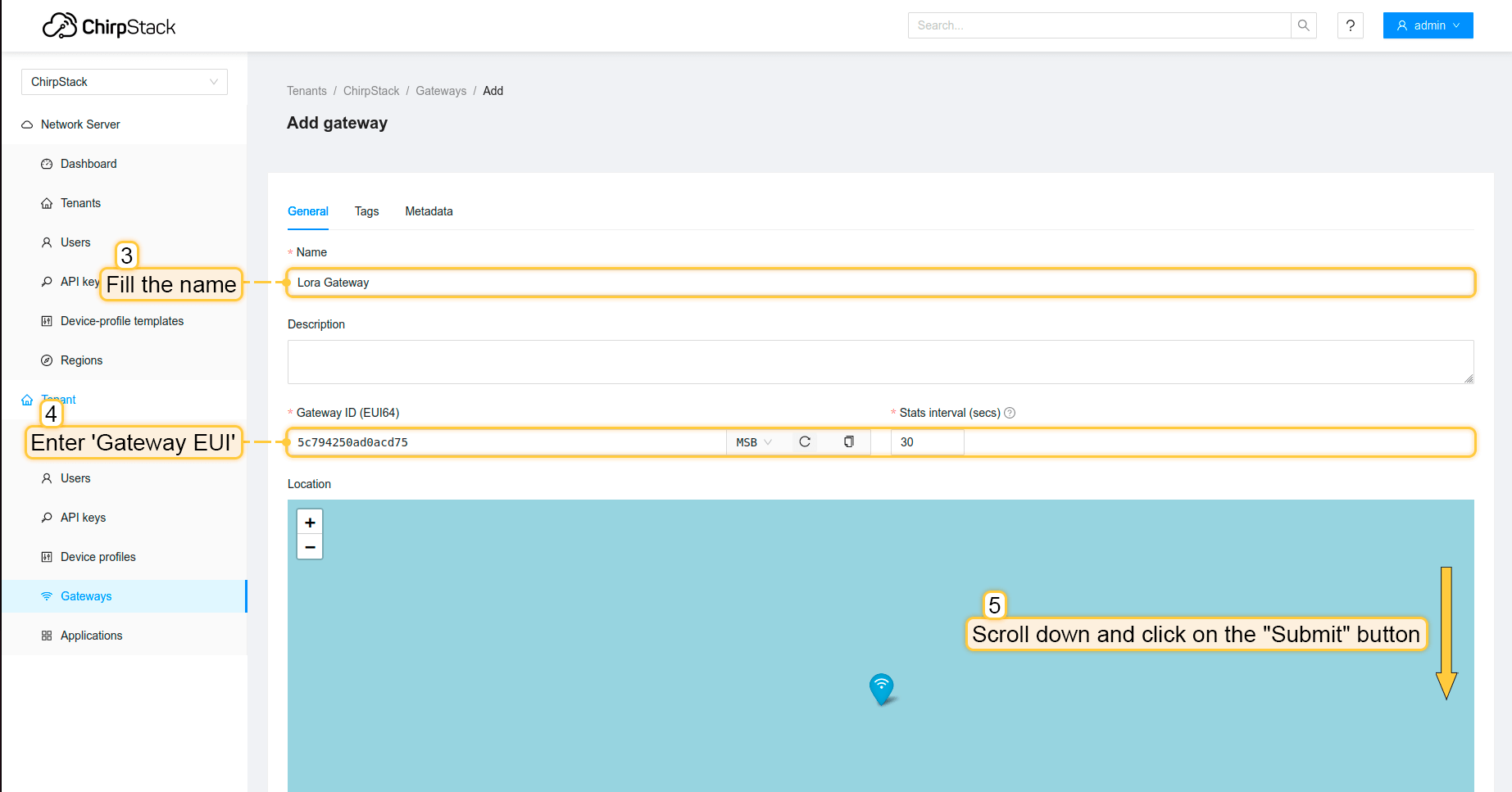
  • 登录ChirpStack服务器。进入“网关”页面,点击“添加网关”按钮。

  • 填写 名称网关EUI(根据您的网关而定,可在网关控制面板上查看),向下滚动并点击“提交”按钮。
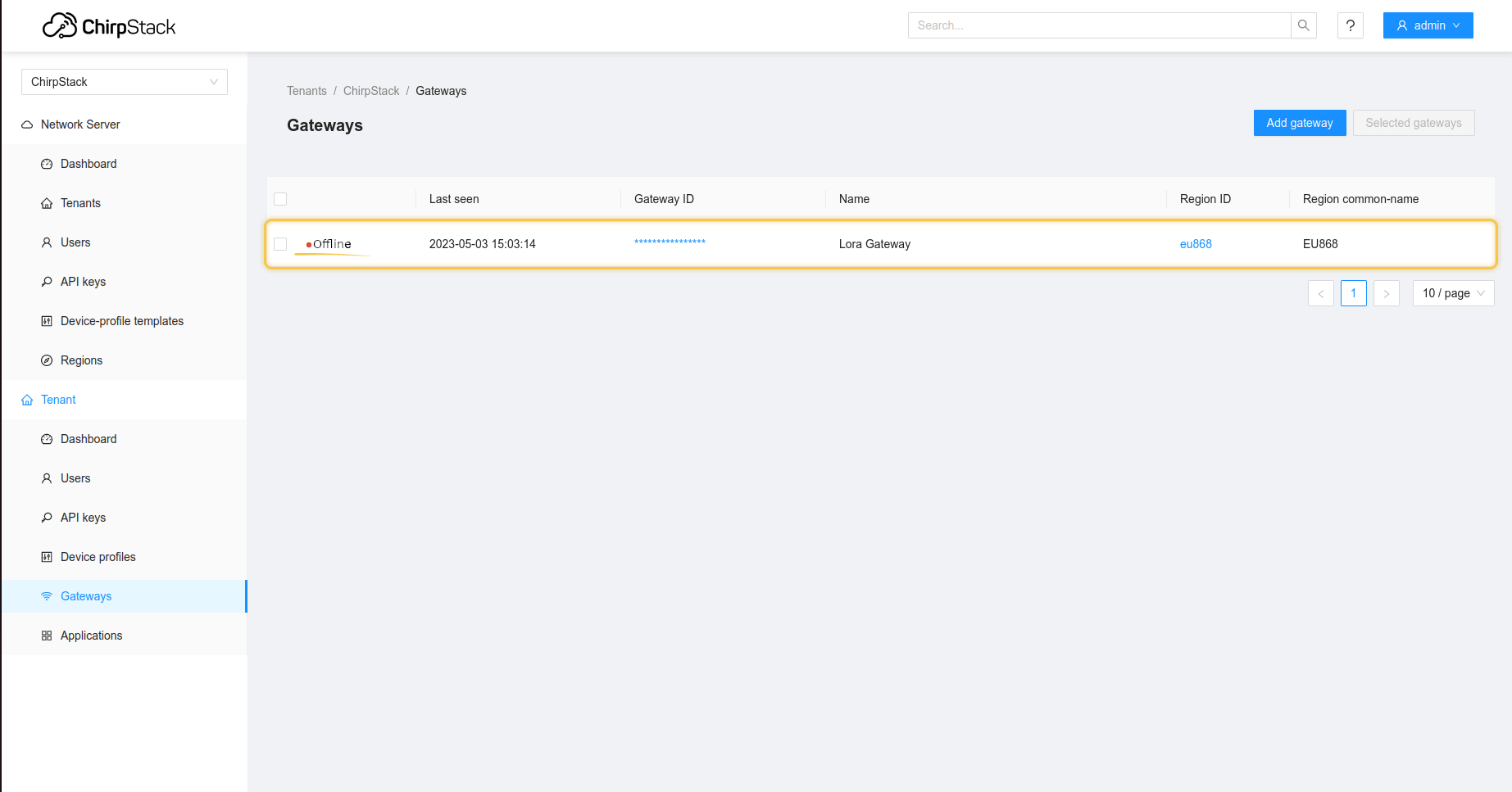
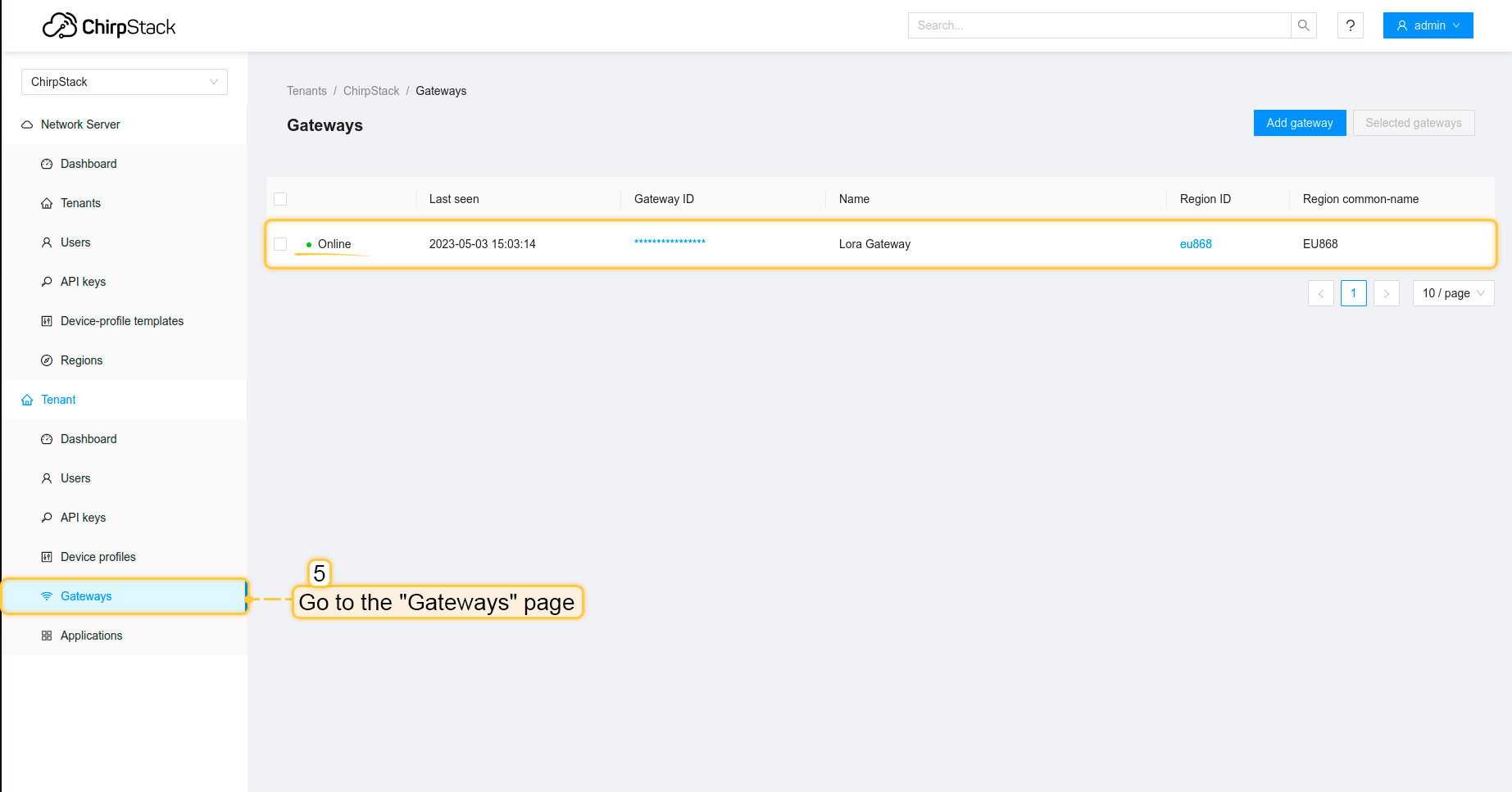
  • 网关已添加。在网关列表中可查看其状态。

配置网关以发送数据

要将网关连接并发送数据到ChirpStack,需要配置网关。 请按以下步骤操作:
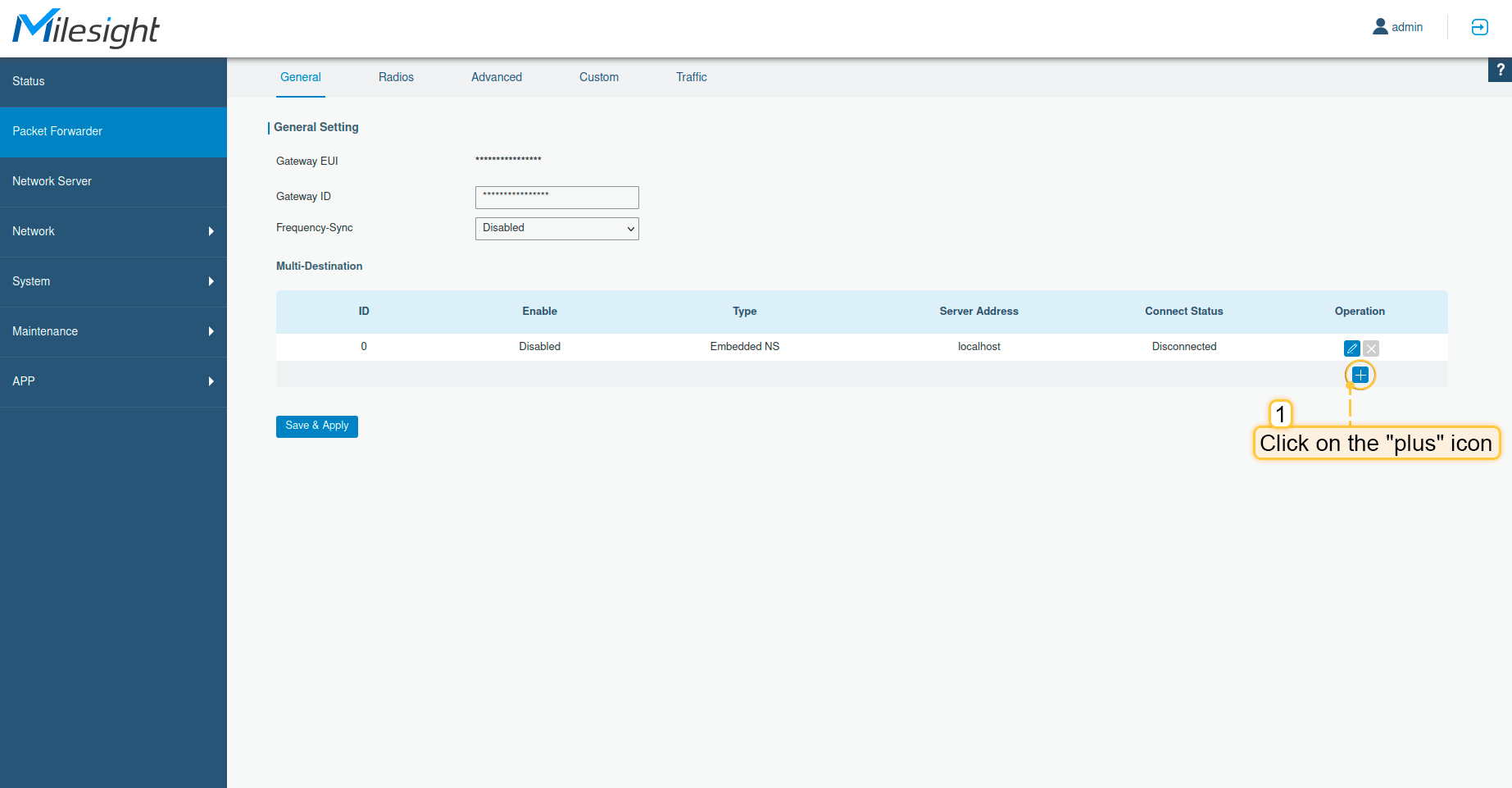
  • 打开网关控制面板。进入“Packet Forwarder”页面,点击“加号”按钮添加新转发器。
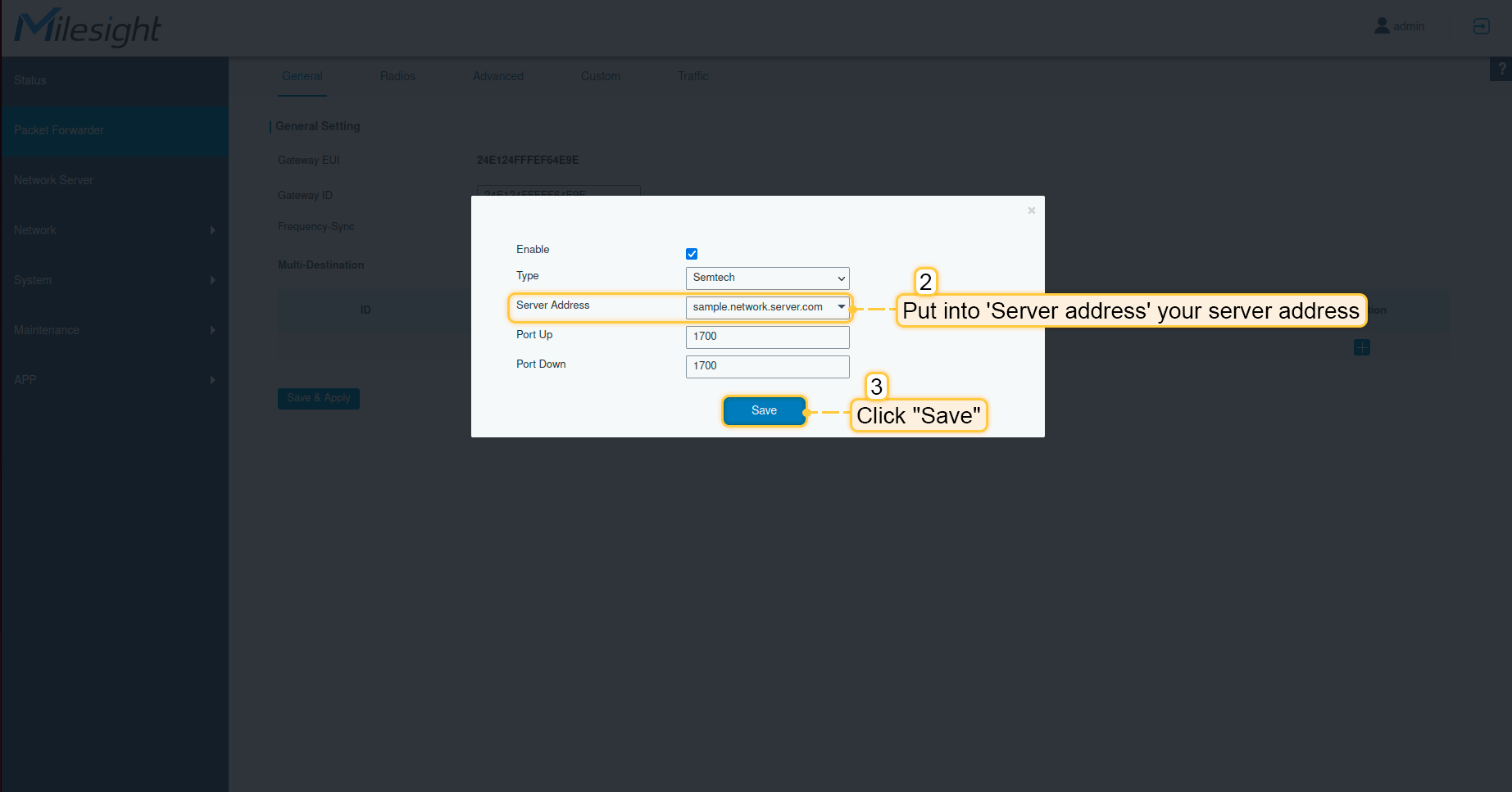
  • 在“服务器地址”中填入您的服务器地址,我们的示例为 sample.network.server.com。点击“保存”按钮。
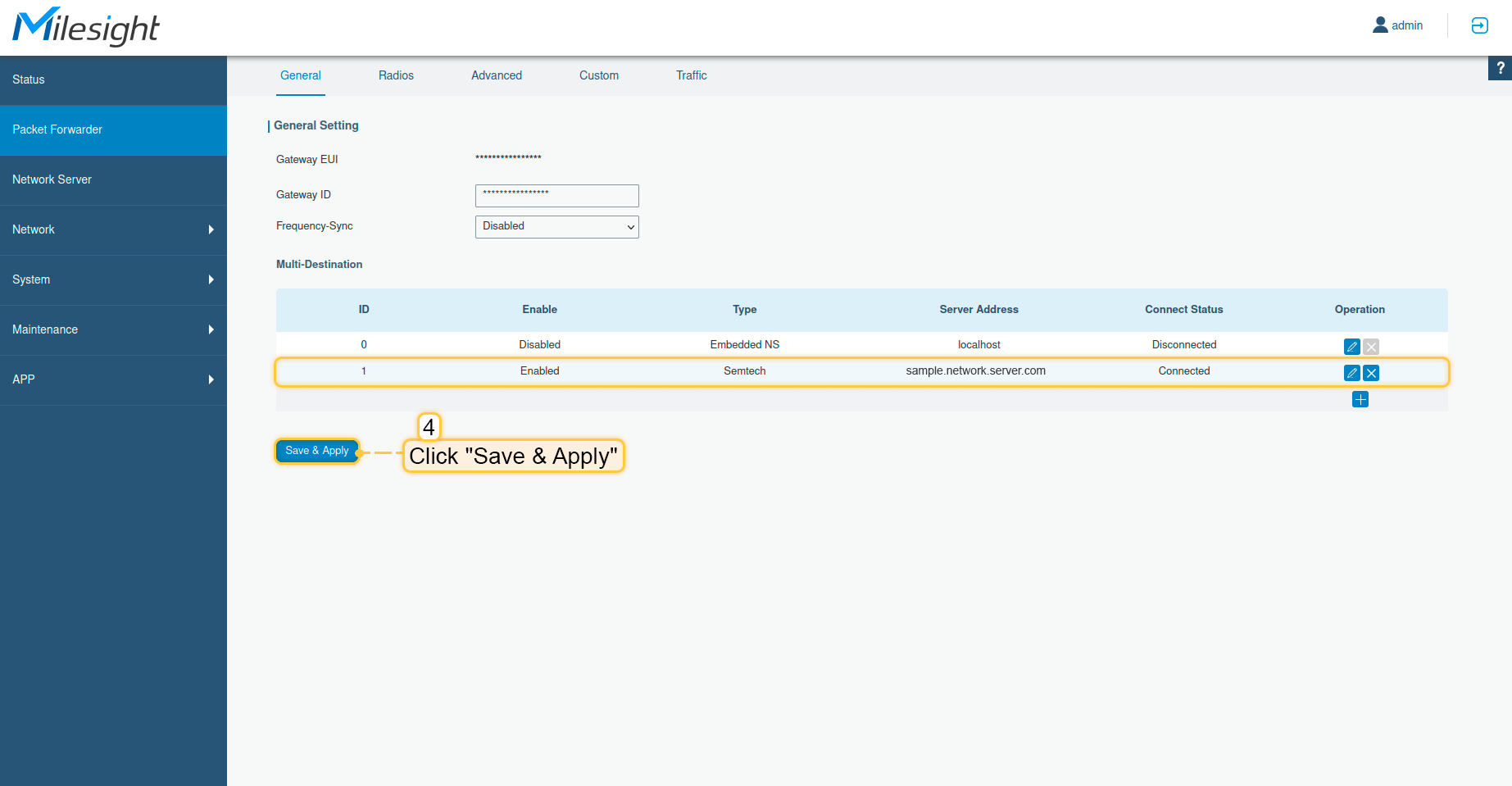
  • 点击“保存并应用”按钮。

  • 现在可以在ChirpStack上检查网关状态,应显示为在线。

至此,网关已能够向网络服务器发送数据。

在ChirpStack上配置应用

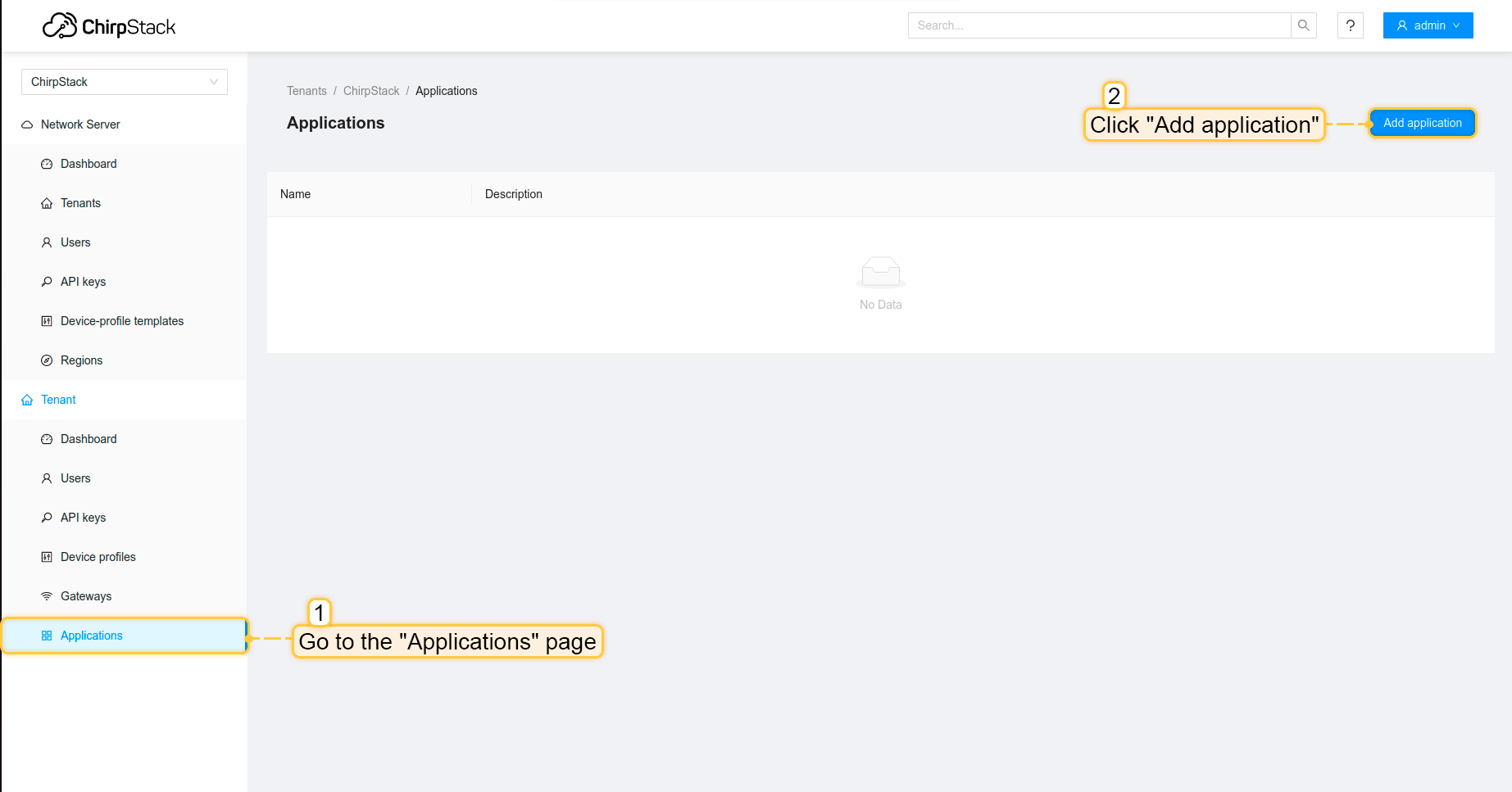
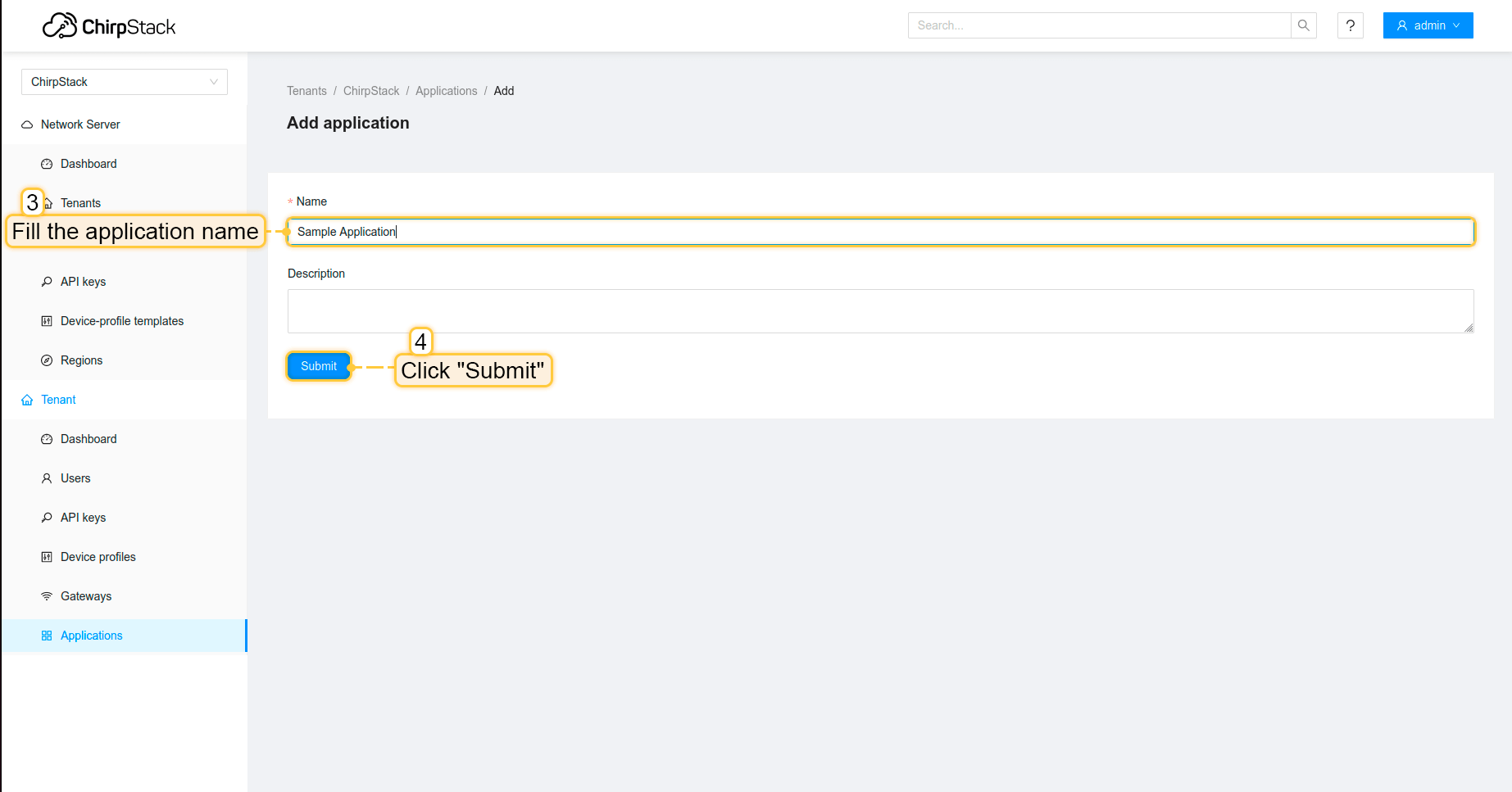
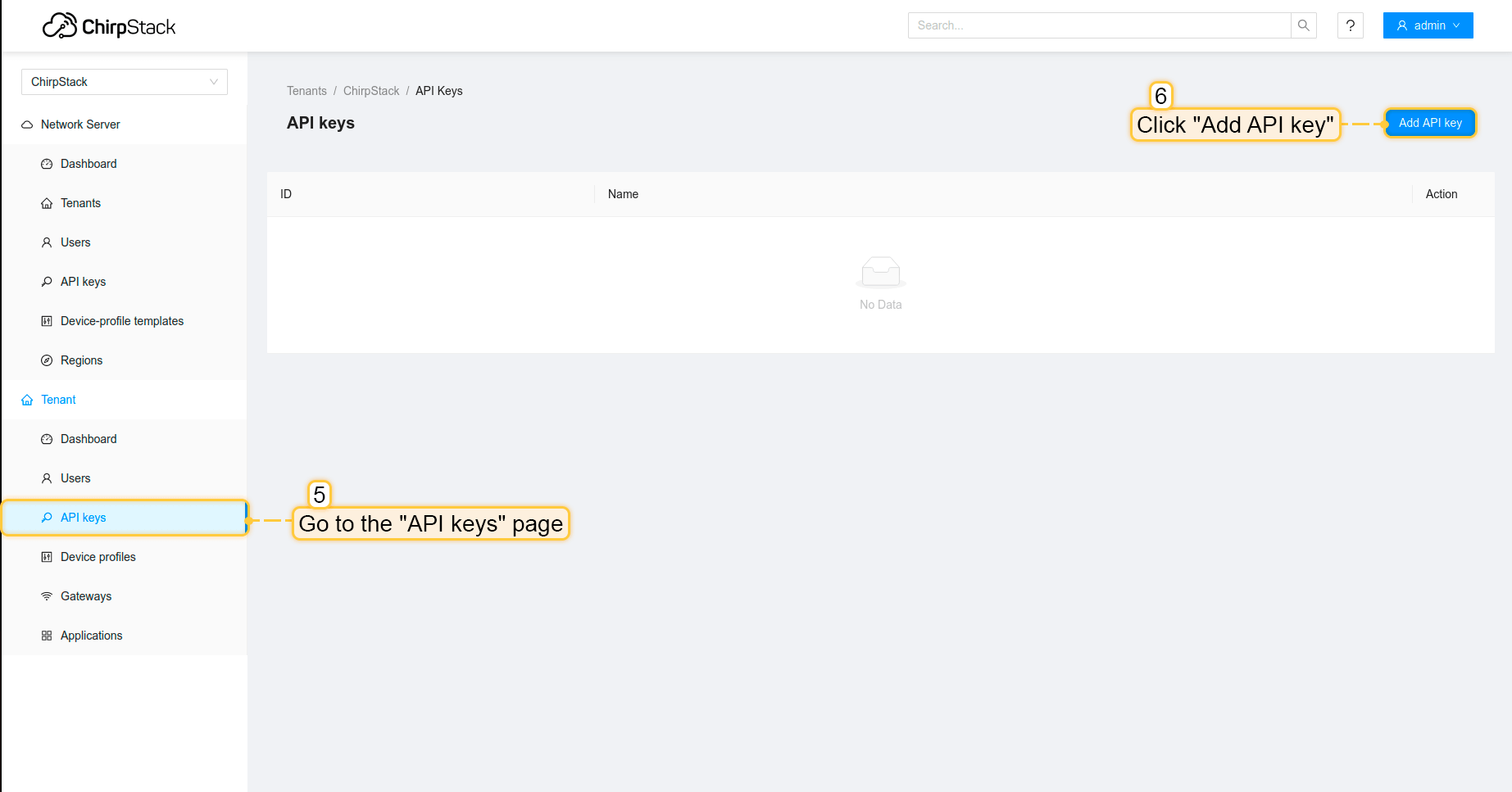
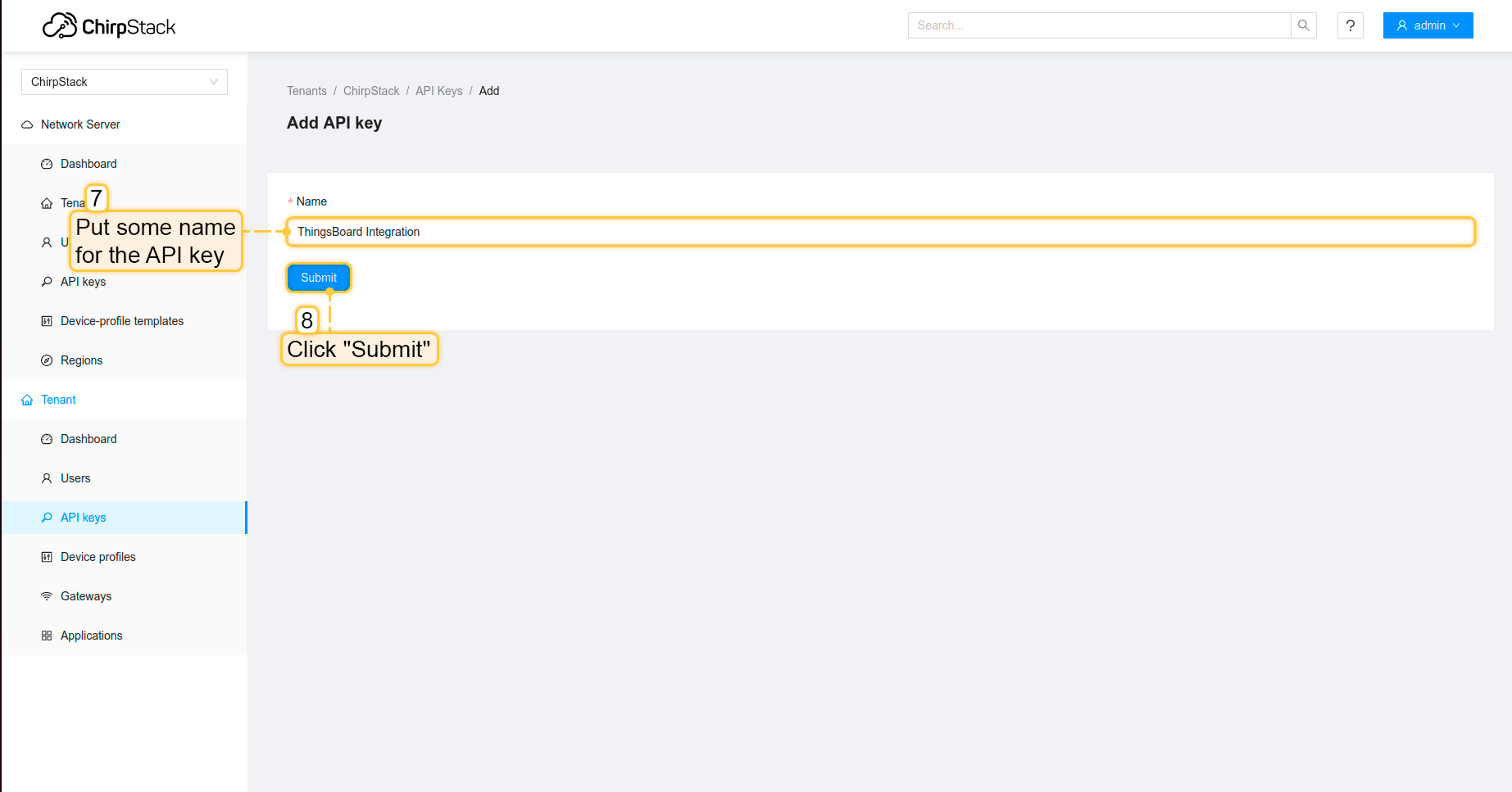
现在需要在ChirpStack上配置应用。请按以下步骤操作:

  • 在左侧菜单中进入“应用”页面,点击“添加应用”按钮。

  • 填写应用名称并点击“提交”按钮。

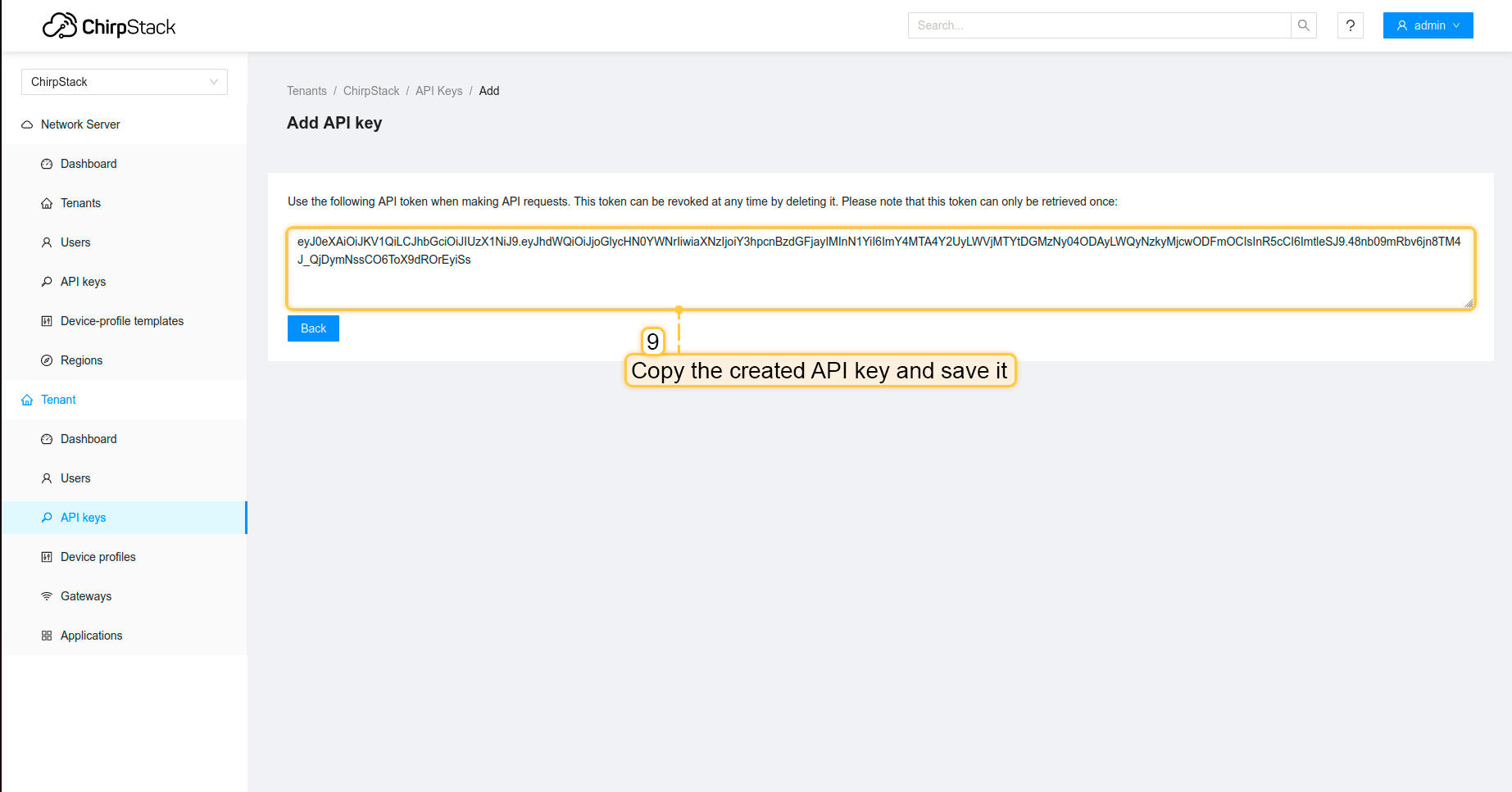
  • 在左侧菜单中进入 API密钥 页面,点击“添加API密钥”按钮。

  • 为API密钥设置名称并点击“提交”按钮。

  • 复制创建的API密钥并保存,稍后在ThingsBoard上配置集成时需要用到。

现在可以前往ThingsBoard配置集成。

在ThingsBoard中创建集成

接下来,我们将在ThingsBoard中创建与ChirpStack的集成,并在ChirpStack上配置集成。

首先,复制以下代码,创建上行数据转换器时需要用到:

1
2
3
4
5
6
7
8
9
10
11
12
13
14
15
16
17
18
19
20
21
22
23
24
25
26
27
28
29
30
31
32
33
34
35
36
37
38
39
40
41
42
43
44
45
46
47
48
49
50
51
52
53
54
55
56
57
58
59
60
61
62
63
64
65
66
67
68
69
70
71
72
73
74
75
76
77
78
79
80
81
82
83
84
85
86
87
88
89
90
91
92
93
var data = decodeToJson(payload);
var deviceName = data.deviceInfo.deviceName;
var deviceType = data.deviceInfo.deviceProfileName;

// If you want to parse incoming data somehow, you can add your code to this function.
// input: bytes
// expected output:
//  {
//    "attributes": {"attributeKey": "attributeValue"},
//    "telemetry": {"telemetryKey": "telemetryValue"}
//  }
// default functionality - convert bytes to HEX string with telemetry key "HEX_bytes"

function decodePayload(input) {
    var output = { attributes:{}, telemetry: {} };
    // --- Decoding code --- //

    output.telemetry.HEX_bytes = bytesToHex(input);
    
    // --- Decoding code --- //
    return output;
}

// --- attributes and telemetry objects ---
var telemetry = {};
var attributes = {};
// --- attributes and telemetry objects ---

// --- Timestamp parsing
var dateString = data.time.substring(0, data.time.lastIndexOf('+')-3) + "Z";
var timestamp = new Date(dateString).getTime();
// --- Timestamp parsing

// You can add some keys manually to attributes or telemetry
attributes.fPort = data.port;
attributes.encodedData = data.data;

// You can exclude some keys from the result
var excludeFromAttributesList = ["deviceName", "rxInfo", "txInfo", "deduplicationId", "time", "dr", "fCnt", "fPort"];
var excludeFromTelemetryList = ["data", "deviceInfo", "devAddr", "adr"];

// Message parsing
// To avoid paths in the decoded objects we passing false value to function as "pathInKey" argument.
// Warning: pathInKey can cause already found fields to be overwritten with the last value found.

var telemetryData = toFlatMap(data, excludeFromTelemetryList, false);
var attributesData = toFlatMap(data, excludeFromAttributesList, false);

var uplinkDataList = [];

// Passing incoming bytes to decodePayload function, to get custom decoding
var customDecoding = decodePayload(hexToBytes(data.data));

// Collecting data to result
if (customDecoding.?telemetry.size() > 0) {
    telemetry.putAll(customDecoding.telemetry);
}

if (customDecoding.?attributes.size() > 0) {
    attributes.putAll(customDecoding.attributes);
}

telemetry.putAll(telemetryData);
attributes.putAll(attributesData);

var deviceInfo = {
    deviceName: deviceName,
    deviceType: deviceType,
    telemetry: {
        ts: timestamp,
        values: telemetry
    },
    attributes: attributes
};

uplinkDataList.add(deviceInfo);

if (data.cmd == "gw") {
    foreach( gatewayInfo : data.gws ) {
        var gatewayInfoMsg = {
            deviceName: gatewayInfo.gweui,
            deviceType: "LoraGateway",
            attributes: {},
            telemetry: {
                "ts": gatewayInfo.ts,
                "values": toFlatMap(gatewayInfo, ["ts", "time", "gweui"], false)
            }
        };
        uplinkDataList.add(gatewayInfoMsg);
    }
}

return uplinkDataList;

请按以下步骤添加集成:

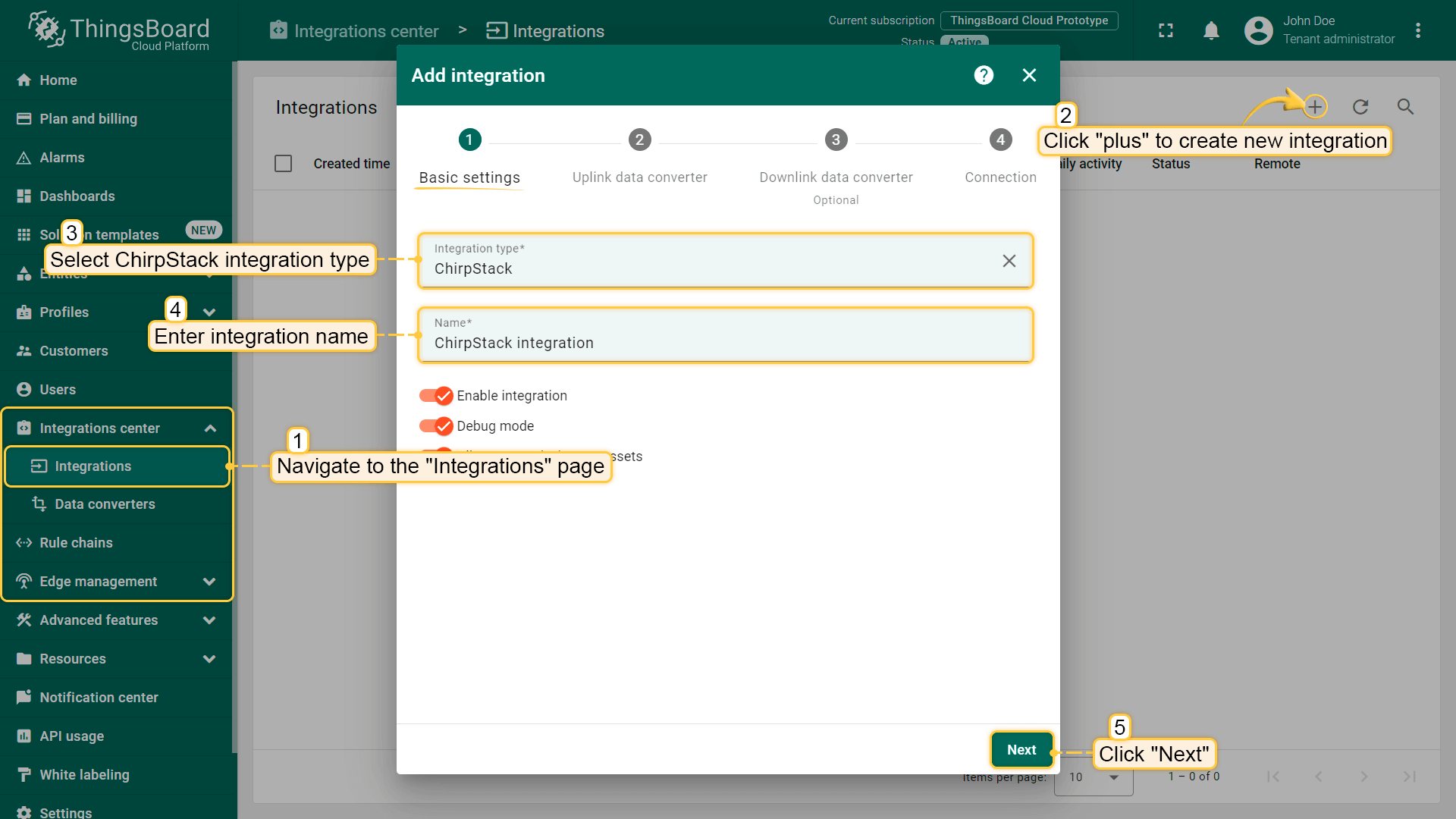
  • 进入“集成中心”部分的“集成”页面,点击“加号”按钮添加新集成。选择类型“Chirpstack”。然后点击“下一步”。
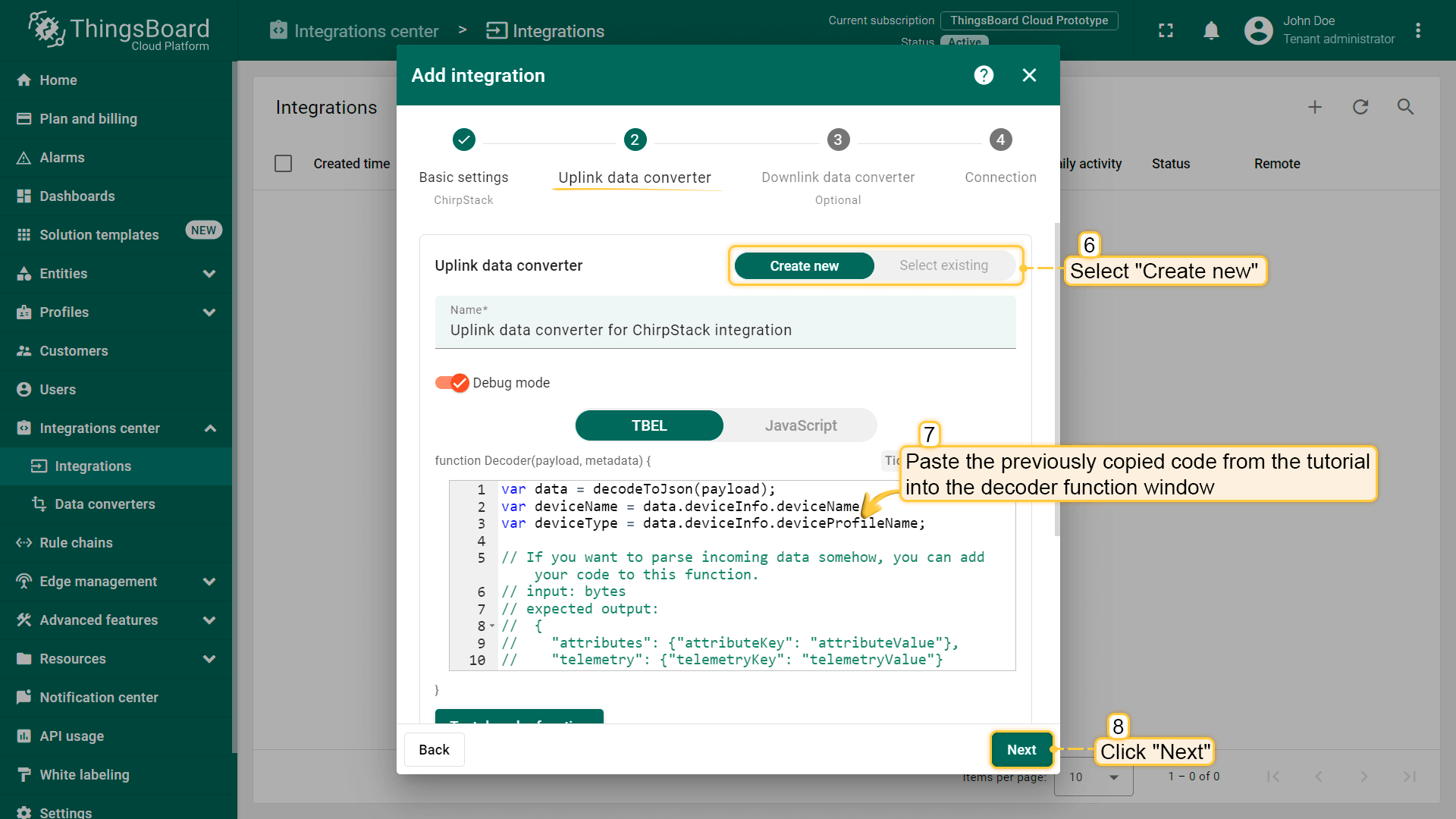
  • 将先前复制的脚本粘贴到解码器函数区域。点击“下一步”。

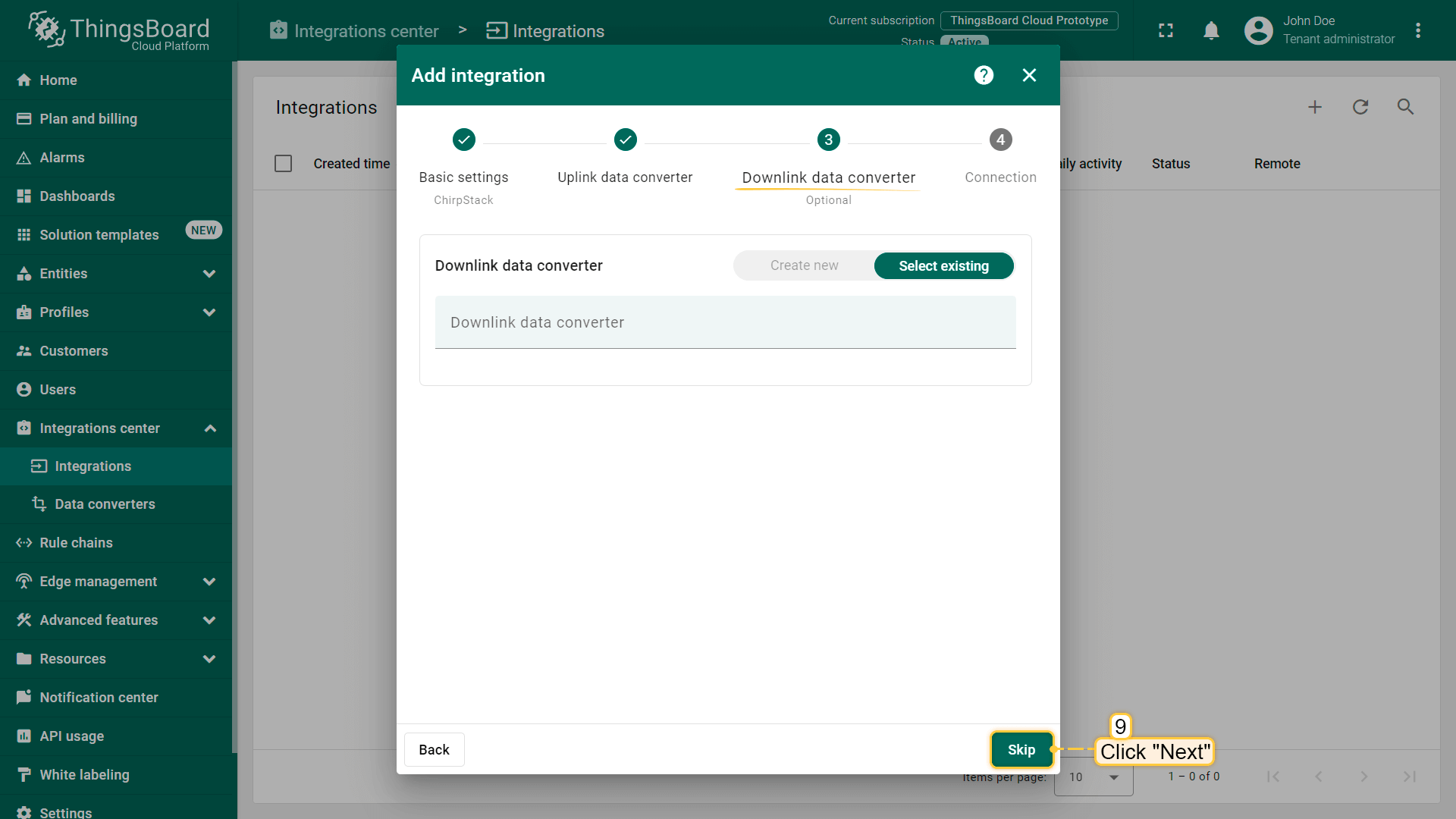
  • 将“下行数据转换器”字段留空。点击“跳过”按钮。

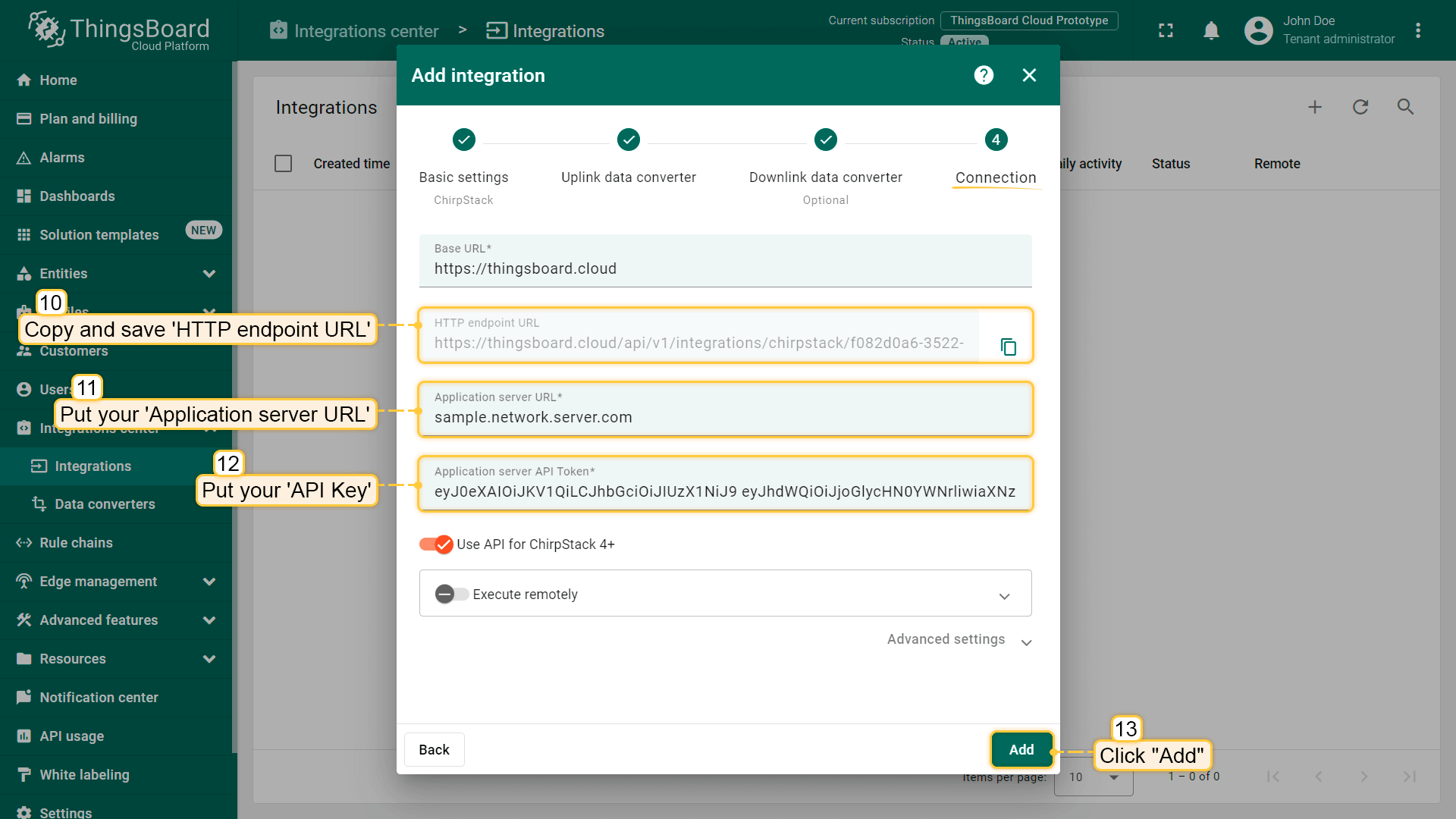
  • 填入ChirpStack的“应用服务器URL”和“API密钥”,并复制“HTTP端点URL”。点击“添加”按钮。
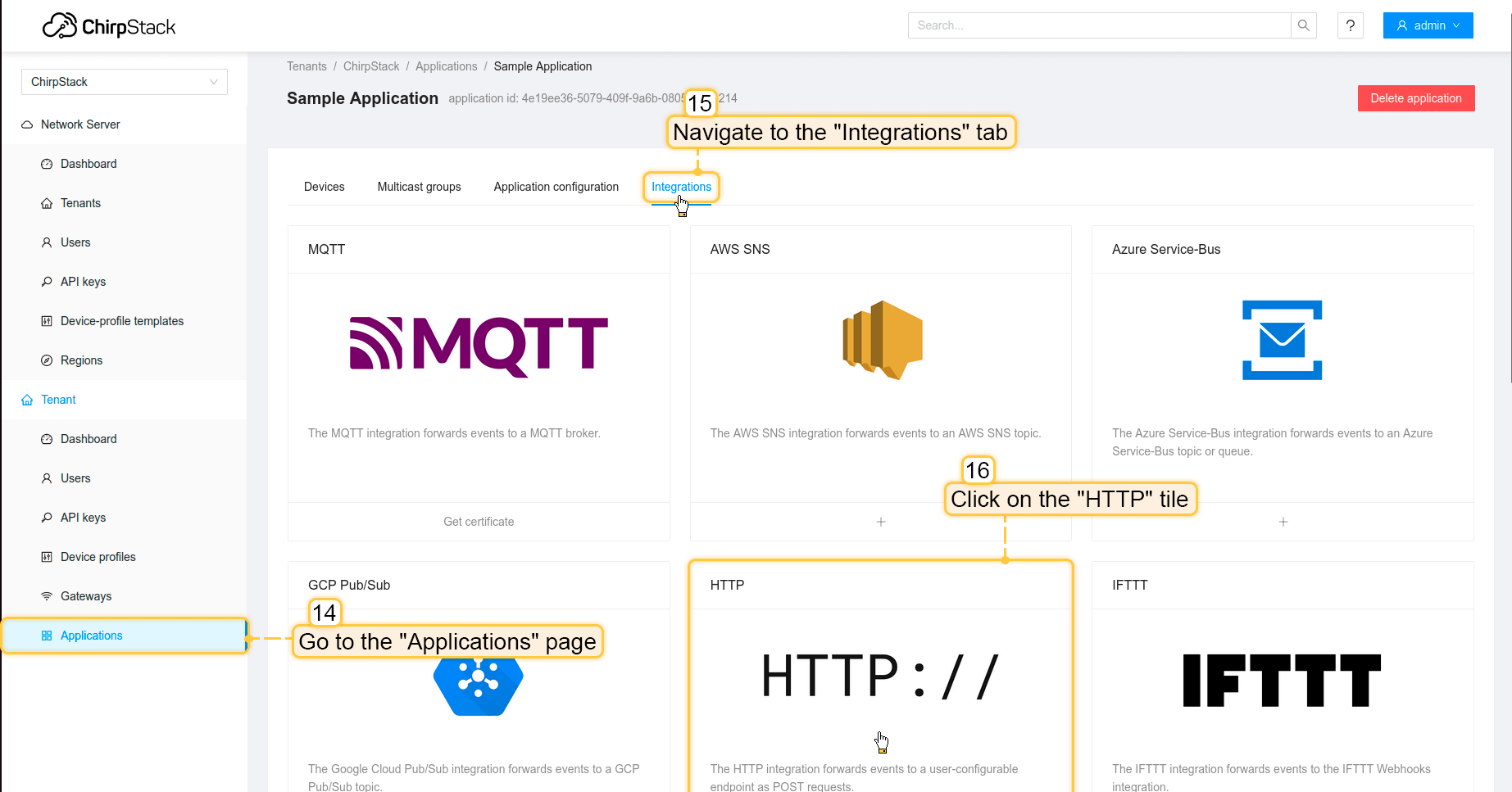
  • 现在打开ChirpStack,进入“应用”页面 -> 您的应用 ->“集成”选项卡,找到并点击 HTTP 磁贴。
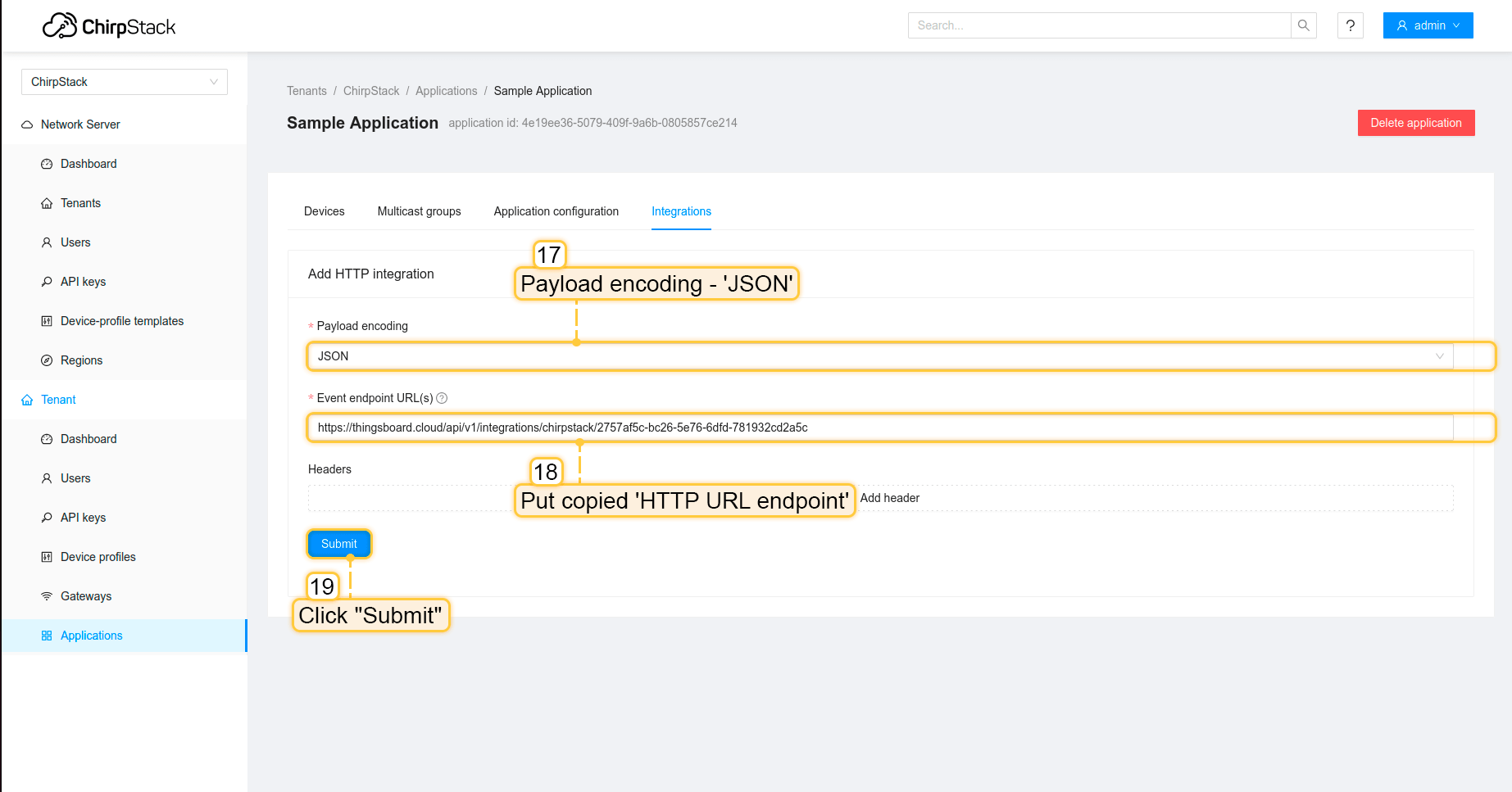
  • 将“HTTP URL端点”填入“Event Endpoint URL(s)”字段,点击“提交”按钮。

集成已创建。


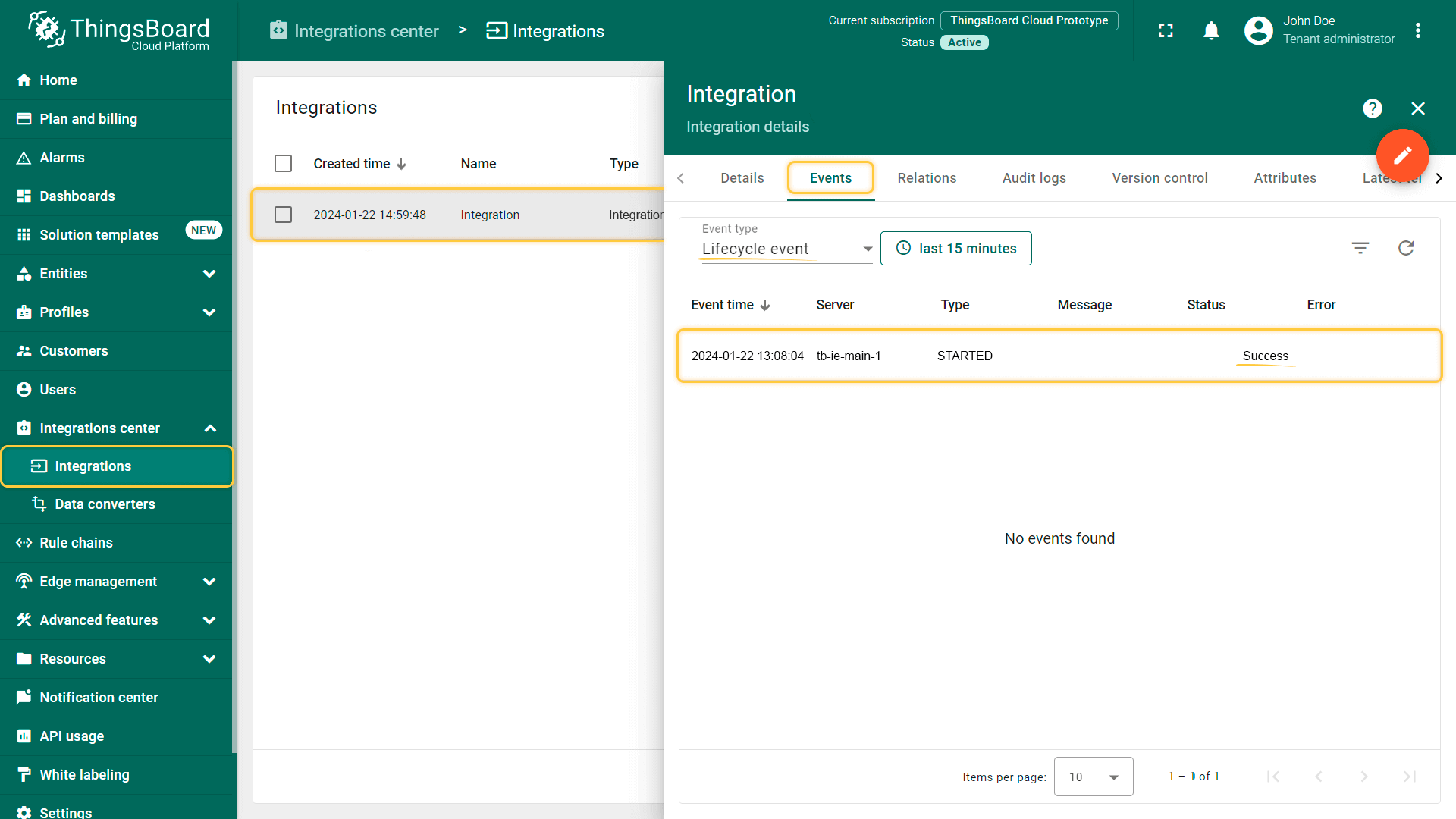
可按以下方式检查集成连接状态:

  • 点击集成列表中的某一行;
  • 进入“事件”选项卡;
  • 事件类型 下拉列表中选择“生命周期事件”。

若看到 STARTED 事件且状态为 Success,则表示集成已成功启动,可以接收消息。

检查集成连接

在The Things Stack社区版上添加网关

我们需要在 The Things Stack社区版 上添加网关。

要添加网关,请按以下步骤操作:
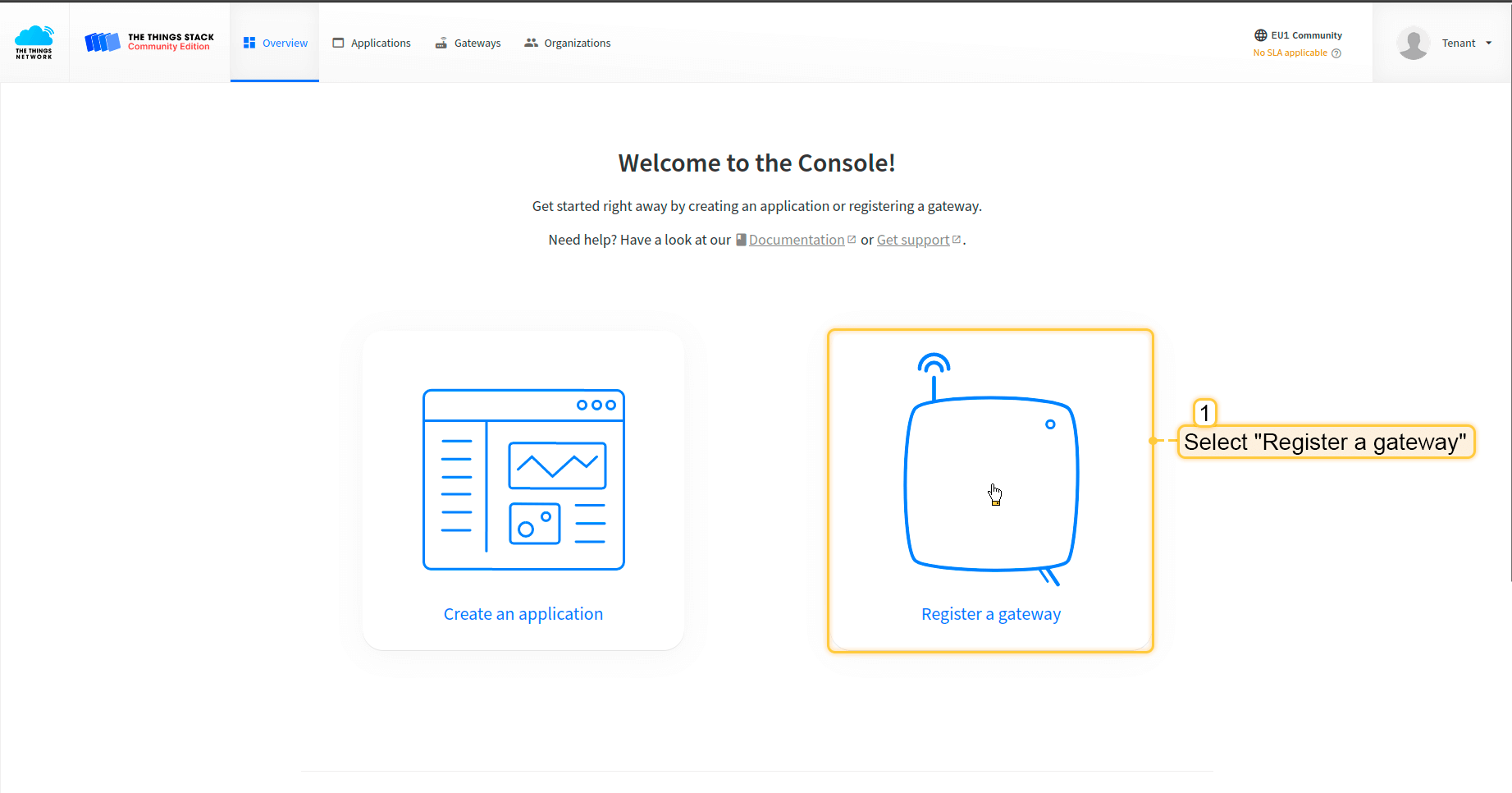
  • 登录云端并打开控制台。

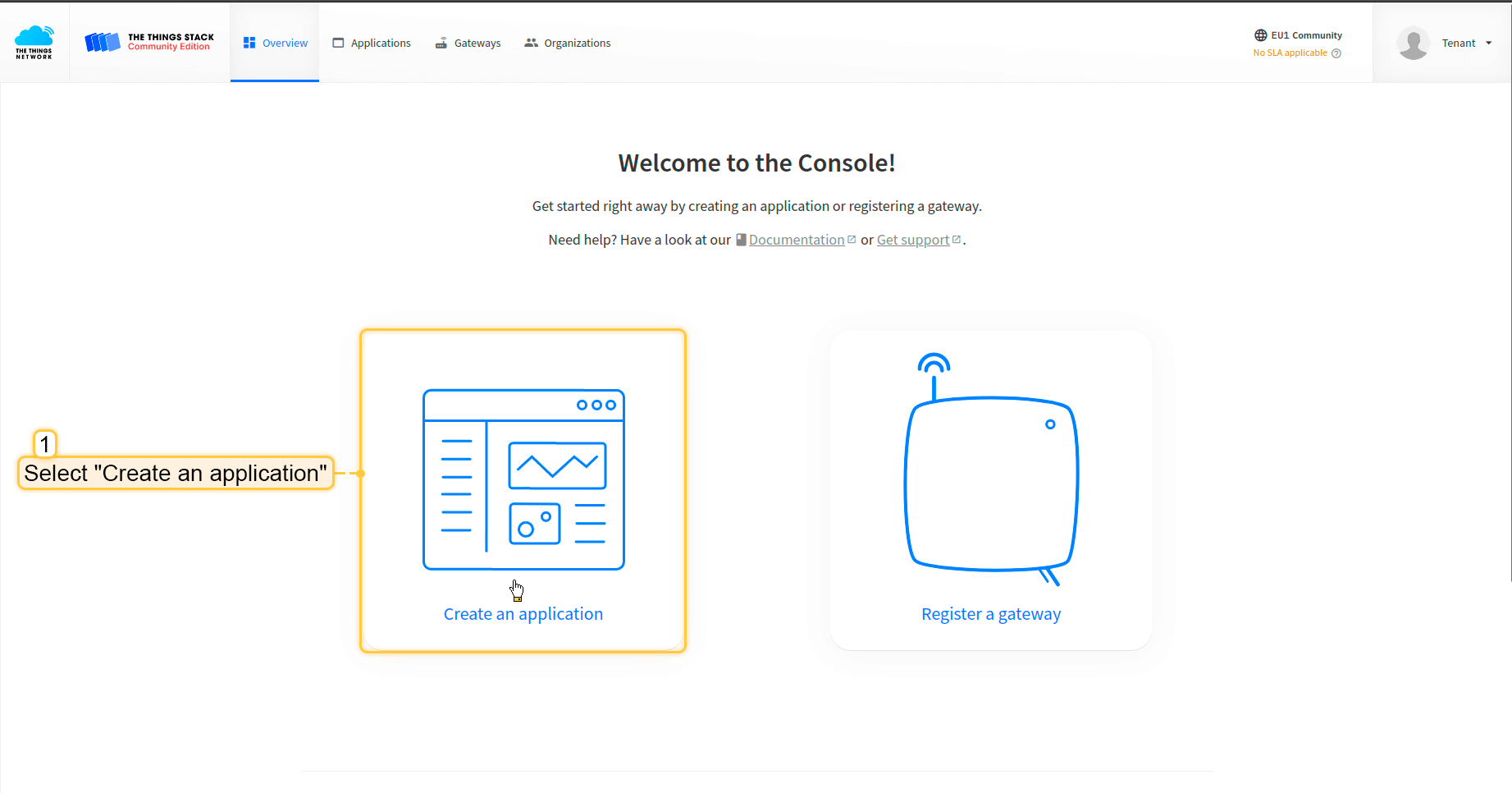
  • 选择“注册网关”。

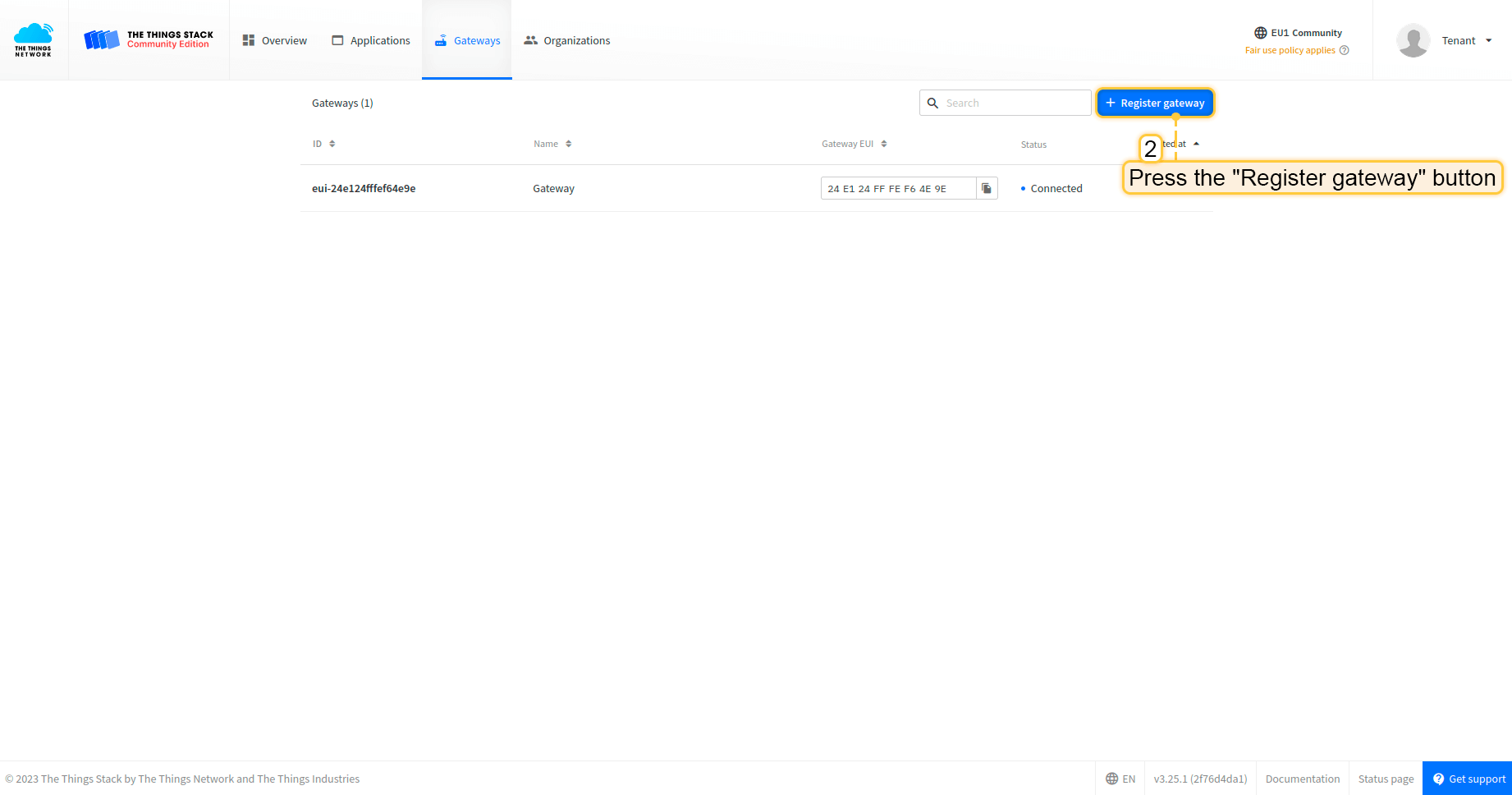
  • 点击“注册网关”按钮。

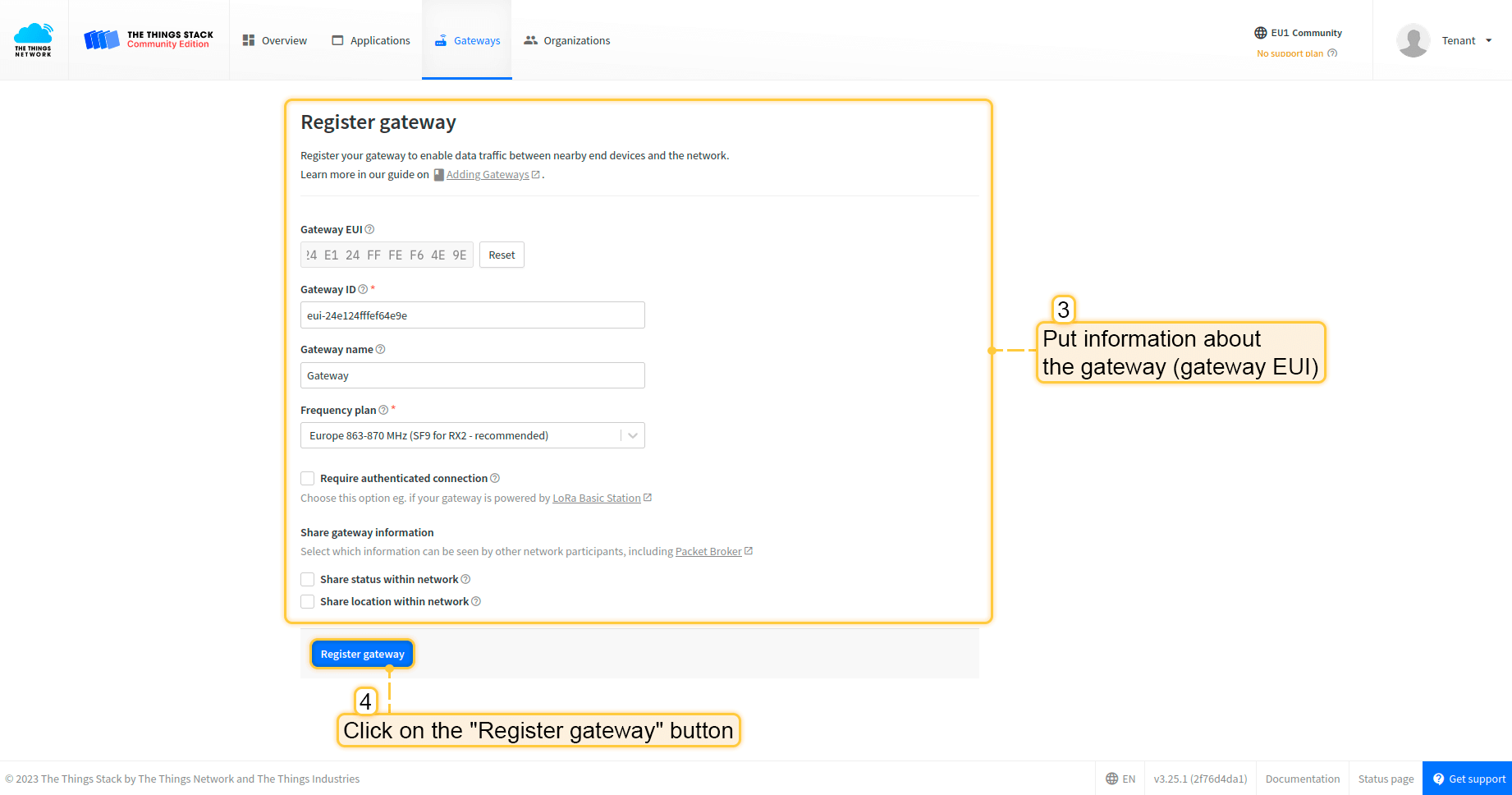
  • 填写网关信息(网关EUI)并点击“注册网关”按钮。

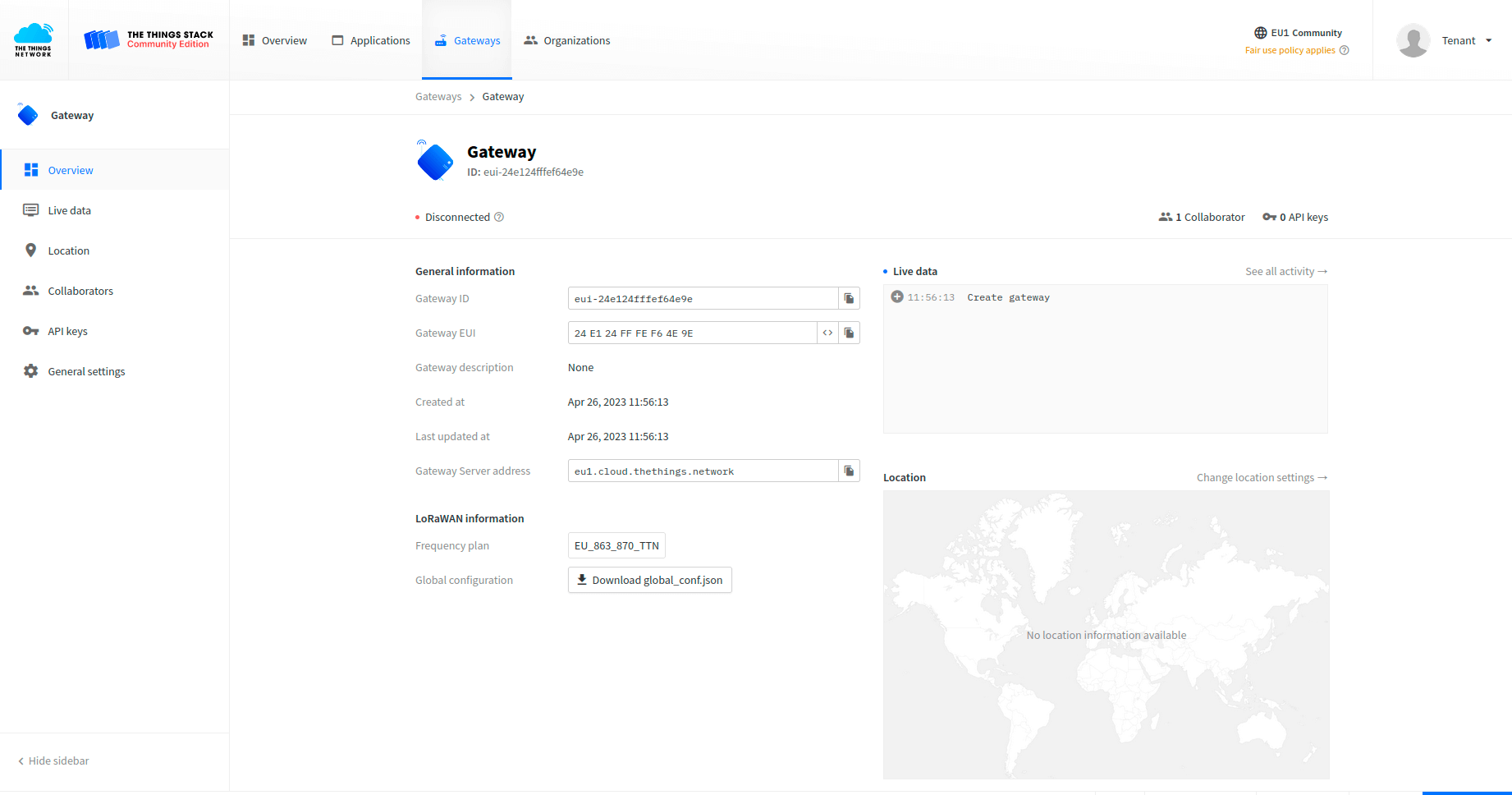
  • 网关已添加。您可看到其状态为已断开连接。

配置网关以发送数据

要将网关连接并发送数据到The Things Stack社区版,需要配置网关。 请按以下步骤操作:

  • 打开网关控制面板。进入“Packet Forwarder”页面,点击“加号”按钮添加新转发器。
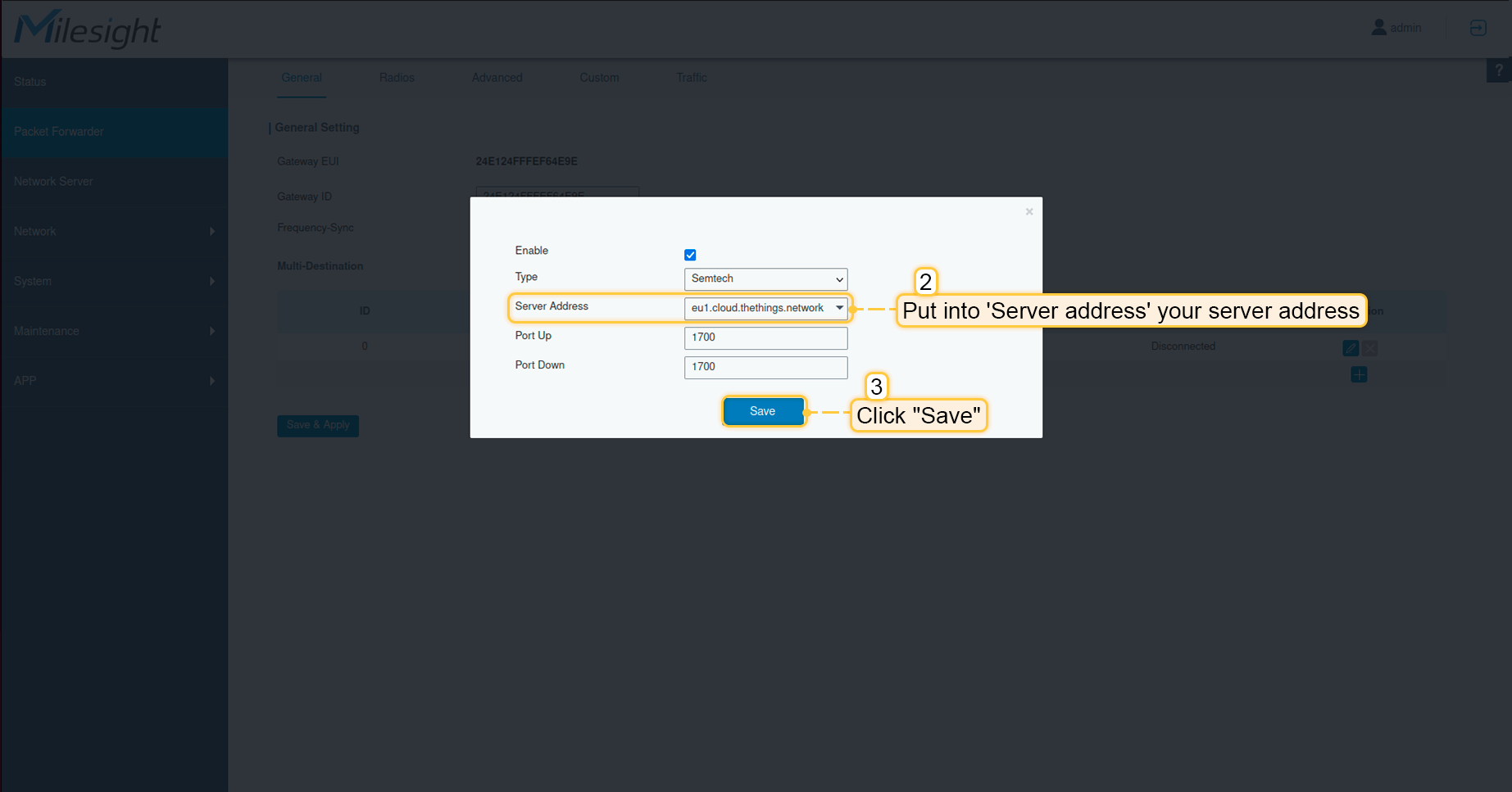
  • 服务器地址 中填入您的服务器地址,我们的示例为 eu1.cloud.thethings.network。点击“保存”按钮。
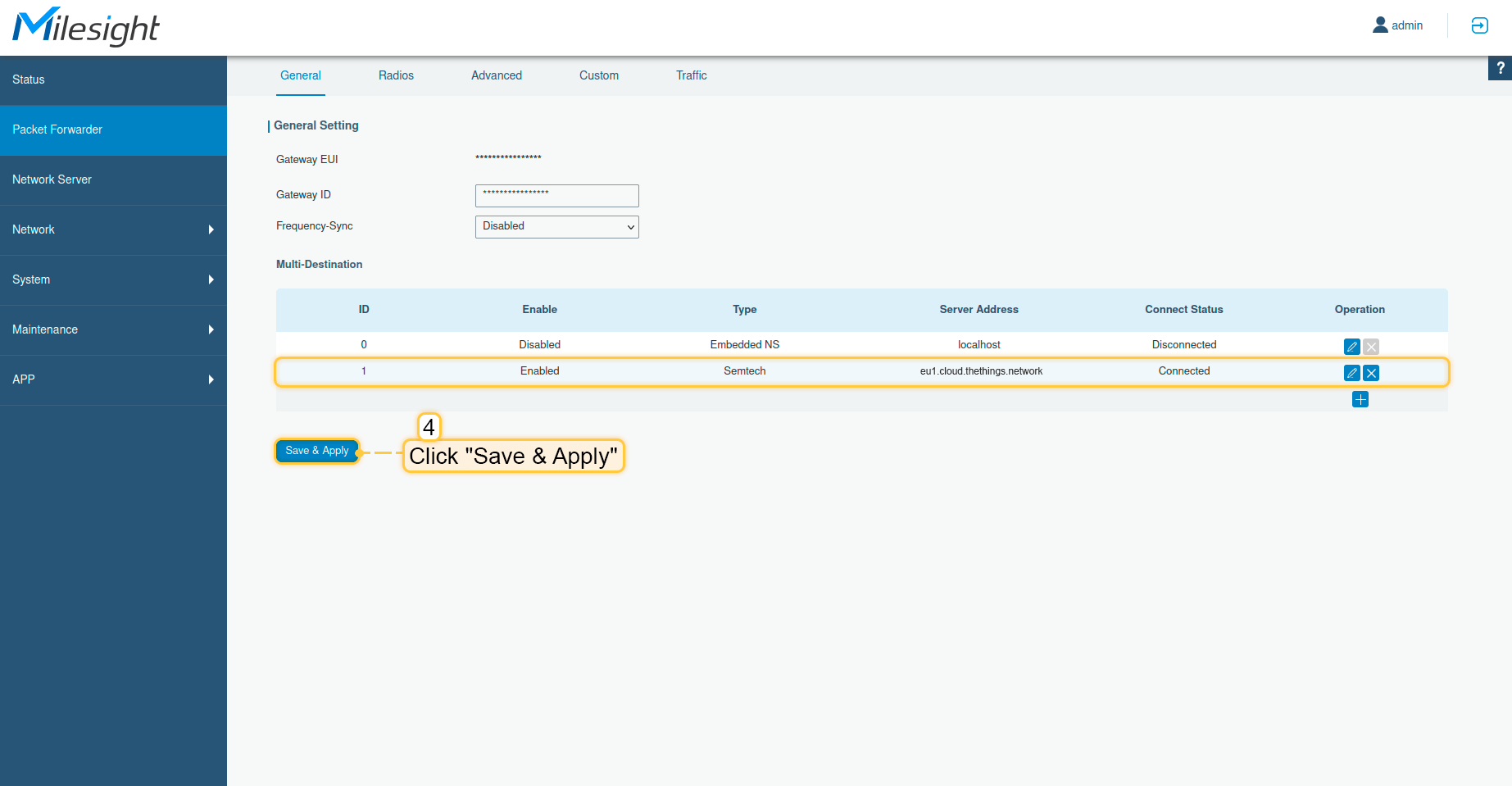
  • 点击“保存并应用”按钮。

至此,网关已能够向网络服务器发送数据。

在The Things Stack社区版上配置应用

现在需要在The Things Stack上配置应用。请按以下步骤操作:

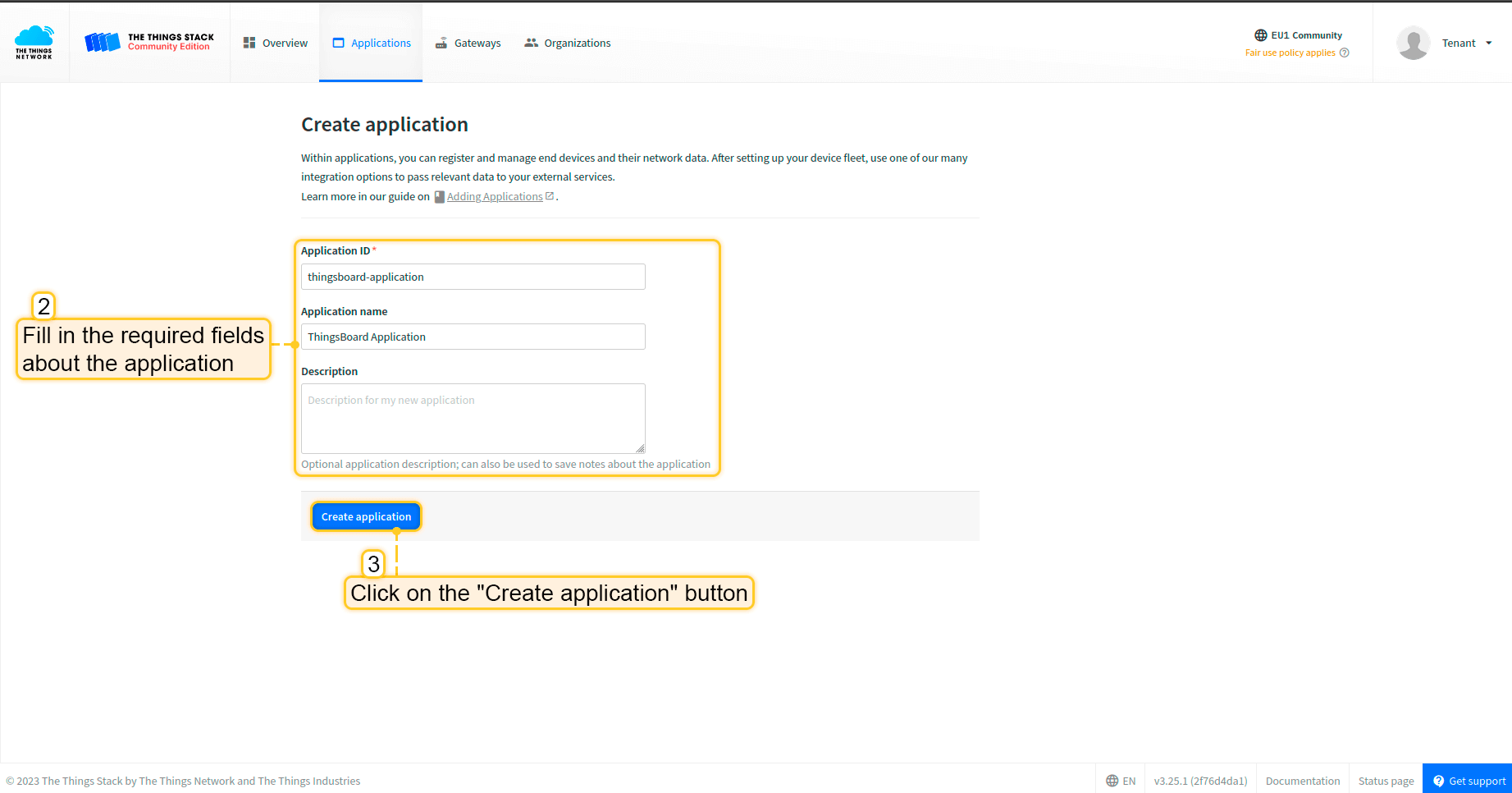
  • 打开控制台,点击“创建应用”。

  • 填写应用所需字段。然后点击“创建应用”按钮。

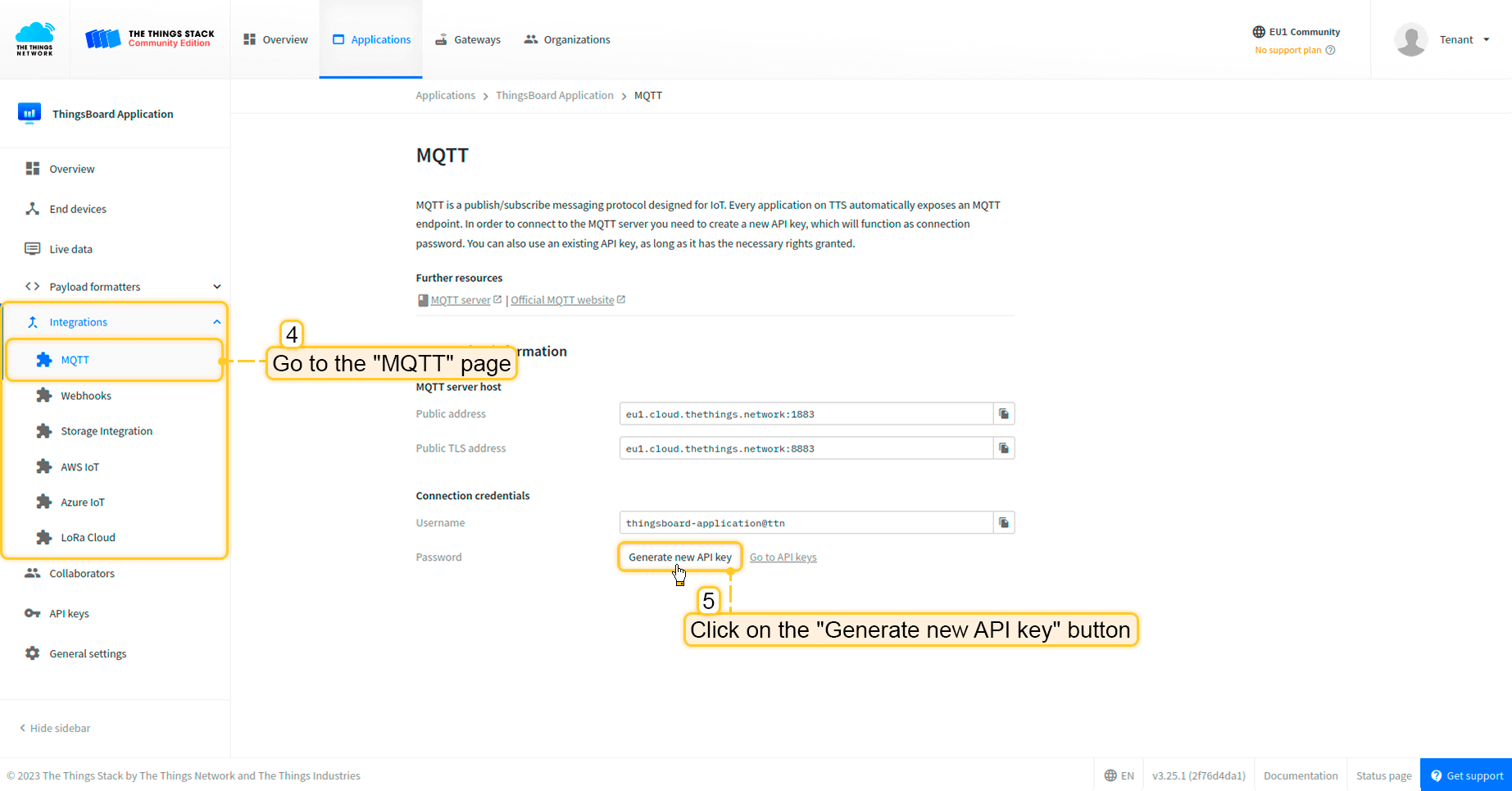
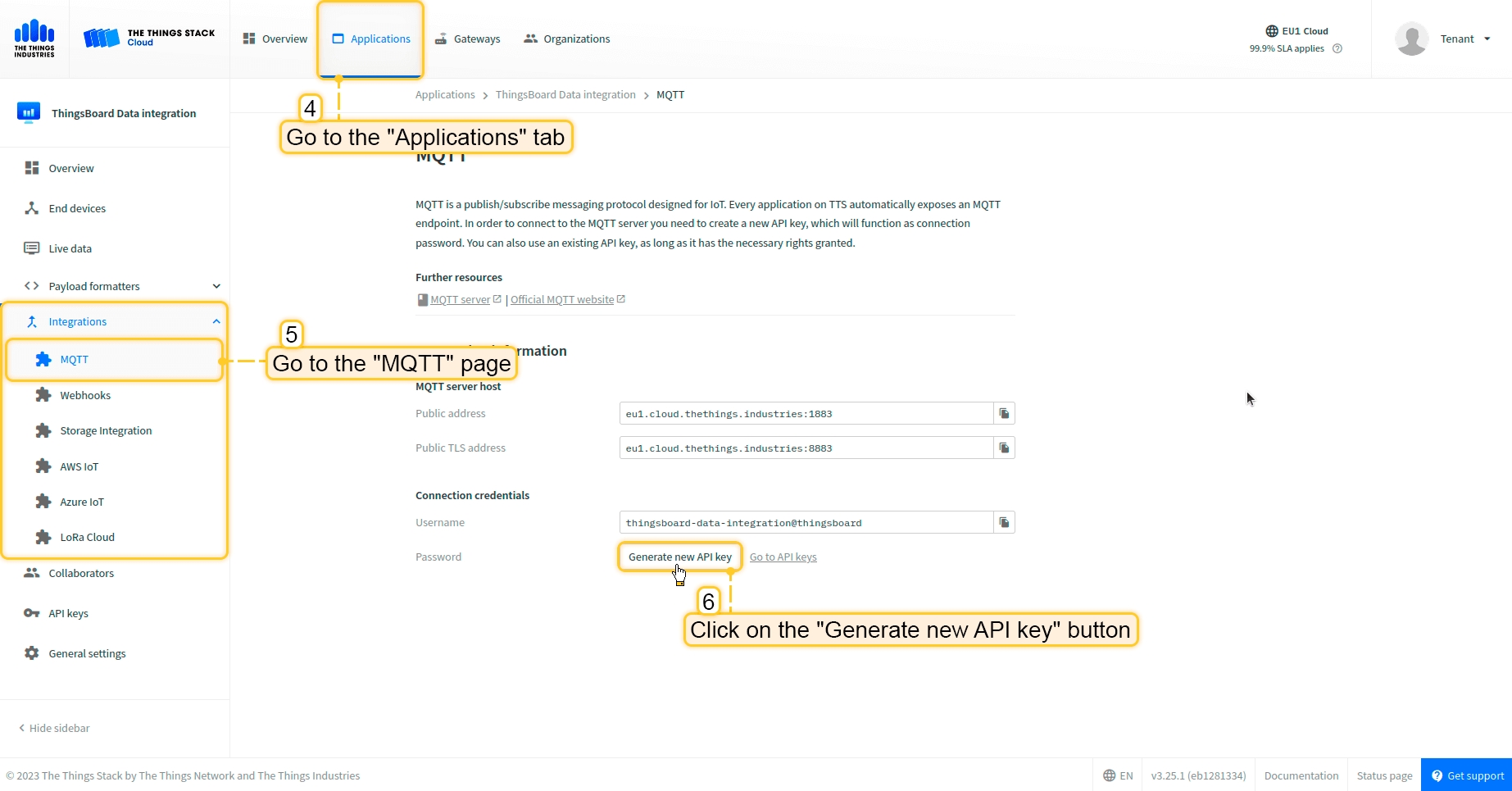
  • 进入“集成”-> 在左侧菜单中打开“MQTT”页面。然后点击“生成新API密钥”按钮。
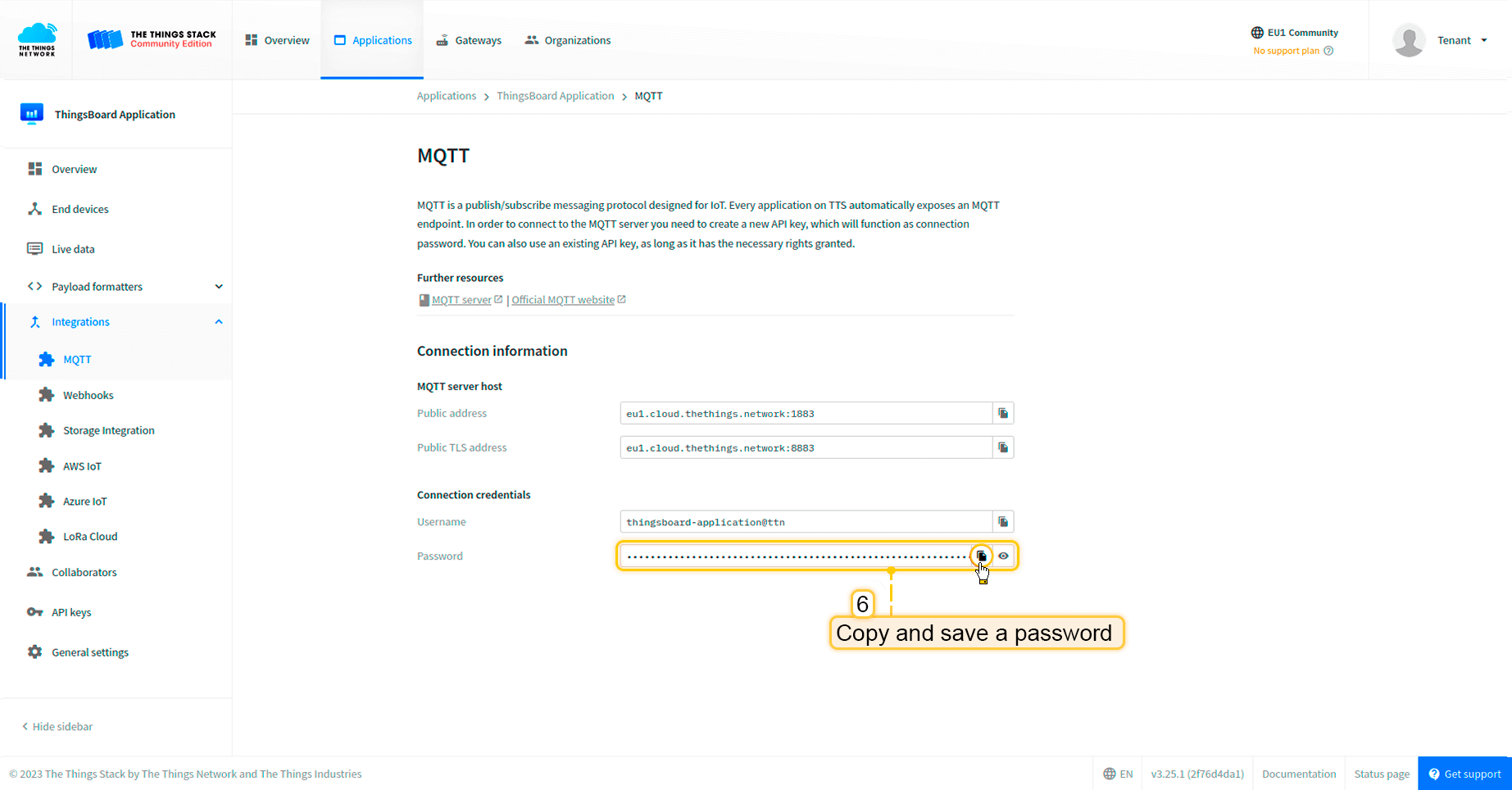
  • 复制并保存 密码(API密钥)(离开页面后将无法再次查看)。

现在可以前往ThingsBoard配置集成。

在ThingsBoard中创建集成

接下来,我们将在ThingsBoard中创建“The Things Stack”(TTS)集成。

首先,复制以下代码,创建上行数据转换器时需要用到:

1
2
3
4
5
6
7
8
9
10
11
12
13
14
15
16
17
18
19
20
21
22
23
24
25
26
27
28
29
30
31
32
33
34
35
36
37
38
39
40
41
42
43
44
45
46
47
48
49
50
51
52
53
54
55
56
57
58
59
60
61
62
63
64
65
66
67
68
69
70
71
72
73
74
75
76
77
78
79
80
var data = decodeToJson(payload);

var deviceName = data.end_device_ids.device_id;
var deviceType = data.end_device_ids.application_ids.application_id;

// If you want to parse incoming data somehow, you can add your code to this function.
// input: bytes
// expected output:
//  {
//    "attributes": {"attributeKey": "attributeValue"},
//    "telemetry": {"telemetryKey": "telemetryValue"}
//  }
// default functionality - convert bytes to HEX string with telemetry key "HEX_bytes"

function decodeFrmPayload(input) {
    var output = { attributes:{}, telemetry: {} };
    // --- Decoding code --- //

    output.telemetry.HEX_bytes = bytesToHex(input);

    // --- Decoding code --- //
    return output;
}

// --- attributes and telemetry objects ---
var telemetry = {};
var attributes = {};
// --- attributes and telemetry objects ---

// --- Timestamp parsing
var incomingDateString = data.uplink_message.received_at;
var dateString = incomingDateString.substring(0, incomingDateString.lastIndexOf(".")+3) + "Z";
var timestamp = new Date(dateString).getTime();
// --- Timestamp parsing

// You can add some keys manually to attributes or telemetry
attributes.f_port = data.uplink_message.f_port;
attributes.settings = data.uplink_message.settings;
// We want to save correlation ids as single object, so we are excluding them from attributes parse and add manually
attributes.correlation_ids = data.correlation_ids;

// You can exclude some keys from the result
var excludeFromAttributesList = ["device_id", "application_id", "uplink_message", "correlation_ids"];
var excludeFromTelemetryList = ["uplink_token", "gateway_id", "settings"];

// Message parsing
// To avoid paths in the decoded objects we passing false value to function as "pathInKey" argument.
// Warning: pathInKey can cause already found fields to be overwritten with the last value found, e.g. receive_at from uplink_message will be written receive_at in the root.
var telemetryData = toFlatMap(data.uplink_message, excludeFromTelemetryList, false);
var attributesData = toFlatMap(data, excludeFromAttributesList, false);

// Passing incoming bytes to decodeFrmPayload function, to get custom decoding
var customDecoding = {};
if (data.uplink_message.get("frm_payload") != null) {
    customDecoding = decodeFrmPayload(base64ToBytes(data.uplink_message.frm_payload));
}

// Collecting data to result
if (customDecoding.?telemetry.size() > 0) {
    telemetry.putAll(customDecoding.telemetry);
}

if (customDecoding.?attributes.size() > 0) {
    attributes.putAll(customDecoding.attributes);
}

telemetry.putAll(telemetryData);
attributes.putAll(attributesData);

var result = {
    deviceName: deviceName,
    deviceType: deviceType,
    telemetry: {
        ts: timestamp,
        values: telemetry
    },
    attributes: attributes
};

return result;

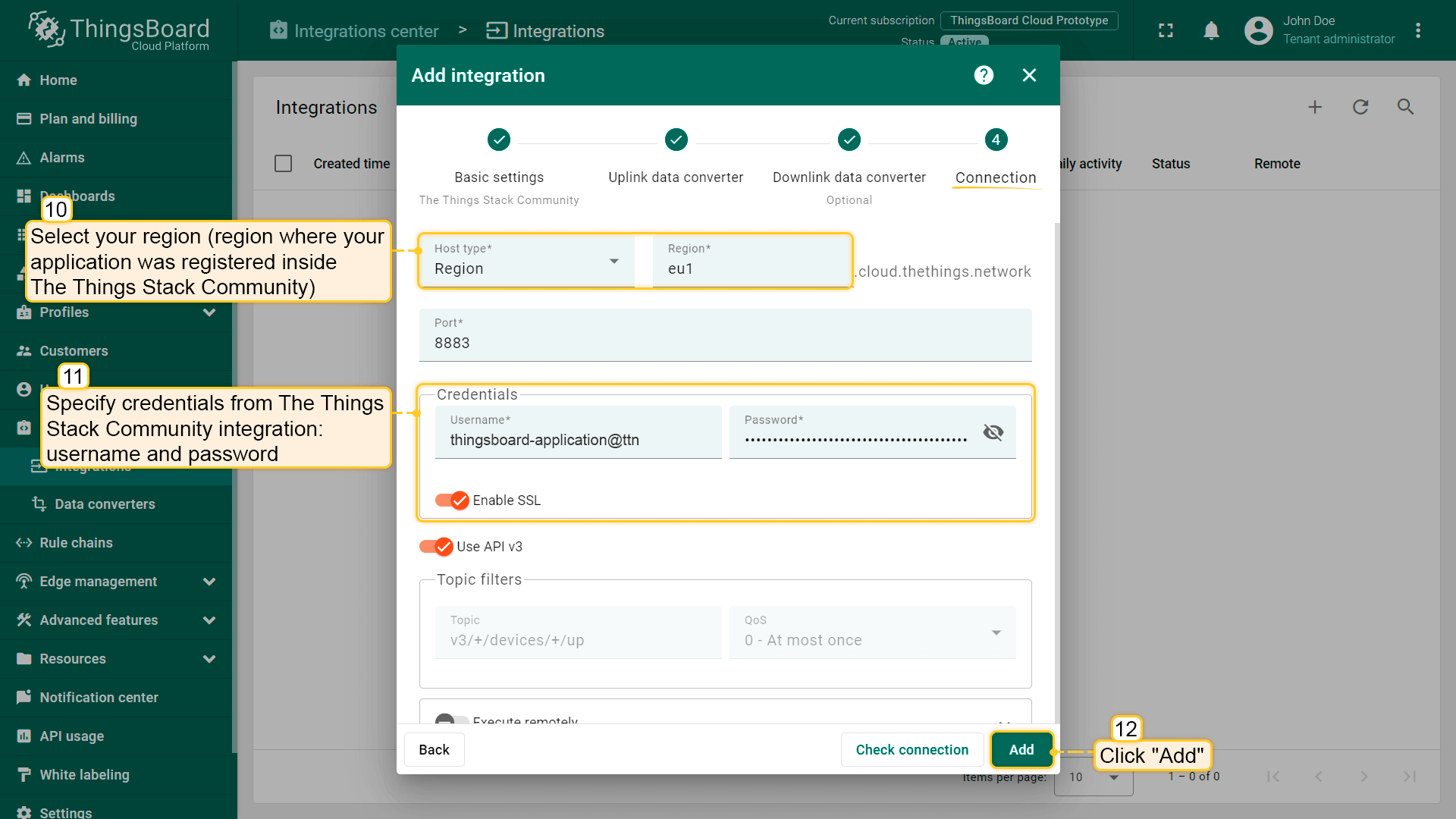
在“连接”步骤中,您需要以下参数:

  • Region(区域)eu1(在The Things Stack社区中注册应用所在区域)
  • Username(用户名)thingsboard-application@ttn(使用TTS集成中的 用户名
  • Password(密码):使用The Things Stack社区集成中的 密码


现在,打开“集成中心”部分 ->“集成”页面,按以下步骤操作:

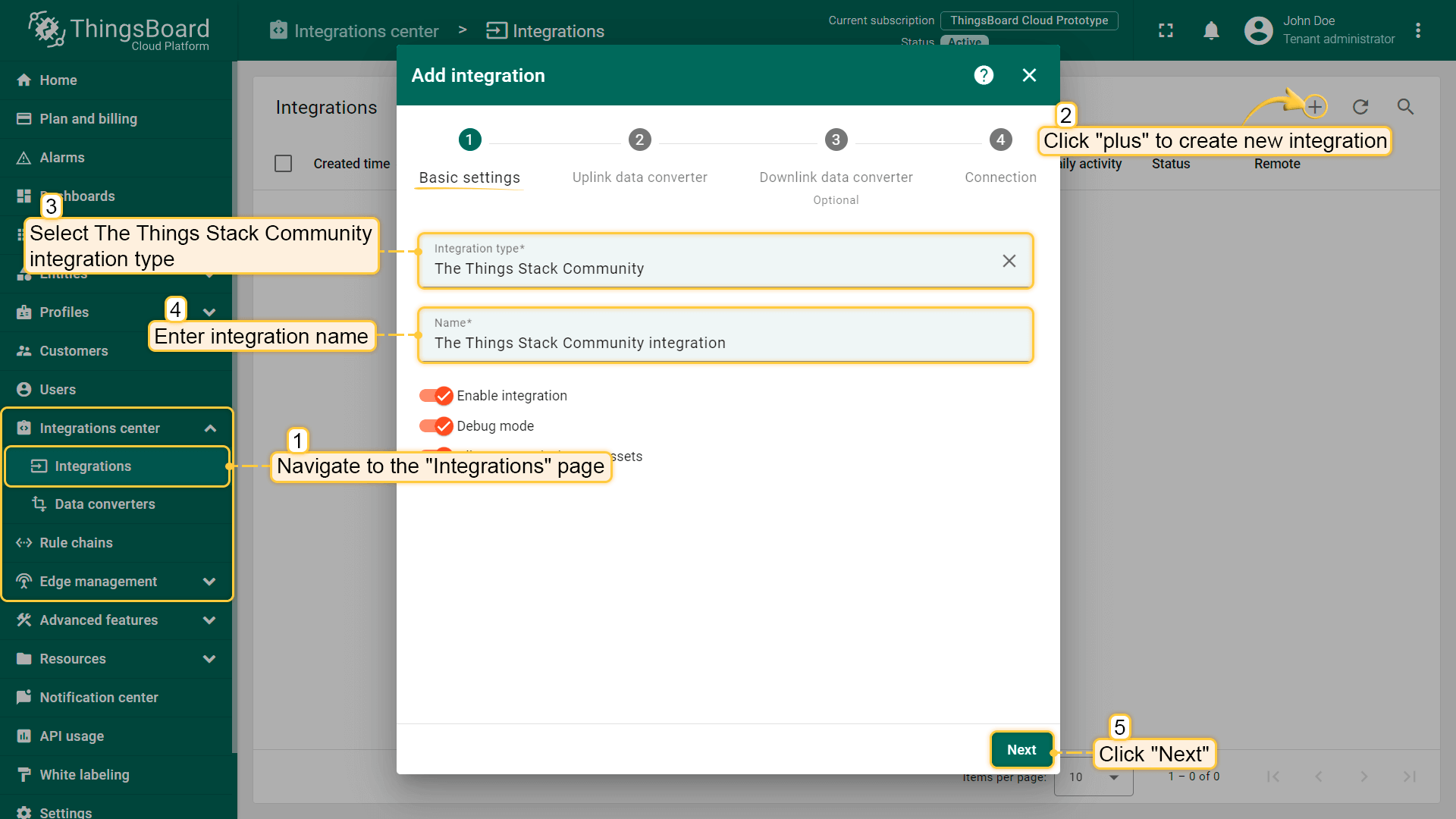
  • 点击右上角的“加号”图标添加新集成。选择类型“The Things Stack社区”。然后点击“下一步”。
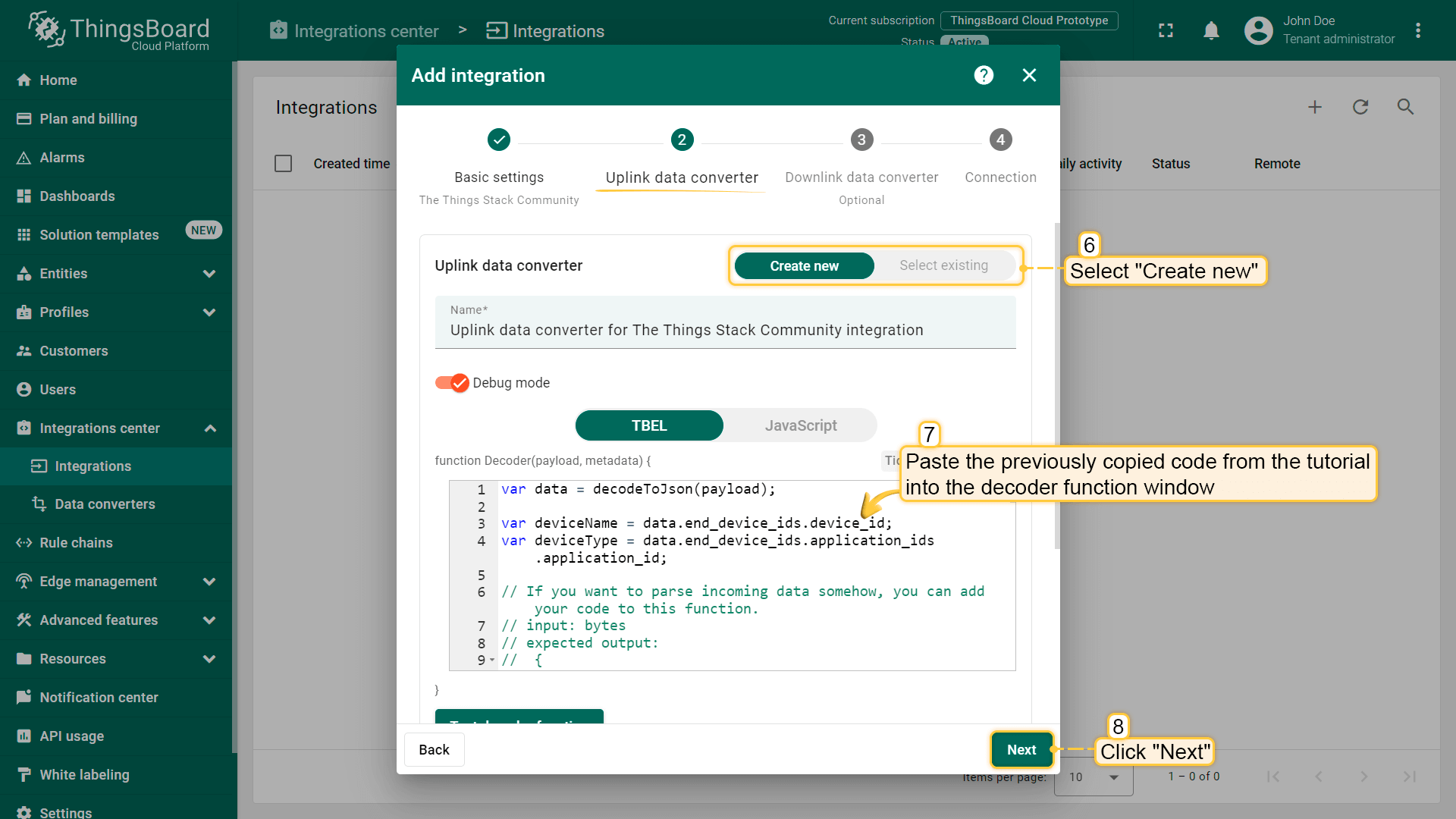
  • 将先前复制的脚本粘贴到解码器函数区域。点击“下一步”。

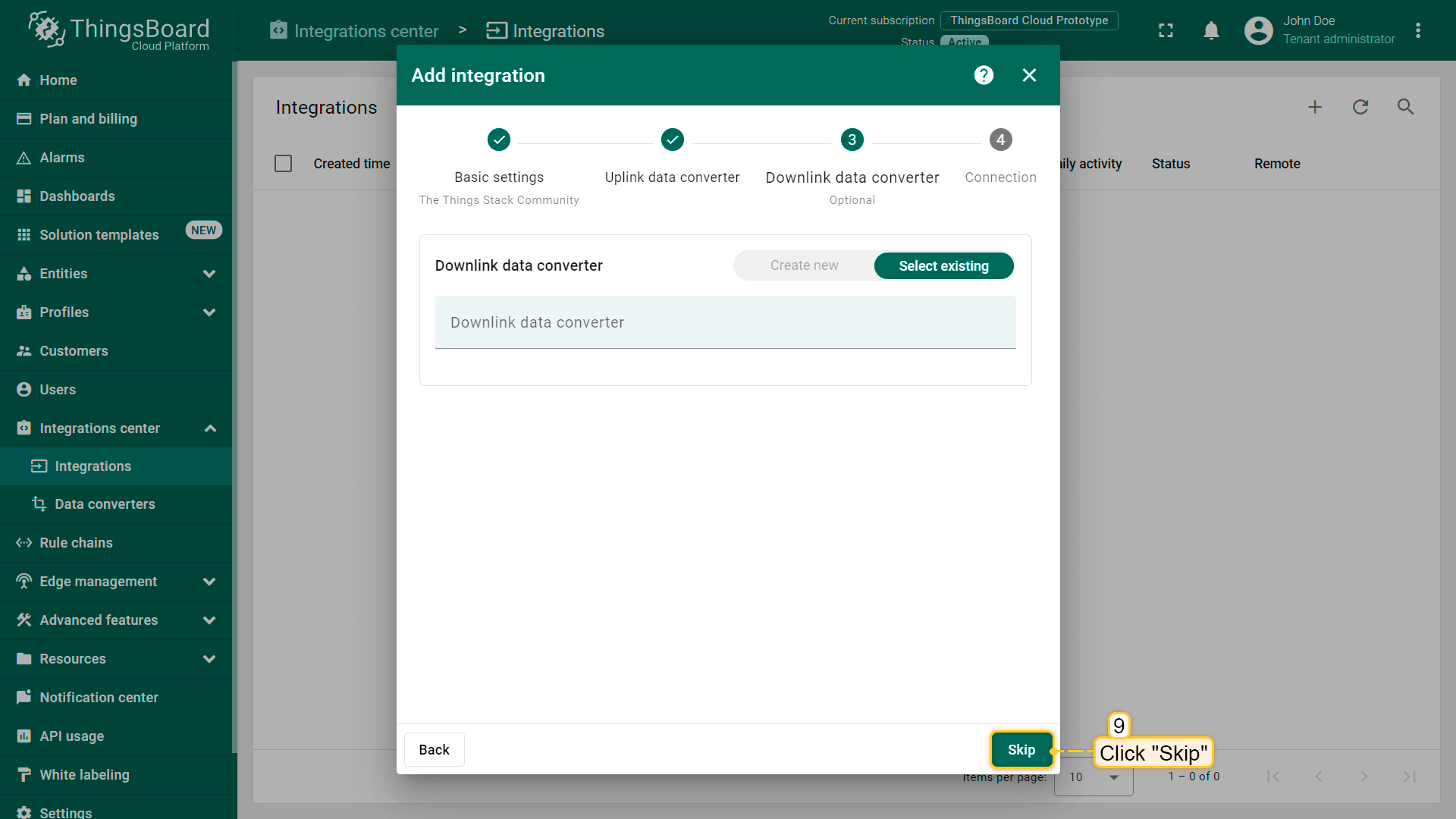
  • 将“下行数据转换器”字段留空。点击“跳过”按钮。

  • 填写您的参数,然后点击“添加”按钮。

集成已创建。


可按以下方式检查集成连接状态:

  • 点击集成列表中的某一行;
  • 进入“事件”选项卡;
  • 事件类型 下拉列表中选择“生命周期事件”。

若看到 STARTED 事件且状态为 Success,则表示集成已成功启动,可以接收消息。

检查集成连接

在The Things Industries上添加网关

我们需要在 The Things Industries云 上添加网关。

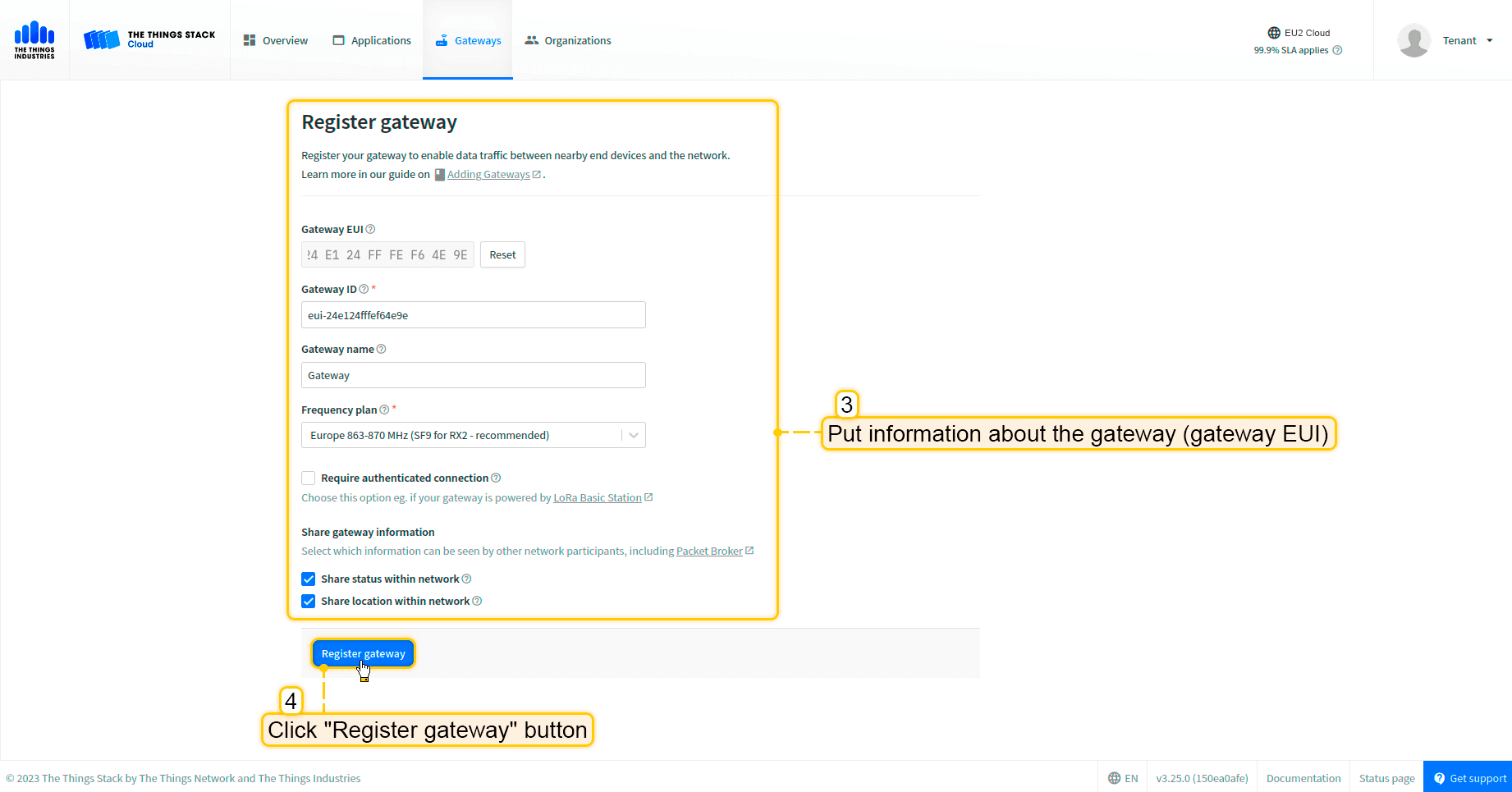
要添加网关,请按以下步骤操作:
  • 登录云端并打开控制台。

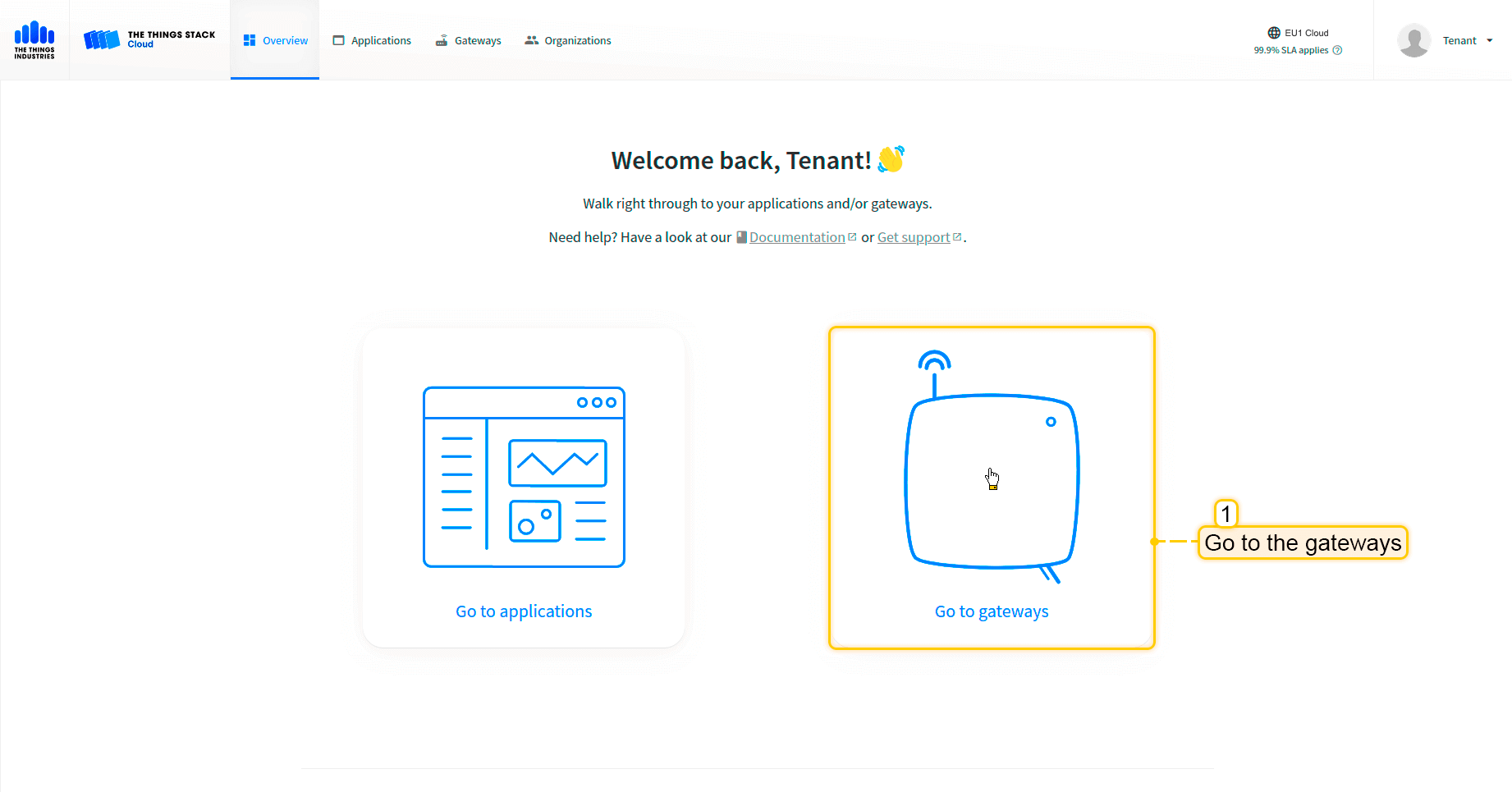
  • 选择“前往网关”。

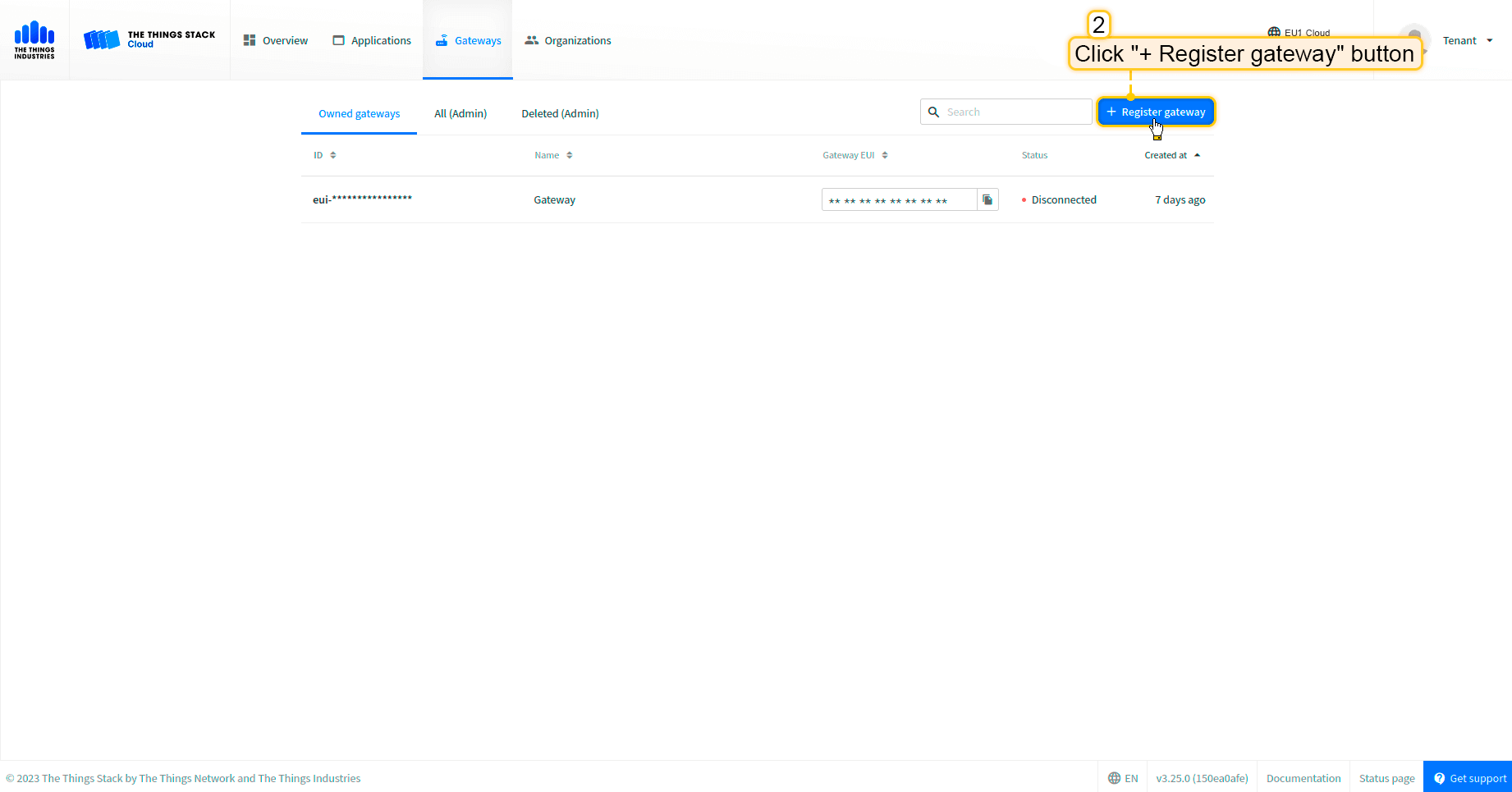
  • 点击“注册网关”按钮。

  • 填写网关信息(网关EUI)并点击“注册网关”按钮。

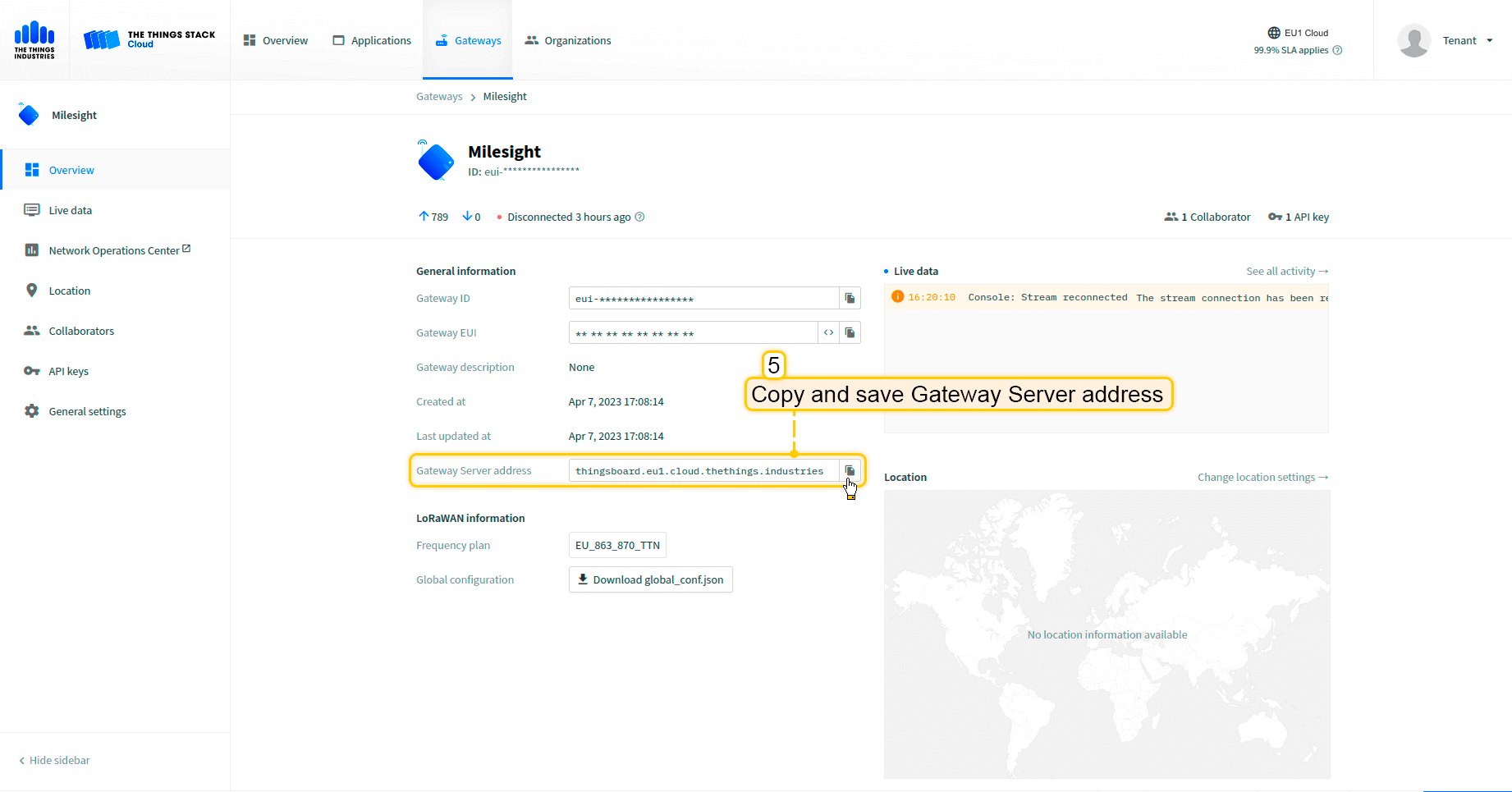
  • 网关已添加。复制并保存“网关服务器地址”,稍后需要用到。

配置网关以发送数据

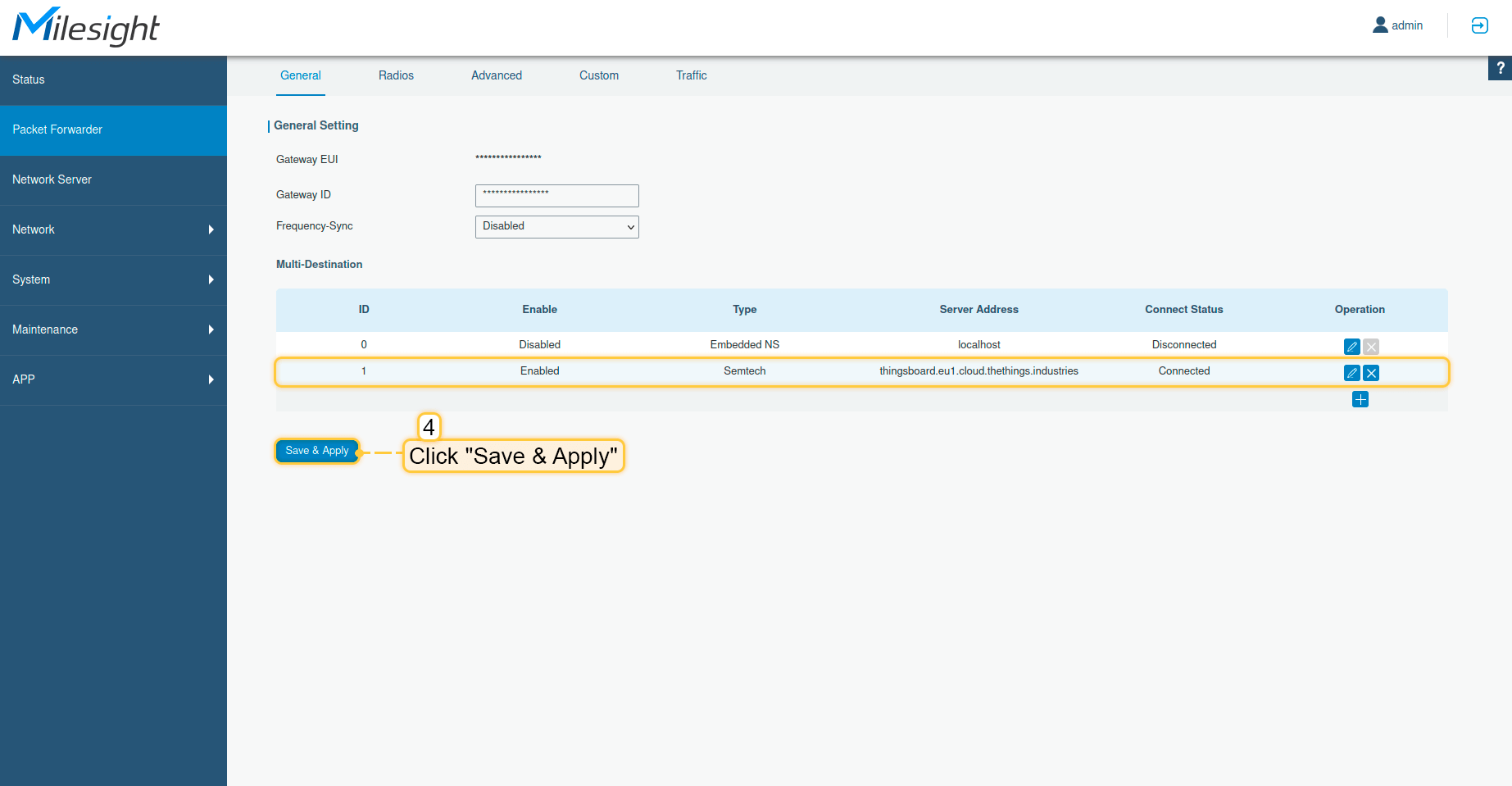
要将网关连接并发送数据到The Things Industries云,需要配置网关。 请按以下步骤操作:

  • 打开网关控制面板。进入“Packet Forwarder”页面,点击“加号”按钮添加新转发器。
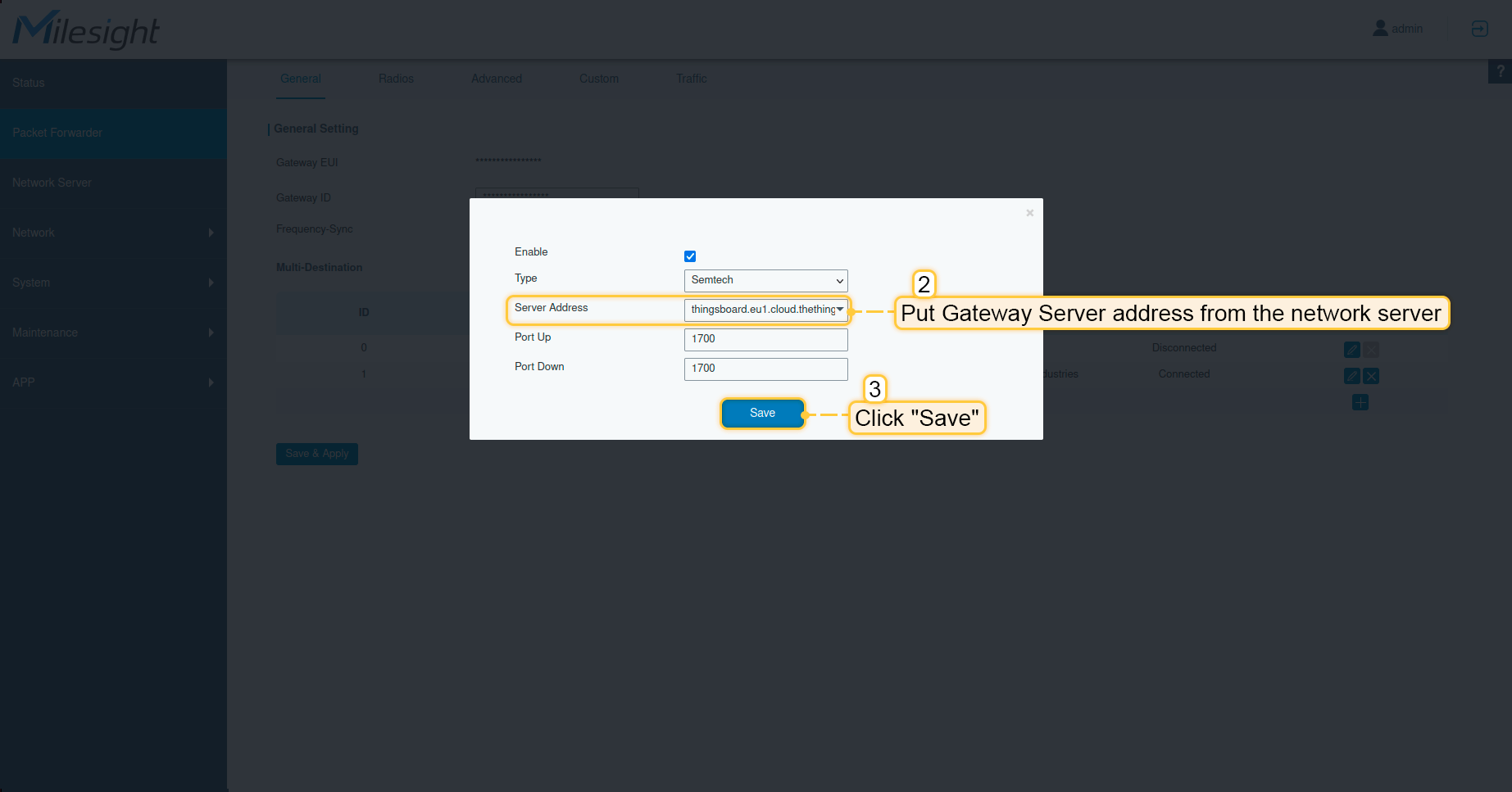
  • 在“服务器地址”中填入网络服务器的地址。点击“保存”按钮。

  • 点击“保存并应用”按钮。

至此,网关已能够向网络服务器发送数据。

在The Things Industries云上配置应用

现在需要在The Things Industries上配置集成。请按以下步骤操作:
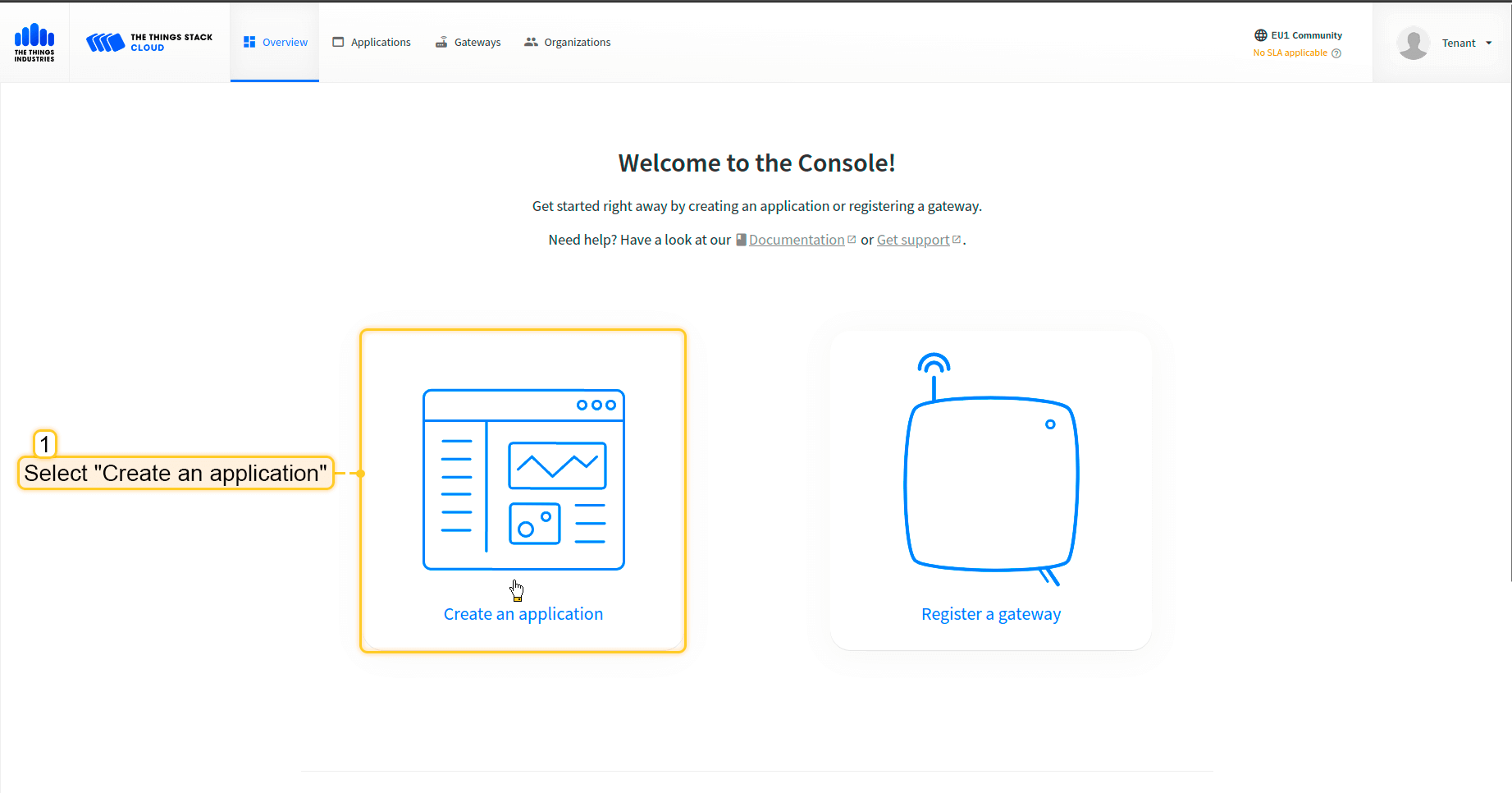
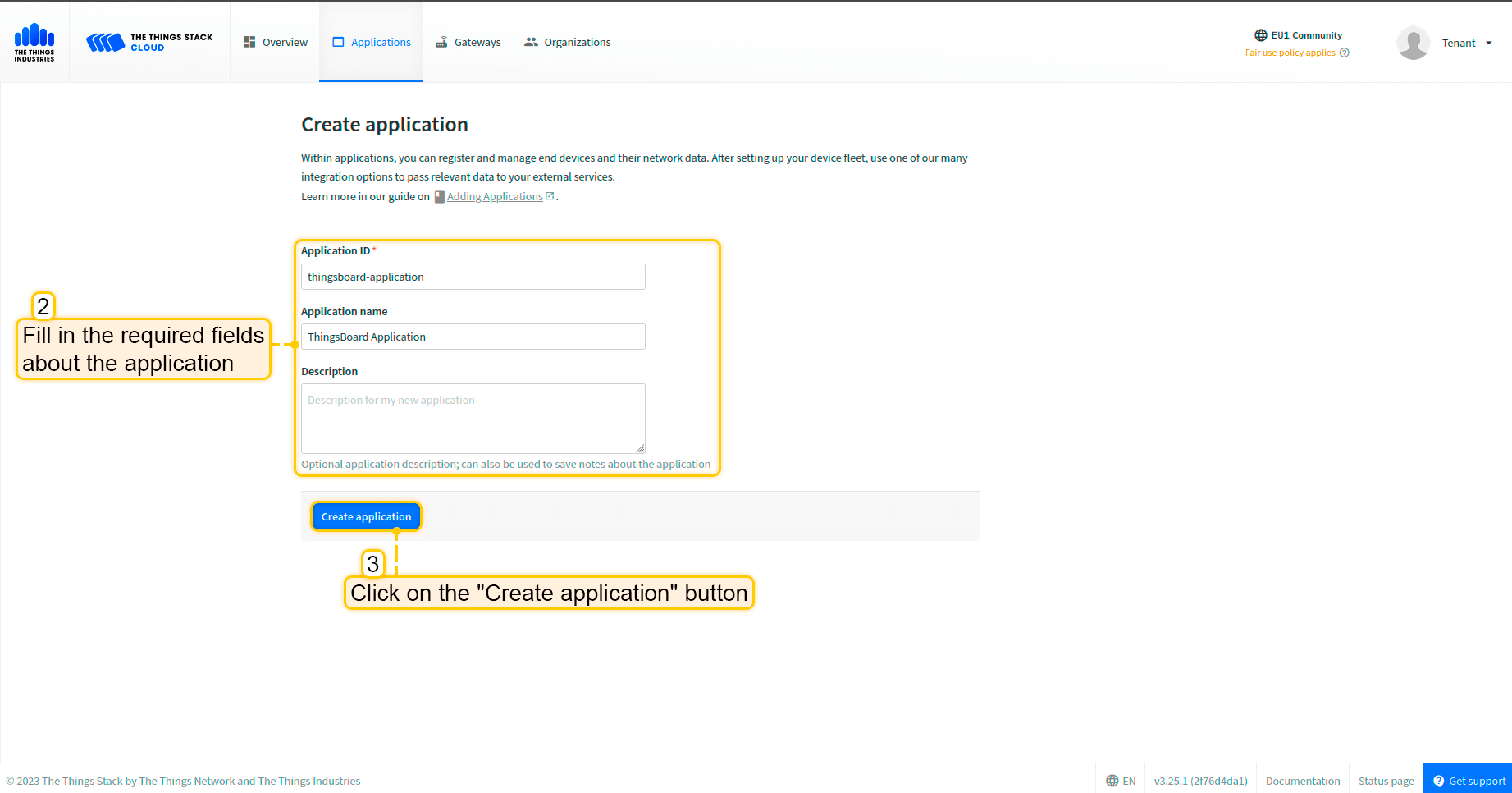
  • 打开控制台,点击“创建应用”。

  • 填写应用所需字段。然后点击“创建应用”按钮。

  • 进入“集成”-> 在左侧菜单中打开“MQTT”页面。然后点击“生成新API密钥”按钮。
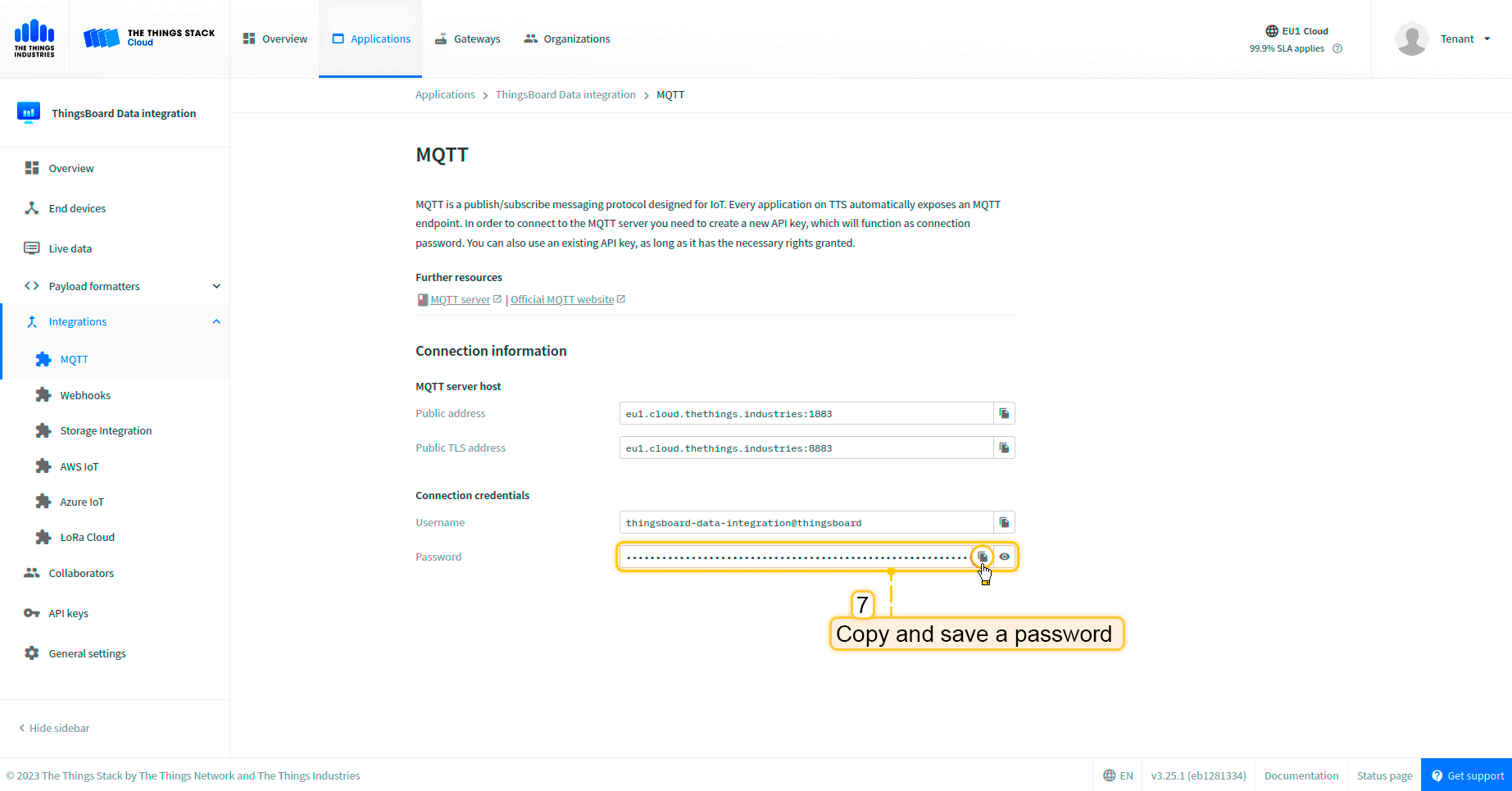
  • 复制并保存 密码(API密钥)(离开页面后将无法再次查看)。

现在可以前往ThingsBoard配置集成。

在ThingsBoard中创建集成

接下来,我们将在 ThingsBoard 中创建“The Things Industries”集成。

首先,复制以下代码,创建上行数据转换器时需要用到:

1
2
3
4
5
6
7
8
9
10
11
12
13
14
15
16
17
18
19
20
21
22
23
24
25
26
27
28
29
30
31
32
33
34
35
36
37
38
39
40
41
42
43
44
45
46
47
48
49
50
51
52
53
54
55
56
57
58
59
60
61
62
63
64
65
66
67
68
69
70
71
72
73
74
75
76
77
78
79
80
var data = decodeToJson(payload);

var deviceName = data.end_device_ids.device_id;
var deviceType = data.end_device_ids.application_ids.application_id;

// If you want to parse incoming data somehow, you can add your code to this function.
// input: bytes
// expected output:
//  {
//    "attributes": {"attributeKey": "attributeValue"},
//    "telemetry": {"telemetryKey": "telemetryValue"}
//  }
// default functionality - convert bytes to HEX string with telemetry key "HEX_bytes"

function decodeFrmPayload(input) {
    var output = { attributes:{}, telemetry: {} };
    // --- Decoding code --- //

    output.telemetry.HEX_bytes = bytesToHex(input);

    // --- Decoding code --- //
    return output;
}

// --- attributes and telemetry objects ---
var telemetry = {};
var attributes = {};
// --- attributes and telemetry objects ---

// --- Timestamp parsing
var incomingDateString = data.uplink_message.received_at;
var dateString = incomingDateString.substring(0, incomingDateString.lastIndexOf(".")+3) + "Z";
var timestamp = new Date(dateString).getTime();
// --- Timestamp parsing

// You can add some keys manually to attributes or telemetry
attributes.f_port = data.uplink_message.f_port;
attributes.settings = data.uplink_message.settings;
// We want to save correlation ids as single object, so we are excluding them from attributes parse and add manually
attributes.correlation_ids = data.correlation_ids;

// You can exclude some keys from the result
var excludeFromAttributesList = ["device_id", "application_id", "uplink_message", "correlation_ids"];
var excludeFromTelemetryList = ["uplink_token", "gateway_id", "settings"];

// Message parsing
// To avoid paths in the decoded objects we passing false value to function as "pathInKey" argument.
// Warning: pathInKey can cause already found fields to be overwritten with the last value found, e.g. receive_at from uplink_message will be written receive_at in the root.
var telemetryData = toFlatMap(data.uplink_message, excludeFromTelemetryList, false);
var attributesData = toFlatMap(data, excludeFromAttributesList, false);

// Passing incoming bytes to decodeFrmPayload function, to get custom decoding
var customDecoding = {};
if (data.uplink_message.get("frm_payload") != null) {
    customDecoding = decodeFrmPayload(base64ToBytes(data.uplink_message.frm_payload));
}

// Collecting data to result
if (customDecoding.?telemetry.size() > 0) {
    telemetry.putAll(customDecoding.telemetry);
}

if (customDecoding.?attributes.size() > 0) {
    attributes.putAll(customDecoding.attributes);
}

telemetry.putAll(telemetryData);
attributes.putAll(attributesData);

var result = {
    deviceName: deviceName,
    deviceType: deviceType,
    telemetry: {
        ts: timestamp,
        values: telemetry
    },
    attributes: attributes
};

return result;

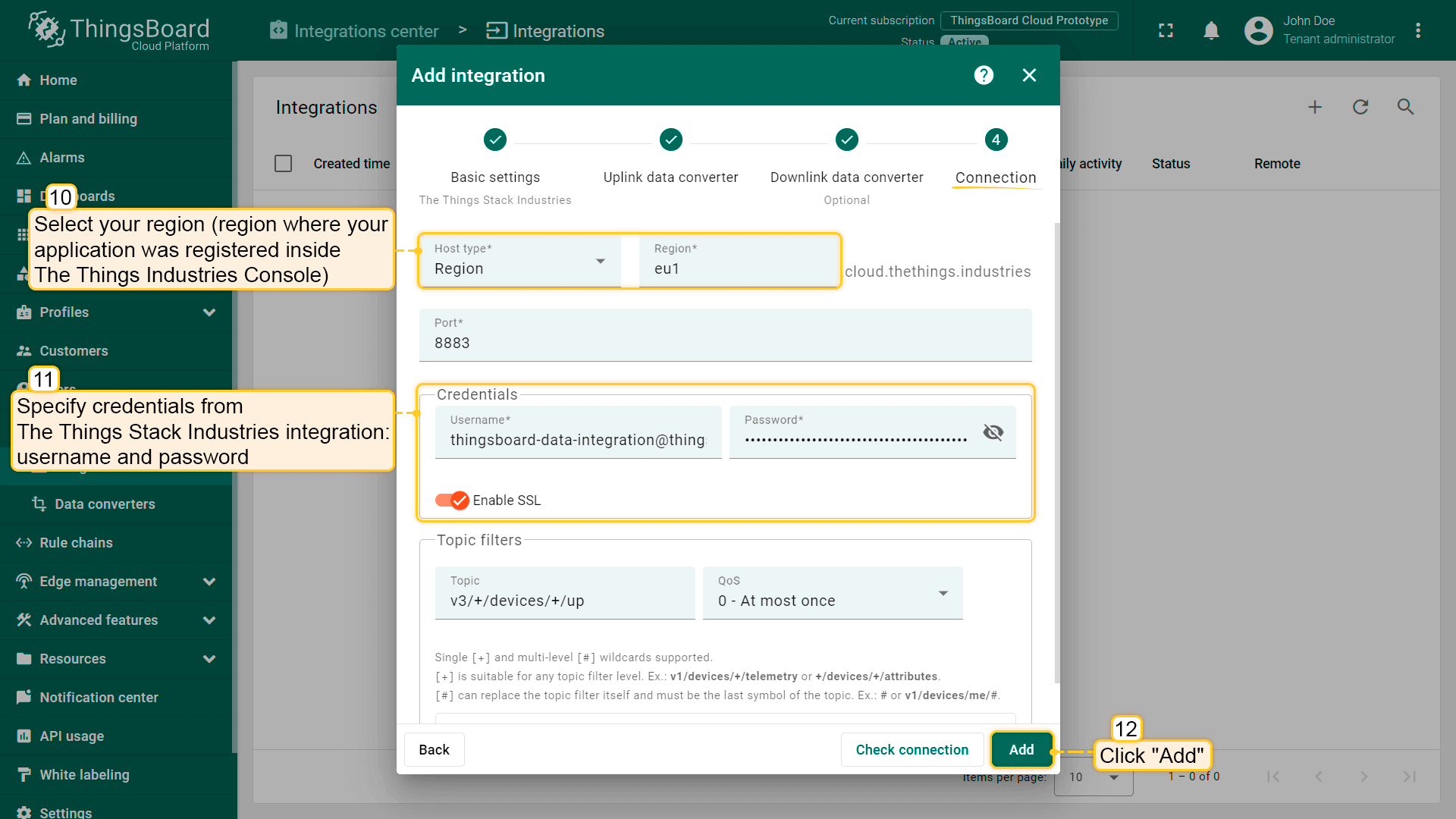
在“连接”步骤中,您需要以下参数:

  • Region(区域)eu1(在The Things Industries控制台中注册应用所在区域);
  • Username(用户名)thingsboard-data-integration@thingsboard(使用The Things Industries集成中的 用户名);
  • Password(密码):使用The Things Industries集成中的 密码


现在,打开“集成中心”部分 ->“集成”页面,按以下步骤操作:

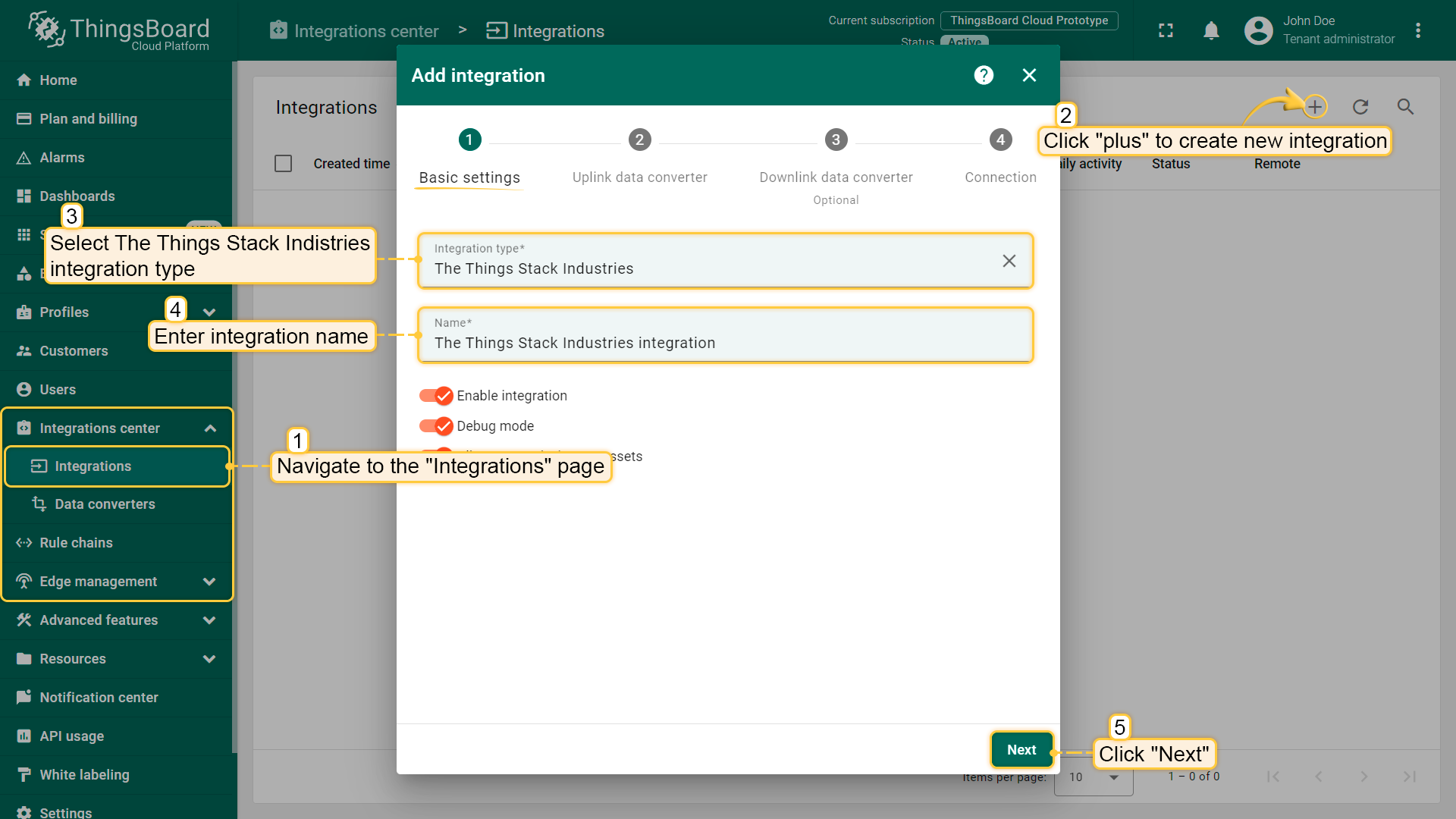
  • 点击右上角的“加号”图标添加新集成。选择类型“The Things Industries集成”。然后点击“下一步”。
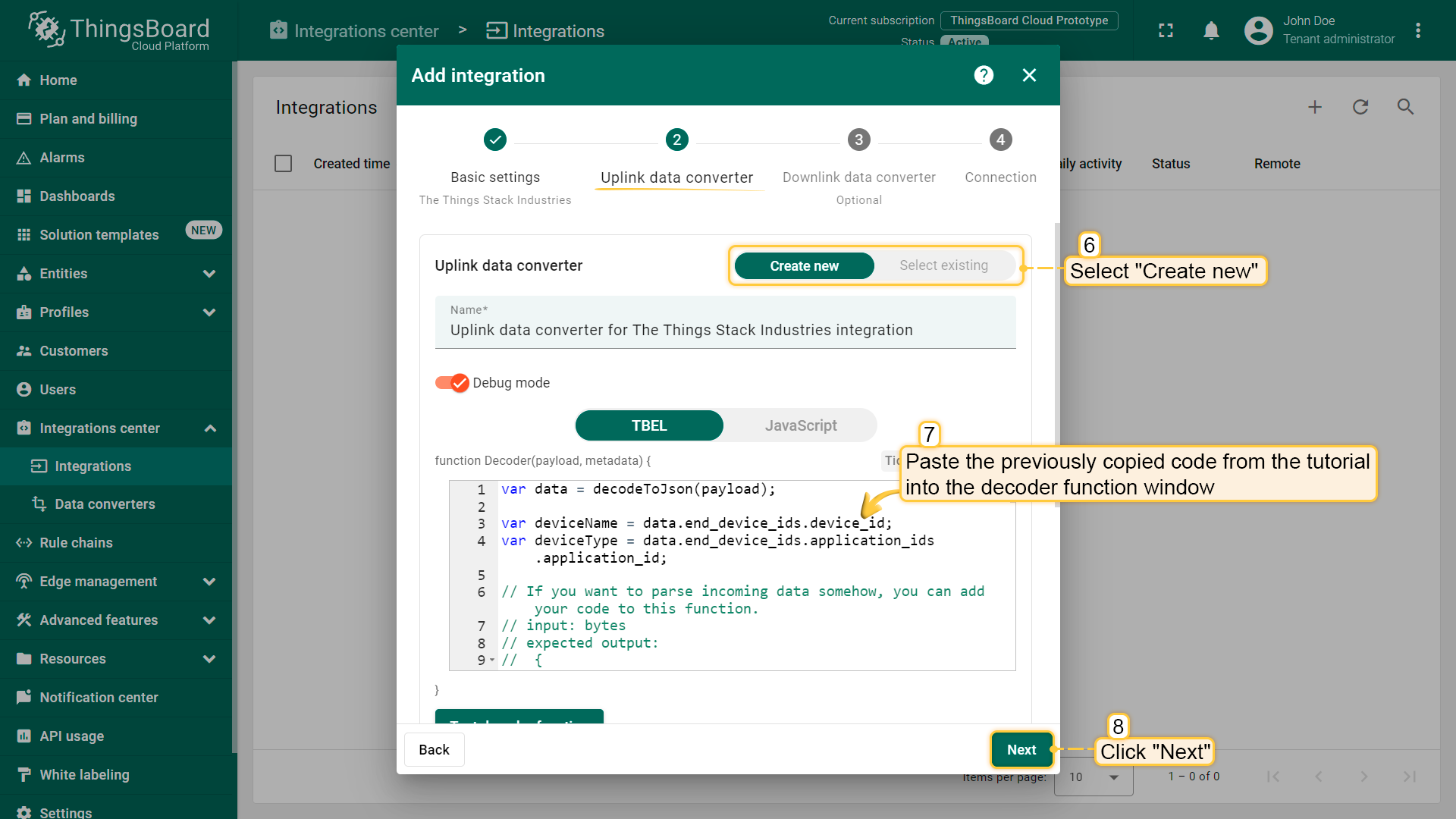
  • 将先前复制的脚本粘贴到解码器函数区域。点击“下一步”。

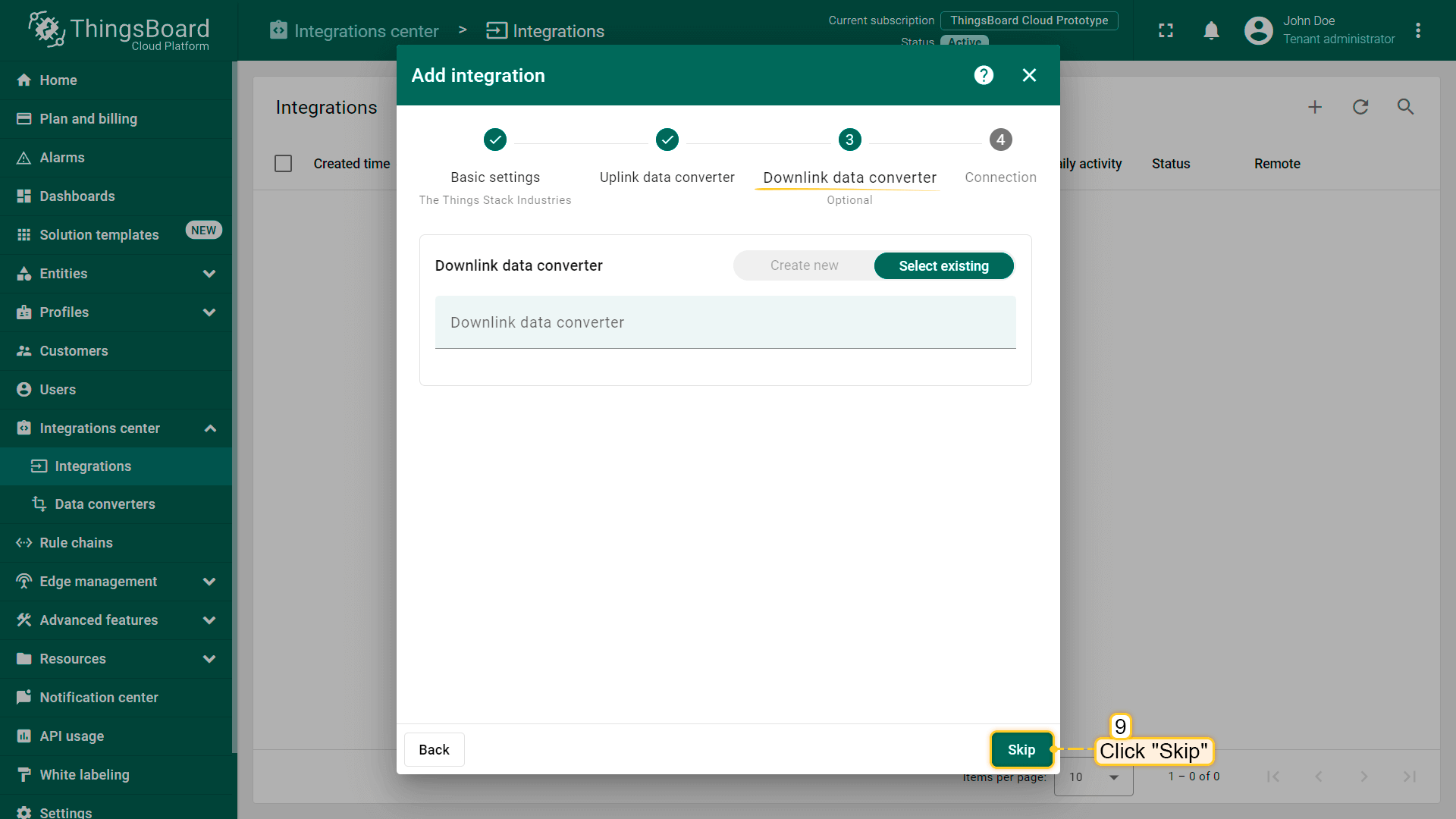
  • 将“下行数据转换器”字段留空。点击“跳过”按钮。

  • 填写您的参数,然后点击“添加”按钮。

集成已创建。


可按以下方式检查集成连接状态:

  • 点击集成列表中的某一行;
  • 进入“事件”选项卡;
  • 事件类型 下拉列表中选择“生命周期事件”。

若看到 STARTED 事件且状态为 Success,则表示集成已成功启动,可以接收消息。

检查集成连接

在Loriot上添加网关

我们需要在 Loriot 上添加网关。

要添加网关,请按以下步骤操作:

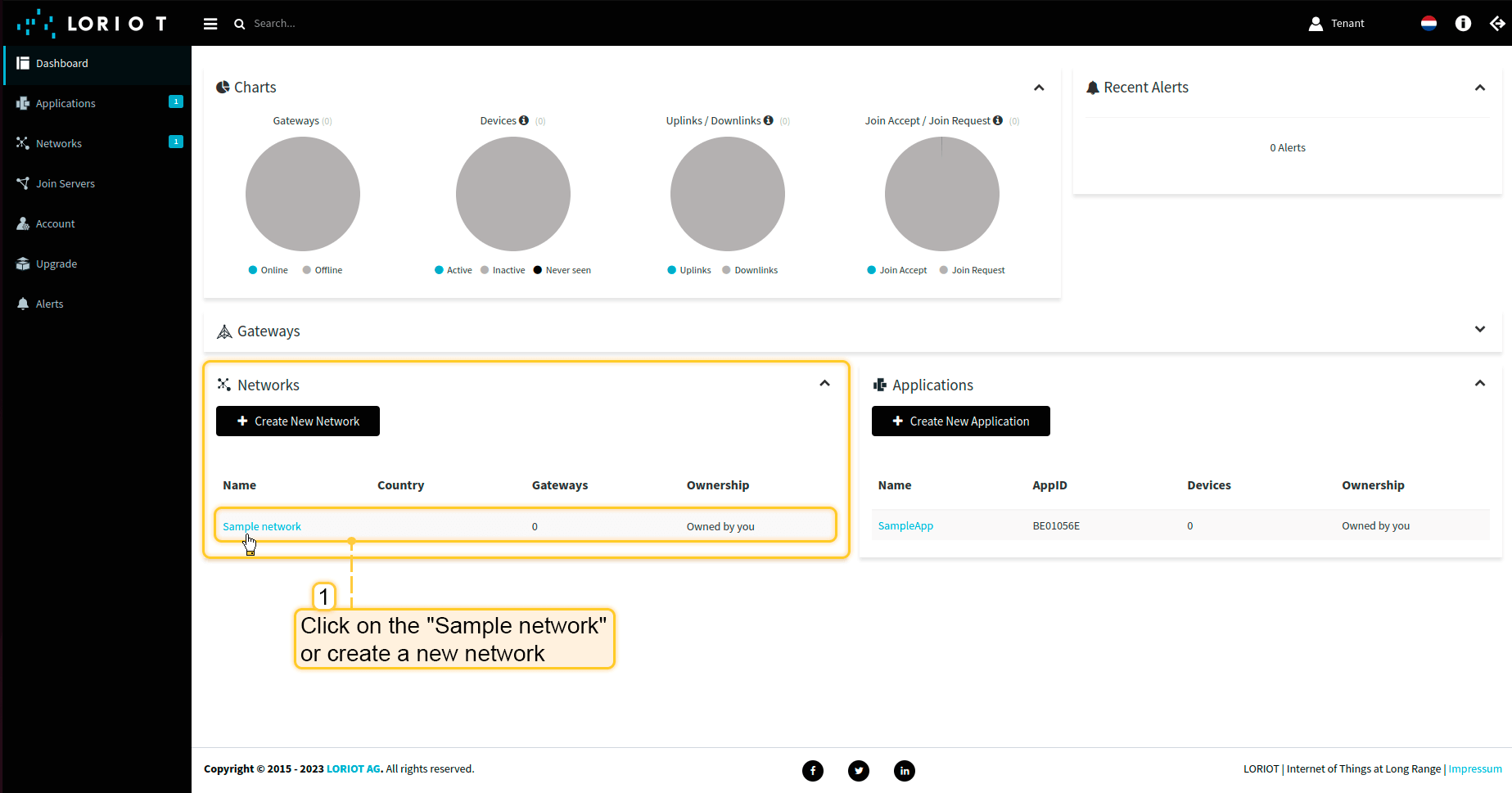
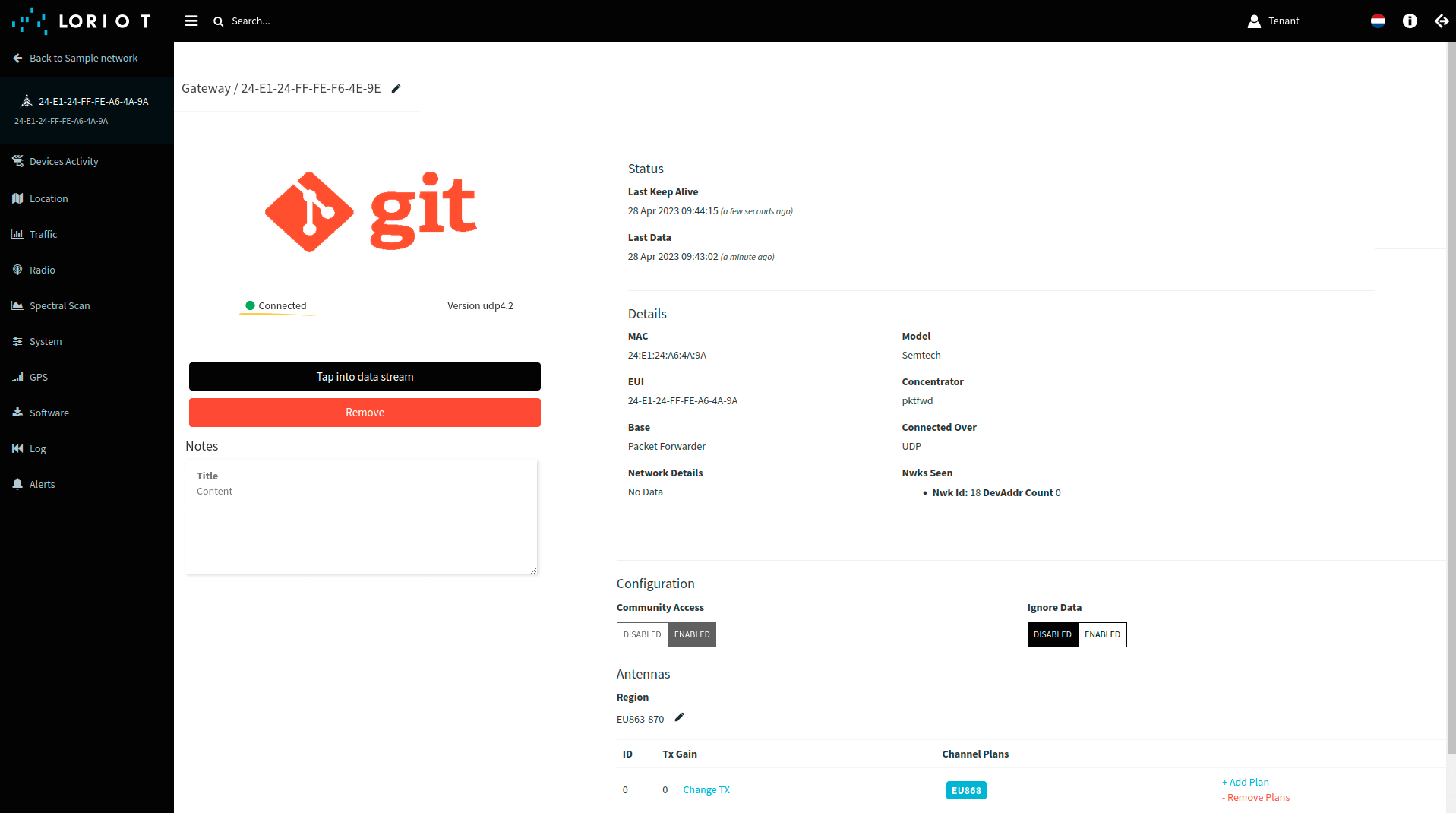
  • 登录Loriot服务器。在“网络”部分打开“示例网络”或创建新网络。

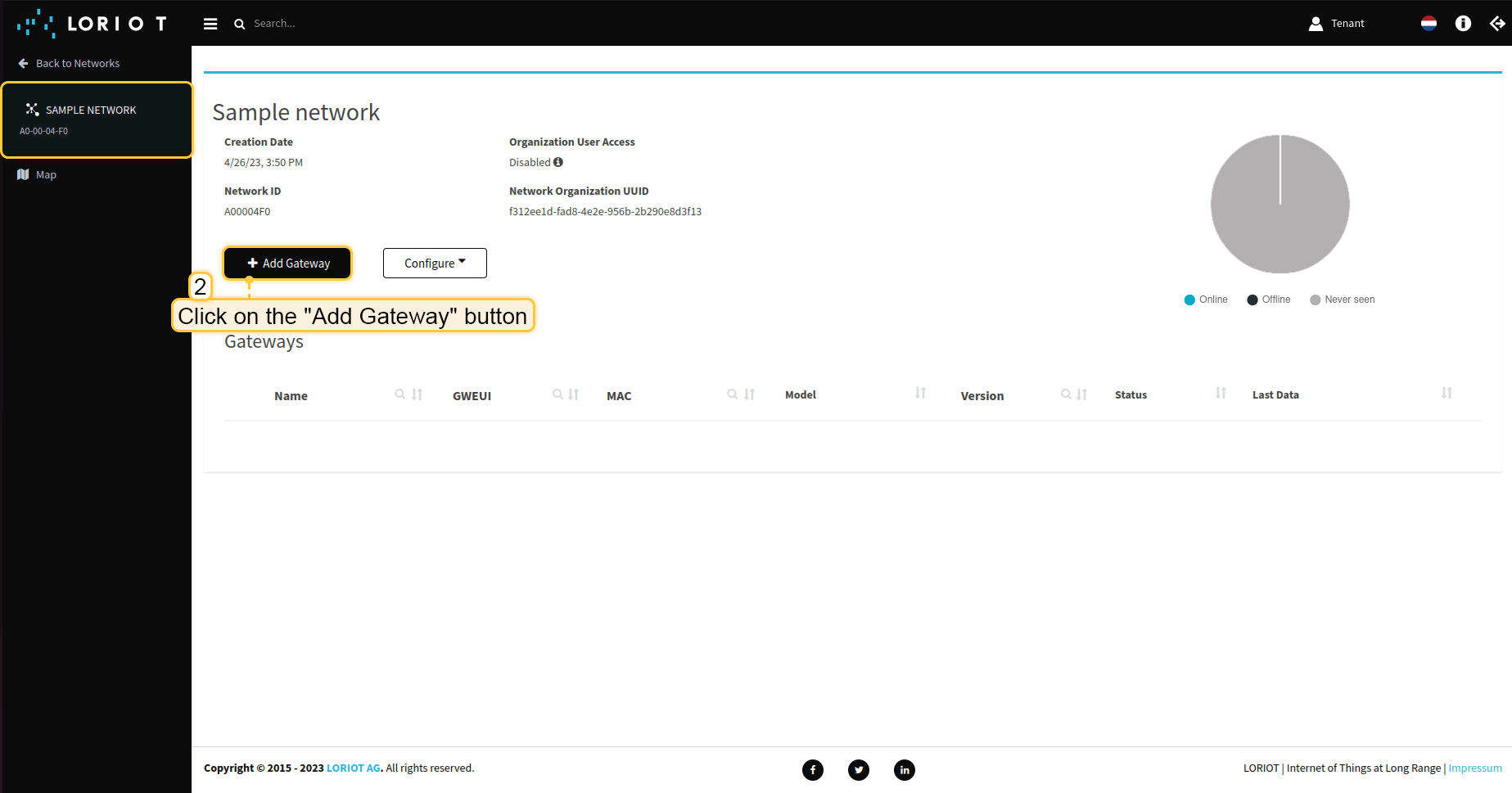
  • 点击“添加网关”按钮。

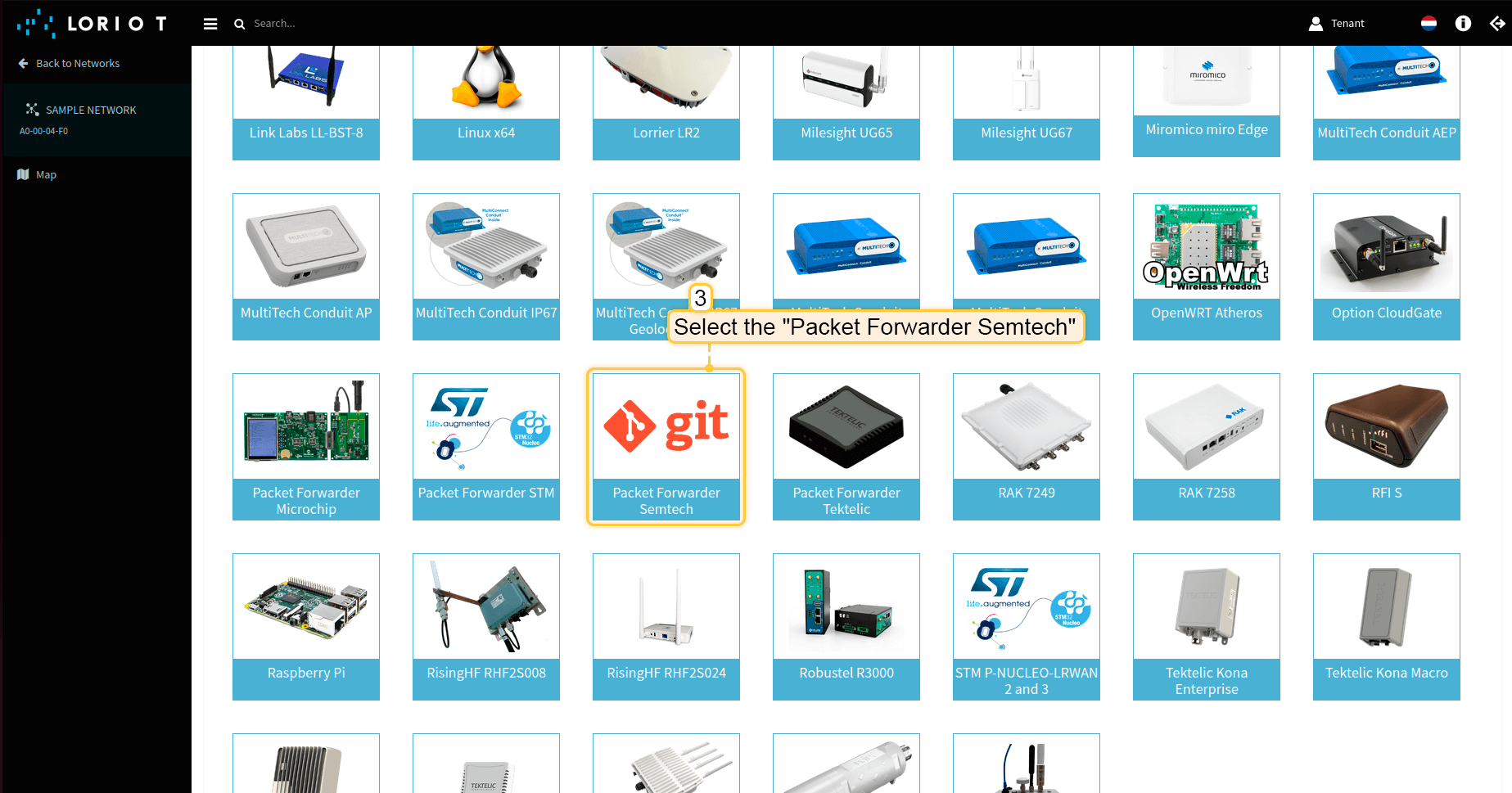
  • 向下滚动并选择“Packet Forwarder Semtech”。

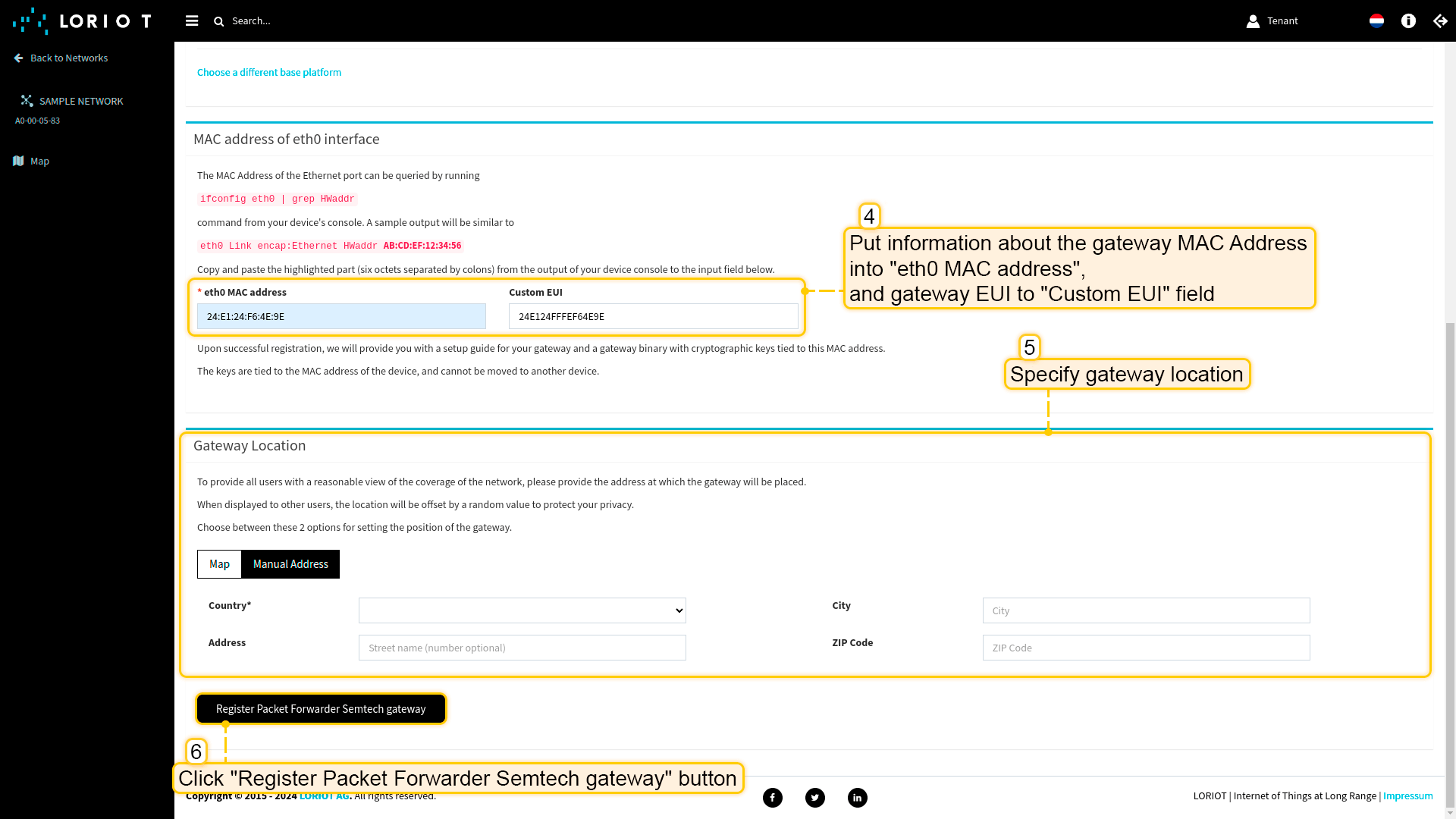
  • 向上滚动,将网关的 MAC地址(从网关EUI中去除中间的 FFFFFFFE 后得到)填入 eth0 MAC address 字段,将网关EUI填入 Custom EUI 字段。
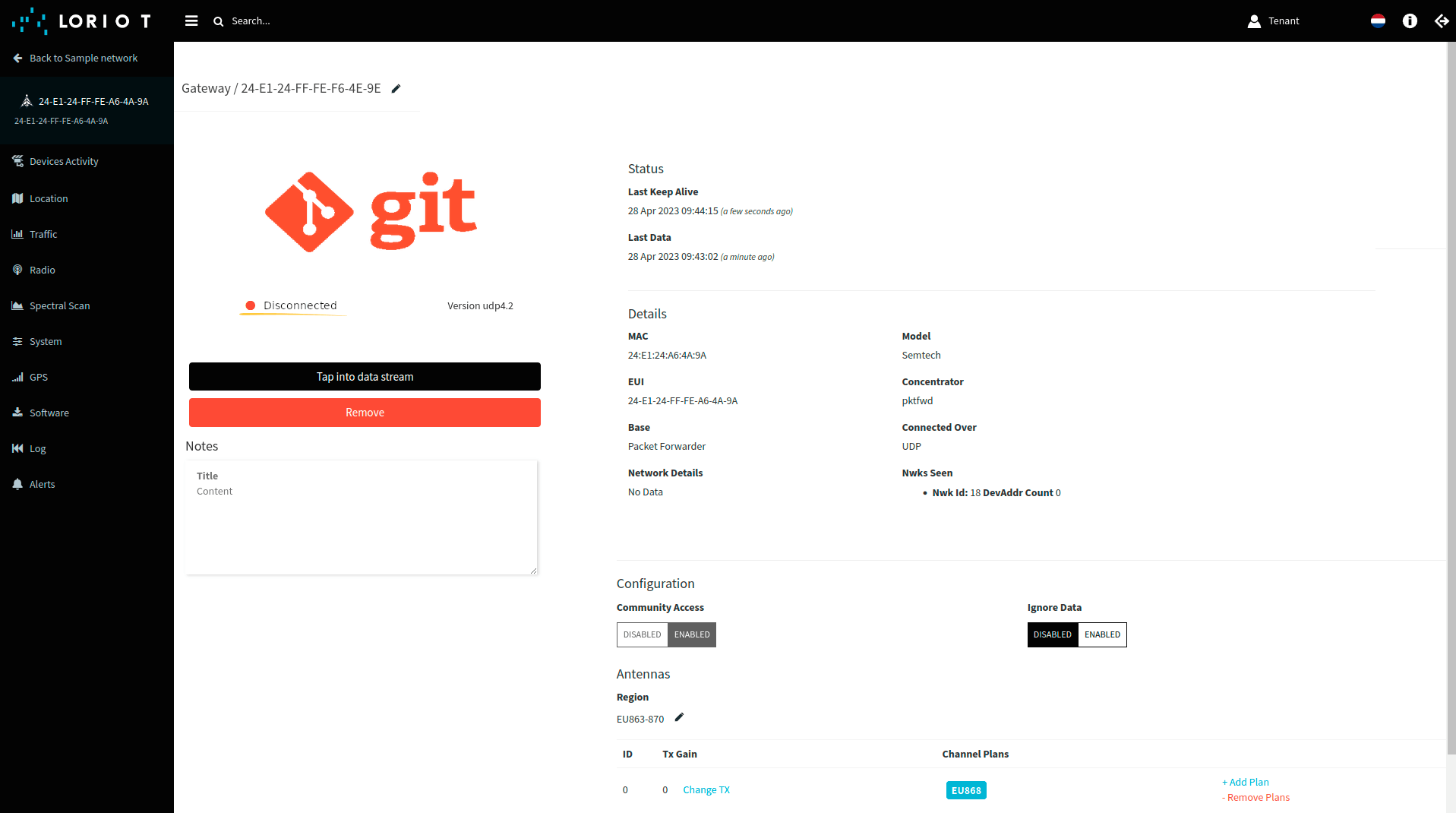
  • 网关已添加。您可看到其状态为已断开连接。

配置网关以发送数据

要将网关连接并发送数据到Loriot,需要配置网关。 请按以下步骤操作:

  • 打开网关控制面板。进入“Packet Forwarder”页面,点击“加号”按钮添加新转发器。
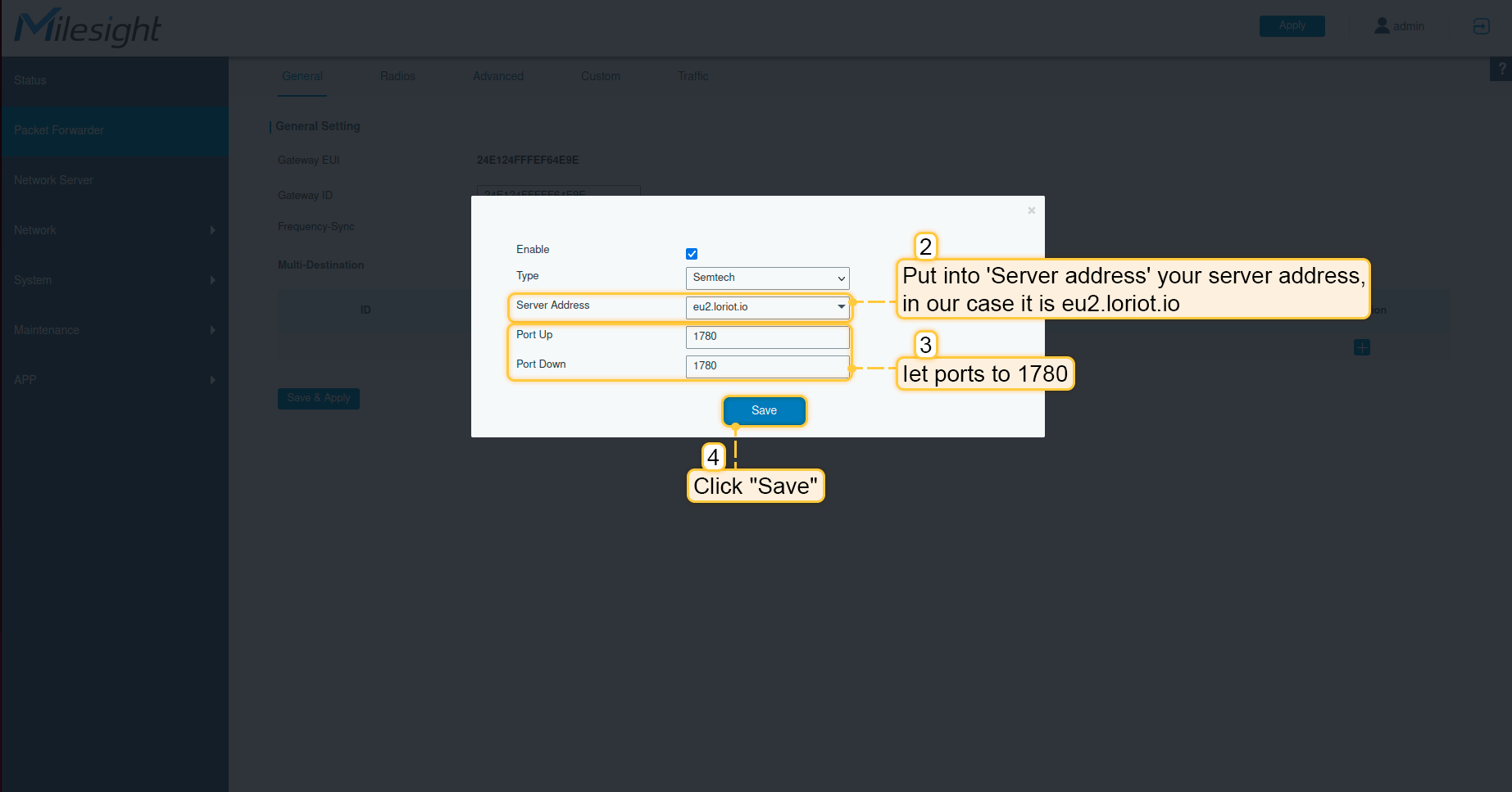
  • 服务器地址 中填入您的服务器地址,我们的示例为 eu2.loriot.io。将端口设置为 1780。点击“保存”按钮。
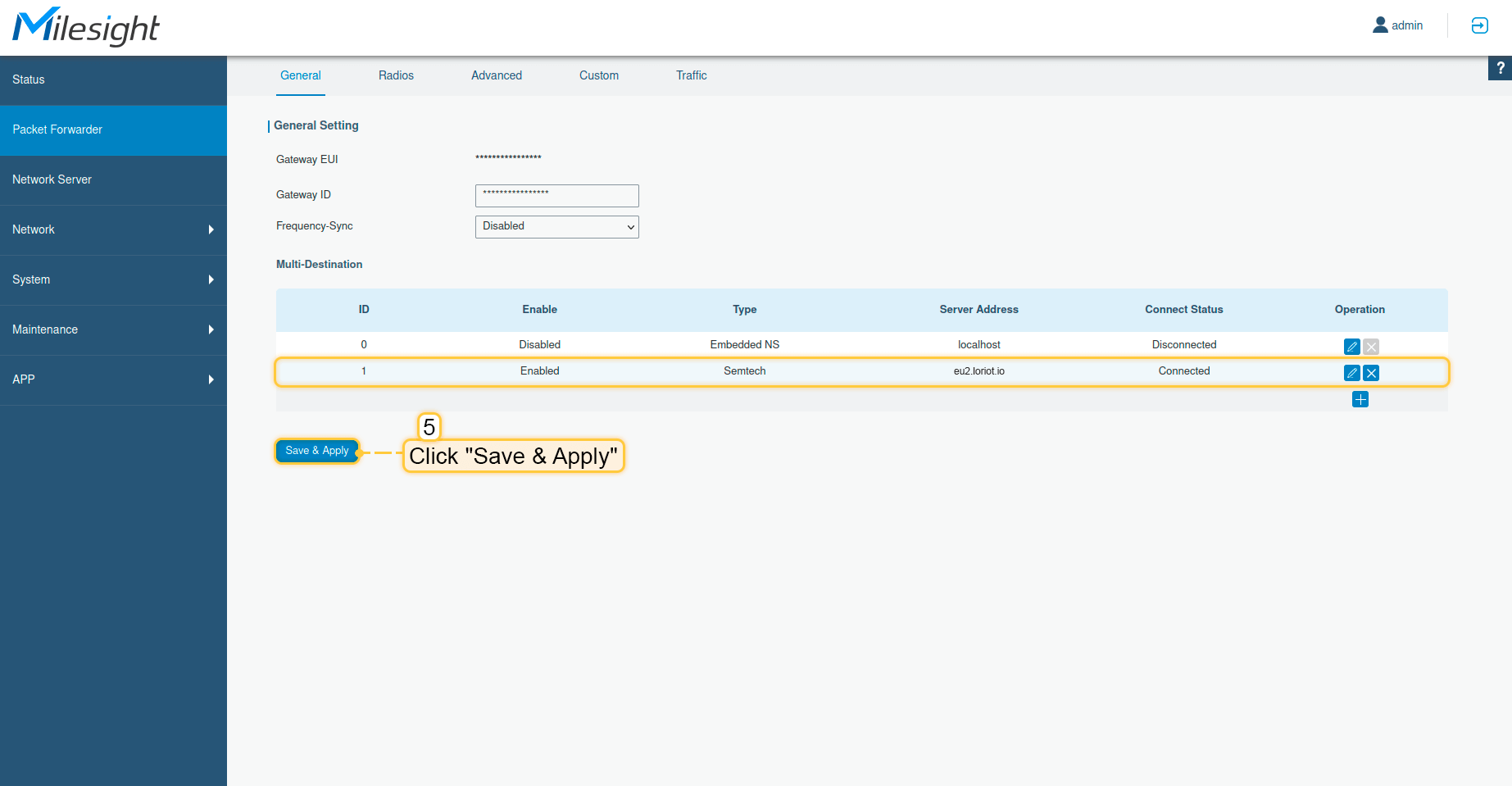
  • 点击“保存并应用”按钮。

  • 现在可以在Loriot上检查网关状态,应显示为已连接。

至此,网关已能够向网络服务器发送数据。

在Loriot上配置应用

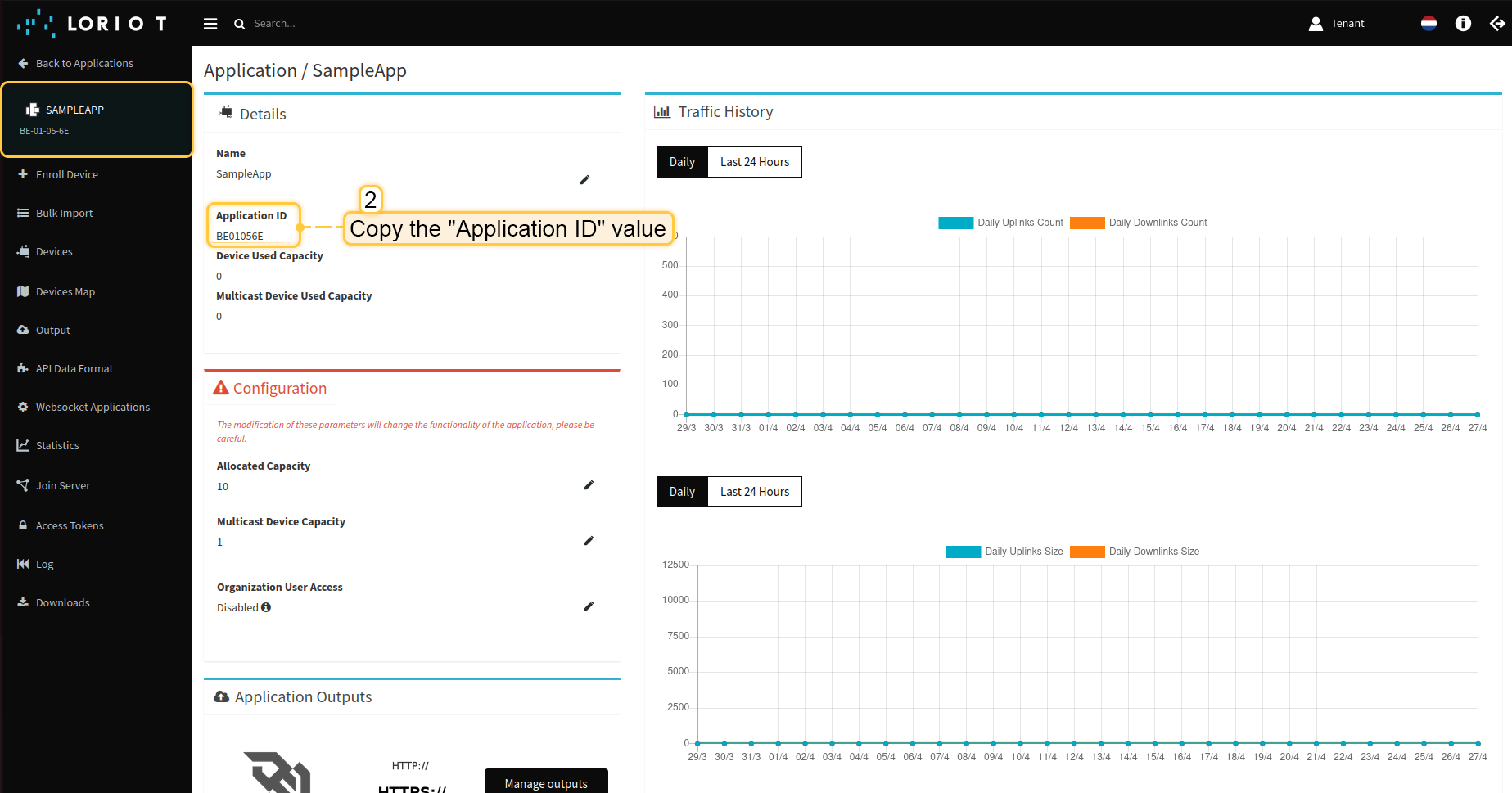
现在需要在Loriot中复制“应用ID”。在ThingsBoard中配置集成时需要用到。

请按以下步骤操作:
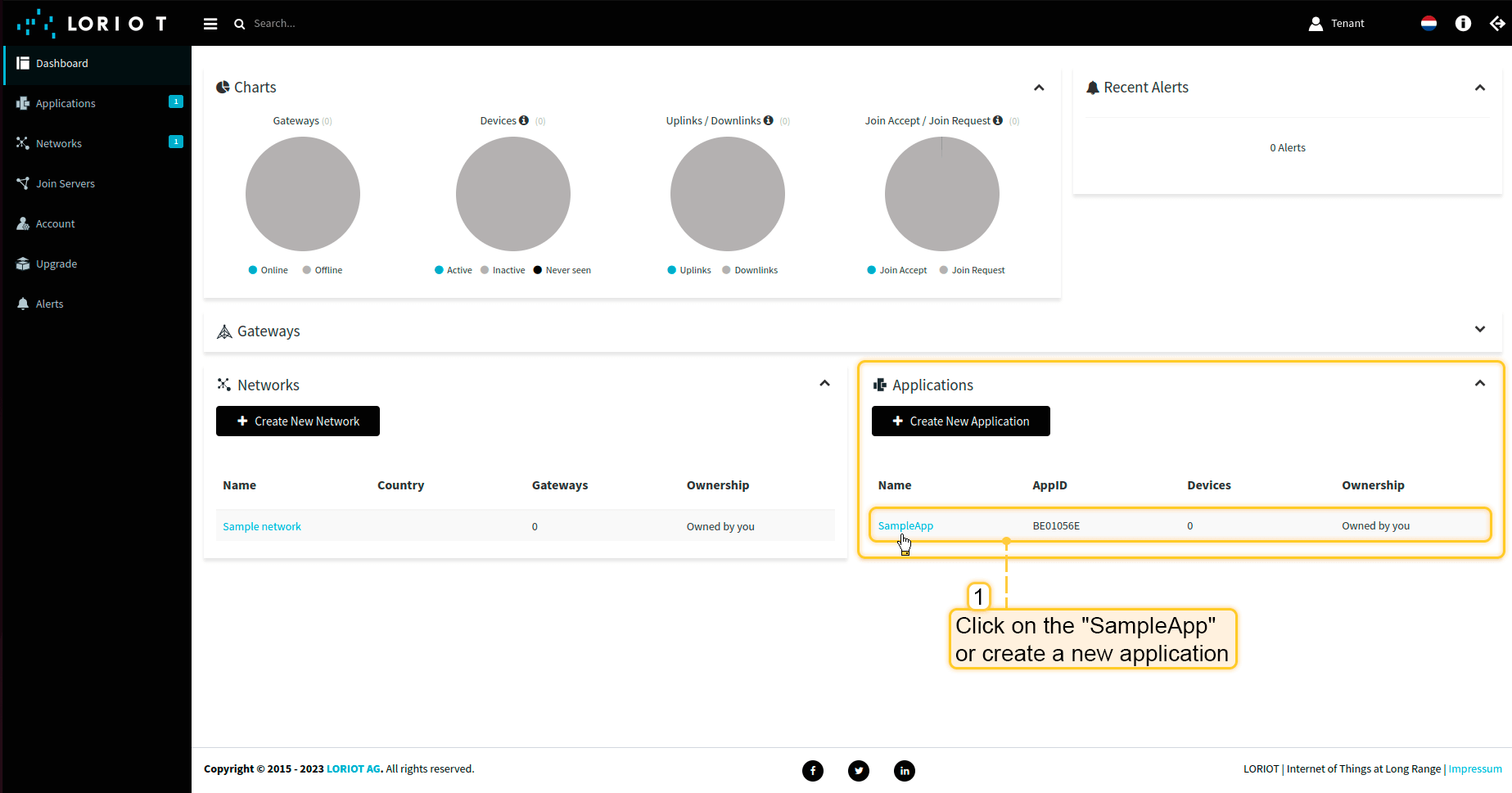
  • 在左侧菜单中进入“应用”,选择“SampleApp”或创建新应用。

  • 复制“应用ID”值并保存。

现在可以前往ThingsBoard配置集成。

在ThingsBoard中创建集成

接下来,我们将在ThingsBoard中创建与Loriot的集成。

首先,复制以下代码,创建上行数据转换器时需要用到:
1
2
3
4
5
6
7
8
9
10
11
12
13
14
15
16
17
18
19
20
21
22
23
24
25
26
27
28
29
30
31
32
33
34
35
36
37
38
39
40
41
42
43
44
45
46
47
48
49
50
51
52
53
54
55
56
57
58
59
60
61
62
63
64
65
66
67
68
69
70
71
72
73
74
75
76
77
78
79
80
81
82
83
84
85
86
87
88
89
90
91
92
var data = decodeToJson(payload);
var deviceName = data.EUI;
var deviceType = "LoraDevices";

// If you want to parse incoming data somehow, you can add your code to this function.
// input: bytes
// expected output:
//  {
//    "attributes": {"attributeKey": "attributeValue"},
//    "telemetry": {"telemetryKey": "telemetryValue"}
//  }
// default functionality - convert bytes to HEX string with telemetry key "HEX_bytes"

function decodePayload(input) {
    var output = { attributes:{}, telemetry: {} };
    // --- Decoding code --- //

    output.telemetry.HEX_bytes = bytesToHex(input);
    
    // --- Decoding code --- //
    return output;
}

// --- attributes and telemetry objects ---
var telemetry = {};
var attributes = {};
// --- attributes and telemetry objects ---

// --- Timestamp parsing
var timestamp = data.ts;
// --- Timestamp parsing

// You can add some keys manually to attributes or telemetry
attributes.fPort = data.port;
attributes.battery = data.bat;

// You can exclude some keys from the result
var excludeFromAttributesList = ["data", "gws", "EUI", "ts", "cmd", "port", "seqno", "fcnt", "toa", "ack", "bat", "snr", "rssi"];
var excludeFromTelemetryList = ["gws", "EUI", "ts", "freq", "port", "data", "cmd", "dr", "offline"];

// Message parsing
// To avoid paths in the decoded objects we passing false value to function as "pathInKey" argument.
// Warning: pathInKey can cause already found fields to be overwritten with the last value found.

var telemetryData = toFlatMap(data, excludeFromTelemetryList, false);
var attributesData = toFlatMap(data, excludeFromAttributesList, false);

var uplinkDataList = [];

// Passing incoming bytes to decodePayload function, to get custom decoding
var customDecoding = decodePayload(hexToBytes(data.data));

// Collecting data to result
if (customDecoding.?telemetry.size() > 0) {
    telemetry.putAll(customDecoding.telemetry);
}

if (customDecoding.?attributes.size() > 0) {
    attributes.putAll(customDecoding.attributes);
}

telemetry.putAll(telemetryData);
attributes.putAll(attributesData);

var deviceInfo = {
deviceName: deviceName,
deviceType: deviceType,
telemetry: {
ts: timestamp,
values: telemetry
},
attributes: attributes
};

uplinkDataList.add(deviceInfo);

if (data.cmd == "gw") {
    foreach( gatewayInfo : data.gws ) {
        var gatewayInfoMsg = {
            deviceName: gatewayInfo.gweui,
            deviceType: "LoraGateway",
            attributes: {},
            telemetry: {
                "ts": gatewayInfo.ts,
                "values": toFlatMap(gatewayInfo, ["ts", "time", "gweui"], false)
            }
        };
        uplinkDataList.add(gatewayInfoMsg);
    }
}

return uplinkDataList;


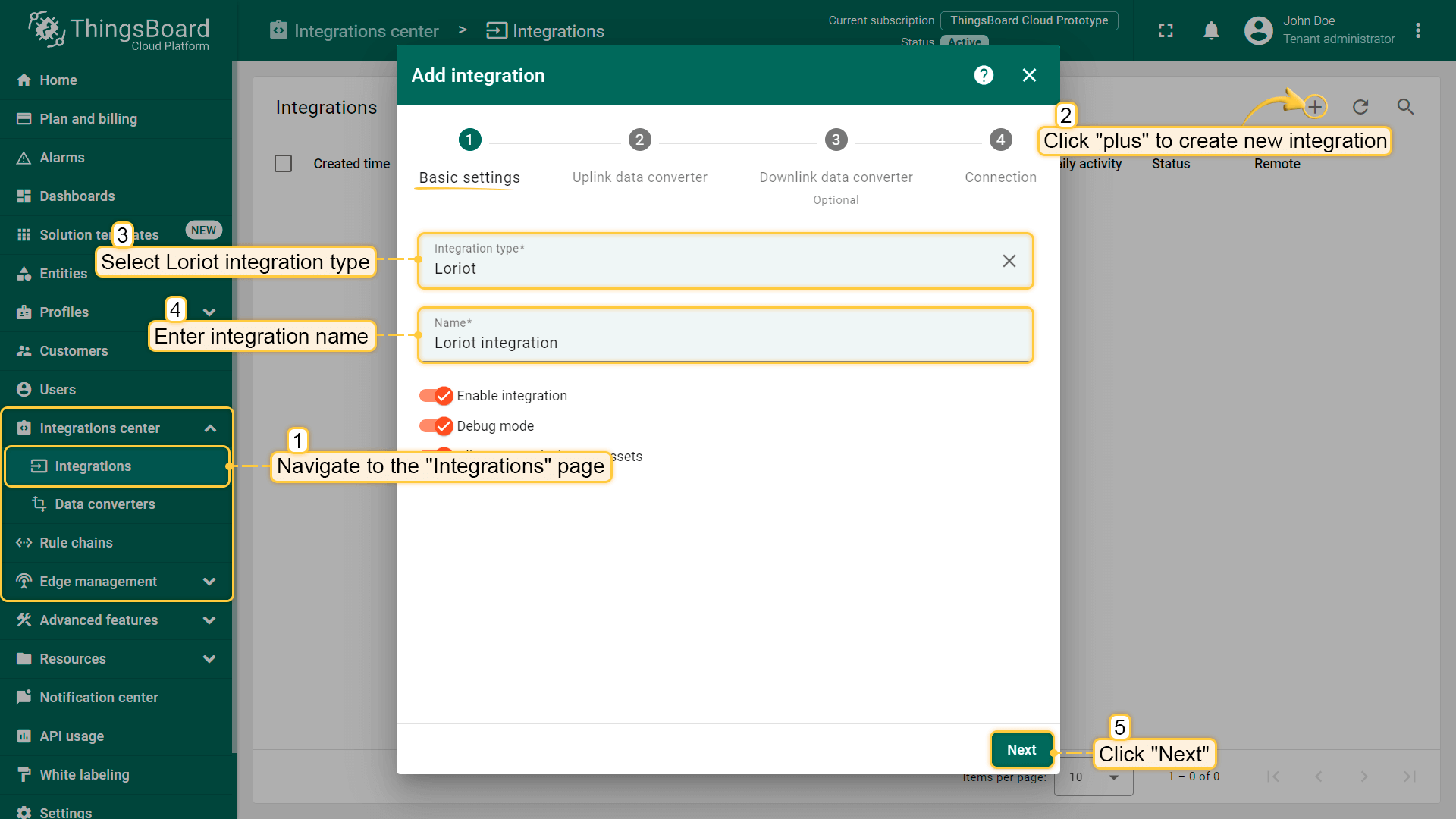
现在,打开“集成中心”部分 ->“集成”页面,按以下步骤操作:

  • 点击“加号”按钮添加新集成。选择类型“Loriot”。然后点击“下一步”。
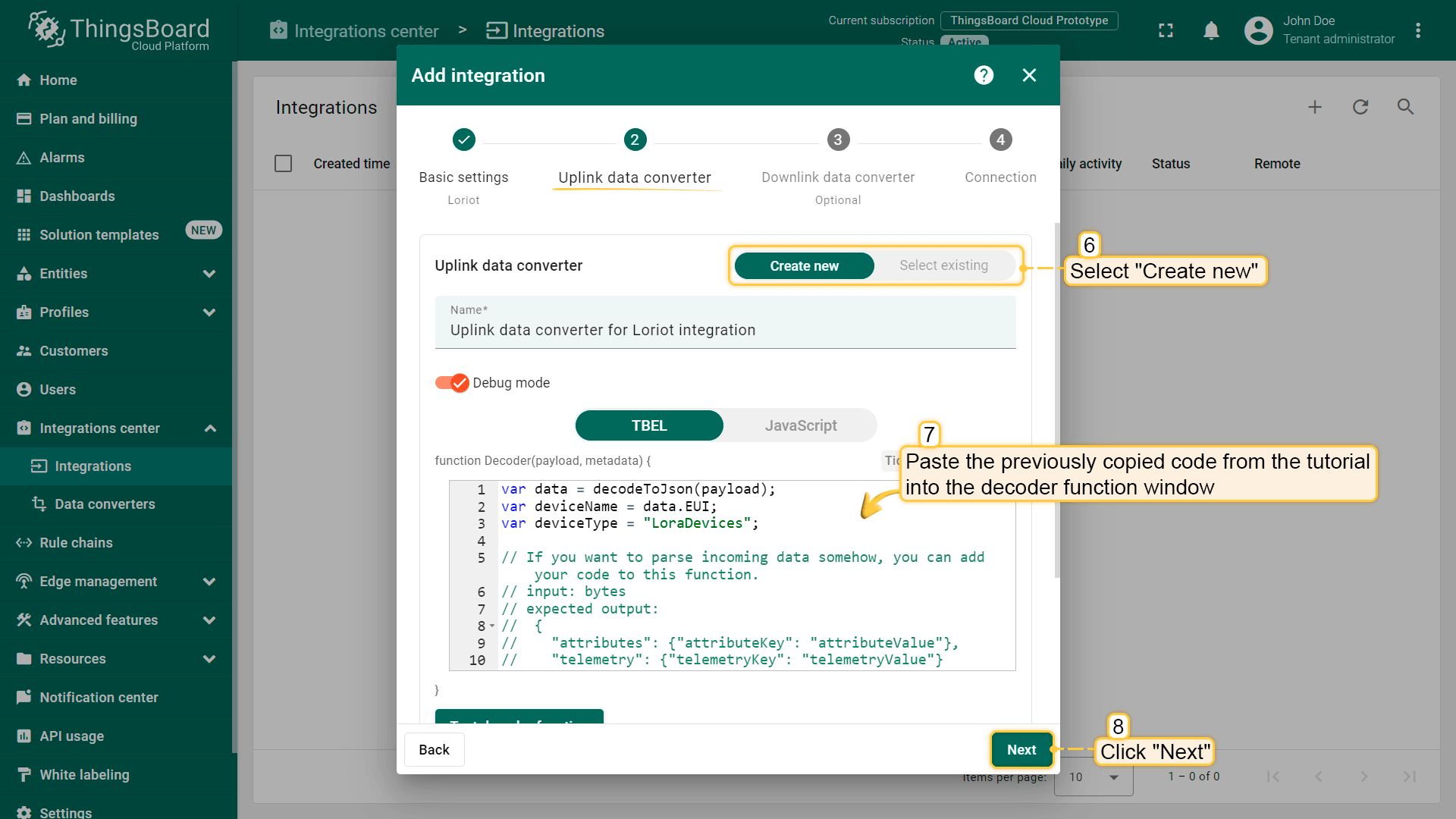
  • 将先前复制的脚本粘贴到解码器函数区域。点击“下一步”。

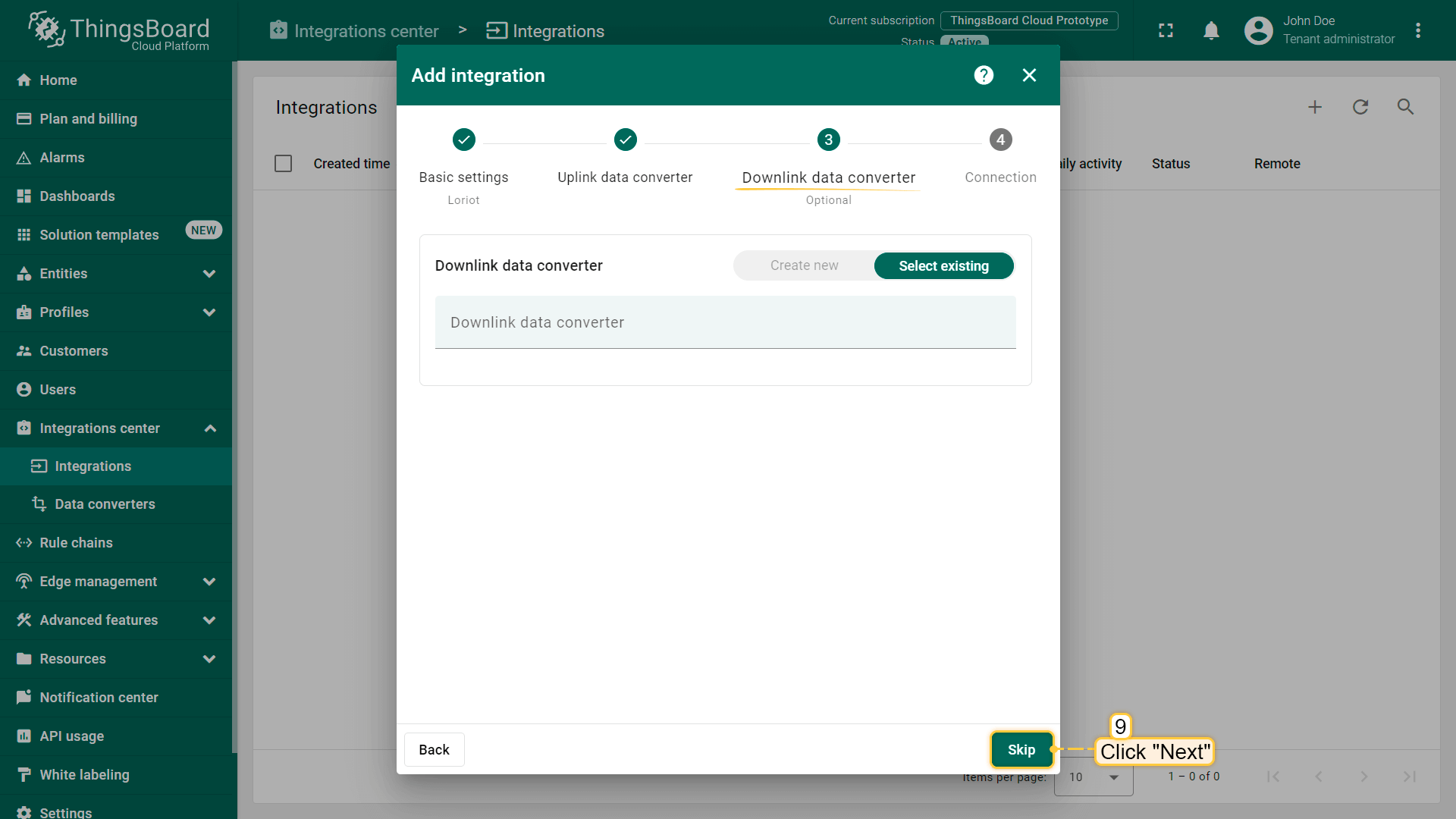
  • 将“下行数据转换器”字段留空。点击“跳过”按钮。

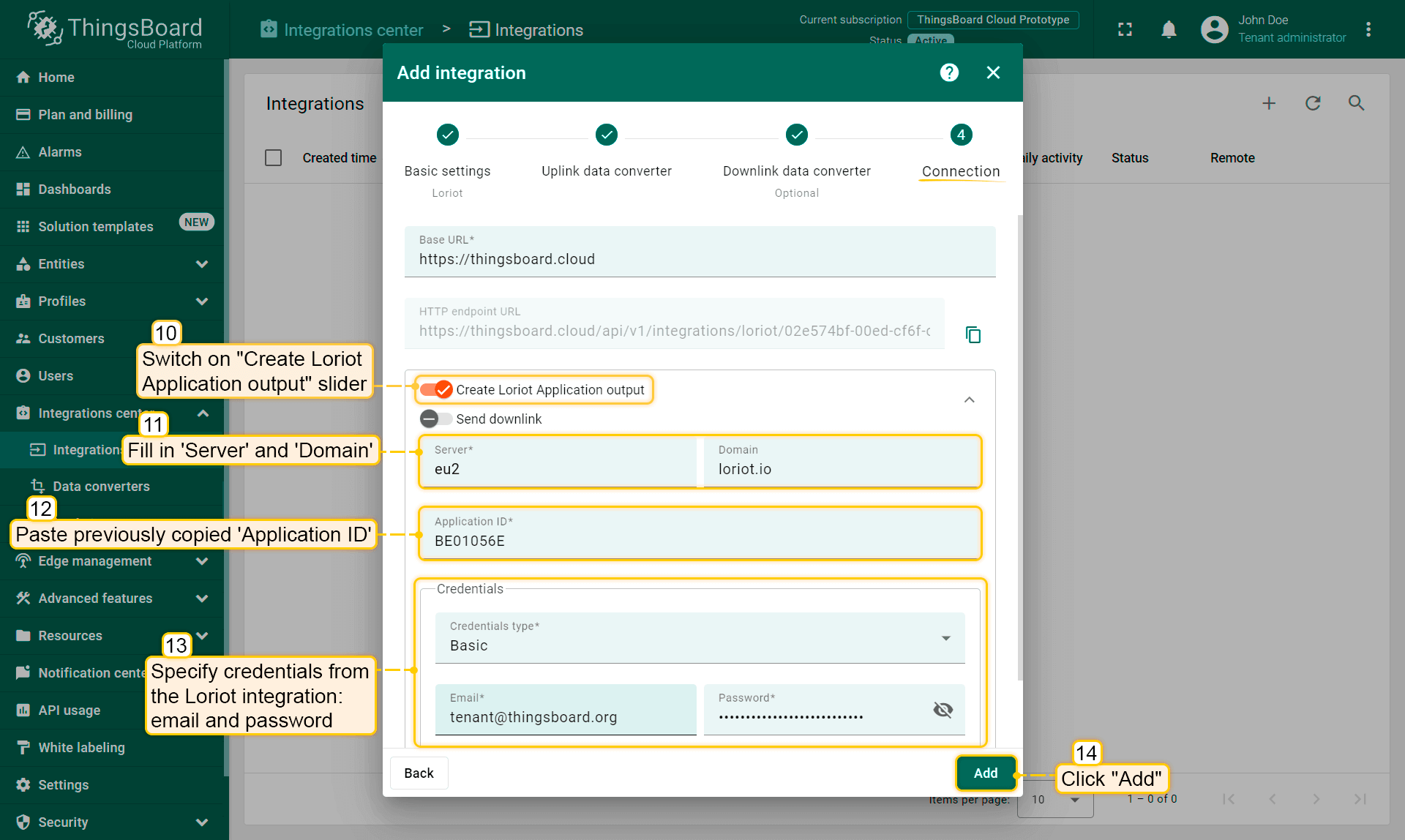
  • 填写您的参数,然后点击“添加”按钮。

集成已创建。


可按以下方式检查集成连接状态:

  • 点击集成列表中的某一行;
  • 进入“事件”选项卡;
  • 事件类型 下拉列表中选择“生命周期事件”。

若看到 STARTED 事件且状态为 Success,则表示集成已成功启动,可以接收消息。

检查集成连接

故障排查

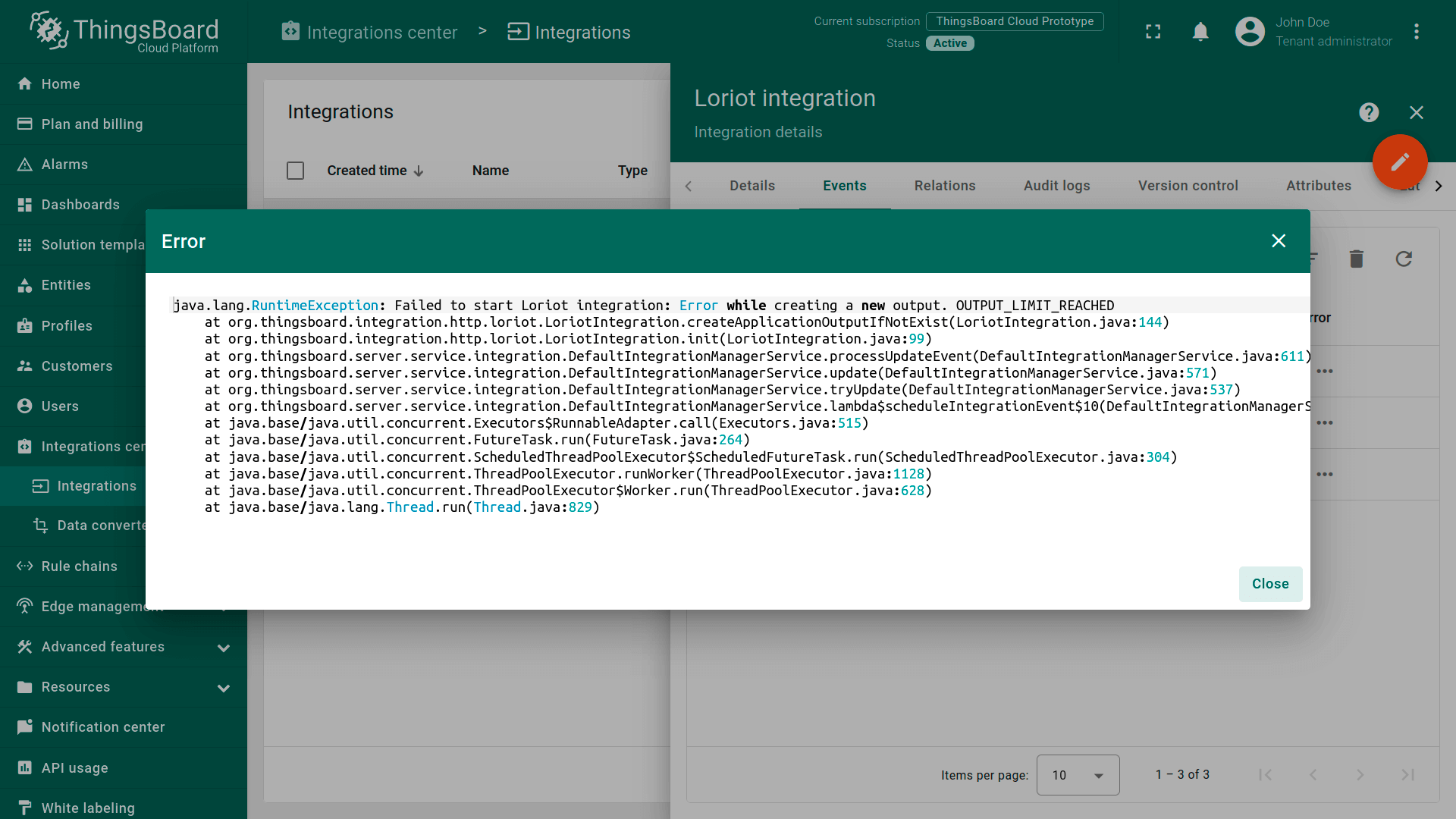
若看到以下错误信息,表示输出未自动创建。

检查集成连接

您可以手动配置:

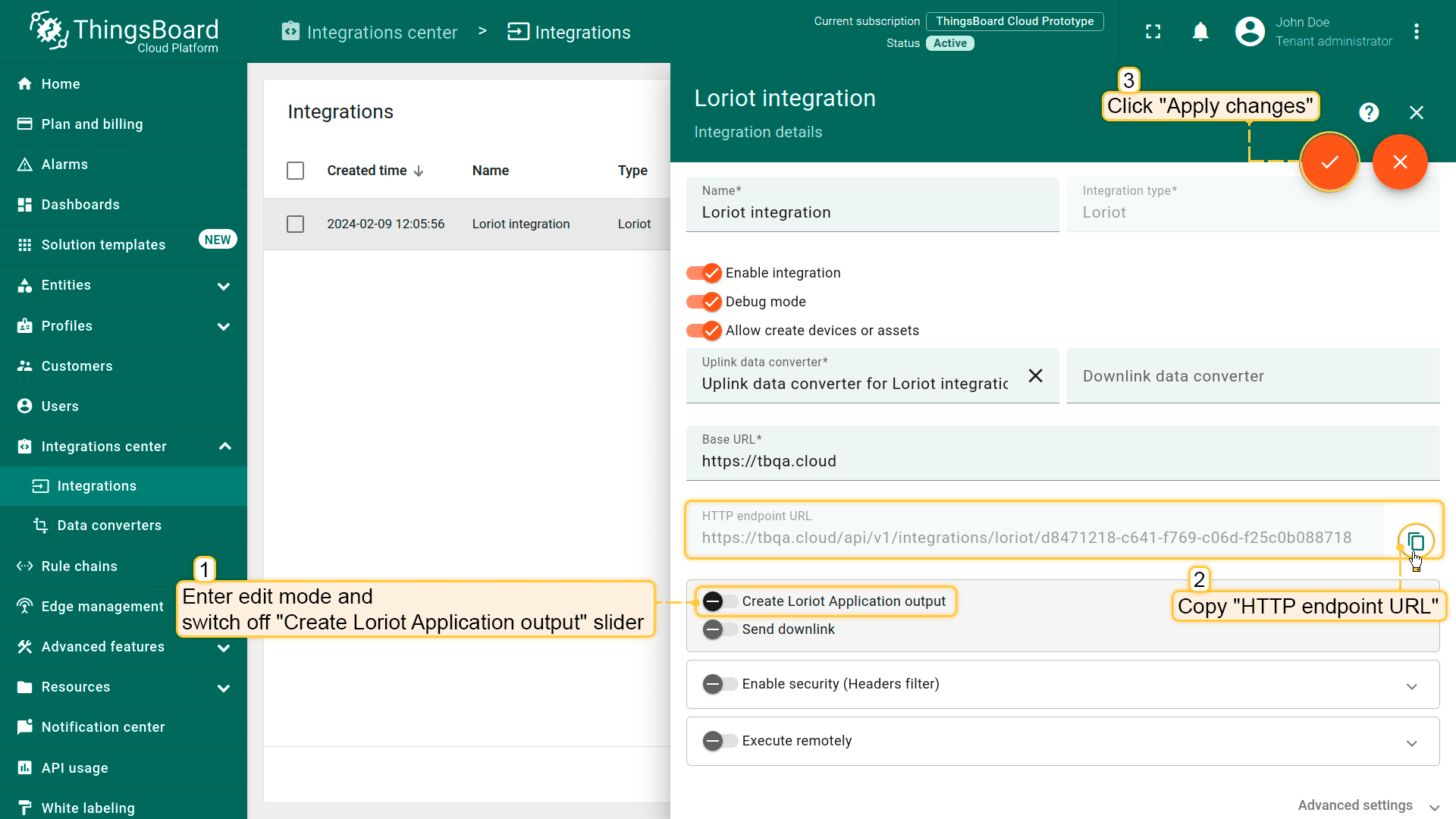
  • 进入ThingsBoard Loriot集成的编辑模式,关闭 “创建Loriot应用输出” 开关并复制 “HTTP端点URL”。然后应用更改;
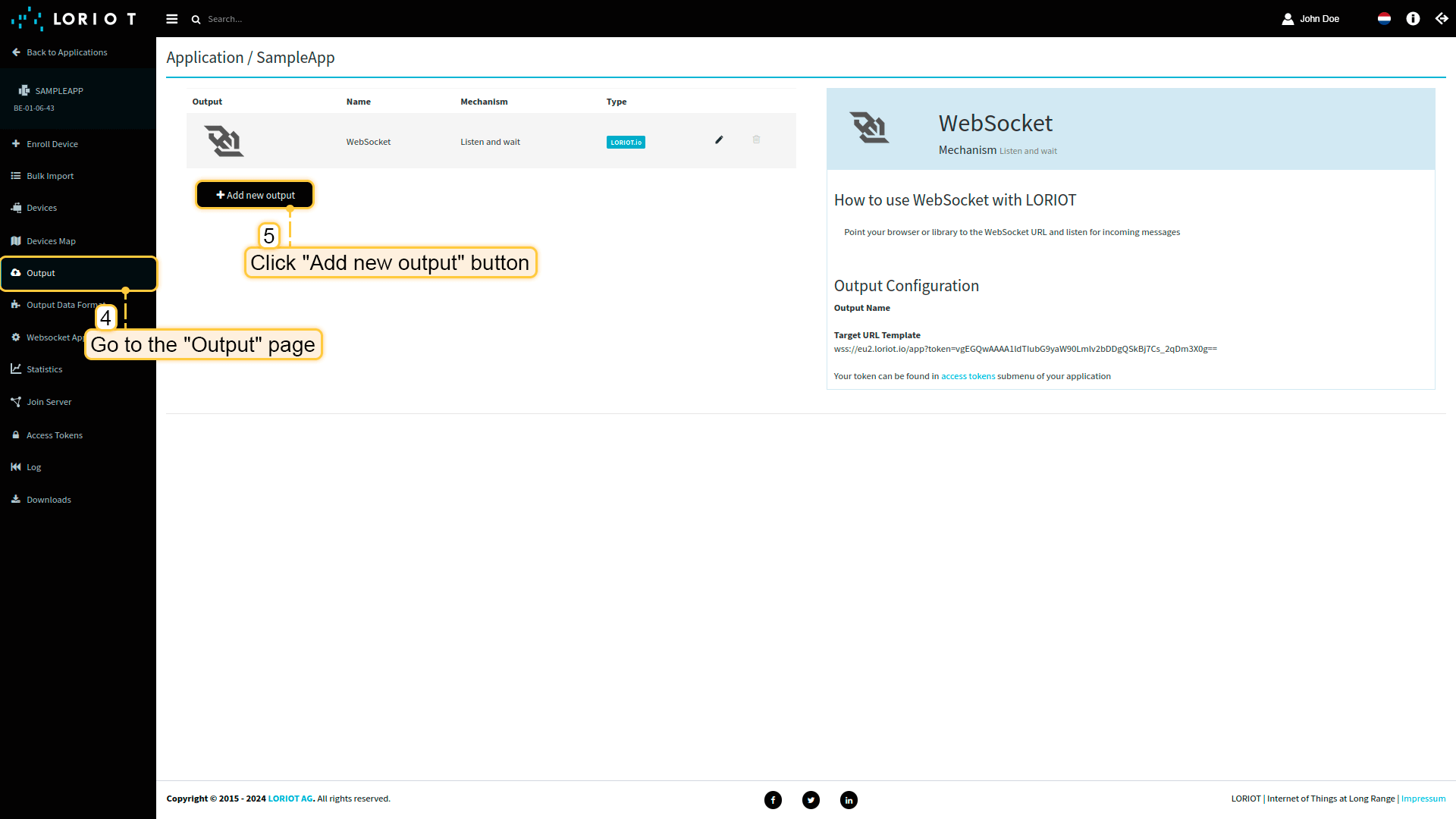
  • 打开 eu2.loriot.io,在左侧面板中进入 “输出” 页面,点击 “添加新输出” 按钮;
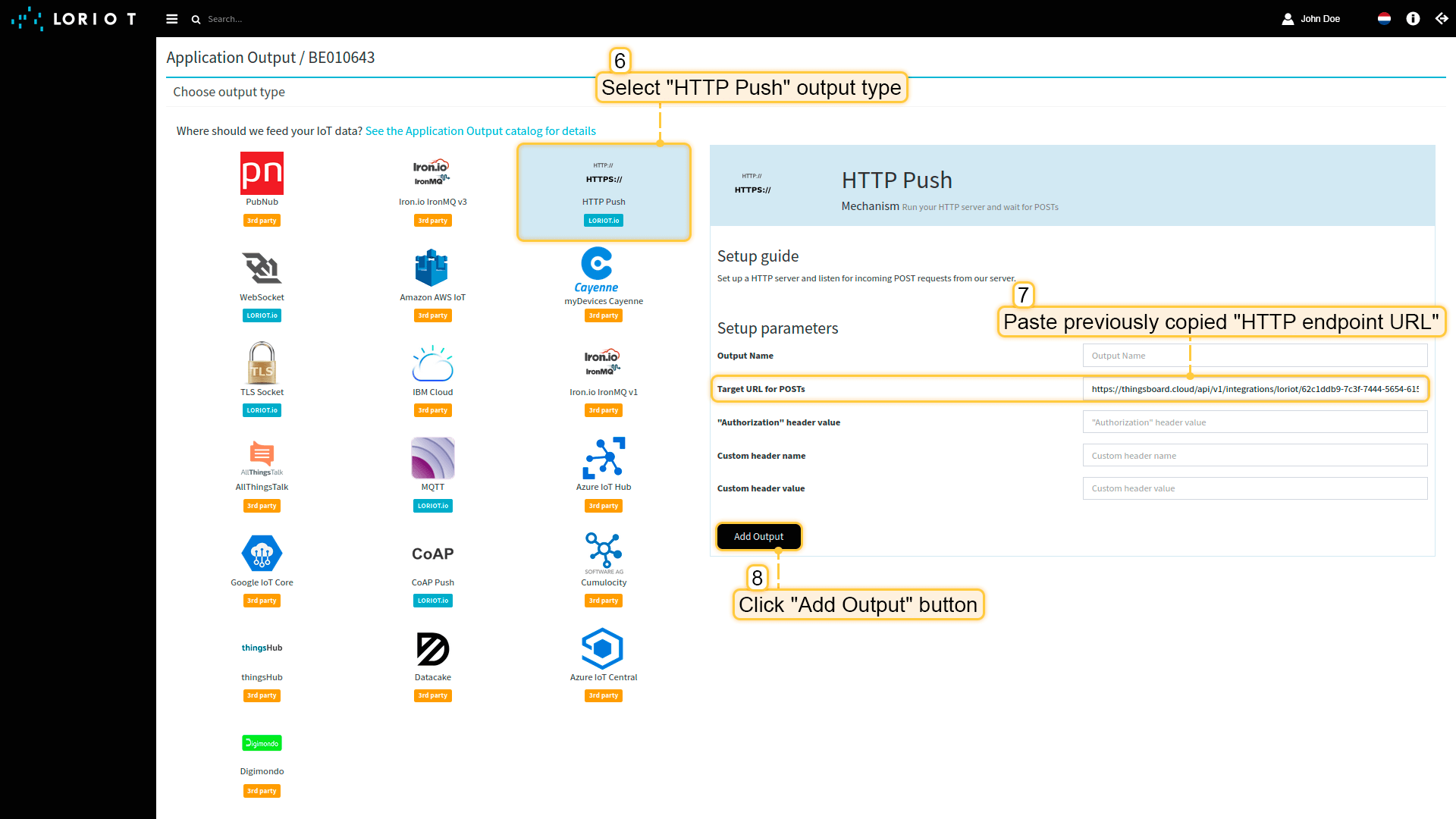
  • 选择 “HTTP Push”。将 “HTTP端点URL” 粘贴到 “Target URL for POSTs” 字段。点击 “添加输出” 按钮;
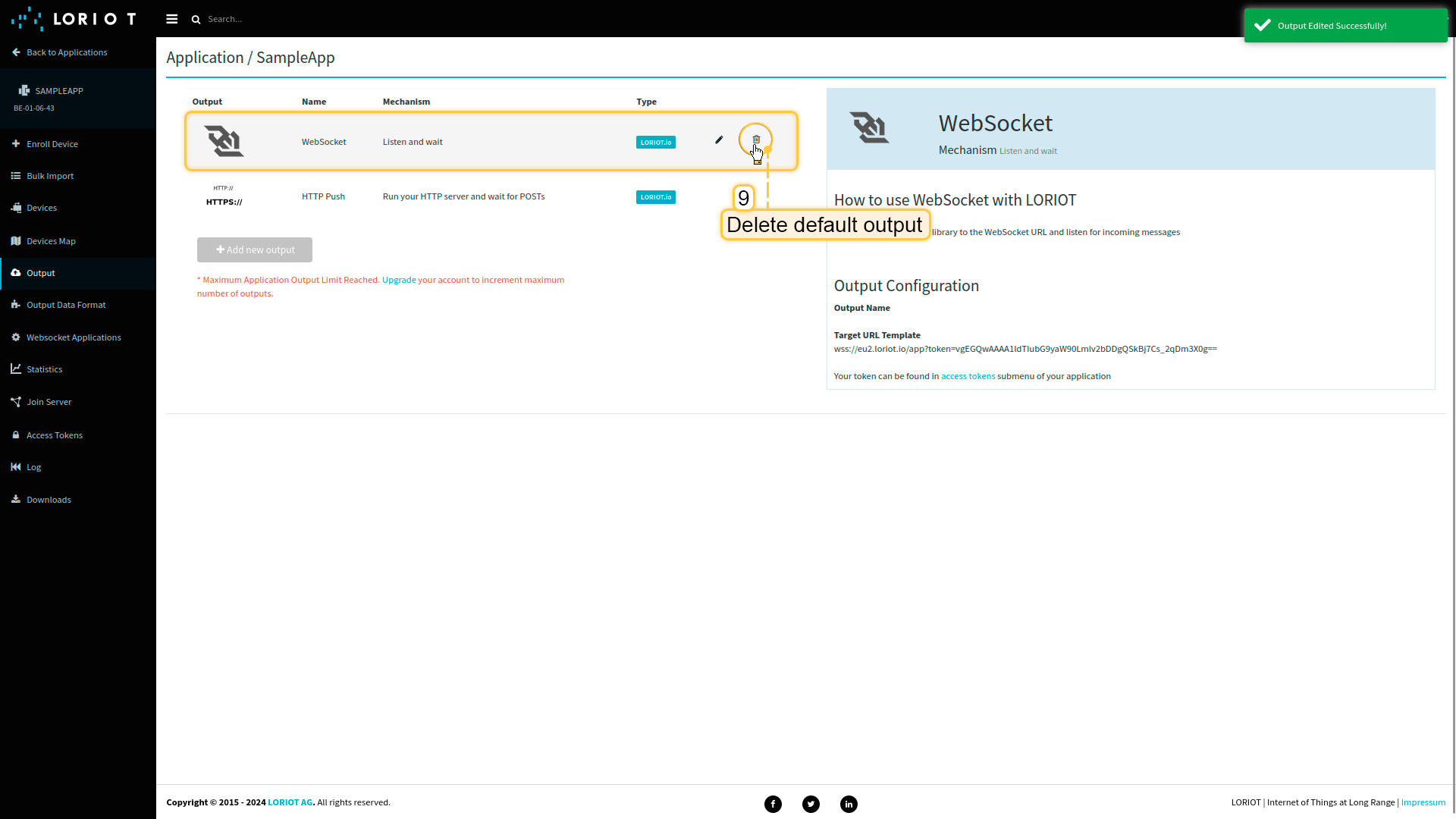
  • 删除默认输出;

  • 前往云端检查连接状态。


检查集成连接可按以下方式操作:

  • 点击列表中的集成行;
  • 进入 事件 选项卡;
  • 事件类型 下拉列表中选择 生命周期事件

若看到事件 STARTED 且状态为 Success,表示集成已成功启动并可接收消息。
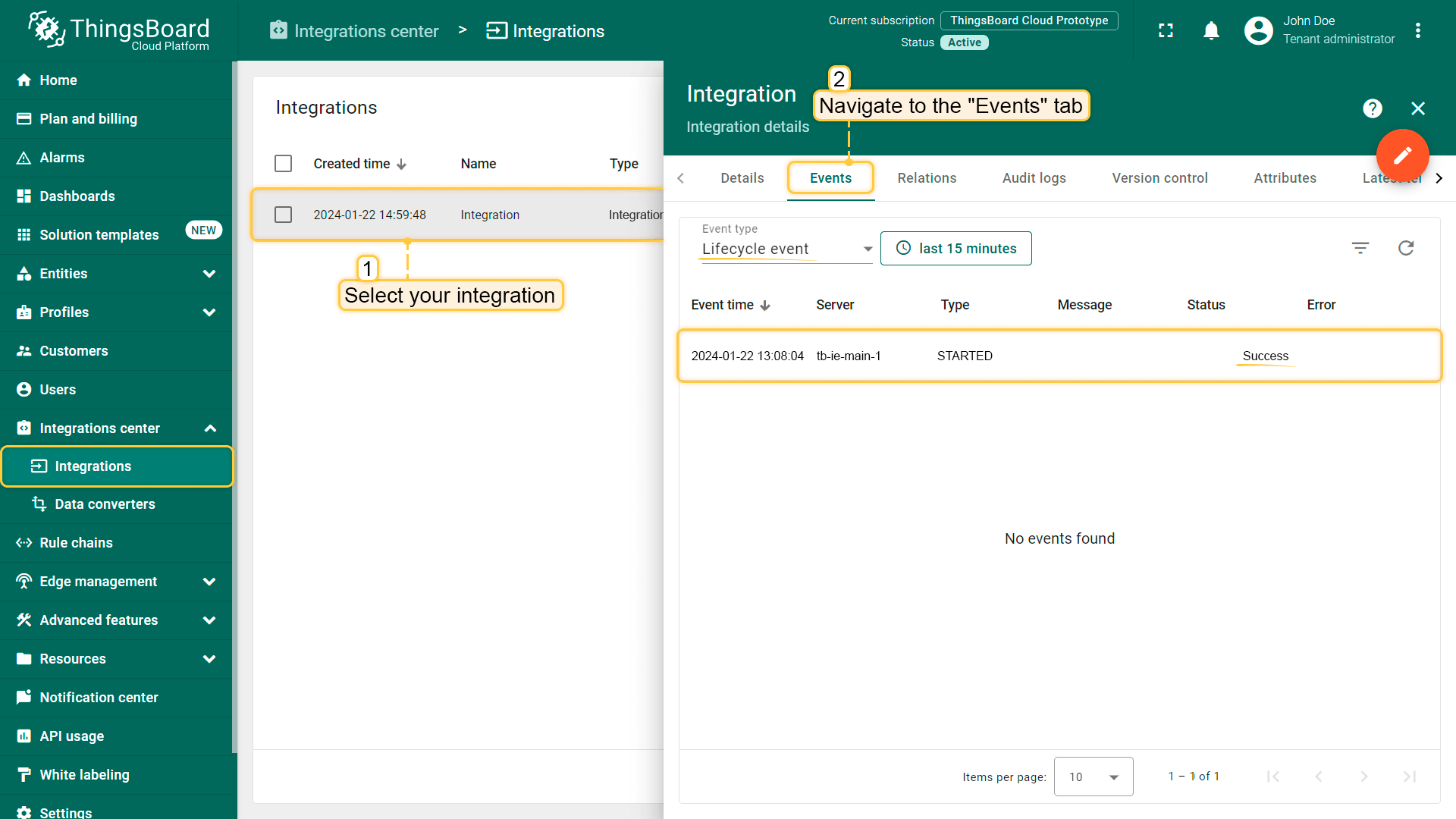
Check integration connection

总结

掌握本指南内容后,您可以轻松连接 UG65 LoRaWAN® Semi-Industrial Gateway,并利用内置集成从连接的设备获取数据。

您可以在设备库中找到部分LoRaWAN设备,并通过网络服务器上的网关连接这些设备或其他设备。

设备连接到网关后,即可在ThingsBoard上查看并处理设备上报的数据。

了解更多核心概念与功能,请查阅平台文档

发现即插即用硬件,助力您的解决方案
合作伙伴图标