- Hardware type: Gateways
- Connectivity: LoRaWAN, Ethernet, WIFI, Bluetooth, 4G, Zigbee
- Chip: R1100
- Industry: Industrial Manufacturing, Energy Management, Smart Buildings
- Use cases: Smart energy, Environment Monitoring, Smart Office, Smart Retail, Smart Farming, Fleet Tracking, Health Care, Air Quality Monitoring, Waste Management, Tank Level Monitoring
- Platforms: Community Edition, Professional Edition, Cloud, Edge, Edge Professional Edition
- 概述
- 与ThingsBoard Edge集成
- 配置ModBus连接器
- Installing the ThingsBoard IoT Gateway on the reComputer R1100
- 在仪表板中可视化数据
概述
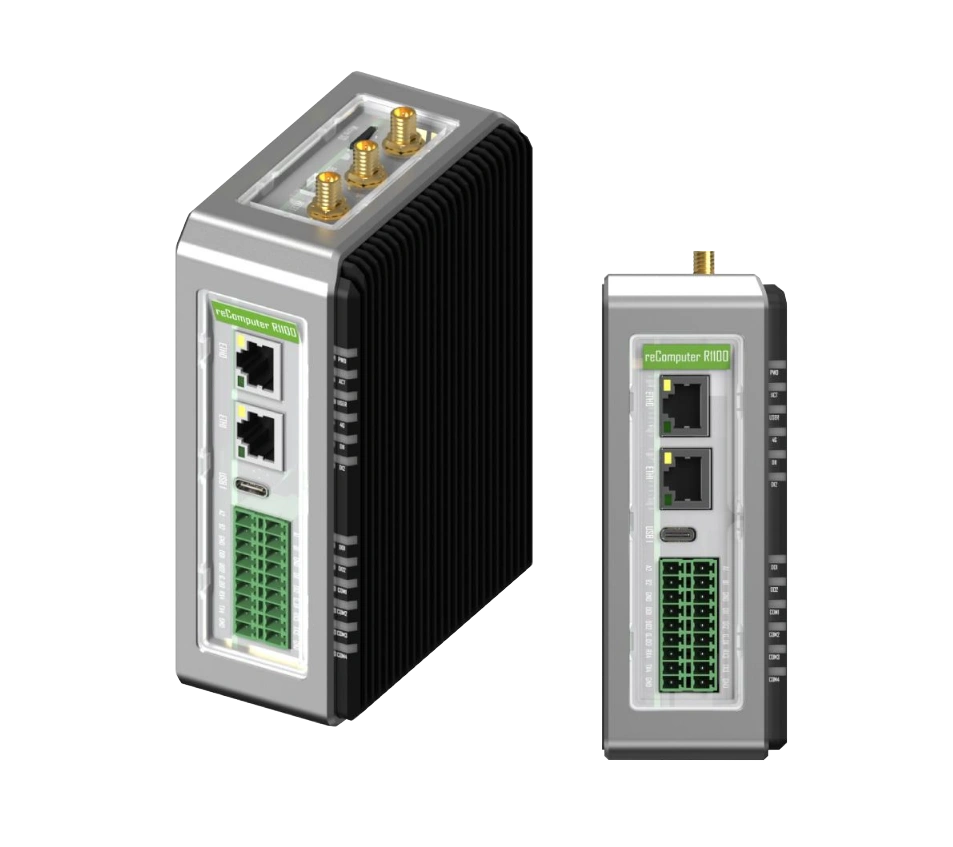
reComputer R1100 基于Raspberry Pi CM4,是一款可适配的带AI能力的边缘IoT网关。
配备完整工业接口(2×以太网、2×USB、2×RS485、2×RS232、2×DI、2×DO)及灵活无线连接(4G、LoRa®、Wi-Fi/BLE),适用于多种工业场景。
在IoT领域应用广泛,可用于数据采集与过程监控、自动化与机器人控制、智能制造、工业通信与组网等。
体积小、灵活、成本低、可编程,为自动化与IoT系统等提供有力支持。
与ThingsBoard Edge集成
前置条件
要继续本指南,需满足以下条件:
|
要继续本指南,需满足以下条件:
|
在 reComputer R1100 上启动 Edge
-
登录 ThingsBoard Professional Edition 实例,进入 Edge Management > Instances(边缘管理 > 实例)部分。点击右上角 ”+” 图标,选择 “Add new edge” 选项。
-
在 “Name” 字段输入Edge名称,点击 “Add” 按钮确认添加新Edge。
-
新Edge应出现在列表顶部,条目默认按创建时间排序。
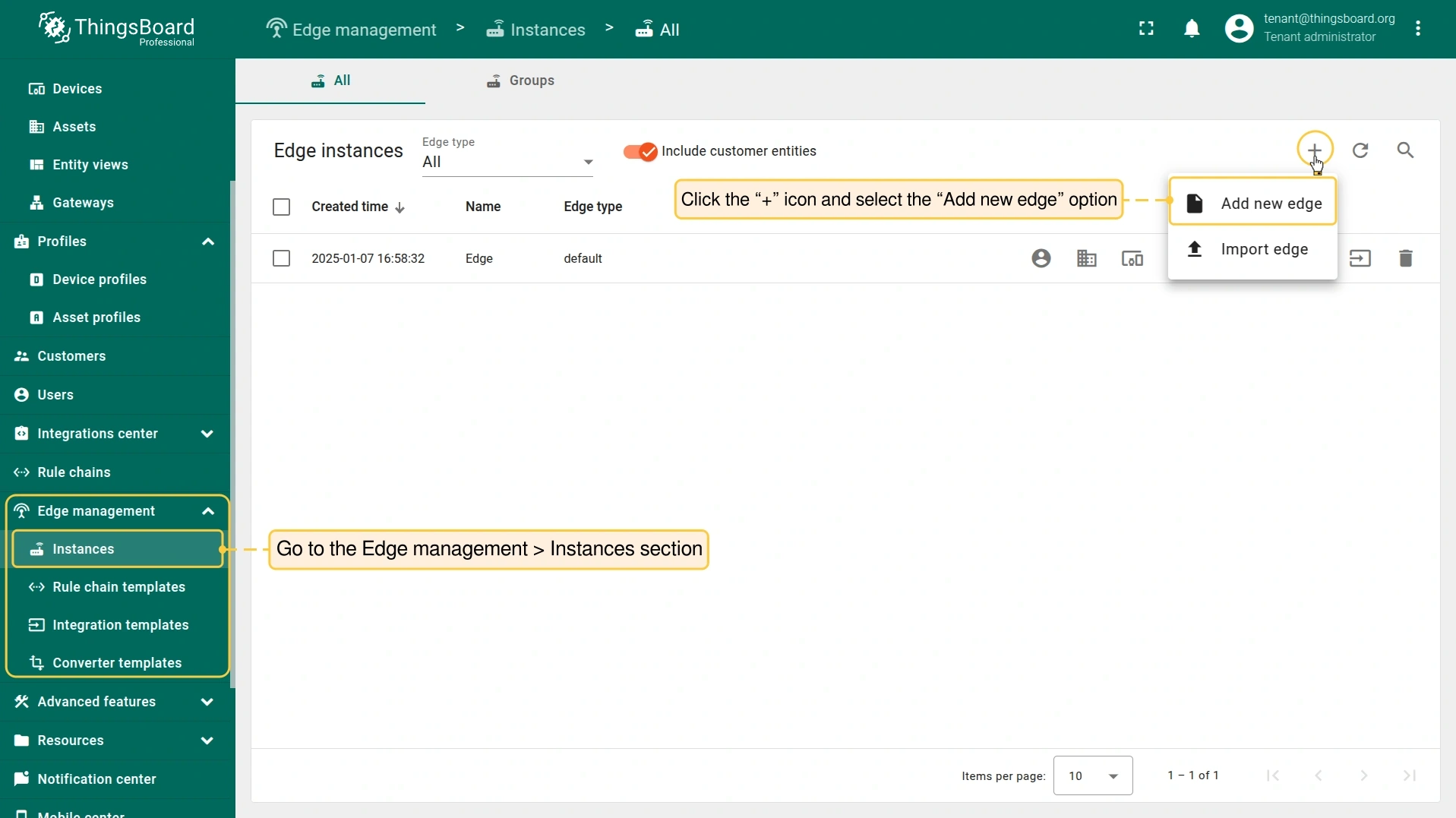
登录 ThingsBoard Professional Edition 实例,进入 Edge Management > Instances(边缘管理 > 实例)部分。点击右上角 ”+” 图标,选择 “Add new edge” 选项。
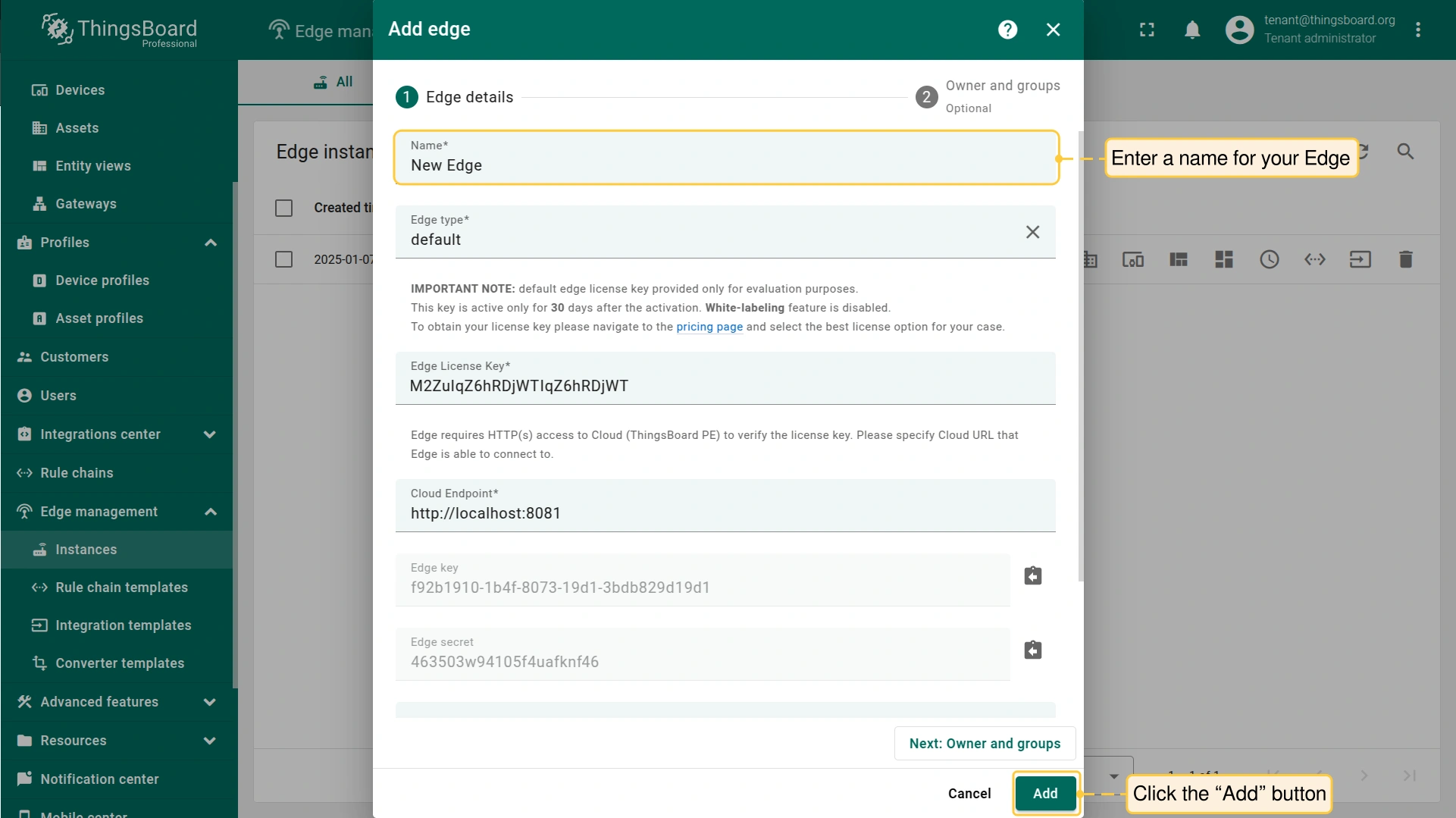
在 “Name” 字段输入Edge名称,点击 “Add” 按钮确认添加新Edge。
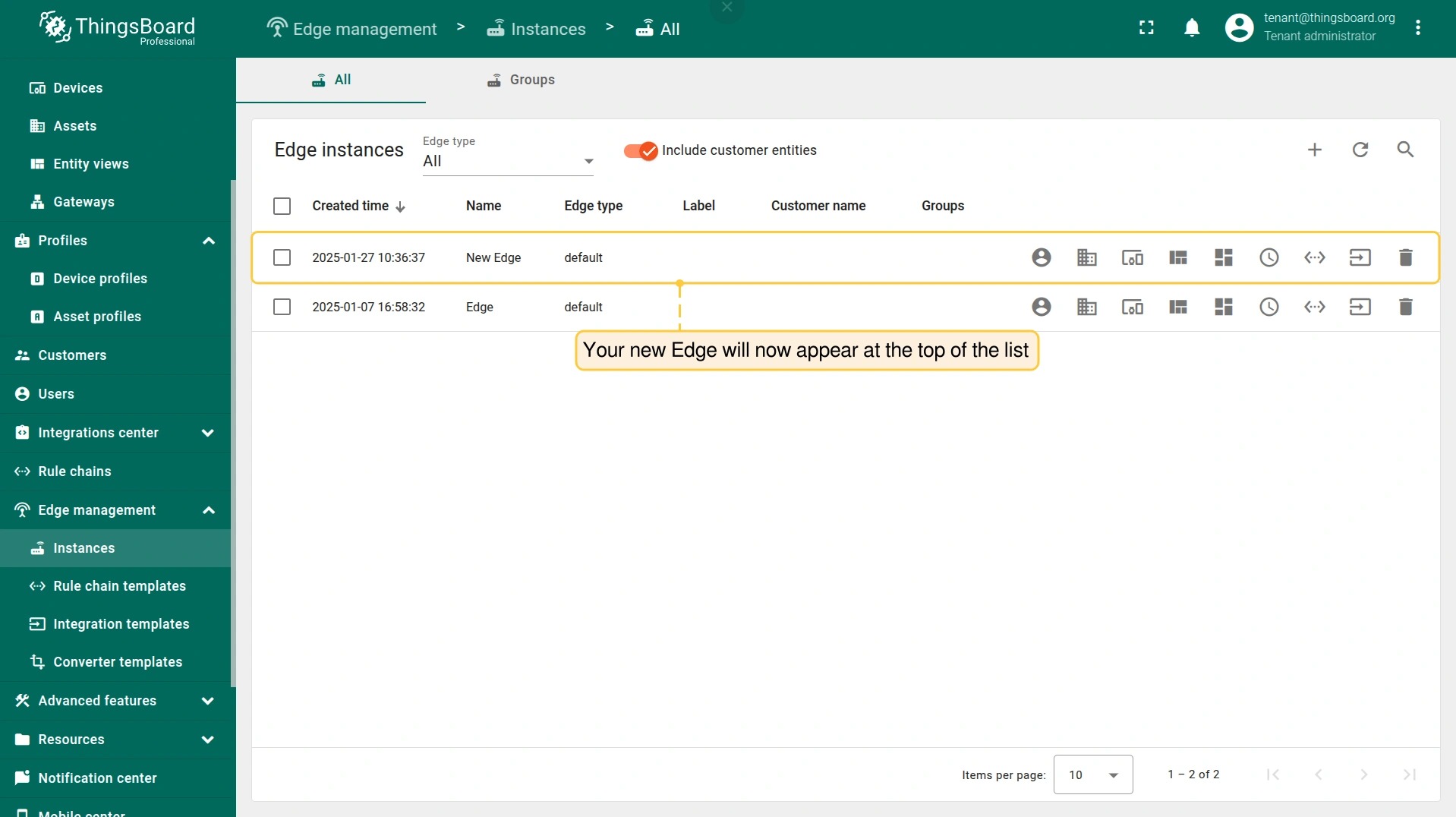
新Edge应出现在列表顶部,条目默认按创建时间排序。
继续在 reComputer R1100 上安装 Edge 实例:
- 要建立与 reComputer R1100 的 SSH(Secure Shell) 连接,请打开终端并执行以下命令:
1
ssh recomputer@ip_address #输入实际 IP 地址
ip_address: reComputer R1100 的 IP 地址。请将 ip_address 替换为实际 IP 地址。
密码: 终端会请求密码。reComputer R1100 的默认密码为:12345678
- 连接成功后,可按以下安装说明操作。首先创建新目录:
1
mkdir tb_edge
- 打开该目录:
1
cd /home/recomputer/tb_edge
在本目录下为 ThingsBoard Edge 服务创建 docker compose 文件:
1
nano docker-compose.yml
然后需在此文件中填写配置内容。 Edge 实例创建成功后,预设安装说明可供使用。 其中包含 Edge Secret、Edge Key 等重要凭证。要获取这些配置:
-
进入 ThingsBoard Professional Edition 实例的 Edge management > Instances 部分,点击 Instance。然后点击 「Install & Connect Instructions」 按钮。
-
在 「Install & Connect Instructions」 弹出窗口中,选择 「Docker」 选项卡并 复制配置内容。
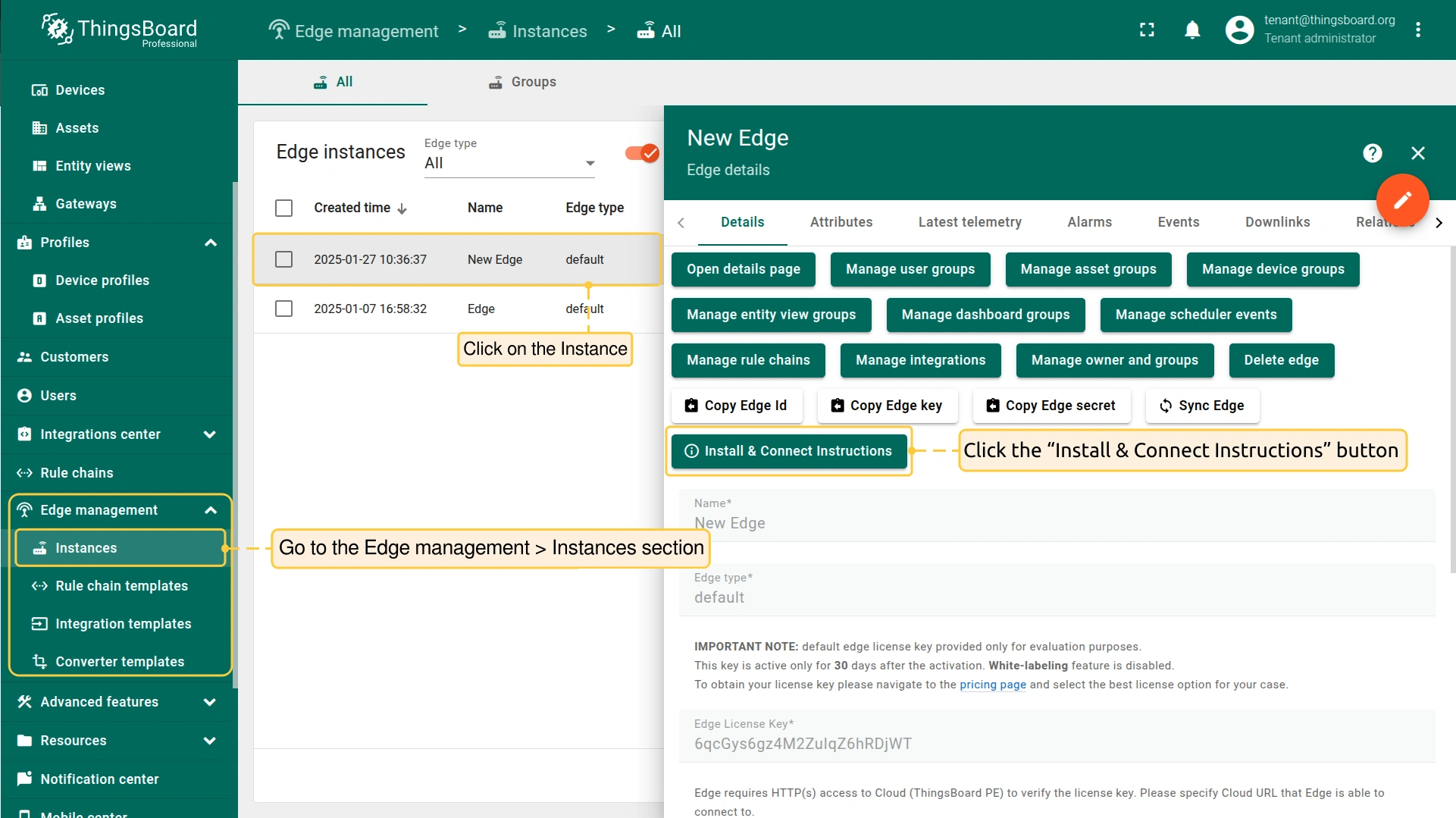
进入 ThingsBoard Professional Edition 实例的 Edge management > Instances 部分,点击 Instance。然后点击 「Install & Connect Instructions」 按钮。
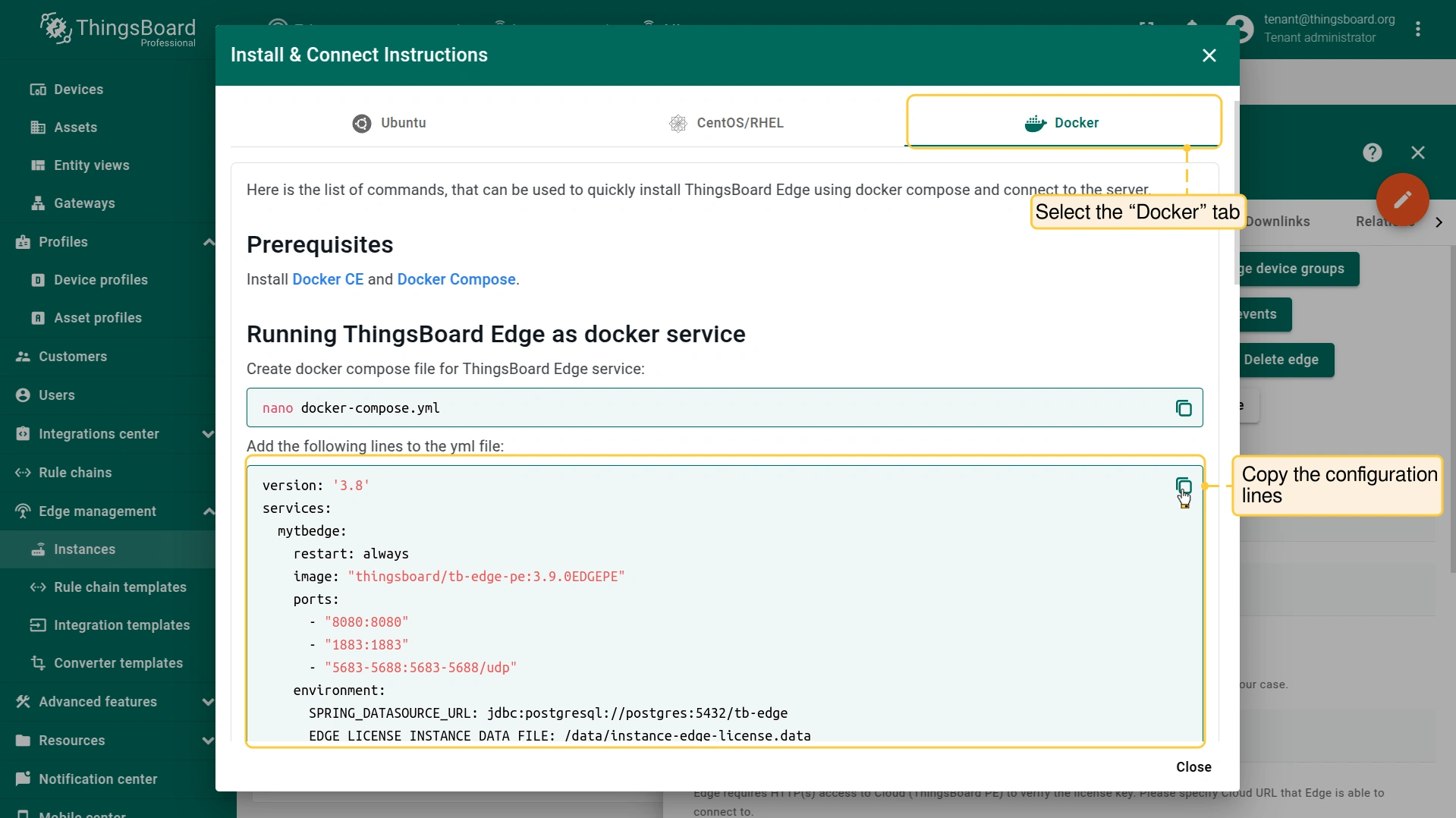
在 「Install & Connect Instructions」 弹出窗口中,选择 「Docker」 选项卡并 复制配置内容。
-
将复制的内容粘贴到 docker-compose.yml 文件中,按 CTRL+S 保存。按 CTRL+X 关闭文件。
-
执行以下命令:
1
2
docker compose up -d
docker compose logs -f mytbedge

命令必须在保存 docker-compose.yml 的 同一目录 下执行。
- 要设置通过 SSH 的本地端口转发,请打开另一个终端标签页并执行以下命令:
1
ssh -N -L 8080:127.0.0.1:8080 recomputer@ip_address #输入实际 IP 地址
您本地计算机上对 localhost:8080 的任何连接将被转发到 reComputer R1100 上的 127.0.0.1:8080。
- ThingsBoard Edge 实例可通过 http://127.0.0.1:8080 访问。请使用您的凭据登录。
在 Edge 上预配置 ThingsBoard IoT Gateway
要部署 ThingsBoard Gateway:
-
登录 ThingsBoard Professional Edition 实例,进入 仪表板 部分,选择 「Group」 选项卡。点击 「+」 图标添加新分组。在 「添加实体分组」 弹出窗口中,在 「Name」 字段输入分组名称,并点击 「Add」 按钮。
-
然后选择 「All」 选项卡,找到 「ThingsBoard IoT Gateways」 仪表板。「ThingsBoard IoT Gateways」 仪表板为预置的开箱即用仪表板。点击 「Dashboard details」 按钮。
-
在 「Dashboard details」 页面点击 「Manage owner and groups」 按钮。
-
在 「Manage owner and groups」 弹出窗口中,从 「Groups」 下拉菜单选择新创建的分组。点击 「Update」 按钮。
-
进入 Edge Management > Instances 部分,点击 「Manage edge dashboard groups」 按钮。
-
在 「Dashboard groups」 页面,点击 「+」 图标,将新创建的分组分配给 Edge 实例。点击 「Assign」 按钮。该分组及其内所有仪表板将分配给 Edge 实例。
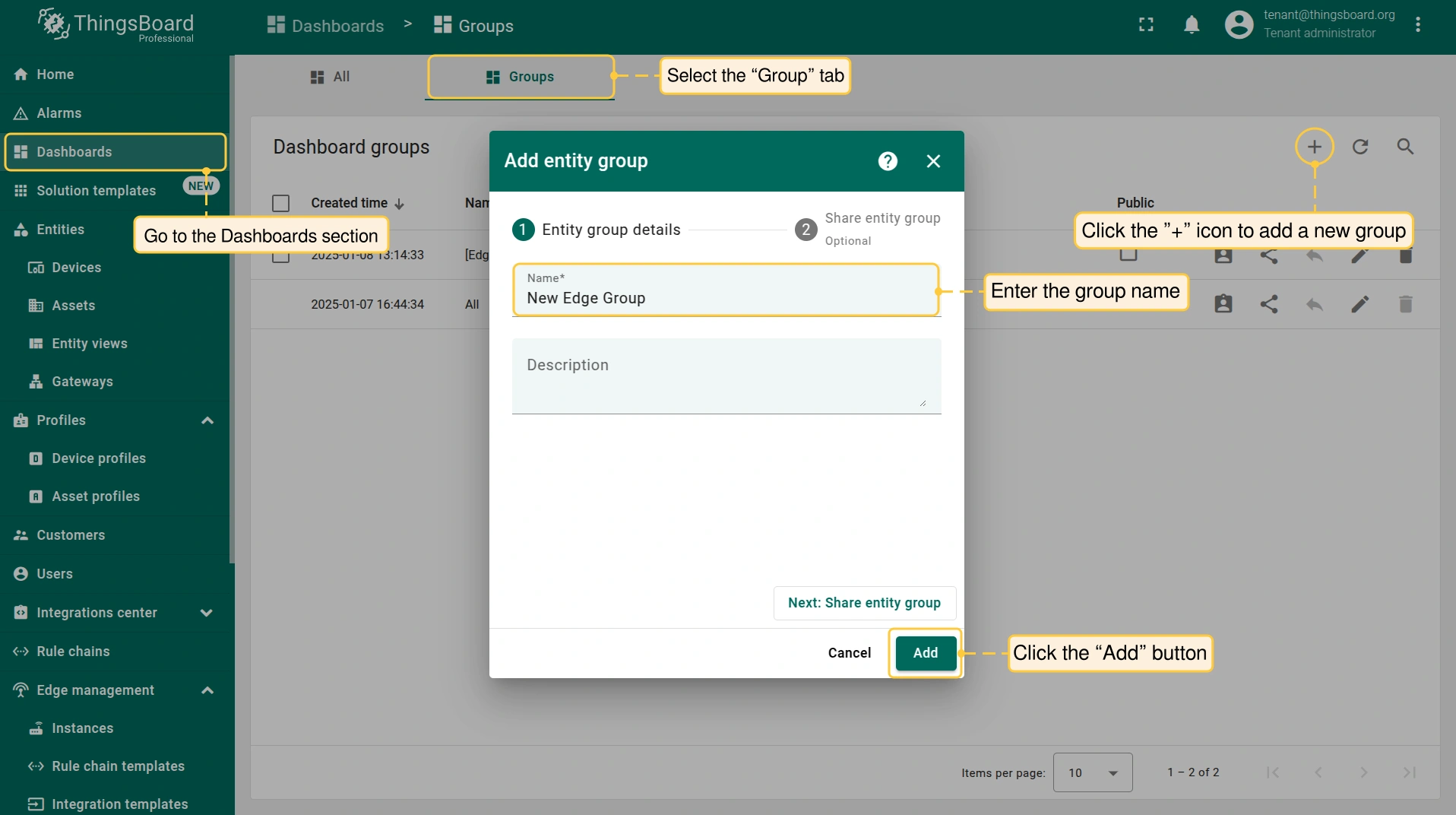
登录 ThingsBoard Professional Edition 实例,进入 仪表板 部分,选择 「Group」 选项卡。点击 「+」 图标添加新分组。在 「添加实体分组」 弹出窗口中,在 「Name」 字段输入分组名称,并点击 「Add」 按钮。
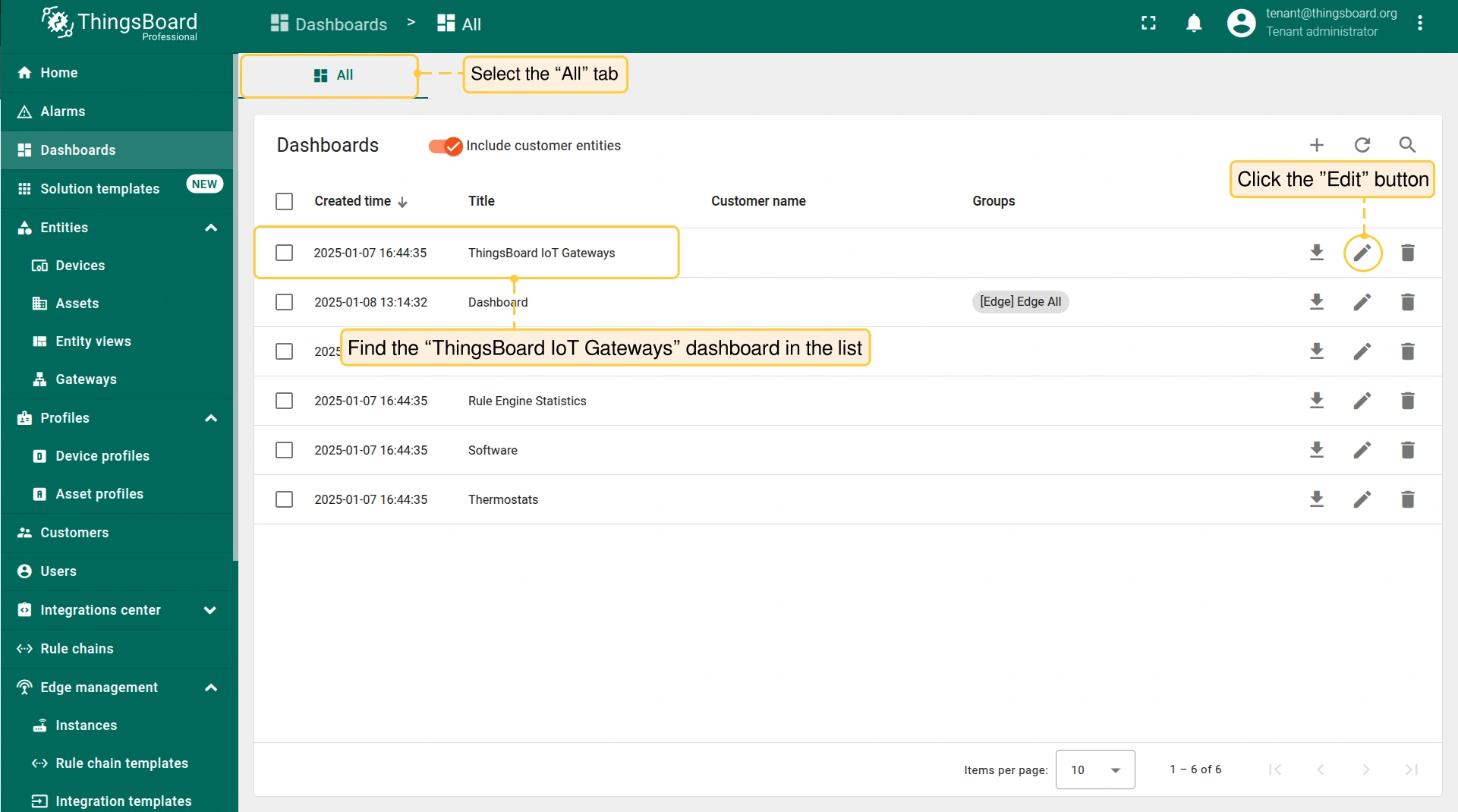
然后选择 「All」 选项卡,找到 「ThingsBoard IoT Gateways」 仪表板。「ThingsBoard IoT Gateways」 仪表板为预置的开箱即用仪表板。点击 「Dashboard details」 按钮。
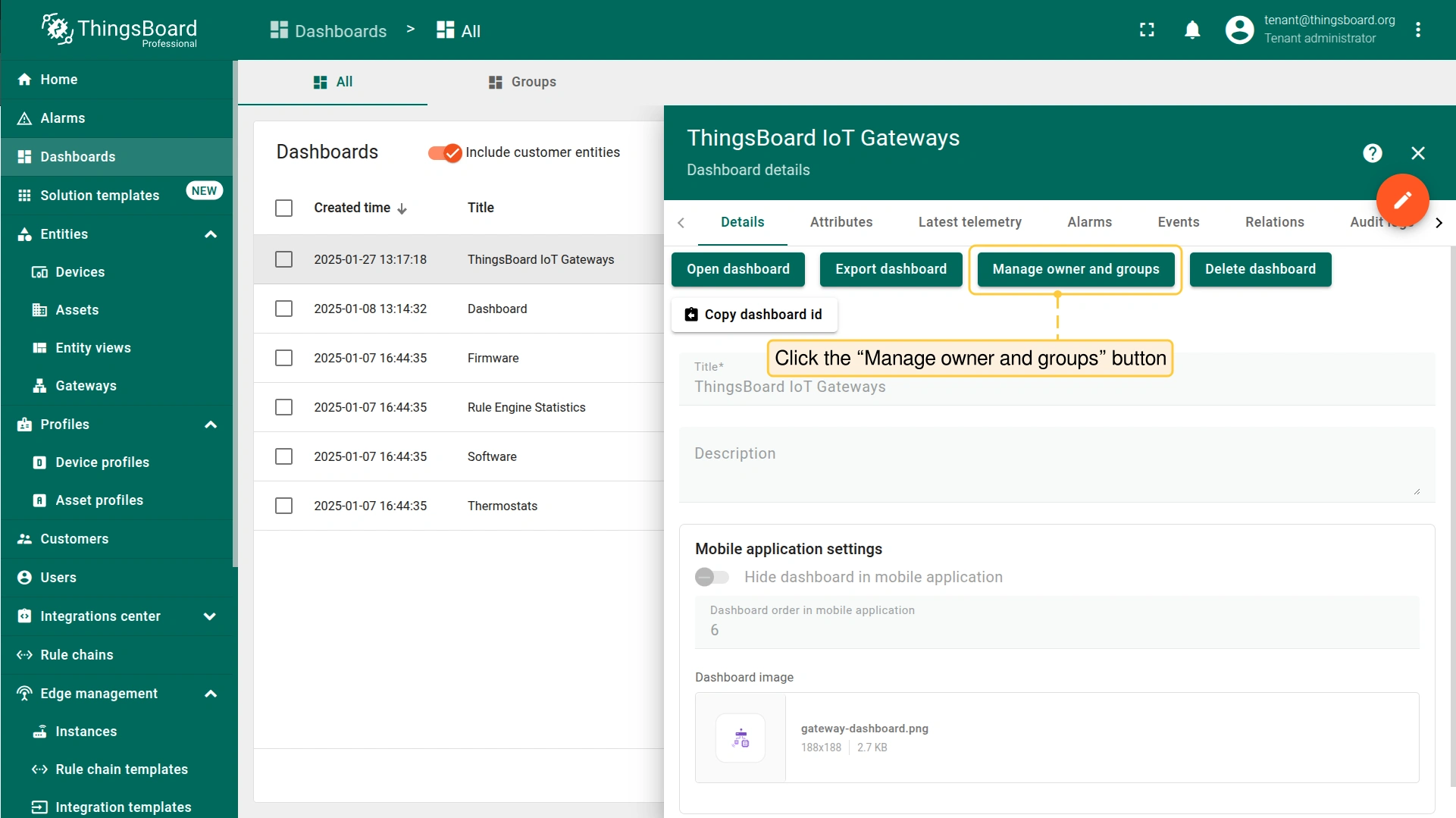
在 「Dashboard details」 页面点击 「Manage owner and groups」 按钮。
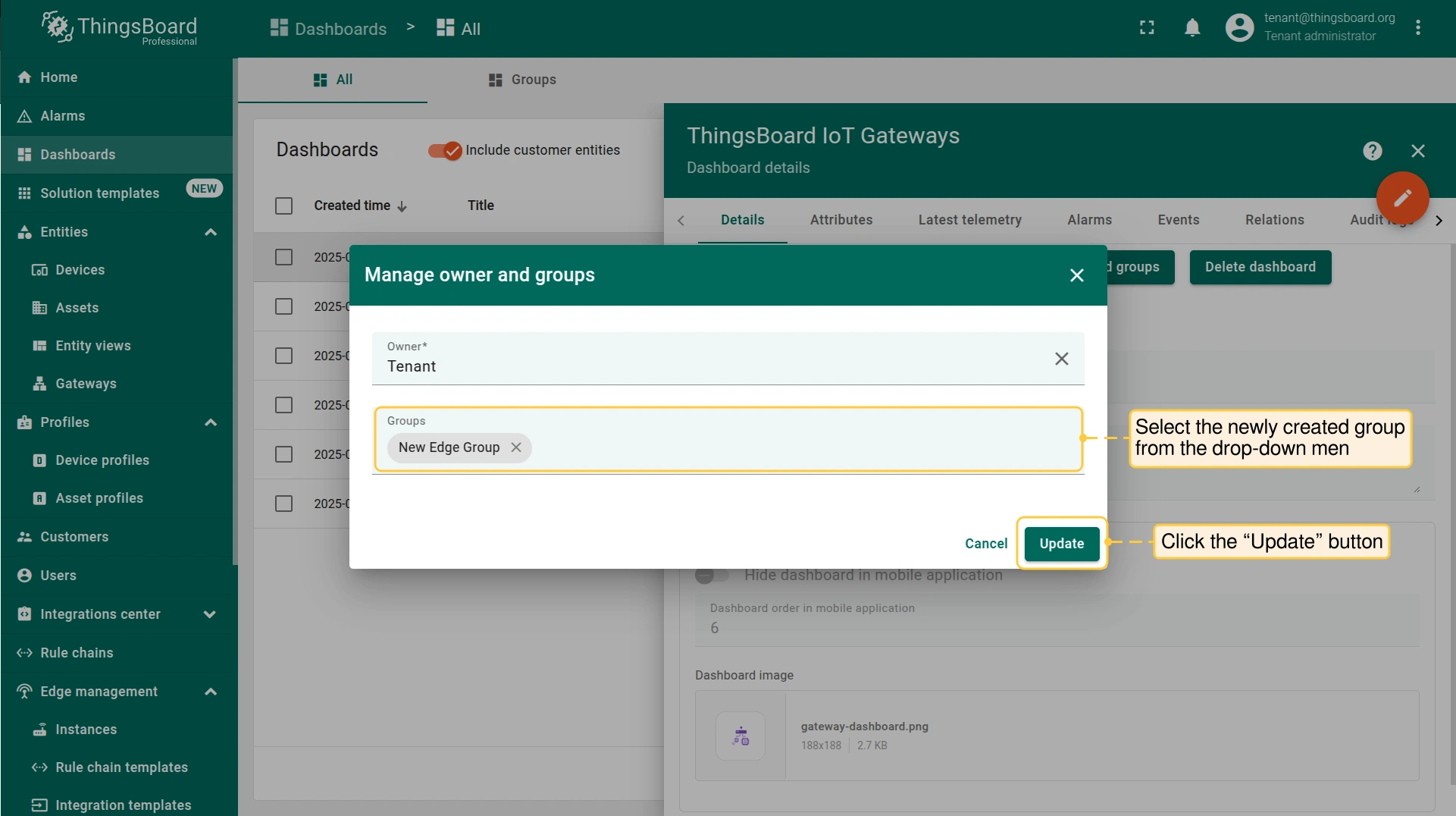
在 「Manage owner and groups」 弹出窗口中,从 「Groups」 下拉菜单选择新创建的分组。点击 「Update」 按钮。
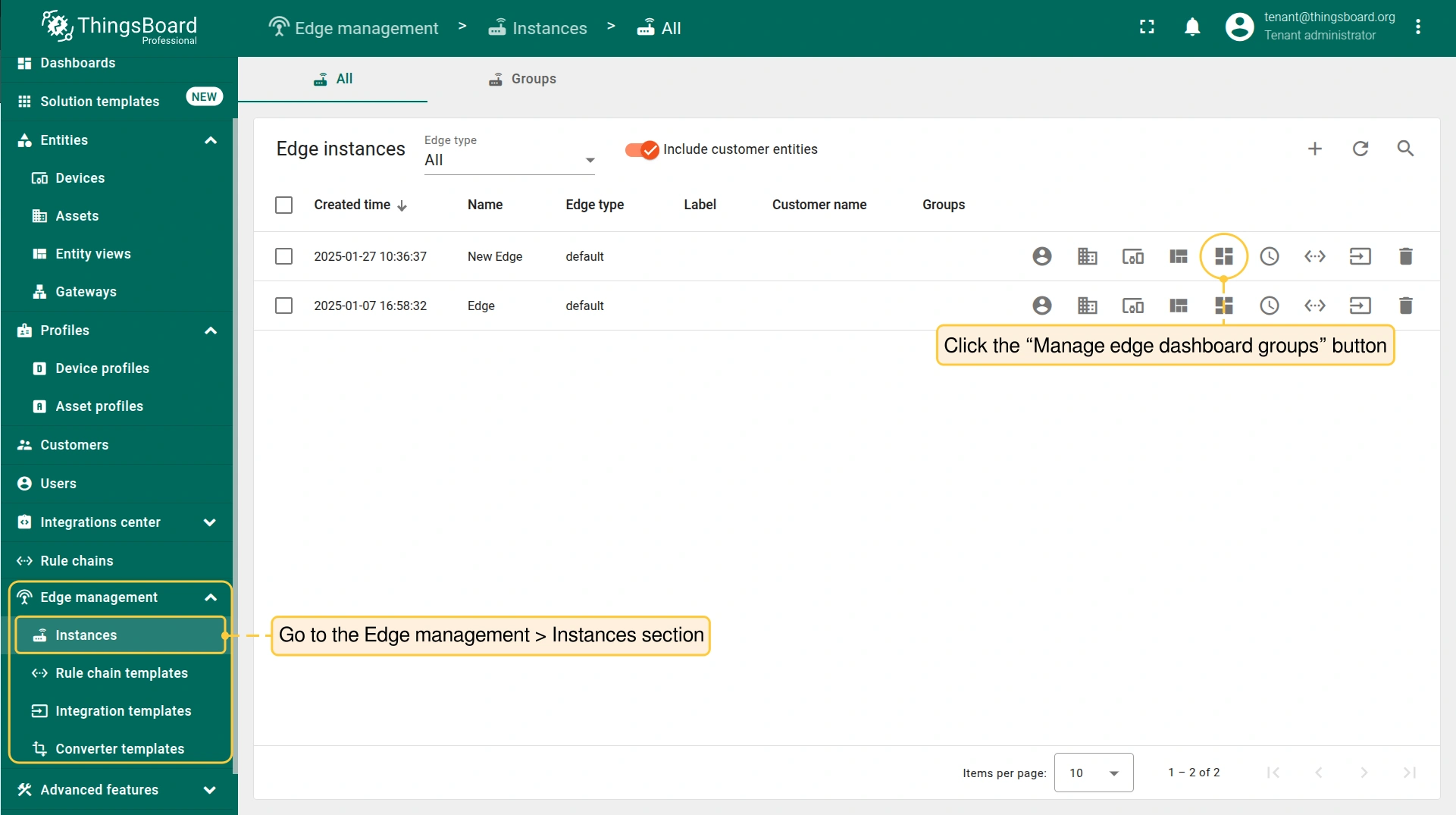
进入 Edge Management > Instances 部分,点击 「Manage edge dashboard groups」 按钮。
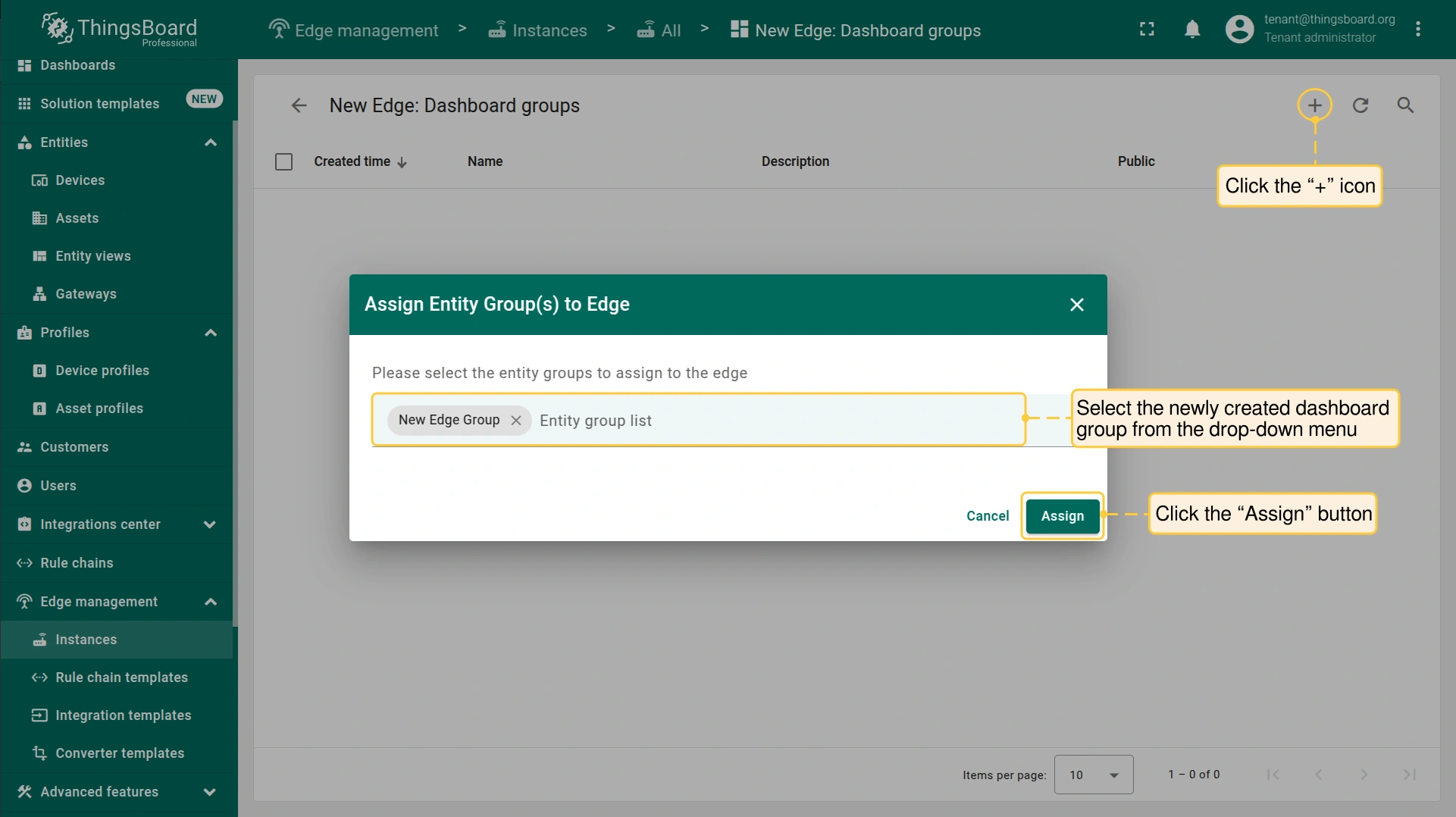
在 「Dashboard groups」 页面,点击 「+」 图标,将新创建的分组分配给 Edge 实例。点击 「Assign」 按钮。该分组及其内所有仪表板将分配给 Edge 实例。
-
打开 Edge 实例,进入 Dashboards 部分,打开 「ThingsBoard IoT Gateways」 仪表板。
-
点击右上角 「+」 图标添加新网关。在 「Name」 字段输入网关名称,选择 「default」 设备配置。点击 「Create」 按钮。
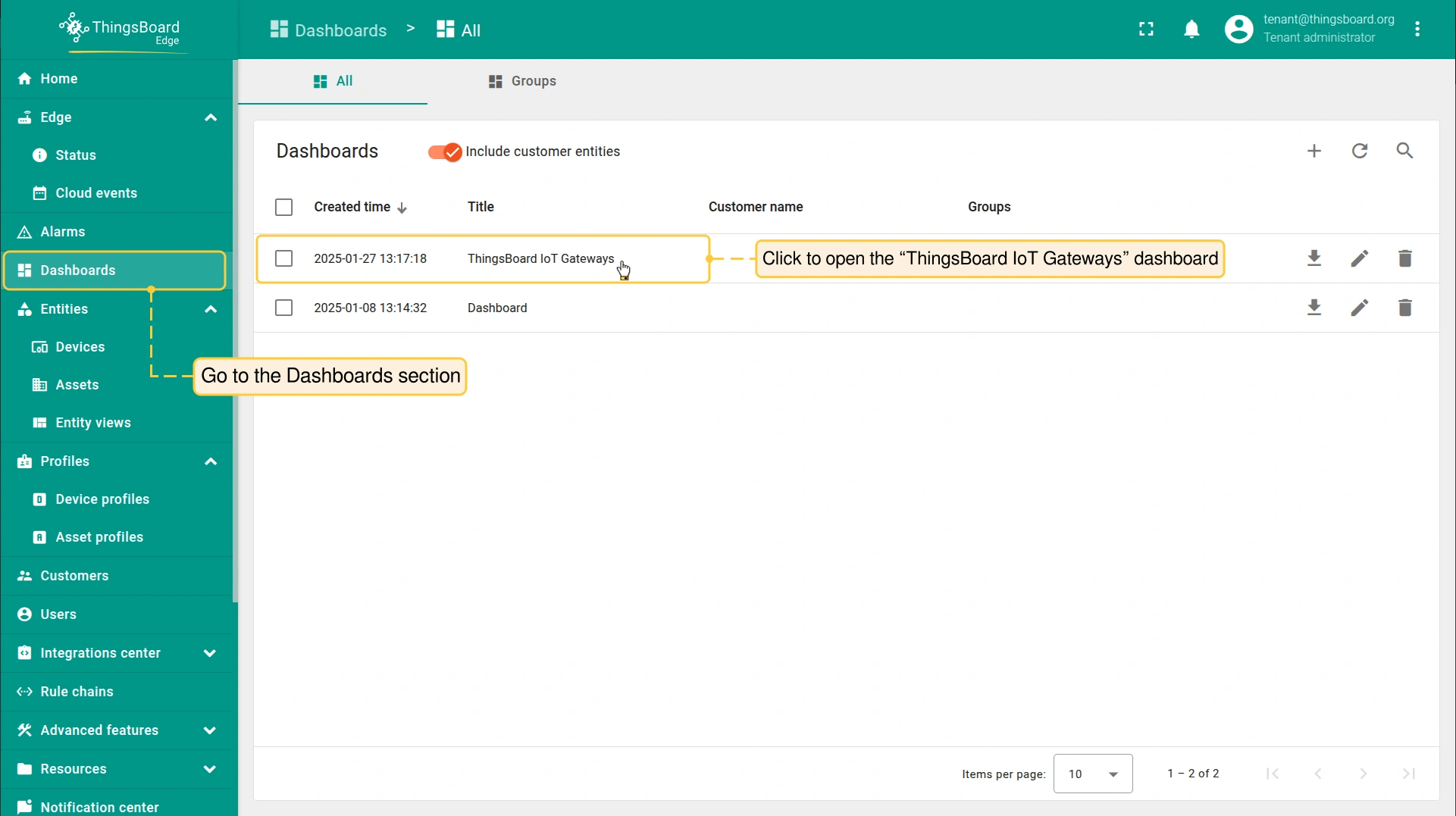
打开 Edge 实例,进入 Dashboards 部分,打开 「ThingsBoard IoT Gateways」 仪表板。
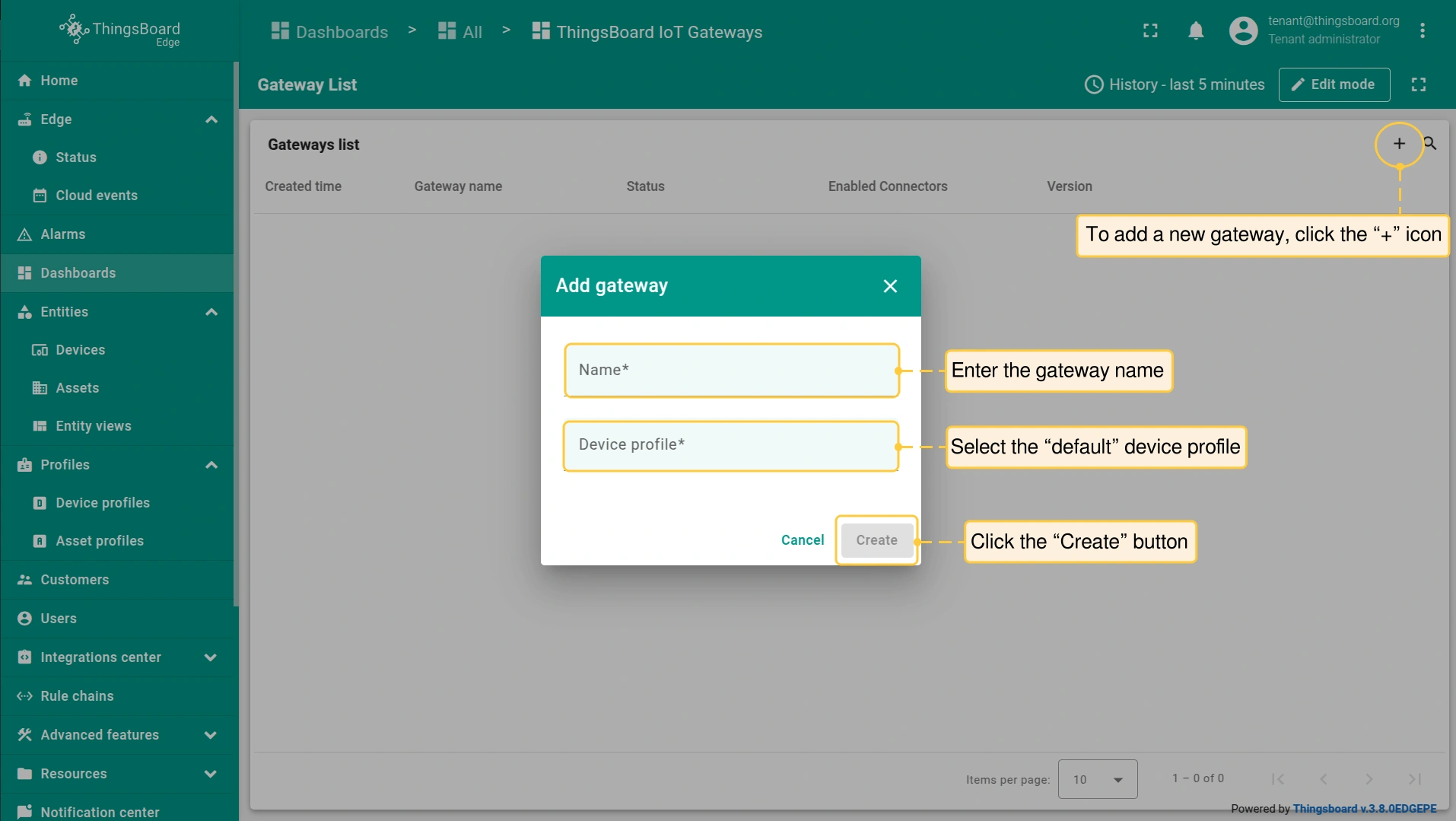
点击右上角 「+」 图标添加新网关。在 「Name」 字段输入网关名称,选择 「default」 设备配置。点击 「Create」 按钮。
配置ModBus连接器
新的 IoT网关设备 将显示在 “ThingsBoard IoT网关” 仪表板列表顶部,便于我们添加 ModBus连接器。例如,可使用ModBus连接器从 Siemens LOGO! 设备获取温度数据:
-
在 “ThingsBoard IoT网关” 仪表板页面,点击 “连接器” 按钮。
-
添加 连接器:点击 “+” 按钮,在弹出窗口的 “类型” 中选择 MODBUS,在 “名称” 中输入连接器名称,点击 “添加”。
-
进一步配置:点击新添加的 连接器,在 “MODBUS配置” 界面右侧选择 “高级” 选项卡下的 “配置” 子选项卡。
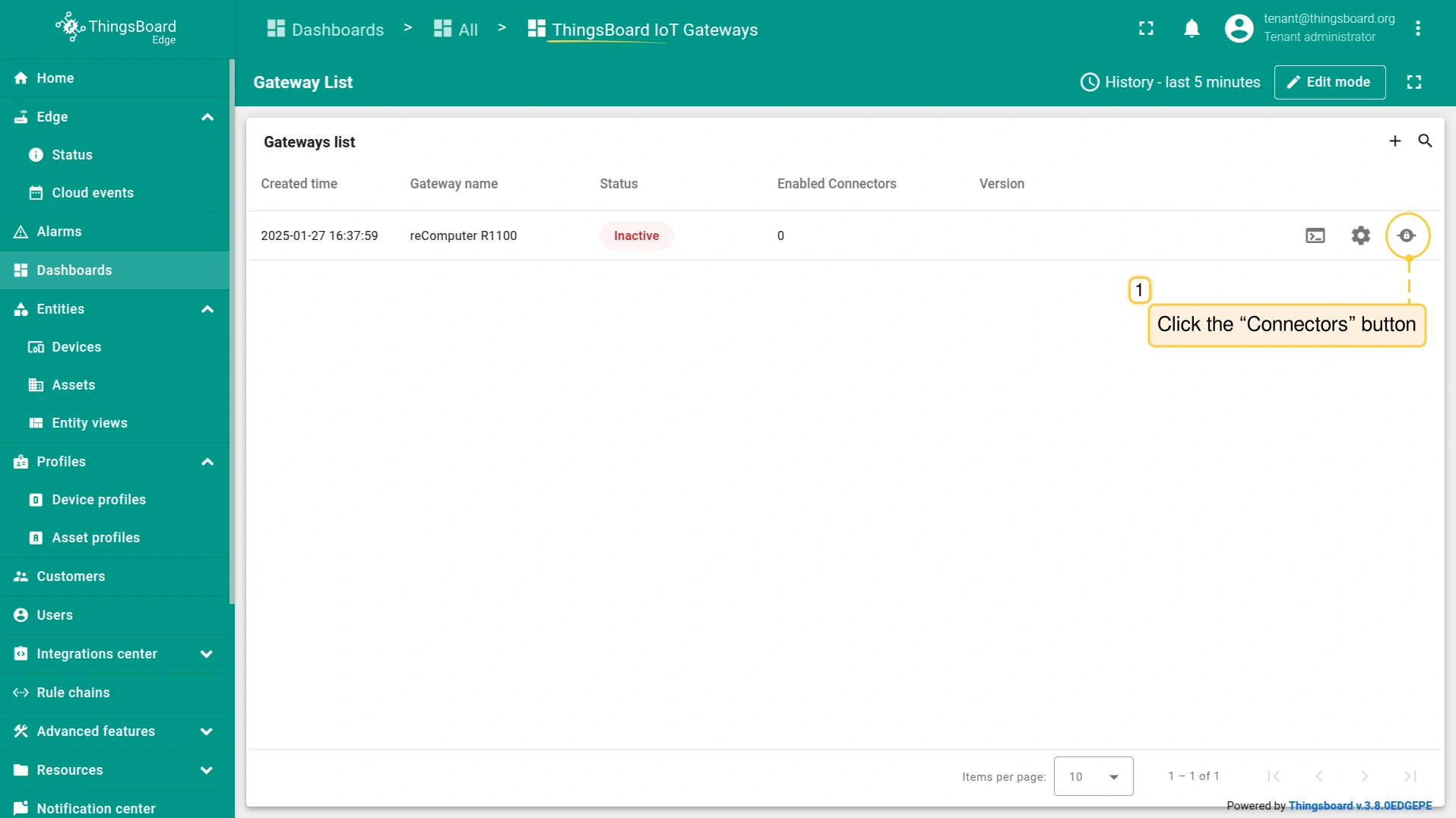
在 “ThingsBoard IoT网关” 仪表板页面,点击 “连接器” 按钮。
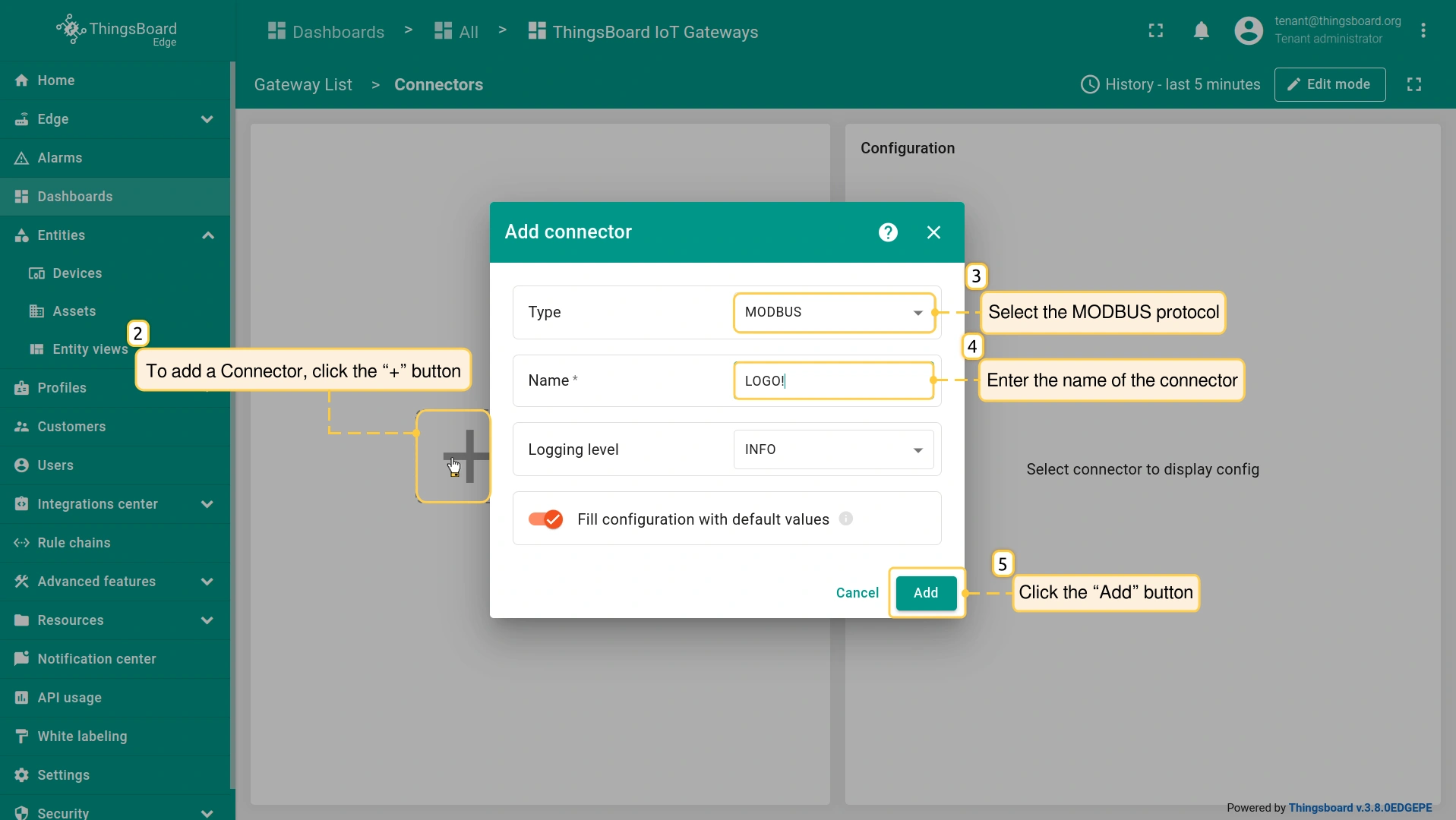
添加 连接器:点击 “+” 按钮,在弹出窗口的 “类型” 中选择 MODBUS,在 “名称” 中输入连接器名称,点击 “添加”。
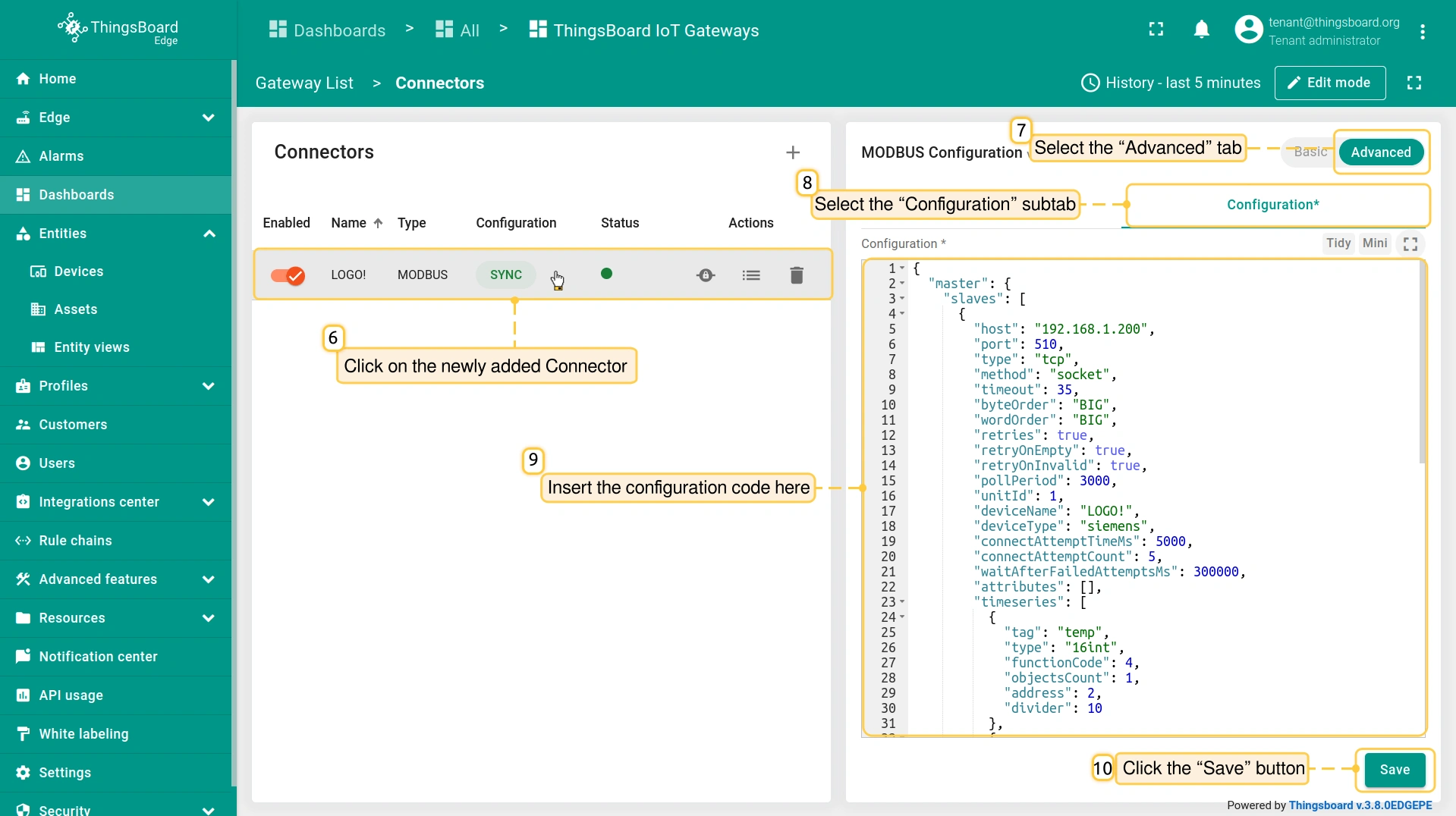
进一步配置:点击新添加的 连接器,在 “MODBUS配置” 界面右侧选择 “高级” 选项卡下的 “配置” 子选项卡。
- 请插入以下配置代码,然后点击 “保存” 按钮。
Installing the ThingsBoard IoT Gateway on the reComputer R1100
Start installation of the IoT Gateway on the reComputer R1100:
-
Go back to the “ThingsBoard IoT Gateways” dashboard page and click on the newly added Gateway device (reComputer R1100).
-
On the Gateway device page, click the “Launch command” button and download docker-compose.yml for your gateway.
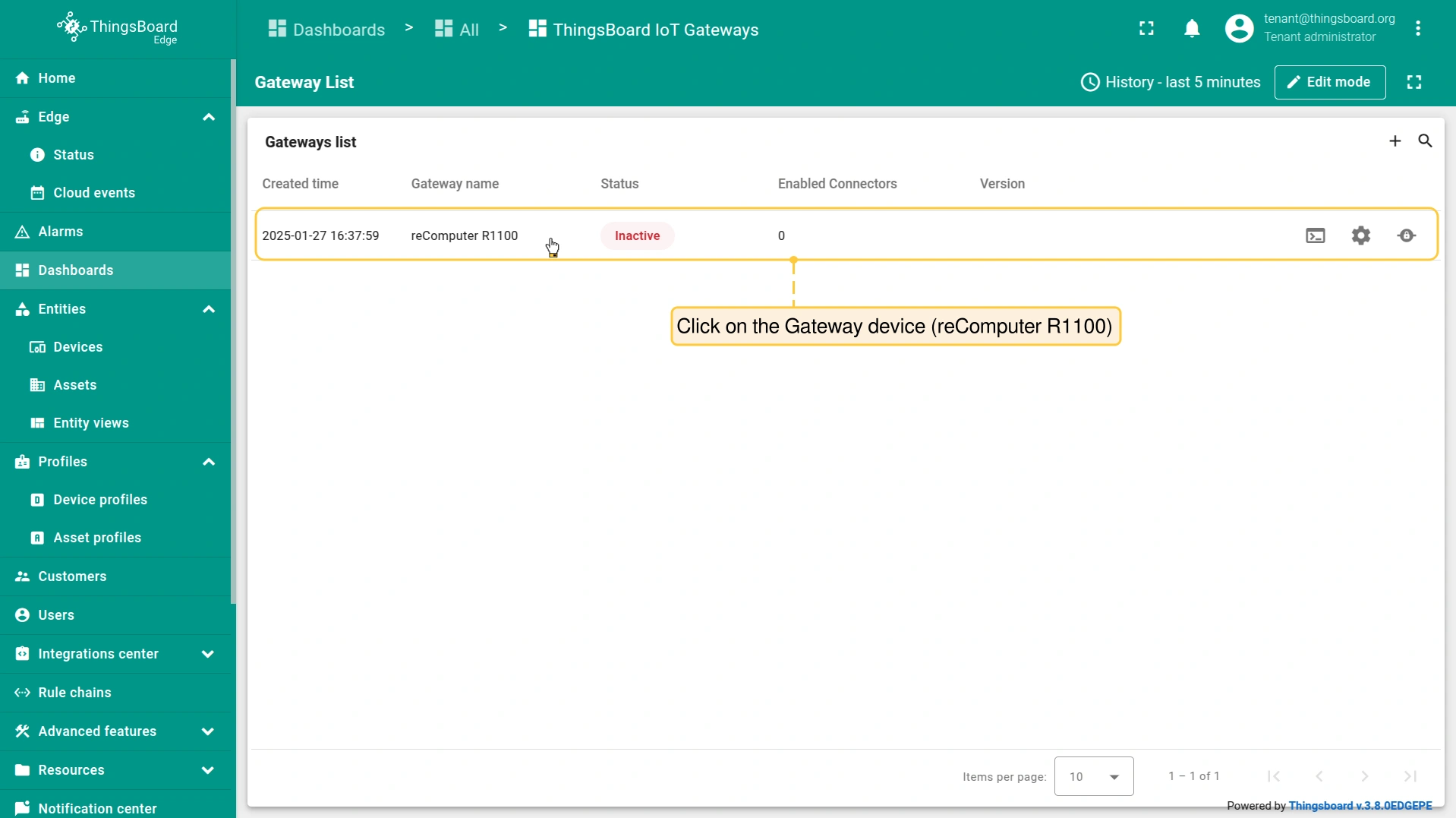
Go back to the “ThingsBoard IoT Gateways” dashboard page and click on the newly added Gateway device (reComputer R1100).
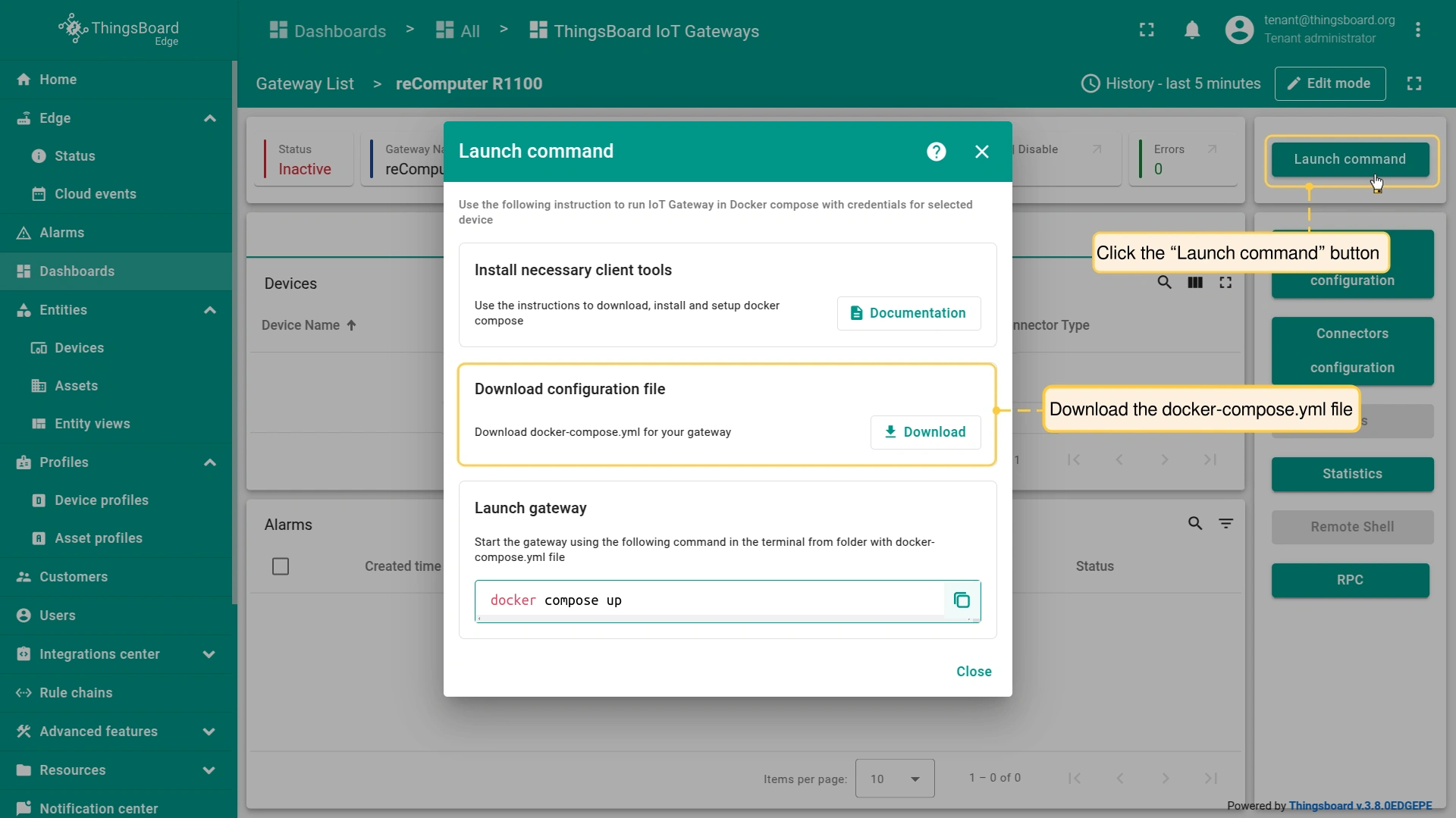
On the Gateway device page, click the “Launch command” button and download docker-compose.yml for your gateway.
- 在终端中打开新标签页,建立到 reComputer R1100 的 SSH 连接:
1
ssh recomputer@ip_address
ip_address: reComputer R1100的IP地址,请将 ip_address 替换为实际IP。
密码: 终端会提示输入密码。reComputer R1100的 默认密码 为:12345678
- 创建网关服务目录:
1
mkdir gateway_service
- 进入该目录:
1
cd /home/recomputer/gateway_service
- 为 IoT网关 创建docker compose文件:
1
nano docker-compose.yml
- 将之前下载的 docker-compose.yml 文件内容复制并粘贴到终端中的新文件中:
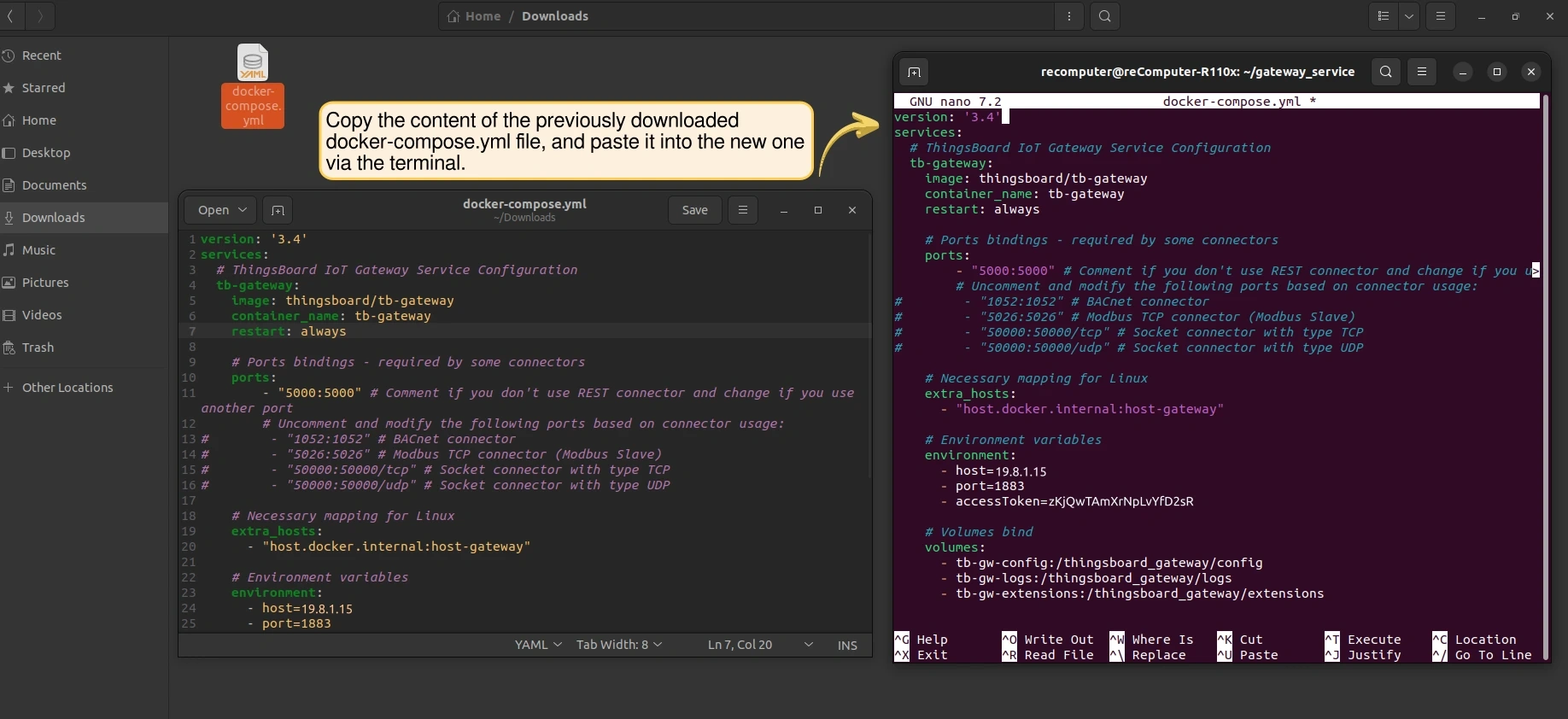
-
保存 docker-compose.yml:按 CTRL+S 保存,按 CTRL+X 退出编辑器。
-
在终端中执行以下命令启动 网关:
1
2
docker compose up -d
docker compose logs -f
请在保存docker-compose.yml的同一目录下执行该命令。
在仪表板中可视化数据
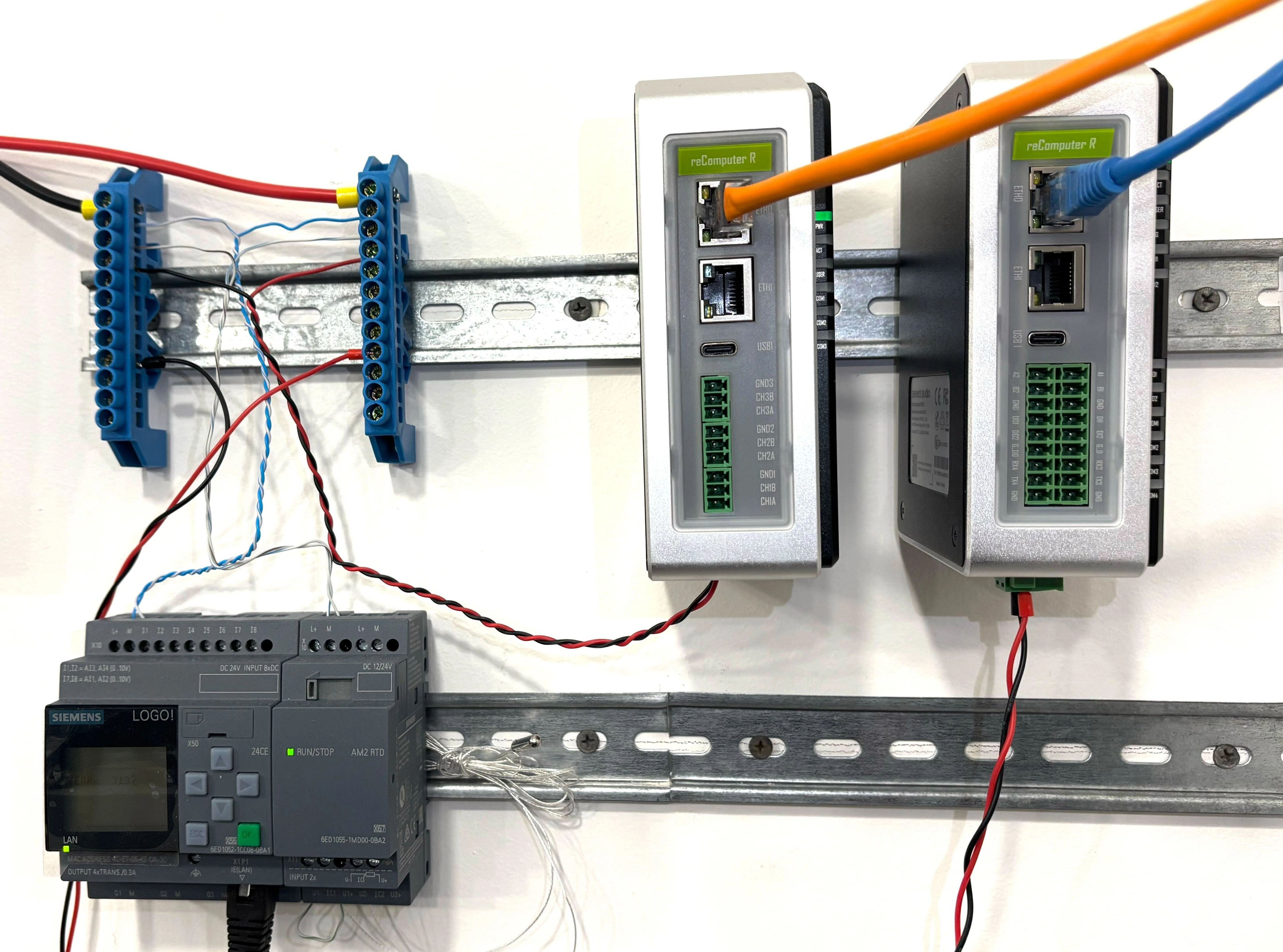 当 ThingsBoard Edge 与 IoT网关 在 reComputer R1100 上运行且 ModBus连接器 开始传输数据后,可在 Edge实例 的 仪表板 上查看可视化:
-
进入 仪表板 区域,点击 “+” 图标并选择 “创建新仪表板”。
-
在弹出窗口中输入仪表板 标题,其他项可选,点击 “添加”。
-
创建后仪表板会自动打开。点击 “添加部件”,选择所需部件,例如打开 “图表” 部件组并选择 折线图。
-
在 “添加部件” 弹出窗口中,将 数据源 选为 设备(本例为Siemens LOGO!)。请确认 序列键 与连接器 高级配置 中填写的一致,例如使用 “temp” 时,序列键也需为 “temp”。点击 “添加”。
-
此时即可在仪表板上查看实时数据。
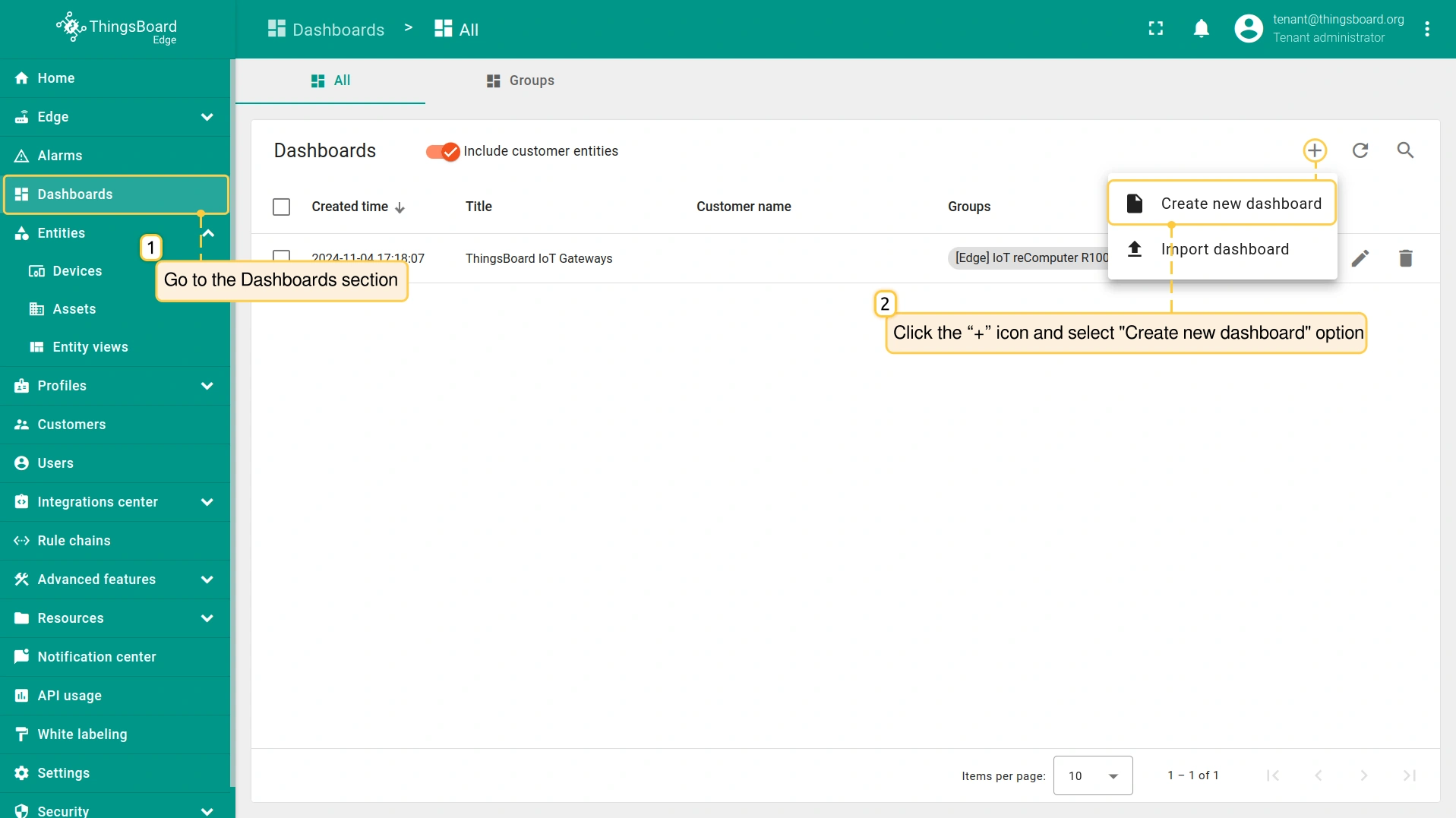
进入 仪表板 区域,点击 “+” 图标并选择 “创建新仪表板”。
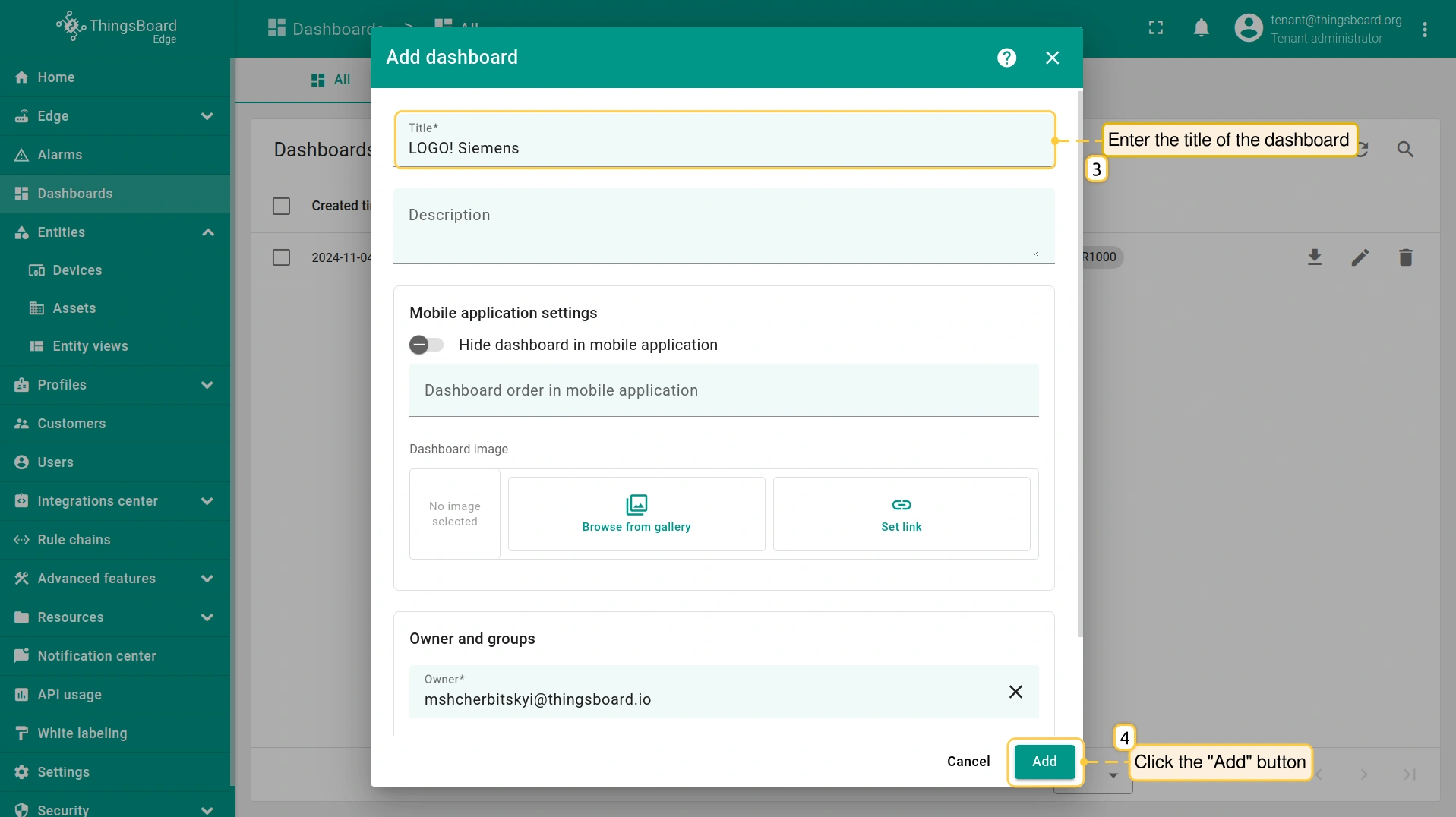
在弹出窗口中输入仪表板 标题,其他项可选,点击 “添加”。
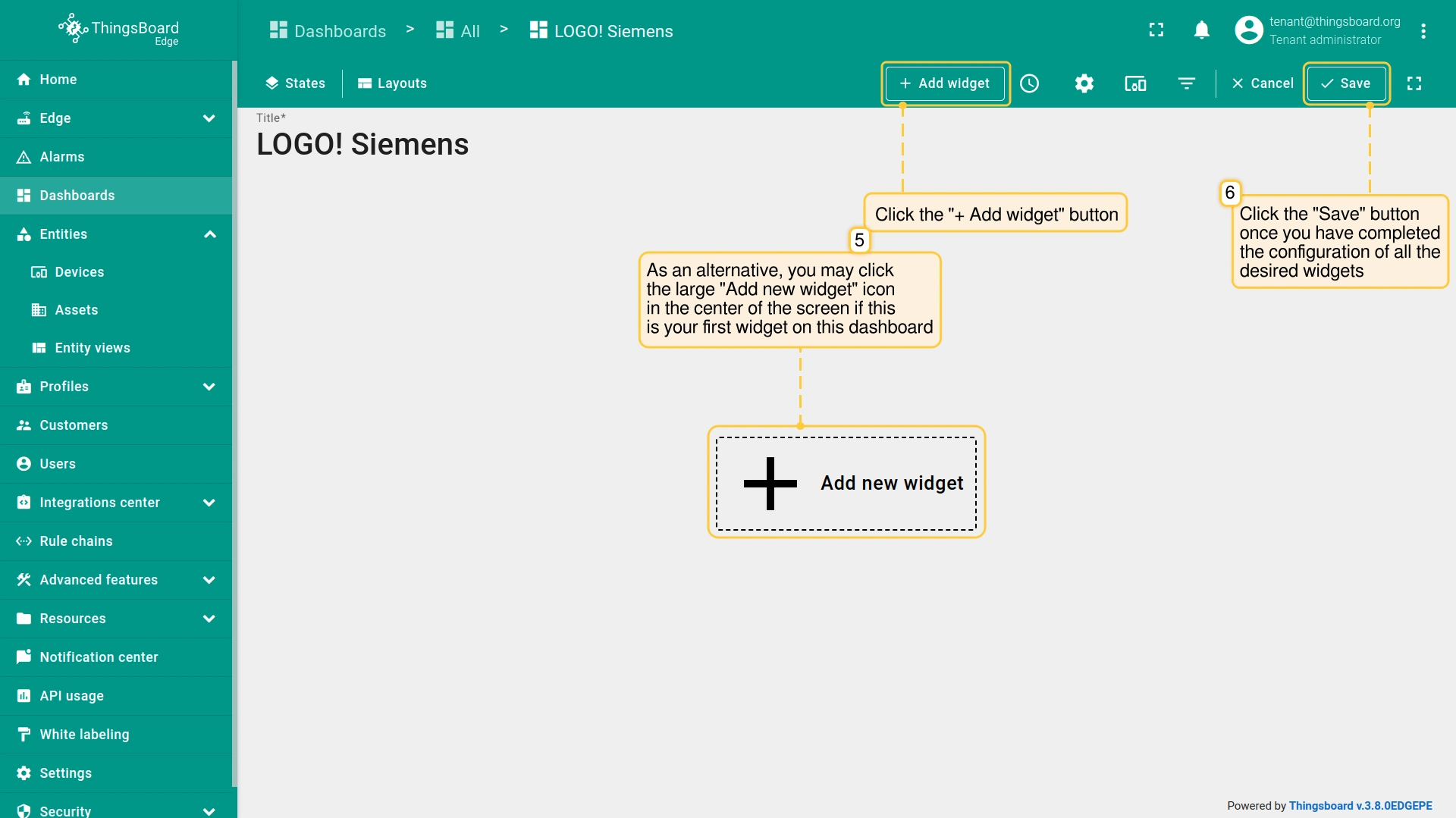
创建后仪表板会自动打开。点击 “添加部件”,选择所需部件,例如打开 “图表” 部件组并选择 折线图。
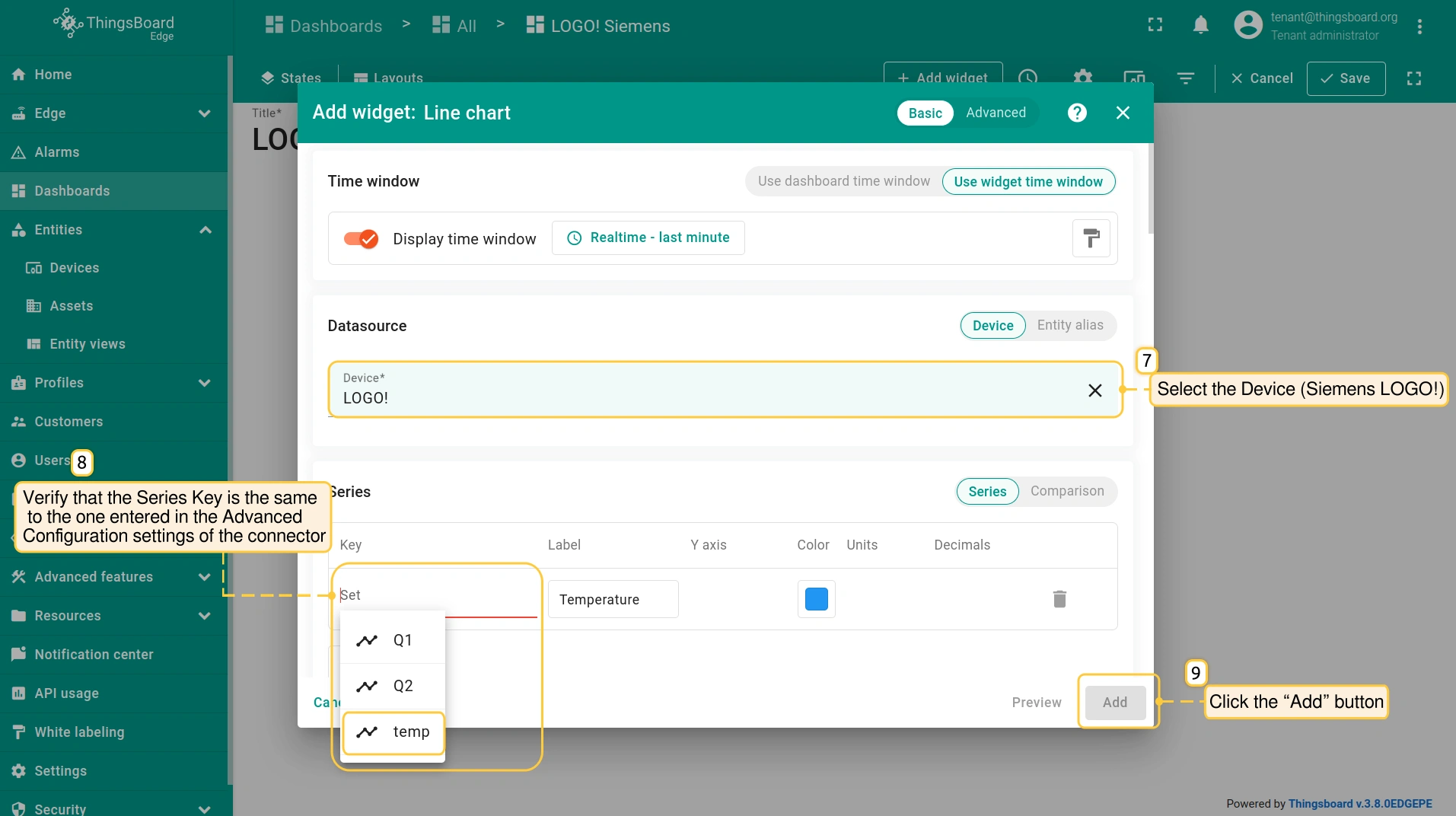
在 “添加部件” 弹出窗口中,将 数据源 选为 设备(本例为Siemens LOGO!)。请确认 序列键 与连接器 高级配置 中填写的一致,例如使用 “temp” 时,序列键也需为 “temp”。点击 “添加”。
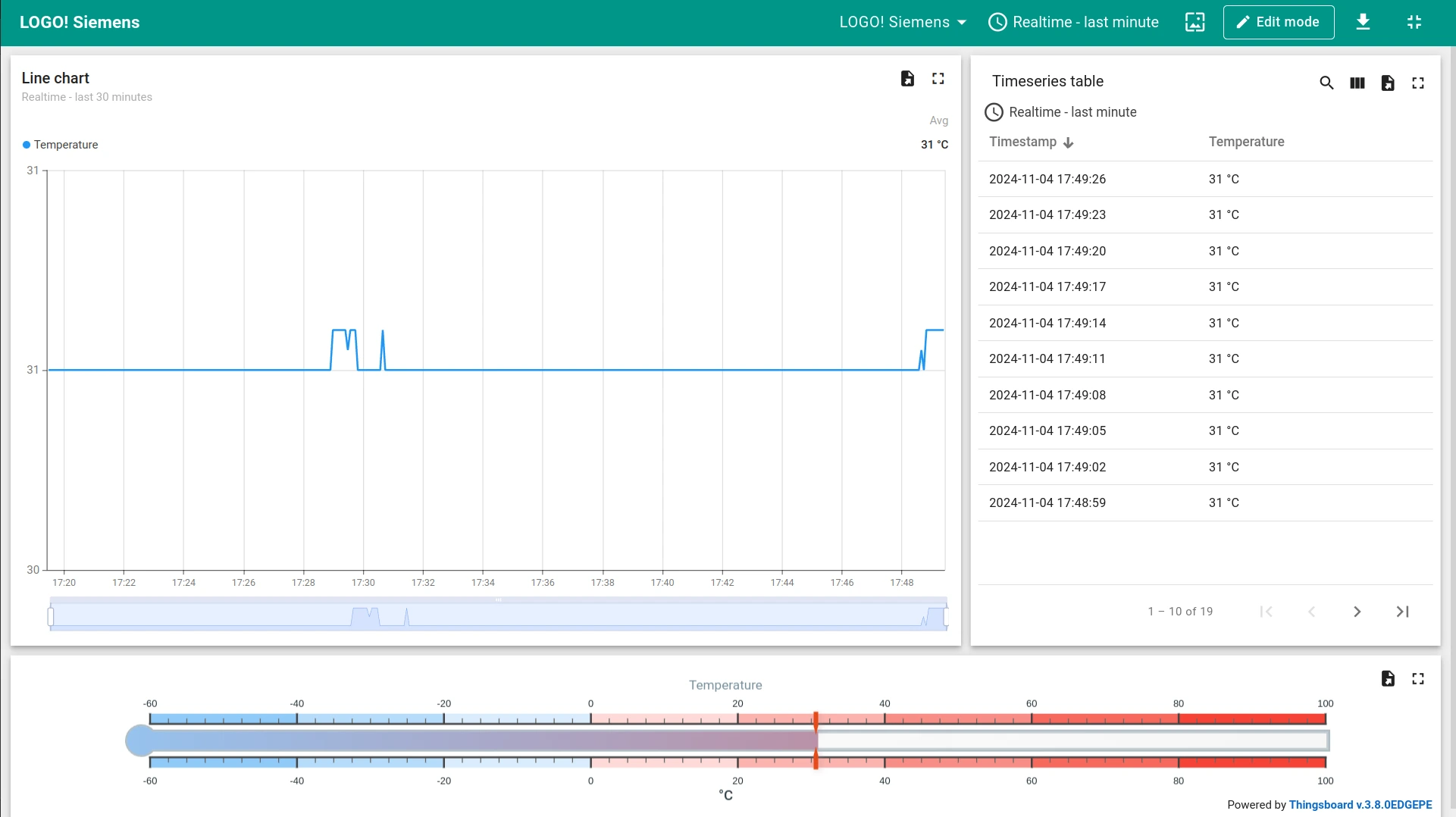
此时即可在仪表板上查看实时数据。