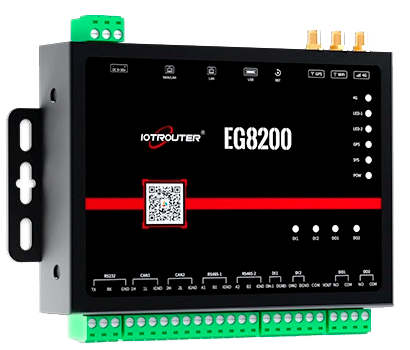
- Hardware type: Gateways
- Connectivity: 4G, LAN, WAN, WiFi
- Industry: Industrial Manufacturing, Smart Cities, Energy Management, Environmental Monitoring, Transportation & Logistics
- Use cases: Smart energy, Smart Metering
- Platforms: Community Edition, Professional Edition, Cloud
CPU: 2 Cores A7@1.2G
Memory: 512M
eMMC: 4G
SD card: 128Gmax(Optional)
Module: Quectel-CAT4(4G)
System: Linux Ubuntu 20.04.5
Network: 4G/LAN/WAN/WiFi
Interface: 2RS485/1RS232/2CAN/2DO/2DI/1USB
Industrial Protocol: IEC104 / Modbus / OPC UA/ BACnet..
Network Protocol: MQTT / HTTP / TCP
概述
EG8200系列产品是成都物联路由器推出的边缘计算网关。凭借丰富的硬件接口、拖拽式编程方式、零代码设计理念、便捷的远程管理等特点,可快速、灵活、精准、高效地响应各类物联网行业需求。
EG系列产品将复杂的硬件接口、不同的工业网络协议等逐一抽象为节点(Node)。用户可灵活地通过拖拽和连接节点来替代传统复杂低效的编码过程,真正让客户专注于业务逻辑,快速构建自己的网关设备。EG系列产品的使命是持续开发新节点,服务行业客户,以适应物联网行业需求的碎片化。
前置条件
继续本指南前,需准备以下内容:
网关连接
根据官方用户手册和本指南,您可以将网关连接到网络。本手册主要实现模拟数据采集、组装为JSON格式、并通过MQTT上报至ThingsBoard的流程。
网关配置
步骤1:采集Modbus RTU数据
A. 将EG8200与传感器接线
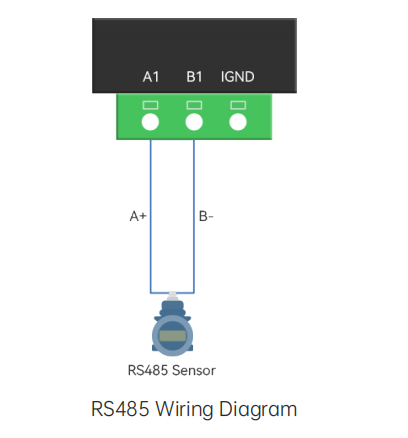
B. 访问EG8200的默认IP地址192.168.88.1,配置温湿度数据读取。
-
Drag out a modbus read node.
-
Configure the sensor parameters and choose RS485-1.
-
Drag out the inject node and debug node from the left node bar to trigger the process.
-
Click the inject node will show that the temperature and humidity data of the sensor are printed in the log bar on the right.
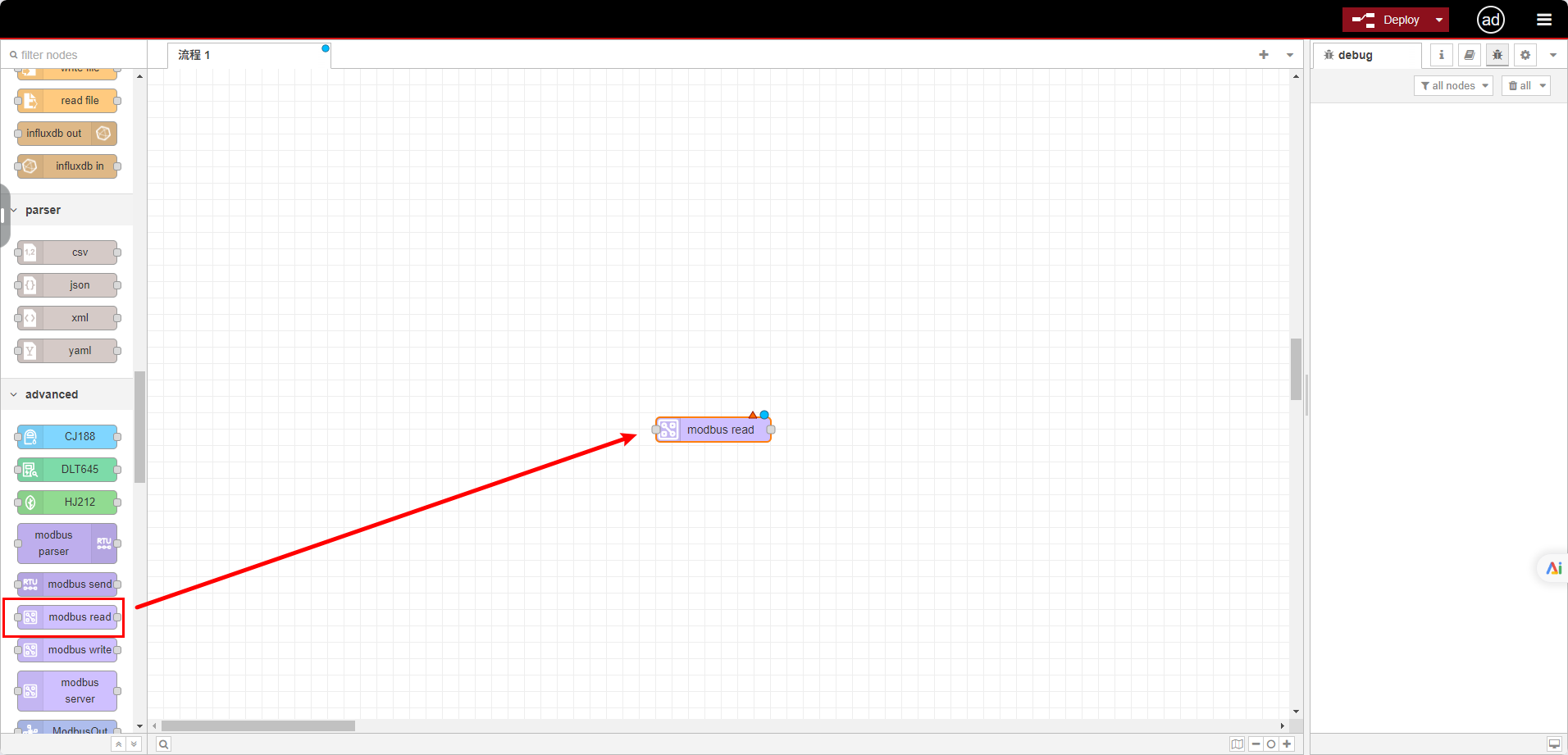
Drag out a modbus read node.
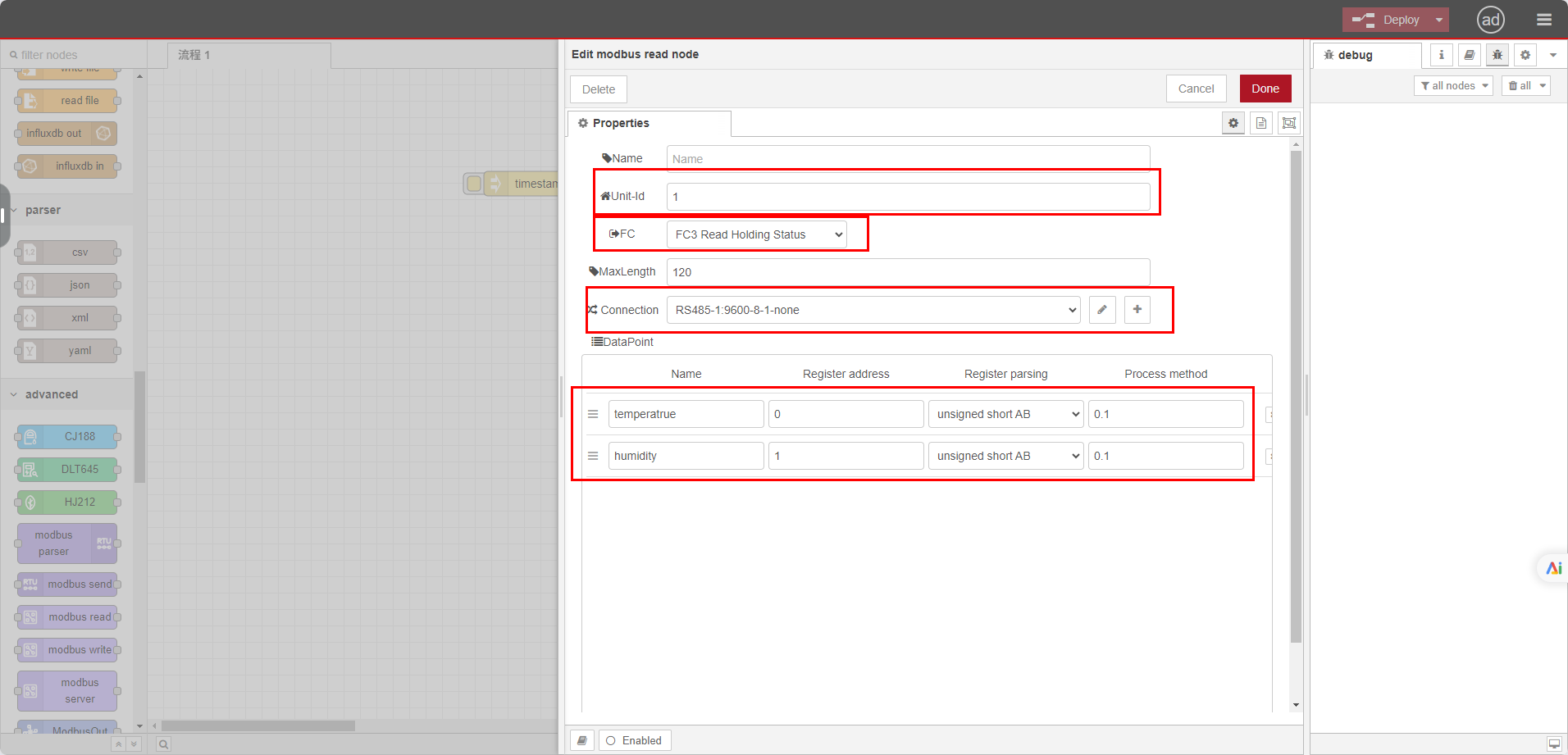
Configure the sensor parameters and choose RS485-1.
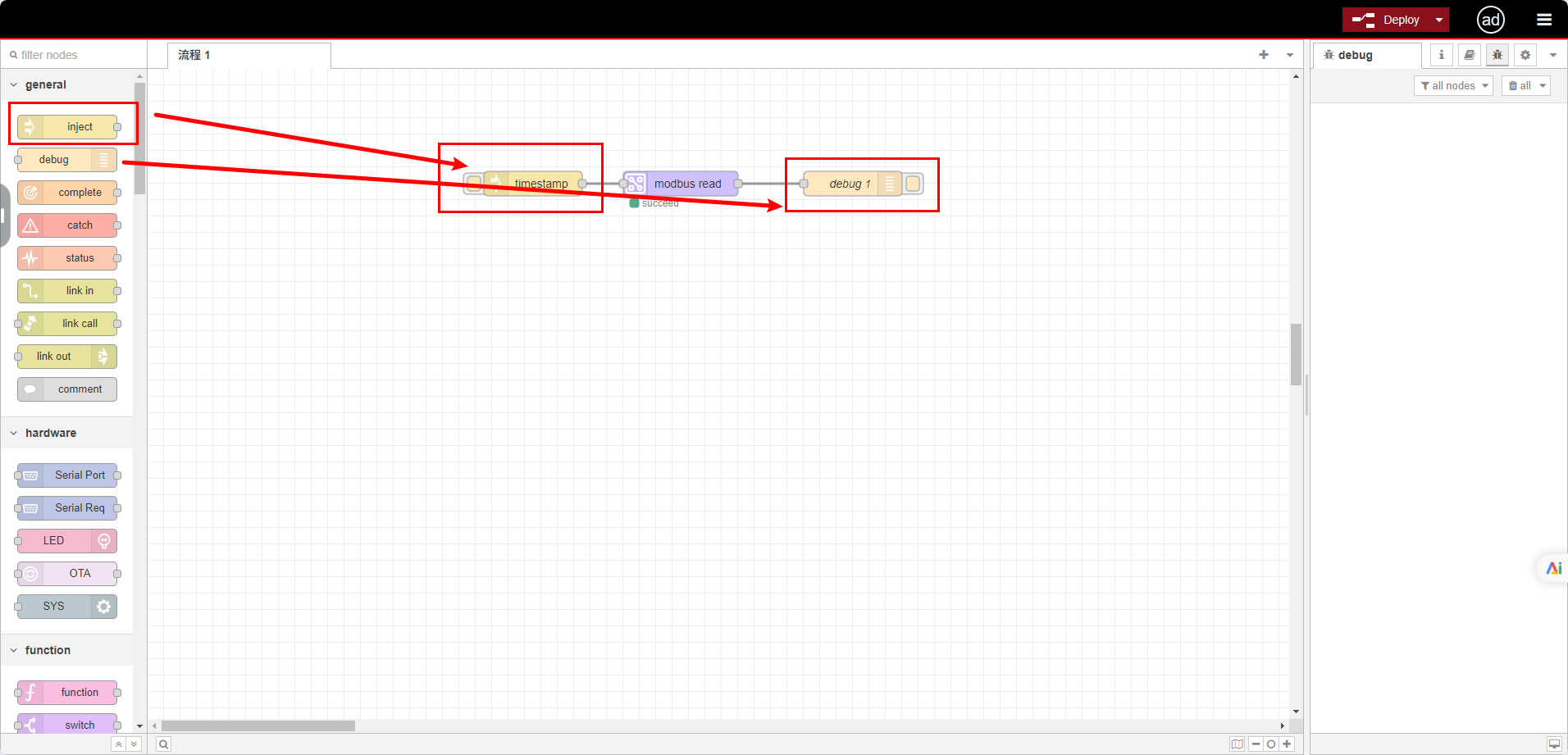
Drag out the inject node and debug node from the left node bar to trigger the process.
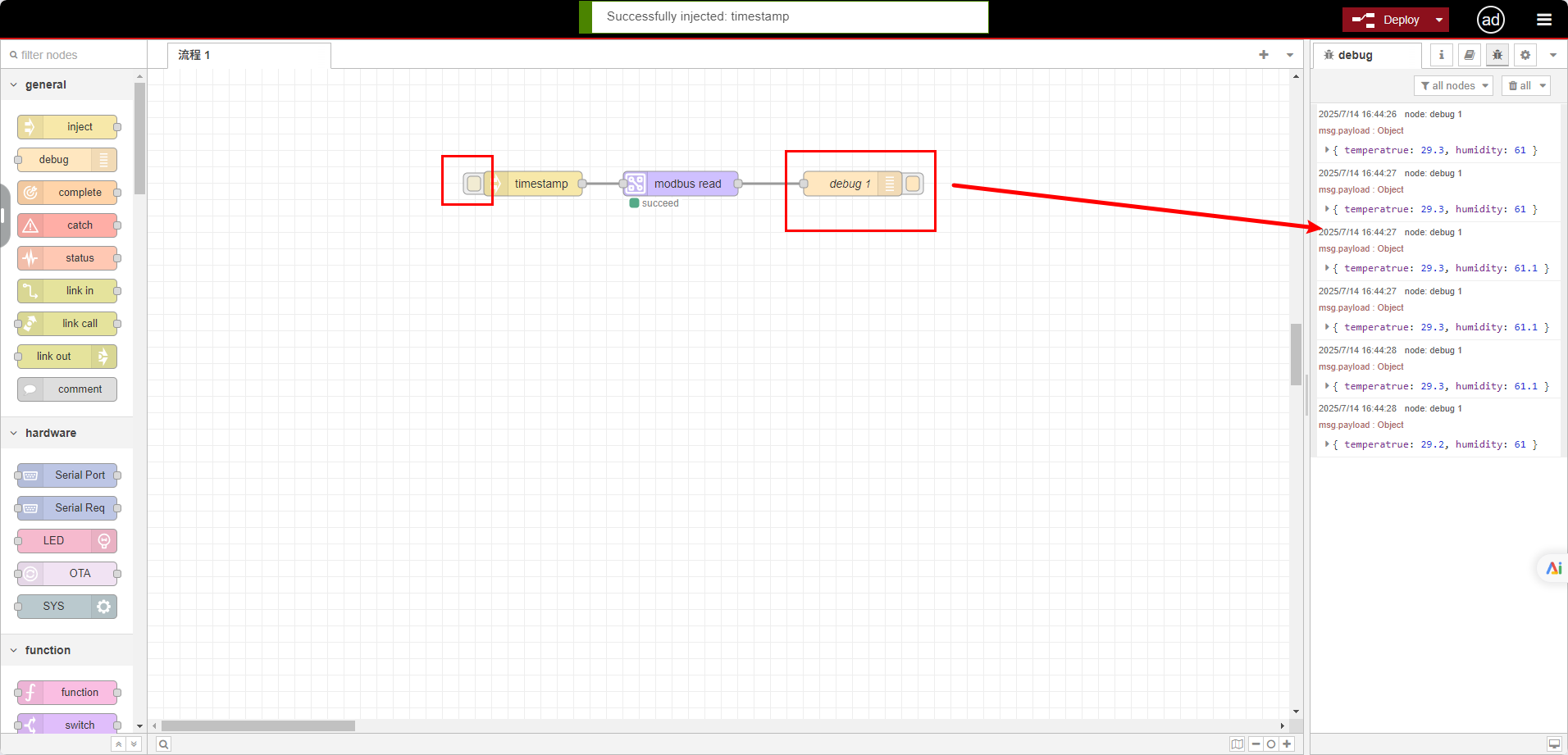
Click the inject node will show that the temperature and humidity data of the sensor are printed in the log bar on the right.
步骤2:封装数据以符合平台格式
平台上数据点的标识符与EG8200上报JSON格式中的KEY名称保持一致。因此在本示例中,EG8200采集的数据以KEY值命名,用于JSON格式化。
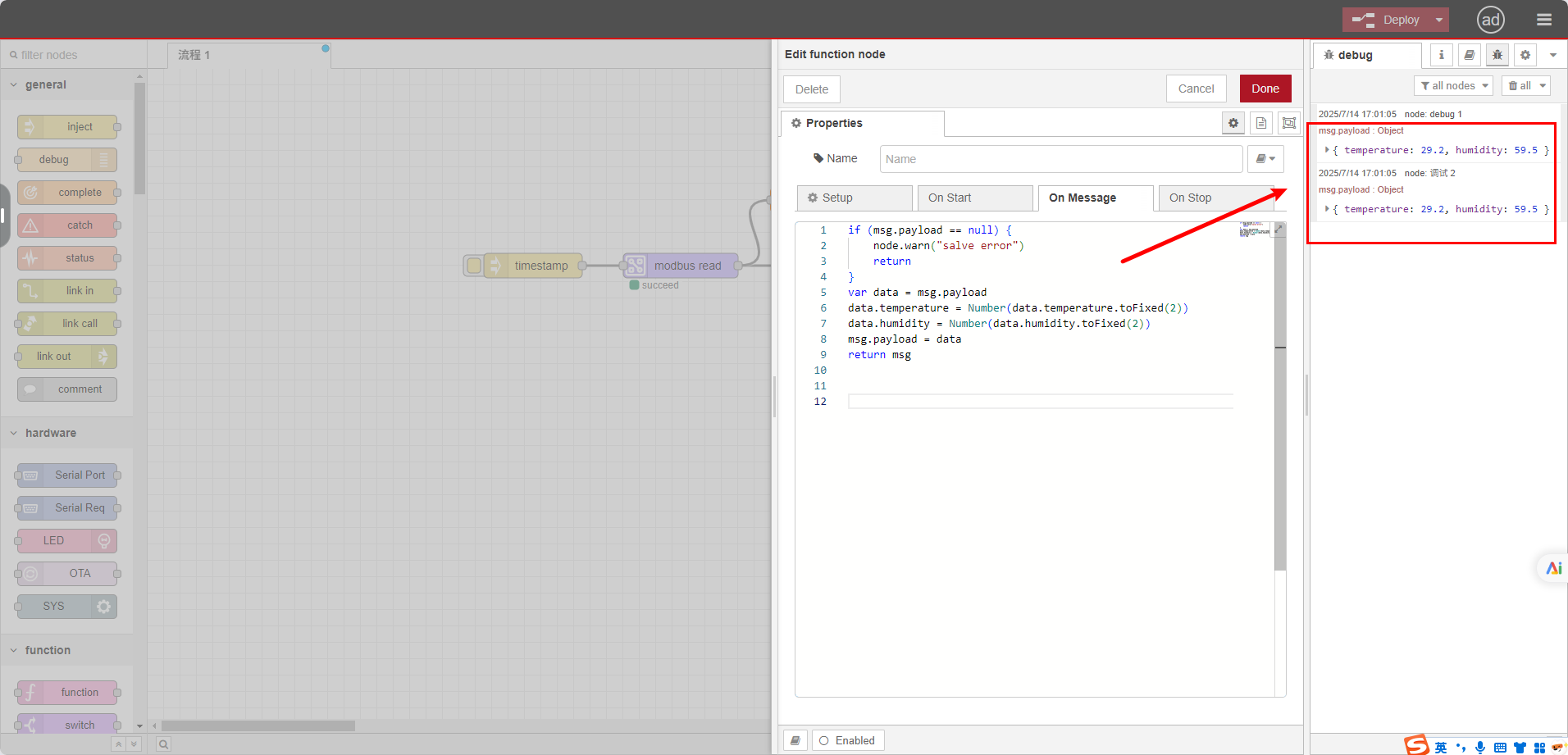
The identifiers of the data points on the platform and the KEY names in JSON format reported by the EG8200 are consistent. Therefore, in this example, the data collected by the EG8200 is named as the KEY value for JSON formatting.
步骤3:MQTT上报
添加新的MQTT发布节点,参考平台配置的第二步来配置MQTT连接信息:
- IP域名:thingsboard.cloud(注意:如自行部署ThingsBoard,请填写自己的服务器IP域名)
- 端口:1883
- Client ID:填入设备平台生成的设备ID
- Username:填入设备平台生成的访问令牌
- Password:留空
- 发布主题:v1/devices/me/telemetry
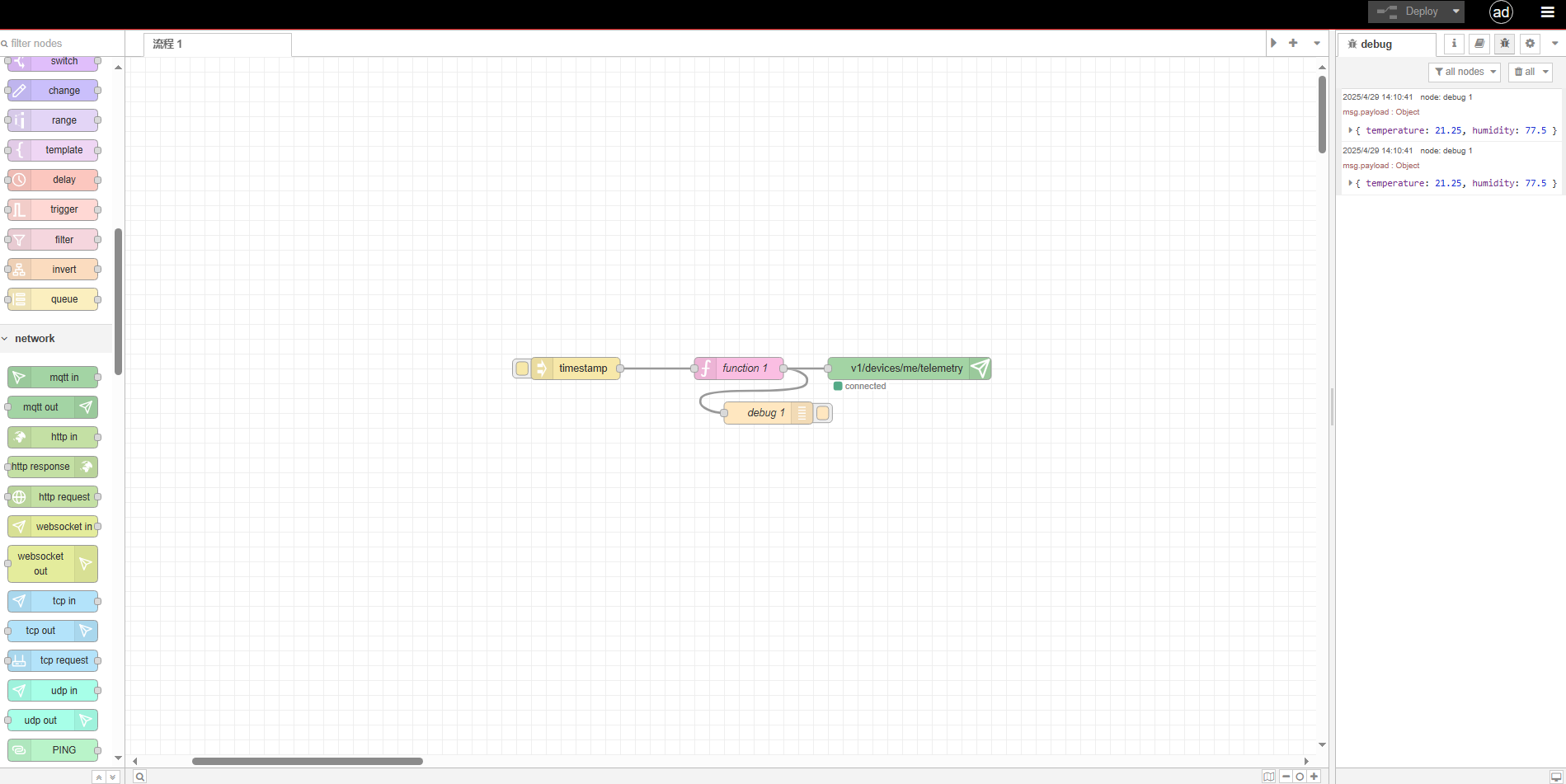
Add a new MQTT publishing node, refer to the second step of platform configuration to configure the MQTT link information.
平台配置
步骤1:添加设备
- 登录ThingsBoard实例,进入”实体”部分的”设备”页面。
- 点击表格右上角的”+”图标,从下拉菜单中选择”添加新设备”。
- 输入设备名称。
- 点击”添加”。
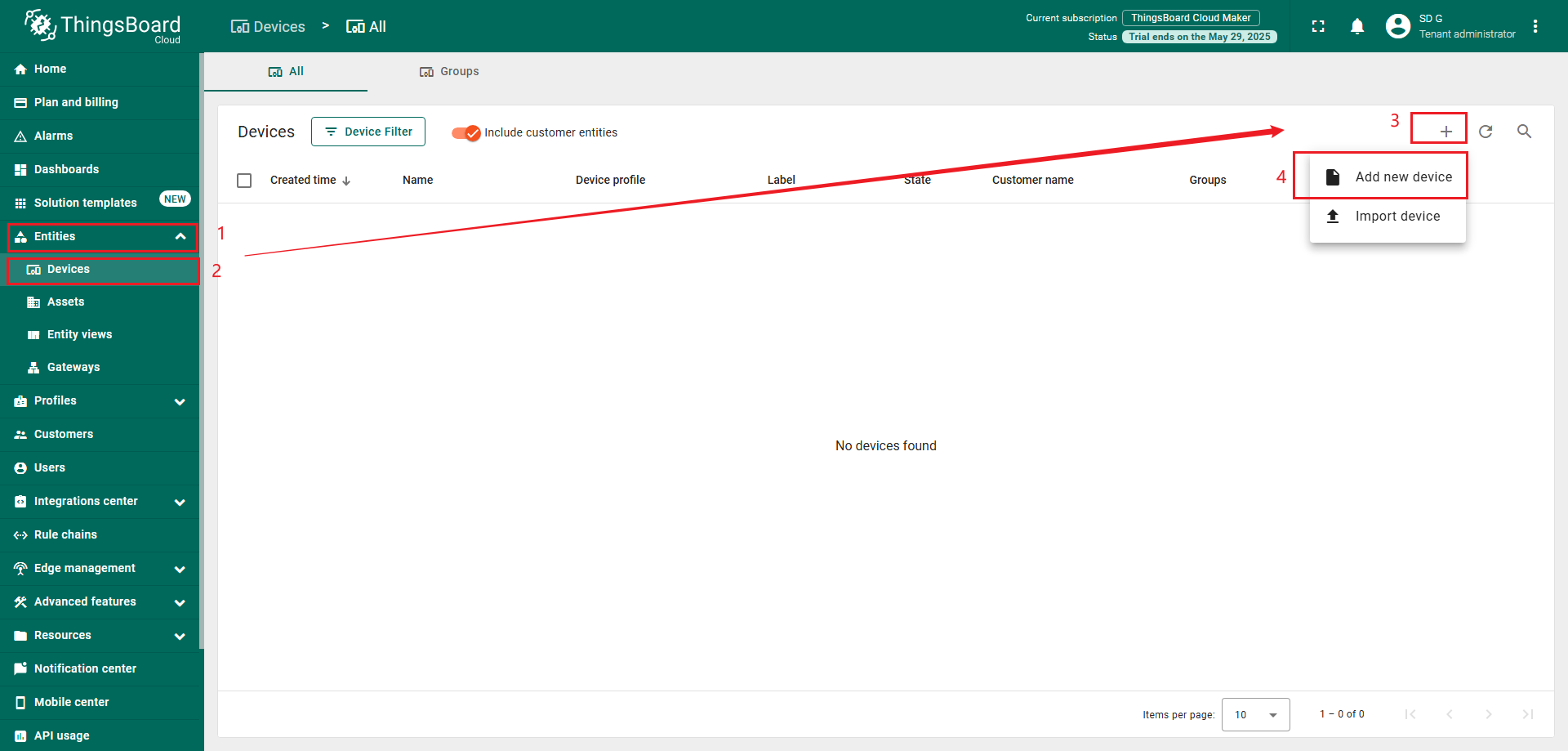
Login to your ThingsBoard instance and go to the “Devices” page of the “Entities” section. Click on the “+” icon in the top right corner of the table and then select “Add new device” from drop-down menu.
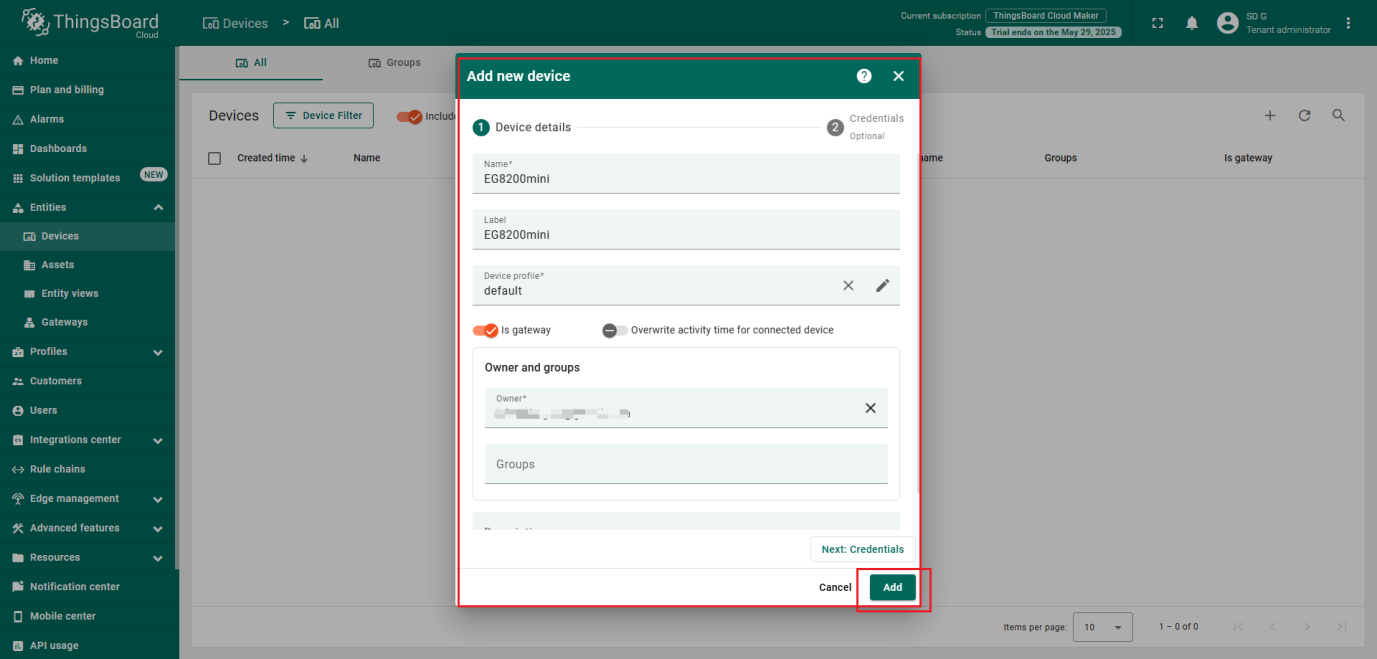
Enter a device name and click “Add”.
步骤2:配置MQTT
点击已创建的设备,将下图中的配置信息填入网关,其中设备ID为MQTT Client ID,访问令牌为MQTT Username。
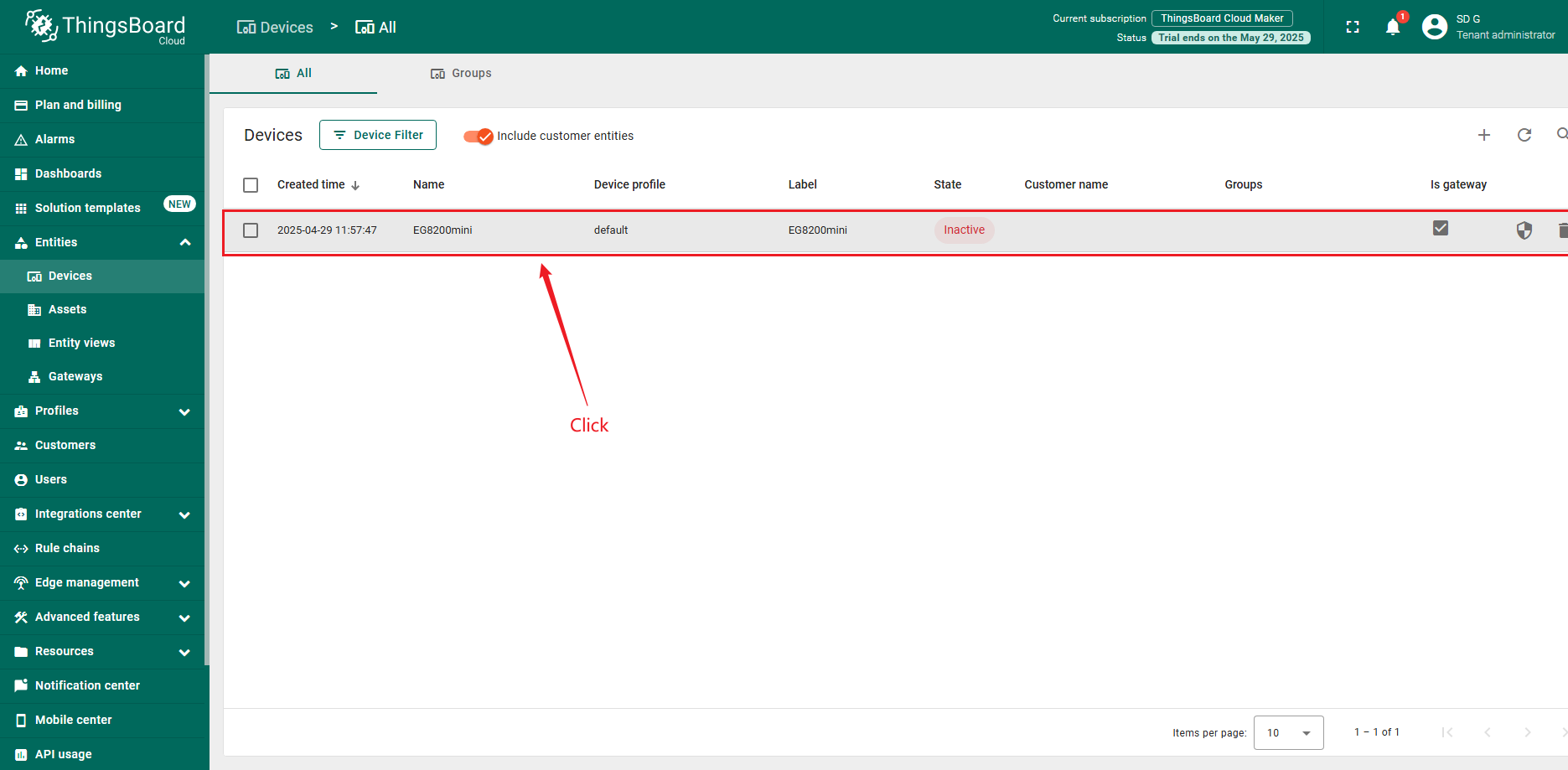
Click on the created device and fill in the configuration information in the following figure into the gateway.
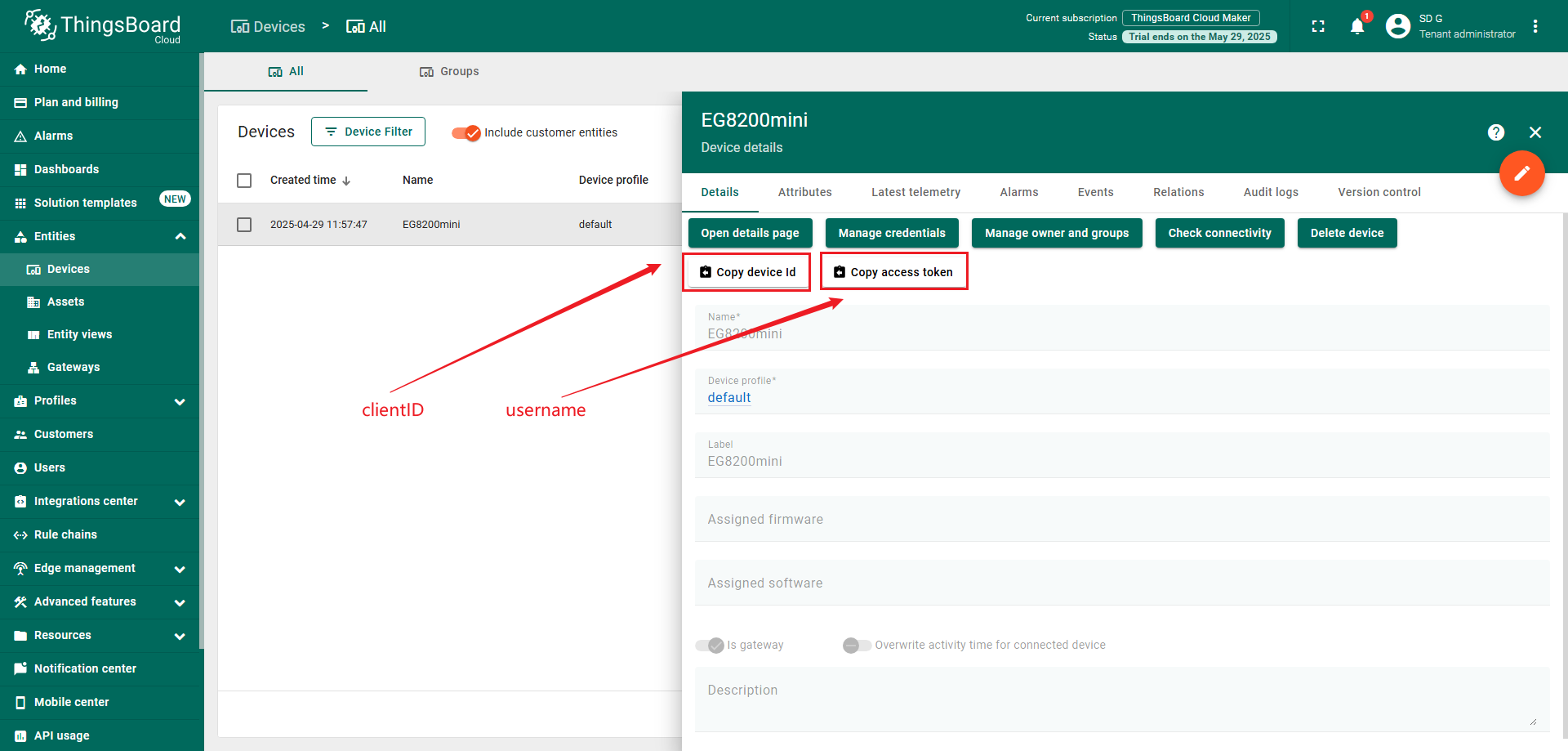
The device ID is the MQTT client ID and the access token is the MQTT username.
步骤3:验证数据传输
点击已创建的设备,查看平台接收到的最新遥测数据。
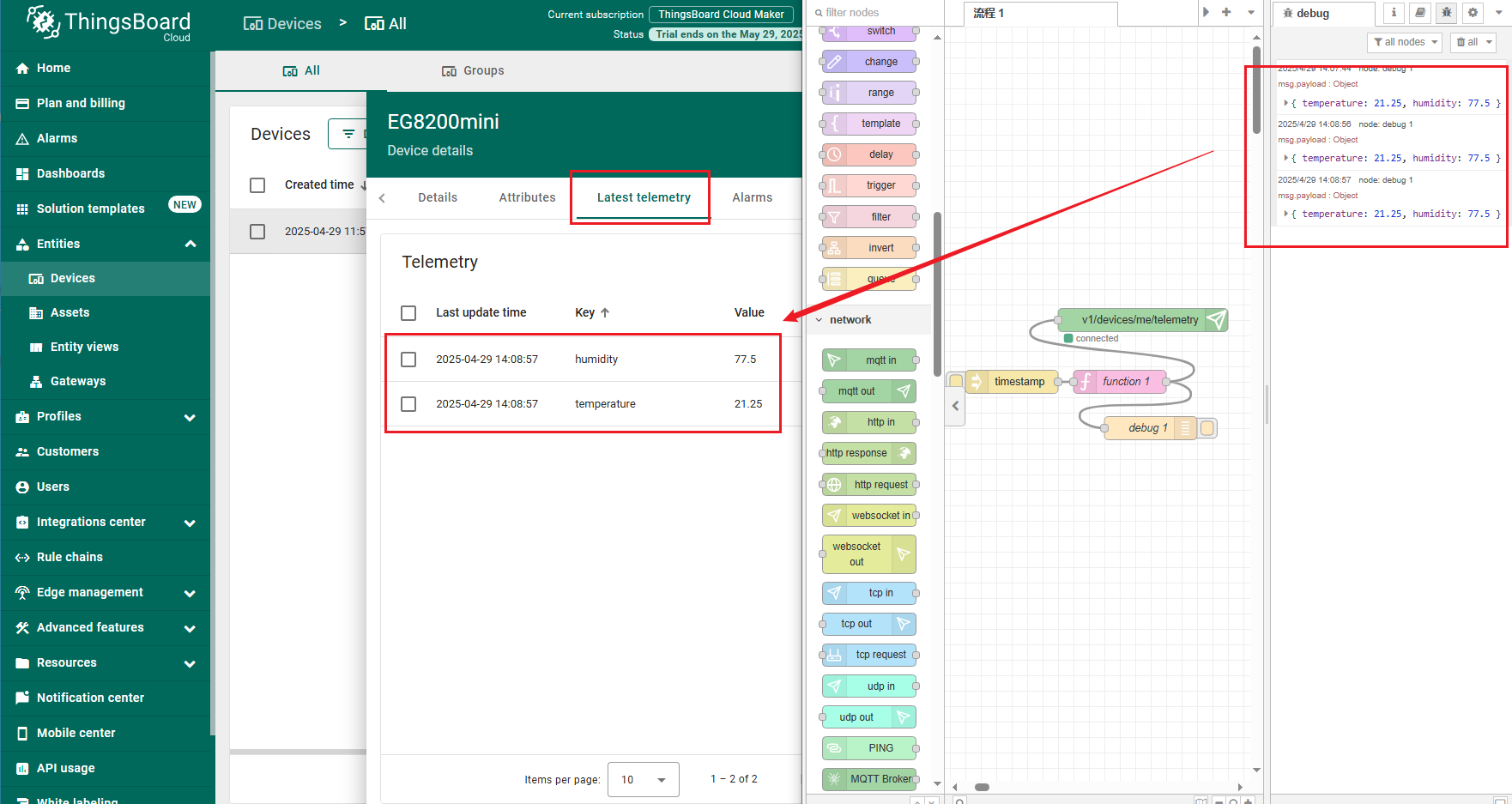
Click the created device and find the latest telemetry data received by the platform.
总结
现在您可以轻松将EG8200 Gateway连接到ThingsBoard并开始发送数据。
进一步了解可查阅ThingsBoard文档, 学习创建仪表板可视化遥测、 配置告警规则实时监控设备行为等核心功能。