- Hardware type: Sensors
- Connectivity: Wi-Fi, RS-485, Bluetooth
- Industry: Industrial Manufacturing, Smart Cities, Security
- Use cases: Smart energy, Environment Monitoring, Fleet Tracking, Waste Management
- Platforms: Community Edition, Professional Edition, Cloud
- 概述
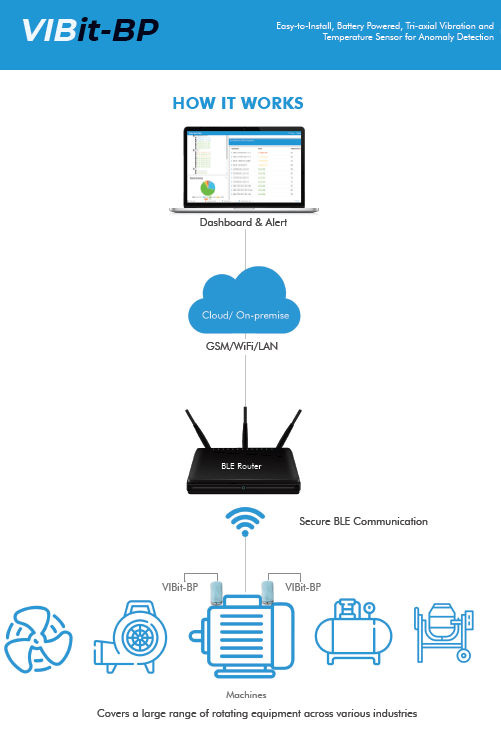
- VIBit-BP架构
- 前置条件
- 在ThingsBoard上创建设备配置文件
- 在ThingsBoard上创建设备
- 将VIBit-BP传感器与VIBit-BP BLE网关连接
- 将BLE网关与ThingsBoard集成
- 在ThingsBoard上查看数据
- 总结
概述
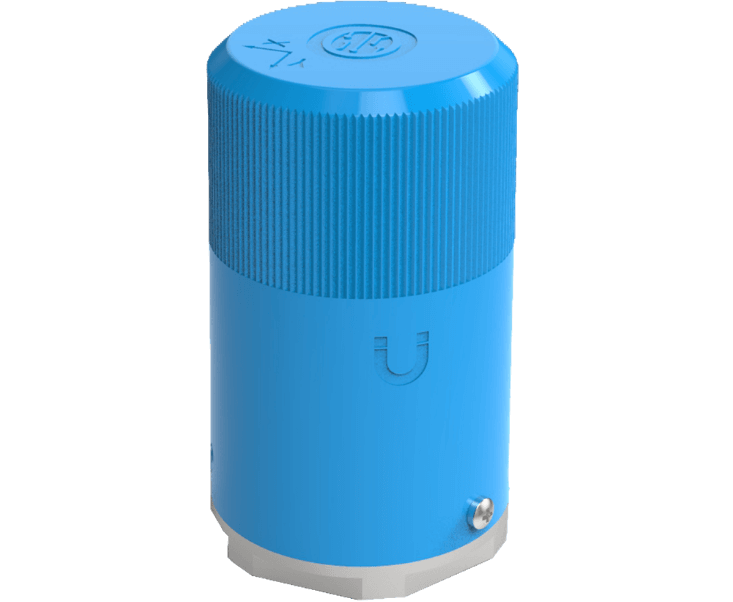
VIBit-BP 是一款电池供电的紧凑型三轴振动与温度传感器,旨在无需外部供电或布线的情况下实现异常检测。通过低功耗蓝牙(BLE)无线传输数据,非常适合工业环境中的远程状态监测。
VIBit-BP架构
前置条件
继续本指南前需准备以下内容:
- Sensor user guide
- VIBit-BP BLE网关已配置为将数据中继到ThingsBoard。
- 带有Chrome/Firefox等浏览器的笔记本电脑,以及用于建立网关与笔记本连接的以太网线缆。
- MQTT Basic凭据:
- 用户名: sensor
- 密码: cimcon
- 客户端ID: VIBit设备的BLE MAC地址(传感器的蓝牙MAC地址)
在ThingsBoard上创建设备配置文件
首先在ThingsBoard中创建一个新的设备配置文件,使用MQTT传输协议和标准MQTT主题传输遥测数据和属性。
- 登录您的ThingsBoard实例。
- 导航到配置部分下的设备配置文件页面。
- 点击“+”按钮,然后从下拉菜单中选择“添加新设备配置文件”。
- 输入MQTT作为设备配置文件名称。
- 点击“下一步:传输配置”按钮。
- 选择MQTT作为传输类型。
- 保留默认的MQTT设备主题过滤器。
- 点击添加创建设备配置文件。
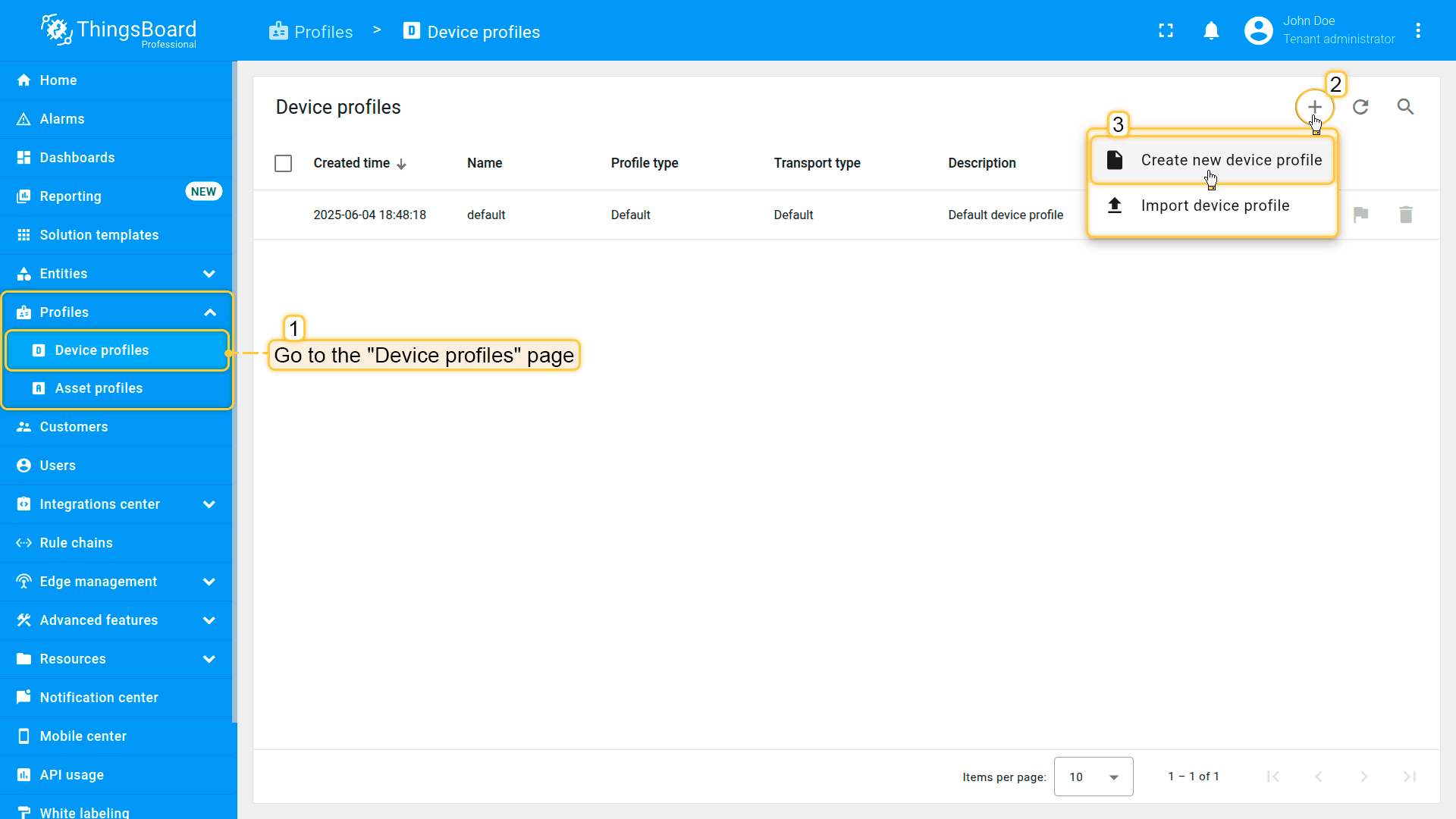
Navigate to Device profiles page under the Profiles section, click the “plus” button, and then select “Add new device profile” from drop-down menu.
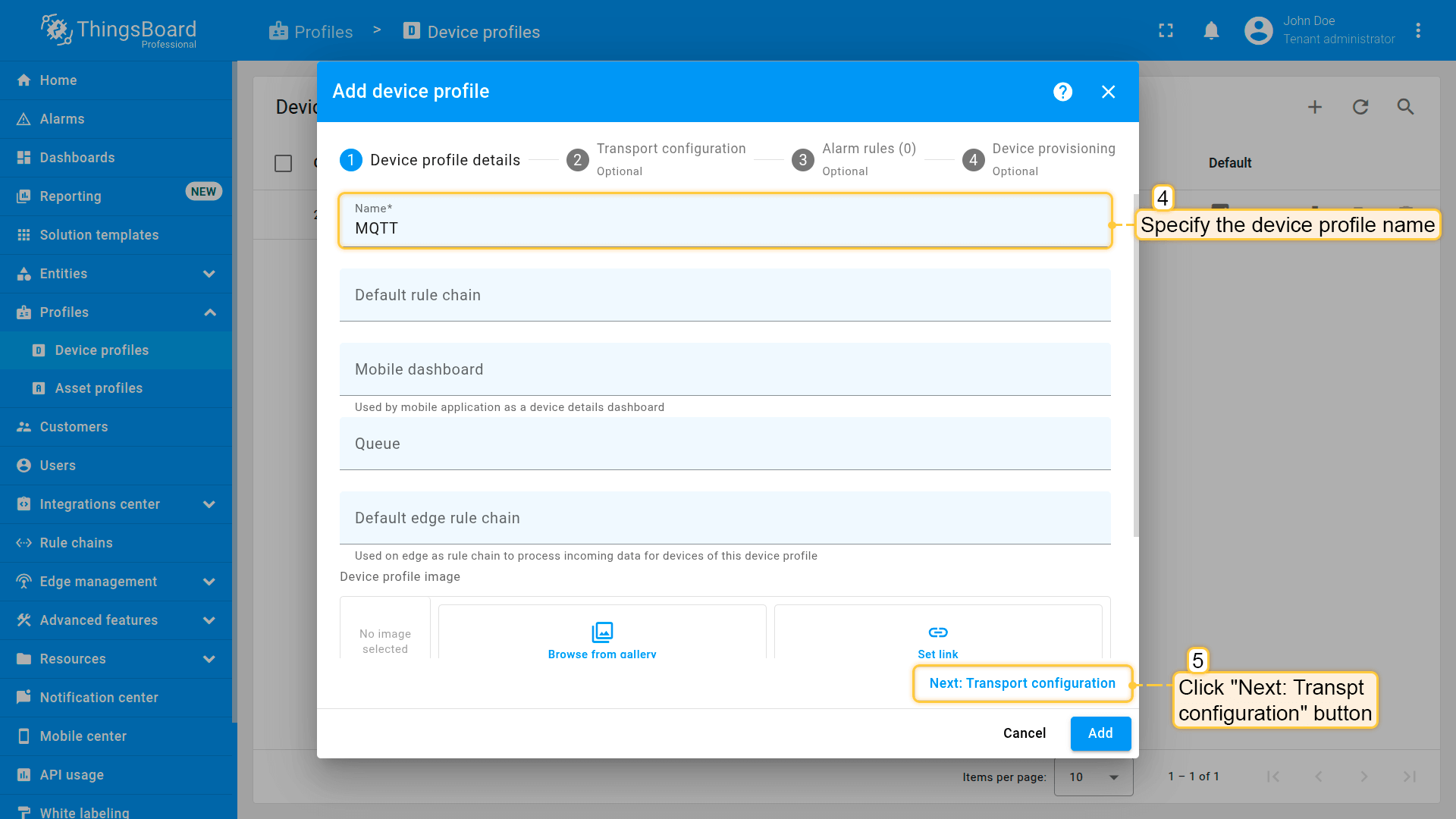
Enter MQTT as the device profile name. Click “Next: Transport configuration” button.
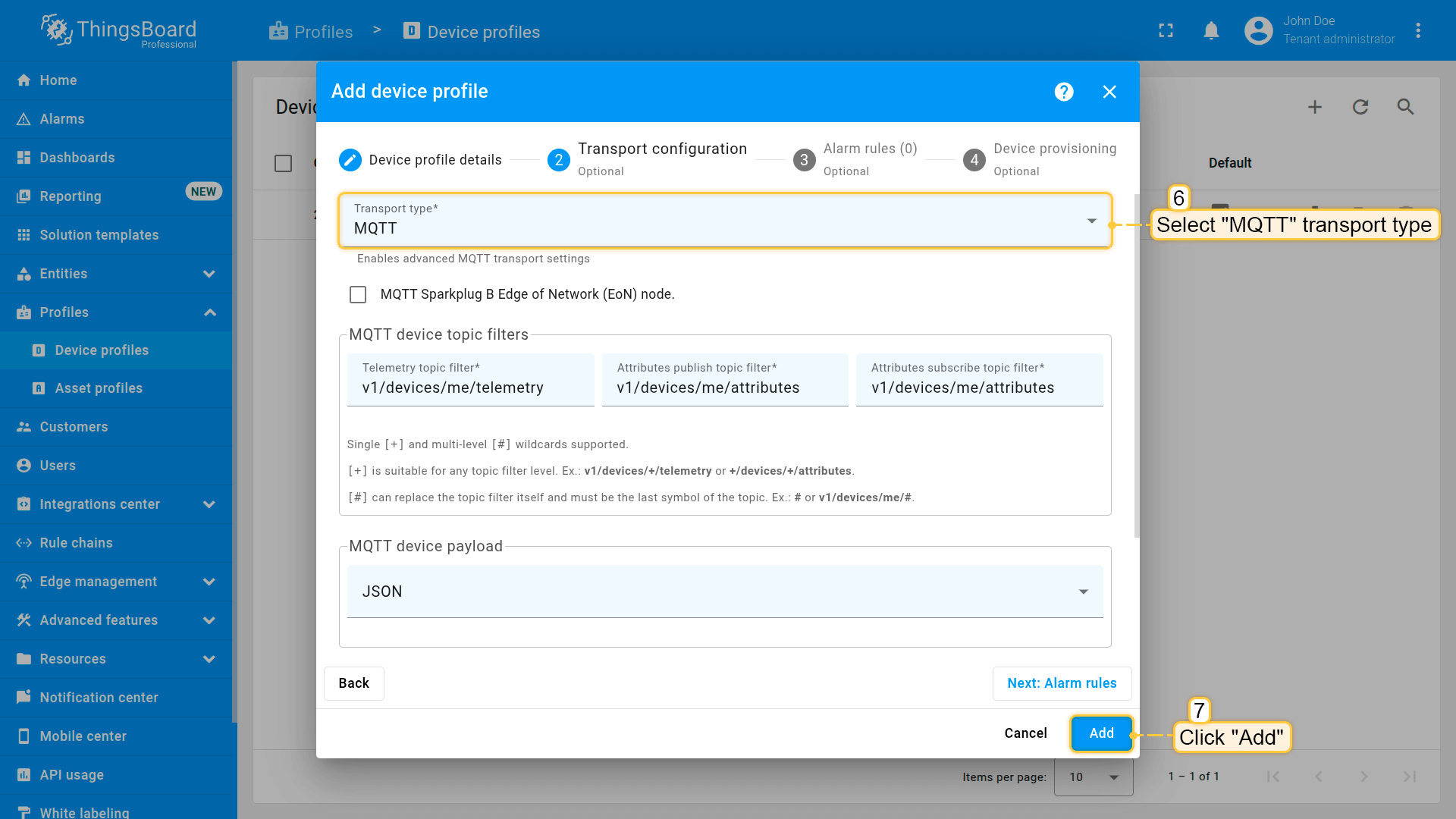
Select MQTT as transport type. Leave default MQTT device topic filters. Click Add to create device profile.
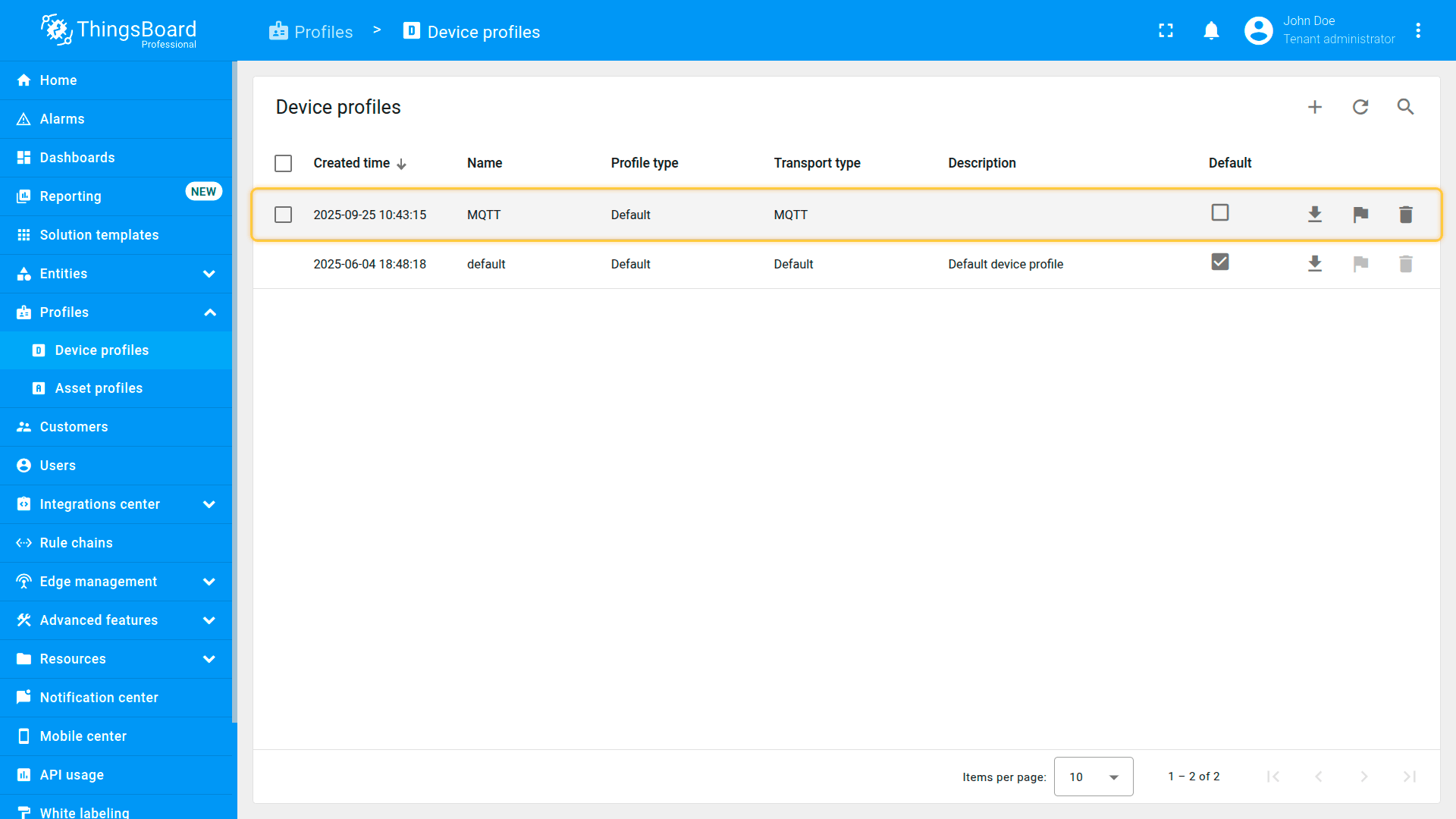
The device profile is created.
在ThingsBoard上创建设备
- 导航到实体部分下的设备页面。
- 点击“+”添加新设备,然后从下拉菜单中选择“添加新设备”。
- 使用VIBit传感器的BLE MAC地址作为名称(例如“F4B3B1A1EFAC”)。
- 在“设备配置文件”字段中选择之前创建的MQTT设备配置文件。
- 点击下一步:凭据按钮。
- 在凭据选项卡中:
- 选择MQTT Basic作为凭据类型。
- 使用VIBit设备的BLE MAC地址作为客户端ID。
- 输入sensor作为用户名。
- 输入cimcon作为密码。
- 点击添加按钮创建设备。
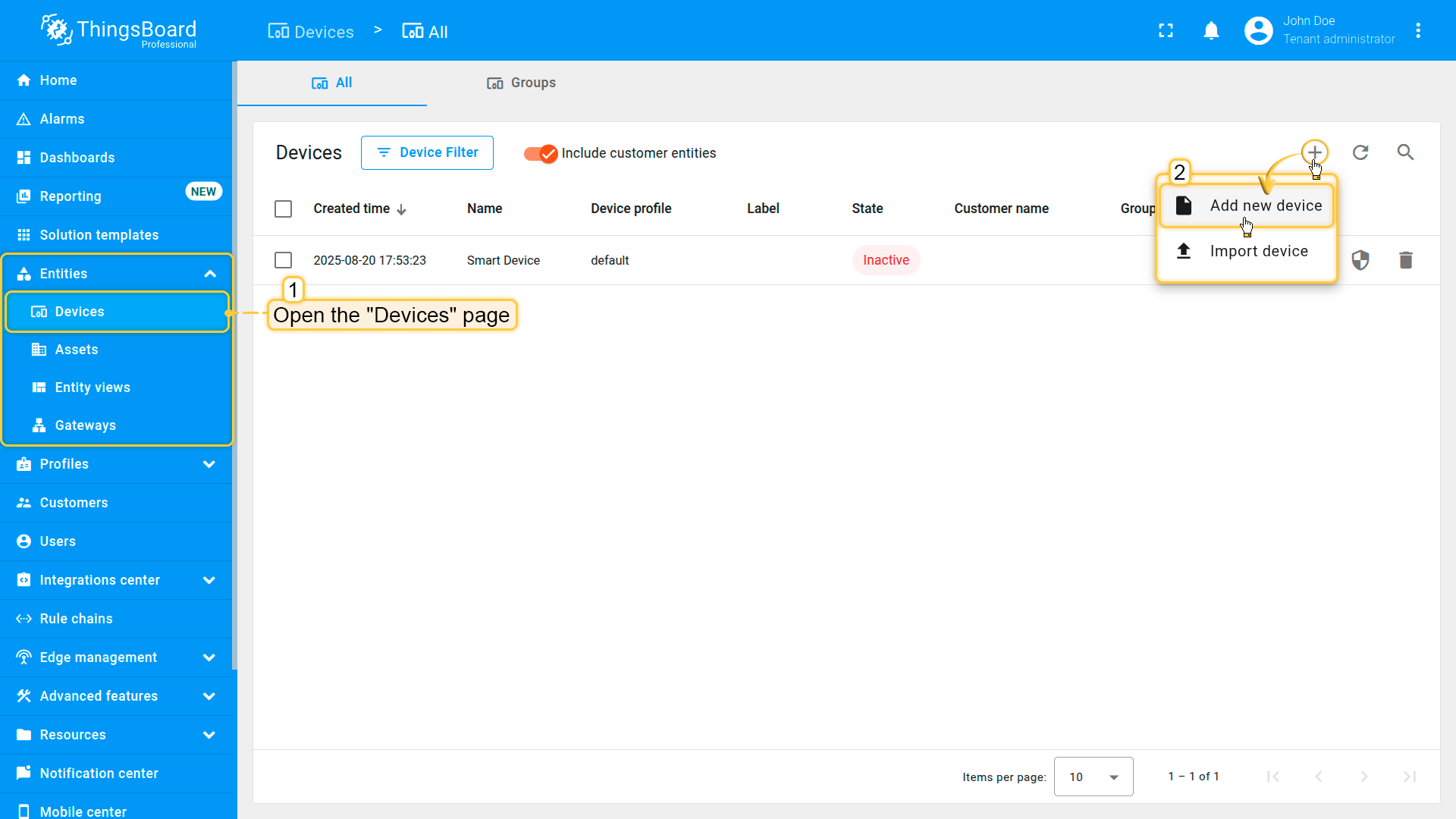
Navigate to Devices page under the Entities section. Click on “+” to add a new device, and then select “Add new device” from drop-down menu.
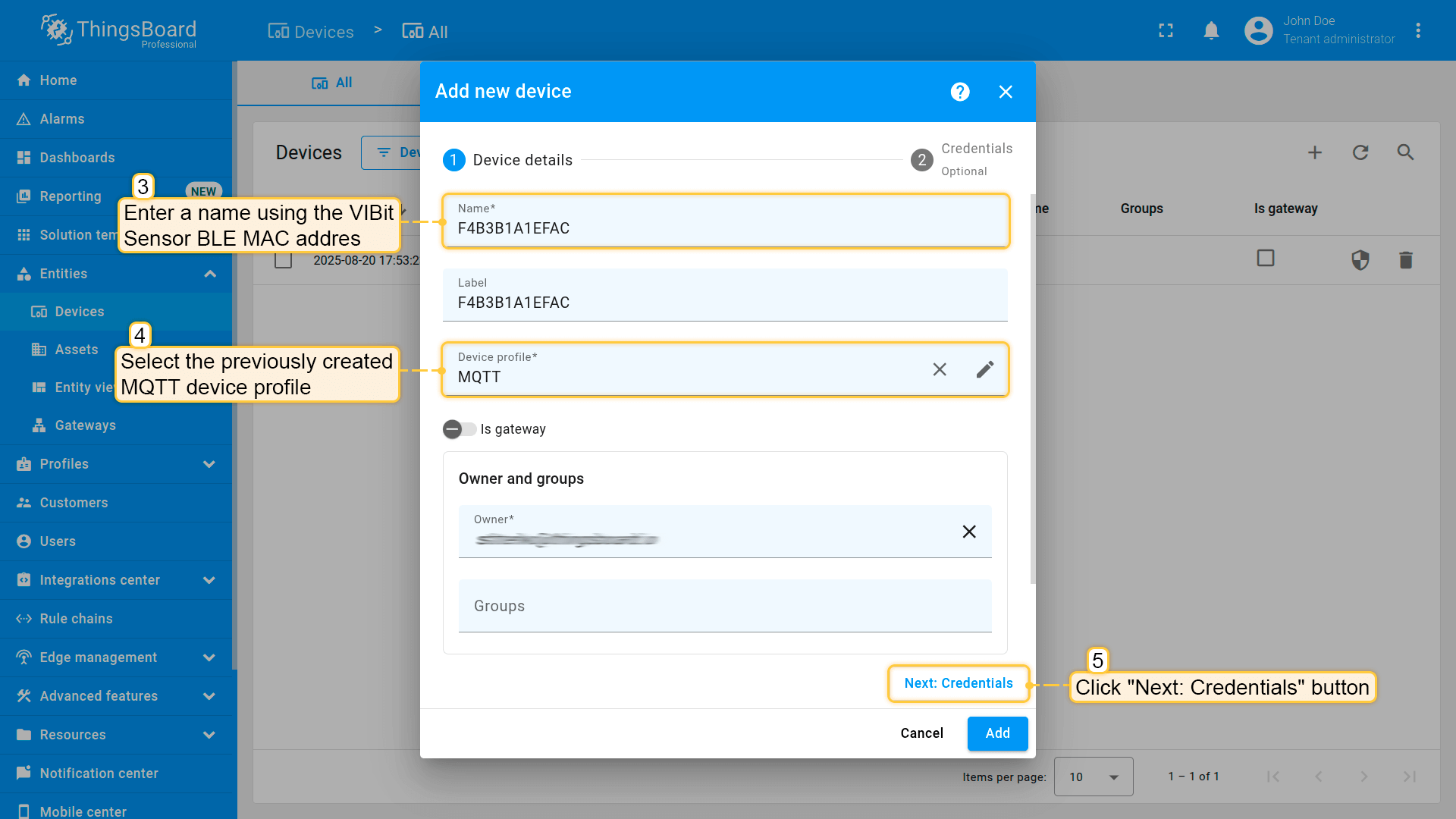
Enter a name using the VIBit Sensor BLE MAC address (e.g., “F4B3B1A1EFAC”). Select the previously created MQTT device profile in the “Device profile” field. Click Next: Credentials button.
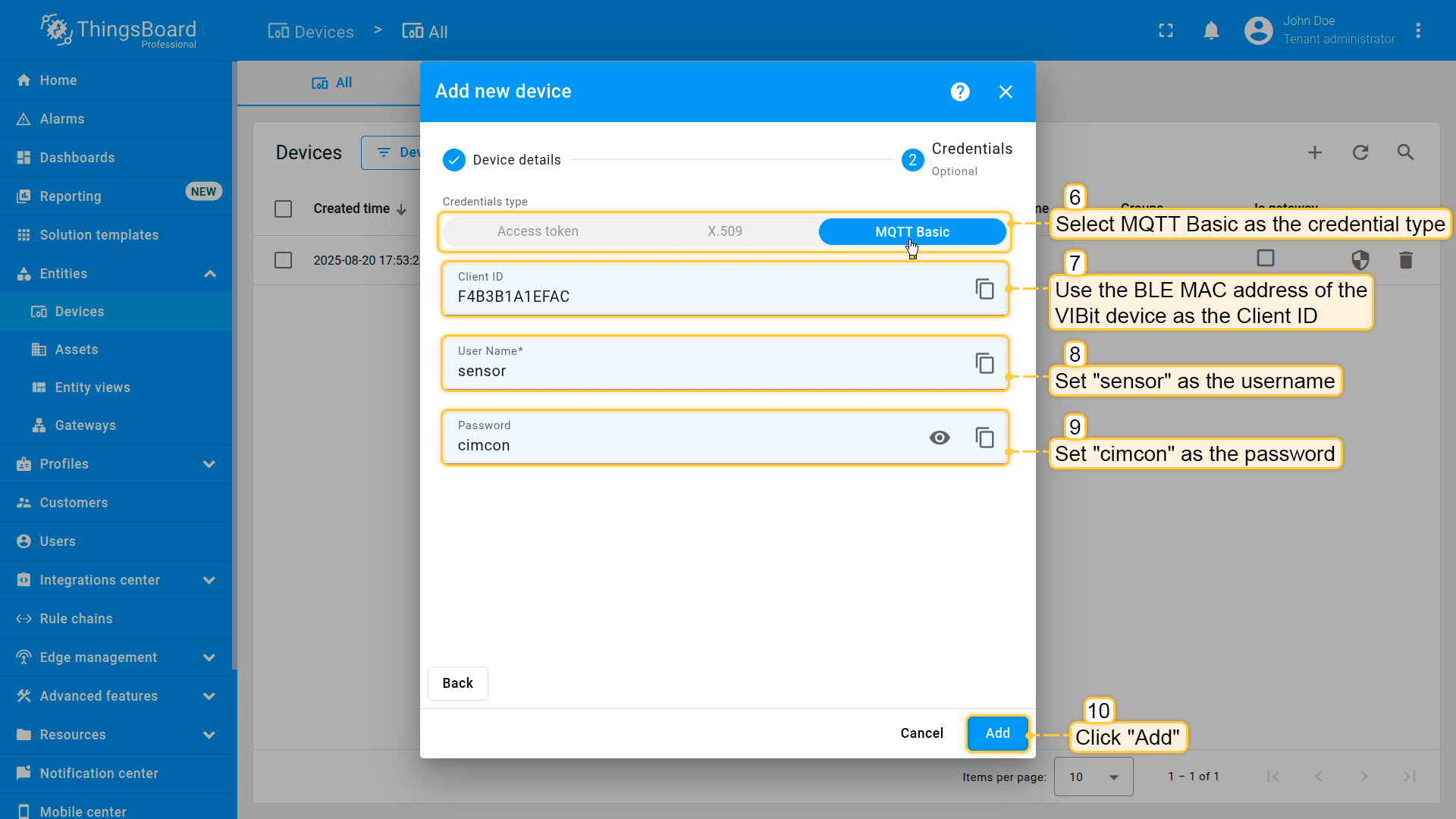
On the Credentials tab:
- Select MQTT Basic as the credential type.
- Use the BLE MAC address of the VIBit device as the Client ID.
- Enter sensor as the Username.
- Enter cimcon as the Password.
- Click Add button to create the device.
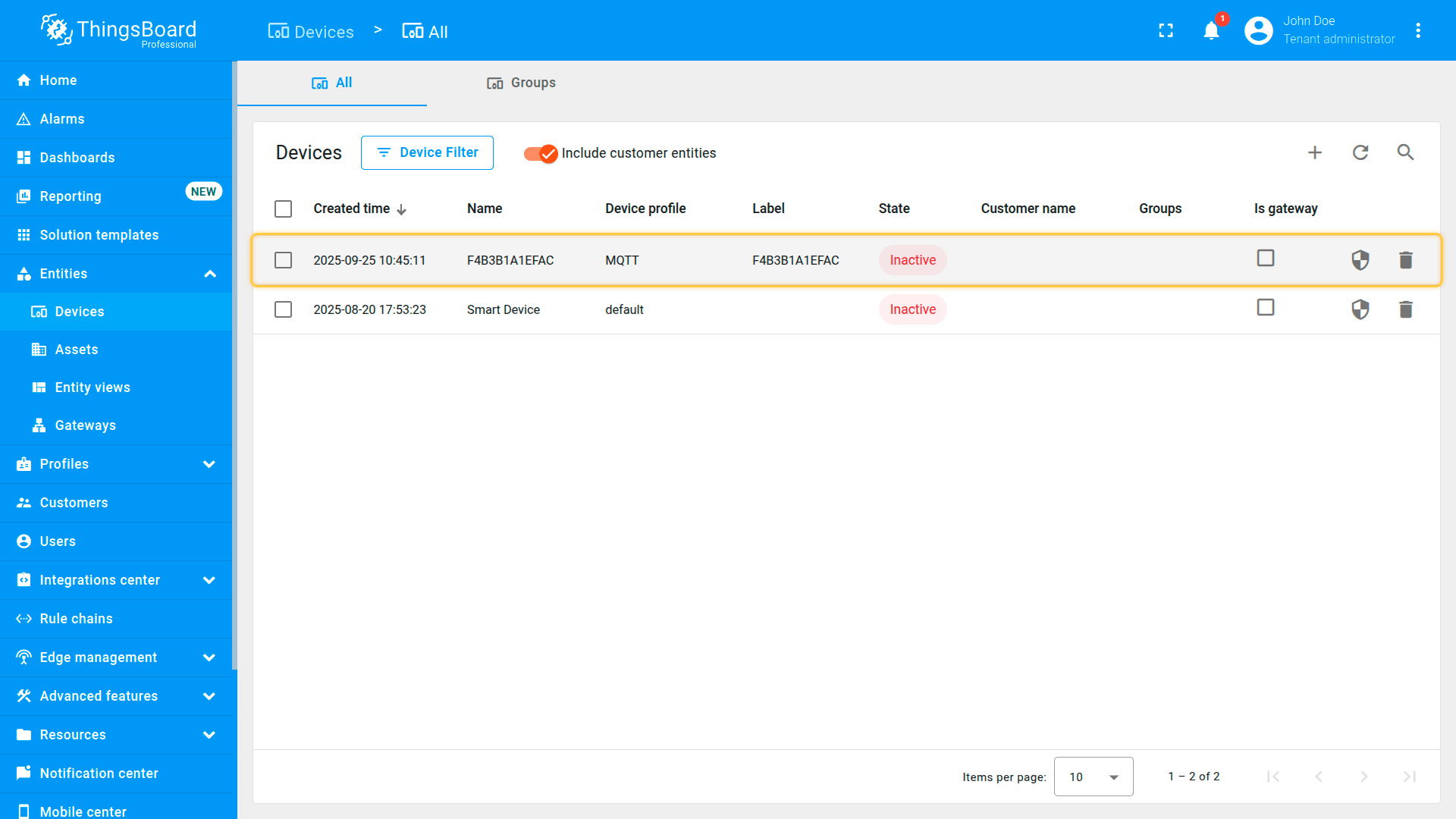
The device is created.
将VIBit-BP传感器与VIBit-BP BLE网关连接
要建立VIBit-BP传感器与VIBit-BP BLE网关之间的通信,请使用iEdge360界面按以下步骤进行配置:
- 使用以太网线缆连接笔记本电脑和BLE网关。使用默认IP(IP: 192.168.1.100, 子网掩码: 255.255.255.0)打开iEdge360平台,使用CIMCON团队提供的凭据登录,然后导航到Device选项卡。
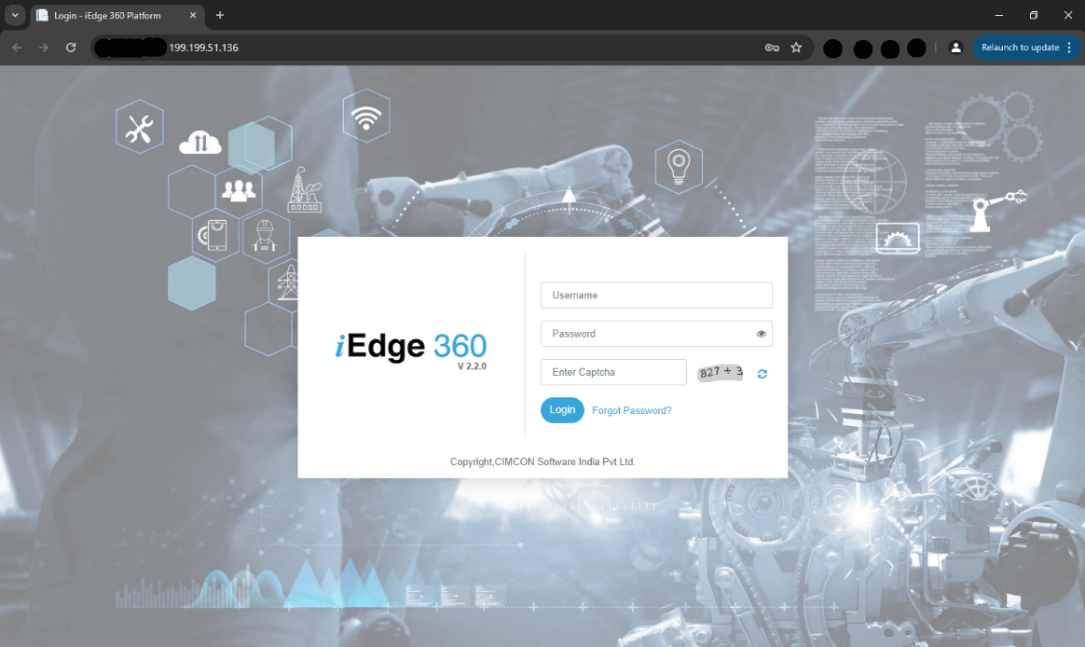
注意: 请联系CIMCON支持团队获取登录凭据。
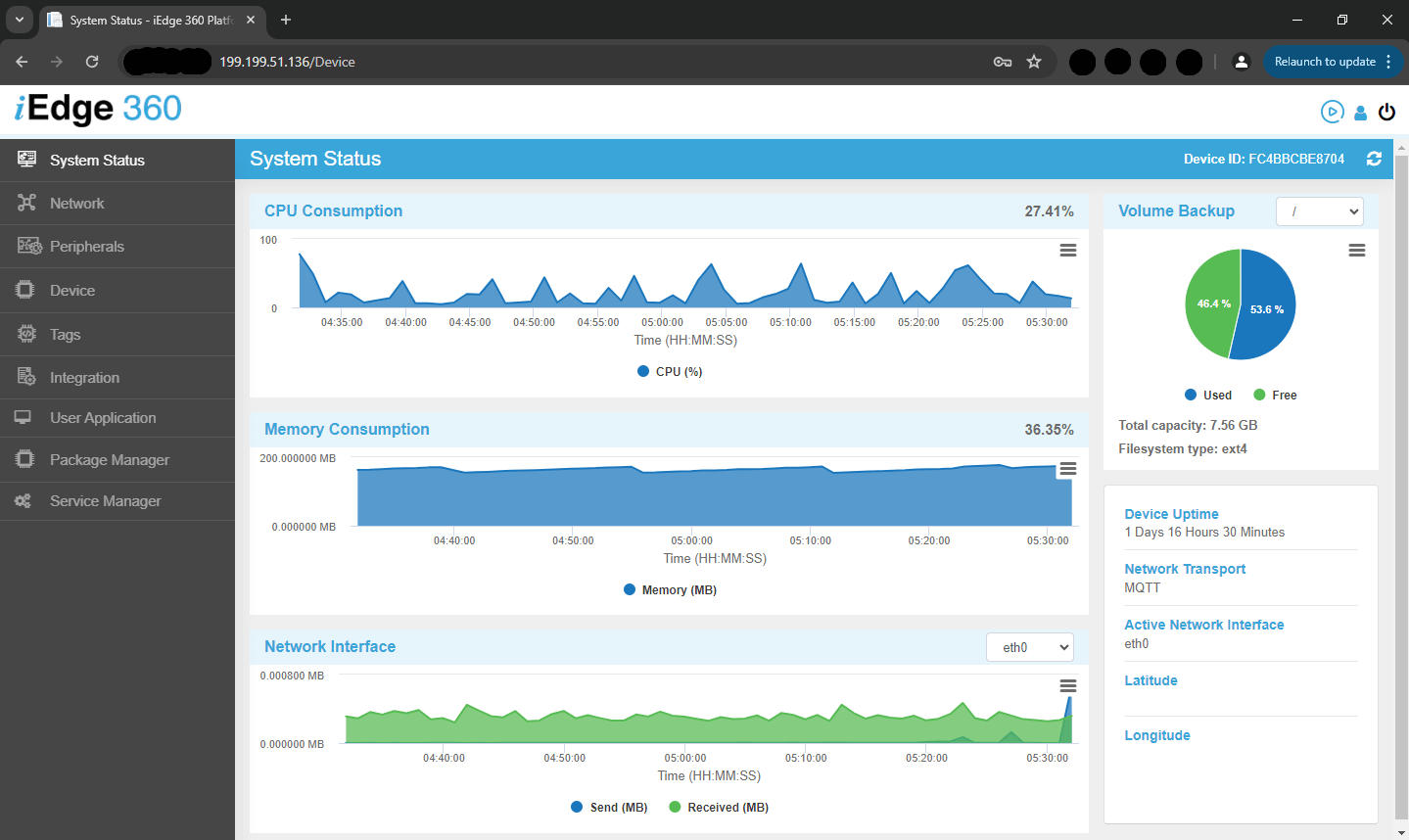
- 点击+图标添加新设备。
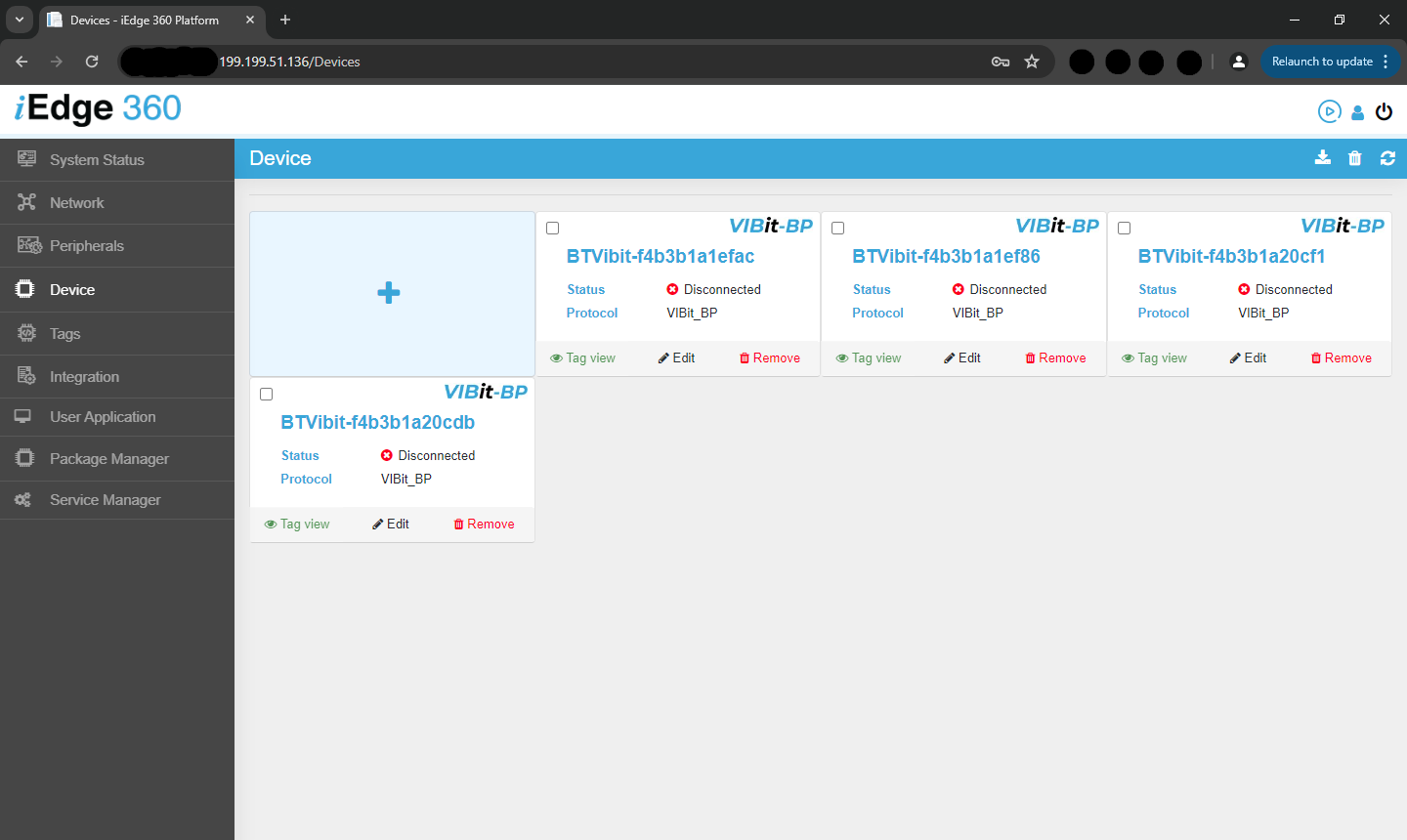
- 在添加设备弹窗中,选择VIBit_BP作为协议。
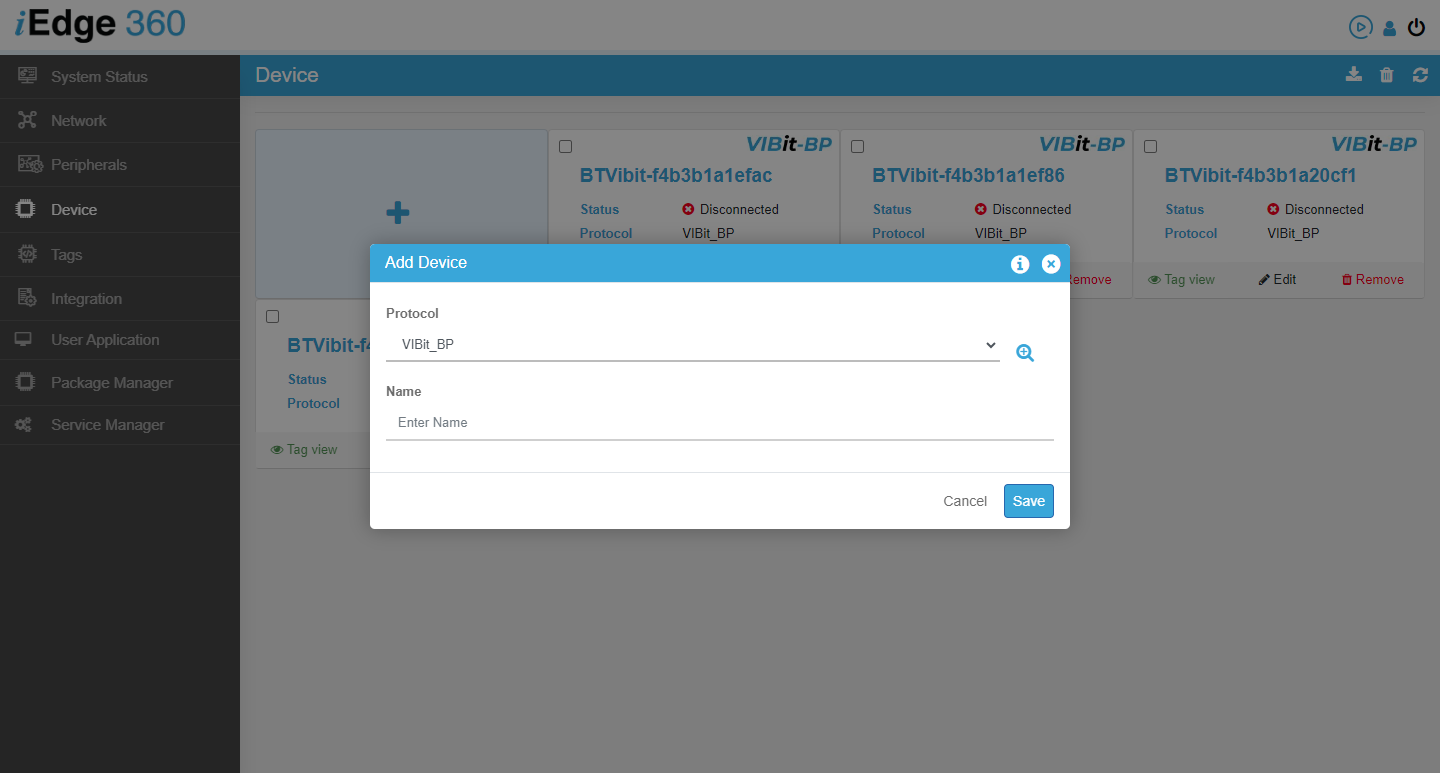
- 输入超时时间(例如60秒),然后点击对号图标开始扫描BLE设备。
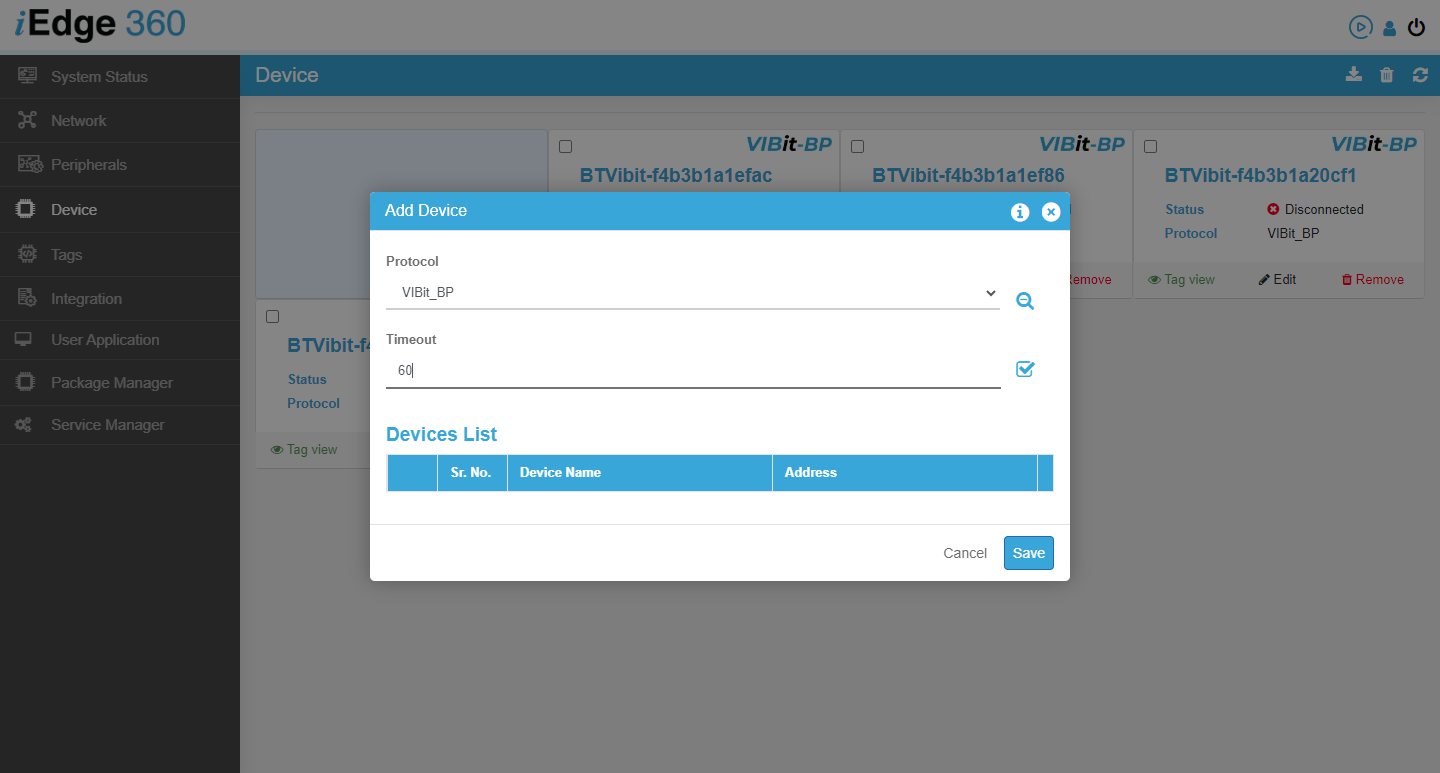
- 发现的VIBit-BP设备将连同其MAC地址一起显示在设备列表中。
- 选择所需设备并点击保存以注册它。
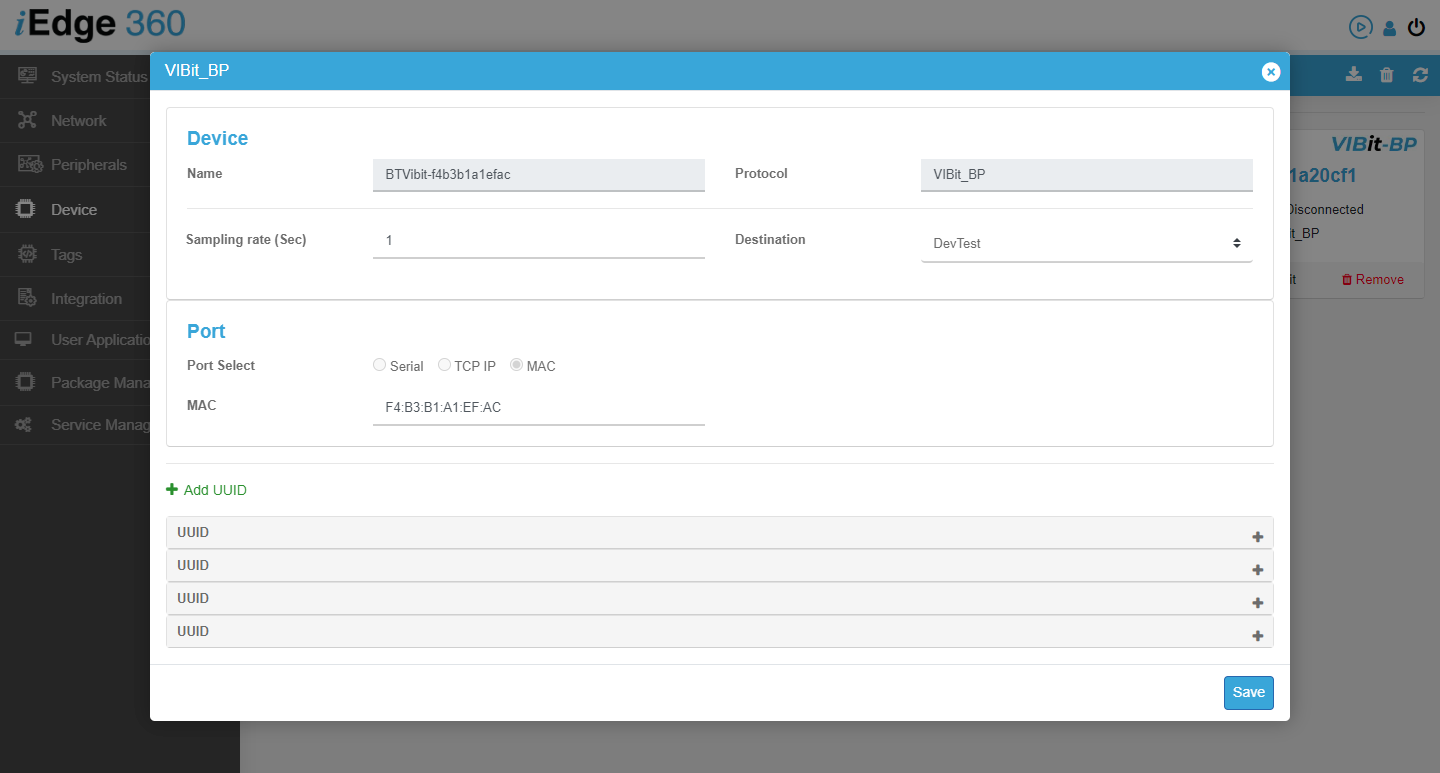
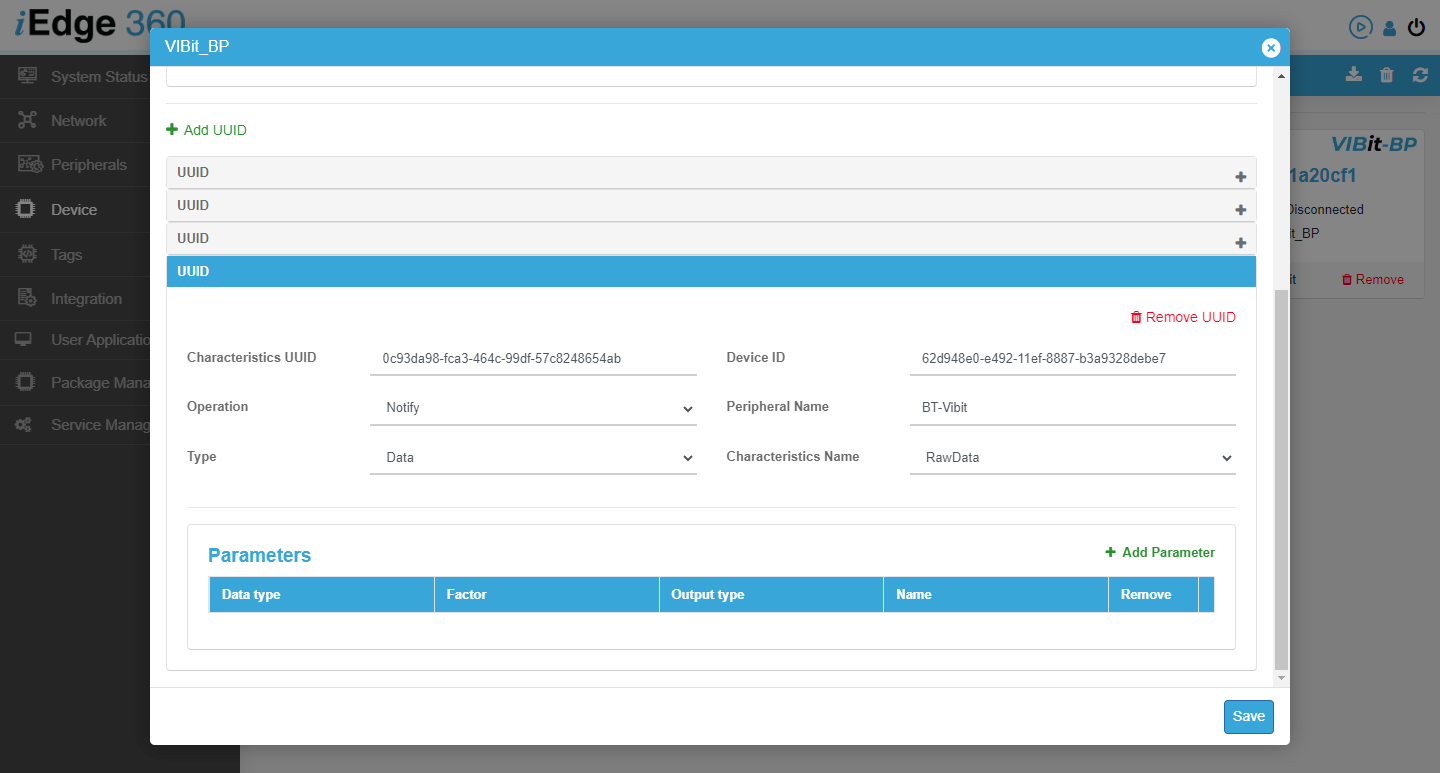
- 设备注册后,点击编辑图标配置参数:
- 输入采样率(秒)。
- 选择目标为云集成名称(例如CIM_Cloud)。
- 打开UUID部分,插入从ThingsBoard复制的设备ID(即ThingsBoard上存在的设备ID)。
将BLE网关与ThingsBoard集成
- 在iEdge360中,进入“集成”选项卡。
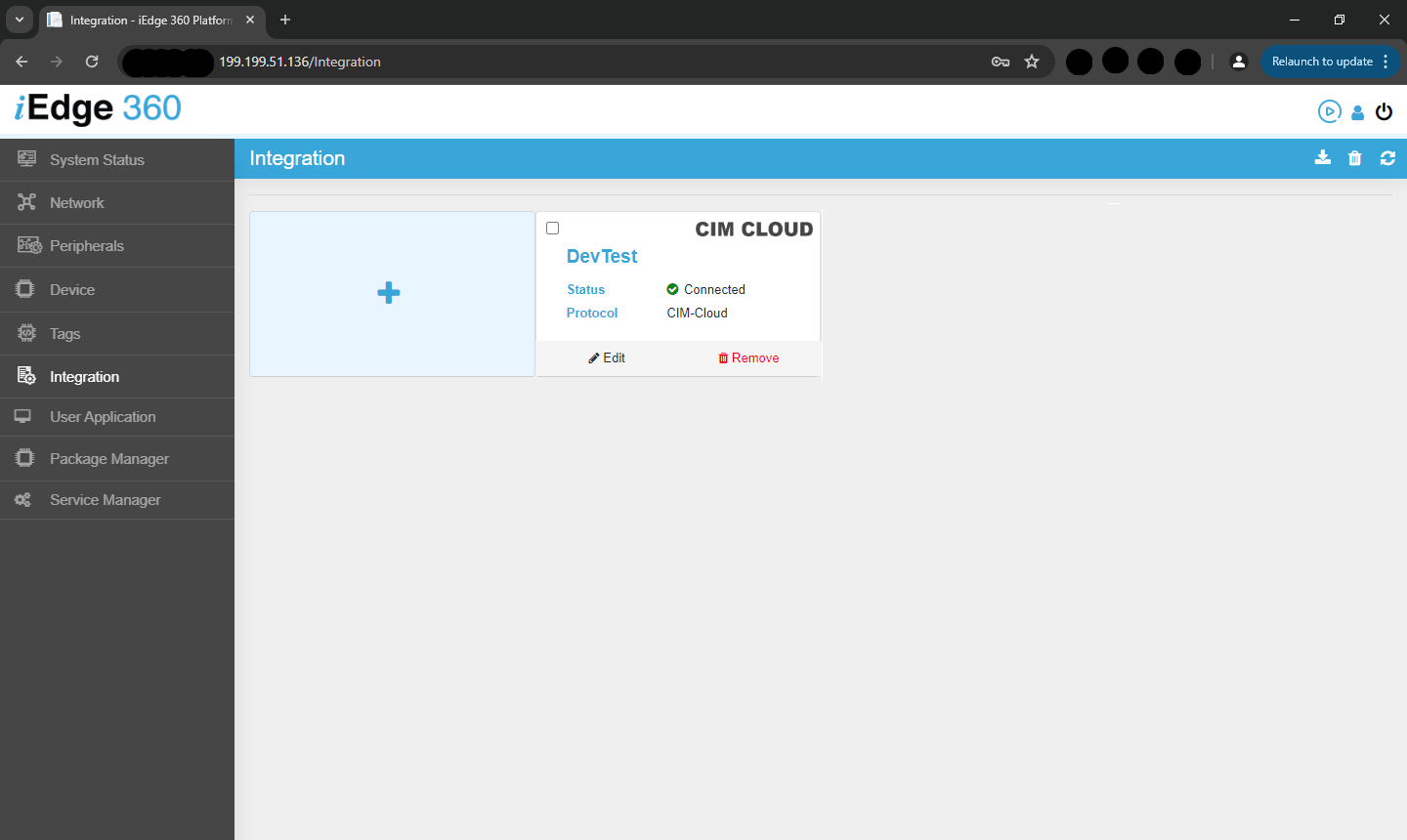
- 点击“+”图标,选择CIM_Cloud作为传输方式。
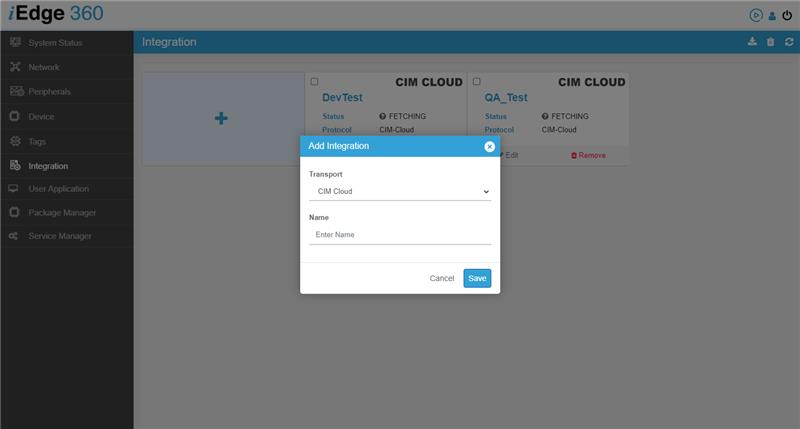
- 输入名称(例如Thingsboard),然后点击保存。
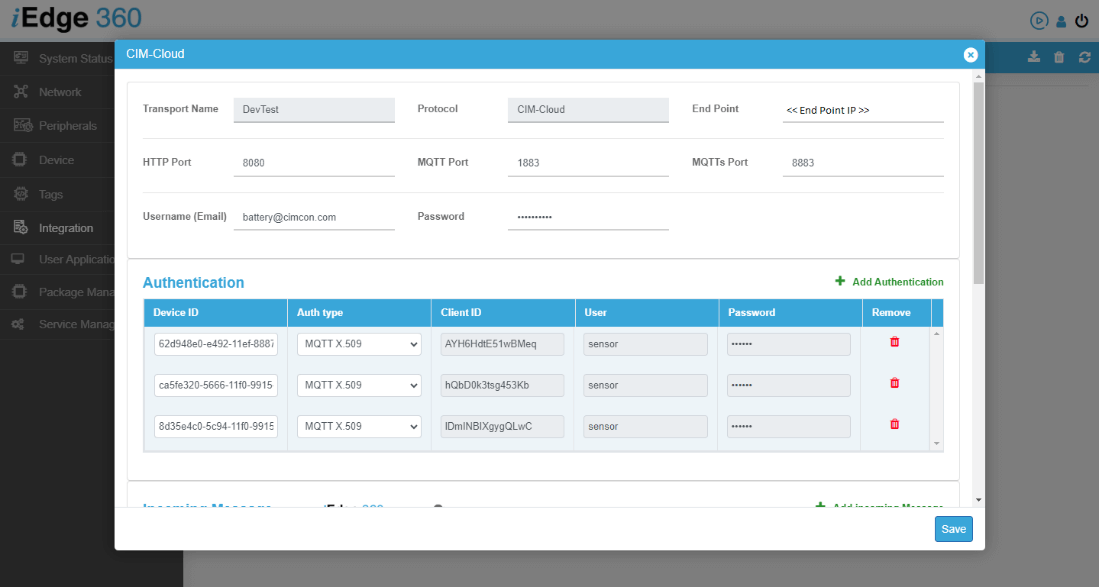
- 在新创建的CIM_Cloud传输中输入:
- MQTT端口(例如1883)
- 端点(例如ThingsBoard IP)
- 认证类型:MQTT Basic或MQTT X.509(根据在ThingsBoard中创建设备时选择的方式)
- 客户端ID(与BLE MAC匹配)
- 用户名: sensor
- 密码: cimcon
- 配置传入和传出消息:
- 传入:主题v1/devices/me/attribute,类型Attribute
- 传出:主题v1/devices/me/telemetry(用于数据)、v1/devices/me/attribute(用于属性)
至此,从BLE网关安全传输传感器数据到ThingsBoard的配置已完成。
在ThingsBoard上查看数据
- 在ThingsBoard中,导航到“设备”部分,选择您的VIBit-BP设备。
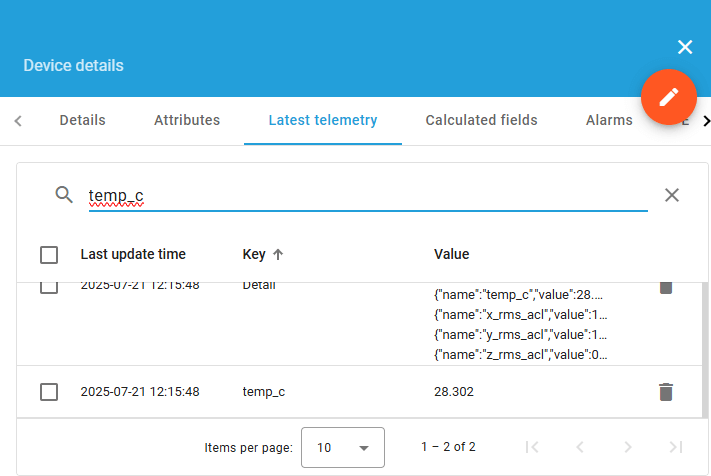
- 打开“最新遥测”选项卡,使用磁铁唤醒VIBit-BP传感器以快速查看,或等待配置的遥测频率以查看实时数据,例如:
- 三轴加速度和速度RMS
- 三轴加速度和速度FFT
- 温度读数

Use the Dashboard to visualize data trends and analyze equipment health over time.
总结
将VIBit-BP通过MQTT认证与ThingsBoard集成,提供了一种无线、电池供电的设备健康监测方案,可实现预测性维护,无需布线或外部供电。无缝的数据传输和可视化能力提升了运营效率和设备可靠性。